(Deprecated) click by OCR (web)
For client version 4.11.0.1068 and later, we recommend using the click control (CV) component.
This method remains functional and does not affect existing automation workflows.
1. Overview
Prerequisite components: open new web page or get opened web page
This component uses Optical Character Recognition (OCR) to click a keyword within the bounds of a specified control on a web page in Chrome, Edge, or Internet Explorer (IE). Use it for elements that cannot be identified using standard control capture methods.
2. Inputs
For details about each input, see the help information in the component pane of the visual editor.
Validating prerequisites
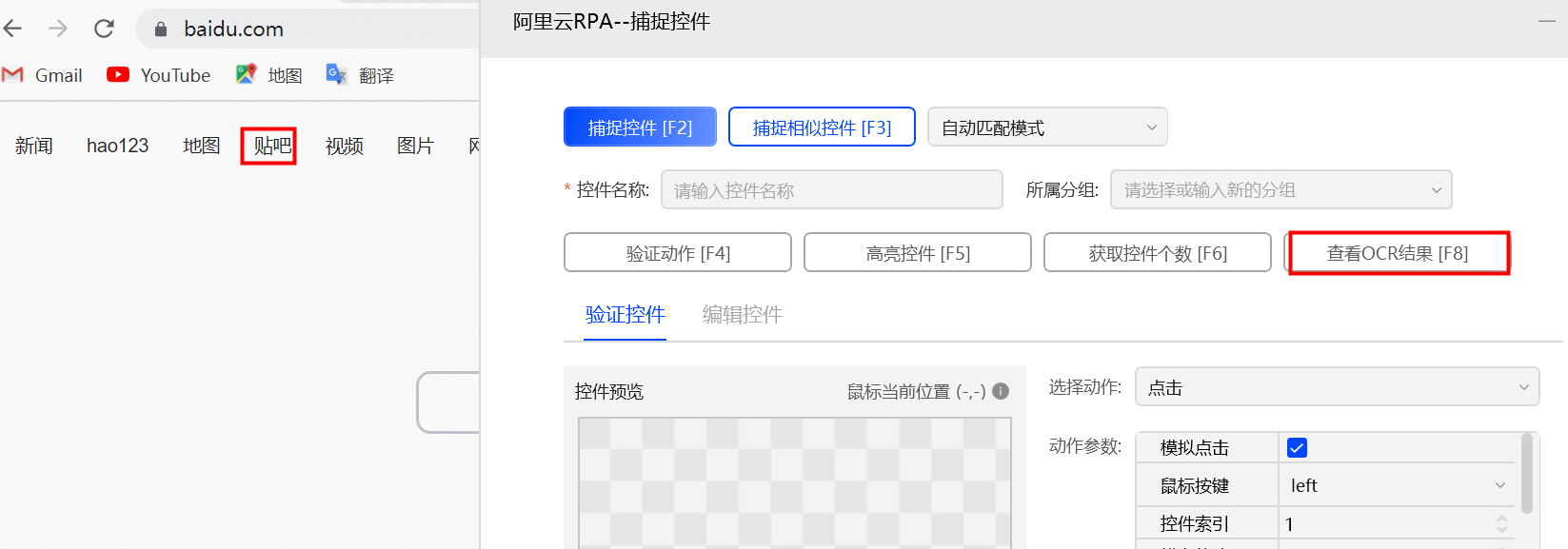
a. In the control capture tool, click the View OCR Result button.
b. From the OCR engine drop-down list, select an engine. Your choice of engine affects character recognition accuracy.
Google engine: An offline, lightweight OCR engine with good English text recognition.
Aliyun engine: A server-based, comprehensive OCR engine that requires authorization. It delivers high accuracy in various scenarios.
Paddle engine: An offline, lightweight OCR engine with good Chinese text recognition.
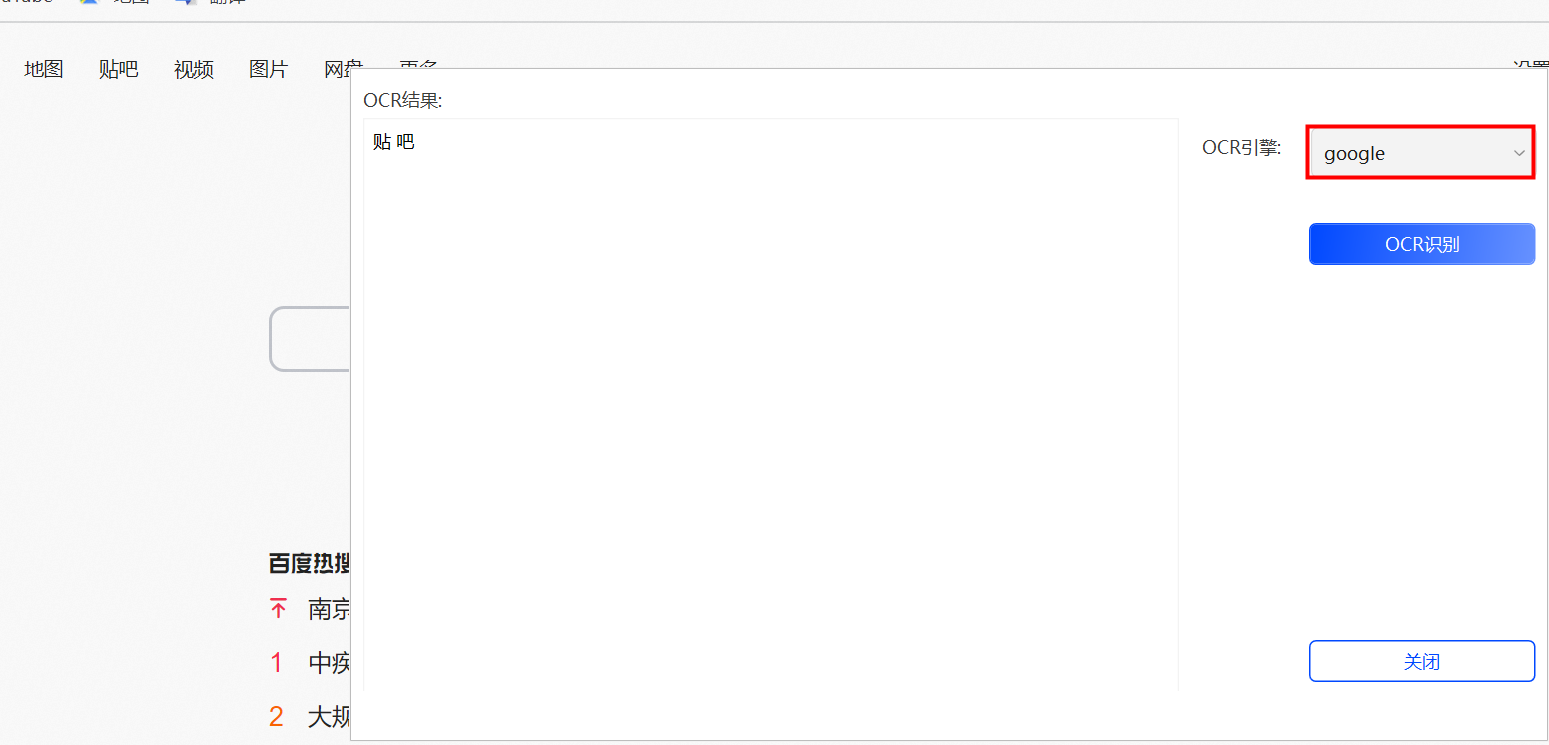
c. Enter the recognition result into the target keyword input field.
3. Outputs
For details about each output, see the help information in the component pane of the visual editor.
4. Usage example
4.1. Configuration example
In the
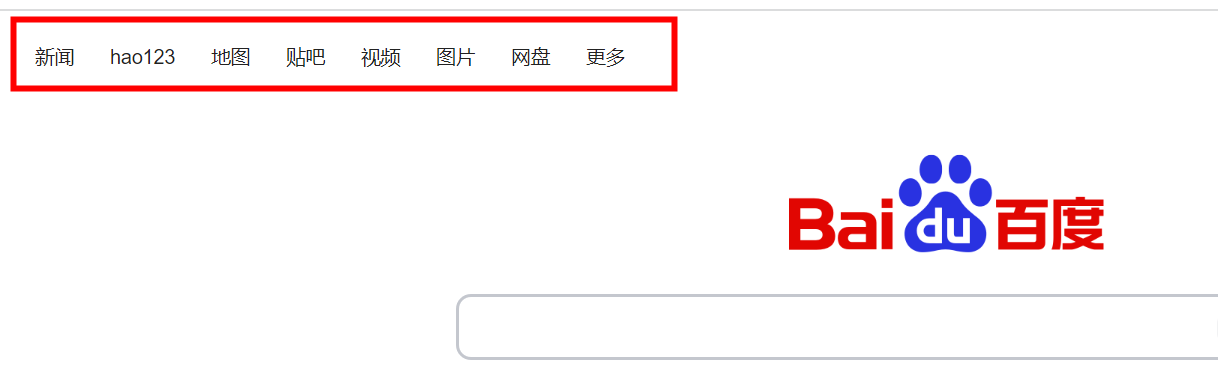
opened browser object, select the output item v_web_obj_1 from the preceding component (open new web page or get opened web page).Use the control capture feature to capture the title bar element in the upper-left corner of the Baidu page and name the control "Control 1".
In the
target control, select "Control 1".In
click type, select "Left-click".In the
OCR engine, select "Paddle".In the
target keywordfield, enter "map".In the
keyword index, select "1".
4.2. Execution result
The component moves the mouse pointer to the "Map" title on the Baidu page in Chrome and clicks it.