(Not Recommended) Input via OCR (Window)
For client versions 4.11.0.1068 and later, we recommend using the Fill in Input Box (CV) component.
This component still works as expected and does not affect existing automation processes.
1. Overview
Prerequisite component: Get Window
This component uses optical character recognition (OCR) to enter text into a text box in a Windows application window.
2. Inputs
Refer to the help text for each input parameter in the component panel of the visual editor.
3. Outputs
Refer to the help text for each output parameter in the component panel of the visual editor.
4. Usage example
4.1. Configuration example
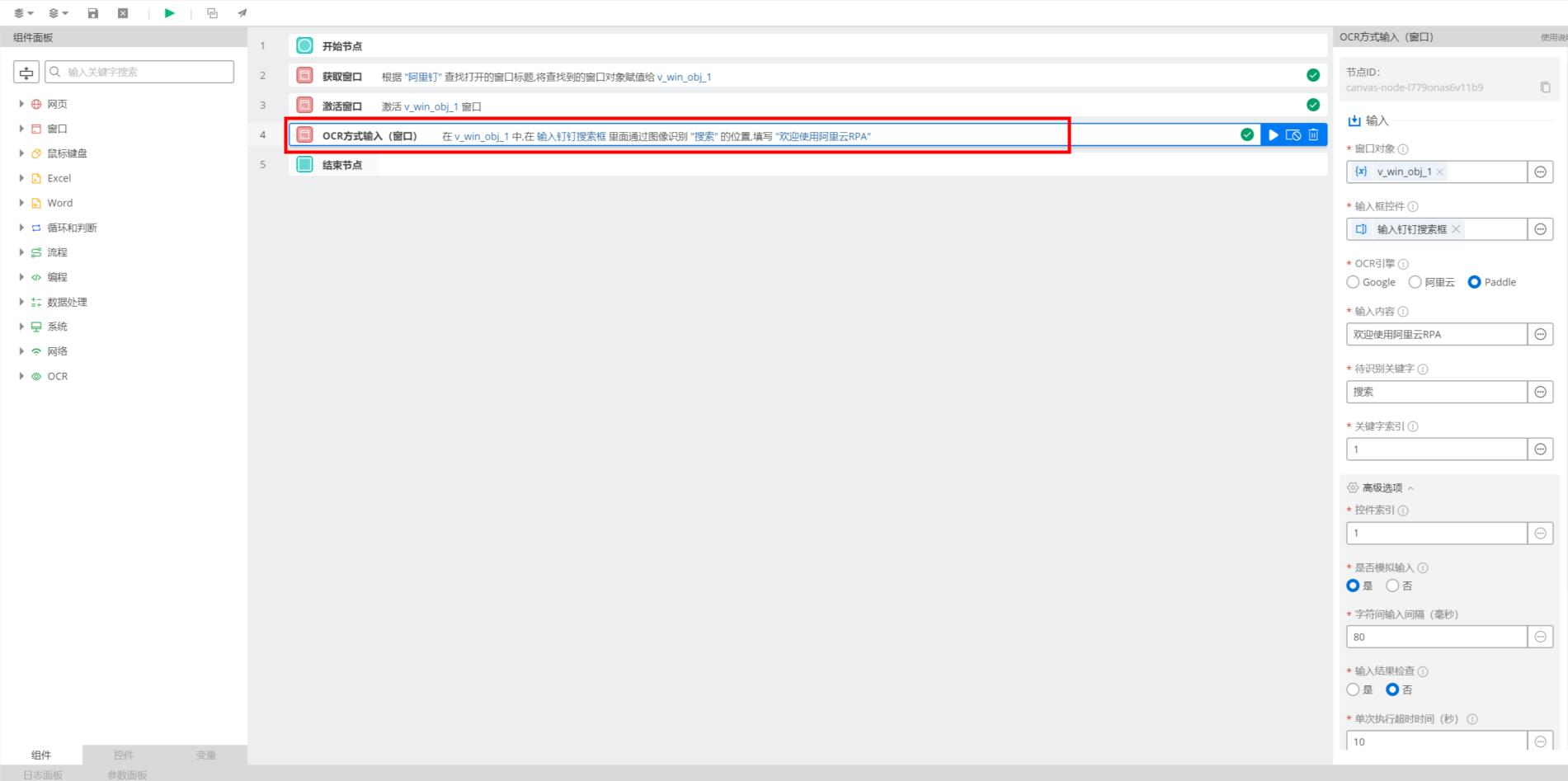
In the
window object, select the output item v_win_obj_1 of the preceding Get Window component.Use the Capture Control feature to capture an input box control that contains placeholder text. Name the control "DingTalk Search Box".

In the
input box control, select "Enter DingTalk search box".In the
OCR engine, select "Paddle".In
Input Content, enter "Welcome to Alibaba Cloud RPA"In
target keyword, enter "search".In the
keyword index, select '1'.In Advanced options, for
Simulate input, select Yes.In Advanced options, for
character input interval (milliseconds), enter 80.
4.2. Execution result
The component automates text entry into the DingTalk search box.
5. Example workflow
Build workflow
Use the Get Window component to obtain the DingTalk window object.
Use the Activate Window component to bring the DingTalk window to the foreground.
Use the (Not Recommended) Input via OCR (Window) component to enter text into the DingTalk search box.
Execution result
As shown below, the workflow enters the specified text into the DingTalk search box.