Bot management
Bot status
A successfully onboarded attended robot has the following statuses:
Status type |
Description |
Connection status |
Important
If an attended robot shows a "Disconnected" status while its cloud computer is "Running", the most likely cause is a network restriction. You can investigate the following possibilities:
Solution: Add the public endpoint addresses of the RPA server to the allowlist. Please contact us to obtain the specific addresses. |
Running status |
Indicates whether the bot is running an RPA application:
|
Authorization status |
Like an editor or a local bot, an attended robot requires a license to operate.
Important
Reasons for an "Unauthorized" status:
Solution: Purchase a bot license. You can purchase a new license and enable auto-renewal to prevent service interruptions due to expiration.
|

Manage bots
You can perform the following operations on an attended robot:
Delete bot
This operation only deletes the bot's information from the RPA server and does not affect the Elastic Desktop Service instance. A deleted attended robot can be re-onboarded. If a bot fails to be onboarded, you can delete it and then try again.
Impact on tasks:
Any task that the bot is currently executing will terminate with an error.
All queued tasks assigned to this specific bot will terminate with an error.
Queued tasks assigned to the bot's group are not affected by the deletion. In an extreme case where no bots are left in the group, these tasks will remain in the queue indefinitely.
Impact on licenses:
It releases the bot license that was in use.
Restart bot
It restarts the attended robot client application, but not the Elastic Desktop Service instance.
Use cases: If a bot encounters an issue, such as an inconsistent status, you can restart the client application to attempt recovery. This avoids rebooting the entire cloud computer, which could disrupt business users in a shared environment.
Impact on tasks:
If the bot is executing a task when it is restarted, the task will terminate with an error.
Dispatch of queued tasks will be temporarily paused. The scheduler resumes dispatching tasks after the bot successfully reconnects.
Restart resource
It reboots the Elastic Desktop Service instance. After the reboot, the attended robot client automatically connects to the RPA server. The bot is ready for use when its status becomes "Connected" and "Authorized".
Impact on tasks:
If the bot is executing a task when the resource is restarted, the task will terminate with an error.
Dispatch of queued tasks will be temporarily paused. The scheduler resumes dispatching tasks after the bot successfully reconnects.
Stop resource
It shuts down the Elastic Desktop Service instance.
Impact on tasks:
Any task that the bot is currently executing will terminate with an error.
Queued tasks are not affected and remain in a waiting state.
Remote access
You can remotely log in to the cloud computer's desktop to view the attended robot's current operating status.
The Windows login uses the convenience account that was selected when the cloud computer was onboarded.
WarningBy default, only one Windows session can be active on an Elastic Desktop Service instance at a time. If multiple convenience accounts are associated with the same cloud computer and you initiate a remote access session while another user's session is active, the system automatically terminates the existing session to start the new one. As a result, you cannot view the previous session's activity.
Therefore, we recommend that you associate only one convenience account with each cloud computer and avoid using Windows multi-session features.
By default, remote access is in read-only mode, which disables mouse and keyboard input and clipboard operations. This minimizes interference with the attended robot's operation during observation. If you need to interact with the desktop, you can enable input by using the switch in the upper-right corner.
NoteClipboard operations are controlled by Elastic Desktop Service policies. To use the clipboard, you must enable the clipboard control settings in the policies. For more information, see Data Security.
ImportantNote on enabling clipboard operations: The local and cloud computer clipboards become interconnected, which can cause automated processes to fail.
Re-authorize
Use re-authorization to switch an attended robot's license type, for example, switching between an "Advanced Edition - Bot license" and a "Professional Edition - Bot license".
For bots with a "Connected" status: Re-authorization does not require a restart of the attended robot client or the Elastic Desktop Service instance. It does not affect currently running or queued tasks.
For bots with a "Disconnected" status: Regardless of the reason for the disconnection (such as network restrictions or a cloud computer shutdown), the cloud computer must be restarted for the new license to take effect.
Push update
It pushes a client application update to a specified attended robot.
After a successful update, only the bot's client application is restarted; the Elastic Desktop Service instance is not rebooted.
Impact on tasks:
Any task that the bot is currently executing will terminate with an error.
Queued tasks are not affected and remain in a waiting state.
Procedure:
Pushing an update requires access to the "System Settings > Update Content Management" and "System Settings > Update Batches" menus. Ensure the account performing this operation has the necessary permissions.
Select the attended bots to update: In "Attended Robot > Robot List", search for and select one or more bots, and then choose Push Update.
Create an update batch by configuring the settings in the Push Update dialog box, such as the target version.
If the desired version is not in the target version drop-down list, you can select Add Update Content.
Click Next. The system checks if the selected attended bots meet the update criteria. Only eligible bots will be included in the update batch.
NoteBots in any of the following situations will not be included in the update batch:
Bots with a version earlier than 4.8.2.668.
Bots with an "Upgrading" status.
Bots with a "Disconnected" status.
If "Force Update" was set to "No" in the previous step, bots with a "Running" status will also be excluded.
ImportantEach tenant (Alibaba Cloud account) supports a maximum of 100 concurrent bot updates. For example, if an existing update batch is running with 75 bots in the "Upgrading" state, a new batch can contain a maximum of 25 bots.
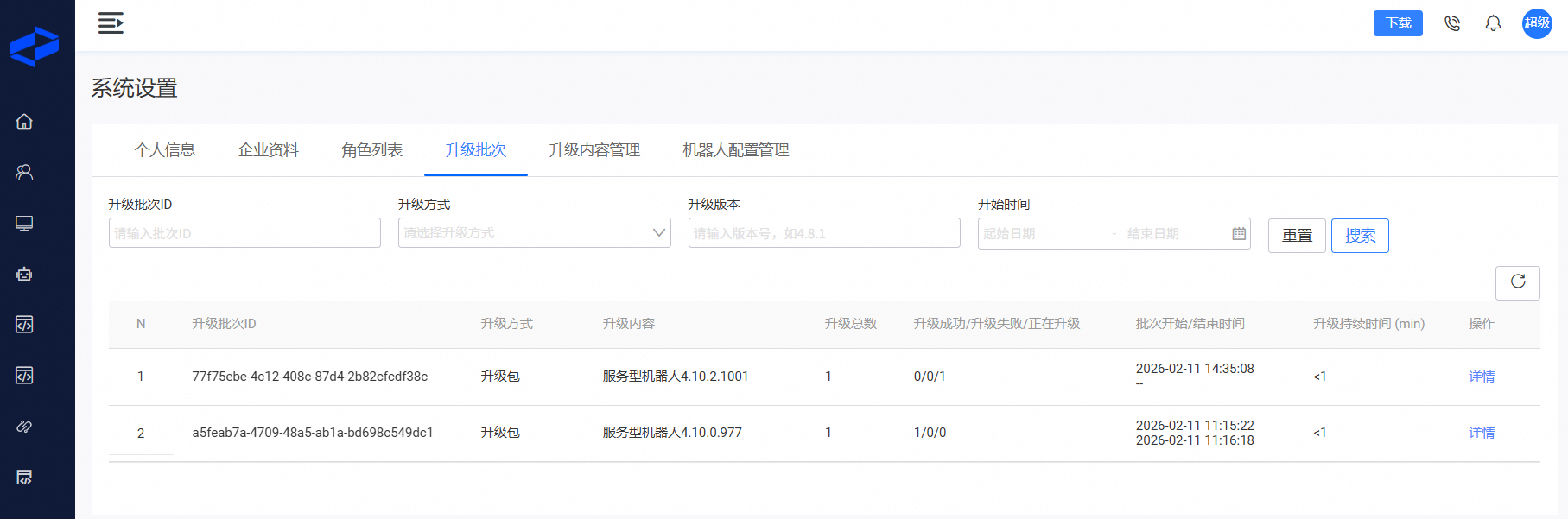
After the update batch is created, the system automatically starts the update process. You can view the execution results as shown in the following figure. You can also check the updated version information in "Attended Robot > Robot List".
Bot groups
Bot groups serve two main purposes:
Organizing and managing bots.
Specifying a group for automatic task assignment when creating tasks, for example, with the CreateTask API.
Relationship between bots and groups:
A bot can belong to only one group at a time.
When a bot is onboarded, it is automatically assigned to the default group.
If you delete a custom group, all bots within that group are automatically moved to the default group.
More configurations
Bot connection configuration
The attended robot client uses this configuration file to connect to the RPA server. The server also uses this file to validate the connection.
When you onboard an attended robot for the first time, the system automatically generates a connection configuration file.
You can generate multiple connection configuration files in the "Attended Robot > Configuration" menu and select which configuration to use during onboarding.
Deleting an in-use configuration will disconnect the associated bots and disrupt their operations.
Cloud resource management configuration
An attended robot needs to access cloud resources in your account, such as Elastic Desktop Service. Access to these resources is managed using a service-linked role.