End-user quick start
Access Alibaba Cloud Workspace cloud services, including Elastic Desktop Service (EDS) and App Streaming, through software clients (desktop, mobile, and web) and hardware terminals.
This topic uses the macOS client V7.13 as an example. If your interface differs, you may be using a different client type or an older version. We recommend that you update your client to the latest version.
Enterprise Edition
On the Enterprise Edition client, you can use Enterprise Edition cloud computers and cloud applications.
Background
Alibaba Cloud Workspace has the following user roles:
-
End user: Uses Alibaba Cloud Workspace services through a terminal, such as a designer at a design company.
-
Administrator: Manages resource purchasing and renewal, creation, assignment, policies, O&M, monitoring, and end users. Example: the IT administrator at a company.
Prerequisites
Complete the following tasks based on your role:
-
If you are an end user: Locate the notification email or text messages from your administrator with your sign-in credentials: organization ID, office network ID, username, and password.
-
If you are an administrator, purchase and assign cloud resources:
-
Elastic Desktop Service (EDS)
-
App Streaming
-
Obtain a terminal
Download the free software client from the Download Alibaba Cloud Workspace Client page.
For an enhanced experience, you can also purchase an Alibaba Cloud Workspace hardware terminal from the Alibaba Cloud Workspace Hardware Terminal product page.
-
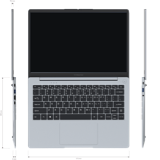
Ark
High performance · Slim and portable
Buy Now -
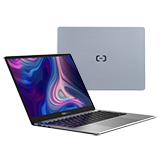
Ark Pro
Long battery life · HD display
Buy Now -
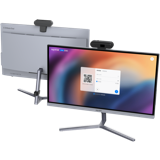
All-in-One 21.5"
Integrated design · Full-featured ports
Buy Now -
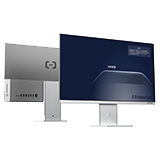
All-in-One 23.8"
High screen-to-body ratio · Ultra-narrow bezels
Buy Now -
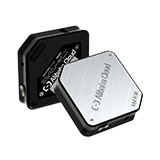
Cube
Compact form factor · Kensington lock slot
Buy Now -

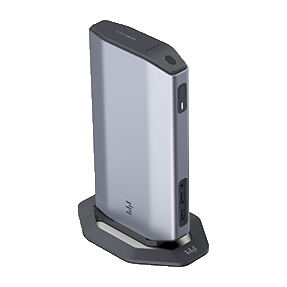
Cube Pro
Enhanced security · Comprehensive ports
Buy Now -
Cube Ultra
Multi-device connectivity · NFC tap-to-login
Buy Now
Sign in to a terminal
All Alibaba Cloud Workspace clients and hardware terminals provide a consistent user experience. These steps use the macOS client as an example to show how to sign in.
-
Open the client and select Enterprise Edition & Commercial Edition at the top. At the bottom, accept the privacy policy, enter your organization ID or office network ID, and click the icon.
-
On the Account Sign-in tab, enter your username and password, and then click the icon.
NoteOn first sign-in, you must create a new password. The initial password expires after three days. Click Forgot Password to reset an expired password.
After sign-in, the client displays your assigned cloud resources, such as cloud computers and cloud applications.
-
On the cloud resource list, click the connect icon on a resource card to begin your session.
Next steps
After signing in, view, use, and manage your assigned cloud resources.
Learn more about your resources: