Dashboard
This topic describes the chart styles and configuration panel features of the Gauge widget.
When you add a BI analysis widget in the canvas editor, an analyzer is automatically created for the widget in the Layers panel. You must create a dataset in advance before you can select and configure the BI analysis widget. For more information about creating datasets and using analyzers, see Add a dataset and BI analyzer interaction guide.
Chart style
A gauge is a skeuomorphic chart. The scale represents the measure, the pointer represents the dimension, and the pointer angle represents the value. A gauge chart is similar to a car's speedometer. It has a circular dial with a scale and a pointer that indicates the current value. This provides an intuitive view of a metric's progress or status.
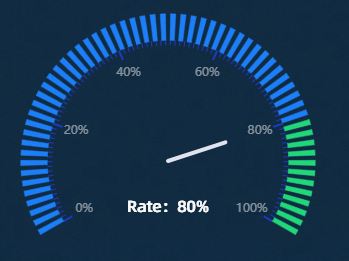
Configuration panel
- Search for Configurations: In the right-side panel of Canvas Editor, click the Settings tab, and click Search for Configurations in the upper-right corner. Enter the required configuration item in the search box, and click the search icon to quickly locate the configuration item. Fuzzy match is supported. For more information, see Search for Configurations.
- Size: indicates the size of a widget, including its pixel width and height. You can click the
 icon to proportionally adjust the width and height of a widget. After you click this icon again, you can adjust the width and height as needed.
 - Position: the position of a widget, which is indicated by pixel X and Y coordinates. X-coordinate indicates the pixel distance between the upper-left corner of the widget and the left border of the canvas. Y-coordinate indicates the pixel distance between the upper-left corner of the widget and the upper border of the canvas.
- Rotation Angle: the angle of a rotation that uses the center point of a widget as the rotation point. The unit is degrees (°). You can use one of the following methods to control the rotation angle of a widget:
- Directly enter the degrees in the Rotation Angle spin box or click the plus sign (+) or minus sign (-) to increase or decrease the value in the Rotation Angle spin box.
- Drag the black dot in the
 icon.
icon. - Click the
 icon to horizontally flip a widget.
 - Click the
 icon to vertically flip a widget.
- Opacity: the opacity of a widget. Valid values: 0 and 1. If this parameter is set to 0, the widget is hidden. If this parameter is set to 1, the widget is completely displayed. Default value: 1.
Graphic
Parameter
Description
Chart Margin
Click the
 icon to show or hide the chart margin. When enabled, configure the distance between the gauge area and the top, bottom, left, and right borders of the widget. The default unit is px.
Display Mode
The display style of the gauge. Options: Ring and Meter.
Meter Parameters
Configure the parameters for the meter style. This includes the number of meters and the spacing between them. This parameter is available only when Display Mode is set to Meter.
Background Color
The background color of the gauge. The features of the meter style are not visible if the background color is transparent. This parameter is available only when Display Mode is set to Meter.
Ring Radius
The inner and outer radius of the ring in the gauge meter style. The larger the value, the larger the radius. The unit is percent (%).
Gauge Color
The color style of the gauge. Options: Two-color or Multi-color.
Two-color Gauge: Configure the two colors for the gauge. This parameter is available only when Gauge Color is set to Two-color.
Multi-color Gauge: Click the
or icon on the right to add or delete a color style series. Click the or icon to arrange the color style series. Click the icon to copy the current color style series and add a new one with the same configuration. This parameter is available only when Gauge Color is set to Multi-color.Proportion: The proportion of the current color series in the gauge. The unit is percent (%).
Color: The color of the current series.
Multi-color Gauge
Click the
or icon on the right to add or delete a gauge color. Click the or icon to arrange the gauge colors. Click the icon to copy the selected gauge color and add a new one with the same color. Proportion: The proportion of the gauge color relative to the total gauge. The unit is percent (%).
Color: Set the fill style for the gauge. For more information, see Color picker guide to configure the color style of the gauge.
Ring Outline
The outline style for the gauge ring. This includes the line type, thickness, and color.
NoteIf you set the line type to Dashed or Dotted, you can also configure the length of the dashes and the distance between them.
Central Commands
The style of the center pointer section of the gauge. Click the
icon to show or hide the center pointer style.Pointer Line Type: The line type, thickness, and color of the center pointer.
NoteIf you set the line type to Dashed or Dotted, you can also configure the length of the dashes and the distance between them.
Center Point Style: The style of the center point of the pointer. This includes the size and color.
Center Point Outline: The outline style for the center point. This includes the line type, thickness, and color.
NoteIf you set the line type to Dashed or Dotted, you can also configure the length of the dashes and the distance between them.
Center Text
The text style in the center pointer section of the gauge. Click the
icon to show or hide the center text style.Display Content: The text content to display in the center of the gauge.
Relative Offset: The vertical and horizontal offset of the center text relative to the gauge. The unit is px.
Text Style: The style of the center text. This includes the font, weight, size, and color.
Text Outline: The outline style for the center text. This includes the outline width and color.
Axis: Configures the style of the angle axis.
Show Angle Axis: Shows or hides the angle axis.
Angle Range: The start and end angles of the axis range, in degrees (°). Click the
icon to show or hide the angle range style settings.Tick Lines: Configures the style of the angle axis tick lines, including their length, thickness, and color. Click the
icon to show or hide the style settings. Minor Tick Lines: Configures the style of the angle axis minor tick lines, including the total number, length, thickness, and color. Click the
icon to show or hide the style settings.Axis Label: Configures the style of the angle axis labels. Click the
icon to show or hide the angle axis labels. Parameter
Description
Display Format
The display format for the angle axis label values. Options: Default, 11 (Integer), 11.1 (Floating-point), 11.11 (Floating-point), 11% (Percentage), 11.1% (Percentage), 1,111 (Thousands separator), and 1,111.1 (Thousands separator). For more information about data display formats, see Data display format guide.
Label Display
The display style of the labels. This includes the prefix and suffix content, angle, and offset of the angle axis labels.
Text Style
The font, weight, size, and color of the angle axis label text.
Condition: Configures conditional styles.
Conditional Style: Click the
or icon on the right to add or delete a conditional style. Click the or icon to arrange the conditional styles. Click the icon to copy the selected data series configuration and create a new conditional style with the same settings. For more information about the configurations, see Conditional tree guide.Prefix and Suffix: Configures the prefix and suffix for the content that is displayed in the center of the gauge when the current series condition is met.
Show Value: Shows or hides the value in the gauge. Click the
icon to toggle the visibility. Text Style: Turn on this switch to configure the text style for the gauge when this conditional style is applied. The style includes the font type, weight, size, and color. If you turn off this switch, you cannot configure the text style for this conditional style.
 icon to show or hide the chart margin. When enabled, configure the distance between the gauge area and the top, bottom, left, and right borders of the widget. The default unit is px.
 or
or  icon on the right to add or delete a color style series. Click the
  or
or  icon to arrange the color style series. Click the
  icon to copy the current color style series and add a new one with the same configuration. This parameter is available only when Gauge Color is set to Multi-color.
Data panel (default mode)
Field configuration
Field |
Description |
|
The minimum value of the gauge scale. |
|
The maximum value of the gauge scale. |
|
The content of the center text of the gauge. |
|
The metric value of the gauge. |
|
The percentage value of the metric proportion in the gauge. The configured data must be a value between 0 and 100. |
Table 1. Parameters
| Parameter | Description |
| Controlled Mode | If you turn on the switch, data is not requested when a widget is initialized. Data requests are triggered only based on callback IDs or the method configured in Blueprint Editor. If you turn off the switch, data requests are automatically triggered. By default, the switch is turned off. |
| Auto Data Request | After you select the Auto Data Request check box, you can enable dynamic polling, and manually specify the polling interval. If you do not select this check box, data is not automatically requested. You must manually refresh the page to request data or use Blueprint Editor or callback ID events to trigger data requests. |
| Data Source | In the right-side panel of Canvas Editor, click the Data tab. Click Set next to Static Data. In the Configure Datasource panel, select a data source from the Data Source Type drop-down list. Enter code for data query in the code editor, click Preview Data Response to preview the response of the data source, and then view the response. For more information, see Configure asset data. |
| Data Filter | If you select the Data Filter check box, you can convert the data structure, filter data, and perform simple calculations. If you click the plus sign (+) next to Add Filter, you can configure the script for the data filter in the editor that appears. For more information, see Use the data filter. |
| Data Response Result | The response to a data request. If the data source changes, you can click the  icon next to Data Response Result to view the data response in real time. icon next to Data Response Result to view the data response in real time. |
Data panel (analysis mode)
Before you use the BI analysis feature provided by DataV datasets, the system applies the following changes to the gauge:
The Gauge API data source is switched from static data to a DataV dataset.
The DataV dataset configuration is updated. This operation does not cause any loss of field configurations.
For detailed instructions on the data configuration panel in BI analysis mode, see Introduction to the data panel in BI analysis mode.
Configuration field descriptions
Field |
Description |
|
The percentage value of the metric proportion in the gauge. The configured data must be a value between 0 and 100. |
|
Optional. The minimum value of the gauge scale. |
|
Optional. The maximum value of the gauge scale. |
|
Optional. The content of the center text of the gauge. |
|
Optional. The metric value of the gauge. |
For widgets added using the BI analysis module, the data panel is in analysis mode by default. For v5.x widgets not added using the BI analysis module, the data panel is in default mode by default. To switch from analysis mode, click Default Mode in the upper-left corner of the data panel. In the dialog box that appears, confirm that you want to exit analysis mode and delete the corresponding analyzer. After you exit analysis mode, the BI analysis widget is converted to a v5.x widget, and its data panel switches to default mode.
Interaction panel
This widget has no interaction events.
Blueprint editor interaction configuration
The Gauge widget does not support blueprint editor interactions in BI analysis mode. You can configure blueprints only when the widget is in default mode.
- In Canvas Editor, right-click a widget in the Layer panel and select Add to Blueprint Editor.
- Click the icon in the upper-left corner of the page.
On the blueprint editor configuration page, click the Gauge widget in the Import Nodes panel. The configuration parameters for the Gauge widget are displayed on the canvas, as shown in the following figure.
Events
Event
Description
On Dashboard API Request Completion
This event is triggered after a response to the data API request is returned and processed by a filter. The processed data is returned in JSON format. For a data example, see the Data Response area on the Data tab of the widget's configuration panel in the canvas editor.
When the gauge API request fails
This event is triggered when a data API request fails, for example, due to a network issue or an API error, and the response is processed by a filter. The processed data is returned in JSON format. For a data example, see the Data Response area on the Data tab of the widget's configuration panel in the canvas editor.
Actions
Action
Description
Request Gauge API
Resends a request for server-side data. Data from input data processing nodes or layer nodes is used as parameters. For example, if the Gauge widget is configured with an API data source of
https://api.testand the data passed to the Request Gauge API action is{ id: '1'}, the final request URL ishttps://api.test?id=1.Import Gauge API
Process the data into the format required by the component, and then import it to redraw the component. You do not need to request server-side data again. For a data example, see the Data Response area on the Data tab of the component's configuration panel in the canvas editor.
Update Widget Configuration
Dynamically updates the style configuration of the widget. First, go to the Configuration panel of the widget and click Copy Configuration to Clipboard to get the widget configuration data. Then, change the field values for the corresponding styles in the data processing node on the blueprint editor configuration page as needed.
Show
Shows the widget. The following code provides a data example.
return{
  "animationType": "",
  "animationDuration": 1000,
  "animationEasing": "linear"
}
Hide
Hides the widget. The following code provides a data example.
return{
  "animationType": "",
  "animationDuration": 1000,
  "animationEasing": "linear"
}
Toggle Visibility
Toggles the visibility of the widget. The following code provides a data example.
return {
  "animationIn": {
    "animationType": "",
    "animationDuration": 1000,
    "animationEasing": "linear"
  },
  "animationOut": {
    "animationType": "",
    "animationDuration": 1000,
    "animationEasing": "linear"
  }
}
Move
Moves the widget to a specified position. The following code provides a data example.
    return{
      // The moving mode. Absolute positioning: to. Relative positioning: by. Default value: to.
        "positionType": "to",
      // The specified position. x-coordinate, y-coordinate.
      "attr": {
        "x": 0,
        "y": 0
      },
      // The animation mode.
      "animation": {
        "enable": false,
        // The animation delay.
        "animationDuration": 1000,
        // The animation curve. Optional values: linear|easeInOutQuad|easeInOutExpo.
        "animationEasing": "linear"
      }
    }
 icon in the upper-left corner of the page.