H5 offline packages allow your application to load HTML5 resources locally, reducing page load time and enabling offline access. You can publish, preset, start, and update offline packages as needed.
H5 offline packages involve four main steps:
This tutorial walks you through publishing, presetting, starting, and updating a package to demonstrate the full H5 offline package workflow.
This flow is not mandatory. In production, you can use these features independently as needed.
Publish offline package
Publish an offline package to make it available for download by client applications.
Prerequisites
You must have a ZIP package of your frontend application. If you do not have one, you can download our sample offline package.
Procedure
-
Configure the offline package for your application in the console. For more information, see Configure offline package.
-
Generate offline package for your frontend application, or use our sample offline package. For more information, see Generate offline package.
-
Create and upload the offline package in the console. For more information, see Create offline package.
-
Publish the configured offline package to your client application. For more information, see Publish offline package.
Preset offline package
Preset an offline package by bundling it into the application so it is available on first launch without a network download.
Prerequisites
You must have published an offline package in the mPaaS console.
Procedure
-
Download the offline package AMR file and the configuration file from the console.
-
Place the downloaded AMR file and configuration file in the
assetsfolder of your project.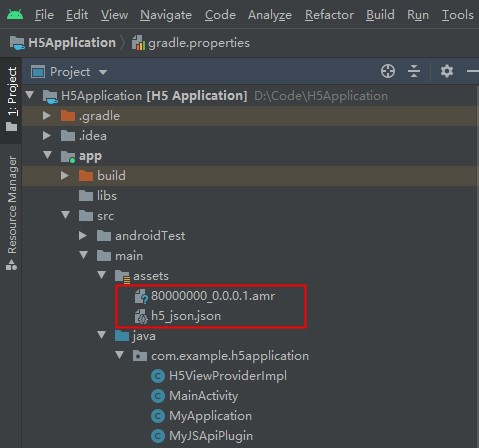
-
Preset the offline package in the application. We recommend registering the package when the application starts. In this tutorial, registration is performed in the
MyApplicationclass.public class MyApplication extends Application { @Override public void onCreate() { super.onCreate(); MP.init(this, MPInitParam.obtain().setCallback(new MPInitParam.MPCallback() { @Override public void onInit() { registerCustomJsapi(); loadOfflineNebula(); } }) ); } private void loadOfflineNebula() { new Thread(new Runnable() { @Override public void run() { // This is a blocking call. Do not invoke the built-in offline package method on the main thread. If you have multiple built-in AMR packages, ensure the files exist. Otherwise, other built-in offline packages may fail to load. // This method can only be called once. Subsequent calls are ignored. MPNebula.loadOfflineNebula("h5_json.json", new MPNebulaOfflineInfo("80000000_1.0.0.0.amr", "80000000", "1.0.0.0")); } }).start(); } }
Start offline package
Start an offline package to load the bundled HTML5 pages in your application.
Prerequisites
You must have preset an offline package in the client.
Procedure
-
In the `activity_main.xml` file, add a button. Set the button's
idtostart_app_btn.<Button android:id="@+id/start_app_btn" android:layout_width="match_parent" android:layout_height="wrap_content" android:layout_marginTop="20dp" android:background="#108EE9" android:gravity="center" android:text="Start Offline Package" android:textColor="#ffffff" app:layout_constraintEnd_toEndOf="parent" app:layout_constraintHorizontal_bias="0.0" app:layout_constraintStart_toStartOf="parent" app:layout_constraintTop_toBottomOf="@+id/custom_title_btn_after" /> -
In the
MainActivityclass, define the click behavior for thestart_app_btnbutton to start the offline package. The parameter "80000000" is the app ID of the offline package.findViewById(R.id.start_app_btn).setOnClickListener(new View.OnClickListener() { @Override public void onClick(View v) { MPNebula.startApp("80000000"); } }); -
Compile the project and install the application on your phone. After you open the application, the following interface is displayed.
-
Click the Start Offline Package button to open the preset webpage in the offline package.
Update offline package
Update an offline package to deliver new content to client applications that already have a preset version.
Prerequisites
You must have preset an offline package in your client application. You must also have created and uploaded a new version of the offline package in the mPaaS console.
Procedure
-
In the `activity_main.xml` file, add a button. Set the button's
idtoupdate_app_btn.<Button android:id="@+id/update_app_btn" android:layout_width="match_parent" android:layout_height="wrap_content" android:layout_marginTop="20dp" android:background="#108EE9" android:gravity="center" android:text="Update Offline Package" android:textColor="#ffffff" app:layout_constraintEnd_toEndOf="parent" app:layout_constraintHorizontal_bias="1.0" app:layout_constraintStart_toStartOf="parent" app:layout_constraintTop_toBottomOf="@+id/start_app_btn" /> -
In the
MainActivityclass, define the click behavior for theupdate_app_btnbutton to update the offline package.findViewById(R.id.update_app_btn).setOnClickListener(new View.OnClickListener() { @Override public void onClick(View v) { MPNebula.updateAllApp(new MpaasNebulaUpdateCallback() { @Override public void onResult(final boolean success, final boolean isLimit, String detailCode) { // success indicates whether the operation is successful runOnUiThread(new Runnable() { @Override public void run() { Toast.makeText(MainActivity.this, success ? "Offline package updated successfully" : "Failed to update offline package", Toast.LENGTH_SHORT).show(); } }); } }); } }); -
Compile the project and install the application on your phone. After you open the application, the following interface is displayed.
-
Click the Update Offline Package button to update the offline package. After the success message is displayed, click the Start Offline Package button to view the updated page.
Code sample
Click here to download the code sample for this tutorial.