View proactive logs
After you integrate the SDK, you can view device information and log details on the Proactive Reporting page in the Remote Log Access console.
Prerequisites
Android
You have integrated Remote Log Access as described in the Android SDK integration document.
iOS
You have integrated Remote Log Access as described in the iOS SDK integration document.
Procedure
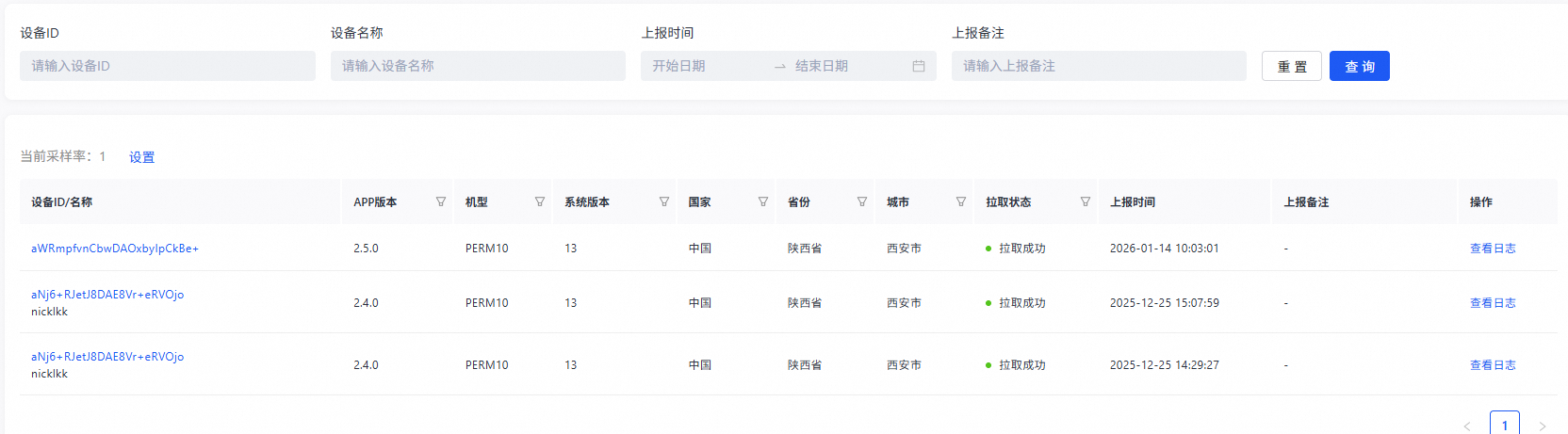
In the navigation pane on the left, choose Remote Log Access > Proactive Reporting to view information about integrated devices.
 Note
NoteReporting note: This is the custom note that you provide when you trigger proactive log reporting. You can use this note to find logs in the console.
Set Device ID/Name and Reporting Time to filter devices.
In the Actions column for the target device, click View Log to open the log details page for that device.
On the device log details page, you can view the time trend of the log volume and examine the log content.
Set Time Range, Log Level, or Keyword to filter the log content. You can also click Download Log to download the logs for local viewing.
By default, logs from the previous day at all log levels are displayed. For more information about log levels, see Terms.
View the log volume in the Log Statistics chart.
Hover over the time trend graph to view data for a specific point.
Option
Description
Log volume
Shows how log volume changes over time.
Log content
Displays device logs in chronological order.