Solution for monitoring anomalous account activity
Overview
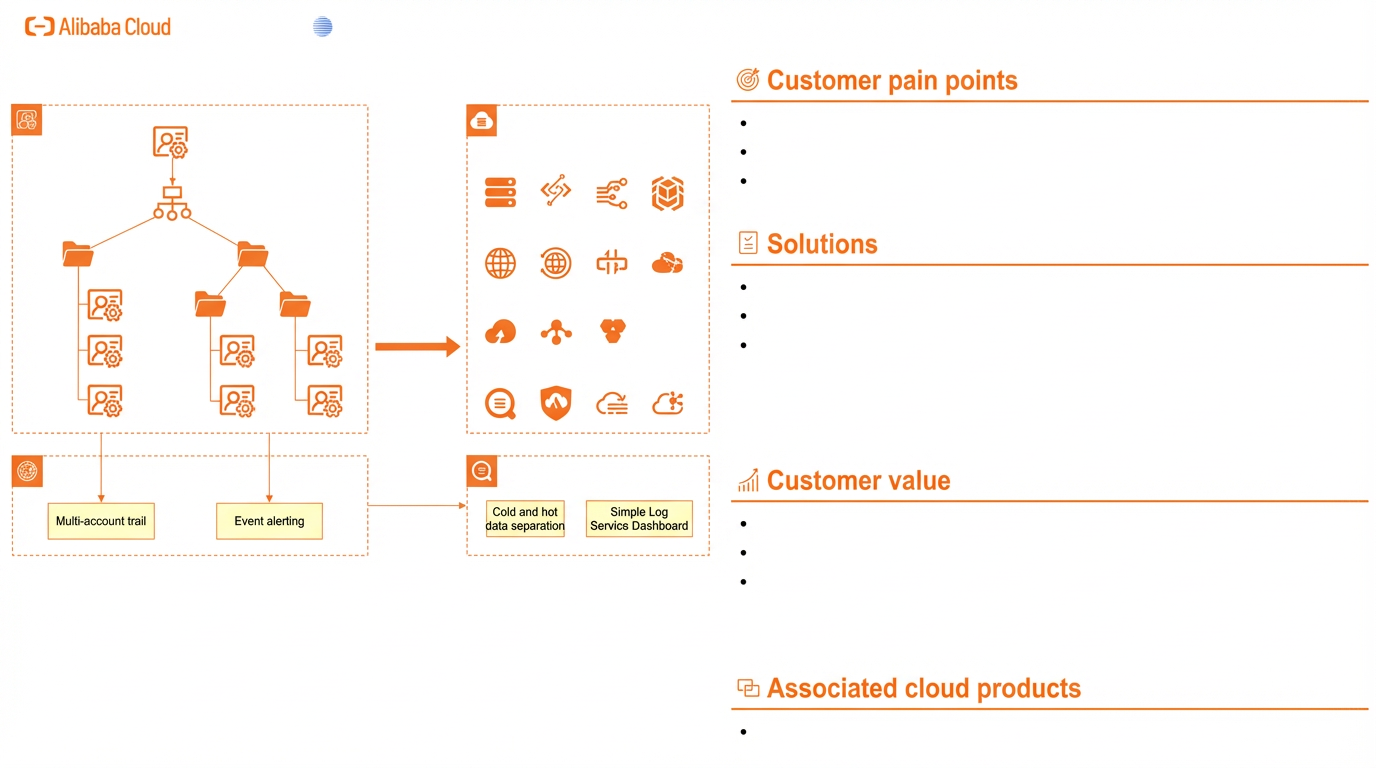
In a multi-account architecture, a common requirement is to continuously monitor accounts for anomalous activity and trigger alerts. Examples include alerts for root user logons or important operations such as deleting resources. This helps reduce the risks associated with using multiple accounts. This solution shows how to use ActionTrail to centralize audit logs from multiple accounts and set up alerts for anomalous account activity.
Solution advantages
Reduces multi-account management risks for your enterprise
This solution enables your enterprise to continuously monitor anomalous activity across multiple accounts, such as root user logons and important operations. It also provides alerts for these activities. This helps reduce the risks associated with multi-account management.
Customer scenario
Alerting on anomalous activity in all member accounts
Scenario description
In a multi-account architecture, customers define a set of internal risk and compliance standards. For example, a standard might require all member accounts to use Resource Access Management (RAM) users for resource management. A logon by a root user is considered an anomalous event. Customers want to detect these anomalous events in real time and trigger alerts.
Applicable customers
Enterprise customers who use Resource Management to manage multiple cloud accounts.
You can enable real-time detection and alerting for abnormal operation events in your account.
Customer use case
Customer background
Company X is an international new retail company. Its operations in China extensively use Alibaba Cloud services.
Customer needs
The company has dozens of Alibaba Cloud accounts and a set of internal management standards. They need real-time detection and alerting for specific anomalous activities in their cloud accounts. A typical example is their policy that all member accounts must be managed using RAM users. A logon by a root user is considered an anomalous event.
Customer benefits
Meets the cloud account operation standards set by the global compliance team for its business in China.
Administrators can detect anomalous activity in each member account in real time. This allows them to promptly identify and mitigate threats.
Solution architecture
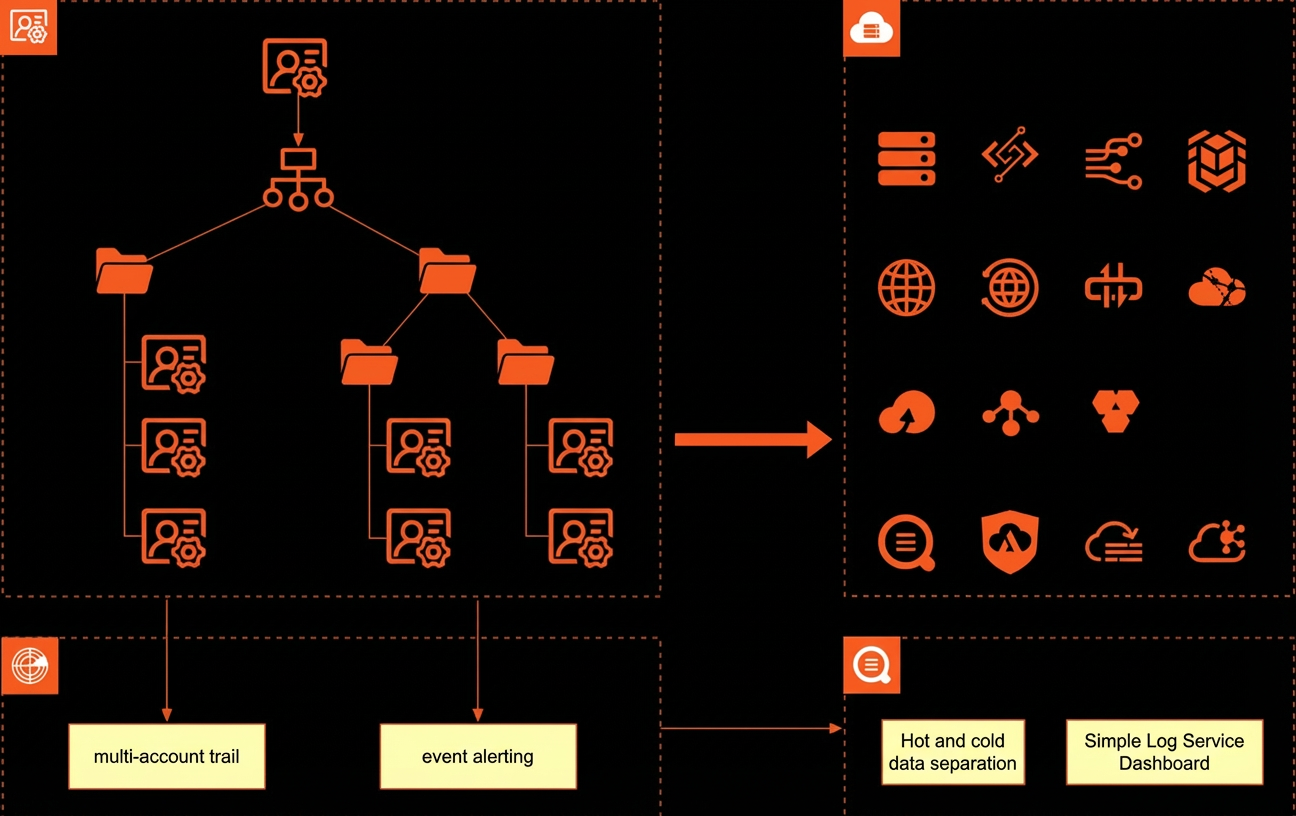
Architecture description:
Use Resource Management to establish a multi-account architecture for your enterprise. For enterprises that have a dedicated audit role, you can set a delegated administrator in Resource Management and use a log archive account for this purpose.
Create a multi-account trail in ActionTrail to centralize management events from all member accounts and deliver them to Simple Log Service in the log archive account.
Configure event alerting rules in ActionTrail to continuously monitor for and alert on anomalous account activity.
Product pricing and terminology
Products and costs
Product Name |
Description |
Cost |
Resource Directory |
Resource Management (RD) is an Alibaba Cloud service that provides multi-level account and resource relationship management for enterprise customers. |
Free |
ActionTrail |
ActionTrail is an Alibaba Cloud service that lets you query and deliver records of operations on your cloud resources. You can use it for security analytics, resource change tracking, and compliance auditing. |
ActionTrail is currently free of charge. However, because logs are delivered to Simple Log Service (SLS), you are billed separately based on SLS pricing. |
Simple Log Service |
Simple Log Service (SLS) is a cloud-native observability platform. It provides a large-scale, low-cost, and real-time platform for log, metric, and trace data. |
This is a billed service. For pricing details, see the pricing documentation. |
Security
Secure event delivery to Simple Log Service
You can use a KMS-managed key or a service key from Simple Log Service for encryption. When you create a trail to deliver events to SLS, ActionTrail automatically creates a Logstore named actiontrail_<trail_name>. You can encrypt events by configuring encryption for the Logstore. You can use either a Key Management Service (KMS) managed key or a service key from Simple Log Service.
Strictly control access to events
When you create a trail to deliver events to Object Storage Service (OSS) or SLS, you must grant your Alibaba Cloud account or RAM user the required permissions to access OSS or SLS to ensure successful event delivery. For daily use, grant event read permissions only to relevant personnel.
Configure permissions based on the principle of least privilege. This prevents improper authorization that could lead to service instances being deleted or tampered with. It also prevents unnecessary access to events.
Strictly control the management permissions of audit administrators
Users with the AliyunActionTrailFullAccess permission, which is the administrator permission for ActionTrail, can modify and delete trails. Changes to a trail affect event delivery. This can impact your ability to track and audit events.
Grant this permission to as few users as possible.
Notes
Account for configuring alerts
After you create a trail, you must use the same account that created the trail to enable event alerting.
If the log archive account is the same as the account that created the trail, log on to that account to configure alerting.
If the log archive account is different from the account that created the trail, log on to the log archive account to configure alerting.
Automatic storage tiering
Simple Log Service provides a cold storage feature to reduce long-term storage costs. This feature does not affect capabilities such as log query, analysis, visualization, alerting, delivery, or processing. Cold data is billed based on the amount of cold storage space used. There is no charge for converting data between hot and cold tiers. For more information, see the product documentation.
Implementation steps
Scenario planning
This topic describes how to use the event alerting feature to automatically send alert notifications when the root user of a management account or a member account in a resource directory logs on to the console.
Preparations
Make sure that you have enabled Resource Management. For more information, see Enable a resource directory.
Make sure that you have created a multi-account trail in ActionTrail and delivered events from all regions to SLS. For more information, see Create a multi-account trail.
Implementation time
After you complete the preparations, the implementation of this solution takes about 20 minutes.
Procedure
Enable event alerting
Log on to the ActionTrail console. In the navigation pane on the left, click Trail List and enable advanced features for the multi-account trail.
Log on to the appropriate account based on whether you configured cross-account delivery when you created the multi-account trail:
If the account that created the trail is the same as the account that stores the audit logs, log on to the account that created the trail.
If the account that created the trail is different from the account that stores the audit logs, log on to the account that stores the audit logs.
According to the landing zone account specifications, store audit logs in the log archive account. In this case, the account that creates the trail is different from the account that stores the audit logs.
In the navigation pane on the left, click Event Alerting.
Create users and user groups
Users and user groups specify the notification recipients for alerts.
Create a user. On the Event Alerting page, choose Alert Management > User Management. You have the following options:
Click Create to add a single user.
Click Batch Create to add multiple users based on the provided example.
Click Import Contact and select Import from CloudMonitor or Import from RAM.
(Optional) You can create a user group on the Event Alerting page by selecting Alert Management > User Group Management.
Click Create to add user group information and the users to include in the group.
Click Batch Create to add multiple user groups and assign specified users based on the provided example.
Create a content template (Optional)
By default, ActionTrail uses the built-in SLS ActionTrail content template to send alert notifications to users or user groups. You can also create custom content templates as needed.
On the Event Alerting page, choose Alert Management > Content Template.
Click Add.
In the Add Content Template dialog box, set the ID and Name. Then, configure the alert notification content for each channel. You can also use template variables to define the content. For more information, see Content template variables (new version).
Create an action policy (Optional)
Action policies control the channel and frequency of alert notifications. By default, built-in alert rules in ActionTrail use the built-in SLS ActionTrail action policy to send you alert notifications. You can also create your own action policy to set alert trigger conditions, notification channels, and recipients.
On the Event Alerting page, choose Alert Management > Action Policy.
Click Add. In the Add Action Policy dialog box, enter an ID and a Name.
On the First Action List tab, create an action policy.
Click the
 icon.
icon.Configure the conditions that trigger alert notifications, and then click OK.
Configure the action group, including the notification channel and related parameters.
Click the
 icon for the Condition and Action Group dialog boxes to complete the First Action List configuration.
Click OK to create the action policy.
Add a new action policy
Note: You must configure the recipients in advance. For more information, see the Create users and user groups section.
Enable an alert rule
On the Event Alerting page, click the Rules/Transactions tab.
In the Actions column of the Alert for Consecutive Root User Logons rule, click Enable. The rule is successfully enabled when Enabled appears in the Status column.
Set alert parameters
In the Actions column of the Alert for Consecutive Root User Logons rule, click Settings.
In the Parameter Settings dialog box, set the action policy and severity. Set Maximum Logons to 0.
Click Save.
Note:
Action Policy: The policy template that you created in the "Create an action policy (Optional)" section.
Severity: The severity level of the alert. This can be used as a condition to trigger the alert.
Maximum Logons: The trigger condition. An alert is triggered when the number of logons exceeds this value.
Configure a whitelist (Optional)
If you want specific Alibaba Cloud accounts to be exempt from the alert rule, you can add them to a whitelist.
In the External Configuration column of the Alert for Consecutive Root User Logons rule, click Whitelist.
Optional:
Click Add to add a single Alibaba Cloud account ID.
Click Batch Add to add multiple Alibaba Cloud account IDs based on the provided example.
Sample alert content
[Alibaba Cloud] Simple Log Service Alert: One alert was triggered. Details: Alibaba Cloud account: 103534829989****
Alert content: Account 103534829989**** was logged on by the root user 2 times in the last 30 minutes. This is greater than the specified threshold of 0.