If your product interacts with the Tmall Genie app or the Cloud Intelligence app, you must configure an icon and name for the product. Once configured, the product's icon and name will appear on the app's home page, network configuration list, and device details page.
Prerequisites
You have created a product in a project on the console. For more information, see Create a product.
You have configured the app on the Human-Machine Interaction page. For more information, see Human-machine interaction overview.
Background information
To configure basic product information in more languages, see Configure multi-language management.
Configure the product display for the app
- Log on to the IoT Platform.
- Go to the Human-Machine Interaction page for the product.
- Choose .
- (Optional) Click Select from Icon Library to choose a display icon. Alternatively, click Upload Image to upload your own image that meets the platform's visual guidelines.
Uploaded app display images must meet specific visual guidelines. For more information, see Product display image specifications.
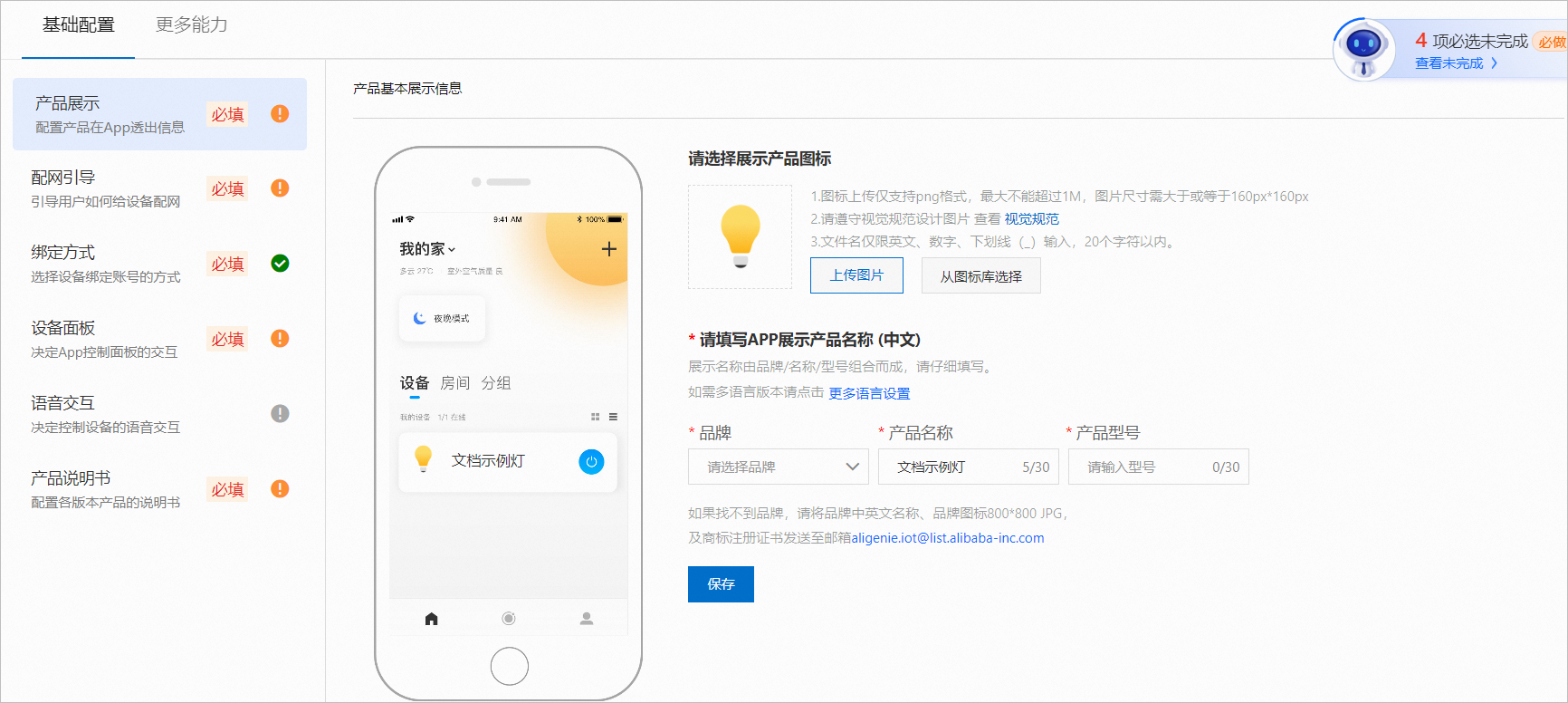
- Configure the Chinese display name for the product and click Save.
The product name consists of three parts: Brand, Name, and Model. All three parts are required.
The rules for configuring the product name are as follows.
- It can contain Chinese characters, English letters, numbers, hyphens (-), at signs (@), and Chinese or English parentheses.
- Content must not contain the word "test".
- The name cannot exceed 30 characters. A Chinese character counts as one character.
If you cannot find your brand in the Brand drop-down list, send the brand's Chinese and English names, brand icon (800 px × 800 px, JPG), and trademark registration certificate to
aligenie.iot@list.alibaba-inc.com. The brand will be added after an internal review.
Product display rules
Cloud Intelligence app product display
In the Cloud Intelligence app, the product is displayed in the 'Brand+Name+Model' format. The following figure shows where the name is displayed.
- If you have configured the product name on the App Multilingual page, the name is automatically displayed here. Any changes made here are synchronized to the App Multilingual page. For more information, see Configure multi-language management.
- For products in the Light, Socket, or Switch categories, the product name display is also affected if the Manually select from product list/Search check box is selected on the Network Configuration GuideConfigure network configuration guide.
Tmall Genie app product display
The display rules and locations for products in the Tmall Genie app are as follows.
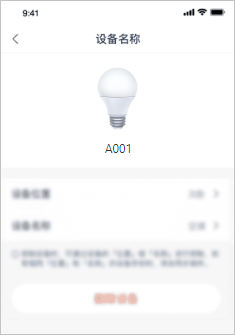
| Display location | Tmall Genie app network configuration list | Tmall Genie app device details page |
| Display content | Displays Brand+Name | Displays only the model |
| Illustration | 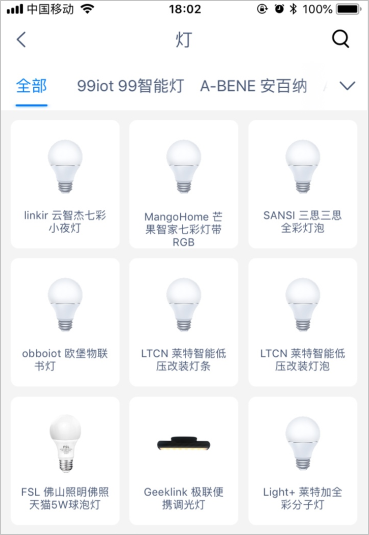 |
 |