Synchronize data from PolarDB for MySQL to the cloud-native data warehouse AnalyticDB for PostgreSQL
The cloud-native data warehouse AnalyticDB for PostgreSQL provides a simple, fast, and cost-effective petabyte-scale cloud data warehouse solution. Using Data Transmission Service (DTS), you can synchronize data from PolarDB for MySQL to the cloud-native data warehouse AnalyticDB for PostgreSQL. This lets you quickly perform ad-hoc query analysis, extract, transform, and load (ETL) processing, and visual exploration of massive datasets.
Prerequisites
Binary logging (binlog) is enabled for the PolarDB for MySQL cluster. For more information, see Enable binary logging.
PolarDB for MySQL cluster must have primary keys.
You have created a destination cloud-native data warehouse AnalyticDB for PostgreSQL instance. For more information, see Create a cloud-native data warehouse AnalyticDB for PostgreSQL instance.
Notes
DTS consumes read and write resources from the source and destination databases during the initial full data synchronization, which can increase the database load. If your database has poor performance, low specifications, or a high workload, the pressure on your database may increase. For example, if the source database contains many slow SQL statements or tables without primary keys, or if deadlocks occur in the destination database, the database service may become unavailable. Before you synchronize data, evaluate the performance of the source and destination databases. We recommend that you synchronize data during off-peak hours, such as when the CPU load of both the source and destination databases is below 30%.
During the initial full data synchronization, concurrent INSERT operations cause table fragmentation in the destination instance. As a result, the tablespace of the destination instance is larger than that of the source cluster after the synchronization is complete.
If the data to be synchronized from the source database contains the date value
0000-00-00 00:00:00, the synchronization task may fail.NoteDTS converts this date value to
nullwhen synchronizing it to the destination database. You can temporarily change the source data to0001-01-01 00:00:00or set the corresponding field in the destination database to nullable.
Billing
|
Synchronization type |
Pricing |
|
Schema synchronization and full data synchronization |
Free of charge. |
|
Incremental data synchronization |
Charged. For more information, see Billing overview. |
Limitations
You can select only tables as synchronization objects.
DTS does not support the synchronization of the following data types: BIT, VARBIT, GEOMETRY, ARRAY, UUID, TSQUERY, TSVECTOR, TXID_SNAPSHOT, and POINT.
- Prefix indexes are not supported for synchronization; their presence in the source database may cause data synchronization to fail.
During data synchronization, do not use online DDL tools such as gh-ost or pt-online-schema-change to perform schema changes on the synchronization objects. Otherwise, the synchronization task will fail.
Supported SQL operations
-
DML operations: INSERT, UPDATE, and DELETE.
-
DDL operation: ADD COLUMN.
NoteThe CREATE TABLE operation is not supported. To synchronize a new table, you must add it as a synchronization object.
Supported synchronization topologies
-
One-to-one, one-way synchronization.
-
One-to-many, one-way synchronization.
-
Many-to-one, one-way synchronization.
Glossary
PolarDB for MySQL | Cloud-native data warehouse AnalyticDB for PostgreSQL |
Database | Schema |
Table | Table |
Procedure
Purchase a data synchronization job. For more information, see Purchase procedure.
NoteWhen you purchase the job, set Source Instance to Apsara PolarDB, Destination Instance to AnalyticDB for PostgreSQL, and Synchronization Topology to one-way synchronization.
-
Log on to the DTS console.
-
In the left-side navigation pane, click Data Synchronization.
-
At the top of the Synchronization Tasks page, select the region where the destination instance is located.
-
Find your data synchronization task and click Configure Synchronization Channel.
Configure the source and destination instances for the synchronization channel.
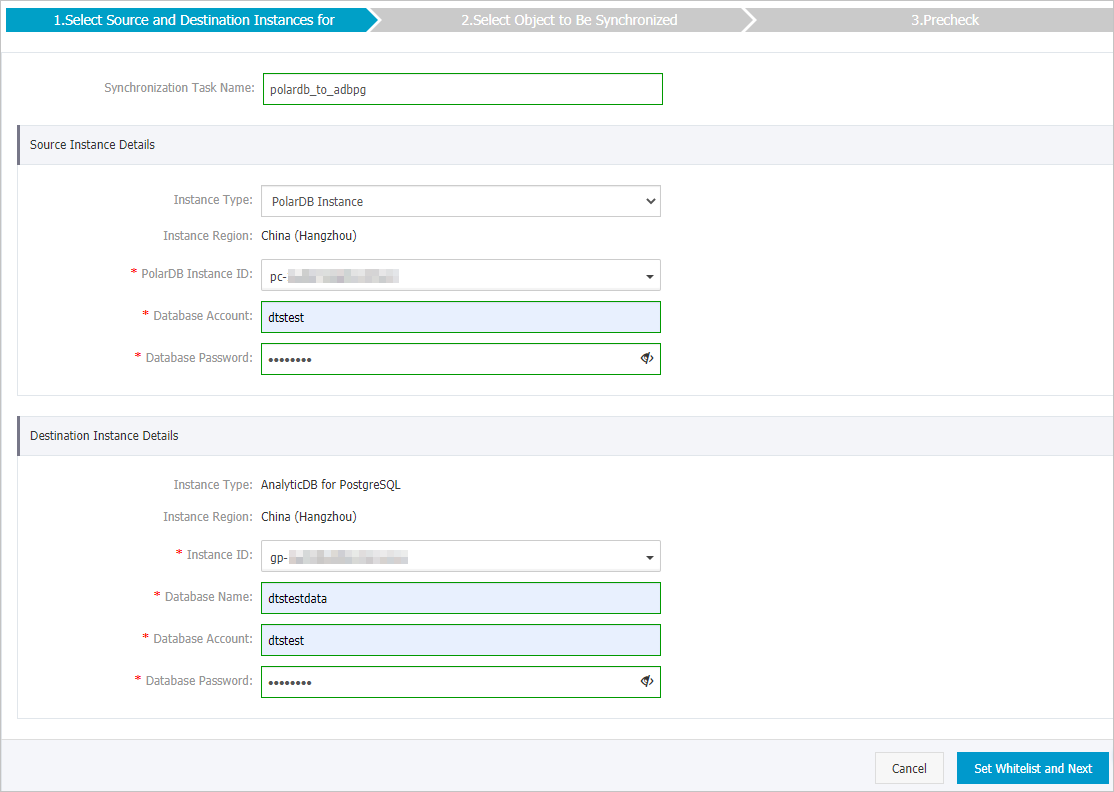
Category
Configuration
Description
N/A
Sync Job Name
DTS automatically generates a name for the sync job. Specify a descriptive name for easy identification. The name does not need to be unique.
Source Instance Information
Instance Type
This is fixed to PolarDB Instance.
Instance Region
The region of the source PolarDB for MySQL cluster that you selected when you purchased the data synchronization instance. This cannot be changed.
PolarDB Instance ID
Select the ID of the PolarDB for MySQL cluster.
Database Account
Enter the database account of the PolarDB for MySQL cluster.
NoteThis account must have the read permission on the objects to be synchronized.
Database Password
Enter the password for the database account.
Target instance information
Instance Type
AnalyticDB for PostgreSQLFixed as . You do not need to set this parameter.
Instance Region
The region of the destination instance that you selected when you purchased the data synchronization instance. This cannot be changed.
Instance ID
Select the instance ID of the cloud-native data warehouse AnalyticDB for PostgreSQL.
Database Name
Enter the name of the database in the cloud-native data warehouse AnalyticDB for PostgreSQL instance that contains the destination tables.
Database Account
Enter the Initial Account of the cloud-native data warehouse AnalyticDB for PostgreSQLCreate and manage users .
NoteYou can also enter an account that has the RDS_SUPERUSER permission. For information about how to create such an account, see User permission management.
Database Password
Enter the password for the database account.
-
In the lower-right corner of the page, click Set Whitelist and Next.
If the source or destination database is an Alibaba Cloud database instance, such as an ApsaraDB RDS for MySQL or ApsaraDB for MongoDB instance, DTS automatically adds the CIDR blocks of DTS servers to the IP address whitelist of the instance. If the source or destination database is a self-managed database hosted on an Elastic Compute Service (ECS) instance, DTS automatically adds the CIDR blocks of DTS servers to the security group rules of the ECS instance, and you must make sure that the ECS instance can access the database. If the self-managed database is hosted on multiple ECS instances, you must manually add the CIDR blocks of DTS servers to the security group rules of each ECS instance. If the source or destination database is a self-managed database that is deployed in a data center or provided by a third-party cloud service provider, you must manually add the CIDR blocks of DTS servers to the IP address whitelist of the database to allow DTS to access the database. For more information, see Whitelist DTS server IP addresses.
WarningAdding the public IP address blocks of the DTS service, either automatically or manually, may pose security risks. Using this product, you acknowledge that you understand and accept the potential security risks and that you must implement basic security measures. These measures include, but are not limited to, strengthening password security, limiting the ports open to each CIDR block, using authentication for internal API calls, and regularly checking and restricting unnecessary CIDR blocks. Alternatively, you can connect through a private network using a leased line, VPN Gateway, or Smart Access Gateway.
-
Configure the synchronization policy and objects.
Category
Parameter
Description
Synchronization policy
Initial synchronization
By default, you must select both Initial Schema Synchronization and Initial Full Data Synchronization. After the precheck is complete, DTS initializes the schema and data of the selected objects in the destination instance. This establishes the baseline for subsequent incremental synchronization.
Processing mode for existing target tables
-
Clear Target Table
Skips the Schema Name Conflict check item during the precheck phase. Clears the data in the destination table before full initialization. This is suitable for production synchronization after you complete testing the synchronization task.
-
Ignore Errors and Proceed
Skips the Schema Name Conflict check item during the precheck phase. During full data initialization, data is appended directly. This applies to data aggregation scenarios where data from multiple tables is synchronized into a single table.
Synchronization type
Select the operation types to synchronize based on your business requirements:
-
Insert
-
Update
-
Delete
-
AlterTable
Select synchronization objects
N/A
In the Source Objects box, select the tables to synchronize, and then click the > icon (
 ) to move them to the Selected Objects box.Note
-
You can select objects only at the table level.
-
If you need the column names in the destination table to be different from those in the source table, use the field mapping feature of DTS. For more information, see Set object names in the destination instance.
Object name mapping
N/A
Change the names of synchronized objects in the destination instance. For more information, see Map databases, tables, and columns.
Replicate temporary tables during DMS online DDL operations
N/A
If you use Data Management (DMS) to perform online DDL changes on the source database, you can choose whether to synchronize the temporary tables generated by the DDL changes.
-
Yes: Synchronizes the temporary tables generated by online DDL changes.
NoteIf a large amount of temporary table data is generated by online DDL changes, the data synchronization task may be delayed.
-
No: Does not synchronize the temporary tables generated by online DDL changes. Only the original DDL operations from the source database are synchronized.
NoteThis option causes tables in the destination database to be locked.
Retry duration for failed connections
N/A
If DTS cannot connect to the source or destination instance, it retries for 720 minutes (12 hours) by default. You can also specify a custom retry duration. If DTS reconnects to the source or destination instance within the specified duration, the synchronization task automatically resumes. Otherwise, the task fails.
NoteYou are billed for task run time during connection retries. Customize the retry duration based on your business needs, or release the DTS instance as soon as the source and destination instances are released.
-
-
Set the primary key and distribution columns for the synchronized tables in the AnalyticDB for PostgreSQL instance.
After you complete the settings, the Status column displays Defined. After you confirm the settings, click Pre-check and Start.
NoteThis page appears only if you selected Initial Schema Synchronization in the previous step. For more information about primary key and distribution columns, see Table constraints and Table distribution.
After you complete the preceding configurations, click Precheck and Start in the lower-right corner of the page.
NoteBefore the synchronization task is officially started, a precheck is performed. The synchronization task can only be started after the precheck passes.
If the precheck fails, click the
 icon next to a specific check item to view the failure details.
Follow the prompt to fix the issue and run the precheck again.
If you do not need to fix the warning check items, you can also select Ignore, Ignore Warning Items and Rerun Precheck to skip the warning check items and run the precheck again.
-
After the Precheck dialog box shows that Precheck Passed, close the Precheck dialog box. The synchronization task starts.
-
Wait for the task to complete initialization and enter the Synchronizing state.
You can view the status of the data synchronization task on the Data Synchronization page.