Channel partner onboarding
This topic describes how channel partners can complete the onboarding process for the LinkedMall enterprise marketplace.
Alibaba Cloud account registration and enterprise identity verification
Alibaba Cloud account registration
For more information, see Account registration (PC).
Go to the Alibaba Cloud official website and click the Register button in the upper-right corner.
You can register by choosing Scan to Register, Account Registration, or Mobile Number Registration. Choose the method you prefer.
Enterprise identity verification for your Alibaba Cloud account
Channel partners must complete enterprise identity verification for their Alibaba Cloud accounts.
For more information, see Enterprise Identity Verification.
Create RAM users
If a channel partner needs to configure console access for multiple employees, you can create multiple RAM users. The main steps are as follows:
Log on to the Resource Access Management (RAM) console with your Alibaba Cloud account.
In the navigation pane on the left, choose . On the Users page, click Create User.
Configure the RAM user.
Logon Name & Display Name: Enter a Logon Name and Display Name for the RAM user. The Logon Name can contain letters, digits, periods (.), hyphens (-), and underscores (_). It can be up to 64 characters long. The Display Name can be up to 128 characters long.
Batch add users: Click Add User to create multiple RAM users at the same time.
Access Mode: Select Console Access.
Set Password: Choose Autogenerate password or Custom password.
Password Reset: Select whether the RAM user must reset their password at the next logon.
Multi-Factor Authentication (MFA): Select whether to enable MFA for the RAM user. If you enable MFA, you must attach an MFA device for the RAM user, or the user must attach one themselves. For more information, see Attach an MFA device to a RAM user.
After you complete the configuration, click OK.
After the user is created, verify that the status is Successful. Record the User Logon Name and Logon Password.
View the list of RAM users. In the navigation pane on the left, choose . In the user list, you can view information about the created RAM users. To delete a RAM user, click Delete. This operation is irreversible. Proceed with caution.
Log on to the console as a RAM user. To log on to the channel partner console as a RAM user, select RAM User on the logon page.
Enter the logon username and password. If MFA was enabled when the user was created, complete the MFA process. For more information about MFA, see Attach an MFA device to a RAM user.
Grant permissions to RAM users
After you create a RAM user, you must grant the user permission to access LinkedMall.
Go to the page in the Alibaba Cloud console. Find the RAM user to which you want to grant permissions and click Add Permissions.
In the Add Permissions dialog box, search for the LinkedMall access policy (for policy details, see AliyunLinkedMallFullAccess). Select the policy and click OK.
Go to to view the authorization result or revoke the authorization.
ImportantRevoking authorization revokes the RAM user's access to LinkedMall. Proceed with caution.
AliyunLinkedMallFullAccess
AliyunLinkedMallFullAccess is a system policy managed by Alibaba Cloud. You can grant the AliyunLinkedMallFullAccess policy to a RAM identity, such as a RAM user, a RAM user group, or a RAM role. This policy grants full access to AliyunLinkedMall.
Policy details
Type: System policy
Created: 2022-07-29 07:57:28
Updated: 2022-07-29 07:57:28
Current version: v1
Policy content
{
    "Version": "1",
    "Statement": [
        {
            "Effect": "Allow",
            "Action": "linkedmall:*",
            "Resource": "*"
        }
    ]
}
Channel partner enterprise onboarding
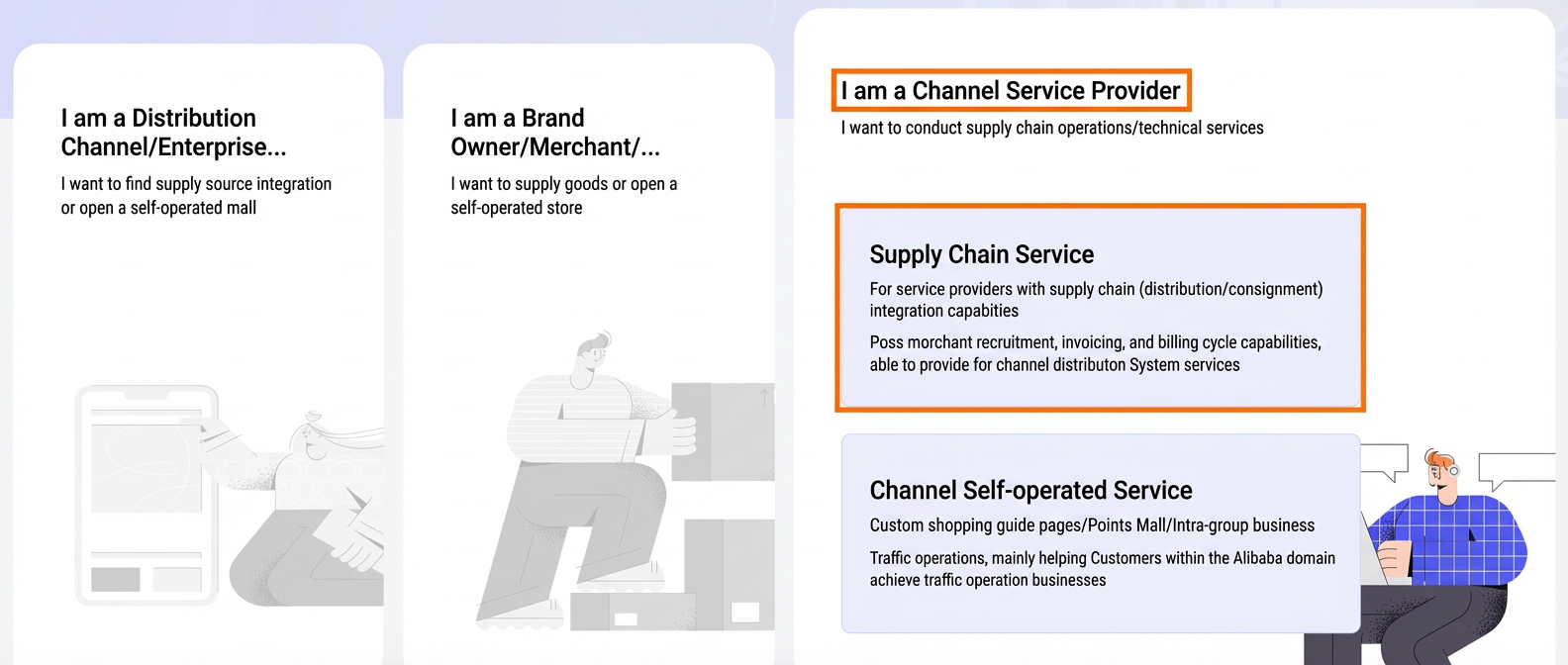
Log on to the Alibaba Cloud LinkedMall multi-role onboarding console. Click I am a channel service provider, and then click Supply Chain Service to enter the LinkedMall channel partner console.
NoteCurrently, the channel distribution marketplace only supports onboarding for supply chain services.
On the Overview page, click Enable Service to start the enterprise onboarding process.
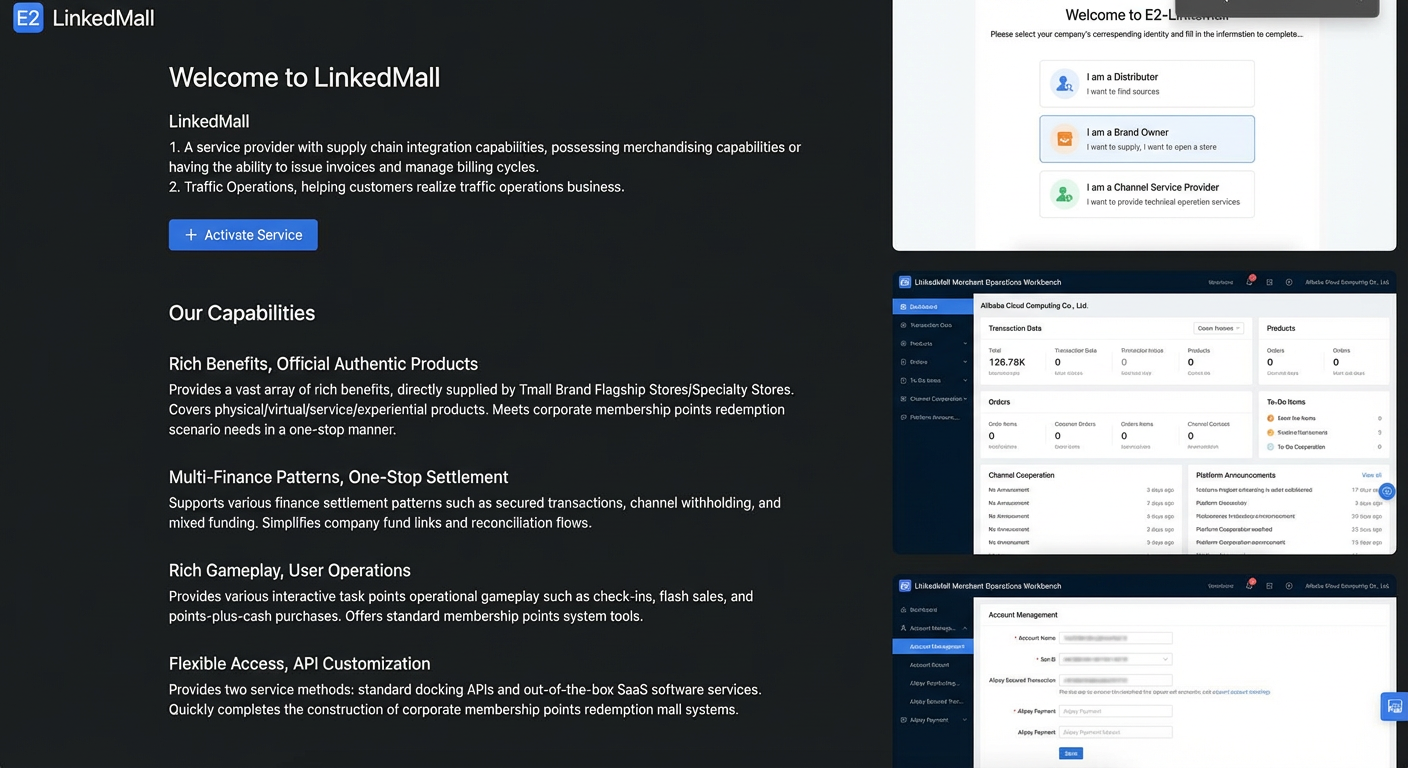
Enter the channel partner and contact information. Read the LinkedMall Platform Terms of Service, select the Agree checkbox, and click Enable LinkedMall.
ImportantThe Contact and Contact Number must belong to a person who is authorized to retrieve company information through e-Sign for contract signing. All other information must also be accurate and valid.
Wait for the application to be reviewed by the LinkedMall operations team.
After your application is approved, click Activate Store and Configure Business to start the store activation process. For more information, see Service activation.