Manually create an O&M item
You can manually create an O&M item in the Operation Center console to track and resolve operational issues.
Prerequisites
-
Resource Center must be activated before you can associate resources. For more information, see Activate Resource Center.
-
Make sure you have the AliyunOOSFullAccess permission.
-
Make sure you also have one of the following permissions: AliyunTAGReadOnlyAccess, AliyunTagManagerAccess, or AliyunTagAdministratorAccess.
Procedure
-
Log on to the CloudOps Orchestration Service console. In the navigation pane on the left, choose Operation Center.
-
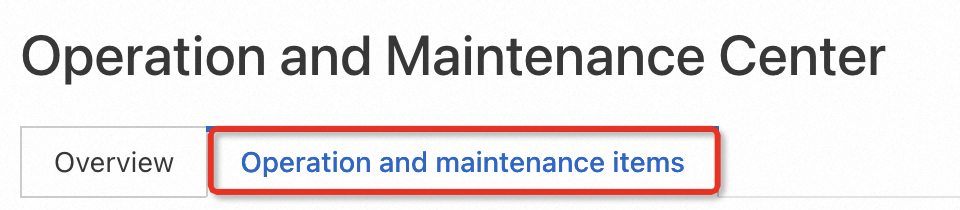
Click the O&M Item tab and then click Create O&M Item.
-
On the Create O&M Item page, configure the following parameters.
-
For Name, enter a name for the issue.
-
(Optional) For Source, specify the origin of the issue, such as the affected service or resource.
-
For Priority, select a level from 1 to 5 to indicate urgency. A smaller number indicates a higher priority.
-
For Severity, select the impact level of the issue. Valid values: Low, Medium, High, and Critical.
-
For Category, select a classification for the item. Valid values: Availability, Cost, Performance, Resilience, and Security.
-
(Optional) For Description, provide details about the issue.
-
(Optional) For Resources, select the affected resources.
-
-
Click Create. The O&M item is created and added to the list on the O&M Item tab.