Quick start
This topic describes how to get started with PolarDB for MySQL, including how to create a cluster, configure an allowlist, create a database account, and connect to a database.
Tutorial
If you have questions about any of the following steps, click the step to view detailed instructions.
1. Create a cluster
2. Configure an allowlist
3. Create a database account
4. Get the cluster endpoint
5. Connect to the database
Choose a connection method that suits your needs:
Use DMS to connect to the cluster
DMS is a graphical data management service from Alibaba Cloud. You can manage your PolarDB cluster directly in DMS without installing additional tools.
Go to the PolarDB console. In the Cluster List, click the ID of the target cluster to go to the cluster details page. In the upper-right corner of the page, click Log on to Database.

Enter your database account and database password for the PolarDB for MySQL cluster, then click Log on.

After you log on, find the PolarDB for MySQL cluster in the Logged-in Instances list in the left navigation pane.

Use a client to connect to the cluster
You can use any MySQL-compatible client to connect to a PolarDB cluster. The following example uses MySQL Workbench 8.0.29.
Download and install MySQL Workbench.
Open MySQL Workbench and choose .
Enter the connection information and click OK.
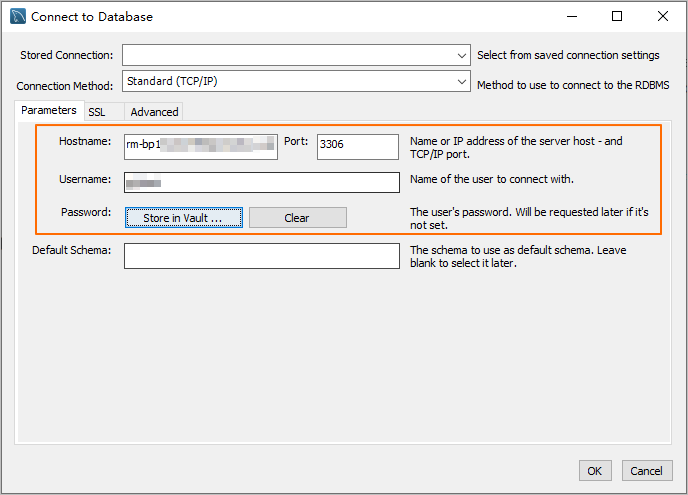
Parameter
Description
Example
Hostname
The database endpoint.
pc-2***.rwlb.rds.aliyuncs.com
Port
The port number of the database endpoint.
NoteThe default port is 3306.
3306
Username
The database account.
polardb_mysql_user
Password
The password of the database account.
Pass***233
Use the command line to connect to the cluster
If a MySQL client is installed on your server, run the following command to connect to the PolarDB for MySQL cluster.
Syntax:
mysql -h<endpoint> -P<port> -u<database_username> -p<database_user_password>Example:
mysql -h pc-2***.rwlb.rds.aliyuncs.com -P3306 -upolardb_mysql_user -pPass***233Parameter | Description | Example |
-h | The database endpoint. | pc-2***.rwlb.rds.aliyuncs.com |
-P | The port number of the database endpoint. Note
| 3306 |
-u | The database account. | polardb_mysql_user |
-p | The password of the database account. Note This parameter is required.
| Pass***233 |
Use an application to connect to the cluster
Connecting to a PolarDB for MySQL cluster is the same as connecting to any MySQL database. Replace the endpoint, port, account, and password with your PolarDB cluster values. Examples by language:
Java
Use the MySQL JDBC driver in a Maven project to connect to a PolarDB for MySQL cluster.
Add the MySQL JDBC driver dependency to your pom.xml file:
<dependency>
    <groupId>mysql</groupId>
    <artifactId>mysql-connector-java</artifactId>
    <version>8.0.27</version>
</dependency>
Connect to the cluster. Replace
<HOST>,<USER>,<PASSWORD>,<DATABASE>,<YOUR_TABLE_NAME>, and<YOUR_TABLE_COLUMN_NAME>with your actual values.import java.sql.Connection; import java.sql.DriverManager; import java.sql.ResultSet; import java.sql.Statement; public class DatabaseConnection { public DatabaseConnection() { } public static void main(String[] args) { // The endpoint, port, and name of the database to connect to. String url = "jdbc:mysql://<HOST>:3306/<DATABASE>?useSSL=false&serverTimezone=UTC"; // The database account. String user = "<USER>"; // The password of the database account. String password = "<PASSWORD>"; try { Class.forName("com.mysql.cj.jdbc.Driver"); Connection conn = DriverManager.getConnection(url, user, password); Statement stmt = conn.createStatement(); // The name of the data table to retrieve. ResultSet rs = stmt.executeQuery("SELECT * FROM `<YOUR_TABLE_NAME>`"); while(rs.next()) { // The name of the column in the data table to retrieve. System.out.println(rs.getString("<YOUR_TABLE_COLUMN_NAME>")); } rs.close(); stmt.close(); conn.close(); } catch (Exception var7) { var7.printStackTrace(); } } }
Python
Use the PyMySQL library with Python 3 to connect to a PolarDB for MySQL cluster.
Install the PyMySQL library:
pip3 install PyMySQLConnect to the cluster. Replace
<HOST>,<USER>,<PASSWORD>,<DATABASE>, and<YOUR_TABLE_NAME>with your actual values.import pymysql # Database connection parameters host = '<HOST>' # The endpoint of the PolarDB cluster port = 3306 # The default port is 3306 user = '<USER>' # The database account password = '<PASSWORD>' # The password of the database account database = '<DATABASE>' # The name of the database to connect to try: # Create a database connection connection = pymysql.connect( host=host, port=port, user=user, passwd=password, db=database ) # Get the cursor with connection.cursor() as cursor: # Execute an SQL query sql = "SELECT * FROM `<YOUR_TABLE_NAME>`" # The name of the data table to retrieve cursor.execute(sql) # Get the query results results = cursor.fetchall() for row in results: print(row) finally: # Close the database connection if 'connection' in locals() and connection.open: connection.close()
Go
Use the database/sql package and go-sql-driver/mysql driver (Go 1.23.0) to connect to a PolarDB for MySQL cluster.
Install the
go-sql-driver/mysqldriver:go get -u github.com/go-sql-driver/mysqlConnect to the cluster. Replace
<HOST>,<USER>,<PASSWORD>,<DATABASE>, and<YOUR_TABLE_NAME>with your actual values.package main import ( "database/sql" "fmt" "log" _ "github.com/go-sql-driver/mysql" ) func main() { // Database connection parameters dbHost := "<HOST>" // The endpoint of the PolarDB cluster dbPort := "3306" // The default port is 3306 dbUser := "<USER>" // The database account dbPass := "<PASSWORD>" // The password of the database account dbName := "<DATABASE>" // The name of the database to connect to // Build the Data Source Name (DSN) dsn := fmt.Sprintf("%s:%s@tcp(%s:%s)/%s?charset=utf8mb4&parseTime=True&loc=Local", dbUser, dbPass, dbHost, dbPort, dbName) // Open a database connection db, err := sql.Open("mysql", dsn) if err != nil { log.Fatalf("Failed to connect to database: %v", err) } defer db.Close() // Test the connection err = db.Ping() if err != nil { log.Fatalf("Failed to ping database: %v", err) } // Create a cursor var result string err = db.QueryRow("SELECT VERSION()").Scan(&result) if err != nil { log.Fatalf("Failed to execute query: %v", err) } // Print the database version fmt.Printf("Connected to database, version: %s\n", result) // Execute an SQL query rows, err := db.Query("SELECT * FROM `<YOUR_TABLE_NAME>`") // The name of the data table to retrieve if err != nil { log.Fatalf("Failed to execute query: %v", err) } defer rows.Close() }
Cluster management
Node management | Change cluster configurations | High availability | Backup and restore |
Database proxy | Monitoring and optimization | Version management | Binary log management |
FAQ
ECS connection to the PolarDB cluster fails
On-premises connection to the PolarDB cluster fails
Troubleshoot as follows:
Check whether the PolarDB cluster is in the running state.
Verify that the database endpoint, port, account, and password are correct. Obtain the database endpoint and port.
NoteThe database endpoint must be a public network endpoint. If you are using an ECS instance that is in the same VPC as the PolarDB cluster, you can use a private network endpoint.
Test network connectivity from your on-premises environment using
ping <database endpoint>ortelnet <database endpoint> <port>.Check whether the public IP address or IP address range of your on-premises environment is added to the cluster whitelist.
Obtain your public IP address:
Linux operating system: Open the terminal and run the
curl ifconfig.mecommand.Windows operating system: Open the command prompt and run the
curl ip.mecommand.macOS operating system: Open the terminal and run the
curl ifconfig.mecommand.
If your on-premises network environment uses a proxy server or has other similar configurations, the IP address obtained using the preceding methods may not be your real public IP address. You can add the IP address range
0.0.0.0/0to the PolarDB cluster whitelist. After you successfully connect to the cluster, run theSHOW PROCESSLIST;command to obtain the real public IP address and add it to the cluster whitelist. Then, remove the IP address range0.0.0.0/0from the whitelist.
Cannot connect to a PolarDB cluster with the error "Access denied for user 'xxx'@'xxx' (using password: YES)"
Cannot connect to a PolarDB cluster with the error "Unknown MySQL server host 'xxx'"
Cannot connect to a PolarDB cluster with the error "Can't connect to MySQL server on 'xxx'" or "Connection timed out"
The public IP address or IP address range of your environment is likely not in the PolarDB cluster whitelist, or the IP address you entered is incorrect.
Obtain your public IP address:
Linux operating system: Open the terminal and run the
curl ifconfig.mecommand.Windows operating system: Open the command prompt and run the
curl ip.mecommand.macOS operating system: Open the terminal and run the
curl ifconfig.mecommand.
If your on-premises network environment uses a proxy server or has other similar configurations, the IP address obtained using the preceding methods may not be your real public IP address. You can add the IP address range 0.0.0.0/0 to the PolarDB cluster whitelist. After you successfully connect to the cluster, run the SHOW PROCESSLIST; command to obtain the real public IP address and add it to the cluster whitelist. Then, remove the IP address range 0.0.0.0/0 from the whitelist.