Alibaba Cloud Data Lake Analytics data source (Deprecated)
Add an Alibaba Cloud Data Lake Analytics database as a data source in Quick BI to analyze and visualize its data. Quick BI connects to Data Lake Analytics over the public network.
The Data Lakehouse Analytics (DLA) service has been discontinued, and the Data Lake Analytics data source is deprecated.
Prerequisites
-
You have created an Alibaba Cloud Data Lake Analytics database.
-
You have obtained the username and password for the Data Lake Analytics database.
Background
Connect Quick BI to your Data Lake Analytics database for data analysis.
Limitations
Only workspace administrators and developers can add data sources.
Connect over a public network
-
Add IP addresses to the IP whitelist.
Before you establish a public connection, you must add the IP addresses of Quick BI to the IP whitelist of your Data Lake Analytics instance.
-
Test the connection and create the data source.
-
Log in to the Quick BI console.
-
Follow these steps to add a data source:
-
Go to the page for creating a data source. For more information, see Ways to create a data source.
-
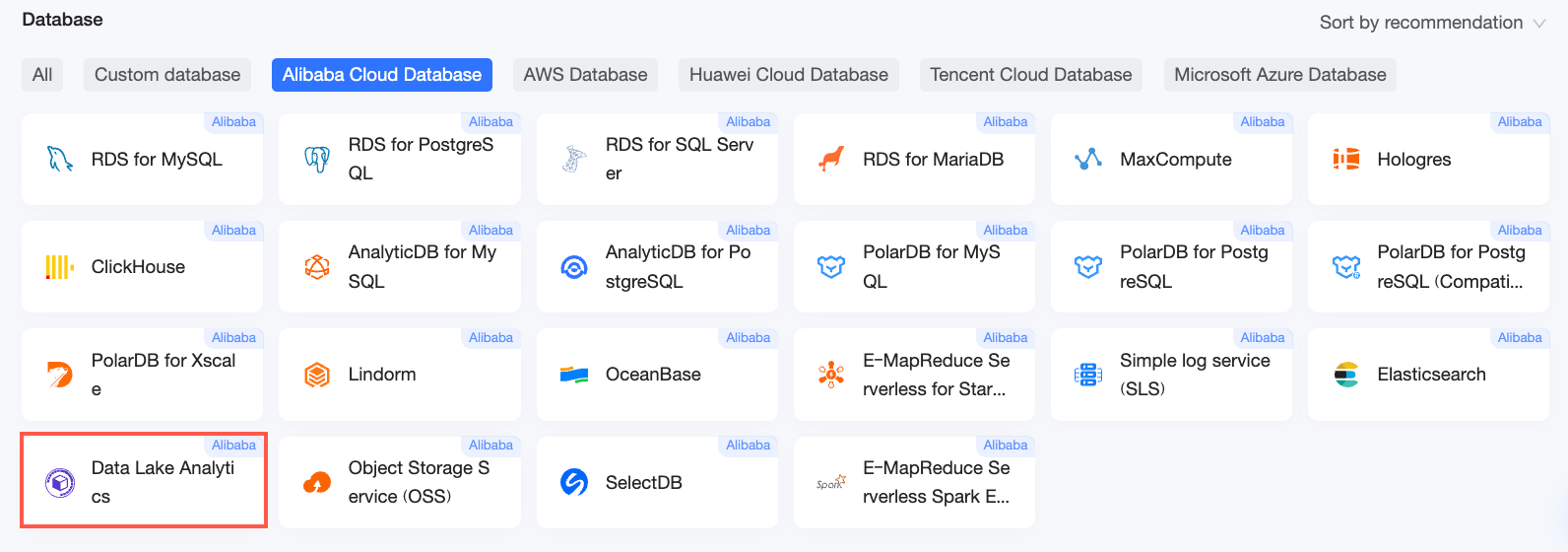
On the Alibaba Cloud Databases tab, click Alibaba Data Lake Analytics.
-
-
-
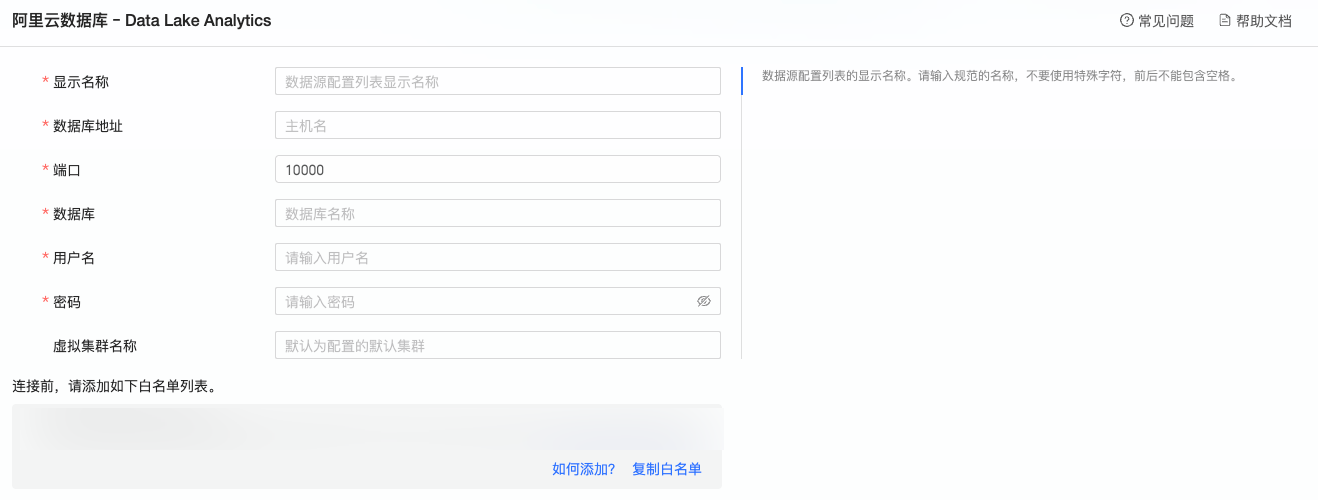
In the Add Data Lake Analytics Data Source dialog box, configure the parameters.
Parameter
Description
Display name
The display name shown in the data source list.
The name cannot contain special characters or leading or trailing spaces.
Database endpoint
Log in to the DLA console to view the database endpoint. For example: xxxxxxxxxxxxxxxxxxxx.datalakeanalytics.aliyuncs.com.
Port
The port number for the public endpoint of the Data Lake Analytics database.
Database
The name of your Data Lake Analytics database.
Username
The username for the Data Lake Analytics database.
Password
The password for the specified username.
Virtual cluster name
Log in to the DLA console and view the virtual cluster name on the Virtual Cluster Management page.
-
Click Test Connection to verify the connection.

-
After the test succeeds, click OK to add the data source.
Next steps
After the data source is created, you can create datasets and analyze data.
-
To create a dataset by adding data tables or using a custom SQL statement, see Create a dataset.
-
To analyze data by creating a visualization chart, see Create a dashboard and Overview of visualization charts.
-
To perform in-depth analysis by drilling down into your data, see Step 3: Drill-down settings and display.