Alibaba Cloud data source: OSS (Deprecated)
Add an Object Storage Service (OSS) data source to connect Quick BI to Alibaba Cloud OSS. Once connected, you can analyze and visualize your data in Quick BI. Quick BI supports connections to OSS over the public internet. This topic describes how to add an OSS data source.
This feature relies on Data Lake Analytics (DLA). Because DLA is no longer available, Quick BI is discontinuing support for OSS data sources.
Prerequisites
You must have activated Alibaba Cloud OSS and created a bucket. For more information, see Create a bucket.
Background
You can add Alibaba Cloud OSS as a data source in Quick BI to analyze data stored in OSS. For more information about OSS, see What is OSS?.
Limitations
Only workspace administrators and developers can add data sources.
You can create OSS data sources only in Quick BI Pro or Quick BI Premium workspaces.
Procedure
Log on to the Quick BI console.
Add a data source.
Navigate to the Create Data Source page as described in Create data source entry.
On the Alibaba Cloud Databases tab, select the OSS data source.

In the Configure Connection dialog box, configure the following parameters.

Parameter
Description
Display Name
The display name for the data source in the data source list.
The name cannot contain special characters or leading or trailing spaces.
Endpoint
The endpoint of the region where your OSS service is located. For more information, see Access OSS resources from an ECS instance over an OSS internal endpoint.
Bucket
The name of your bucket. Log on to the OSS console to find the bucket name in your list of buckets.
AccessKey ID and AccessKey Secret
The AccessKey ID and AccessKey Secret with access permissions to the target OSS bucket.
Log on to AccessKey Management to obtain your AccessKey ID and AccessKey Secret.

Click Test Connection to verify that Quick BI can connect to the data source.

After the test succeeds, click OK to add the data source.
Next steps
After creating the data source, you can create datasets and analyze your data.
Create an OSS table
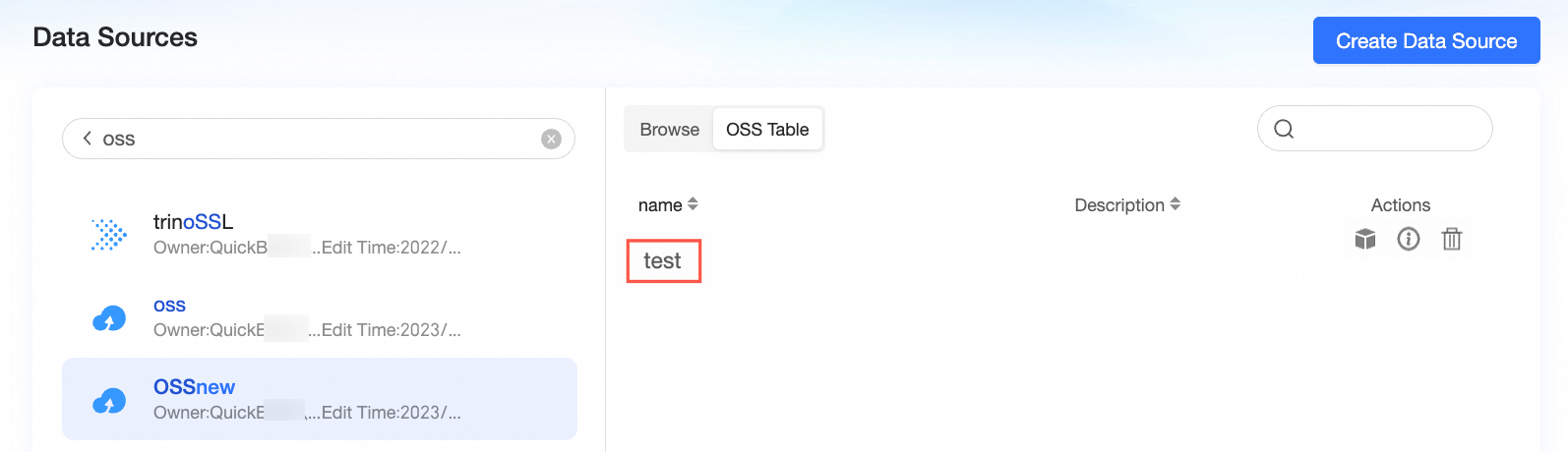
Navigate to your new data source and click Browse Files > Create OSS Table.
On the Create OSS Table page, enter the delimiter, table name, and column names. Then, select the column types and add column descriptions as needed.
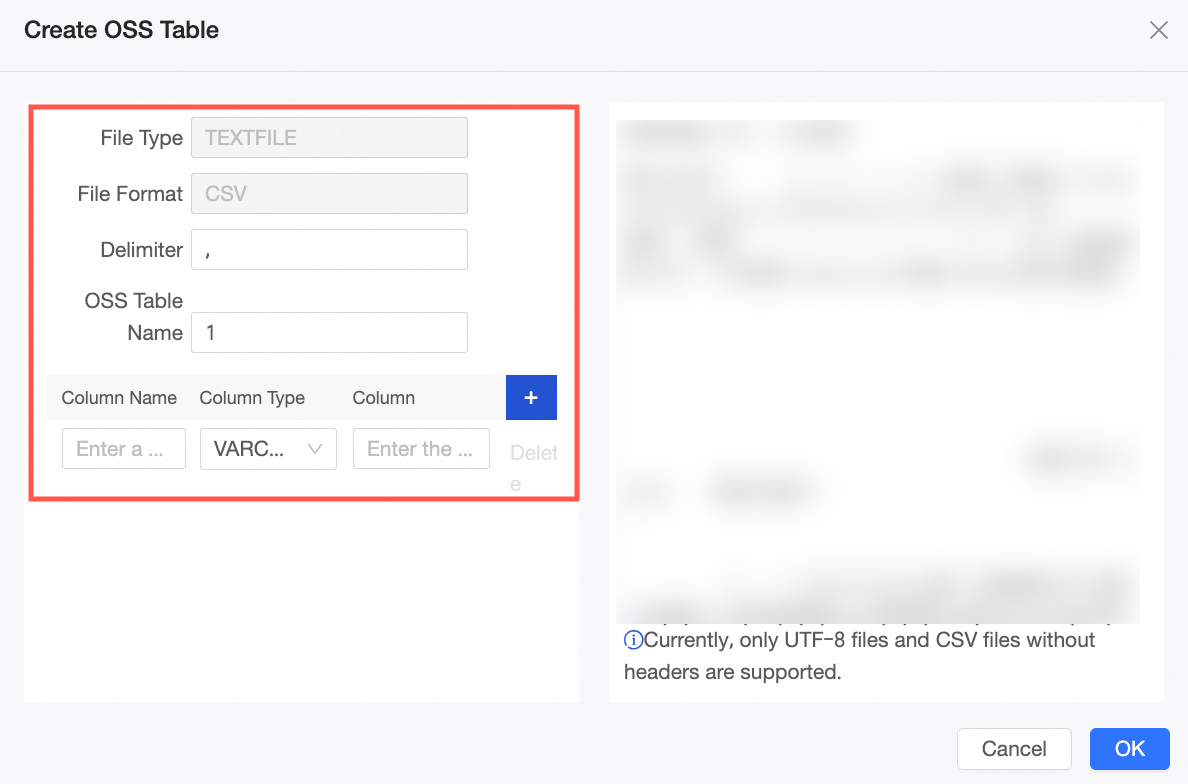
Click OK to create the OSS table.

Create datasets from tables in your OSS data source or from custom SQL queries. For more information, see Create a dataset.
Add visualizations to analyze your data. For more information, see Create a dashboard and Chart overview.
Drill down to analyze your data. For more information, see Step 3: Configure and use drill-down.