Alibaba Cloud data source: AnalyticDB for MySQL 2.0
Add an AnalyticDB for MySQL 2.0 data source to Quick BI so that you can analyze and visualize your data. Quick BI connects to AnalyticDB for MySQL 2.0 over a public endpoint.
Prerequisites
You have created an AnalyticDB for MySQL 2.0 cluster. For more information, see Purchase AnalyticDB for MySQL 2.0.
Cloud-native Data Warehouse AnalyticDB for MySQL 2.0 can also be added as an AnalyticDB for MySQL 2.0 data source. For more information, see Cloud-native Data Warehouse AnalyticDB for MySQL.
Limitations
Only space administrators and developers can add a data source.
Procedure
Log on to the Quick BI console.
-
Follow the steps shown in the figures to add a data source.
-
Navigate to the data source creation page.
-
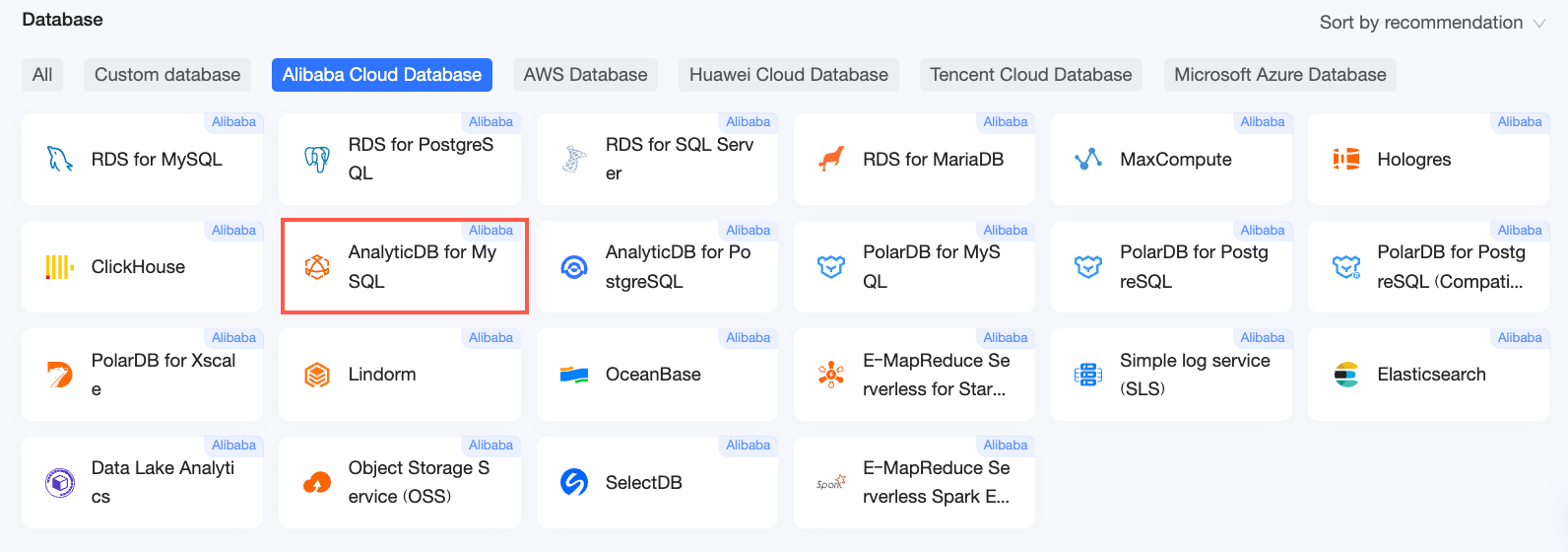
On the Alibaba Cloud Databases tab, select the AnalyticDB for MySQL data source.
-
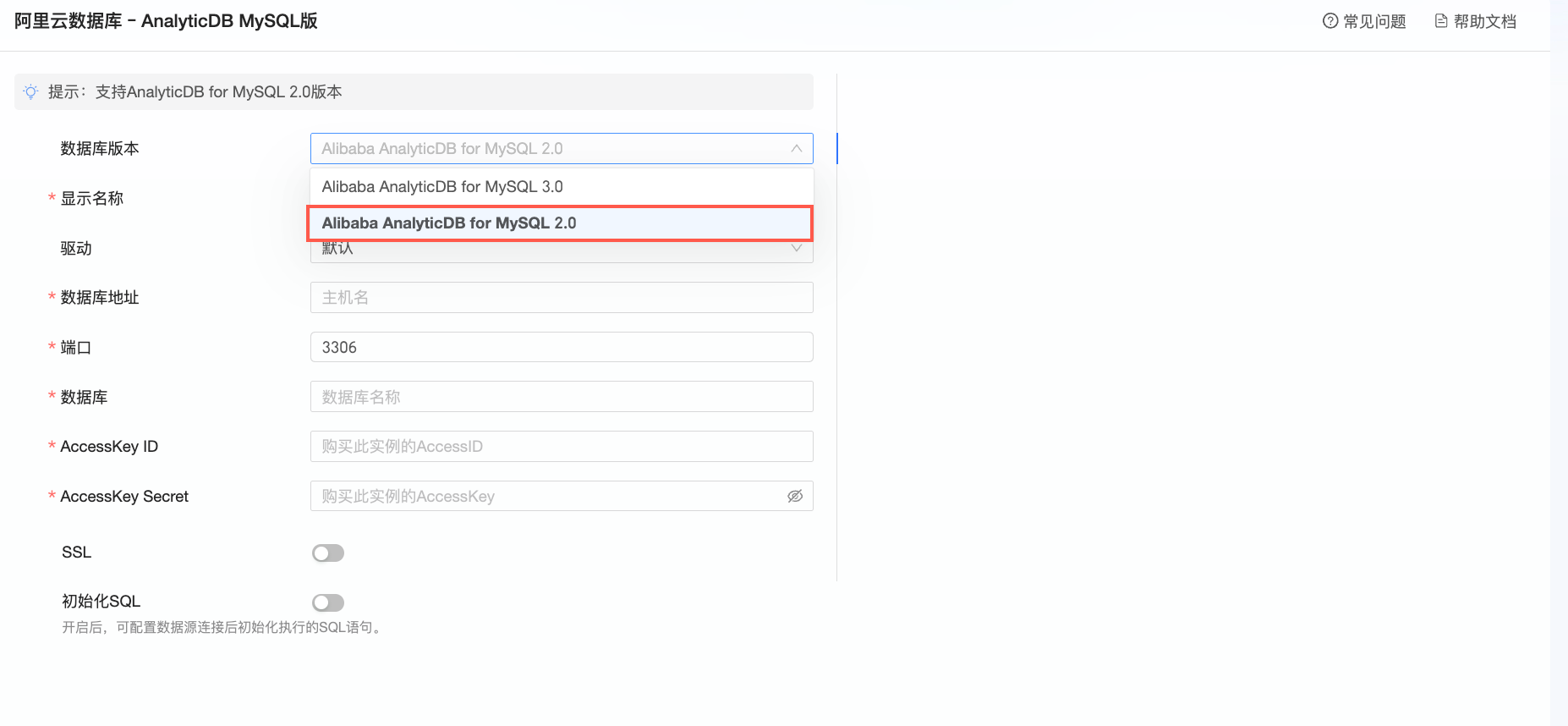
For Database version, select Alibaba AnalyticDB for MySQL 2.0.
-
-
In the Add AnalyticDB for MySQL 2.0 data source dialog box, configure the following parameters.
Parameter
Description
Select database
Quick BI automatically discovers available AnalyticDB for MySQL databases.
NoteIf no available databases are found under your account, the Select database field has no options.
Display name
The display name for this data source in the data source list.
Use an identifiable name without special characters or leading or trailing spaces.
Endpoint and port
The resource group endpoint and port of the AnalyticDB for MySQL 2.0 database.
Log on to the AnalyticDB for MySQL console.
Database
The name of the database to connect to in AnalyticDB for MySQL 2.0.
AccessKey ID and AccessKey Secret
The AccessKey pair authorized to access the AnalyticDB for MySQL 2.0 database.
Log on to AccessKey Management to obtain an AccessKey ID and AccessKey Secret.

SSL
Enable this option to encrypt data in transit if SSL is configured for the data source.
Initial SQL
Enable this option to run SQL statements automatically each time Quick BI connects to the data source.
Only SET statements are allowed. Separate multiple statements with semicolons (;).
-
Click Test Connection to verify the connection to the data source.

-
After a successful test, click OK to add the data source.
Next steps
After you add the data source, you can create datasets and start analyzing data.
-
To create a dataset with tables or custom SQL from your AnalyticDB for MySQL 2.0 database, see Create a dataset.
-
To create visualization charts and analyze data, see Create a dashboard and Overview of visualization charts.
-
To drill down into your data for in-depth analysis, see Step 3: Configure and view a drill-down report.