Add an AnalyticDB for MySQL 3.0 data source
This topic describes how to add an AnalyticDB for MySQL 3.0 data source.
Prerequisites
You have created an Alibaba Cloud AnalyticDB for MySQL 3.0 instance.
You have the username and password for the AnalyticDB for MySQL 3.0 database.
Limits
Only workspace administrators and developers can add data sources.
Procedure
Add IP addresses to the whitelist.
Before you connect to your AnalyticDB for MySQL 3.0 instance, you must add the IP addresses of Quick BI to the whitelist of your AnalyticDB for MySQL 3.0 instance. For instructions, see Configure a whitelist.
Log on to the Quick BI console.
Follow these steps to add the data source:
Navigate to the page for creating a data source.
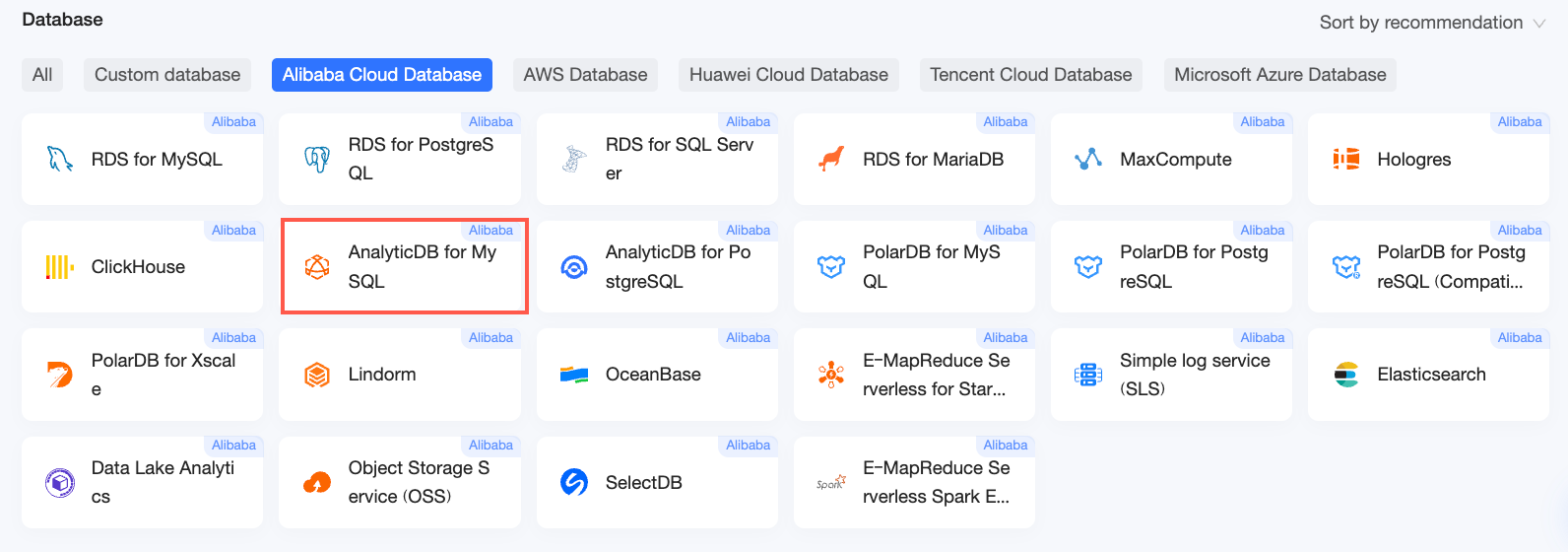
On the Alibaba Cloud Databases tab, select the AnalyticDB for MySQL data source.
For Database Version, select Alibaba AnalyticDB for MySQL 3.0.
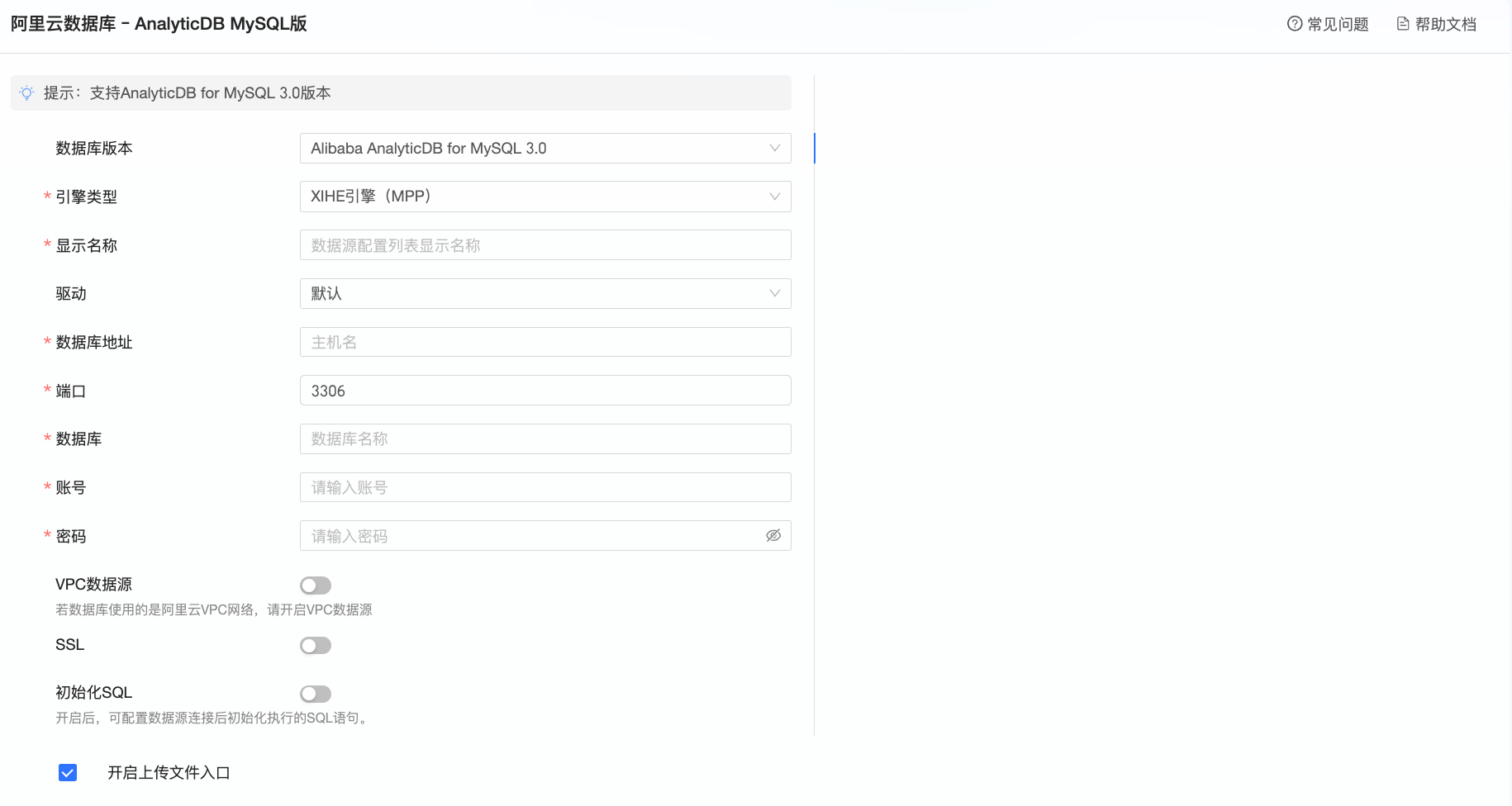
Select the engine type you want to connect to, and configure the following parameters in the Add AnalyticDB for MySQL 3.0 Data Source dialog box.
Select XIHE Engine (MPP)
Parameter
Description
Display Name
The name that identifies the data source in the list.
Enter a name that follows your naming conventions. The name must not contain special characters or leading or trailing spaces.
Database Address
The public endpoint of the AnalyticDB for MySQL 3.0 instance. If you are using a VPC data source, enter the internal endpoint of the instance.
To find the endpoint, log on to the AnalyticDB for MySQL console and view the connection information. Example: am-xxxxxxxxxxxxxxxxxxxx.ads.aliyuncs.com.
Port
The port number of the database. The default value is 3306.
Database
The name of the database that you want to connect to.
Username and Password
The username and password for the database account. Ensure that this account has CREATE, INSERT, UPDATE, and DELETE permissions on the tables in the database.
VPC data source
If your database runs in an Alibaba Cloud Virtual Private Cloud (VPC), select VPC data source and configure the following parameters.
AccessKey ID and AccessKey Secret: The AccessKey ID and AccessKey Secret of an account that has permission to access the target database. Ensure that the account has Read permissions on the target instance. If the account also has Write permissions, Quick BI automatically adds its IP address to the whitelist. Otherwise, you must add it manually. For more information, see Create a custom policy.
You can get the AccessKey ID and AccessKey Secret from the RAM console. For more information, see Obtain an AccessKey.
Instance ID and Region: The ID and region of the database instance.
Log on to the AnalyticDB for MySQL console to obtain the instance ID and region.
NoteIf you select VPC data source, enter the instance's internal endpoint and port in the Database Address and Port fields.
SSL
If SSL is configured for the target data source, you can select this option to protect data in transit.
Initialization SQL
Select this option to specify initialization SQL statements.
These SQL statements are executed every time a data source connection is established. Only SET statements are allowed. Separate multiple statements with a semicolon (;).
Select Spark Engine
Parameter
Description
Display Name
The name that identifies the data source in the list.
Enter a name that follows your naming conventions. The name must not contain special characters or leading or trailing spaces.
Database Address
The endpoint of the resource group in the AnalyticDB for MySQL 3.0 instance. If you use a VPC data source, enter the VPC endpoint of the resource group.
To view the resource group endpoint:
Log on to the AnalyticDB for MySQL console and click the ID of your target cluster to open its details page.
In the left-side navigation pane, choose Cluster Management > Resource Management, and then click the Resource Groups tab.
In the Actions column for the target resource group, choose .
Port
The port number of the database. The default value is 10000.
Database
The name of the database that you want to connect to.
Resource Group Name
The name of the resource group in the database.
Log on to the AnalyticDB for MySQL console and find the name under Cluster Management > Resource Management > Resource Group Management.
Username and Password
The username and password for the database account. Ensure that this account has CREATE, INSERT, UPDATE, and DELETE permissions on the tables in the database.
SSL
If SSL is configured for the target data source, you can select this option to protect data in transit.
Initialization SQL
Select this option to specify initialization SQL statements.
These SQL statements are executed every time a data source connection is established. Only SET statements are allowed. Separate multiple statements with a semicolon (;).
Click Test Connection to verify the connection.

After a successful connection test, click OK to add the data source.
Next steps
After you add the data source, you can create a dataset and analyze your data.
Create a dataset from the data tables in your data source or from a custom SQL query. For more information, see Create a dataset.
Create a dashboard with visualizations to analyze your data. For more information, see Create a dashboard and Visualization chart overview.
Drill down into your data for a deeper analysis. For more information, see Step 3: Configure and view drill-down data.