AnalyticDB for PostgreSQL data source
Add an AnalyticDB for PostgreSQL database as a data source in Quick BI to analyze and visualize your data. You can connect over the public network or a VPC.
Prerequisites
You have created an AnalyticDB for PostgreSQL cluster.
Background information
Quick BI connects to an AnalyticDB for PostgreSQL data source over the public network or a VPC. The configuration steps vary by network type, as shown in the following figure.
To prevent connection failures, add the Quick BI IP addresses to your data source's allowlist. For more information, see Configure an allowlist.
Limits
-
Only users with the workspace administrator or developer role can add data sources.
-
Only group workspaces in Professional Edition and Advanced Edition support creating AnalyticDB for PostgreSQL data sources.
-
Supported versions: 6.0 and 4.3.
Procedure
-
Log on to the Quick BI console.
-
Add a data source by performing the following steps:
-
Navigate to the data source creation page. For more information, see Create a data source.
-
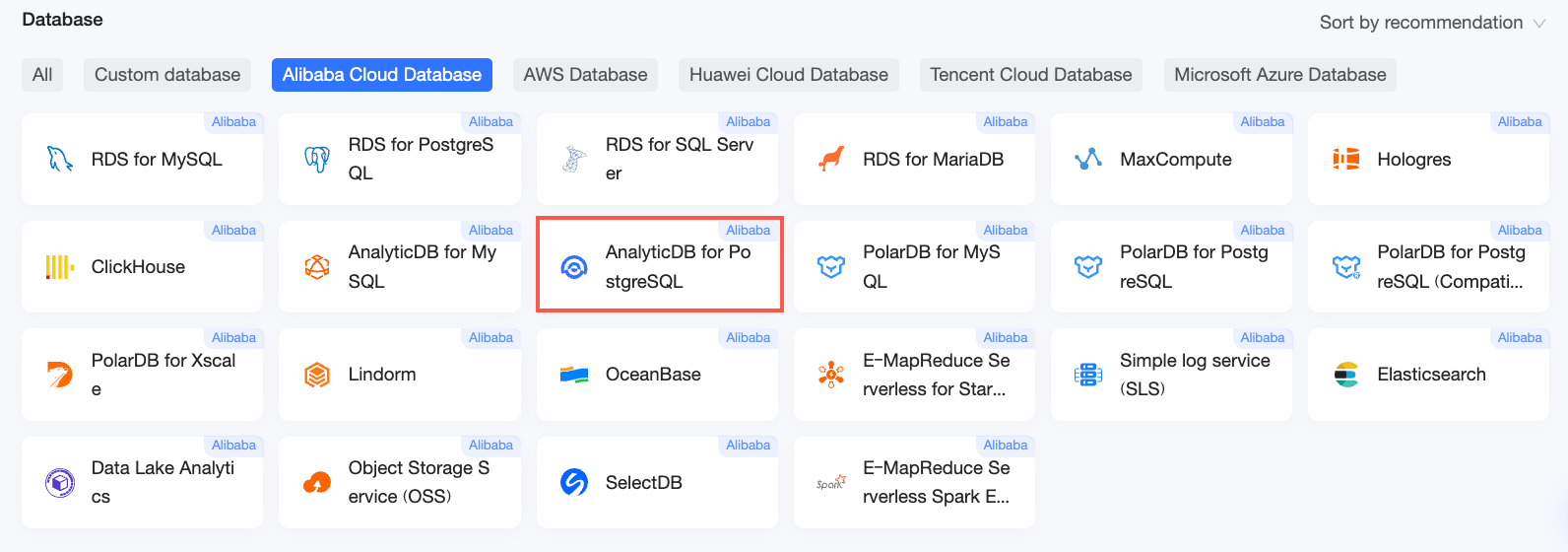
On the Alibaba Cloud Databases tab, select AnalyticDB for PostgreSQL.
-
-
In the Configure Connection dialog box, configure the following parameters based on your business requirements.

Parameter
Description
Display name
The display name that appears in the data source list.
The name cannot contain special characters or leading or trailing spaces.
Database address and port
The public endpoint of your AnalyticDB for PostgreSQL database. For a VPC data source, enter the internal address and port.
Log on to the AnalyticDB for PostgreSQL console to find the database address. Example: xxxxxxxxxxxxxxxxxxxxx.gpdb.rds.aliyuncs.com
For more information, see Client connections.
Database
The database name that you specified when you created the AnalyticDB for PostgreSQL cluster.
Log on to the AnalyticDB for PostgreSQL console. In the Database Management section, find the Database Name.

Schema
The schema to connect to.
Username and password
The username and password for your AnalyticDB for PostgreSQL cluster.
VPC data source
To connect through a VPC, select VPC data source and configure the following parameters:
-
AccessKey ID and AccessKey Secret: The AccessKey ID and AccessKey Secret of an account that has permissions to access the target AnalyticDB for PostgreSQL database. The account must have at least read permissions on the target instance. If the account also has write permissions, Quick BI automatically adds its IP addresses to the allowlist. Otherwise, you must add them manually. For more information, see Create a custom policy.
Log on to the RAM console to obtain your AccessKey ID and AccessKey Secret.

-
Instance ID and Region: The ID of the AnalyticDB for PostgreSQL cluster and the region where it is located.

NoteIf you select VPC data source, you must enter the internal address and port in the Database address and port fields.
SSL
Enables encryption for data in transit. Your data source must be configured with SSL.
Initialization SQL
SQL statements to run after a connection is established.
Only
SETstatements are supported. Separate multiple statements with a semicolon (;).Enable file upload
Allows users to upload local files to this data source.
-
-
Click Test Connection to verify the connection.
-
If the connection test is successful, click OK.


Next steps
After you create a data source, you can create datasets and start analyzing data.
-
Create a dataset from your AnalyticDB for PostgreSQL tables or with custom SQL queries. For more information, see Create a dataset.
-
Create a dashboard with charts to analyze your data. For more information, see Create a dashboard and Chart overview.
-
Use the drill down feature for in-depth analysis. For more information, see Configure and use drill down.