Dashboard AIPro
With Dashboard AIPro, you can describe your analysis needs in natural language. The AI automatically queries, calculates, and analyzes your data, and generates structured analysis results. This feature supports capabilities such as multi-turn follow-up questions, artifact generation, and one-click subscriptions. This topic describes how to use AIPro within a dashboard.
Use cases
Dashboards are a key tool for viewing reports. AIPro analyzes data from the current dashboard to help you:
Generate a presentation-ready report from a single sentence.
Summarize report data to create a summary that includes metric anomalies and root cause analysis.
Identify anomalous metrics in a report and provide root cause analysis.
Ask multi-turn follow-up questions based on previous results to gain deeper data insights.
Limitations
Dashboard AIPro is available only in the Quick BI AIPro edition, including for organizations with an active AIPro trial.
In an embedded scenario, Dashboard AIPro does not support the following features:
A subscription task.
The Edit and Save functions for analysis artifacts.
The Select data function.
Navigation to the Quick BI AIPro interface.
The Share function for conversation flows.
Prerequisites
You have activated the Quick BI AIPro edition or an AIPro trial.
You have the AIPro Basic Functions permission.
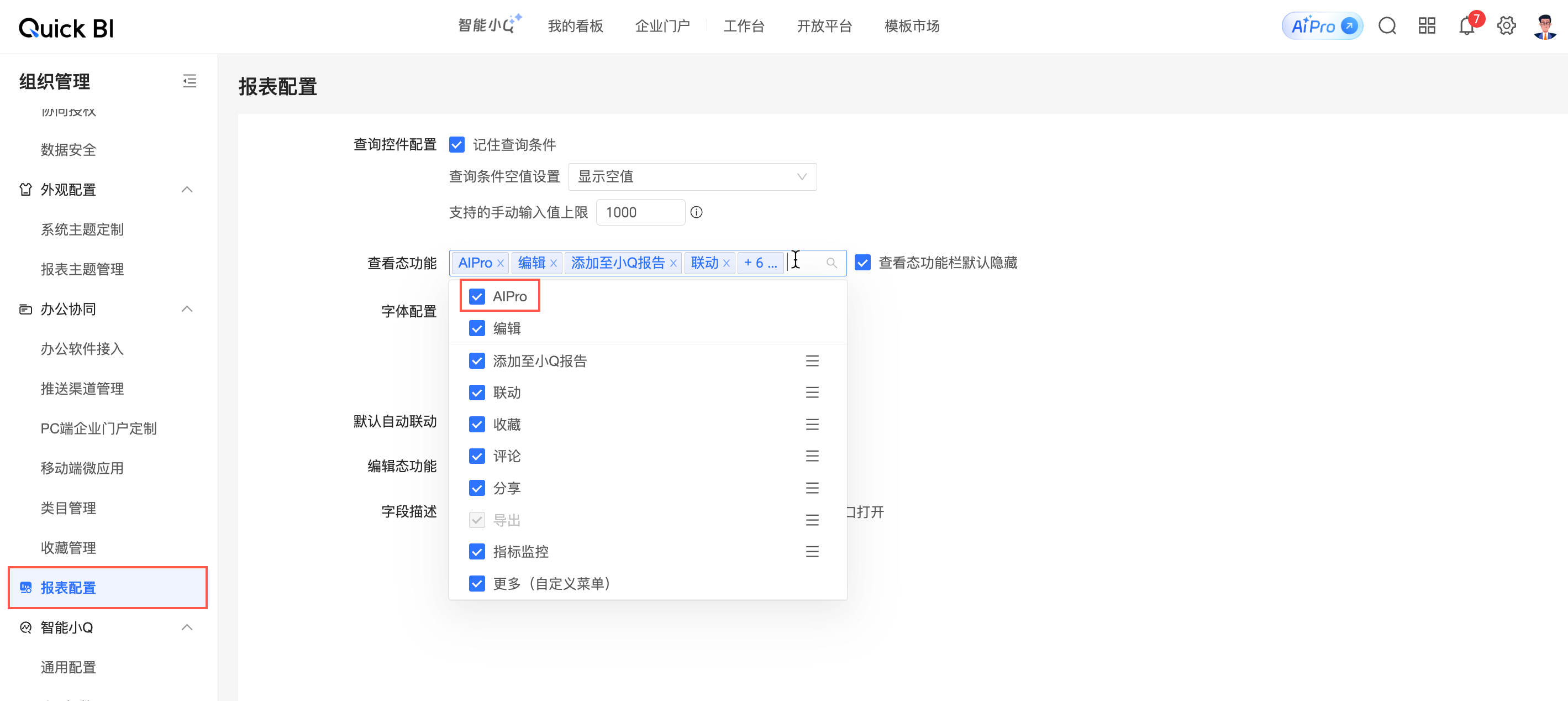
In Report Configurations, AIPro is selected for the view mode.
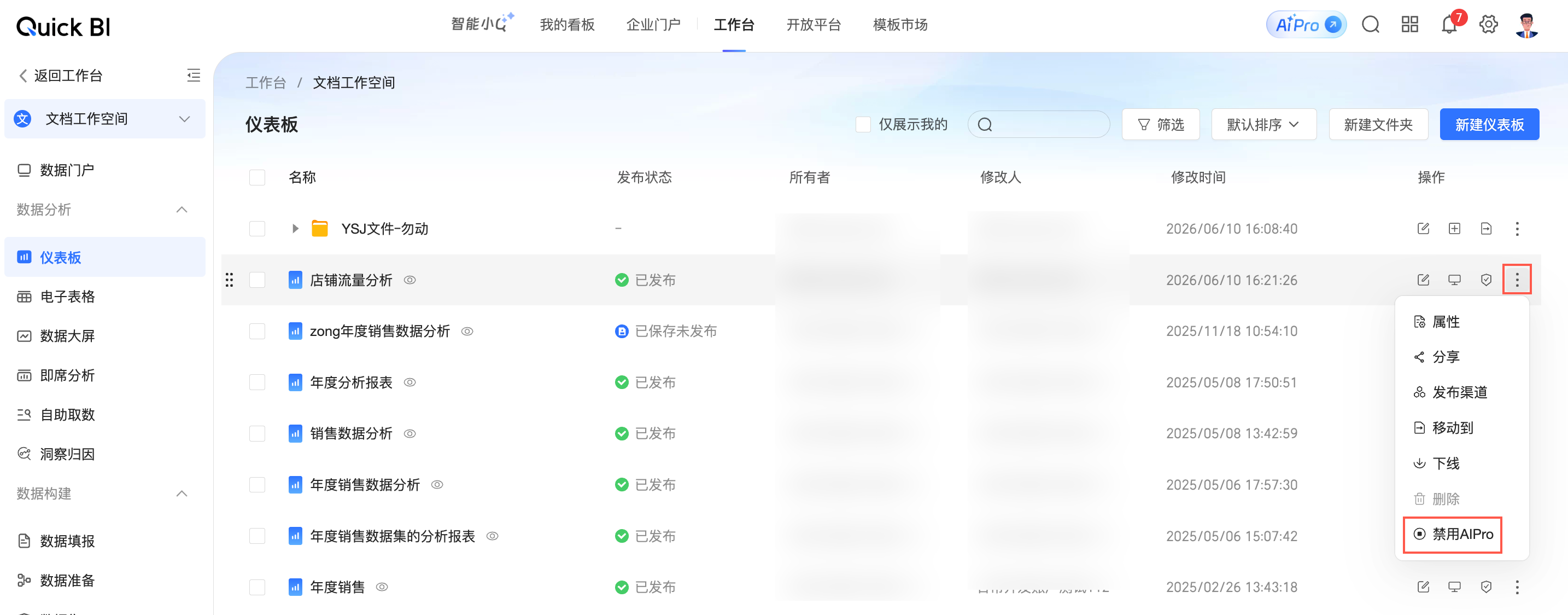
You have view permissions for the target dashboard, and AIPro is enabled for the dashboard.
Procedure
Feature access
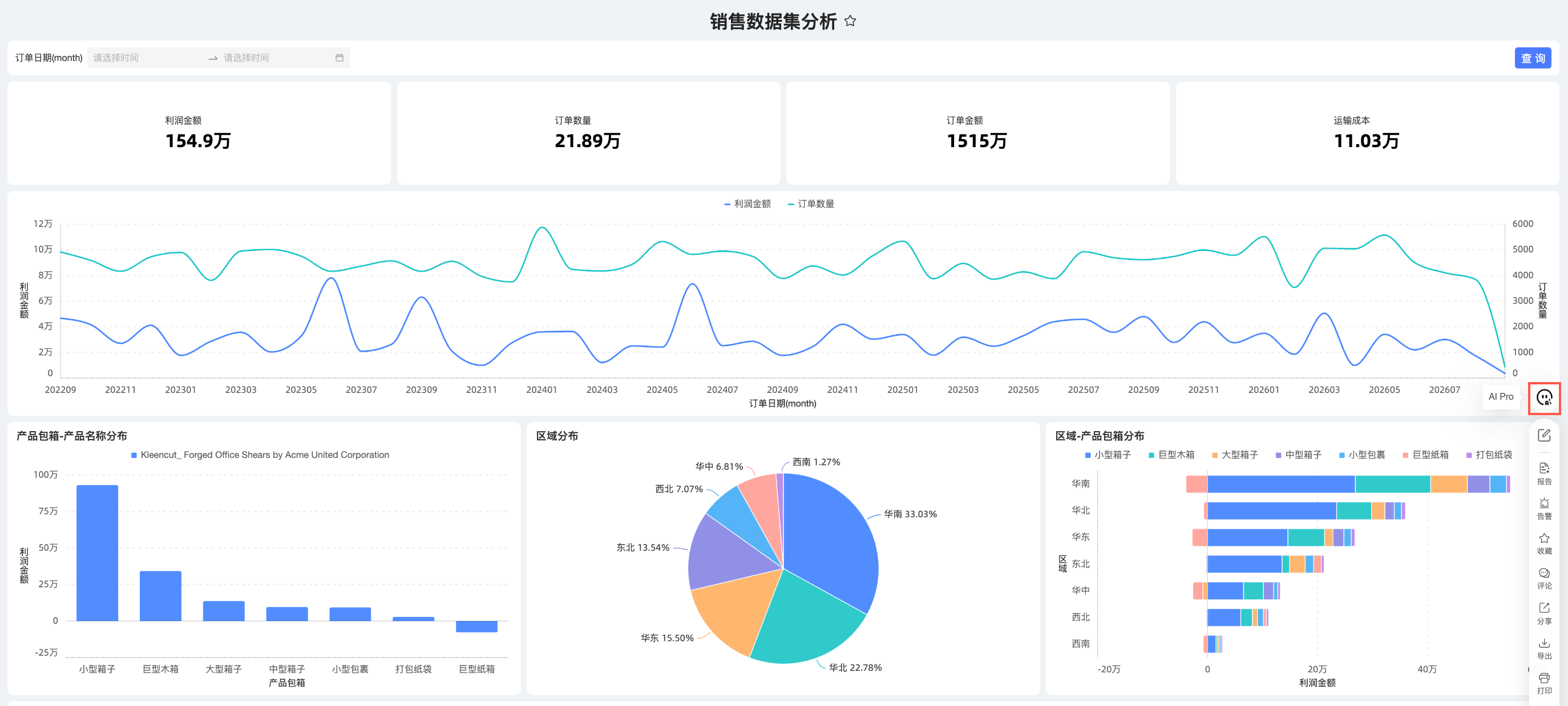
On the dashboard preview page, click the AIPro icon to open the dashboard AIPro interface.
Select questioning mode
Click the model selector in the lower-right corner of the dialog box to choose a questioning mode for your analysis.
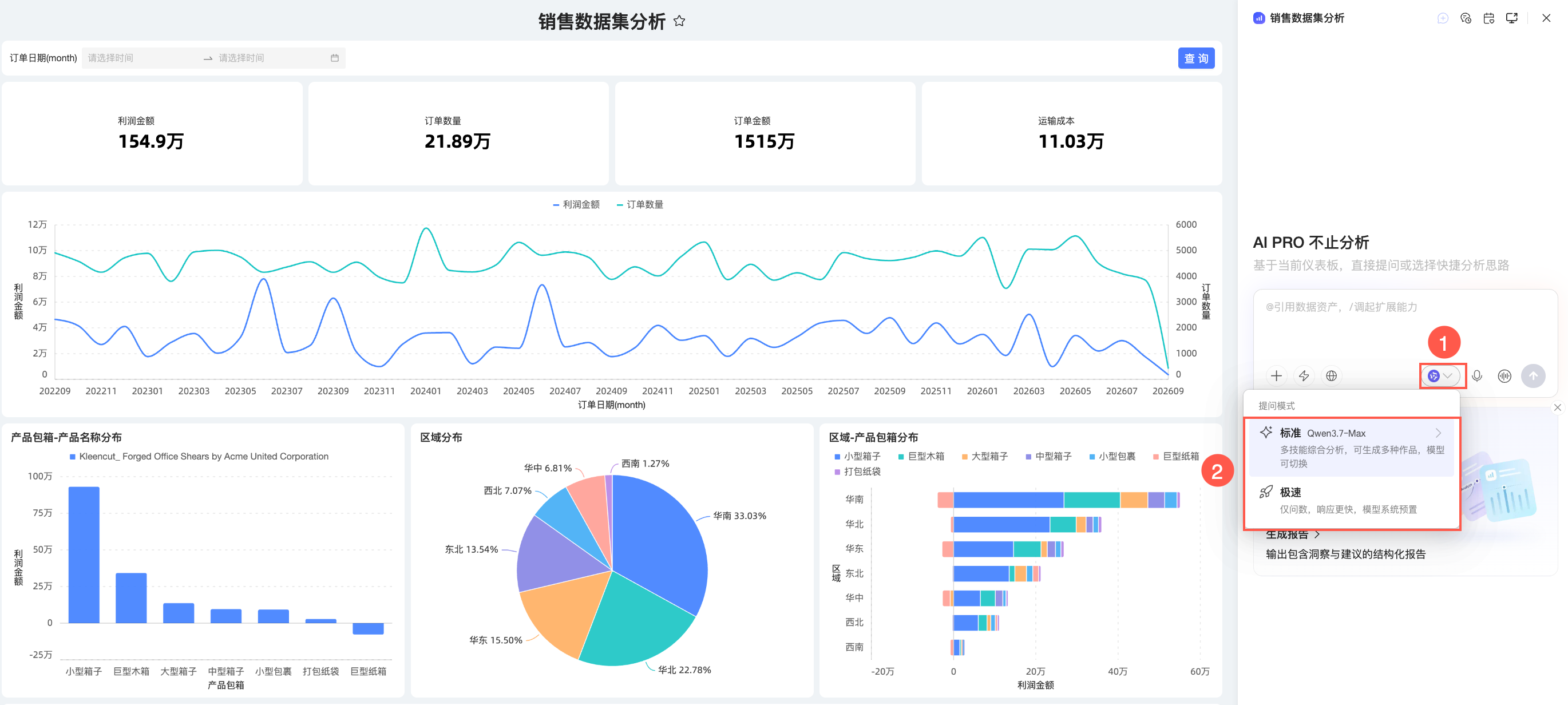
You can choose a different questioning mode for different scenarios. The following table describes the use cases and available capabilities for each mode.
Questioning mode | Use cases | Available capabilities |
Standard | For complex tasks that require combining models, skills, and external tools, such as report generation, cross-system data retrieval, and trend attribution. | You can select your own large model. Skills, MCP connectors, and internet search are all available. |
Express | For quick question-and-answer sessions based on existing data assets. | The system manages the large model. Only data Q&A is supported. Skills, MCP connectors, and internet search are unavailable. |
Select data
Selecting data is an optional step. By default, AIPro analyzes the data on the current dashboard. You can manually select other data to include in the analysis.
Follow these steps to select the data asset you want to analyze.
Click the
 icon in the lower-left corner of the dialog box to select your data asset.
Alternatively, you can type @ directly in the dialog box to select a data asset.
To upload a local file for analysis, click Add from Local File or drag and drop the file directly into the dialog box.
You can also click Add from Corporate Marketplace to navigate to the Data Marketplace and add the required data.
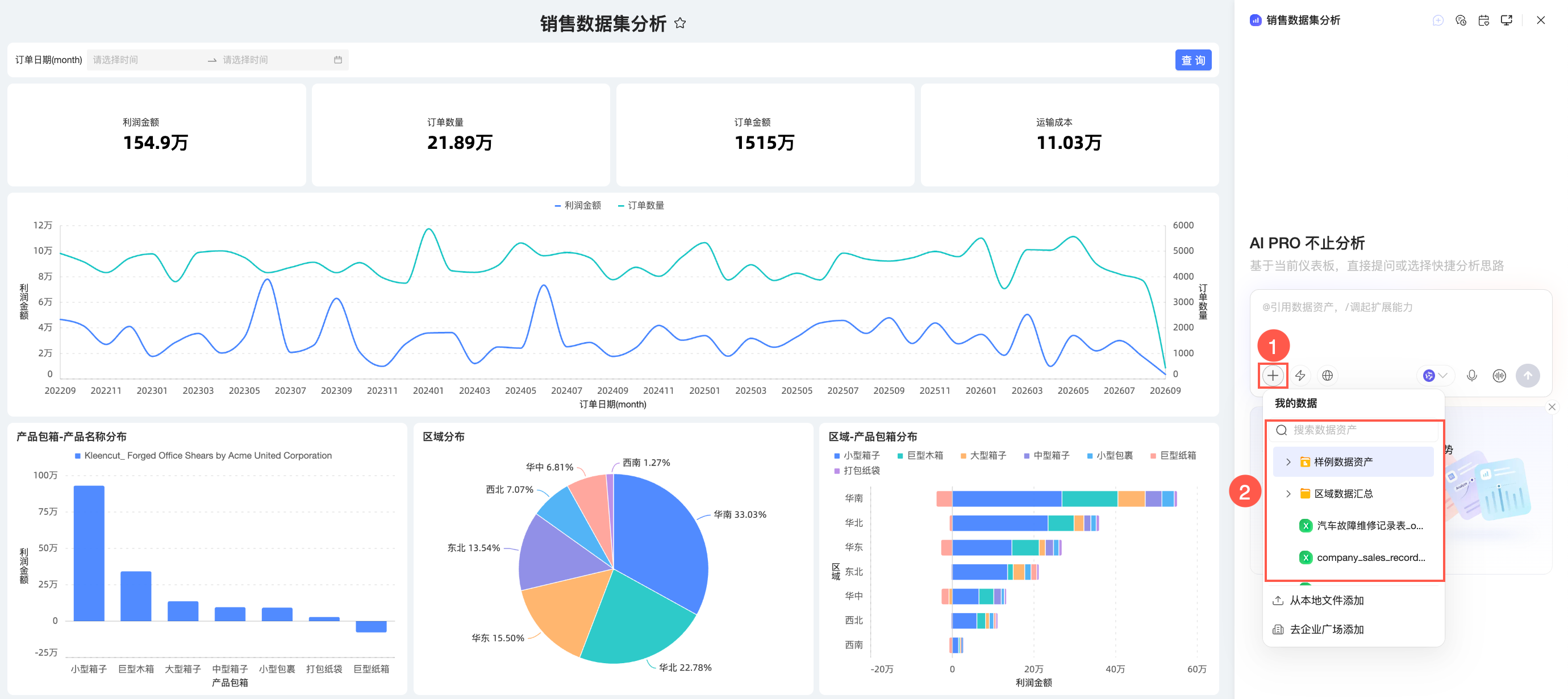
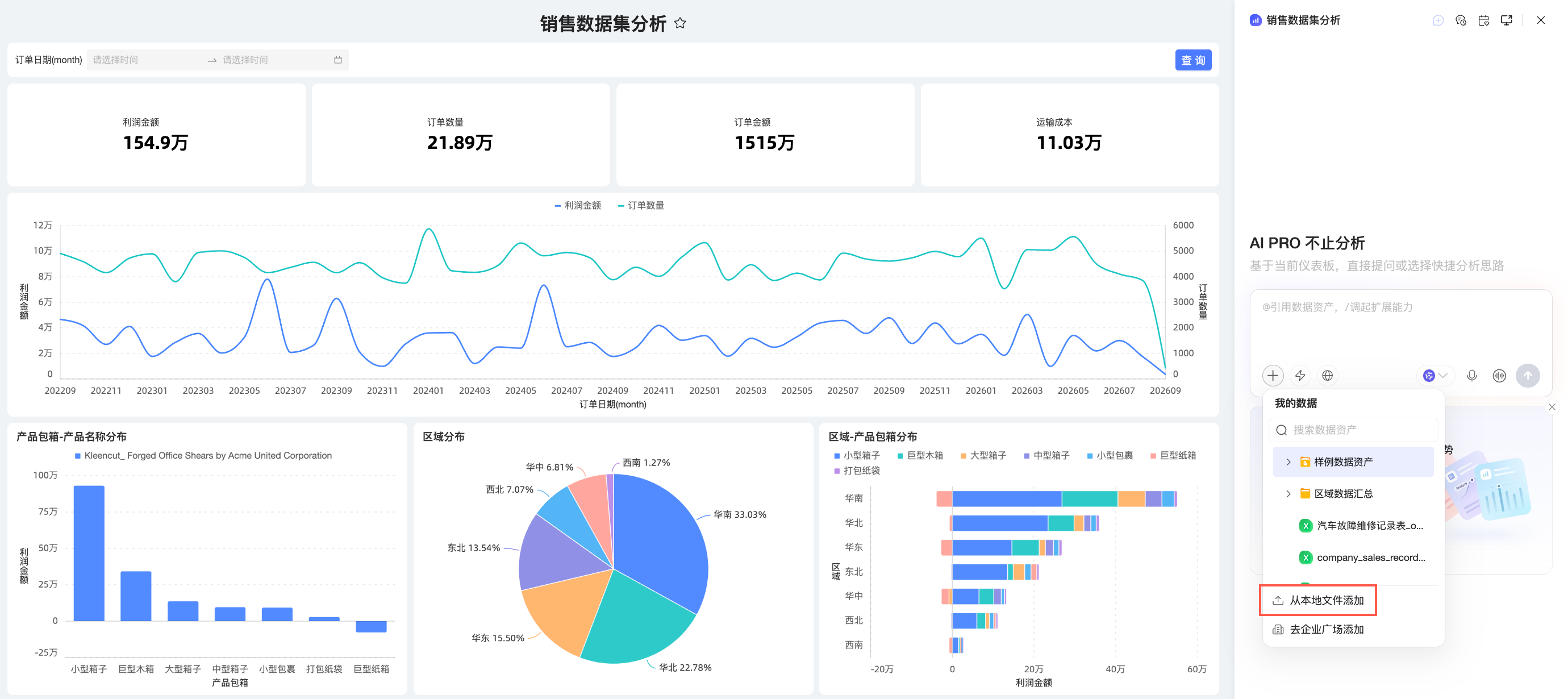 You can also click Add from Corporate Marketplace to navigate to the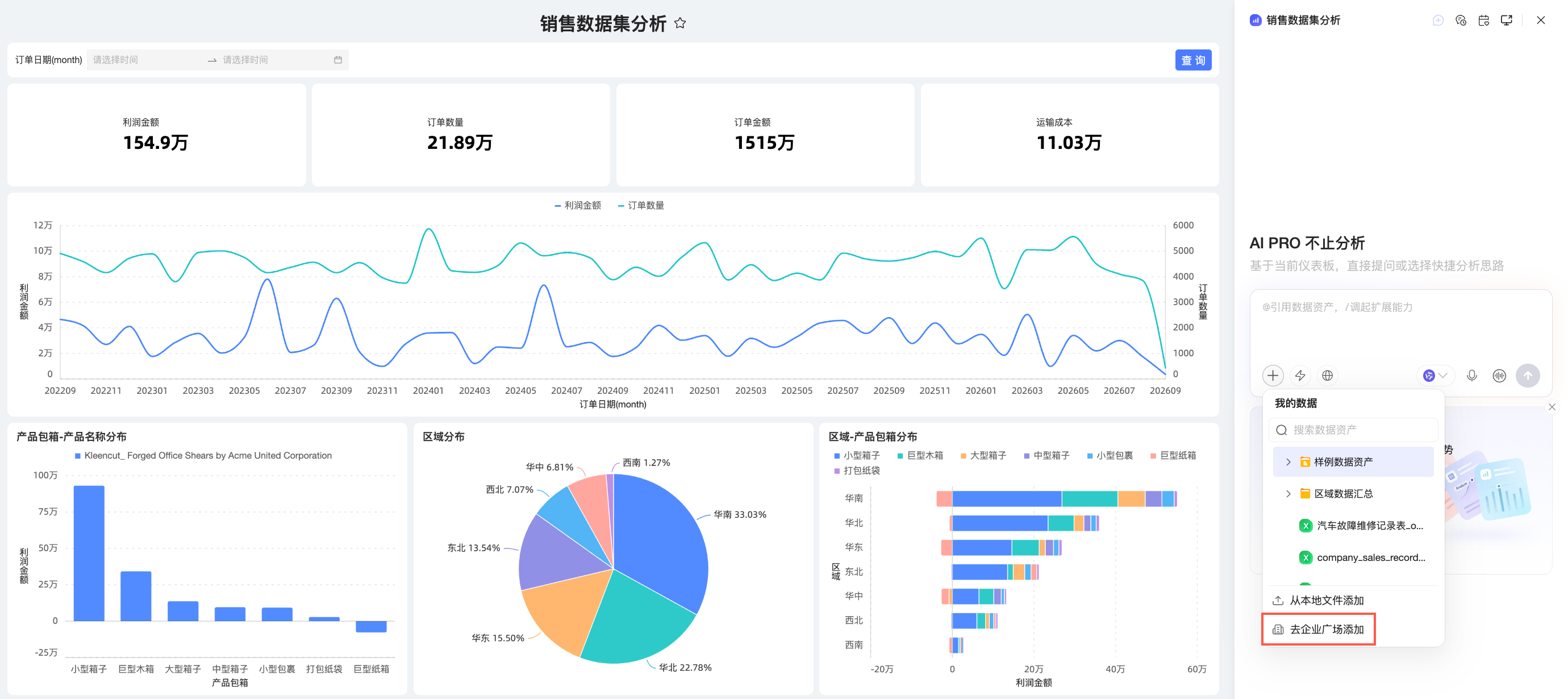
Extended capabilities
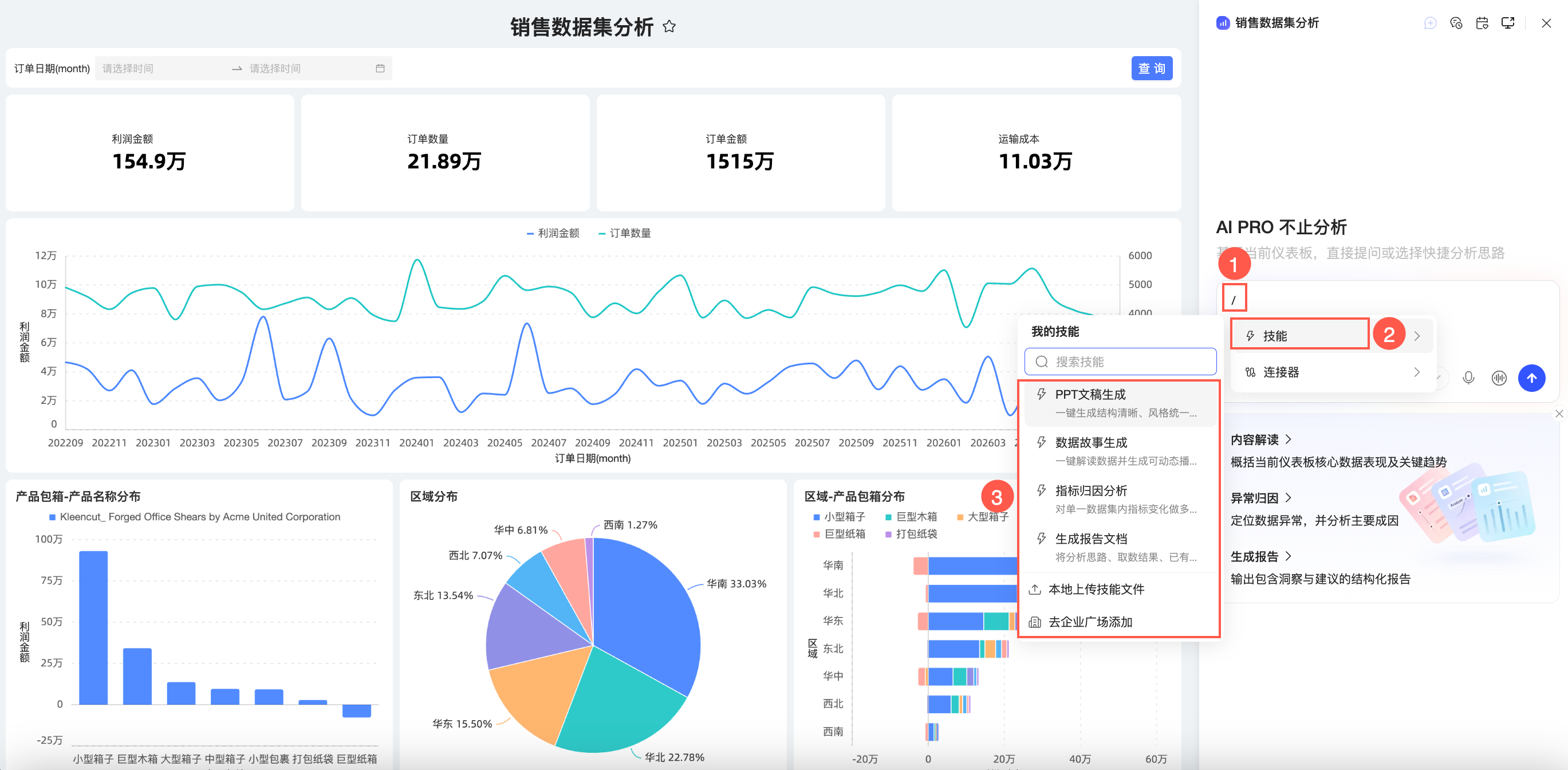
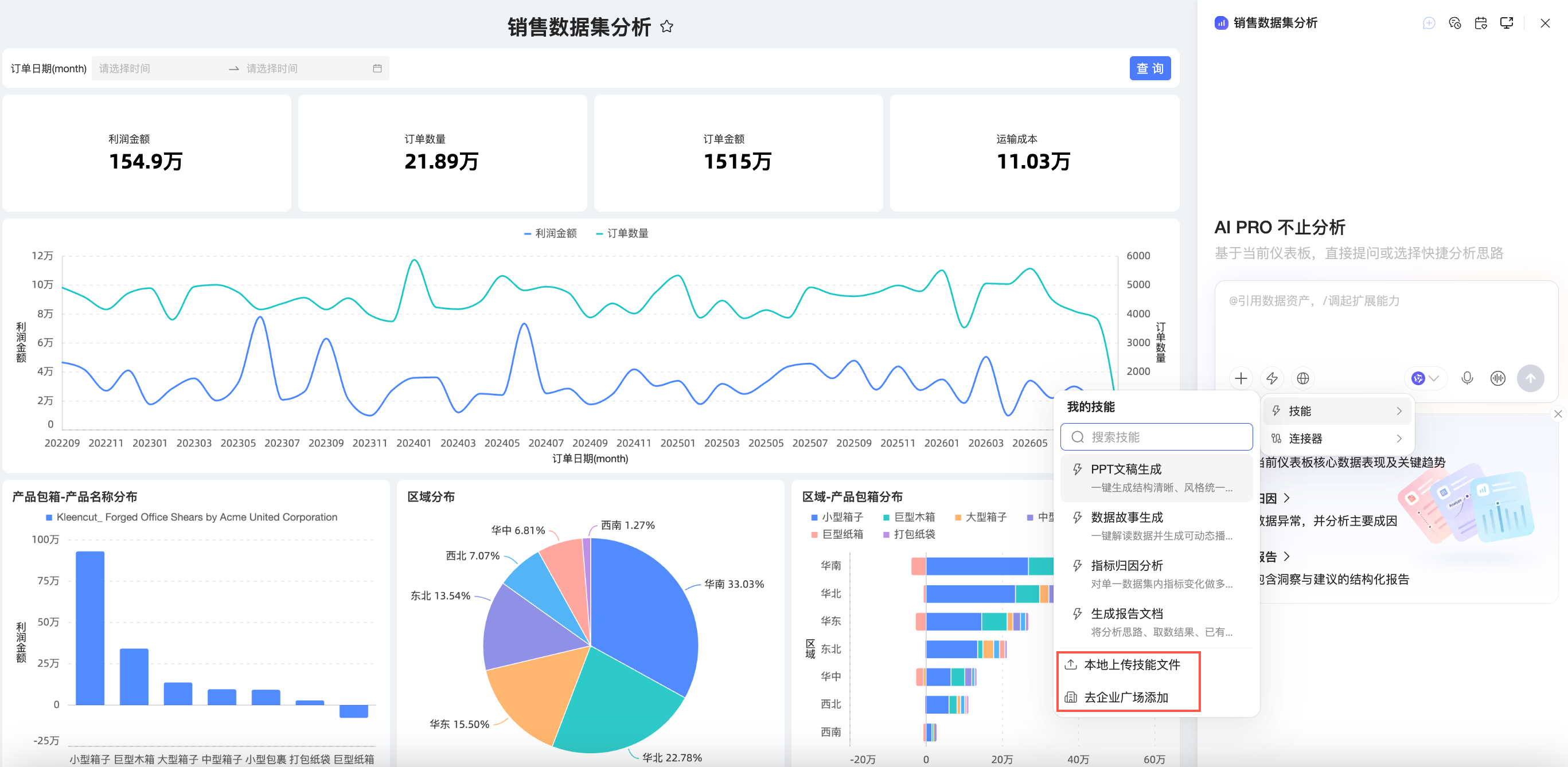
Select skill
Click the
icon in the lower-left corner of the dialog box and follow the steps in the figure to select a skill.Alternatively, you can type / directly in the dialog box to select a skill.
To add a new skill, click Add from Local File or Add from Corporate Marketplace to go to the corresponding page.
 icon in the lower-left corner of the dialog box and follow the steps in the figure to select a skill.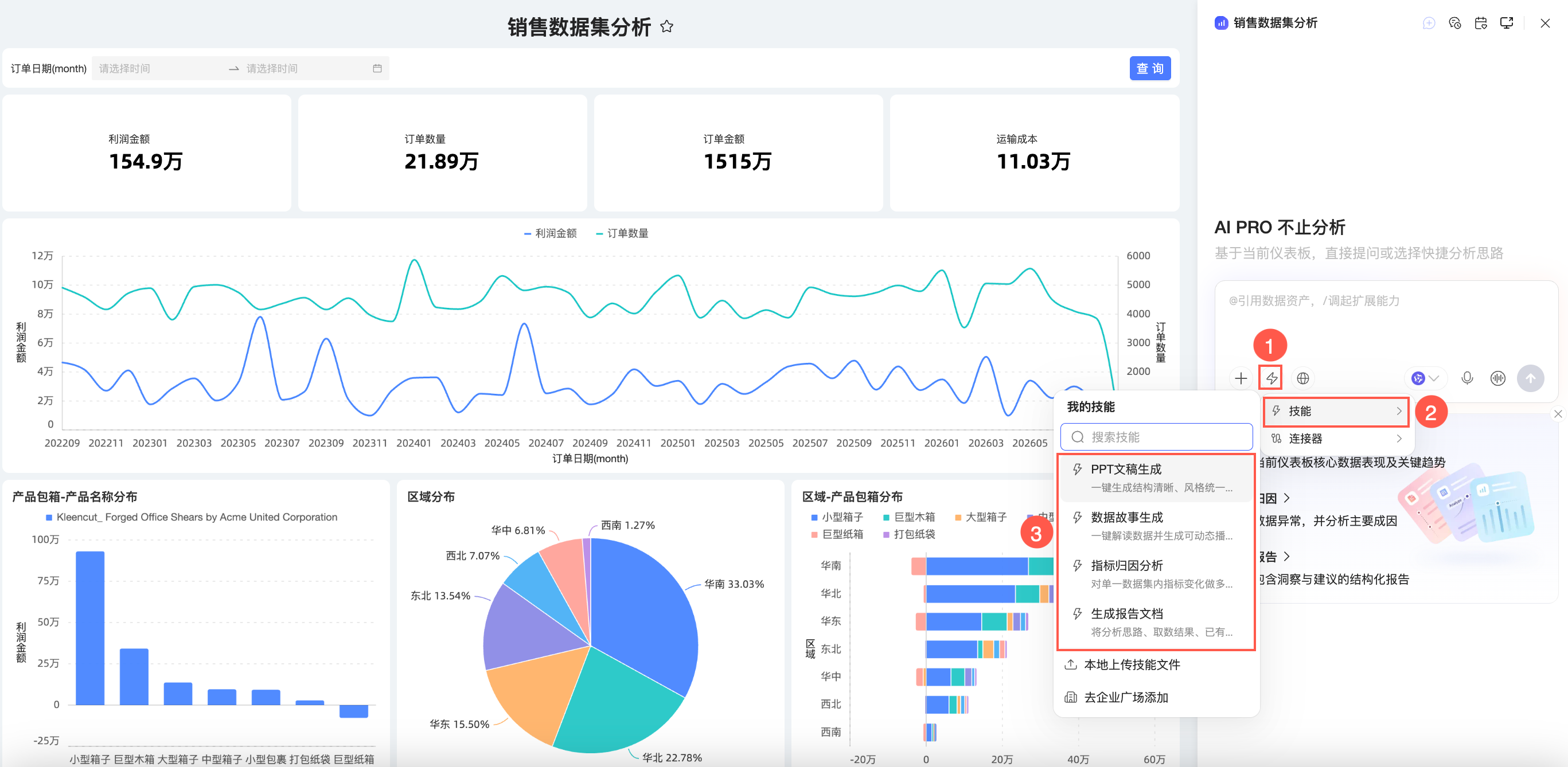
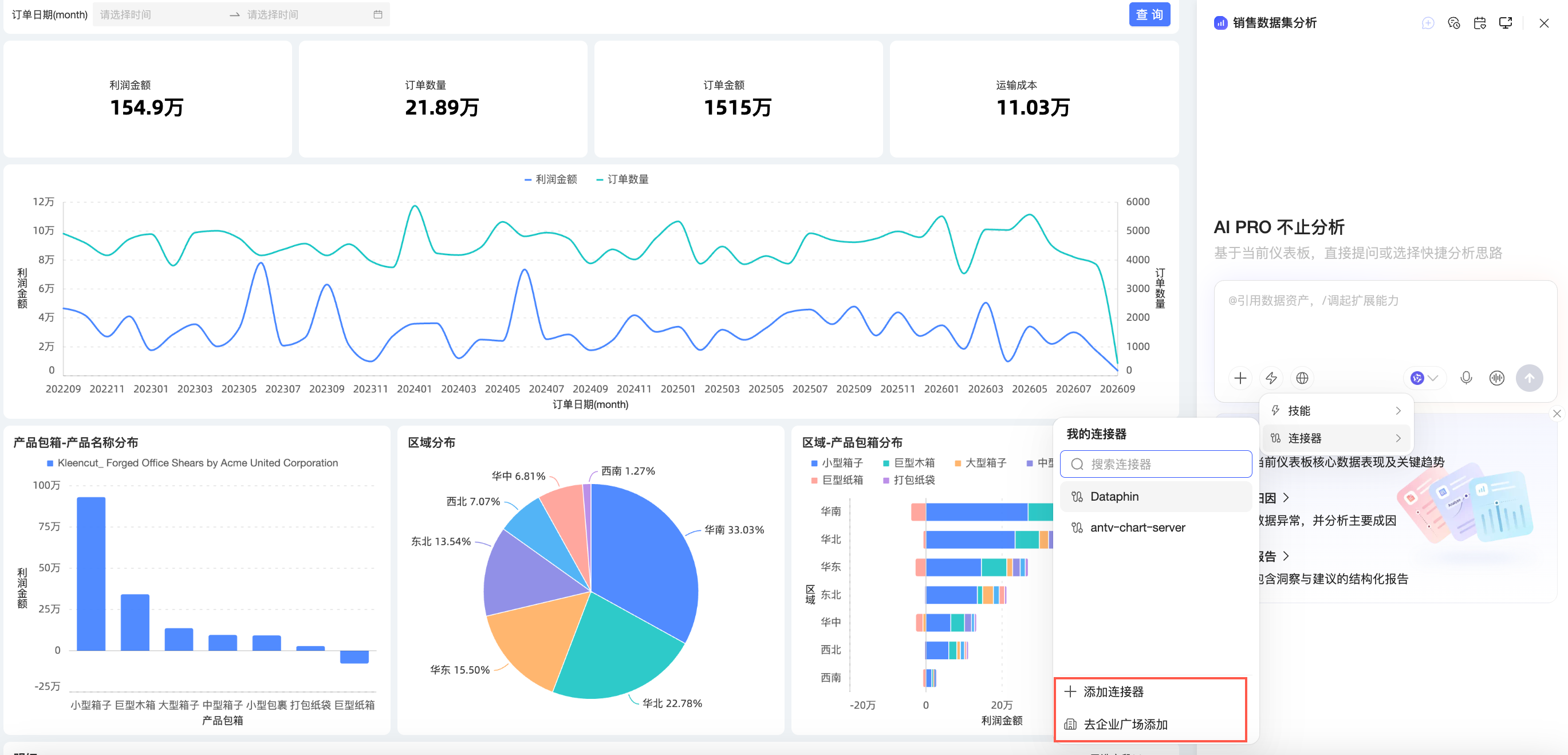
Select connector
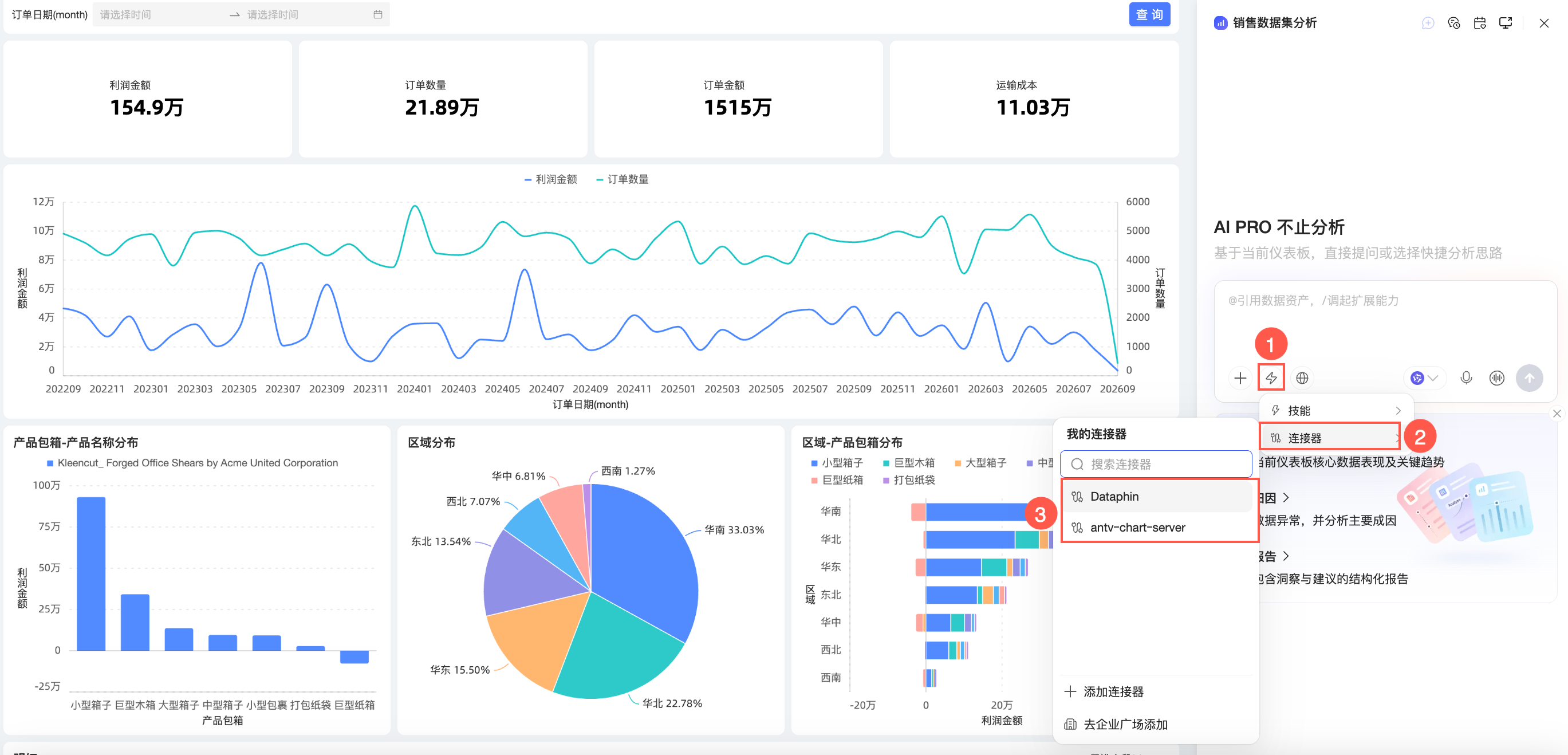
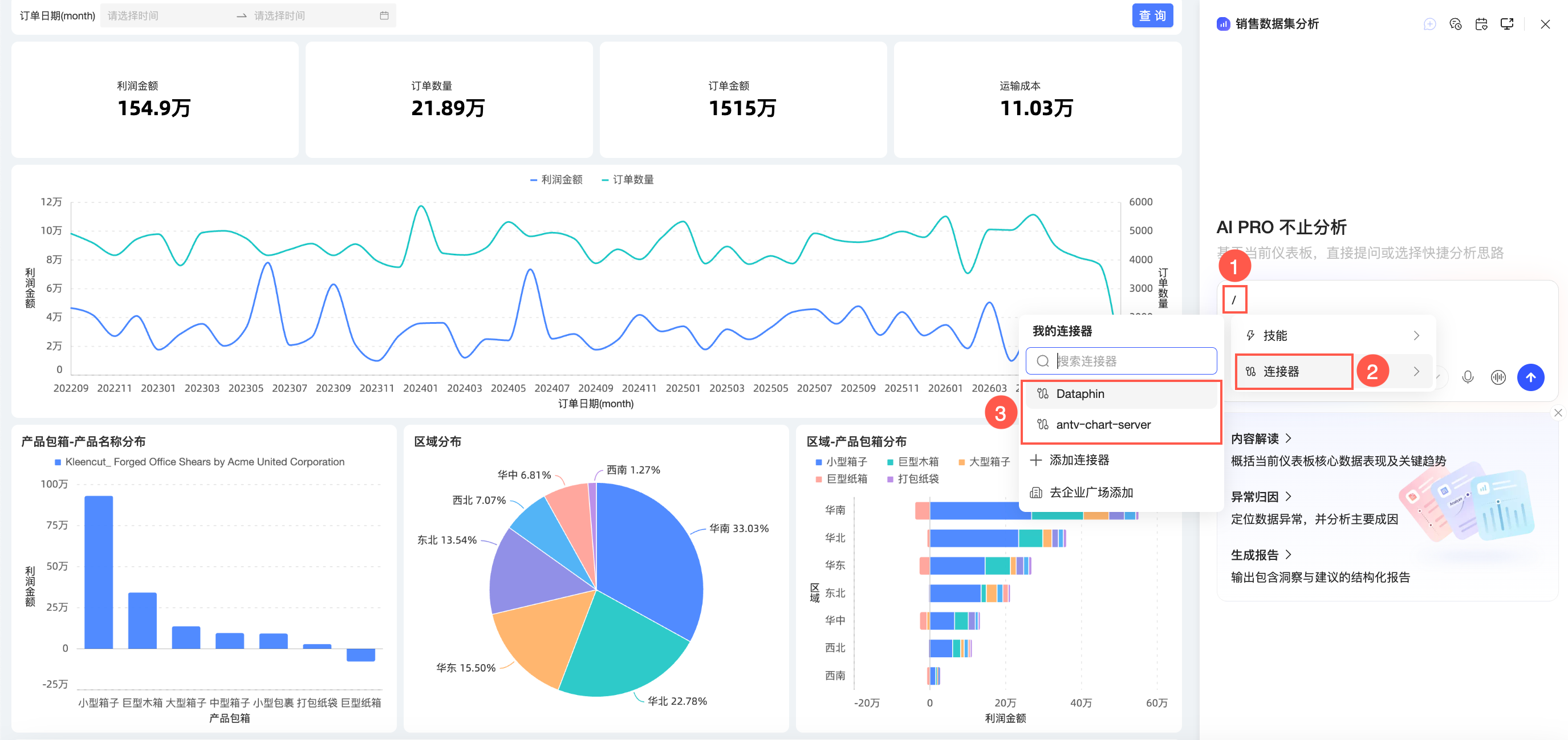
Click the
icon in the lower-left corner of the dialog box and follow the steps in the figure to select a connector.Alternatively, you can type / directly in the dialog box to select a connector.
To add a new connector, click Add Connector or Add from Corporate Marketplace to go to the corresponding page.
Internet search
Click the  icon in the lower-left corner of the dialog box to enable internet search. When enabled, AIPro can access the internet to retrieve and analyze content from URLs.
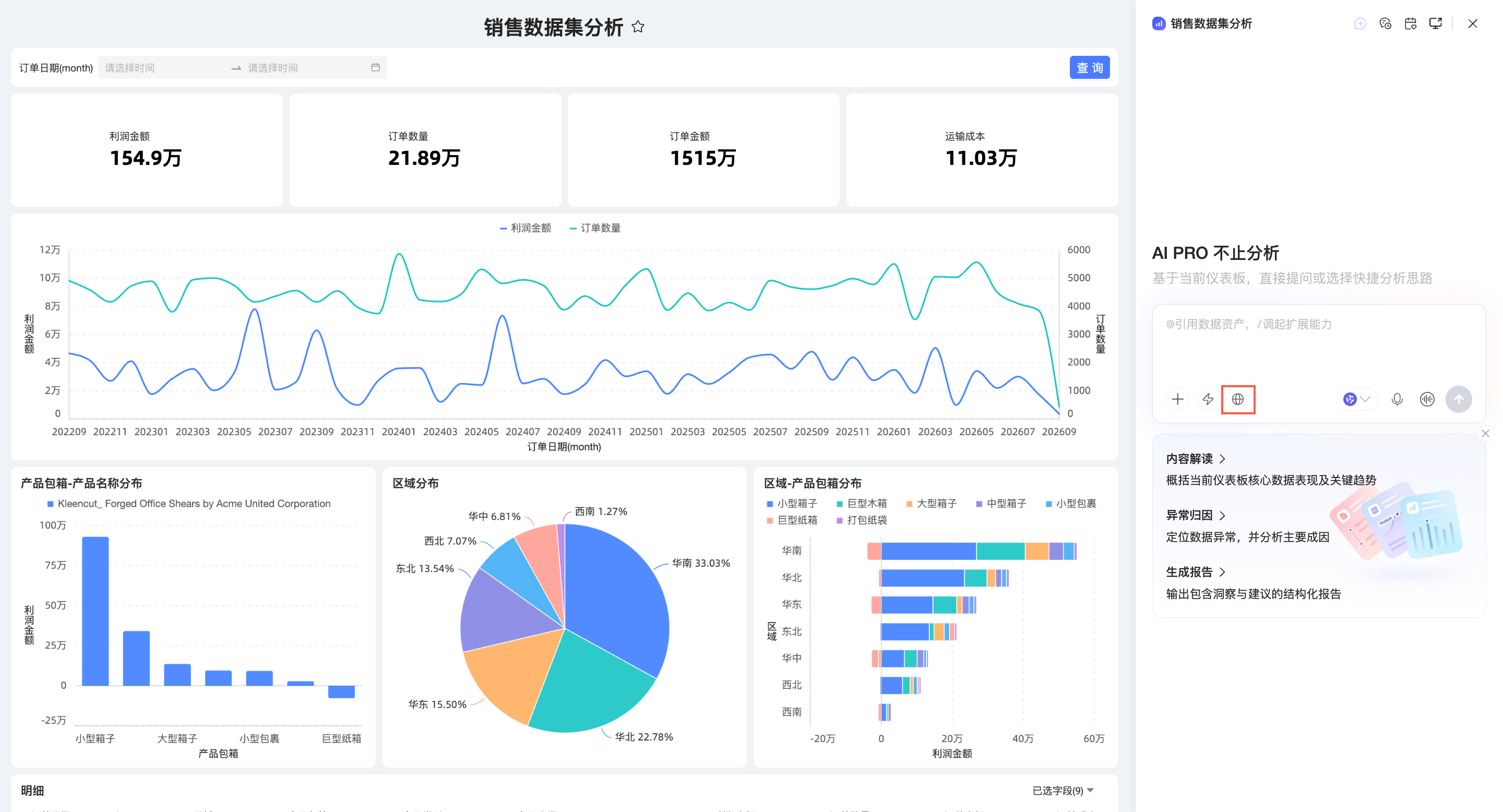
Internet search is supported only in the public cloud environment, not in private deployment environments.
Questions and answers
Dashboard AIPro uses conversational intent recognition to automatically map your natural language input to operations, such as data query, visualization, diagnostics, report generation, or scheduled task creation. Based on your question, the system generates analysis results, such as reports, visual reports, HTML reports, PPT documents, or generated skills. For more information, see Get analysis results.
This section describes how to ask questions and get answers.
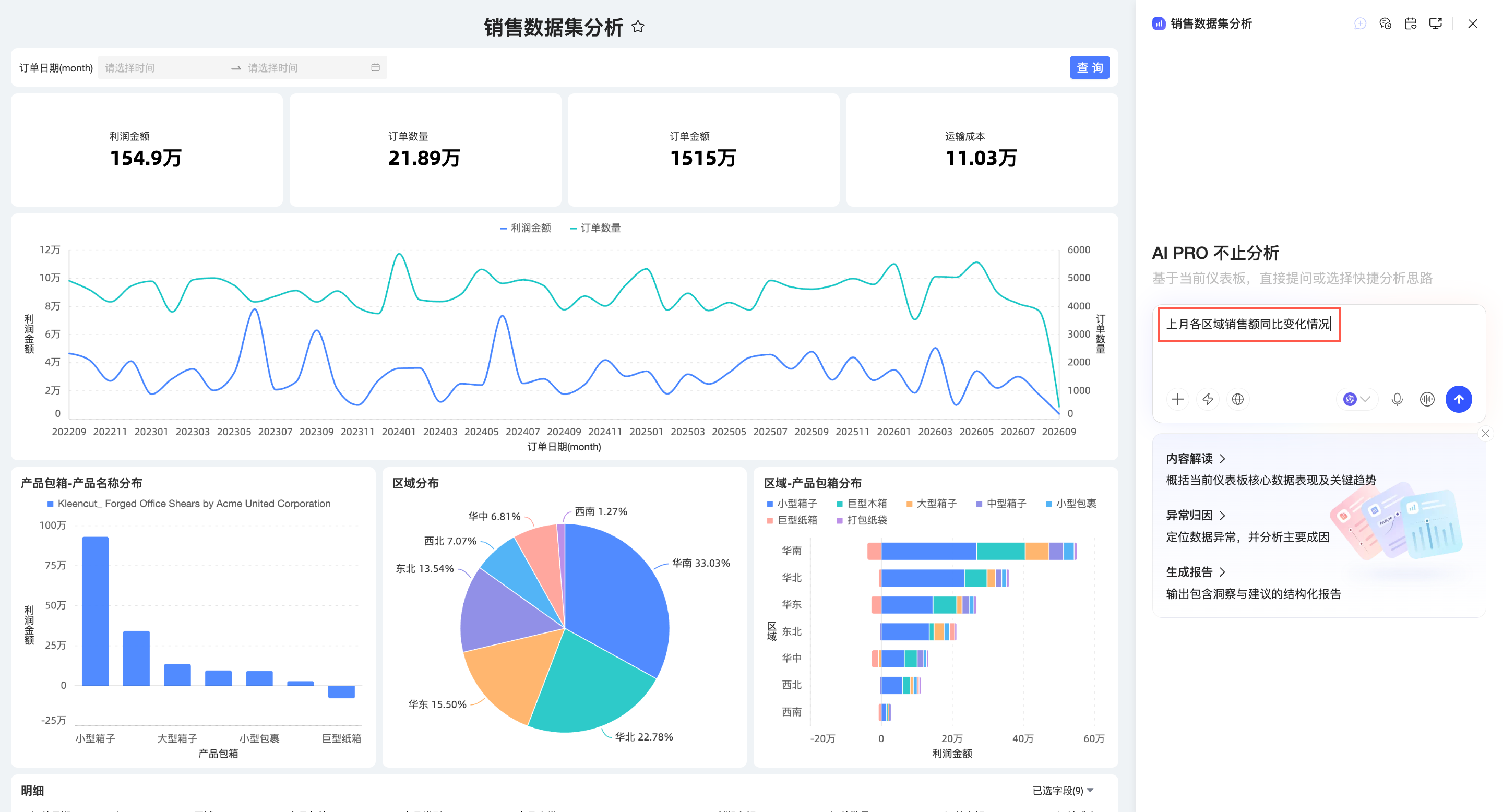
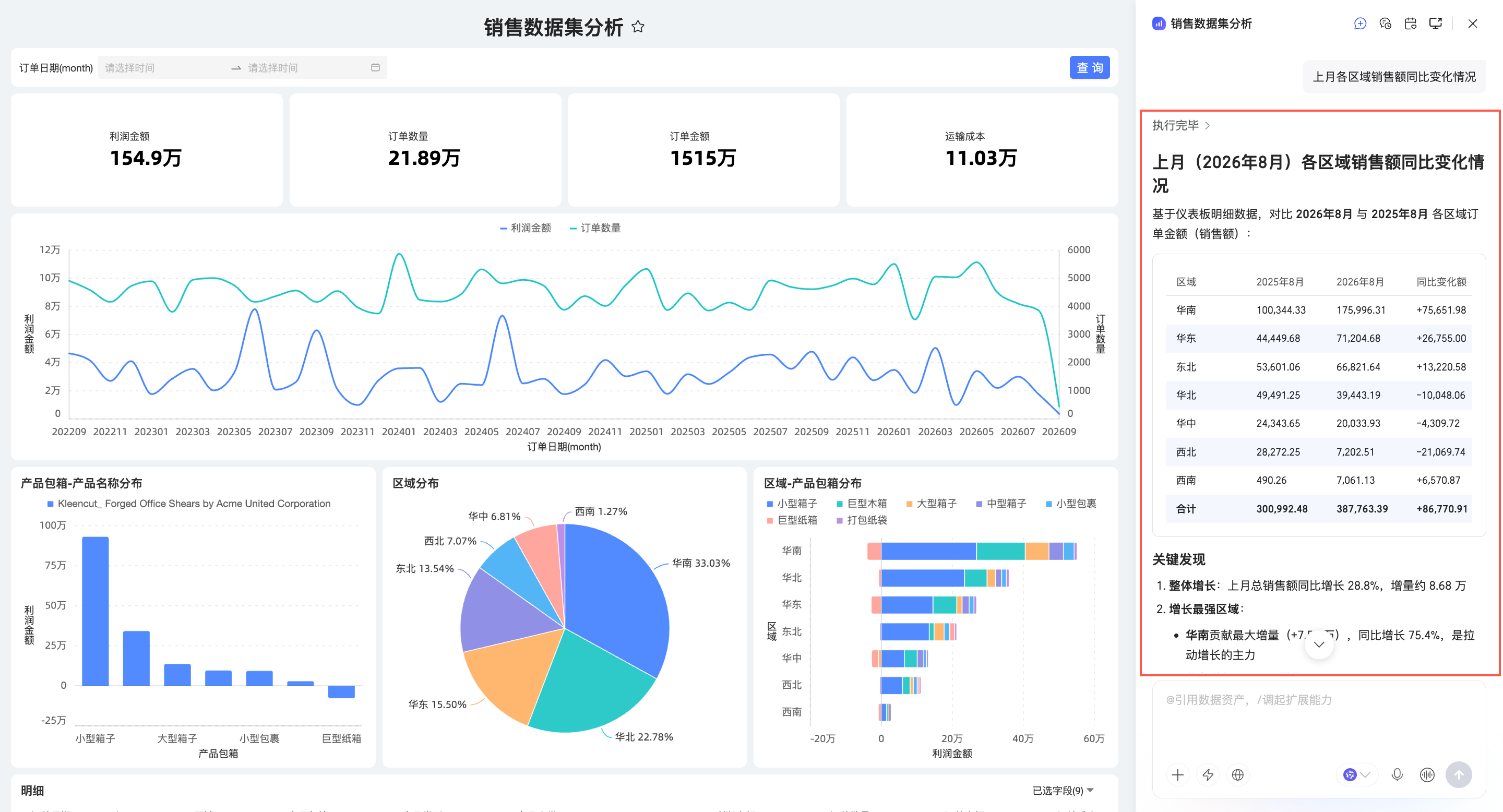
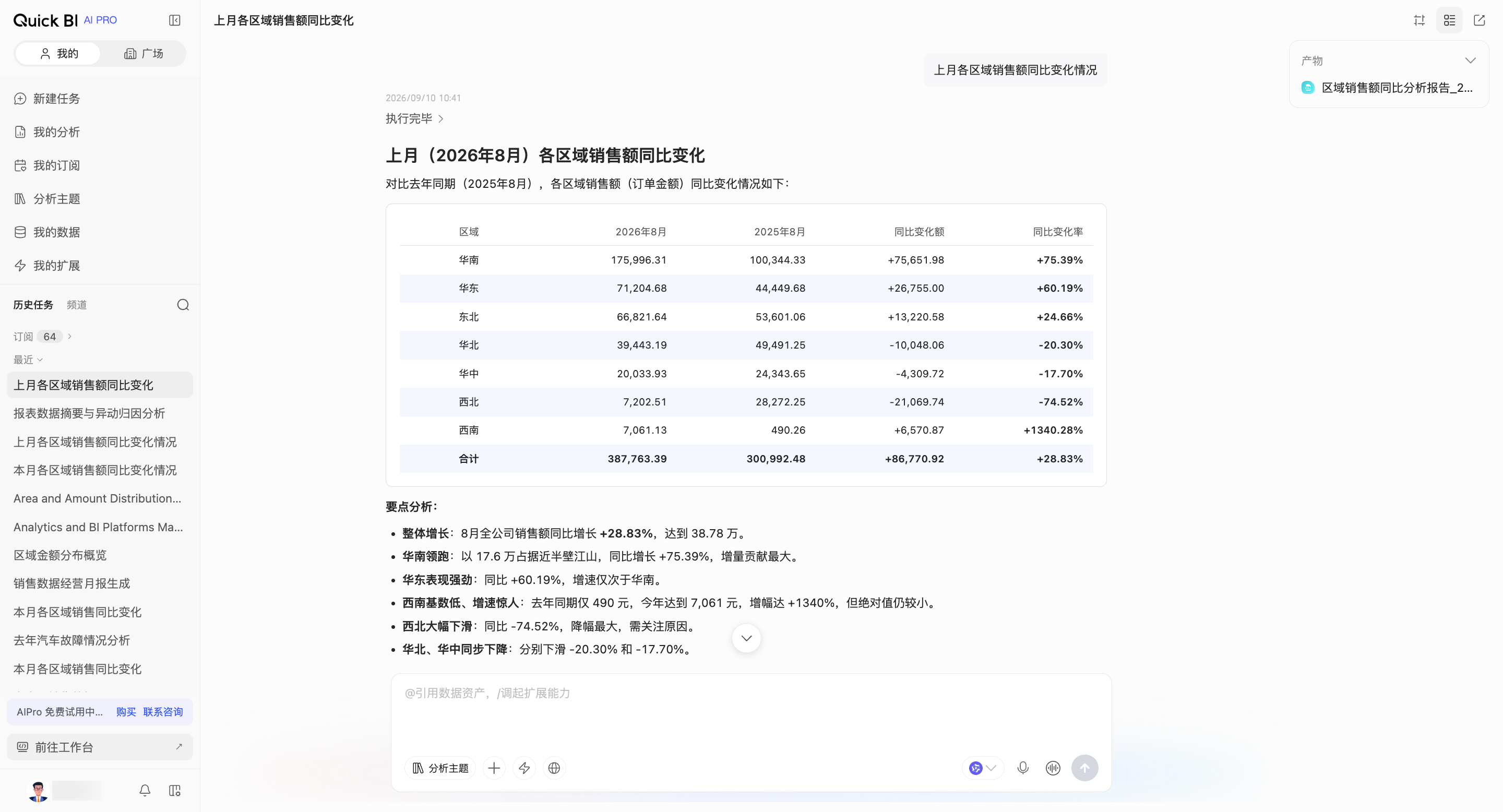
In the input box, type your analysis question in natural language. For example: "What is the year-over-year change in sales for each region last month?"
You can click the
icon to use Voice Input.NoteVoice input is supported only in the public cloud environment, not in private deployment environments.
You can click the
icon to start a Real-time Conversation.NoteReal-time conversation is supported only in the public cloud environment, not in private deployment environments.
After entering your question, press Enter or click Send and wait for the AI to generate the analysis results.
You can click Stop Generating while the result is being generated.
View the returned result.
This feature supports multi-turn follow-up questions.
You can continue to ask related analysis questions in natural language. The system uses the conversation context to provide coherent answers, helping you explore your data in depth.
 icon to use Voice Input.
 icon to start a Real-time Conversation.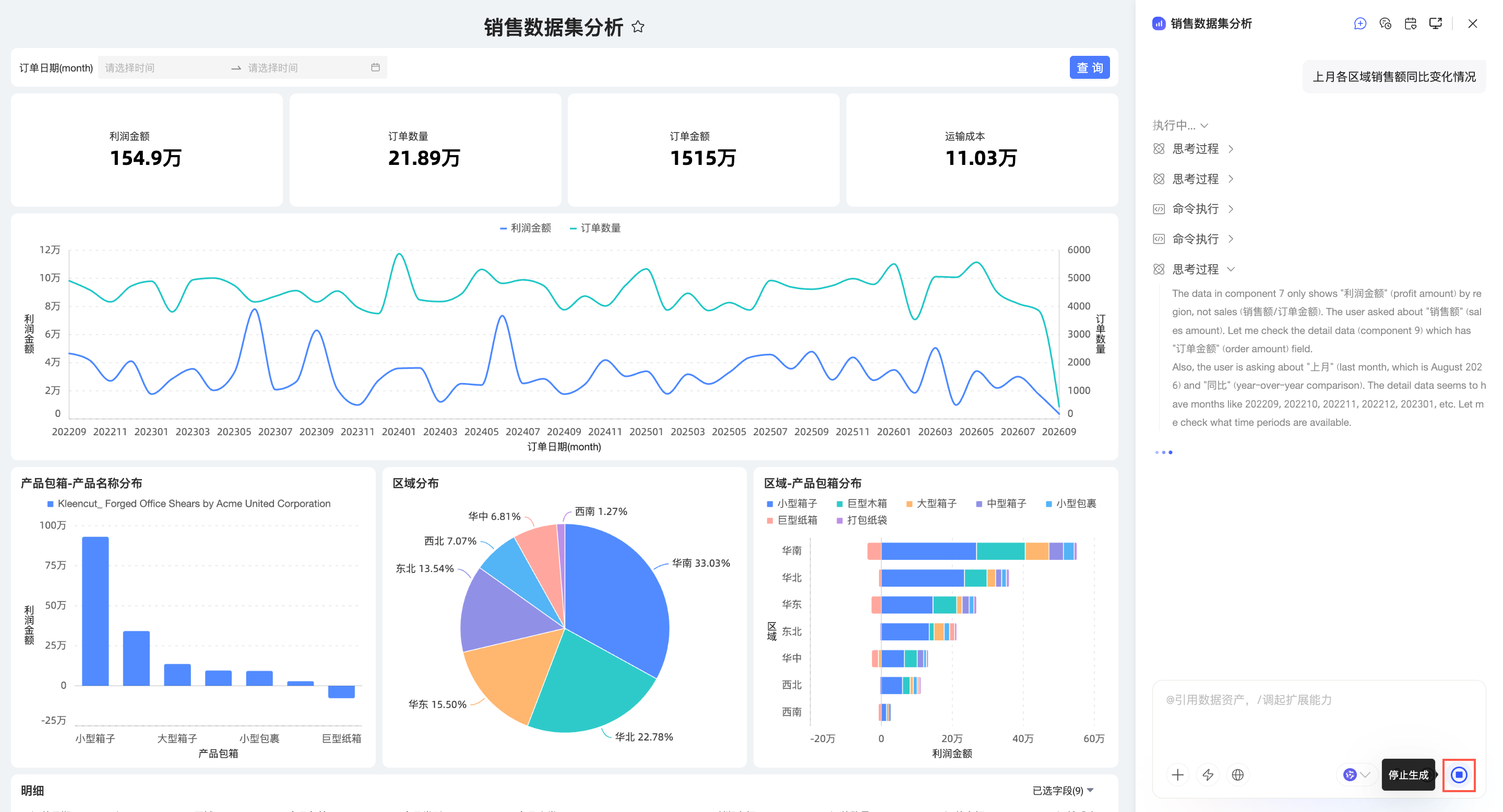
Manage results
You can generate smart charts.
Move your pointer over the analysis result and click the
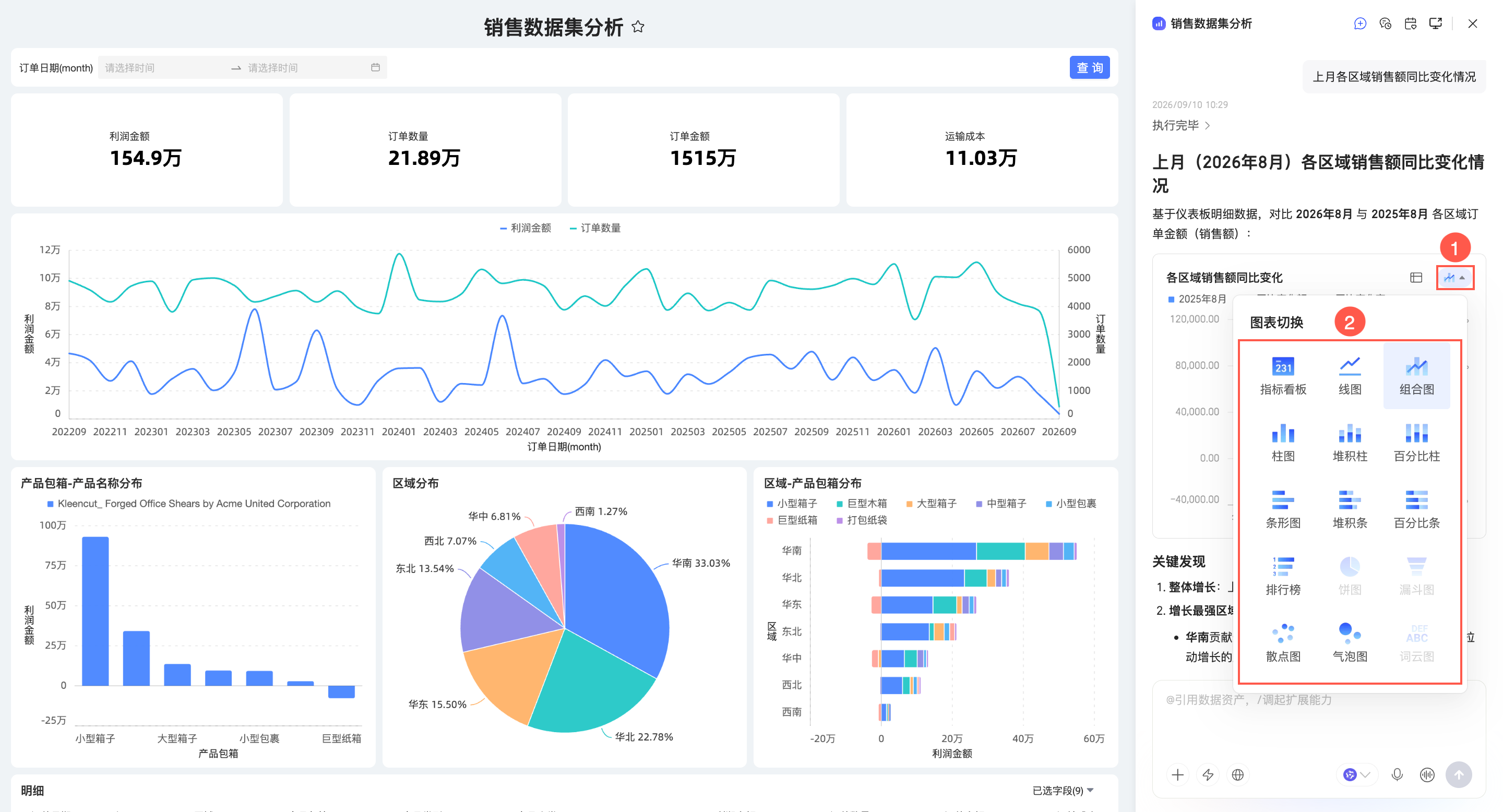
icon to generate a chart.After the chart is generated, you can switch between different chart types.
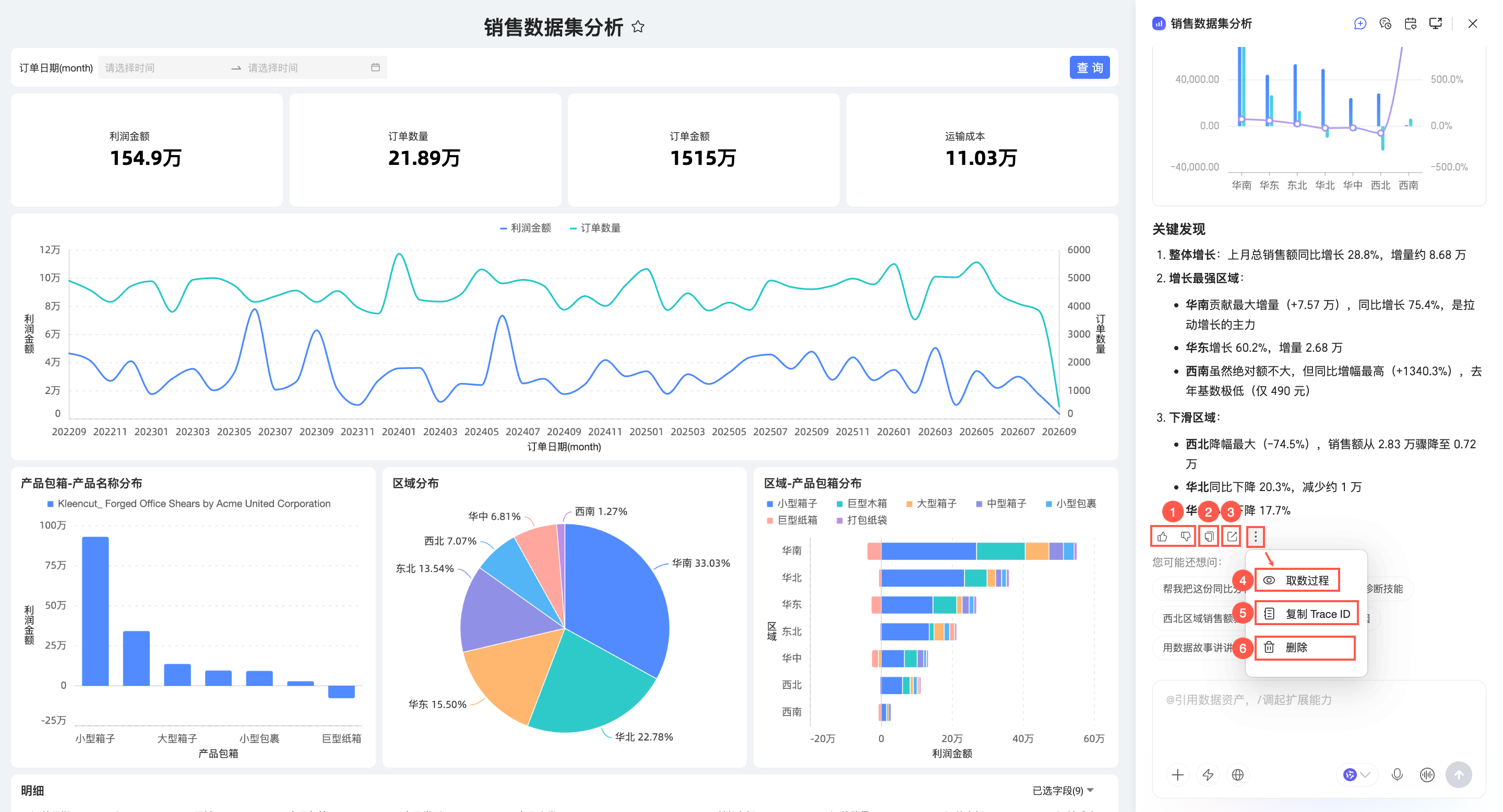
While viewing the data, you can also use the following features.
NoteThe Convert to Document feature is not available in the Dashboard AIPro interface. To use this feature, click the
icon in the upper-right corner to go to the Quick BI AIPro interface.No.
Feature
Description
①
Like/Dislike
Click the
icon to like or the icon to dislike. When you dislike a response, you can provide feedback.②
Copy
Copy the content of the analysis result.
③
Share
Click the
icon to share one or more conversations. You can share via a Private Link or a Public Link.Private Link: Only logged-in users can view the conversation and its data artifacts via the link.
Public Link: Anyone with the link can view the conversation without logging in.
After opening a shared link, you can view the data artifacts (such as dashboards and HTML reports) within the conversation.
NoteData artifacts opened via a shared link are view-only. Operations such as Edit, Go to My Analysis, and Version History are not supported.
④
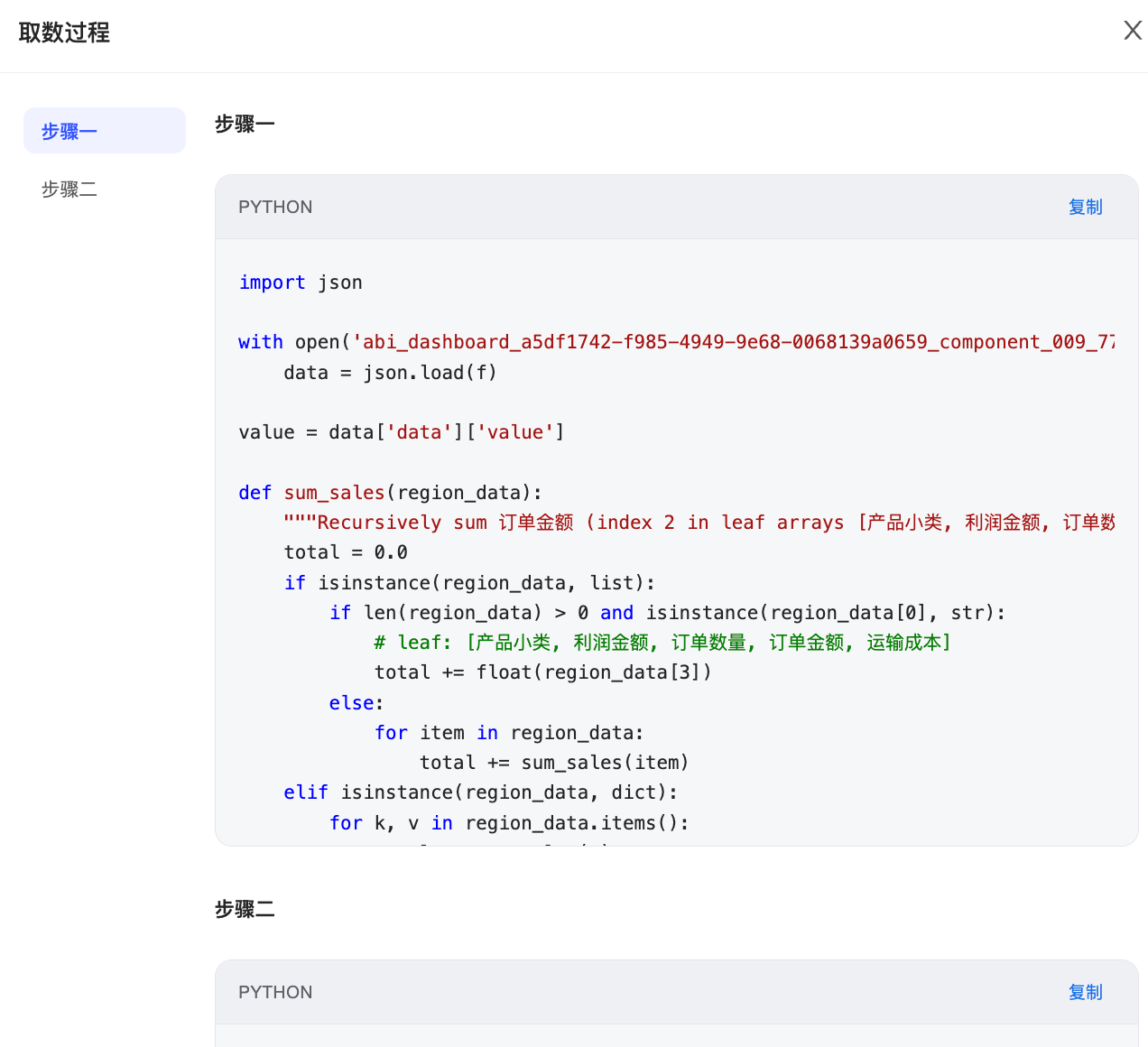
Data retrieval process
View the data retrieval process to verify that the results meet your requirements.
NoteInformation about the data retrieval process is displayed only when data retrieval was used to generate the result.
⑤
Copy Trace_ID
Copy the Trace_ID to assist with technical support.
⑥
Delete
Click the Delete button to delete the current message, which includes both the question and the reply.
 icon to generate a chart.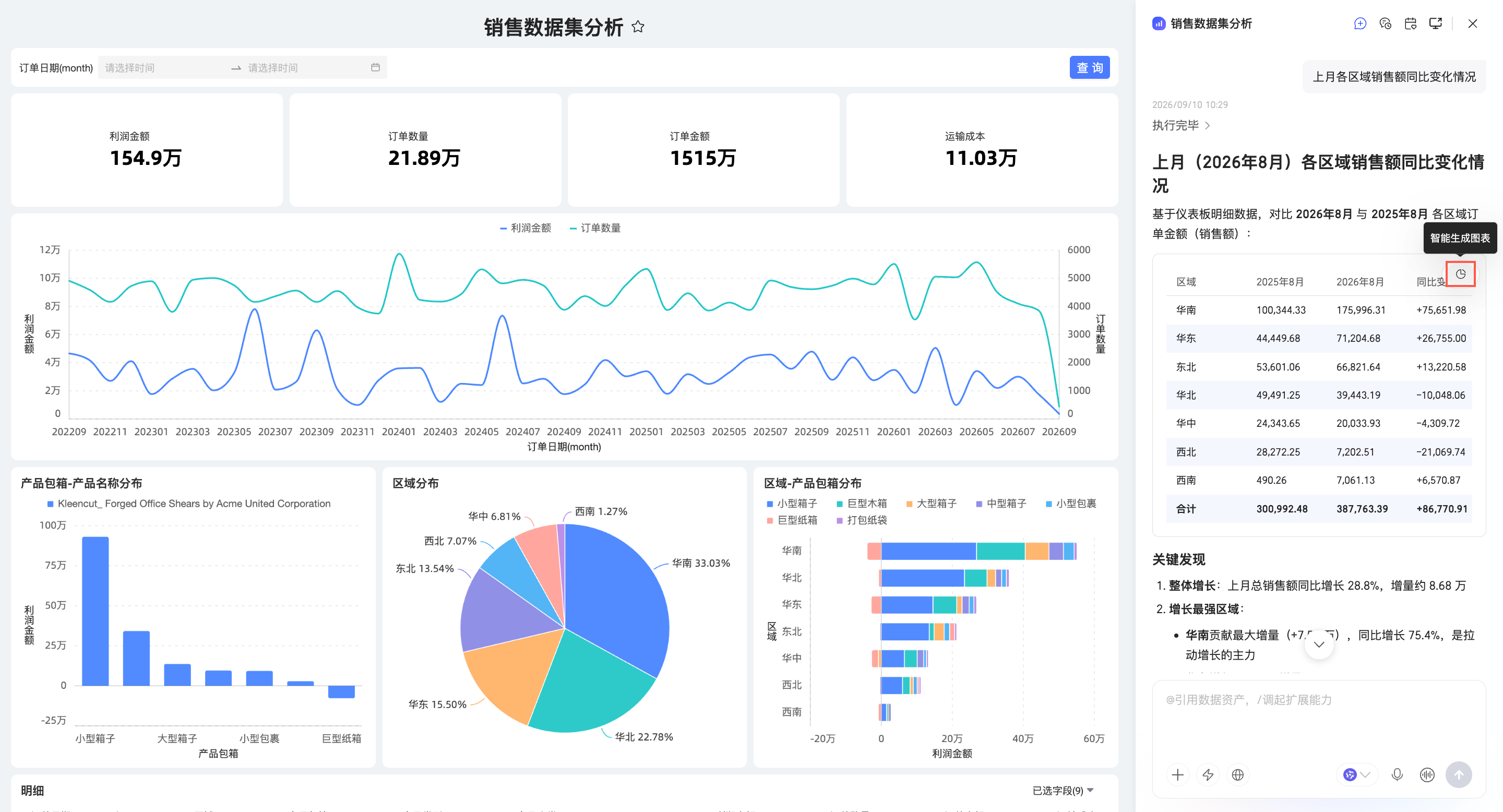
 icon in the upper-right corner to go to the Quick BI AIPro interface.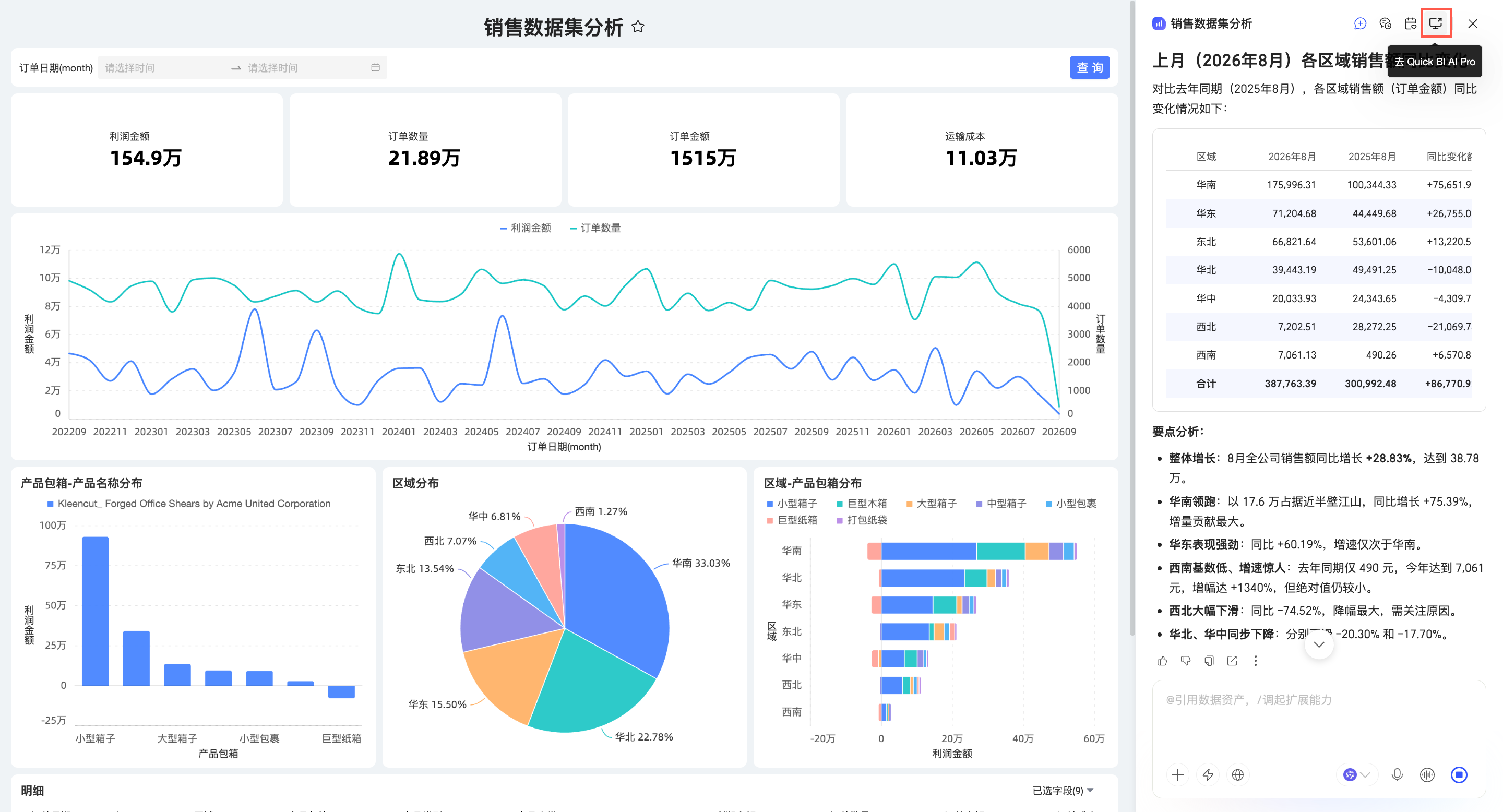
 icon to like or the
  icon to dislike. When you dislike a response, you can provide feedback.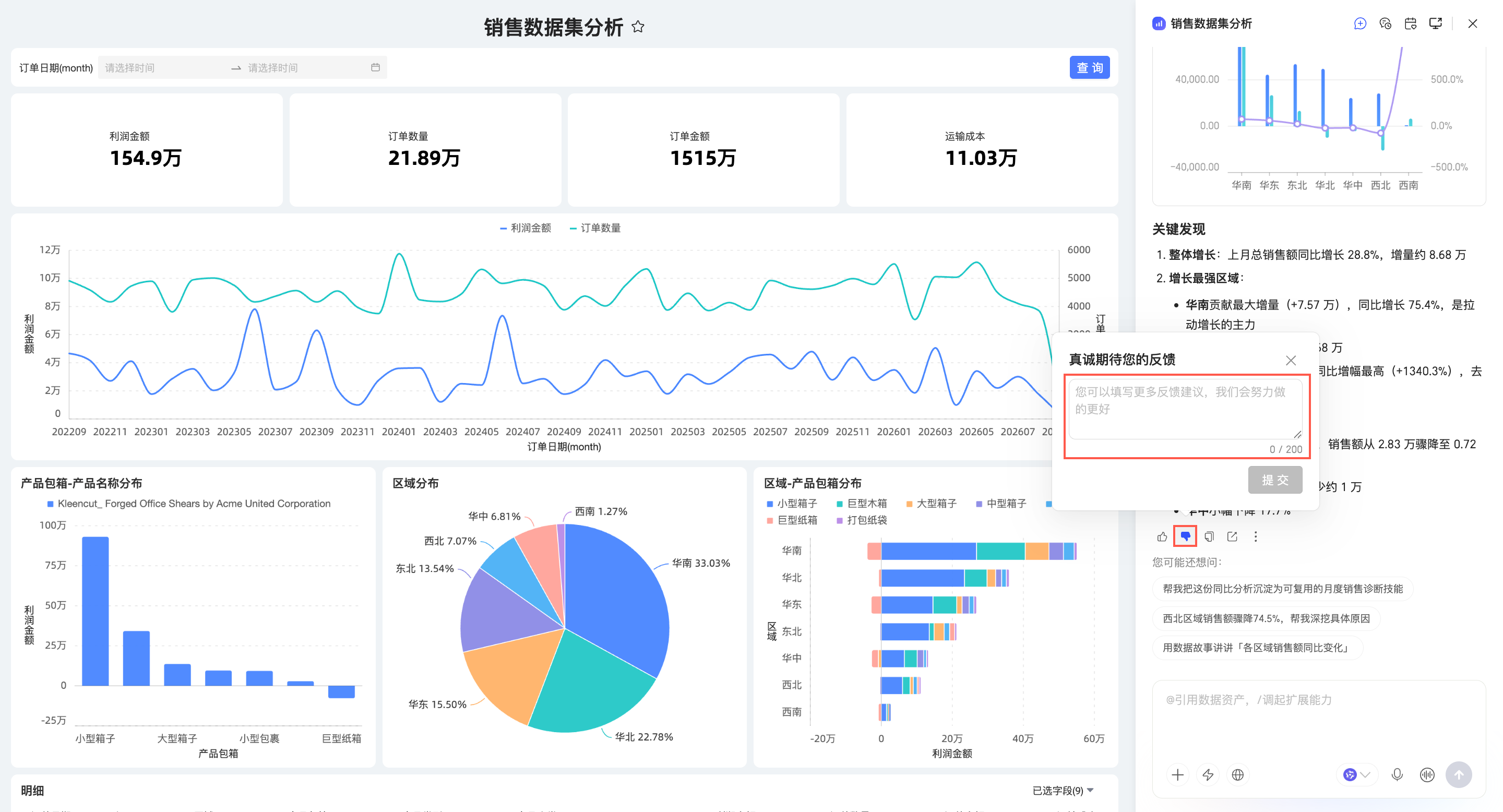
 icon to share one or more conversations. You can share via a Private Link or a Public Link.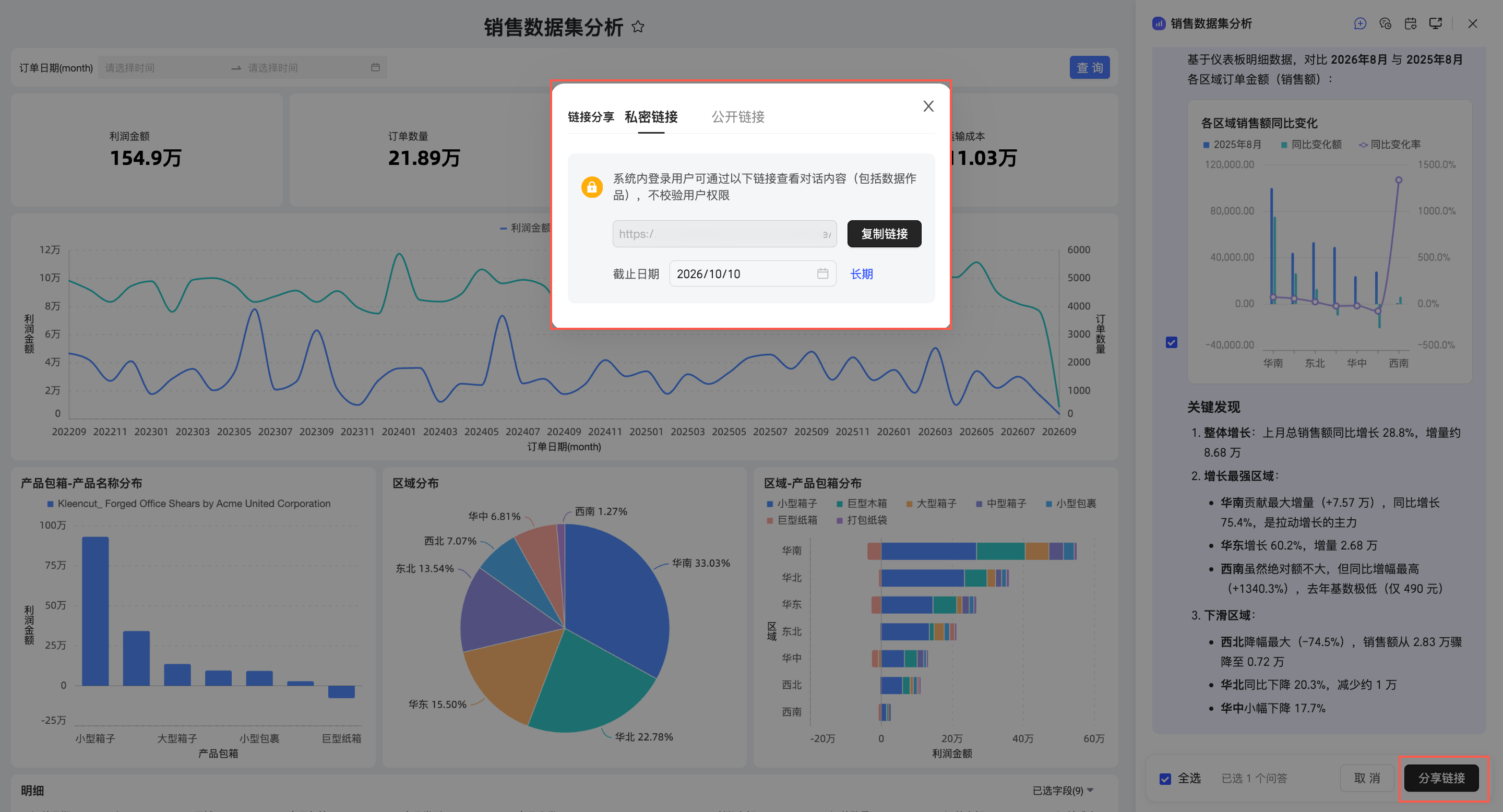
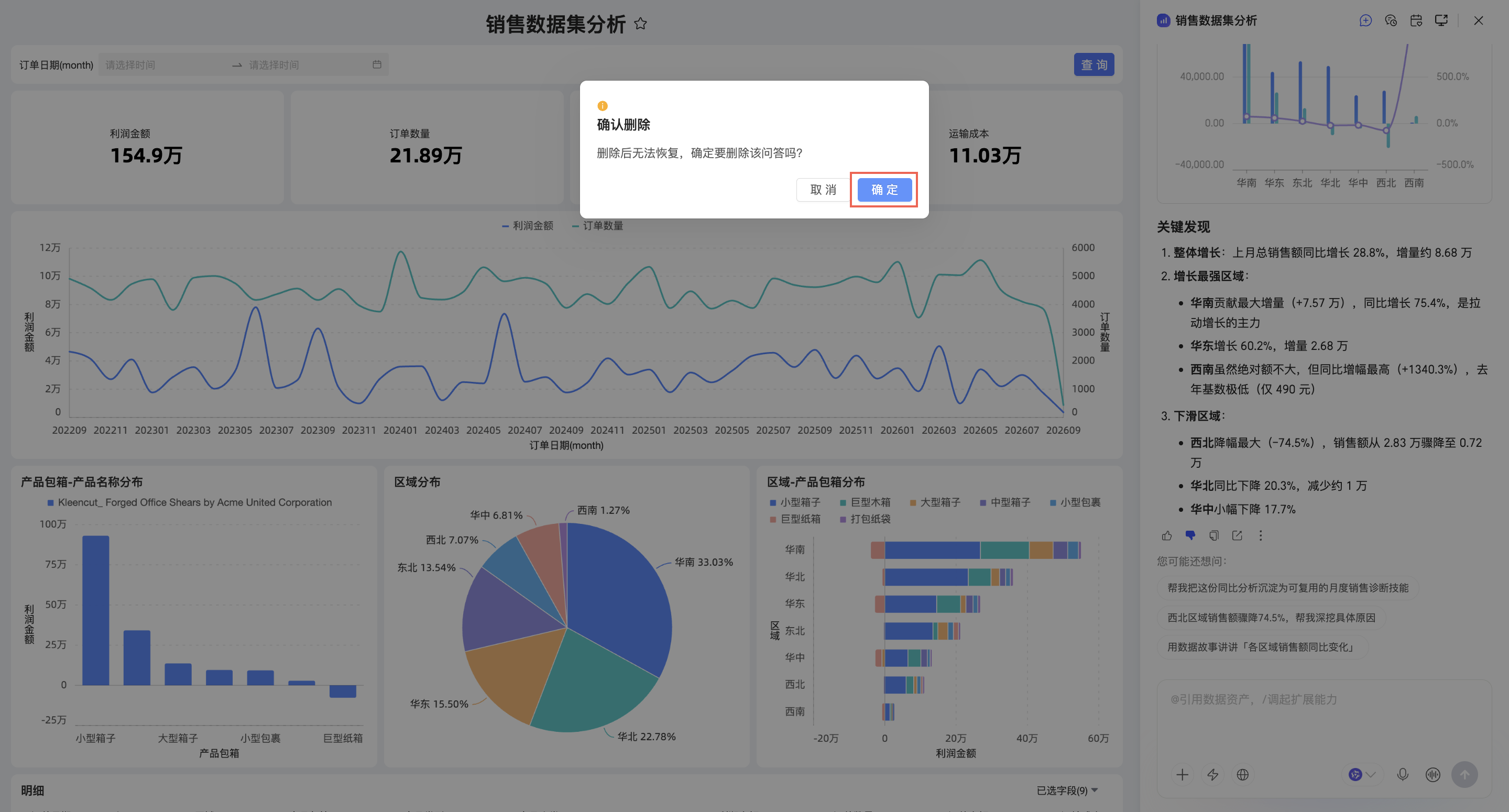
Session management
New session
Click the  icon to start a new session.
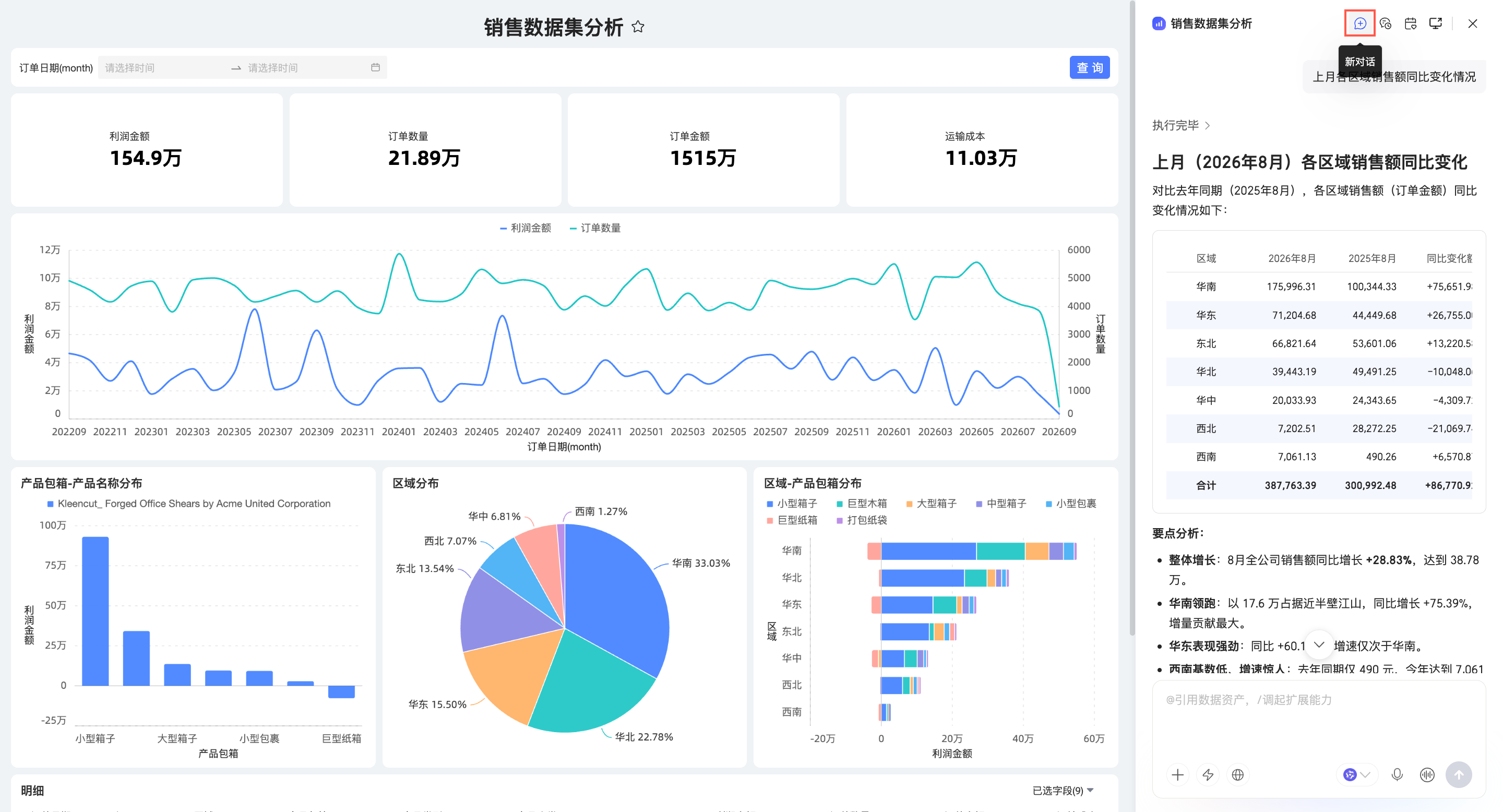
Conversation history
In the AIPro panel, click the  icon to view your History.
Conversation records from Dashboard AIPro are synchronized with the session list in Quick BI AIPro.
Quick BI AIPro
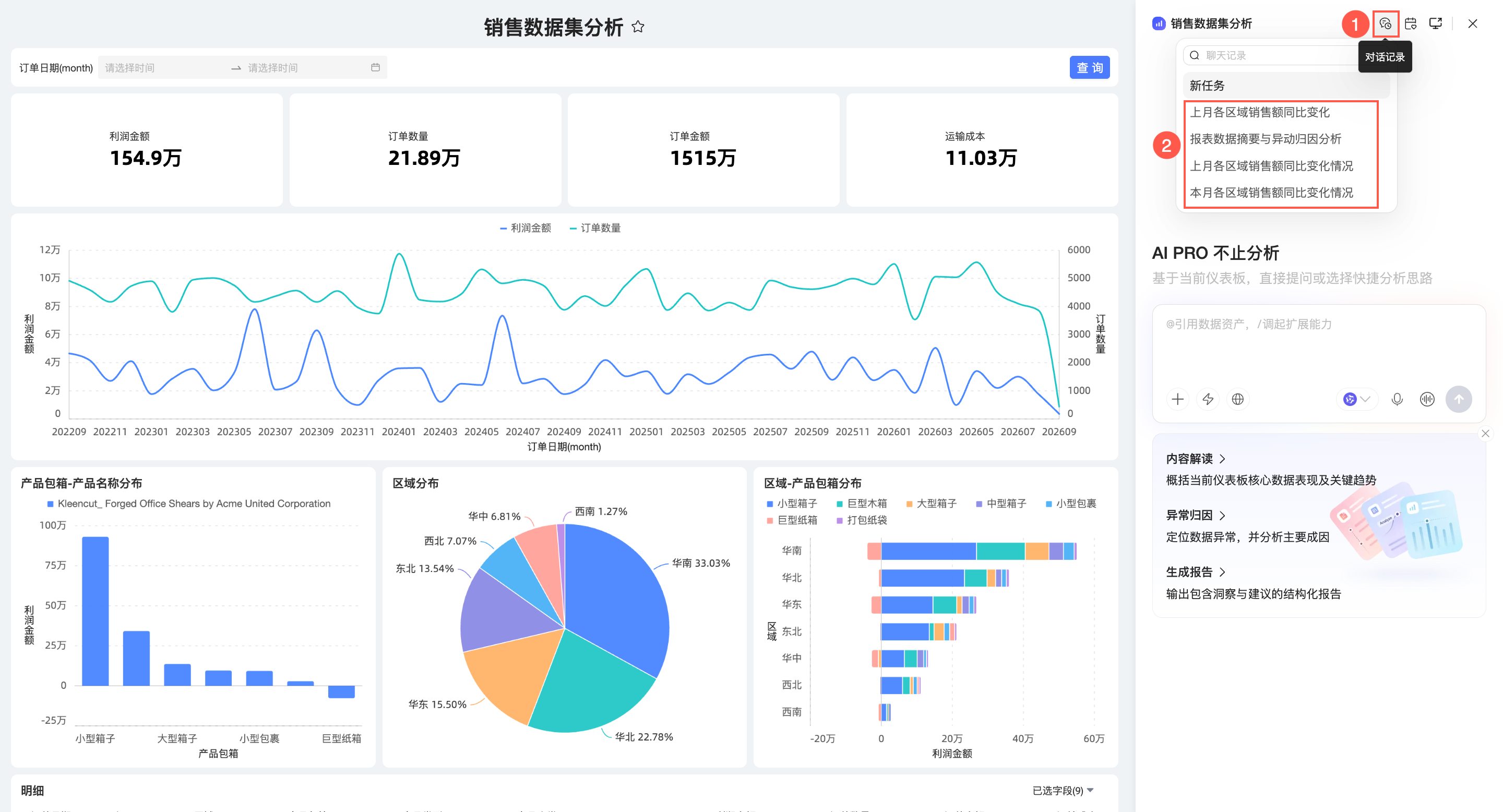
In the history list, you can perform the following operations on a session:
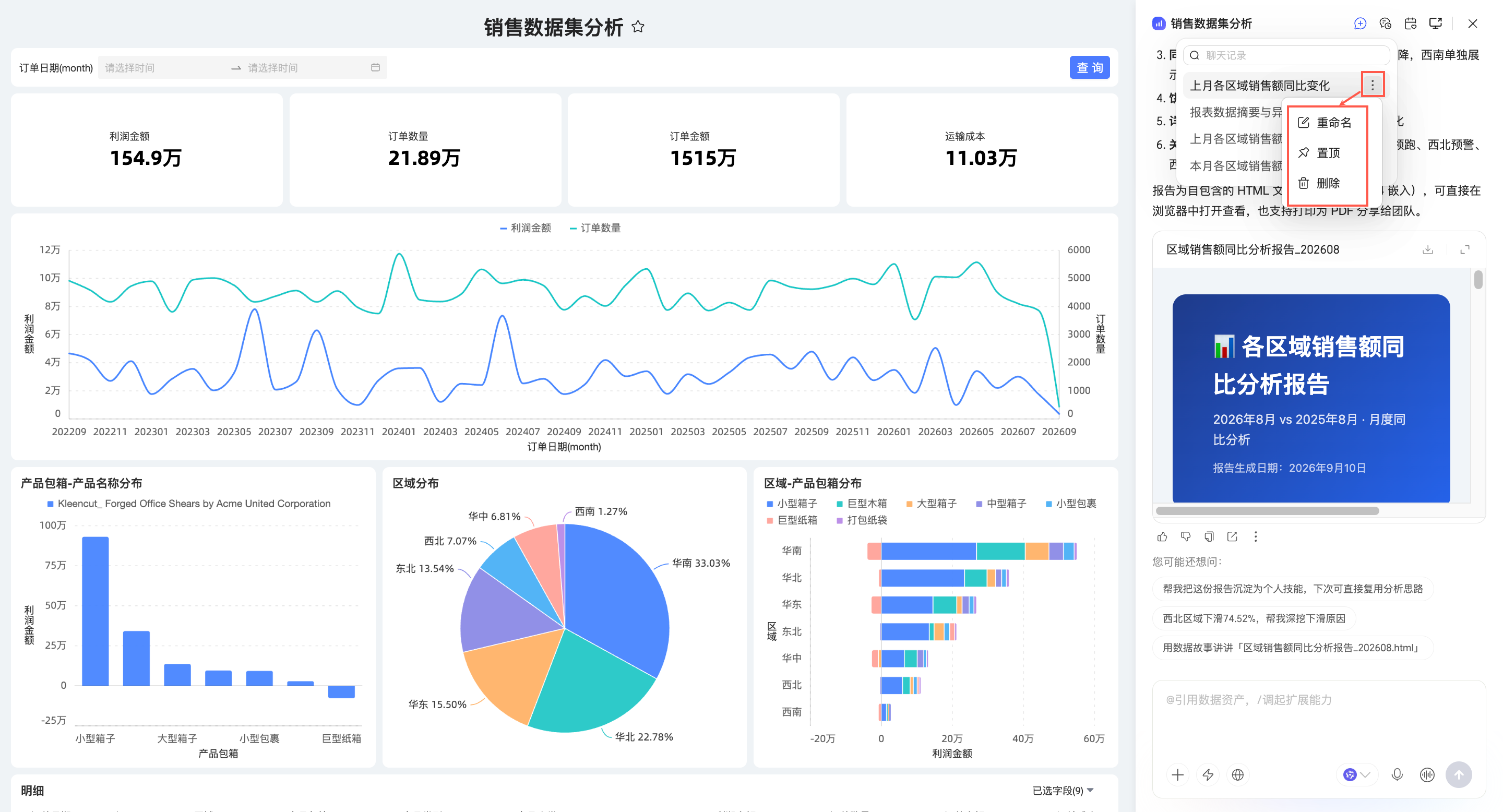
Rename: Change the session name.
Pin: Pin the session to the top of the list.
Delete: Delete the session.
Subscription tasks
Dashboard AIPro allows you to create and manage subscription tasks. You can create scheduled tasks for the current dashboard to automatically perform analysis and deliver the results on a recurring basis.
Manage scheduled tasks
Click the
icon in the upper-right corner to open the Subscription Task panel.View the tasks for the current dashboard in the Subscription Task list.
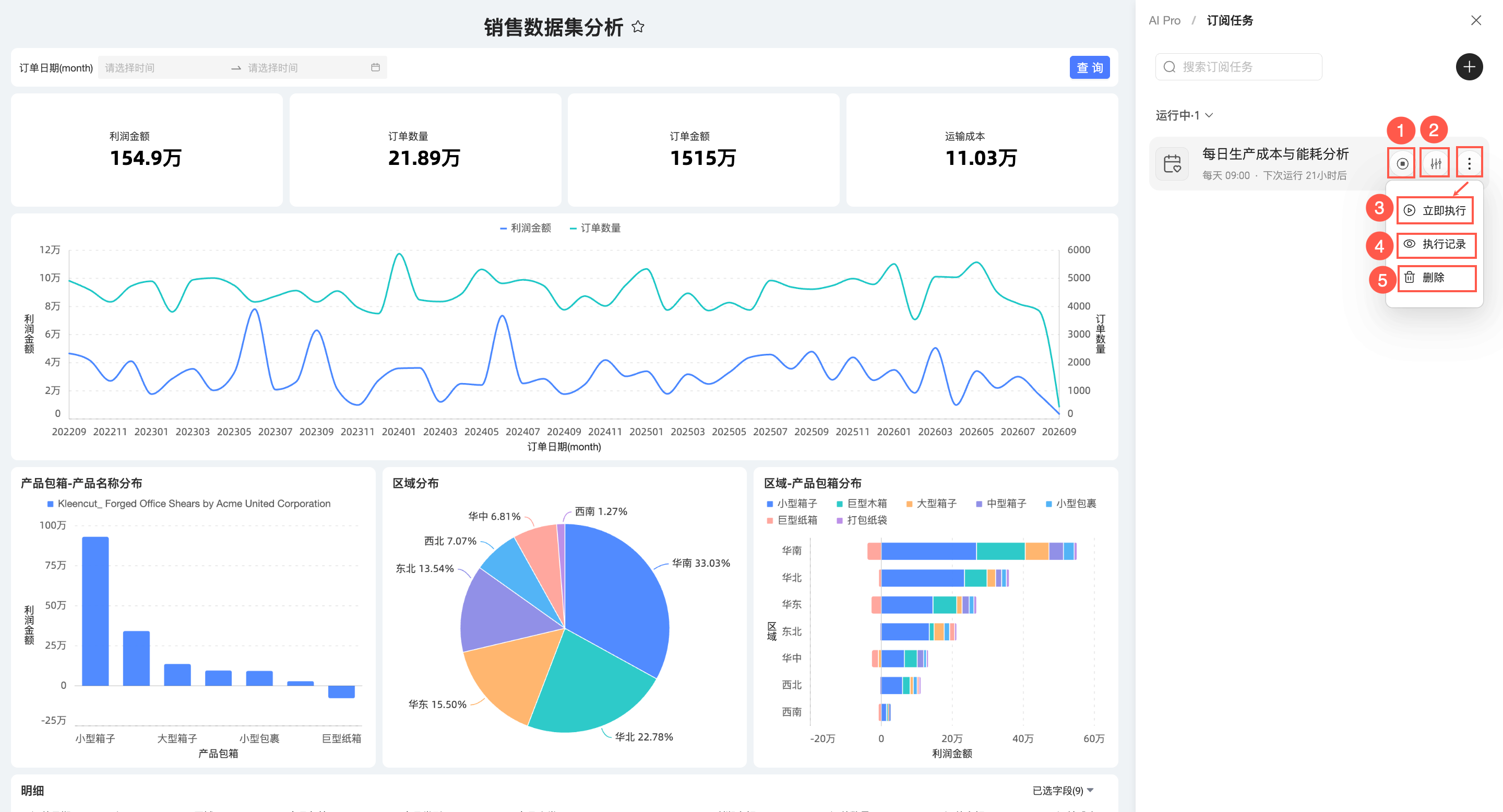
You can perform the following operations on a task:
Parameter
Description
① Enable / Disable
Controls whether the task runs.
② Settings
Click to open the edit panel and modify the task configuration.
③ Execute Now
Immediately runs the current subscription task.
④ Execution History
View the execution history of the current task.
⑤ Delete
Click Delete, and then click Confirm to delete the current subscription task.
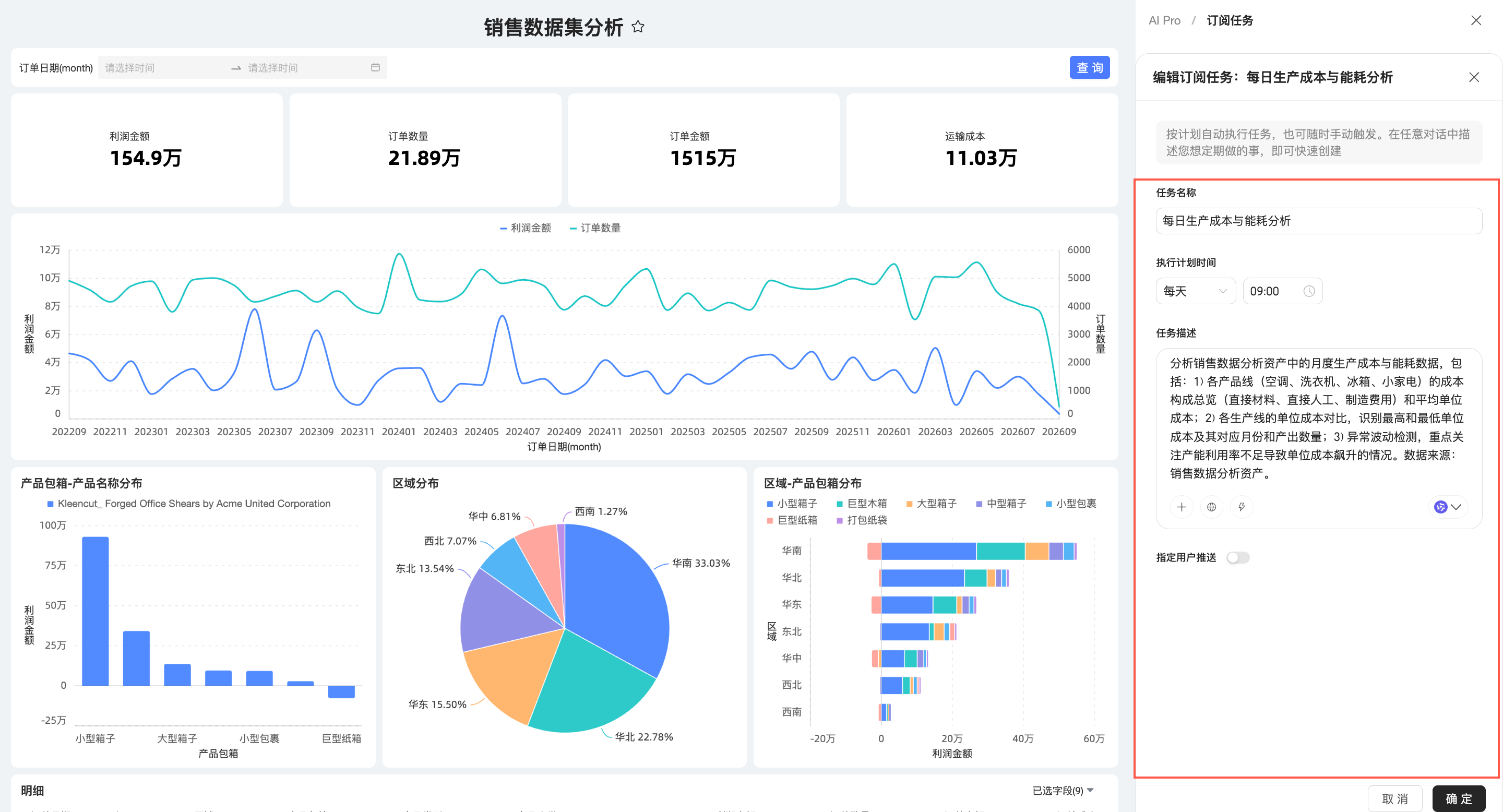
Click a target subscription task to open its edit page.
You can modify the Task Name, Execution Time, and Task Description, and configure Push to Specified Users as needed.
 icon in the upper-right corner to open the Subscription Task panel.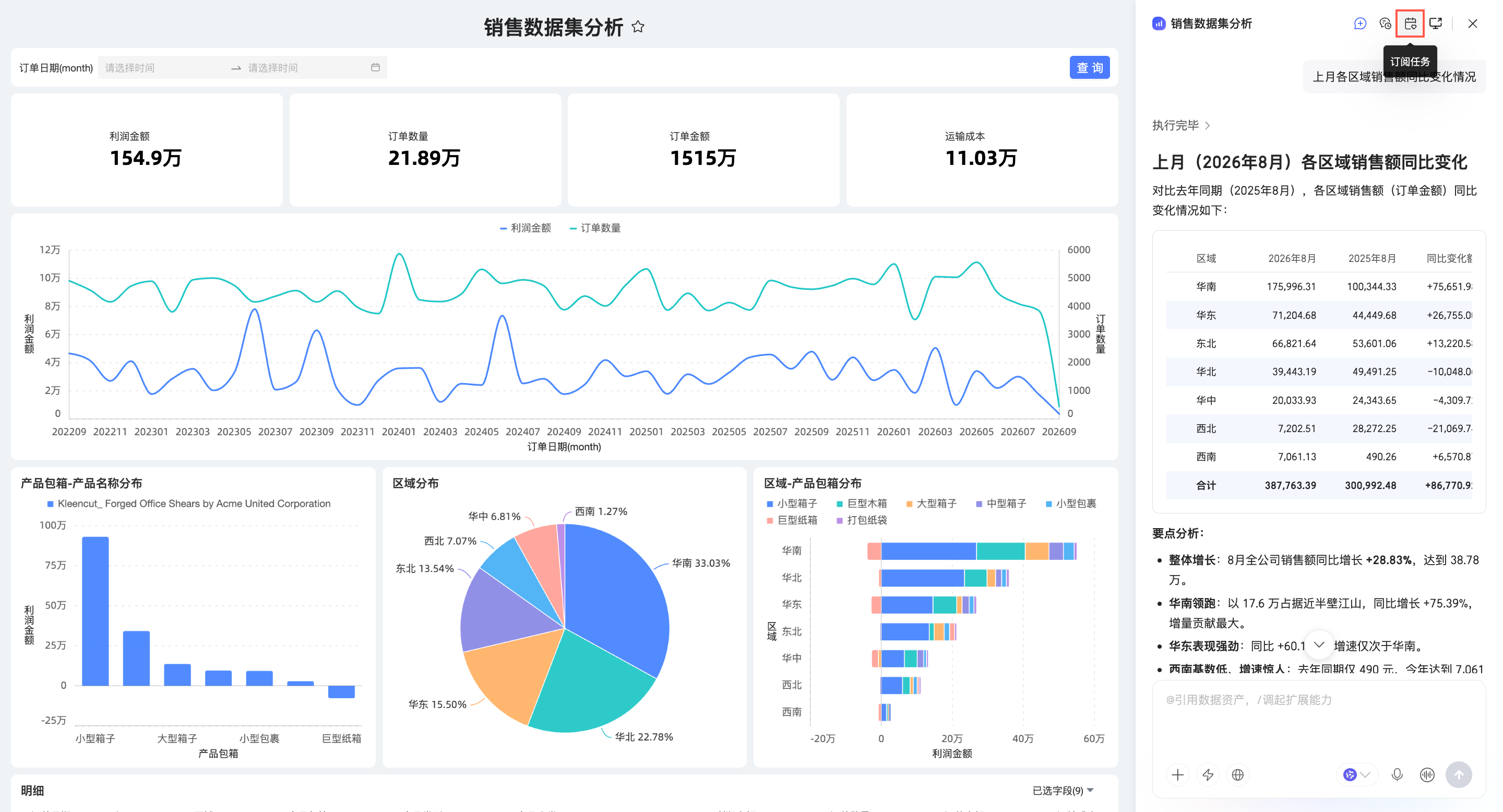
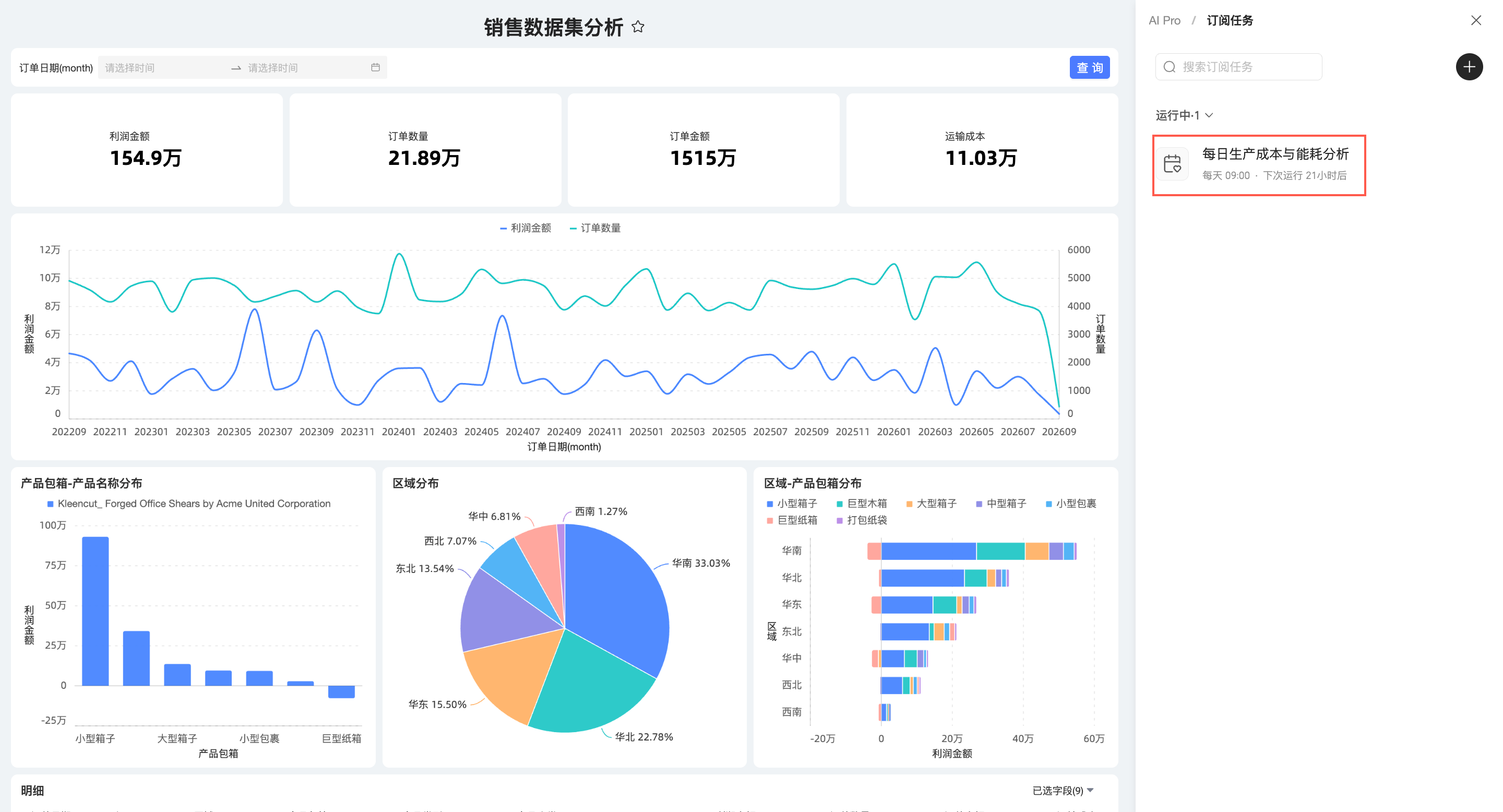
New scheduled task
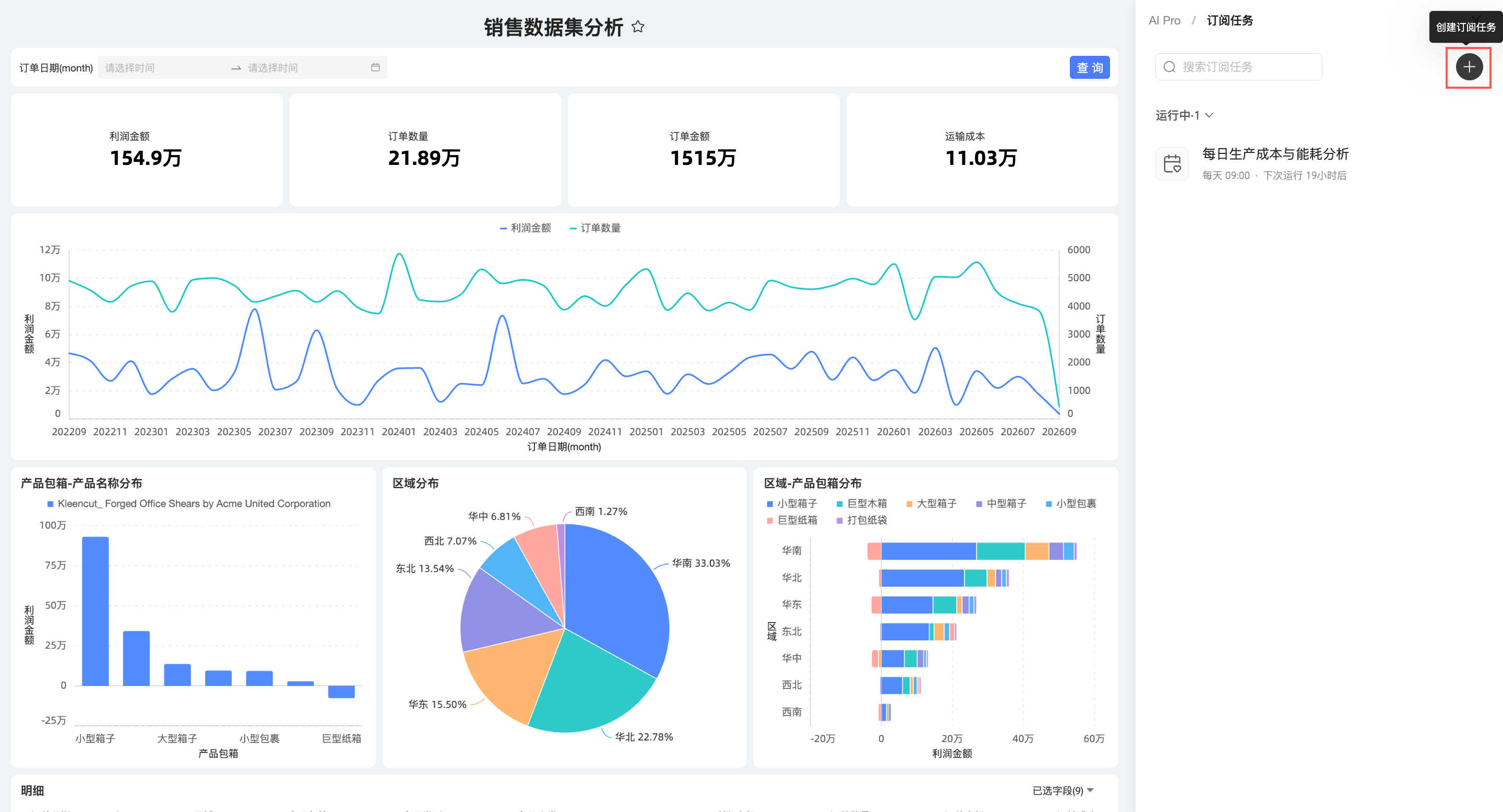
In the Subscription Task panel, click the Create Subscription Task button.
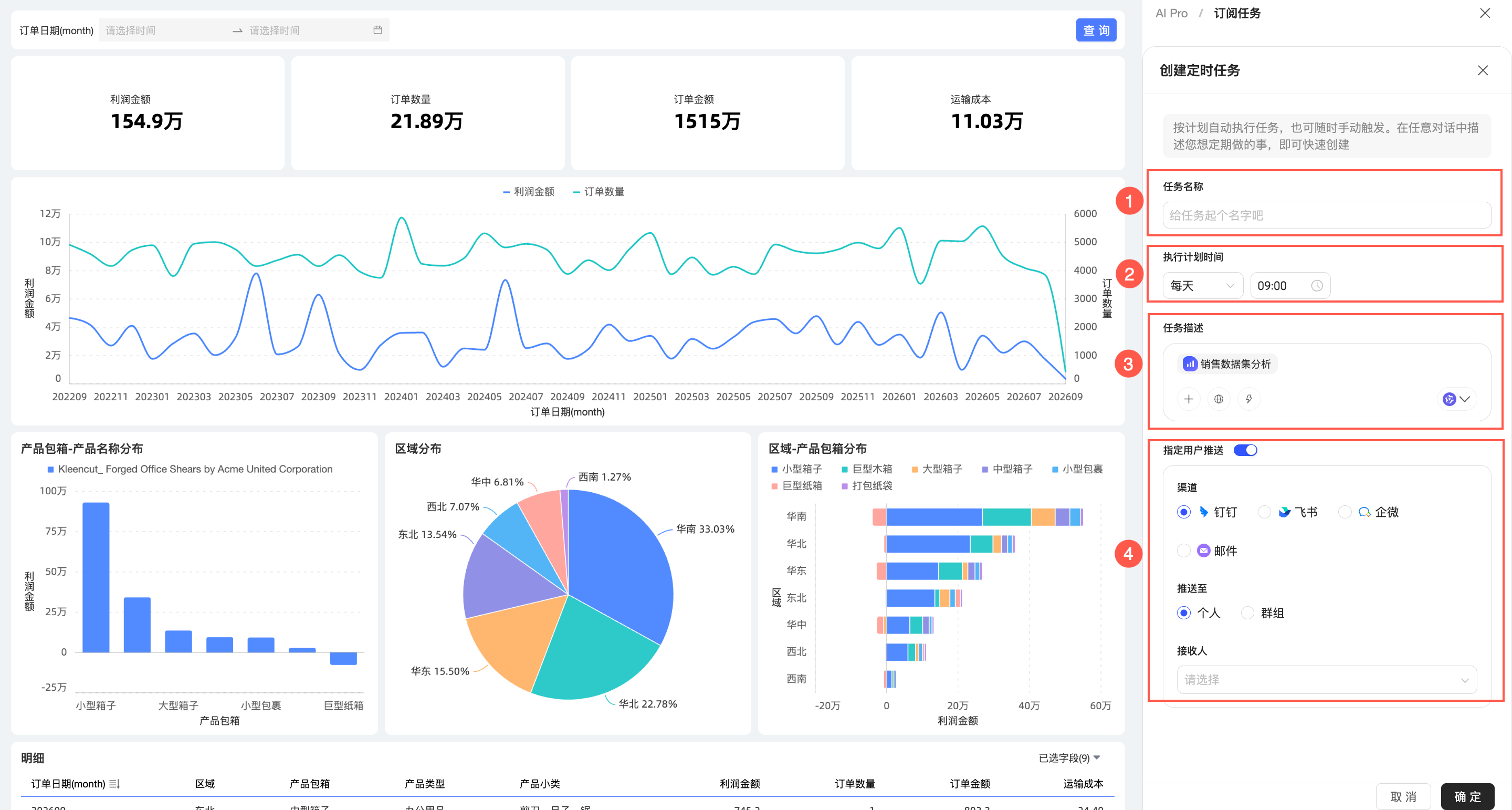
On the Create Subscription Task page, configure the following parameters.
Parameter
Description
Task Name
A custom name for the task.
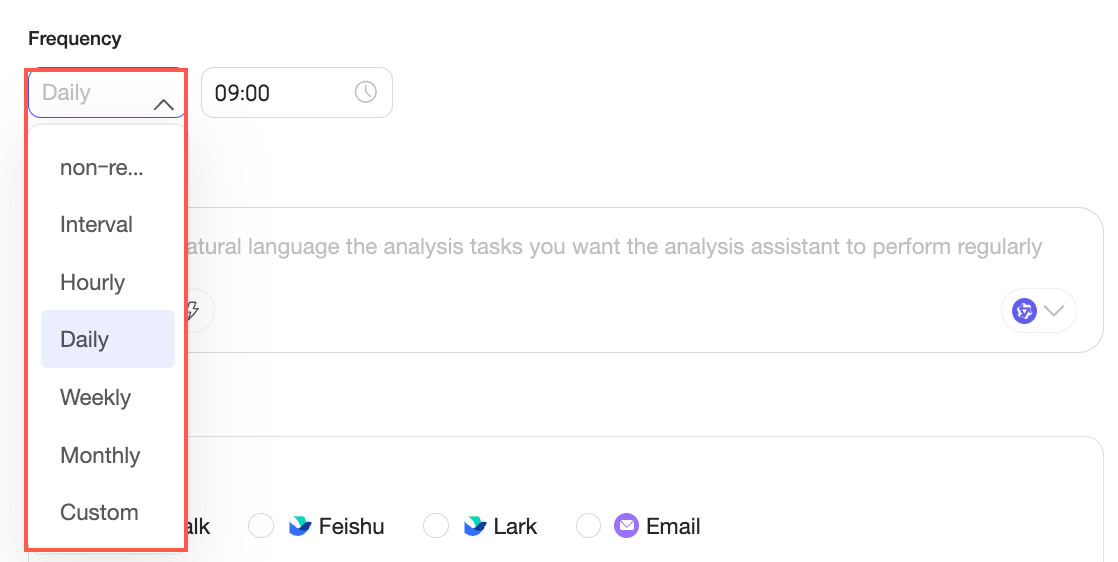
Scheduled Execution Time
Set the execution schedule for the subscription task.
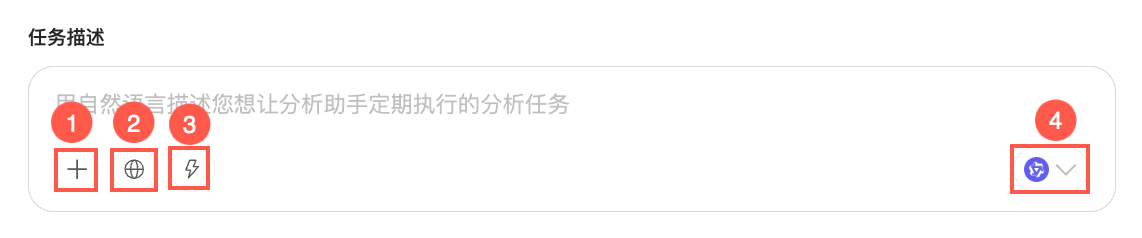
Task Description
Use natural language to describe the recurring analysis task. You can select the data asset (①), skill (②), internet search (③), and large model (④) to use for the analysis.
NoteInternet search is supported only in the public cloud environment, not in private deployment environments.
Push to Specified Users
You can send the subscription task results to DingTalk, Feishu, WeCom, and Email. For the DingTalk, Feishu, and WeCom channels, you can send to an Individual or a Group.
Go to Quick BI AIPro
To use more AIPro capabilities, you can go to Quick BI AIPro.
Click the
icon in the upper-right corner.Go to the Quick BI AIPro interface.
For information about how to use the interface, see Dialogue Mode and Canvas Mode.
 For information about how to use the interface, see