ApsaraDB for SelectDB data source
Add an ApsaraDB for SelectDB data source to connect Quick BI to your ApsaraDB for SelectDB database. After the connection is established, you can analyze and visualize data in Quick BI.
Prerequisites
An instance is created in the ApsaraDB for SelectDB console. For more information, see Create an instance.
Procedure
-
Configure a whitelist.
Before you connect to your ApsaraDB for SelectDB database over the internet, add the Quick BI IP addresses to the instance's whitelist. For more information, see Configure a whitelist.
-
Log on to the Quick BI console.
-
Go to the data source creation page. For more information, see Create a data source.
-
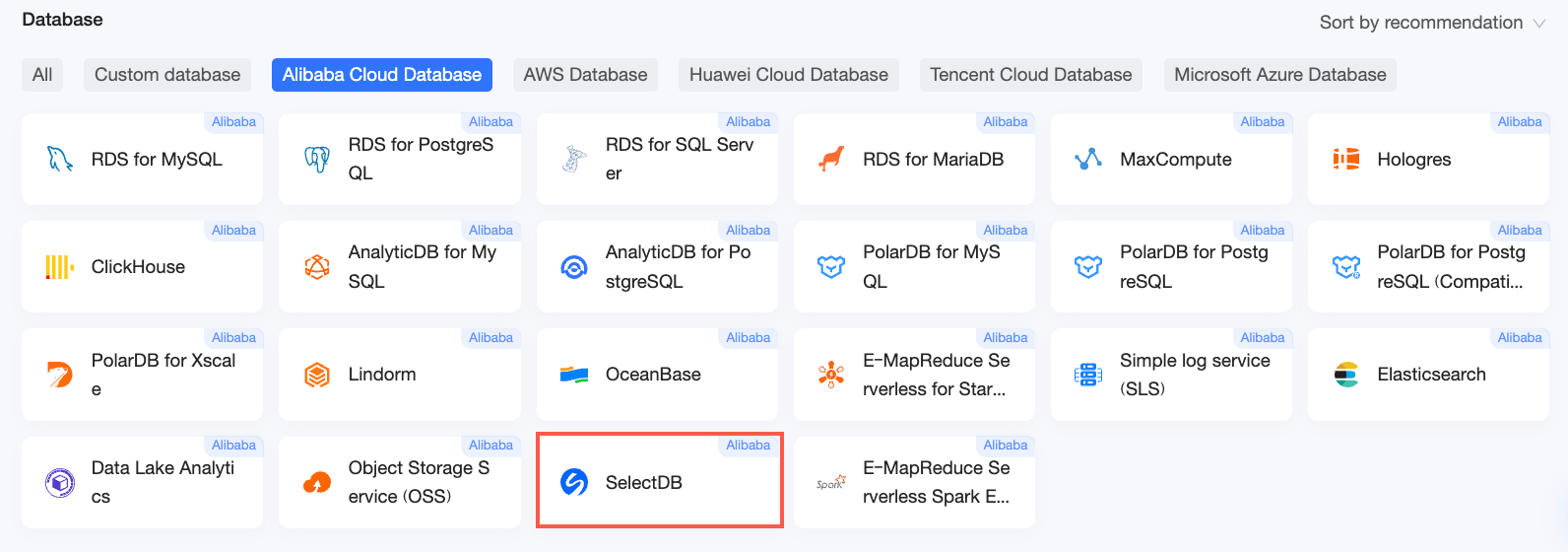
On the Cloud Databases tab, click SelectDB.
-
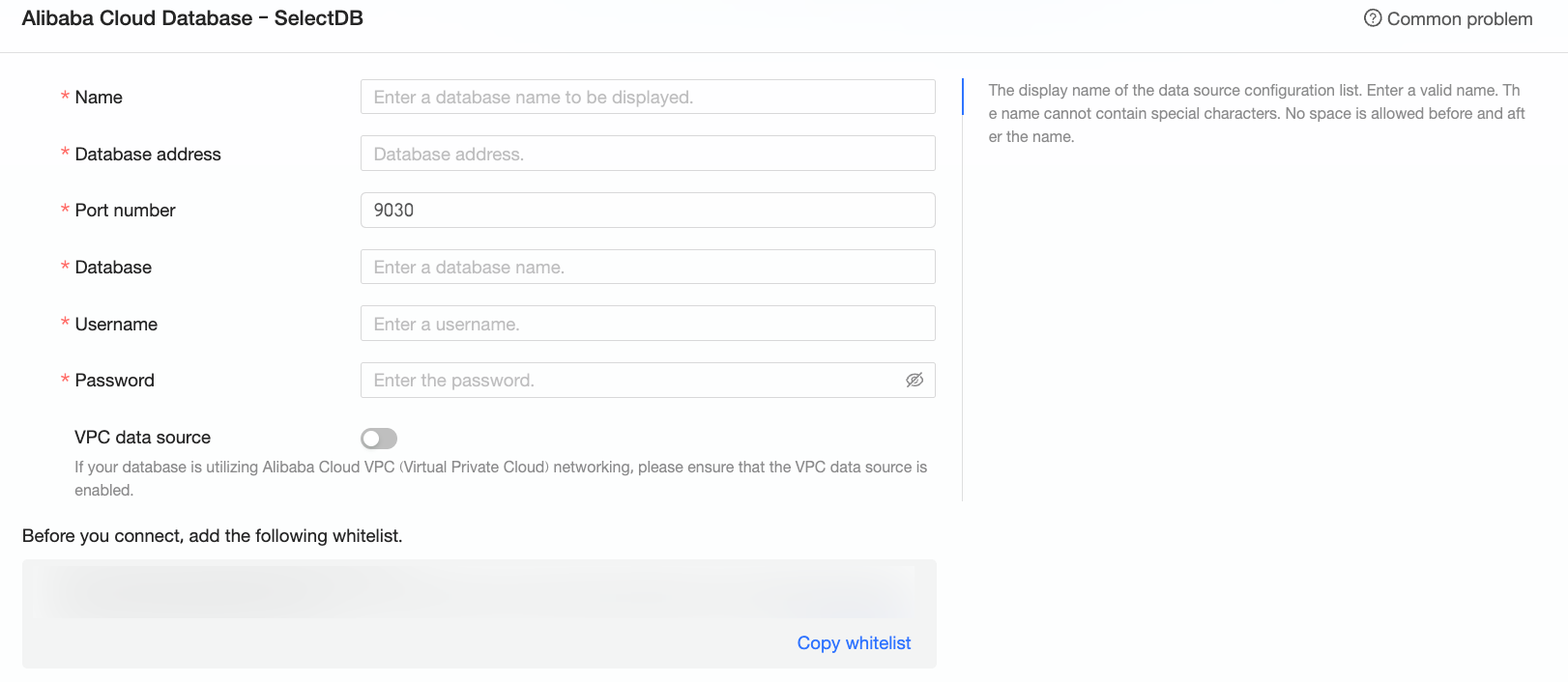
In the Configure Connection dialog box, configure the following parameters.
Parameter
Description
Display name
The display name of the data source.
The name cannot contain special characters or leading or trailing spaces.
Endpoint
The public endpoint of your ApsaraDB for SelectDB instance. If you use a VPC data source, enter the internal endpoint of the database.
To obtain the endpoint, log on to the ApsaraDB for SelectDB console and find it in the Network Information section. Example:
xxxxxxxxxxxxxxxxxx.selectdbfe.rds.aliyuncs.com.Port
The port number of the database. The default is 9030.
Database
The name of the database to connect to.
Username and password
The username and password for the database account.
The account must have CREATE, INSERT, UPDATE, and DELETE permissions on the database tables.
VPC data source
If your database is in an Alibaba Cloud Virtual Private Cloud (VPC), select VPC data source and configure the following parameters.
-
The AccessKey ID and AccessKey secret must belong to an account that manages the ApsaraDB for SelectDB instance. The account requires Read permissions on the instance. If the account also has Write permissions, the system automatically adds the required IP addresses to the whitelist. Otherwise, add them manually. For more information, see Create a custom policy.
You can obtain the AccessKey ID and AccessKey secret from the RAM console.
-
Instance ID and Region: The instance ID and region of your ApsaraDB for SelectDB instance.
You can obtain this information from the ApsaraDB for SelectDB console.
NoteIf you select VPC data source, you must enter the internal endpoint and internal port in the Endpoint and Port fields.
-
-
Click Test Connection to verify the connectivity.

-
After the connection test succeeds, click OK to add the data source.
Next steps
After you create the data source, create a dataset to start analyzing your data.
-
To add data tables or custom SQL queries from your ApsaraDB for SelectDB database to Quick BI, see Create a dataset.
-
To create charts and analyze your data, see Create a dashboard and Overview of chart types.
-
To drill down into your data, see Step 3: Configure and display drill-down data.