Filled map
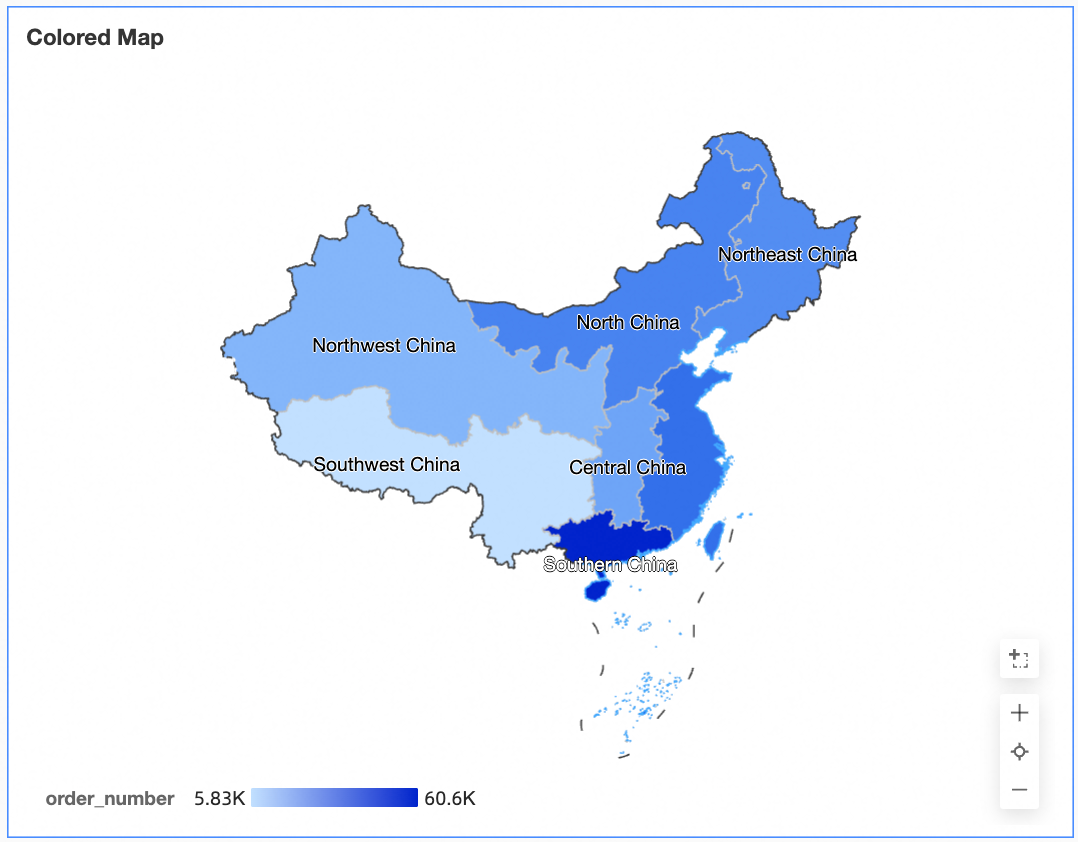
A filled map uses shades of color to show data values and their distribution across geographic areas. This topic describes how to add data to a filled map and configure its style.
Prerequisites
You have created a dashboard. For more information, see Create a Dashboard.
You have converted the geographic fields to the geo location data type. For more information, see Configure Fields.
NoteFor example, if the geographic field for your chart is named area, you can use the field only when the
 icon is displayed next to it. For a list of standard geographic names, see public-area-info.xlsx. This file is for geo-matching reference only and does not represent the political views of Quick BI.
Overview
Use cases
Filled maps are ideal for visualizing spatially distributed data. They use color intensity to effectively display summarized, continuous data across geographic regions.
Key features
Visualization: Supports filled area map styles.
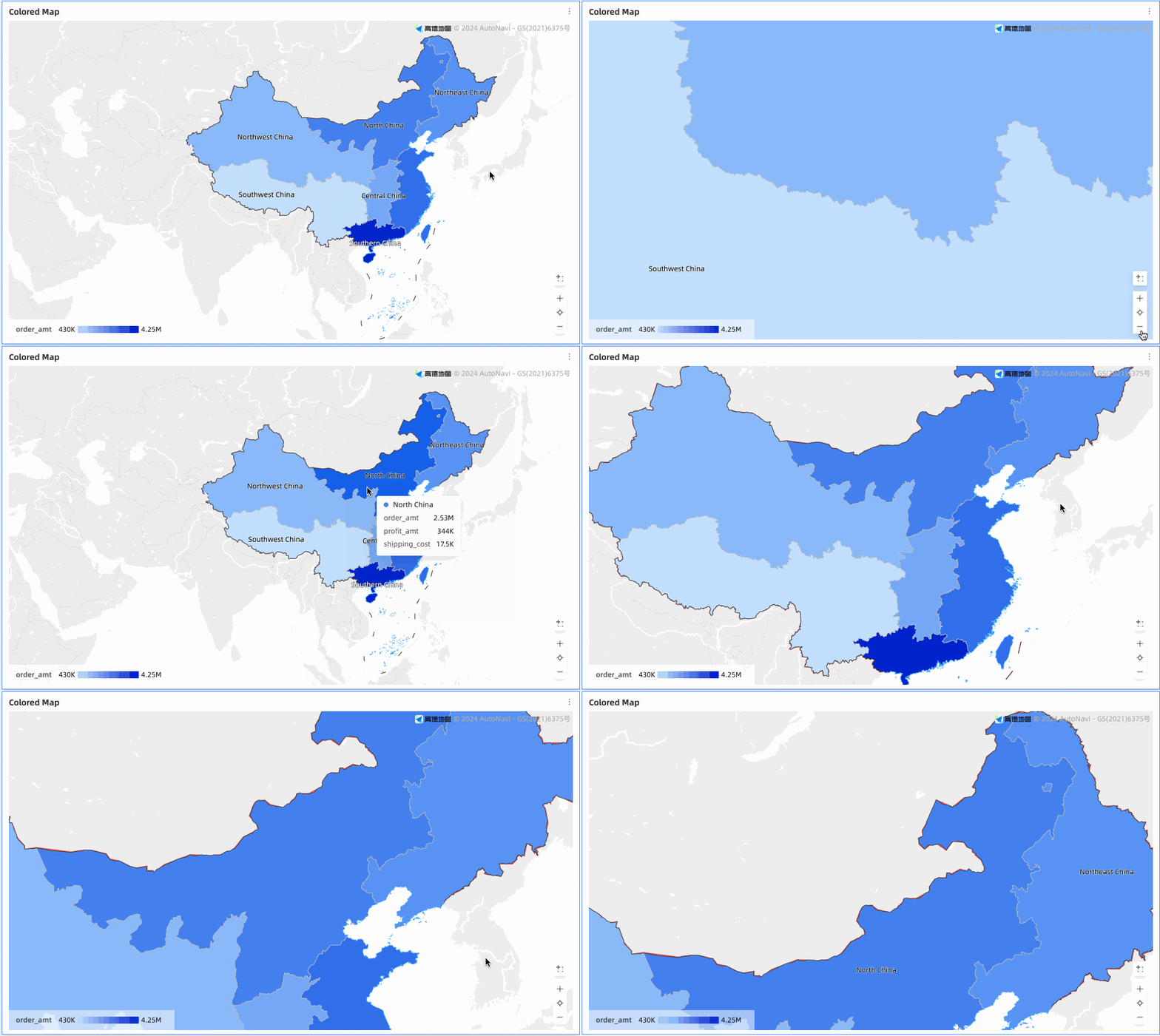
Interaction: You can zoom in by selecting an area, switch between measures, and apply filters within the component.
Example
Animation example
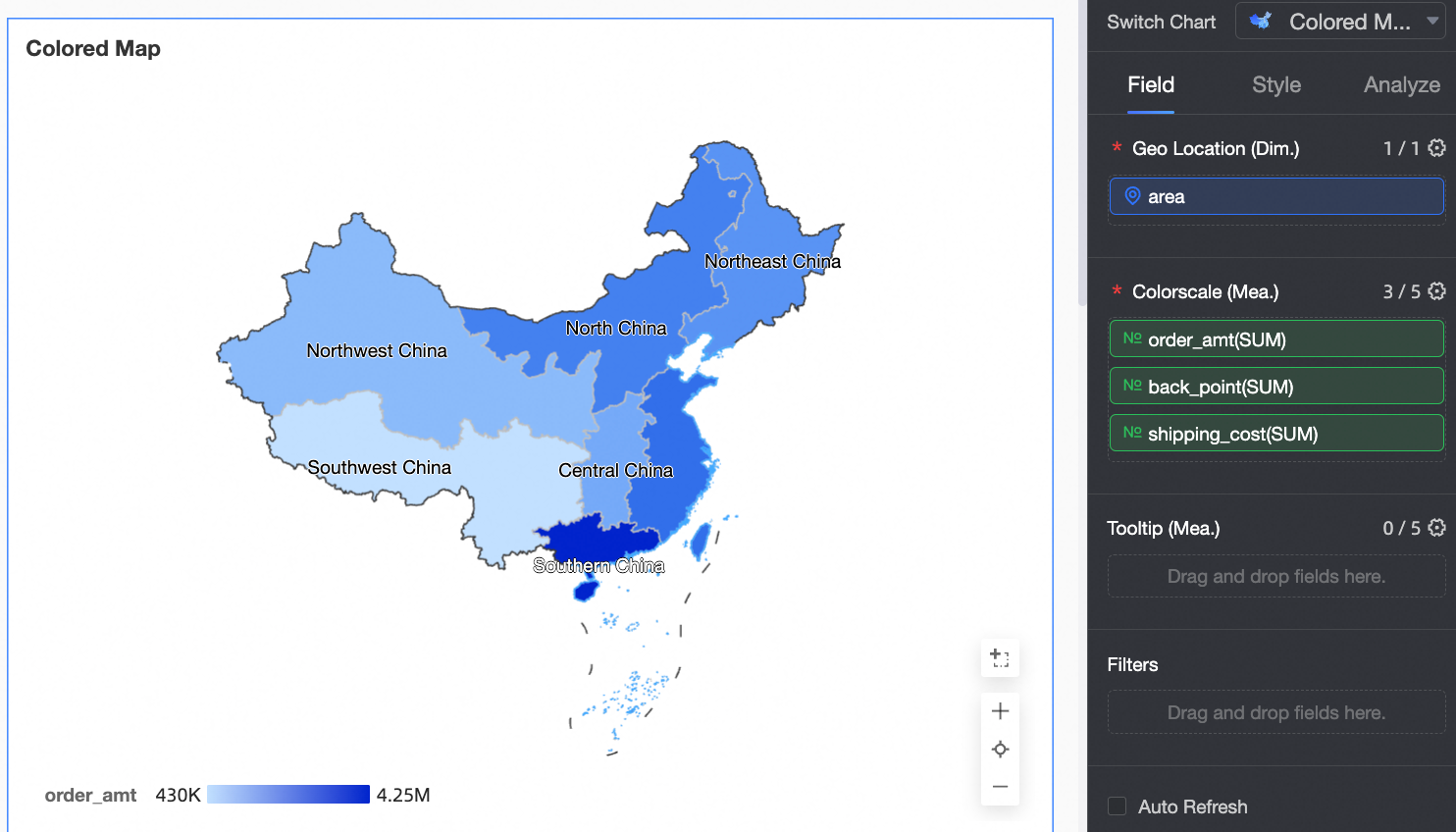
Configure chart data
On the Data tab, select the required dimensions and measures:
In the Dimensions list, find the area field, then double-click it or drag it to the Geographic Area/Dimension field.
In the Measures list, find Order Amount, Profit Amount, and Shipping Cost, then double-click them or drag them to the Colorscale/Measure field.
Click Update. The chart updates automatically.
 Note
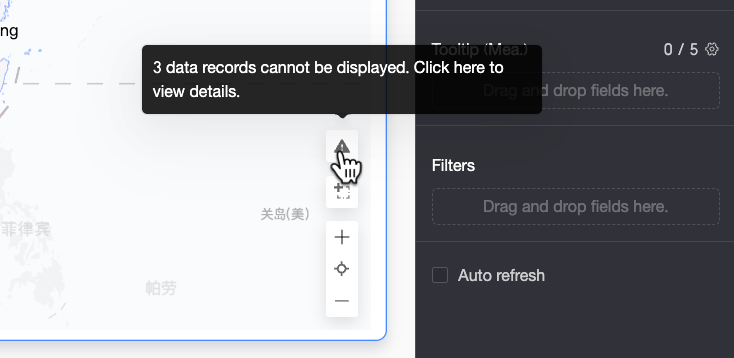
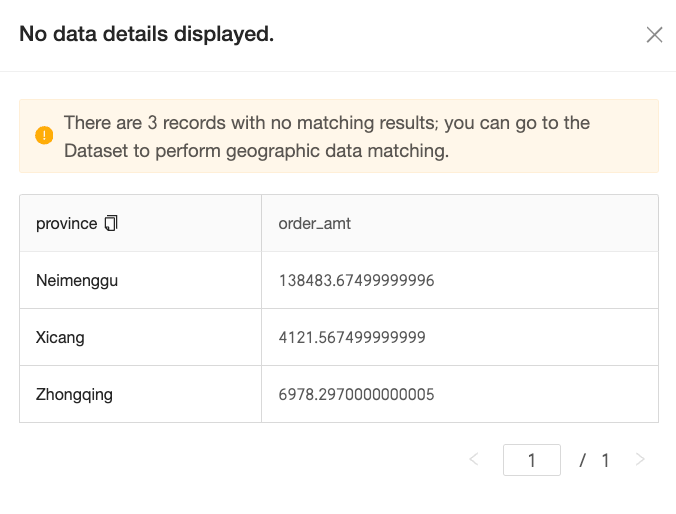
NoteIf area values in your data do not match the standard geographic names supported by the system, an alert icon appears in the lower-right corner of the chart. Click the icon to view details about the data that could not be displayed, to help you troubleshoot and correct data issues.
On the Unmatched Data Details page, you can view and copy the data that failed to match. You can then paste the copied content into the dataset field configuration panel to add aliases in bulk, improving data correction efficiency.

After you finish the configuration, the map displays the data correctly.
Configure chart styles
This section describes how to configure the style of a filled map. For information about common style settings, see Configure the chart title section.
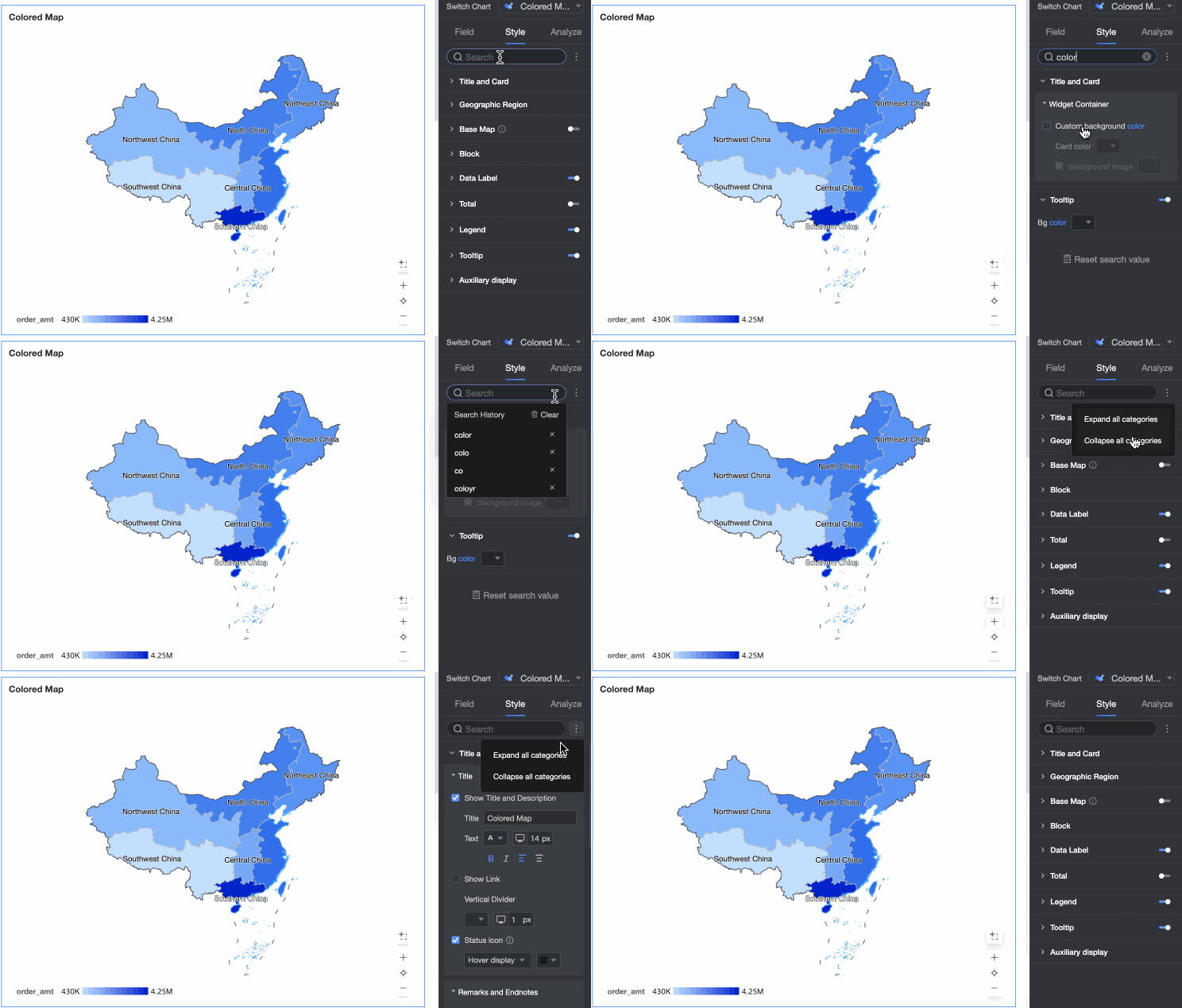
You can enter a keyword in the Search box at the top of the configuration pane to quickly find a setting. You can also click the  icon to Expand/Collapse All Categories.
Geographic area
In the Geographic Area section, configure the Display Range and Outline and Fill.
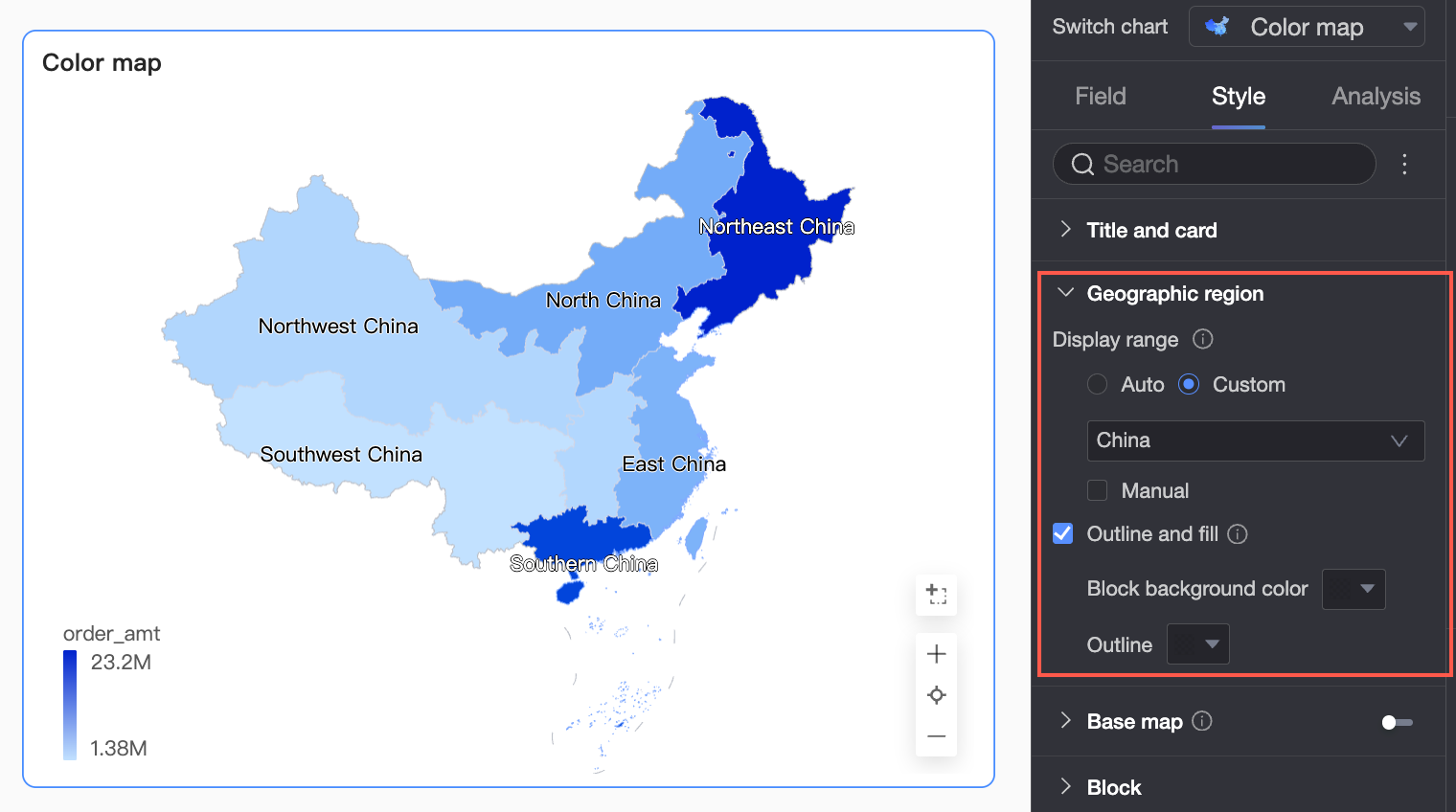
Display Range: You can select Auto or Custom. In this example, China is selected.
NoteIf you select Auto, the view automatically adjusts to fit your data. If you select Custom, you can manually set the scope. During interactive analysis, the view always adjusts automatically based on the data range.
Currently, the custom display range supports global continents and countries, as well as regions, provinces, and cities in China.
If you enable Manual Adjustment, the system automatically generates the current Center Point and Zoom Level, which you can then modify.
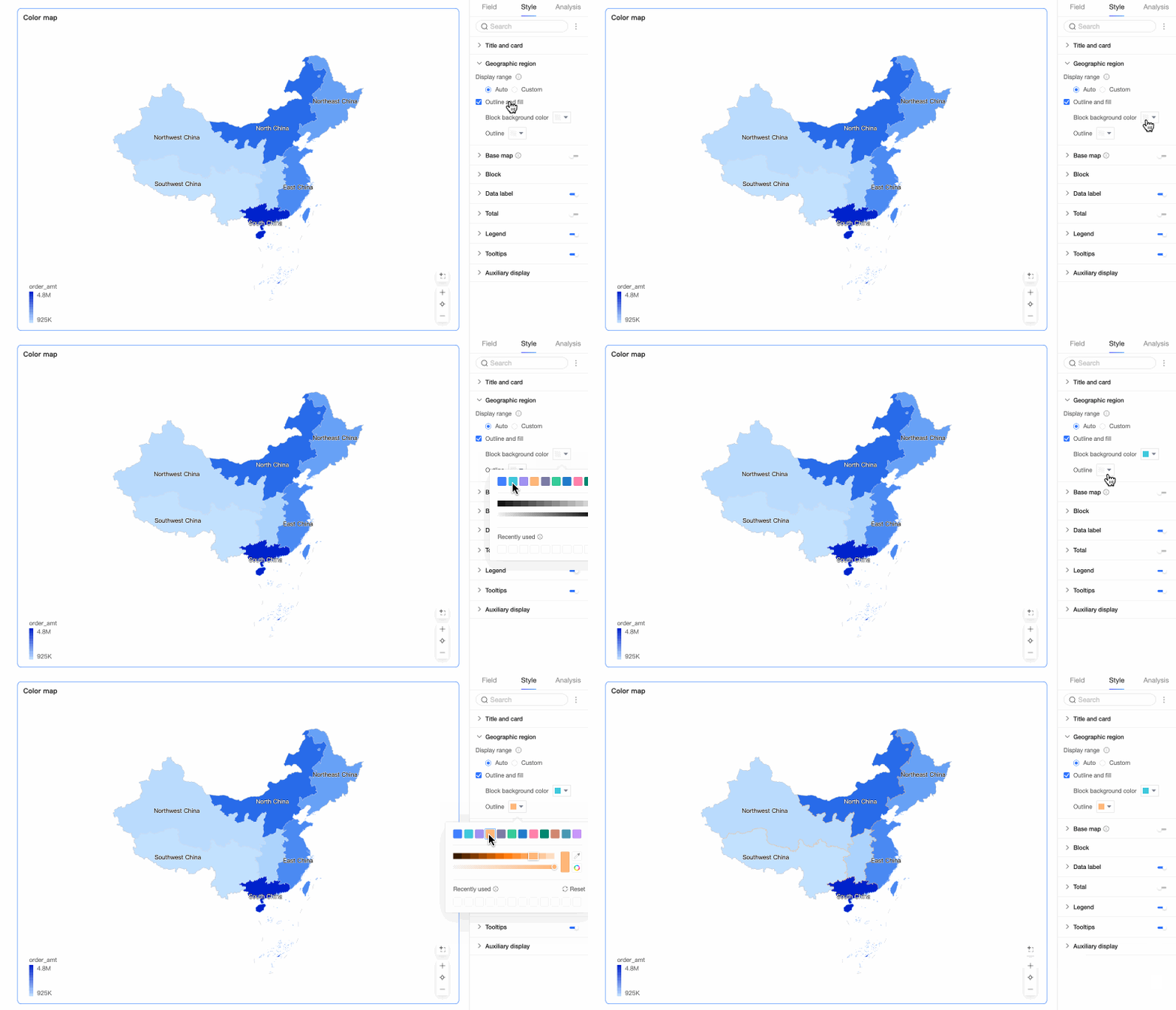
Under Outline and Fill, you can choose whether to show outlines and areas, and set the fill color for the areas and the outline color.
NoteOutlines are not supported for some regions.


Basemap
In the Basemap section, you can configure Show Basemap, Basemap Style, and Show Global Basemap.
Show Basemap: Click the
toggle to show or hide the basemap.Basemap Style: You can choose from multiple AMAP basemap styles.
Show Global Basemap: Select this option to display global city information and other details on the basemap.
NoteGlobal Basemap Usage Limit: Each Quick BI organization can preview map charts with overseas basemap information up to 1,000 times per month. This is calculated based on the number of basemap tile initializations. If the limit is exceeded, the system displays only domestic basemap information.
Mobile Basemap Settings: Click the mobile icon (
) at the top of the page to switch to the mobile view. You can enable the basemap for mobile filled maps and configure the Basemap Style and Show Global Basemap.
 toggle to show or hide the basemap.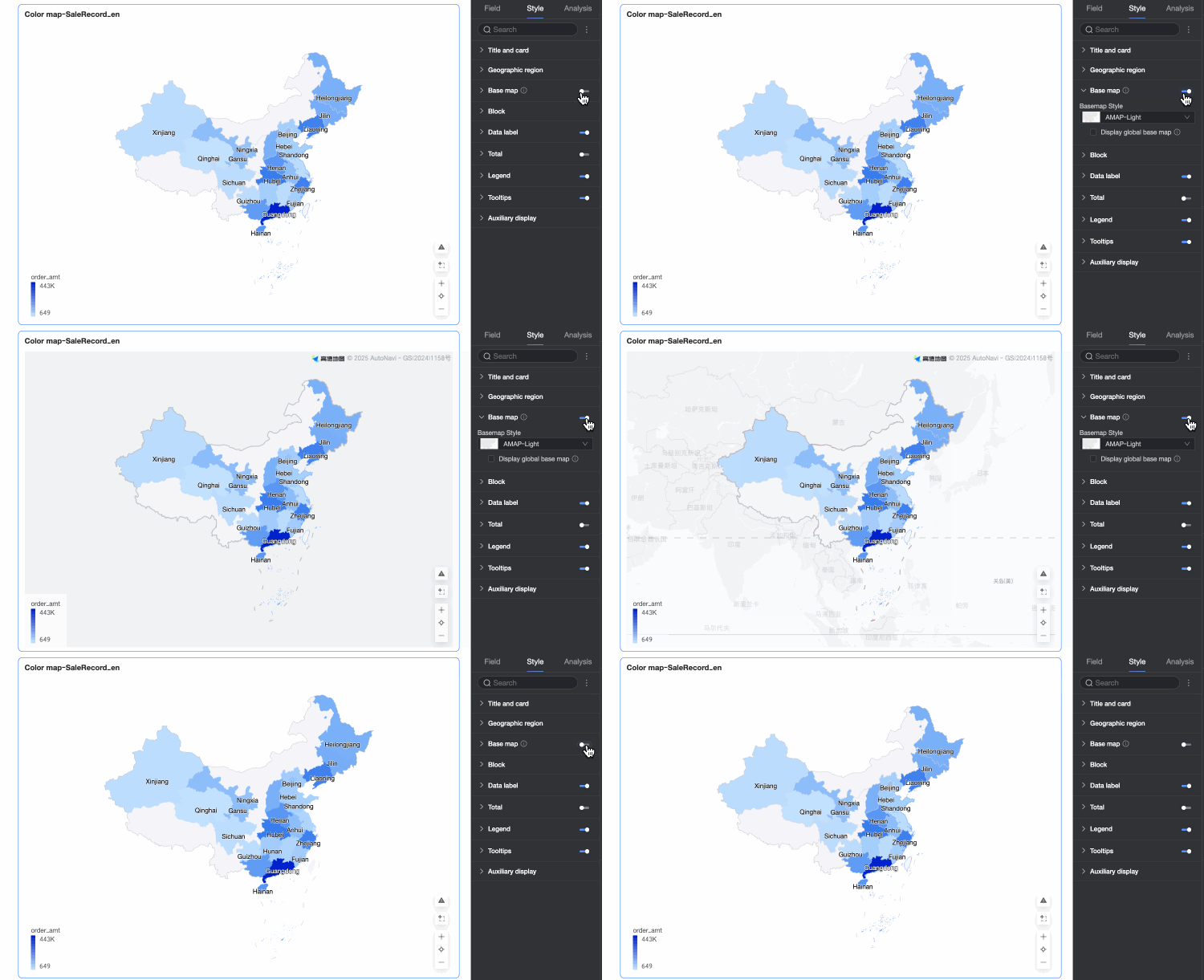
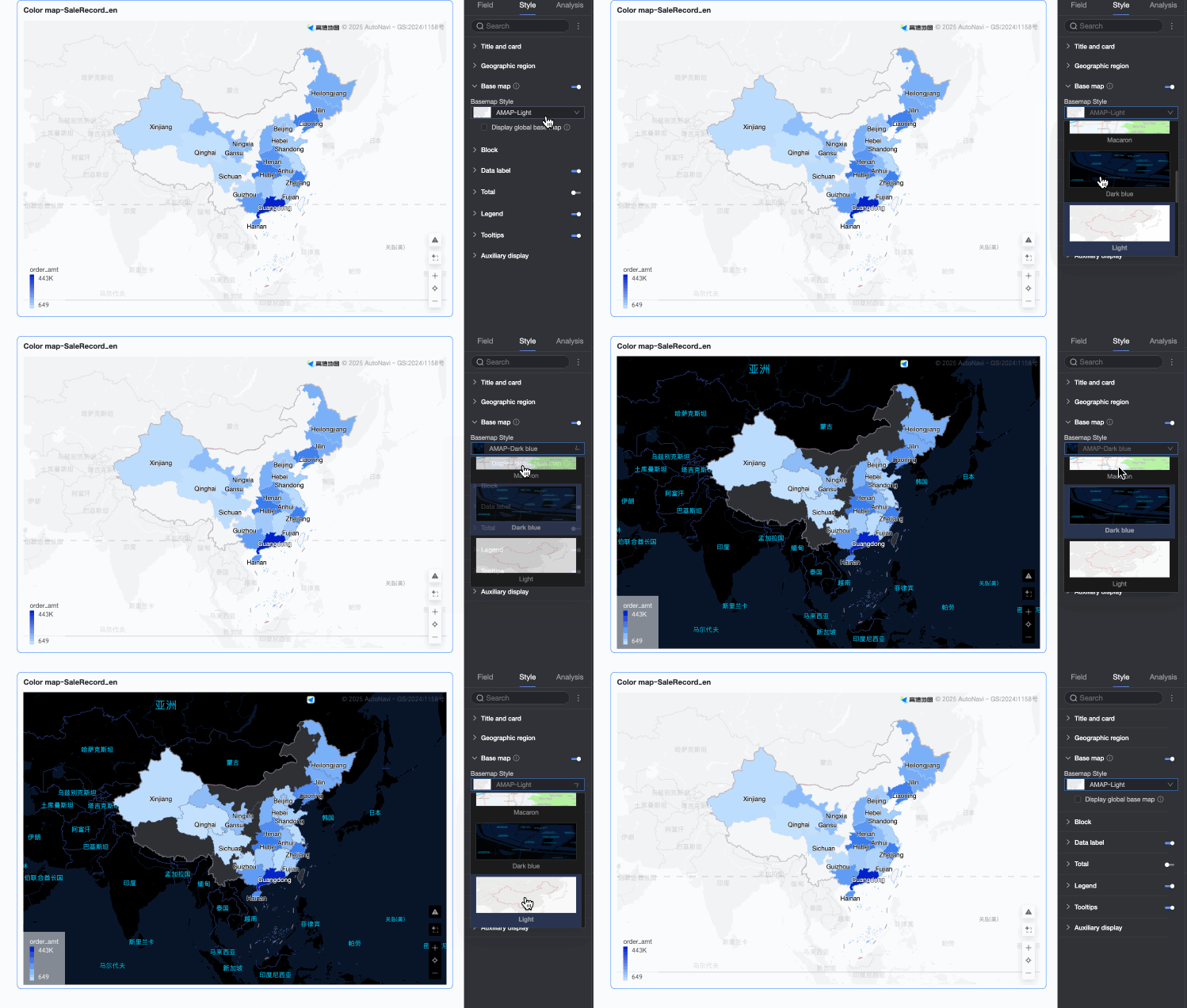
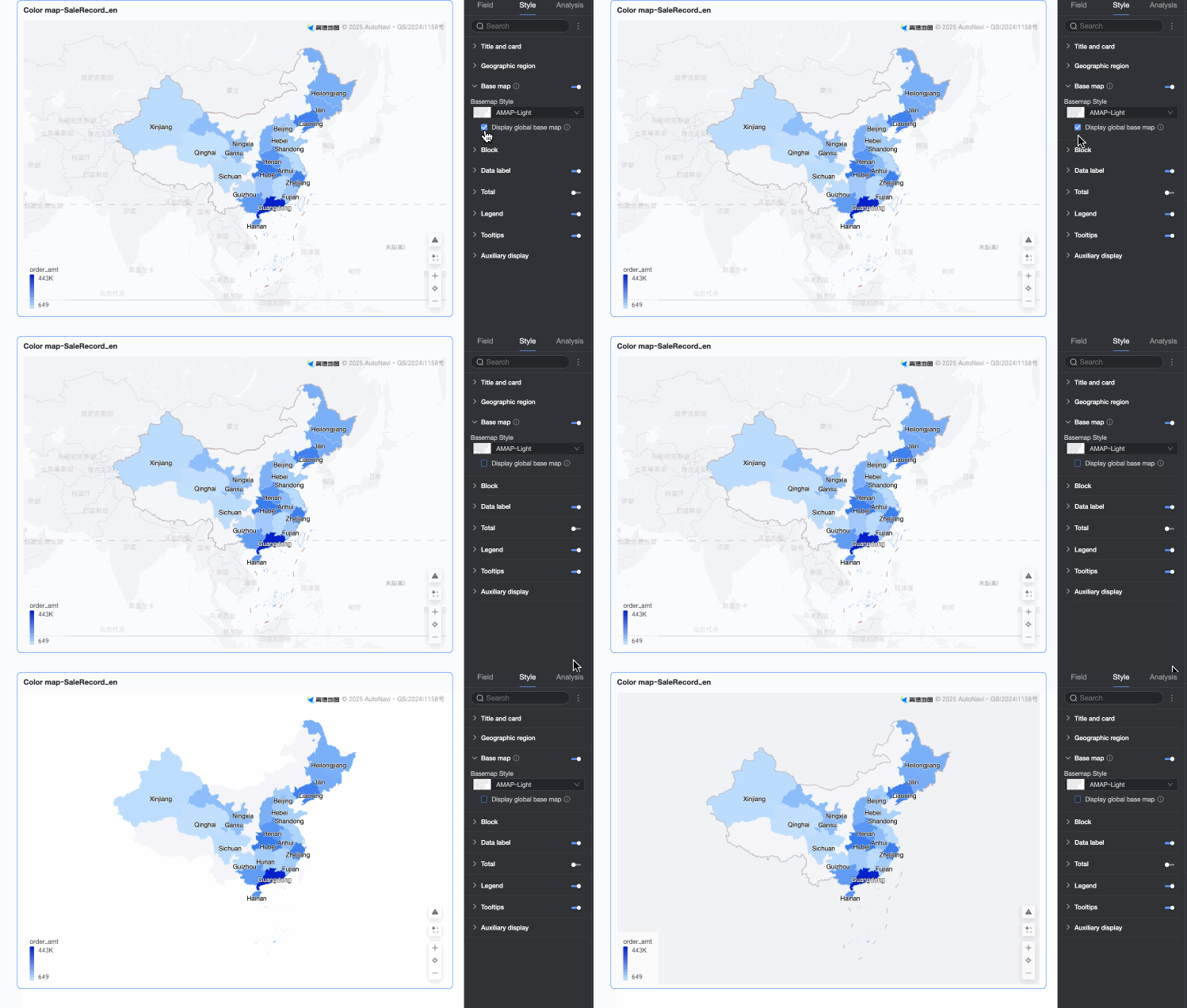
 ) at the top of the page to switch to the mobile view. You can enable the basemap for mobile filled maps and configure the Basemap Style and Show Global Basemap.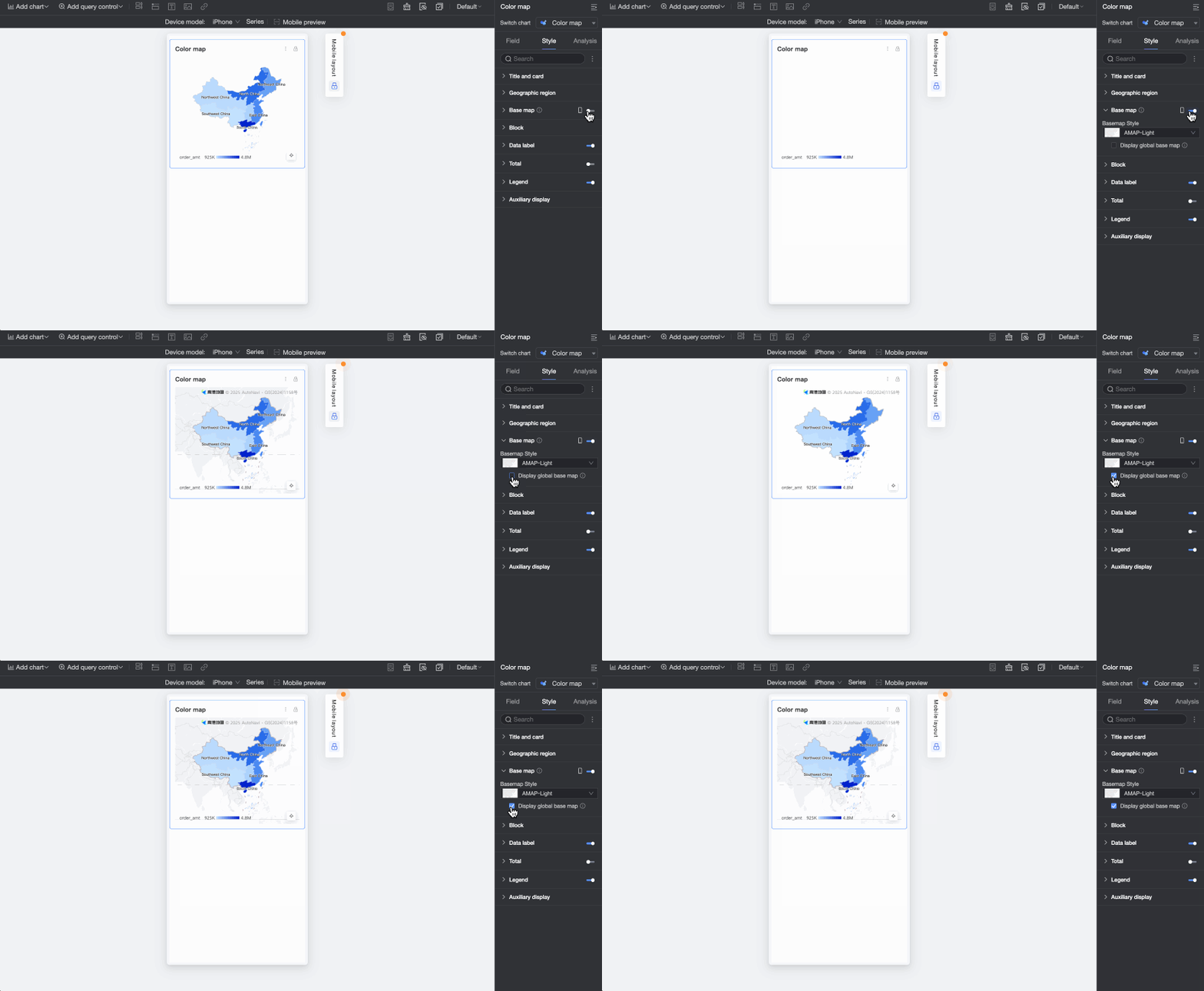
Areas
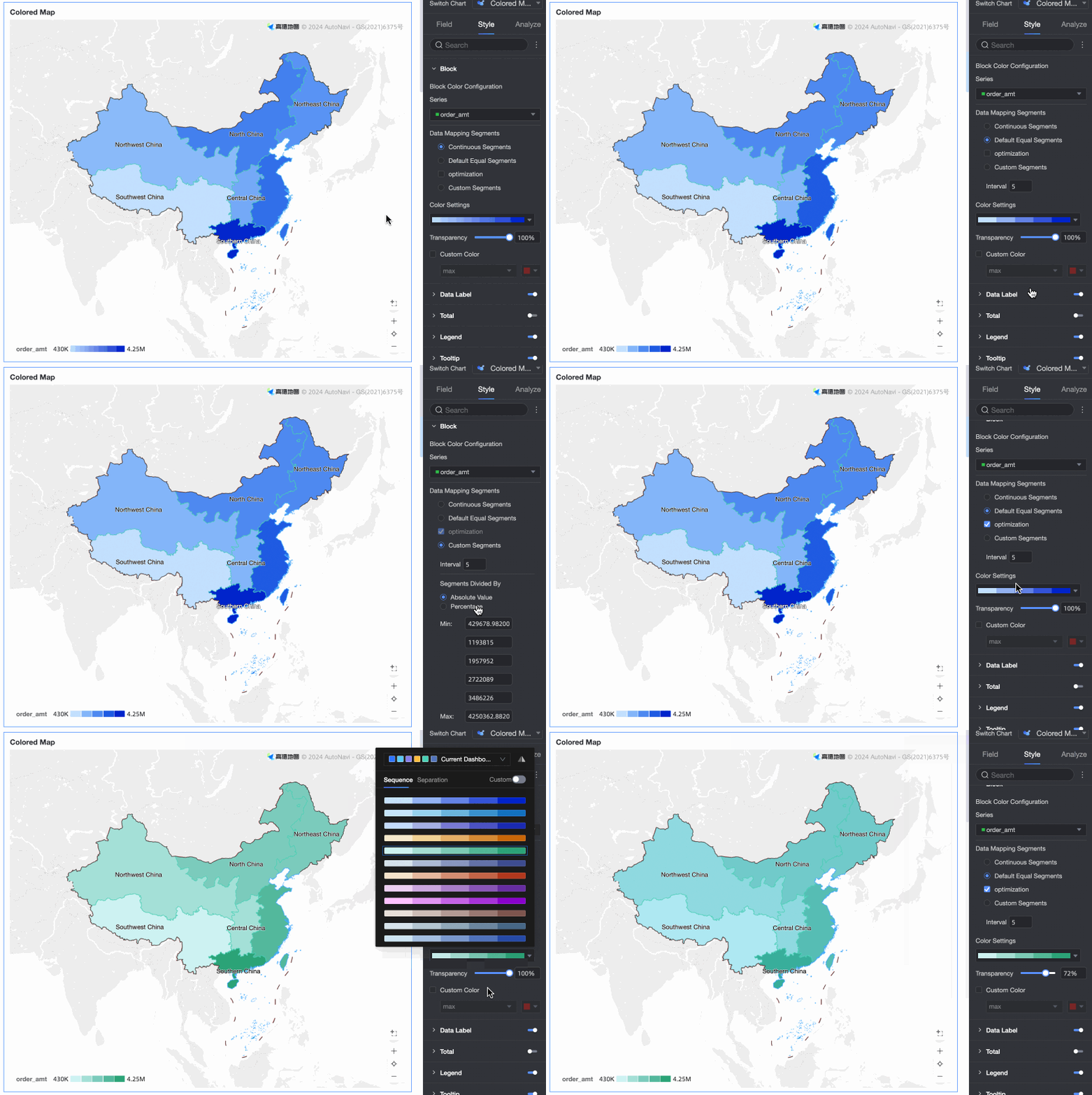
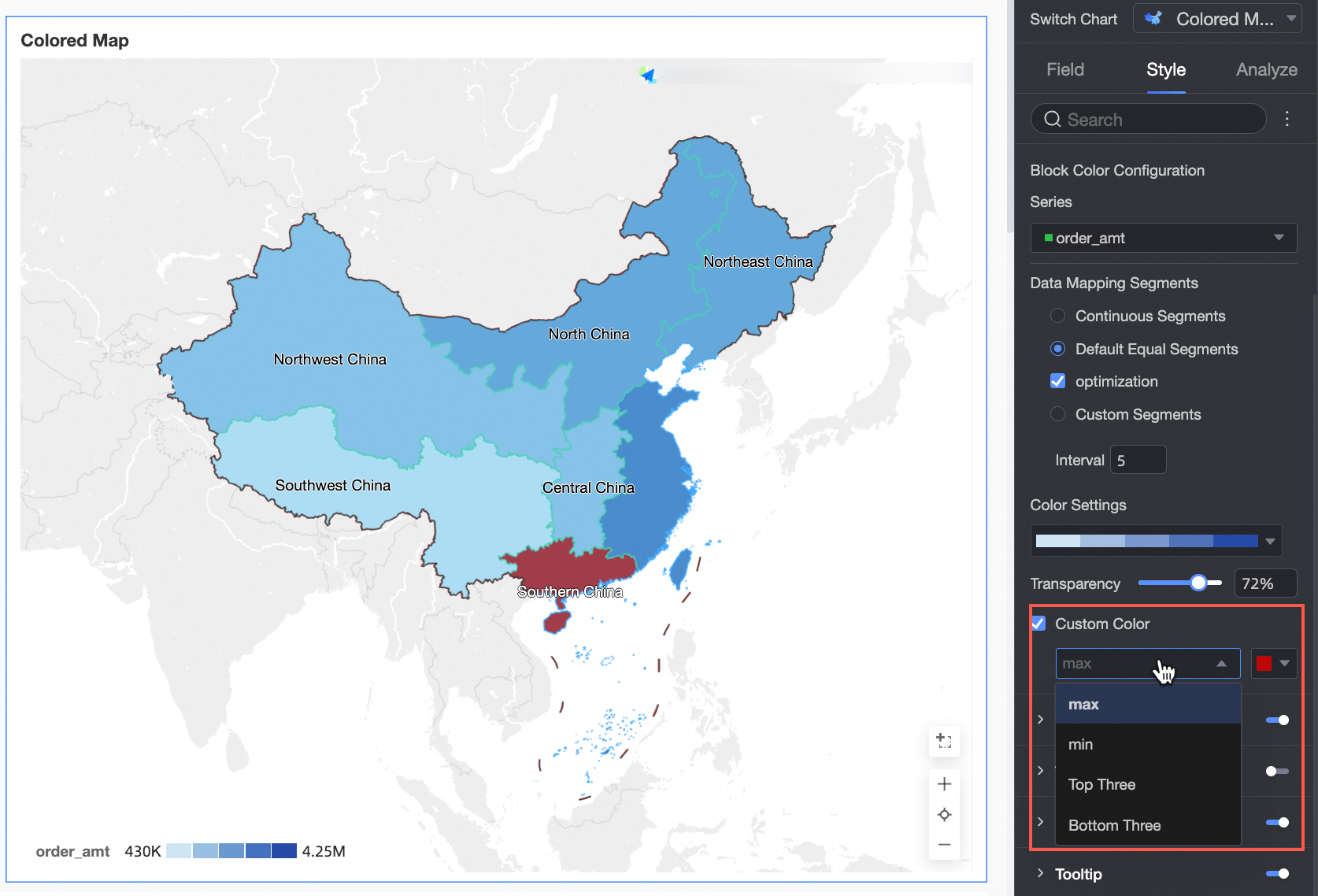
In the Areas section, configure the Area Color Configuration and Min/Max Value Color Configuration.
Area Color Configuration: Select a measure series and configure its theme color, opacity, and data mapping range.
Min/Max Value Color Configuration: Assign specific colors to the maximum, minimum, top three, and bottom three values.
Data labels
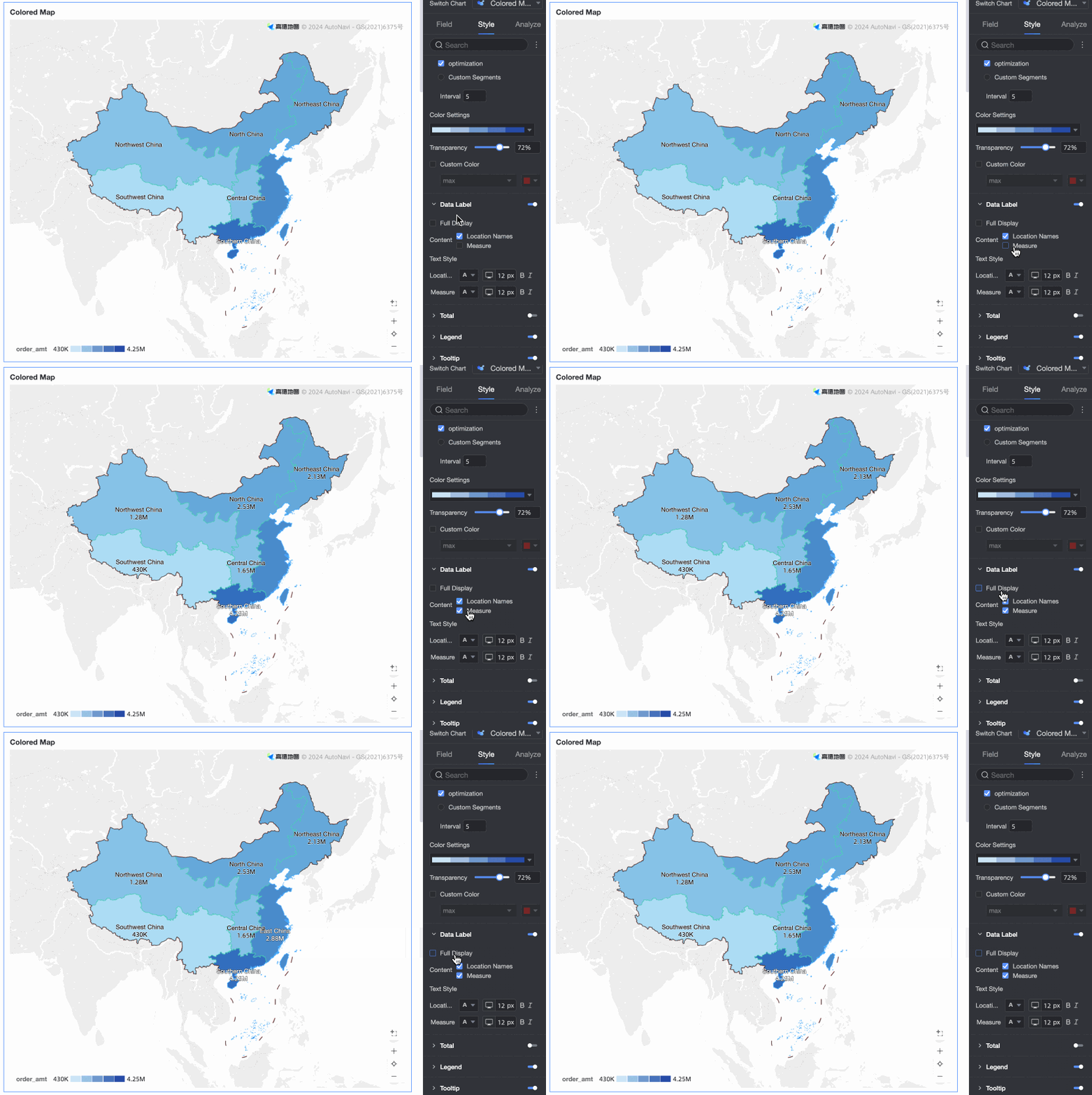
In the Data Labels section, you can choose whether to show data labels and configure their styles.
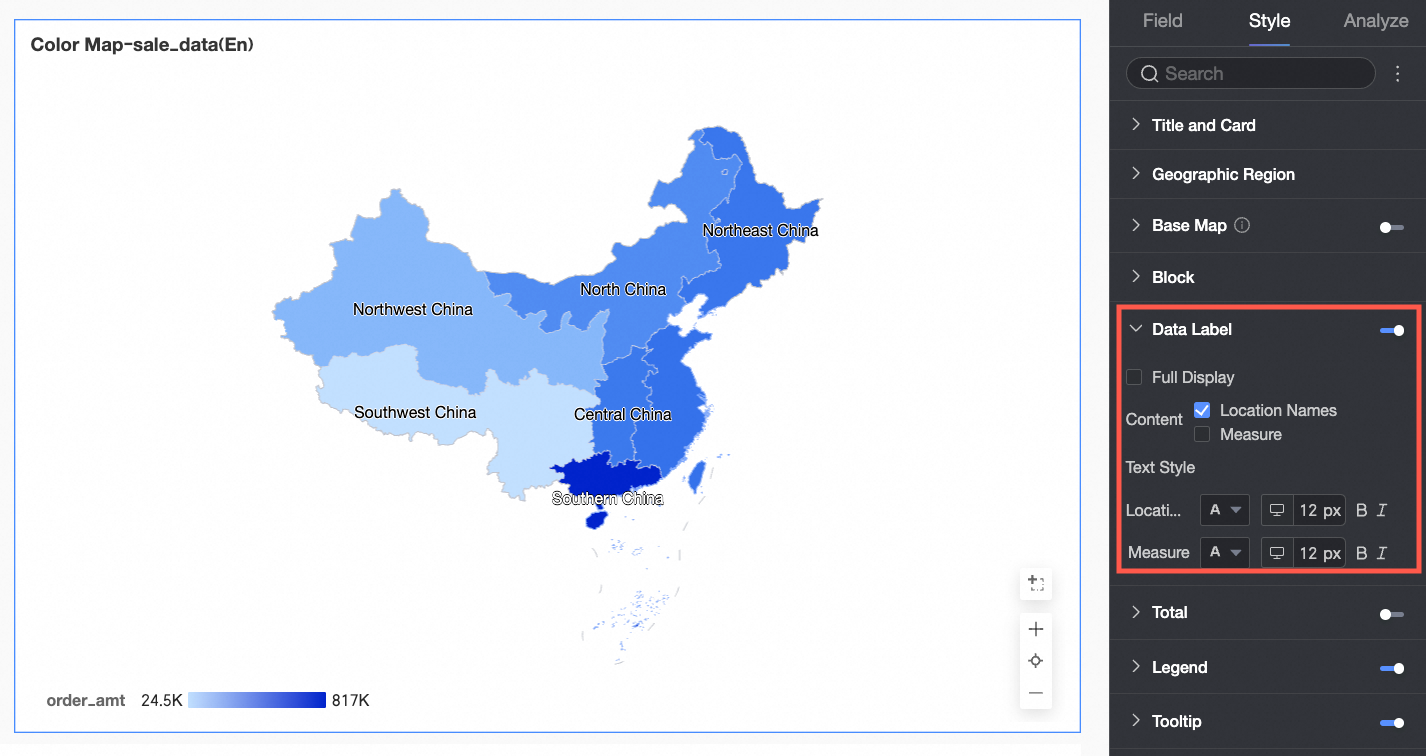
Content: You can choose to display both the Area Name and Measure. Select Display All to show all data label content.
Total
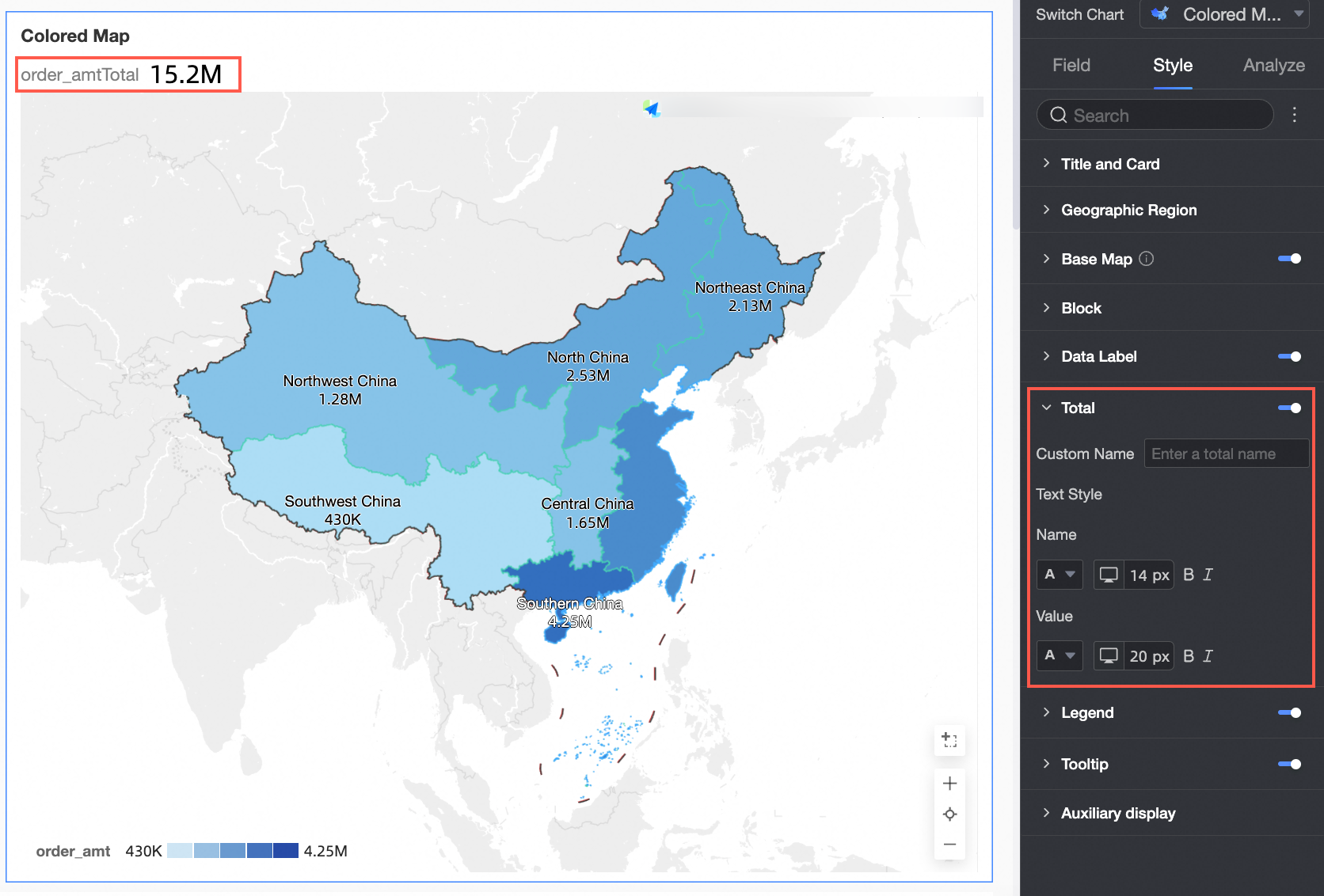
In the Total section, you can choose whether to show totals and configure the Custom Name and Style.
Legend
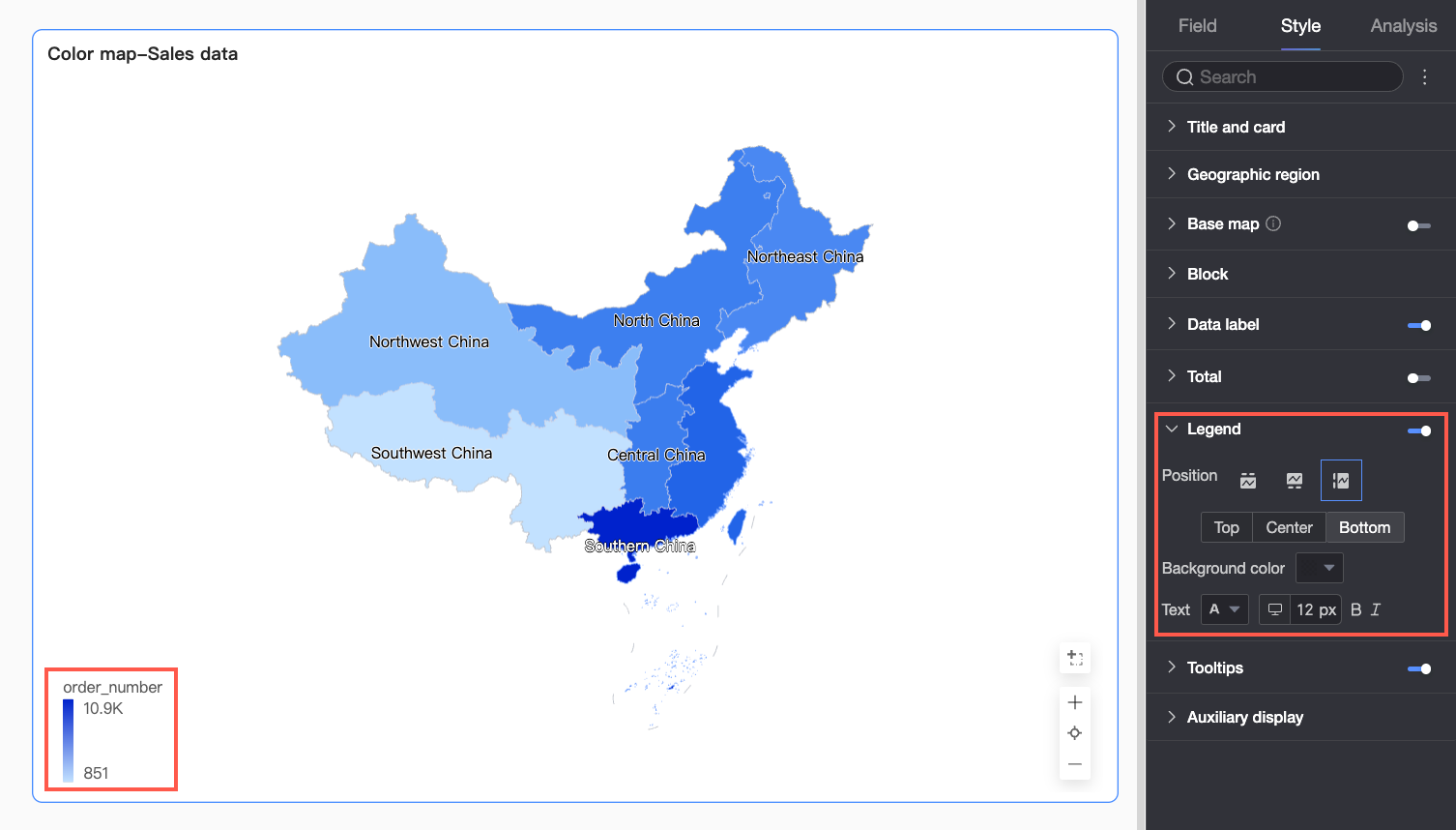
In the Legend section, click the  icon to enable the chart legend and configure its style.
Parameter | Description |
Position | Set the display position and alignment of the legend.
|
Background Color | Set the background fill color of the legend. |
Text | Set the text style for the legend, including font color, size, weight, and whether to use italics. |
Mobile Legend Settings | The legend settings for PC and mobile are configured independently. Use the PC/Mobile toggle ( |
 ) at the top of the dashboard editor to switch to the mobile editing view. This allows you to separately configure the legend's position, background color, and text style for the mobile view.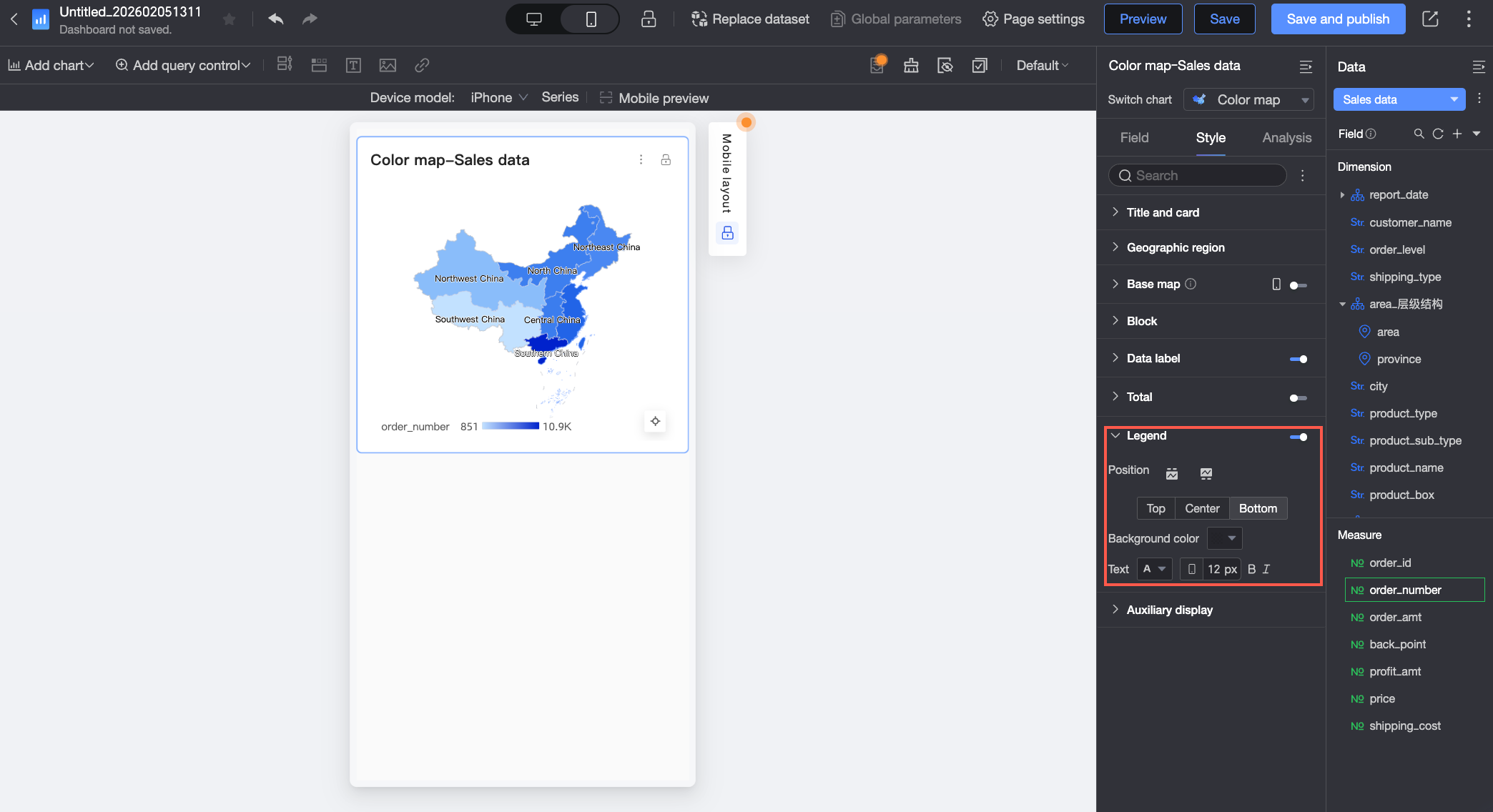
Tooltip
In the Tooltip section, click the icon to enable tooltips and configure their styles.
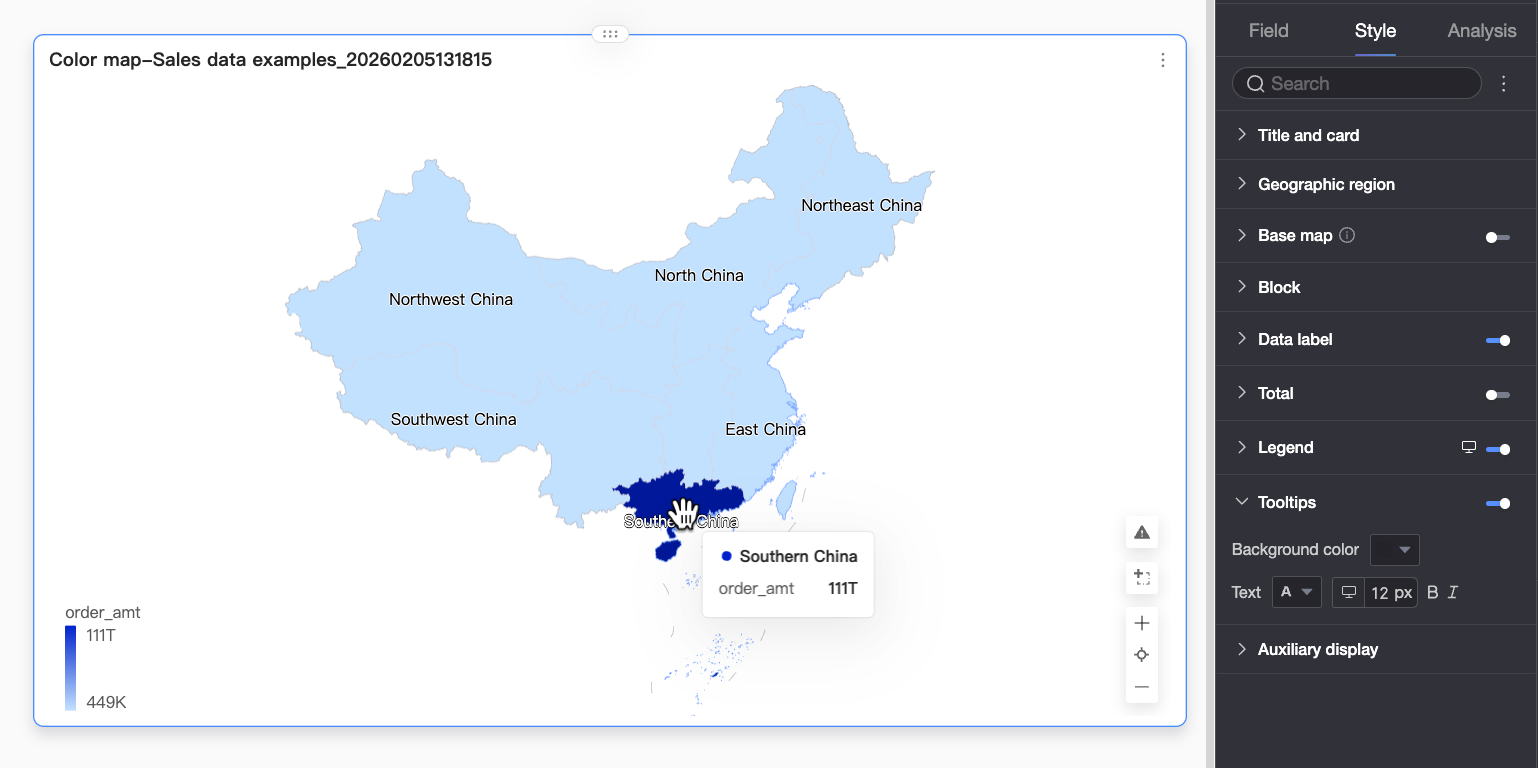
Parameter | Description |
Background Color | Set the background fill color of the tooltip. |
Text | Set the text style within the tooltip, including font color, size, weight, and whether to use italics. |
Mobile Tooltip | The tooltip toggle for PC and mobile is configured independently. Use the PC/Mobile toggle ( |
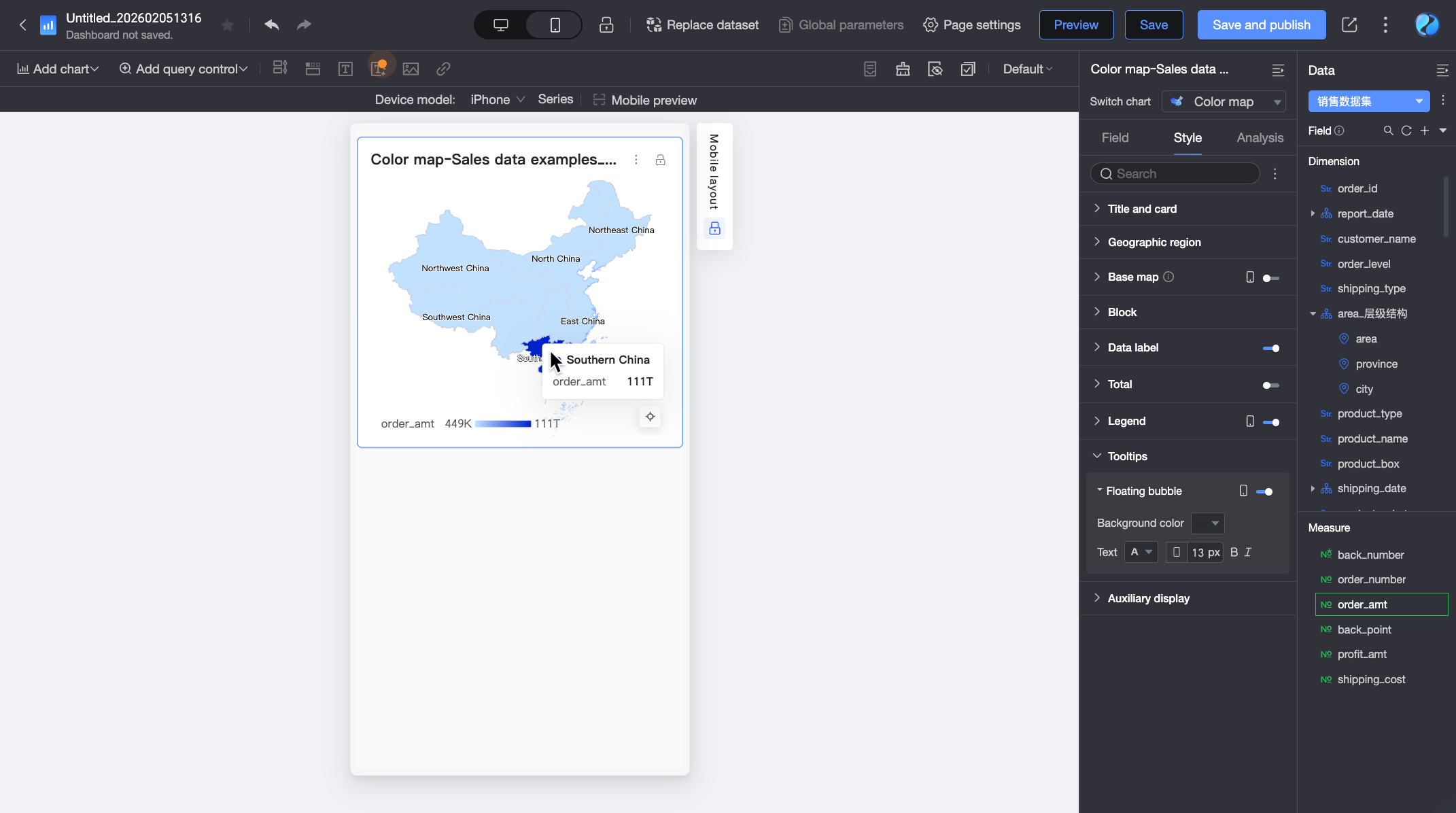
Auxiliary display
In the Auxiliary Display section, you can enable a measure filter and select the measure items to be displayed.
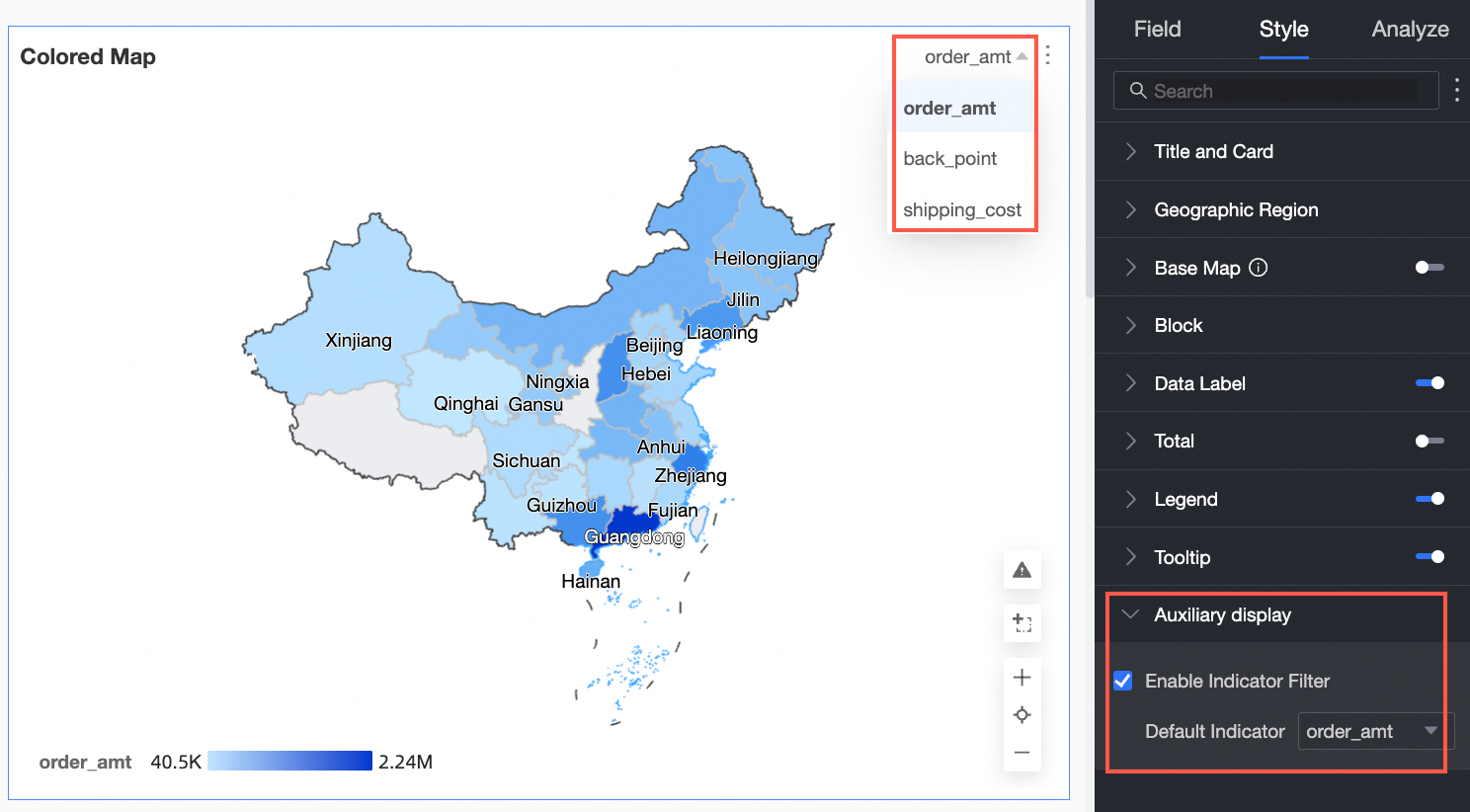
Analysis settings
Parameter | Parameter | Description |
Data Interaction | Drilling | If you have configured drill-down fields in the data pane, you can set the display style for drill-down hierarchy rows here. |
Filter Interaction | You can associate multiple charts for interactive data analysis. When you filter or select data in one chart, the associated charts update automatically. For more information, see Configure and view filter interactions. | |
Hyperlink | You can link multiple dashboards to analyze data across them. Hyperlink options include Parameter Hyperlink and External Link. For more information, see Configure and view hyperlinks. | |
Labeling | - | You can use color highlights, icons, annotations, or data points to mark abnormal or important data in a chart. This helps you identify issues and act accordingly. For more information, see Labeling. |
Limitations
You configure a filled map using the Geographic Area/Dimension and Colorscale/Measure fields:
A geo location is determined by a single data dimension that must contain geographical information, such as province.
The measure of the data determines the colorscale. You can select at least 1 dimension and at most 5 dimensions. For example, order amount and profit amount.