Skill Center
The Skill Center is the AI analysis skill management module in Quick BI AIPro, located in the Enterprise view. A skill is an encapsulated analytical capability you can invoke in conversations, for example, by using the "/" command, to perform specific analysis tasks. This topic describes how to view, create, and install skills.
Prerequisites
-
You are logged in to Quick BI AIPro.
-
You have at least the permissions for the basic features of Quick BI AIPro.
-
To use a custom skill, an enterprise administrator or the skill creator must make the skill visible to you.
Access the Skill Center
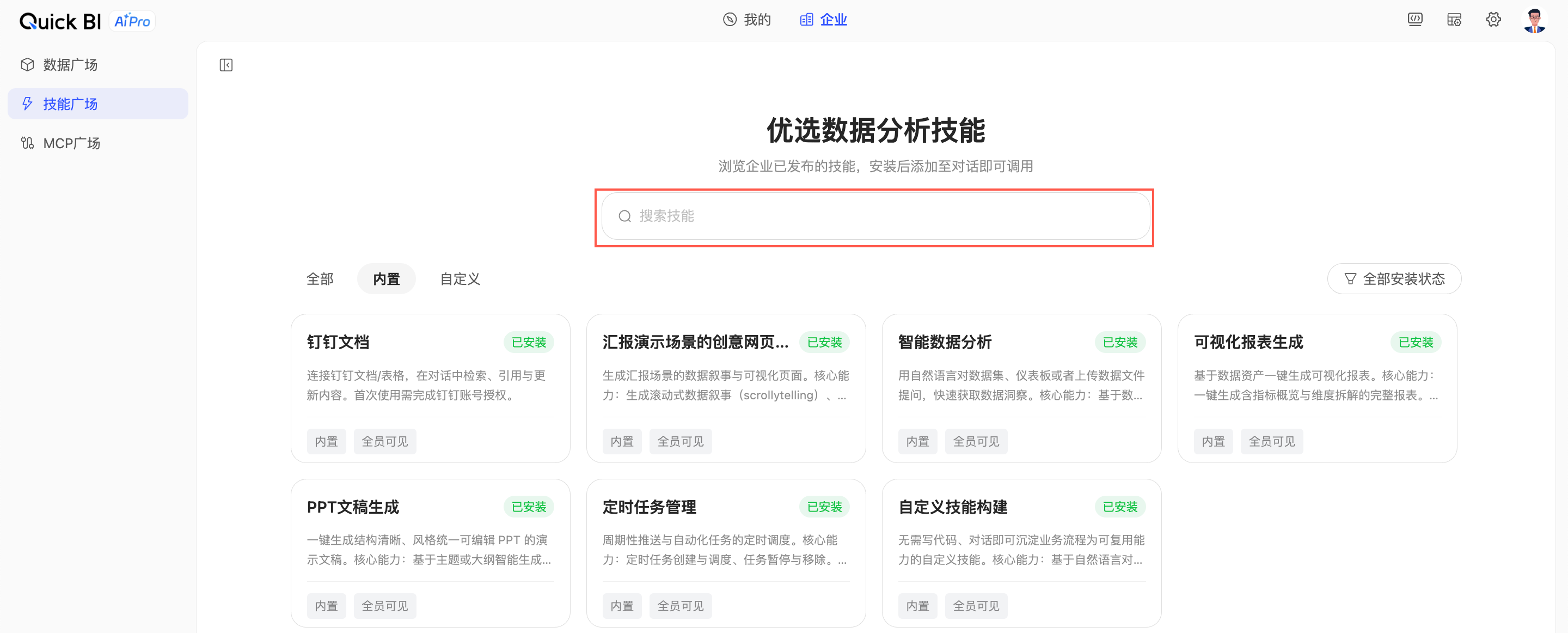
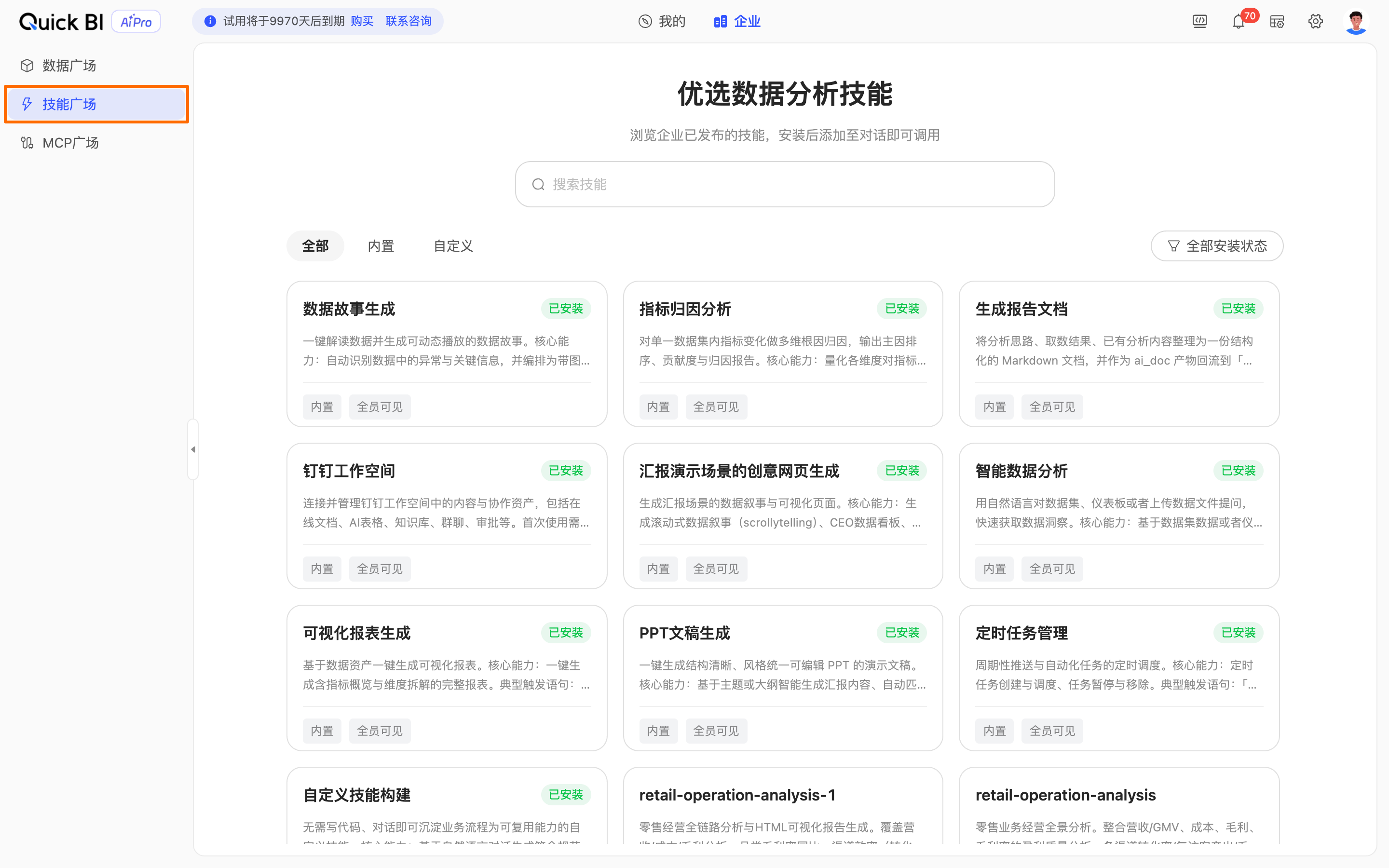
On the Enterprise tab of Quick BI AIPro, click Skill Center in the left-side navigation pane.
Instructions
On the Skill Center page, you can view all skills that you have permission to access, including built-in and custom skills.
Built-in skills
Built-in skills are general-purpose analysis skills that are pre-configured in the system. Quick BI AIPro supports the following built-in skills:
|
Skill name |
Description |
|
Intelligent Data Analysis |
Ask questions in natural language about a dataset, dashboard, or uploaded data file for quick data insights. Core capability: Analyzes data from datasets or dashboards based on user questions and provides results. Example prompts: "What is the month-over-month sales growth?" or "Analyze the performance of each region." |
|
Visual Report Generation |
Generate a visual report from your data with a single click. Core capability: Creates a complete report that includes a metric overview and dimensional breakdown. Example prompts: "Generate a report based on this dataset," "Create a dashboard with one click," or "Automatically build a visual dashboard." |
|
Scheduled Task Management |
Schedule recurring pushes and automated tasks. Core capability: Creates, schedules, pauses, and removes scheduled tasks. Example prompt: "Generate a report from the analysis above and send it to me every day at 9 AM." |
|
Custom Skill Builder |
Create a reusable custom skill from business workflows through conversation, with no code required. Core capability: Generates a compliant skill configuration from natural language conversations. Example prompts: "Package this workflow into a skill" or "I want to create a new custom skill." |
|
Presentation Generation |
Generate a well-structured and editable presentation (PPT) in a consistent style with one click. Core capability: Generates presentation content based on a topic or outline, matches templates and layouts, and outputs an editable PPT file. Example prompts: "Help me create a PPT," "Generate a presentation from this outline," or "Create a report presentation." |
|
DingTalk Workspace |
Connect to and manage content and collaborative assets in your DingTalk Workspace, including online documents, AI-powered sheets, knowledge bases, group chats, and approvals. Core capability: Use natural language commands in conversations to locate information in or update DingTalk documents and sheets. Example prompts: "Find the top 3 sales figures in the 'Sales Data' sheet" or "Update the 'Monthly Sales Analysis Report' document with this analysis." Note
You must authorize your DingTalk account the first time you use this skill. For more information about how to authorize and deauthorize your account, see My Skills. |
|
Data Story Generation |
Transform complex data into animated, illustrated narratives that intuitively explain your data. Core capability: Breaks down key metrics and dimensions from data or tables in the conversation to generate an animated, step-by-step data story. Example prompts: "Show me the key points in the data as a data story," "Generate an animated explanation," or "This data is complex, walk me through the highlights step by step." |
Custom skills
Custom skills are business-specific analysis skills created by your enterprise. You can create a custom skill in the following ways:
-
Create a custom skill as an enterprise administrator
-
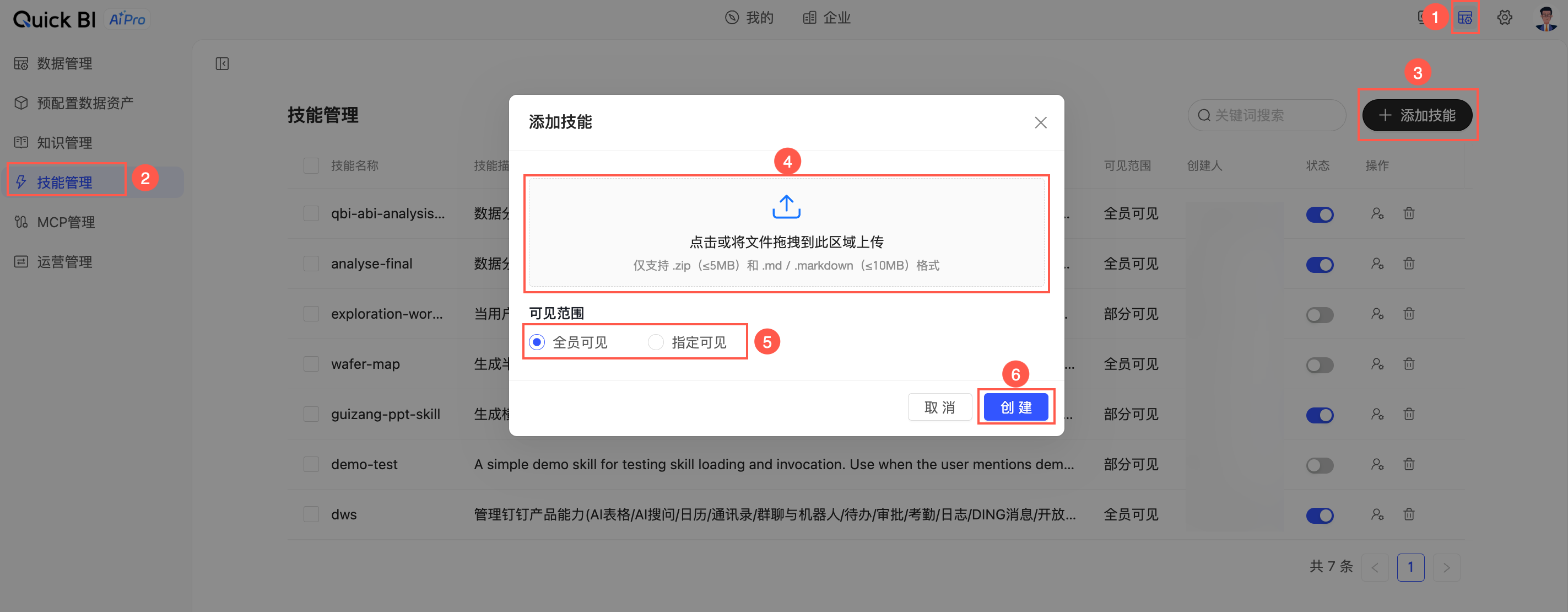
On the Admin Center > Skill Association page, click the Add Skill icon to upload and create a skill. For more information, see Skill Management.
-
After the upload is complete, you can modify the Visibility and allow users to install the skill.
-
-
Create a custom skill as an individual user
-
Method 1: Create a skill in a conversation
-
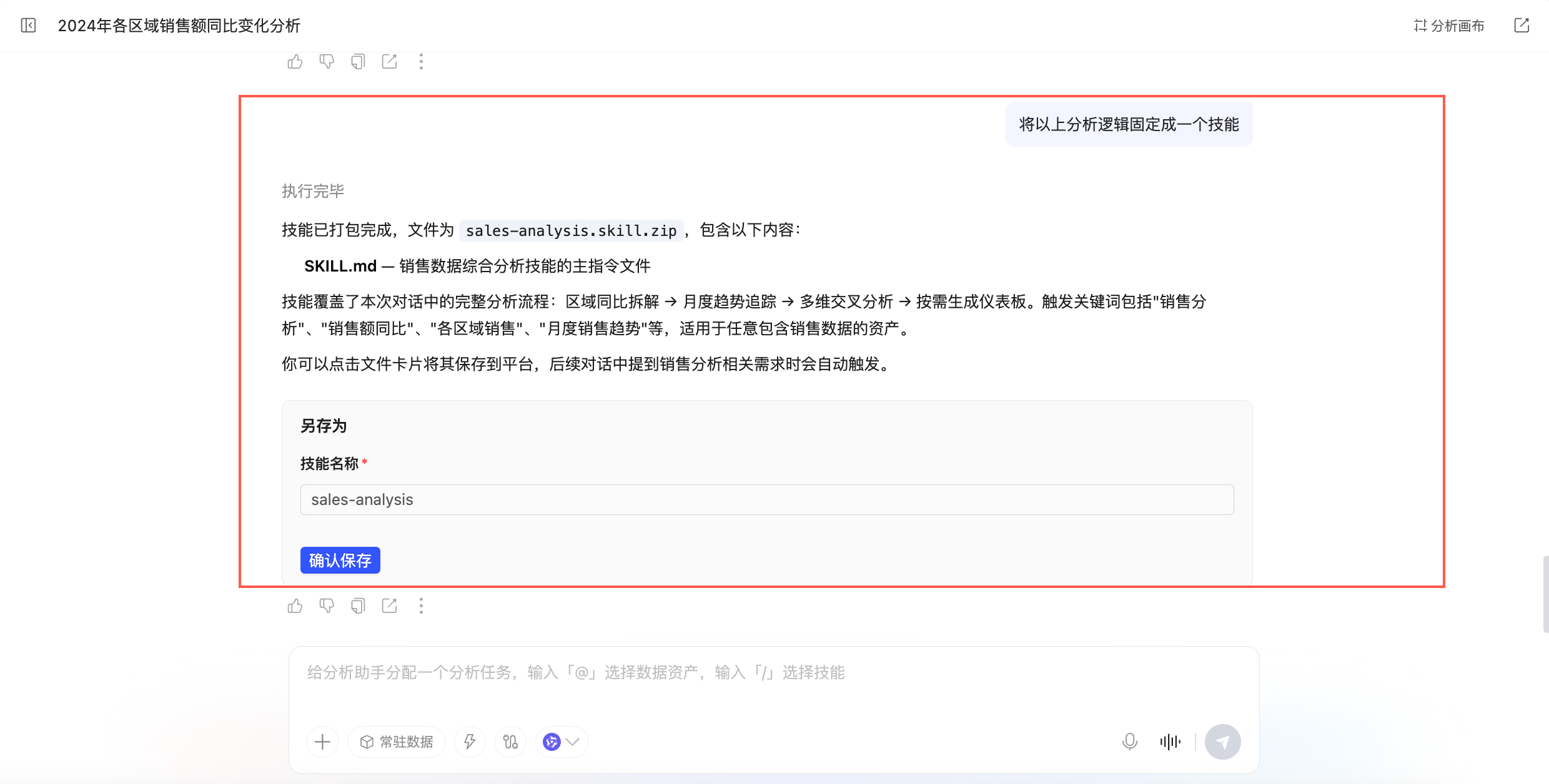
In the dialog box on the My > New Task page, enter a command to generate a skill.
For example, enter "Generate a skill from the analysis logic above." The system automatically creates the skill.
-
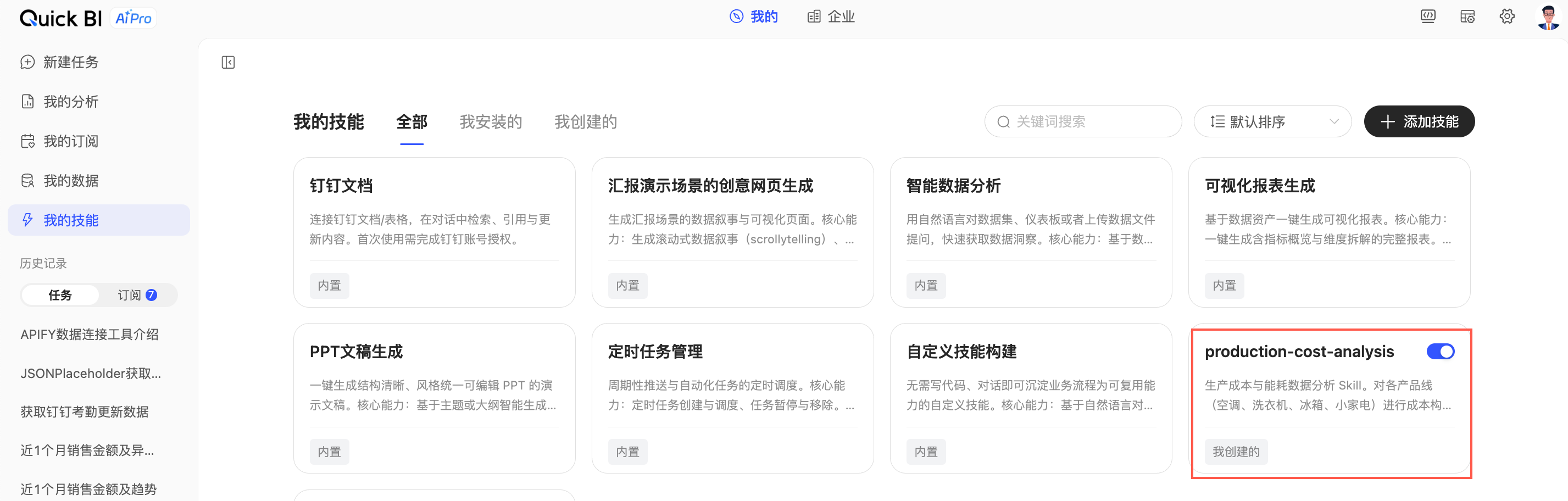
After the skill is generated, you can rename it. Click Confirm and Save to package the skill for use. You can manage it on the My Skills page.
-
-
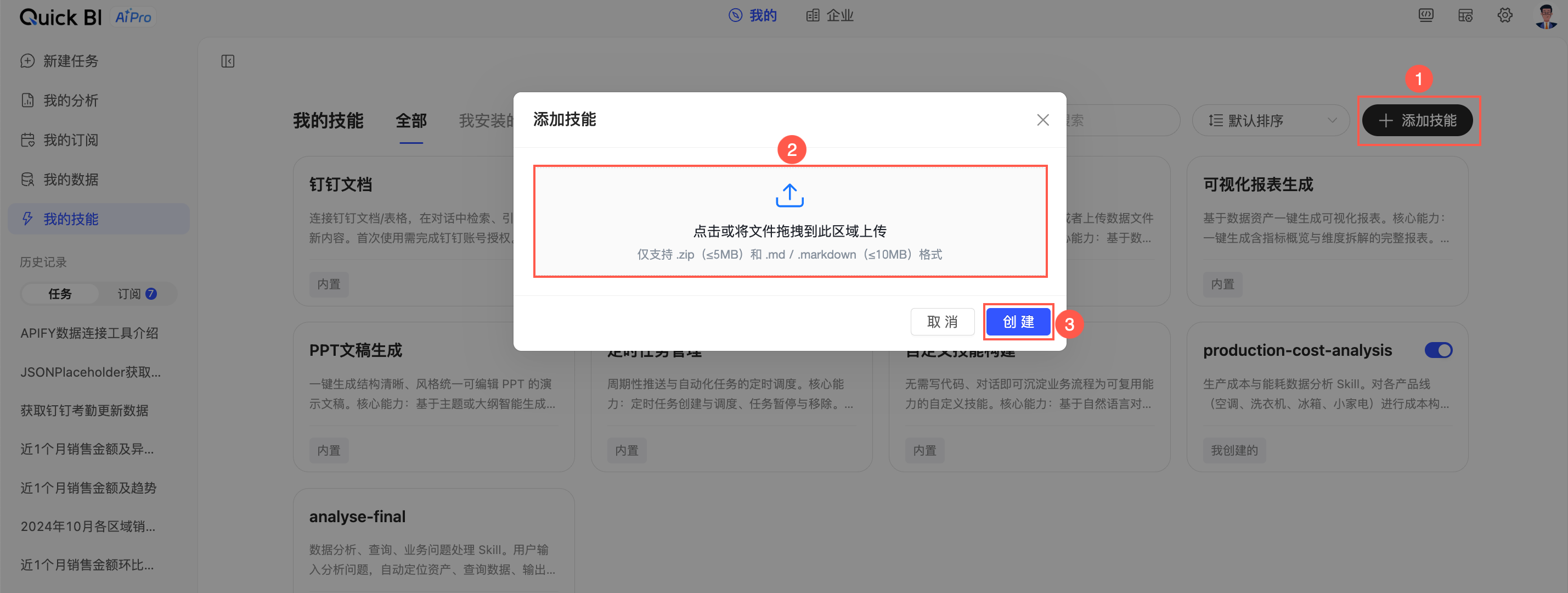
Method 2: Create a skill by uploading a skill package
On the My > My Skills page, click the Add Skill icon to upload and create a skill. For more information, see My Skills.
NoteOnly .zip (up to 5 MB) and .md/.markdown (up to 10 MB) files are supported.
-
View and manage skills
-
You can use the Search function to quickly find a specific skill.

-
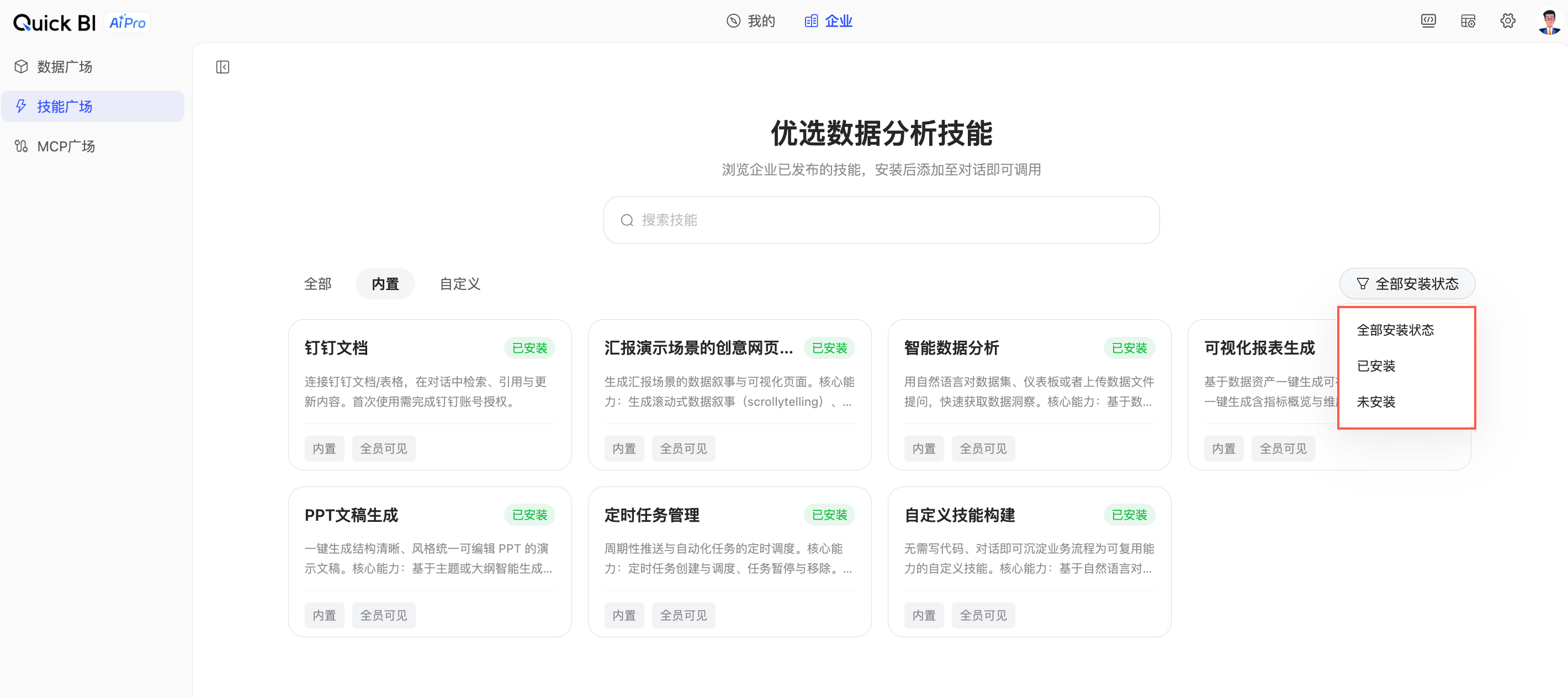
You can filter skills by Installation Status to view Installed and Uninstalled skills separately.
-
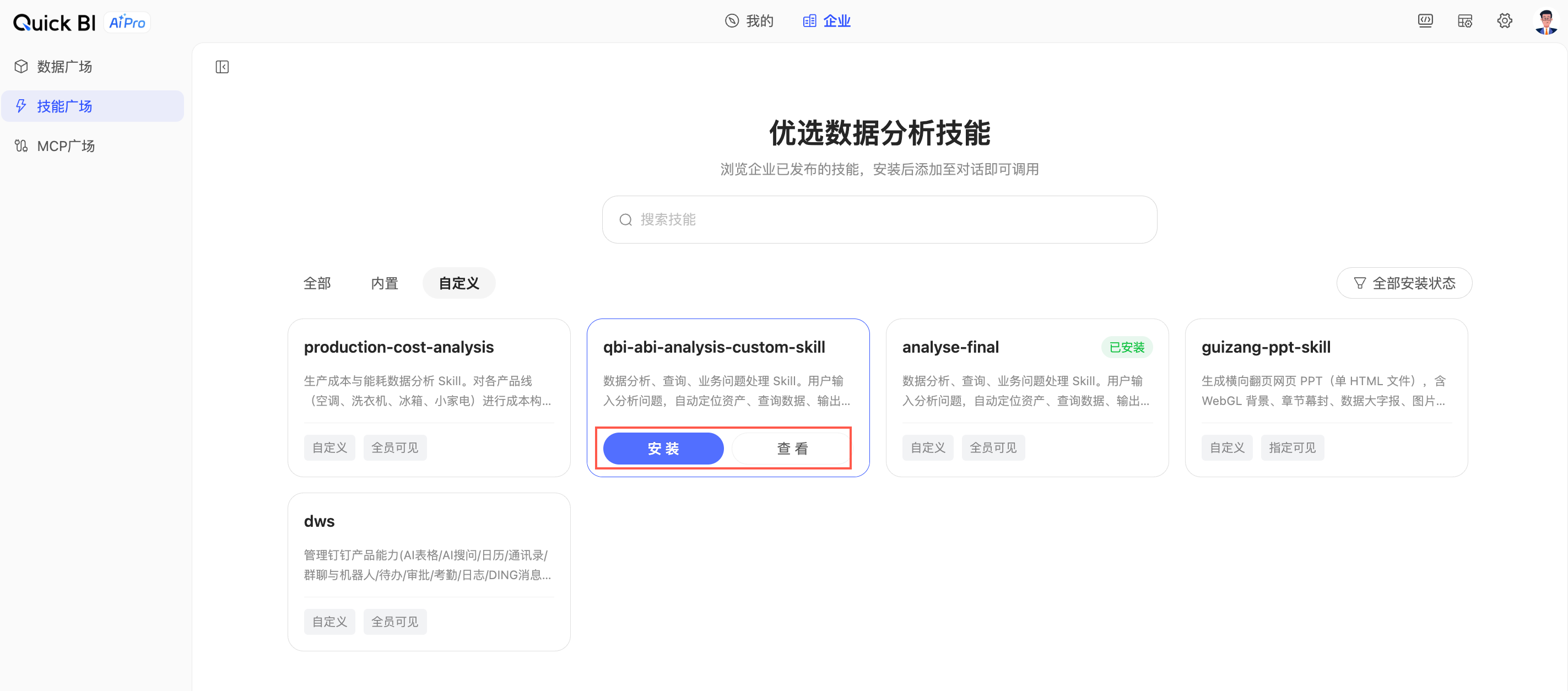
For installed skills, you can only View their details.
-
For uninstalled skills, you can View their details or Install them.
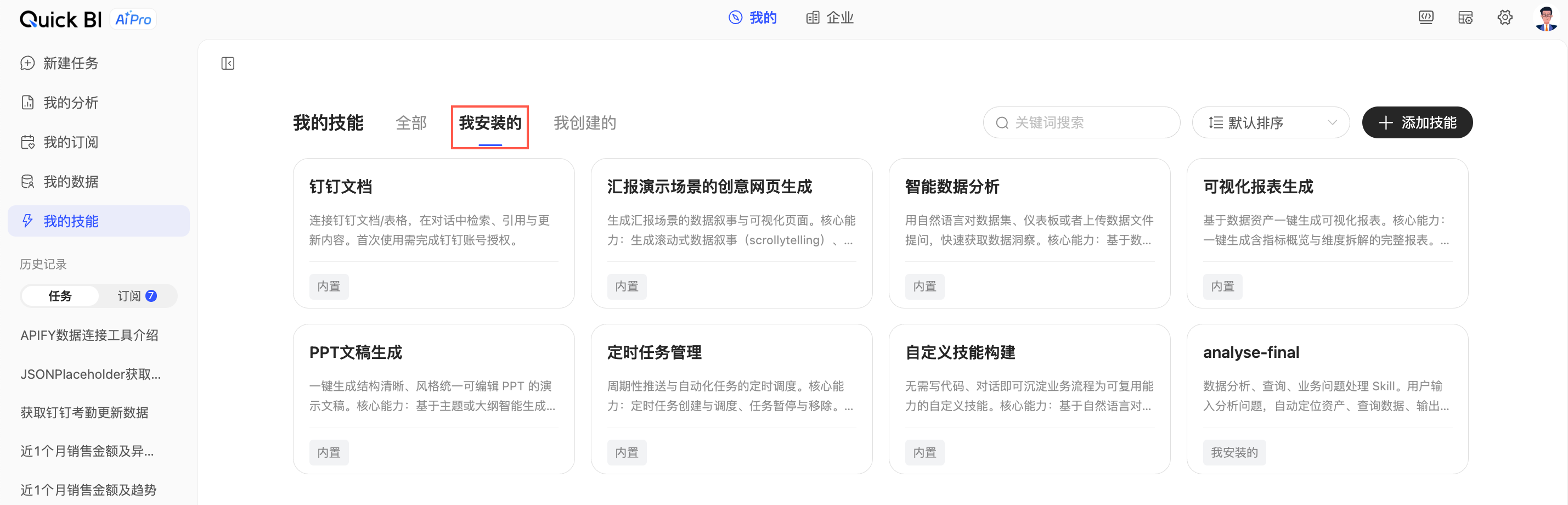
After you install a skill, you can find it on the My > My Skills > Installed by Me tab and invoke it in conversations.
-