This topic describes the features of the Cloud Contact Center agent workspace.
Function Overview
After an administrator imports Alibaba Cloud accounts and RAM users into a Cloud Contact Center instance and assigns them roles and skill groups, agents can use My Workspace to perform softphone operations, such as answering and making calls. The agent workspace supports features such as going online, going offline, taking a break, ending a break, going invisible, answering inbound calls, making outbound calls, post-call processing, call holds, call resumes, secondary dialing, call transfers, and call monitoring.
The agent workspace runs only in Chrome browsers version 58 or later.
When you log in to Cloud Contact Center, you are automatically directed to My Workspace.
Accessing Features
Log on to the Cloud Contact Center console. In the navigation pane on the left, choose Instances > Instance Management - V2. Click the endpoint of an instance to open its console.
Click the menu button in the upper-right corner of the page and select My Workspace to open the My Workspace console.
Feature Details
Go Online
When you first enter the agent workspace, the system automatically configures your information on the server. After you receive the configuration data from the server, click Online to log in to the agent workspace. Once online, you enter the idle state. You can answer or make calls only in this state. If you are not assigned to any skill group, you cannot access the agent workspace. To assign an agent to a skill group, see Agent Management.
Go Offline
Click the button in the upper-right corner of the agent workspace page and select Offline from the drop-down list to log out. You will no longer be able to make or receive calls.
Take a Break
You can enter break mode manually or automatically if an incoming call rings for too long without being answered.
Click the button in the upper-right corner of the agent workspace page and select Break from the drop-down list to enter break mode. The system automatically routes incoming calls to other available agents. You can configure system-defined and custom break states in Agent Workspace Settings.
To improve answer rates, if an incoming call is not answered within a configured duration, the system automatically places the agent in break mode. The call is then returned to the queue and reassigned to another available agent. You can configure this behavior in the **Long Ring No Answer** section of Agent Workspace Settings.
End Break
While in break mode, you can switch to online, offline, or invisible status. To return to the idle state, select Online from the selector in the center of the console or in the upper-right corner. To log out, click Offline. To become unavailable for calls without logging out, click Invisible.
Answer Calls (Inbound)
When your workspace is in the idle state and an inbound call arrives, an alert tone sounds. Click Answer to accept the call.
Make Calls (Outbound)
In the agent workspace, switch to the hotline workspace to make outbound calls. Select an outbound number, enter the customer's number using the numeric keypad, and click the green Call button or press Enter to dial. The green Call button is disabled if no outbound numbers are available.
You can select an outbound number in two ways: automatic selection or manual selection. The rules are as follows:
If you choose automatic selection, the system selects an outbound number based on the region of the destination number. The system first attempts to match a caller ID from the same region. If no match is found, the system uses a number from the same province. If that also fails, a number is randomly selected. This approach significantly improves outbound call connection rates.
If you choose a specific number, the system uses that number for the outbound call.
When you select a specific number, you can view its line information for reference.
When the customer answers the call, they are connected to the agent. This completes the outbound call procedure.
Hang Up
When you make a call or are on a call with a customer, click the red Hang Up button to end the call. For inbound calls, you must configure the Hang Up method in Voice Service > Settings. For more information, see Agent Workspace Settings.
Pause Call
During a call, to consult a supervisor, click Hold. The customer is placed on hold and can no longer hear you. To continue the conversation, click Resume. While on hold, the customer hears hold music. You can configure the hold music in the **Call Hold** section of Agent Workspace Settings.
Mute
Click Mute to prevent the customer from hearing you. Click Mute again to unmute your microphone and resume the conversation.
Dial Pad
If the called party supports keypad interaction, click the Dial Pad button and use the keypad to navigate the recipient's Interactive Voice Response (IVR) menu.
Post-Call Processing
After a call ends, the workspace enters post-call processing mode. During this time, you cannot answer new calls. To start the timer for post-call work, click Post-Call Processing. You can then summarize the call.
Start Answering
After a call ends, the Start Answering button appears. If you do not click it, your status automatically changes to idle after a countdown. If you click Post-Call Processing, a timer starts for your post-call work. Click Start Answering at any time to immediately return to the idle state. You can customize the countdown duration. For more information, see Agent Workspace Settings.
Redial
After you end an outbound call, click Redial to call the customer again.
Send Satisfaction Survey
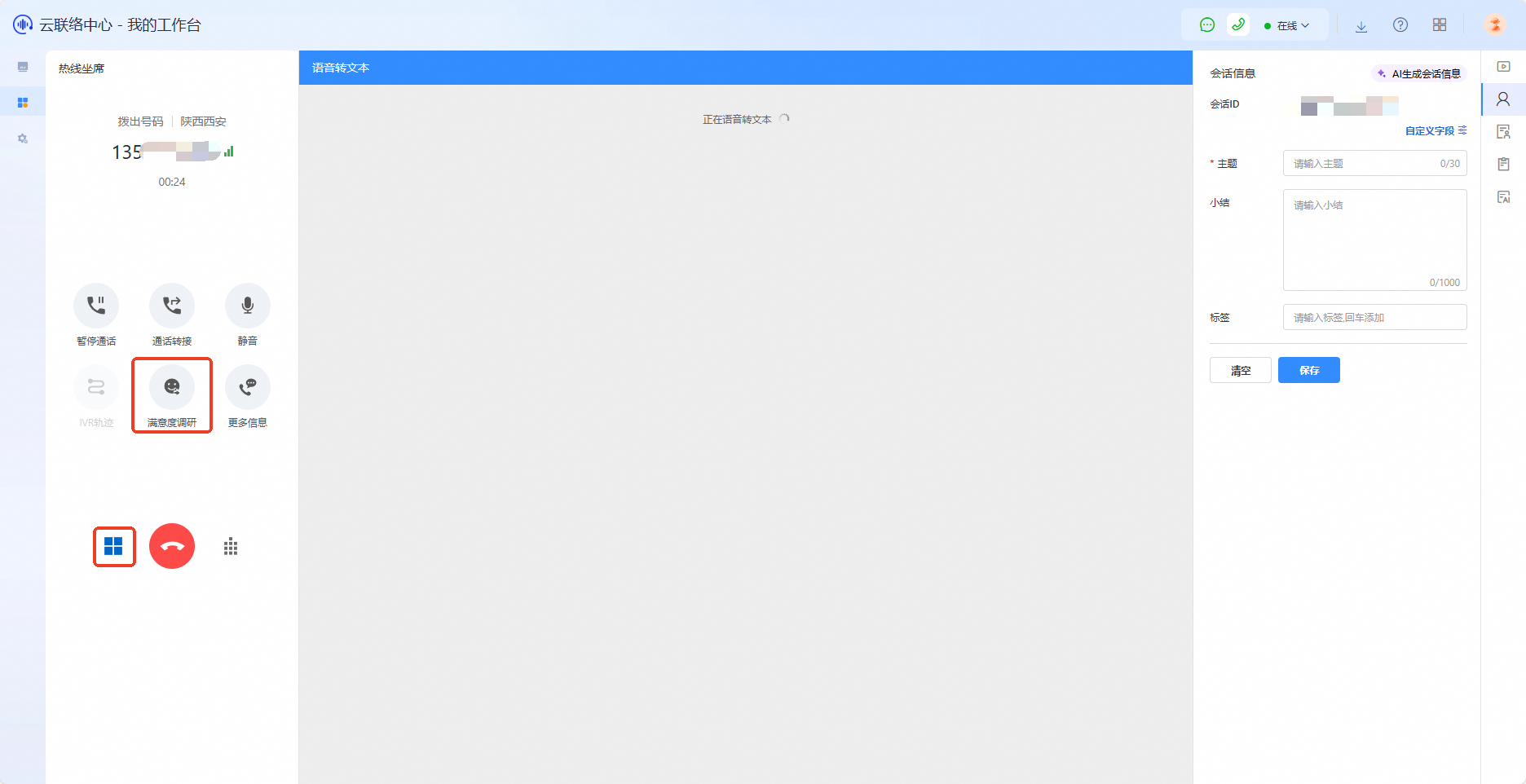
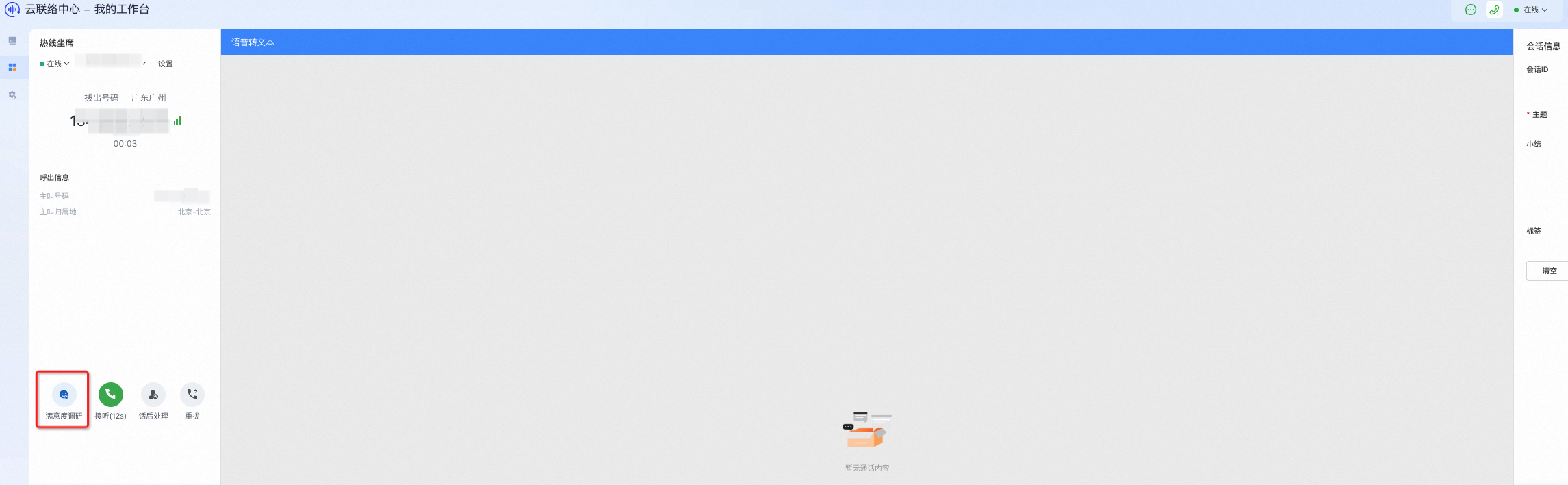
Customers can rate their service experience. You can send satisfaction surveys by voice or by text message. To configure these options, see Satisfaction Survey Configuration.
Send Voice Satisfaction Survey
Send SMS Satisfaction Survey
Call Transfer
You can transfer a call only during an active conversation. A direct transfer sends the call immediately to another agent. A consultation transfer lets you speak with the target agent first before you decide whether to transfer the call.
To transfer a call to an agent or a skill group, click Transfer to Agent or Skill Group. A list of available agents is displayed. Available agents are those who are in the idle state or have phone numbers configured. Select the target agent and click Direct Transfer or Consultation Transfer.
When you click Skill Group, you can filter by transfer priority.
Transfer Priority
Highest Priority: Shows skill groups with the highest current priority level.
Custom: Lets you filter skill groups by levels 0 to 9.
Select Transfer Strategy (agent filtering)
Familiar Agent Mode: Prioritizes agents who recently spoke with this customer.
First Available Agent: Prioritizes skill groups with more idle agents.
Skill Level: Prioritizes skill groups with higher-level agents.
Lowest Utilization: Prioritizes skill groups whose agents have been idle the longest.
Custom: You can configure a user-defined function in Function Compute as needed.
To transfer to an external number, click External Number to switch to the dial pad. Enter the destination number and click Direct Transfer or Consultation Transfer to complete the transfer.
Call Records
In the hotline workspace, click the Call Records tab to view your inbound and outbound call history. Click the green phone icon next to any record to redial.
You can also specify an outbound number for the redial or add the number to a blacklist.
Monitor Calls
Only skill group leads and administrators can monitor active calls. To monitor a call, click Start Monitoring to view a list of agents who are currently on calls. Select an agent and then click Start Monitoring to begin. To stop monitoring, click End Monitoring.
My Work
The **My Work** tab displays statistics such as your online duration, outbound call duration, total number of outbound calls, inbound call duration, and total number of inbound calls. The tab also shows the skill group to which you belong.
You can also view the queue status for your assigned skill group.
Start Conference
Click Start Conference to create a conference call. You can add other agents or external numbers to the conference.
You can search for agents by name, employee ID, or extension to add them to the conference.
You can also use the dial pad to add two external numbers to the conference.
Session Information
You can record session details from your conversation with the customer. You can also enable AI-generated session summaries. Click Session Information on the right to view the customizable session fields.
You can configure session fields or templates in Business Management. For more information, see Session Information Management.
You can also apply a preconfigured template from your custom templates.
To enable AI-generated session information, ask your administrator to enable it in Voice Services > Settings > Intelligent Settings > Auto-Generate Session Information. For more information, see Intelligent Configuration.
Customer Information
You can add customer details using system fields and custom fields, and view service records. For instructions on how to define custom customer fields, see Customer Information Management.
Create Ticket
You can create a ticket based on your conversation with the customer. You must configure a ticket template in advance. For more information, see Ticket Management.
You can also use the AI Generate Ticket feature, but an administrator must first enable it in Voice Services > Settings > Intelligent Settings > Auto-Generate Session Information.
AI features are billed at CNY 0.01 per invocation. Depending on your configuration, generating session information may result in multiple invocations. To view billing details, click AI Generate Ticket.
Screen Pop
When a customer calls in, a screen pop appears in the hotline workspace. For configuration details, see Screen Pop.
Online Workspace
You can use the online workspace to manage conversations with customers who contact you through web-based channels. In the online workspace, you can view conversations that are in service, queued, or completed. For instructions on how to set up a web channel, see Web Channel Integration Configuration.