Synchronize data using Data Transmission Service
Data synchronization maintains data consistency between the source and destination. It enables real-time data flow for critical business operations. This topic provides an example of how to use Data Transmission Service to synchronize data from an OceanBase database to Kafka.
Prerequisites
Before you synchronize data, ensure that the following requirements are met:
Data Transmission Service has the required permissions to access cloud resources. For more information, see Grant permissions to the Data Transmission Service migration role.
A database user for the data synchronization task is created in the source OceanBase database. This user has the required permissions. For more information, see Create a database user.
Procedure
This topic provides an example of synchronizing data from an OceanBase database to Kafka. For more information, see the topics in the Data Synchronization section.
Log on to the OceanBase Management Console and purchase a data synchronization task.
For more information, see Purchase a data synchronization task.
On the Data Transmission > Data Synchronization page, find the new sync task and click Configure.

To reference an existing task configuration, click Reference Configuration. For more information, see Reference and clear a data synchronization task configuration.
Configure the parameters on the Select Source and Destination page.
Parameter
Description
Sync Task Name
The name can contain Chinese characters, letters, and digits. The name cannot contain spaces and must be 64 characters or less.
Source
If you have an OceanBase data source, select it from the drop-down list. If not, click Create Data Source in the drop-down list to create one in the dialog box that appears on the right. For parameter details, see Create an OceanBase data source.
Destination
If you have a Kafka data source, select it from the drop-down list. If not, click Create Data Source in the drop-down list to create one in the dialog box that appears on the right. For parameter details, see Create a Kafka data source.
Tag (Optional)
Click the text box and select a tag from the drop-down list. You can also click Manage Tags to create, modify, or delete tags. For more information, see Manage data synchronization tasks using tags.
Click Next. On the Select Synchronization Type page, select a synchronization type for the task.
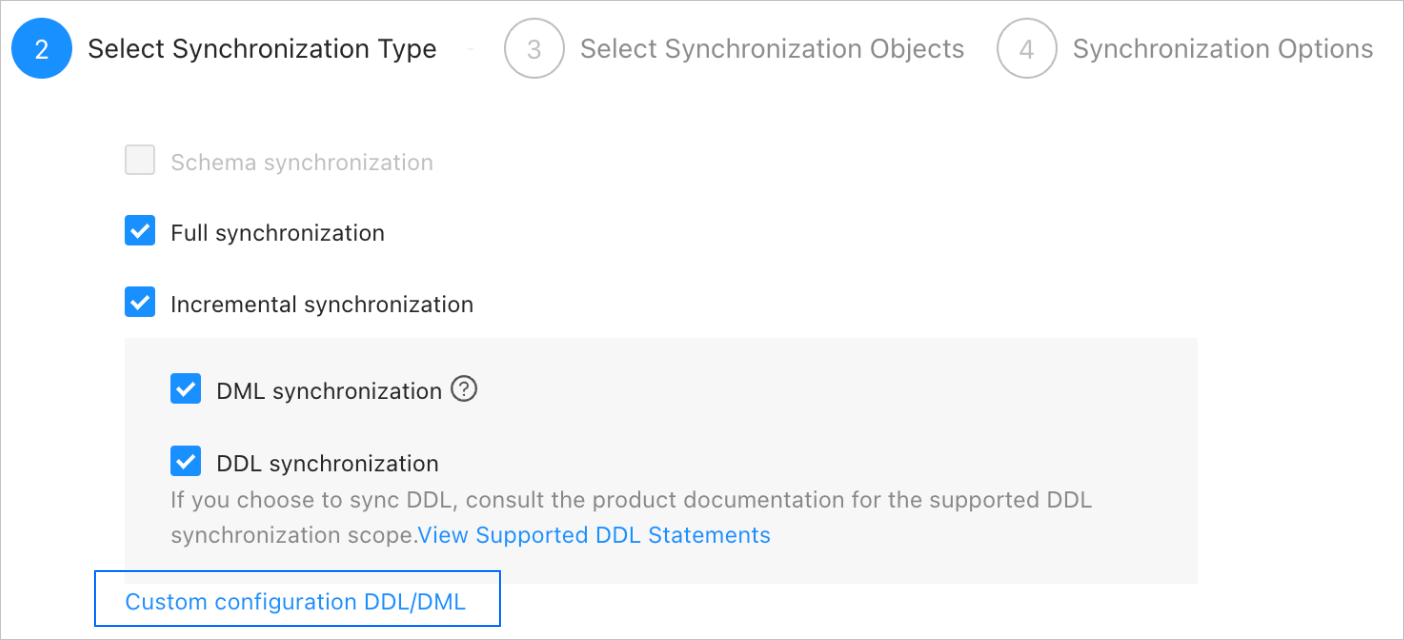
There are two synchronization types: Full Synchronization and Incremental Synchronization. Incremental Synchronization supports both DML Synchronization (including
Insert,Delete, andUpdate) and DDL Synchronization. You can configure them as needed. For more information, see Customize DDL/DML configurations.Click Next. On the Select Synchronization Objects page, select the objects that you want to synchronize.
You can specify the objects to sync in two ways: Specify Objects or Matching Rules. This topic describes the Specify Objects method. For more information about configuring matching rules, see Configure and modify matching rules.
NoteIf you checked DDL Synchronization on the Select Synchronization Type page, use matching rules to select sync objects. This ensures that all new objects that match the rules are synchronized. If you specify objects individually, new or renamed objects are not synchronized.
When you synchronize data from an OceanBase database to Kafka, you can synchronize multiple tables to multiple topics.
In the selection area on the left, select the objects to synchronize.
Click the > button.
In the Map Objects to Topic dialog box, search for and select the destination topic from the Existing Topic drop-down list.
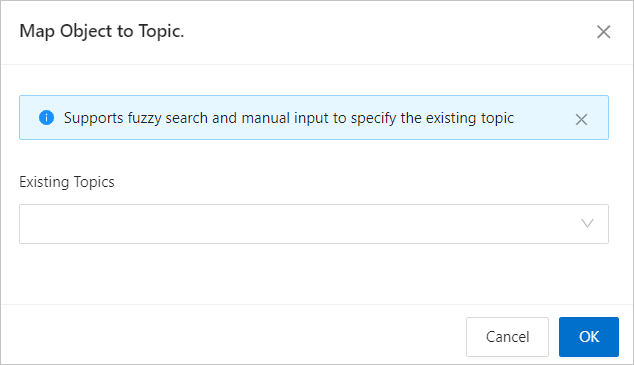
Click OK.
Data Transmission Service lets you import objects from a text file. You can also change the topic, set a row filter, and remove a single object or all objects from the destination. The destination objects are structured as Topic > Database > Table.
NoteWhen you select objects to sync using Matching Rules, the renaming capability is handled by the matching rule syntax. In the Actions column, you can only set filter conditions, select sharding columns, and select columns to sync. For more information, see Configure and modify matching rules.
Click Next. Configure the parameters on the Synchronization Options page.
Full Synchronization
The following parameters appear only if you select Full Synchronization on the Select Synchronization Type page.

Parameter
Description
Read Concurrency
This parameter specifies the number of concurrent threads for reading data from the source during full synchronization. The maximum value is 512. A high concurrency may increase the pressure on the source database and affect your business.
Write Concurrency
This parameter specifies the number of concurrent threads for writing data to the destination during full synchronization. The maximum value is 512. A high concurrency may increase the pressure on the destination database and affect your business.
Full Synchronization Rate Limit
You can enable this feature as needed. If you enable it, set the RPS (the maximum number of data rows that can be synchronized to the destination per second during full synchronization) and BPS (the maximum volume of data that can be synchronized to the destination per second during full synchronization).
NoteThe RPS and BPS settings only serve as rate limits. The actual performance of full synchronization is affected by factors such as the source, the destination, and the instance specifications.
Incremental Synchronization
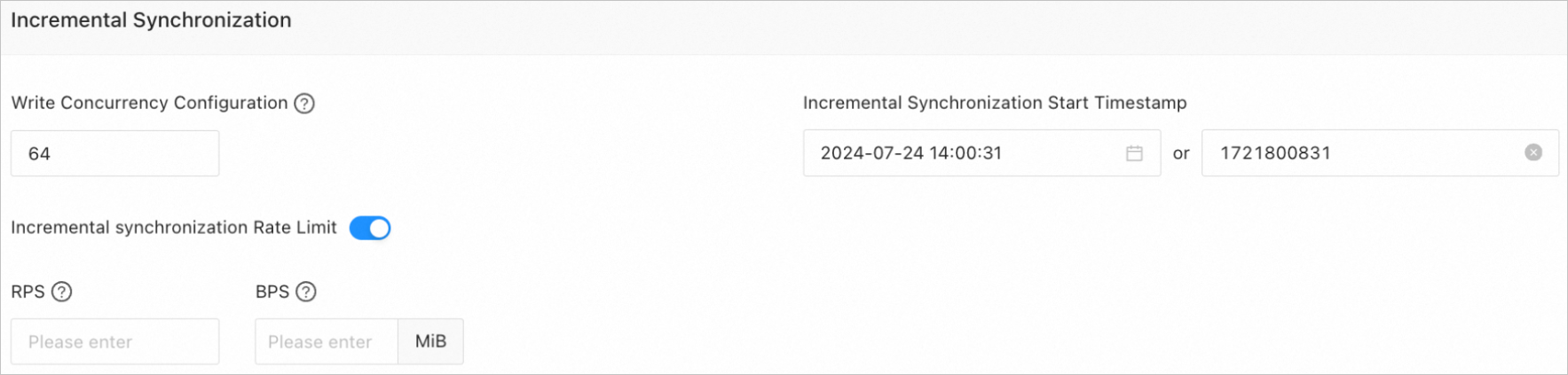
The following parameters appear only if you select Incremental Synchronization on the Select Synchronization Type page.
Parameter
Description
Write Concurrency
This parameter specifies the number of concurrent threads for writing data to the destination during incremental synchronization. The maximum value is 512. A high concurrency may increase the pressure on the destination database and affect your business.
Incremental Synchronization Rate Limit
You can enable this feature as needed. If you enable it, set the RPS (the maximum number of data rows that can be synchronized to the destination per second during incremental synchronization) and BPS (the maximum volume of data that can be synchronized to the destination per second during incremental synchronization).
NoteThe RPS and BPS settings only serve as rate limits. The actual performance of incremental synchronization is affected by factors such as the source, the destination, and the instance specifications.
Incremental Synchronization Start Offset
If you selected Full Synchronization as the synchronization type, you cannot modify this parameter.
If you did not select Full Synchronization but selected Incremental Synchronization, specify a point in time after which you want to migrate data. The default value is the current system time. For more information, see Set the incremental synchronization offset.
Advanced Options

Parameter
Description
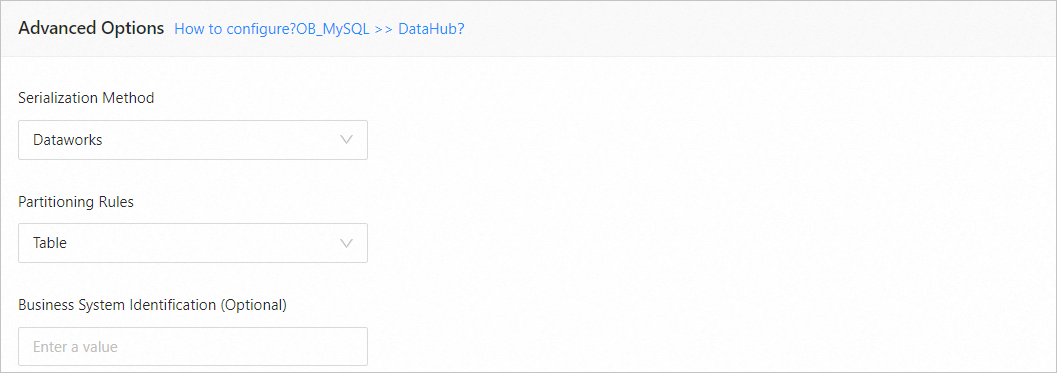
Serialization Format
Controls the message format for data synchronized to Kafka. The supported formats are Default, Canal, DataWorks (V2.0 supported), SharePlex, DefaultExtendColumnType, Debezium, DebeziumFlatten, DebeziumSmt, and Avro. For more information, see Data formats.
ImportantCurrently, only MySQL tenants of OceanBase databases support Debezium, DebeziumFlatten, DebeziumSmt, and Avro.
When you select DataWorks, DDL synchronization does not support
COMMENT ON TABLEandALTER TABLE...TRUNCATE PARTITION.
Partitioning Rule
The rule for synchronizing data from an OceanBase database to a Kafka topic. The supported rules are Hash, Table, and One.
Hash: Data Transmission Service uses a hash algorithm to select a partition of the Kafka topic based on the primary key value or sharding column value.
Table: Data Transmission Service delivers all data from a table to the same partition. The table name is used as the hash key.
One: JSON messages are delivered to a specific partition of the topic to maintain the order.
Business System Identifier (Optional)
This parameter appears only when you set Serialization Format to DataWorks. It identifies the source business system of the data for custom processing. The identifier must be 1 to 20 characters in length.
Click Precheck.
During the Precheck, Data Transmission Service checks its connection to the destination Kafka instance. If the precheck fails:
You can identify and fix the issue, and then run the precheck again.
You can also click Skip in the **Actions** column for a failed precheck item. A dialog box appears that describes the impact of skipping this step. To proceed, click OK.
After the precheck is successful, click Start Task.
If you do not need to start the task now, click Save. You can start the task manually later on the Sync Task List page or start tasks in batches. For more information about batch operations, see Perform batch operations on data synchronization tasks.
Data Transmission Service lets you modify the synchronization objects while a synchronization task is running. For more information, see View and modify sync objects and their filter conditions. After the synchronization task starts, it runs based on the selected synchronization type. For more information, see View synchronization details.