Deploy ZCode on Elastic Desktop Service
This topic shows you how to quickly deploy ZCode using Elastic Desktop Service.
Prerequisites
Account and verification
Create an Alibaba Cloud account and complete individual real-name verification or enterprise real-name verification.
Download the Elastic Desktop Service client
From the Elastic Desktop Service client page, download the client for your operating system. Clients are available for macOS, Windows, Android, and iOS.
After the client is downloaded, use your Alibaba Cloud account to log on to the individual edition of Elastic Desktop Service. For more information, see Overview of elastic desktops.
Deploy an elastic desktop
Create a ZCode elastic desktop
The Elastic Desktop Service ZCode solution uses a Windows image and does not support Ubuntu.
Purchase an elastic desktop
Open the Elastic Desktop Service client, log on to the individual edition, and then click Wuying Store.
On the Quick Purchase tab, follow the on-screen instructions to purchase the ZCode one-click deployment package. The package includes a monthly subscription to the Gold Plus plan for the individual edition and 2,000 wuying points.
Notewuying points are the standard unit for measuring the resource consumption of elastic desktops and cloud games. For example, for an elastic desktop configured with a 4-core CPU and 8 GiB of memory, 2,000 wuying points can support 500 hours of runtime. For more information, see wuying points.
Use an existing desktop
Changing the image erases all software and personal data from the elastic desktop's system disk and data disk. This action is irreversible.
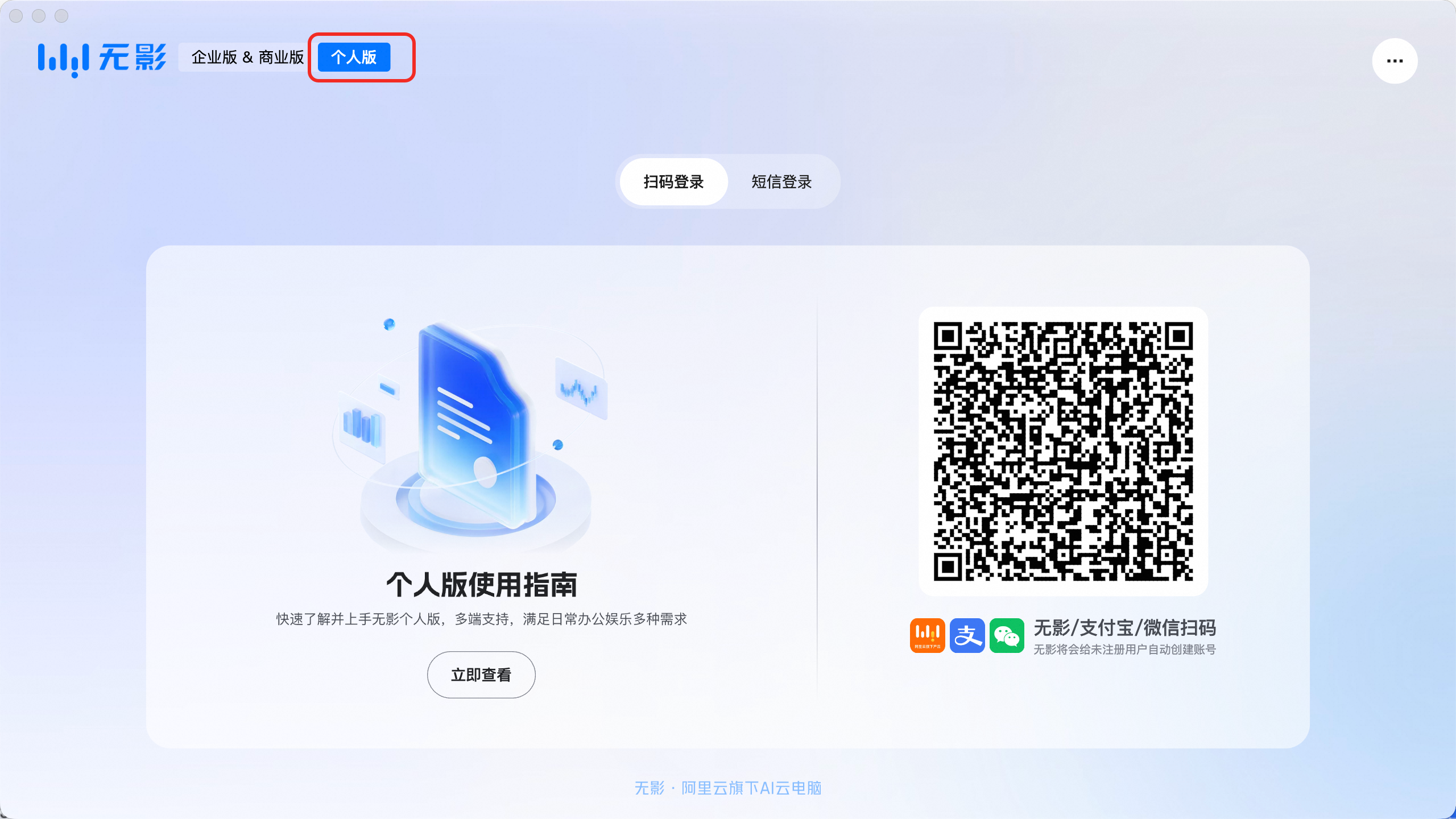
In the Elastic Desktop Service client, log on to the individual edition.
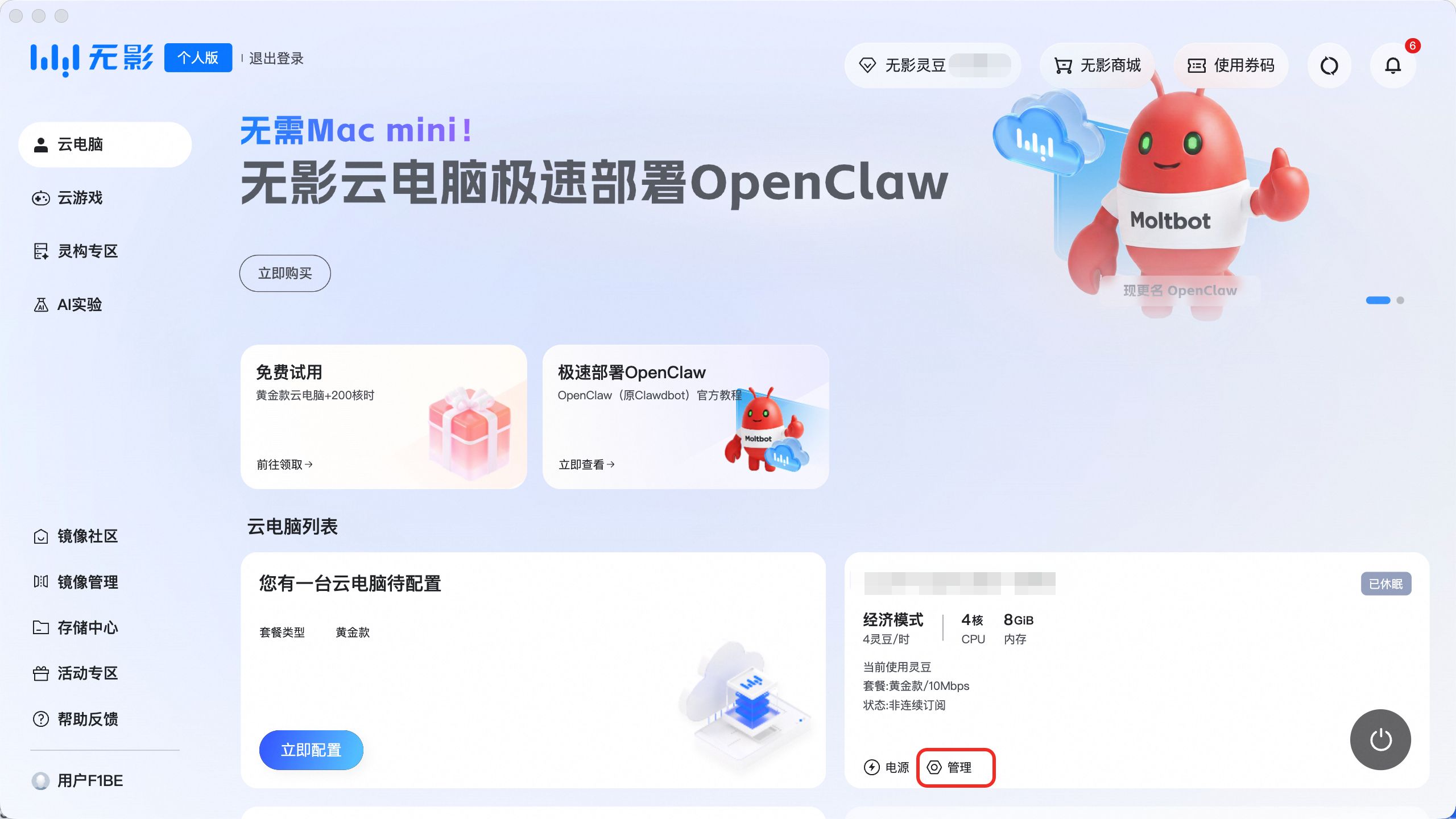
After you log on to the client, click Manage on the card for the target elastic desktop.
On the management page, select the Image tab, and then click Change image.
Click Select Image. On the page that appears, click Add Image by Image ID.
Enter the image ID
zcodecloud(case-sensitive) and click OK.Select the ZCode image that you added and click OK.
On the Change image page, click Shut Down and Change. After the image is updated, connect to the elastic desktop to begin the configuration.
Configure always-on mode
The scheduled shutdown/hibernation upon disconnection feature is enabled by default to prevent unintended consumption of wuying points if you forget to hibernate or shut down your elastic desktop. Your elastic desktop automatically enters hibernation 10 minutes after you disconnect from it. An elastic desktop in hibernation does not consume wuying points.
While an elastic desktop is in hibernation, the ZCode service on it is inaccessible. If you access ZCode through third-party IM channels such as DingTalk, Feishu, or QQ, hibernation may cause the bot to fail to respond. To avoid this issue, you can disable the scheduled shutdown/hibernation upon disconnection feature to keep ZCode always on.
Wait until the elastic desktop status changes to Running before you configure the policy.
Click the Manage button on the card of the target elastic desktop.
Select the Policy tab and turn off the scheduled shutdown/hibernation upon disconnection switch.
Configure ZCode
After deploying the elastic desktop and changing its image to the ZCode image, you must authorize the connection to BigModel to use the AI features of ZCode.
After you connect to the elastic desktop, double-click the ZCode icon on the desktop to launch ZCode.
In the prompt that appears, click Connect to BigModel to Continue.
On the authorization page, log on with your Zhipu account and complete the authorization.
After the authorization is complete, click Open ZCode to open the ZCode main interface.
Start using ZCode
After authorizing the connection to BigModel, you can use the AI-assisted programming features in ZCode. ZCode supports features such as code completion, conversational Q&A, and task execution, allowing you to interact directly with the AI in your editor to improve your programming efficiency.
Next steps
Use mobile remote control and Bot Channel
ZCode supports remote control from mobile devices and lets you interact with it using the Bot Channel. To set this up, click the mobile phone icon in the lower-right corner of the ZCode interface and follow the on-screen instructions. You can then remotely control ZCode on your elastic desktop or send and receive messages from your mobile device.