Using a data code for PSB filing
After your ICP filing is approved, use the generated data code to complete your PSB filing on the National Internet Security Management Service Platform without re-entering your information.
For one-on-one full-process assistance, purchase PSB Filing Expert Service.
Prerequisites
Only the following filing types and service types support using a data code for PSB filing:
-
Filing types: apply for an ICP filing for the first time, ICP filing application for new websites with an existing entity, ICP filing application for new websites without an existing entity.
-
Service types: Websites only. App and Mini Program filing are not supported.
The following flowchart shows the end-to-end process: obtain a data code through ICP filing authorization, wait for MIIT approval, then use the data code to complete PSB filing on the National Internet Security Management Service Platform, and finally obtain and display the PSB filing number. For detailed steps on obtaining the data code, see Obtain the PSB Filing Data Code.

Obtain the PSB Filing Data Code
During the ICP filing process, authorize Alibaba Cloud to share your filing data with the PSB filing platform. Only if you select "Authorize" and your ICP filing is successful will a PSB filing data code be generated for you.
-
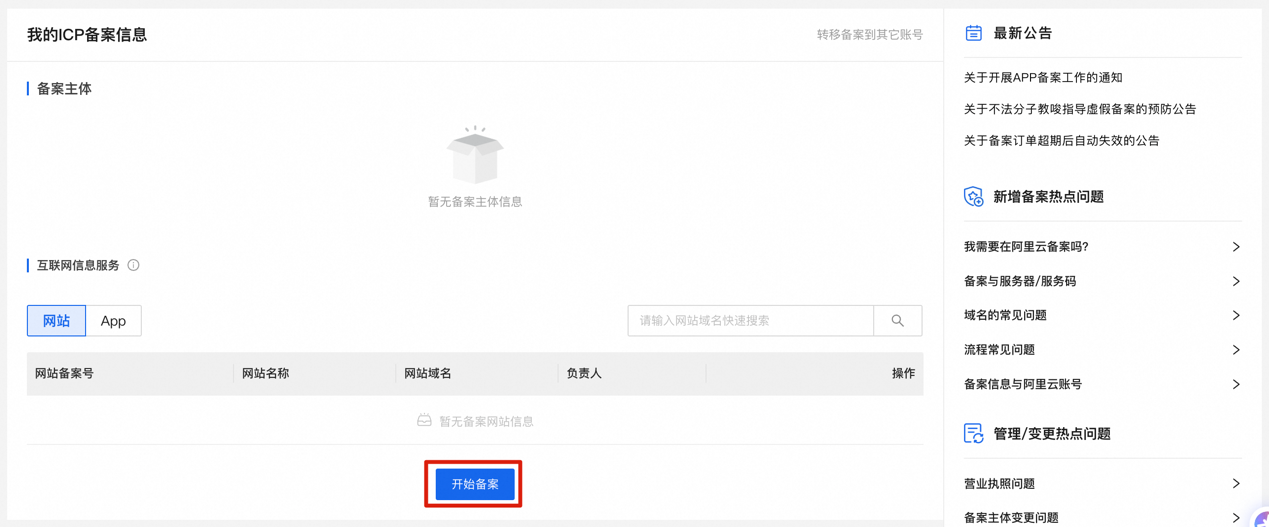
Log on to the Alibaba Cloud ICP Filing Management System, and click Start Filing (taking apply for an ICP filing for the first time as an example).
-
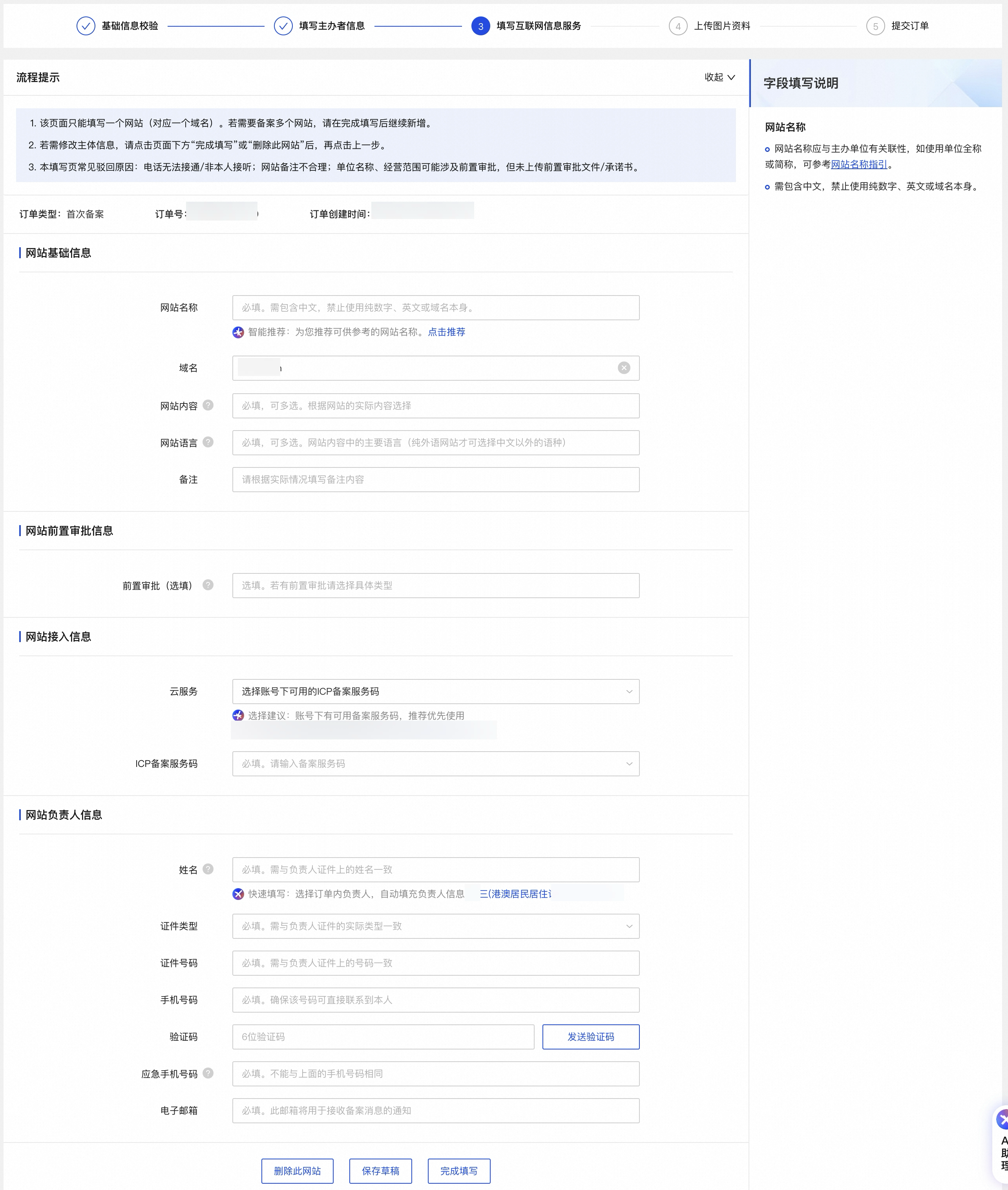
Fill in the sponsor information, website information, and other details as prompted. Upload image files.
-
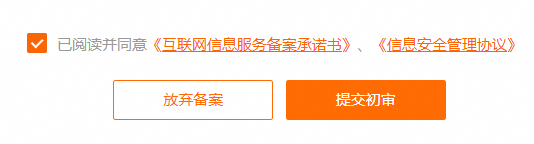
Verify the order information and submit it for Alibaba Cloud review.
-
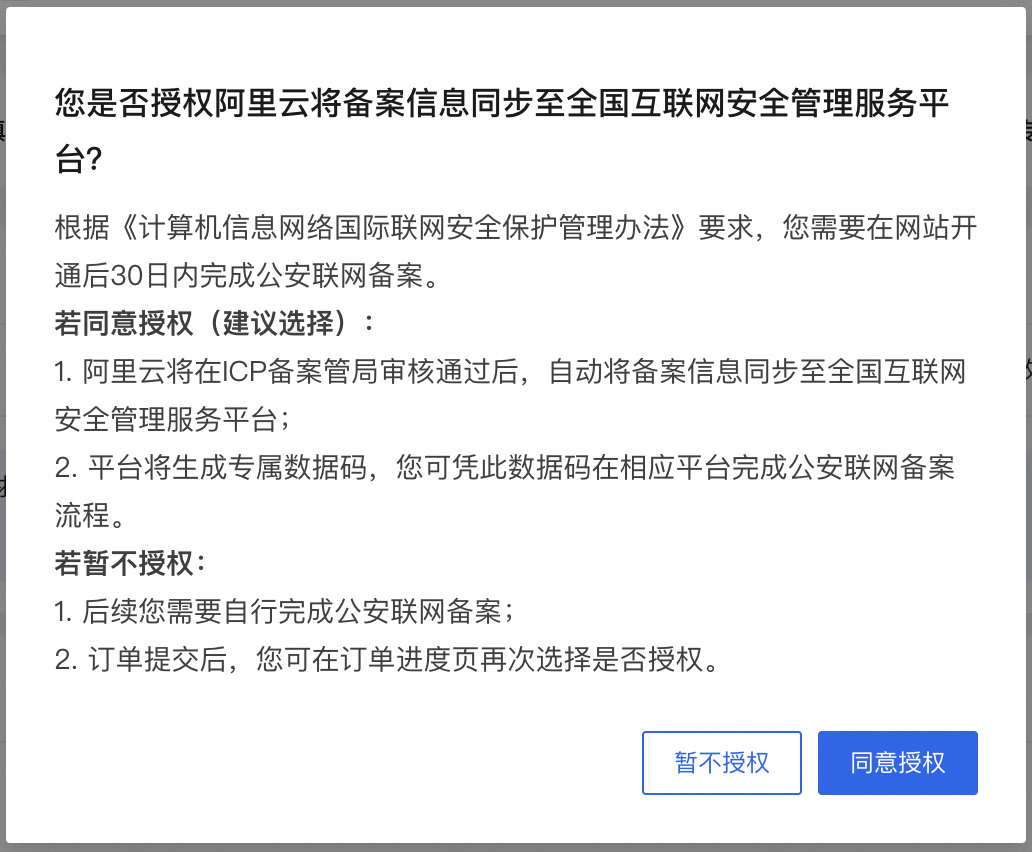
When submitting the order, a dialog box appears asking if you authorize Alibaba Cloud to send ICP filing information to the PSB filing platform.
-
If you select "Authorize", a PSB filing data code is generated for you after the ICP filing is successful, and the order is automatically submitted for Alibaba Cloud review.
-
If you select "Do not authorize for now", the dialog box closes, and you can choose again later in the order progress.
-
View the PSB Data Code
-
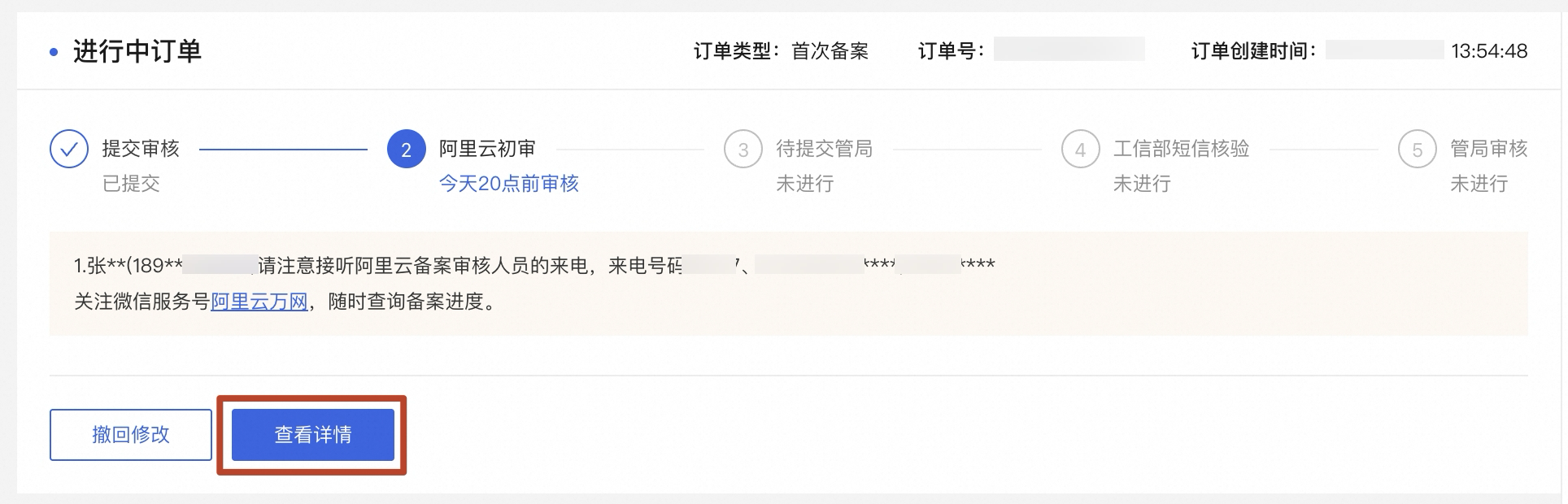
Log on to the Alibaba Cloud ICP Filing Management System, and click View Details to check the ICP filing progress and the PSB filing module.
 Note
NoteIf the filing order is complete, find Completed Orders under My Filings, and click Details to enter the order details page.
-
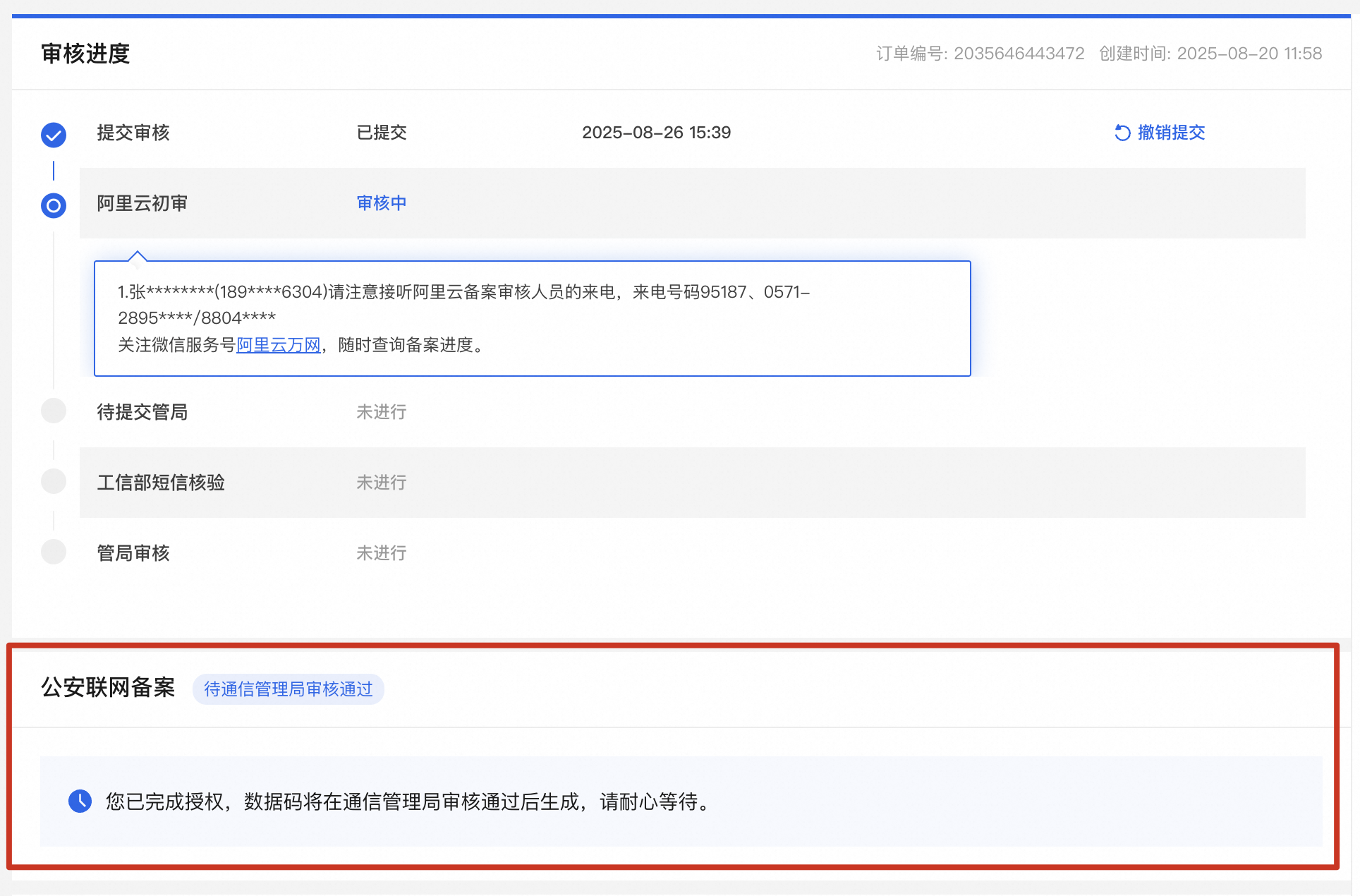
Authorization is complete, awaiting approval from the communications administration.
-
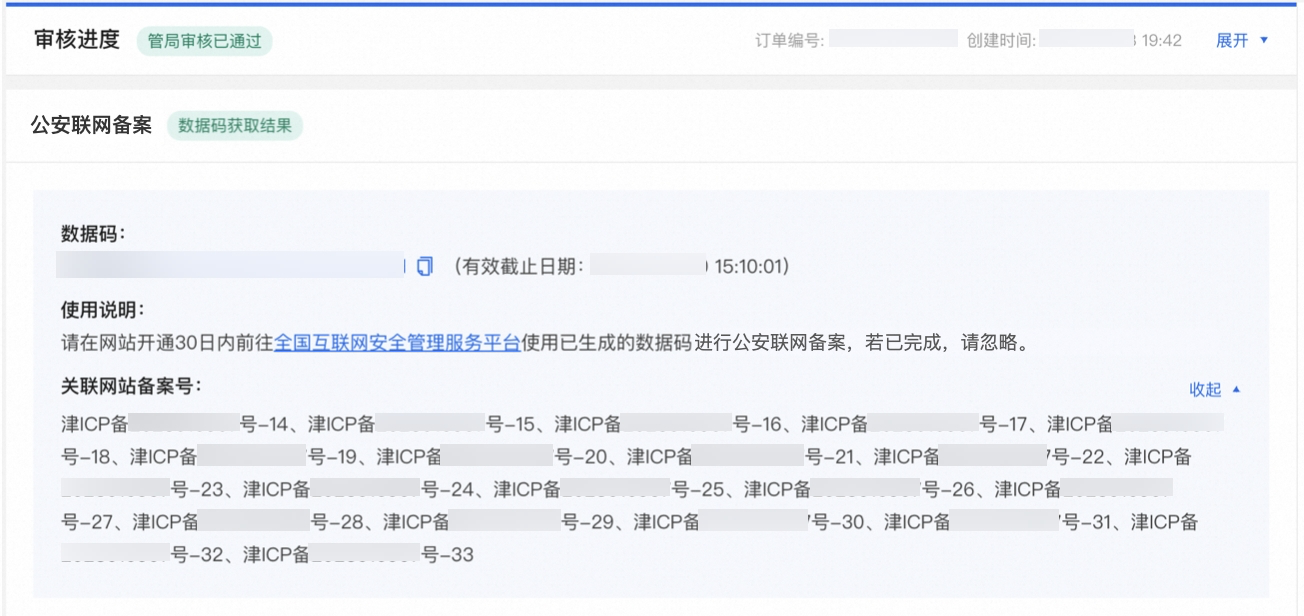
After the MIIT (communications administration) approval passes, the PSB filing data code appears. Use this data code to complete PSB filing on the PSB filing platform.
-
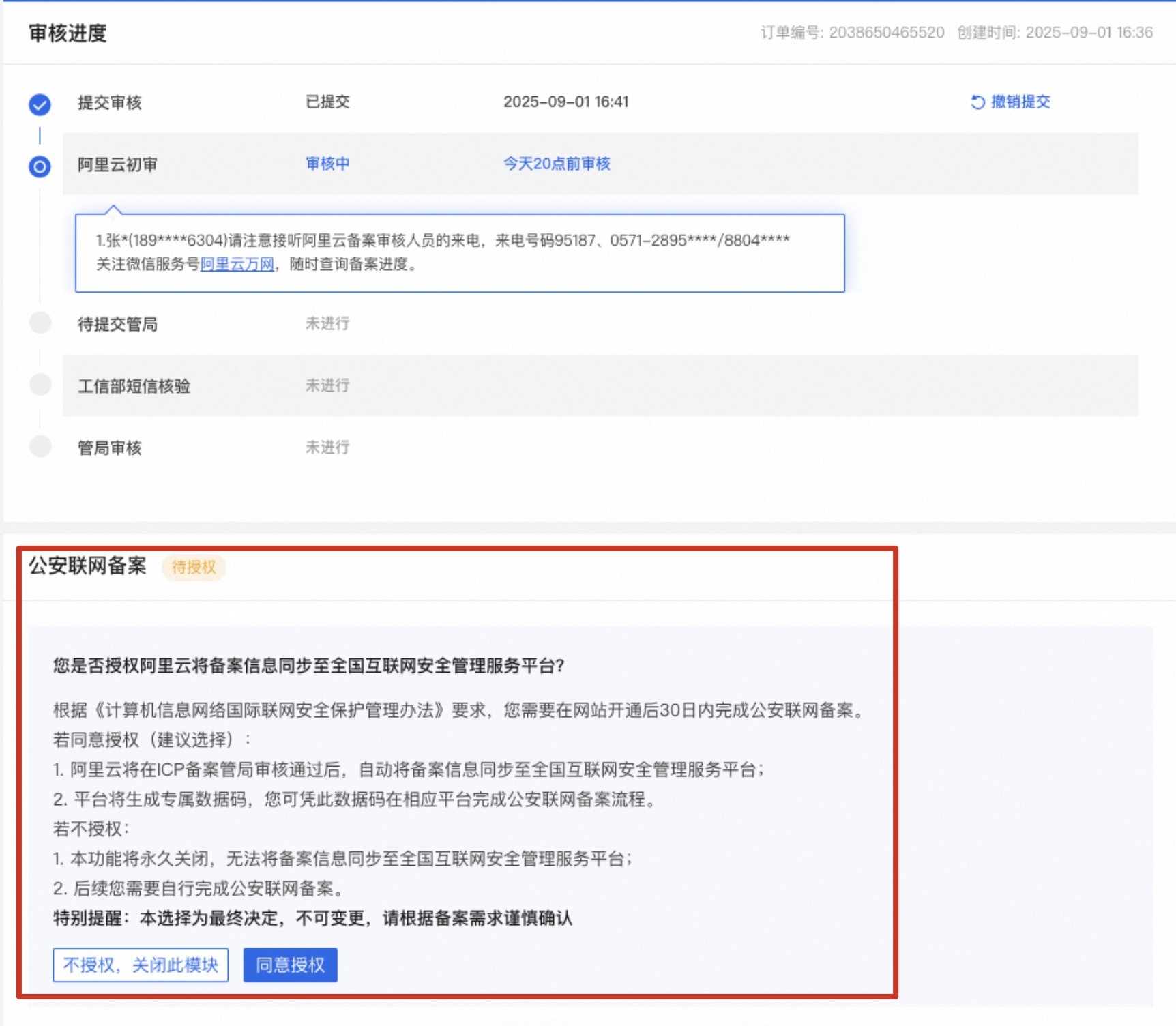
If you selected "Do not authorize for now" when submitting for Alibaba Cloud review, the PSB filing progress appears as follows. You can re-select whether to authorize in the order progress.
-
If you select "Do not authorize, close this module", PSB filing no longer appears.
NoteIf the order remains unauthorized, the PSB filing module automatically disappears after the MIIT approval passes.
-
If you select "Authorize", the progress changes to "Authorized: Awaiting approval from the communications administration".
-
Attach the Data Code on the PSB Platform
Attach Data Code
-
Log on to the National Internet Security Management Service Platform, and complete registration/logon and identity verification as instructed.
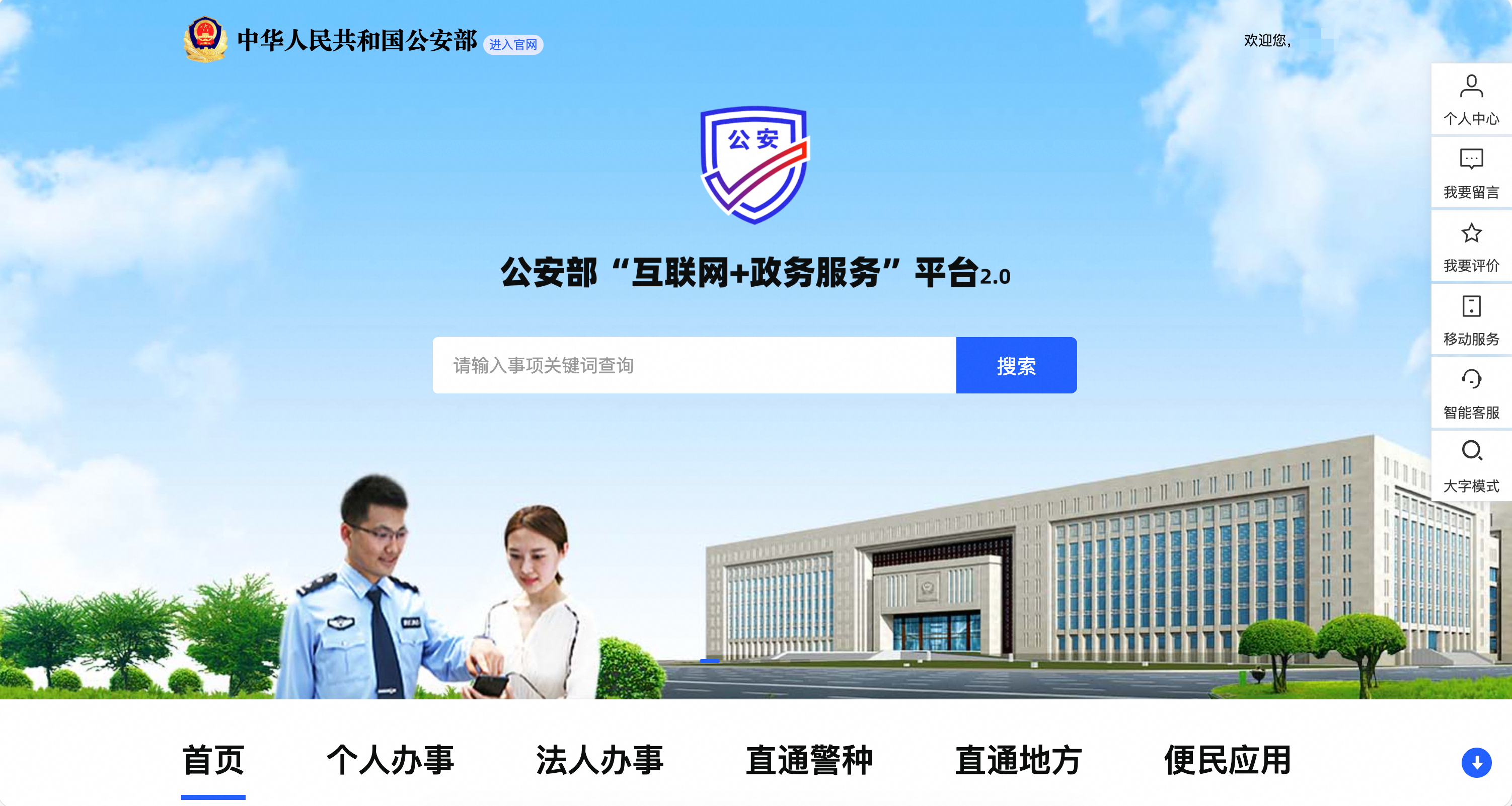
NoteIf, after identity verification and logon, you are redirected to the Ministry of Public Security's "Internet + Government Services" platform (as shown in the following figure), visit the National Internet Security Management Service Platform again, and click User Logon to log on to the National Internet Security Management Service Platform.
-
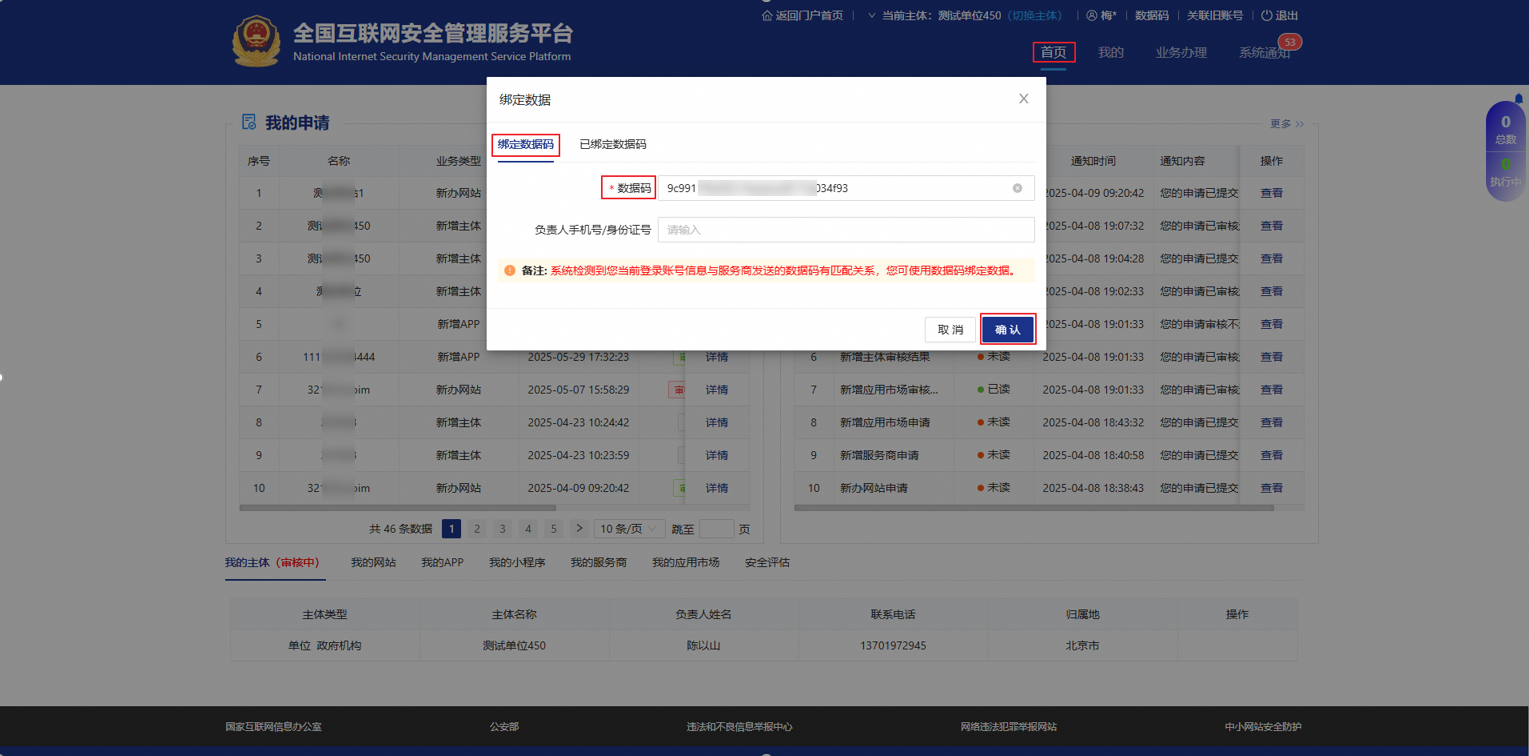
On the platform Homepage, attach the data code. The system automatically processes based on the match between your logon account and the service provider's data code:
-
If the match is successful, the Attach Data dialog box automatically appears. On the Attach Data Code tab, enter the data code (required) and the owner's mobile phone number/ID card number (optional), then click Confirm to submit.
-
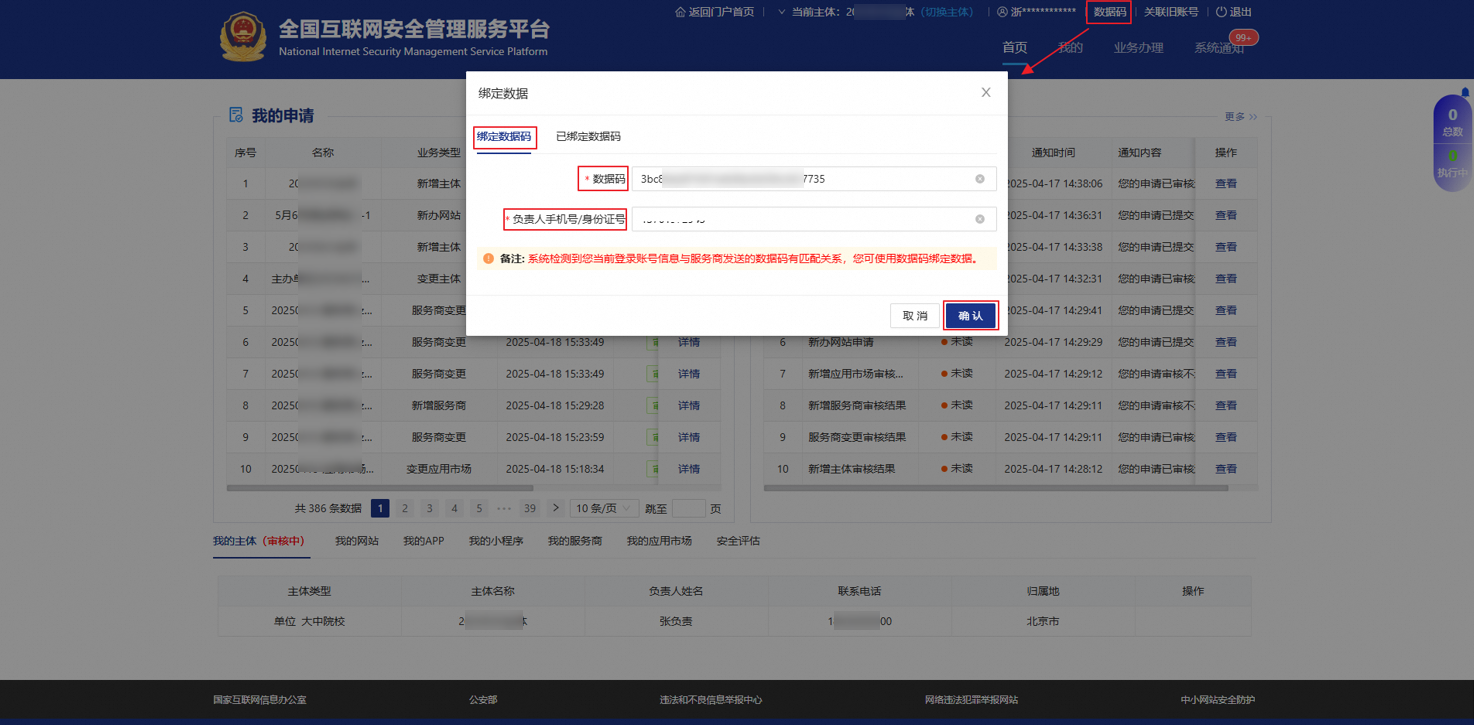
If the match fails, manually click Data Code in the upper-right corner of the page. After the attach dialog box appears, on the Attach Data Code tab, enter the data code (required) and the owner's mobile phone number/ID card number (required), then click Confirm to submit.
-
-
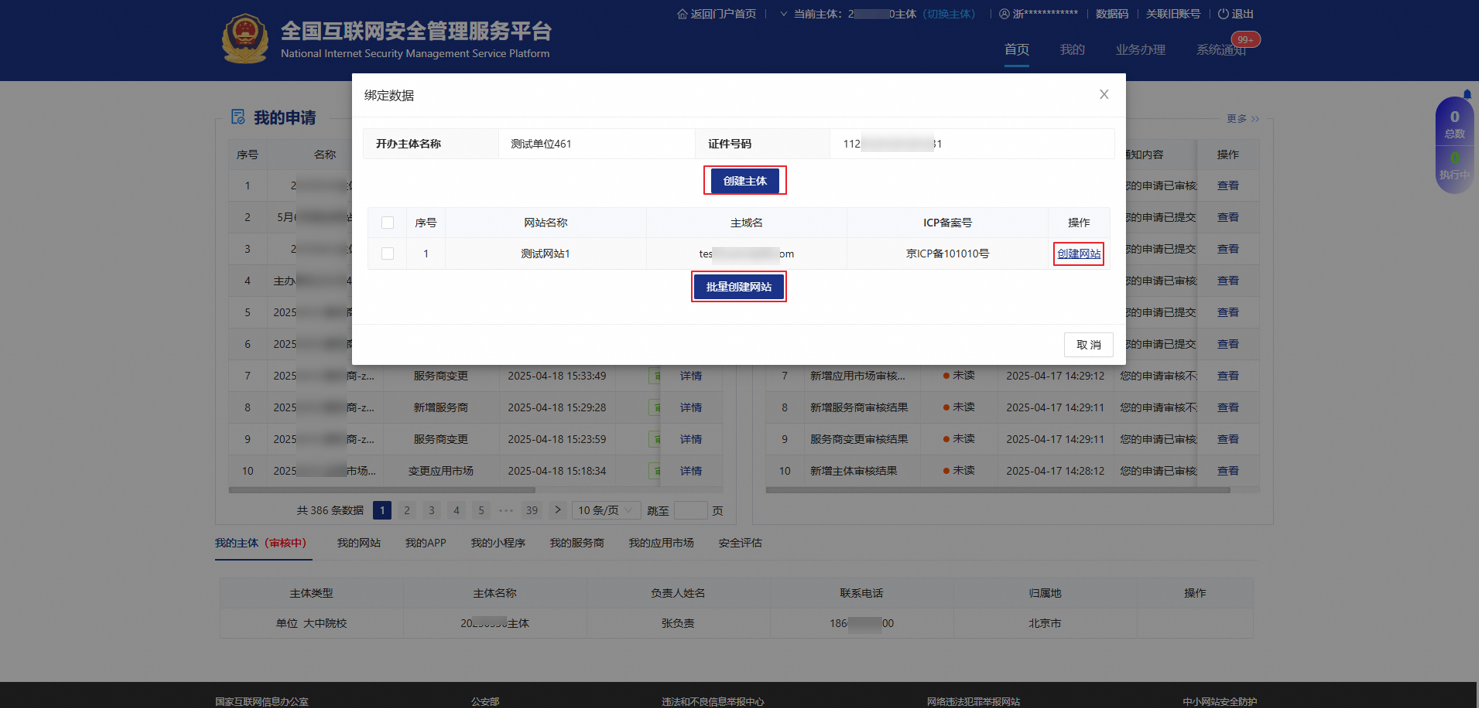
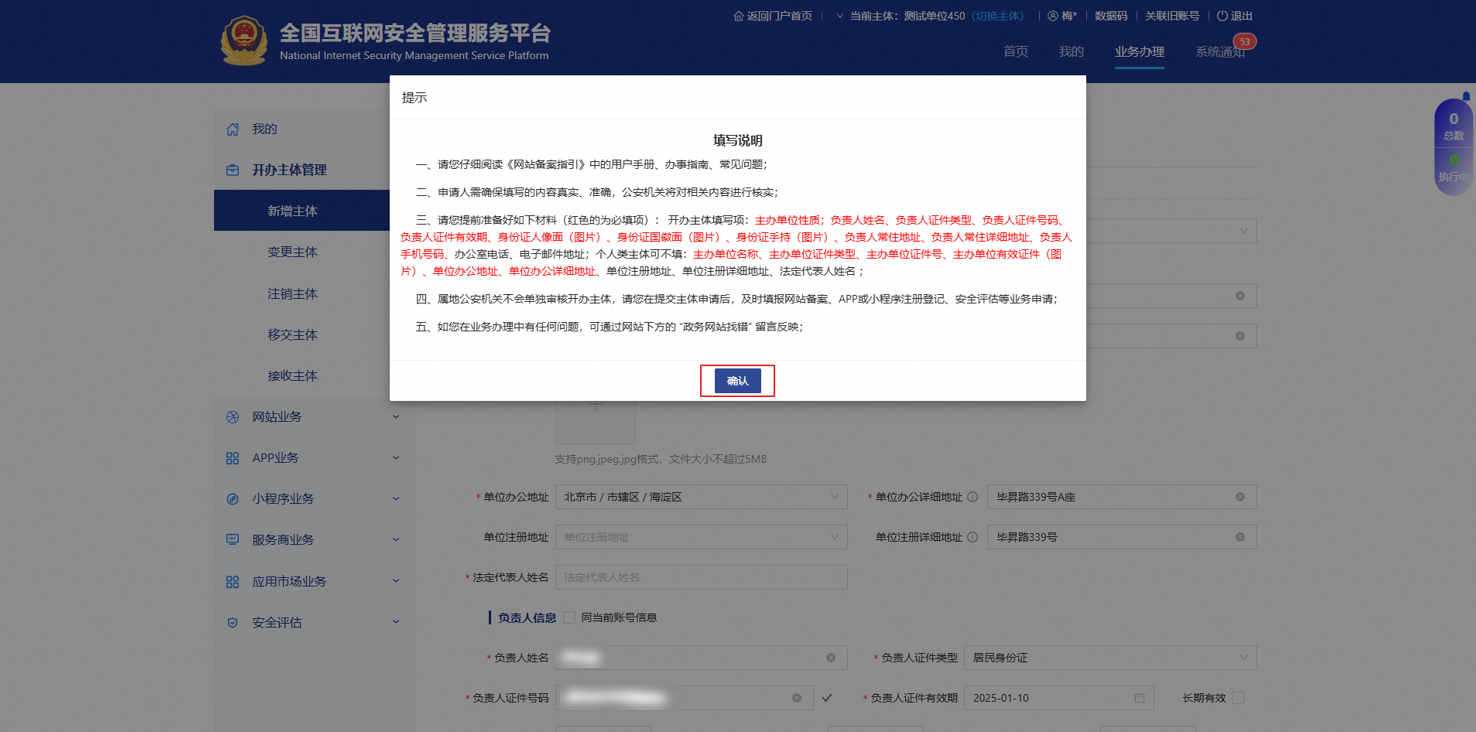
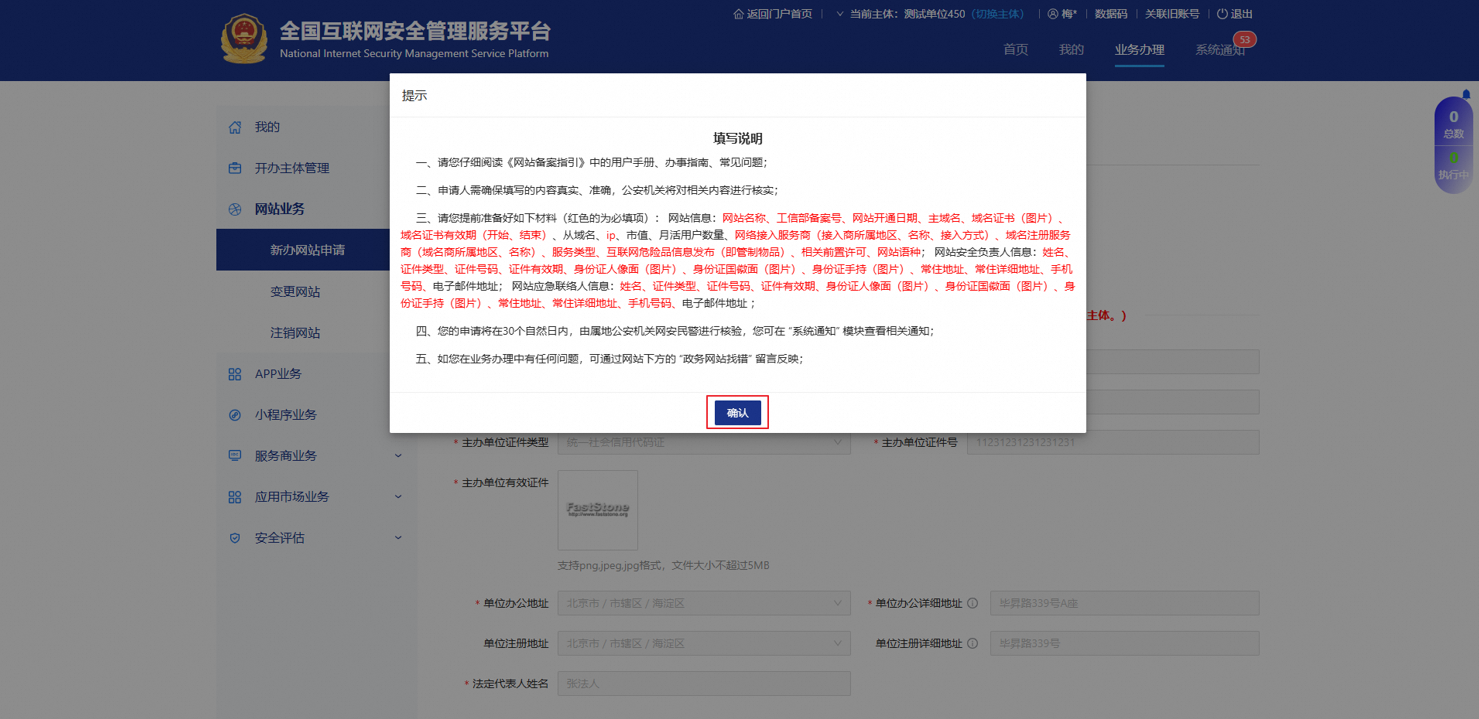
On the Attach Data page, create an entity and a website.
NoteIf the logon account does not have this entity, create an entity first, submit a new entity application, and then create a website. If the logon account has this entity, create or batch create websites.
-
Click Create Entity. The system automatically creates an entity draft and redirects you to the new entity page. Complete the entity information.
-
Click Create Website. The system automatically creates a website draft and redirects you to the new website application page.
NoteFor domain name-related materials required for Create Entity and Create Website (such as domain name service provider, domain name certificate), see View Domain Name Basic Information and Download Domain Name Certificate.
ImportantSome required fields may not be auto-synchronized from your ICP filing. Refer to PSB Filing Parameter Reference for a complete list of mandatory fields and guidance on how to obtain the required materials.
-
View Attached Data Codes
-
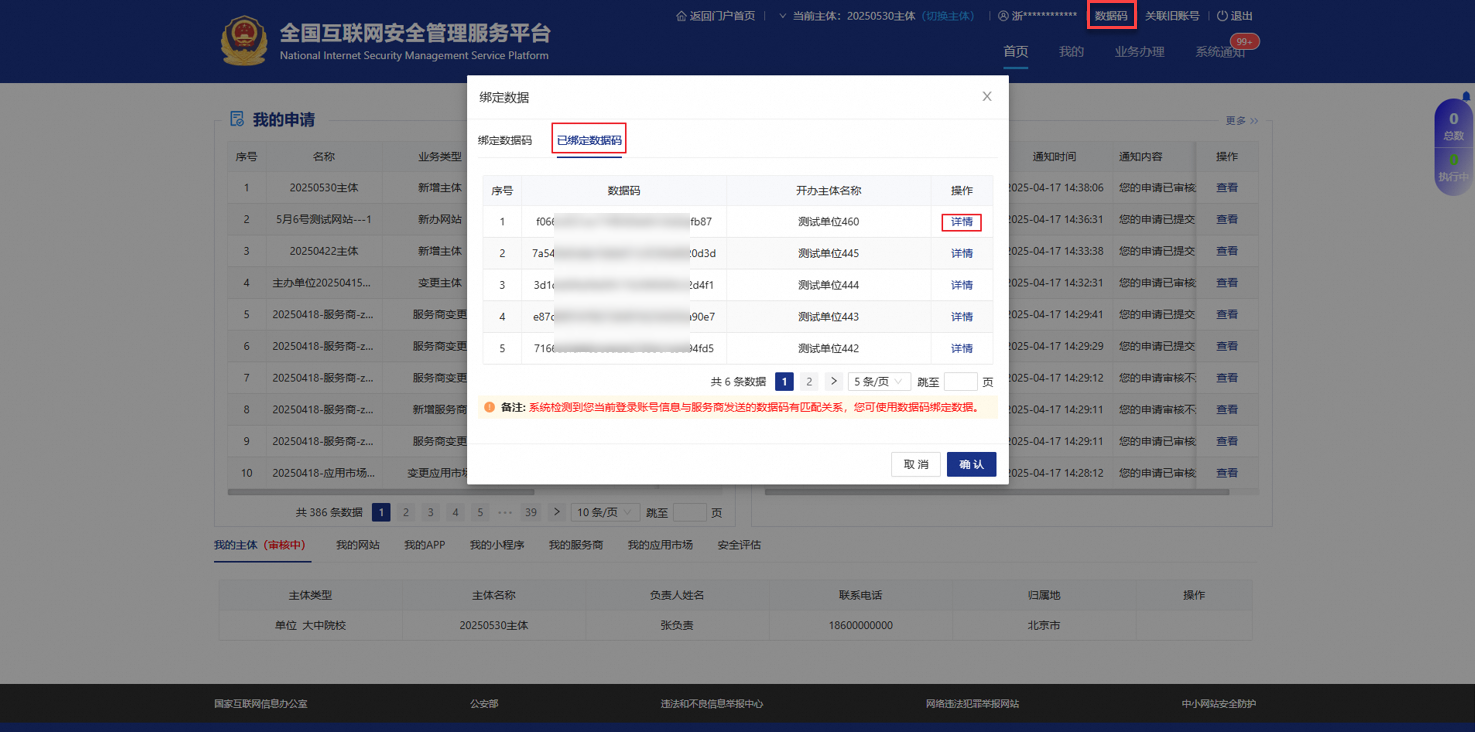
Log on to the National Internet Security Management Service Platform, click Data Code in the upper-right corner of the page. The Attach Data dialog box appears. On the Attached Data Codes tab, view the list of attached data codes.
-
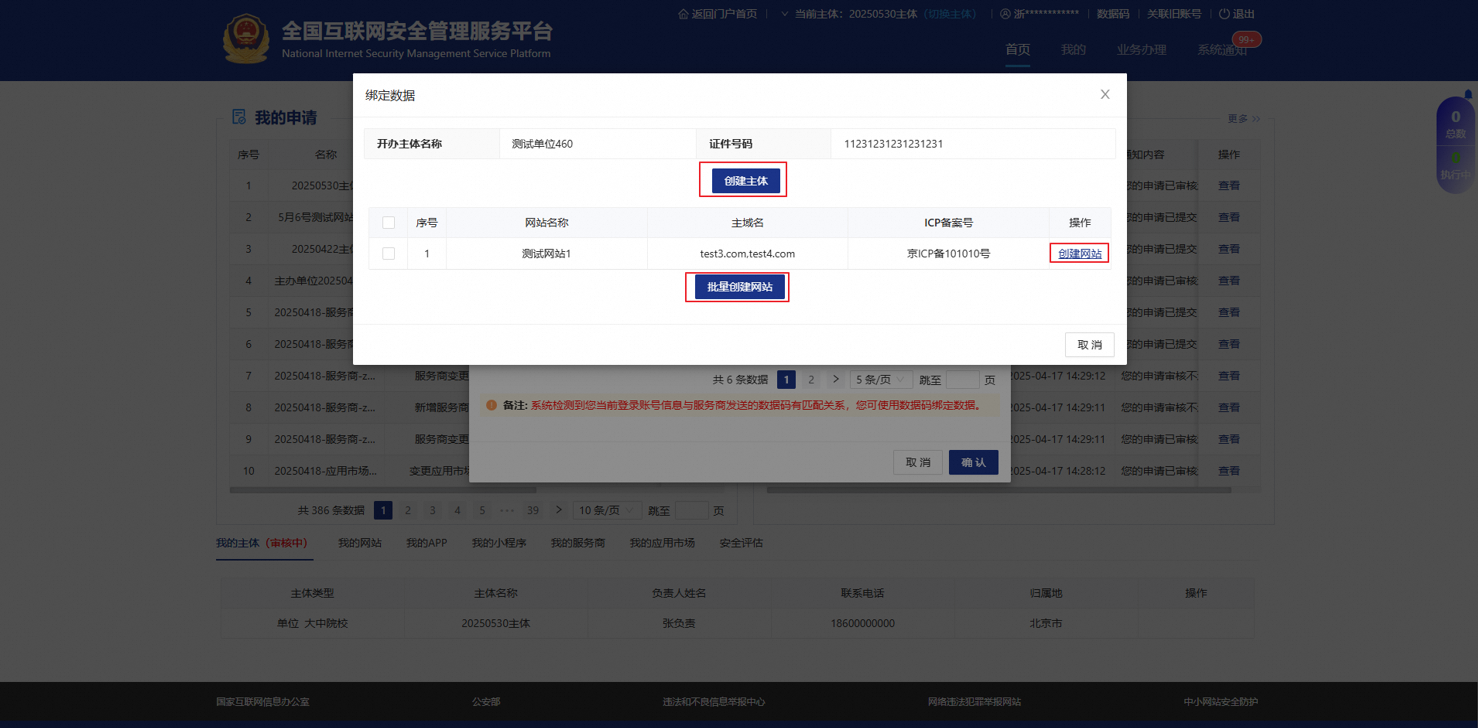
Click Details next to the target data code to enter the Attach Data page. On this page, you can perform the following operations:
-
Create Entity: Add new entity information for filing.
-
Create Website: Add a new website filing for an existing entity.
-
Batch Create Websites: Create filing drafts for multiple websites at once.
-
Data Synchronization Details
After authorization, Alibaba Cloud automatically synchronizes the following fields and images to the National Internet Security Management Service Platform once the ICP filing is approved:
Next Steps
After completing entity and website creation on the PSB platform and submitting your filing application, proceed to Obtain and Display the PSB Filing Number to complete the filing process. This step guides you through obtaining your approved filing number and displaying it on your website as required.
FAQ
Data Code Binding Issues
-
Why does "Data does not exist" appear when attaching the PSB filing data code?
-
Check the certificate number: It must be exactly the same as the website/entity owner's certificate number.
-
Check the mobile phone number: Use the primary contact mobile phone number from the ICP filing, not the emergency contact number.
-
If the issue persists, provide feedback on the message board of the PSB filing platform.
-
-
What should I do if "Already attached" appears when attaching the data code?
This message indicates that the data code has already been attached to another account on the National Internet Security Management Service Platform. To resolve this issue:
-
Check whether the data code was previously attached using a different public security platform account.
-
If you need to detach it, provide feedback on the message board of the National Internet Security Management Service Platform to contact the PSB platform for assistance.
-
-
After a data code is generated, how do I attach it?
After logging on to the National Internet Security Management Service Platform, if the system automatically displays the attach data code dialog box, enter the data code. If the system does not display the attach dialog box, manually click the Data Code button in the upper-right corner of the page, and enter the data code and the mobile phone number/ID card number of the entity owner or website owner from the ICP filing.
Synchronization Issues
-
When can I authorize PSB filing during the ICP filing process?
If your order supports using a data code for PSB filing, you see an authorization prompt when submitting the ICP filing order and when viewing the order progress.
-
What information is synchronized to the National Internet Security Management Service Platform after authorization? What additional information do I need to provide?
After authorization, Alibaba Cloud automatically synchronizes the entity and website information from this filing order to the National Internet Security Management Service Platform once the ICP filing is approved. For PSB filing, provide any information not filled in during the ICP filing.
-
Why does my ICP filing order not show an authorization prompt?
Currently, only apply for an ICP filing for the first time, ICP filing application for new websites with an existing entity, and ICP filing application for new websites without an existing entity are supported. Other filing types, APP filing, and Mini Program filing do not yet support using a data code for PSB filing, so no authorization prompt appears on the page.
-
Why does my ICP filing order progress page show "Data code not obtained"?
Data code generation may fail. If this prompt appears on the page, go to the National Internet Security Management Service Platform to complete PSB filing within 30 days after the website goes online.
-
If a public security account has multiple entities, how does the data code match the corresponding entity after logging on?
Log on to the National Internet Security Management Service Platform, and switch to the corresponding entity in the upper-right corner of the page, as needed.
Special Scenarios
-
Can the PSB filing data code only be generated by the ICP filing service provider?
Yes, currently, only after the ICP filing service provider completes the ICP filing does the ICP filing service provider synchronize the filing data to the National Internet Security Management Service Platform, allowing the corresponding data code to be generated.
-
During the ICP filing process, if I selected "Do not authorize, close this module" on the order progress page, can I re-authorize later?
No, this selection is irreversible. Choose carefully based on your filing requirements.
-
If the filing was successful before the data code was published, can a data code still be generated?
No. For ICP filings completed before this feature was published, go to the National Internet Security Management Service Platform to complete PSB filing within 30 days after the website goes online.
-
If I filed both a website and an app on Alibaba Cloud, is PSB filing authorization supported?
Currently, only websites support using a data code for PSB filing. After your authorization, Alibaba Cloud filing only synchronizes website information from the order to the National Internet Security Management Service Platform, not app information. Go to the National Internet Security Management Service Platform to complete PSB filing for the app within 30 days after the app goes online.
-
How long is the PSB filing data code valid?
The data code is valid for 30 calendar days. Complete your PSB filing promptly after obtaining the data code.
-
Can a data code be regenerated after it expires?
No. After the 30-day validity period expires, the data code cannot be regenerated. You must go to the National Internet Security Management Service Platform to complete PSB filing on your own.
-
Do I need to complete PSB filing immediately if my ICP filing is approved but I have no website yet?
No. The 30-day deadline for PSB filing starts from the date your website goes online, not from the date your ICP filing is approved. You do not need to complete PSB filing until your website goes online.
To generate a data code, select "Authorize" during ICP filing. After your website goes online, use the data code to complete PSB filing. The data code is valid for a limited period, so attach the data code within the validity period. If the data code expires, go to the National Internet Security Management Service Platform and manually enter your information to complete PSB filing within 30 days after your website goes online.