Quickly build an enterprise AI knowledge base with Qwen/DeepSeek
This topic describes how to build an enterprise knowledge base using Qwen or DeepSeek. The knowledge base includes features such as chat sessions, knowledge base management, document management, traffic statistics, and session statistics.
Demo: Build an enterprise-grade AI knowledge base in five minutes
The video above demonstrates how to use Mobi to quickly build an out-of-the-box, enterprise-level AI knowledge base. (This process is simplified in the latest version. The following steps are for the latest version.) The detailed instructions are as follows:
1. Create an Alibaba Cloud Model Studio application
1. Log on to the Alibaba Cloud Model Studio console and create a Model Studio application.

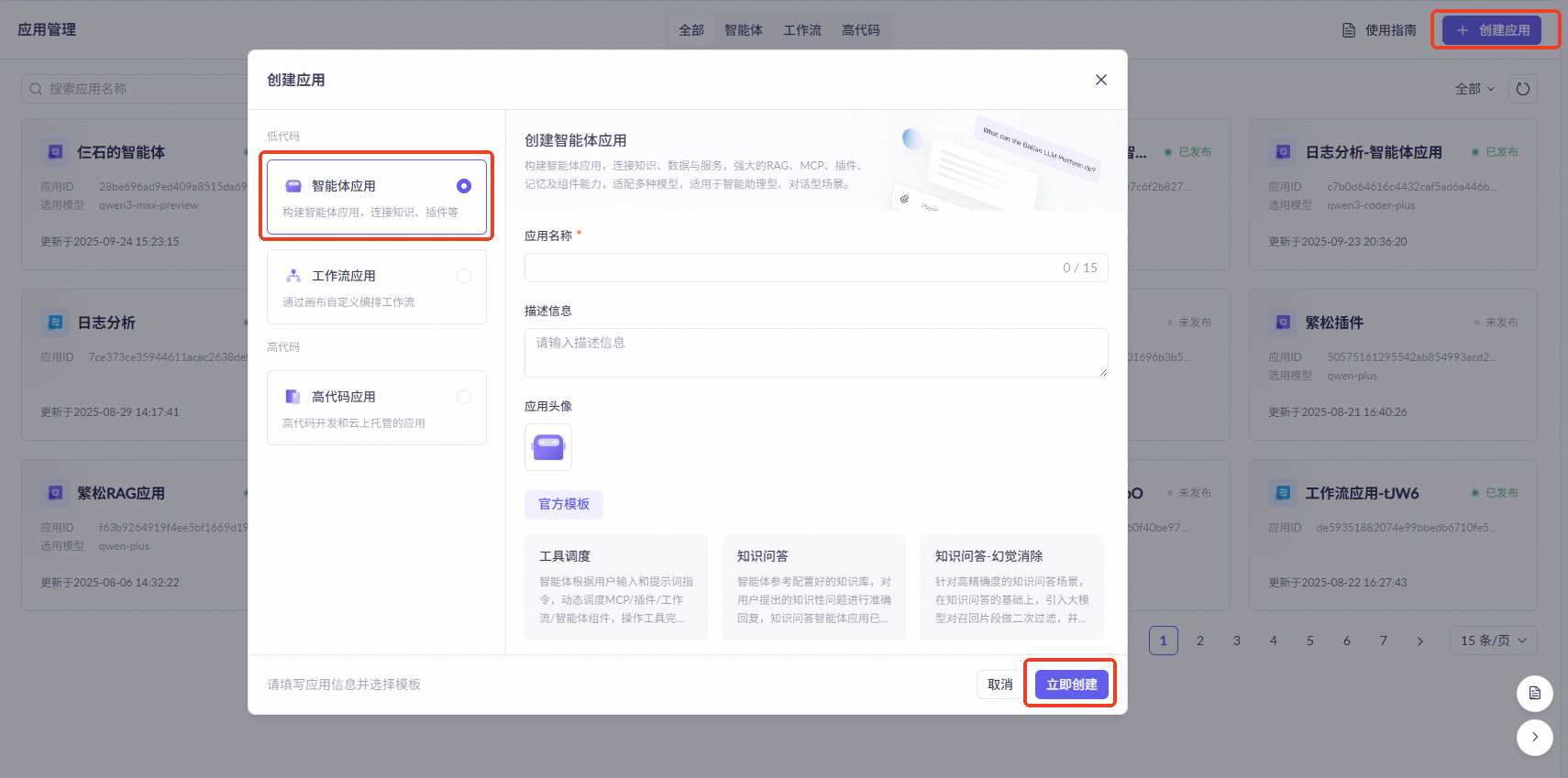
2. On the Application Management page, create an agent application.
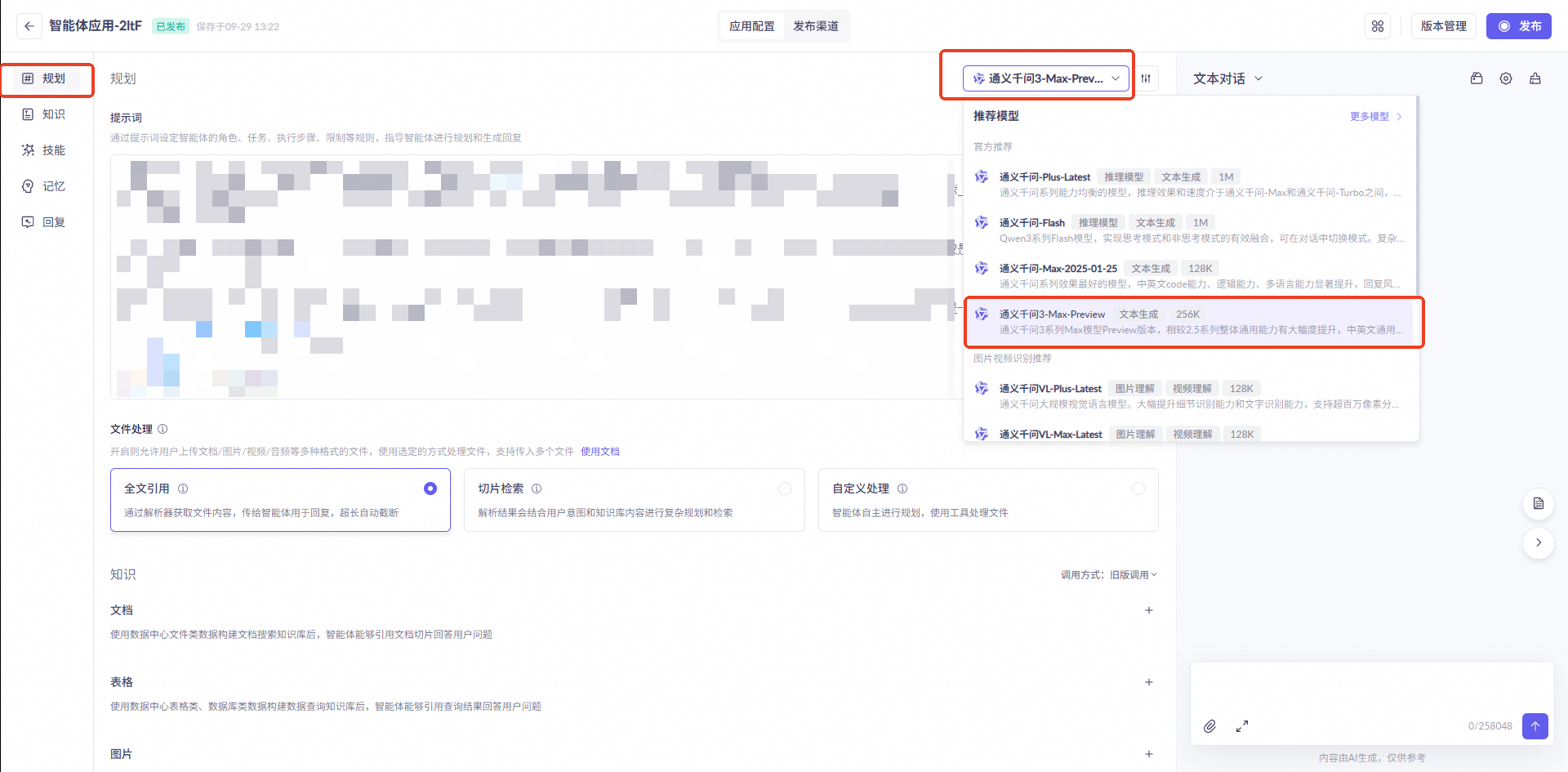
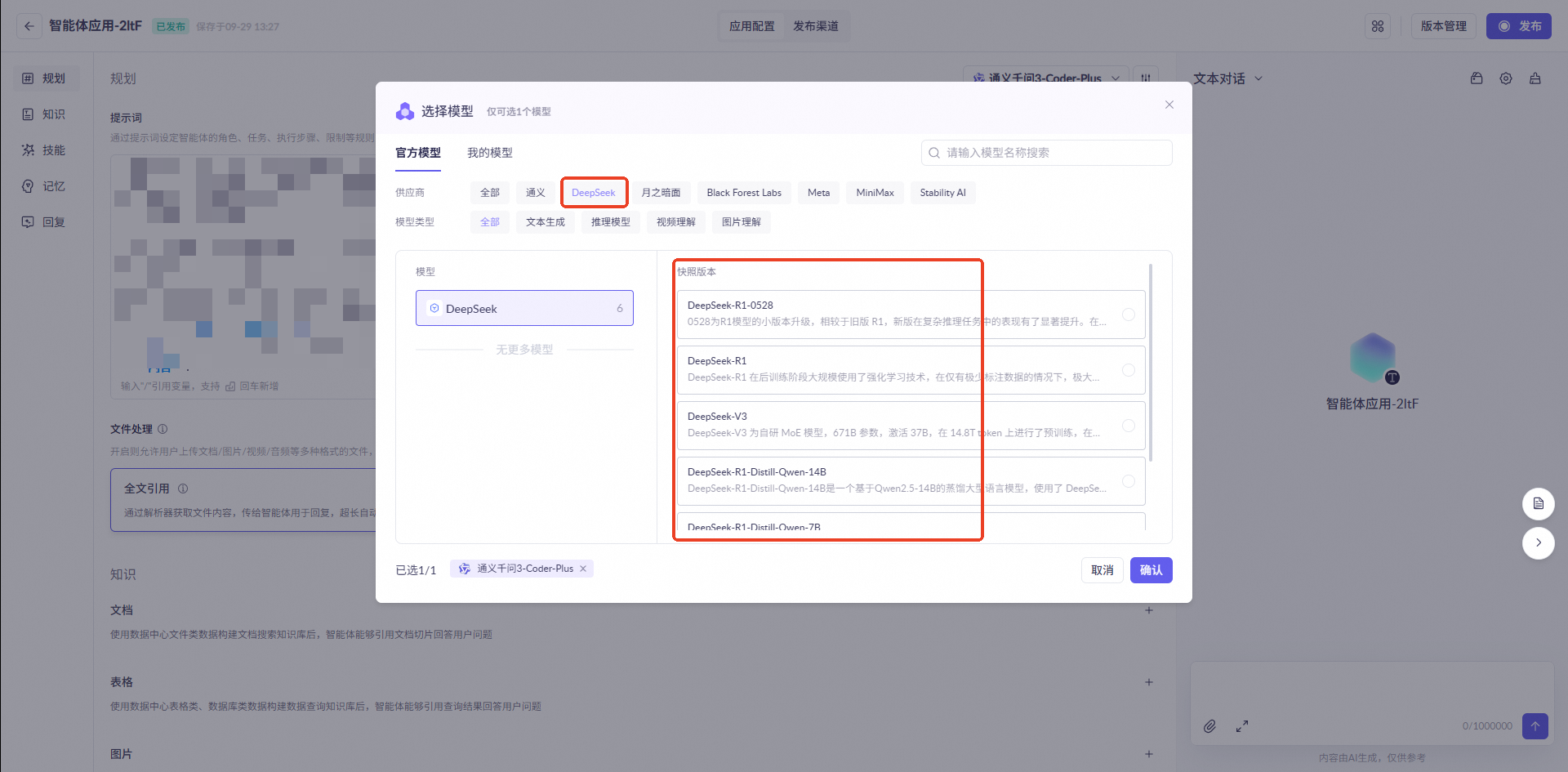
3. Select the Qwen-Max model. You can also select the DeepSeek model. You may need to activate the model service first.
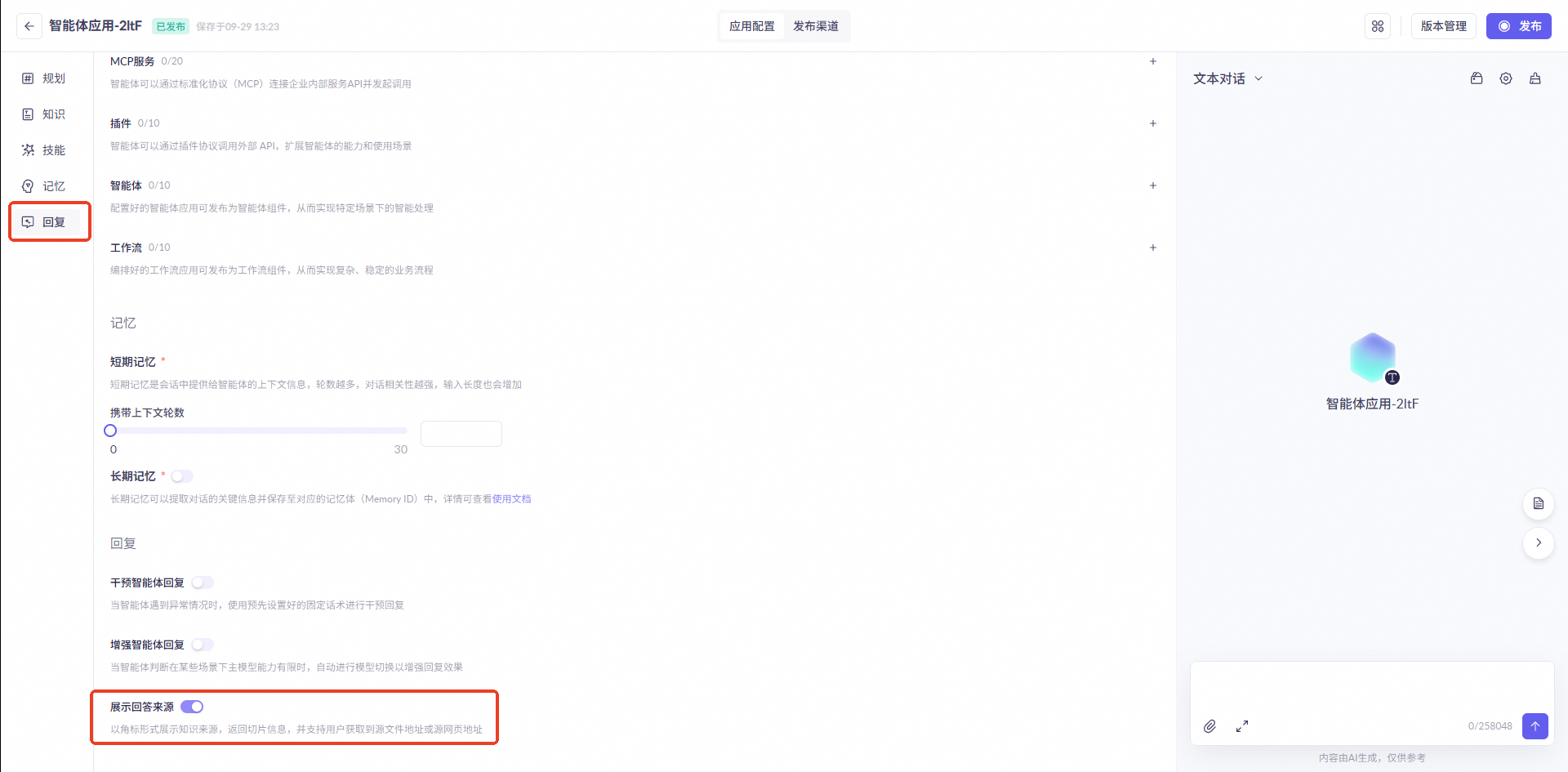
4. In the Reply section, enable Show Answer Source.
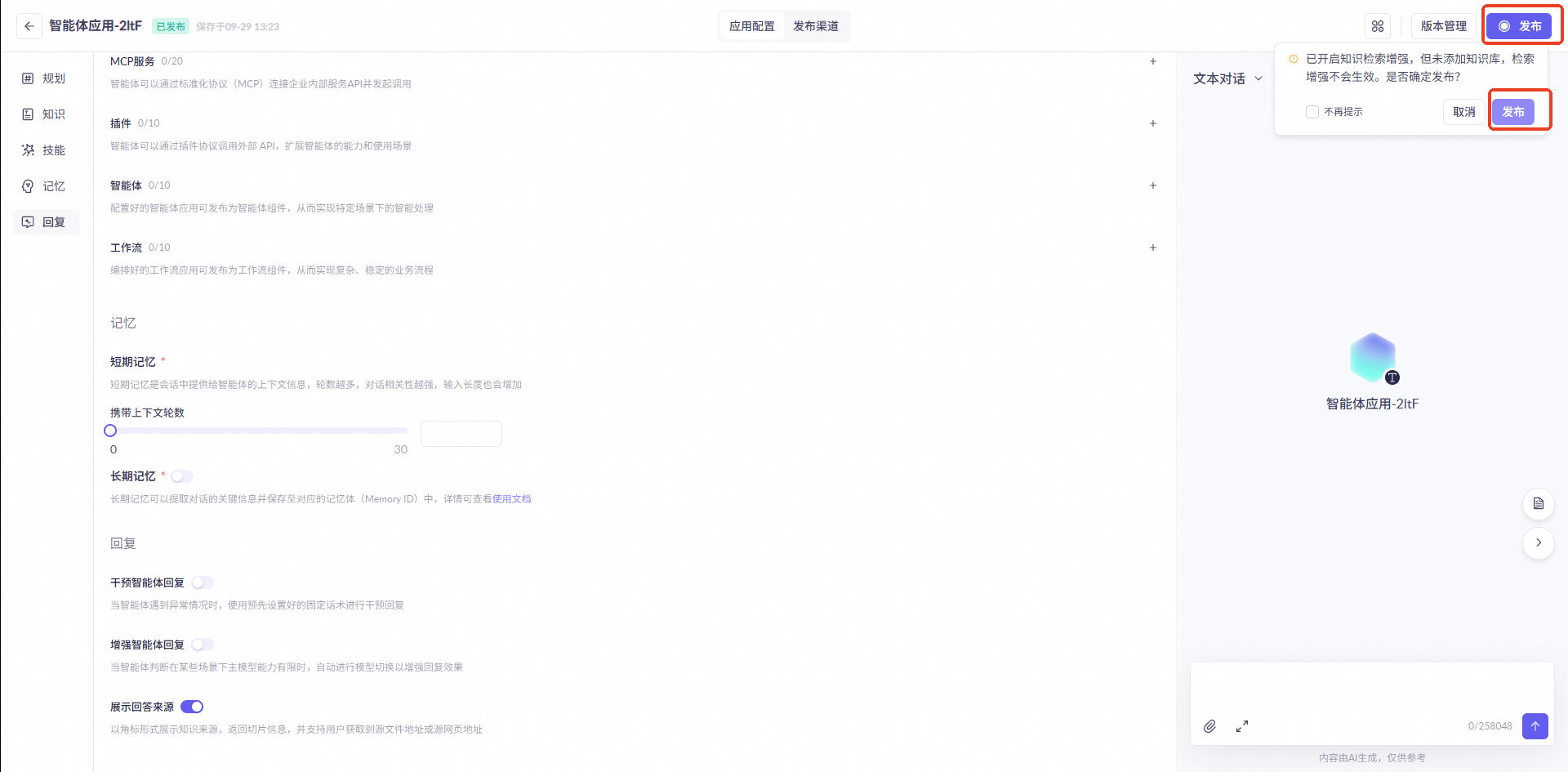
5. Publish the Alibaba Cloud Model Studio application. You will create the knowledge base later.
6. On the Key Management page, create an API-KEY.
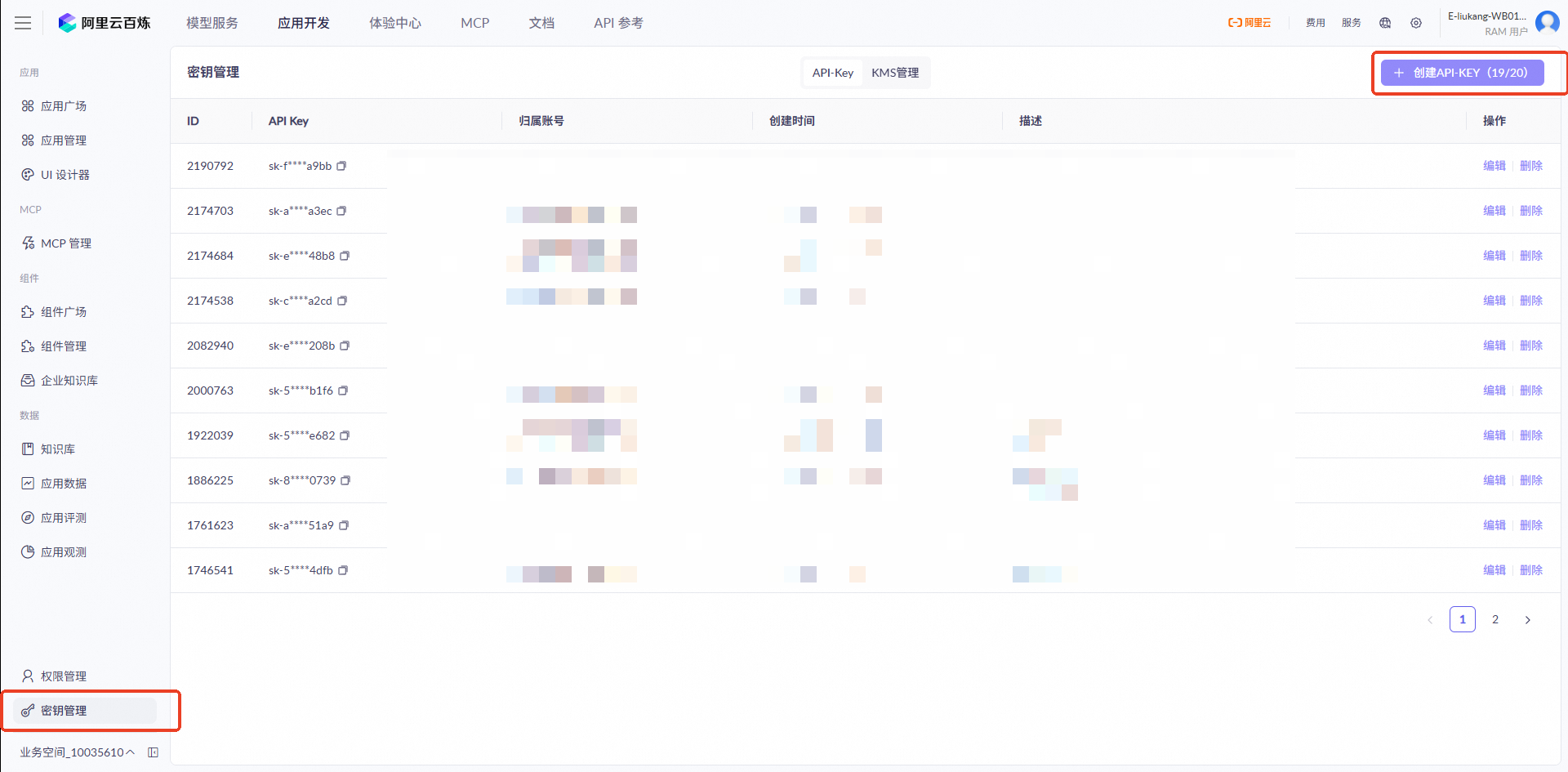
Create a Mobi application
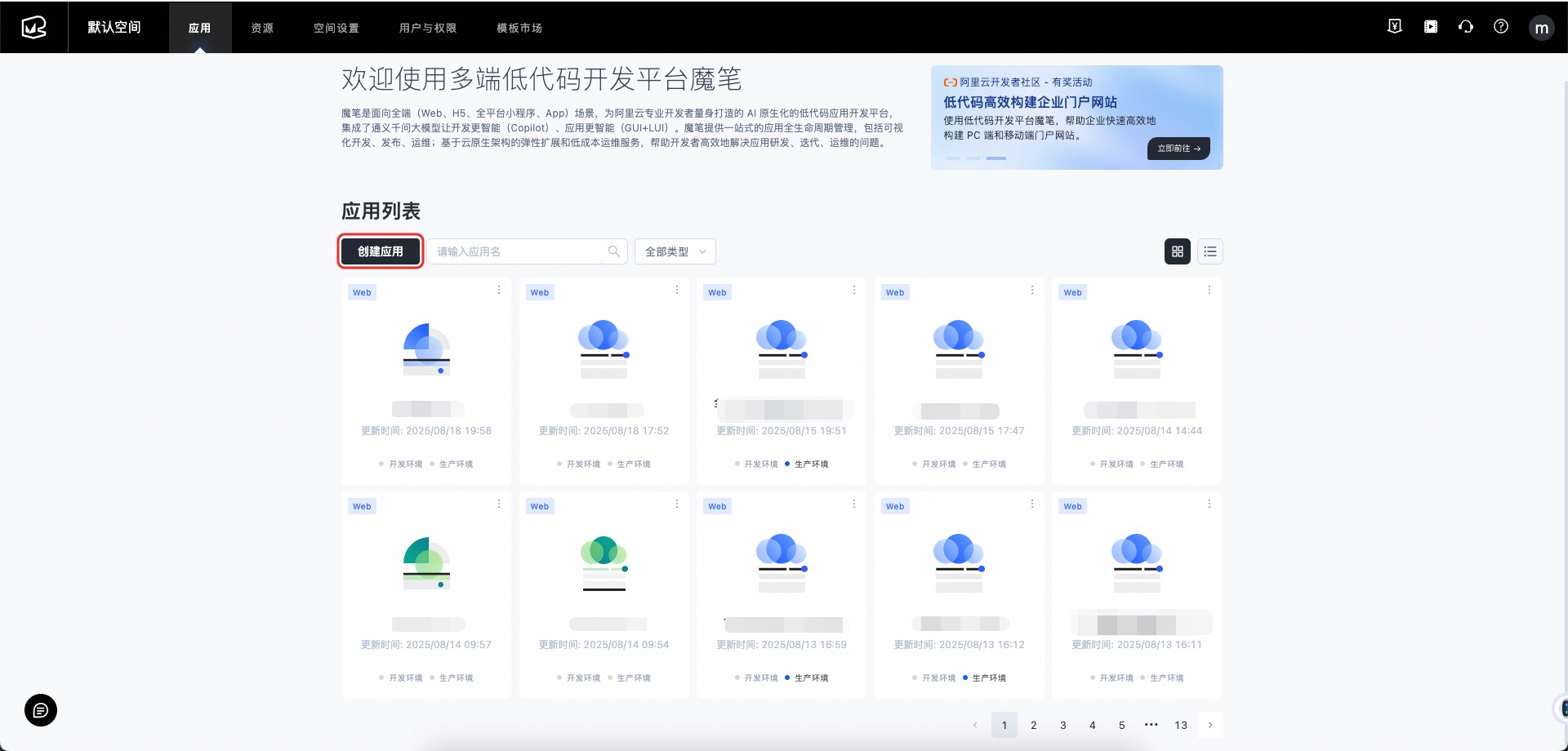
1. Log on to the Low-Code Development Platform console and click Create Application.
2. Select the Enterprise AI Knowledge Base (Q&A) template.
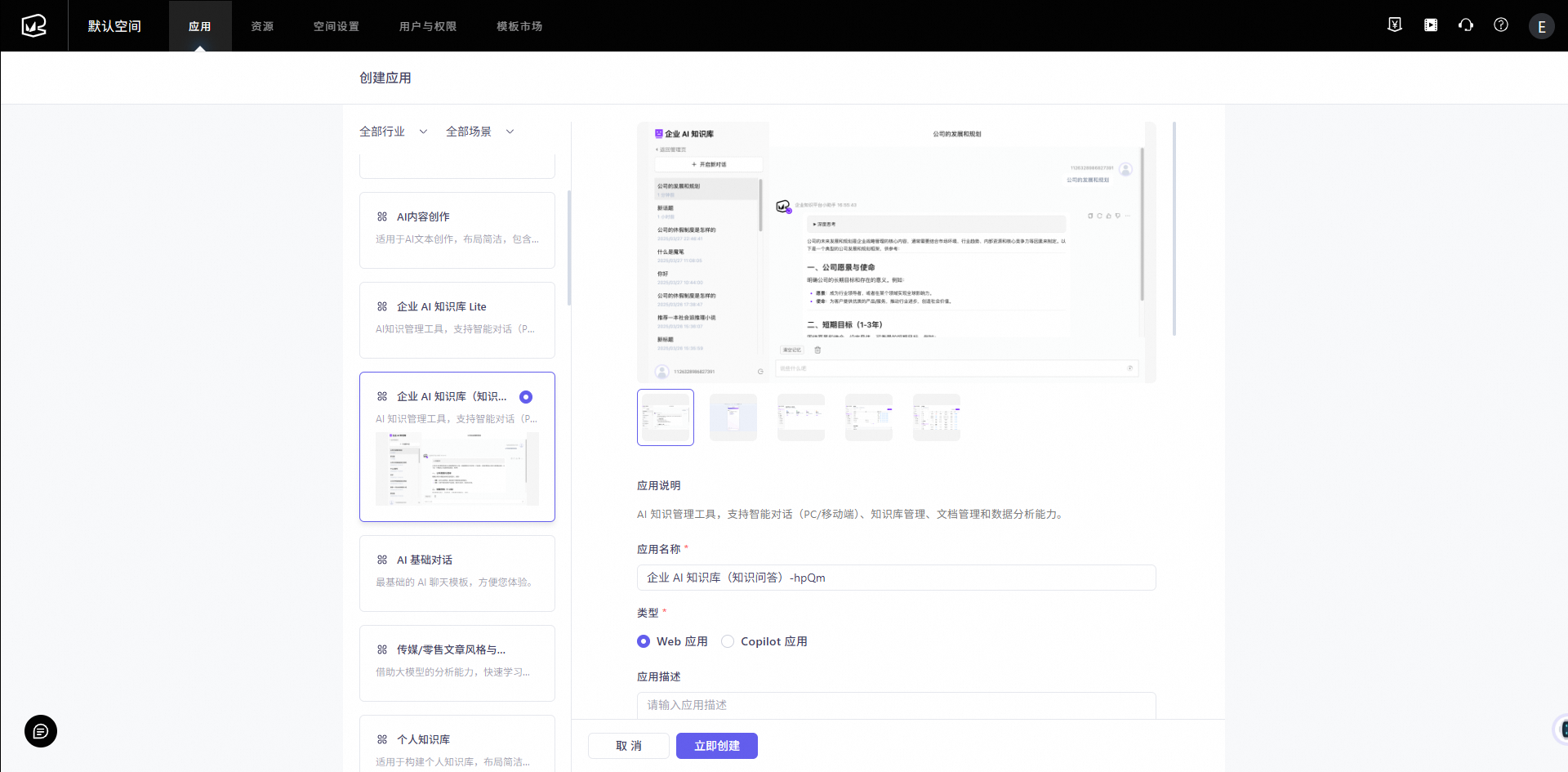
3. Configure application parameters
Configuration 1: Built-in database
The template uses a built-in database. You must enter the names for the database tables. If a table with a specified name already exists in the built-in database of the workspace, that table is used. An error may occur if the schema of the existing table is inconsistent with the schema required by the template. If no table with the specified name exists, a new table with the required schema is created.
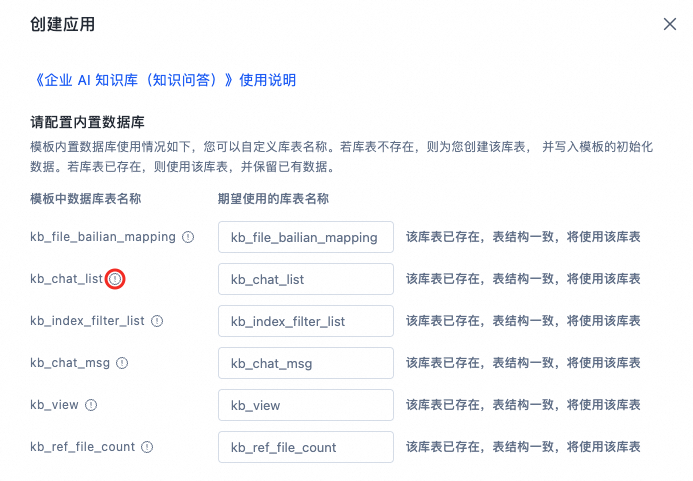
Click the area circled in red to view the corresponding table schema.
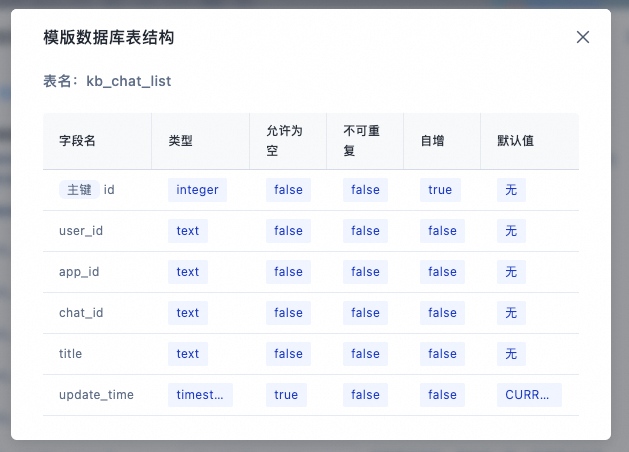
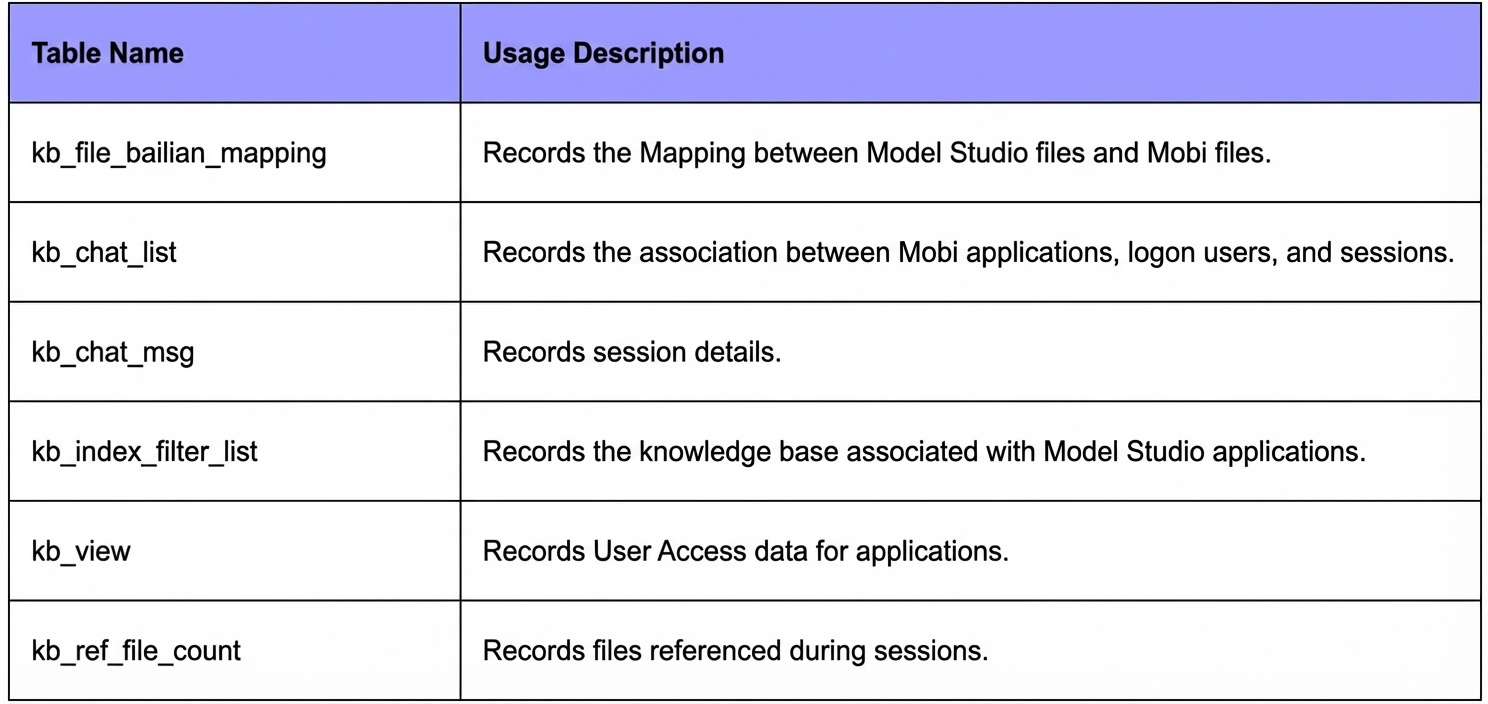
Table descriptions:
Configuration 2: Alibaba Cloud API integration resource
The integration resource that you configure will be used for knowledge base management and document management in the application.
You must configure the settings for the OpenAPI integration that is used by the template. Set Product to Alibaba Cloud Model Studio. You can search for it. Set Version to 2023-12-29. Set Region to China (Beijing). The system automatically populates these values, but you can change them if needed.
For the AccessKey, enter your Alibaba Cloud AccessKey ID and AccessKey secret. For more information about how to obtain an Alibaba Cloud OpenAPI AccessKey pair, see Create an AccessKey pair.
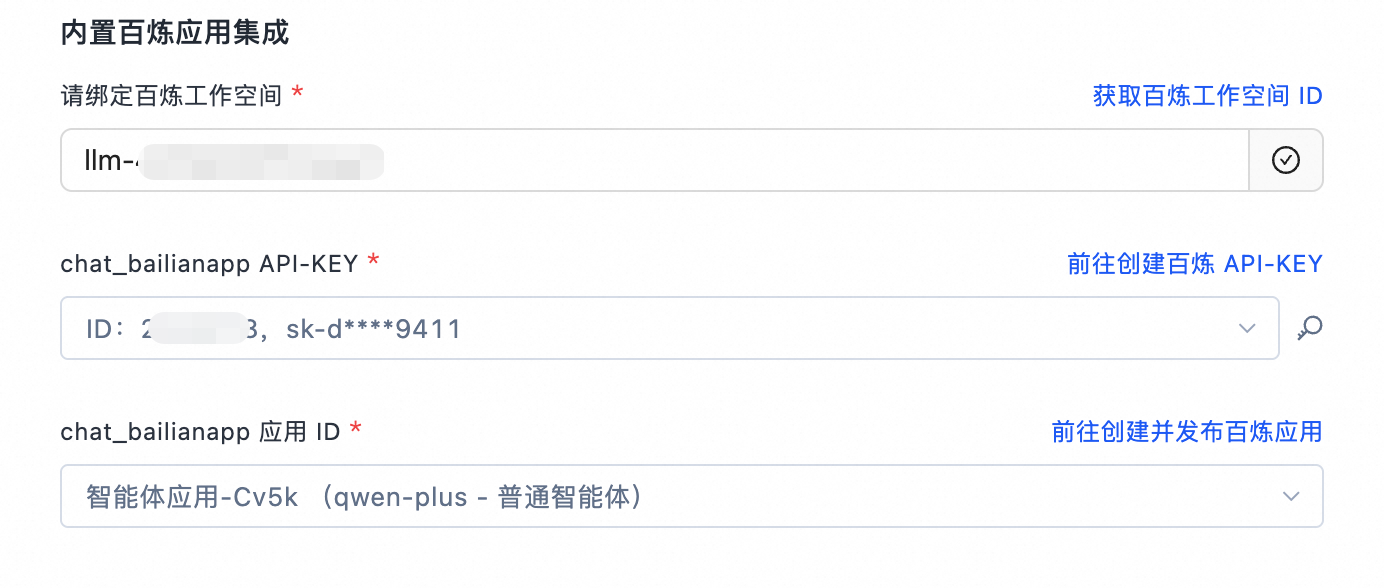
Configuration 3: Built-in Model Studio application integration
Enter a valid Model Studio workspace ID. After the workspace ID is validated, the API-KEY and Application ID options are displayed. Select the API-KEY and Model Studio application that are required for the session feature.
4. Configure the knowledge base and documents
1. Publish a Mobi application
When the following page is displayed, the Low-Code Development Platform application is created. When an administrator accesses the application, management features such as knowledge base management, document management, traffic statistics, and session statistics are available. When a regular user accesses the application, it functions as a retrieval-augmented generation (RAG) application that answers questions about the enterprise on the session page. First, publish the application to the development environment.


2. Upload enterprise knowledge documents
In the previous step, click Access Application. The following page is displayed, which indicates that you are logged on as an administrator.
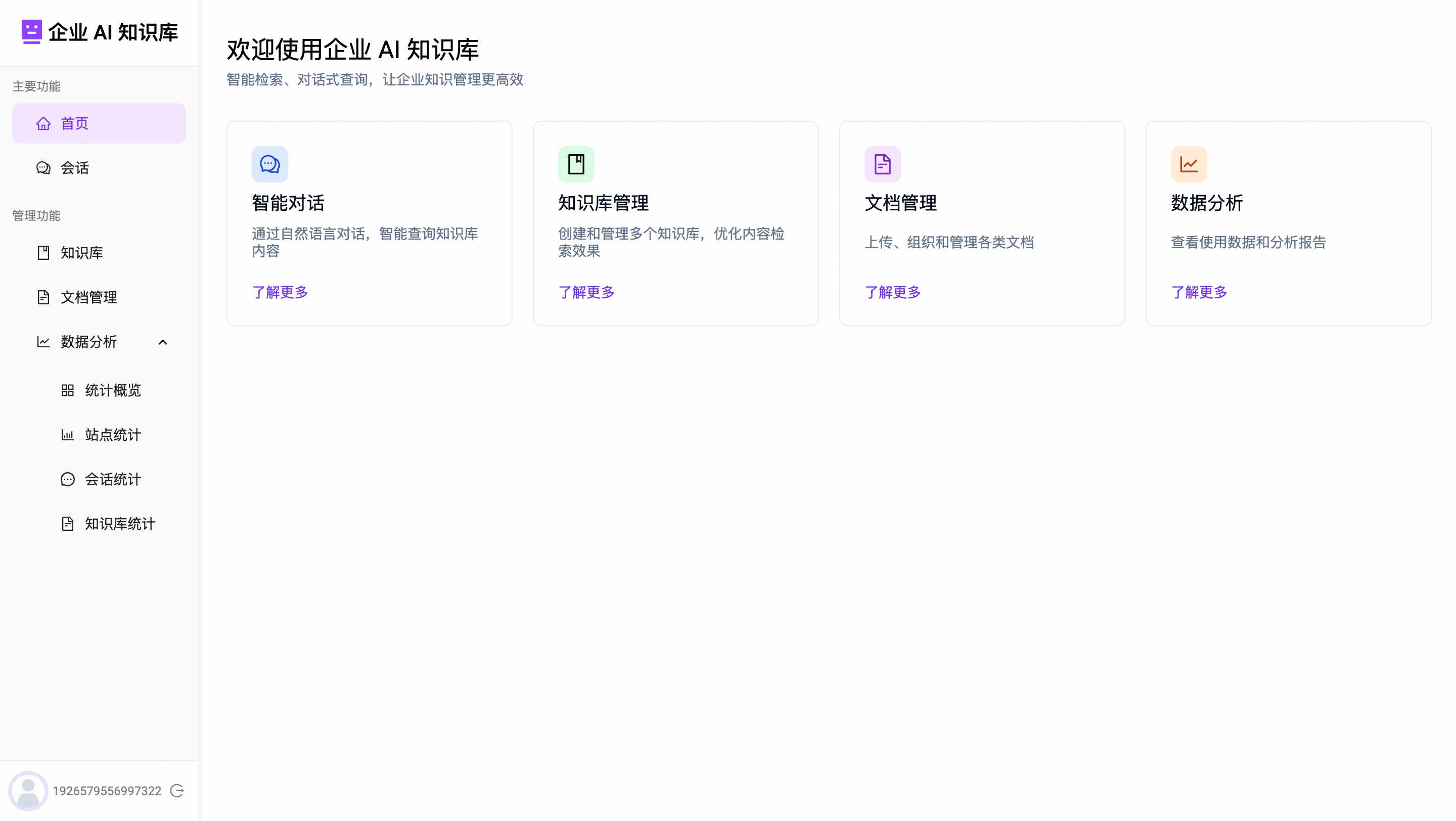
Go to the Document Management page and upload documents to the default category.
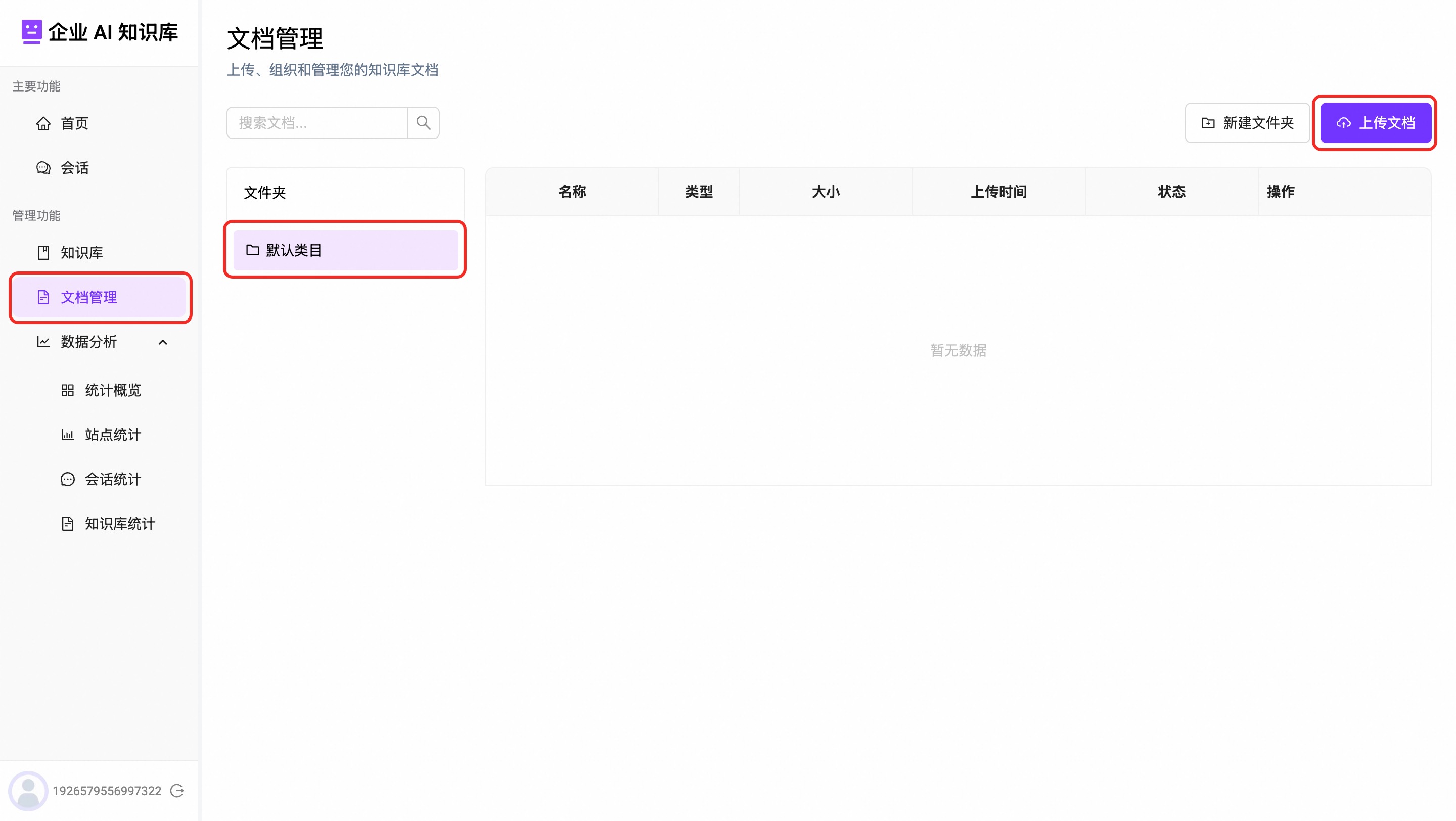
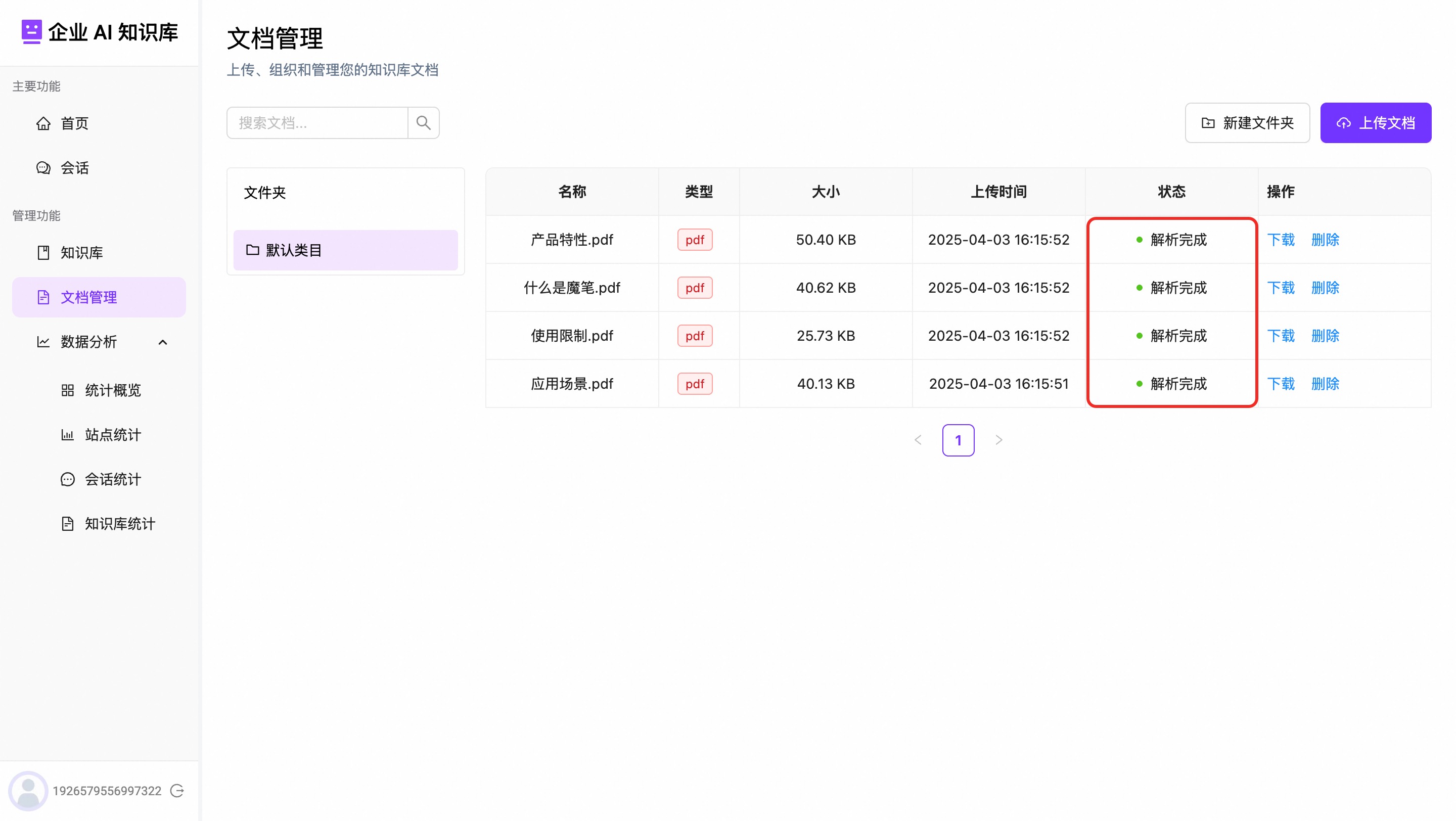
Four documents related to the Low-Code Development Platform are uploaded. You can replace them with your own enterprise knowledge. Wait for a moment for the document status to change to "Parsing Completed". You can refresh the page to confirm the status.
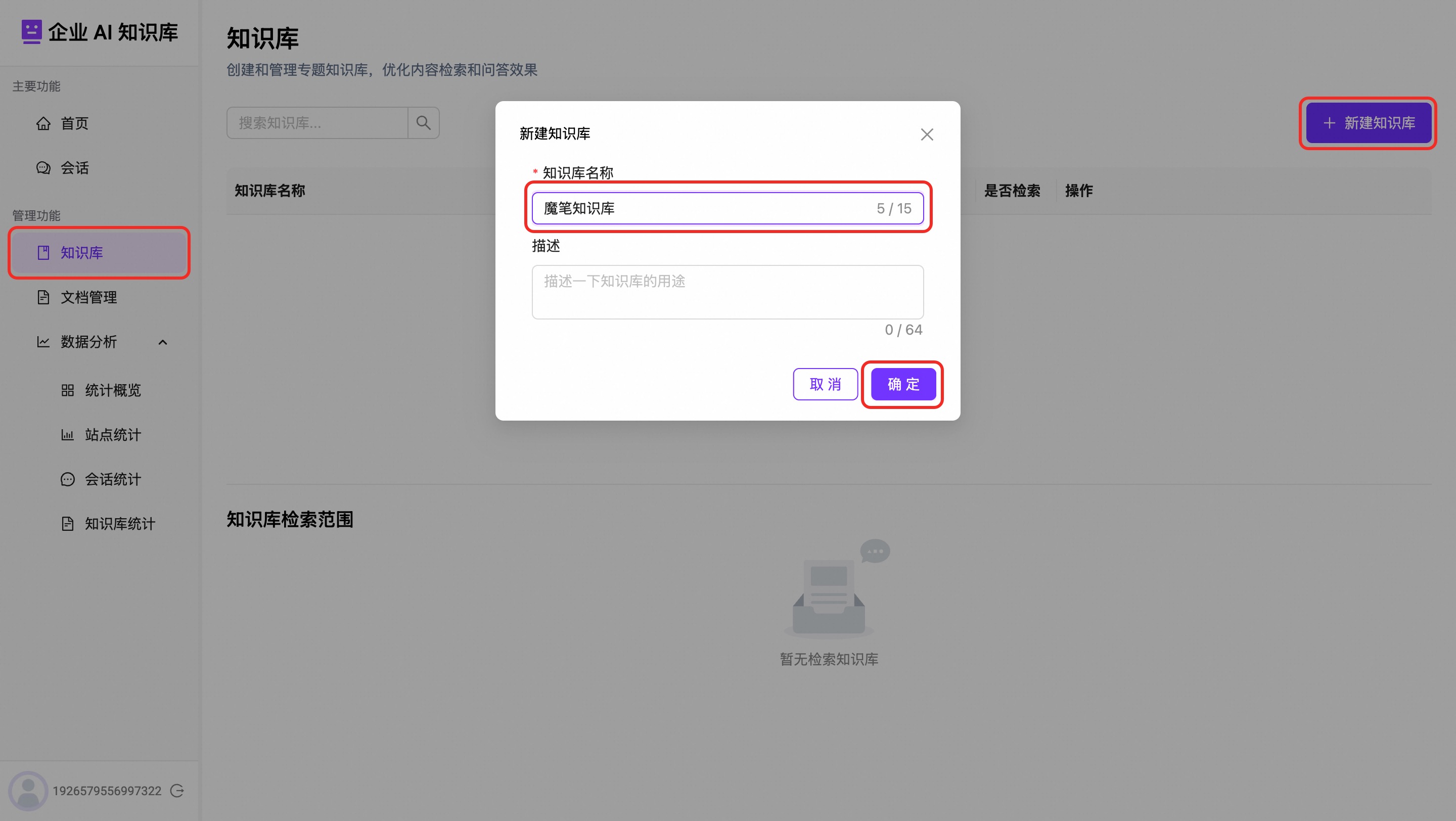
3. Create a knowledge base and import documents
In the knowledge base, create a Mobi knowledge base.
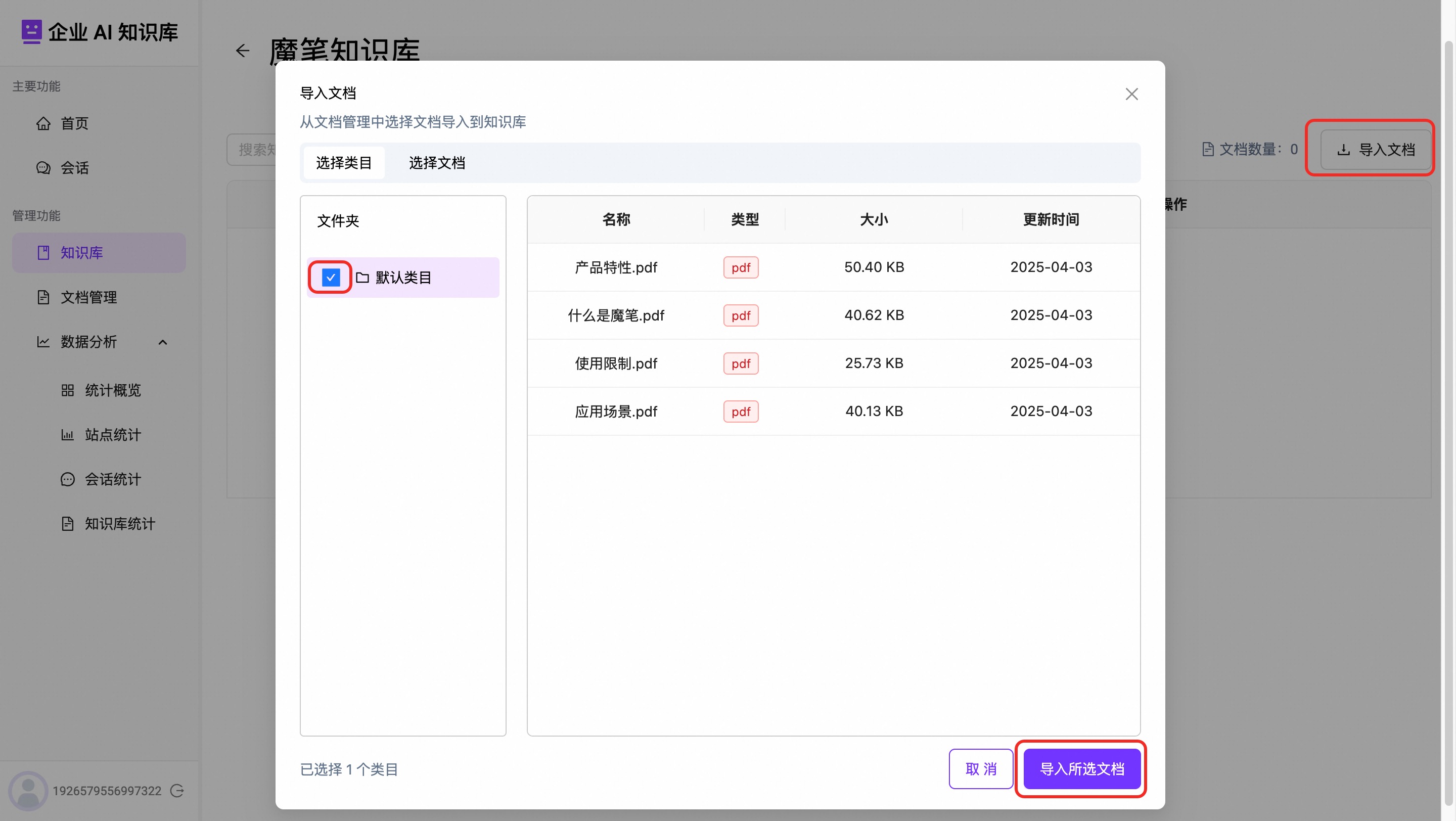
On the knowledge base details page, select the default category and import the documents that you uploaded.
Wait for the documents to be imported successfully. You can refresh the page to confirm the status.
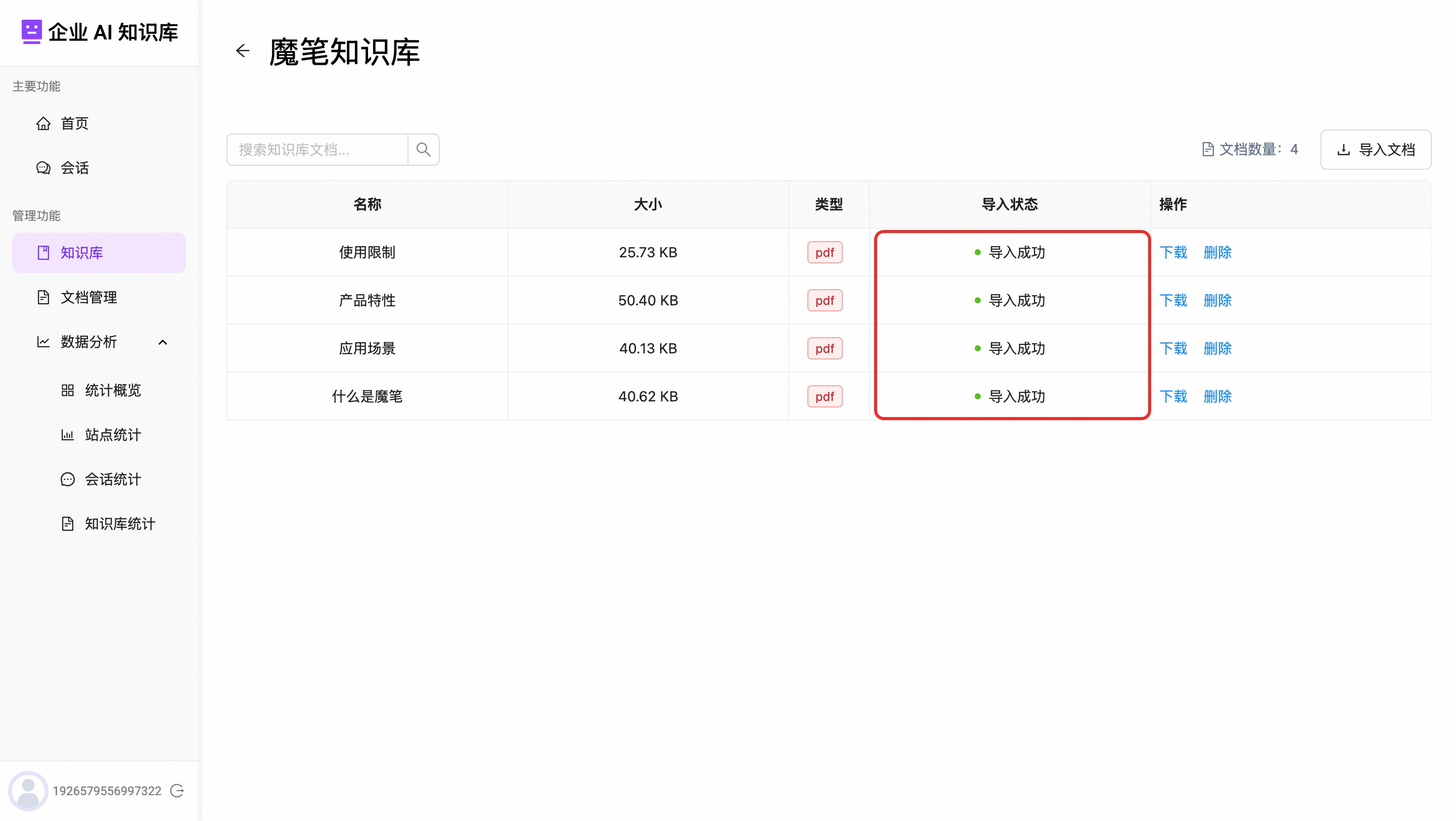
4. Test knowledge base hits and add a search scope
Return to the knowledge base list and perform a hit test on the new knowledge base. You can enter keywords related to the documents to view the matching results.

Add a search scope to define the range of knowledge bases to search. The specified knowledge bases are used as the context on the session page.
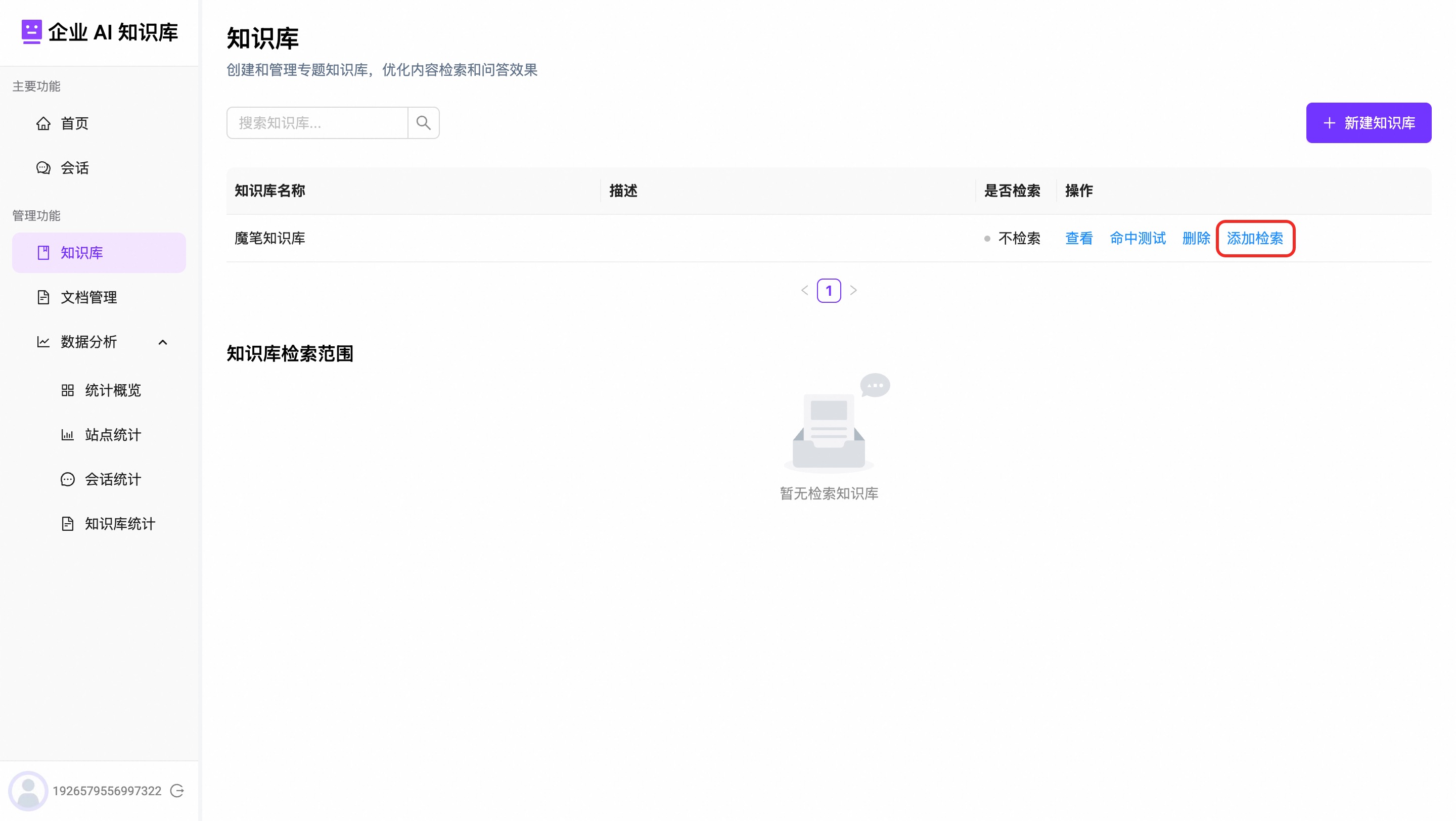
5. Test the session (PC and mobile)
1. PC session page: Click Session to go to the PC session page.

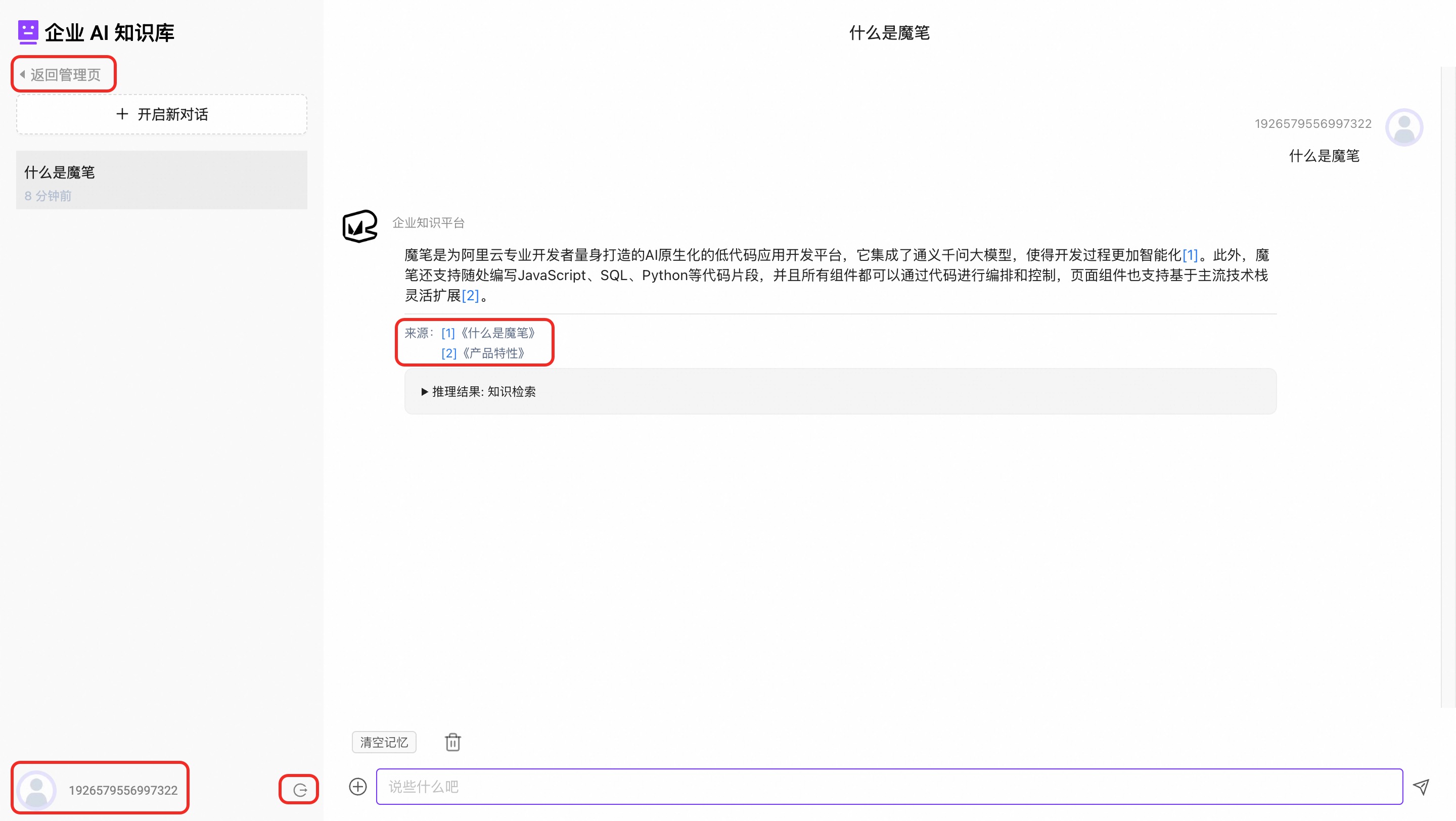
The session page provides a conversational interface for the RAG application, which is built on the knowledge base. This page does not include management portals for knowledge bases or documents. For example, if you enter 'What is Mobi?', RAG will provide an answer using relevant information from the knowledge base.
Because you are logged on as an administrator, a Return to Management Page link is displayed in the upper-left corner of the session page. Your nickname and a Log Out link are displayed in the lower-left corner.
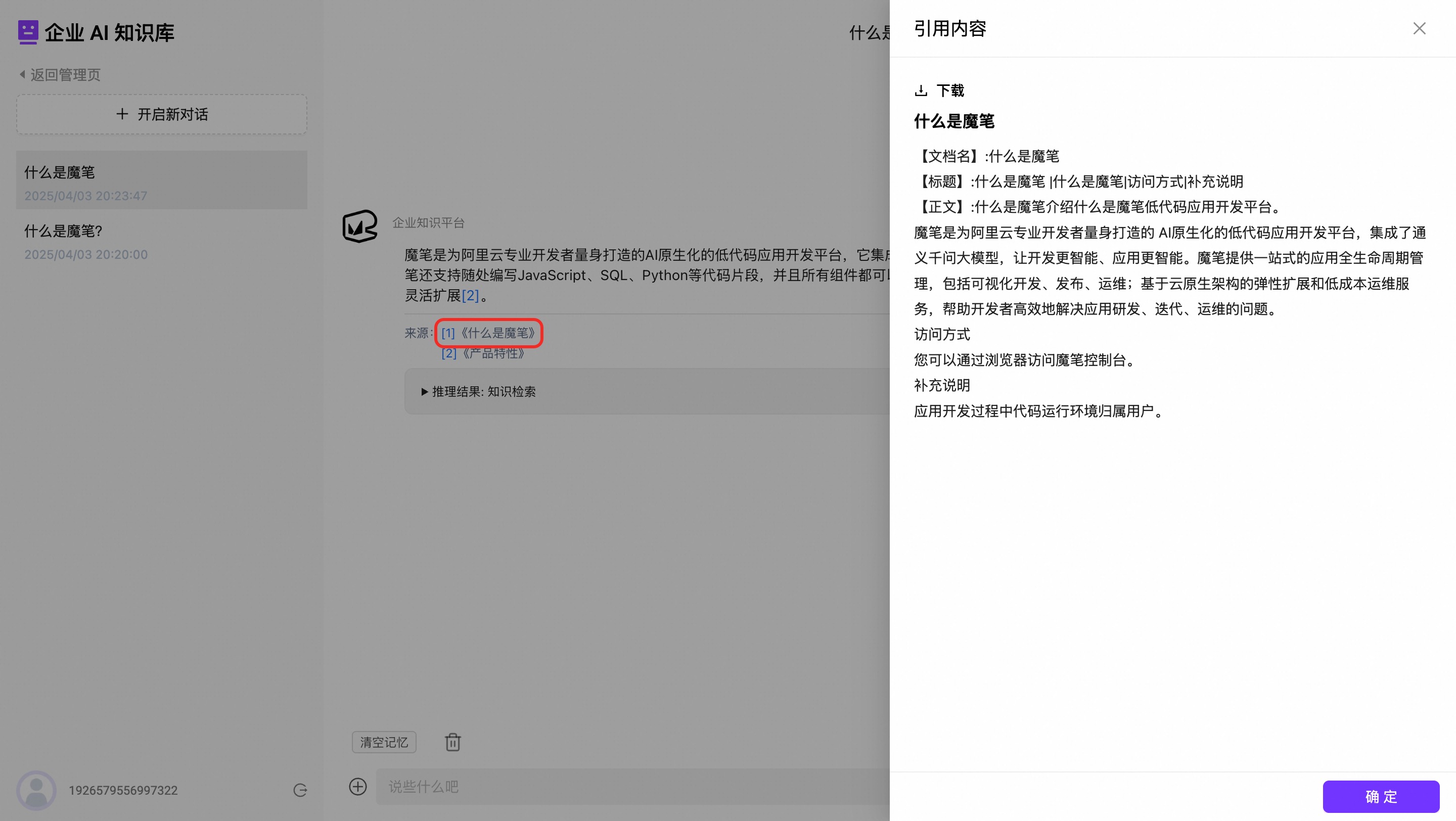
View referenced documents
You can download documents that are uploaded in knowledge base management. Documents that are uploaded in the Alibaba Cloud Model Studio console cannot be downloaded.
2. Mobile session page
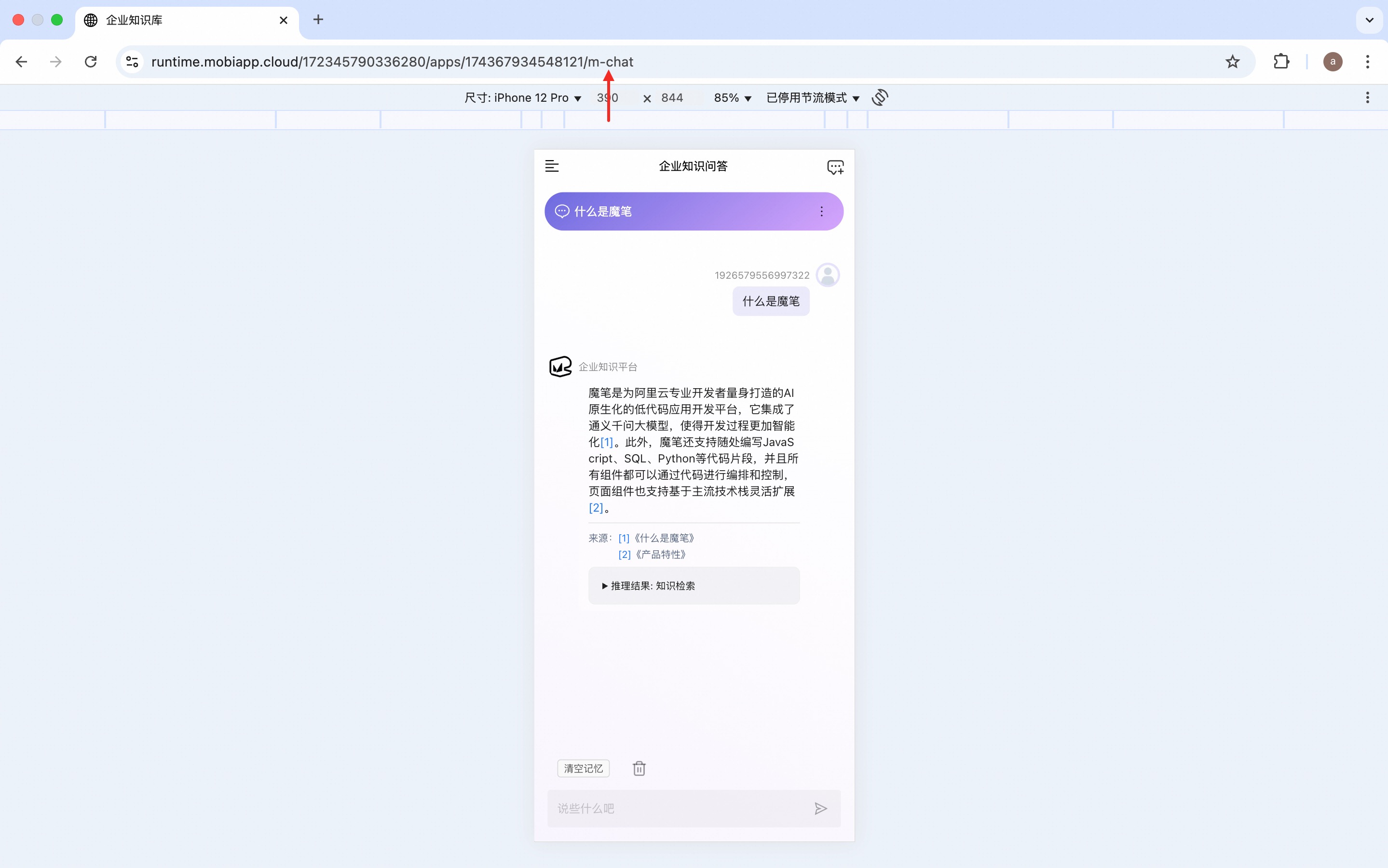
Change the URL path from /chat to /m-chat to view the mobile H5 session page. When a regular user accesses the application, the PC or mobile session page is automatically displayed based on the User-Agent (UA) of the browser.
6. Set anonymous access permissions
The enterprise AI knowledge base includes a session page and a management backend. You can set anonymous access permissions to allow anonymous users to ask questions in sessions but prevent them from accessing the management backend.
1. Enable anonymous access for the application
Return to the Low-Code Development Platform editor. In the application settings panel, enable Allow anonymous access and click Go to anonymous user permission group configuration.

2. Configure pages accessible to anonymous users
In the newly created Mobi application, click Permission Settings.
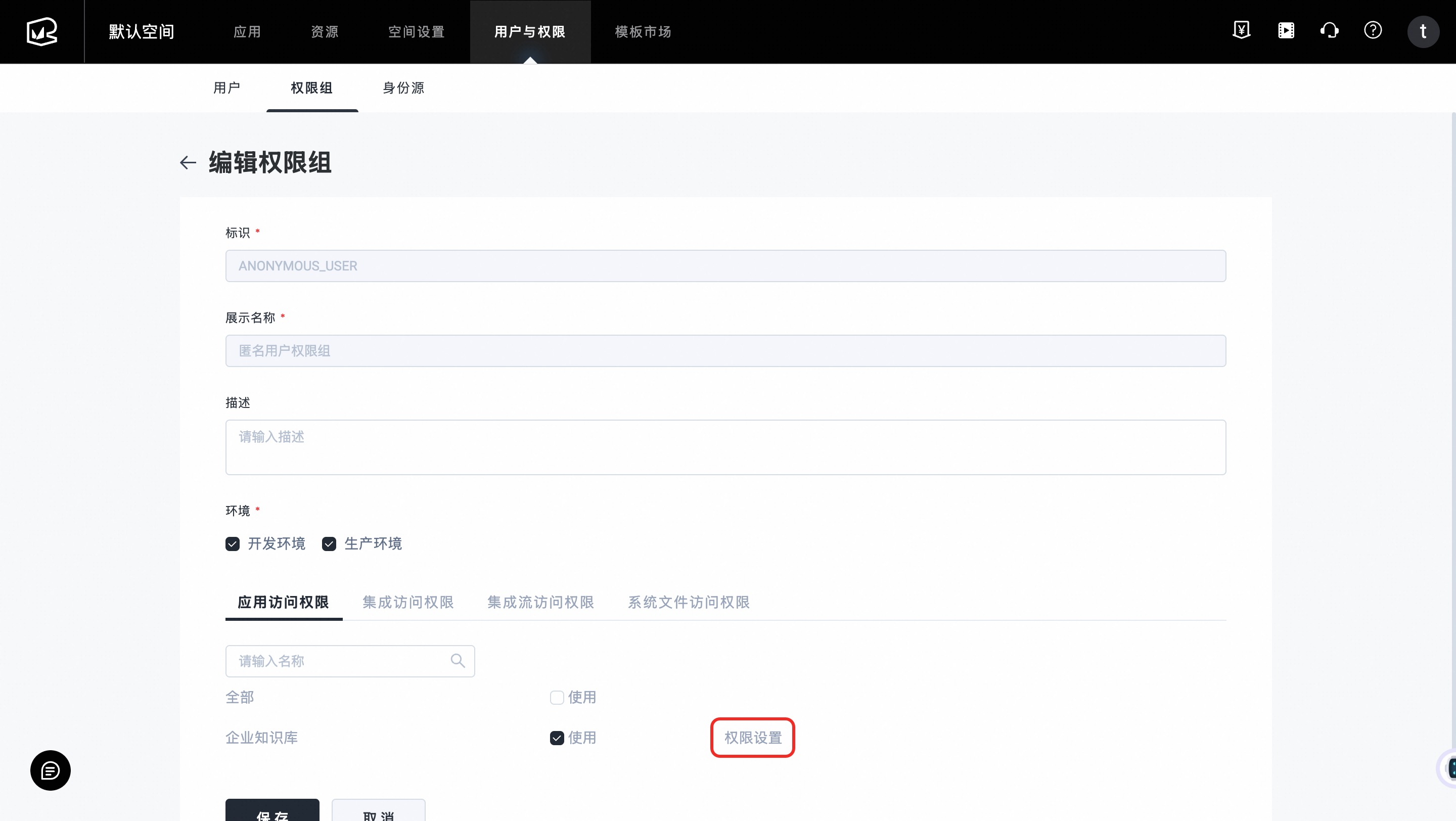
Select Redirect Page, Mobile Session, and PC Session, and then save the settings.
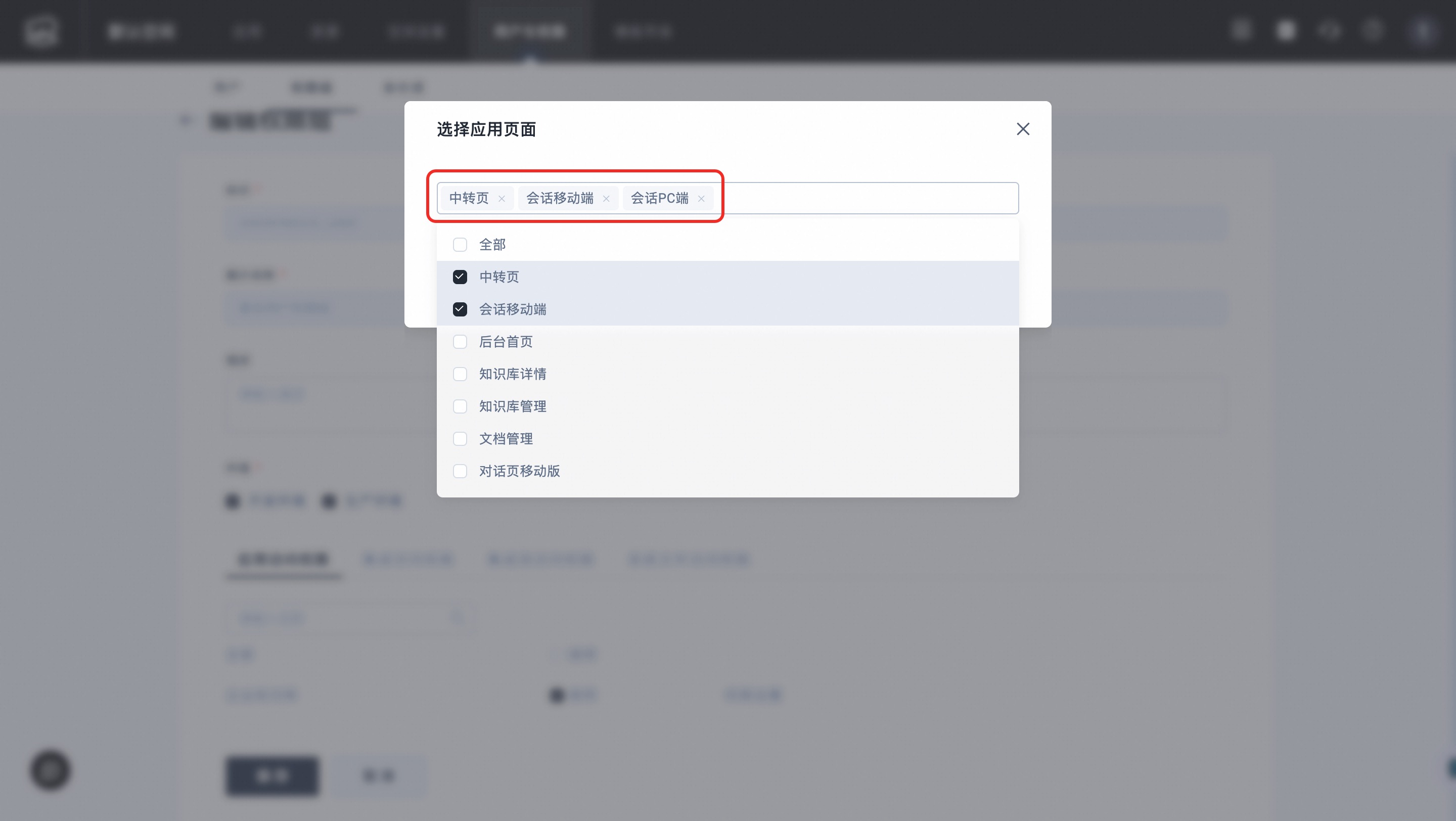
In the integration access permissions section, select System Built-in Database Integration and the associated Alibaba Cloud Model Studio Agent Integration Resource, and then save the settings.
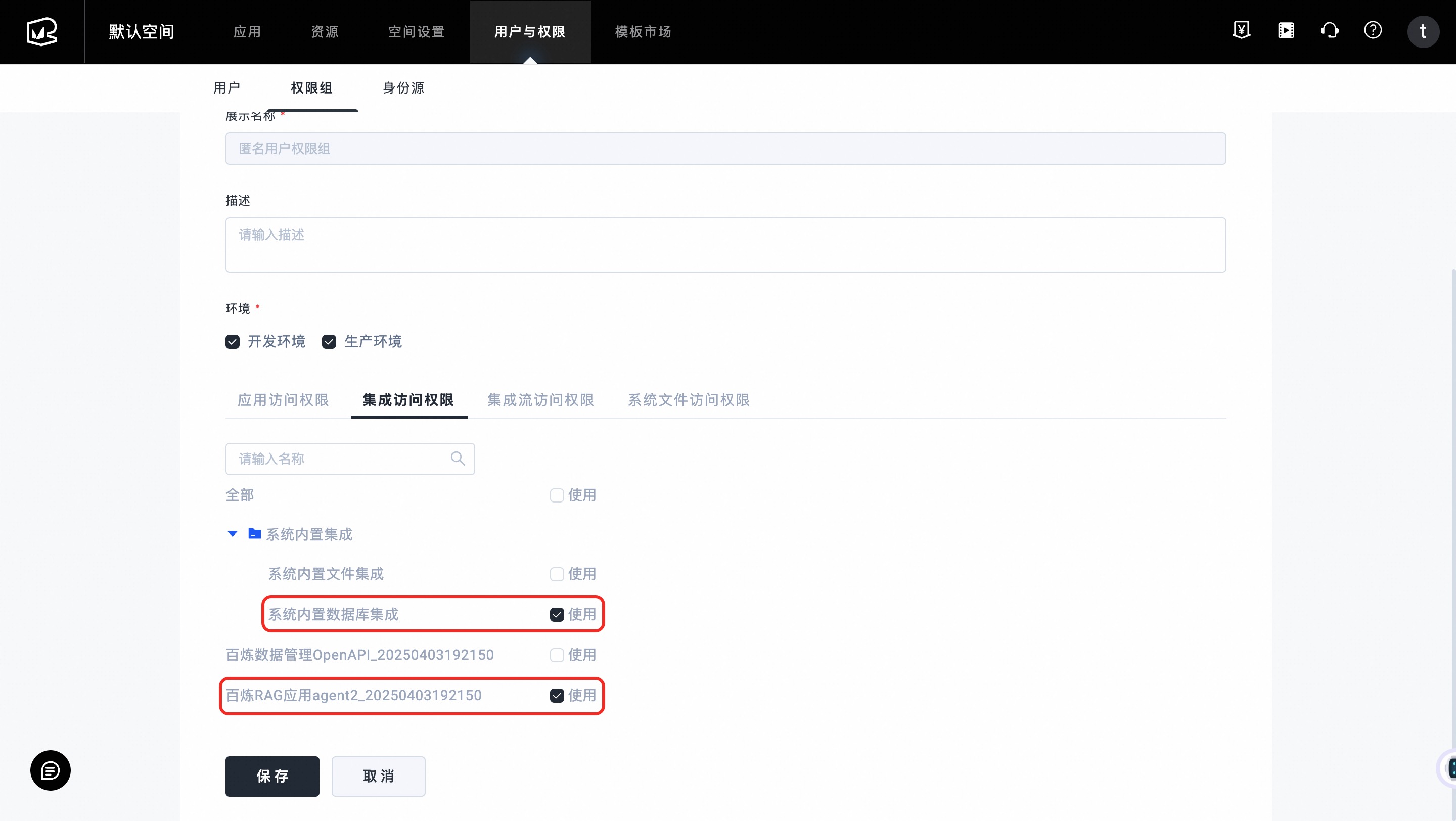
In the AI integration operation properties of the Chat component on the session page, you can identify the attached integration resource.

3. Log out as administrator and access the session page as an anonymous user
Return to the page that is published to the development environment. In the lower-left corner of the application, click Log Out to end the administrator session.
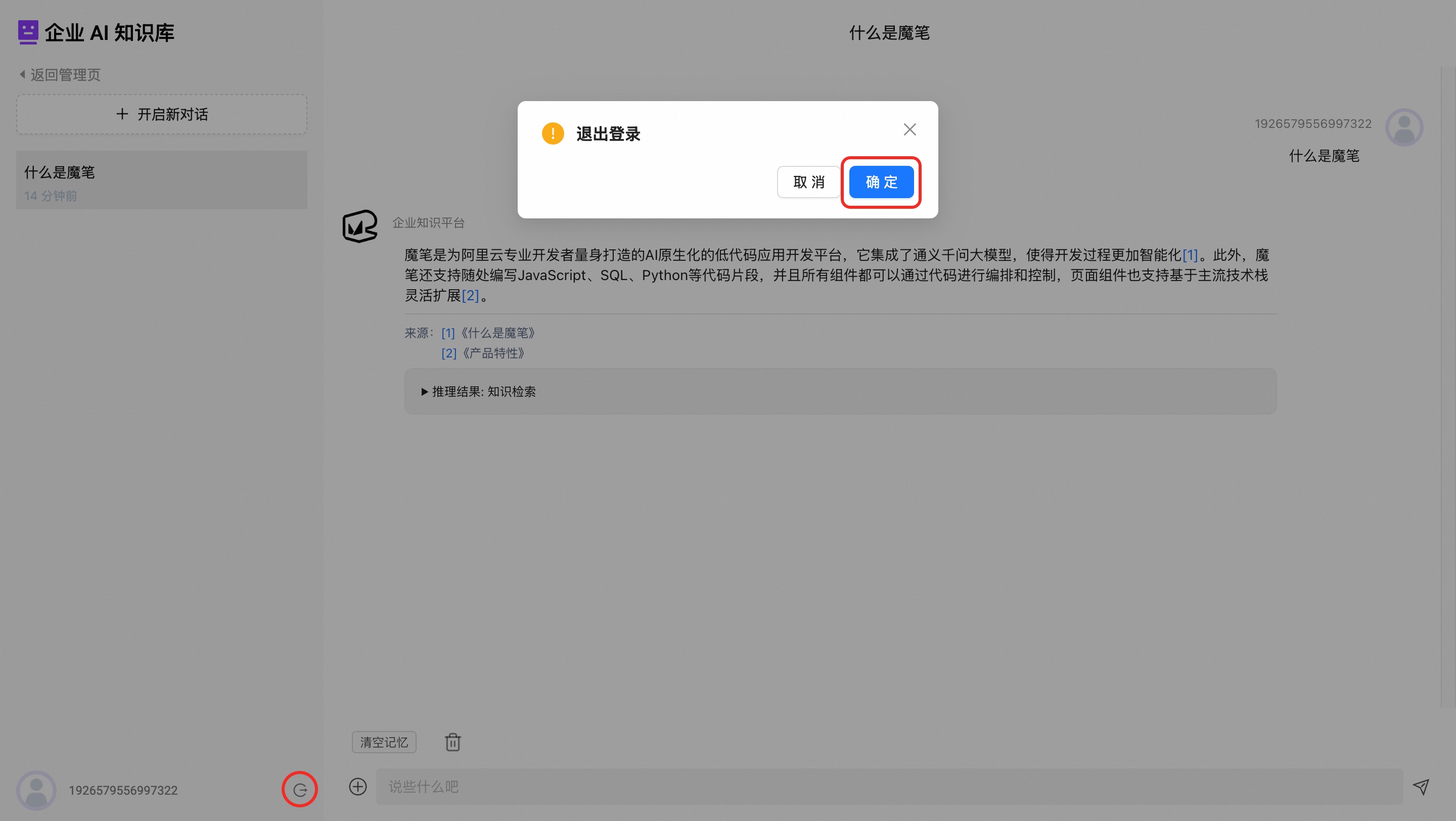
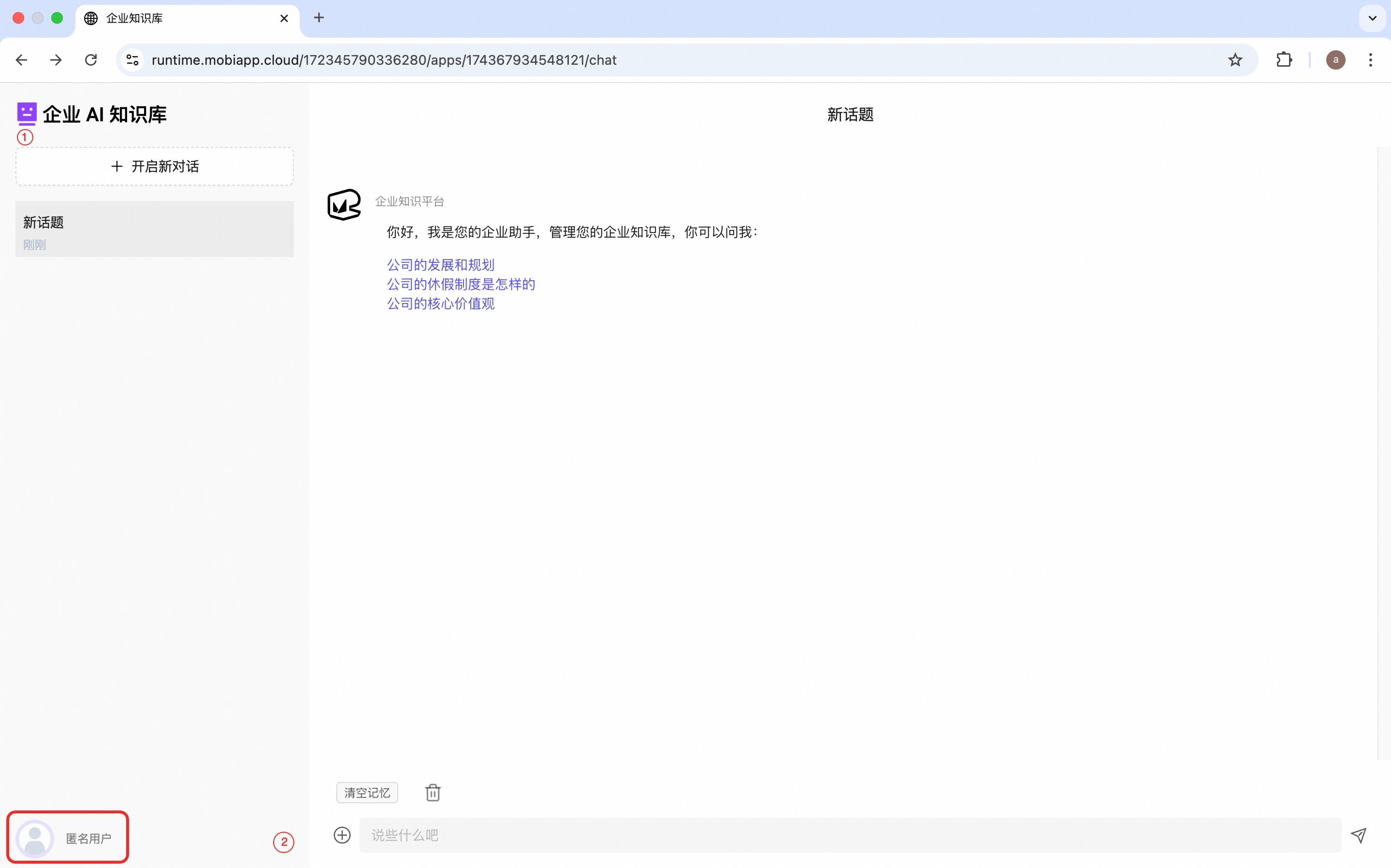
After you log out, you enter the anonymous access session state. The "Return to Management Page" link (1) and the "Log Out" link (2) are no longer displayed.
4. Verify permission control
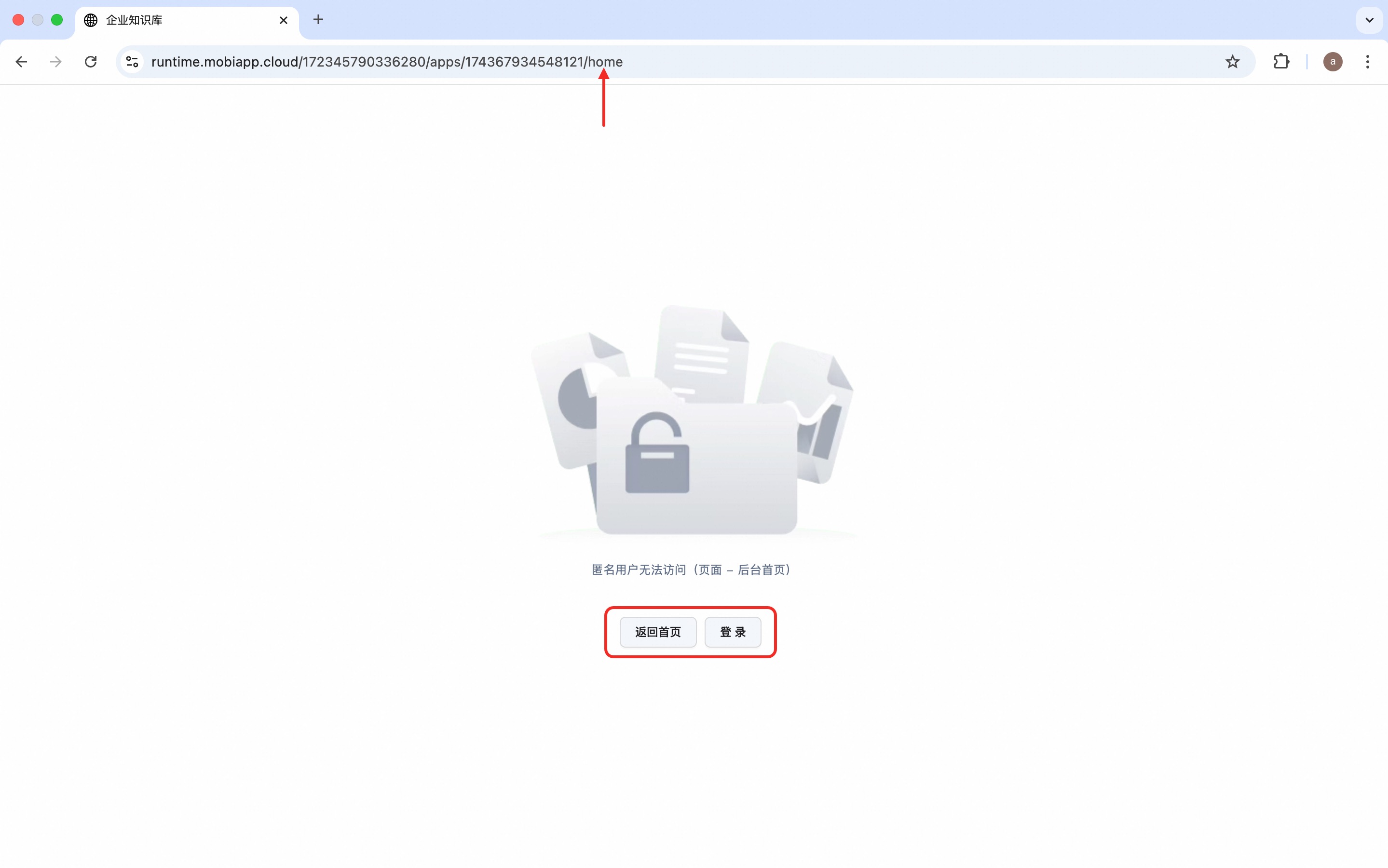
As an anonymous user, try to access the administrator backend by changing the URL path from /chat to /home. A message is displayed, indicating that you do not have permission to access the backend home page. This confirms that the settings are effective. From here, you can click "Log on" to enter the management backend as an administrator, or click "Return to Homepage" to go back to the session.
If you require users to log on but want to restrict their access to the session page, you can configure another permission group, such as END_USER, with the same settings as the anonymous permission group. Then, add users to that group. For more information, see Accounts and Permissions.
7. Application customization and permission logic
1. Customize the chat assistant's profile picture and name
For the profile picture resource link, you can use the built-in file storage of the Low-Code Development Platform to upload a profile picture. Set its visibility to public and then retrieve its URL. For more information, see File Management.

2. Home page redirection
The application uses the redirect page /redirect as the default index page. Accessing this page triggers the onRedirect function. In the application editor, navigating to the redirect page also triggers the redirection, which prevents you from editing it. When you switch pages in the page list, you can press ⌘ (on macOS) or Ctrl (on Windows) to prevent the mount event from being triggered.

Description of the onRedirect function: 1. It checks the browser UA. If the application is accessed from a mobile device, it redirects to the mobile session page. 2. If the user is logged on as an administrator, it redirects to the management page. 3. It redirects to the PC session page.

3. isAdmin logic
The computed property isAdmin is used to determine whether a user has administrative permissions: 1. During the application building phase, the user is an administrator by default. 2. An anonymous logon is considered a non-administrator. 3. Users with the OWNER or ADMIN role are administrators.

The following figure shows the member settings page.
You can set other permission groups as administrators. The following example uses END_USER:
// Default to administrator in design mode.
if(mobi.appInfo.mode === 'edit') {
  return true;
}

// Anonymous users are not administrators by default.
if(mobi.currentUser.isAnonymous) {
  return false;
}

// At runtime, users in the OWNER, ADMIN, or END_USER permission groups are administrators.
return mobi.currentUser.groups.some(group => group.name === 'OWNER' || group.name === 'ADMIN' || group.name === 'END_USER');
At the same time, you must grant the END_USER permission group access to all applications and integrations:


8. Publish the application to the production environment
After you test and publish the application in the development environment, you can attach an environment and domain name to the application and then commit and publish it.
1. Add a domain name
You can add a domain name that has an ICP filing to the Low-Code Development Platform. After the application is published, you can access it over HTTPS using your own domain name.
The Low-Code Development Platform supports two methods for adding a domain name and setting up an SSL certificate:
Use Alibaba Cloud Web Application Firewall (WAF). Add the domain name to WAF before adding it to the Low-Code Development Platform.
Use the free test certificate and built-in WAF service that are provided by the Low-Code Development Platform. This method is for testing scenarios only. For large-scale production releases, you must configure your own WAF firewall and HTTPS certificate.

For detailed configuration steps, see Environments and Domain Names.
After you configure the domain name for the production environment, you can publish the application to the production environment to obtain a stable and continuous service.

Appendix: Feature overview
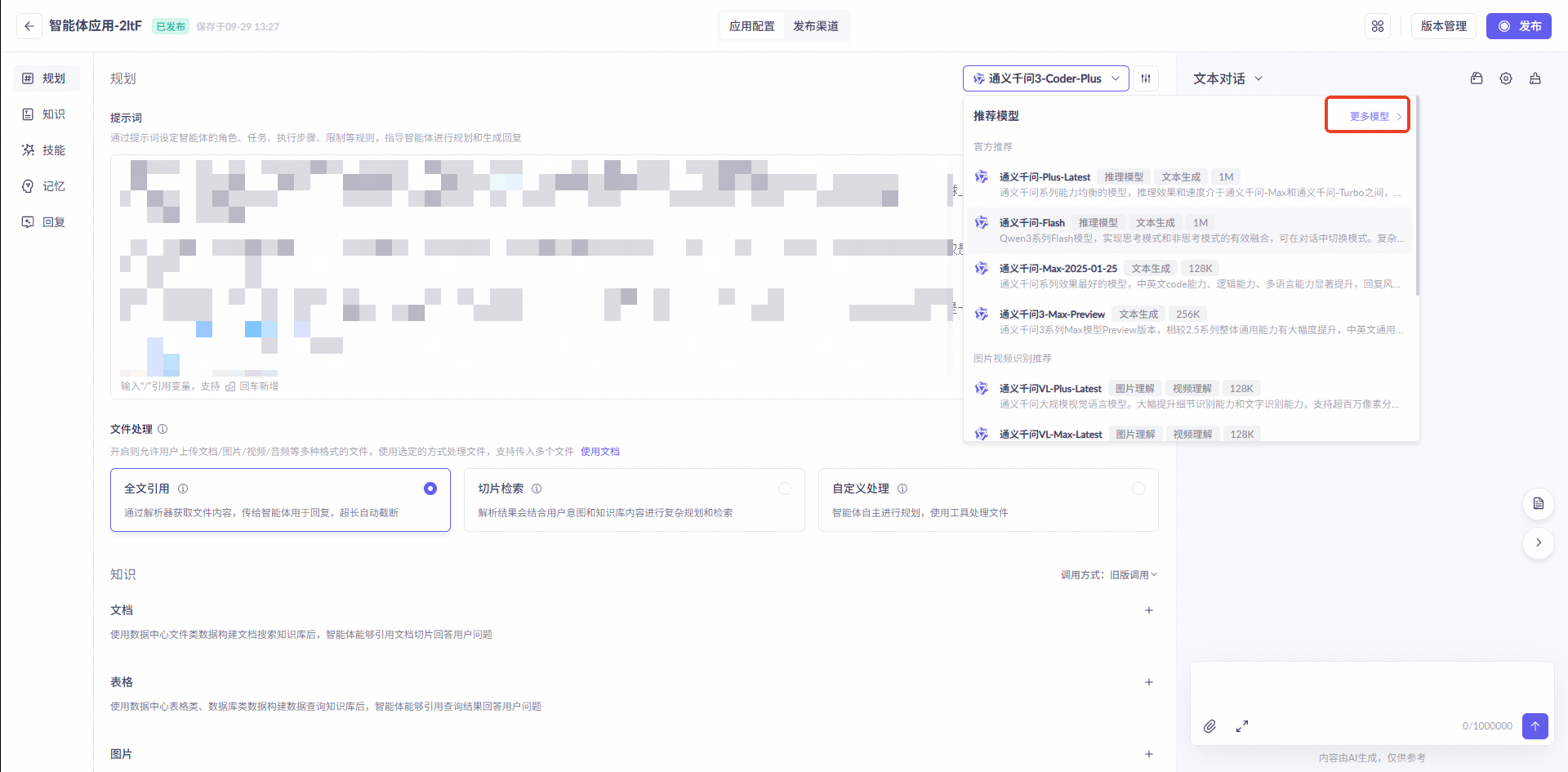
1. DeepSeek preview
In Alibaba Cloud Model Studio applications, the Qwen series models are used by default. You can also select the DeepSeek model:
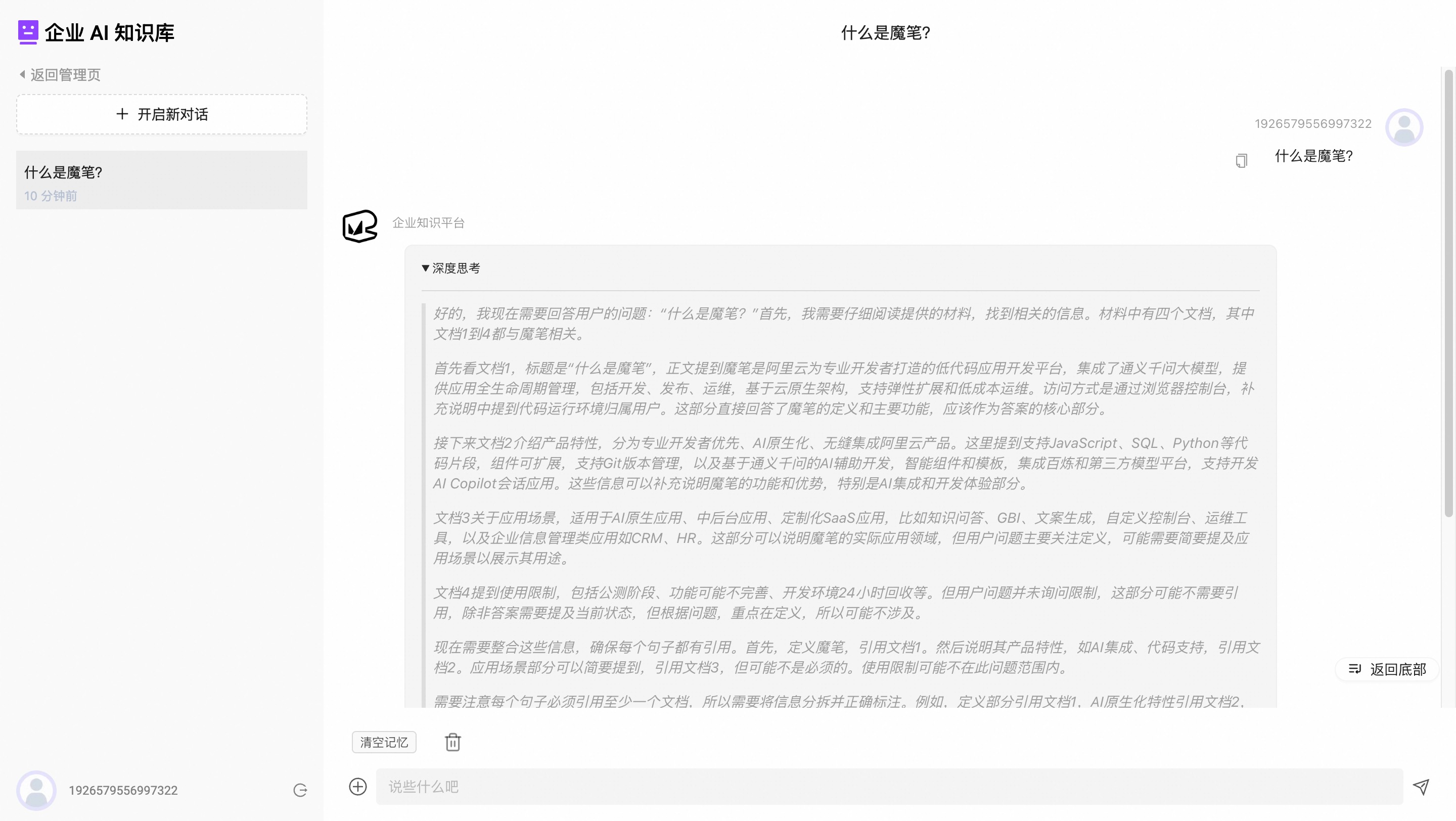
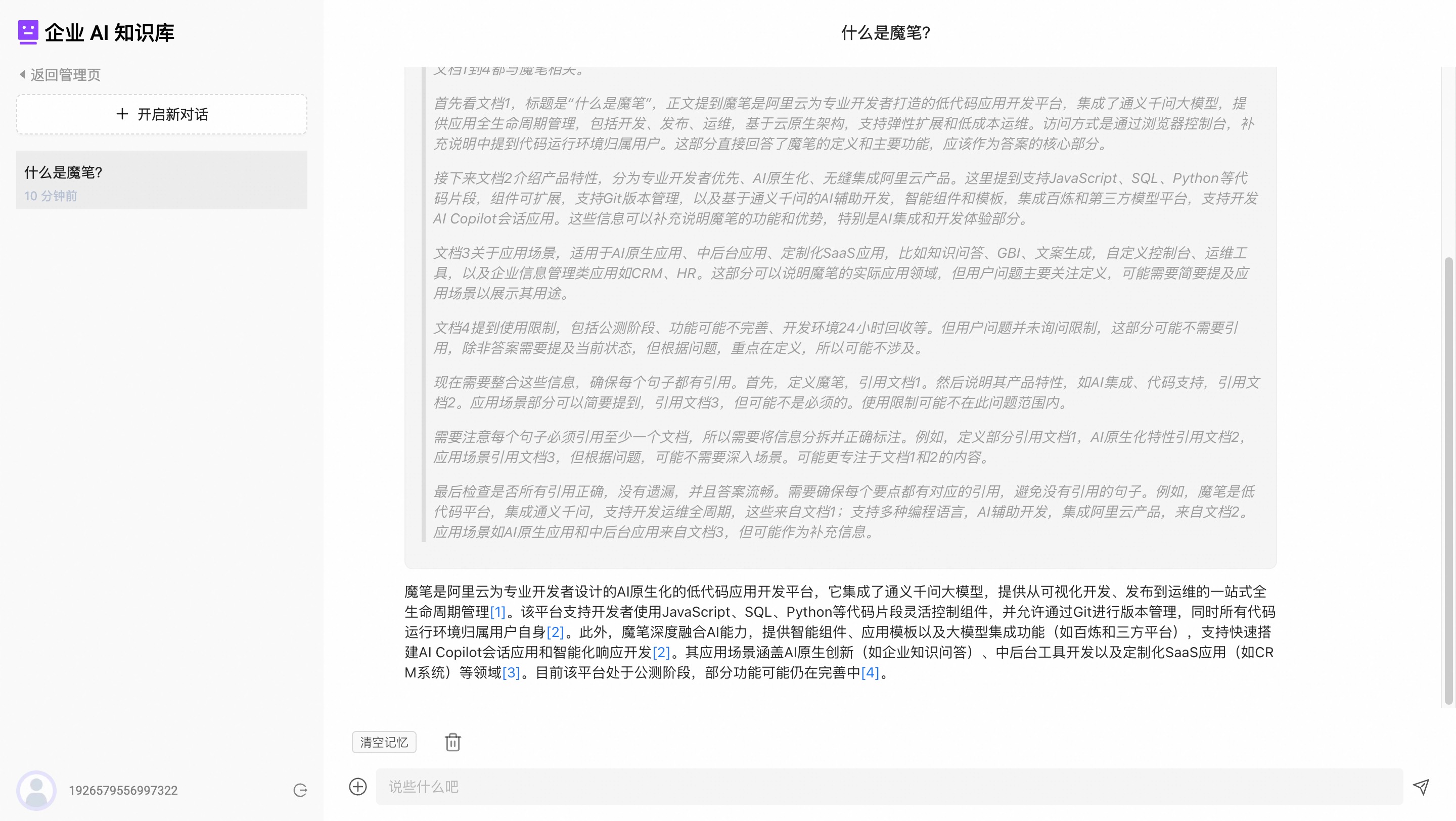
Example of a DeepSeek answer:
2. Data analytics
Statistics overview:

Site statistics:

Session statistics:

Knowledge base statistics:
