Add a query control
You can add a query control to set conditions for filtering your data. This feature is available as an add-on for workbooks in the Enterprise Standard and Advanced editions.
Prerequisites
A workbook is created. For more information, see Create a workbook.
Background
You can configure only one query control per workbook. All conditions are configured within this query control.
Procedure
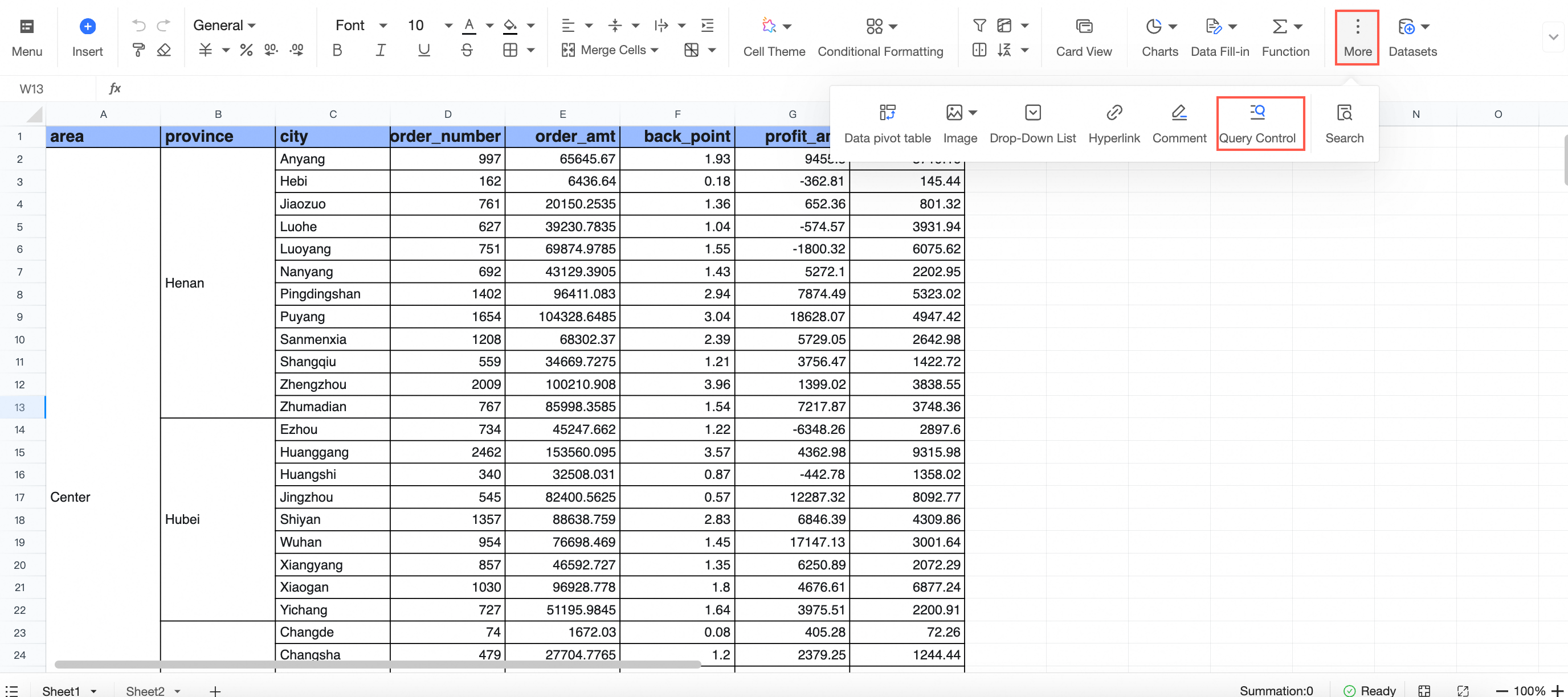
On the toolbar, click query control.
In the workbook display area, click the
 icon to create a new filter item.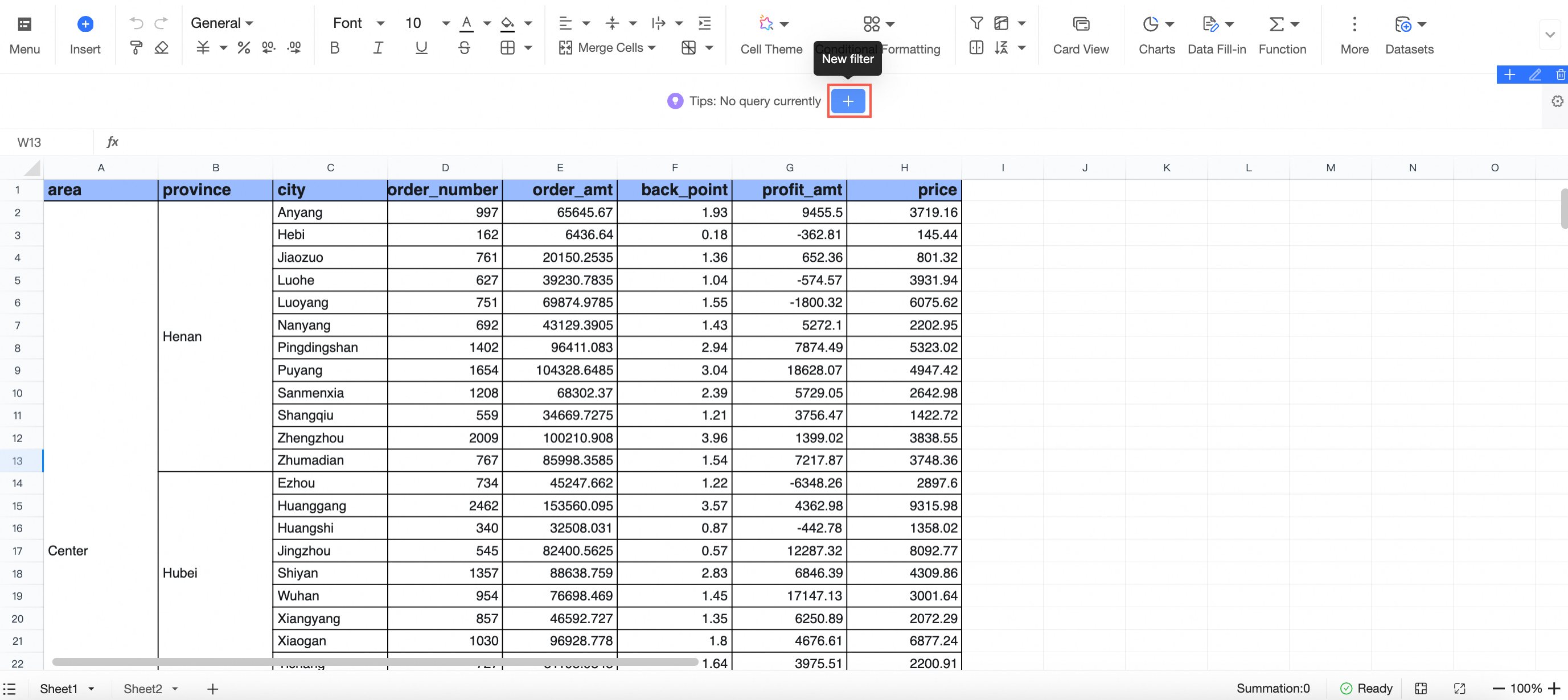
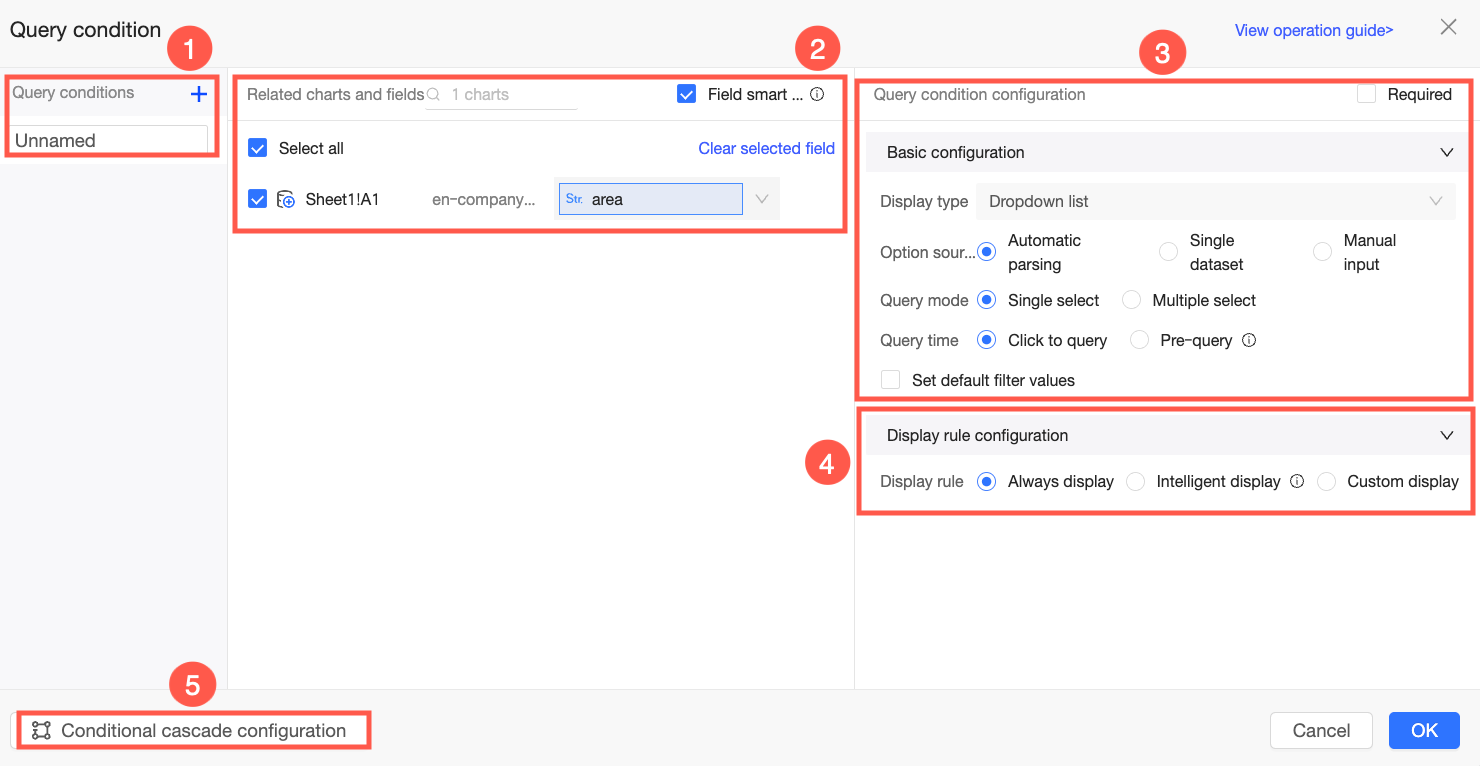
On the query condition setting page, configure the Name (①), Associated charts and fields (②), Basic configurations (③), Display rule configuration (④), and Condition cascading configuration (⑤).
Parameter
Description
Name
The default name is Unnamed. You can specify a custom name, such as Area Query or Date Query, to meet your business needs. You can perform the following operations:
Click the
 icon to add a query condition.
Click the
 icon to hide the current query condition. The configuration is saved, but the condition is hidden from the dashboard.
Click the
icon to rename or delete the current query condition.
Associated charts and fields
Select the charts and fields to associate with the query condition. You can enable intelligent field selection to automatically populate associated fields for the selected charts within the same dataset. If your workbook contains many charts, use the filter to select the required ones.
NoteYou cannot associate fields of different data types. For example, if you try to associate a date field and a numeric field simultaneously, an error message appears, as shown in the following figure.
Basic configurations
The basic configuration items vary depending on the data type of the selected field. For more information about the basic configurations for different field types, see Query type configuration overview.
Display rule configuration
Set the visibility of the query condition on the sheet. You can set it to Always display, Smart display, or Custom display.
Always display: The query condition is displayed on every sheet. This option is selected by default.
Smart display: The query condition is displayed only on the sheets that contain the associated charts.
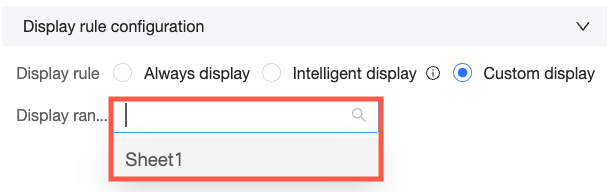
Custom display: Select the desired sheets from the Display scope drop-down list. The query condition will then be displayed only on those sheets.
Condition cascading configuration
You can configure cascading relationships between different query conditions. For example, if you select a region in Condition A, Condition B will only show provinces from that region. For detailed instructions, see Configure cascading query controls.
NoteFor more information about how to configure query conditions, see Create a query control.
Click OK.
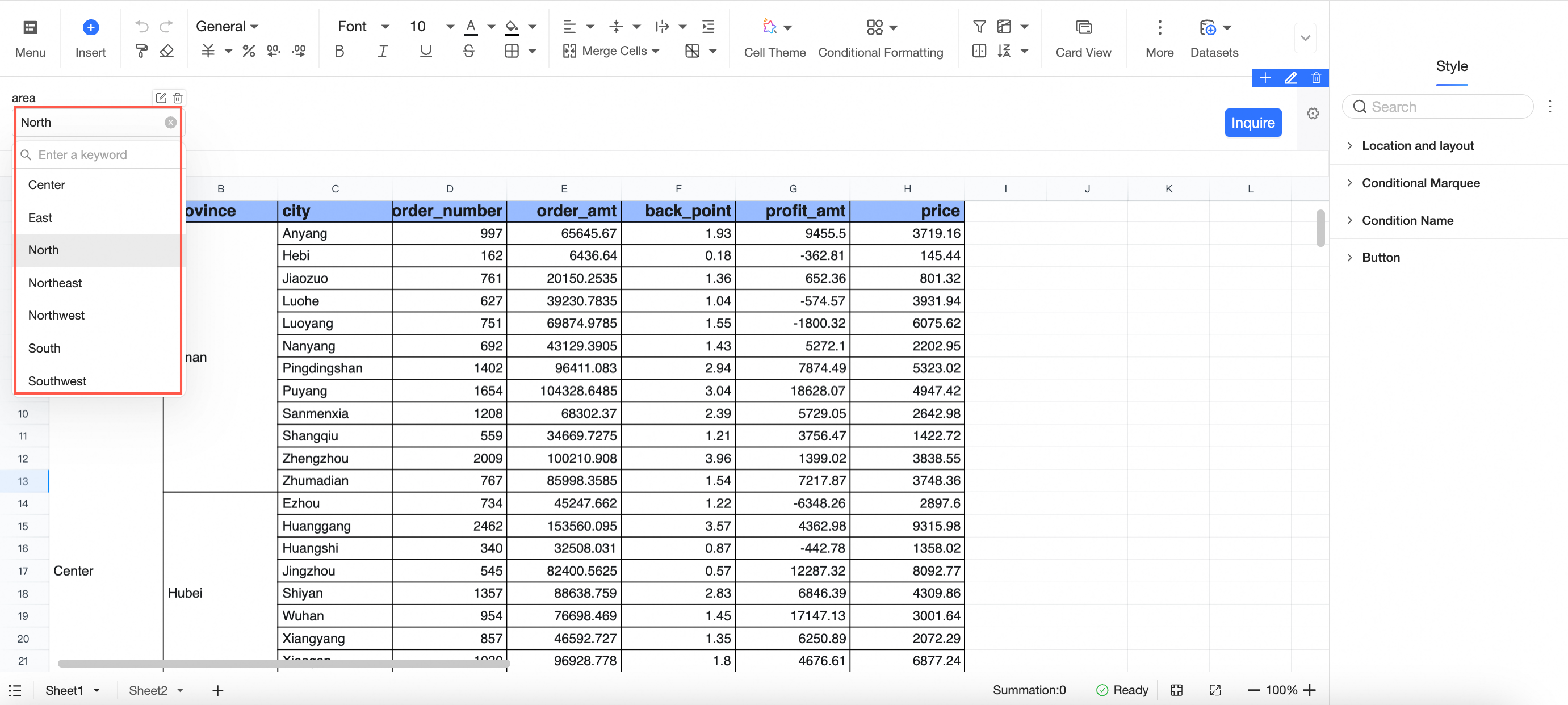
On the query control page, you can view the configured query control and use it to filter data.
 icon to hide the current query condition. The configuration is saved, but the condition is hidden from the dashboard.
 icon to rename or delete the current query condition.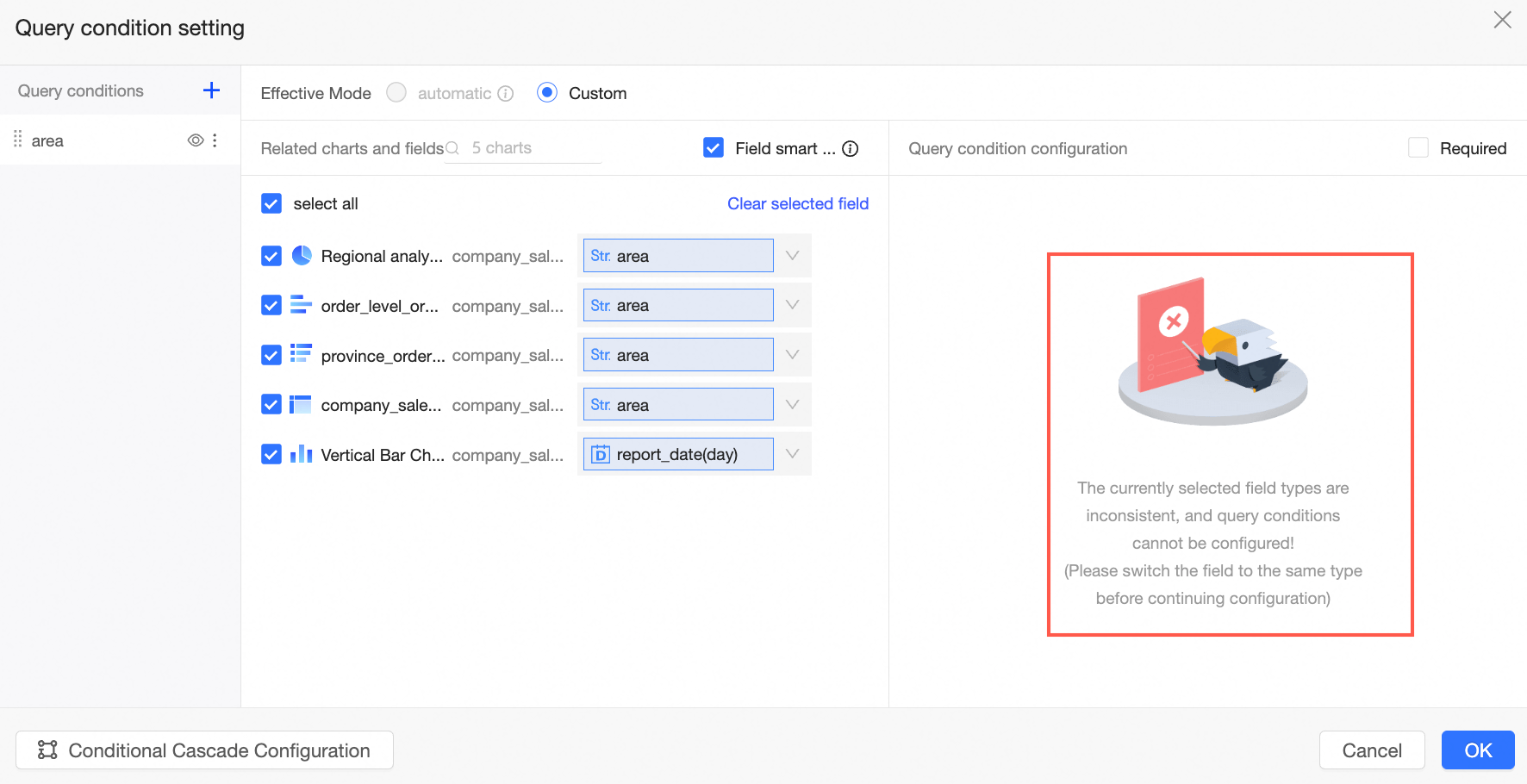
Verify the results
Set area to Northeast and click query. The query results are shown in the following figure.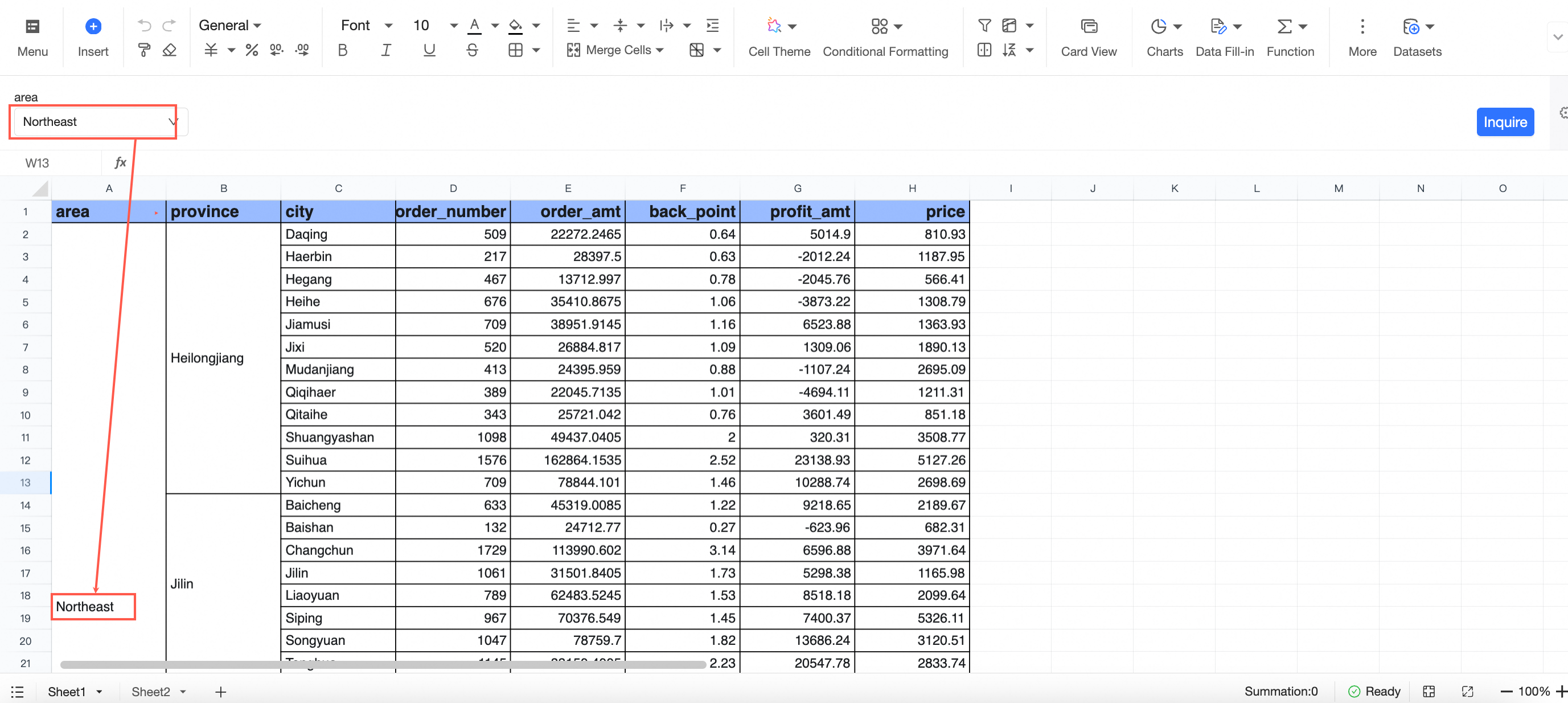
Style
You can click the  icon on the right side of the query control to configure its style.
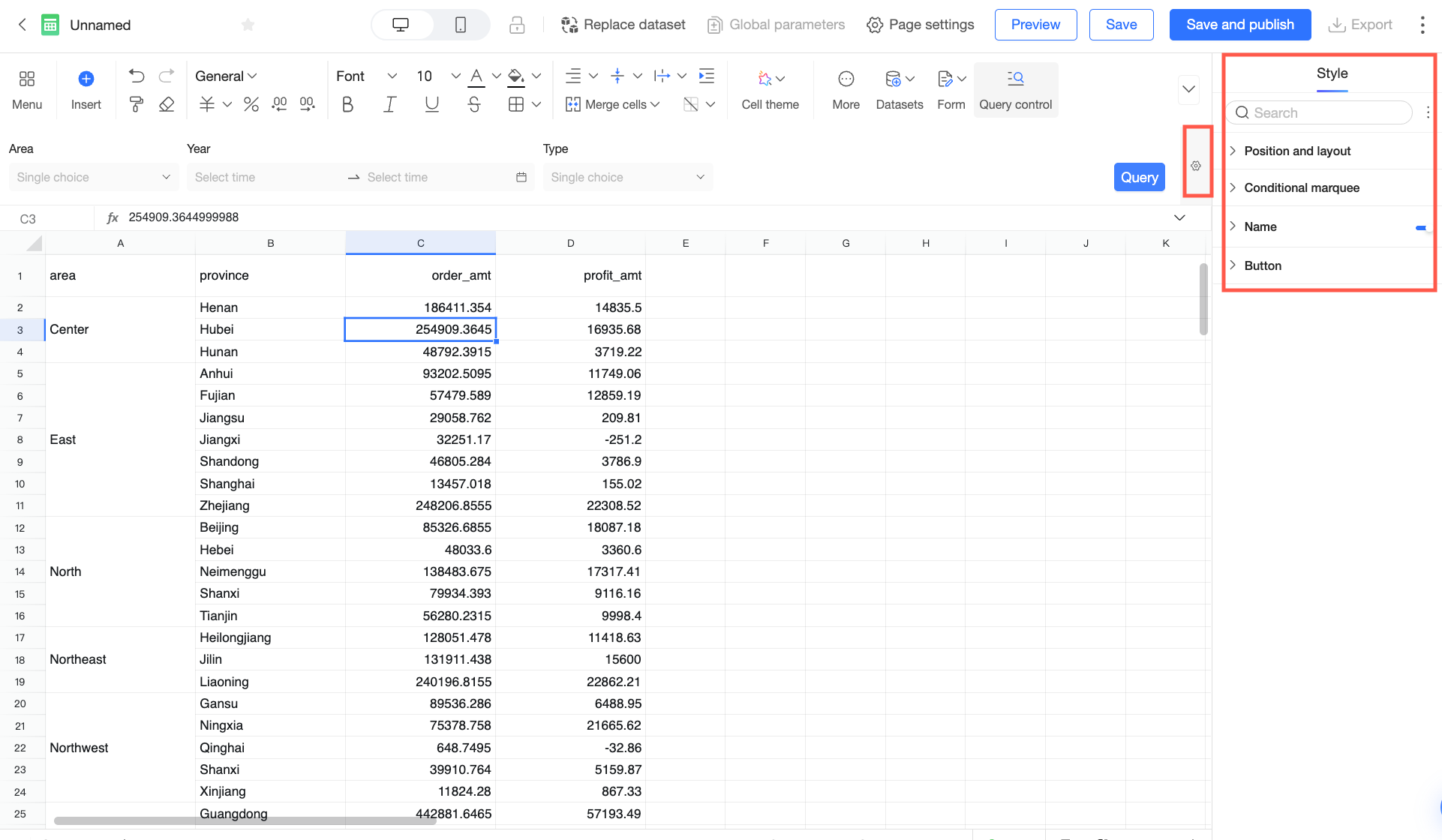
In the Position and layout section, configure whether to Expand all filter conditions by default, the Condition arrangement, Condition position within container, and Spacing between conditions.
In the Condition box section, configure the Box style, Background color, border radius, and text, and Custom condition style.
In the Condition name section, configure the Position, Text, and Spacing from box.
In the Buttons section, configure Button display, Button color, Button radius, and Text style.
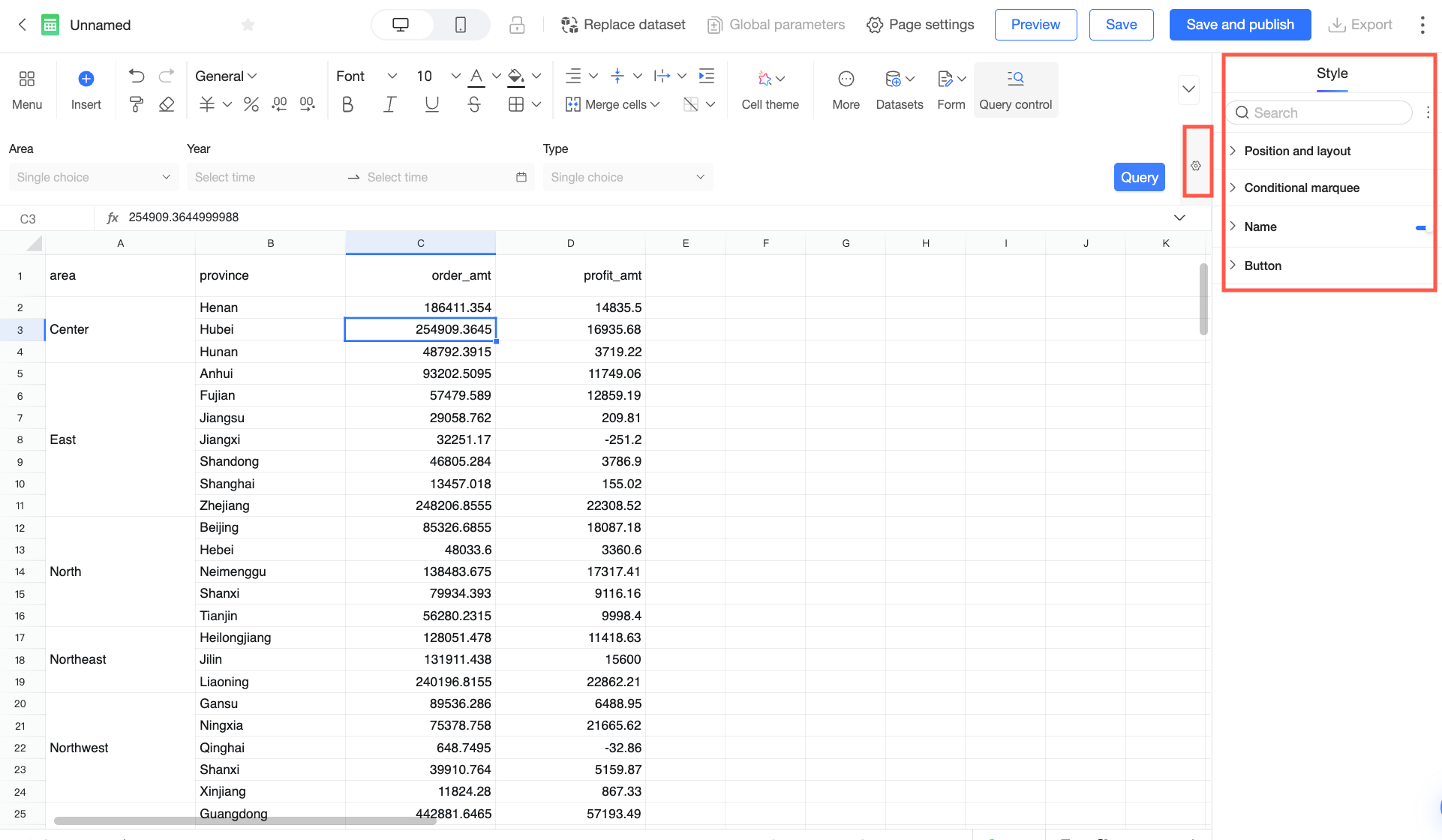
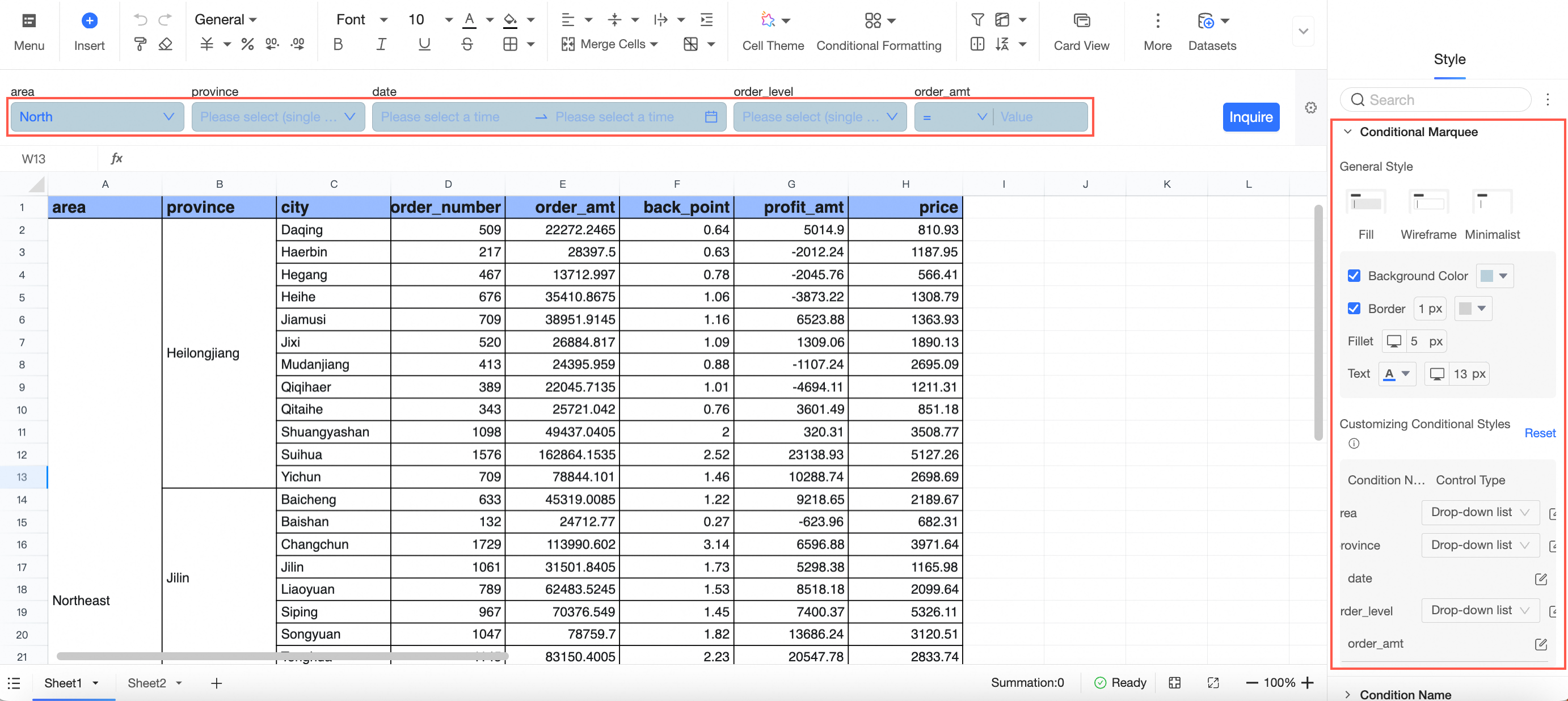
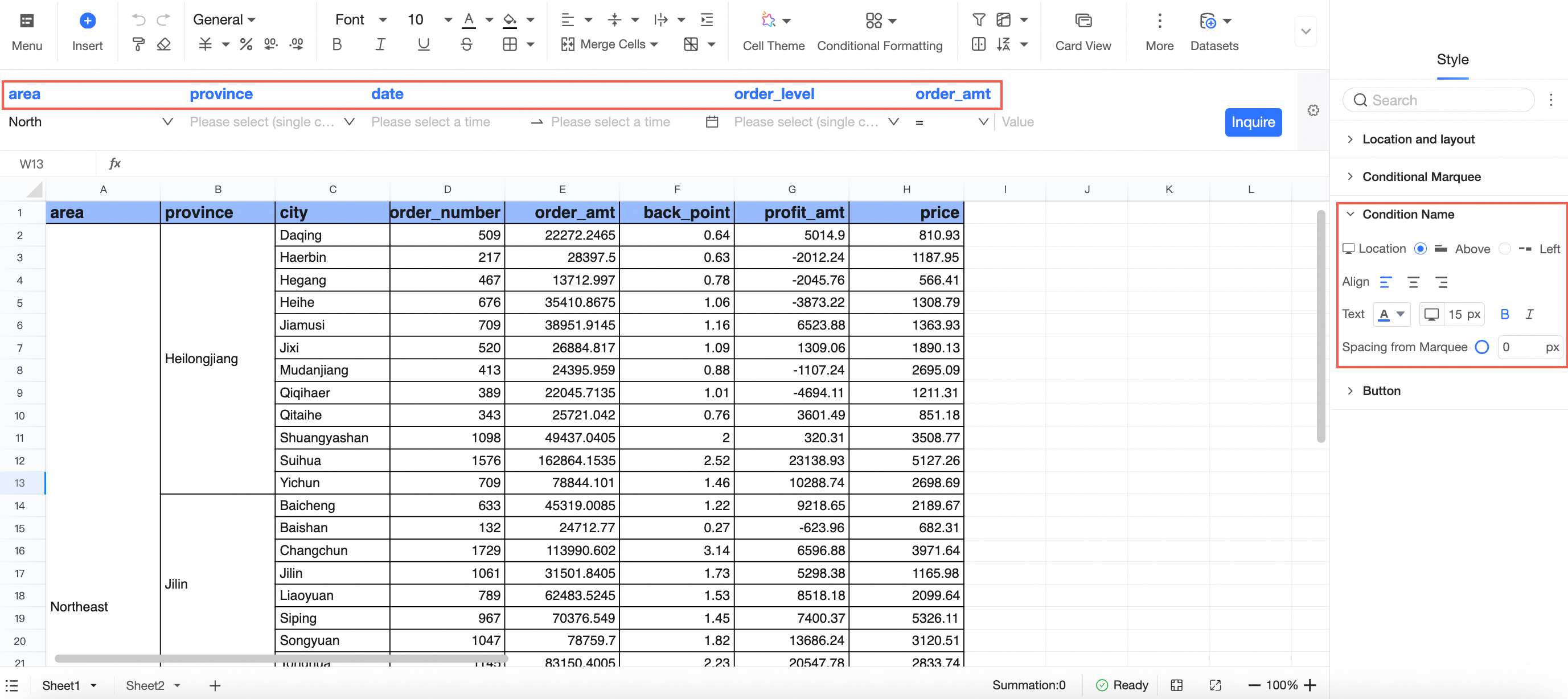
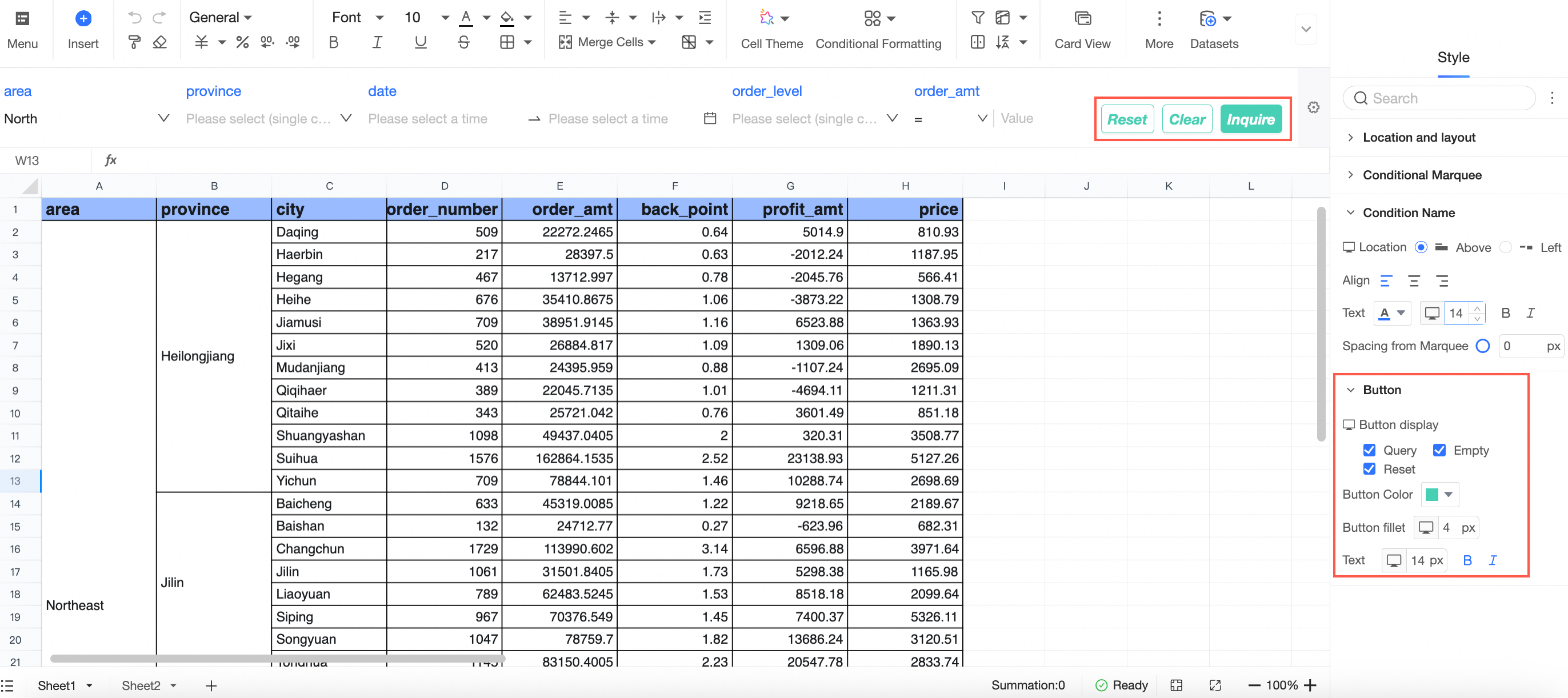
For detailed configuration instructions, see Configure query control styles.
Remember query conditions
You can remember query conditions at the report level.
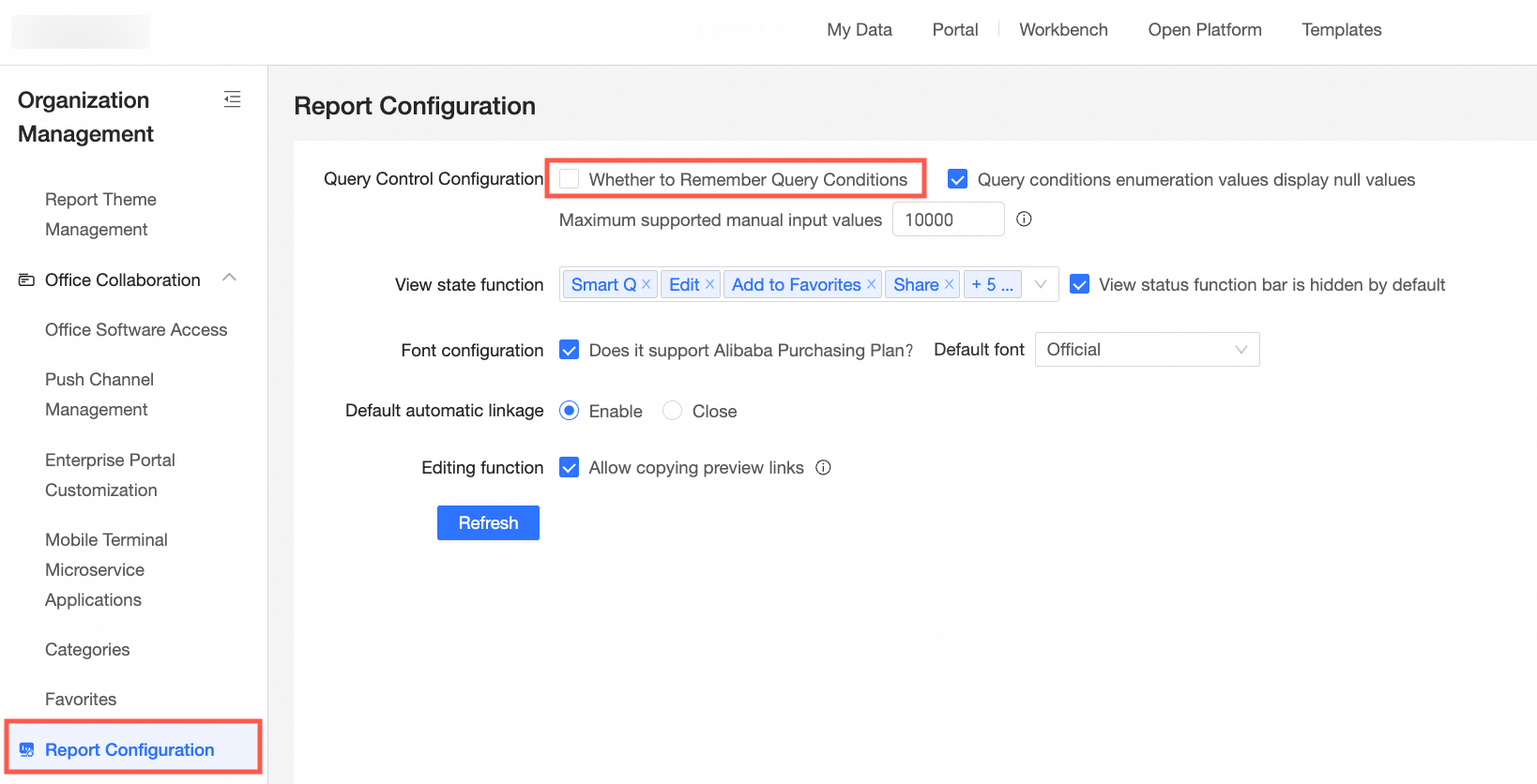
When this option is selected, the system automatically remembers the last-used query conditions.The report-level setting is affected by the organization-level configuration.
If Remember query conditions is selected in the Report configuration, the corresponding option on the page is grayed out and cannot be deselected.
If Remember query conditions is not selected in the Report configuration, you can enable or disable this feature for each report.
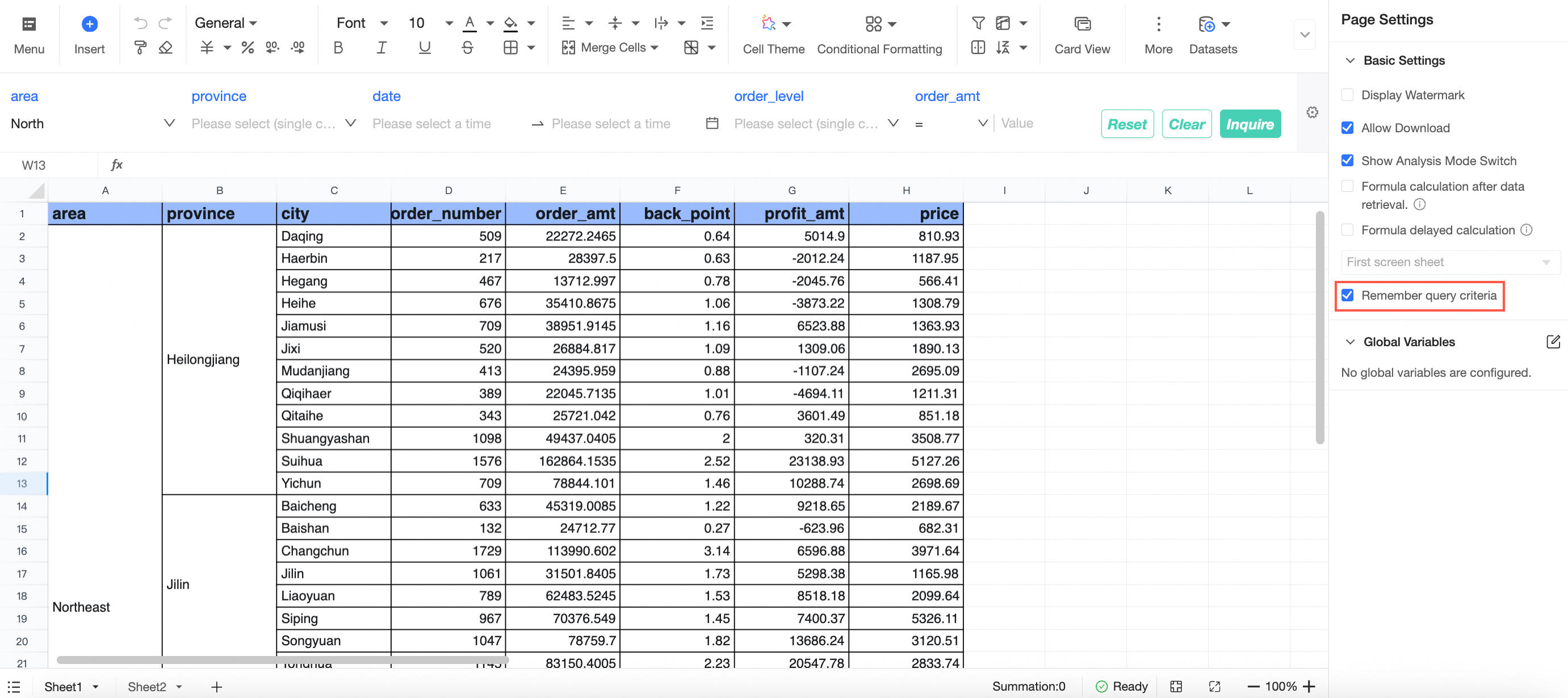 When this option is selected, the system automatically remembers the last-used query conditions.