Manage analysis themes
An analysis theme encapsulates data, knowledge, skills, and analysis rules by business domain, enabling unified creation, management, and publishing. By scoping the theme context, you can reduce noise from irrelevant information and prevent conflicting business definitions across scenarios. This ensures more accurate table selection, metric interpretation, and rule execution. It also allows you to configure independent business definitions for the same data to suit different scenarios, such as finance, sales, or human resources, which helps establish reusable, organization-level analytical capabilities that span multiple roles and scenarios. Business users can request access to themes in the theme plaza and select the relevant theme when generating reports in conversation mode. This topic describes these operations.
Prerequisites
Your organization has purchased Quick BI AIPro.
You must be an organization administrator. Only organization administrators can create, configure, publish, and unpublish analysis themes.
Access the feature
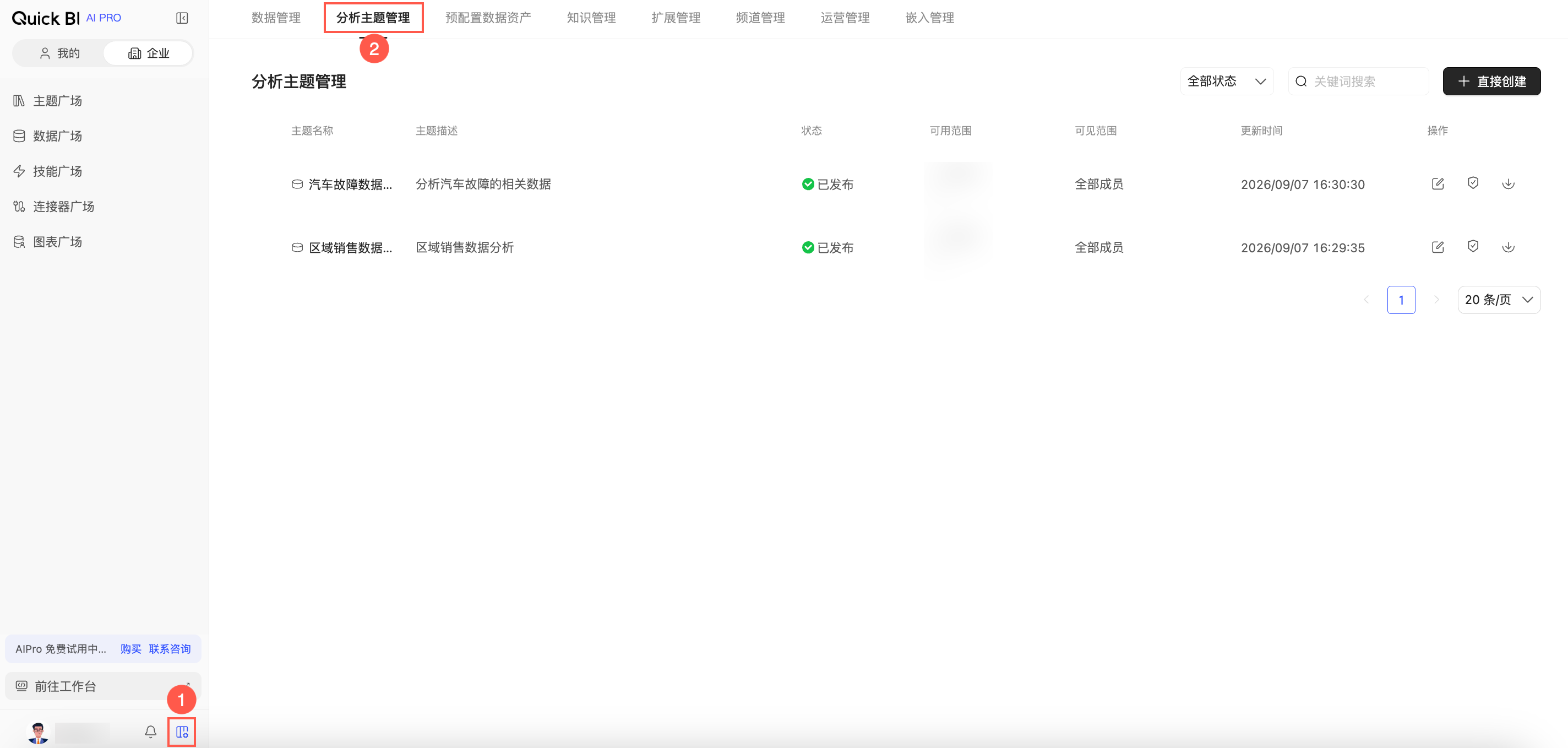
In Quick BI AIPro, click the enterprise tab at the bottom of the left-side navigation pane, then click Analysis theme management in the top navigation bar.
Create a theme
You can create an analysis theme directly. New themes are created in a draft state and must be configured and published before they can be used in conversations.
Create a theme directly
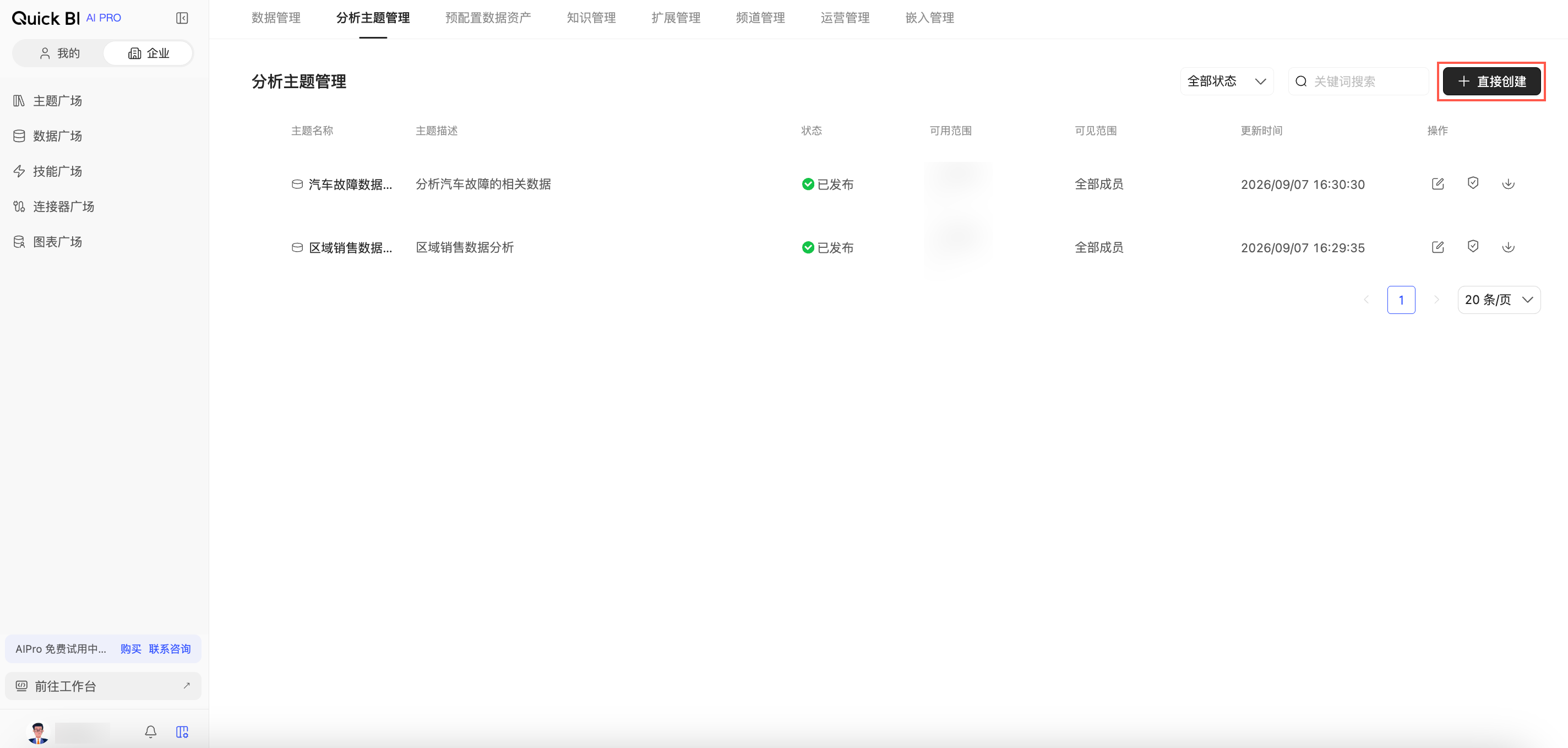
On the Analysis theme management page, click Create theme.
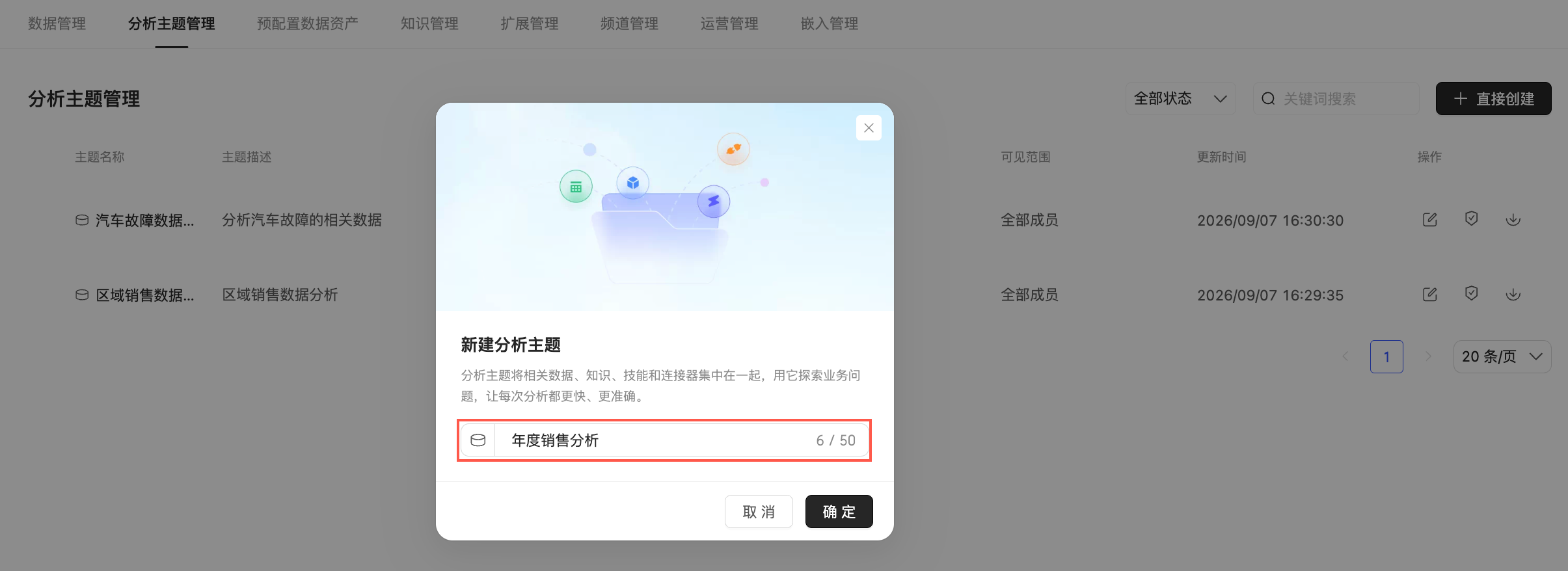
Enter a name for the theme.
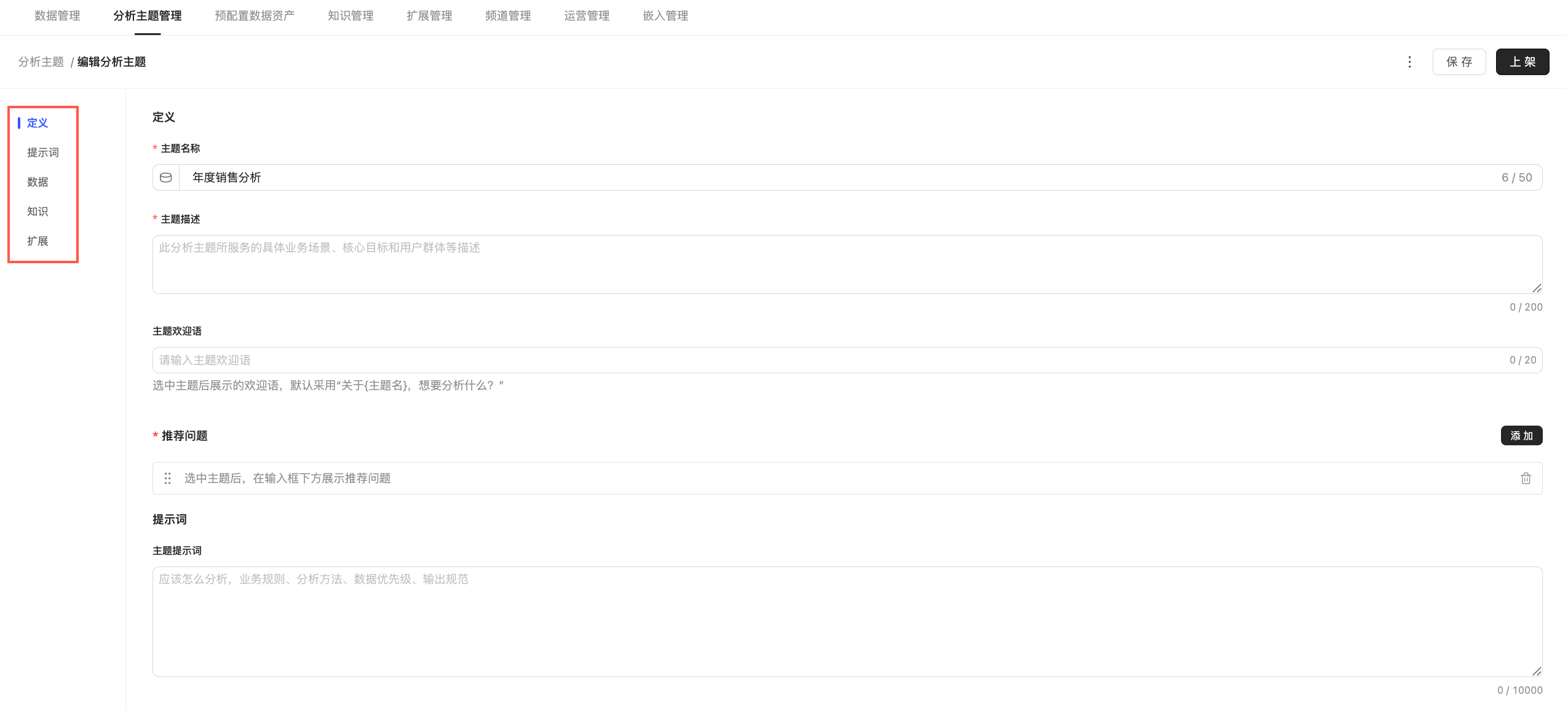
After you create the theme, you are taken to its configuration page to configure its content and authorized members.
Configure a theme
Theme configuration consists of five sections: Definition, Prompt, Data, Knowledge, and Extensions. Your edits are saved as a draft. The changes take effect for members only after you publish the theme.
Definition
Parameter | Description |
Theme name | The name can be up to 50 characters long. |
Theme description | The description can be up to 200 characters long. Use it to describe the theme's target audience and analysis scenarios. |
Theme welcome message | The welcome message can be up to 20 characters long. Members see this message after selecting the theme in a conversation. The default message is "What do you want to analyze about {Theme Name}?". |
Recommended questions | You can configure up to five recommended questions. A maximum of three are displayed in the theme details. |
Theme-level features | These settings control whether members can select personal data, use personal extensions, upload personal files, or use web search in the theme's conversation mode. These features are enabled by default. |
Prompt
Parameter | Description |
Theme prompt | The prompt can be up to 10,000 characters long. Use it to define theme-specific business definitions and analysis rules. |
Data
You can add datasets, dashboards, table groups, APIs, and files from your organization.
Type | Configuration |
Dataset, dashboard | When adding these assets, select a data permission model for each. Individual user permissions is the default model, where members can only access data within their existing permissions. theme-level permissions grants all theme members view access to the data. |
Table group, API, file | After you add these assets, they become available to all members of the theme. You do not need to select a data permission model. |
If you select theme-level permissions for a dataset or dashboard, all theme members can use the data's full content. Analysis snapshots saved by members belong to them and will not be deleted if the theme is later unpublished or their data permissions are revoked.
If a data source is deleted or data permissions are revoked, the corresponding data asset within the theme becomes invalid. Be sure to update the theme configuration promptly.
Knowledge
Parameter | Description |
Knowledge | You can create new knowledge within the theme or import it in bulk using smart import. |
Extensions
Parameter | Description |
Skills and MCPs | You can create new skills or MCPs within the theme, or reference existing skills or MCPs from your enterprise. Referenced items are enabled by default. |
Collaboration and permissions
By default, the administrator of a theme is the organization administrator who created it. All organization administrators can manage the theme.
You can define which members can use the theme, such as all members, specific users, or specific user groups.
By default, a theme's creator is added to its member scope. Even if the creator's access is later removed, their configuration permissions as an organization administrator are retained.
When you publish a theme, you can set its visibility to all members or only to members within its scope.
Publish and unpublish
When you save a theme, the configuration is saved as a draft. Only published themes appear in the theme plaza and the theme selector in conversations.
When you edit a published theme, members continue to use the last published version. The new configuration takes effect only after you publish it again.
Before a theme is published for the first time, no member, including the creator, can select it in a conversation.
After an organization administrator unpublishes a theme, it is removed from the theme plaza and the theme selector in conversations. Any active session that uses the theme reverts to the default state in the next conversational turn.
Unpublishing a theme does not delete saved analysis results or snapshots. However, dynamic query results that depend on the theme's data will no longer be available.
After you select an analysis theme, Quick BI AIPro uses only the data, knowledge, skills, and analysis rules configured within that theme by default. This approach minimizes interference from personal context, ensuring analytical accuracy and consistent business definitions. Personal data and extensions are not automatically included or displayed in the theme's scope. They are added as supplementary context only when a user manually selects them in the input box. This allows for personalized analysis while maintaining unified business definitions.
Related operations
Theme plaza: View published themes and request access.
Analysis themes: View available themes and set a default theme.
Conversation mode: Select and use themes in conversations.