Export a dashboard
Quick BI lets you export visualizations and data analysis results in multiple formats on both PC and mobile clients.
Prerequisites
A dashboard has been created. For more information, see Create a dashboard.
You have added the target chart component and published the dashboard. For more information, see Publish a dashboard.
In the dashboard settings, the Allow Download option is selected and the Hide Global Download Button option is cleared.
NoteIf you select the Hide Global Download Button option, you cannot globally export the dashboard in preview mode.

PC
You can export a dashboard from a PC. Quick BI supports both global export and single-chart export.
Global export
Use global export to export an entire dashboard. This method is ideal for sharing or archiving complete analysis results. Follow these steps:
In the dashboard list on the workbench, find the dashboard that you want to export and click Preview.

Click the
 icon in the lower-right corner to display the export option.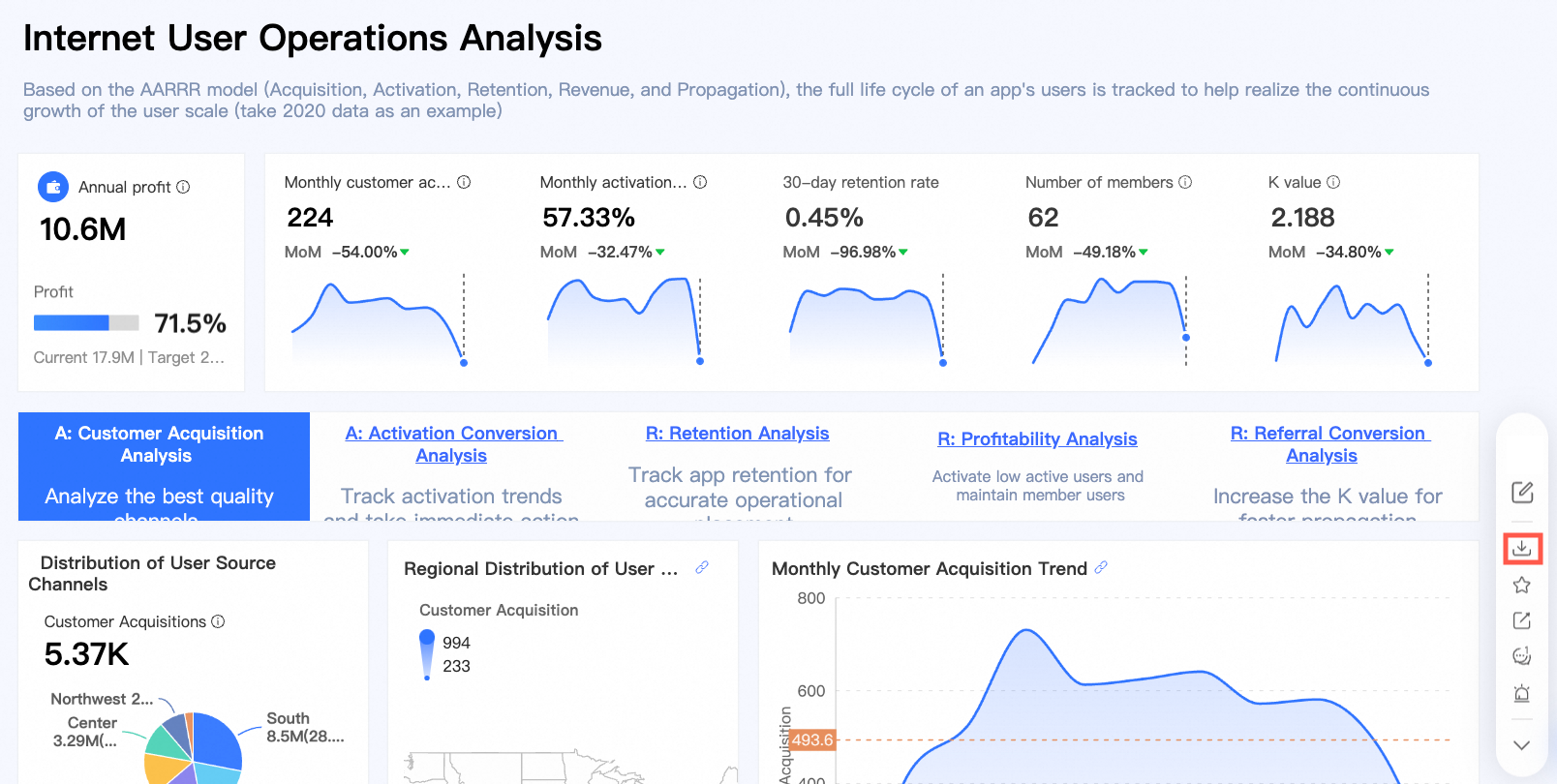
Click Export to configure the parameters.
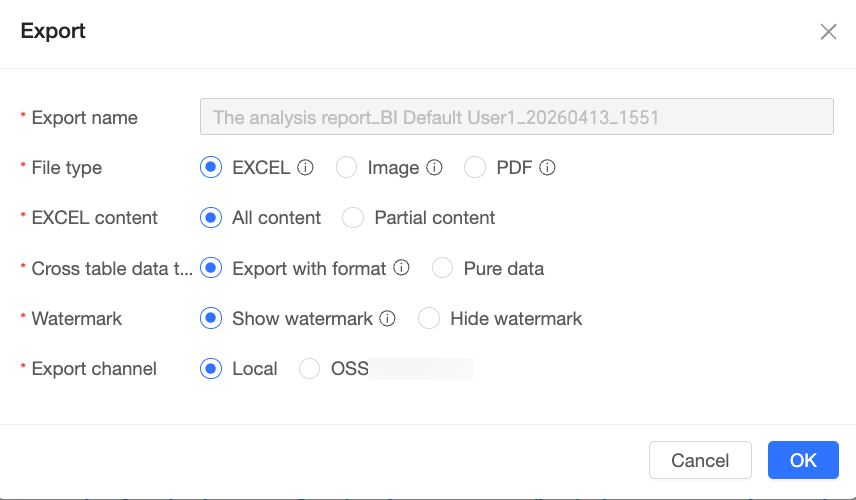
Parameter
Description
Export name
The system automatically generates an export name based on the naming rules configured by the organization administrator in data security > export control.
File format
The file format for the exported chart data. Supported formats are EXCEL, Image, and PDF.
NoteAn organization administrator can configure the supported export formats in data security. For more information, see export control.
The Excel format supports exporting data only from chart components. For best compatibility, we recommend opening the exported file with Microsoft Excel.
The Image and PDF formats do not support exporting embedded components, such as an embedded page, or images that require cross-origin access. For more information, see Export FAQs.
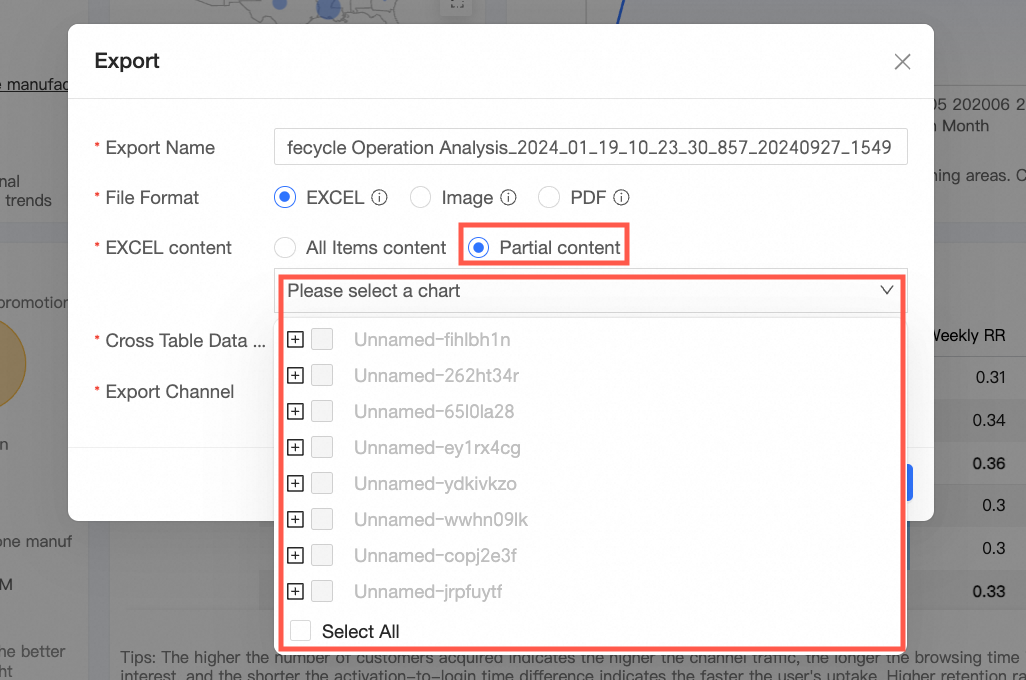
Excel content
Two export methods are supported: Export All and Partial Export.
If you select Export All, all chart data in the dashboard is exported by default.
If you select Partial Export, you can select specific charts to export.

Crosstab data type
The data format for exporting a crosstab. Supported options are with formatting and raw data.
If you select with formatting, the exported Excel file includes the data formats and styles of the crosstab and details table.
If you select raw data, the exported Excel file contains only unformatted text data.
NoteThis option is available only when you export a crosstab and select EXCEL as the file format.
A maximum of 10,000 records can be exported to an Excel file.
In with formatting mode, complex formatting configurations may not be fully preserved due to limitations in Excel's custom formatting rules.
The amount of data exported is the same for both types, but the export time can vary depending on your computer's configuration and the data volume. Use the raw data option when exporting more than 500,000 cells to an Excel file.
Watermark
You can select Show Watermark or Hide Watermark.
NoteThis option is available only when you select EXCEL as the file format.
Export destination
You can export to a local computer or to an OSS server.
NoteIf a server is configured for your organization, you can choose to export to an OSS address.
Single-chart export
Use a single-chart export to export an individual chart from a dashboard for focused analysis.
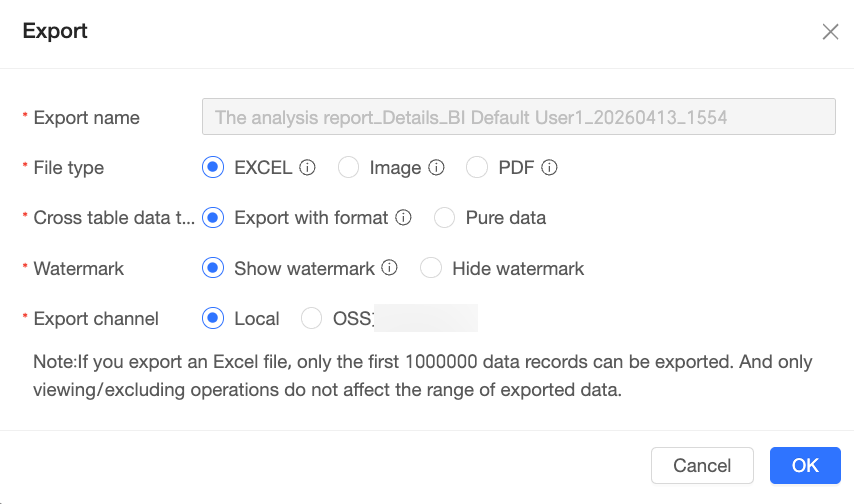
In the dashboard preview page, hover over the desired chart, click the
icon in the upper-right corner, and select Export from the drop-down list.In the export dialog box, configure the following parameters.
Parameter
Description
Export name
The system automatically generates an export name based on the naming rules configured by the organization administrator in data security > export control.
File format
The file format for the exported chart data. Supported formats are Image, PDF, and EXCEL.
NoteAn organization administrator can configure the supported export formats in data security. For more information, see export control.
The Excel format supports exporting data only from chart components. For best compatibility, we recommend opening the exported file with Microsoft Excel.
The Image and PDF formats do not support exporting embedded components, such as an embedded page, or images that require cross-origin access. For more information, see Export FAQs.
Crosstab data type
The data format for exporting a crosstab. Supported options are with formatting and raw data.
If you select with formatting, the exported Excel file includes the data formats and styles of the crosstab and details table.
If you select raw data, the exported Excel file contains only unformatted text data.
NoteThis option is available only when you export a crosstab and select EXCEL as the file format.
A maximum of 10,000 records can be exported to an Excel file.
In with formatting mode, complex formatting configurations may not be fully preserved due to limitations in Excel's custom formatting rules.
The amount of data exported is the same for both types, but the export time can vary depending on your computer's configuration and the data volume. Use the raw data option when exporting more than 500,000 cells to an Excel file.
Watermark
You can select Show Watermark or Hide Watermark.
NoteThis option is available only when you select EXCEL as the file format.
Export destination
You can export to a local computer or to an OSS server.
NoteIf a server is configured for your organization, you can choose to export to an OSS address.
 icon in the upper-right corner, and select Export from the drop-down list.
Mobile client
On a mobile client, such as a browser or a mini program within an app like DingTalk, WeCom, or Lark, you can globally export a dashboard. The following example uses a DingTalk mini program:
Mobile clients currently support exporting dashboards only in image format.
On the mobile view of the dashboard, activate the
floating bar in the lower-right corner and click the Export button to start the export process.
 floating bar in the lower-right corner and click the Export button to start the export process.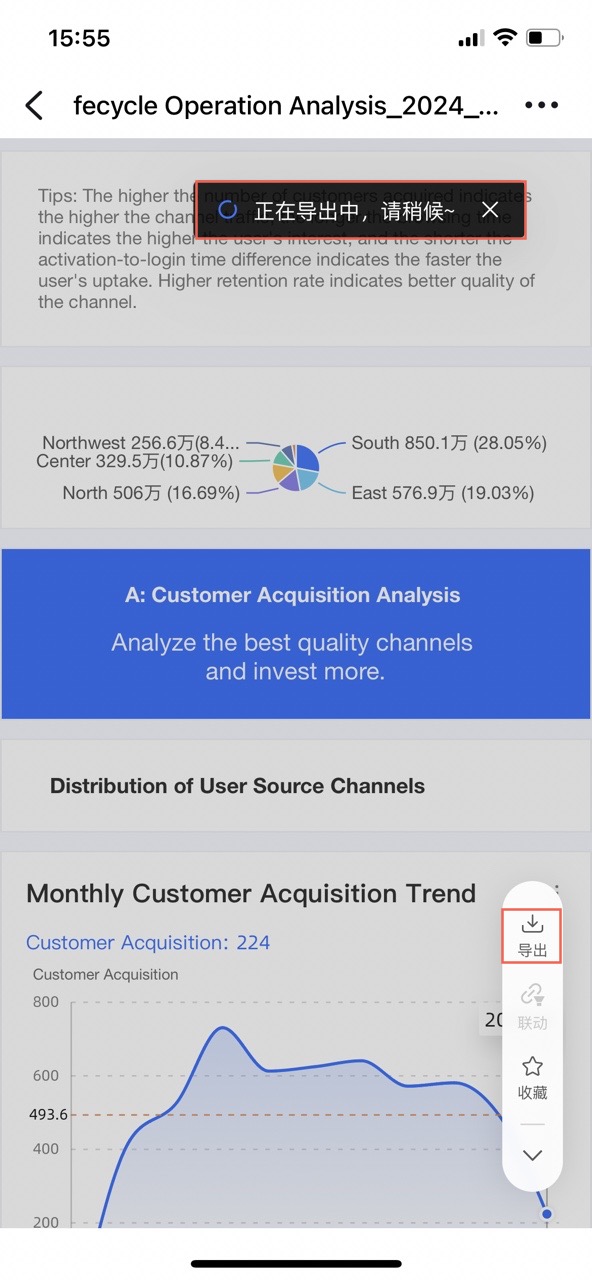
Long-press the generated dashboard image and then tap Save to save it to your device's photo album.
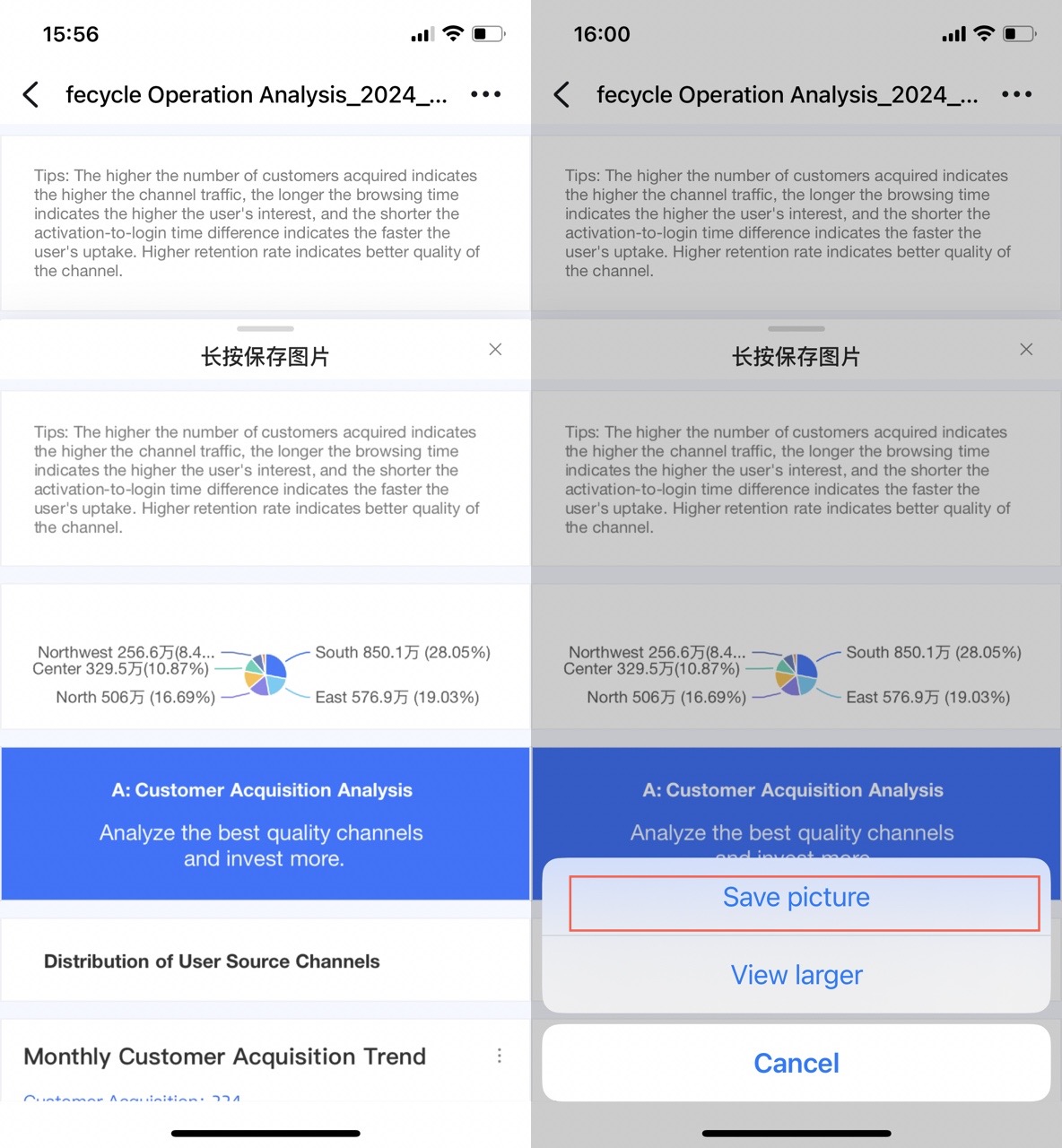
Due to application restrictions, saving an image from a Lark mini program may fail. As a workaround, first save any image from your Lark chat history.
For more information about mobile client operations, see Mobile display.
Export FAQs
Why are the images or background images in my chart not exported?
Open your browser's developer tools and check the console for a "No 'Access-Control-Allow-Origin' header is present" error. This error indicates that the image is not configured for cross-origin access. To fix this, configure cross-origin access on the image resource server.
If the error is not present, verify that you can access the image link directly.Why is the embedded page not exported?
Embedded pages cannot be exported.
 If the error is not present, verify that you can access the image link directly.