This topic explains how to develop SKILLs to operate enterprise software and use them in JVS Claw.
Background, challenges, and approach
Enterprise customers face the following challenges when using desktop agents:
Low accuracy: When operating business software, agents often fail to meet enterprise accuracy requirements. Inaccurate operations can lead to direct financial losses, such as in supply chain customs declarations or e-commerce product listings.
Slow execution speed: Agents rely on numerous "perception-planning-action" loops, which can result in slow task completion or lengthy, ineffective attempts. This makes them unsuitable for production workflows.
High token consumption: Agents require continuous model involvement even for repetitive tasks, leading to high operational costs.
To address these challenges, this topic provides the following approach:
Use RPA to develop standard operating procedures (SOPs) into repeatable automation processes. These processes are then integrated as SKILLs for agents to use.
When employees use an agent, it can call these SKILLs to deliver tangible business value.
Use case
Business requirement
Operations staff need to analyze product sales data daily. They face two main problems: first, they must manually download sales data from multiple platforms before they can begin analysis. Second, much of the analysis is routine, but summarizing it manually each time is tedious.
Implementation approach
Develop a SKILL that includes two processes: data collection and analysis. An automation process developed with RPA handles data collection, and the analysis requirements are explicitly defined within the SKILL.
Operations staff use this SKILL in JVS Claw.
Runtime architecture

Procedure:
Develop an automation process using RPA and publish it as an MCP Tool.
Use a Service Robot as the SKILL runtime.
Add the MCP Server in JVS Claw.
Write the SKILL and add it to JVS Claw.
User procedure:
Use JVS Claw to complete the business task.
Procedure
Install JVS Claw
For detailed instructions, see JVS Claw. This example uses its cloud-based Clawbot.
Develop an automation process and publish as an MCP tool
For details on developing an automation process with RPA, see Develop an automation process.
The input parameters and process output for the automation process in this example are as follows:
Automation process
Input parameters
Process output
Automatically fetch product sales data from stores.
statis_date: The date for which to query product sales data.
The retrieved product data is in JSON format and includes details such as product ID, name, style tags, sales quantity, unit price, and number of favorites for each store's products.
The automation process saves the retrieved data using task_result.
ImportantBecause enterprises use different e-commerce platforms and software, the implementation in this example is not universally applicable. Refer to Develop an automation process to create an automation process tailored to your business needs.
Publish the automation process as an RPA application. For details, see Publish and manage applications.
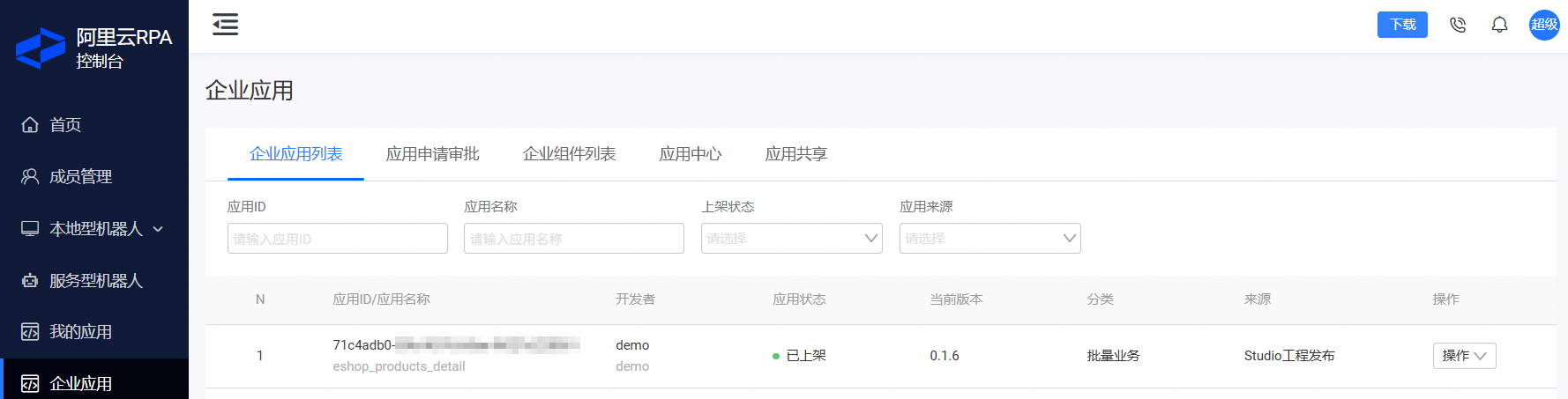
Publish it as an MCP Tool. For instructions, see Publish as an MCP Tool. The details of the published MCP Tool are shown below.
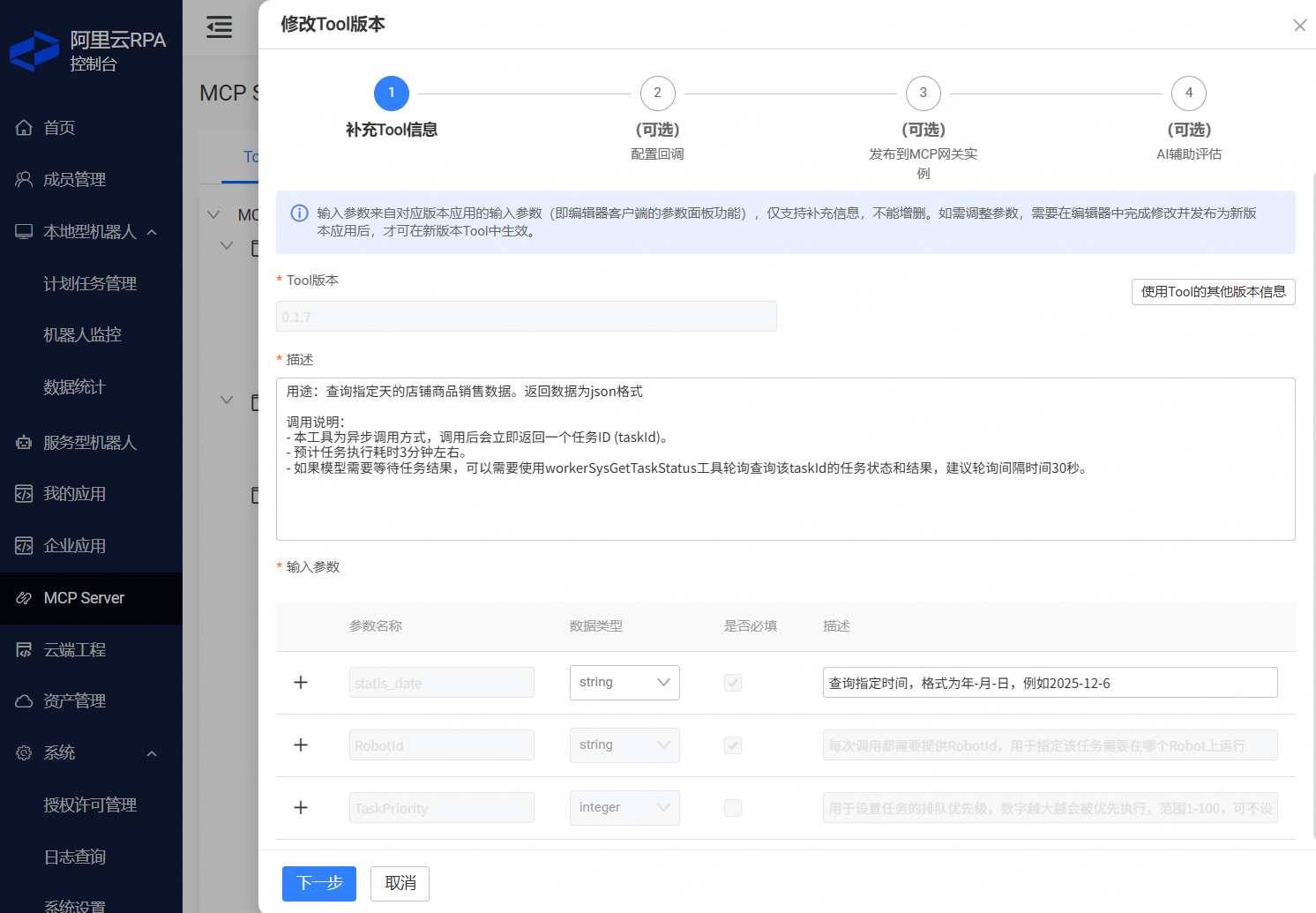 Important
If the RPA application takes a long time to execute, specify the estimated duration and the recommended polling interval for the agent in the Tool Description.
Set up the SKILL runtime
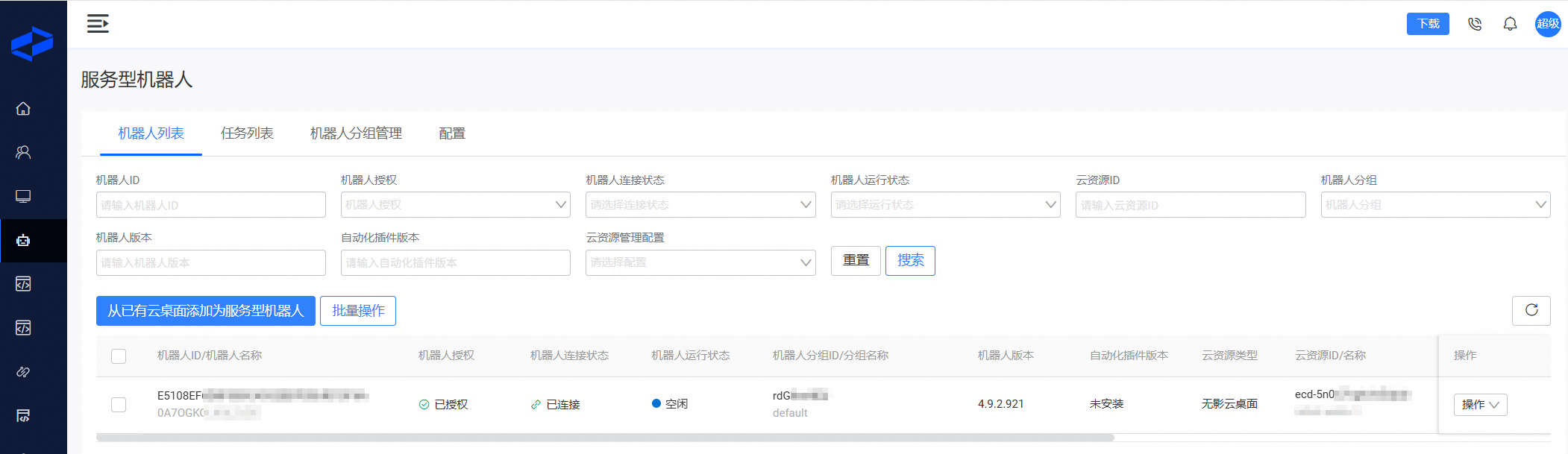
This example uses a Service Robot as the SKILL runtime.
A Service Robot requires Elastic Desktop Service. For configuration instructions, see Run an automation process as a service. The following figure shows a successfully created Service Robot that will run the SKILL in subsequent steps.
Add an MCP server in JVS Claw
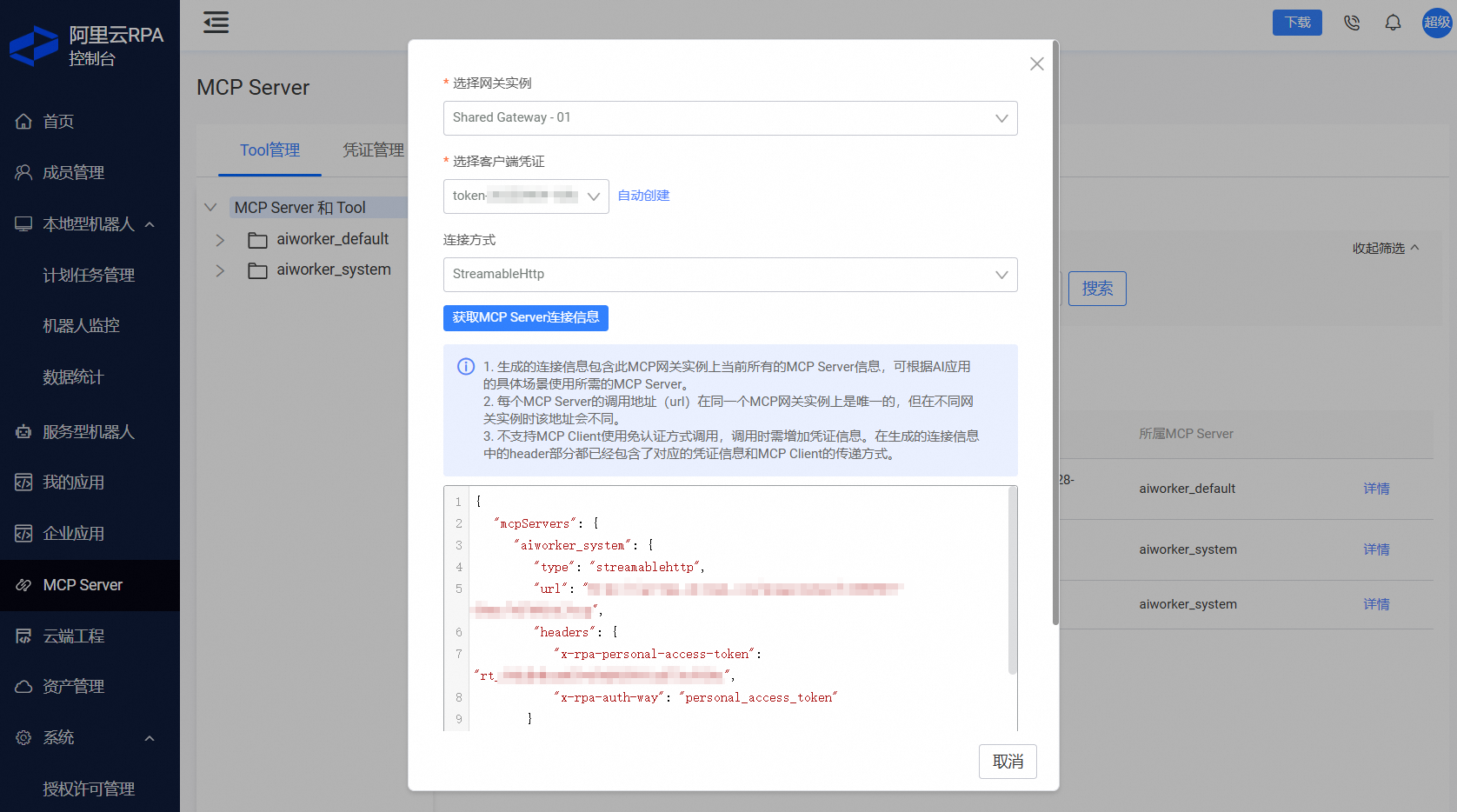
The configuration principle for JVS Claw is similar to that described in Develop SKILLs and use them in OpenClaw. This section focuses on adding the MCP Server using mcporter.
In the RPA console, navigate to the MCP Server menu to get the MCP Server configuration. As shown in the figure, this configuration may contain information for multiple MCP Servers.
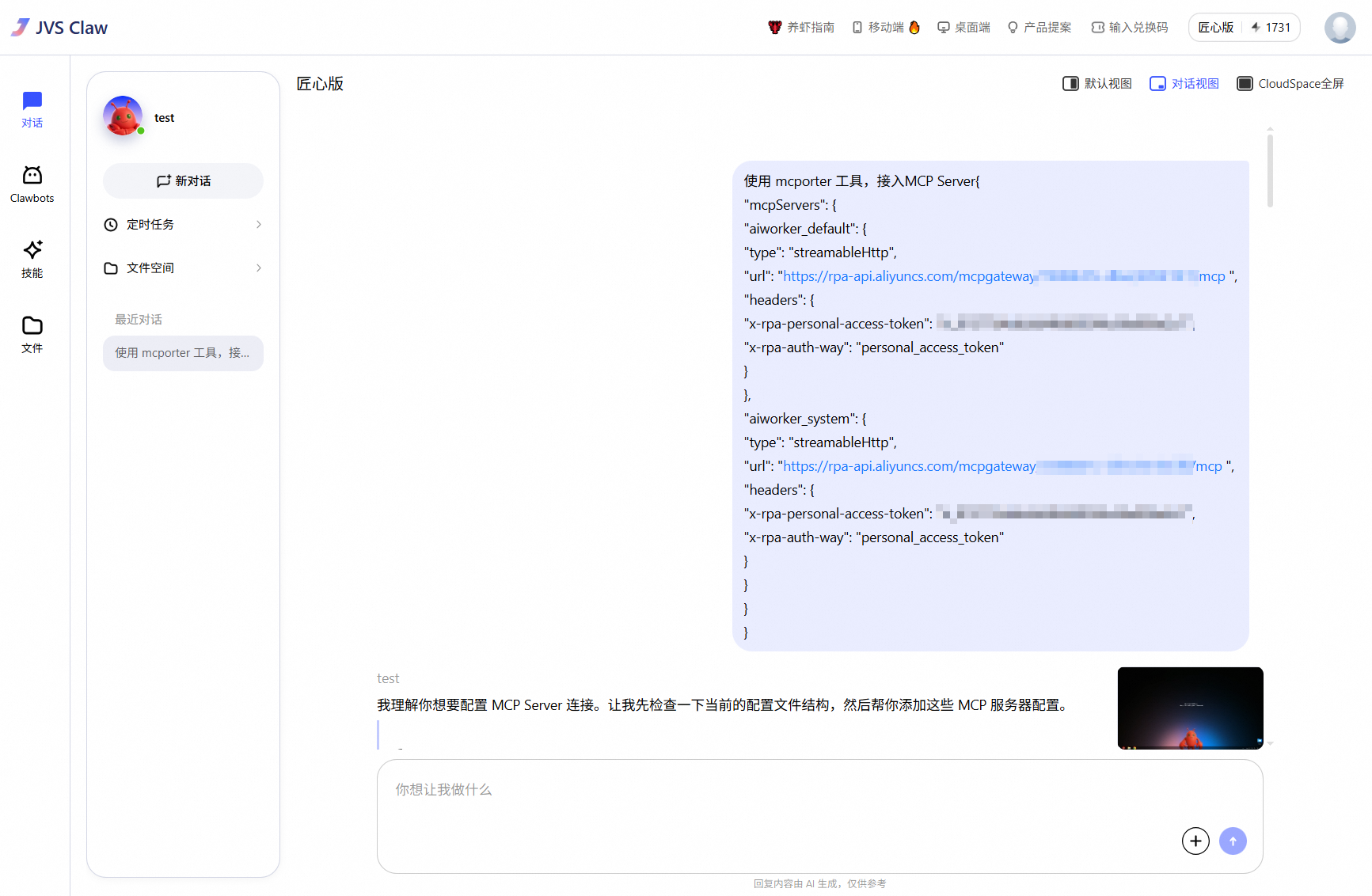
Select the JVS Claw Clawbot. In the chat window, enter the command
Use the mcporter tool to connect to the MCP Server. You must include the JSON configuration from the previous step.
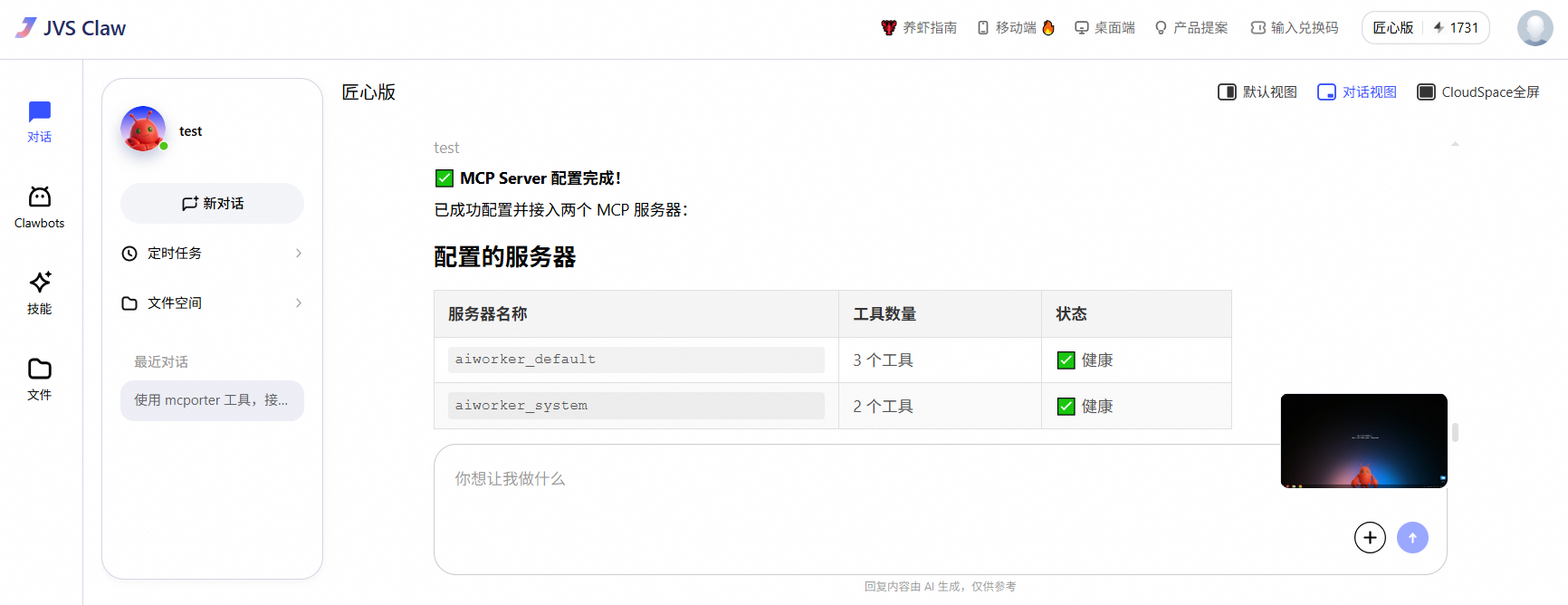
The following image shows a successful connection.
Add a SKILL in JVS Claw
This section describes how to add an enterprise SKILL to JVS Claw to help the agent better understand user intent and accurately complete tasks.
Prepare the SKILL, which consists of three
.mdfiles.NoteThe SKILL content in this topic is for reference only. You must modify it to fit your specific business scenarios.
SKILL.md
---
name: rpa-skill
description: |
  Operations efficiency toolkit, including querying store product sales data.
  Triggers: product operations, sales statistics, trend analysis, pricing, sales volume
metadata:
  {
    "openclaw":
      {
        "requires": { "env": ["ALIYUN_RPA_RobotId"] },
        "primaryEnv": "ALIYUN_RPA_RobotId",
      },
  }
---

# rpa-skill

Single entry point: Use mcporter to call the MCP Tool.

## Included tools
| tool | Description                   |
|-----|----------------------|
| `list_product_metrics` | Queries product sales data from all stores for a specified date. |
| `workerSysGetTaskStatus`| Queries the status and result of a task based on its taskId.  |

## Workflow
- All tools except `workerSysGetTaskStatus` are invoked asynchronously and immediately return a TaskId.
- Use `workerSysGetTaskStatus` to query the status and result of the task.
- If you need to wait for the task result, poll the task status by using the `workerSysGetTaskStatus` tool. The recommended polling interval is 5 to 10 seconds.
- If an input parameter requires a RobotId, use the `ALIYUN_RPA_RobotId` environment variable.

## Prerequisites
- Before you run `list_product_metrics` for the first time, read the `references/list_product_metrics.md` file completely.
- Before you run `workerSysGetTaskStatus` for the first time, read the `references/workerSysGetTaskStatus.md` file completely.
- For subsequent calls to the same tool within the same session, the agent can reuse its loaded knowledge and only needs to re-read the documentation if there is a rule conflict or if the documentation has been updated.
The
referencesdirectory contains the following two.mdfiles.list_product_metrics.md
# Query product sales data from all stores for a specified date

Purpose: Queries product sales data from all stores for a specified date.

## Invocation

To call this tool using MCP, provide the following parameters:

| Parameter          | Default | Description                               |
|-------------|----|----------------------------------|
| robotId     | Required | Use the `ALIYUN_RPA_RobotId` environment variable.           |
| statis_date | Required | The date for which to collect sales data. Use the YYYY-MM-DD format, for example, 2026-11-02. |

## Output structure

- A successful call returns a `TaskId`.
- You can use `workerSysGetTaskStatus` to query the task execution result. The `taskResult` field contains the daily report content. The following is an example:

```json
{
  "Store A": {
    "products": [
      {
        "id": "FS-2026-001",
        "name": "New Chinese Style Jacquard Song Brocade Jacket (Spring Limited Edition)",
        "style_tags": [
          "New Chinese Style",
          "Guochao"
        ],
        "sales": 1850,
        "favorites_and_cart": 6200,
        "avg_transaction_price": 328.0
      }
    ]
  }
}
```

- The following table describes the fields within the `products` object.

| Field                    | Description           |
|-----------------------|--------------|
| id                    | Product ID         |
| name                  | Product name         |
| style_tags            | Product tags         |
| sales                 | Units sold (in pieces)   |
| favorites_and_cart    | Number of users who added the product to favorites or their cart.      |
| avg_transaction_price | Average transaction price (CNY) |
workerSysGetTaskStatus.md
# Query task status and result

Purpose: Queries the status of a task based on its taskId.

## Invocation

To call this tool using MCP, provide the following parameter:

| Parameter     | Default | Description             |
|--------|----|----------------|
| taskId | Required | The TaskId returned by the tool. |


## Output structure

- The tool returns a JSON object.
- If the task is complete, the response resembles the following example. The `taskResult` field contains the execution result of the tool. For details, see the documentation for the specific tool in the `references/` directory.

```json
{
  "taskStatus": "complete",
  "taskResult": "Result of the tool execution"
}
```

- If the task is not yet complete, the response resembles the following example:

```json
{
  "taskStatus": "waiting"
}
```

- The following table describes the possible values for `taskStatus`.

| Value          | Description     |
|------------|--------|
| waiting    | The task is waiting to run. |
| running    | The task is running. |
| complete   | The task completed successfully. |
| terminated | The task terminated with an error. |
Add the SKILL by installing it from a URL.
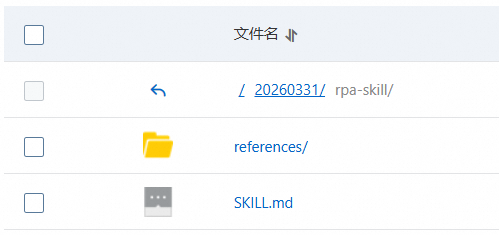
This example uses OSS to store the SKILL files. After you upload the three files to OSS, the directory structure should be as follows. The
referencesdirectory contains the other two.mdfiles.From the OSS console, get the URL for
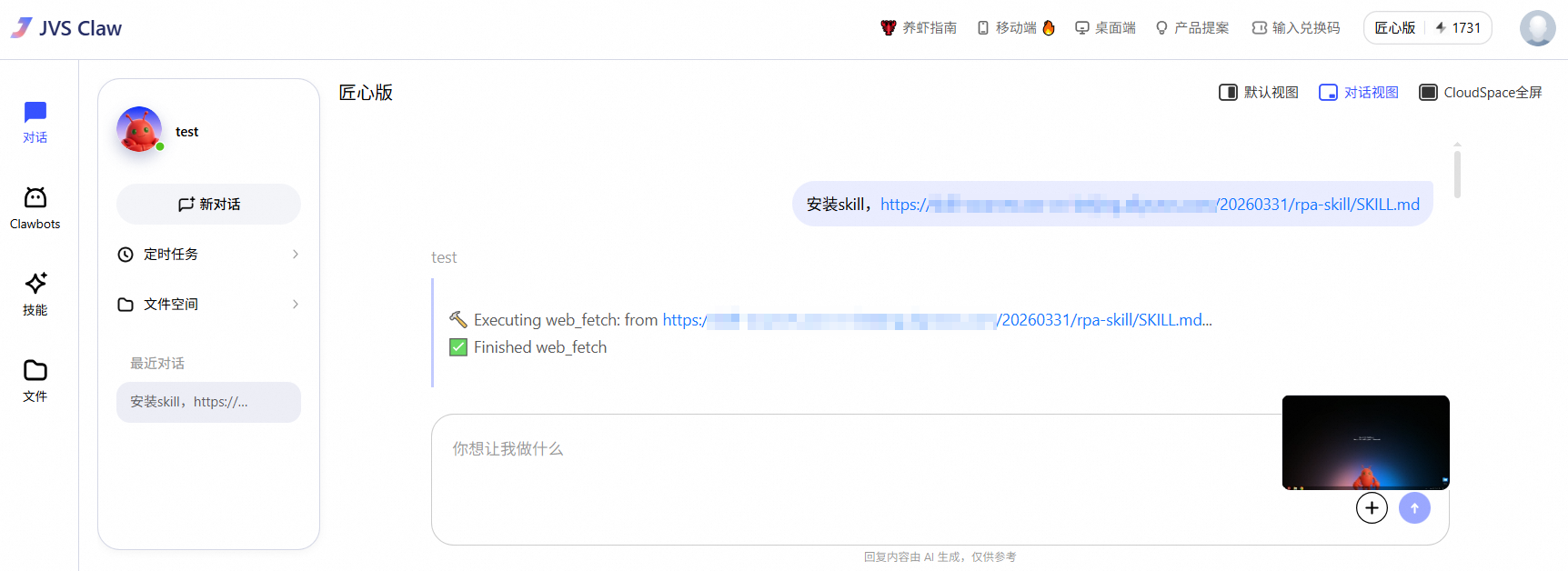
SKILL.md. Ensure that the URL is publicly accessible.Select the JVS Claw Clawbot. In the chat window, enter the command
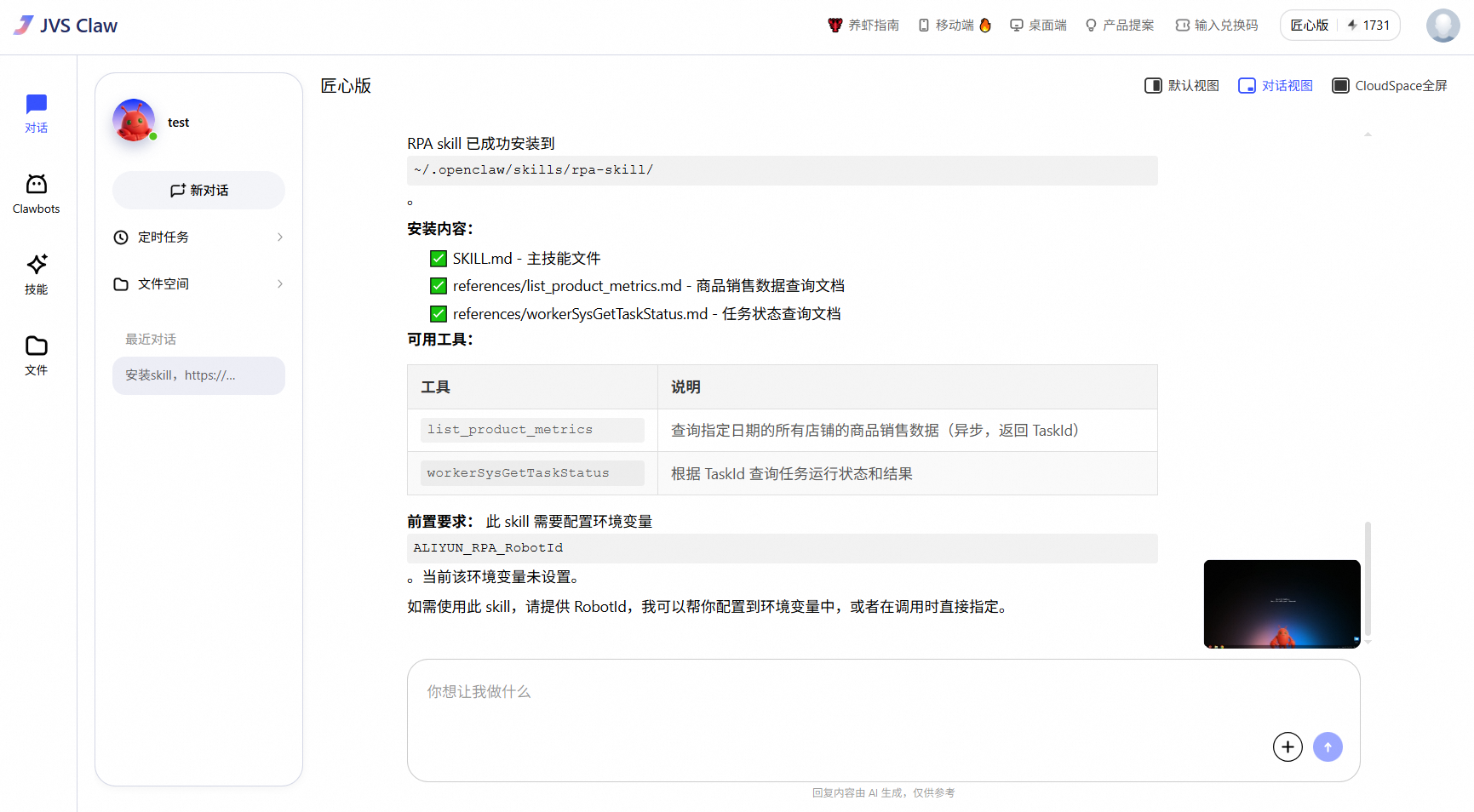
install skill, <URL of your SKILL.md file>.The following image shows a successful installation.
Configure the RobotId
Set the robot where the SKILL will run. This prevents JVS Claw from prompting for the robot ID during use.
ImportantTo simplify the process, this example assumes that all users share the same SKILL runtime environment (a single robot).
This approach has limitations in a real-world production environment. Provide each employee with a dedicated cloud-based digital employee and add a functional module to manage the relationship between SKILL runtime environments (robots) and employees.
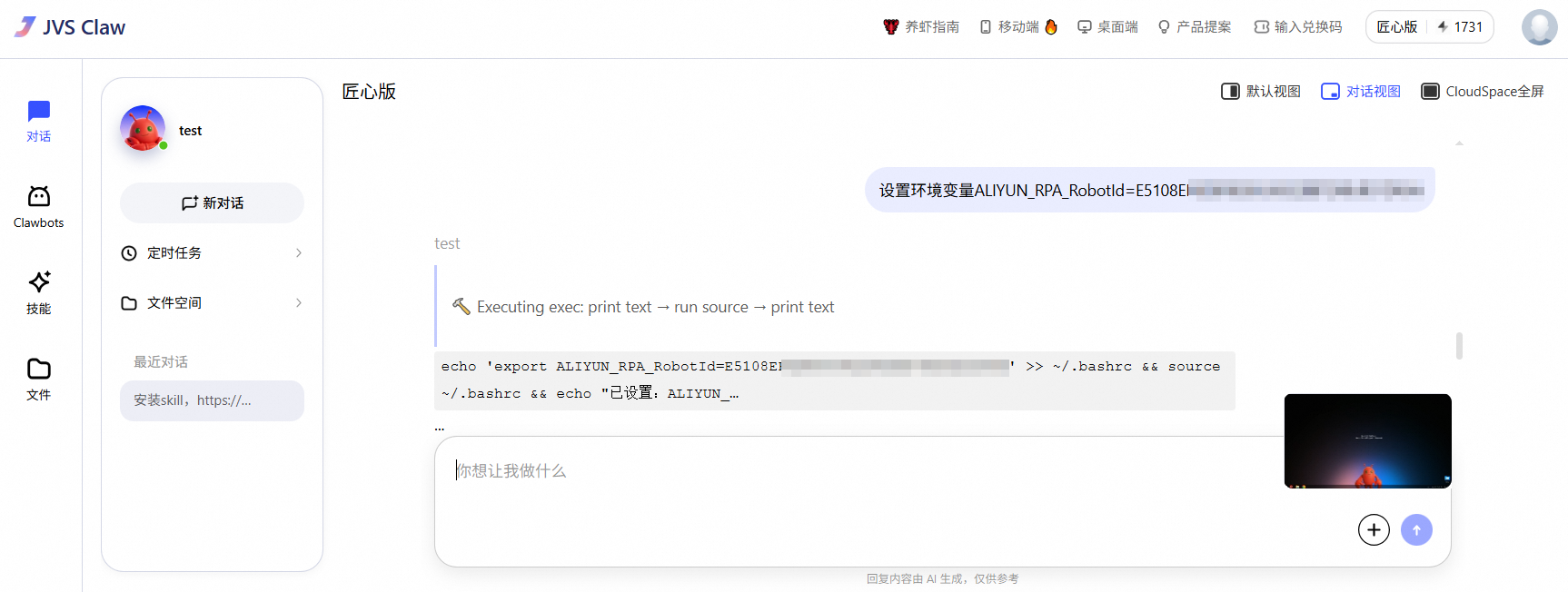
In the chat window, enter the command
set environment variable ALIYUN_RPA_RobotId=<your_service_robot_id>. Replace<your_service_robot_id>with the ID of the Service Robot you created earlier.
At this point, all configuration is complete.
Result
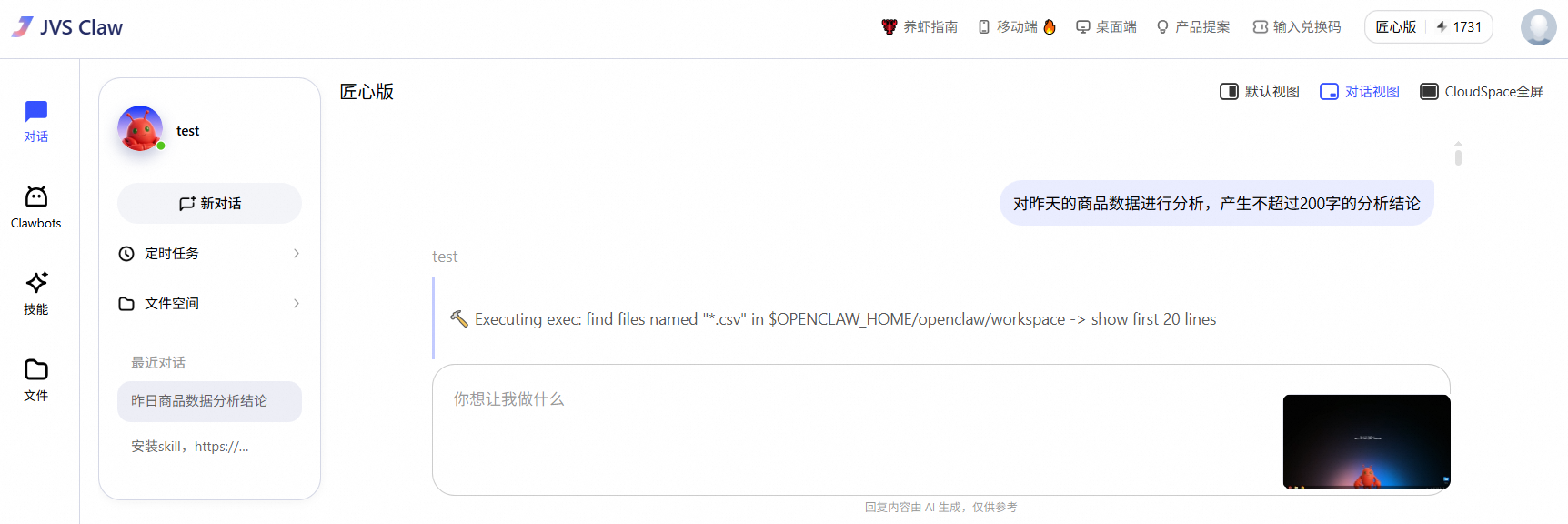
A user asks the Clawbot in the JVS Claw chat window to analyze and summarize data for a specific date.
The following image shows the execution result.
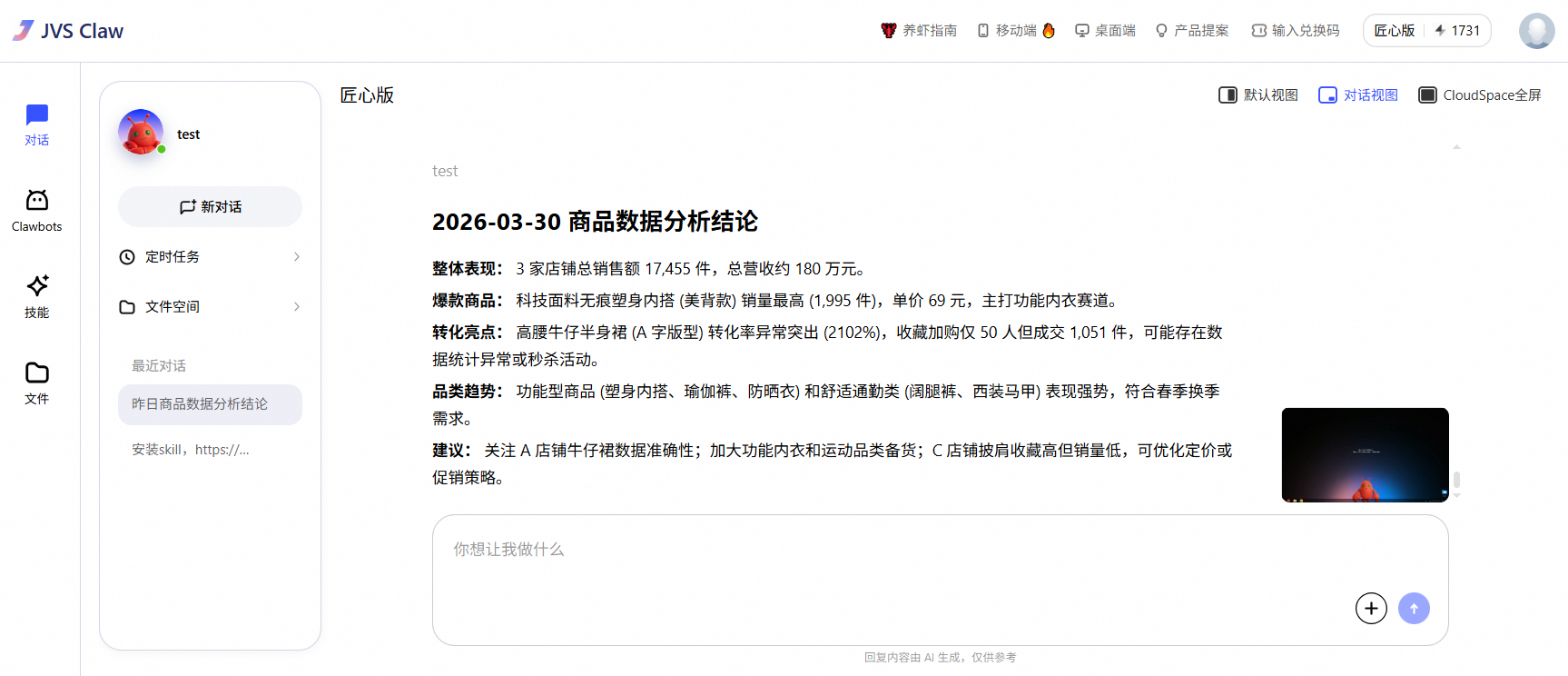
The product sales data in this example is simulated.