Deploy OpenClaw (Clawdbot) on Wuying Workspace
This guide explains how to quickly deploy OpenClaw on Wuying Workspace and integrate it with chatbots on IM platforms such as DingTalk, QQ, and Lark. OpenClaw is an open-source AI agent and automation platform. It deeply integrates multichannel communication with large language models (LLMs) to build customized AI assistants with persistent memory and proactive execution capabilities.
OpenClaw is an open-source AI assistant. Before you use it, evaluate its security and stability, and strictly comply with the license agreement to protect your system environment and data.
Prerequisites
Accounts and authentication
Register an Alibaba Cloud account and complete individual real-name registration or enterprise real-name registration.
Download the Wuying Workspace client
Go to Wuying Workspace client and download the client you need. macOS, Windows, Android, and iOS are supported.
After the download is complete, use your Alibaba Cloud account to log on to Wuying Workspace Individual Edition. If you need help, see Elastic Desktop Overview.
Deploy an elastic desktop
Create an OpenClaw elastic desktop
The OpenClaw solution for Wuying Workspace is based on an Ubuntu image and does not support Windows.
Purchase elastic desktop
Open the Wuying Workspace client, log on to the Individual Edition, and click Wuying Market.
On the Quick Purchase tab, follow the on-screen instructions to purchase the OpenClaw (Clawdbot) one-click deployment package. The package includes a monthly subscription to the Gold Plus plan for Wuying Workspace Individual Edition and 2,000 Wuying Credits.
NoteWuying Credits are the standard units used to measure resource consumption over time for elastic desktops and cloud gaming. For an elastic desktop with a 4-core CPU and 8 GiB of memory, 2,000 Wuying Credits provide 500 hours of runtime. For more information, see Wuying Credits.
Change image
When you change the image, all software and personal data on the system disk and data disks of the original elastic desktop are erased and cannot be recovered. Proceed with caution.
Log on to the Individual Edition in the Wuying Workspace client.
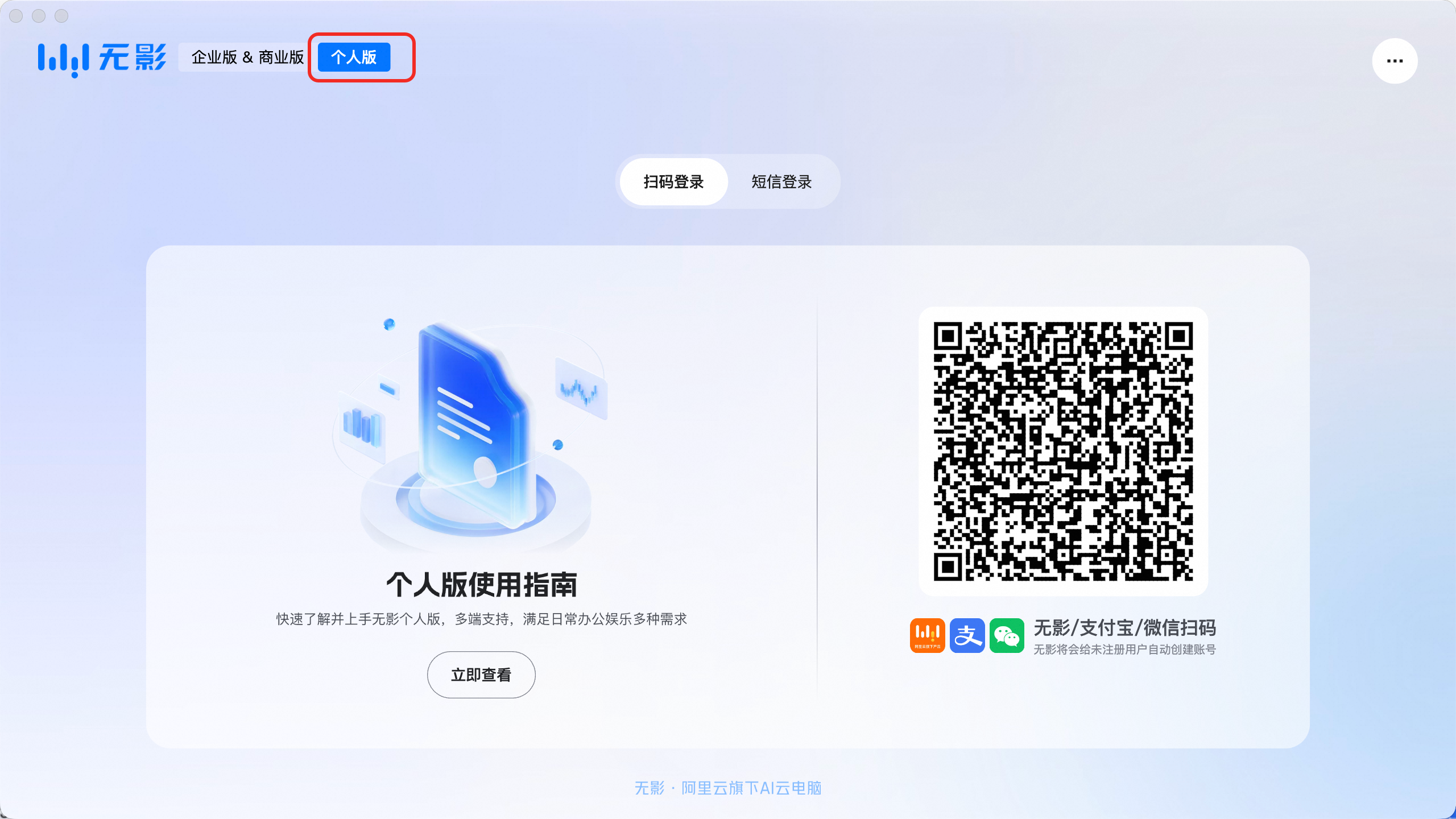
After you log on to the Wuying Workspace client, click the Manage button on the card for the target elastic desktop.
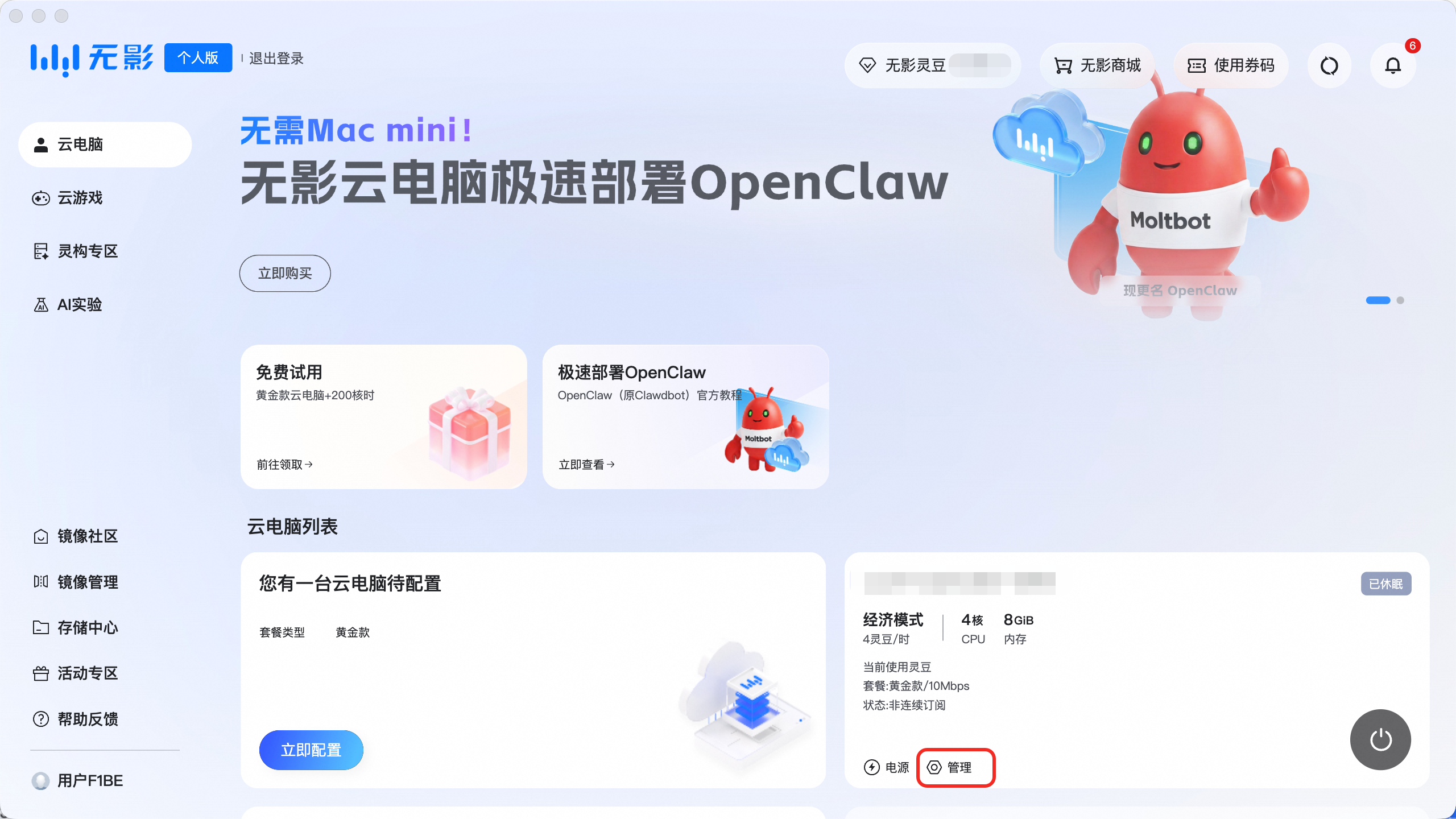
On the management page, select the Image tab, and then click Change Image.
Click Select Image. On the Select Image page, click Add image by using an image ID.
Enter the image ID
OpenClaw(case-sensitive), and click OK.Select the added OpenClaw image and click OK.
On the Change Image page, click OK to Shut Down and Change. After the image update is complete, you can connect to the elastic desktop to begin configuration.
Configure 24/7 operation
To prevent unnecessary consumption of Wuying Credits if you forget to put the elastic desktop into hibernation or shut it down, the Scheduled Shutdown/Hibernation After Disconnection feature is enabled by default. The elastic desktop automatically enters the hibernation state 10 minutes after you disconnect from it. An elastic desktop in hibernation does not consume Wuying Credits.
An elastic desktop in the hibernation state is inaccessible. Consequently, if you access OpenClaw through a third-party IM channel, such as DingTalk, Lark, or QQ, the chatbot may not respond correctly. To prevent this issue, you can disable the Scheduled Shutdown/Hibernation After Disconnection feature to allow OpenClaw to run 24/7.
You can configure the policy only after the elastic desktop configuration is complete and its status changes to running.
Click the Manage button on the card for the target elastic desktop.
Select the Policy tab and turn off the Scheduled Shutdown/Hibernation After Disconnection switch.
Configure OpenClaw
In the Individual Edition client, click Elastic Desktops in the left-side navigation pane.
Click OpenClaw App Configuration on the card for the target elastic desktop.
On the Model Configuration tab, click Add Model.
On the Add Model Configuration page, complete the following configuration:
NoteThe following steps use the Model Studio (Bailian) model
Qwen3.5 Plusas an example. To use other models, select the corresponding service provider and enter the model name and API key.After you configure a Model Studio (Bailian) model, conversations with OpenClaw incur fees based on the number of tokens used. You can subscribe to a Token Plan for Model Studio (Bailian) to enjoy a fixed monthly fee and a monthly usage quota, which helps you avoid unexpected costs.
Service provider: Model Studio (Bailian).
Model name:
Qwen3.5 Plus.API key: Click Go to Configure API Key, navigate to the Model Studio (Bailian) console, and then click Create API Key to create and copy an API key.
Click Add and Enable and wait for OpenClaw to restart.
The Wuying Workspace package fee does not include charges for Model Studio (Bailian). Conversations with OpenClaw using a Model Studio (Bailian) model are billed separately based on token usage.
Try OpenClaw
Do not click the upgrade button in the OpenClaw console or use commands to upgrade the OpenClaw version. The version of OpenClaw provided in the Wuying Workspace Individual Edition has been specifically adapted. Upgrading it independently may make the service unavailable.
Chat with OpenClaw
After the model is configured, you can chat directly with OpenClaw or issue tasks and commands within the elastic desktop.
On the elastic desktop, double-click the OpenClaw icon.
On the Chat tab, start a conversation with OpenClaw to verify that the environment and model are correctly deployed.
NoteTo change the display language of the OpenClaw console to Chinese, select Overview from the left-side navigation pane, and in the Gateway Access section, set language to Simplified Chinese.
To change the display language of the operating system, see Change the system language to Chinese.
Integrate with DingTalk
In the channel settings, you can integrate with your preferred IM platform to issue tasks and commands to OpenClaw through chat. The following example shows how to integrate with DingTalk. For more integration options, see Integrate more channels.
Integrate a DingTalk app
Log on to the DingTalk Open Platform.
NoteYou must select an organization for which you have developer permissions. If needed, you can obtain developer permissions for an organization first.
If you do not have a suitable organization, you can scan the QR code below with the DingTalk mobile app to quickly create one.

In the top navigation bar, click Application Development. On the DingTalk Apps page, click Create App.
After the application is created, select Add Features from the left-side navigation pane. In the Bot section on the right, click Add.
On the bot configuration page, enable Bot Configuration. For Message Receiving Mode, select Stream mode, and then click Publish to complete the bot configuration.
In the left-side navigation pane, select Version Management and Release, and then click Create New Version. After completing the configuration, click Save to publish the version.
In the left-side navigation pane, select Credentials and Basic Information. View and record the Client ID and Client Secret.
In the Wuying Workspace client, click OpenClaw App Configuration on the card for the target elastic desktop and select IM Channel Configuration.
Click Add Channel and select DingTalk as the service provider.
Enter the Client ID and Client Secret of your DingTalk app, and then click Add Now.
Chat with the DingTalk chatbot
Open DingTalk and enter the name of the DingTalk app you created in the search box at the top.
In the list of functions, click the chatbot you just added to open the chat dialog.
Enter a question or command in the dialog box to chat with the DingTalk chatbot.
Next steps
Change the system language to Chinese
To change the system language of the elastic desktop to Chinese, follow these steps:
At the bottom-left of the elastic desktop screen, click Show Applications. In the search box at the top, enter Terminal and open it.
In the Terminal, run the following commands:
sudo echo "export LANG=zh_CN.UTF-8" >> ~/.bashrc
sudo echo "export LANGUAGE=zh_CN:zh" >> ~/.bashrc
echo "export LANG=zh_CN.UTF-8" | sudo tee -a /etc/profile
echo "export LANGUAGE=zh_CN:zh" | sudo tee -a /etc/profile
source ~/.bashrc
source /etc/profile
Return to the Wuying Workspace client. On the card for the target elastic desktop, click the Power button, and then click Restart.
After the restart, connect to the elastic desktop and accept the changes to related names.
Integrate more channels
These integration steps support quick setup. You can scan a QR code for rapid configuration.
If the channel you want to integrate is not available in the IM channel configuration, you can ask Clawbot directly in a chat to perform the integration.
Integration method | Overview | References |
Lark integration |
| |
QQ integration |
| |
WeCom integration |
|
Subscribe to Bailian Token Plan
You can subscribe to a Token Plan for Model Studio (Bailian) to enjoy a fixed monthly fee and a monthly usage quota, which helps you avoid unexpected costs.
Visit the Token Plan Team Edition purchase page. Select a Seat Type and Quantity, and then complete the subscription.
Go to the Token Plan Management Platform. On the Overview page, generate and copy an API key.
Go to the Wuying Workspace client and click OpenClaw App Configuration on the card for the target elastic desktop.
On the Model Configuration tab, click Add Model.
For Service Provider, select Bailian Token Plan, and paste the API key that you copied in Step 2.
After you confirm that the information is correct, click Add and Enable.
NoteIf you add multiple models, OpenClaw uses only one of them (the model status is displayed as In Use). To switch to a different model, click the edit icon, and then click Switch and Enable.
FAQ
Impact of image change on disk and subscription
Changing the image does not affect the system disk/data disk size or the subscription plan.
Error: "Firefox can't connect to the server at 127.0.0.1:18789"
Run the following commands in the Terminal to fix the issue:
openclaw gateway restart
openclaw doctor --fix
Access OpenClaw via public IP
You cannot access services on the elastic desktop from a local browser because Wuying Workspace does not expose its service ports to the internet. To access the OpenClaw service, first connect to the elastic desktop by using the Wuying Workspace client, and then use a browser within the desktop.
For more questions, see OpenClaw FAQs.