Quick start: Purchase and use a cloud computer
This topic shows you how to get started with Wuying Workspace Personal Edition, including how to download the client, log on, purchase a plan, configure your cloud computer, and connect to it.
This topic walks you through the basic configuration to create a new cloud computer. If you want to deploy AI applications such as OpenClaw or Hermes Agent, or use your cloud computer for cloud gaming, refer to the following topics instead:
Prerequisites
Download and install the client
You can access Wuying Workspace Personal Edition through various clients, including Windows, macOS, Web, Android, iOS, and mini programs on Alipay and WeChat.
Go to the Wuying Client Download Page to download the latest version of the client.
We recommend using the Windows or macOS client for the best experience and access to all features. This topic uses the Windows or macOS client as an example.
Log on
After installing the client, open it and select Personal Edition. You can log on in one of the following ways:
Scan QR code: Use the Wuying app, Alipay, or WeChat to scan the QR code displayed on the client.
Log on with SMS: Enter your phone number and the SMS verification code you receive.
For detailed instructions on logging on and configuring the client, as well as how to use other clients, see Log on to and configure the Personal Edition client.
Purchase a cloud computer plan
After you log on, purchase a cloud computer plan.
Your cloud computer plan determines the configuration of your cloud computer. The key differences are the system disk size, data disk size, and the monthly Wuying Lingdou quota.
If you purchased a Wuying Workspace voucher or redemption code from an e-commerce platform such as Taobao or Tmall, you can redeem a cloud computer directly without purchasing a plan. For more information, see Use vouchers to redeem cloud computers and Wuying Lingdou.
In the left-side navigation pane of the client, click Cloud Computer.
At the top of the page, click Wuying Store.
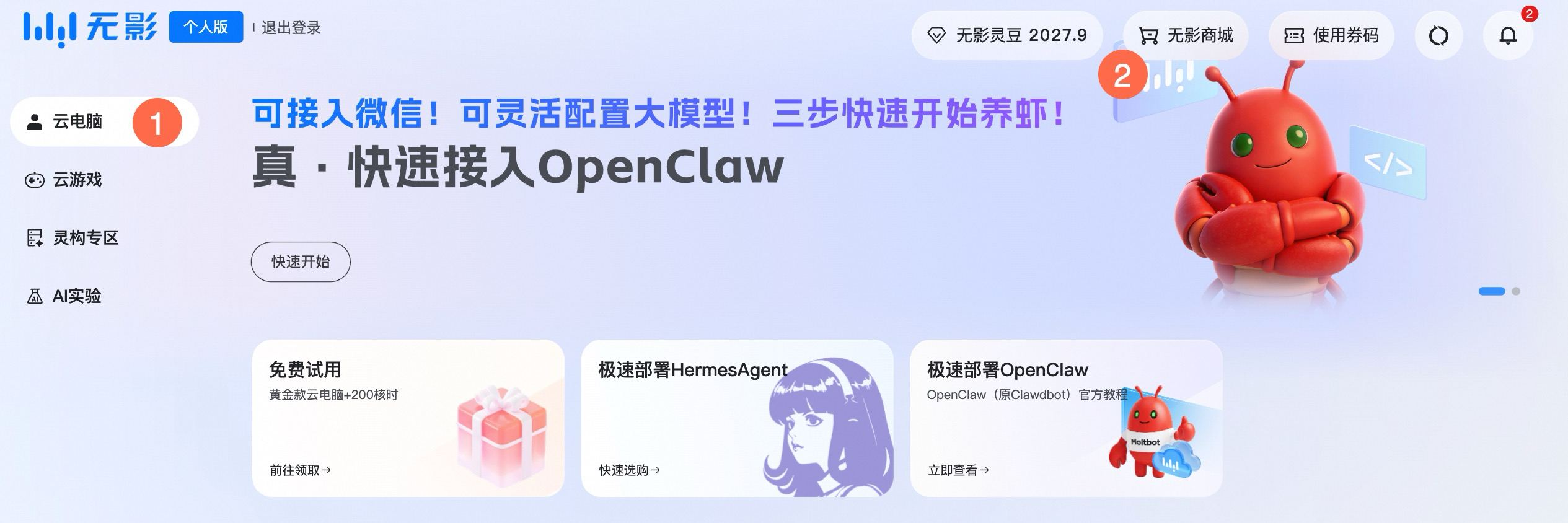
On the Wuying Store page, switch to the Cloud Computer Plan tab and select a plan that suits your needs:
Plan
System disk
Data disk
Public bandwidth
Monthly Lingdou
Scenario
Gold Plus
80 GiB
40 GiB
10 Mbps
40
Light usage and for first-time users
Platinum Plus
180 GiB
100 GiB
10 Mbps
160
Daily office work and study
Titanium Plus
580 GiB
500 GiB
10 Mbps
640
Heavy usage, large file storage, and gaming
NoteSystem disk: The system disk capacity for Wuying Workspace Personal Edition varies by plan (80 GiB for Gold Plus, 180 GiB for Platinum Plus, and 580 GiB for Titanium Plus) and cannot be resized. If you run out of system disk space, you can move your personal data from the system disk to the data disk.
Data disk: The data disk capacity cannot be directly resized. To get a larger data disk, you need to upgrade your plan. For instructions, see How to upgrade your cloud computer plan.
Public bandwidth: The public bandwidth for Personal Edition cloud computers is 10 Mbps. To increase it, see How to upgrade network bandwidth.
Wuying Lingdou: Wuying Lingdou are "time credits" that measure cloud computer runtime. The amount of Wuying Lingdou consumed per hour depends on the running mode. Your Wuying Lingdou quota is reset monthly according to your plan. For more information, see Wuying Lingdou.
For complete pricing information for each plan, see Plan Configurations and Pricing.
Select a purchase method:
Auto-renewal: Automatically renews on a monthly, quarterly, or yearly basis at a discounted price.
One-time purchase: Make a single payment with no automatic renewal.
ImportantYour cloud computer usage is limited by both your billing cycle and your monthly Wuying Lingdou quota.
If you run out of Wuying Lingdou for the month, you cannot start your cloud computer, even if your plan is still active. You must wait for your quota to be reset the next month or purchase a Wuying Lingdou Package to add more.
When your plan expires, you cannot start your cloud computer, even if you have Wuying Lingdou remaining. You must renew your plan to continue.
Click Place Order and follow the on-screen instructions to complete the payment.
Configure the cloud computer
After you purchase a plan for the first time, you must initialize the cloud computer.
Go to the configuration page in one of the following ways:
On the Order Successful page that appears after payment, click Configure Cloud Computer.
On the Cloud Computer page, find the card for the new cloud computer and click Configure Now.
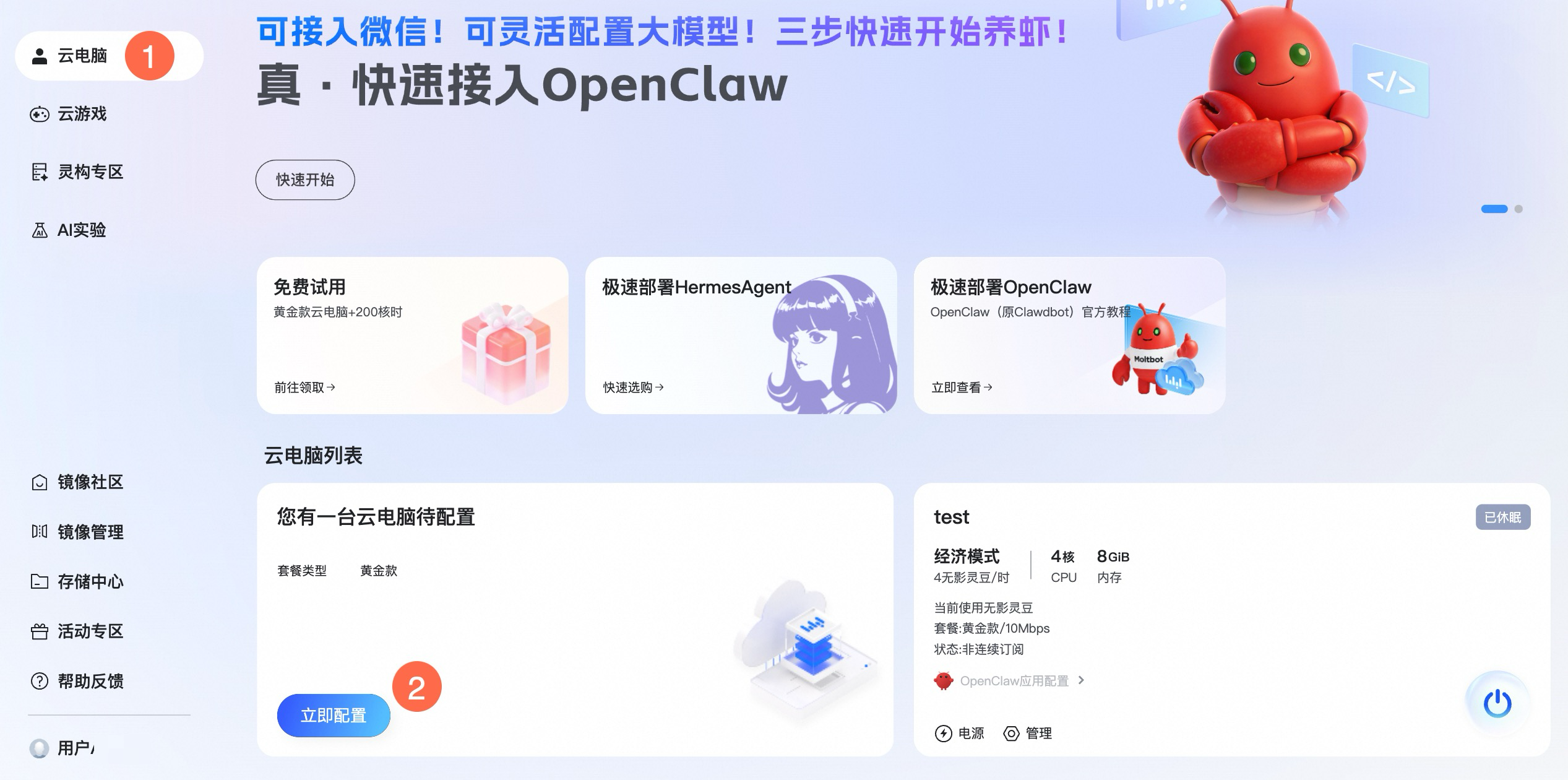
Enter a custom Cloud Computer Name and select a usage location, then click OK.
ImportantThe usage location cannot be changed once it is configured. The system deploys your cloud computer to a data center near your selected usage location.
Select Windows Server 2022 as the operating system and click Next.
Select a running mode for the cloud computer and click Next.
NoteThe running mode determines the computing resources (vCPU, memory) used each time you start the cloud computer and acts as a performance tier. You can switch modes each time you start up, without needing to make a new purchase. Different modes consume different amounts of Wuying Lingdou per hour:
Economy mode (4 vCPU / 8 GiB memory): Suitable for daily office work and web browsing. Consumes 4 Lingdou per hour.
Smooth mode (8 vCPU / 16 GiB memory): Suitable for multitasking and light design work. Consumes 8 Lingdou per hour.
Performance mode (16 vCPU / 32 GiB memory): Suitable for development, design, and video editing. Consumes 16 Lingdou per hour.
Gaming mode (12 vCPU / 46 GiB memory / 11 GiB VRAM): Suitable for AAA games. Consumes 60 Lingdou per hour.
For a complete list of Wuying Lingdou consumption rates, see Wuying Lingdou Rates for Cloud Computers.
If you want to run demanding games, 3D rendering software, or large model inference tasks that require a dedicated graphics card, you must run the cloud computer in Gaming mode. Other running modes do not have a dedicated graphics card, which may cause these applications to run slowly or encounter errors.
Select the applications you want to pre-install and click Complete Configuration.
Wait for the cloud computer configuration to complete. This process usually takes a few minutes.
Connect to the cloud computer
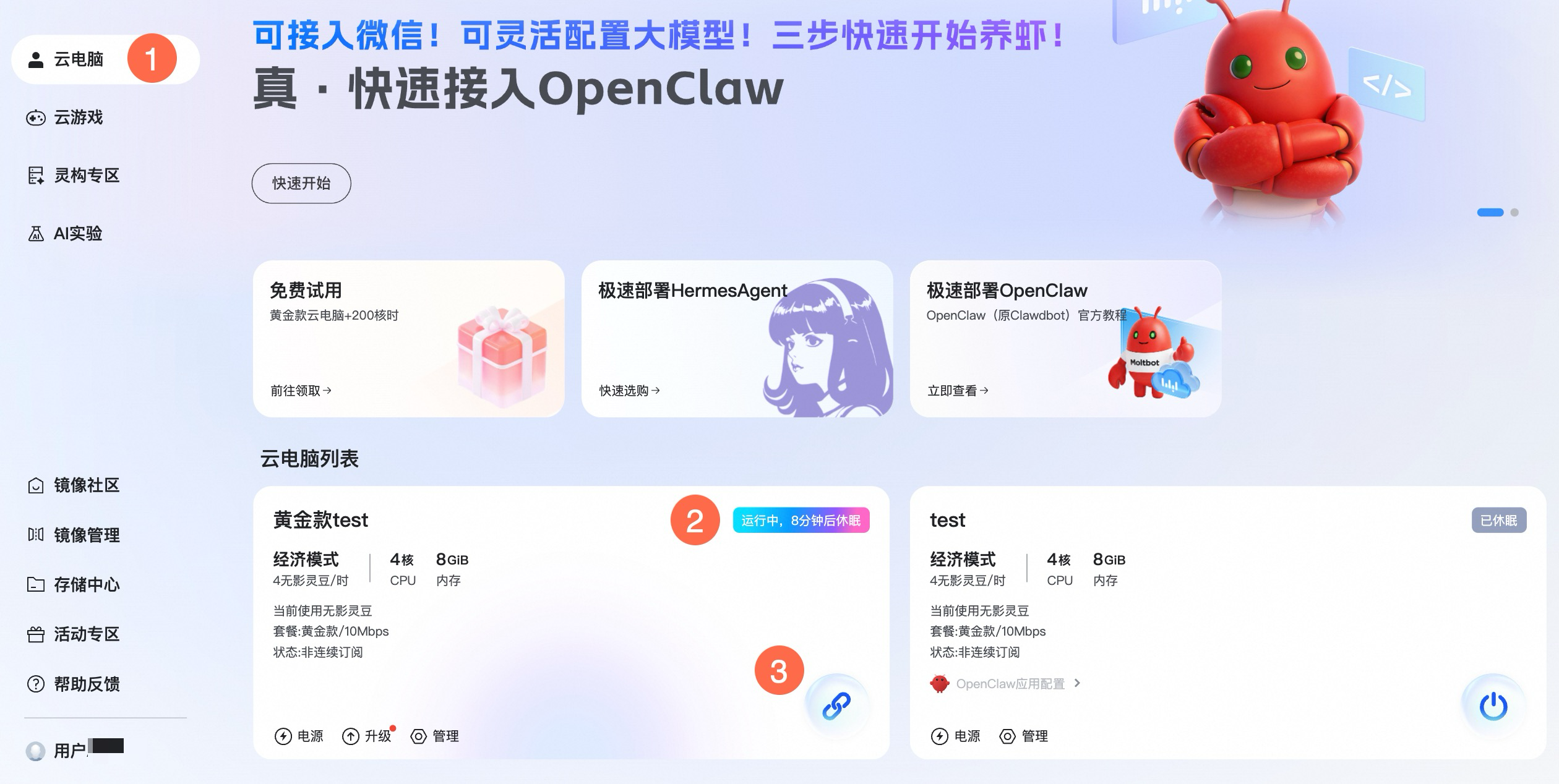
After the configuration is complete, the status on the cloud computer card changes to Running, and you can connect to it.
On the Cloud Computer page, find your cloud computer card and click the Connect icon on the card.
 Note
NoteWhen you connect for the first time, you may see an error message: Failed to connect to the cloud computer. This cloud computer has been released by the IT administrator. This typically occurs because the cloud computer is still starting up. Click the Refresh button in the upper-right corner of the Cloud Computer page, wait a moment, and then click Connect again.
After a successful connection, you will see the cloud computer's desktop and can use it just like a local computer. For more tips on using your cloud computer, see Cloud Computer Usage Overview.
Wuying Lingdou are consumed continuously while the cloud computer is running. To save Wuying Lingdou, shut down or hibernate the cloud computer when not in use. For detailed instructions, see the Shut down or hibernate to save Wuying Lingdou section below.
Next steps
Install applications
After connecting to your cloud computer, you can install applications just as you would on a local computer:
Use a browser to download the installer from an application's official website, then run it and follow the installation prompts.
NoteSome applications or games require a dedicated graphics card and drivers to install and run. If you encounter such issues, try running the cloud computer in Gaming mode.
Cloud computers do not support nested virtualization. Applications that require virtualization technology, such as emulators, cannot be used. For more information, see Do cloud computers support nested virtualization? in the FAQ.
When configuring your cloud computer, you can select commonly used software on the Pre-install Applications page. These applications will be automatically installed after the configuration is complete.
Connect peripherals
After you connect a peripheral to your local computer, the Wuying client automatically detects it and maps it to your cloud computer. For detailed mapping instructions, supported peripheral types, and common questions, see FAQ about peripherals.
Shut down or hibernate
While a cloud computer is running, it continuously consumes Wuying Lingdou at a rate determined by its running mode. If you are stepping away for a short time or want to keep your desktop and application windows open, we recommend that you hibernate the cloud computer instead of shutting it down. No Wuying Lingdou are consumed during hibernation, and you can quickly resume your session from where you left off without reopening applications.
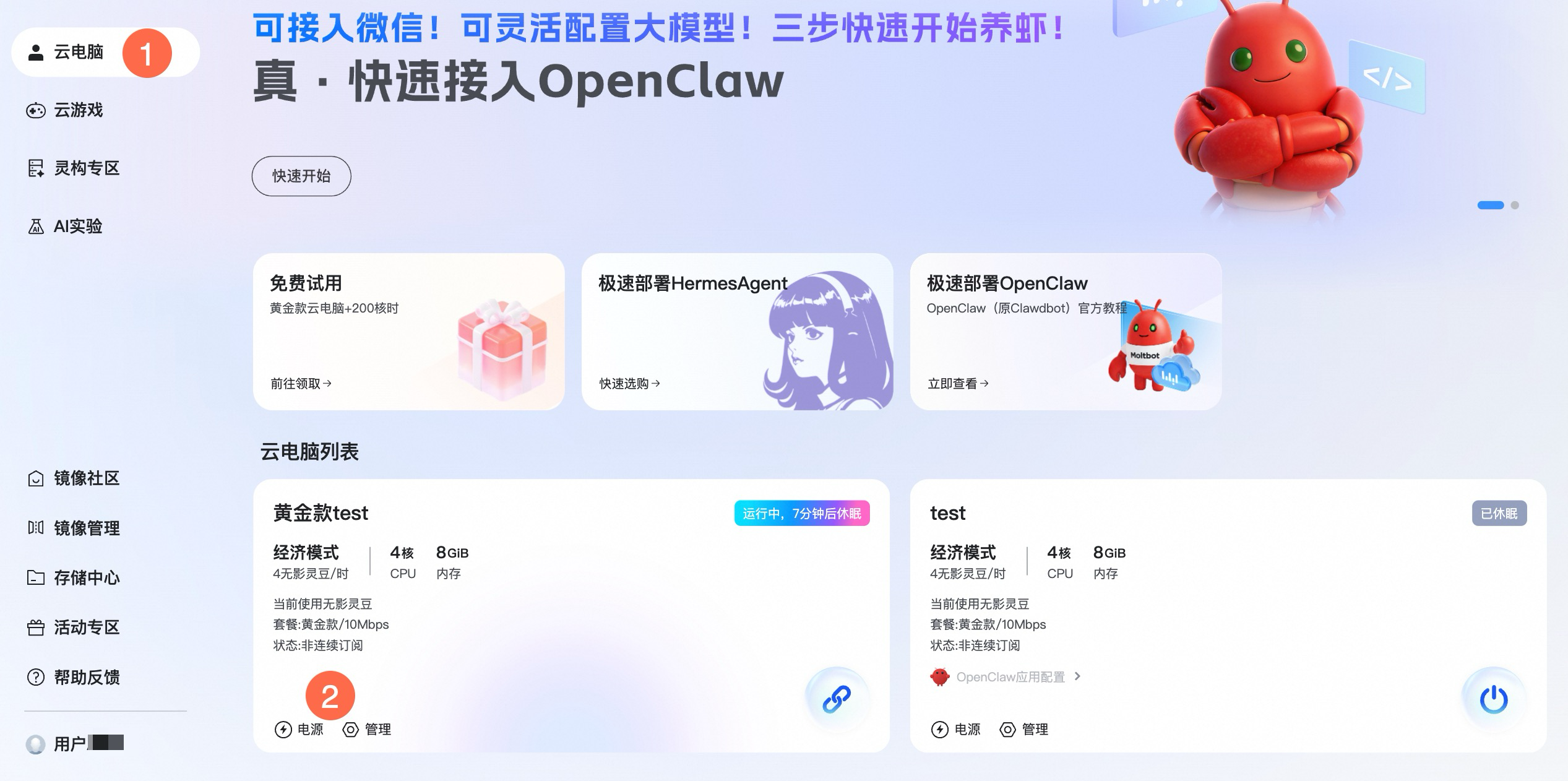
Manual shutdown or hibernation: On the Cloud Computer page, find the target cloud computer card, click Power, and select Hibernate or Shut Down. Before shutting down, make sure to save all files on the cloud computer.
Automatic shutdown or hibernation: The default policy is to automatically hibernate 10 minutes after disconnection. To adjust or disable this policy, click Manage, go to the Policy page, enable Scheduled Shutdown/Hibernation upon Disconnection, and then set the wait time and the action to perform (shut down or hibernate).
Wake from hibernation or start up: On the Cloud Computer page, find the cloud computer card, click the
 icon on the card, and then select a running mode.
Upgrade plan or bandwidth
If you need more data disk space or you want to faster network speeds, you can upgrade your cloud computer's plan or bandwidth. For details, see How to upgrade a cloud computer's plan or network bandwidth.
FAQ
Usage locations
System disk space
Auto-renewal and cancellation
Unsubscribe from a cloud computer
Supported operating systems
Nested virtualization
For more information, see the FAQ.