Xiao Q report management
After creating and editing a Xiao Q report, you can view, favorite, preview, publish, and share it. You can also organize generated reports into categories and manage their permissions. This topic describes how to manage Xiao Q reports.
Prerequisites
A XiaoQ report has been created.
Favorites
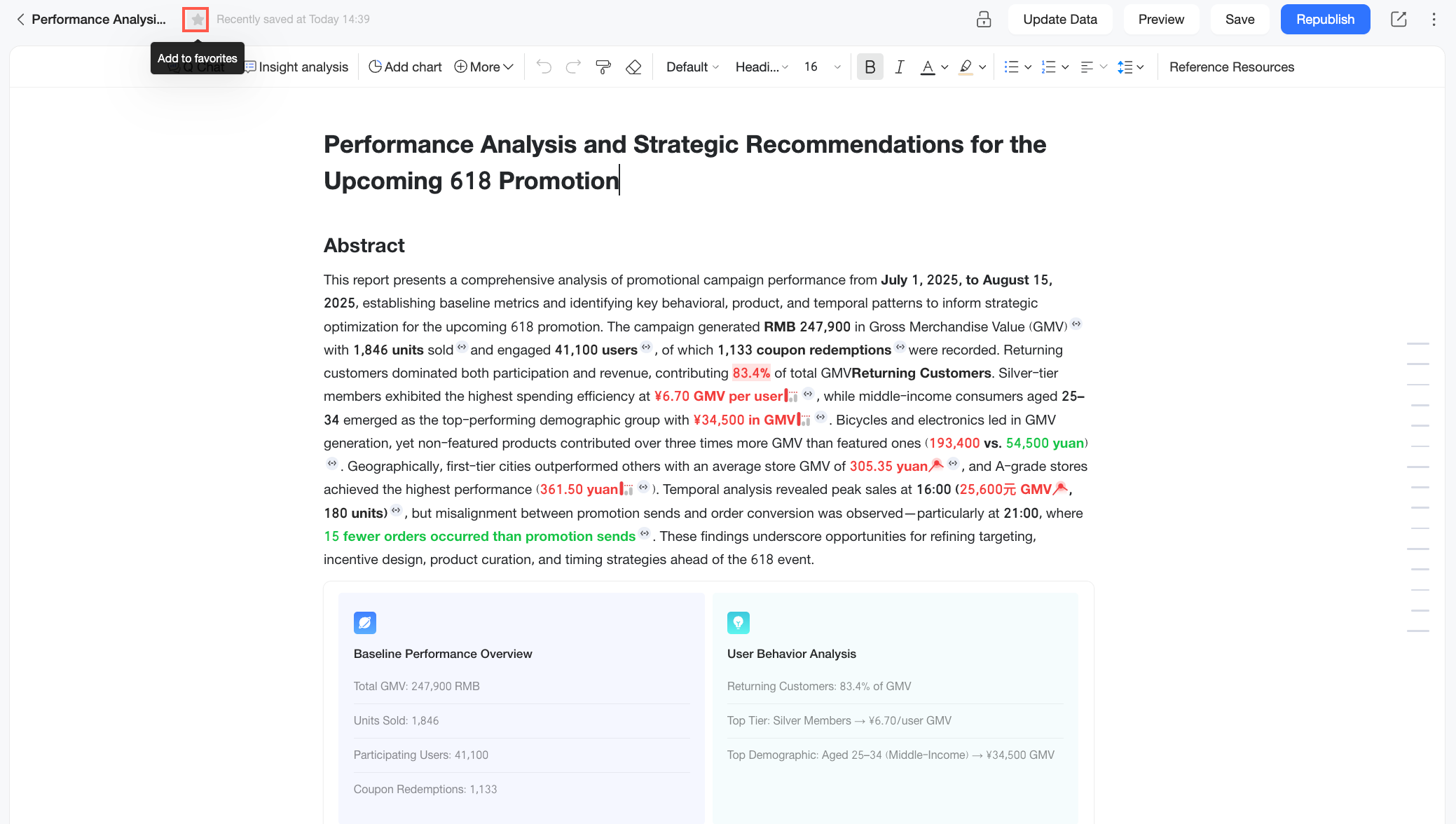
On the Quick BI report editing page, click the  icon in the upper-left corner of the navigation bar to favorite the report. To unfavorite the report, click the
  icon again.
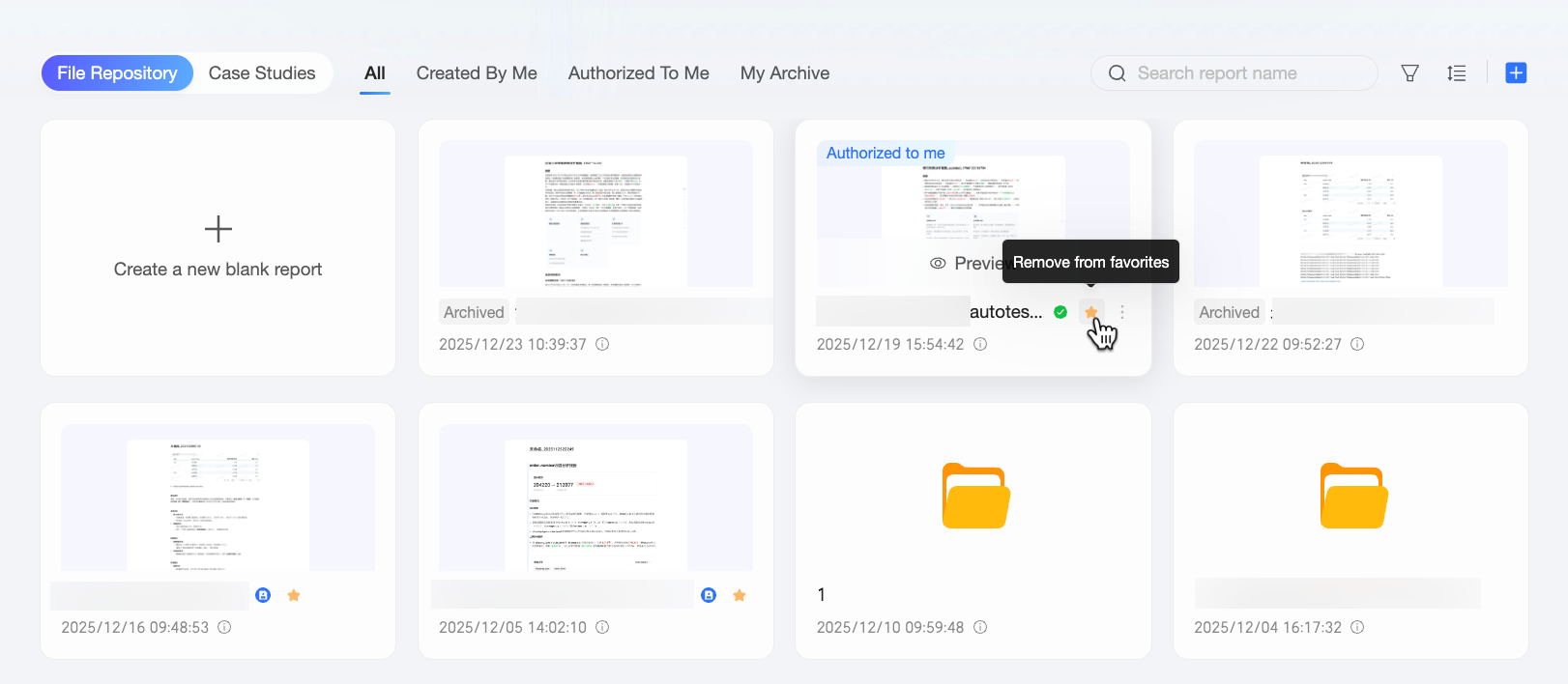
Alternatively, on the Quick BI report list page, click the icon on a report to favorite it.
Preemptive editing
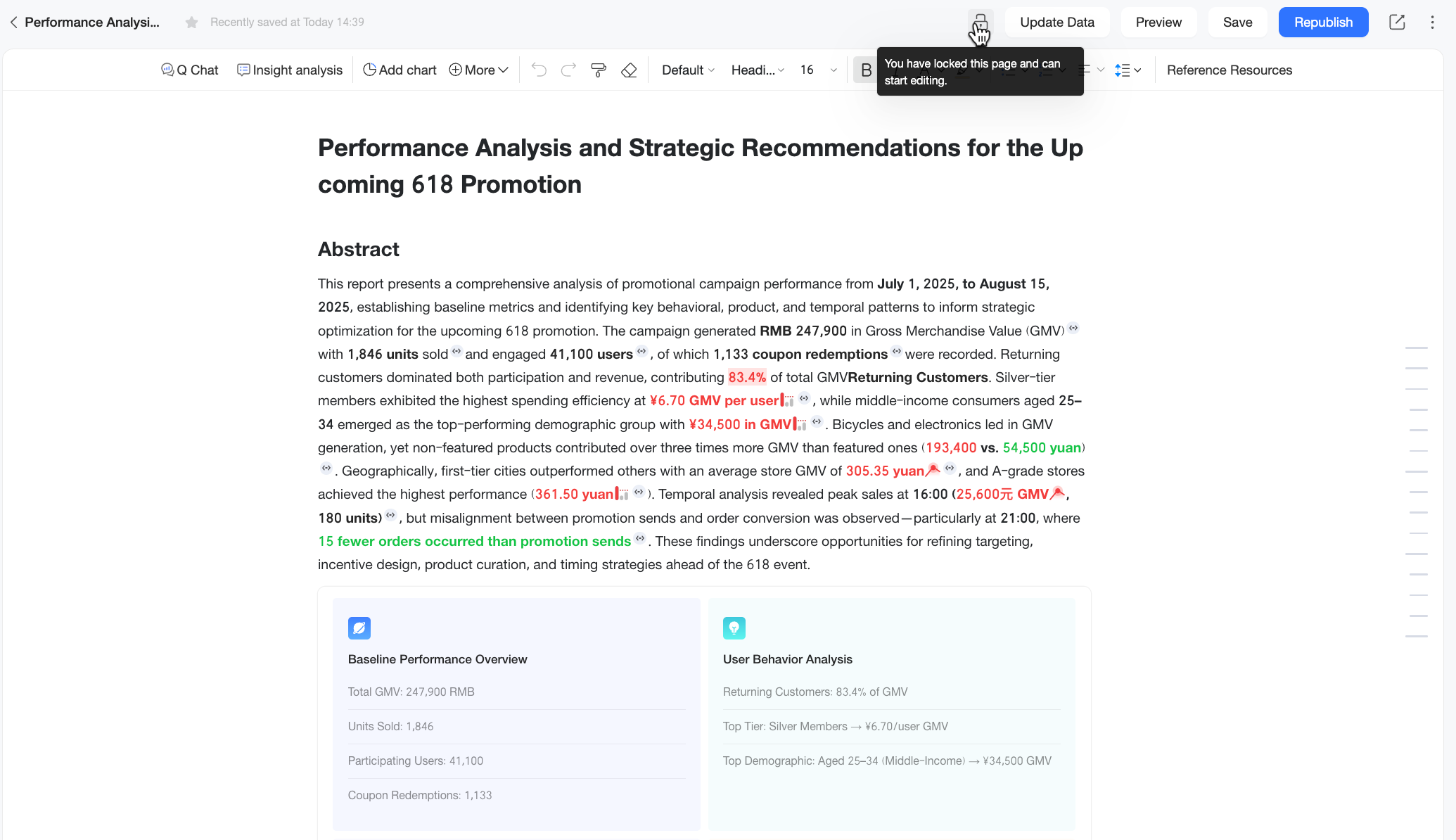
After you grant other users permission to edit a report through collaboration authorization, the system enables preemptive editing when multiple users edit the report simultaneously. This ensures that only one user can modify the report at a time. The edit lock ( ) icon on the report editing page displays the report's lock status, indicating if another user is editing it.
A Locked edit lock icon means you have locked the report, and only you can edit it.

An Unlocked edit lock icon means another user is editing the report. A notification at the top of the page shows the last edit time, helping you determine if the other user is still active. If the other user appears inactive or you do not need to wait, click the edit lock to initiate a lock takeover. After a successful lock takeover, the edit lock becomes Locked, allowing you to modify the report.
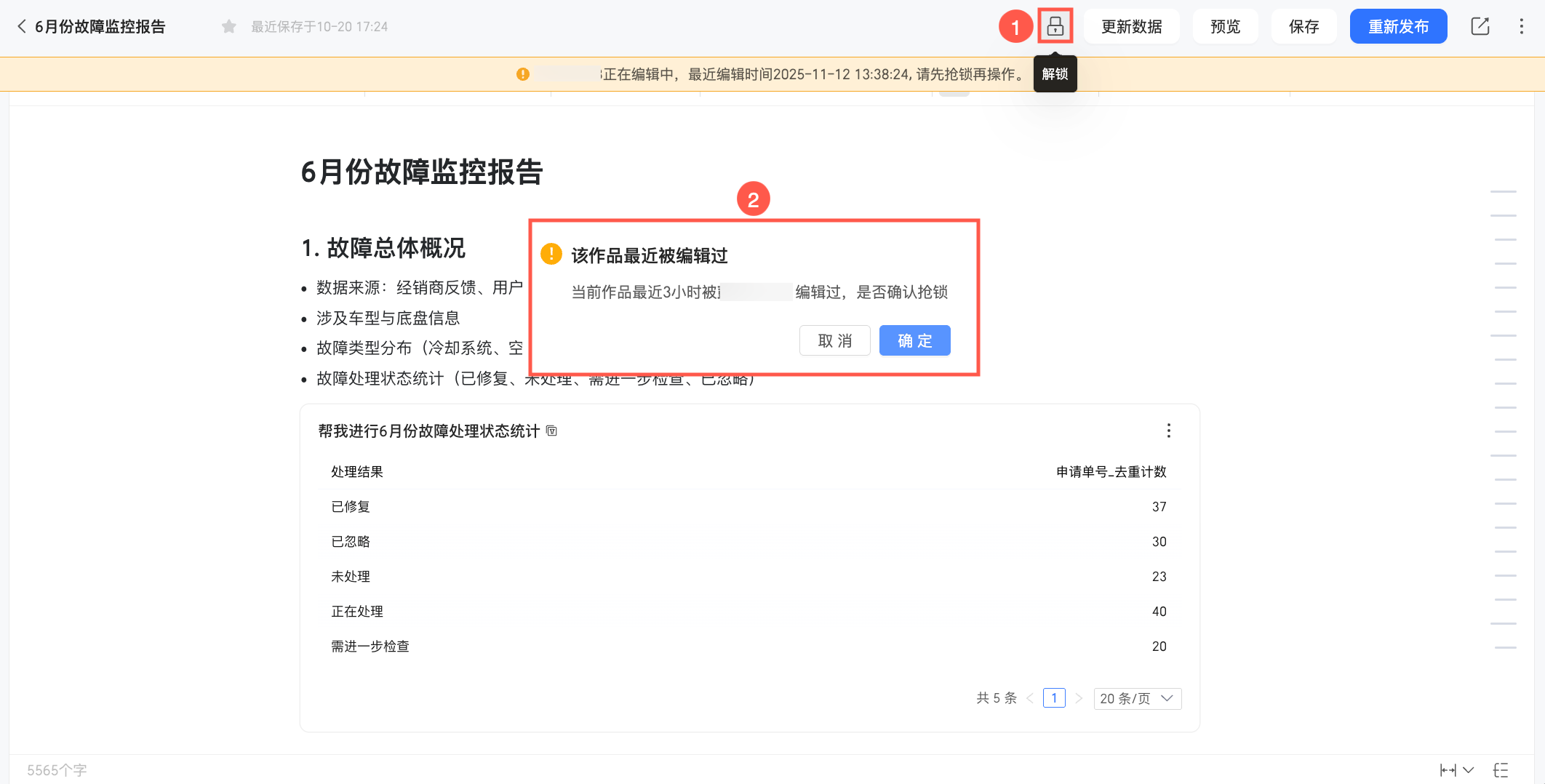
When you use collaborative editing to insert chart components into a report, note the following limitations:
While editing a report, a collaborator can only insert chart components they have access to. For example, if Member A authorizes Member B to collaboratively edit a report, Member B can only insert chart components they have access to.
After a chart component is inserted into a report, its content is visible to all collaborators. For example, Member A inserts a chart component into a report—one that only Member A has permission to access—and then authorizes Member B to collaboratively edit the report. After Member B successfully performs a lock takeover, they can edit the report and view the content of the chart component that Member A inserted.
Therefore, when you invite others to collaborate, ensure the report's content is suitable for all collaborators and contains no sensitive data.
When performing a data refresh for the report, the system re-validates the current collaborator's data query permission for all chart components. If the collaborator lacks the required permission, the system displays an error message. The component remains in the report but fails to load the latest data. For example, if Member B holds the edit lock and attempts to refresh the data for the entire report, the system displays the error message "You do not have data query permission for the current component." for any chart component inserted by Member A that Member B lacks permission to query.
Update data
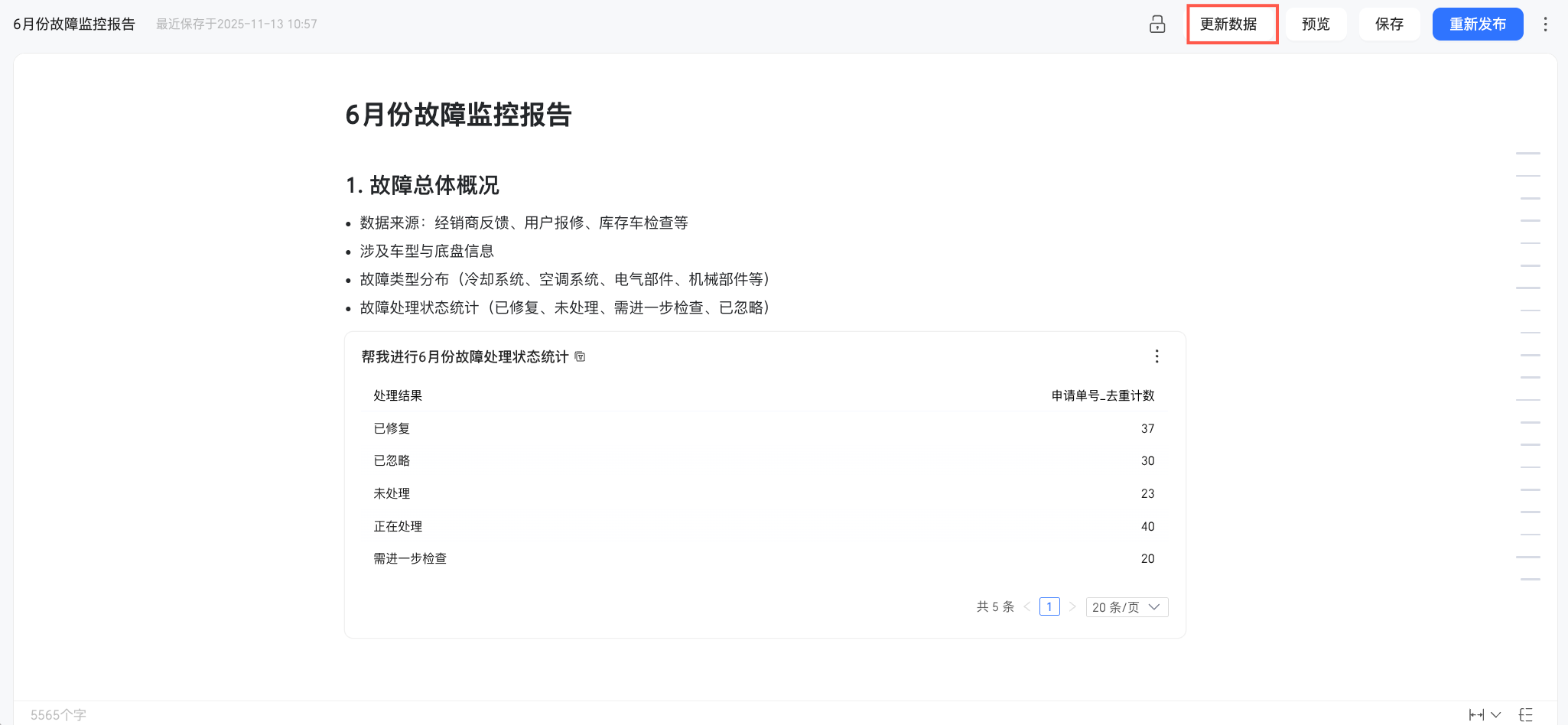
If you need to periodically update a recurring report, such as a monthly fault monitoring report, you can do so from the Xiao Q report editing page. Click the update data button on the navigation bar to refresh the report with the latest data.
When you update data, the system updates all content in the report that contains dynamic data references, such as dashboard charts, Xiao Q Q&A results, insight analysis, and attribution reports. Review the generated content for accuracy.
This action updates data globally for the entire report. To update only specific dynamic content, such as Xiao Q Q&A results or insight analysis results, update them individually to avoid affecting other parts of the report. For more information, see Update Xiao Q Q&A results and Update insight analysis results.
Enabling data permission for a report allows you to update its data from the preview page. For more information, see Data permission.
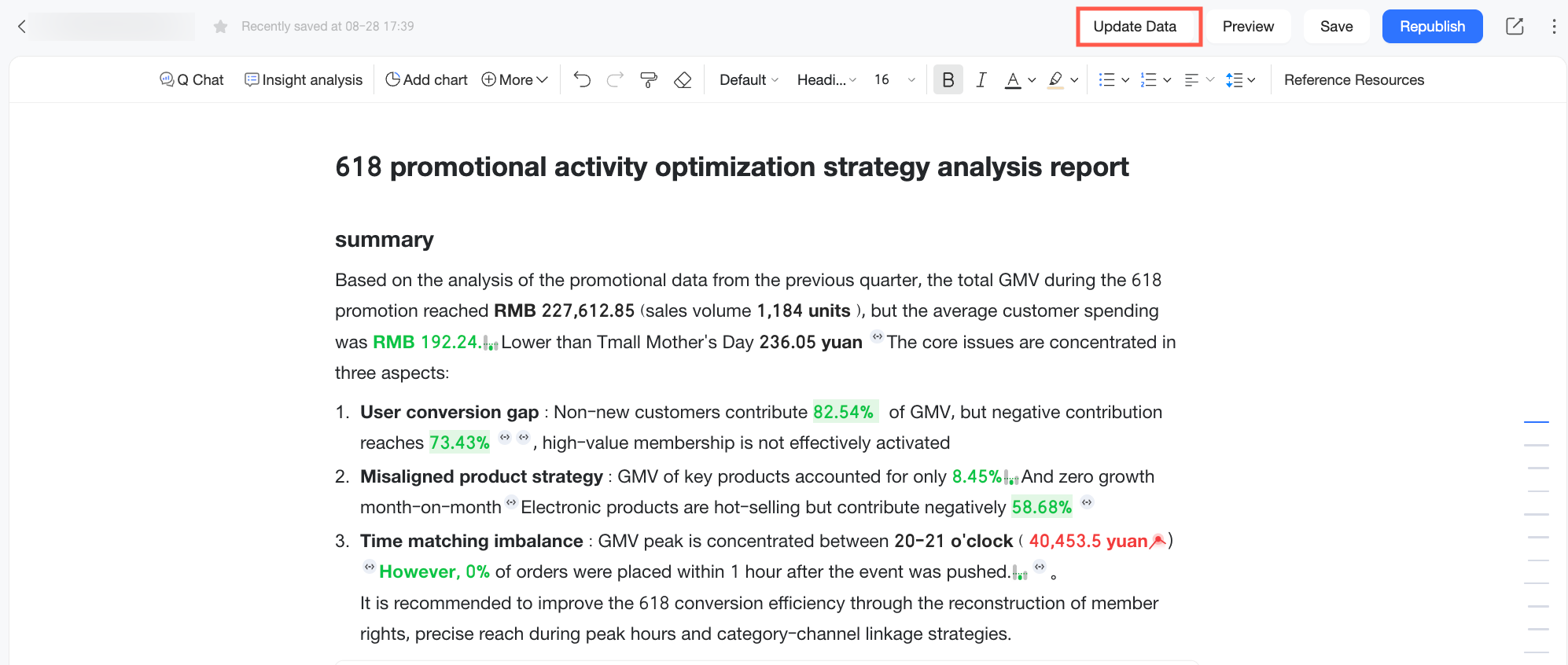
For reports generated from a dataset with a single click, you can specify the data update mode in the Report Content Update Prompt dialog box.
You can select one of two modes: partial component update or full update.
partial component update: Updates only the content in the report that contains dynamic data references, including inserted dashboard charts, Xiao Q Q&A results, and insight analysis.
full update: Regenerates the report based on the latest data from the referenced dataset. This action overwrites all existing edited content.
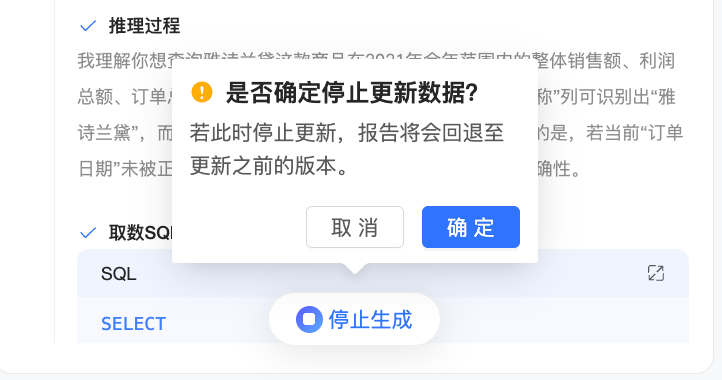
NoteWhen you perform a full update, a progress panel automatically opens on the right side of the page. You cannot modify the report's configuration while the update is in progress.
If you click the stop generation button during the update and then click Confirm, the report reverts to its state before the update.
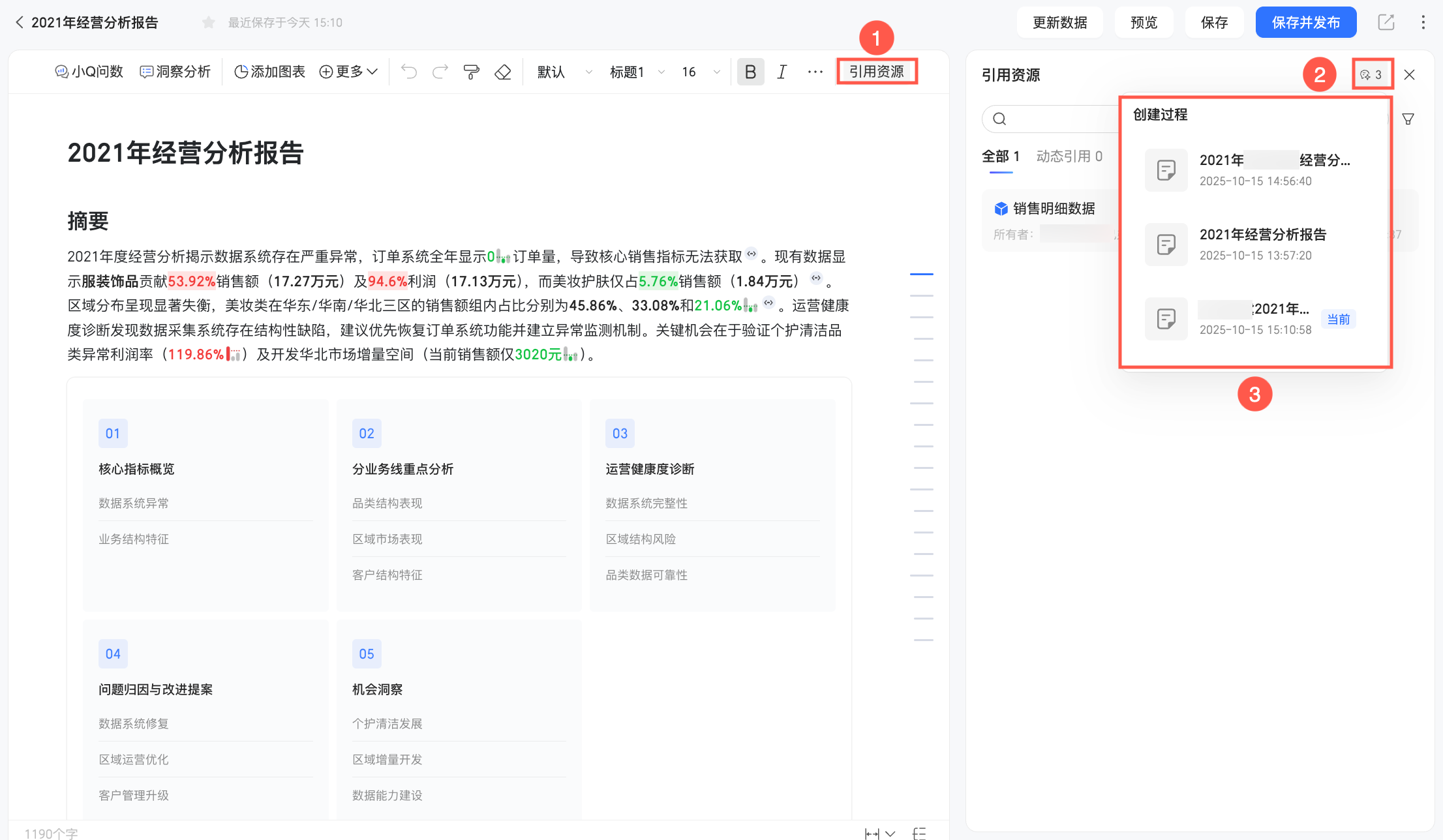
If you accidentally close the progress panel during the update, you can click the
icon in the update notification bar to reopen it.After the update is complete, even if you close the progress panel, you can still view the report's creation history in the referenced resource panel, in the creation process section.

 icon in the update notification bar to reopen it.
Preview
From the Xiao Q report editing page, click preview in the navigation bar to view the report.
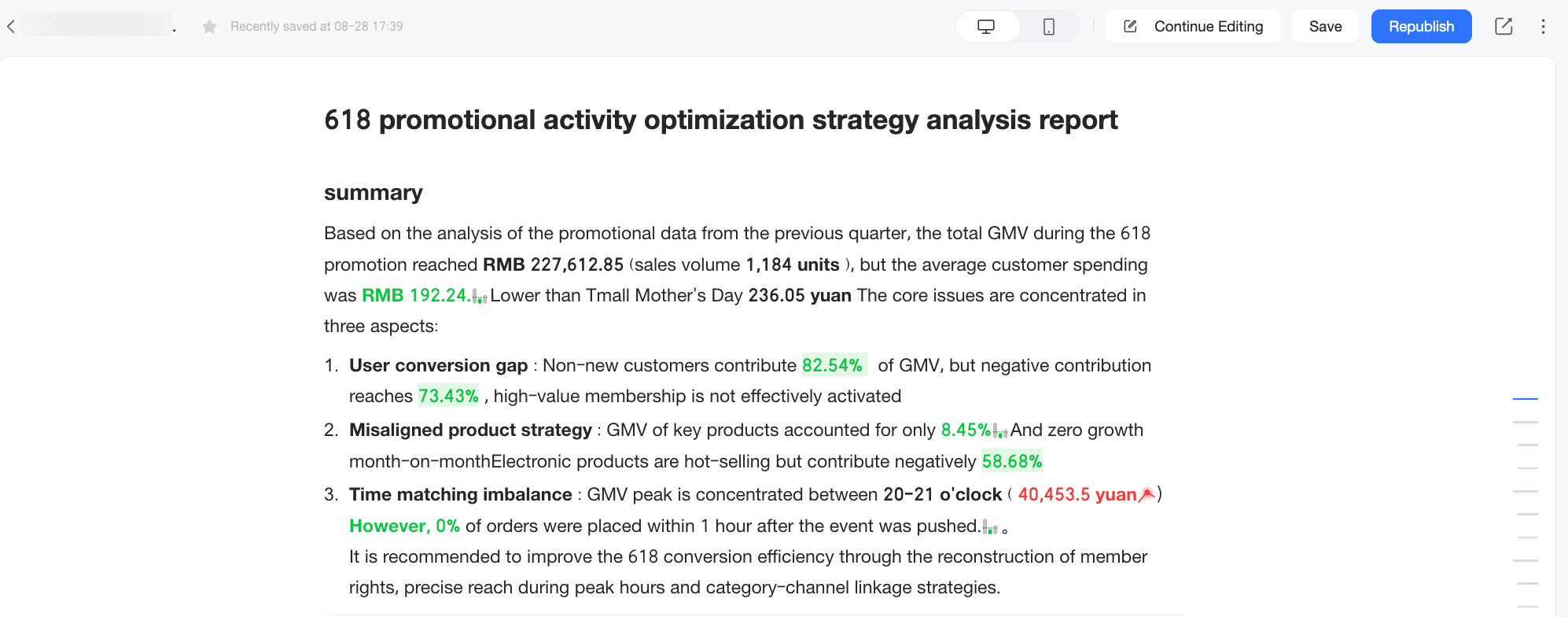
In preview mode, click continue editing in the navigation bar to return to the report editing page.
Archive
Scenario: Use the Quick BI report archive feature to track data trends over time or to compare different versions of a single report. You can periodically archive report content, preserving the analysis results from different points in time as static snapshots. For example, during a monthly business review, you can archive the same report for January, February, and March to visually compare trends in key business metrics.
You can use the archive feature in the preview mode of a Quick BI report. This allows each viewer to archive the report content, capturing its content at a specific point in time based on the viewer's dynamic data permissions. This is useful for preserving key analyses for future reference and for comparing data across different versions.
This feature is available only to users who have purchased the Quick BI report service. It is not available to trial users.
The archive feature is only available in the report's preview mode.
Each user can archive the same report a maximum of 100 times. Once this limit is reached, you can no longer create archives.
You cannot archive on a report preview page that is accessed via a public sharing link.
You can archive published reports, but not reports that are unpublished or have been taken offline. If a report has been taken offline, you can no longer view its archive records.
Follow these steps:
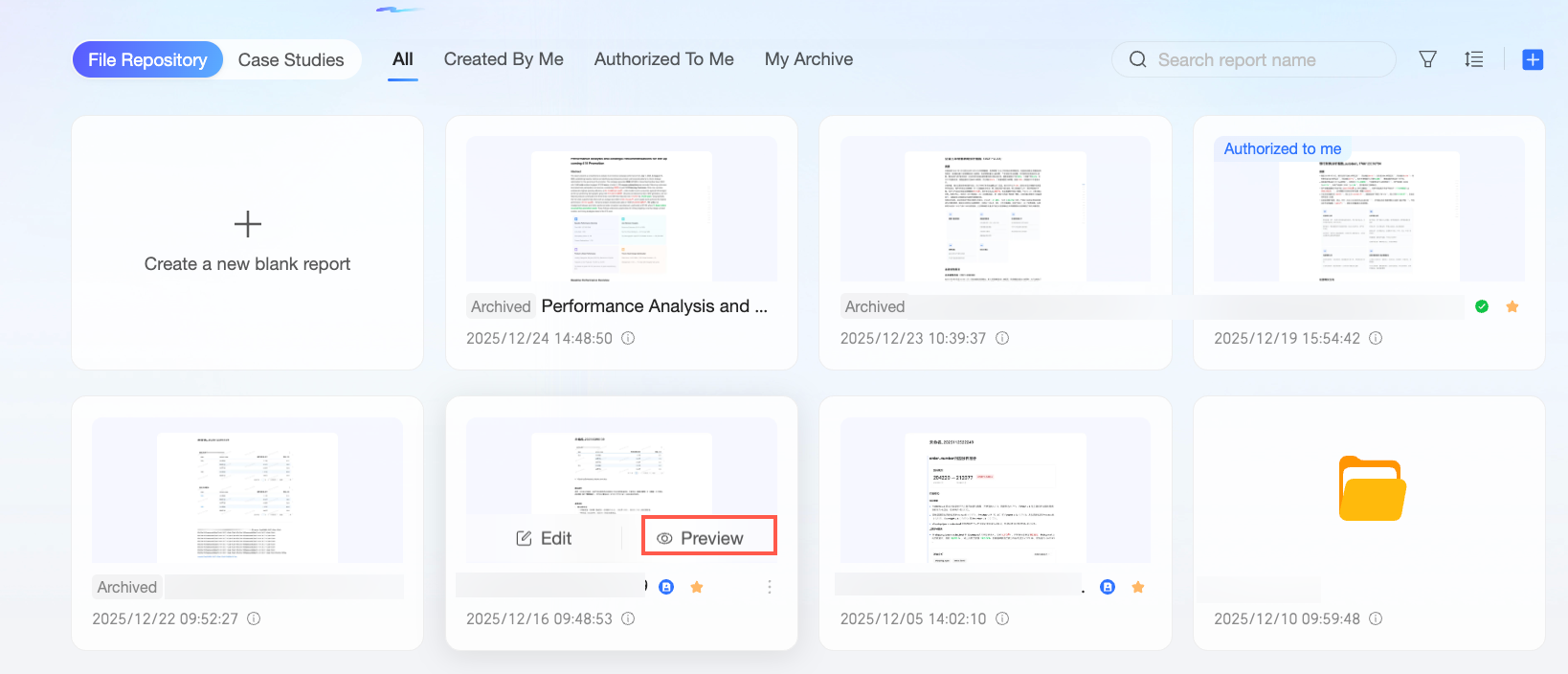
On the report list page, hover over the target report and click Preview.
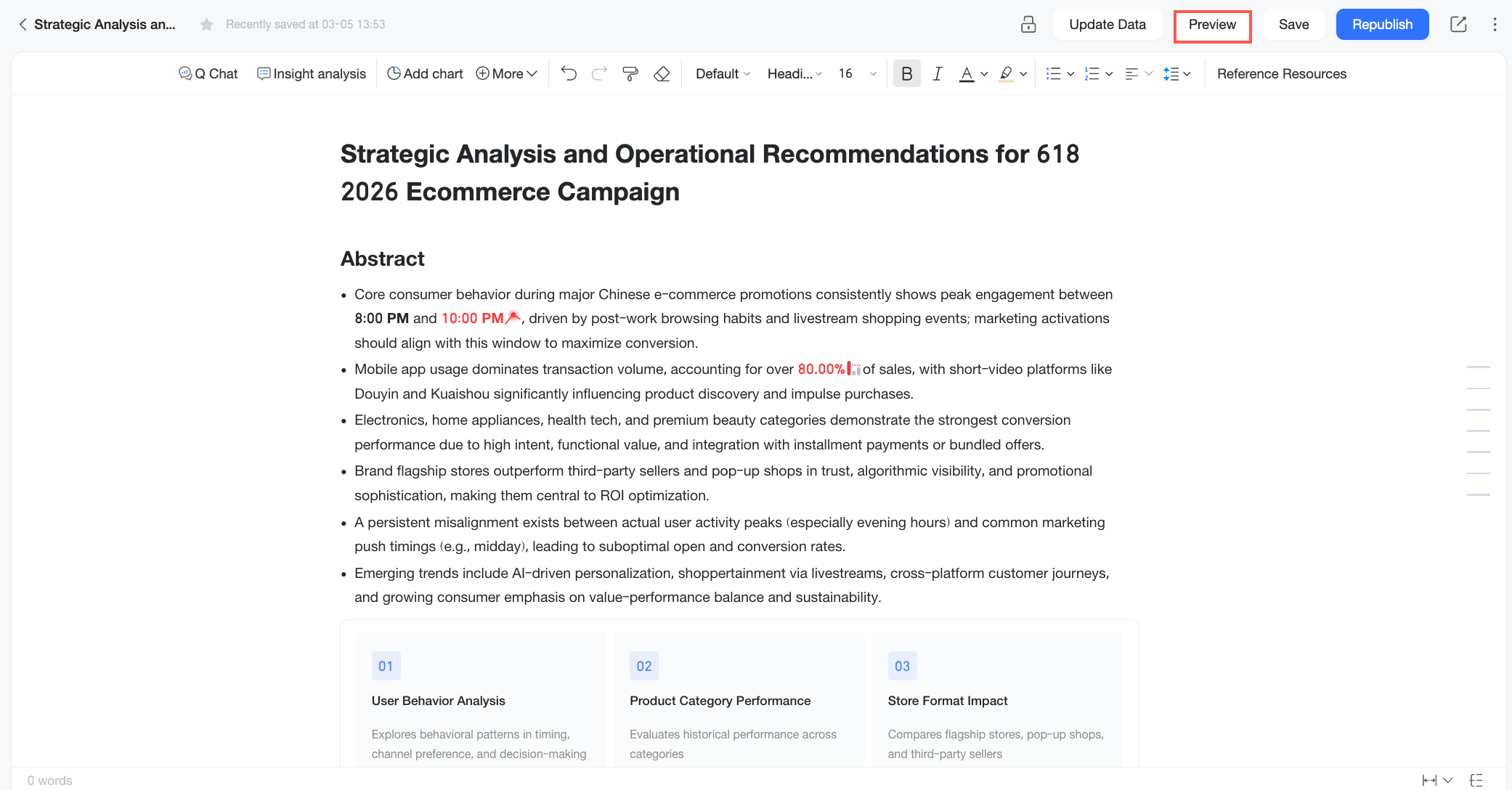
You can also click Preview on the report editing page.
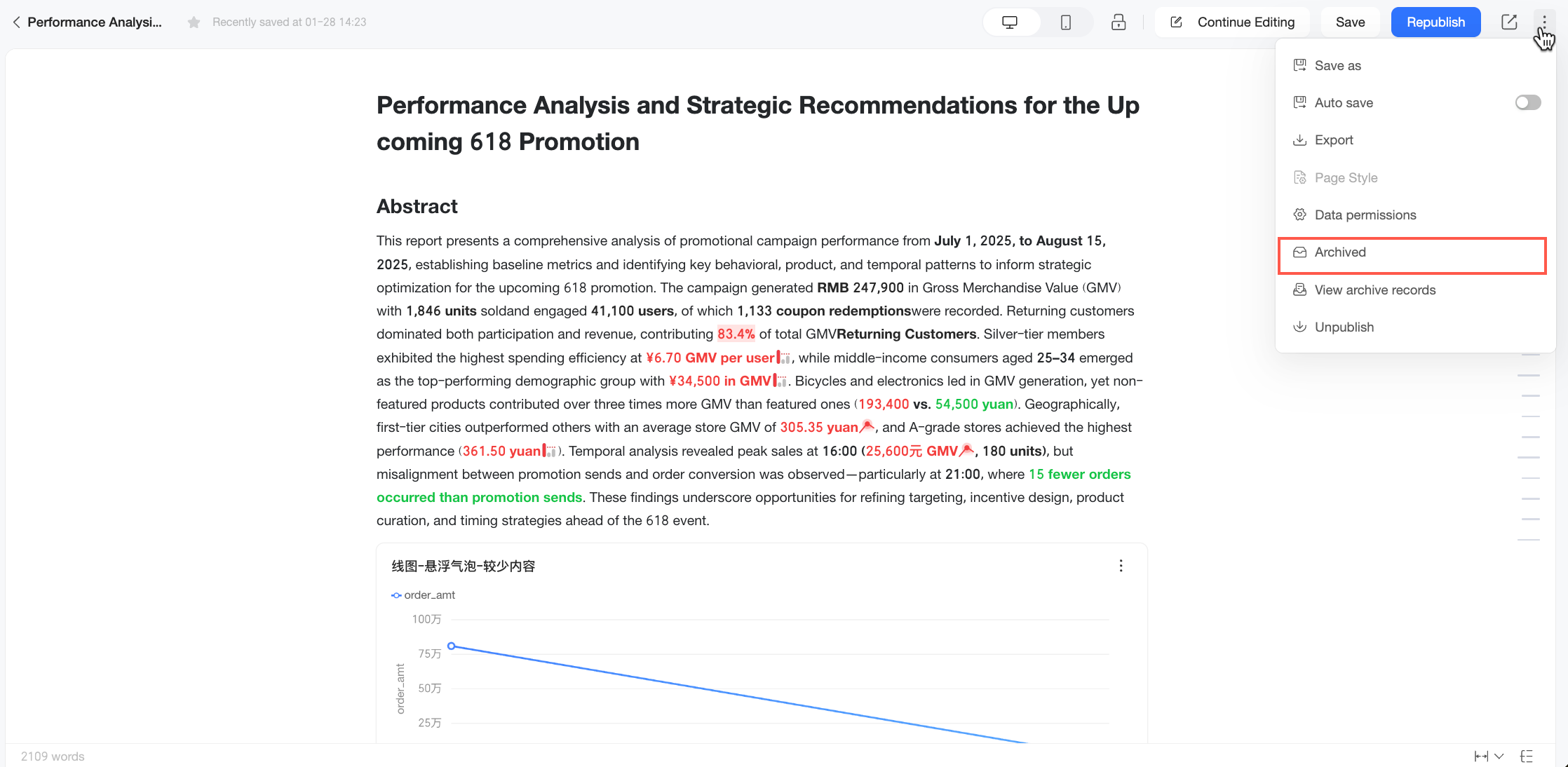
On the report preview page, click the
icon in the top toolbar and select Archive from the drop-down list.You can also click the
icon and select Archive in preview mode on the edit page.NoteThe archived content is based on what is currently displayed in the preview.
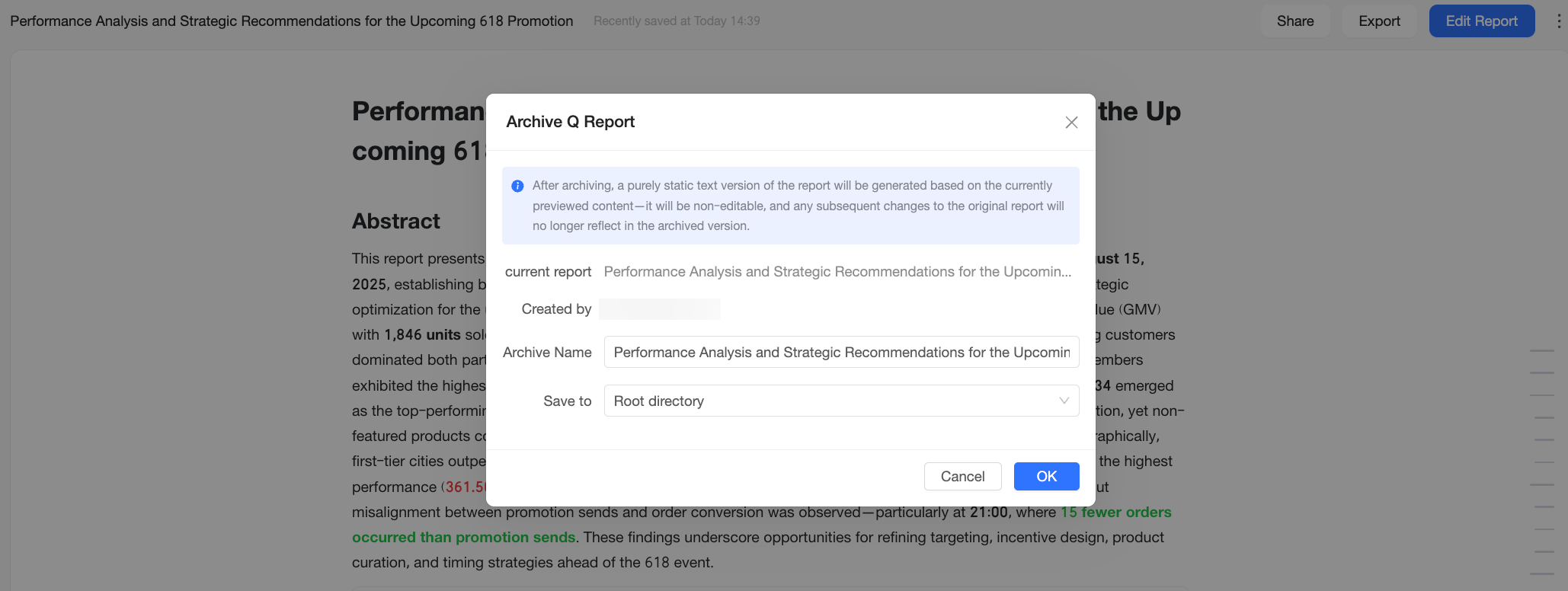
In the Archive Quick BI report dialog box, the current report's name and creator information are displayed. You also need to configure the Archive Name and Location.
Archive Name: The name of the archived report. The system automatically generates a name in the format
Report Name_Archive_YYYYMMDD_HH_MM_SS. You can customize this name to easily identify the archive's purpose and version.Location: The directory where archived reports are stored. By default, reports are saved to the root directory. You can click the drop-down list to select an existing folder to categorize and store the reports by department, project, or theme.
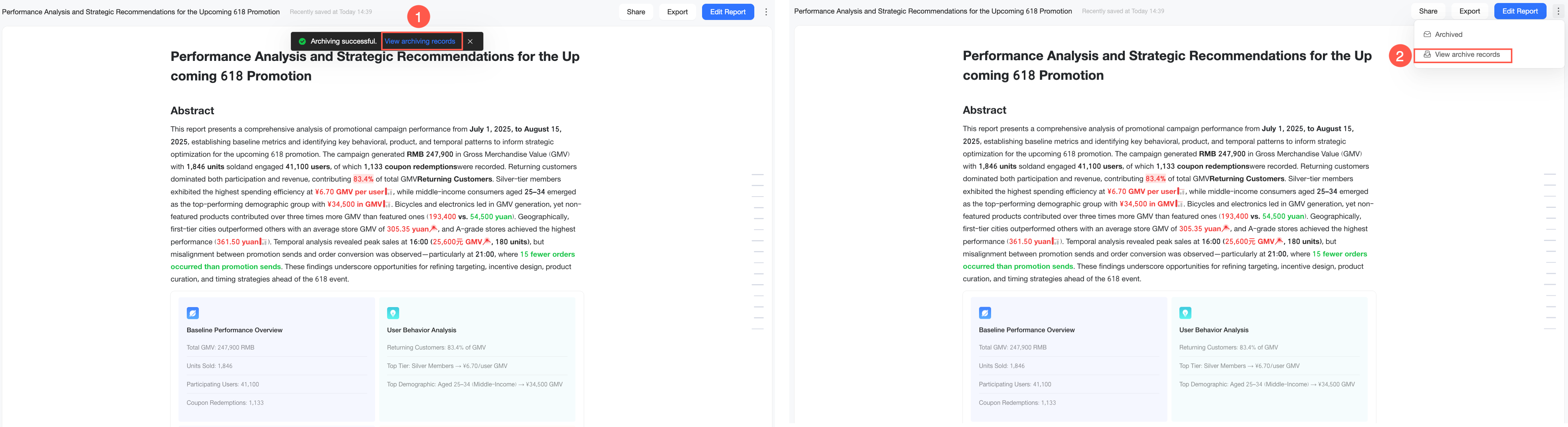
Click OK to create an archive of the report's current view. After the archive is created, you can click View Archive History (①) in the notification message or click View Archive History (②) in the More menu to go to the Archive History page.
NoteThe View Archive History option is available in the More menu only if you have created at least one archive for the current report.
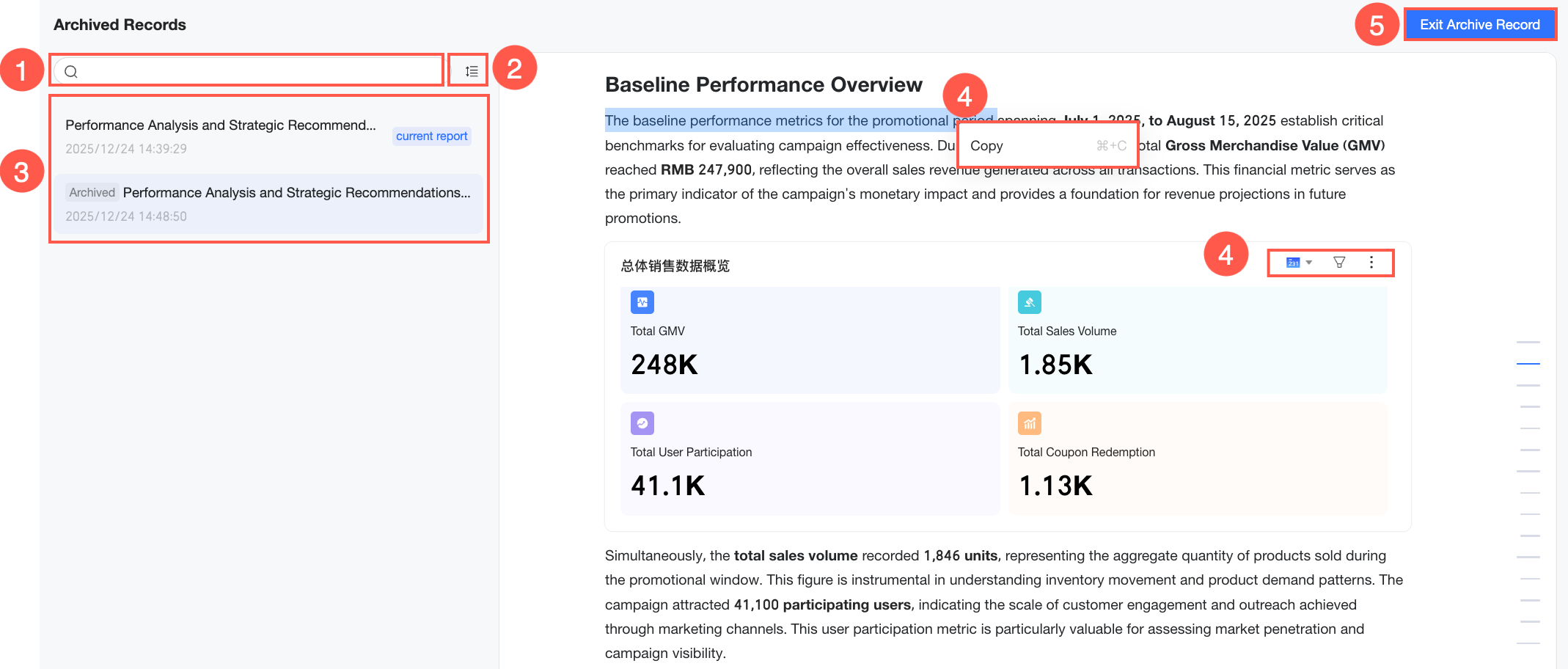
The Archive History page displays the original version and all archived versions of the current report. You can perform the following operations on this page.
① Search: In the search box, enter keywords from an archive's name to quickly find a specific version.
② Sort: Latest or Oldest. Latest sorts archives from newest to oldest, while Oldest sorts them from oldest to newest.
③ Switch versions: In the archive list on the left, switch between different versions to quickly view and compare their content.
④ Content operations: You can select and copy the text content from the archive history, but you cannot edit it.
⑤ Exit Archive History: Click to return to the original report preview page and end your review of the archive.
An archived report is stored as an independent copy. Its content is fixed and does not change even if the data in the original report is refreshed or its content is adjusted. You can view your archived reports on the My Archives tab of the report list page.
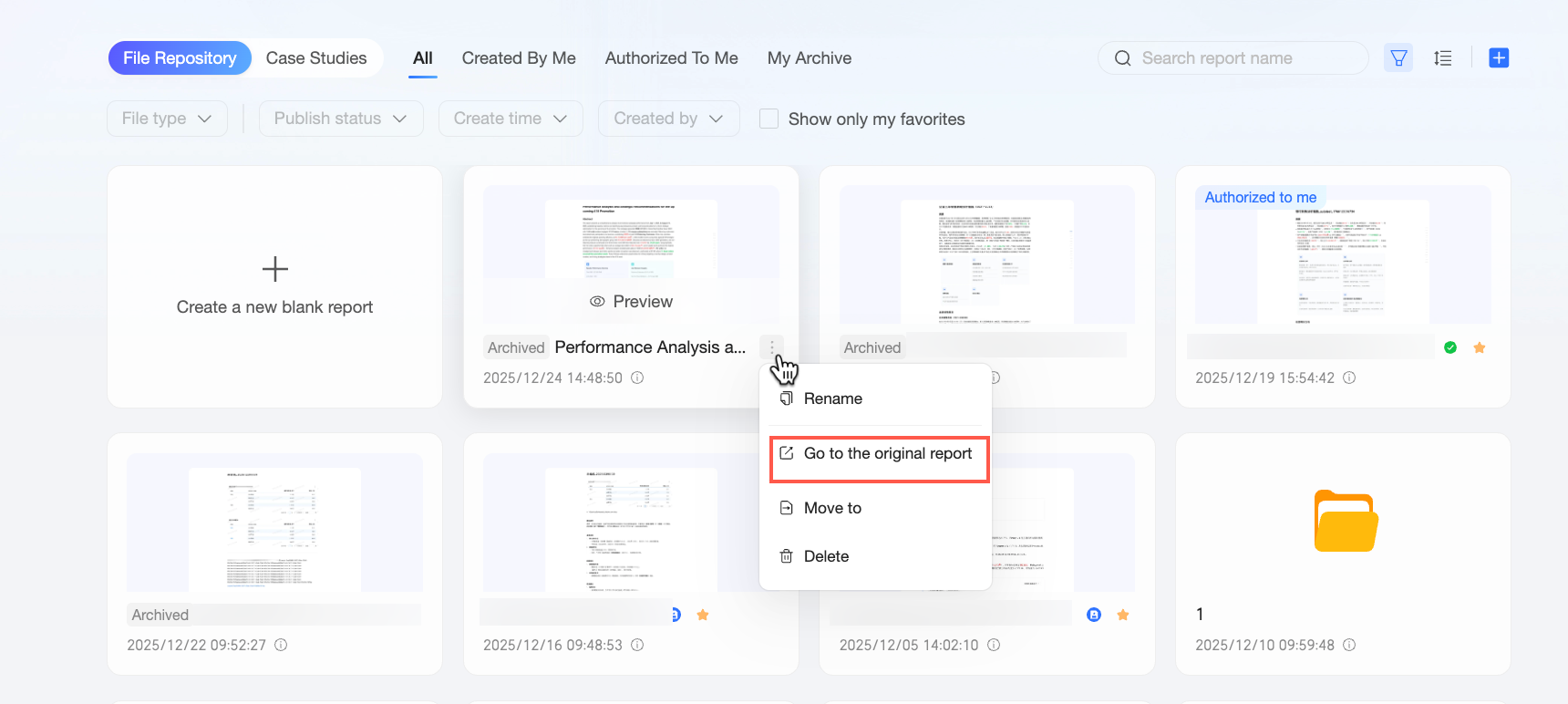
Hover over the report, click the icon, and select View Original Report from the list of options. This action takes you to the preview page of the corresponding original Xiao Q report.You can also view the original report from the preview page of the archived report.
 icon in the top toolbar and select Archive from the drop-down list.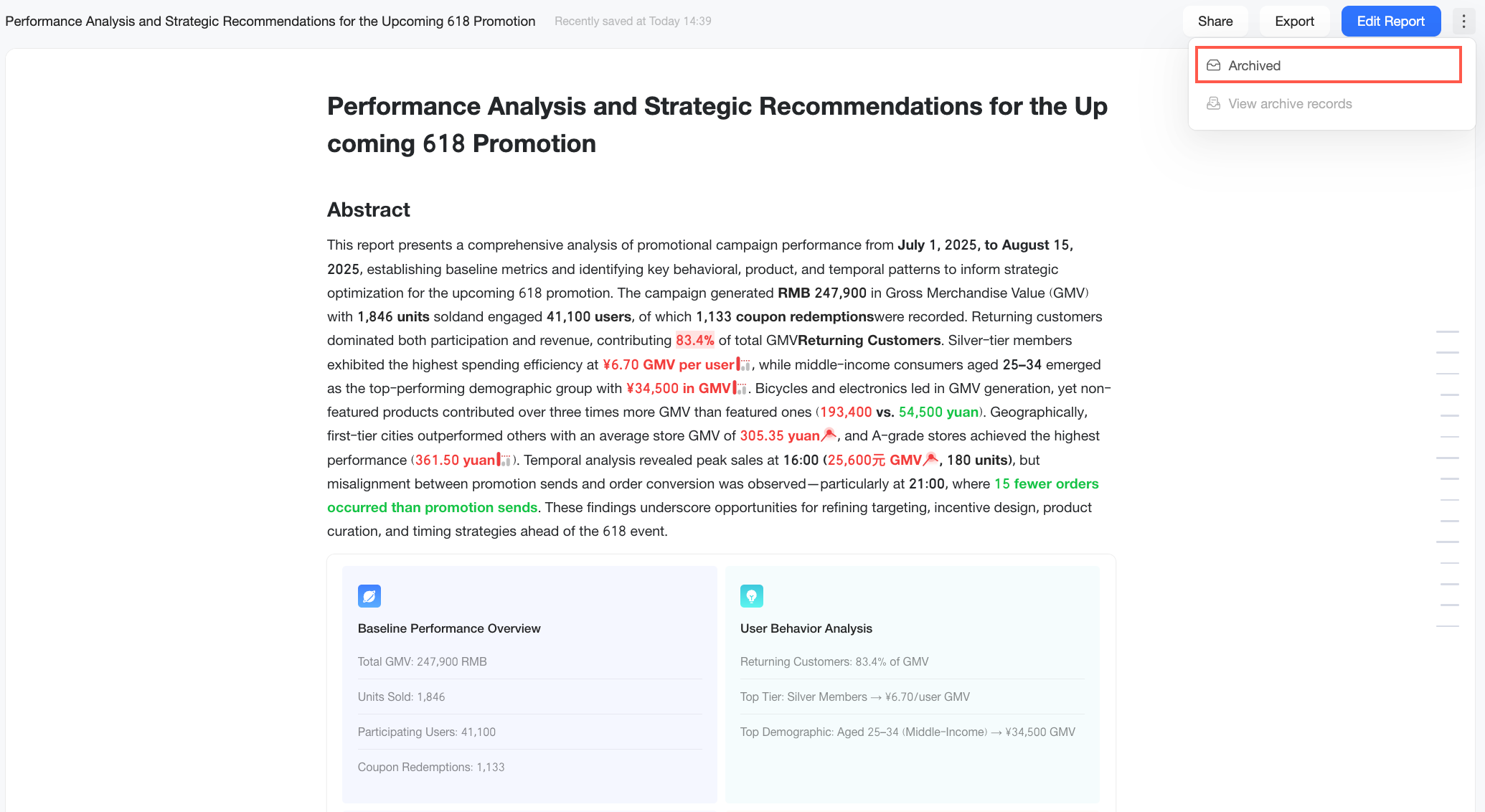
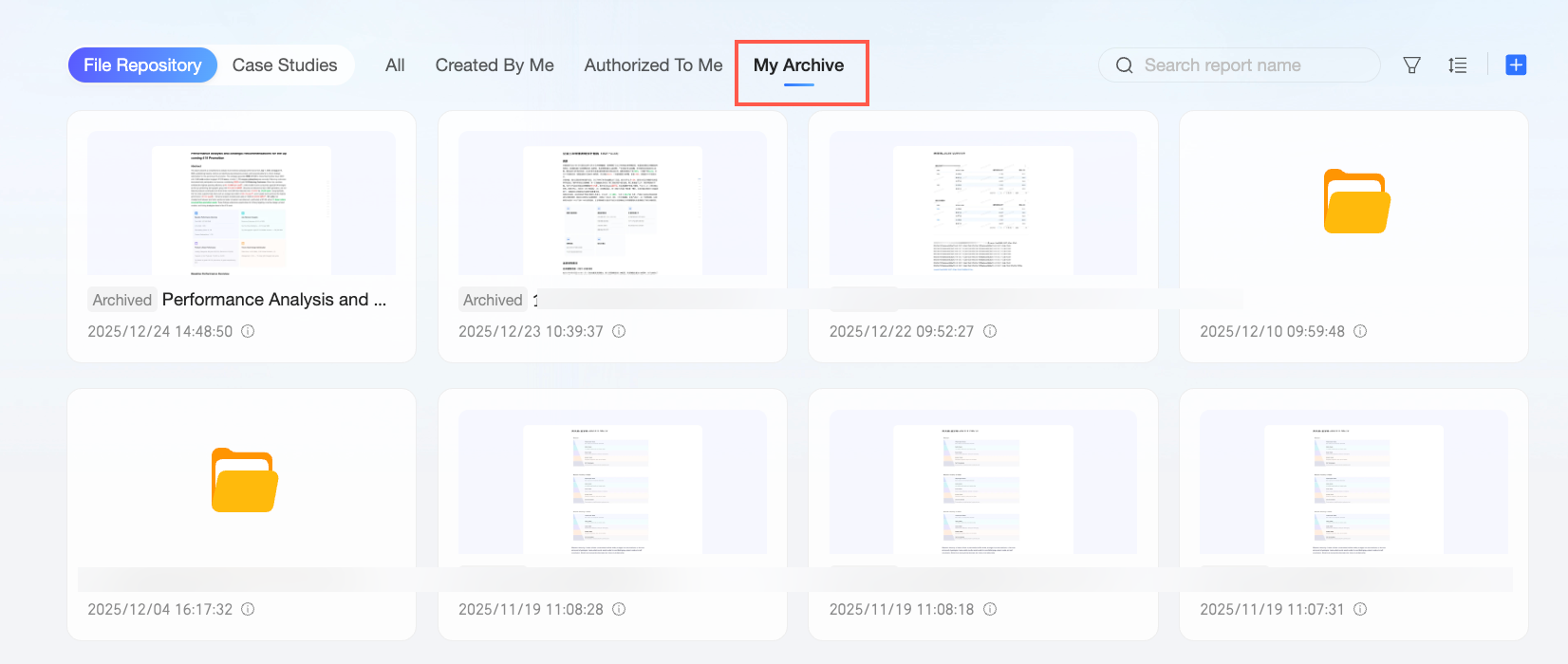 Hover over the report, click the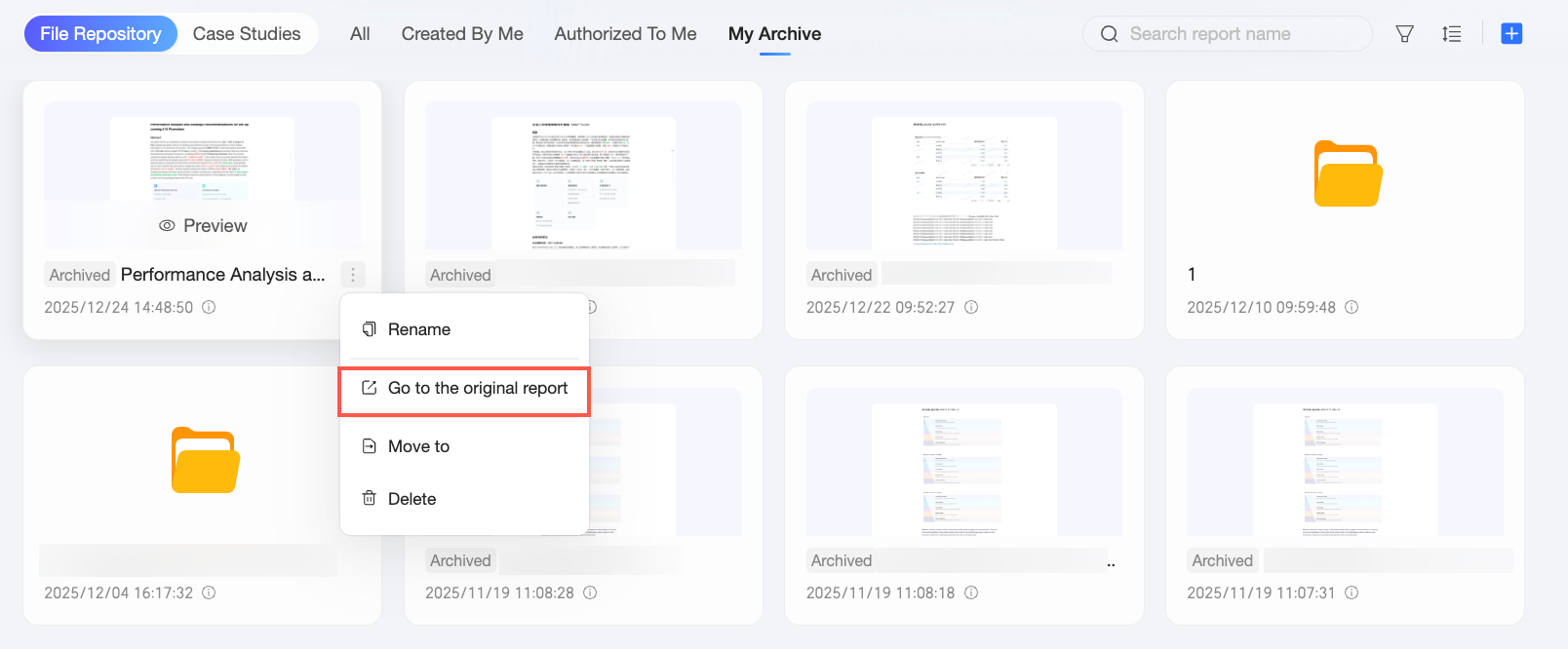
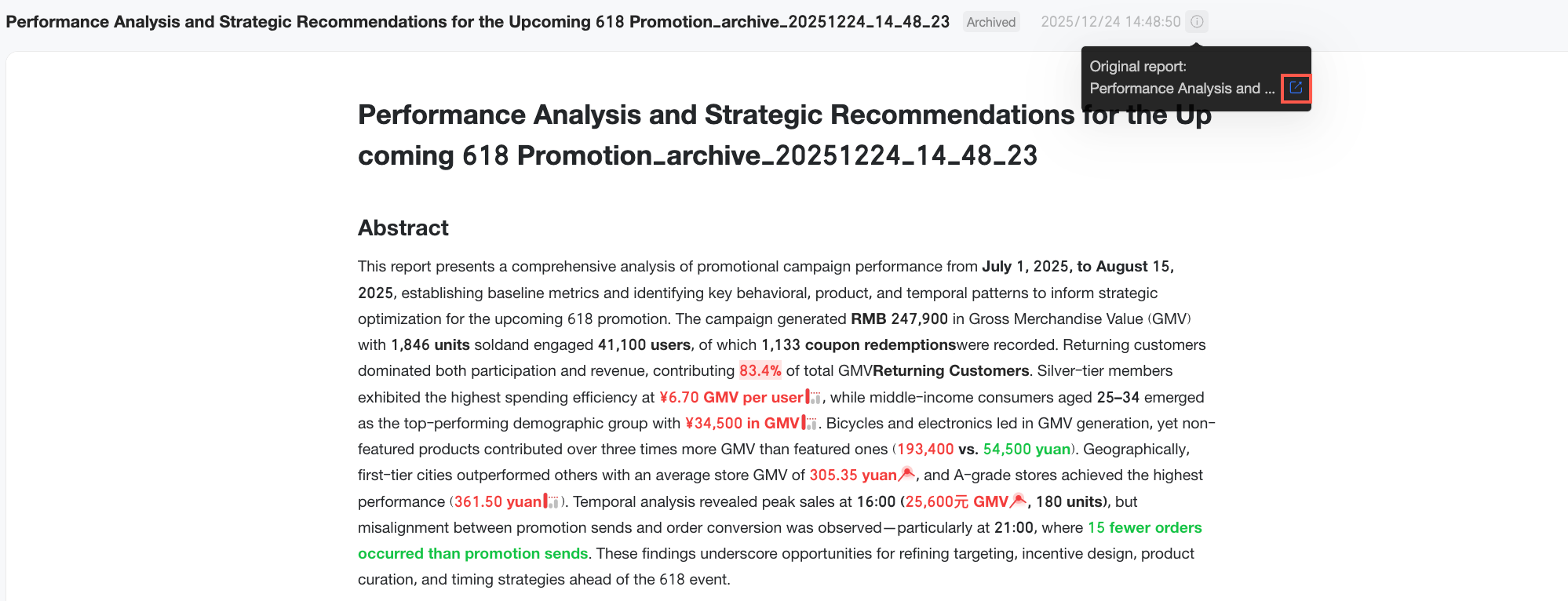
Export
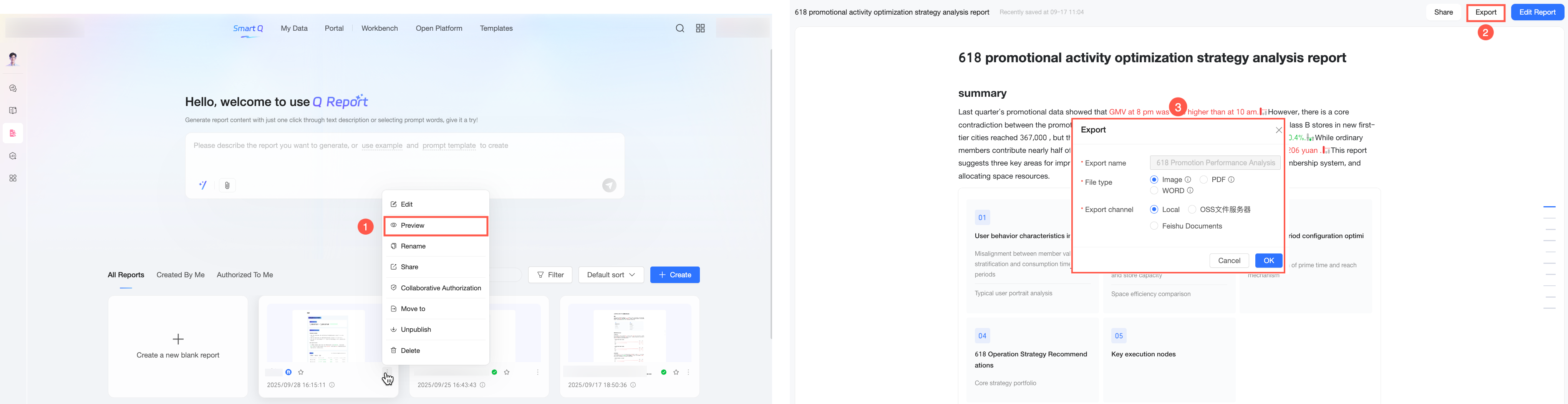
You can export a Xiao Q Report in preview mode as an image, PDF, or Word file. This is useful for various business scenarios, such as archiving, presentations, and sharing across departments. Follow these steps:
Open the report in preview mode from one of the following entry points and use the export feature.
Entry point 1: On the report edit page, click Preview in the upper-right corner. On the preview page that opens, click the
icon in the upper-right corner and select Export from the drop-down list.Entry point 2: On the Xiao Q Report page, find the report you want to export and open its preview page. On the preview page, click the Export button in the upper-right corner.
NoteTo export a report, you must meet the following prerequisites:
The export feature must be enabled in the Organization Management console under data security > export control.
You have permission to export the report. This means you are the report creator, or the creator has granted you permission to view and export it. For more details on permissions, see collaboration authorization.
The export behavior differs depending on the entry point:
Entry point 1: When you export from the live preview on the edit page, the system exports the report's current content directly. The exported file matches the content displayed on the screen.
Entry point 2: When you export from the preview page, the system exports the most recently published version of the report. For example, if you save new content to a published report without republishing it, the export includes the last published version, not the latest saved content. We recommend publishing any new content before exporting.
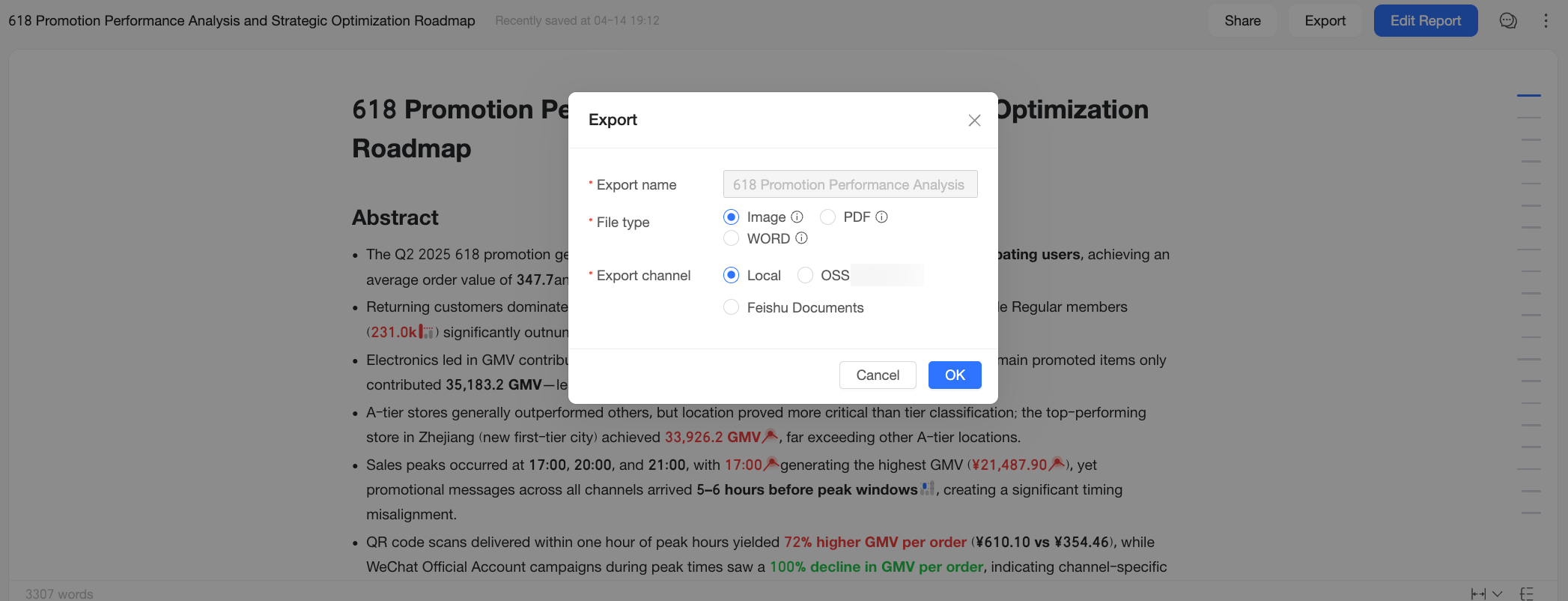
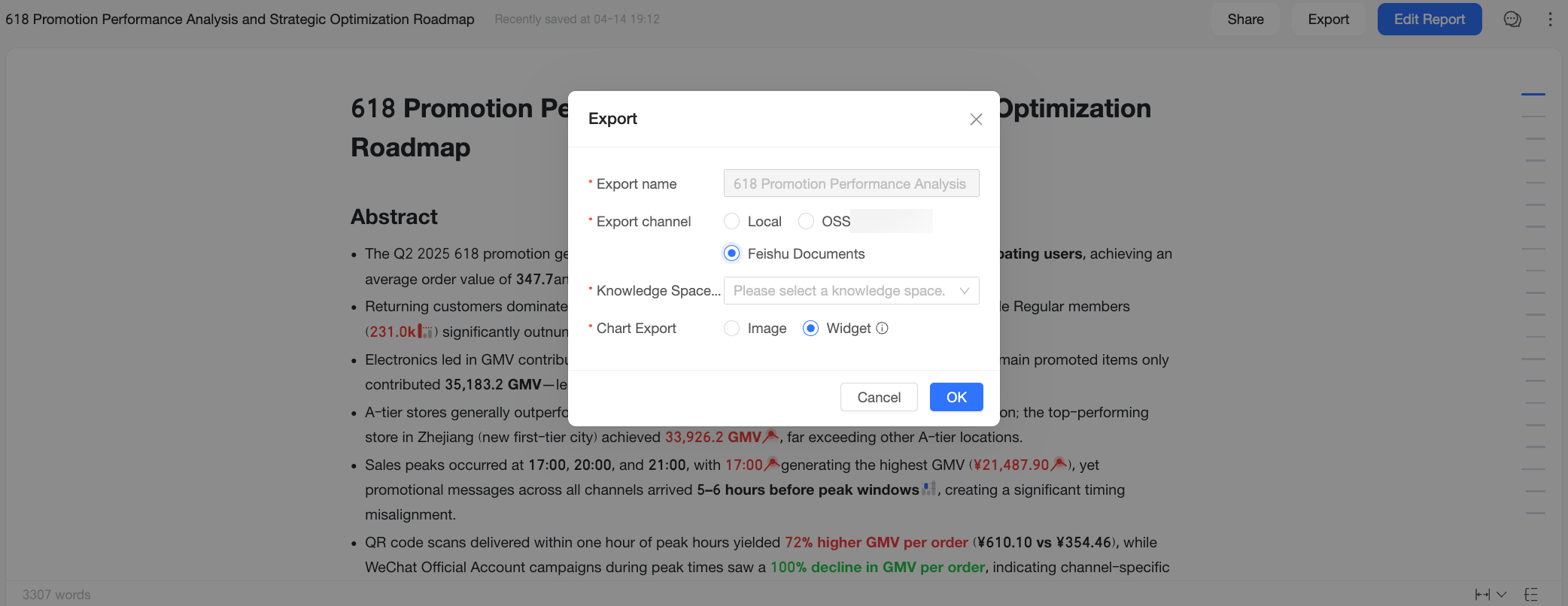
Xiao Q Report supports exporting to Local, OSS file servers, or Feishu Docs. Configuration options vary by export channel. You can configure them in the Export dialog box.
When the export channel is set to Local or OSS file servers, configure the following settings:
Parameter
Description
export name
The name of the exported file.
By default, the system generates this name based on the naming rule configured in the Organization Management console under export name. To change the naming rule, contact your organization administrator.
file format
The format of the exported file.
Xiao Q Report supports exporting as Image, PDF, and Word files. However, the available formats depend on the export format setting under export name in the Organization Management console. For example, if export control only allows for Image and Word, you can only export files in those two formats.
NoteWhen exporting as an Image or PDF, some effects like text gradients and chart shadows are not supported and are simplified in the exported file.
When exporting as a Word document, some styles are simplified because Microsoft Word does not support certain editor-specific styles, such as columns, highlight blocks, and emojis.
export channel
The destination for the exported report file. The current selection is Local or OSS.
The available channels are determined by the export channel setting under export name in the Organization Management console. For example, if only server-side export is enabled, you can only export to an OSS server.
When the export channel is set to Feishu Docs, configure the following settings:
Parameter
Description
export name
The name of the exported file.
By default, the system generates this name based on the naming rule configured in the Organization Management console under export name. To change the naming rule, contact your organization administrator.
export channel
The destination for the exported report file. The current selection is Feishu Docs.
To export to Feishu Docs, your organization administrator must have selected the Feishu Docs option in the export channel settings under export name.
Knowledge Space
Select the Feishu Knowledge Space to store the exported document.
NoteExporting to Feishu Docs requires the Feishu application to have the relevant permissions for the Knowledge Space. For more information, see Authorization Method.
chart export
Select how charts in the report are exported to Feishu Docs. Options include Image or widget.
Image: Exports charts as static images and embeds them as attachments in the Feishu Doc.
widget: Embeds charts as widgets in the Feishu Doc. Users can hover over the data to view details. This requires the Quick BI mini program to be installed in your Feishu organization.
NoteAfter a report is exported to Feishu Docs, all users who can preview the document can view the charts by default.
After configuring the settings, click OK to export the report.
 icon in the upper-right corner and select Export from the drop-down list.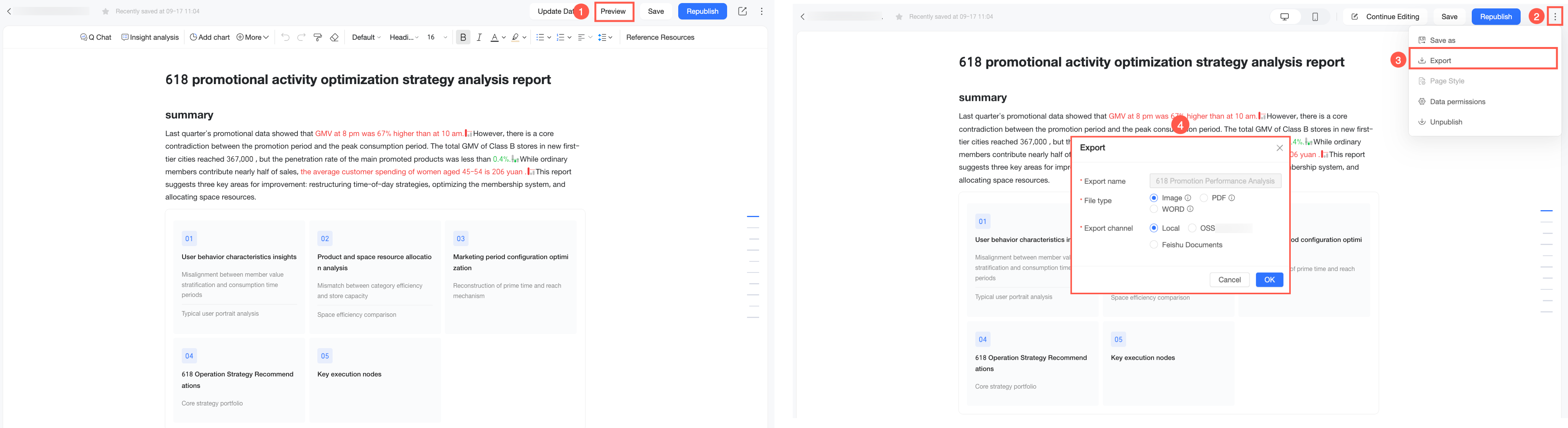
Save
On the XiaoQ Report edit page, click Save on the navigation bar.
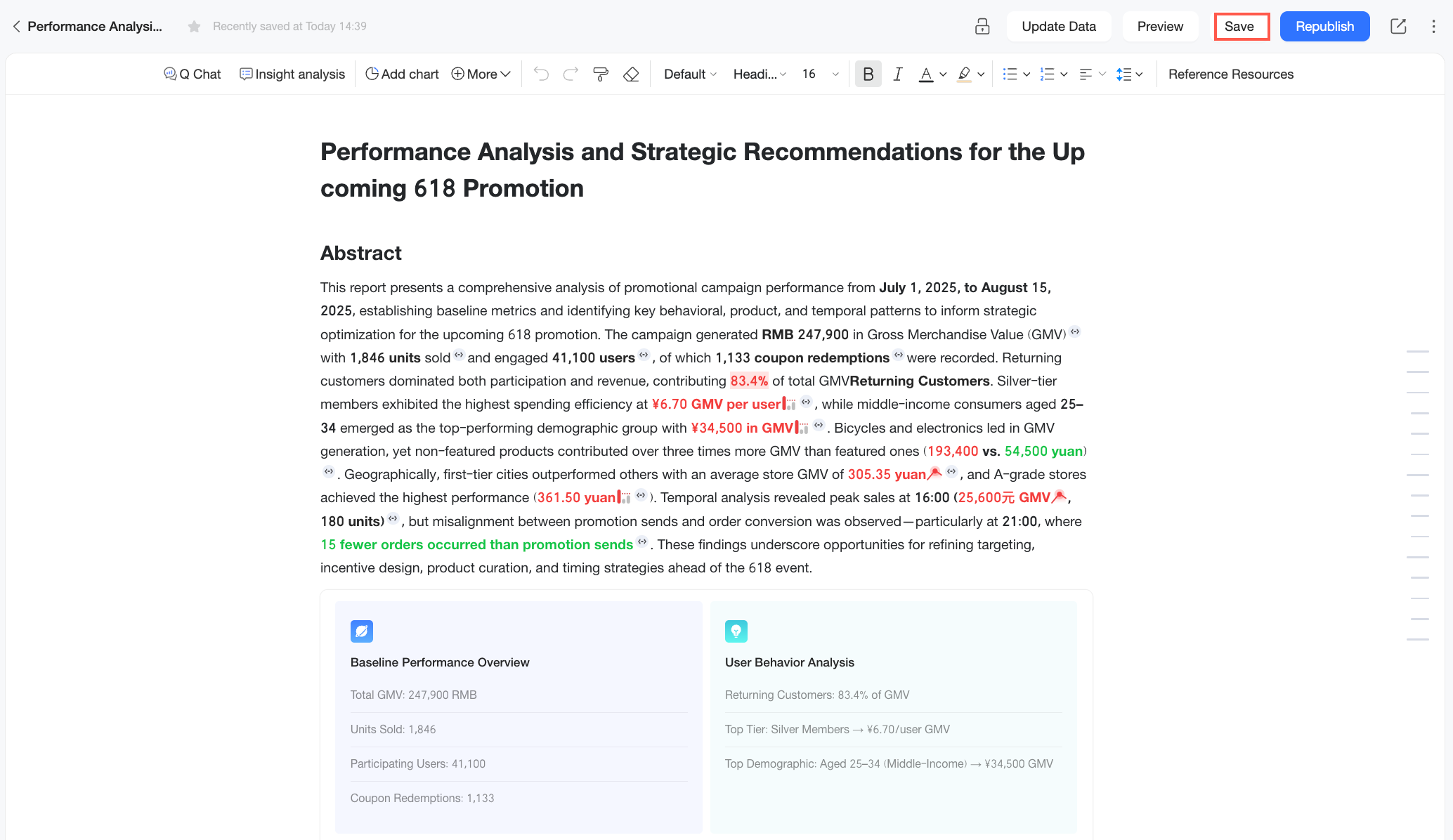
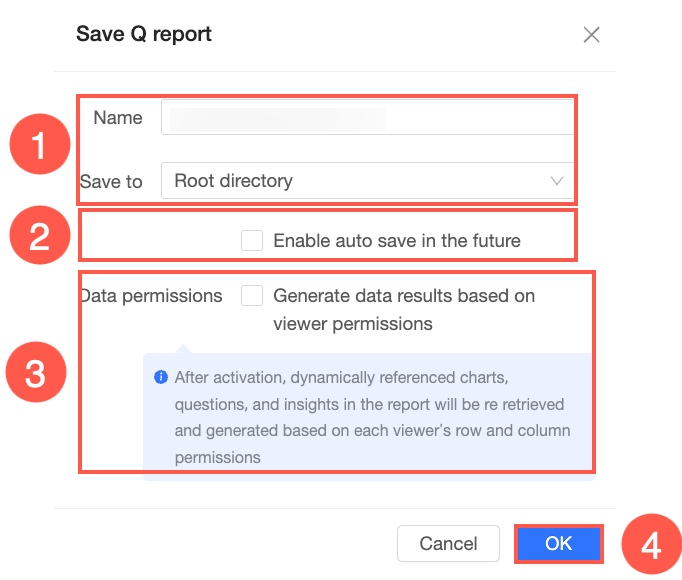
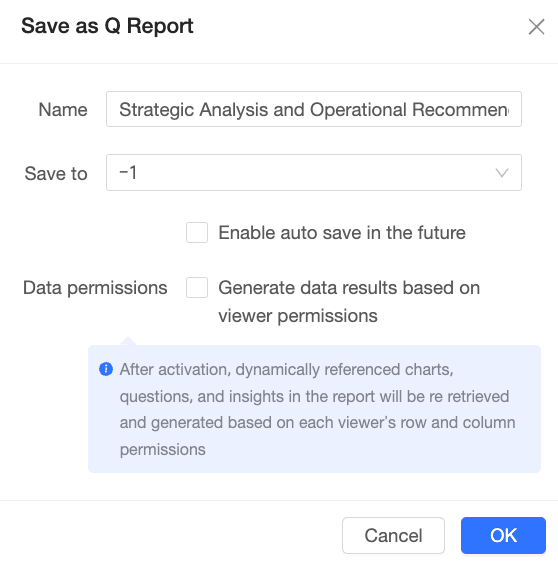
When you save a report for the first time, you can ① set its name and select a location; ② enable auto-save; ③ configure data permissions; and ④ click OK.
When data permissions are enabled, the system regenerates charts, Data Q&A, and Insights results in the report that use a dynamic reference based on each viewer's row and column permissions. For more information, see data permissions.
Save and publish
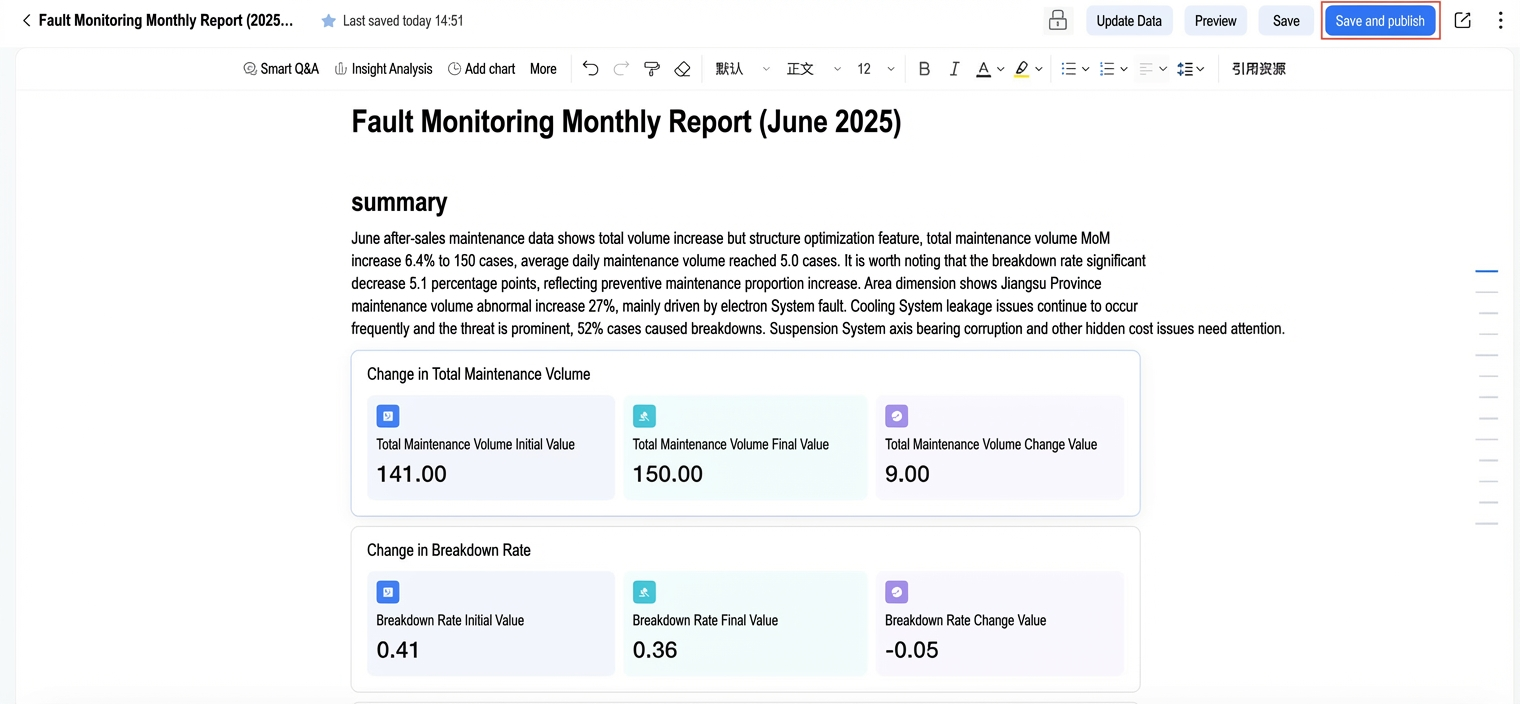
On the Xiao Q Report editing page, click Save and Publish in the navigation bar. Once published, users with view permission can preview the report.
Republish
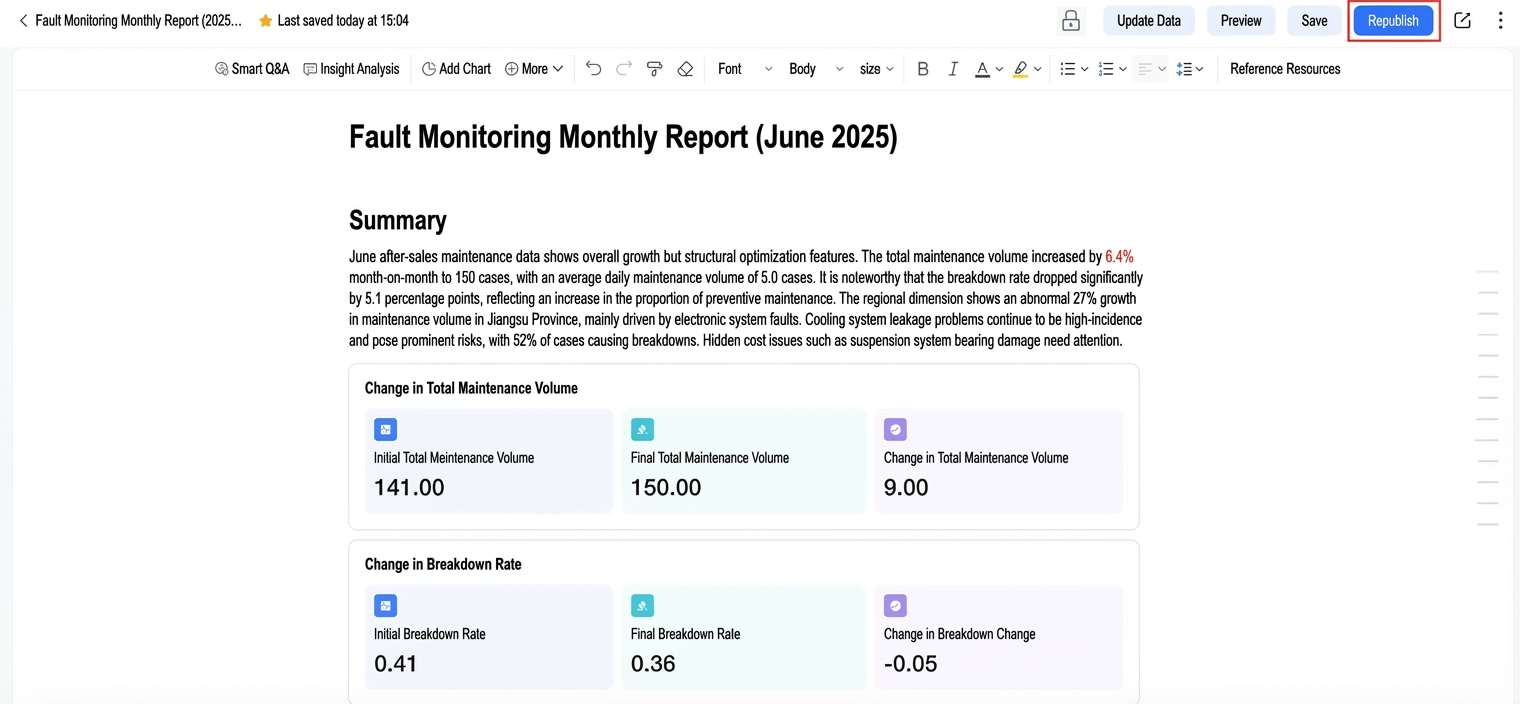
To republish a modified XiaoQ Report, click Republish in the navigation bar on the edit page. After republishing, viewers can access the latest content.
Share
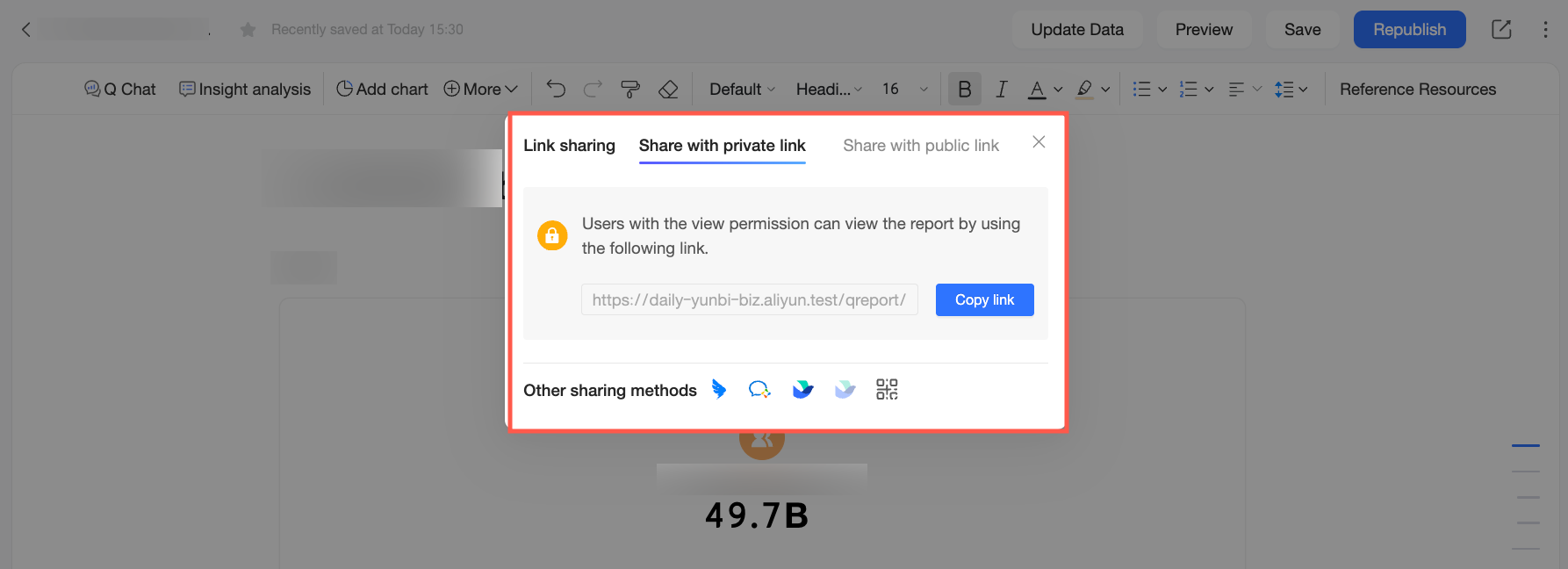
On the Q Report edit page, click the Share button in the navigation bar to share the Q Report.
Alternatively, on the Q Report list page, click the  icon for the target report and select Share.
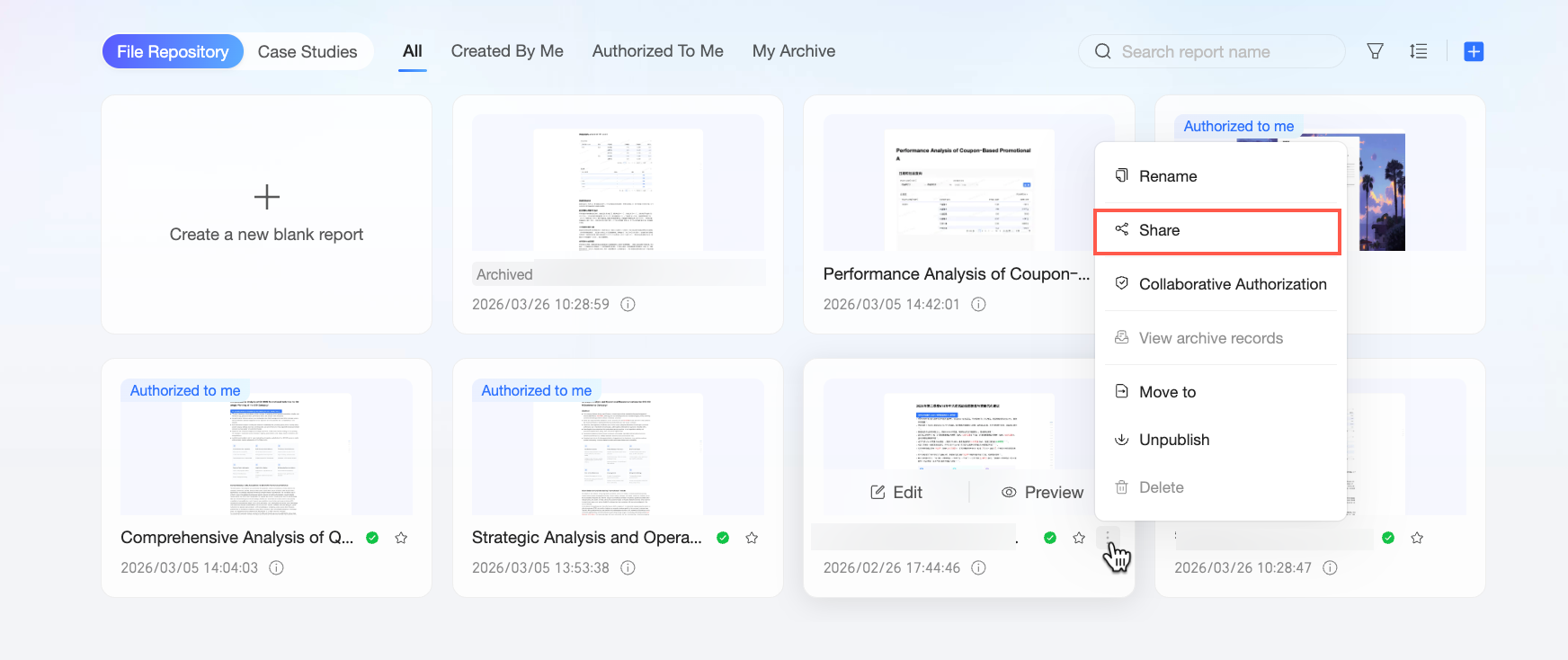
You can share a report via a private link or a public link.
private link: Click copy link next to the link field. You can send this link to other users with view permissions or share it via other sharing methods with users of your integrated DingTalk, Lark, or WeCom apps.
public link: Click Share Publicly to make the current report public. Then, click copy link. When a report is public, anyone who has the link can view its content.
NoteYou can get a public link from the link sharing dialog box only if you have enabled the Publicly Sharable Data Assets setting in Organization Management.
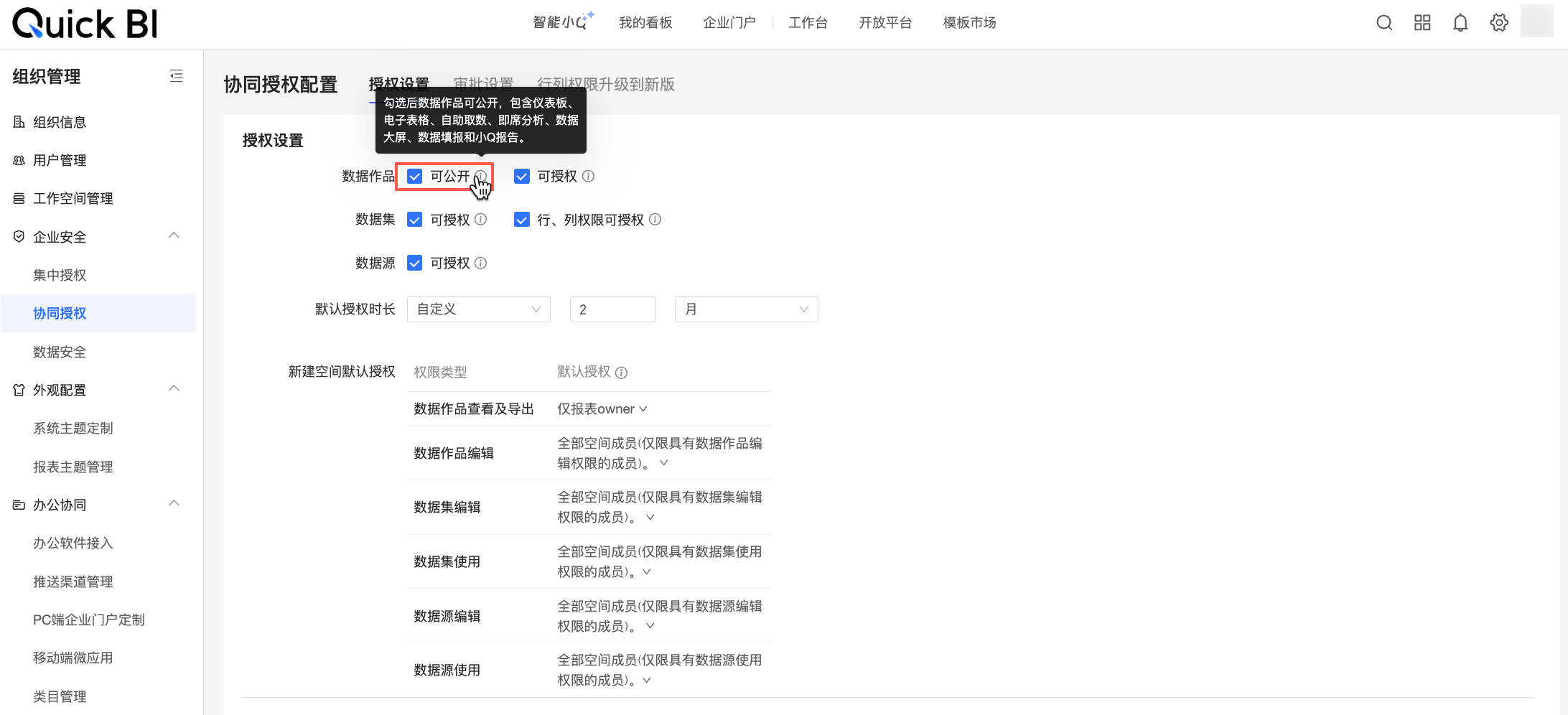
Combine sharing methods with data permissions settings to address different use cases. For more information, see data permissions.
Save as
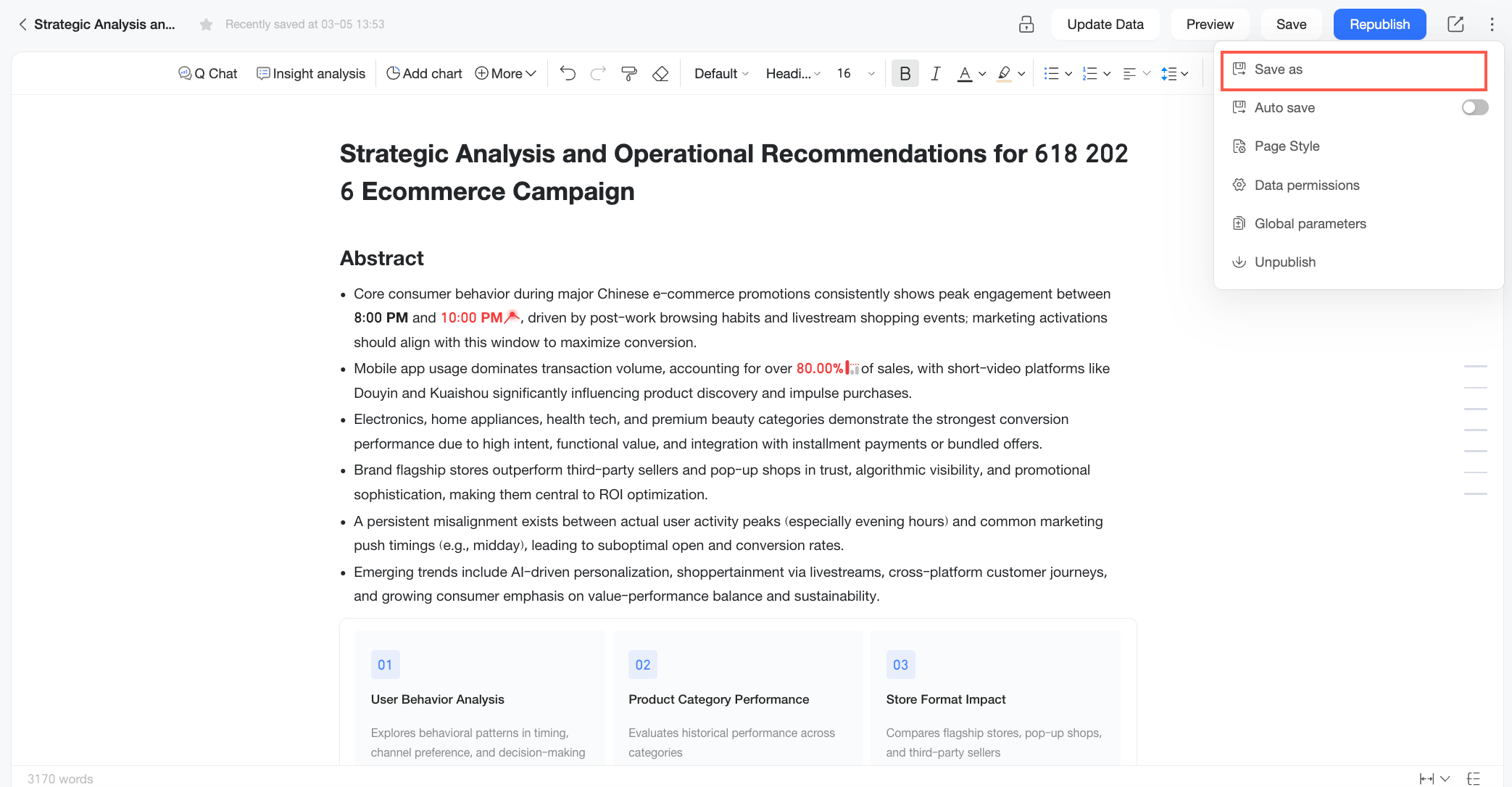
On the Xiao Q report editing page, click the  icon and select save as to create a copy of the Xiao Q report.
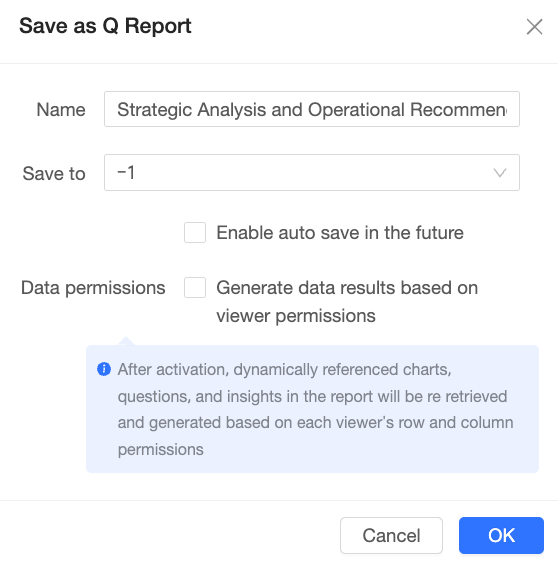
In the Save Xiao Q report as dialog box, ① specify a name and select a location for the report, ② configure auto-save, ③ set data permissions, and ④ click OK.
When data permissions are enabled, the platform regenerates charts, ask data results, and insight results in the report that use dynamic references based on each viewer's row and column permissions. For more information, see data permissions.
Autosave
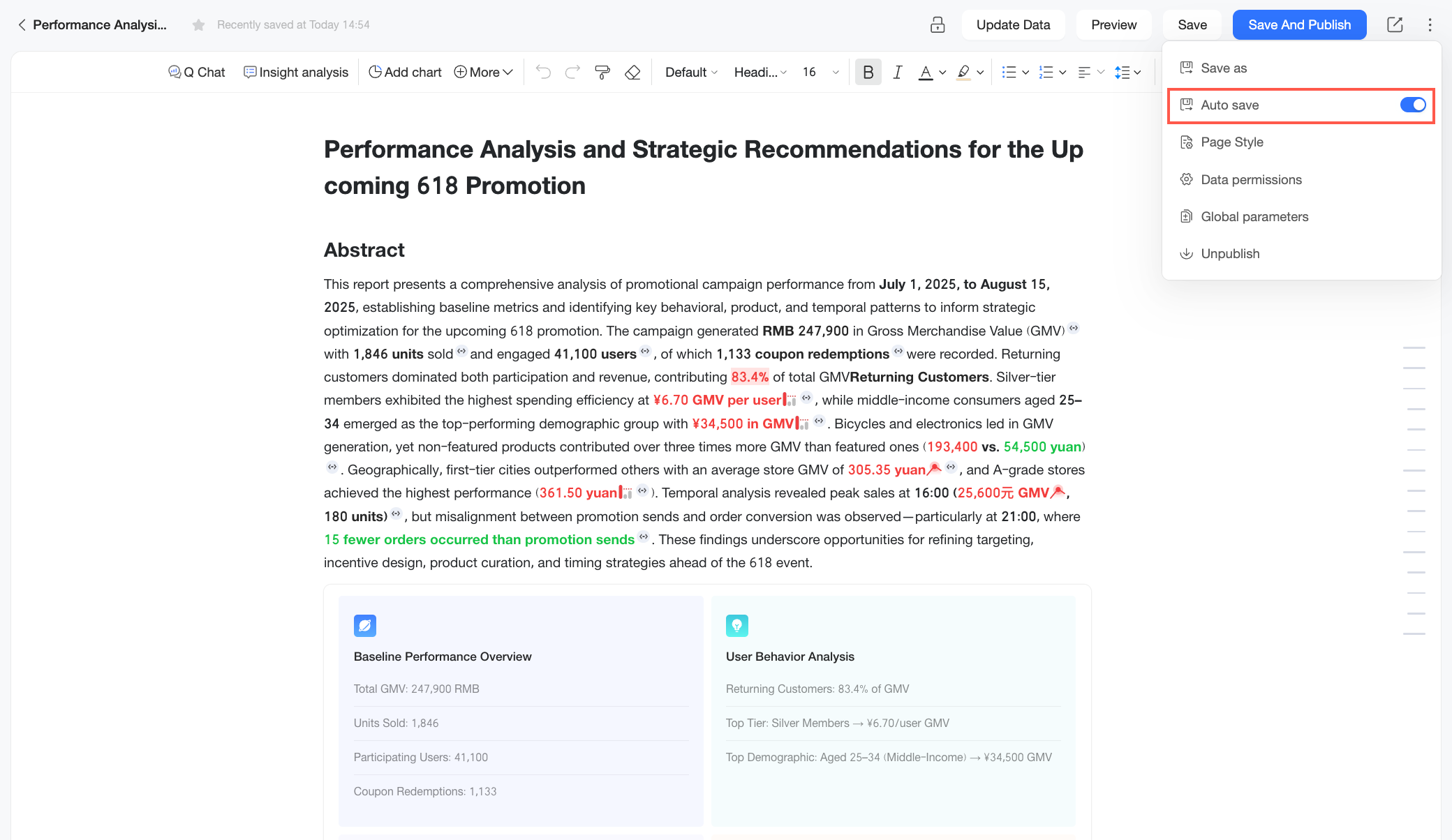
The autosave feature prevents you from losing work due to unexpected interruptions, such as an accidental browser closure or a network outage. When enabled, the system automatically saves your report every 5 minutes if it detects any changes. If your session is interrupted, you can reopen the report and resume from the most recently saved version.
Page style
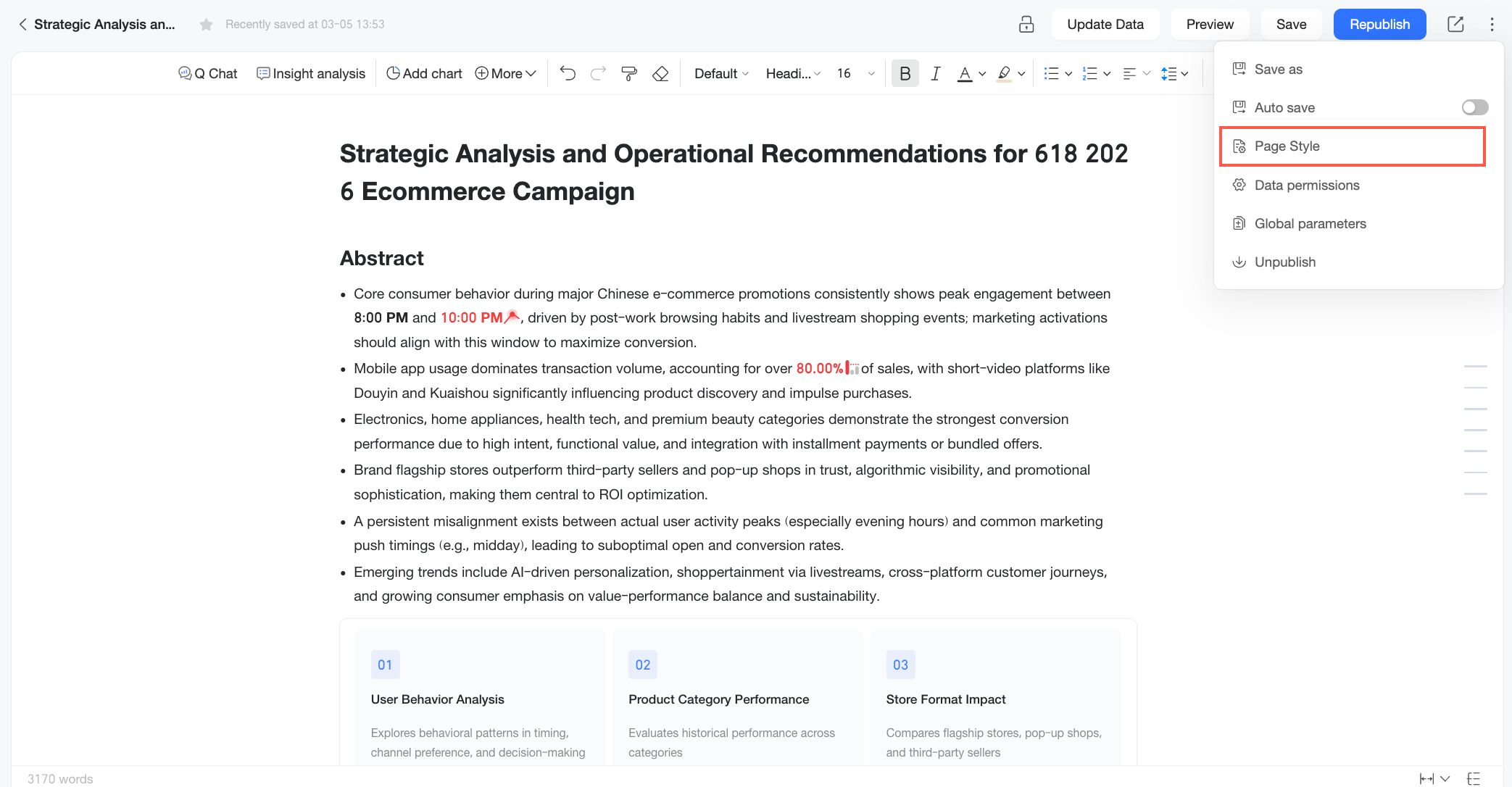
On the Xiao Q report edit page, click the icon and select page style to open the style settings. For details, see style configuration.
Comments
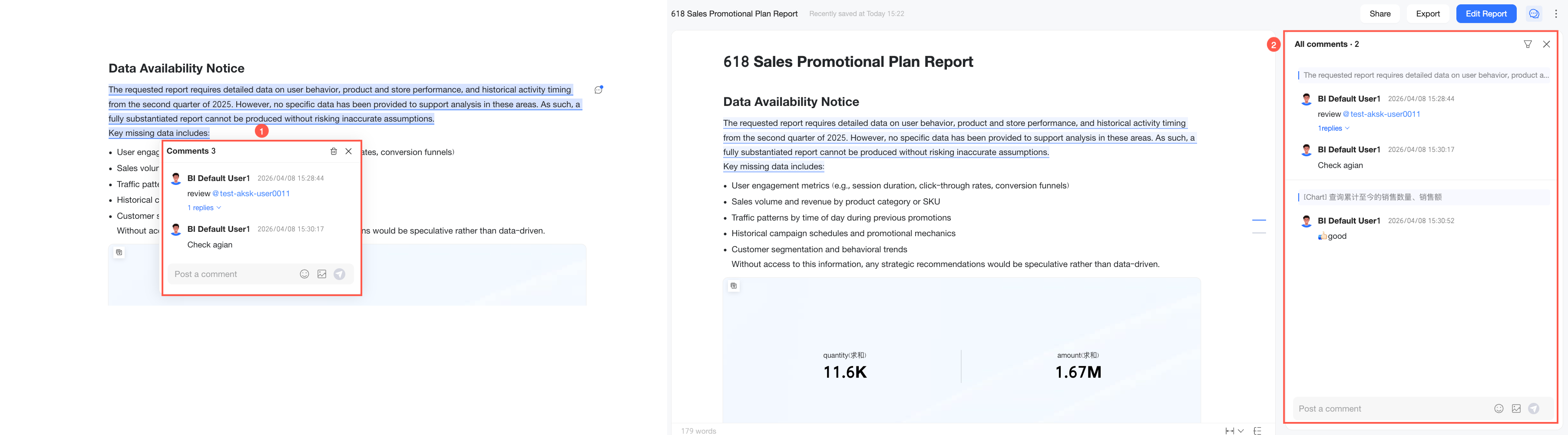
In daily data collaboration and analysis, decision-makers and business managers often need to ask questions or discuss specific data conclusions, anomalies, or metric definitions in reports. The comment feature in Xiao Q reports lets you add comments directly to text paragraphs or chart components and @mention relevant team members. This creates a traceable discussion record and streamlines collaboration by integrating conversation with data viewing.
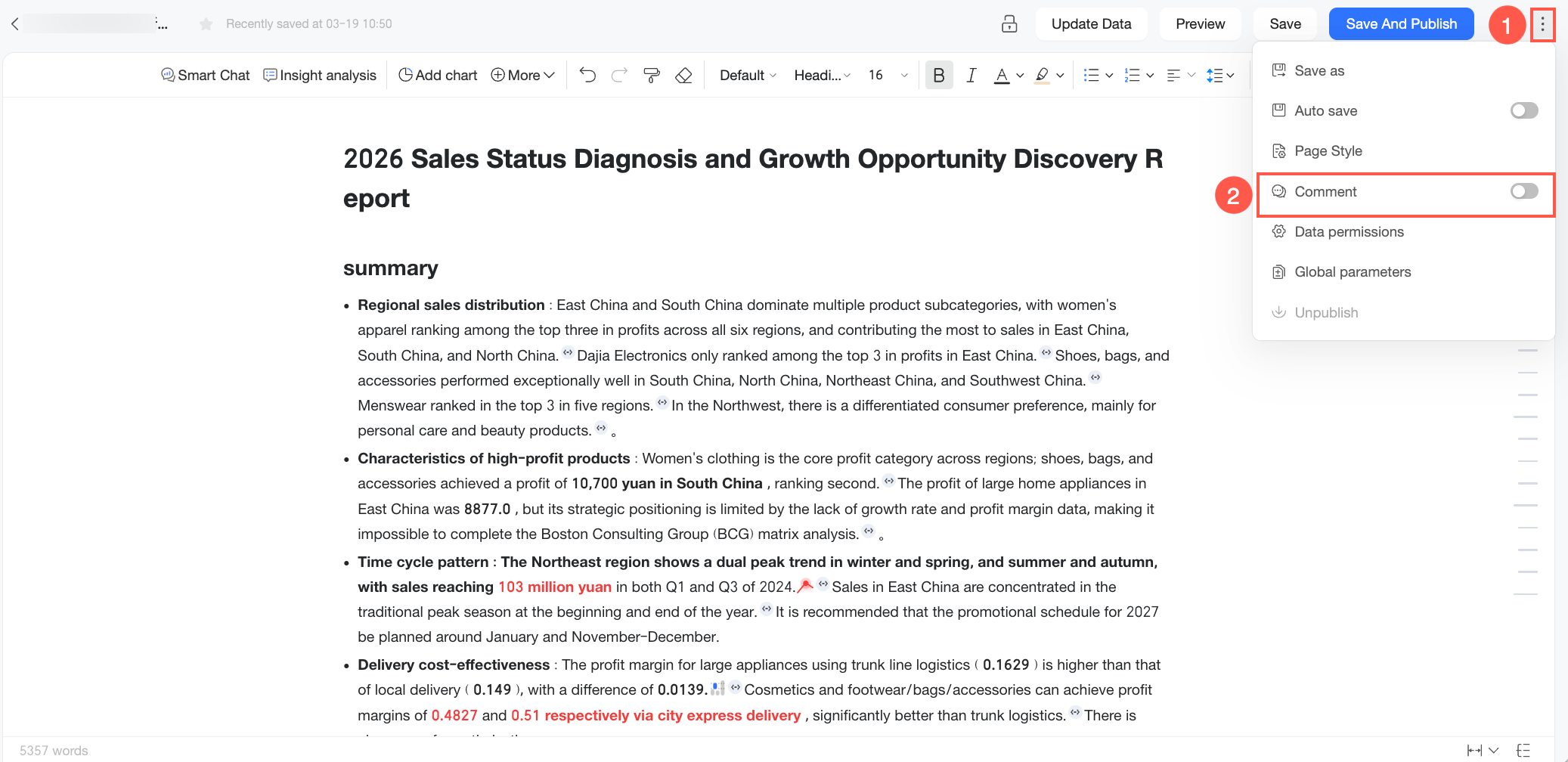
To enable this feature for the current report, go to the Xiao Q report edit page, click the icon, and in the drop-down list, turn on the Comment toggle (to  ).
).
Once the comment feature is enabled, all users with view permission for the report can add comments on the preview page. Follow these steps.
Add a comment: Quick BI supports adding comments to text and chart content in a report. You can use different entry points depending on the comment object.
Comment object
Entry point
Text
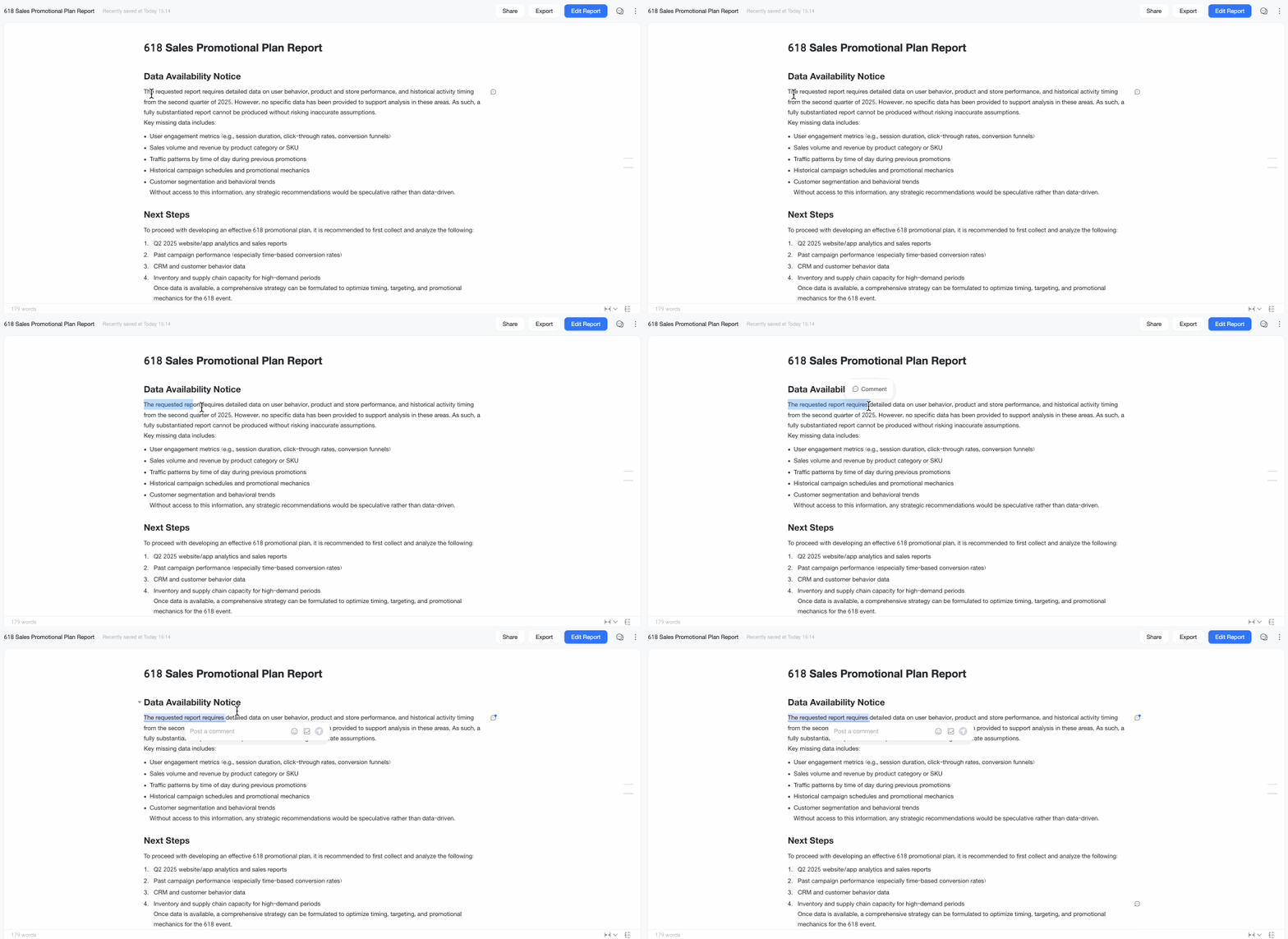
Hover over a line of text. The comment icon
appears to the right of the paragraph. Click the icon to add a comment to the paragraph.To comment on only a portion of the text, select the desired text. A floating menu appears. Click the
icon to add a comment.Chart
Hover over the target chart component. The comment icon
appears to the right of the chart. Click the icon to add a comment.Alternatively, click the
icon in the upper-right corner of the chart and select Comment from the drop-down menu to add a comment.Text and chart
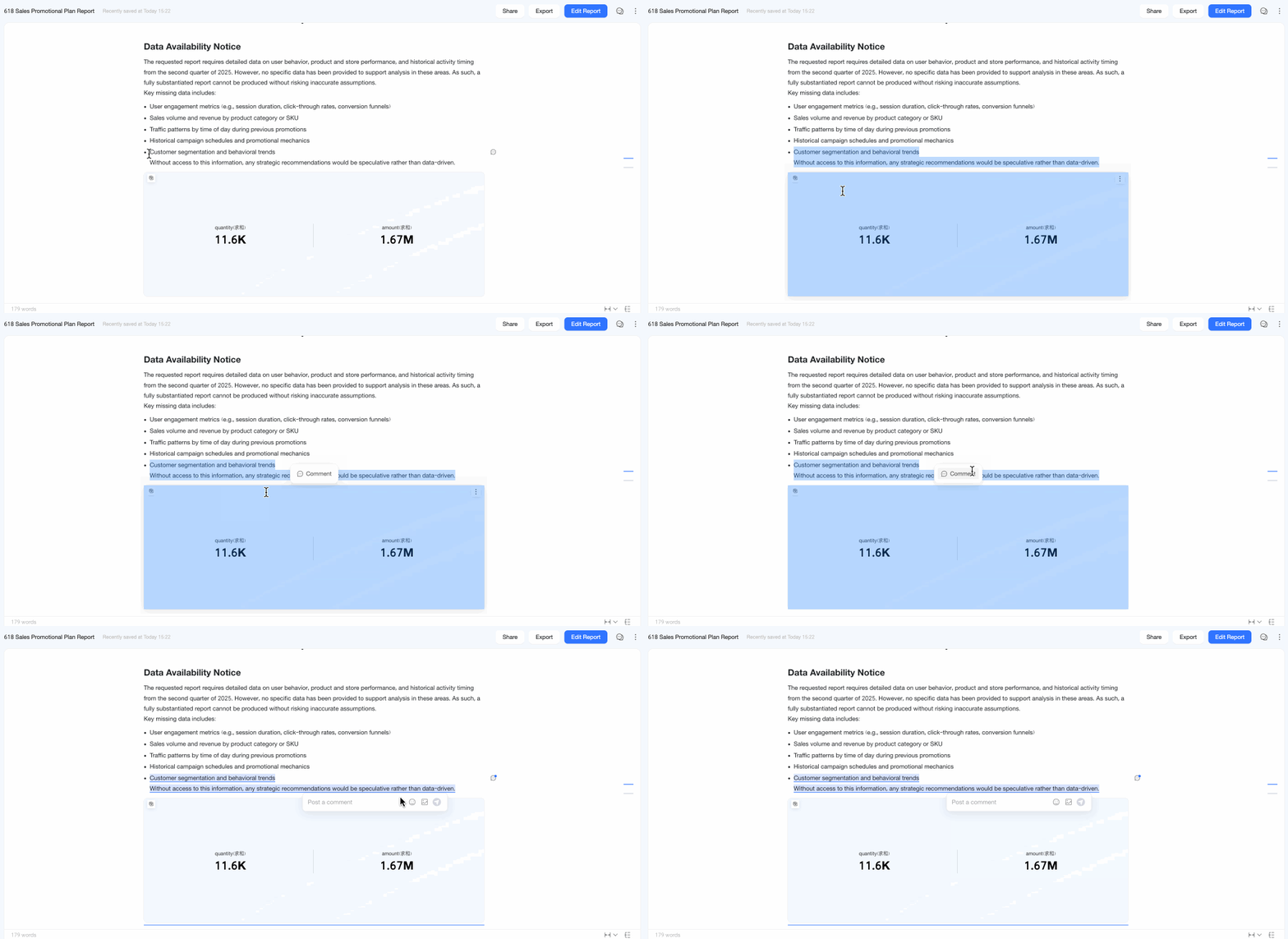
Select the target text and chart. A floating menu appears near your selection. Click the
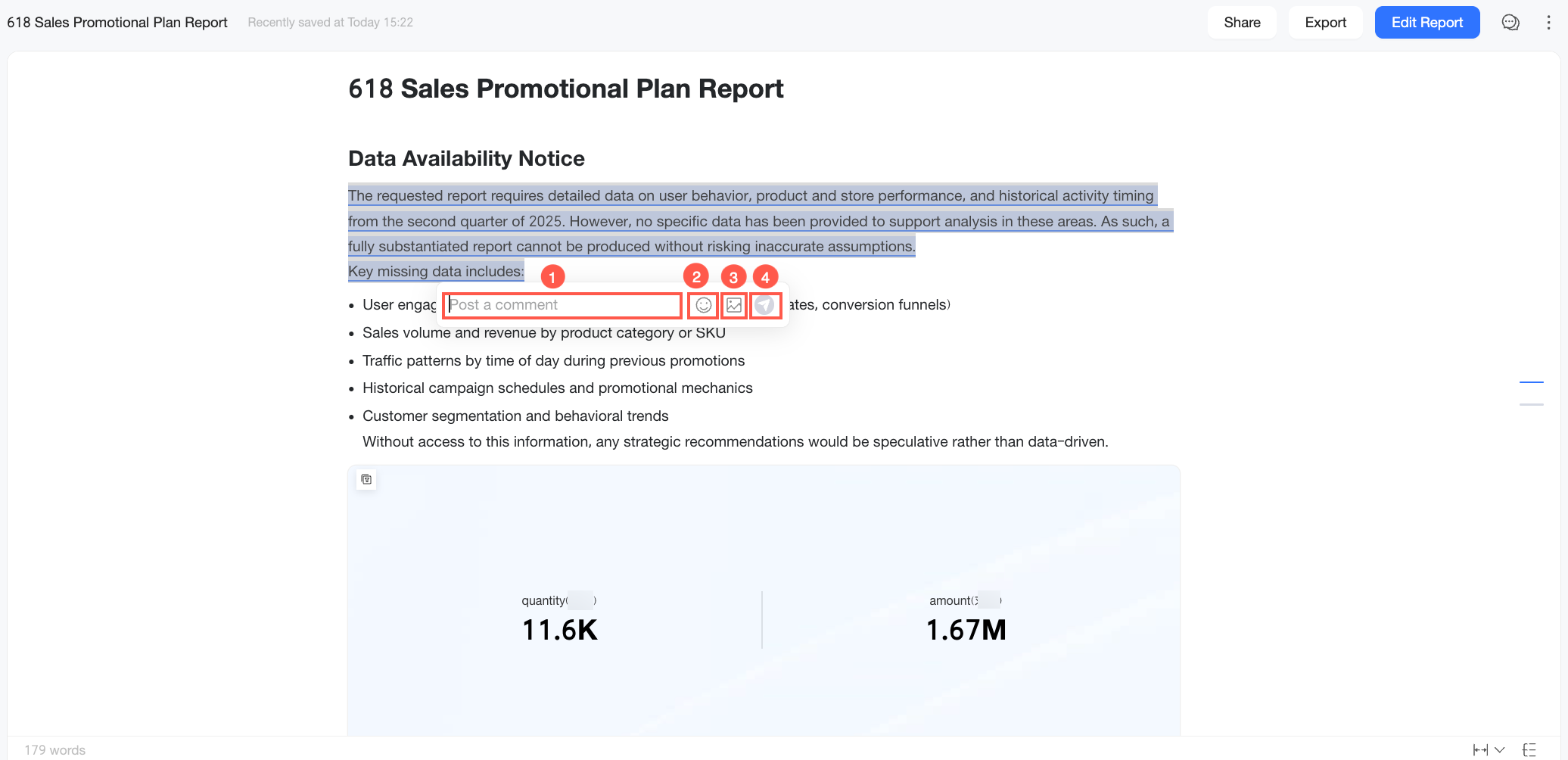
icon to add a comment.Edit comment content: In the floating editor box, enter your comment. You can perform the following actions.
Actions
Description
Area ①
Enter comment content
Enter text for your note, question, or discussion about the selected report content.
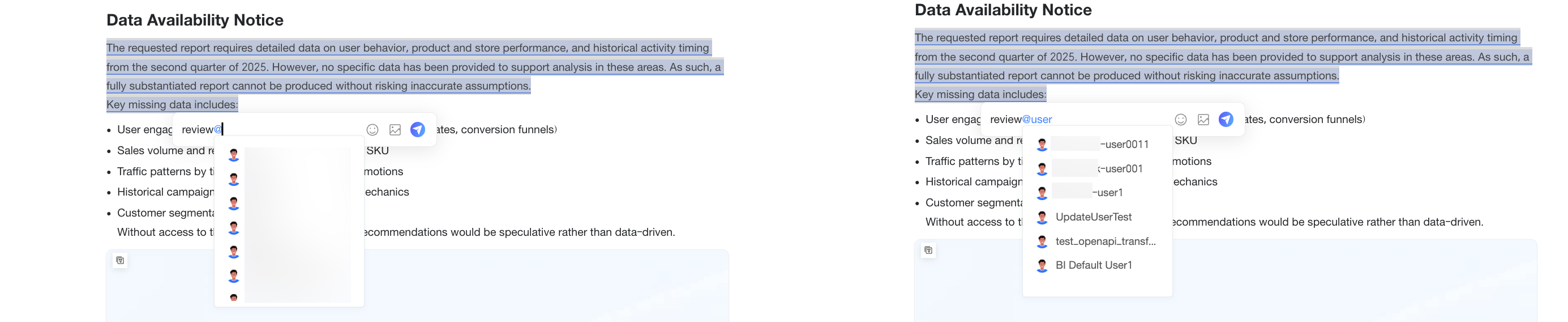
@mention
Type the @ symbol in the editor box to open a list of users in your organization (up to 50 are shown). You can select a user from the list or type their name to filter the results.
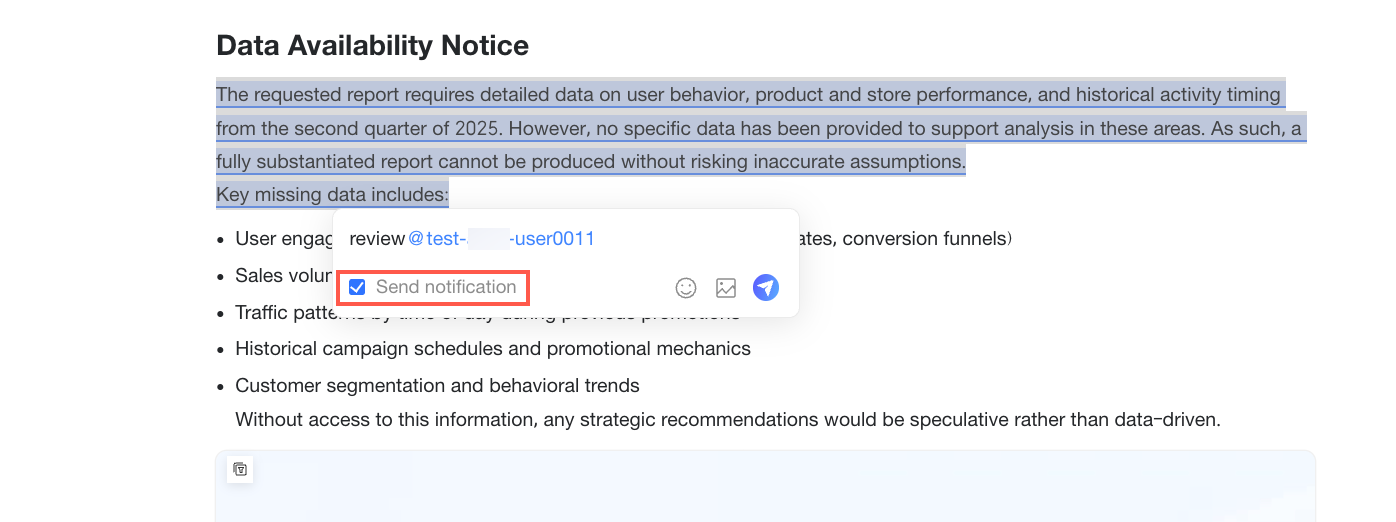
When you @mention someone, the Send Notification checkbox is selected by default. When the comment is posted, the system sends a notification to the mentioned users through integrated third-party channels (such as DingTalk or Lark) or custom channels so they can join the discussion promptly.
NoteFor more information about how to configure third-party and custom channels, see Office collaboration.
In addition to the @mention notification, you can use Quick BI's comment events to monitor when comments in a Xiao Q report are created, replied to, or deleted. For more information, see Event listening.
Area ②
Add emoji
You can add emojis to your comments to enhance emotional expression and contextual understanding.
Area ③
Upload image
You can upload a local image (up to 1 MB in size) to provide additional information, such as business context or data logic.
Area ④
Send comment
After you enter content in the editor box, the Send button (
) becomes clickable. Click it to submit your comment.After a comment is sent, the commented content is highlighted and underlined. A pop-up window then appears near the content, showing its details.
View and manage comments: You can view and manage comments for specific content directly in the report body, or you can use the report's global comment panel to manage all comments centrally.
Comment type
Description
① Comments on specific areas
The method for viewing comments varies by comment object:
When the comment object is text, hover over the commented text, and click the paragraph or the
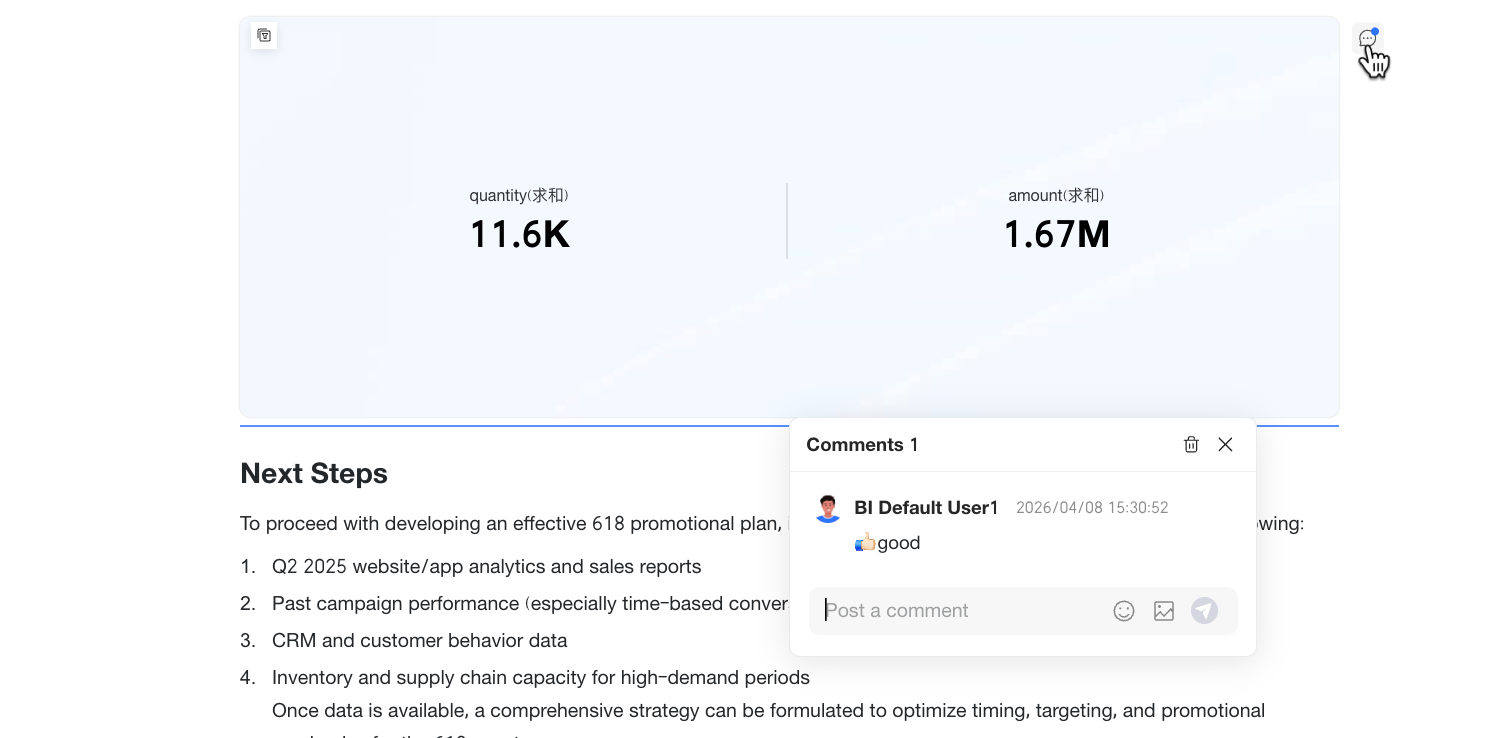
icon on the right. The Comment pop-up window opens, showing all comments for the current text.When the comment object is a chart, hover over the commented chart and click the
icon on its right. The Comment pop-up window opens, showing all comments for the current chart.
In the Comment pop-up window, you can perform the following actions:
Add a comment: Even if a paragraph already contains comments, you can still select a portion of its text to add a new comment.
Reply to a comment: Hover over a comment and click the
icon to reply.Delete a comment: Hover over a comment and click the
icon to delete it. To delete all comments for the current content area, click the icon in the pop-up window.NoteYou can only delete your own comments and replies. You cannot delete comments and replies posted by other users.
Close the pop-up window: Click the
icon to close the current comment pop-up window.
② Global comments
Click the
icon in the upper-right corner of the report preview page to open the global comment panel. This panel lists all comments in the current report, where you can perform the following actions:Filter: If a report contains many comments, click the
icon to filter them. You can select All Comments, Related to Me, or Report Global Comments.Locate and navigate: Click a comment entry to navigate to and highlight the corresponding content in the report.
Reply to a comment: Hover over a comment and click the
icon to reply.Delete a comment: To delete a comment you posted, hover over it and click the
icon.NoteYou can only delete your own comments and replies. You cannot delete comments and replies posted by other users.
Add a comment: Add a comment about the entire report in the comment editor box.
Close the panel: Click the
icon to close the comment panel.
 appears to the right of the paragraph. Click the icon to add a comment to the paragraph.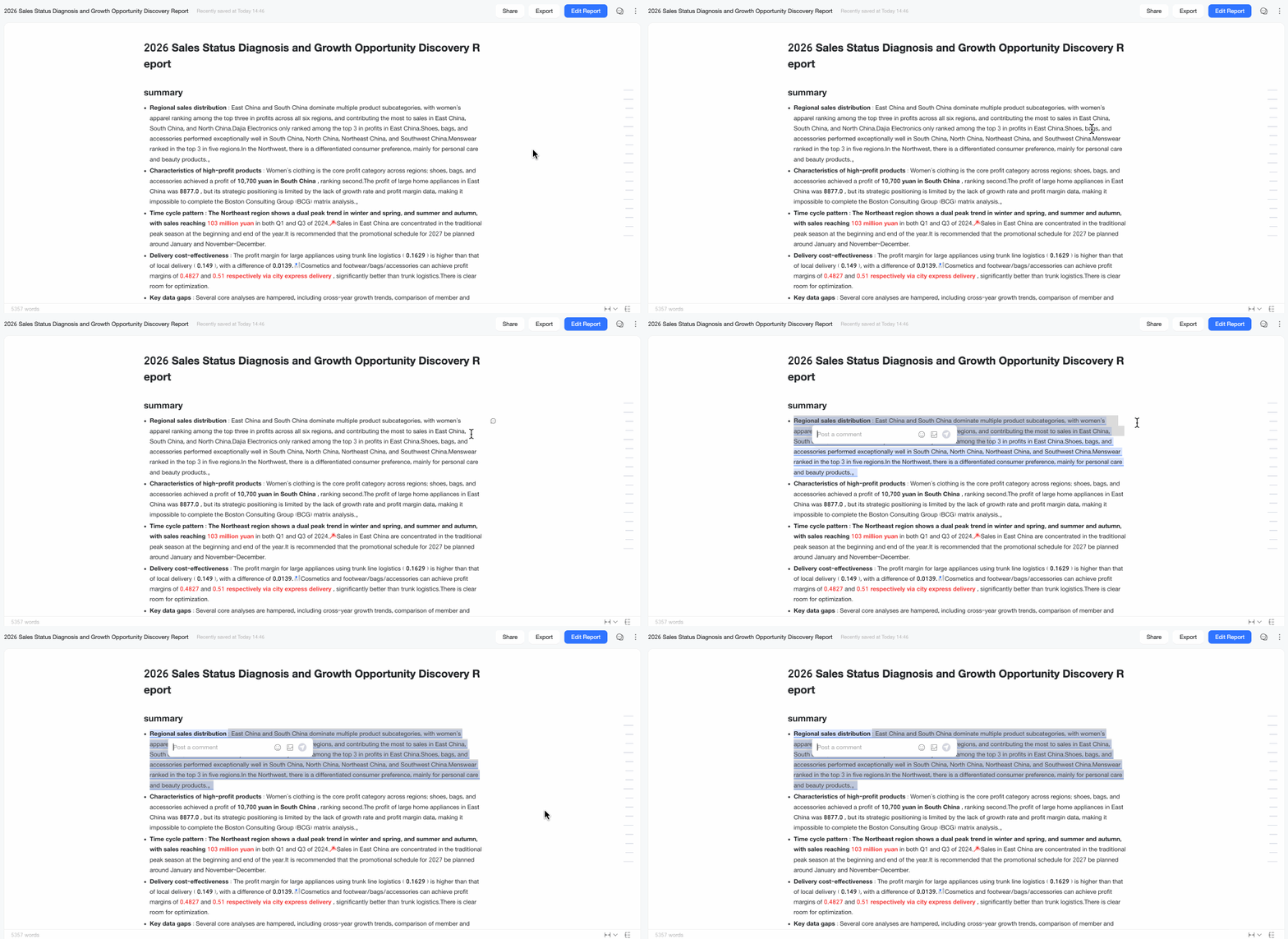
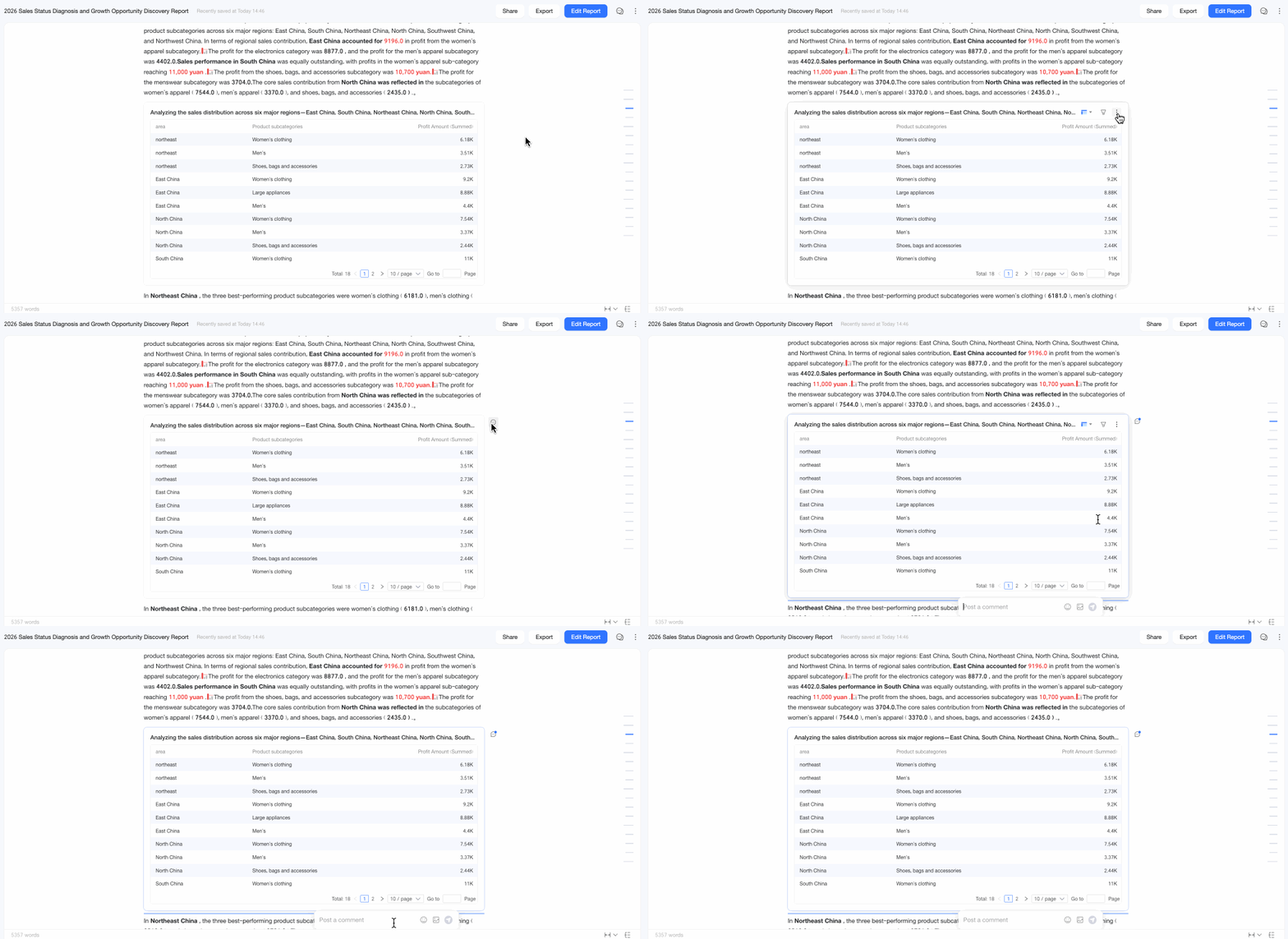
 icon in the upper-right corner of the chart and select Comment from the drop-down menu to add a comment.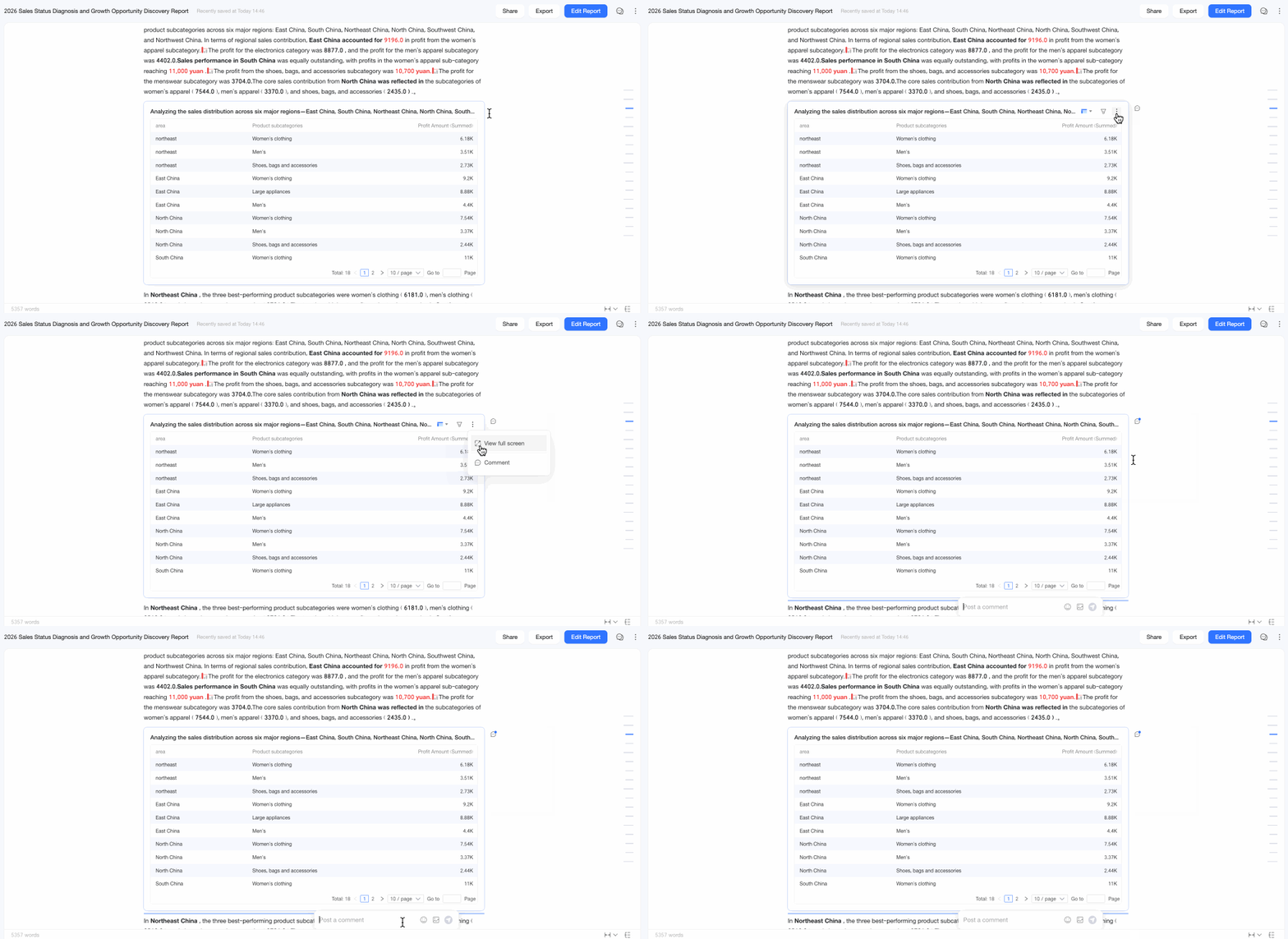
 ) becomes clickable. Click it to submit your comment.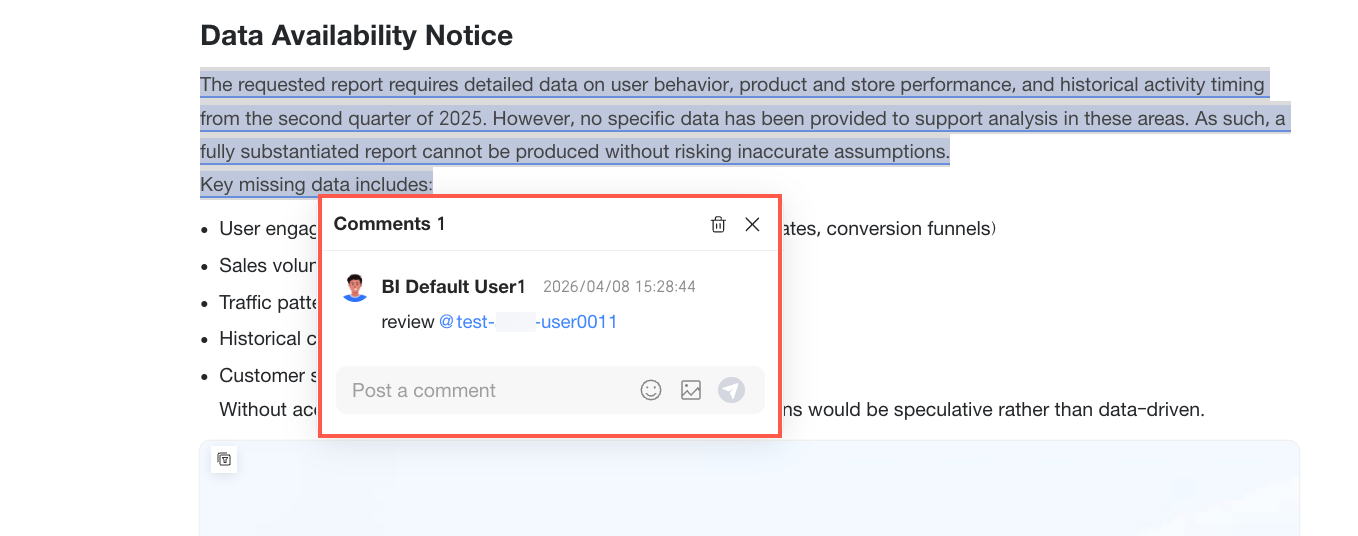
 icon on the right. The Comment pop-up window opens, showing all comments for the current text.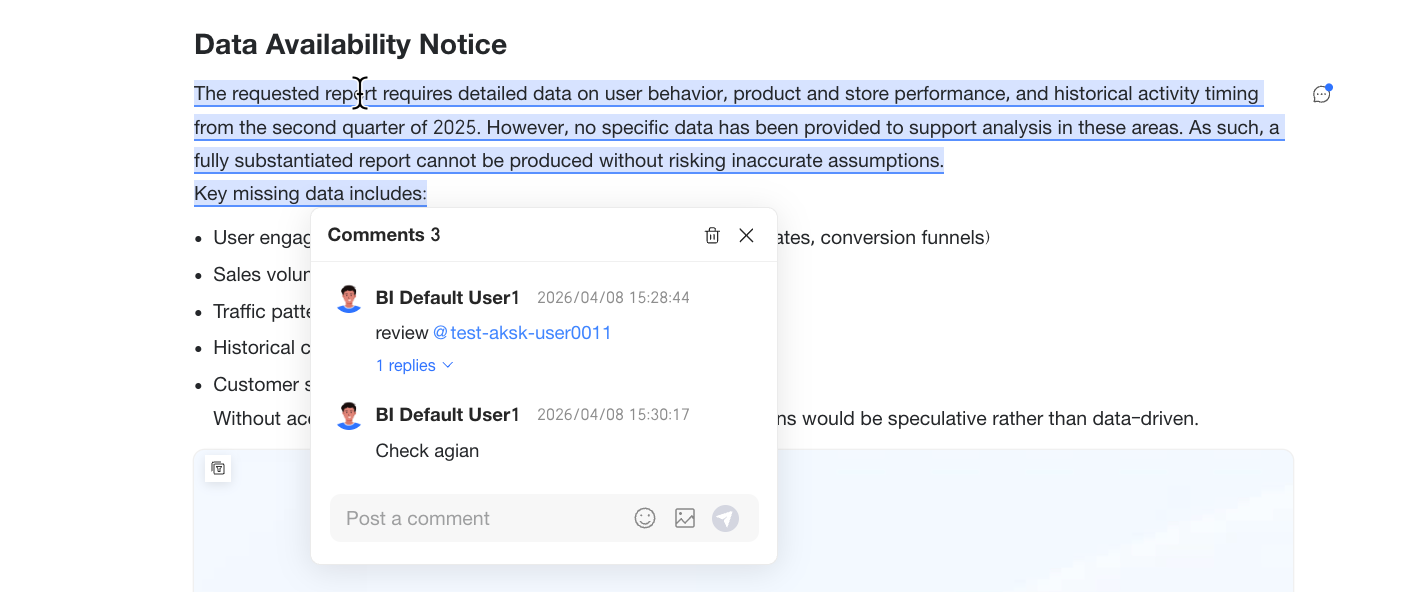
 icon to delete it. To delete all comments for the current content area, click the
  icon to close the current comment pop-up window.
 icon in the upper-right corner of the report preview page to open the global comment panel. This panel lists all comments in the current report, where you can perform the following actions:
 icon to filter them. You can select All Comments, Related to Me, or Report Global Comments.
Data permission
Use data permission to control access to sensitive information, such as individual performance data. For example, you can restrict the data that product line and regional heads can access, meaning team leads see only their team's data, and employees see only their own.
Entry points:
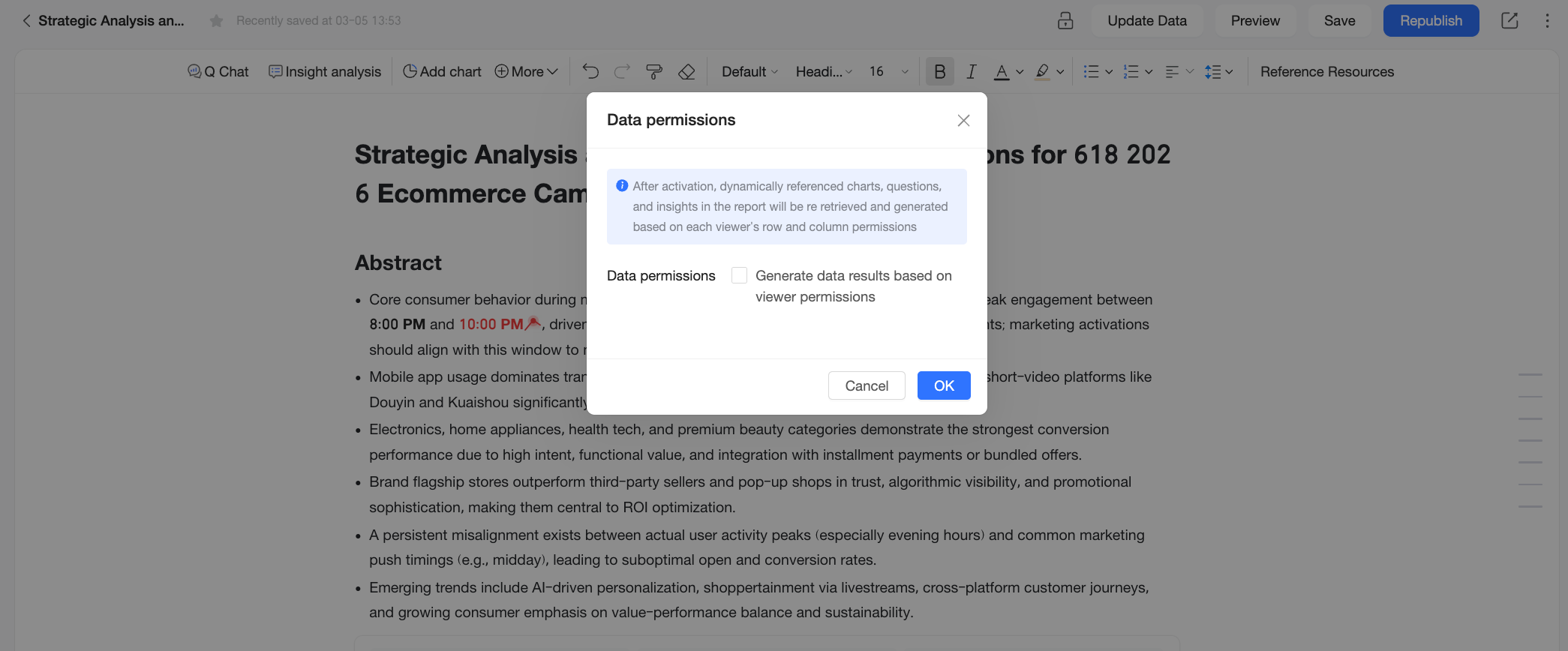
On the Xiao Q report editing page, click the
icon and select Data Permissions. Select "Generate data results based on viewer permissions" and then click OK. The data permissions then take effect.You can also configure data permission when you first save or save as a report.
Effects:
When data permission is enabled, charts, Data Q&A, and insight results in the report that use dynamic references are regenerated based on each viewer's row and column permissions, providing personalization.
NoteThe data update behavior after you enable data permission is as follows:
If a report is configured with a pre-generation task, when a user with pre-generation permissions (the task owner or a specified user) opens the report, the system displays the latest cached result based on their data permission by default, instead of regenerating the report in real time. When other users open the report, the system automatically requeries data and generates the report based on the current viewer's data permission.
If a report is not configured with a pre-generation task, when a viewer opens the report, the system automatically requeries data and generates it based on the current viewer's data permission.
If the system is displaying cached data and you want to regenerate the report with the latest data, click the update data button in the upper-right corner of the preview page. However, this option is not available for reports accessed via a public link.
If data permission is disabled, components such as charts, Data Q&A, and insight results are displayed statically, based on the data available when the creator last published the report.
Use Cases:
You can combine data permission with different sharing methods for scenarios such as:
Personal weekly or monthly progress reports: When reporting to leadership, the content is fixed and not personalized, making specific permissions unnecessary. In this case, you can leave data permission disabled and share the report using a public link to create a static, publicly shared report.
Topical reports without sensitive data: For general reports, such as a product usage analysis, the content is static once shared and contains no sensitive data, so you can leave data permission disabled and share via a public link for broad, static access.
Team sales progress reports: For reports containing sensitive information like individual sales performance, access must be strictly controlled to ensure a team lead sees only their team's data, and each employee sees only their own. In this scenario, enable data permission and share the report using a private link to prevent data leaks and enforce personalized access control.
Global parameters
A global parameter provides a standard entry point for external systems to pass parameters into a report. These parameters can control data in multiple linked components, such as charts and attribution components.
You can use global parameters to dynamically adjust the data in report components. For example, you can pass a time parameter to an attribution component to analyze sales data attribution for different time periods. On the Xiao Q report editing page, click the icon, select global parameters, and configure the following options in the global parameter configuration dialog box.
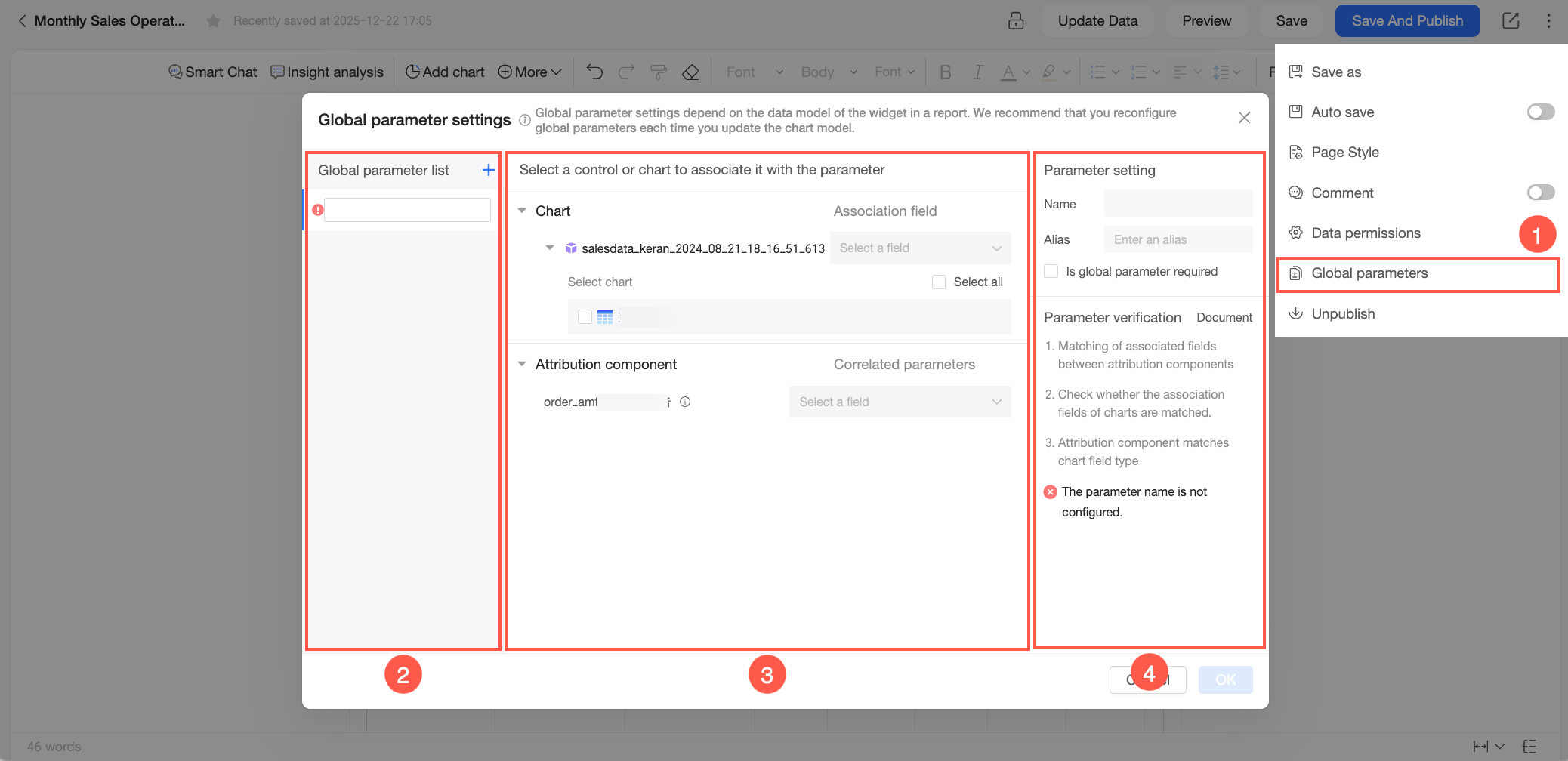
Area | Description |
① | Entry point for configuring global parameters. Note You must save the report before you can configure global parameters. If the report is unsaved, this entry point is disabled. |
② | Set the global parameter name. The following naming rules apply:
Click the |
③ | Select the components to associate with the global parameter. You can link it to charts and attribution components inserted into the report.
Note
|
④ | Parameter settings.
|
 icon to create additional global parameters.
 icon next to a component's name to see which dataset it belongs to, then select the fields to link to the global parameter. The component then automatically adjusts its analysis based on the parameter's value. For instructions on inserting attribution components, see
 To ensure validity, the system validates the global parameter configuration in real time. If a conflict is detected in any parameter, none of the global parameters can be saved.
The global parameter configuration depends on the report's current content. Changes to the report can invalidate existing global parameter configurations. Therefore, review the global parameter configuration after modifying the report to ensure it remains valid. If a configuration conflict occurs, follow the on-screen prompts to adjust the relevant parameter settings.
Pre-generation task
Xiao Q report pre-generation is a feature that pre-calculates and caches data for dynamic reference components within a report. You can configure a pre-generation task to periodically or manually generate data in advance for components such as charts, Q&A, and insights results. When members of your organization preview or subscribe to the report, they can view the cached results directly, eliminating long loading times.
Configuration
Report editors can configure a pre-generation task on the edit page of a published report to periodically or manually pre-generate Xiao Q report data. The pre-generated data applies to report previews and subscription distribution. The specific steps are as follows:
A pre-generation task only updates dynamic reference components and does not regenerate the entire report.
A pre-generation task only updates the published preview data and does not update unpublished data in the report's edit mode.
Each organization can configure up to 50 pre-generation tasks.
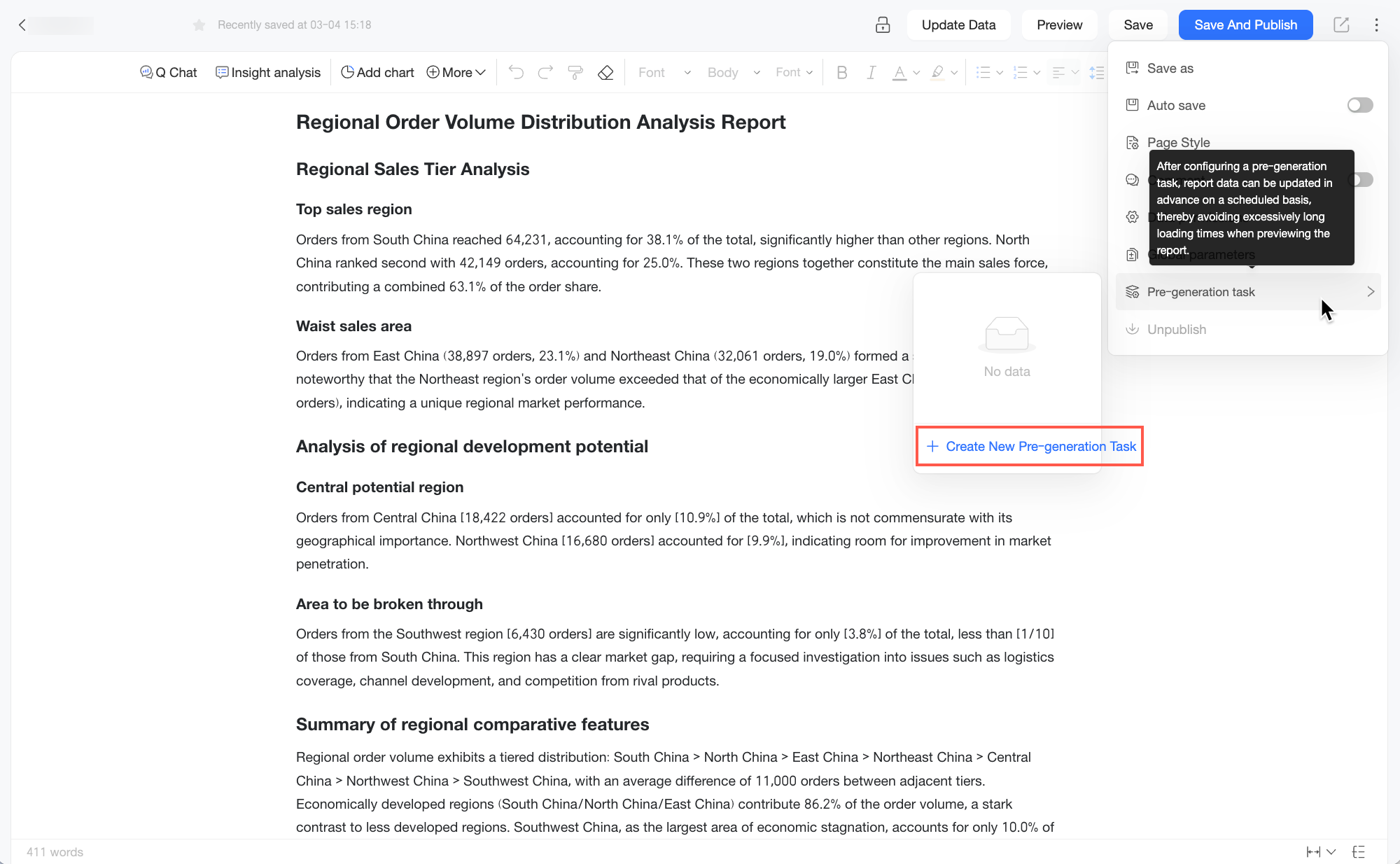
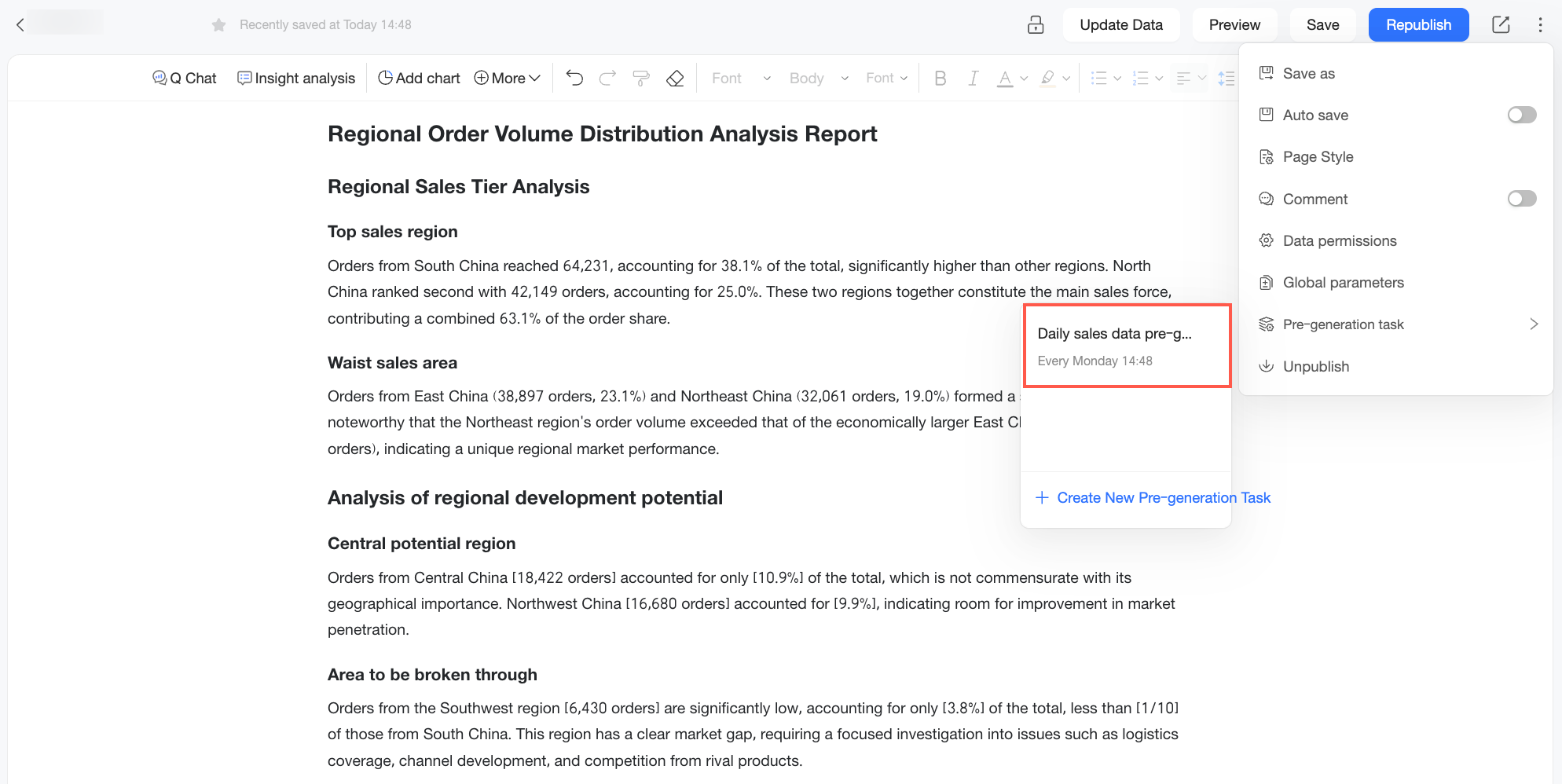
On the report edit page, click the
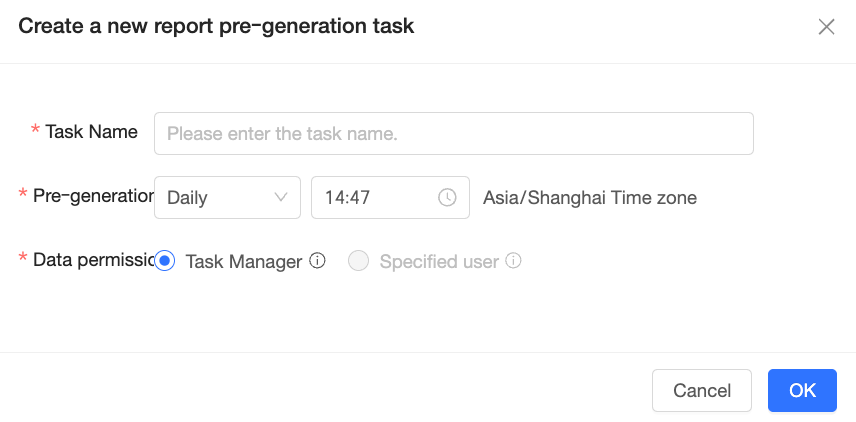
icon in the upper-right corner, and in the drop-down menu, select Pre-generation Task > Create Pre-generation Task.In the Create Report Pre-generation Task dialog box, configure the following information, and then click OK.
Configuration
Description
task name
Enter a name for the pre-generation task. You can name it based on its business purpose, for example: Daily Sales Report Pre-generation.
pre-generation time
Set the execution time for the pre-generation task.
In addition to running at the scheduled time, you can also manually trigger the task. For more information, see manual pre-generation.
data permission
Set the data permission for the pre-generation task. The following options are available:
Pre-generate the report based on task owner permission. The data is pre-generated based on the editor's permissions, and all users share the same pre-generated content.
Pre-generate the report based on specified user permission. The data is pre-generated separately for each selected user based on their individual permissions, and the pre-generated content is not shared. If you select this option, you must select up to 30 users from the drop-down list.
NoteMake sure that data permission is enabled for the published report. Otherwise, the specified user permission option is disabled. If data permission is disabled while a pre-generation task with specified user permission is running, the task is paused.
Each organization can create up to 30 report pre-generation tasks that use specified user permission.
After you create a pre-generation task, it appears in the pre-generation task list on the edit page.
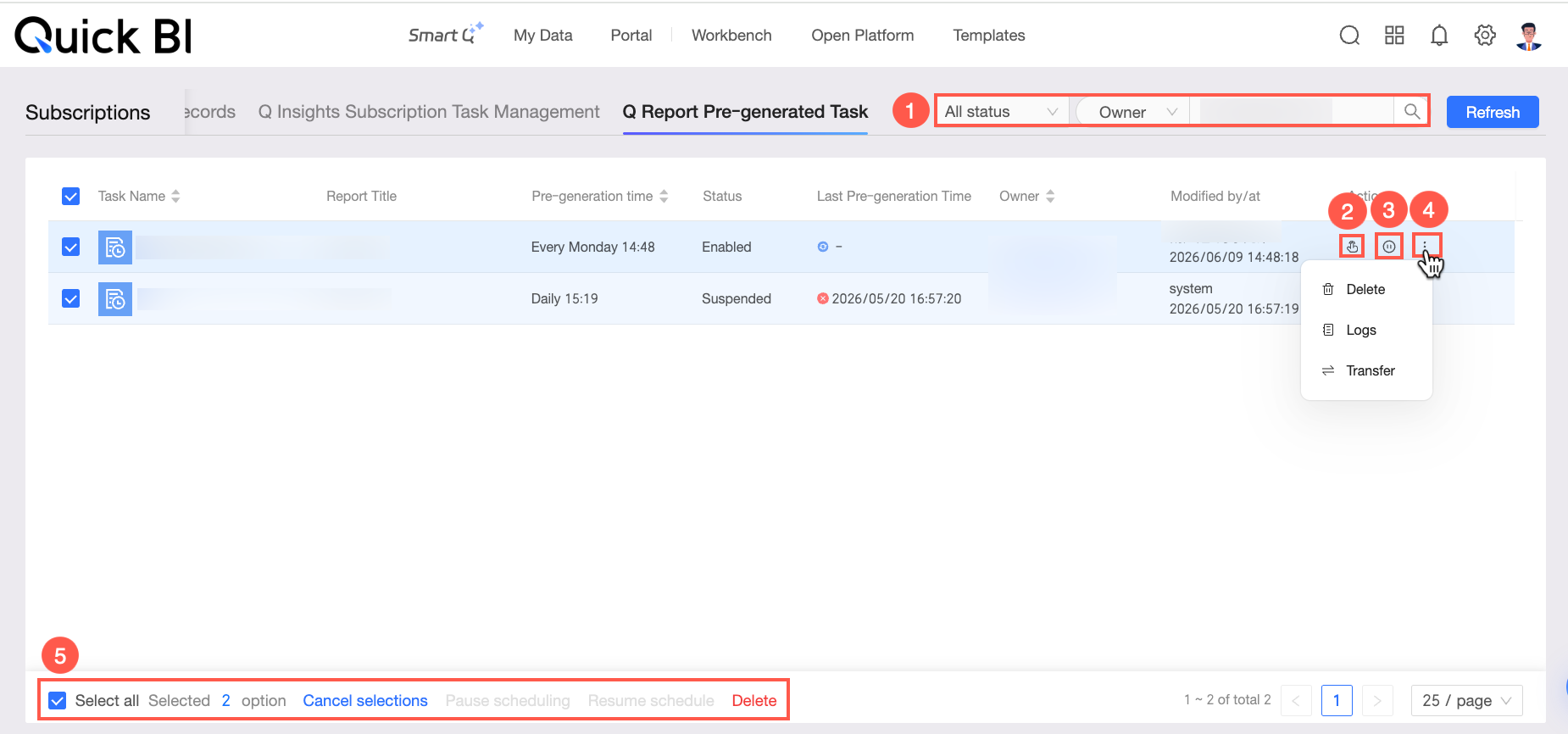
Hover over a task and click the icon on its right to Edit or Delete it as needed.You can also go to the subscription management page. On the Xiao Q Report Pre-generation Task tab, you can find pre-generation tasks for reports you have permission to edit. Here, you can view information such as the task name, report name, pre-generation time, and task status, and perform the following operations:
① Filter: Filter tasks by status, owner, or task name.
② Manual pre-generation: Click the
icon to immediately trigger the current pre-generation task.However, you cannot manually trigger a pre-generation task with specified user permission if it has been paused because data permission was disabled.
③ Pause/resume scheduling: Pause a scheduled task or resume a paused one.
However, you cannot manually resume the scheduling of a pre-generation task with specified user permission if it was paused because data permission was disabled.
④ More operations: Click the
icon and choose one of the following options from the drop-down menu.Click
to delete the current pre-generation task.Click
to view the execution log for the current pre-generation task.Click
to transfer ownership of the current task to another user. The recipient must have editing permissions for the report; otherwise, the transfer fails.
⑤ Batch operations: Select multiple pre-generation tasks to perform batch operations, such as Pause Scheduling, Resume Scheduling, Delete, and Deselect.
 Hover over a task and click the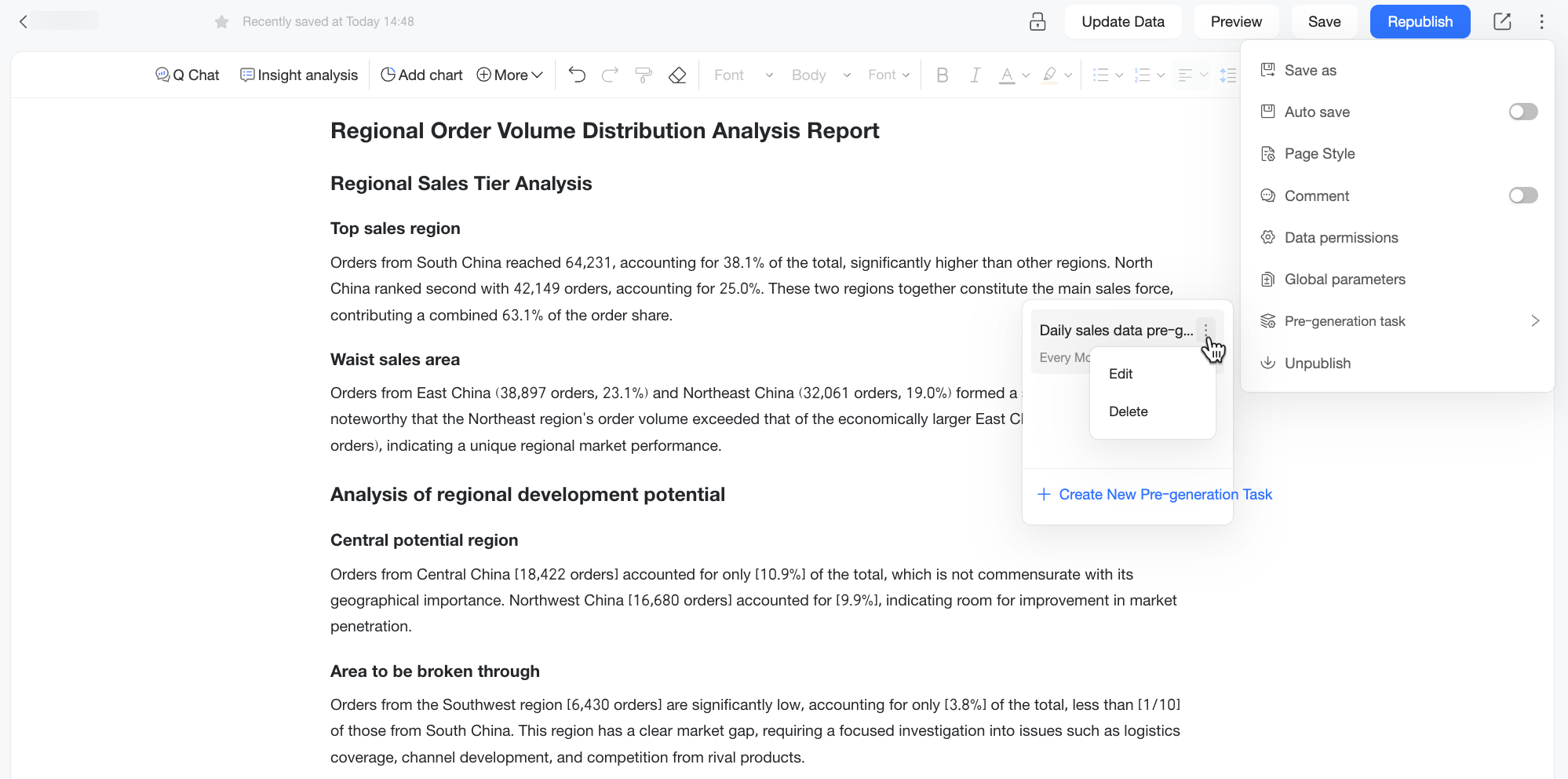
 icon to immediately trigger the current pre-generation task.
 to delete the current pre-generation task.
 to view the execution log for the current pre-generation task.
 to transfer ownership of the current task to another user. The recipient must have editing permissions for the report; otherwise, the transfer fails.
Unpublish
On the Xiao Q Report editing page, click the icon and select Unpublish. Once a report is unpublished, it becomes hidden from other users; only the creator can view and edit it.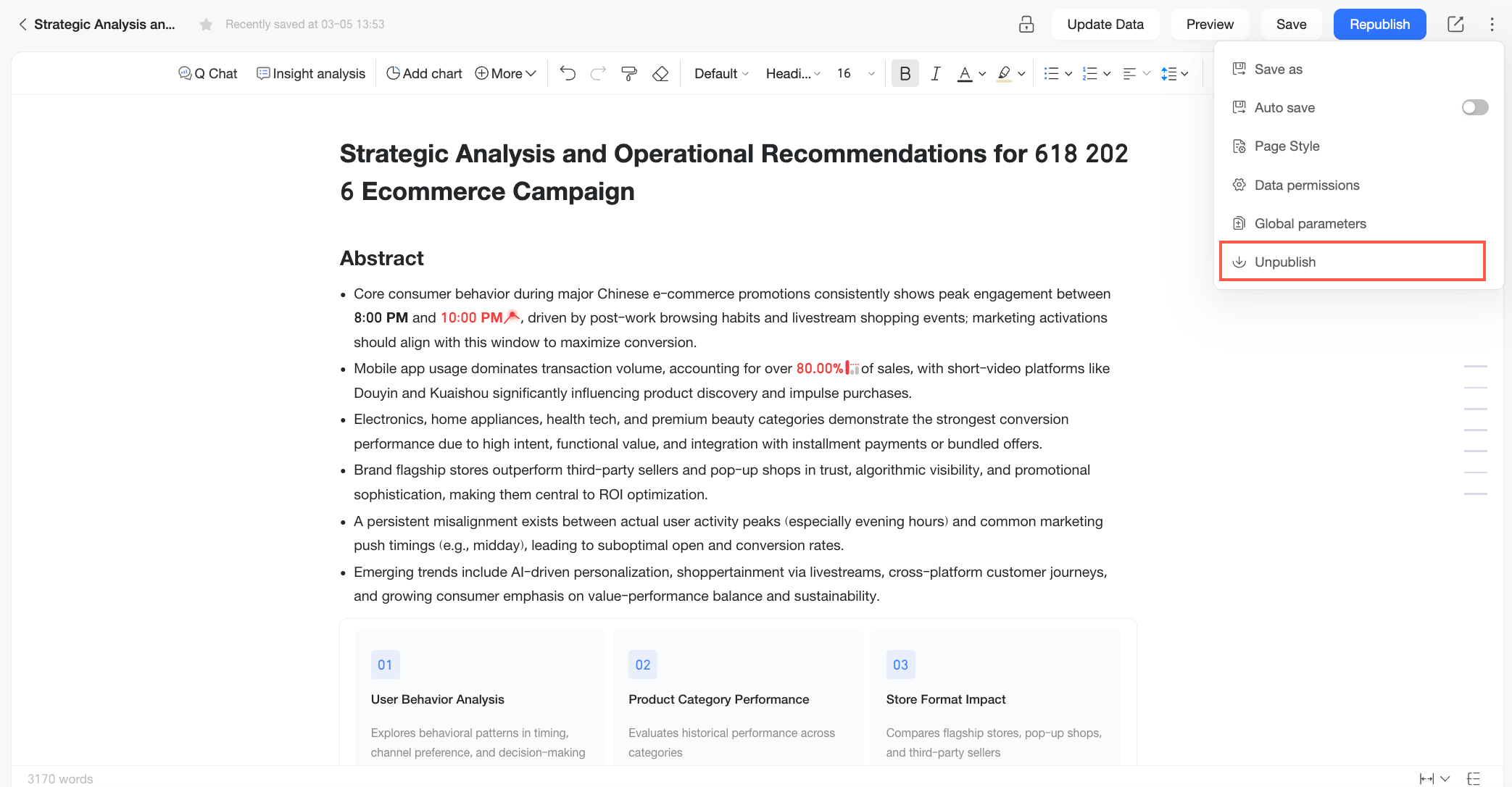
Alternatively, on the Xiao Q Report list page, click the report's icon and select Unpublish.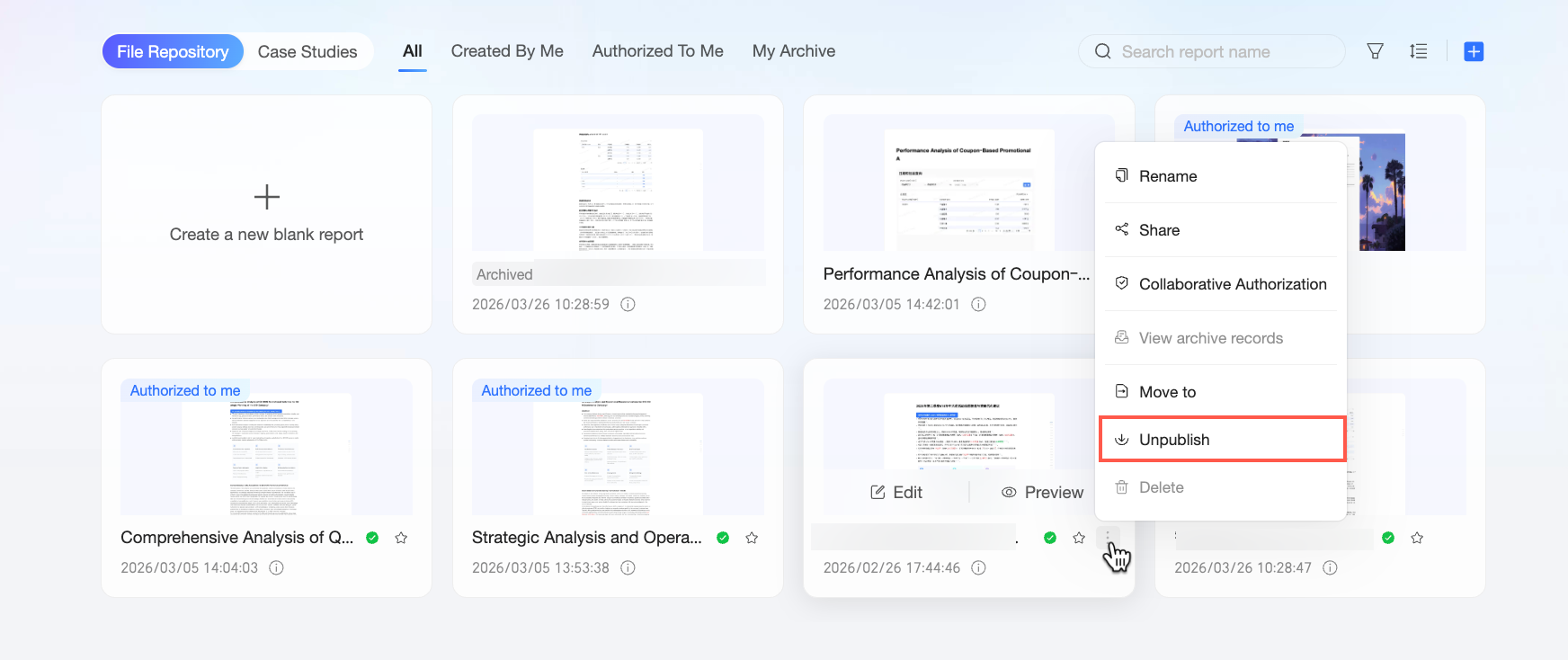
Xiao Q report list
On the Xiao Q report list page, you can view all accessible reports, organized in the All Reports, Created by Me, Shared with Me, and My Archives tabs.
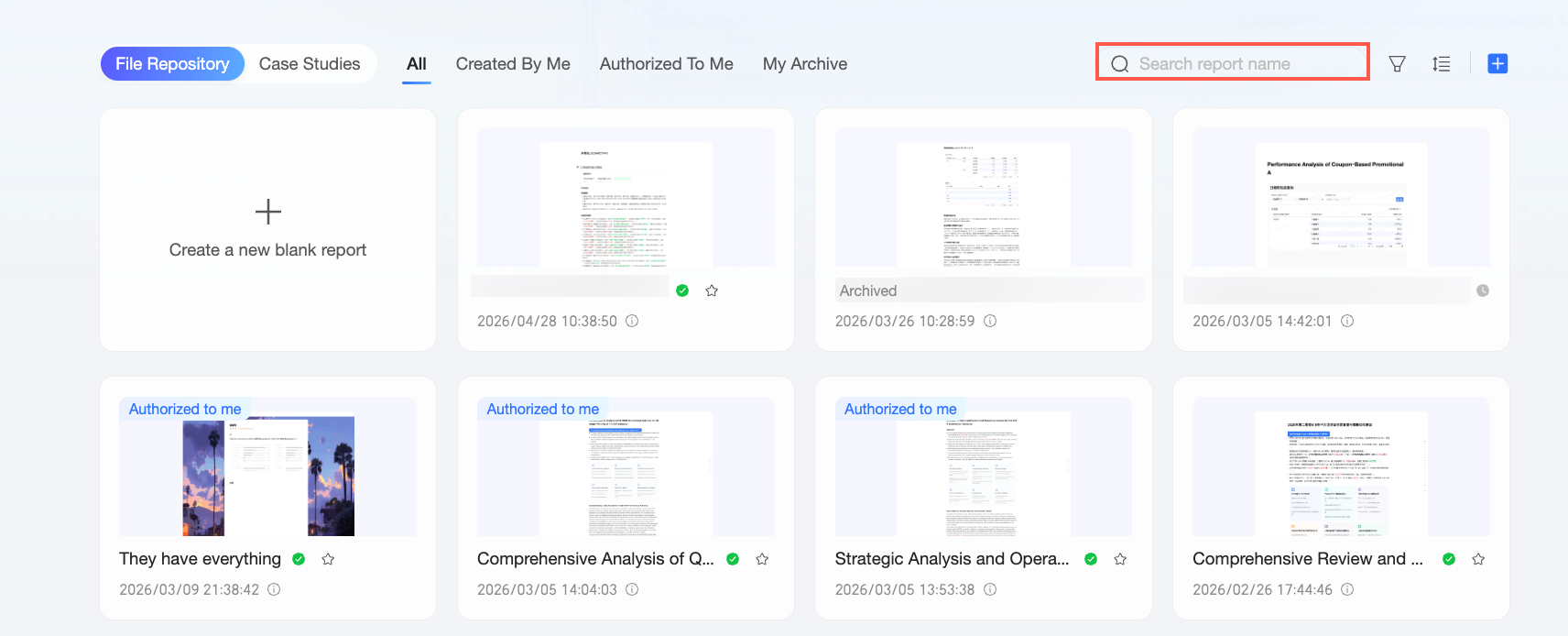
Search
Use Search to quickly find a report by its name.
Filter
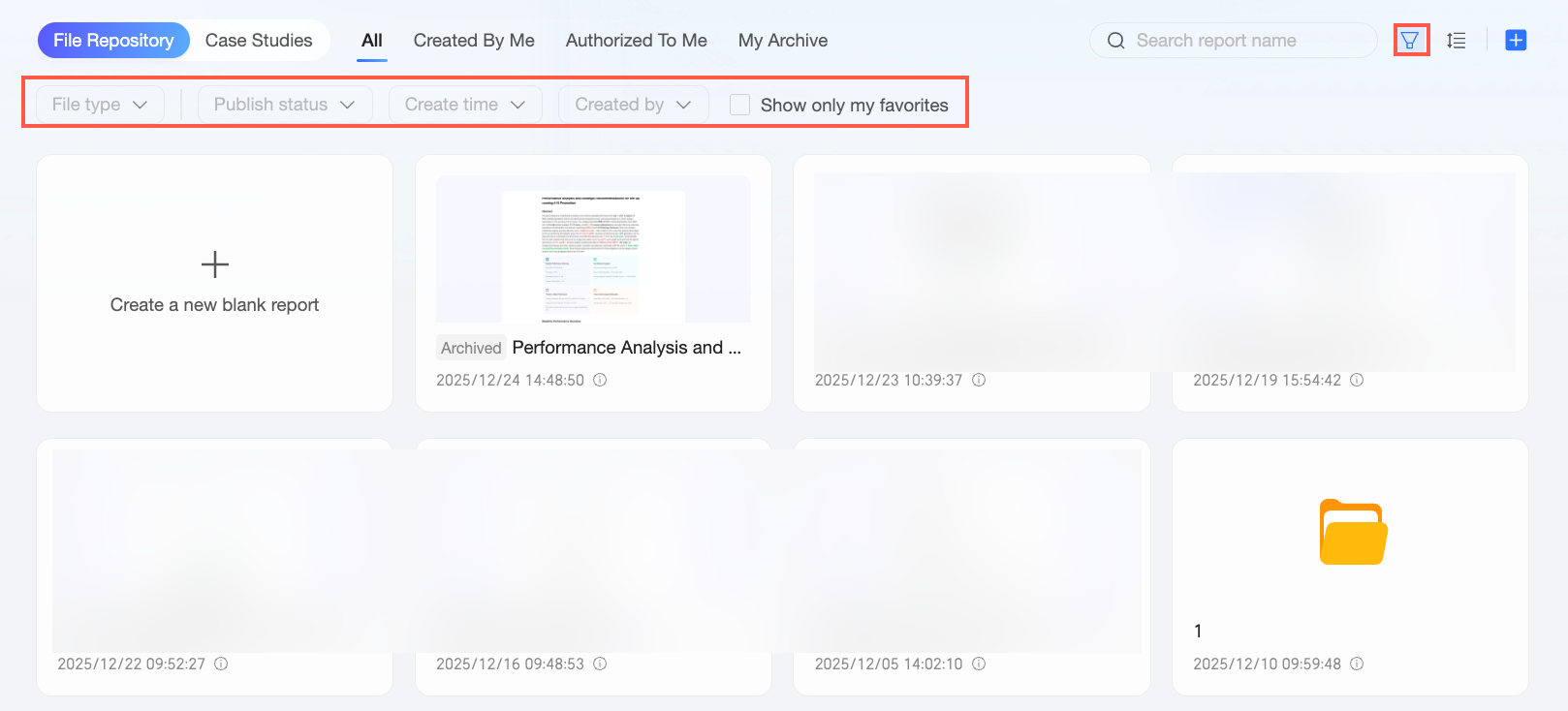
Click the filter icon ( ) to open the filter panel for the current tab. This helps you narrow the list and quickly find matching reports.
On any tab, you can select Show Favorites Only, but other available filter options may vary by tab. If you apply a filter and switch to another tab, the filter persists if the new tab has the same option, saving you from reapplying it.
Sort
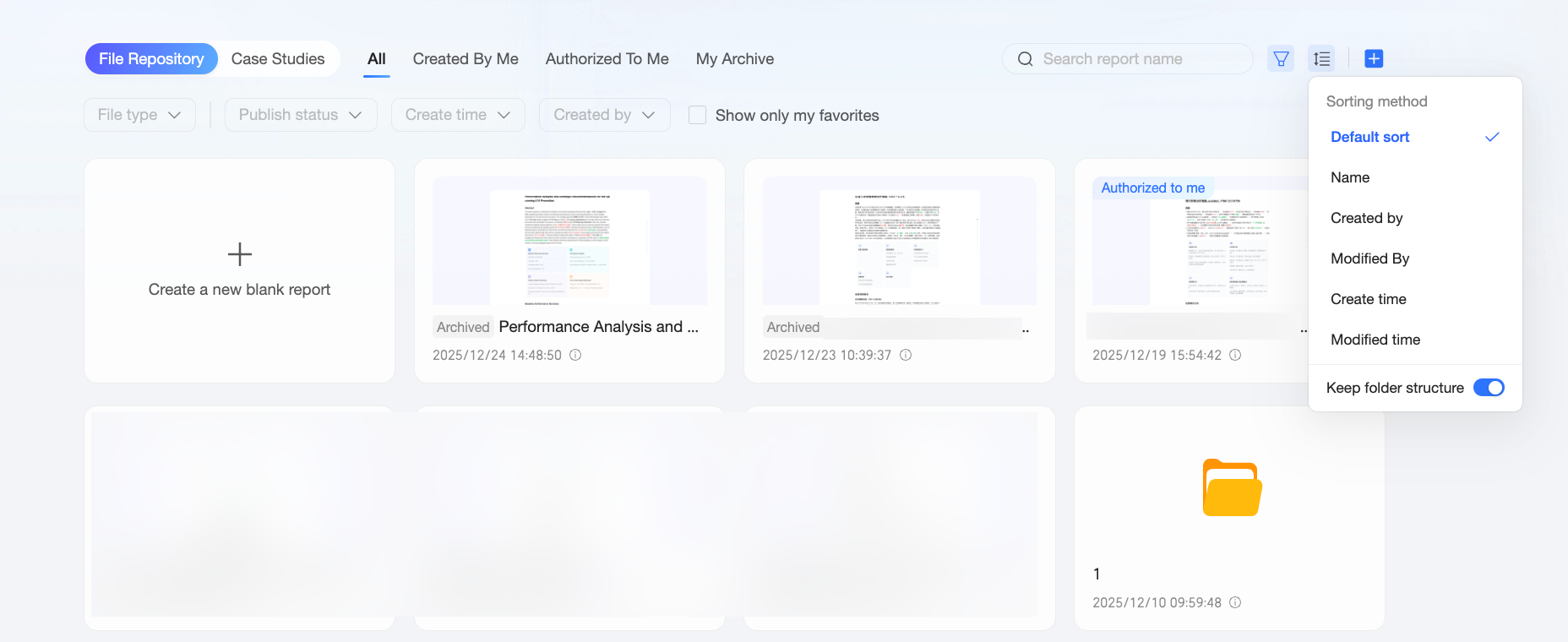
Use Sort to arrange reports as you prefer.
You can sort by Name, Creator, Modifier, Creation time, and Modification time.
You can select the Keep folder structure option. If this option is selected, the folder structure is preserved. Clearing this option hides the folders and displays all reports in a flat list.
New
You can create a New Blank Report or a New Folder.
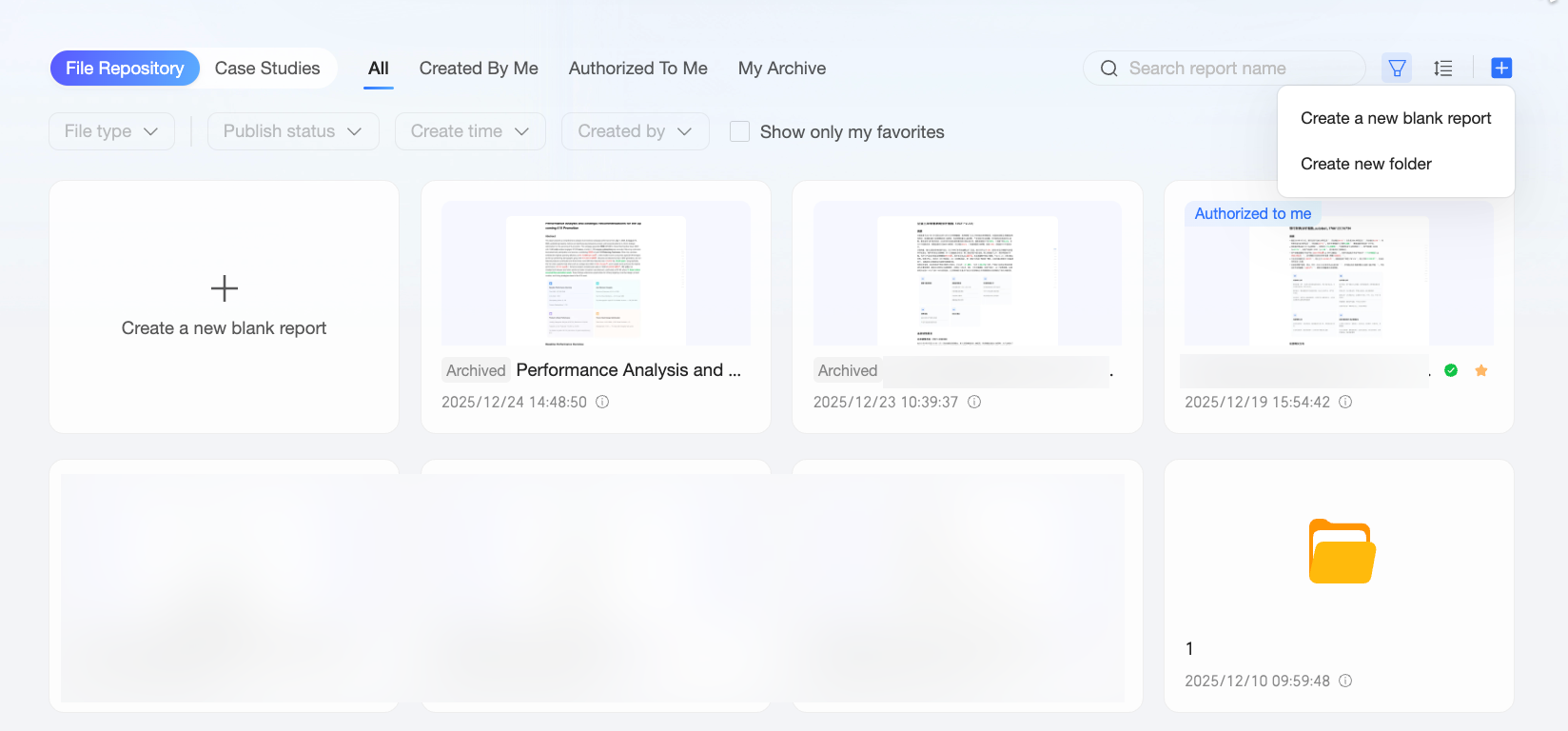
You cannot create a new blank report or a new folder on the Shared with Me tab.
Click New Blank Report to open a blank canvas where you can add text, insert charts, and use features like Ask Xiao Q. For details, see Create a Xiao Q report.
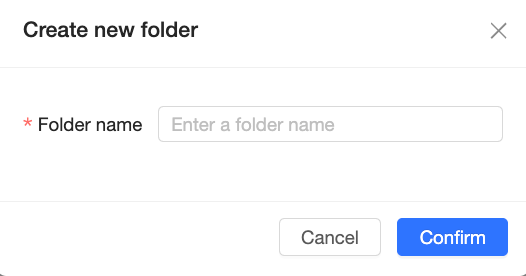
To create a folder, click New Folder, enter a Folder Name, and click Confirm.
Report operations
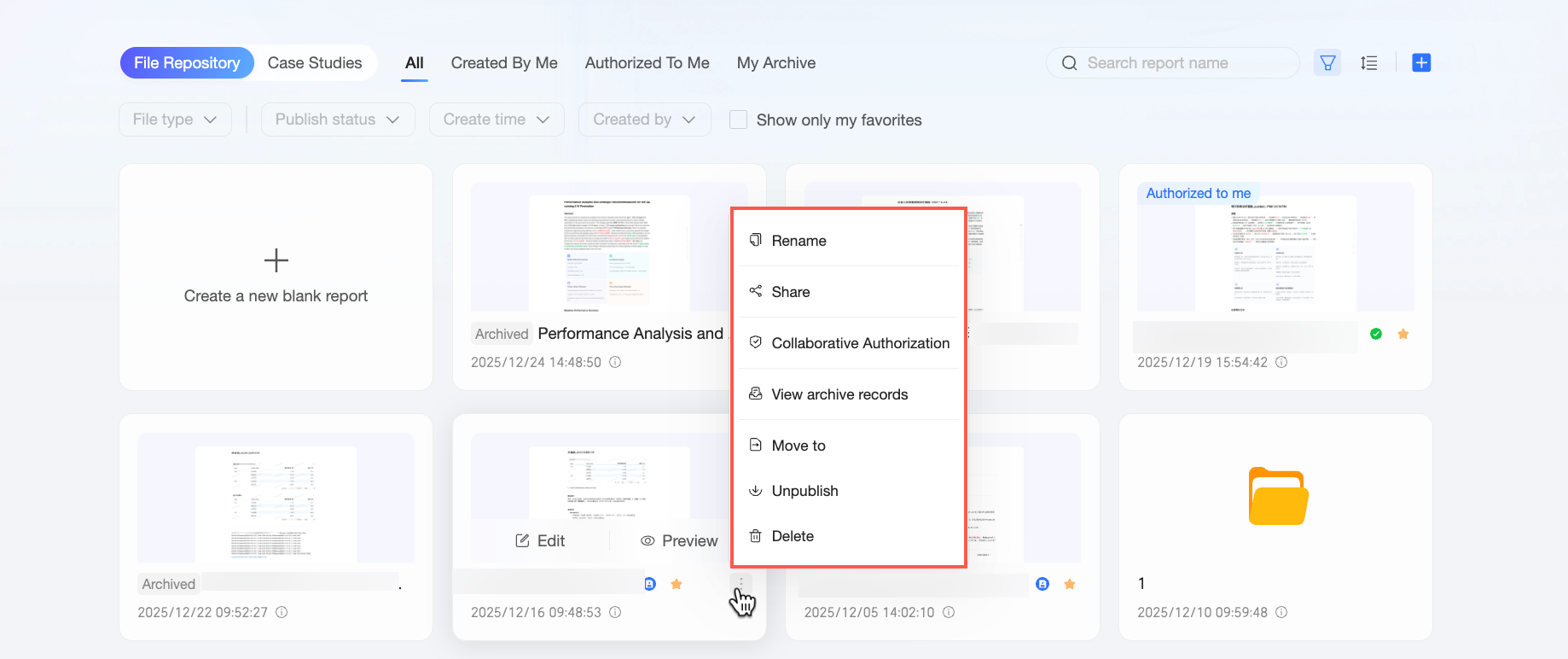
On the Xiao Q report list page, hover over a report card to display the edit ( ), preview (
 ), and more (
 ) options.
Actions | Description |
edit | Opens the Xiao Q report editing page. Note The edit option is displayed only if you have edit permission for the report. You have this permission in the following cases:
|
preview | Opens the Xiao Q report preview page. |
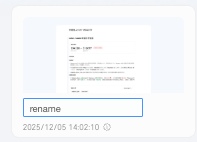
rename | Renames the Xiao Q report.
|
share | You can share the Xiao Q report using a private link or a public link. For more information, see Share. |
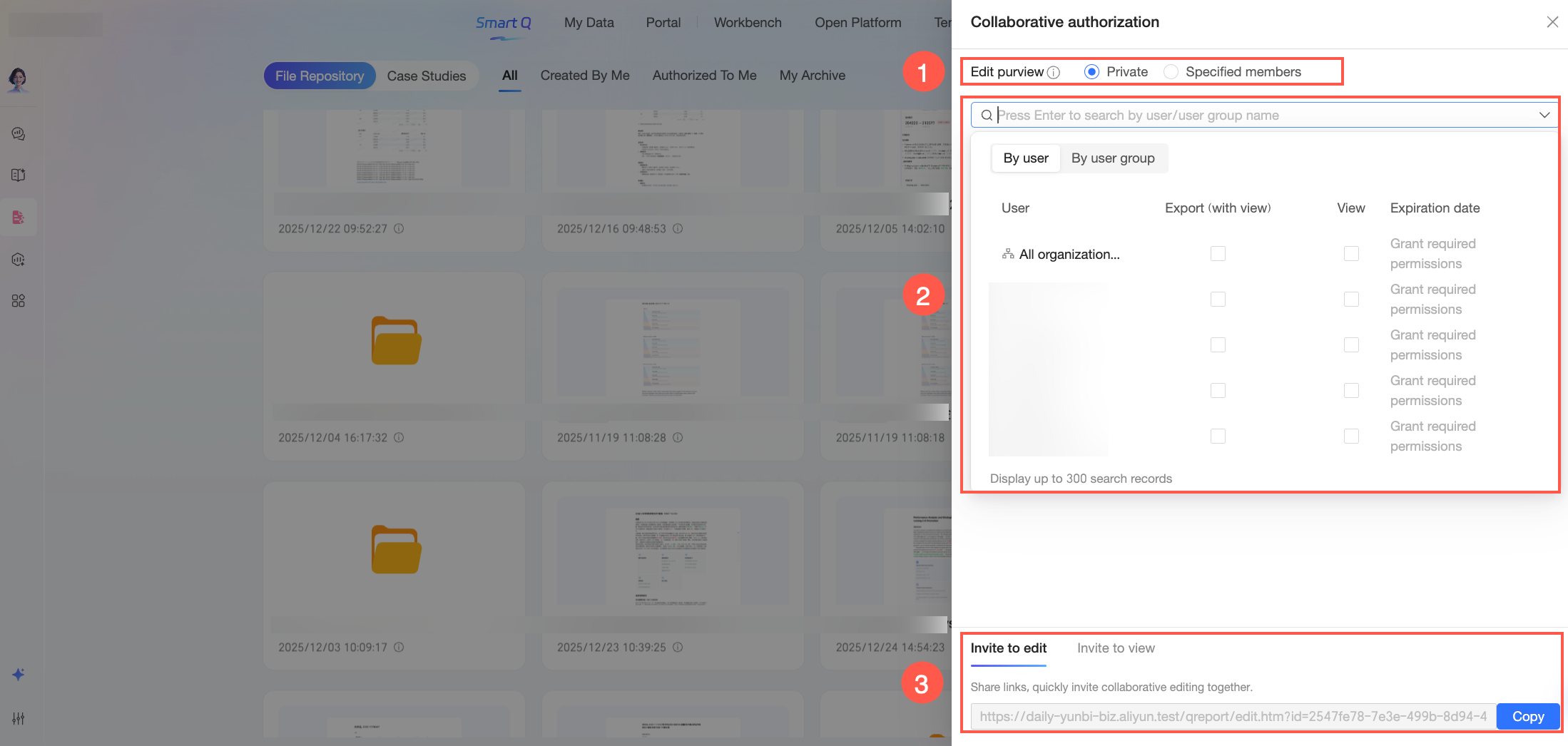
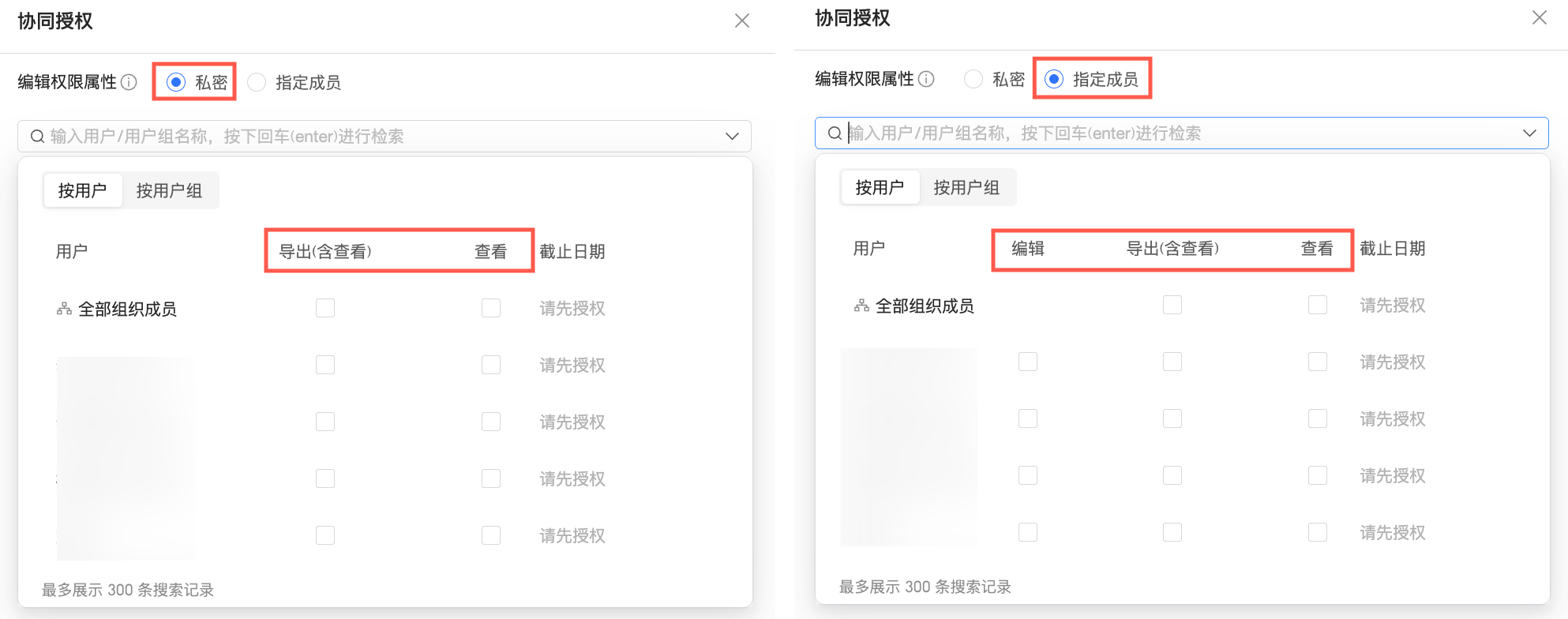
Collaboration authorization | In the collaboration authorization dialog box, you can grant view, export, and edit permissions for the current report to other users.
|
View archive records | If the report has been archived, the view archive records option appears in the options list. Click it to open the archive records page, where you can view all archived versions of the report. For a generated archive report, you can select Go to original report from its options menu to open the preview page of the original report. |
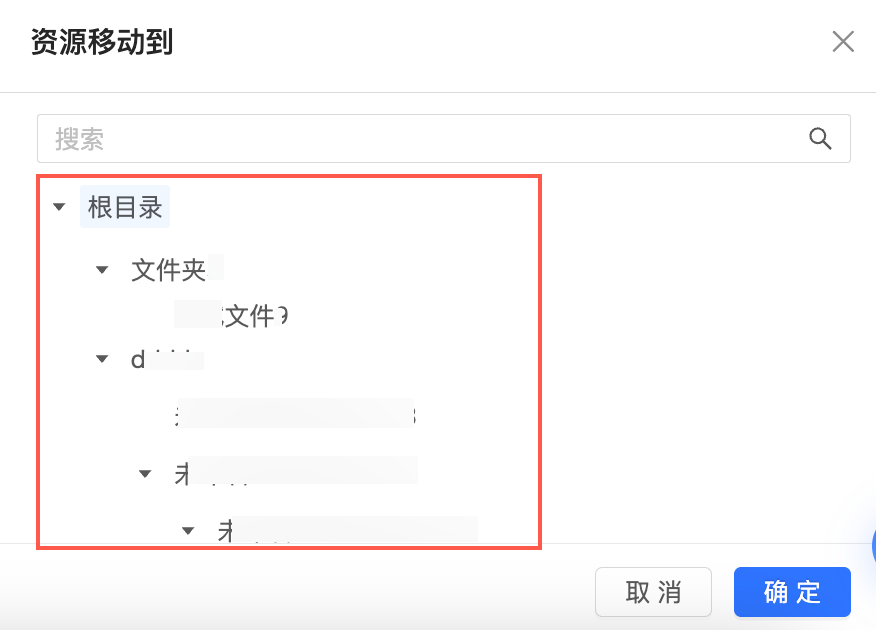
Move to | Moves the report to the root directory or another folder.
|
Take offline | Takes the report offline. After a report is taken offline, other users cannot view it. Only the creator can view and edit it. |
delete | Deletes the report. Note You can delete a report only after you take it offline. |
favorite | Click the
|
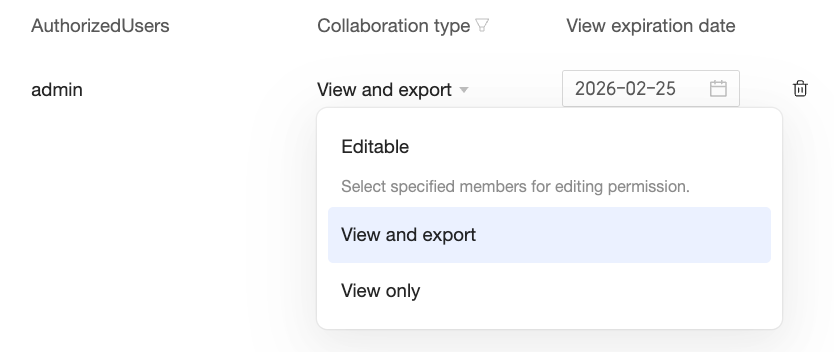
 ) icon to the right of Collaboration type to quickly filter for users by permission type.
 ) to the right of Permissions to quickly switch the permission type granted to the current user. In the Private state, only the report creator has edit permission. If you need to grant edit permission to specified members within the organization, you need to switch to the Specified Members state.
 ) icon to the right of a record to remove the authorization for the corresponding user.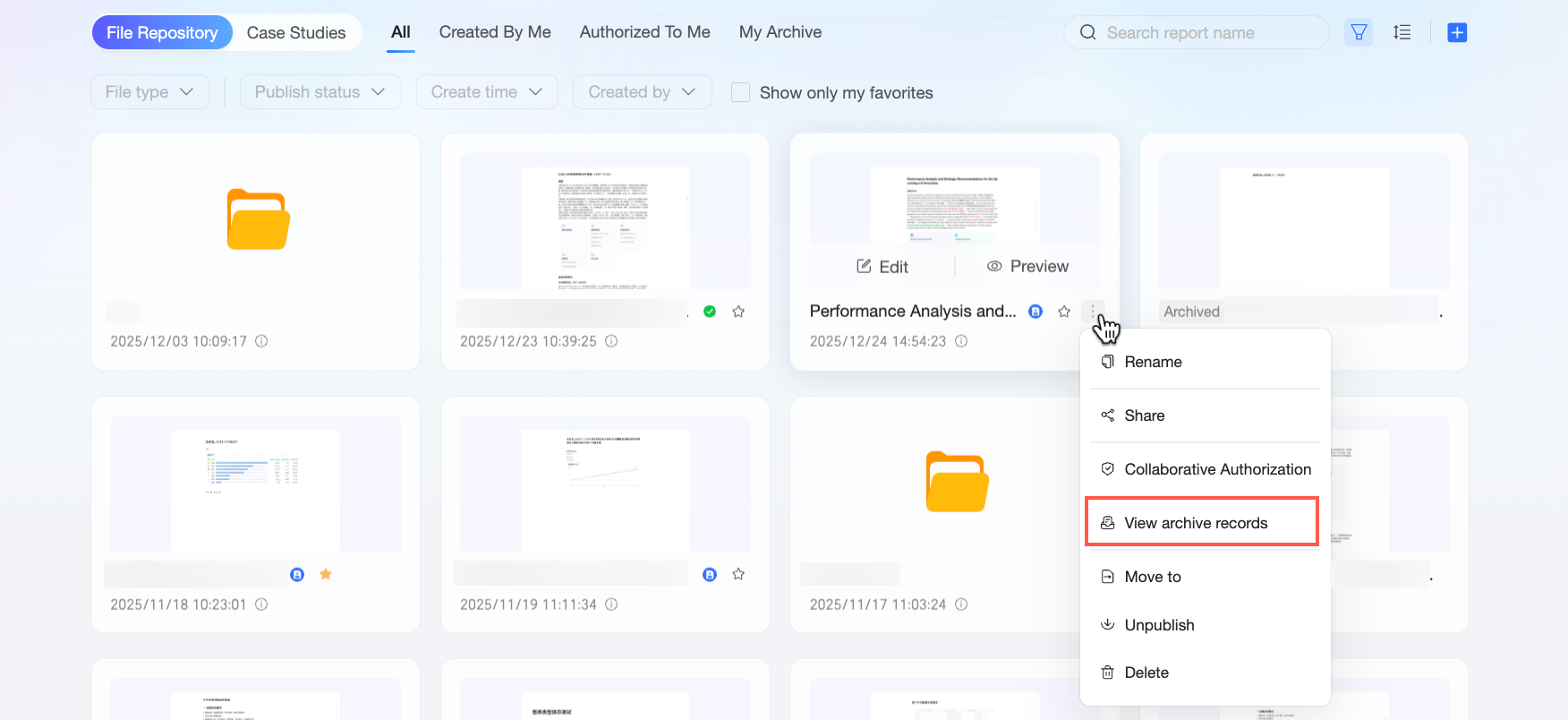
Folder operations
On the Xiao Q report list page, click the icon on the right side of a folder card to perform the following operations:
Folder cards are displayed only when retain folder structure is selected under sort by. If you cannot see folder cards, check that retain folder structure is selected under sort by.
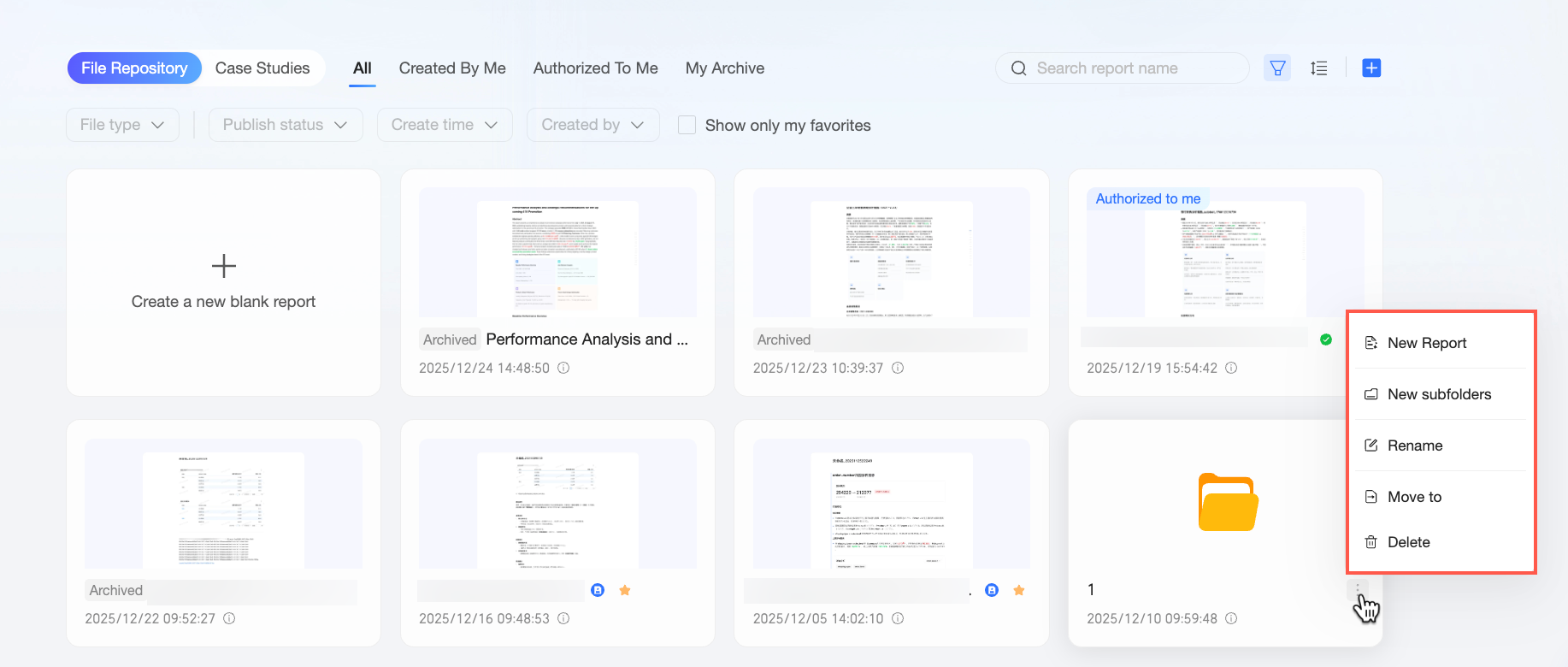
Actions | Description |
New report | Creates a blank report. For details, see Edit a Xiao Q report. |
New subfolder | Creates a subfolder under the current folder. Note The maximum folder depth is five levels. |
Rename | Renames the folder. |
Move to | Moves the folder to the root directory or another folder.
|
Delete | Deletes the folder. Note
|
Report subscriptions
Use the subscription feature in Quick BI to automatically send reports as a screenshot, link, or data attachment to specified recipients on a schedule. This lets viewers receive the latest report content directly, helping them stay informed about business trends, data fluctuations, or anomalies without logging in to the platform. Follow these steps to create a report subscription task.
Quick Report is a value-added module. You must purchase it to create report subscription tasks.
Each organization is limited to 100 report subscription tasks for Quick Reports.
In the top navigation bar, hover over the
icon, and then choose Enterprise Applications > Subscription Management.On the Subscription Management page, click New Subscription Task. In the New Task dialog box, configure the required parameters. For details on each parameter, see Create a subscription task.
Click OK to create the subscription task.
NoteThe report content shown in subscription messages follows the data permission policy of the report. The behavior is as follows:
If dynamic data permission is enabled for the report, the system generates and sends the content based on the data permissions of the task creator when the task runs. This means recipients see the data based on the creator's permissions, not their own.
For example, if Member A creates a daily subscription task that runs at 8:00 AM, the system will generate and send the report content based on Member A's data permissions at that time. All recipients will receive the report based on Member A's data permissions.
If dynamic data permission is not enabled for the report, the system does not adjust the report content based on the task creator's data permissions when the task runs. As a result, all recipients receive the same content, regardless of who created the subscription task.
 icon, and then choose Enterprise Applications > Subscription Management.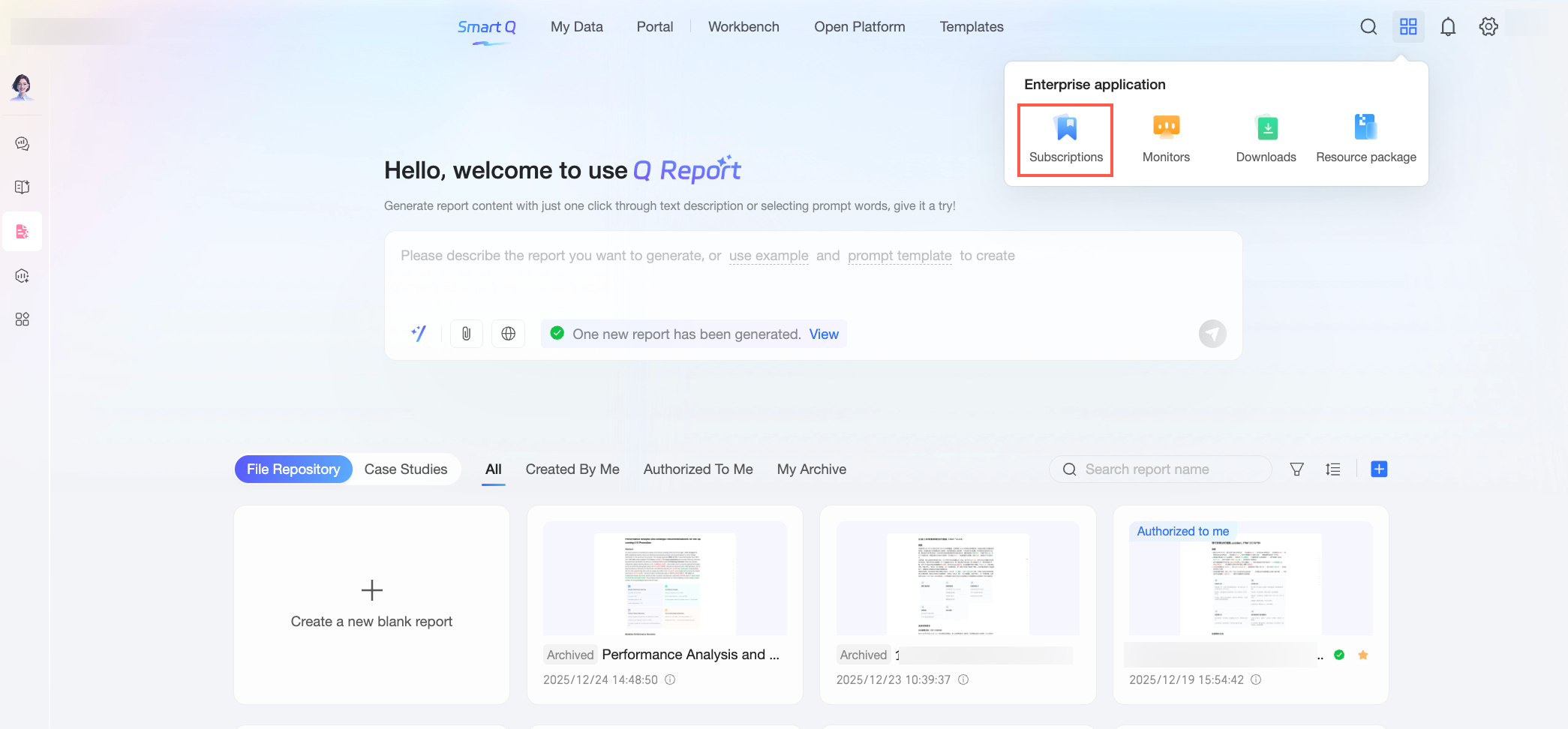
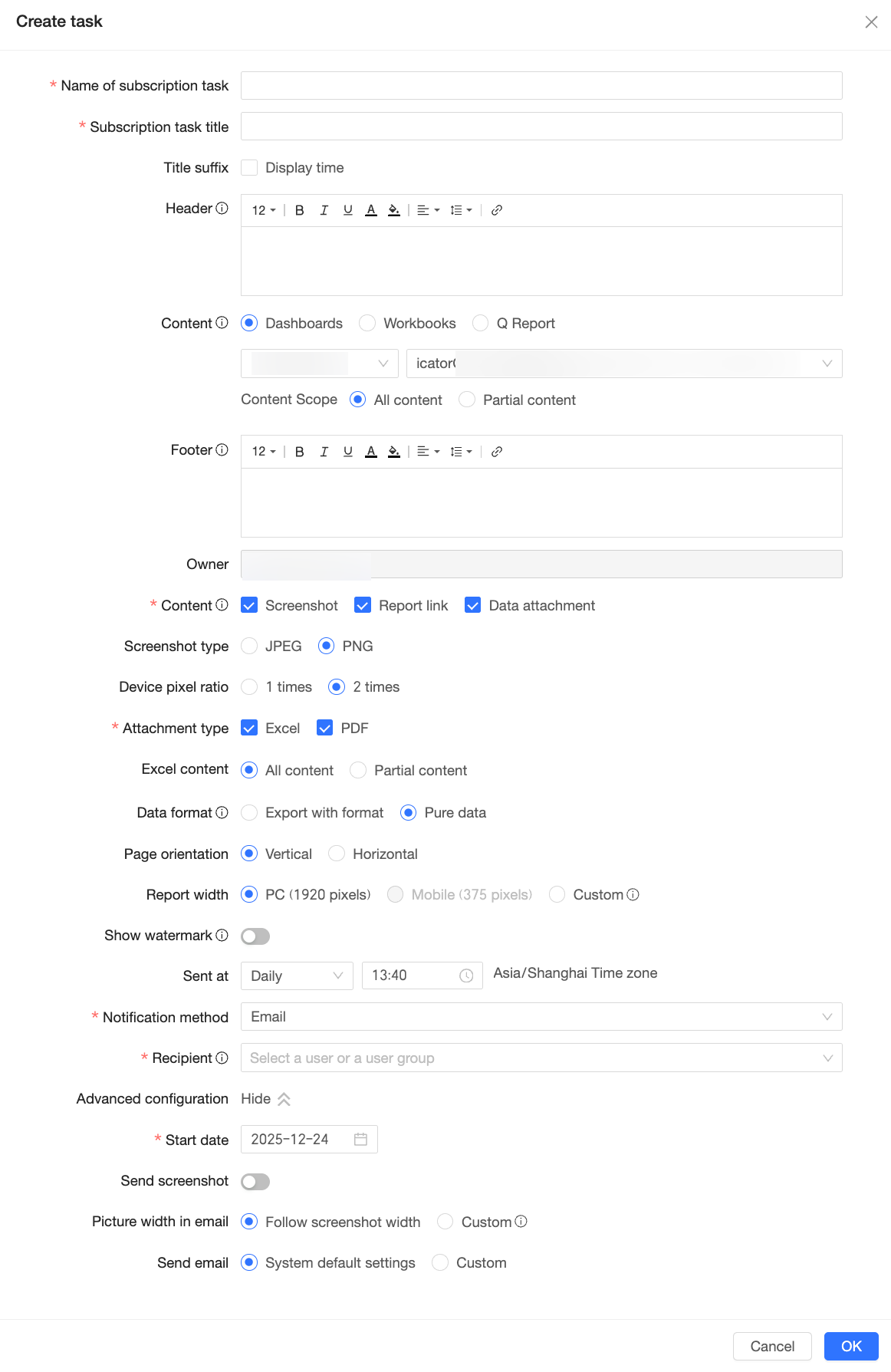
Report usage permissions
By default, when an organization administrator adds a user on the User Management page and assigns them a Quick BI report seat, the user can access the Quick BI report feature. This applies to all user types, including developers, analysts, and viewers. If your organization needs to restrict this feature for certain users, you can configure report usage permissions in a custom role. You can then use role assignment to control access.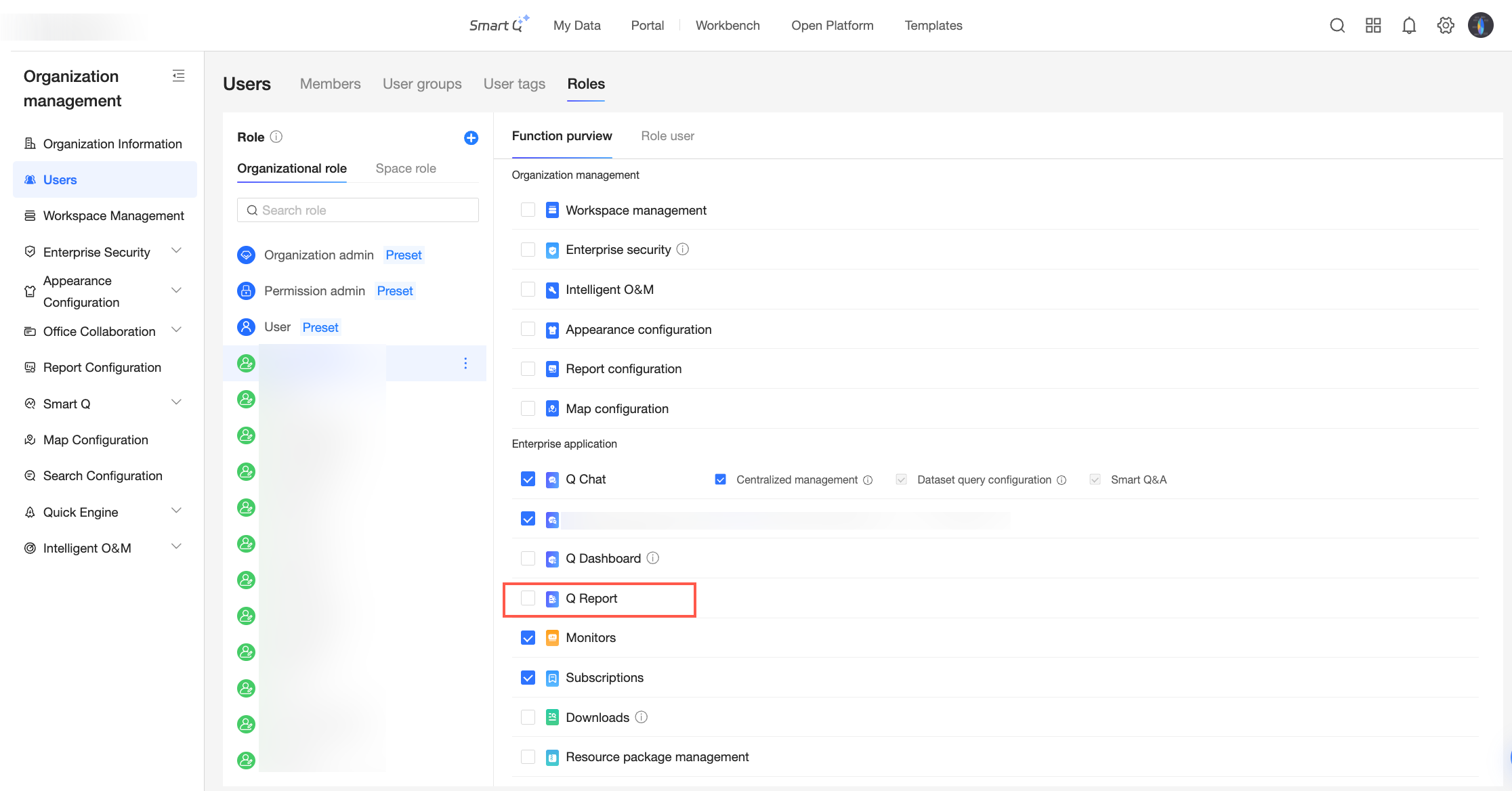
If the Quick BI report option is deselected for a role, users with that role cannot use the Quick BI report feature. For detailed instructions, see Role Management.