Resource authorization
Besides authorizing resources individually, workspace administrators can use the Resource Authorization page to bulk-assign permissions to multiple resources, avoiding the need to configure each one separately. You can also use this page to manage the default authorization mode for new resources.
Prerequisites
Only workspace administrators can access the Resource Authorization page to manage resource authorization within the workspace.
Accessing the feature
Navigate to your workspace. In the left-side navigation pane, under Workspace Management, choose Resource Authorization.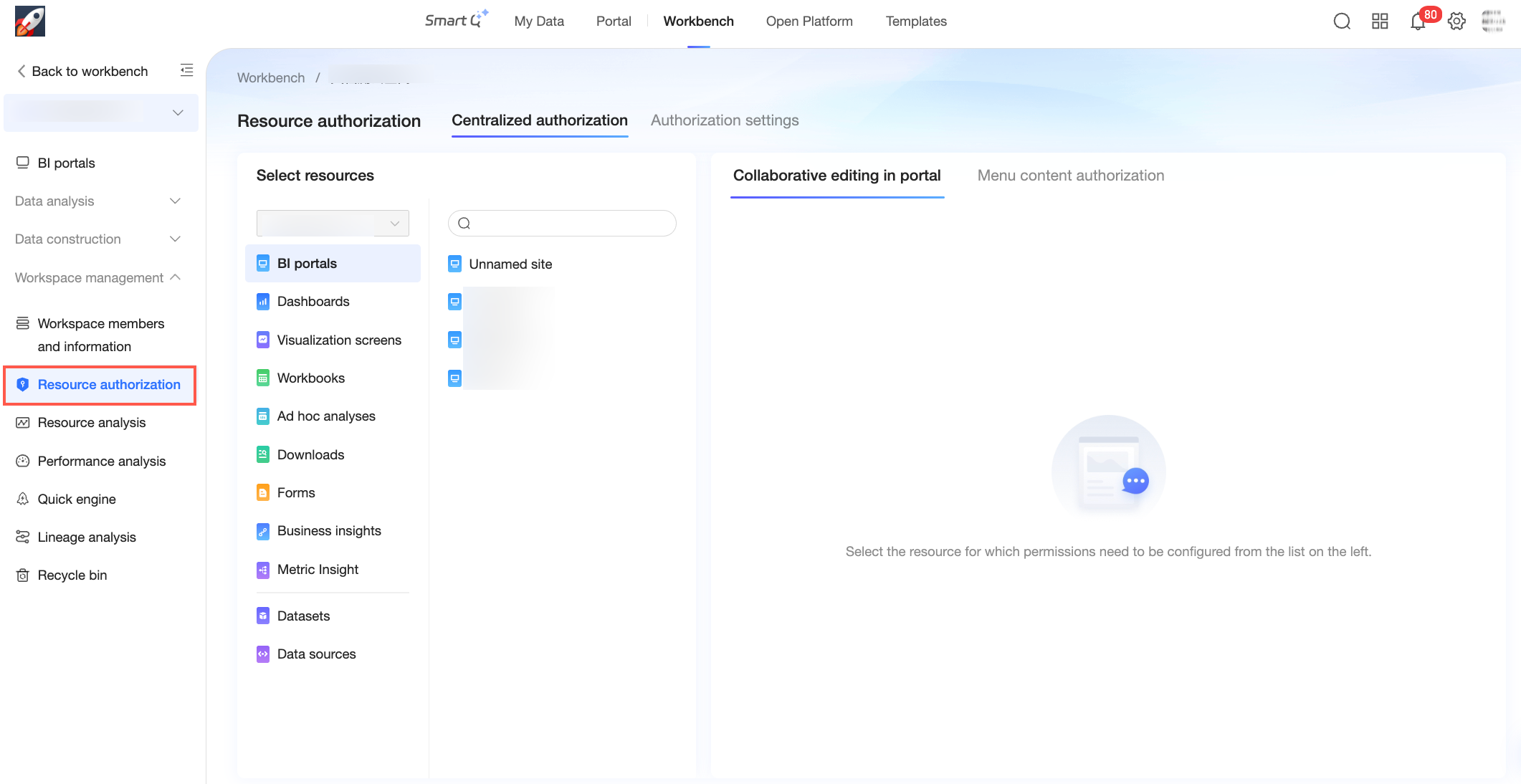
Centralized authorization
The Resource Authorization > Centralized Authorization page lists all data resources in the current workspace, such as data portals, dashboards, and data screens. Workspace administrators can use this page to configure collaborative permissions for these resources.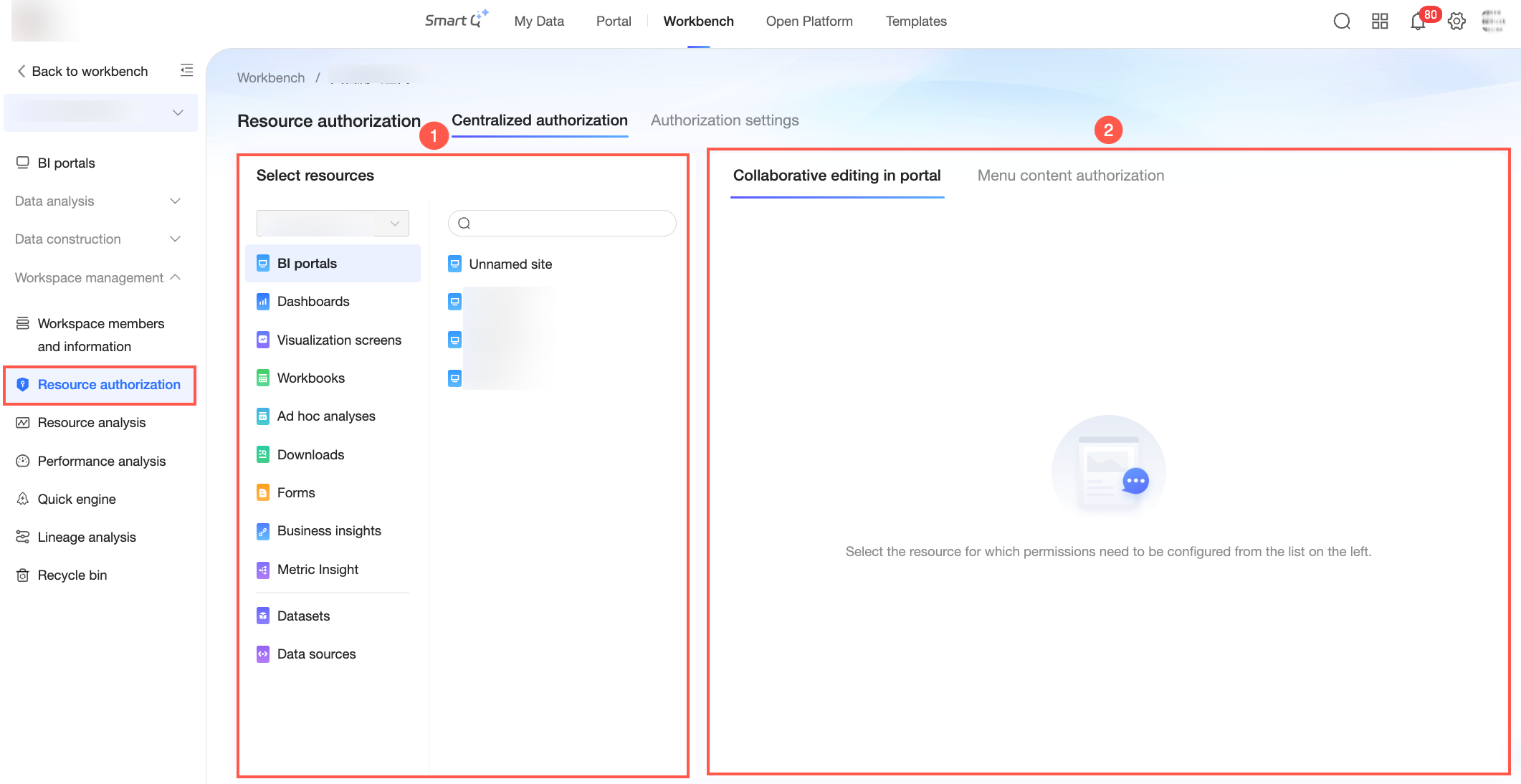
Parameter | Description |
① Select Resource | In the Select Resource panel, select a resource type. The system automatically loads a list of corresponding resources in the workspace. You can then select a resource instance from the list. |
② Configure Collaborative Permissions | After you select a resource instance, you can configure its collaborative permissions. This authorization process is the same as for organization-level resources. If needed, refer to the documentation for the specific resource type: |
Authorization settings
On the Resource Authorization > Authorization Settings page, you can specify the default authorization mode for newly created data resources. A workspace administrator can select a default mode from the drop-down list for each permission type. For View and Export Data Products, you can further configure the permission (View Only or View and Export).
Changes to these settings apply only to new resources and do not affect existing ones.

The following table lists the supported default authorization modes for each permission type.
Permission type | Supported modes |
View and export data products | All workspace members, Report owner only. When All workspace members is selected, you can further specify the permission: View only or View and export. |
Edit data products | All workspace members (only members with permission to edit data products), Specified members, or Private. |
Edit dataset | All workspace members (only members with permission to edit datasets), Specified members, or Private. |
Use dataset | All workspace members (only members with permission to edit datasets) or Specified members. |
Edit data source | All workspace members (only members with permission to edit data sources), Specified members, or Private. |
Use all data tables | All workspace members (only members with permission to edit data sources) or Specified members. |
Edit files and APIs | All workspace members (only members with permission to edit data sources), Specified members, or Private. |
Use files and APIs | All workspace members (only members with permission to edit data sources) or Specified members. |
Related operations
This topic describes centralized authorization for workspace-level resources. For information about centralized authorization for organization-level resources, see Centralized authorization.