Bullet chart
A Bullet Chart compares a measure to a target or tracks progress through various stages, helping you quickly understand performance. This topic describes how to add data to a Bullet Chart and configure its style.
Prerequisites
You have created a dashboard. For more information, see Create a dashboard.
Chart overview
Use cases
By adding a measure scale that fits your business scenario, a Bullet Chart accurately represents data progression within a specific stage. It also supports displaying multiple dimension values for comparing similar data. Common use cases for a Bullet Chart include:
Assessing target completion, such as for company revenue or performance evaluations.
Tracking project progress, such as budget utilization or milestone completion.
Comparing metrics, such as the current status against industry benchmarks.
Advantages
Advanced calculations: Supports advanced calculations, such as cumulative totals, YoY and MoM comparisons, and TopN. It also supports adding a smart reference line.
Customizable visuals: Lets you customize chart styles, including labels, a legend, an overview axis, and other auxiliary settings for a more intuitive display.
Comparative analysis and annotation: Supports comparing data across different dimension values for the same period and annotating the values.
Example
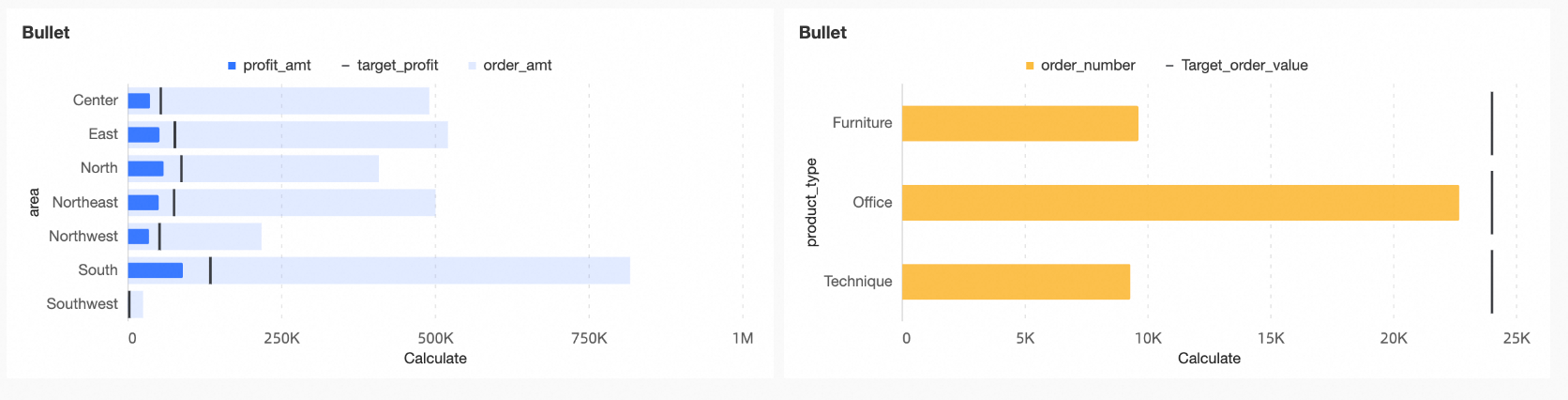
The main components of a Bullet Chart are:
Measure bar: The primary metric for analysis.
Target value: The goal for the primary metric, which acts as a benchmark for performance.
Background bar: Can be used to represent another metric for comparison with the primary metric, or to indicate different levels or stages of progress.
Configure chart fields
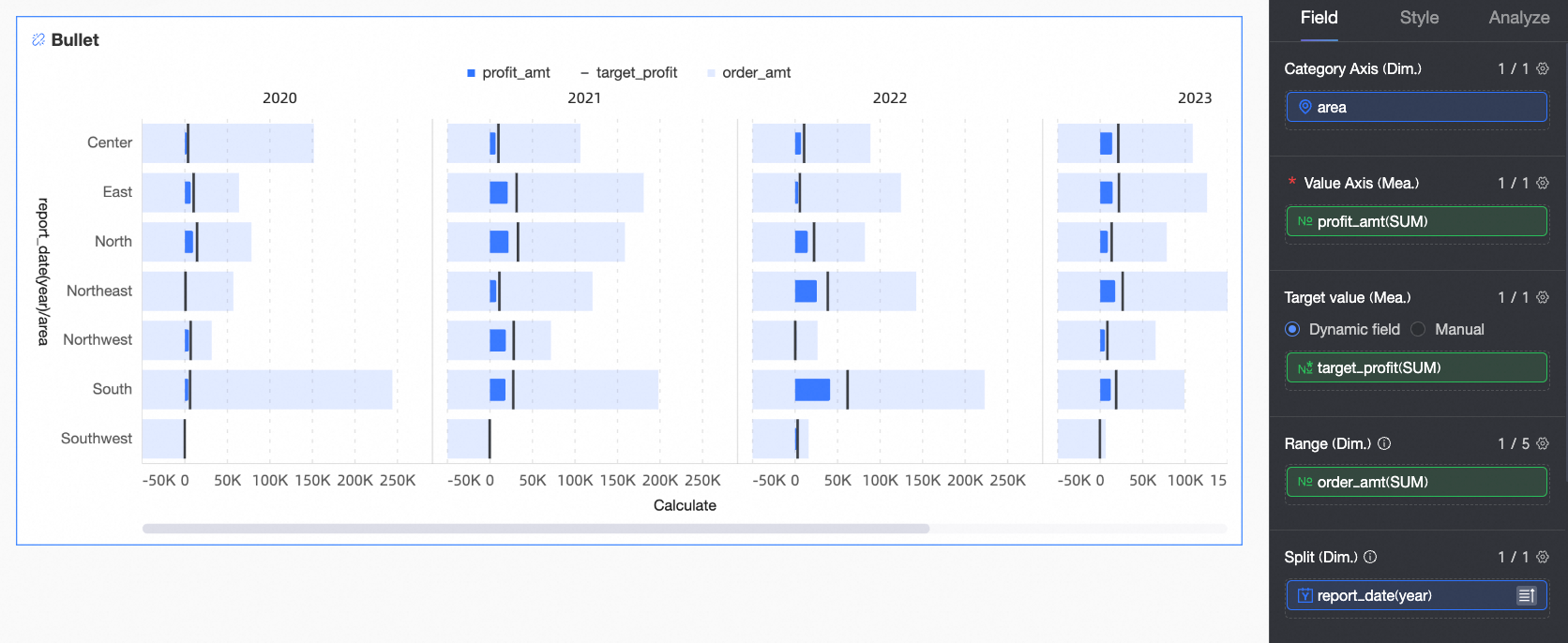
This section uses a profit performance by region example to explain how to configure fields.
In the Data panel, select dimension and measure fields. Double-click or drag them to the corresponding areas in the Fields tab.
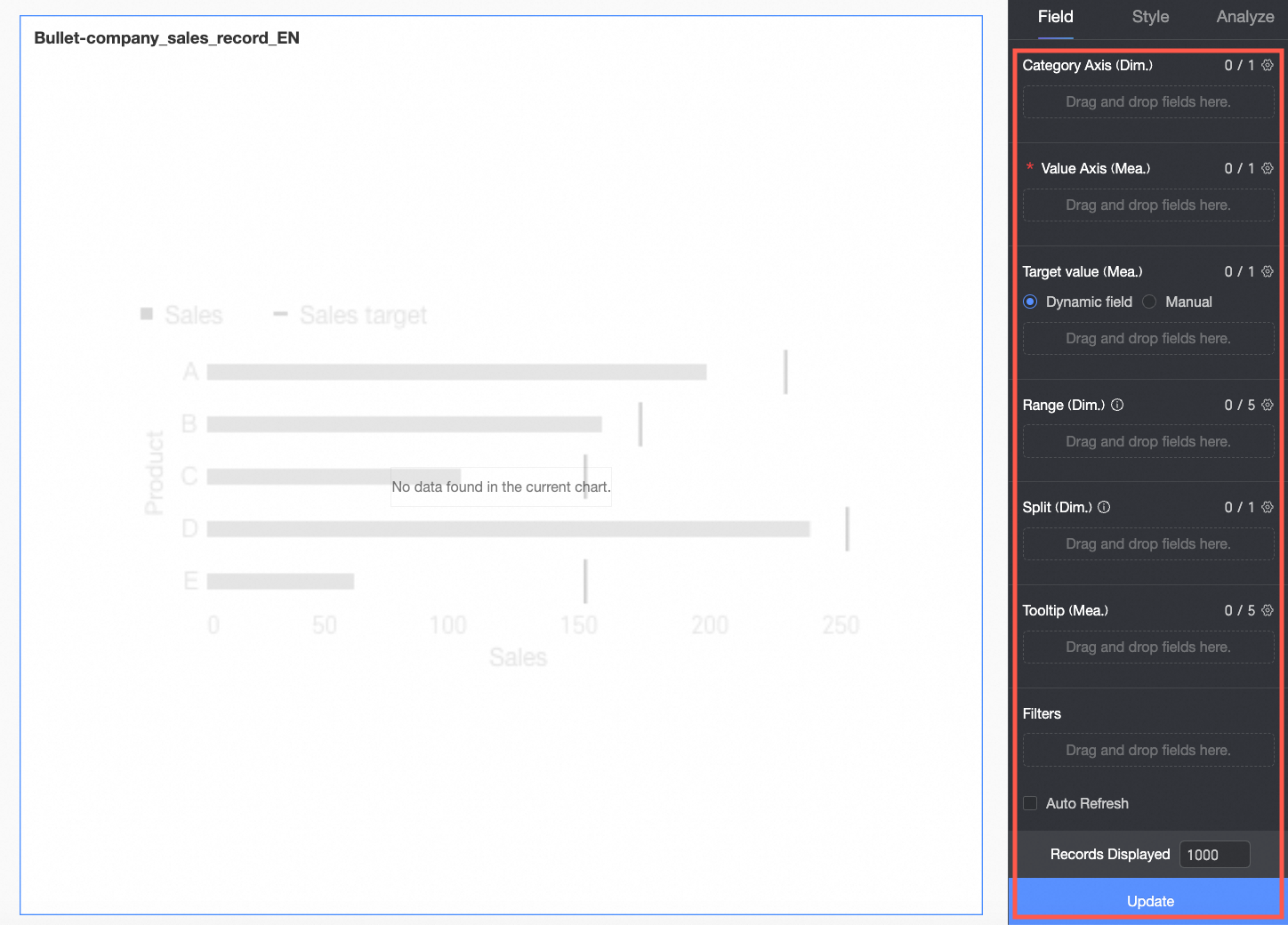
In the Category Axis/Dimension area, configure the dimension for data comparison.
In this example, drag the Region field to compare the profit performance of each region.
In the Value Axis/Measure area, configure the primary metric for the chart.
In this example, drag the Profit field as the primary metric for analysis.
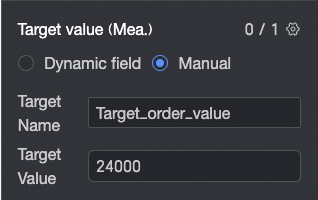
In the Target Value/Measure area, configure the target value for the primary metric. It supports two methods.
Dynamic Field: If the target value differs for each dimension value, you can drag the relevant target field here to create dynamic targets.
Manual Input: If the target value is the same for all dimension values, you can enter a fixed value and specify a custom target name.
In this example, select Dynamic Field and drag the Target Profit field to serve as the benchmark for the profit metric in each region.
In the Background Area/Measure area, you can configure another metric for dynamic comparison with the primary metric, such as order amount. You can also configure a fixed value range to represent different levels or stages of progress, such as Poor, Fair, and Good. To configure a fixed value range, go to the Style tab. For more information, see Background Area > Fixed Value.
In this example, use a dynamic field by dragging the Order Amount field for comparison against the primary metric.
To analyze data across additional dimensions, add dimension fields to the Split/Dimension area. The chart then splits into multiple charts, one for each dimension value in the added field.
In this example, drag the Year field to analyze profit performance across different years.
Click Update. The chart updates automatically.
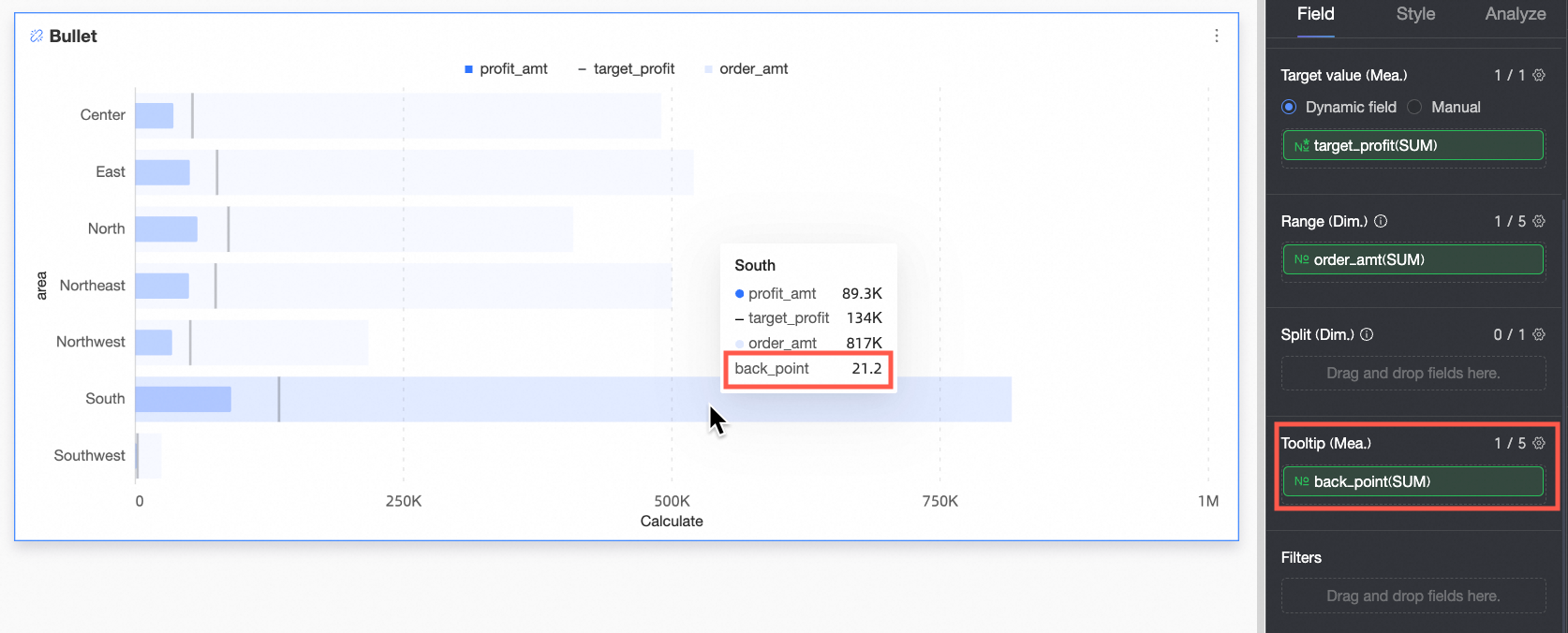
To display data for a specific measure in the tooltip, add the measure to Tooltip/Measure.
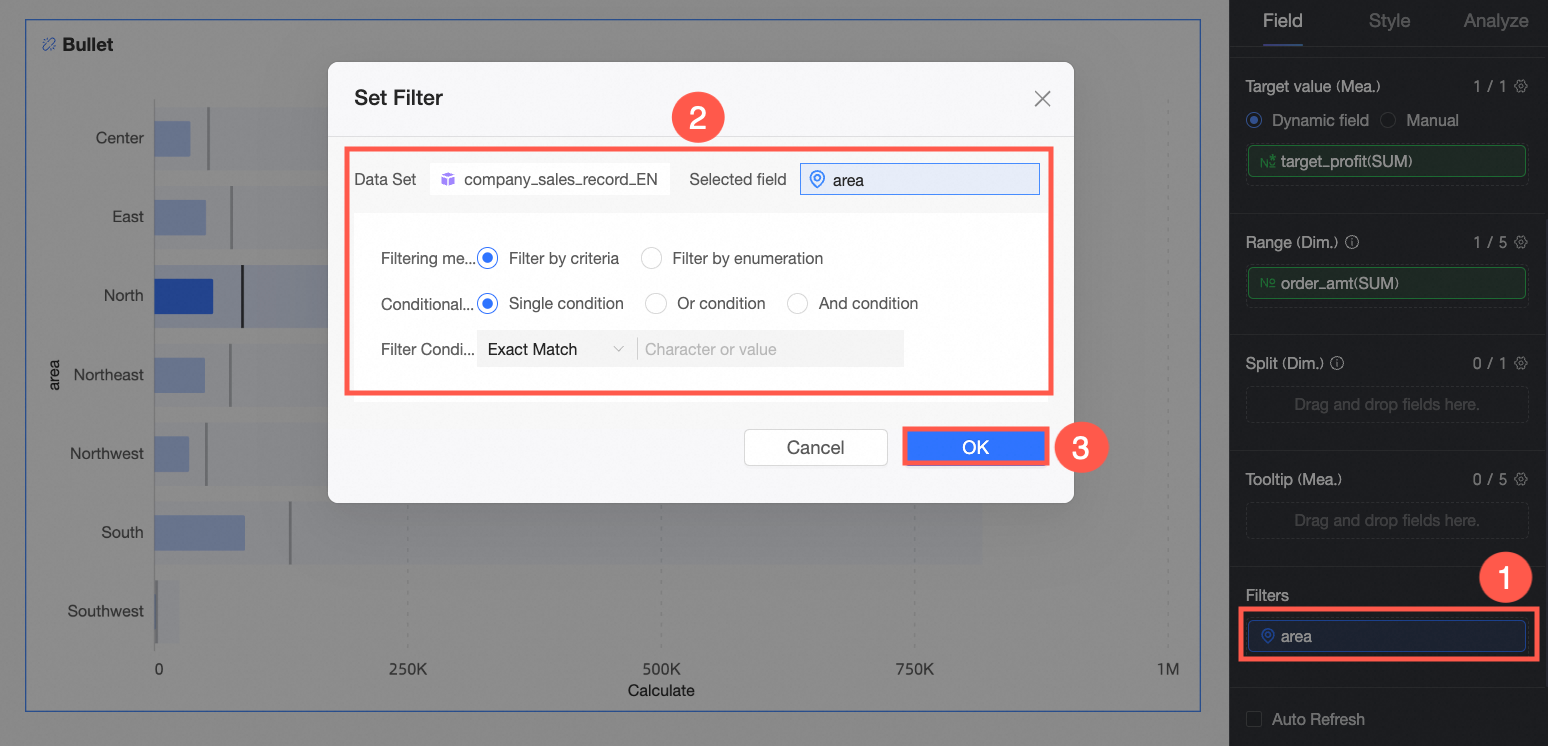
To view data for only a specific Region, apply a filter.

Auto Refresh
Enable this option to automatically refresh the chart data. For example, if you set the duration to 5 and the unit to minutes, the chart data refreshes automatically every 5 minutes.
Configure chart styles
This section describes how to configure chart styles. For general style settings, see Configure the chart title area.
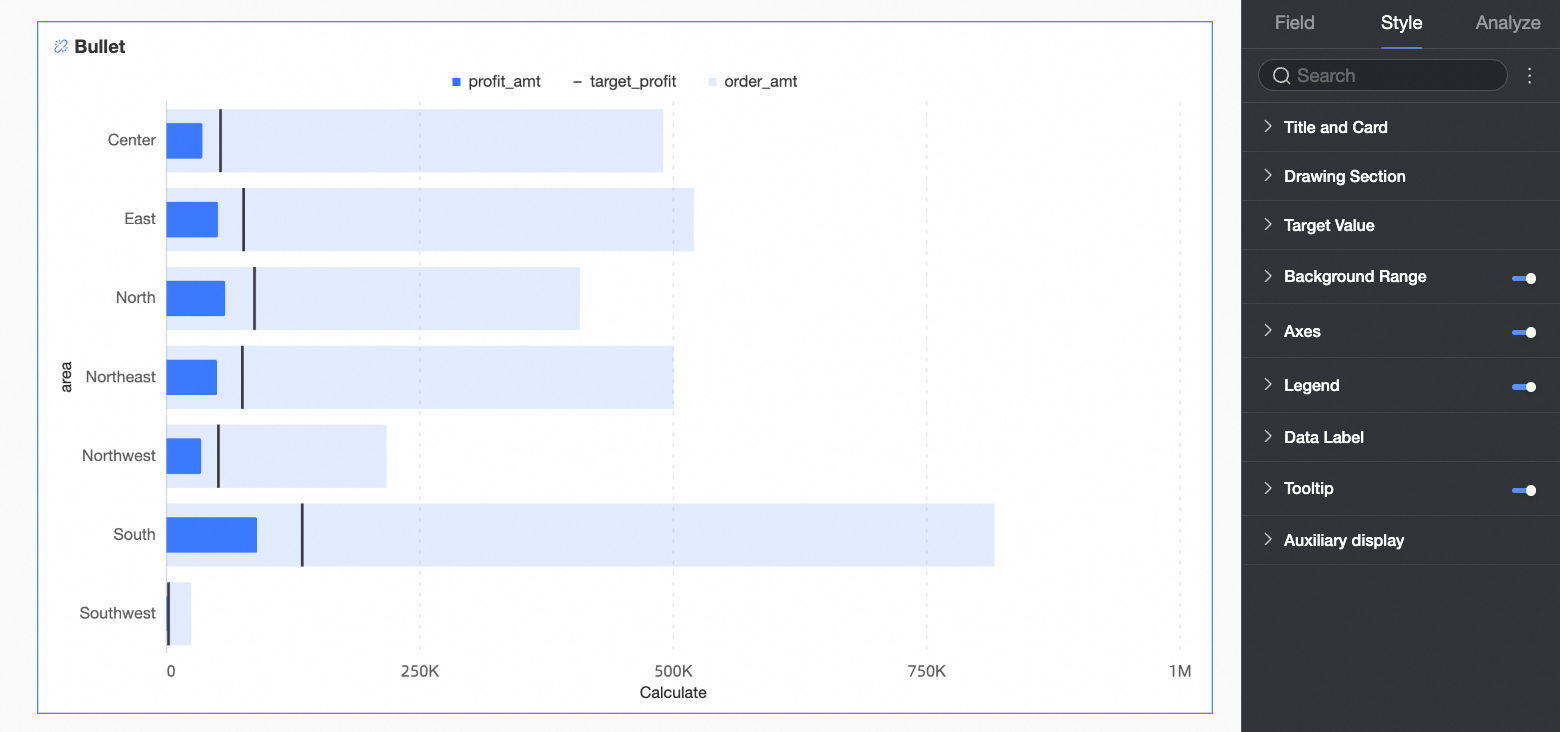
Drawing area
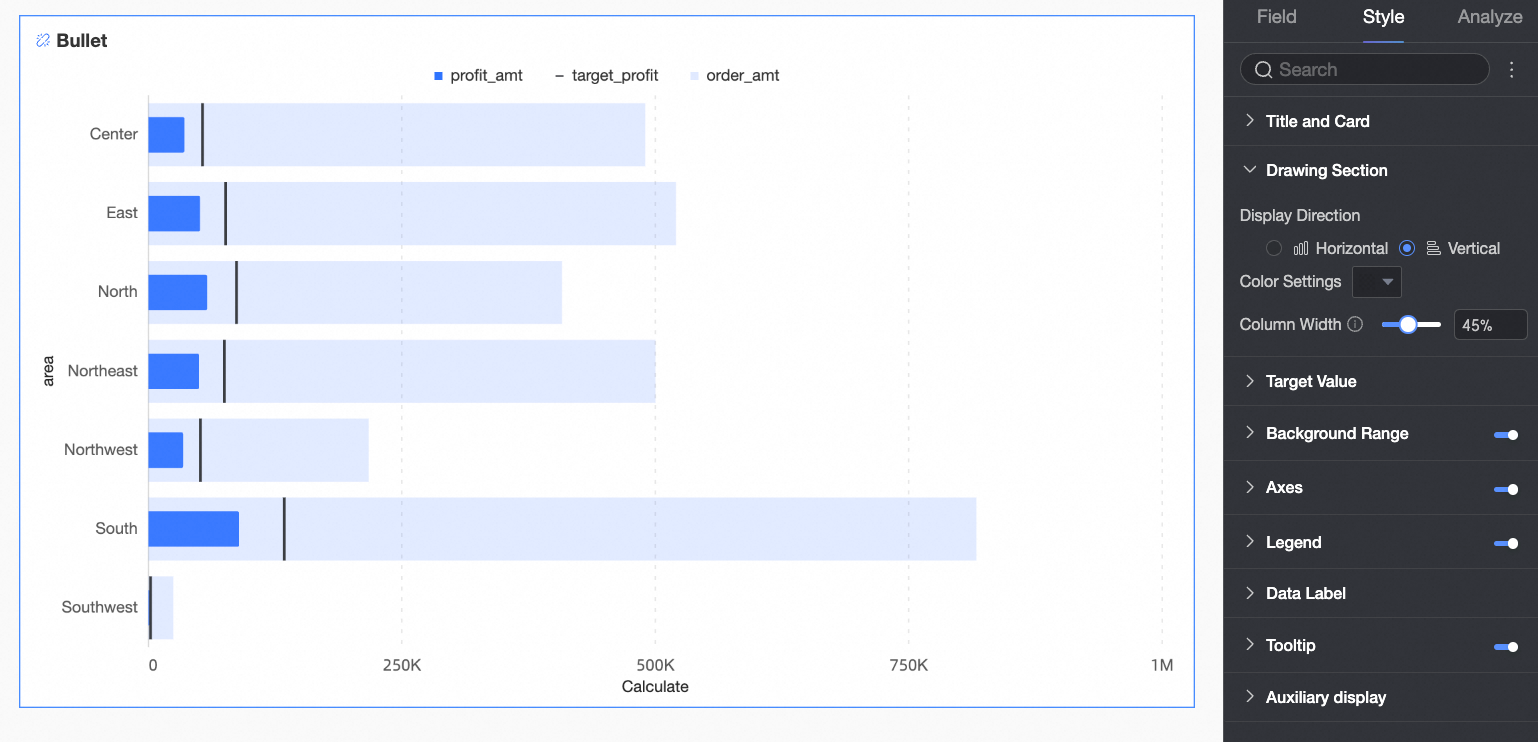
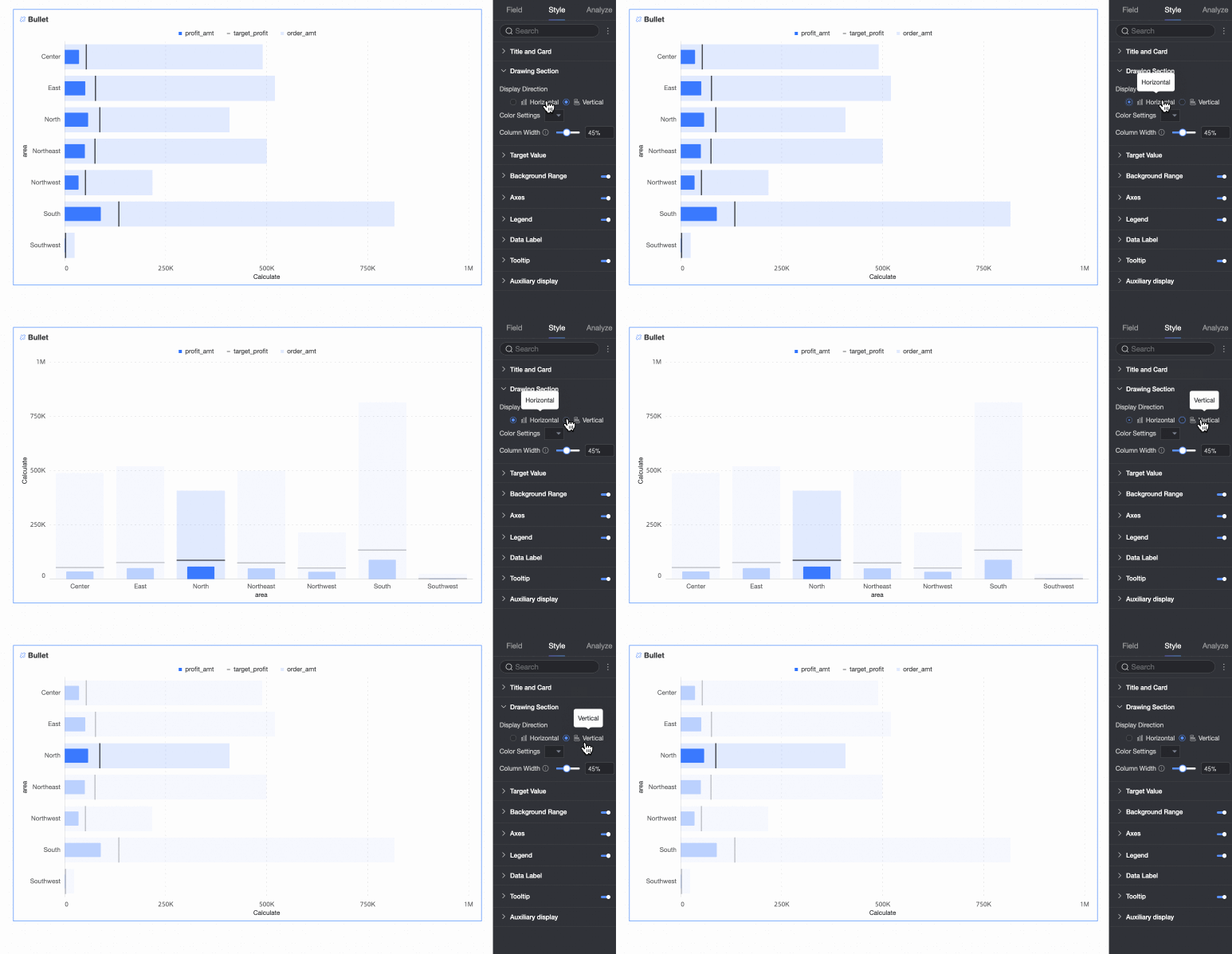
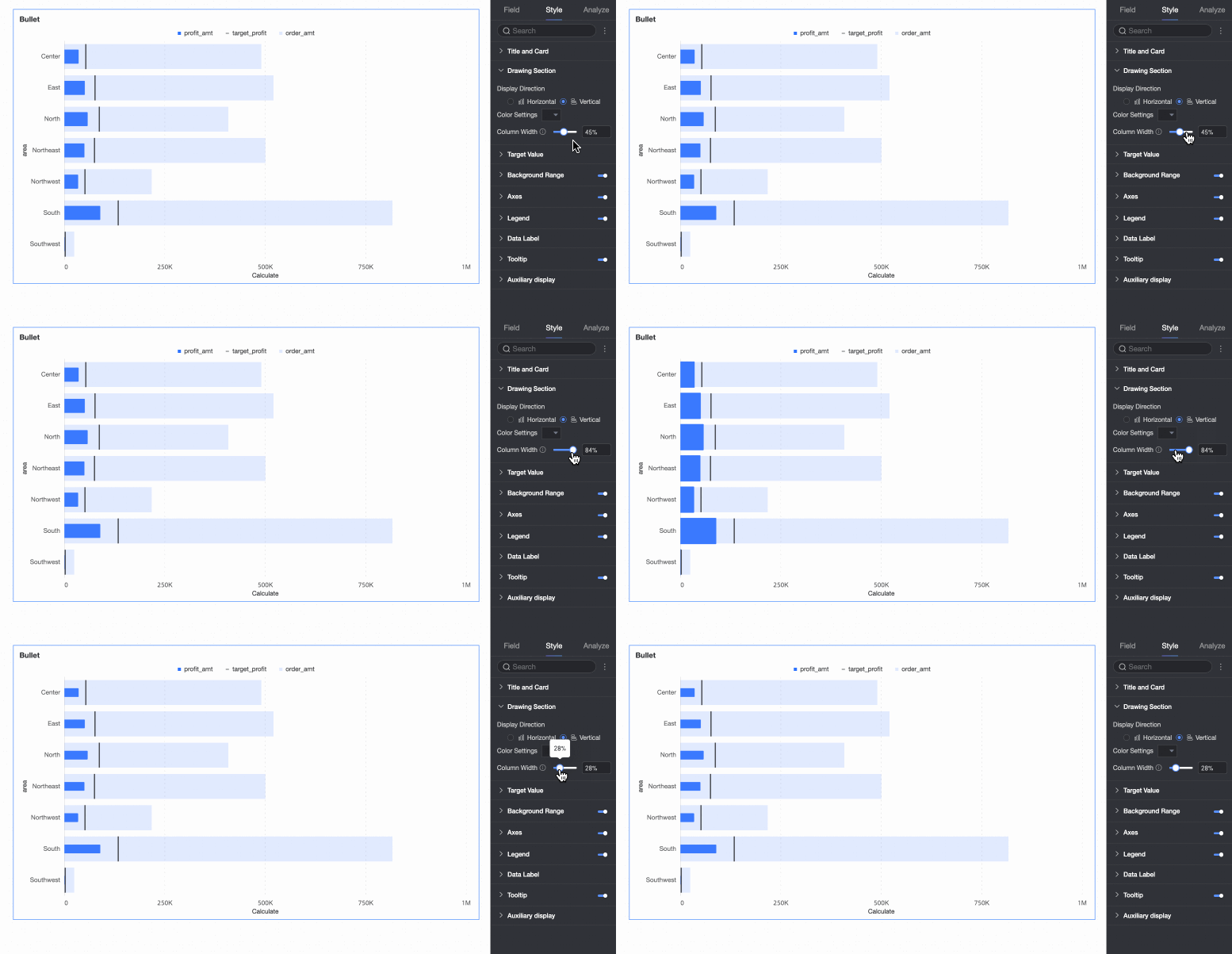
On the Style tab, configure the Bullet Chart style in the Drawing Area section.
Parameter | Description |
Chart Orientation | Sets the bar orientation. Options: Horizontal and Vertical. |
Bar Color | Sets the bar color for the Value Axis/Measure field. You can choose a solid color or a gradient. |
Bar Width | Sets the bar width for the Value Axis/Measure field. |

Target value
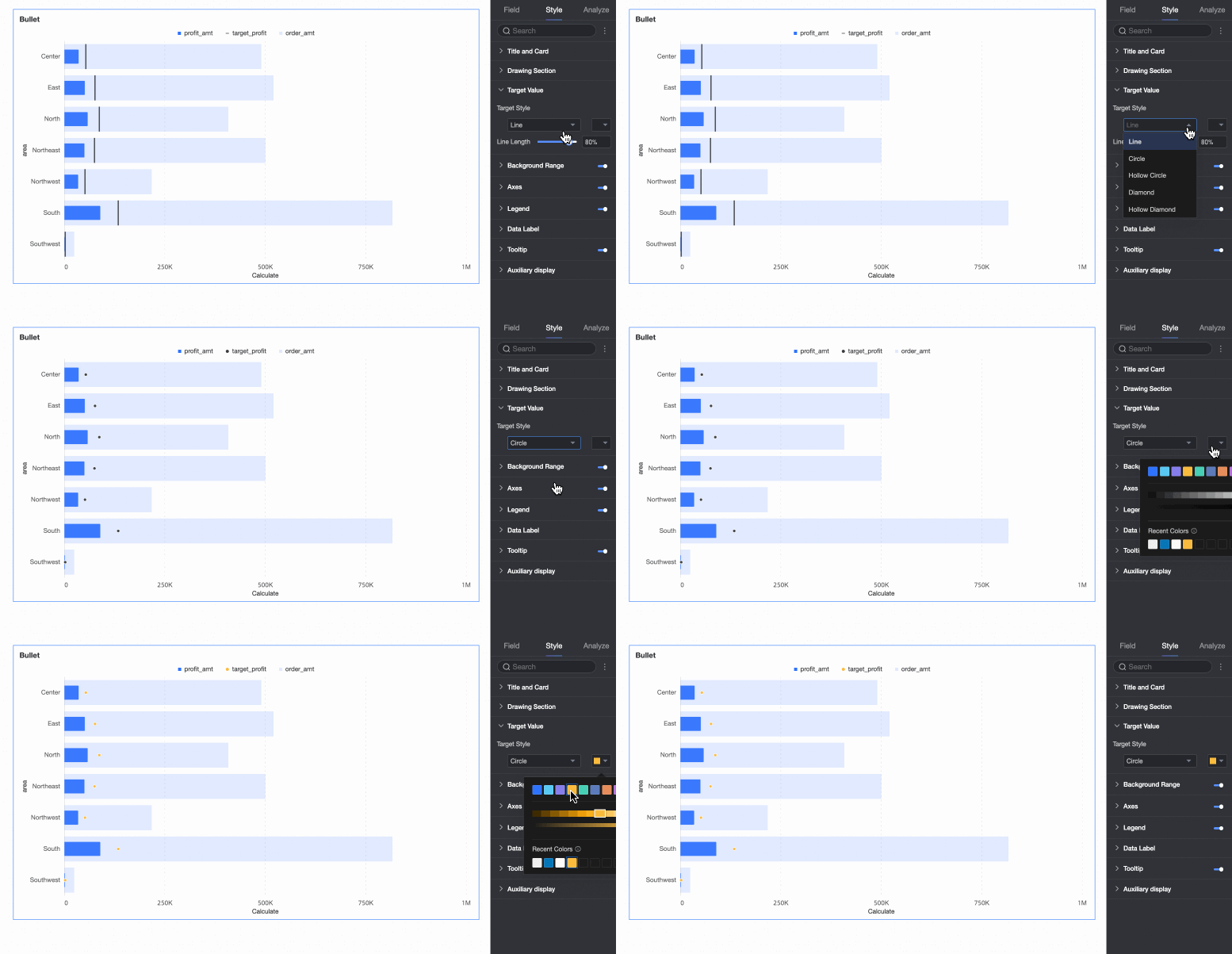
On the Style tab, configure the style of the target value indicator in the Target Value section.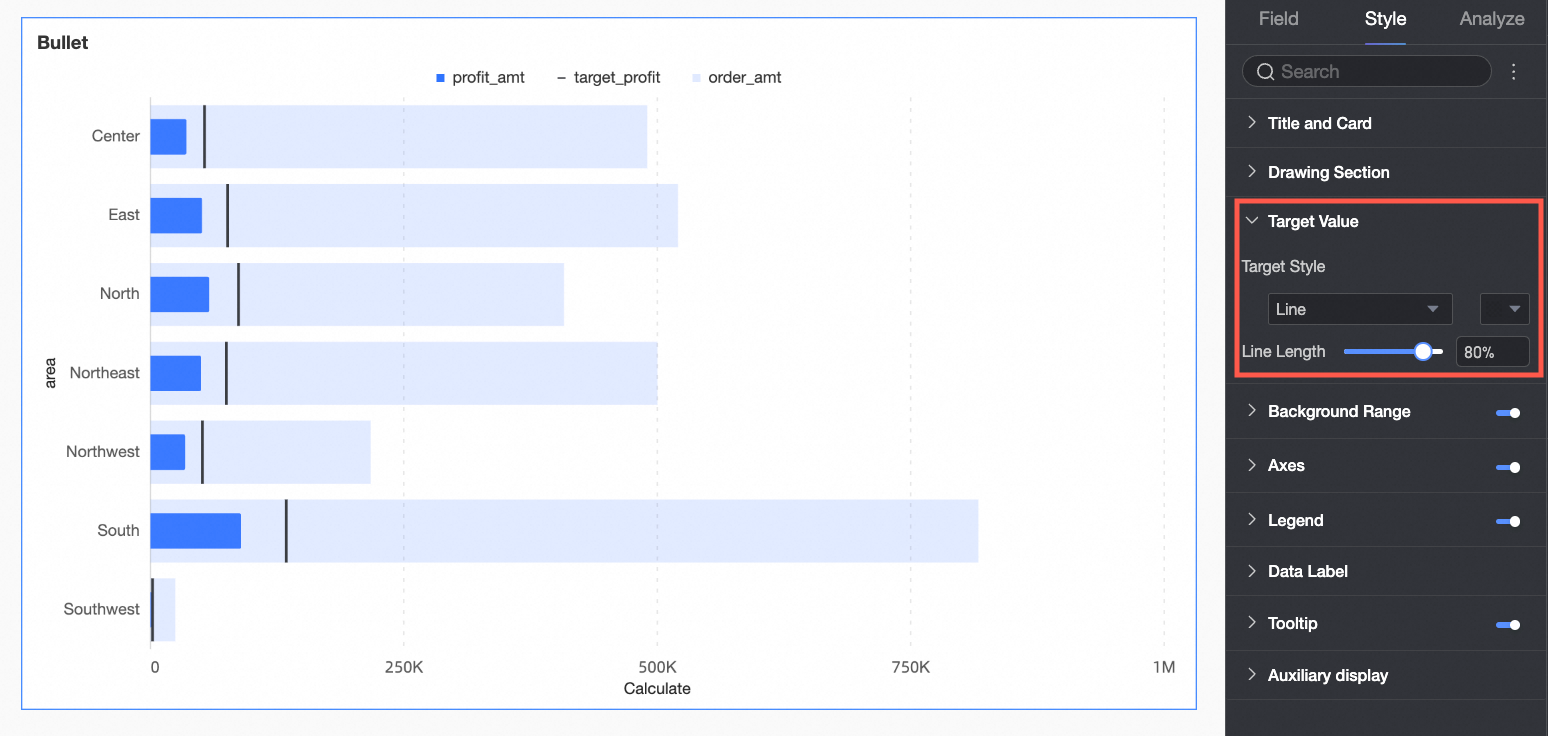
Parameter | Description |
Target Value Style | Configures the style and color of the target value indicator. |
Vertical Line Length | If the target value style is a vertical line, you can set its length. |
Background area
On the Style tab, configure the style of the background bar in the Background Area section. By default, the background area is displayed.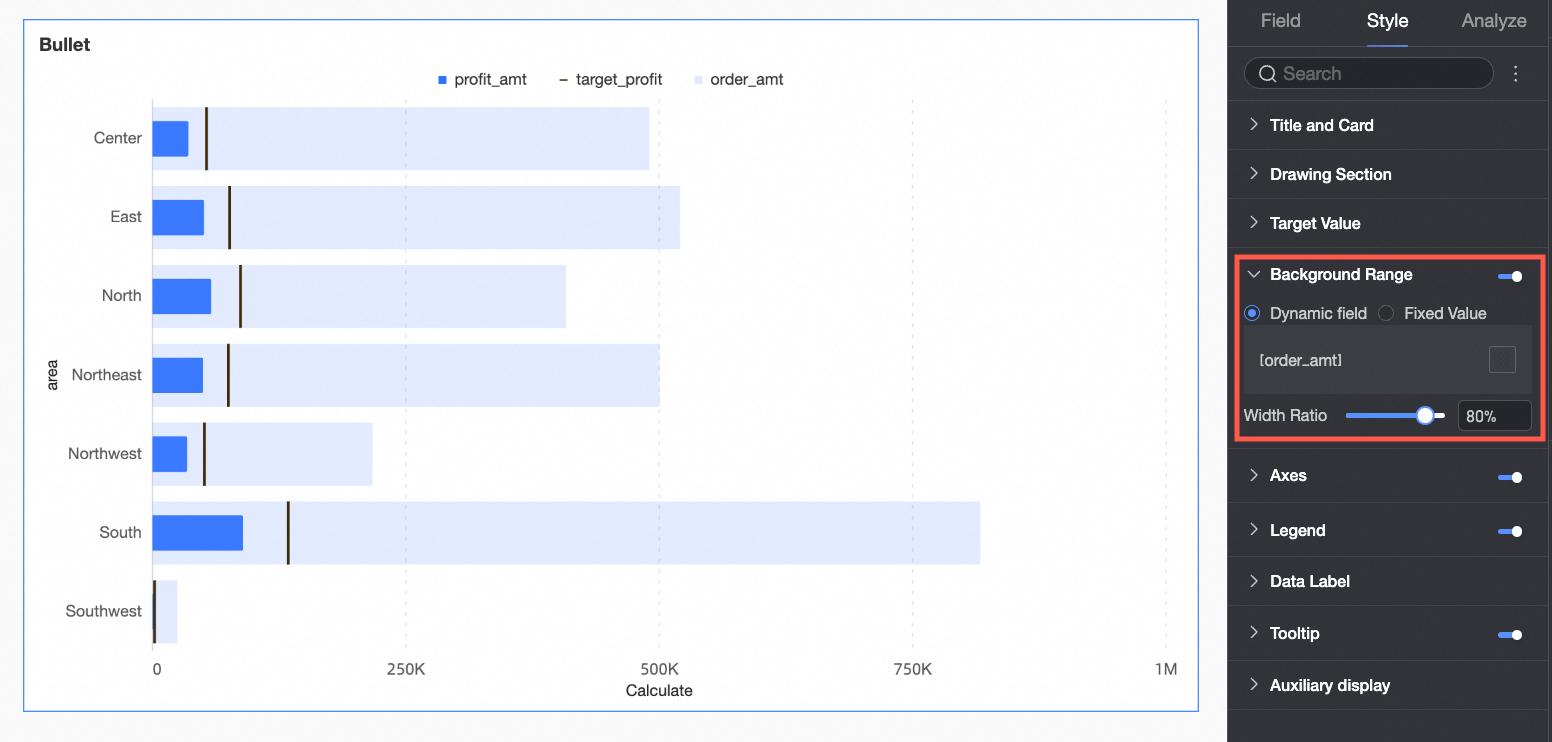
Parameter | Description |
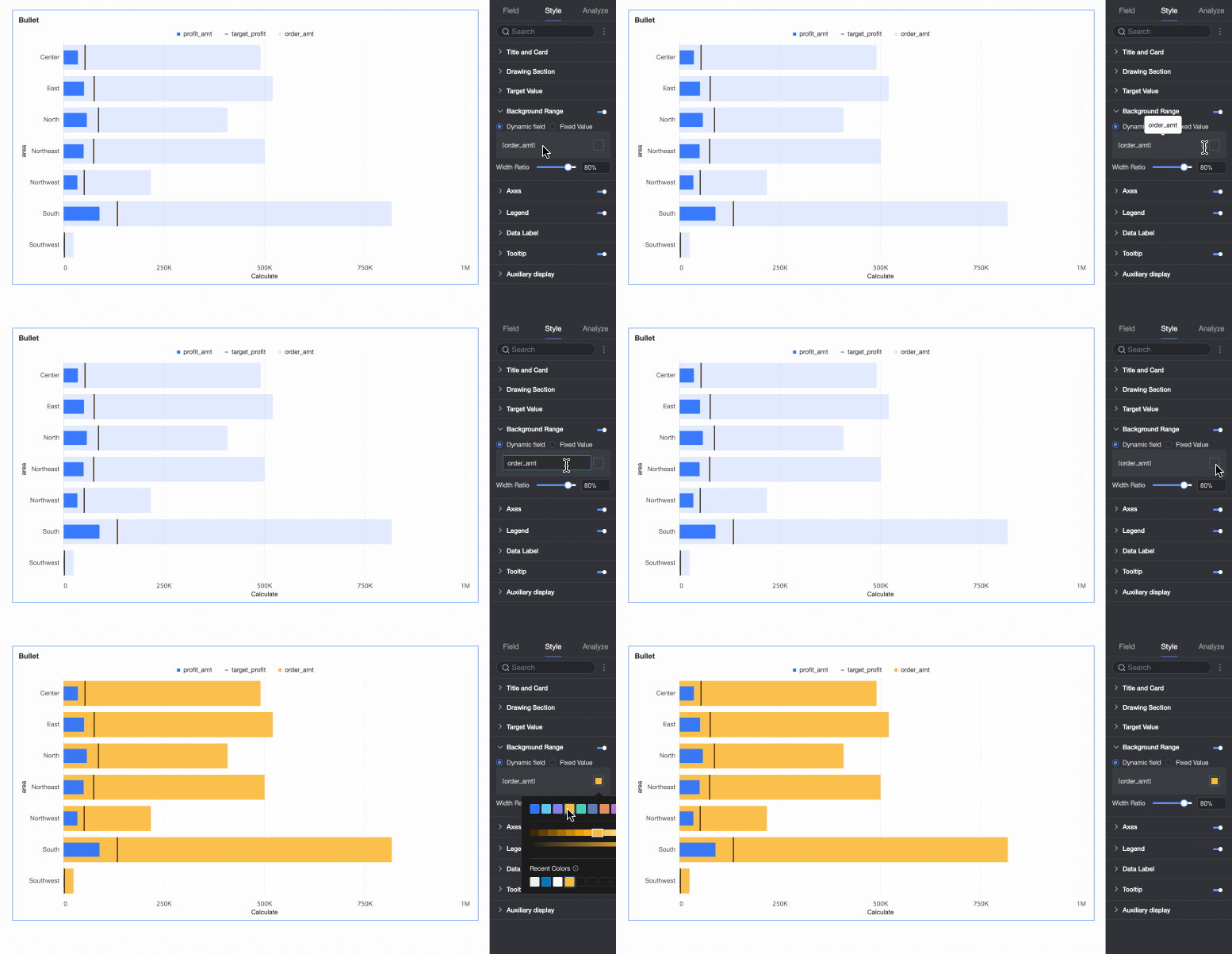
Dynamic Field | If the background area is set to a dynamic field in Fields > Background Area/Measure, you can customize the legend's display name and the bar color. |
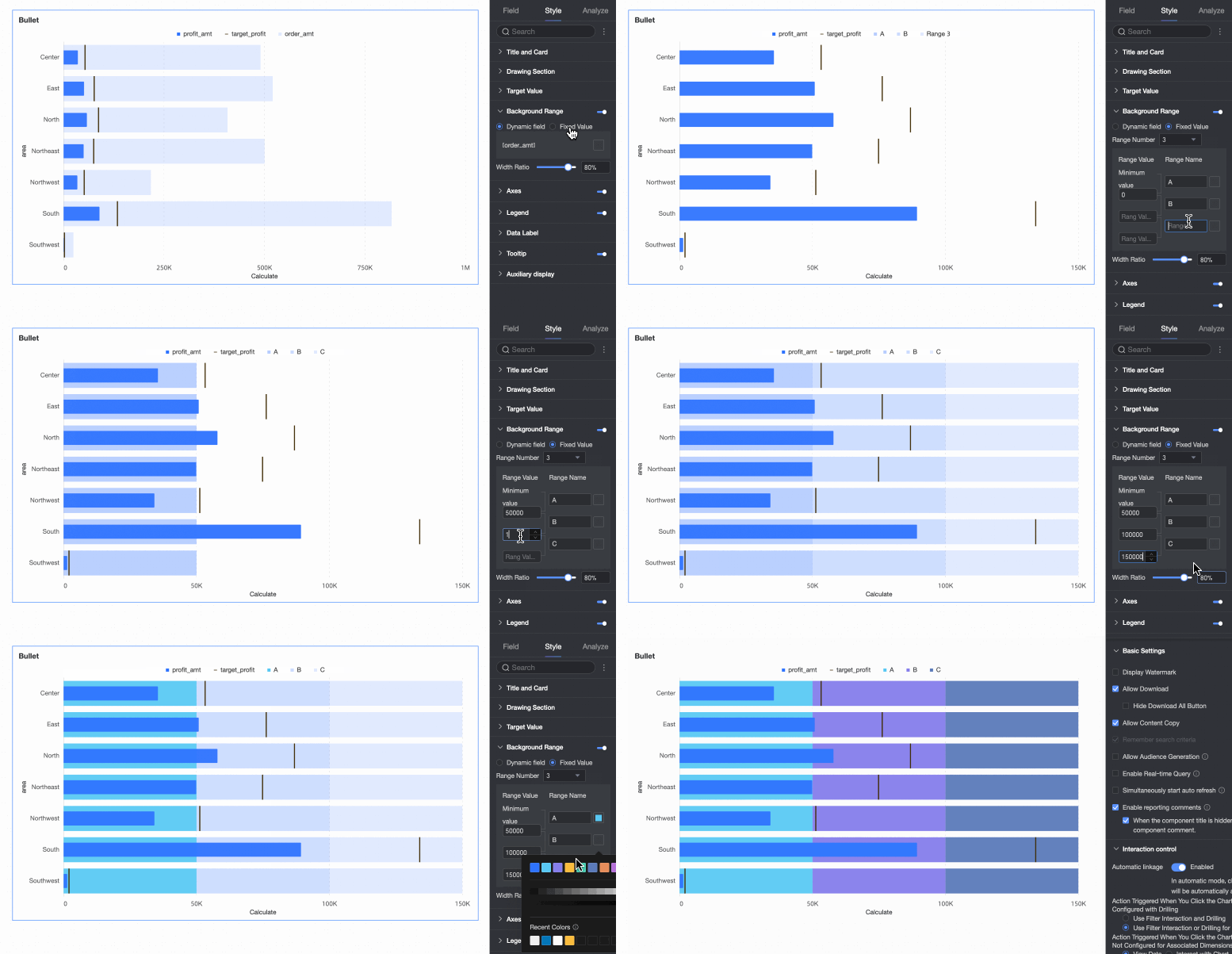
Fixed Value | If the background area is set to a fixed value, the system ignores any field in Fields > Background Area/Measure. Instead, you define background ranges to represent progress levels or stages. You can set the Number of Ranges, Range Value, Range Name, and Range Color. |
Width Ratio | Configures the width of the background area bars. |
Axes
On the Style tab, configure the axis styles in the Axes section. By default, the axes are displayed.
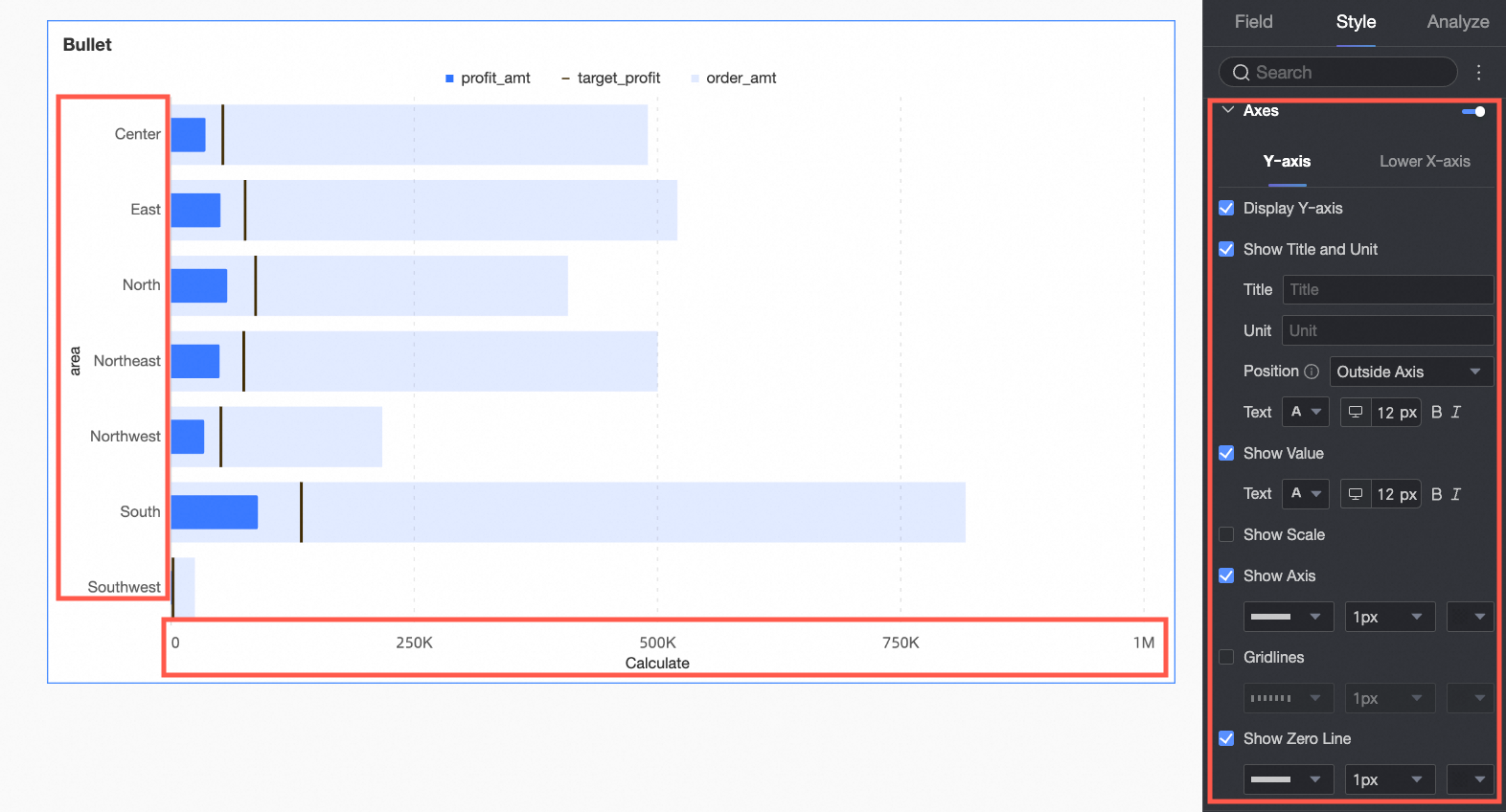
Parameter | Setting | Description |
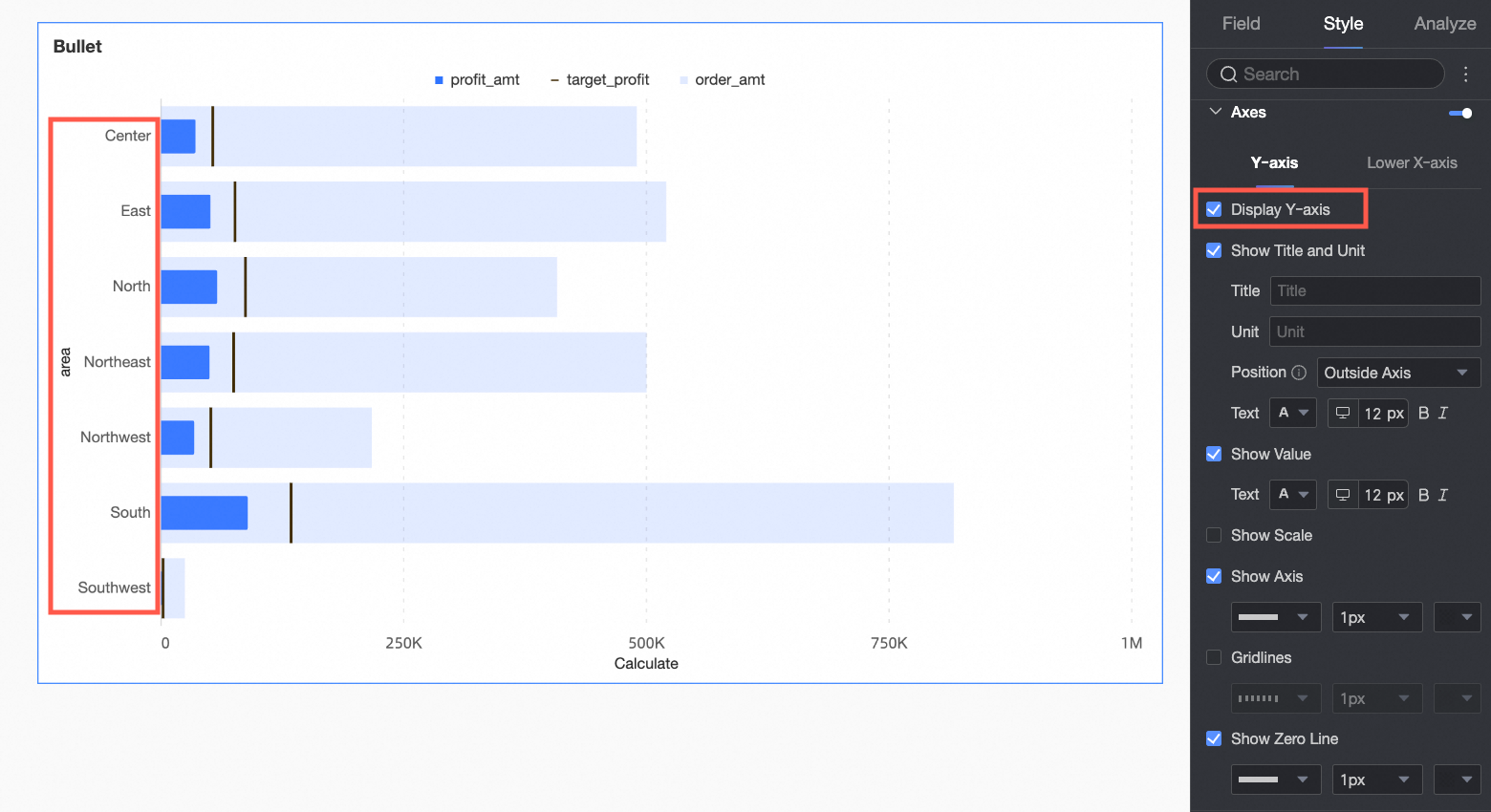
Y-Axis | Show Y-Axis | Shows or hides the Y-axis. |
Show Title and Unit | Shows or hides the Axis Title and Unit on the Y-axis. You can also configure the text style. | |
Show Axis Labels | Shows or hides the axis labels on the Y-axis and configures their text style. | |
Show Tick Marks | Shows or hides the tick marks on the Y-axis. | |
Show Axis Line | Shows or hides the Y-axis line. When shown, you can customize its style, including line type, width, and color. | |
Show Gridlines | Shows or hides gridlines for the Y-axis. When shown, you can customize their style, including line type, width, and color. | |
Show Zero Tick Line | Shows or hides the zero tick line on the Y-axis. When shown, you can customize its style, including line type, width, and color. | |
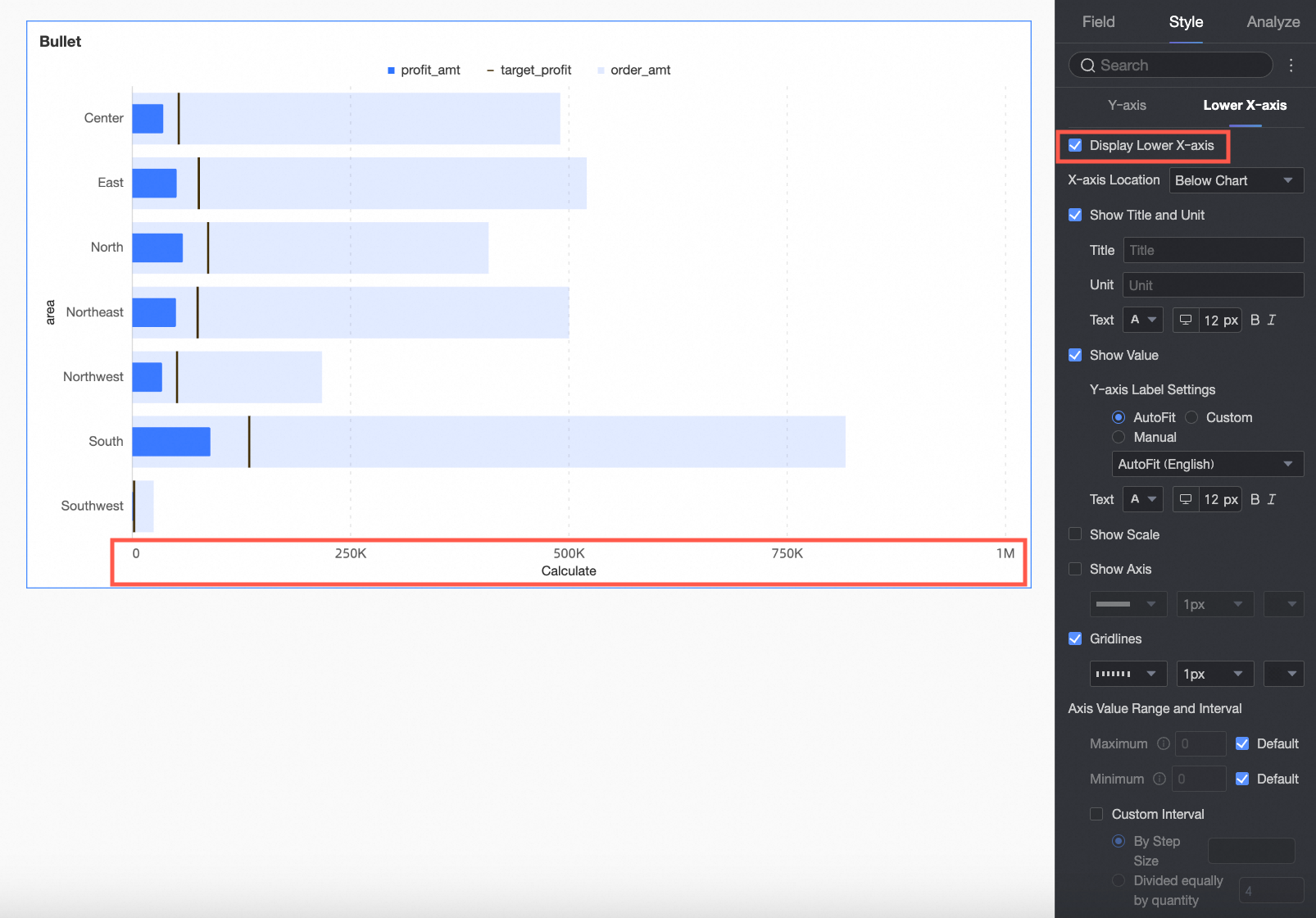
Bottom X-Axis | Show Bottom X-Axis | Shows or hides the bottom X-axis. |
X-Axis Position | Sets the position of the X-axis in the chart. Options include Above Chart and Below Chart. | |
Show Title and Unit | Shows or hides the axis Title and Unit. You can configure their names and text styles. | |
Show Axis Labels | Shows or hides labels on the bottom X-axis. When shown, you can configure the Axis Label Display Format and text style. You can choose Auto or Custom for the display format.
| |
Show Tick Marks | Shows or hides the tick marks on the bottom X-axis. | |
Show Axis Line | Shows or hides the bottom X-axis line. You can also configure its line type, width, and color. | |
Show Gridlines | Shows or hides gridlines for the bottom X-axis. You can also configure their line type, width, and color. | |
Axis Value Range and Interval | Sets the maximum and minimum values for the bottom X-axis, as well as the interval between axis values.
|
 icon to open the Data Display Format Settings dialog box and configure a custom format. For information about the options, see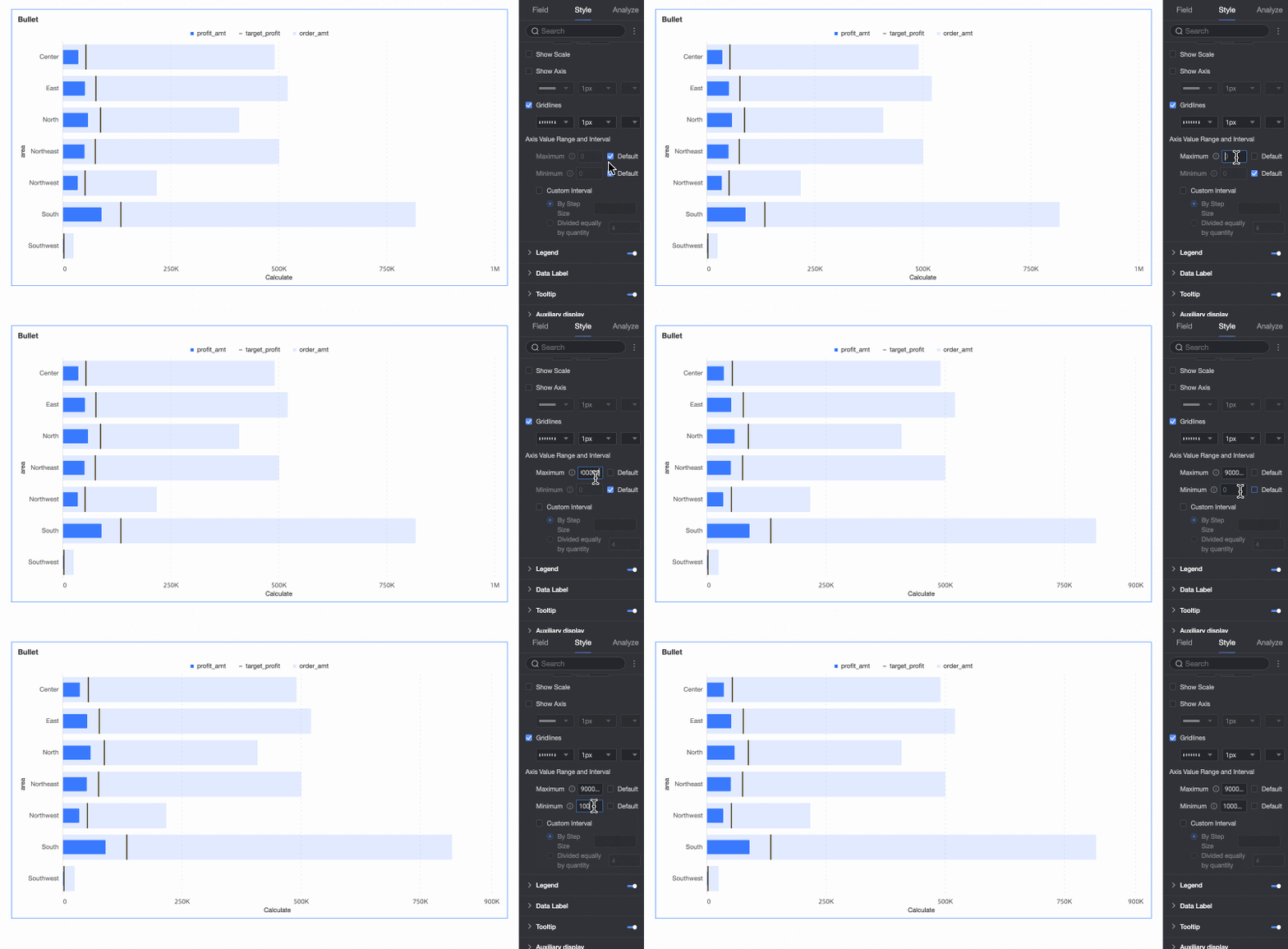
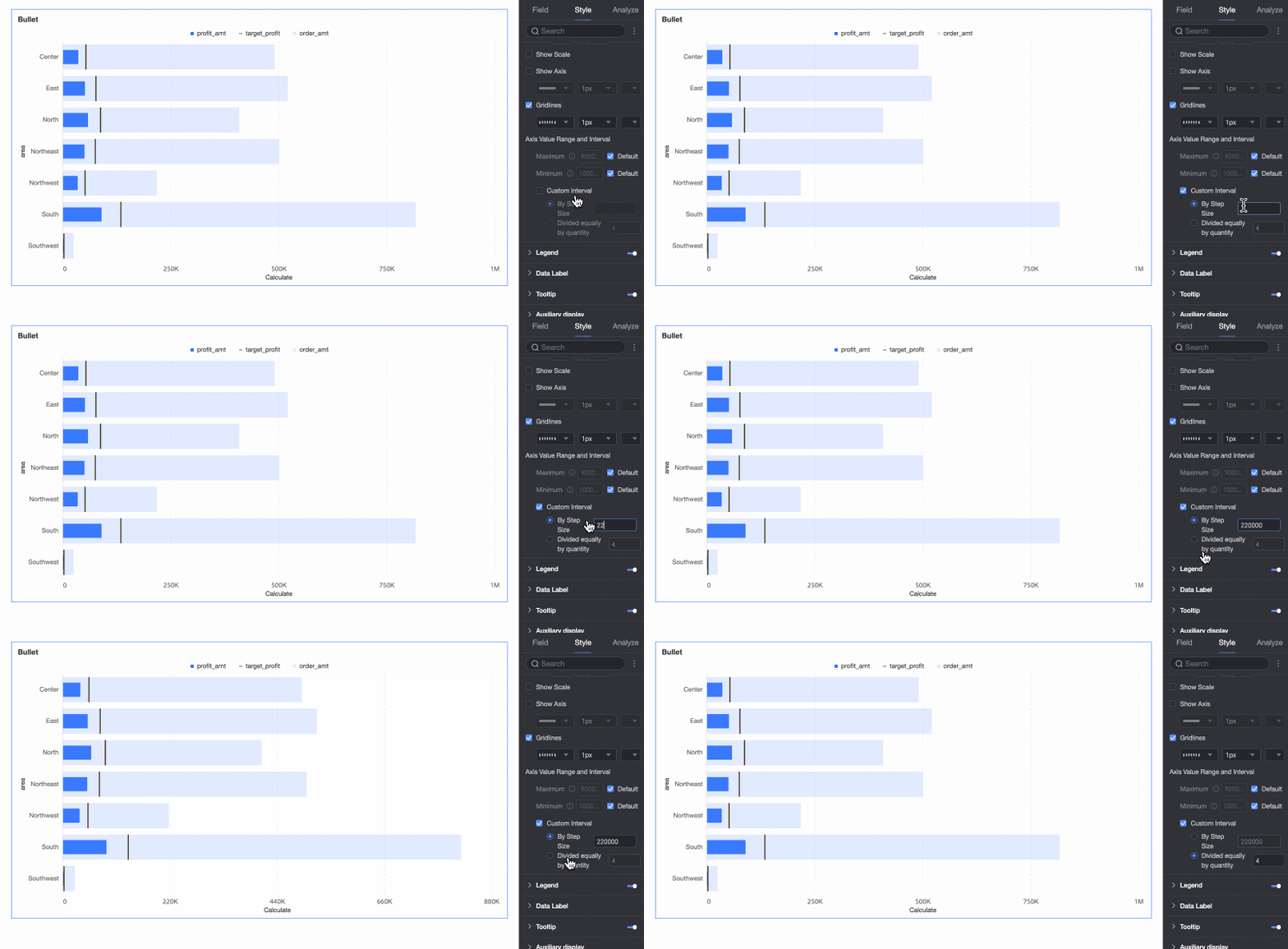
Legend
In the Legend section, click the  icon to enable the chart legend and configure its style.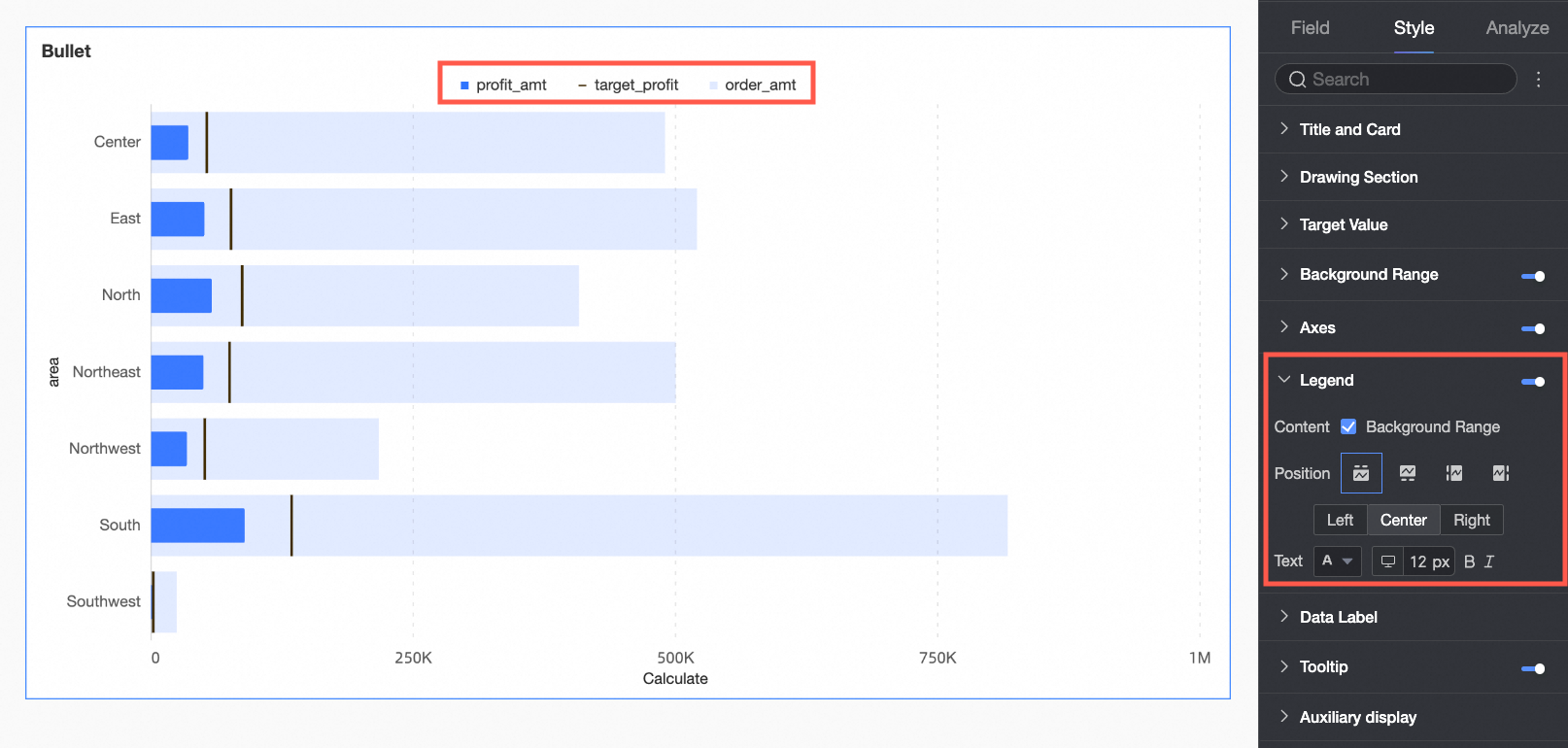
Parameter | Description |
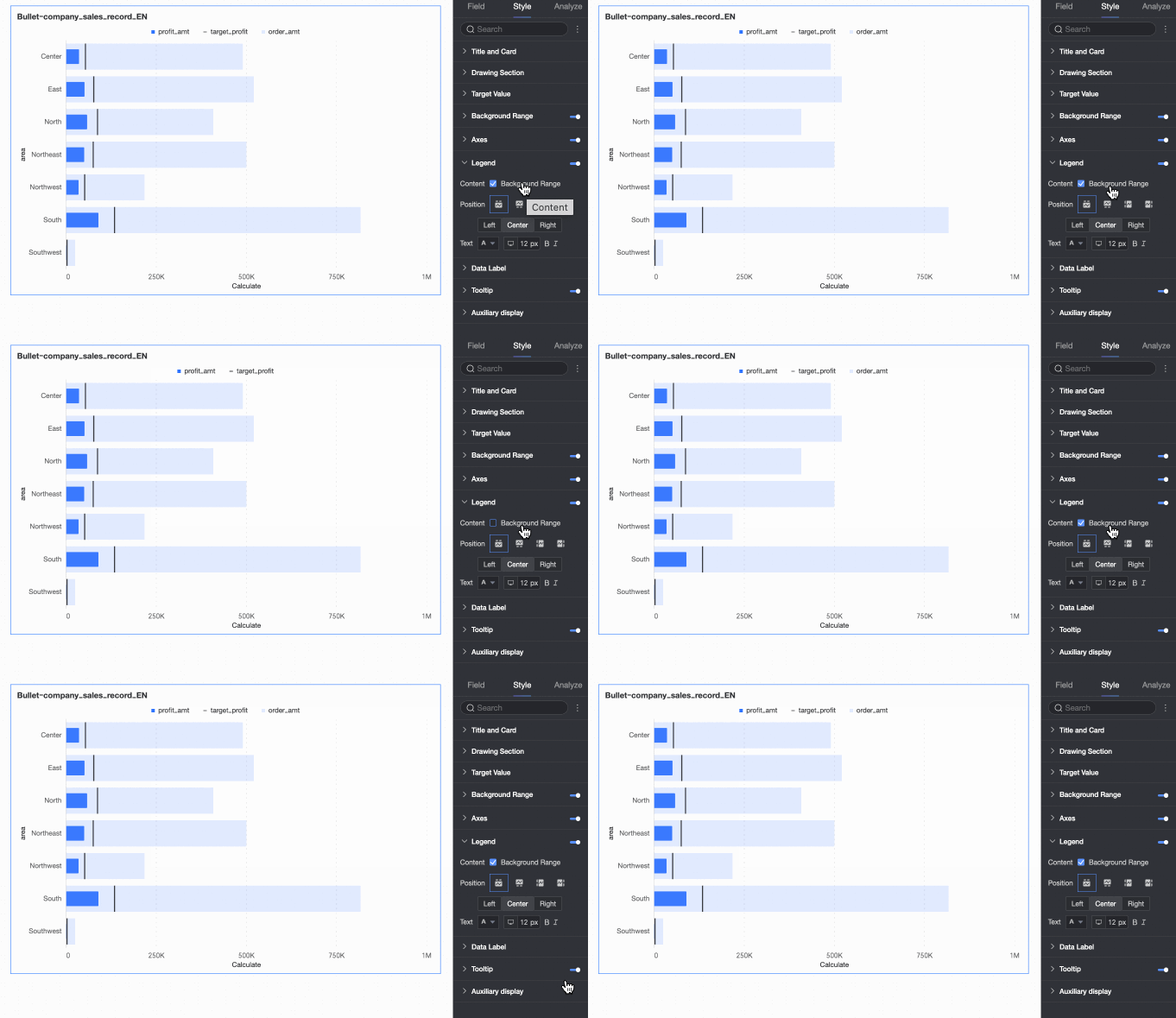
Content | Shows or hides the background area metric in the legend. |
Position | Sets the display position and alignment of the legend.
|
Text | Sets the legend text style, including font color, size, weight, and slant. |
Mobile Legend | PC and mobile legend settings are independent. Use the PC/mobile toggle ( |
 ) in the dashboard editor to switch to the mobile view and configure a separate legend. You can customize its position and text style.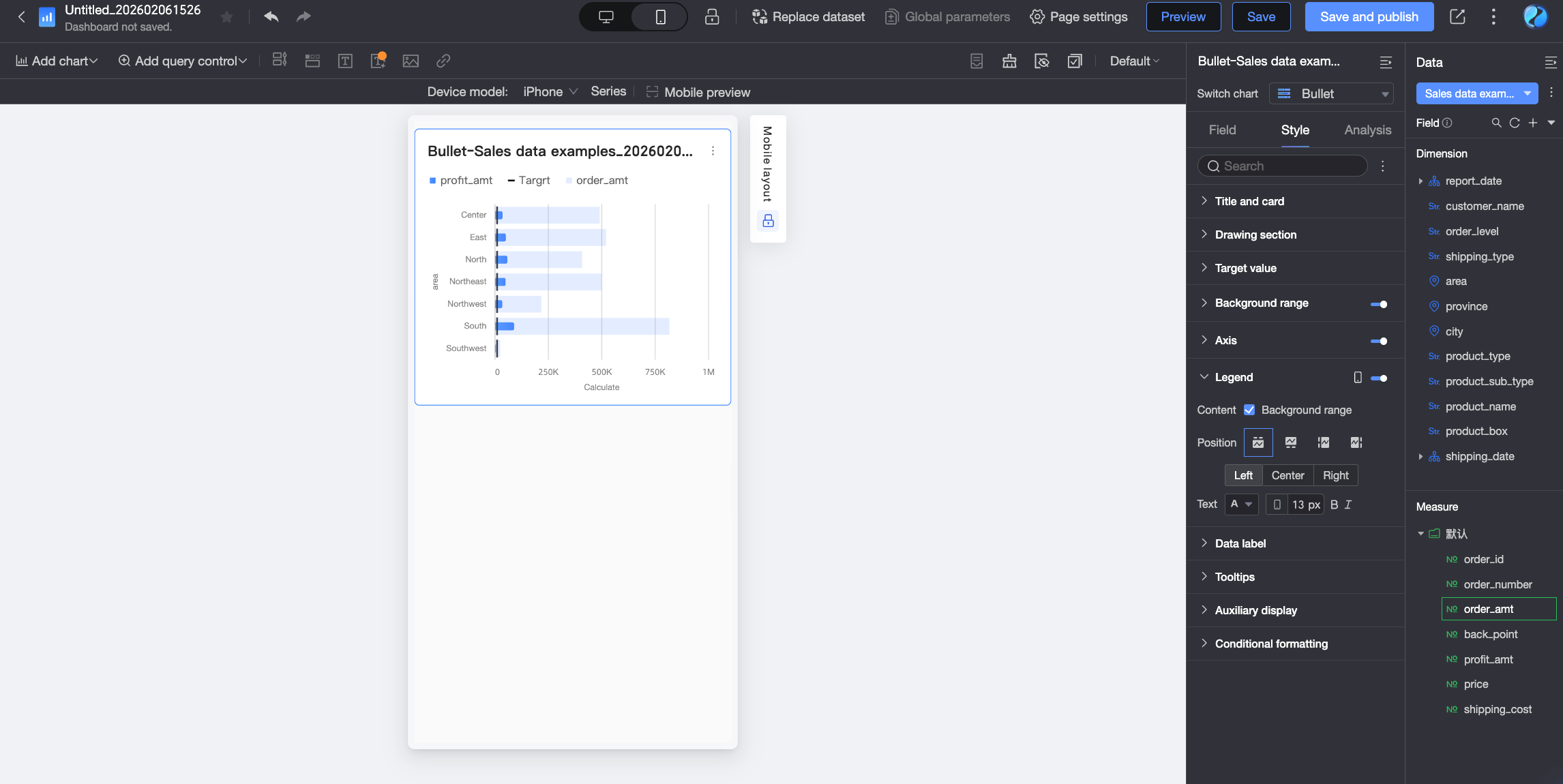
Data labels
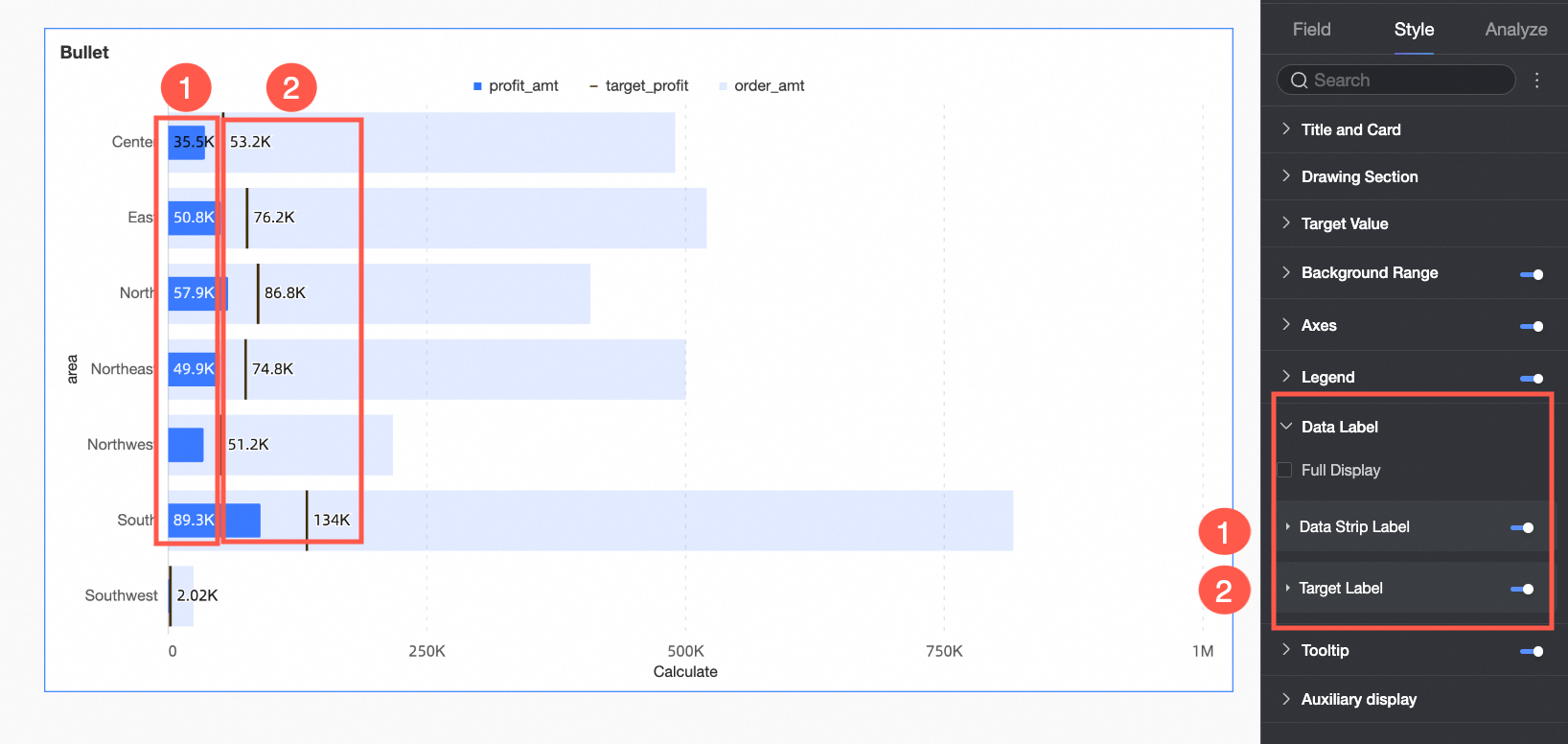
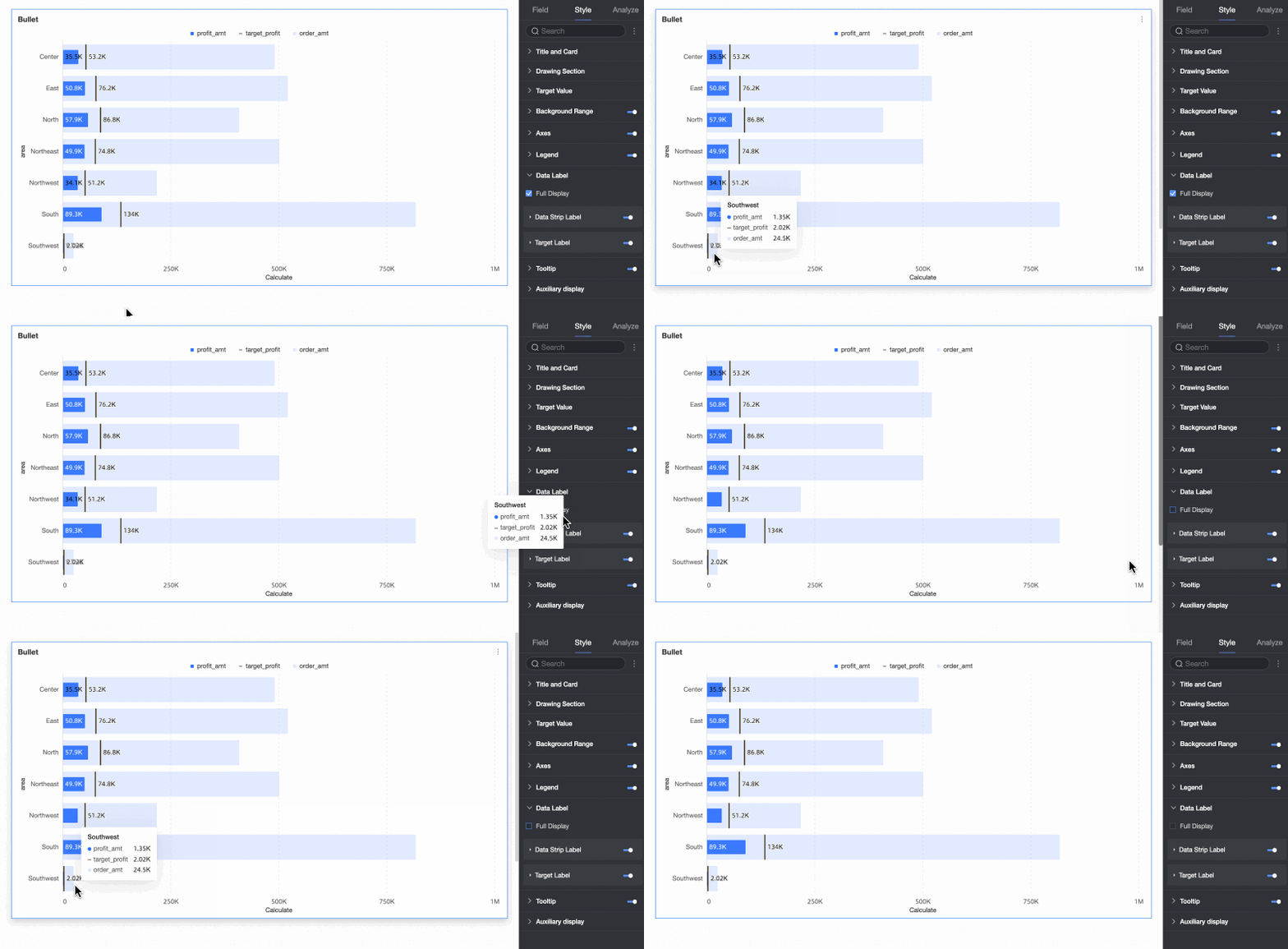
In the Data Labels section, configure the display and style of data labels.
Parameter | Description |
Show All | Determines whether to show both the data bar label and target value label simultaneously when both are enabled. For example, when the data value is close to the target value and their labels are positioned near each other, the labels may overlap. You can disable this option to improve visual clarity. |
Data Bar Label | Shows or hides the data bar label and configures its position and text style. |
Target Value Label | Shows or hides the target value label and configures its position and text style. |
Tooltip
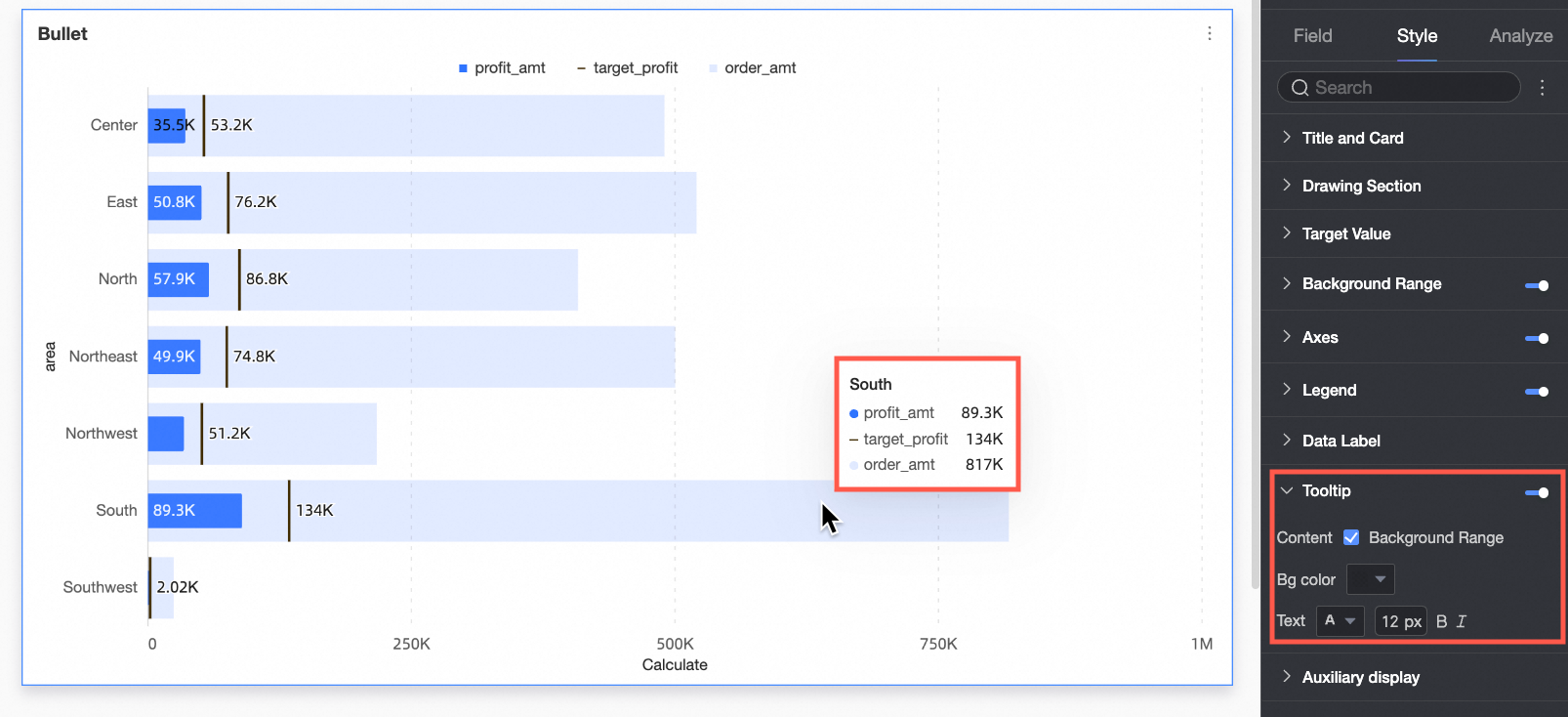
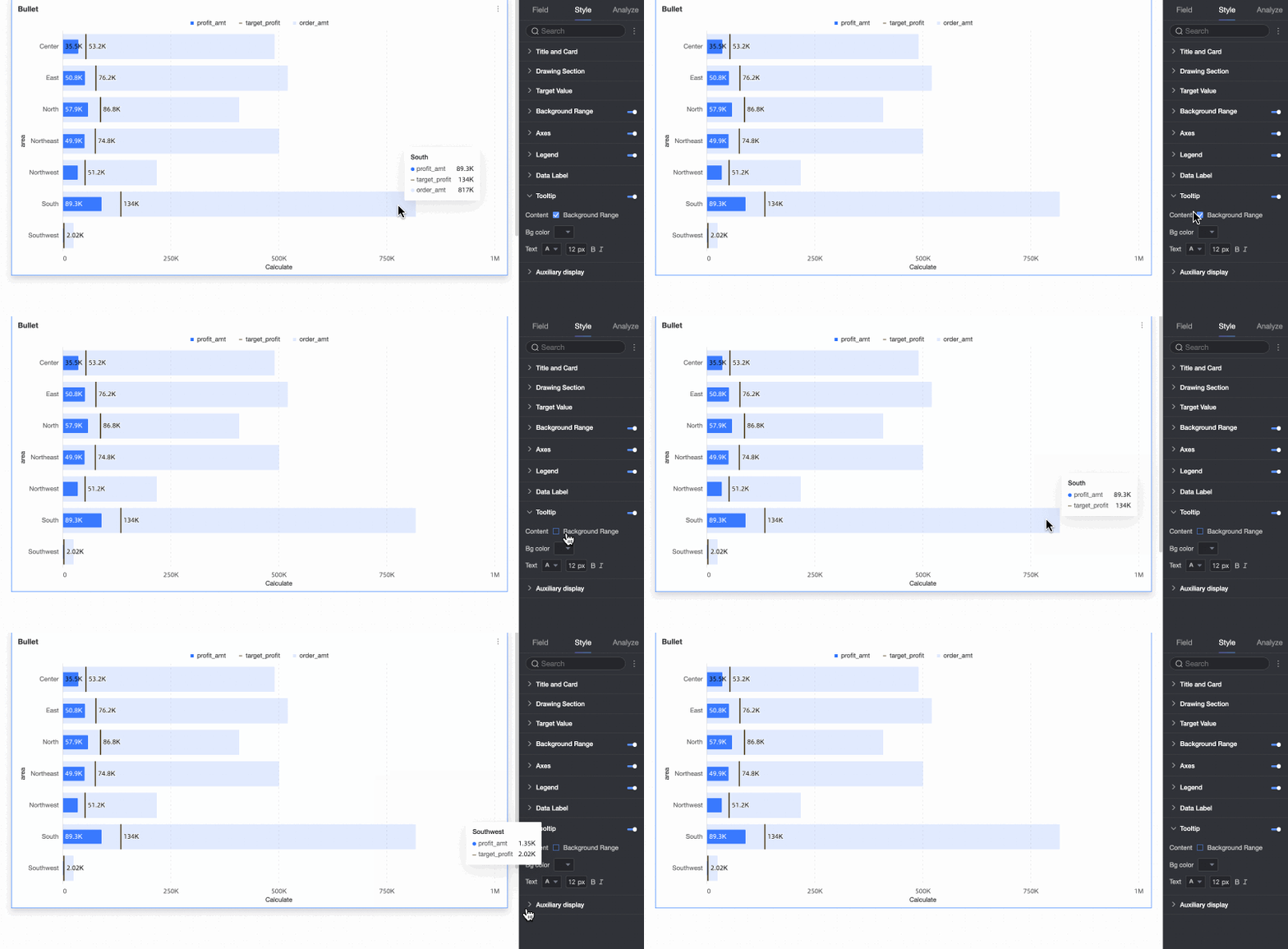
In the Tooltip section, click the icon to enable the tooltip and configure its style.
Parameter | Description |
Content | Shows or hides the background area field in the tooltip. |
Background Color | Sets the background fill color of the tooltip. |
Text | Sets the style of the text in the tooltip, including font color, size, weight, and slant. |
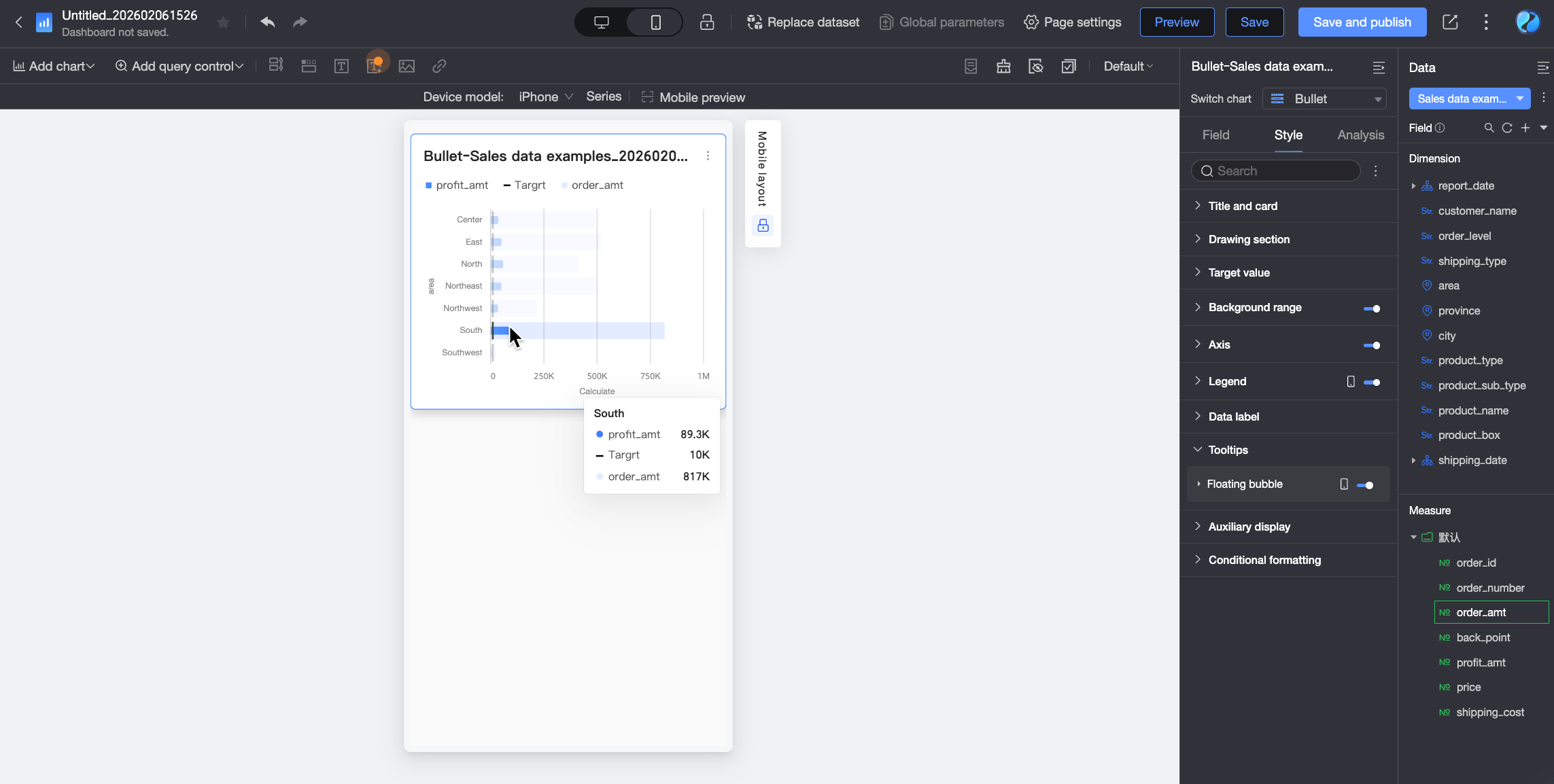
Mobile Tooltip | PC and mobile tooltip settings are independent. Use the PC/mobile toggle ( |
Auxiliary display
If a chart axis has dense data that cannot be fully displayed in the container, you can enable the chart view controller by clicking the  icon in the auxiliary display. This controller allows report viewers to slide and adjust the chart's visible range, providing a flexible viewing experience without compromising data integrity or readability.
You can control the visible range on the chart axis using either an overview axis or a scrollbar.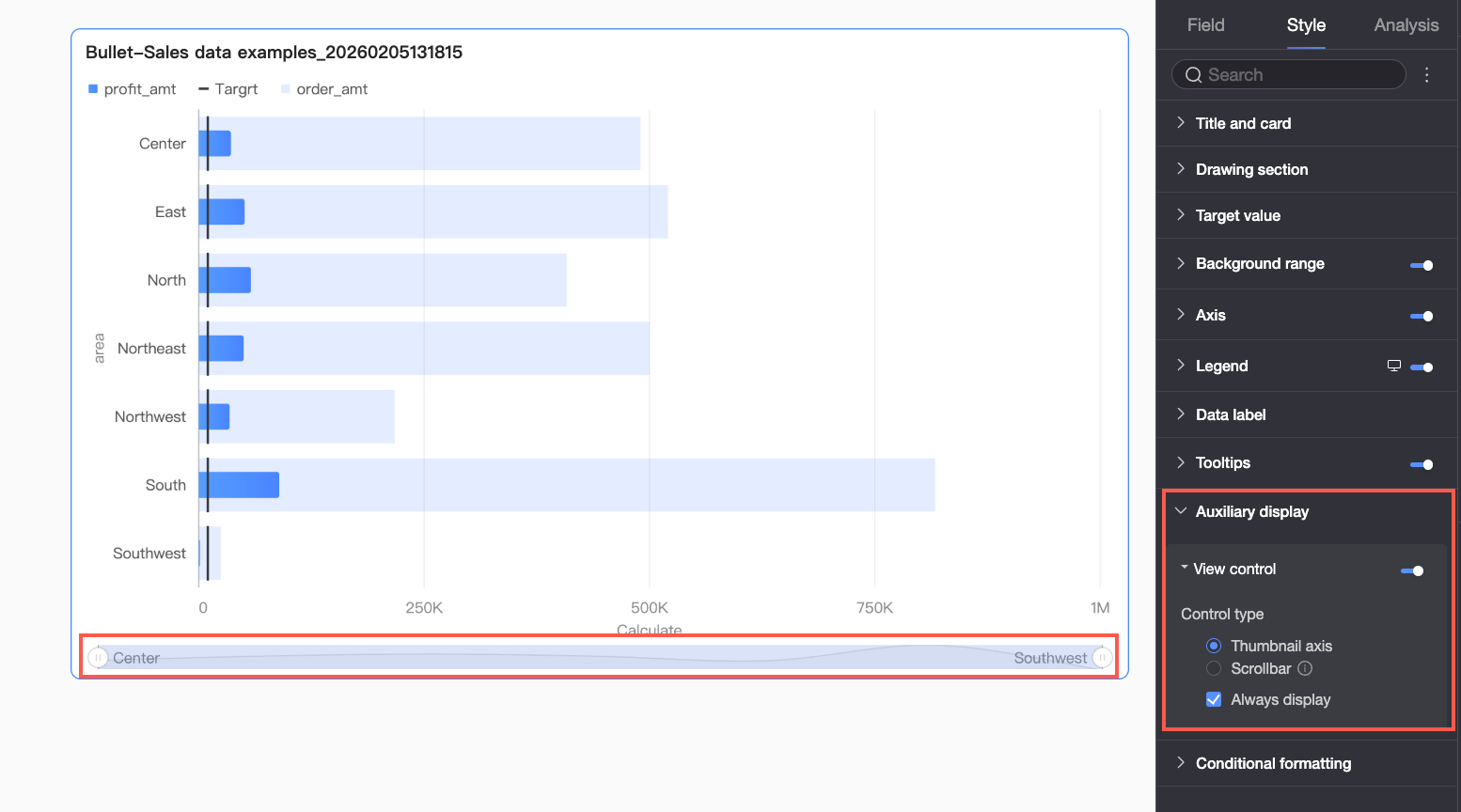
Parameter | Description |
Overview Axis | Select Overview Axis to display a simplified chart showing the full dataset at the bottom of the main chart. Viewers can drag the selection area to quickly browse all data or focus on a specific range. The overview axis uses an absolute coordinate system, meaning the selection corresponds to a fixed number of data bars. This is suitable for comparative analysis or complex scenarios requiring direct navigation. |
Scrollbar | Select Scrollbar to display a horizontal scrollbar. Viewers can drag the slider horizontally to move the viewing window left or right. The scrollbar is proportional, meaning the slider's length and position are determined by the ratio of the visible window to the total data range. This is suitable for general browsing. After setting the minimum category width, the scrollbar appears when the actual category width allocated for the chart is less than this value. When the scrollbar is enabled, chart elements and data labels are constrained within the rectangular area of the coordinate system. Any overflowing parts, such as markers or data labels, are automatically truncated or repositioned to fit. |
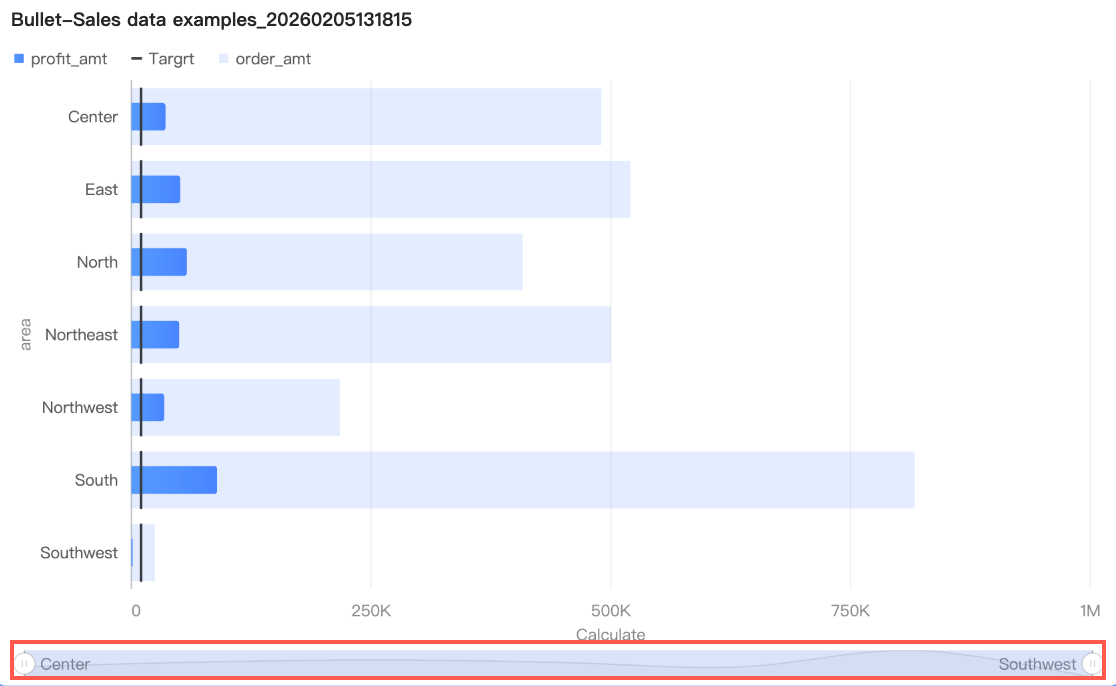 By default, the overview axis appears only when data exceeds the chart's width. To make it permanently visible, select Always Show.
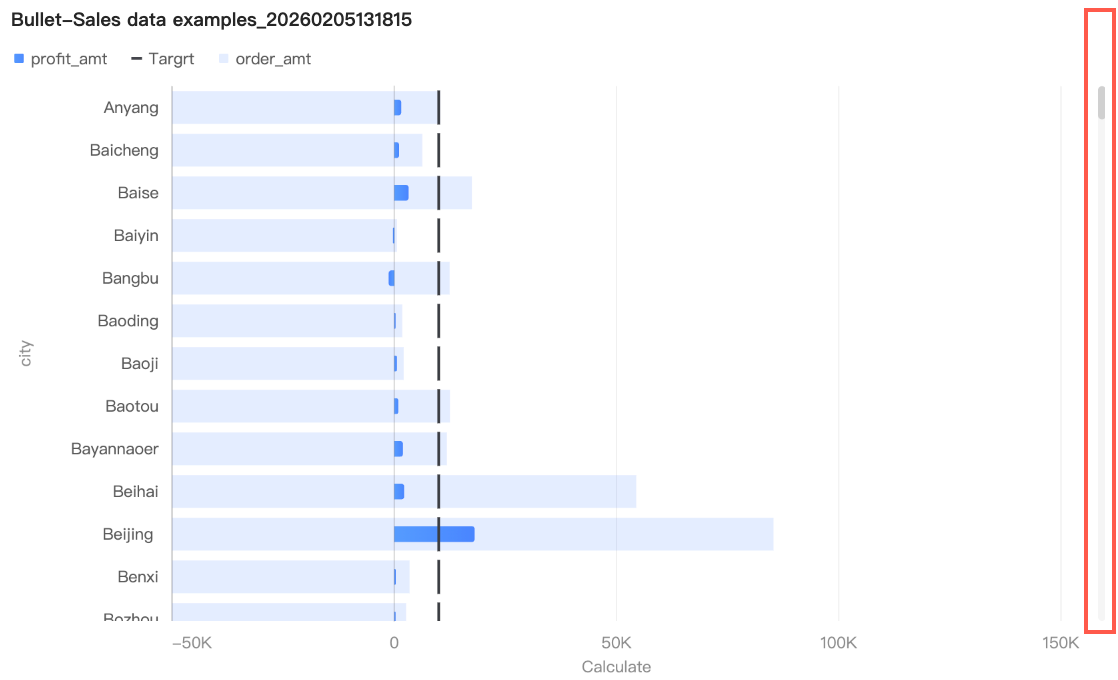 You can set a minimum category width to limit the amount of data in the current window, ensuring clear tick marks and preventing visual clutter from overlapping data labels or overly dense data points. The default minimum category width is 32px, with a valid range of 16-100px.
If no view control is configured and the data exceeds the chart's container, the system automatically enables the Overview Axis.
Conditional formatting
You can use Conditional Formatting to assign colors to different value ranges, providing an intuitive way to visualize data.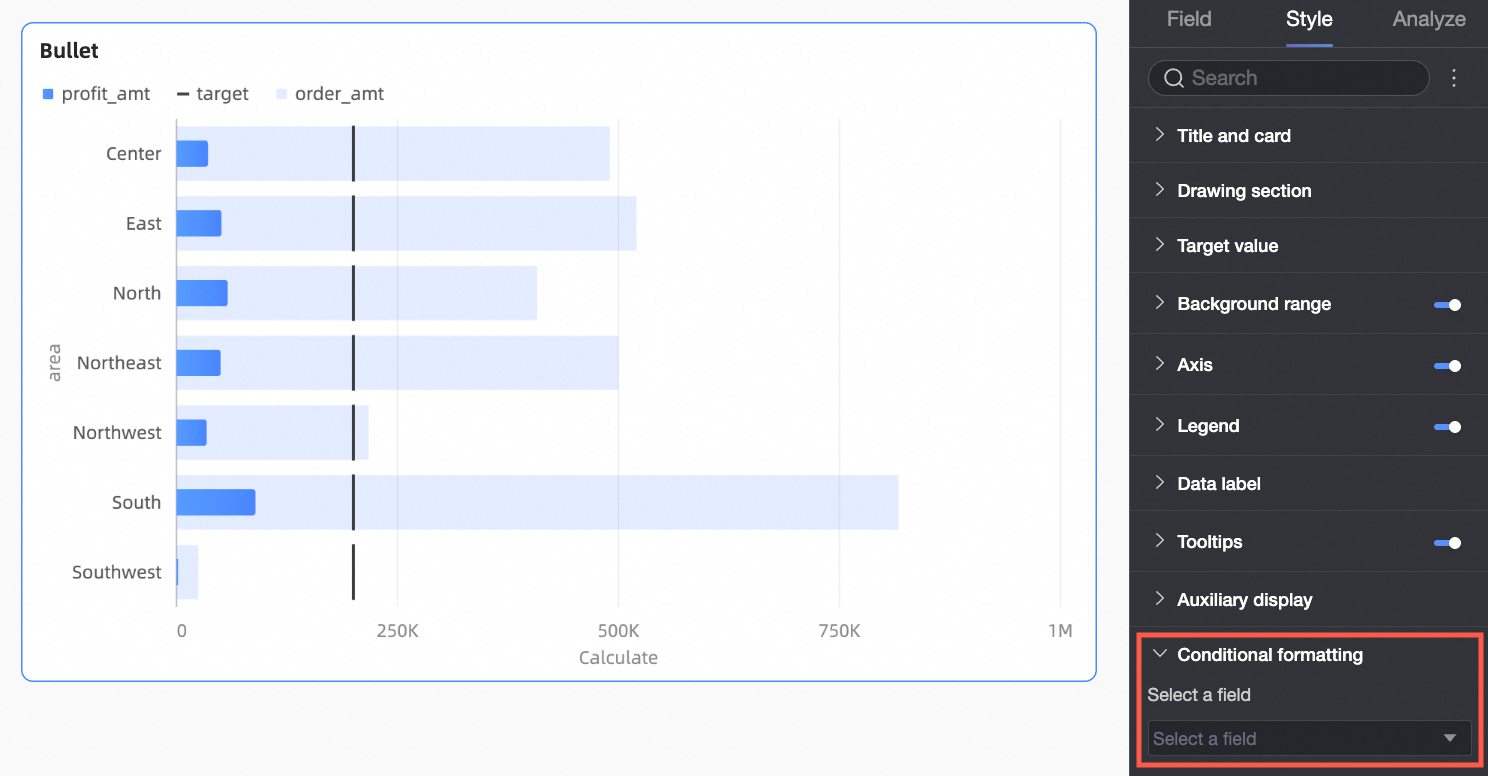
Parameter | Description |
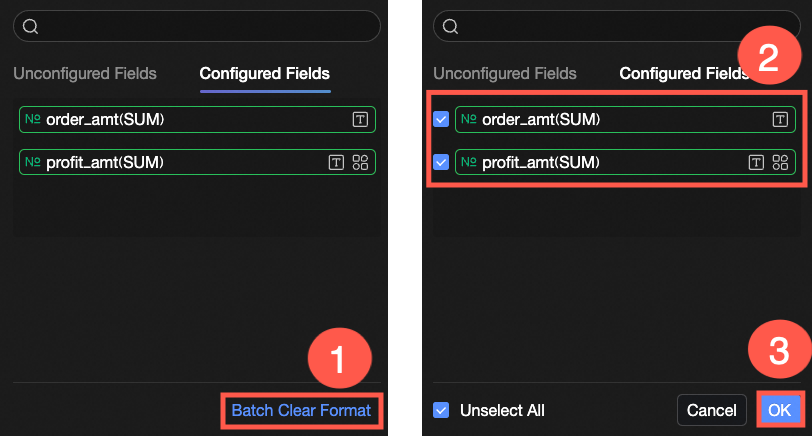
Select a field | Select a measure from the Value Axis/Measure area to apply conditional formatting. To remove conditional formatting later, click Bulk Clear Formatting in the field panel, select the formats to clear, and click OK. |
Condition Style | Click the
Note To set conditional rules for the text color of a measure field, make sure that Data Labels > Data Bar Label is enabled. |
 icon to open the conditional formatting panel. Here, you can set rules to highlight the text and background of the selected measure field based on specified conditions. You can also base these rules on the values of other fields.
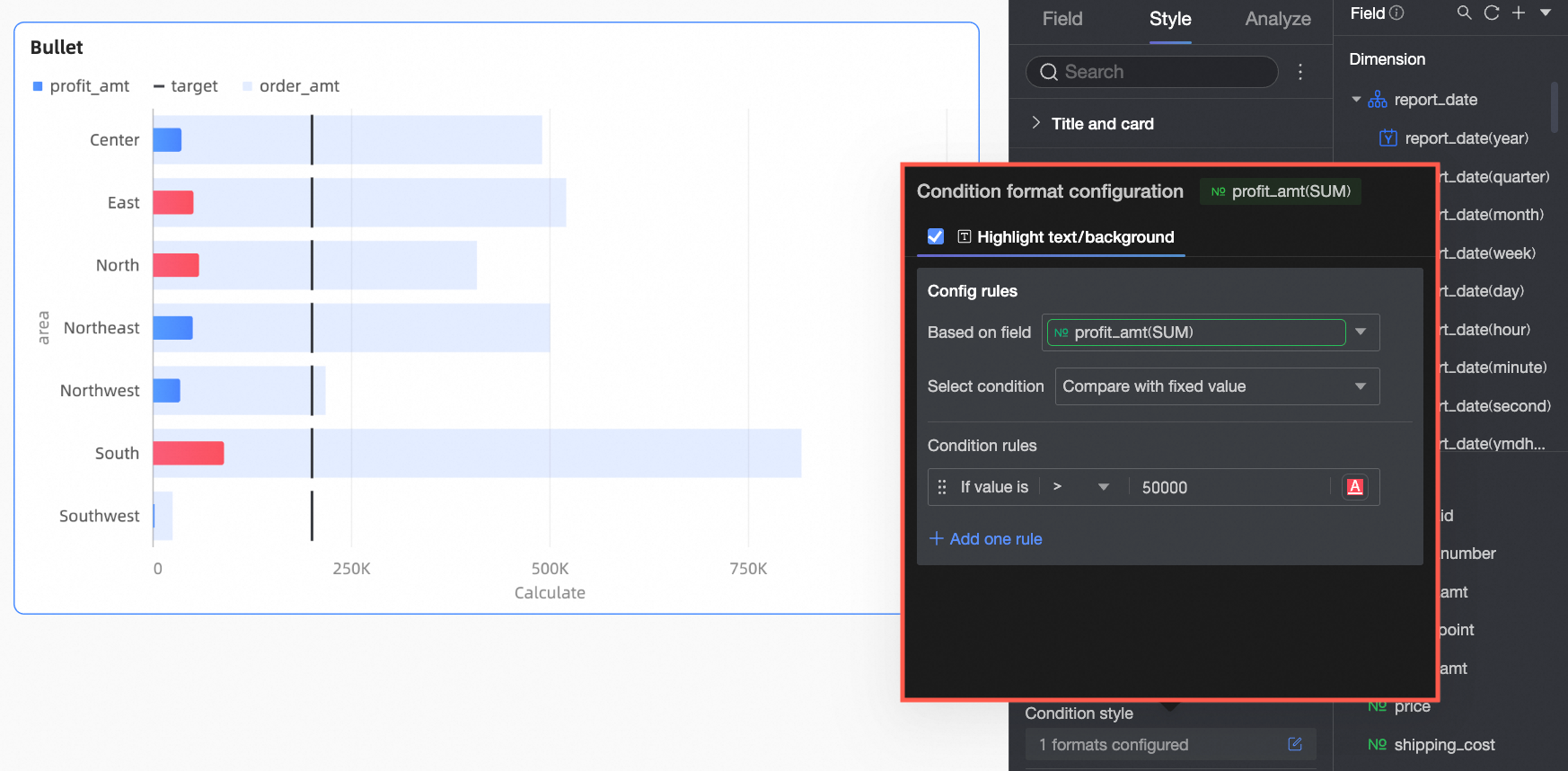 You need to configure the following information.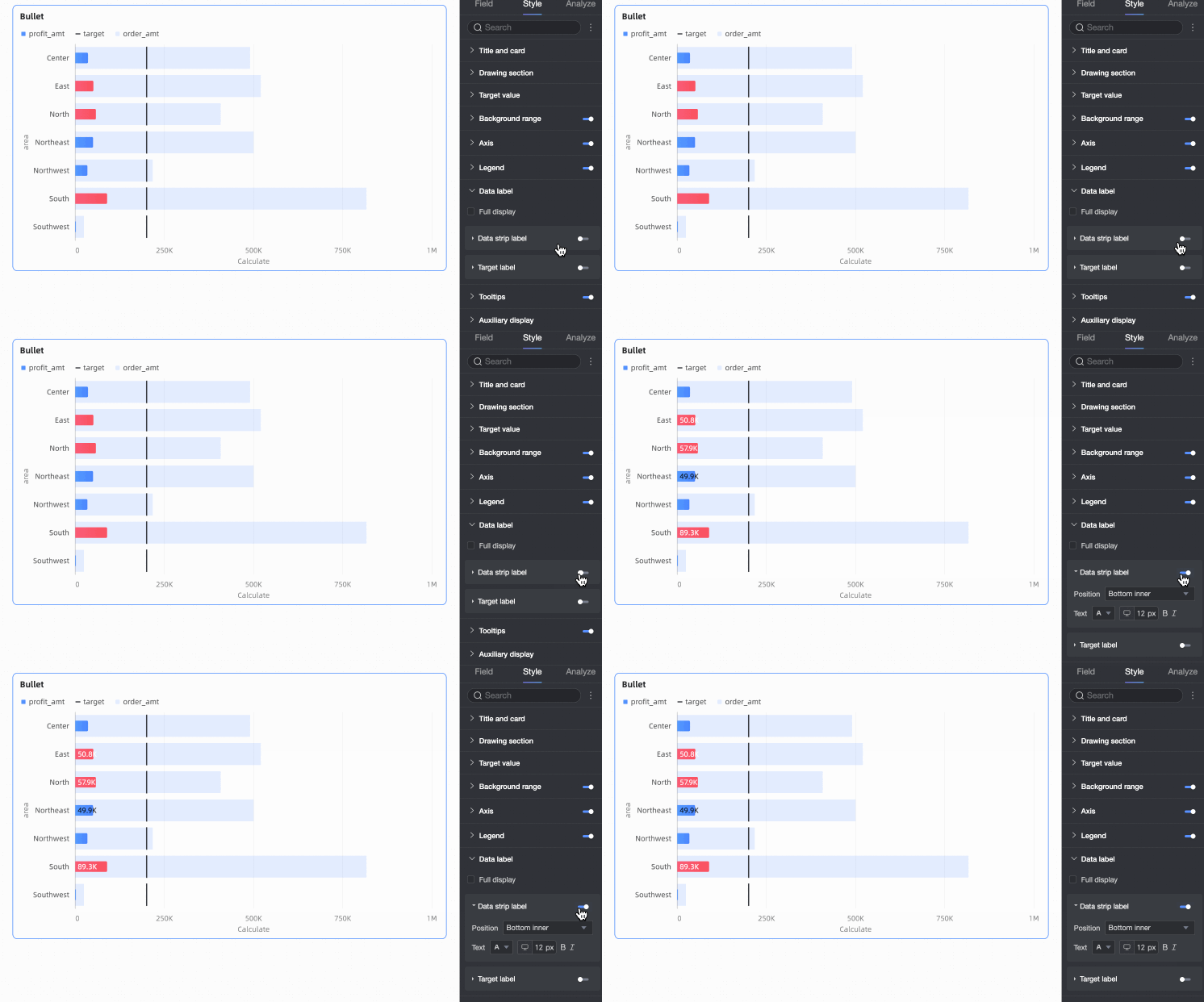
Analysis configuration
Parameter | Setting | Description |
Data Interaction | Drill Down | After adding drill-down fields, you can configure the display style for drill-down rows. For more information, see Drill down. |
Linkage | Use chart linkage to connect multiple charts for interactive analysis when your data is spread across them. For more information, see Linkage. | |
Jump | Use jumps to navigate between dashboards during analysis. Three jump types are supported: Internal Jump, Component on Page, and External Link. For more information, see Jump. | |
Analysis and Alerting | Reference Line | Use a reference line to see the difference between the current measure value and a set value. The reference line can be a fixed value or a calculated value (average, maximum, minimum, or median). For more information, see Reference line. |
Annotation | - | When data in the chart is abnormal or requires special attention, you can use color highlighting, icons, comments, or data points to create an annotation. This helps you highlight anomalies and provide context. For more information, see Annotation. |
Next steps
To allow others to view the dashboard, you can share it with them. For more information, see Share a dashboard.
To create a complex, topic-based analysis with navigation menus, integrate your dashboards into a data portal. For more information, see Create a PC data portal.