Ranking board
A ranking board displays the ranking of an indicator across a dimension as a Top N list. For example, a ranking board can show the top 10 cities by sales volume. This topic describes how to populate and style a ranking board.
Prerequisites
A dashboard is created. For more information, see Create a dashboard.
Limits
A ranking board consists of Category / Dimension, Main Indicator / Measure, and Auxiliary Indicator / Measure:
You can specify only one dimension for Category (Dimensions), such as area or product_type.
You can specify only one measure for Indicator (Measures), such as order_number or profit_amt.
You can specify up to three measures for Auxiliary Indicators (Mea.), such as back_point or shipping_cost.
By default, the preview shows 20 rows of data. A ranking board can display a maximum of 500 rows.
Overview
Scenario
You can use ranking boards to compare aggregated data from different dimensions and display the rankings.
Benefits
Easy data analysis: You can obtain the data sum and period-over-period comparison results with a few clicks.
Various interactive options: You can add remarks or endnotes to metrics in ranking boards. You can also add links to ranking boards to interact with external systems.
Example
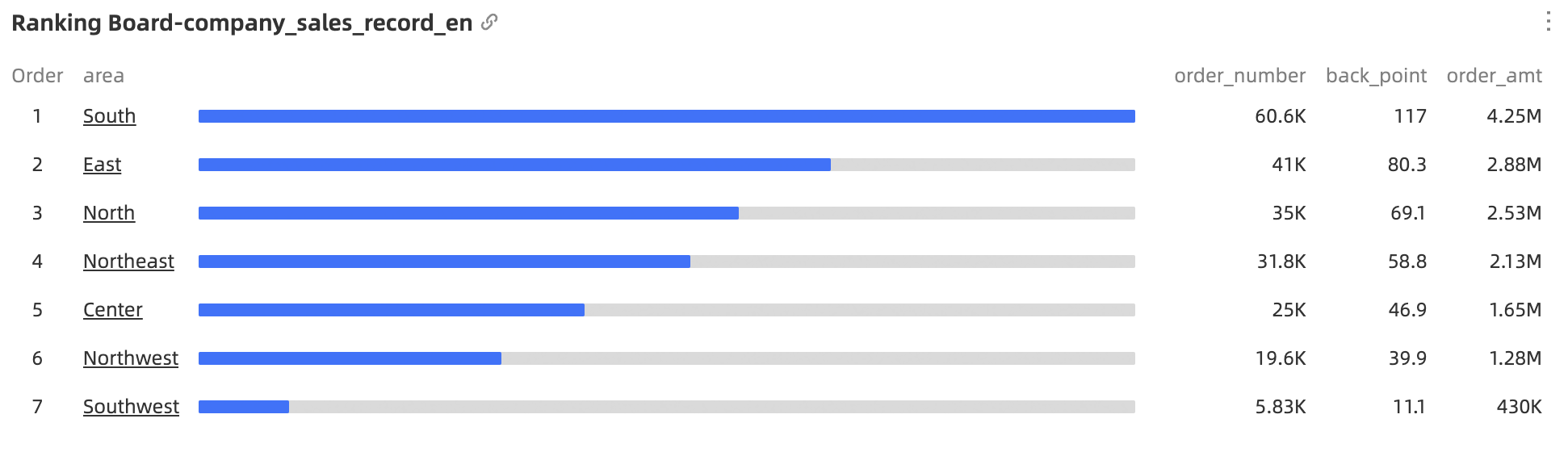
Create a ranking board
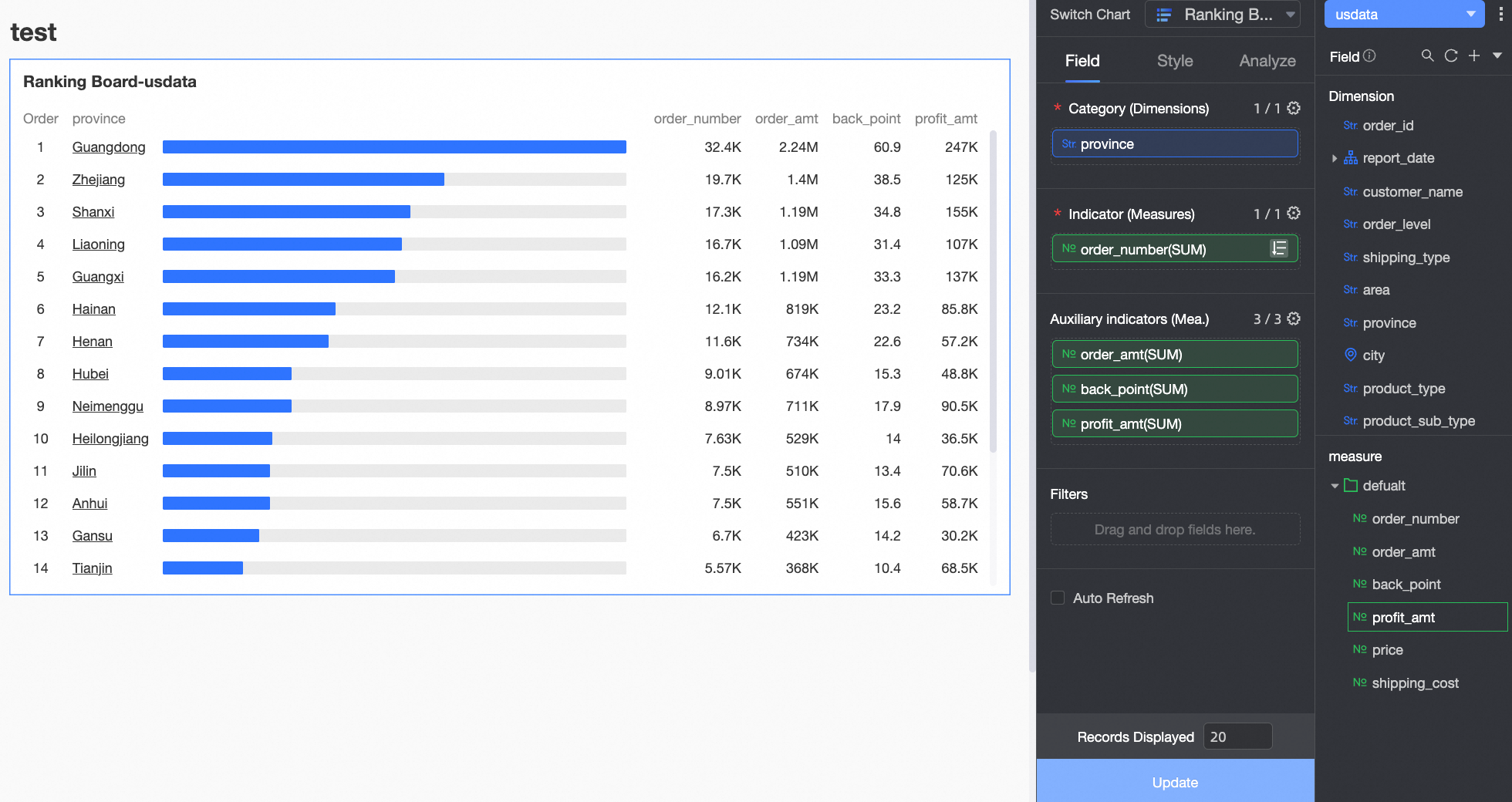
On the Data tab, select dimensions and measures based on your business requirements.
In the Dimension list, find Province, then double-click or drag it to the Category / Dimension area.
In the Measure list, find Order Count, then double-click or drag it to the Main Indicator / Measure area.
In the Measure list, find Order Amount, Discount Rate, and Profit Amount, then drag them sequentially to the Auxiliary Indicator / Measure area.
Click Update to automatically refresh the chart.
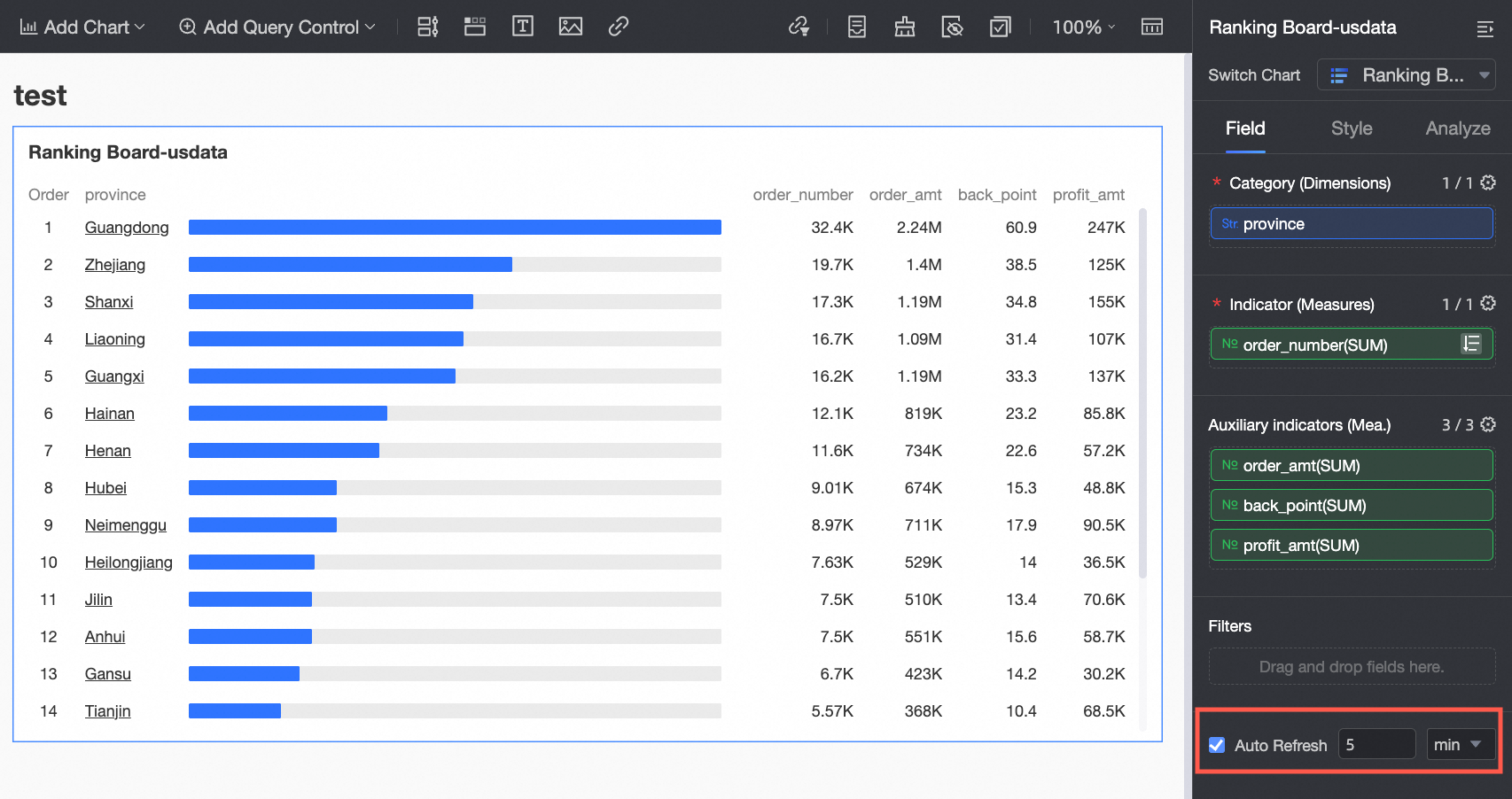
Select Auto Refresh.
Enable this option to automatically refresh the chart's data at a specified interval. For example, if you set the duration to 5 and the unit to Minutes, the system refreshes the chart every 5 minutes.
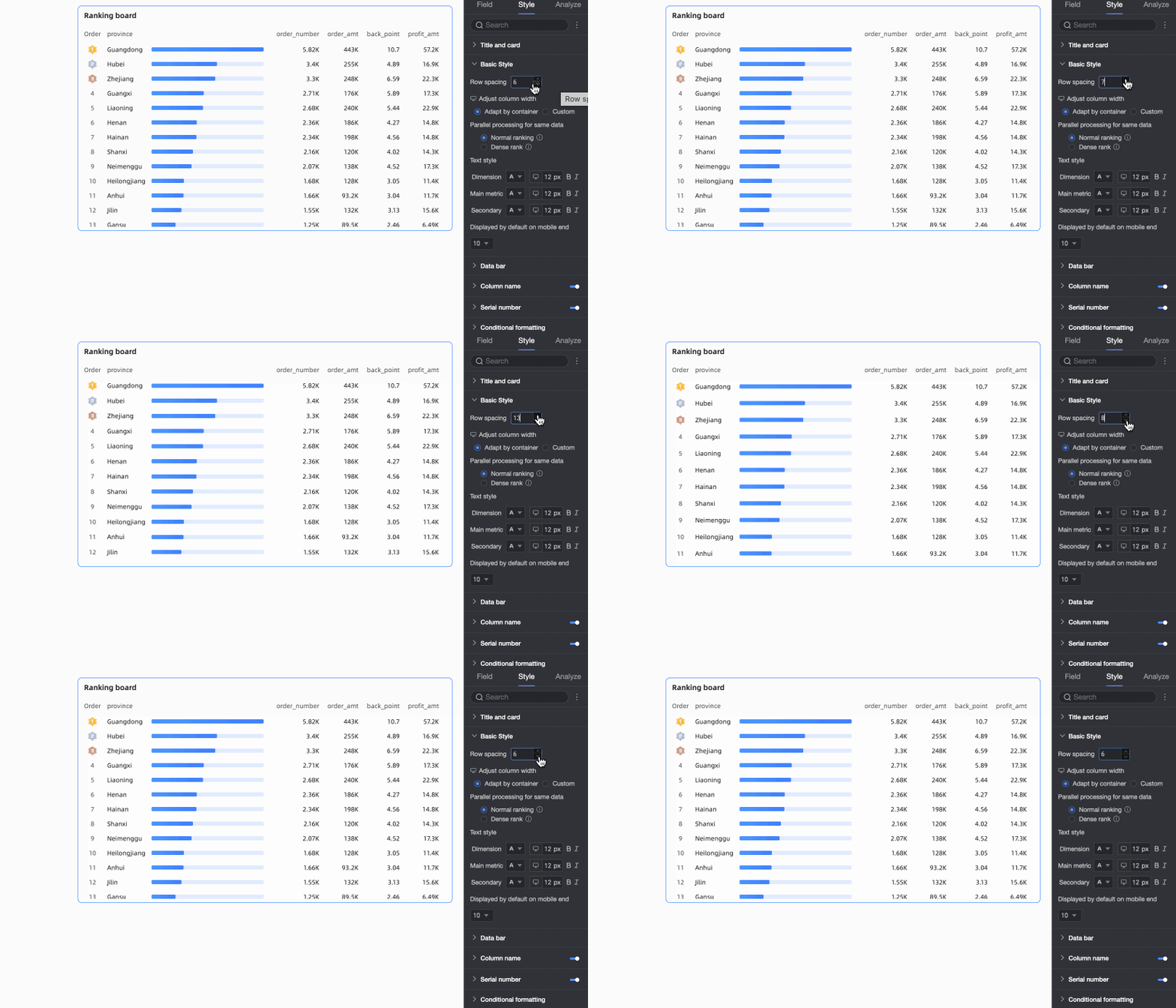
Configure the styles of the ranking board
This section describes how to configure ranking board styles. For general style configurations, see Configure the chart title area.
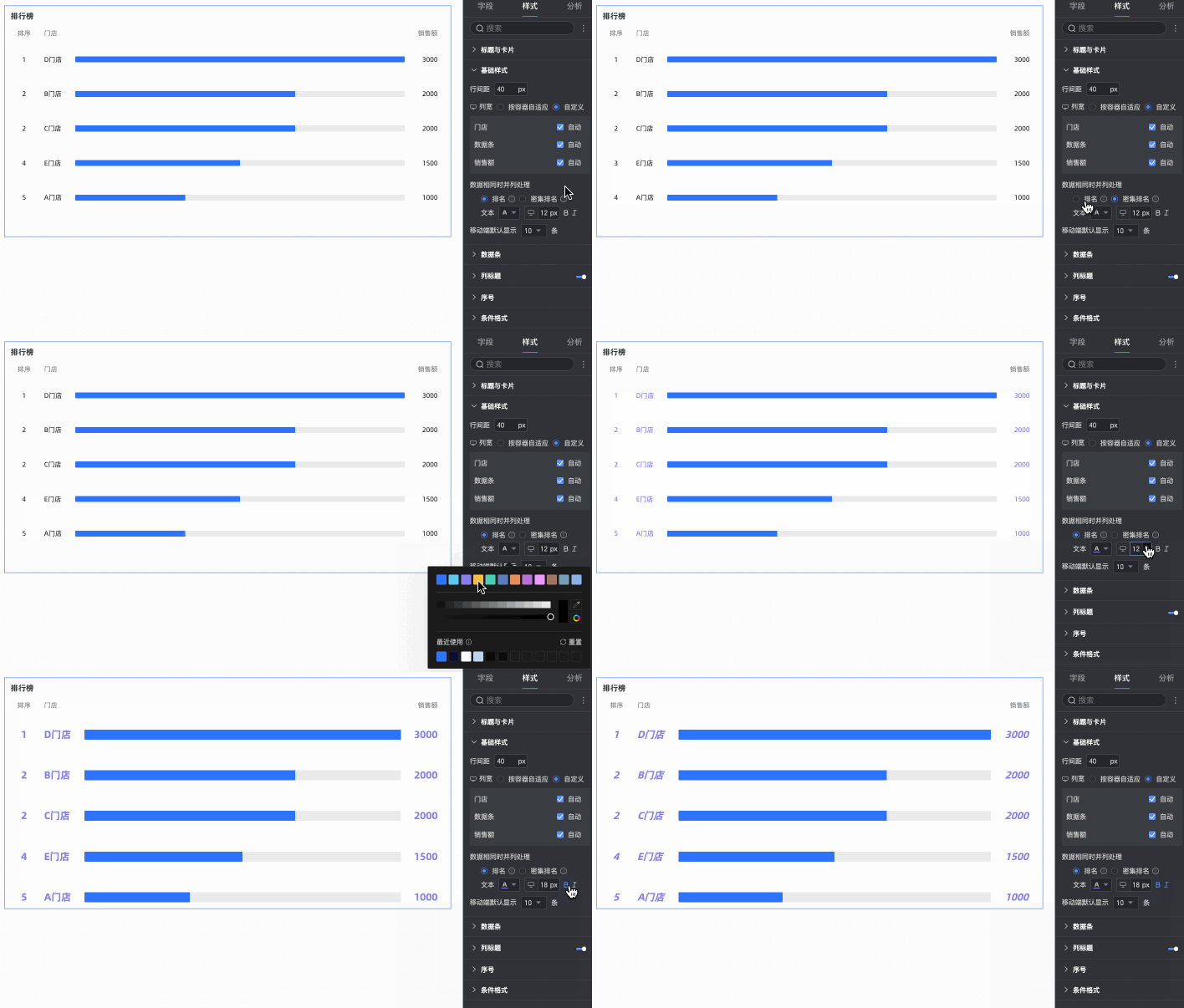
Basic styles

Parameter | Description |
Row spacing | Adjusts the spacing between ranked rows. The maximum value is 50px. |
Column width | Adjusts the width of elements in each column. You can select Auto-fit to container or Custom.
|
Tied data handling | Specifies how to rank items with identical values. You can select Ranking or Dense rank. You can also customize the text style for the ranking data.
|
Default display on mobile | Specifies the number of ranked items to display by default on mobile devices. The default value is 10. |

Data bar

Parameter | Description |
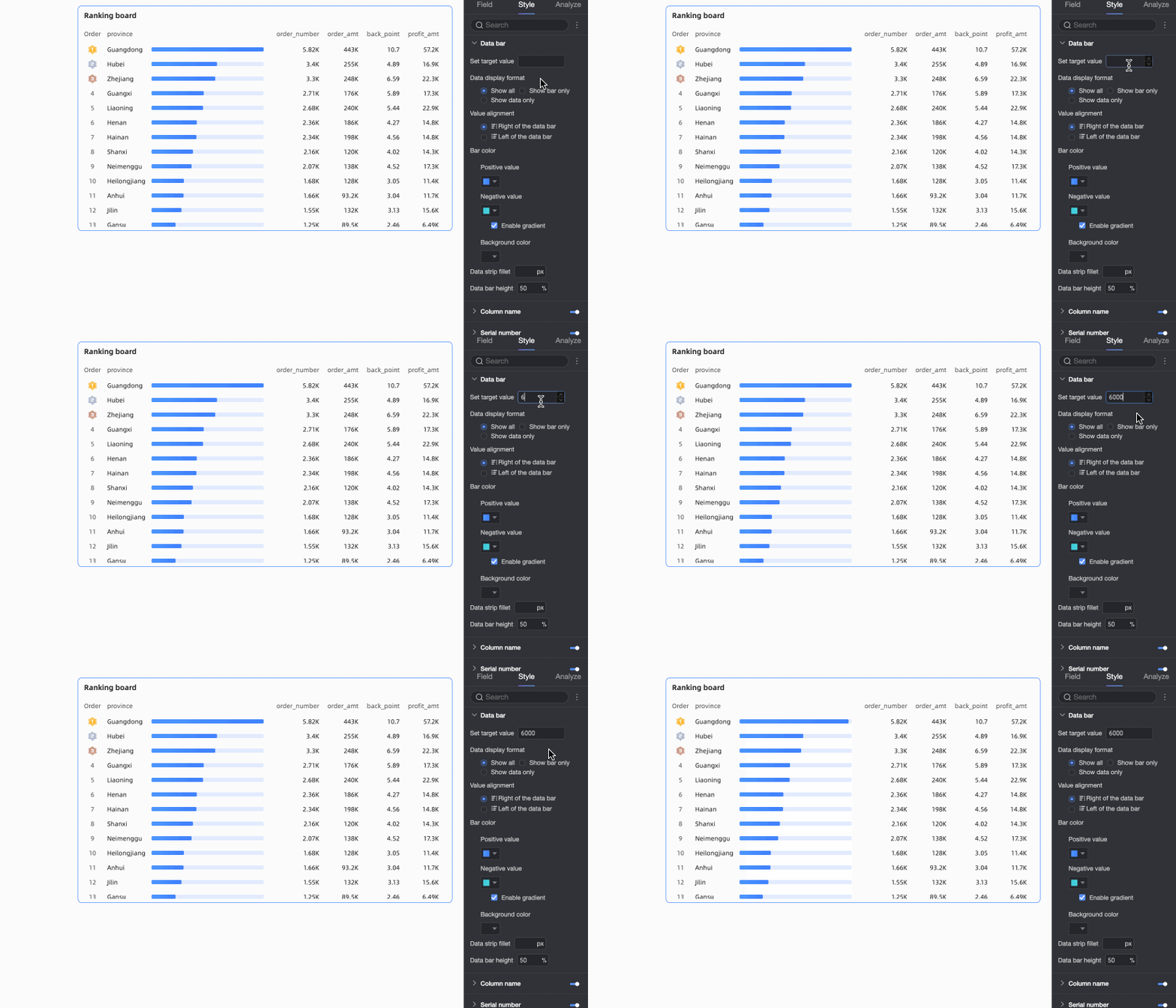
Set target value | Sets a target value that defines the 100% length of the data bar. If no target value is set, the bar for the top-ranked item is set to 100%, and others are scaled proportionally. If a target value is set, a bar's length is calculated as
|
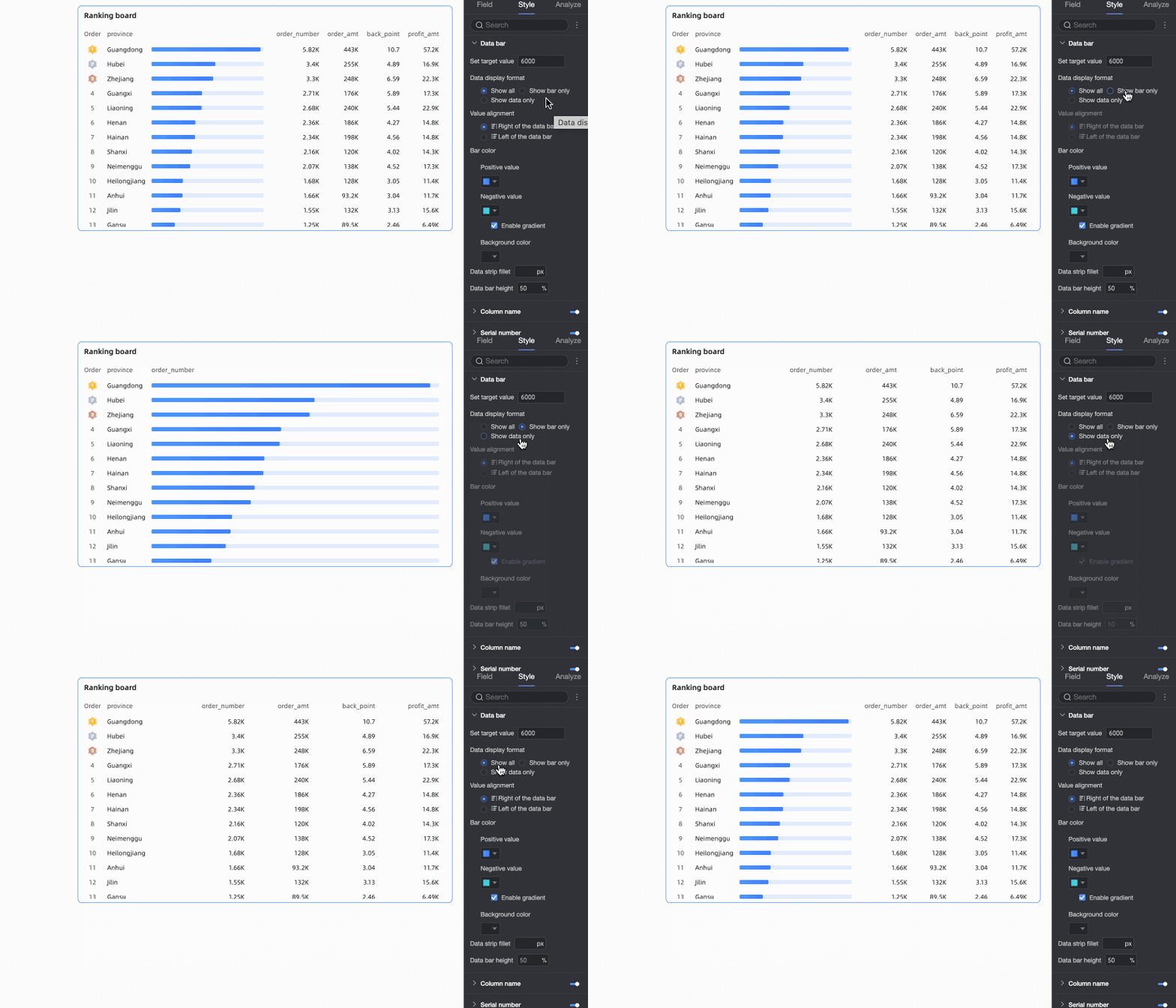
Data display mode | You can select one of three options: Show All, Data Bar Only, and Number Only.
|
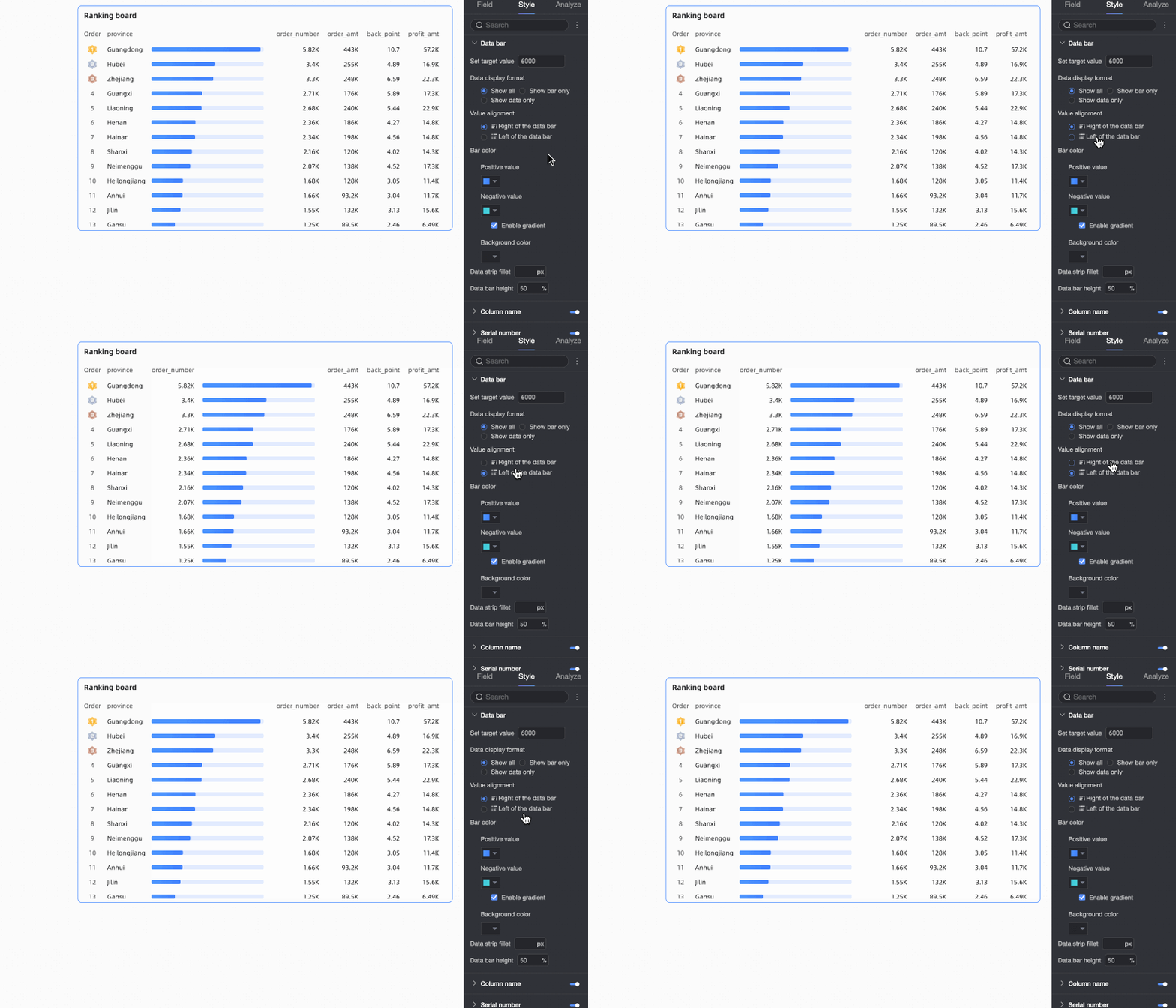
Data display position | This option is available only when Data Display Mode is set to Show All. You can select Left of data bar or Right of data bar. Note Only the position of the indicator/measure data changes.
|
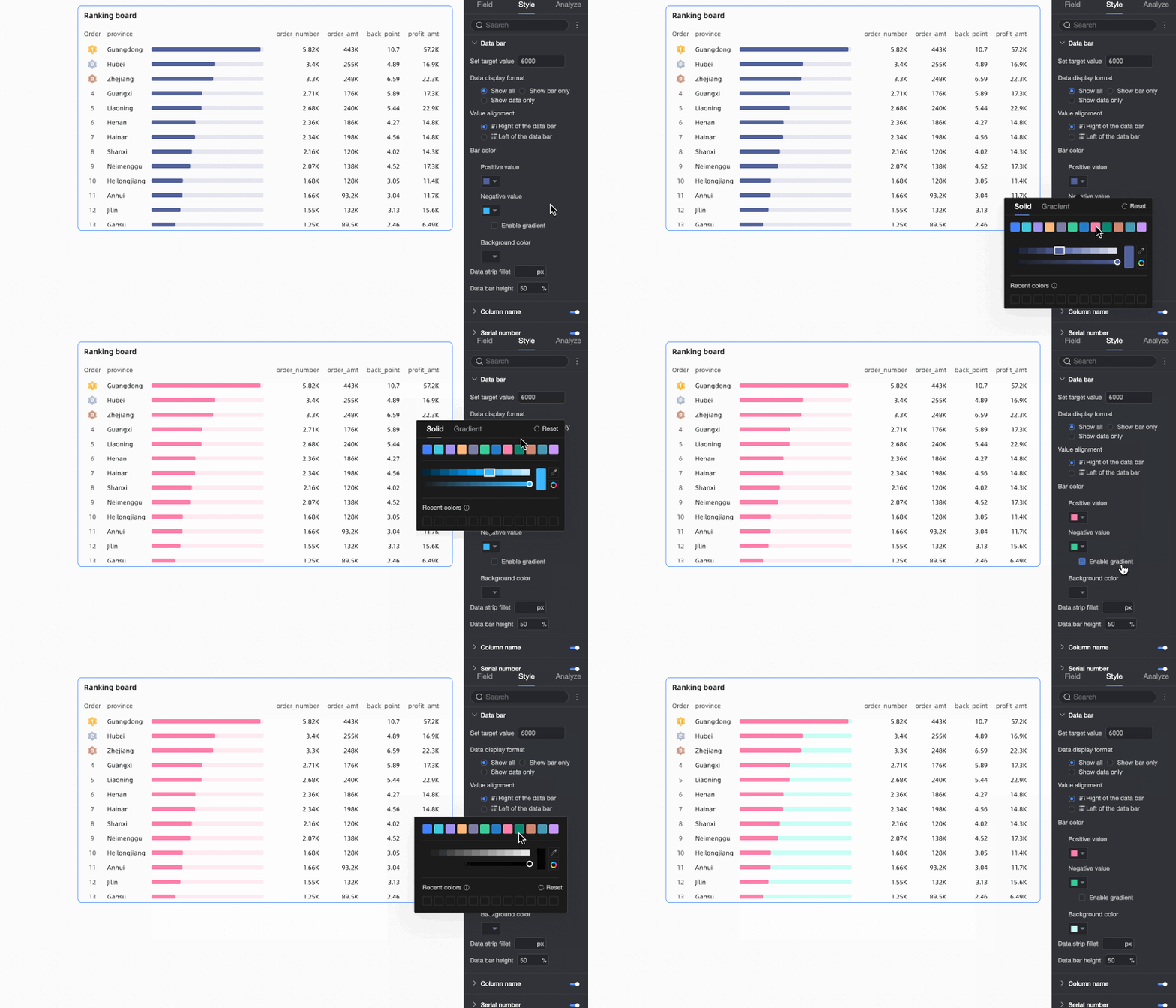
Data bar color | Sets the color for positive and negative values and the background of the data bar. You can also enable a gradient color effect.
|
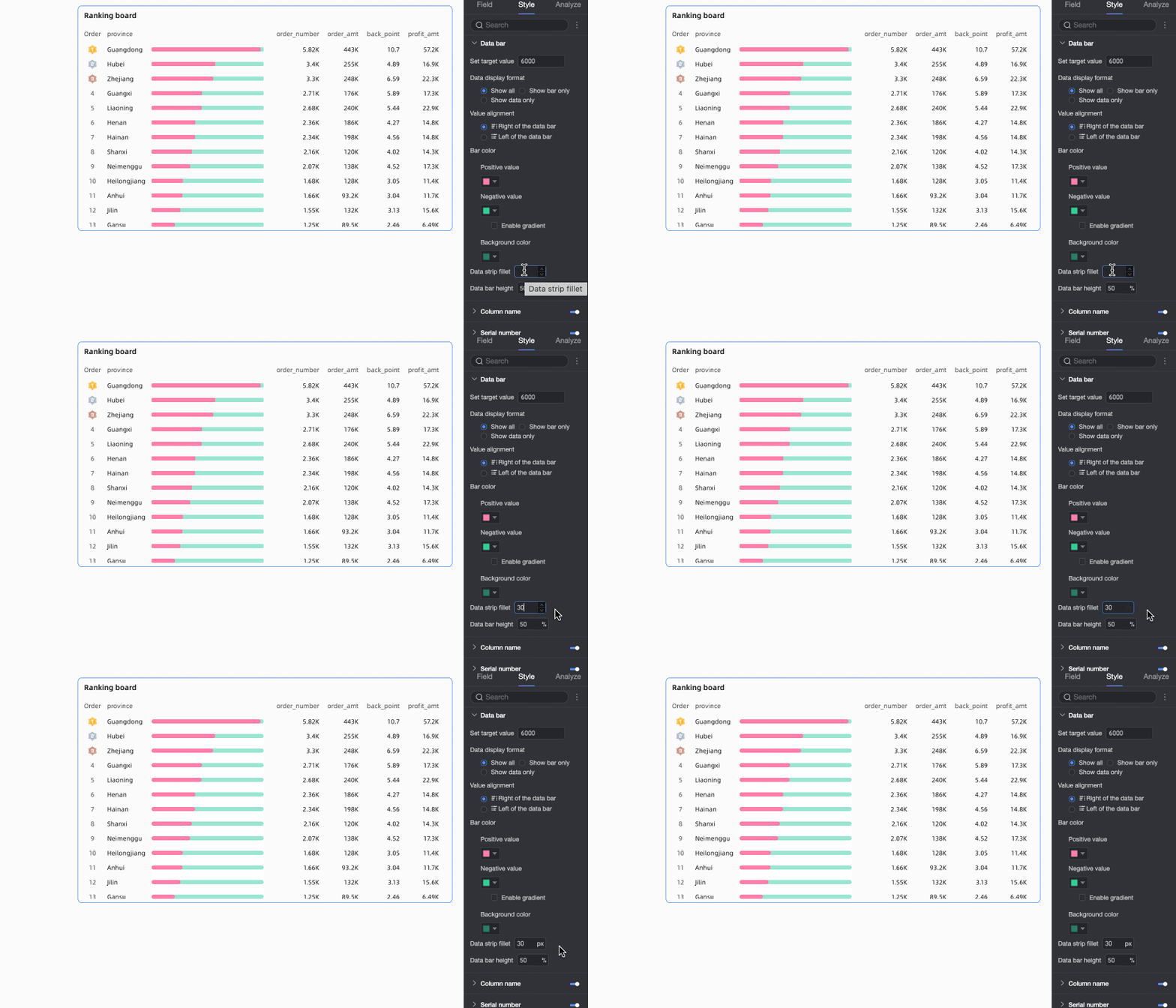
Data bar corner radius | Rounds the corners of the data bar. |
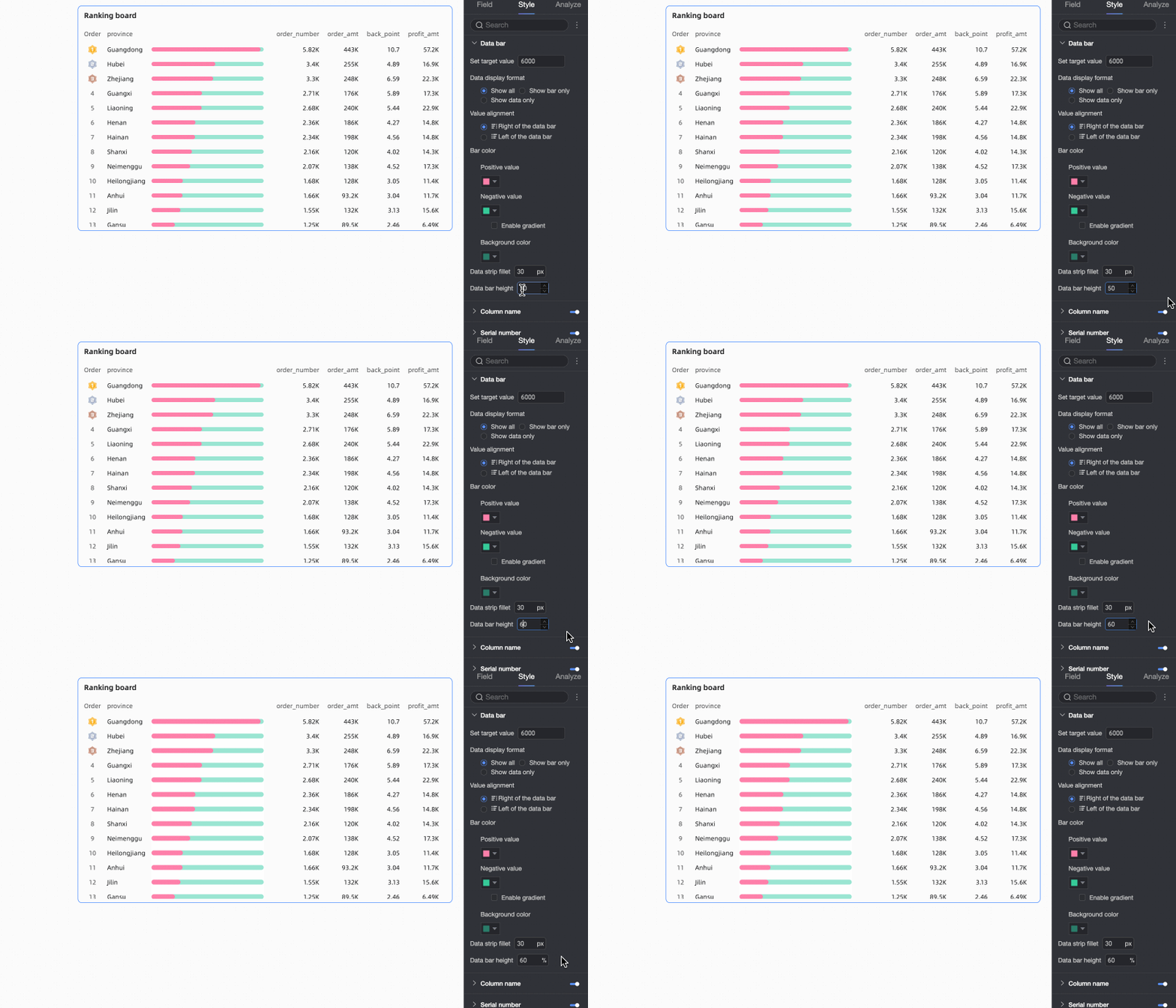
Data bar height | Sets the data bar height. The value can range from 10% to 100%, with a default of 67%. |
Column header
In the Column header section, you can configure the visibility of the column header, along with its name, text style, and a special style for the Top 3 items.

Sequence number
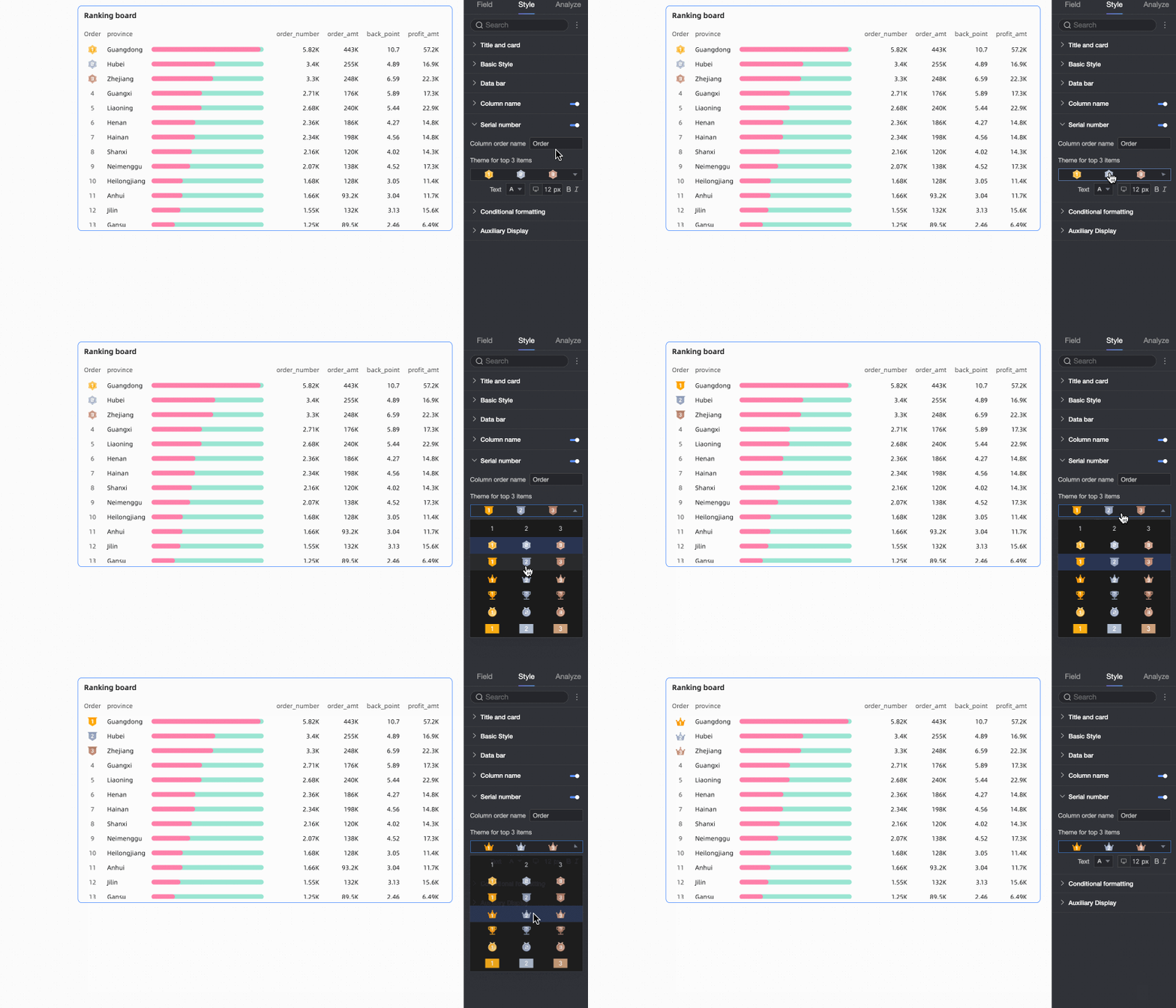
In the Sequence Number section, you can customize the ranking name and the ranking label style for the Top 3.
Conditional formatting
In Conditional Formatting, set the conditional formatting for measure data.

Parameter | Description |
Select field | Select the measure to which you want to apply conditional formatting. Any measure in the chart can be selected. |
Shortcut style | Set the marker icon or font color for the current measure field from the system-provided styles.
|
Custom style | In addition to the system's shortcut styles, you can configure custom styles for the current measure field.
|
Synchronize style to | You can replicate the conditional formatting settings of a measure to other measures. Note The style is synchronized only once. If you adjust the style, you must synchronize it again. |
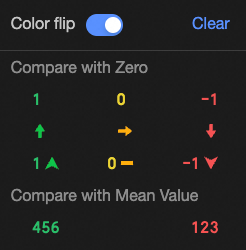

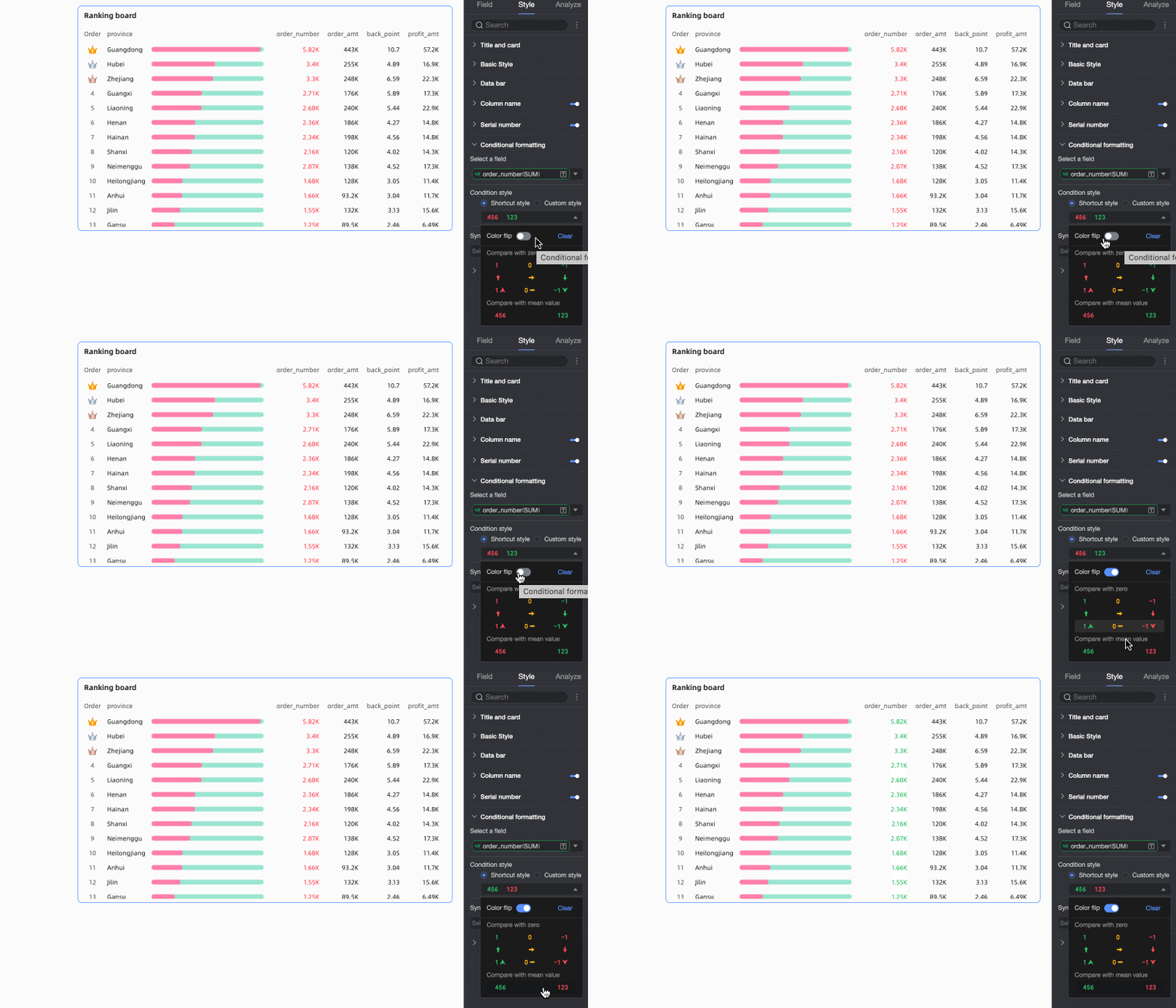
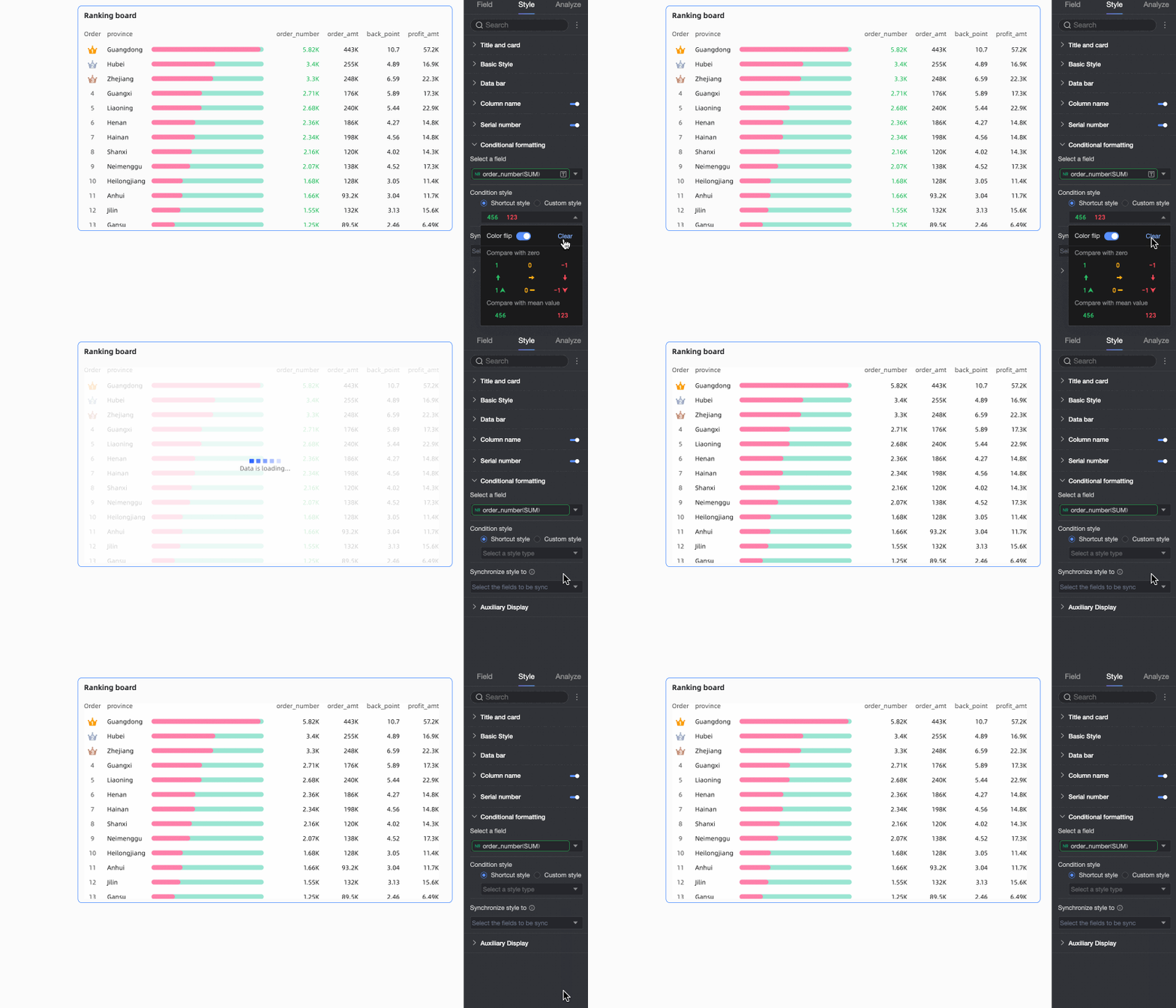
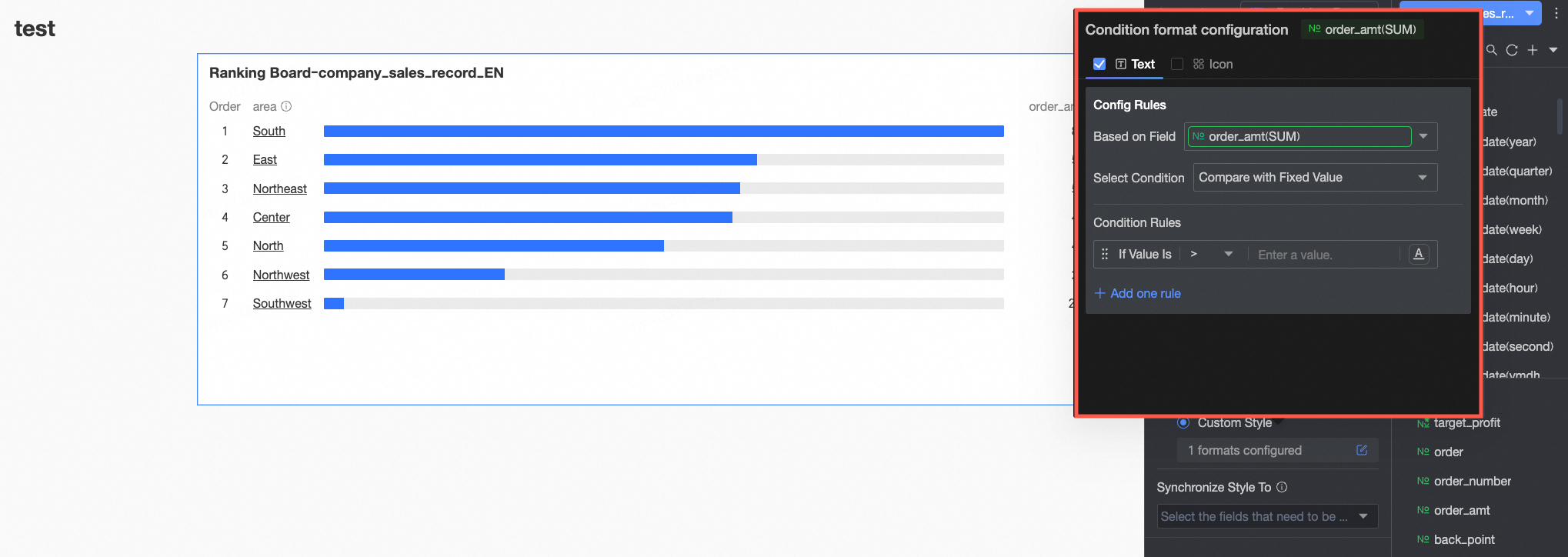 Configure the following:
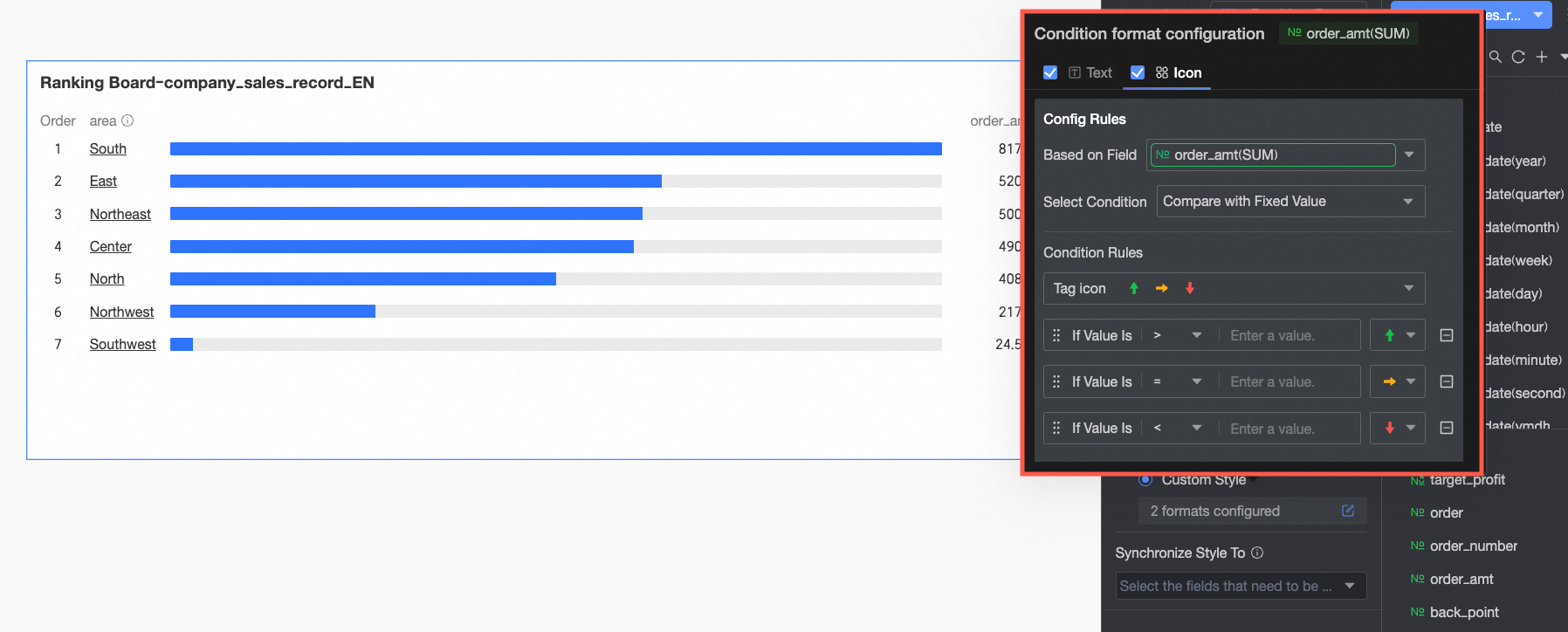 Configure the following:
Auxiliary display
In the Auxiliary Display section, configure the scrollbar's display mode and thickness.
Tooltip
Hover over a data bar to display its tooltip, which shows the corresponding dimension and measure values.
During a highlight interaction, the tooltip in a linked chart can also show the data's original value.
For example, clicking the North China region on a map highlights the corresponding product types in the ranking board and displays the original order amount in the tooltip.

Chart analysis configurations
Module | Parameter | Description |
Data interaction | Drill-down | After you configure drill-down fields in the field panel, you can set the display style for drill-down level rows. For more information, see Drill-down. |
Interaction | If your analysis involves data in different charts, you can link them using the interaction feature. For more information, see Interaction. | |
Navigation | If your analysis requires data from multiple dashboards, you can link them using navigation. Navigation includes Parameter Navigation and External Link. For more information, see Navigation. | |
Analysis and alerting | Reference Line | A reference line lets you compare measure values against a benchmark. The reference line value can be a fixed value or a calculated value. Calculated values include average, maximum, minimum, and median. For more information, see Reference line. |
Label | Use an annotation to highlight abnormal data or points of interest with colors, icons, comments, or data points to help you identify and act on issues. For more information, see Annotation. | |
What to do next
You can share the dashboards that you created. For more information, see Share a dashboard.
To create a comprehensive analytical experience with a navigation menu, integrate your dashboard into a BI portal. For more information, see Create a PC BI portal.