Combination chart
A combination chart uses a dual Y-axis to display data of different scales. It can combine line, column, and area charts on a single set of axes, and supports complex visualizations like stacked and 100% stacked charts. For example, you can use it to show trends across different projects. This topic describes how to add data to and configure a combination chart.
Prerequisites
You must have an existing dashboard. For more information, see Create a dashboard.
Overview
Use cases
Combination charts are ideal for visualizing trends in continuous data over time, especially at regular intervals.
Area charts help you understand how data changes over time, such as whether data increases, decreases, shows periodic changes, or exhibits exponential growth.
Benefits
Calculation capabilities: Configure period-over-period and cumulative calculations, and add smart reference lines and trendlines with a single click.
Visualization: Supports line, area, stacked area, and 100% stacked area charts. You can configure settings such as data labels, legends, and the overview.
Lets you compare data over the same period and annotate values.
Example
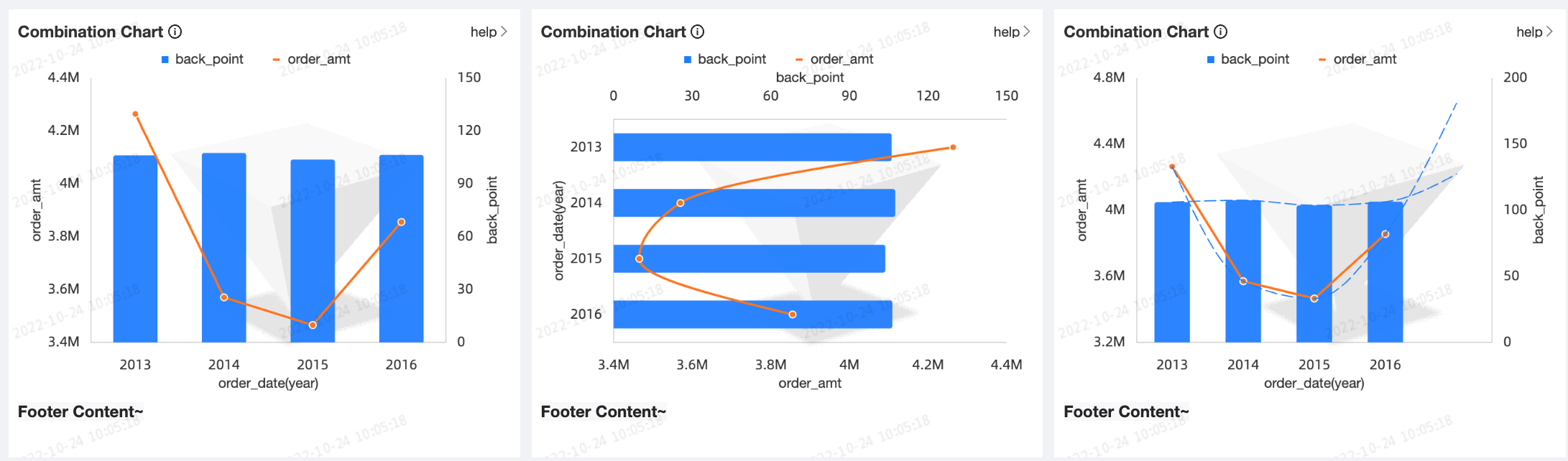
Limitations
A combination chart consists of primary measures, secondary measures, category axis, and color legend:
The primary and secondary value axes are determined by data measures. You must select at least one measure, such as order amount and profit amount.
The category axis is determined by the data dimensions. You must select at least one dimension. For example, order date (year).
The color legend is determined by a data dimension. You can select a maximum of one dimension, such as shipping method.
NoteThe color legend is available only when a single measure is used in either the primary measures or secondary measures field.
Configure chart data
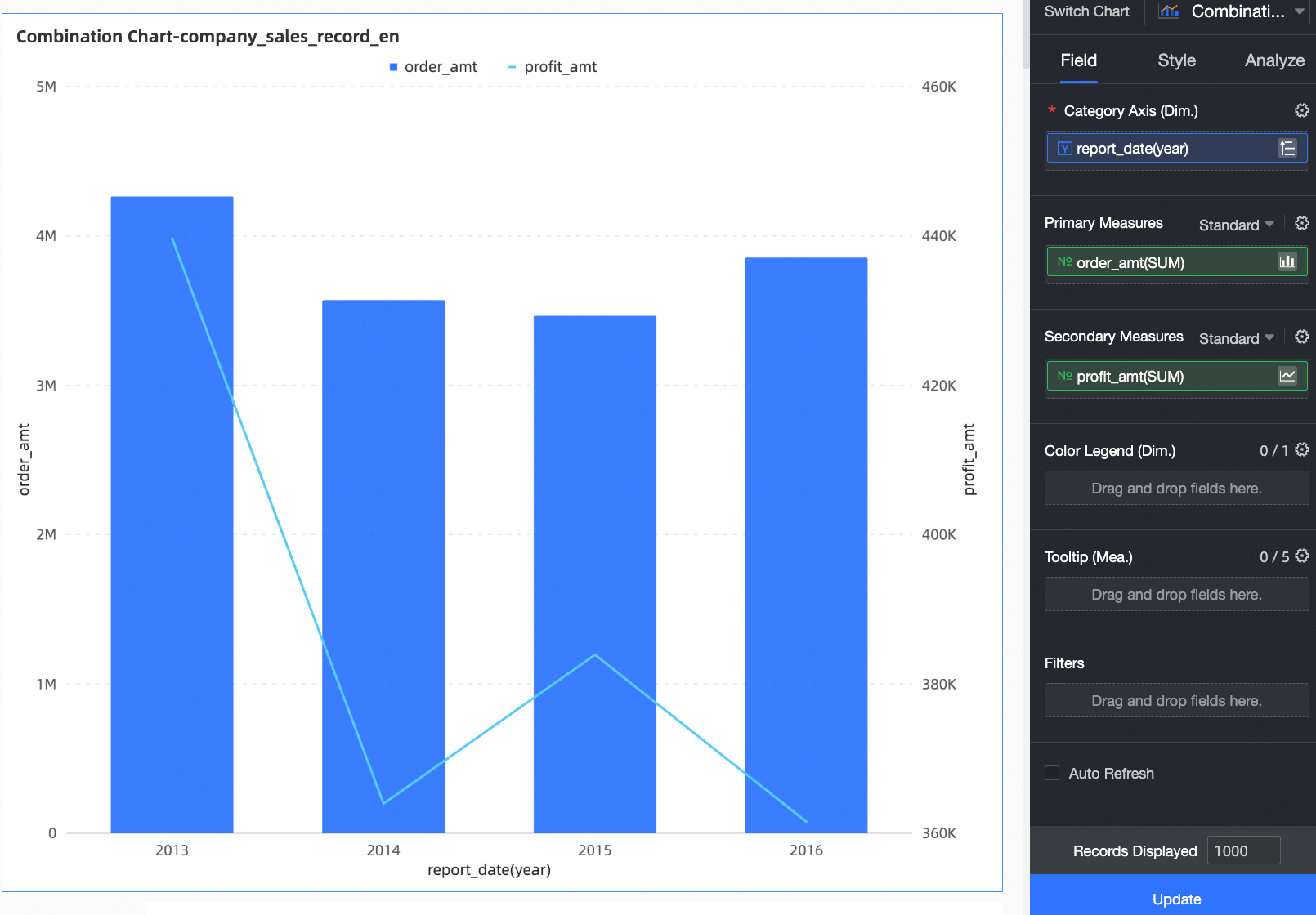
On the Data tab, select the dimension and measure fields that you need.
In the measure list, find Order Amount, then double-click or drag it to the primary measures field.
In the measure list, find Profit Amount, then double-click or drag it to the secondary measures field.
In the dimension list, find Order Date (year), then double-click or drag it to the category axis field.
Click Update. The chart is automatically updated.
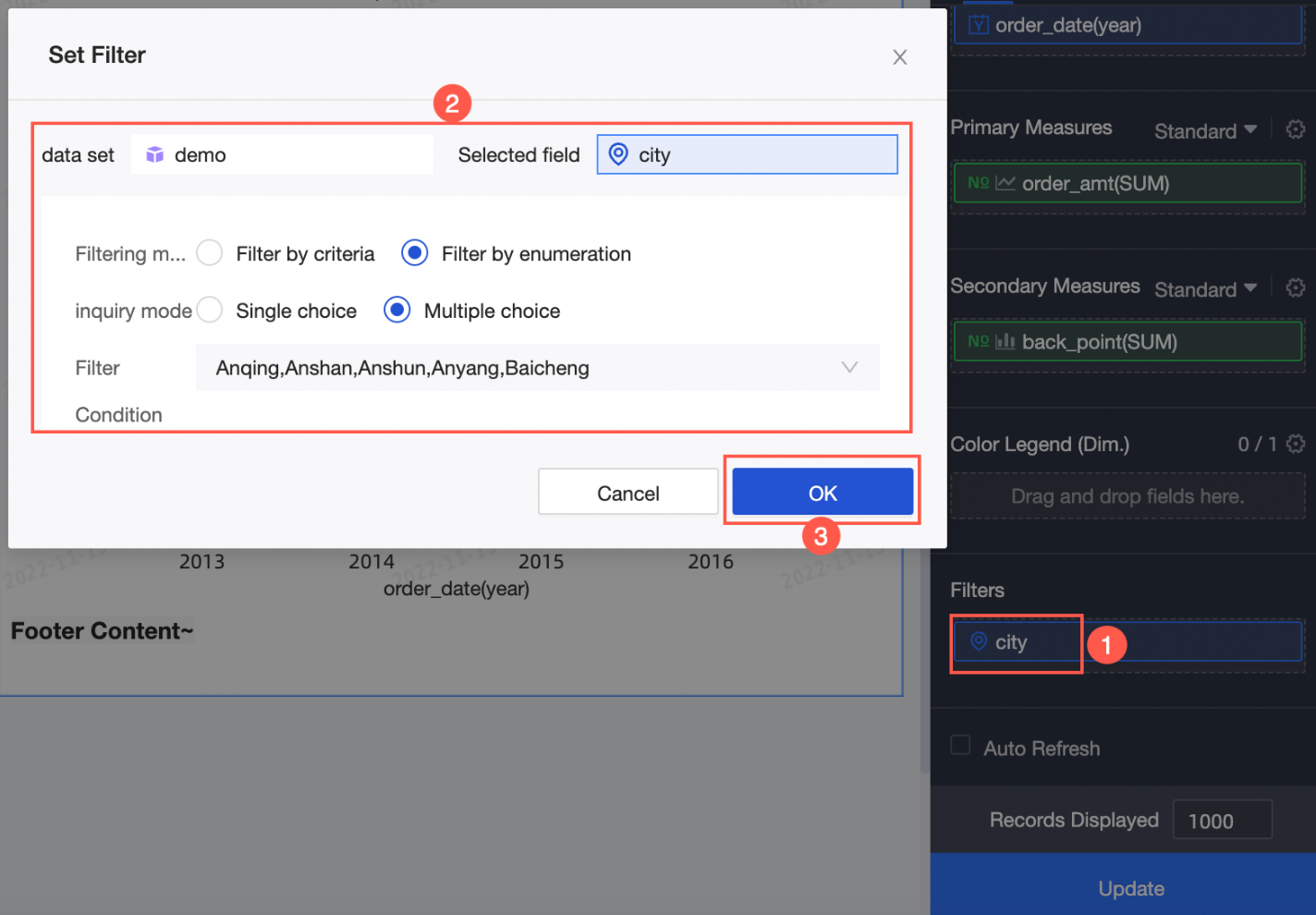
To view data for only specific cities, apply a filter.
Auto-refresh
Enable this option to automatically refresh the chart data. For example, if you set the duration to 5 minutes, the chart will refresh every 5 minutes.
Configure chart style
In the Style panel, on the Field tab, you can change the chart style.
In this example, for the Profit Amount measure in the secondary measures field, select Line.
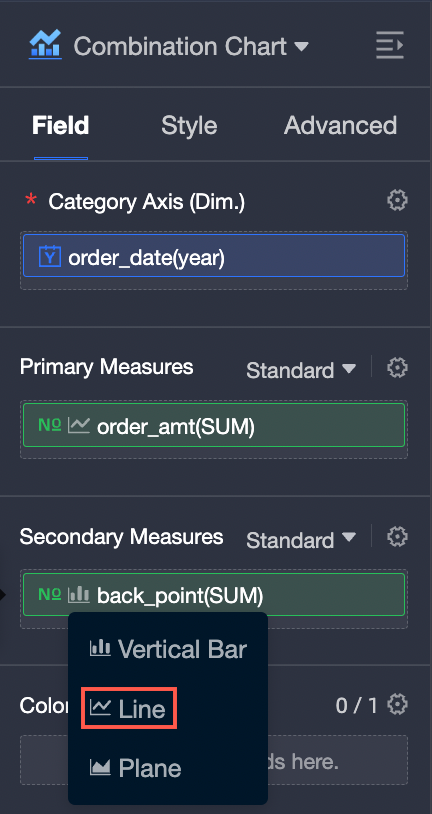
You can also hover over Standard to change the chart's stacking mode.
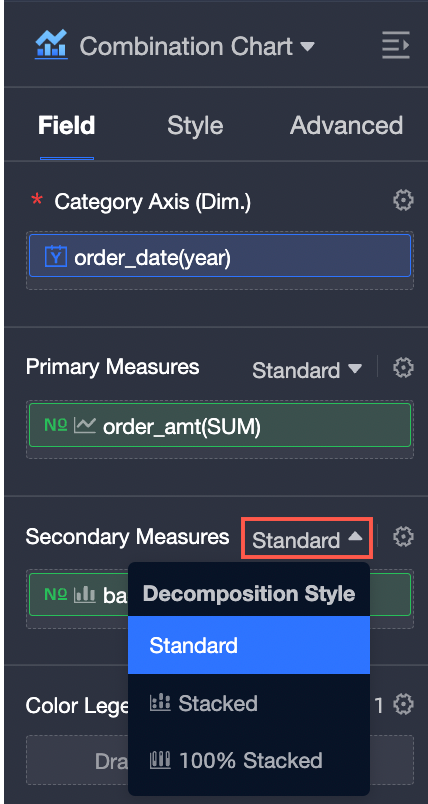
The following sections describe the chart's specific style settings. For general style settings, see Configure the chart title area.
To quickly find a parameter, enter a keyword in the search box at the top of the panel. You can also click the  icon to Expand/Collapse all categories.
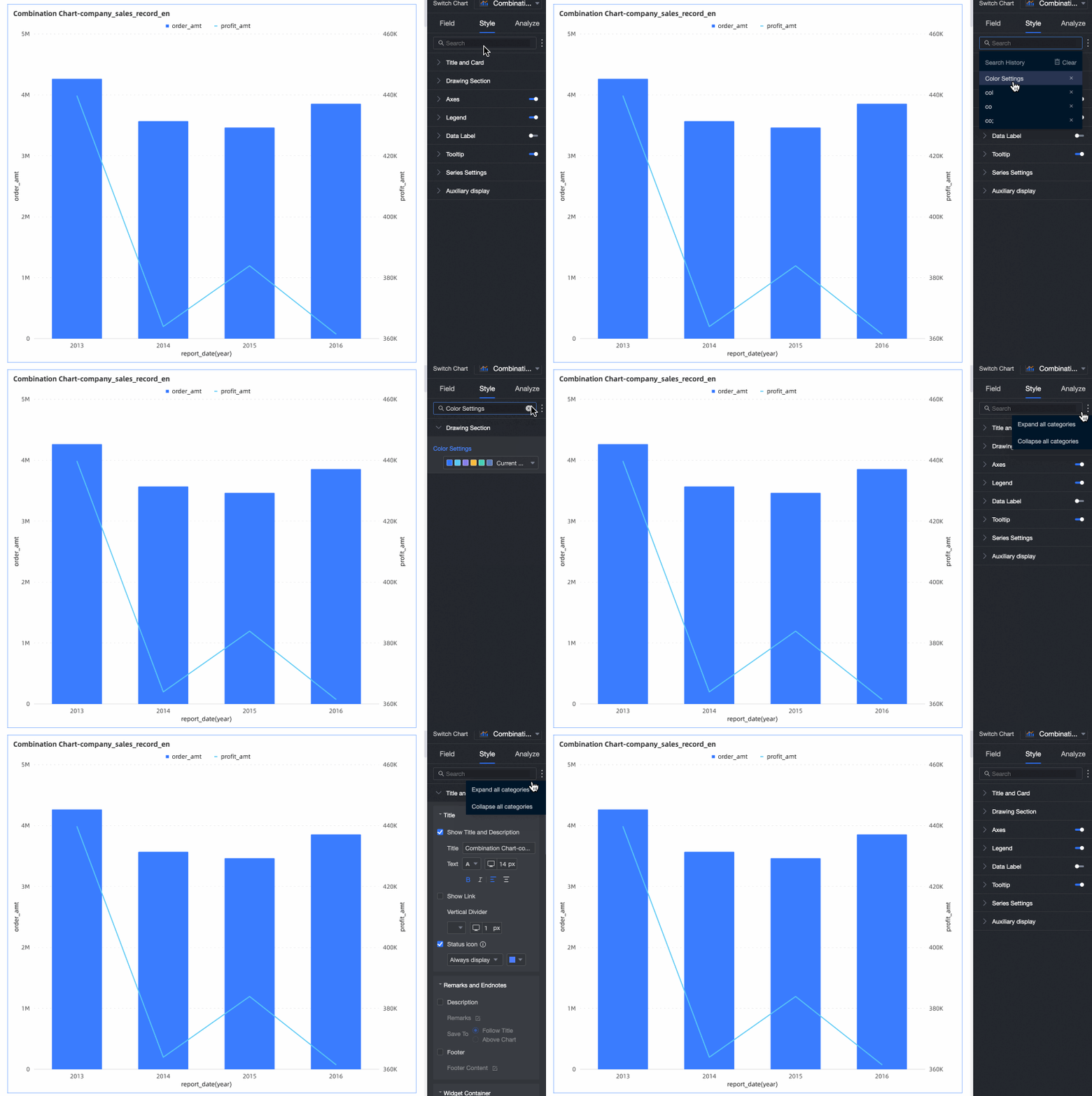
Chart area
In the Chart area section, configure the chart's overall style.
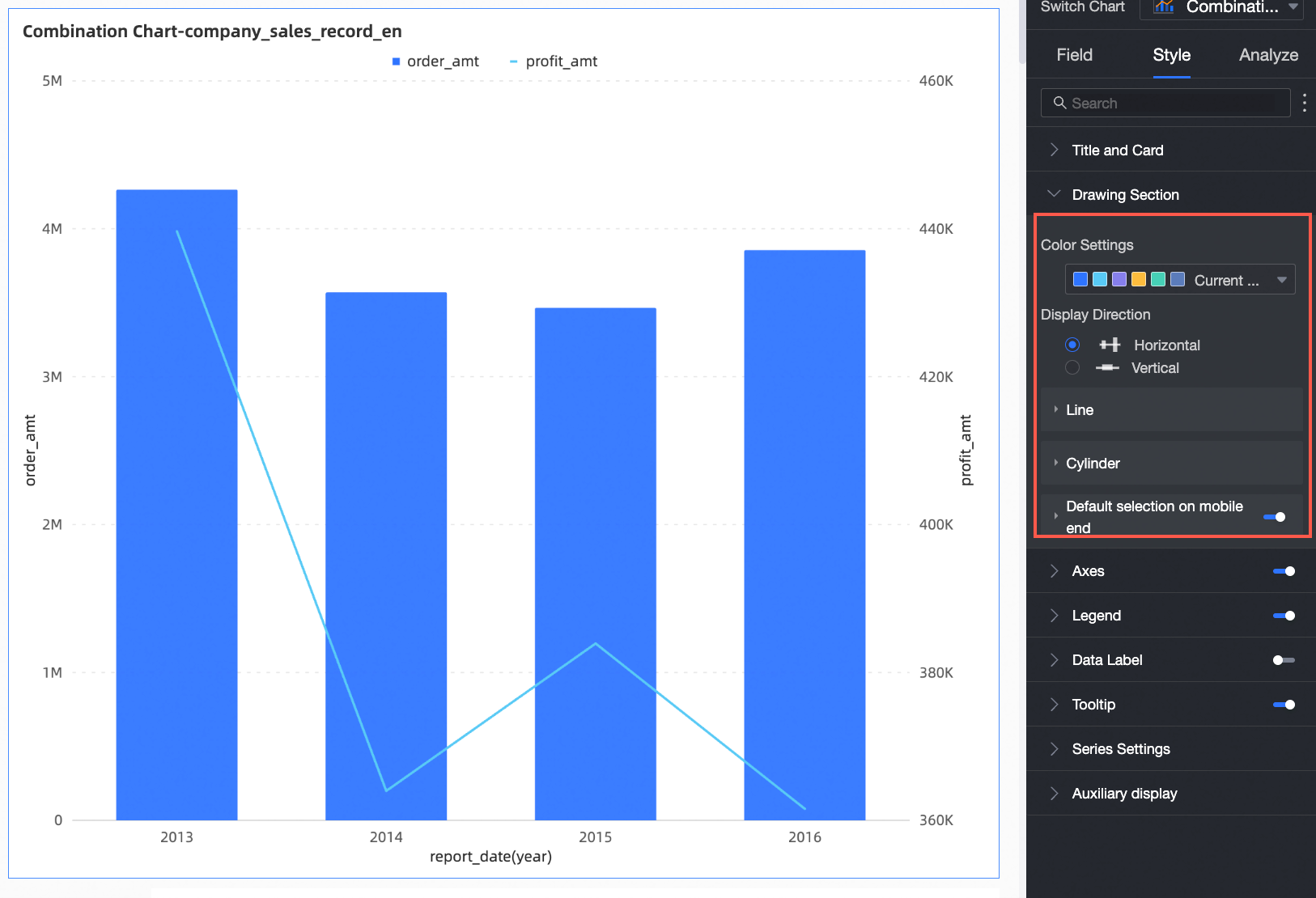
Parameter | Description |
Color Settings | Configure the color scheme for the combination chart. |
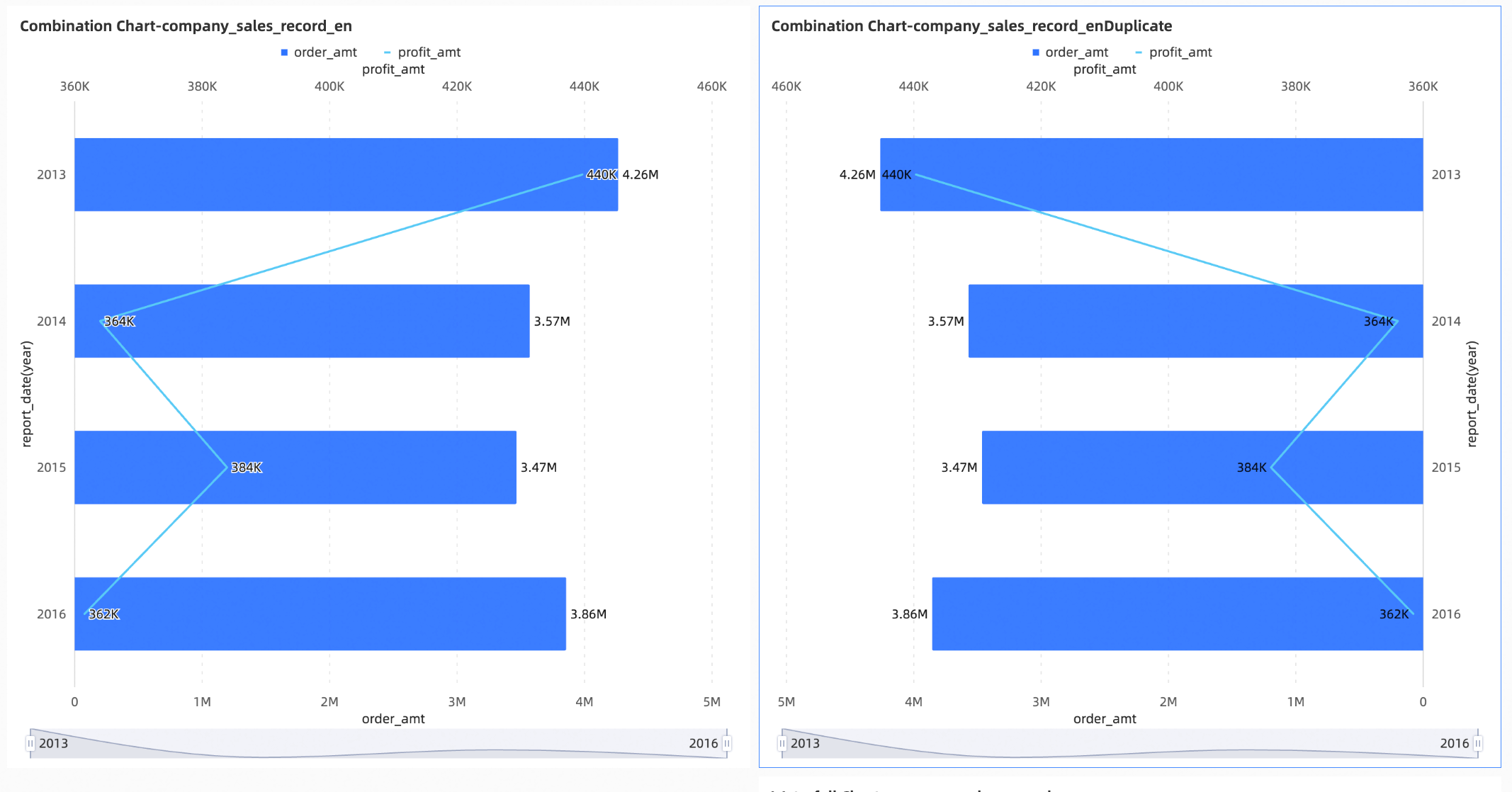
Display Direction | Set the chart's orientation: Horizontal or Vertical. |
Chart Alignment | When the chart orientation is Vertical, you can set the chart alignment to Left or Right.
|
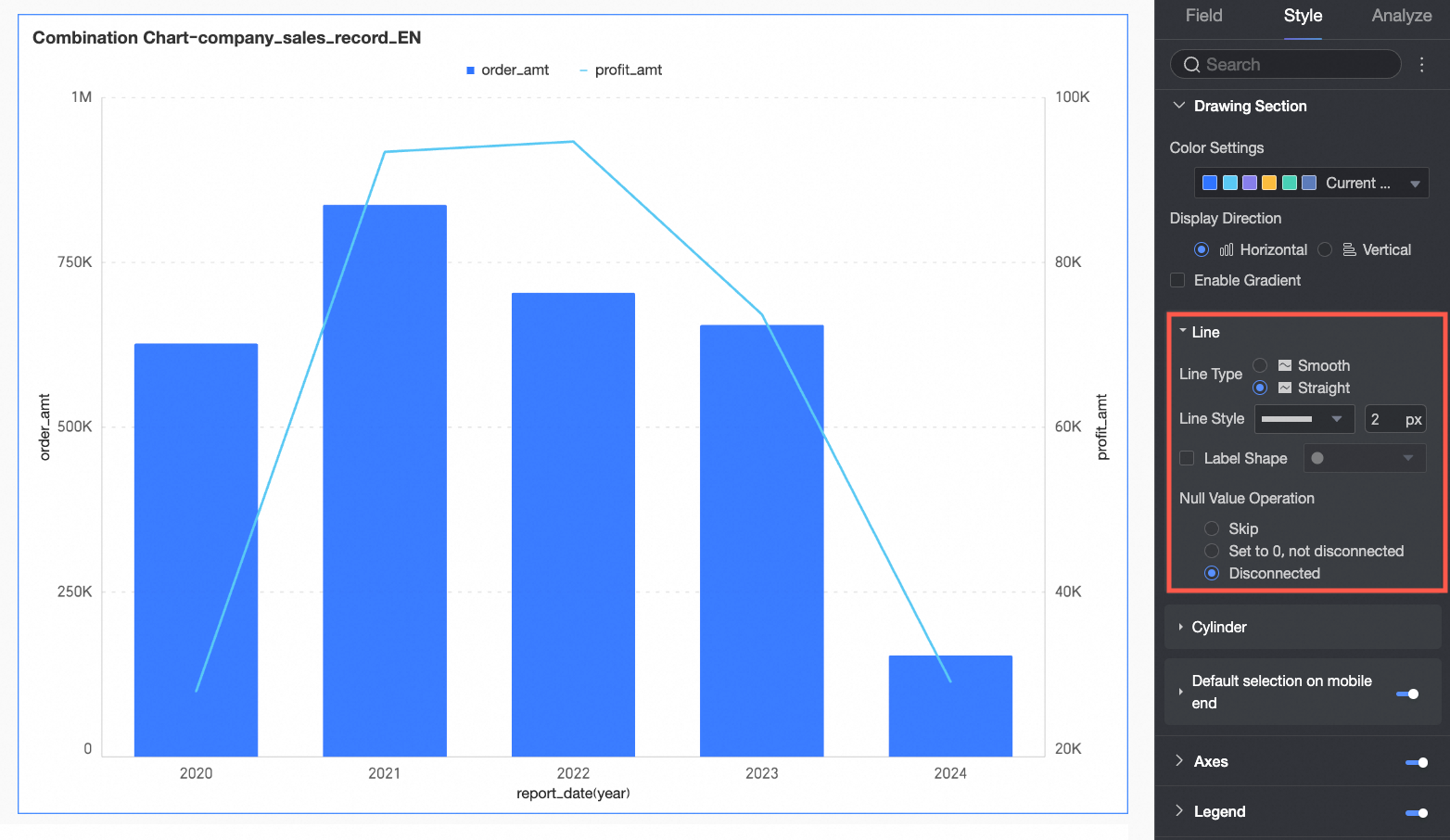
Line | Configure the line style. You can select the line type as Smooth or Straight, configure the Line Style and thickness, show or hide markers, set their style, and configure how to handle null values.
|
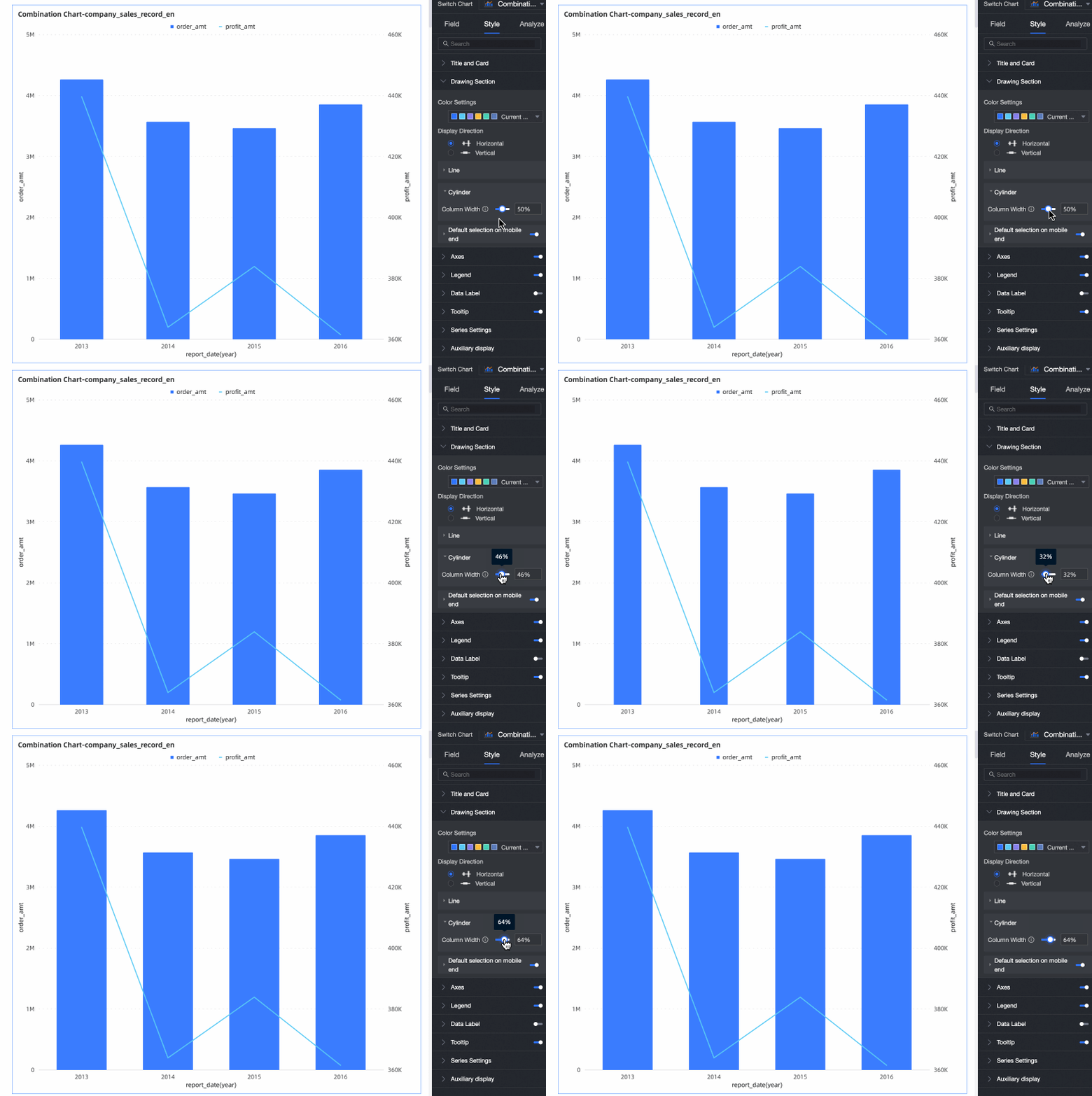
Column | You can set the width of the columns.
|
Default Selection on Mobile | After you enable this option, you can set Default Selection to Last dimension value (global) or Last dimension value (specified series). |
Axes
In the Axes section, configure the style of the axes. By default, axes are displayed.
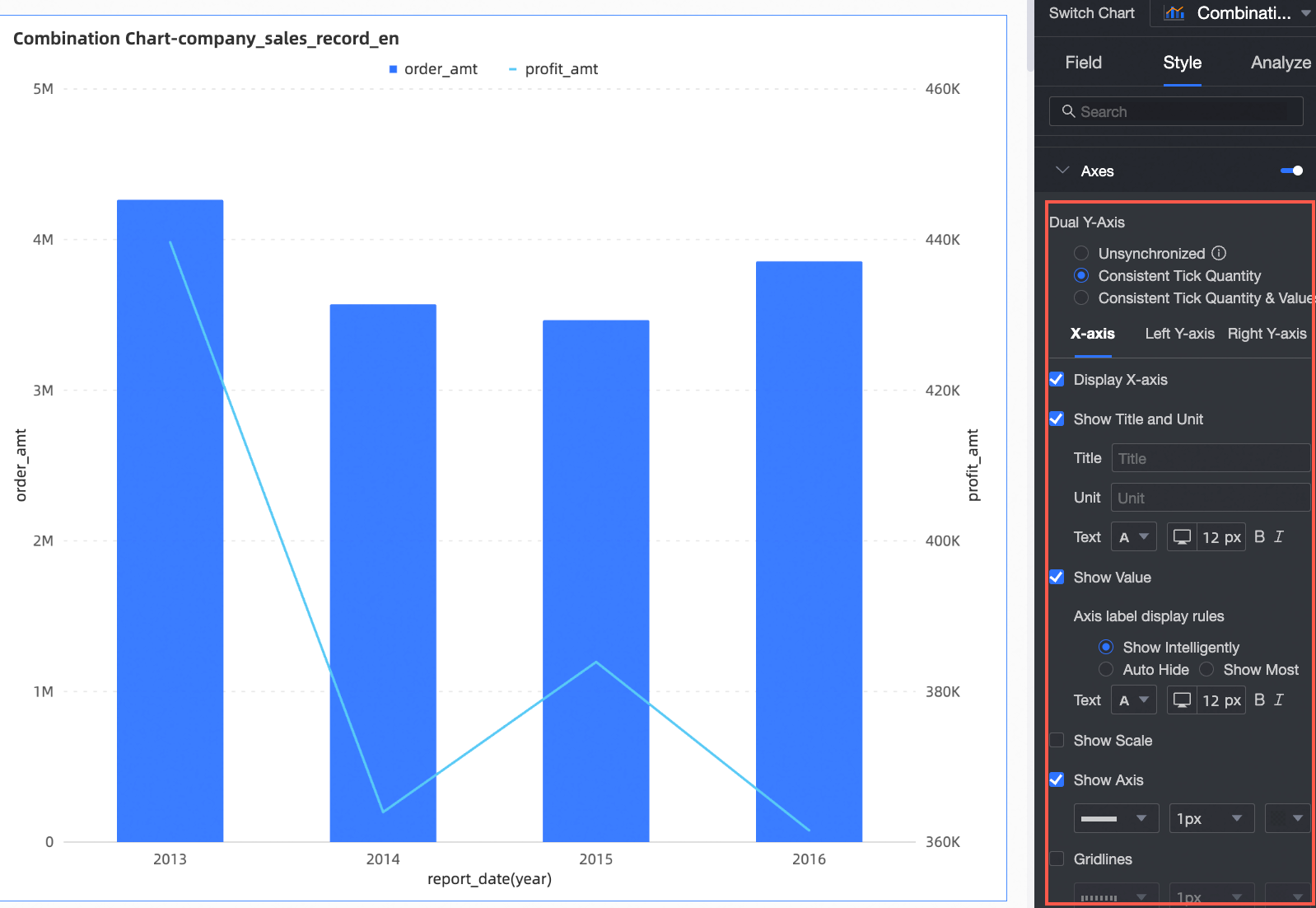
You can select Dual Y-Axis. This option is available only when you use two or more measures. Selecting it adds a Right Y-axis section in the Axes panel.
Name | Parameter | Description |
X-axis | Show X-axis | Show or hide the X-axis. |
Show Title and Unit | Show or hide the axis title and unit on the X-axis. | |
Show Axis Labels | Show or hide labels on the X-axis, and configure their display rules and text style. | |
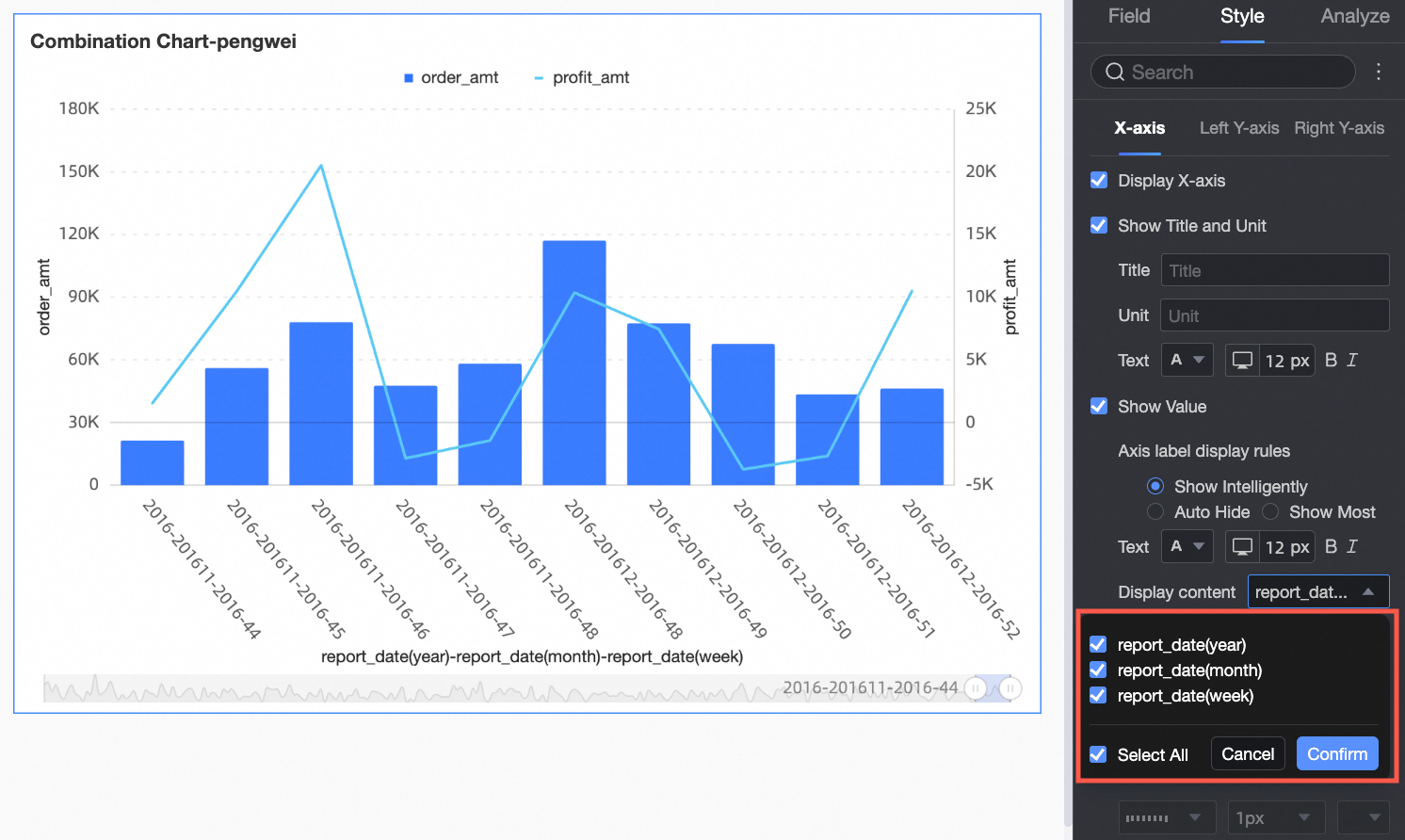
Content to Display | Set whether to display some or all dimensions.
| |
Show Tick Marks | Show or hide tick marks on the X-axis. | |
Show Axis Line | Show or hide the X-axis line, including its line style, width, and color. | |
Show Gridlines | Show or hide gridlines for the X-axis, including their line style, width, and color. | |
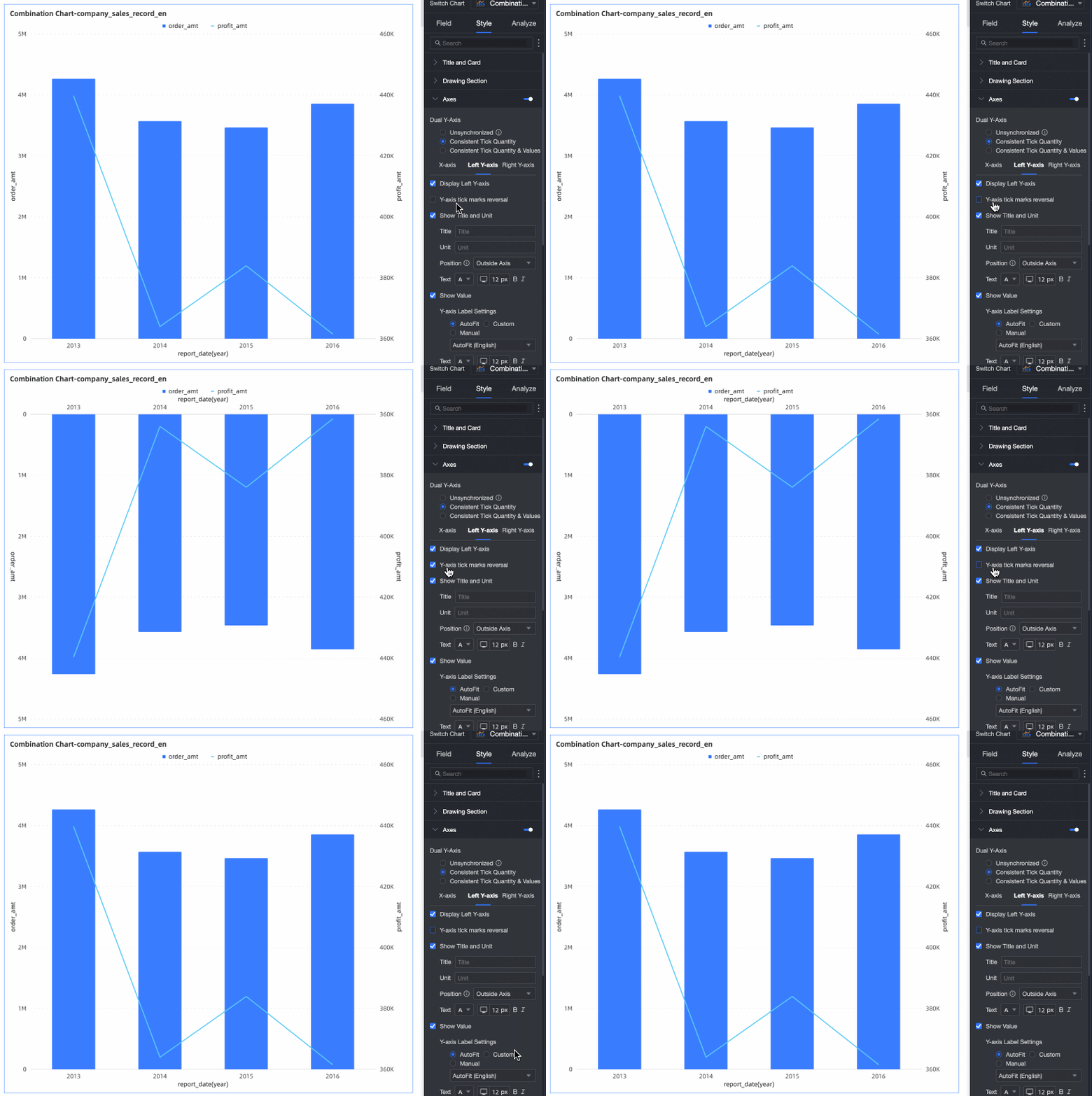
Left Y-axis | Invert Y-axis Scale | You can invert the Y-axis scale.
|
Show Left Y-axis | Show or hide the left Y-axis. | |
Show Title and Unit | Show or hide the axis title and unit. | |
Show Axis Labels | Show or hide labels on the Y-axis. You can also set the Axis Label Display Format and Text Style. The format can be set to Auto or Custom.
| |
Show Tick Marks | Show or hide tick marks on the left Y-axis. | |
Show Axis Line | Show or hide the left Y-axis line, including its line style, width, and color. | |
Show Gridlines | Show or hide gridlines for the left Y-axis, including their line style, width, and color. | |
Axis Range and Interval |
|
 icon to configure the data format in the Data Display Format Settings dialog box. For more information about the parameters in the dialog box, see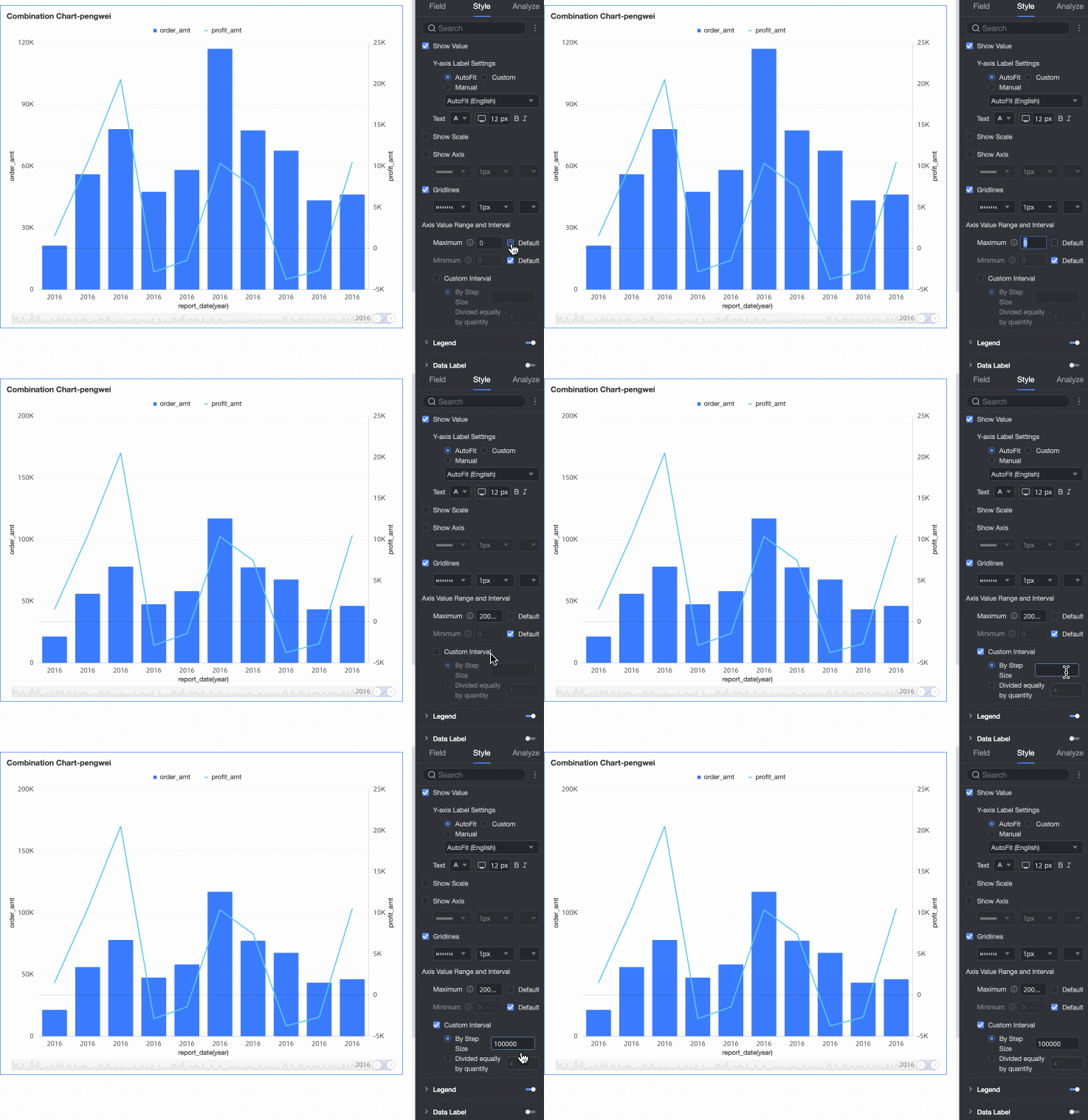
The right Y-axis settings appear only when Dual Y-Axis is enabled. The parameters are identical to those for the left Y-axis.
Legend
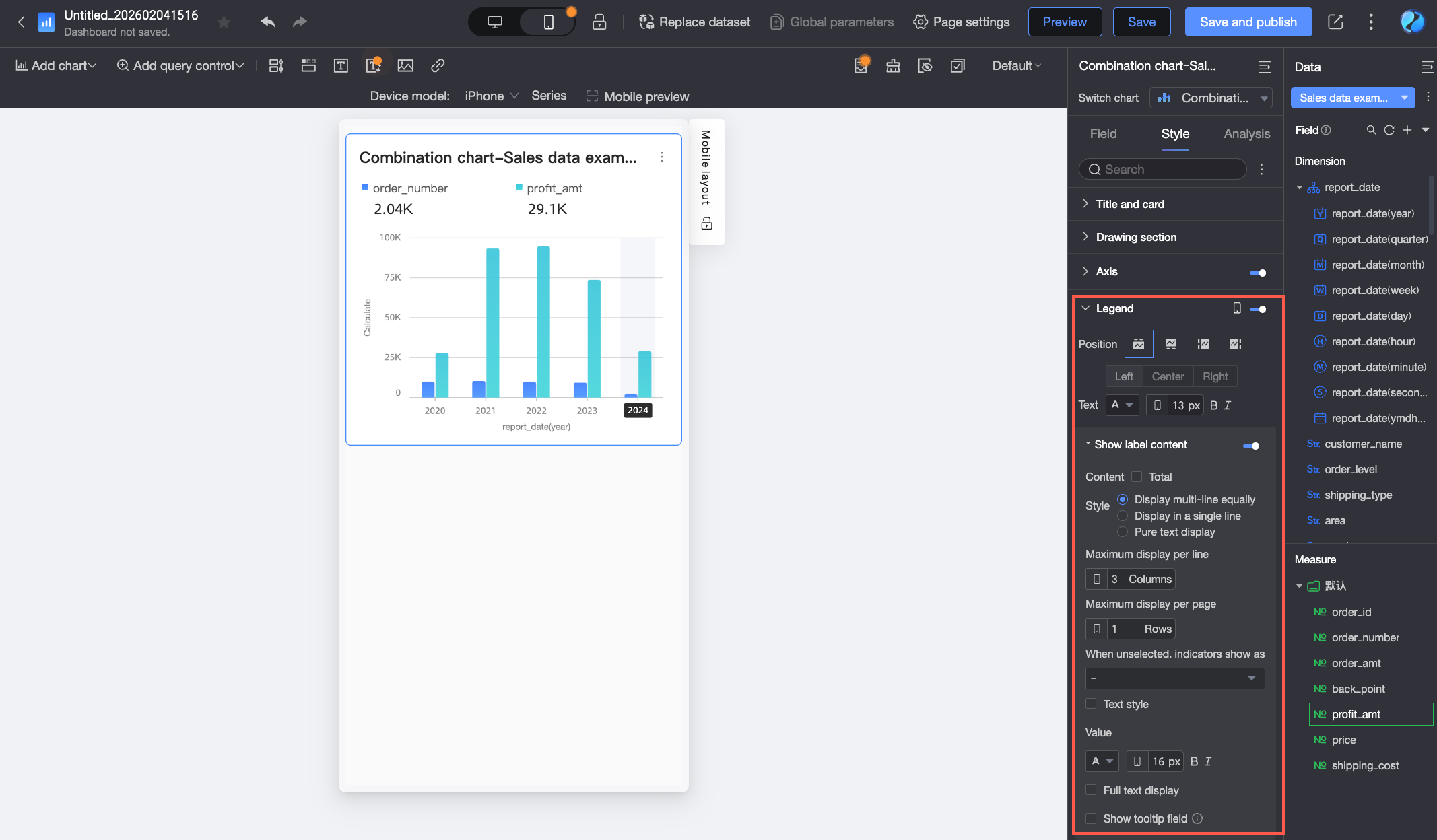
In the Legend section, click the  icon to enable the chart legend and configure its style.
PC settings

Parameter
Description
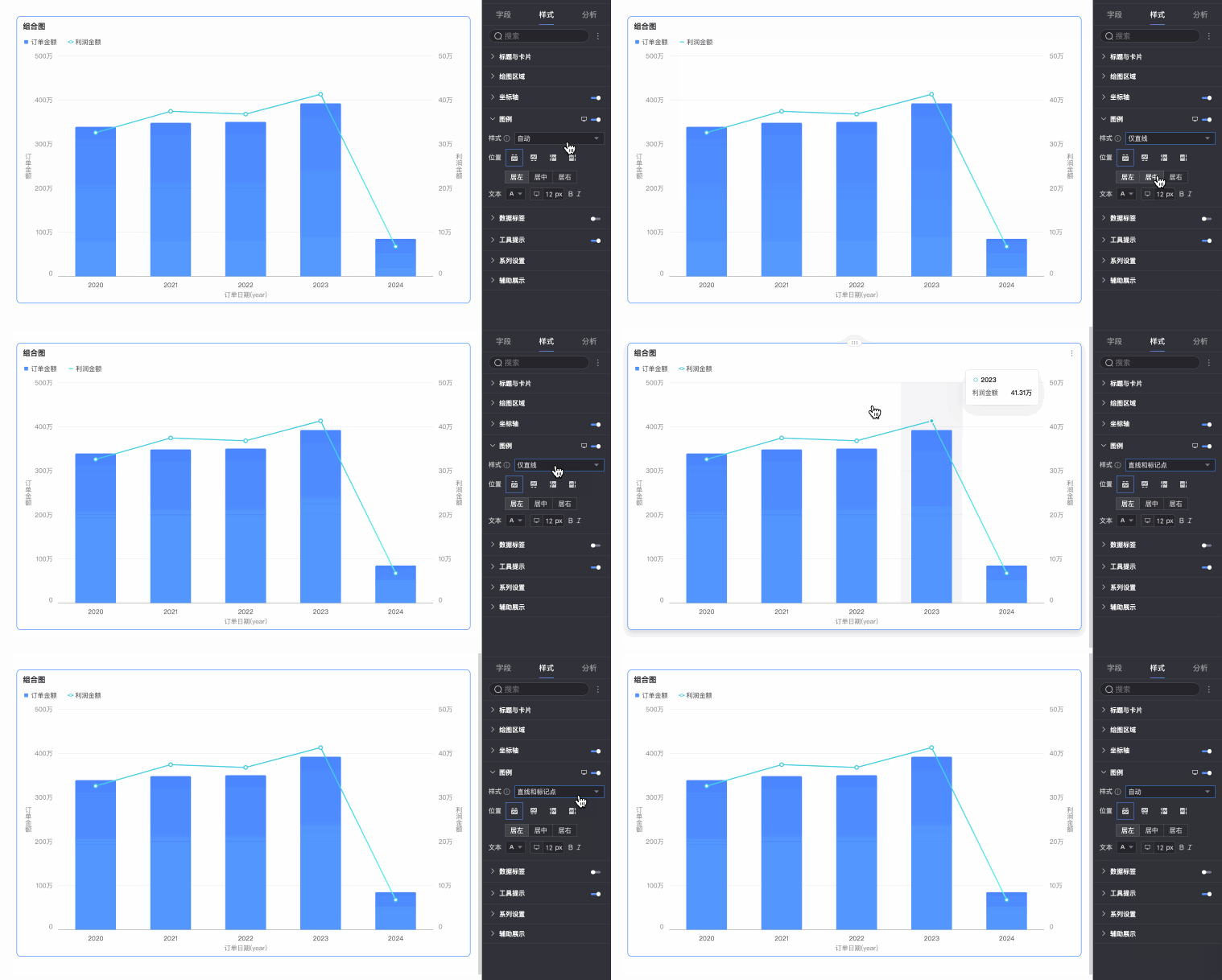
Style
Set the style of the legend icons. Options include Auto, Line Only, and Line and Marker.
NoteThe legend synchronizes with the marker style set in the chart. If no marker style is configured, a solid circle is displayed by default.
If you select Scale legend symbol with text in Theme Design > General Content Style, the size and thickness of the legend icon and lines will scale proportionally with the chart's line thickness and legend text size.
This setting applies only to the line and area charts within the combination chart.
Position
Set the display position and alignment of the legend on a PC.
If you select Top or Bottom for the position, you can set the alignment to Left, Center, or Right.
If you select Left or Right for the position, you can set the alignment to Top, Center, or Bottom. You can also set the distance between the legend and the chart content.
Text
Set the text style for the legend on a PC, including font color, size, weight, and slant.
Mobile settings
Parameter
Description
Position
Set the display position and alignment of the legend on a mobile device.
If you select Top or Bottom for the position, you can set the alignment to Left, Center, or Right.
If you select Left or Right for the position, you can set the alignment to Top, Center, or Bottom. You can also set the distance between the legend and the chart content.
NoteWhen the position is set to Top, you can enable labels below the legend, but custom alignment is not supported.
Text
Set the text style for measure names in the legend on a mobile device, including font color, size, weight, and slant.
Display Label Content
When Position is set to Top, click the
icon to enable labels below the legend.Style
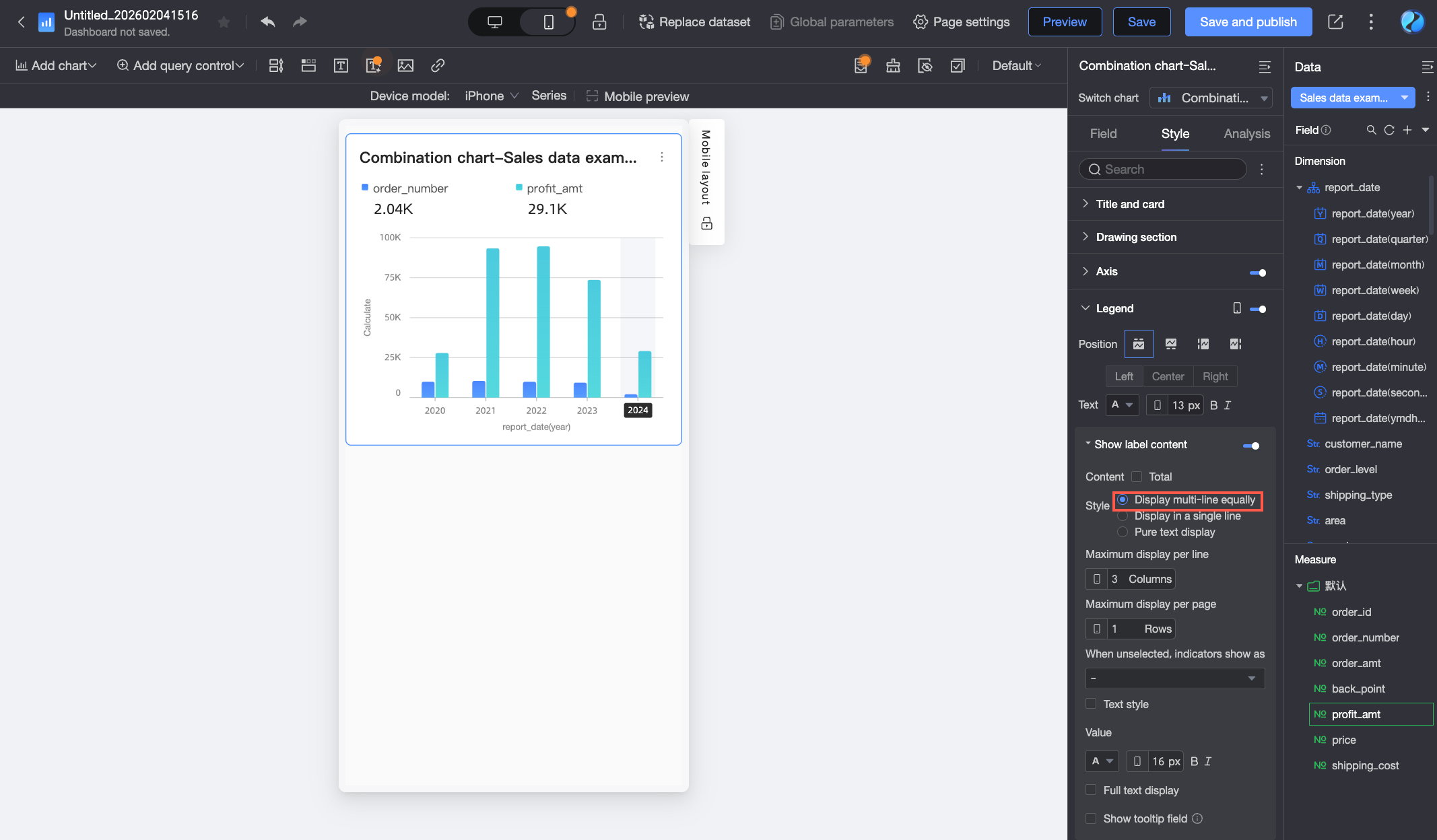
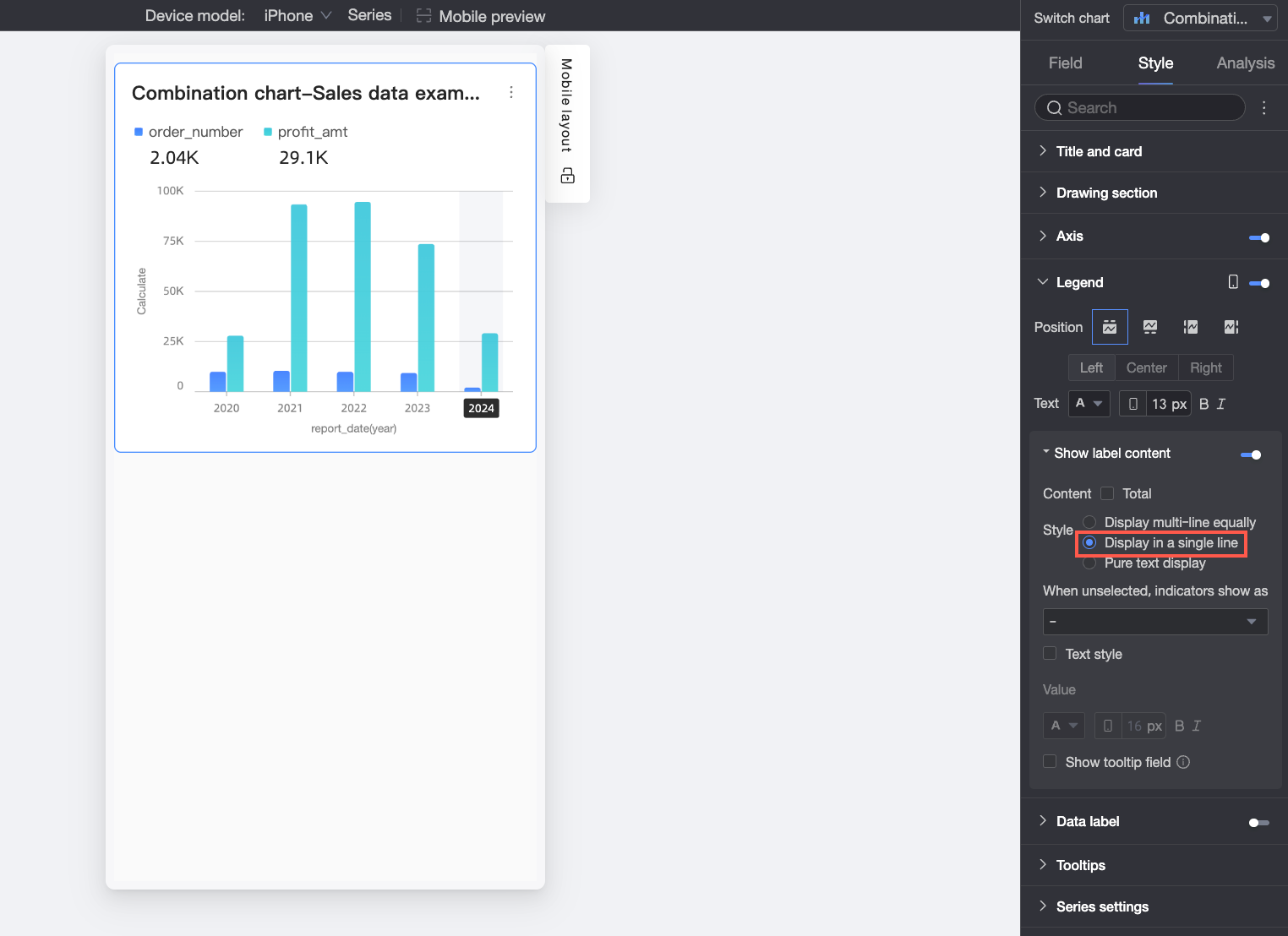
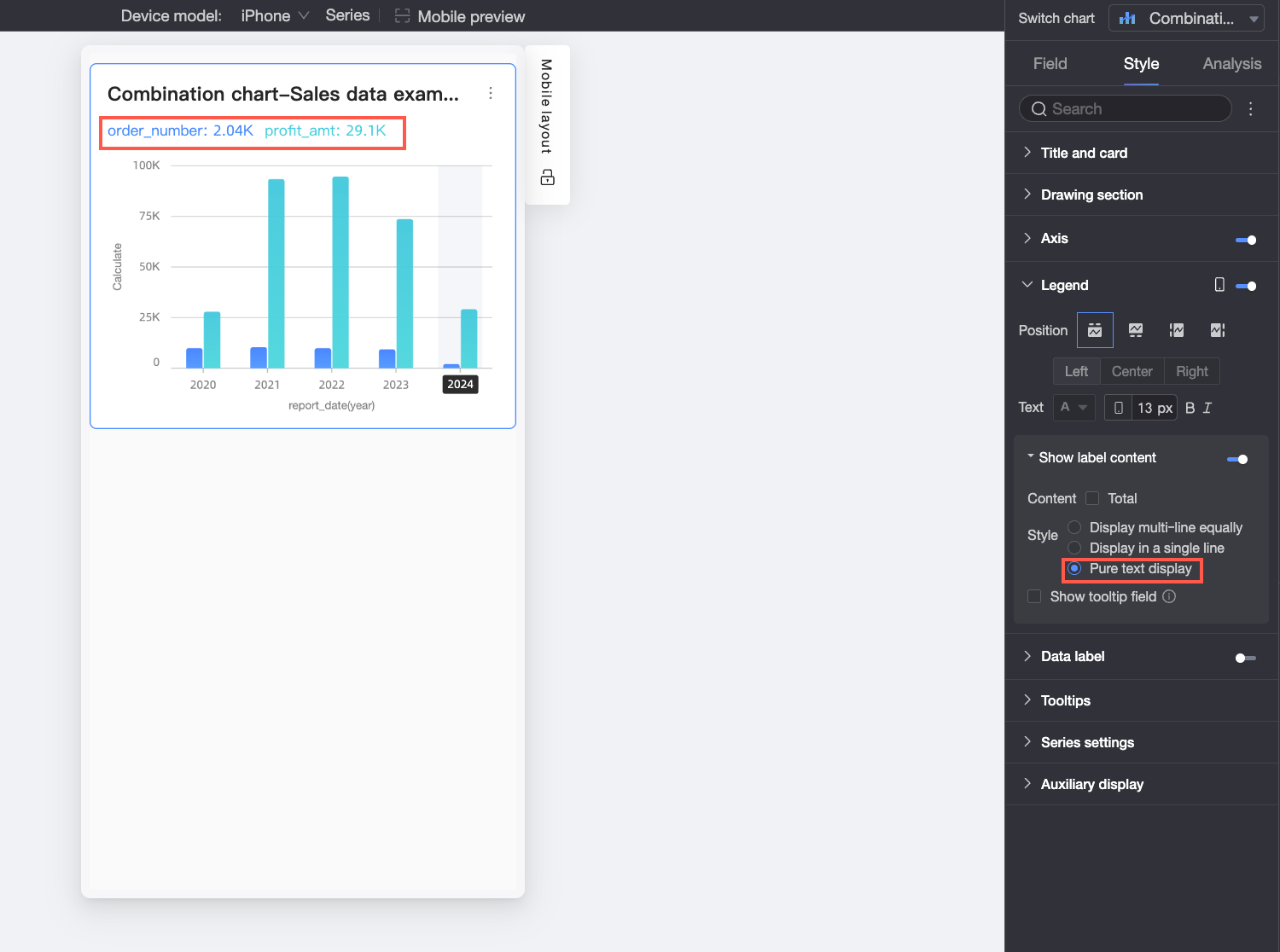
Set the layout style for the label text below the legend. The following options are available:
Multi-line Equal Division: Labels are automatically arranged in an evenly divided layout based on the number of columns entered in Max items per row and the number of rows entered in Max items per page.
Single-line Tiling: All label content is displayed in a single line.
Text Only: No icons are displayed, only text. The text color matches the line color of the corresponding measure in the chart.
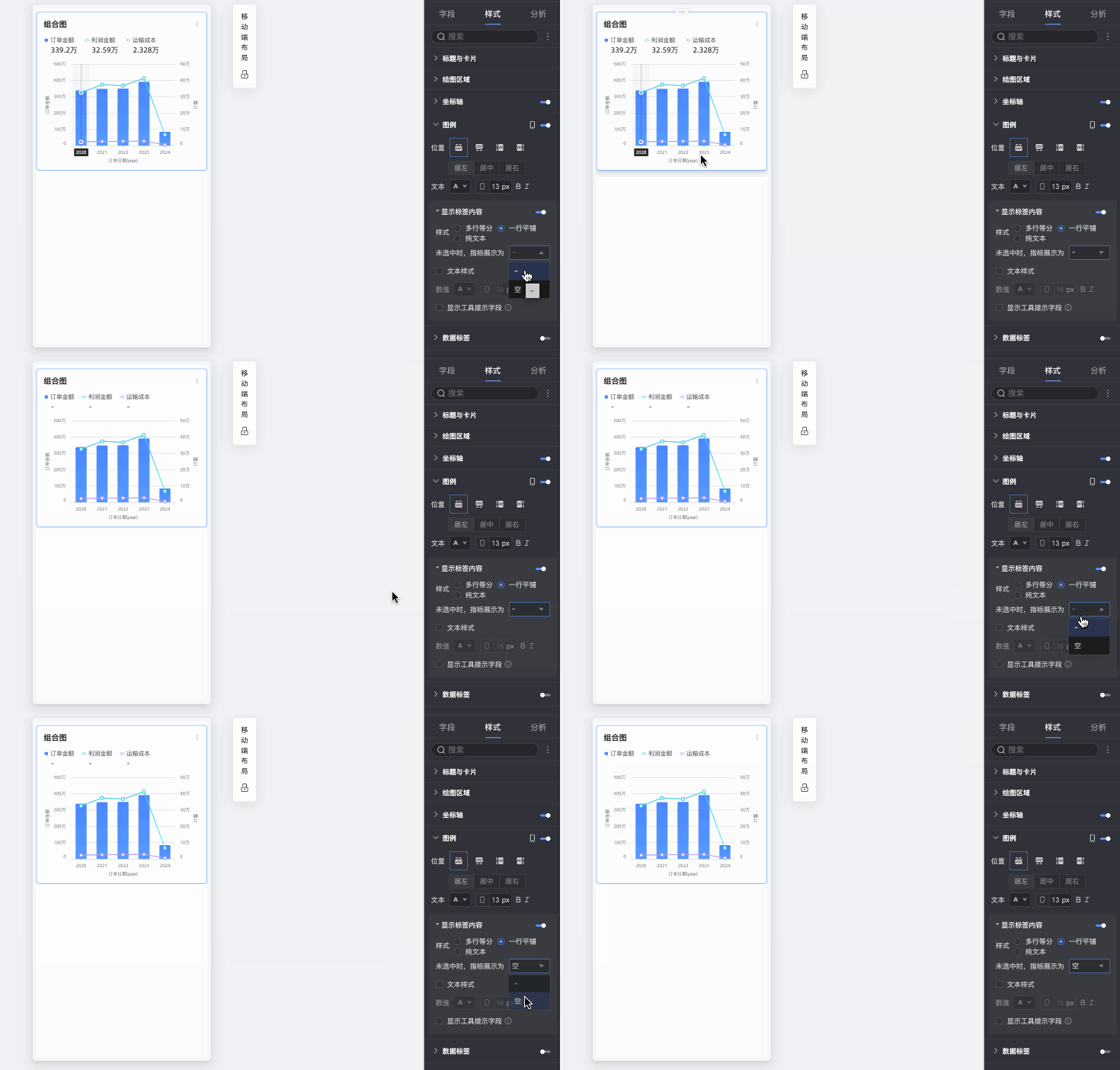
When not selected, display measure as
When Style is set to Multi-line Equal Division or Single-line Tiling, you can configure how a measure is displayed when its legend item is not selected. You can choose to display it as "-" or leave it blank.
Text Style
When Style is set to Multi-line Equal Division or Single-line Tiling, you can configure the style of the value text.
Display Full Text
When Style is set to Multi-line Equal Division or Single-line Tiling, long measure names might be truncated. To display the full measure name, select Display Full Text.
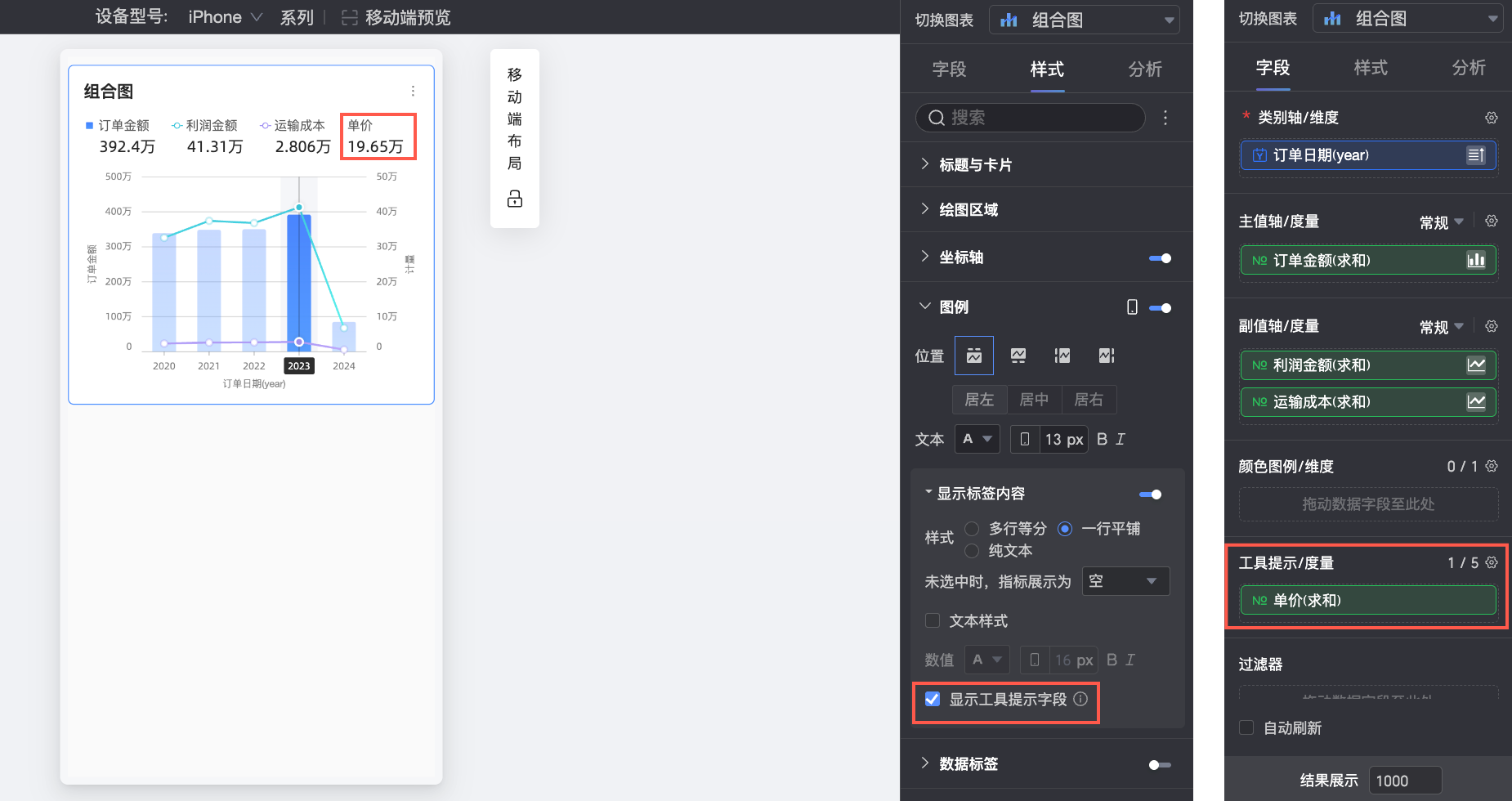
Show Tooltip Fields
After you select this option, the fields you configure in the Tooltip/Measure section of the field panel are displayed in the legend area.
NoteThis feature is not supported when the color legend is bound to a dimension.
Data labels
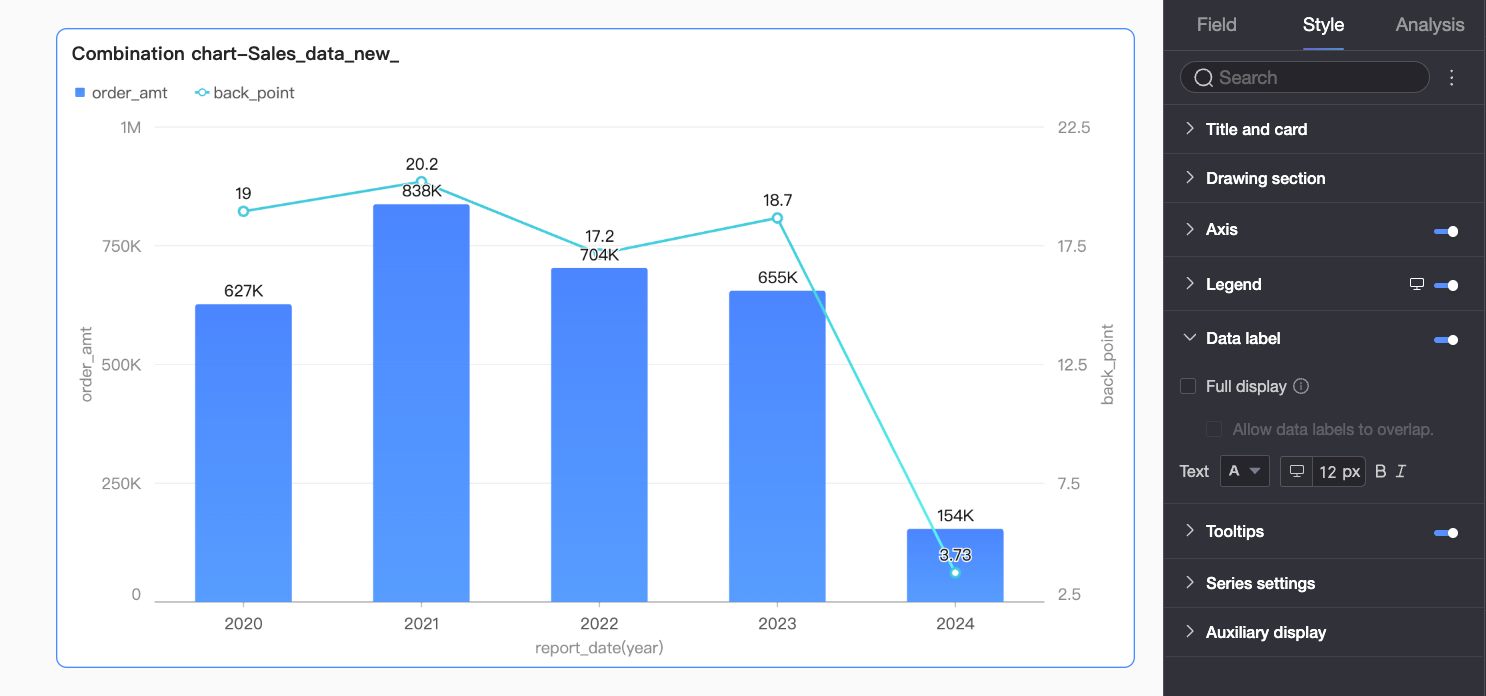
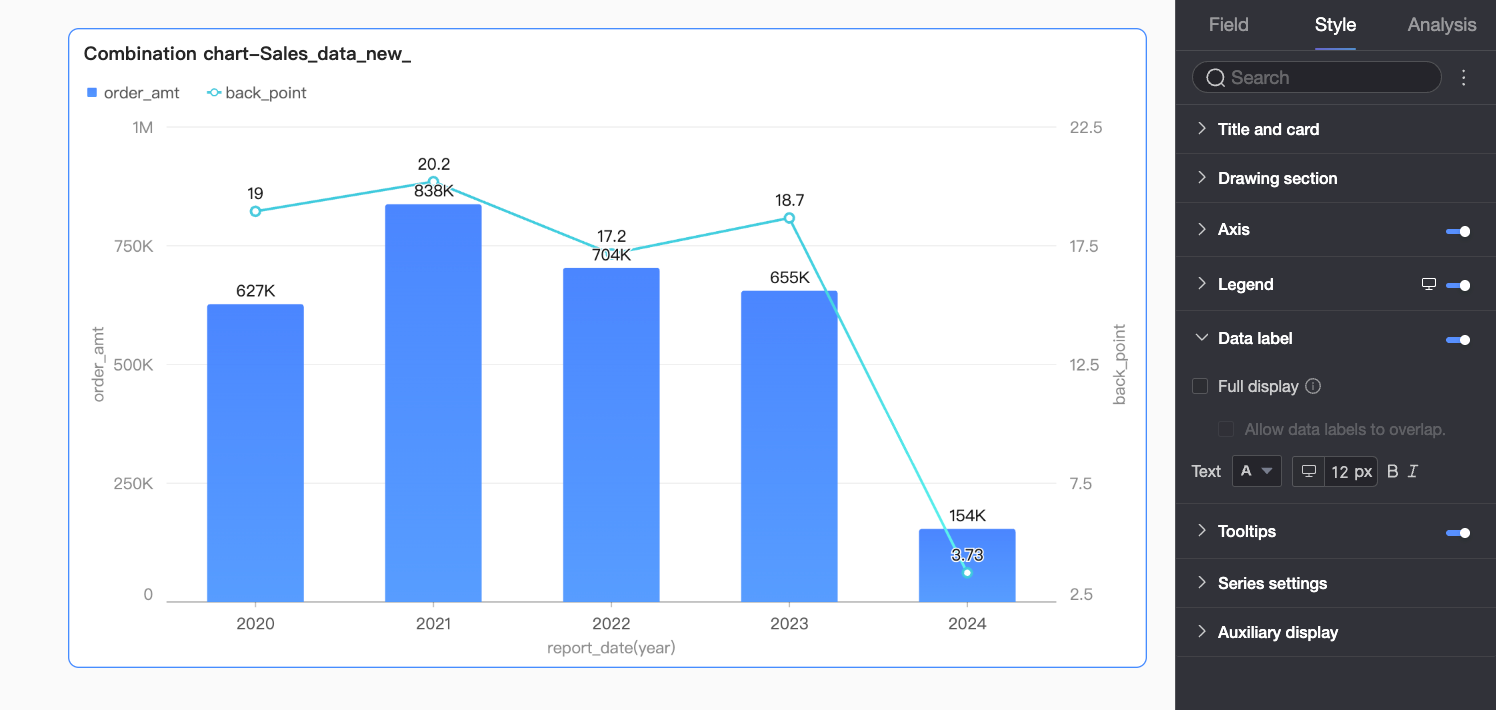
In the Data labels section, configure whether to show data labels and their style.
Parameter | Description |
Display All | When enabled, the system adjusts label positions to prevent overlap. If labels are too dense, some may be hidden because they are outside the axis area. You can also select Allow Data Labels to Overlap. |
Text | Set the style of the label text. |
Tooltips
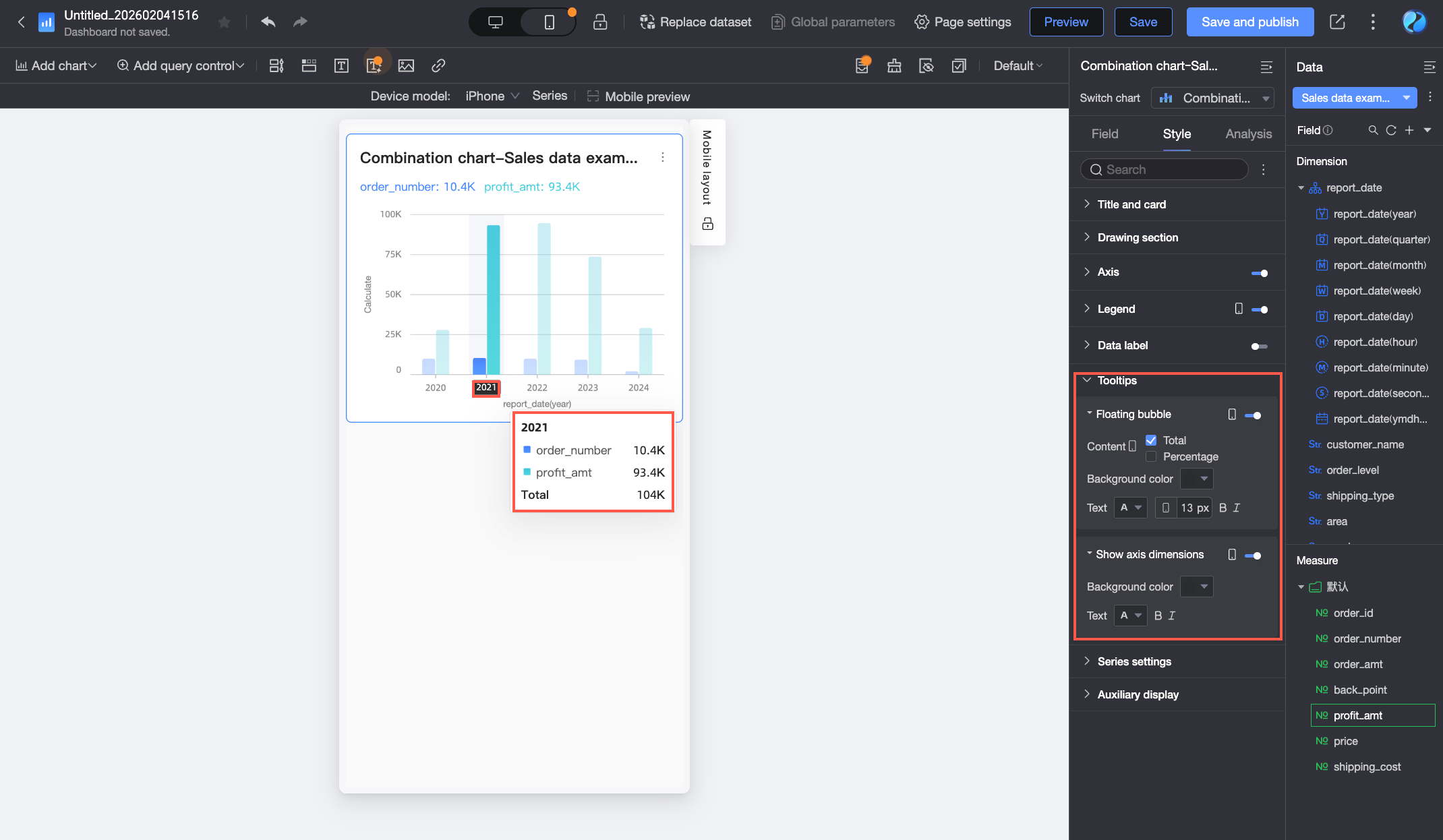
In the Tooltips section, click the icon to enable tooltips and configure their style.
PC settings
Parameter
Description
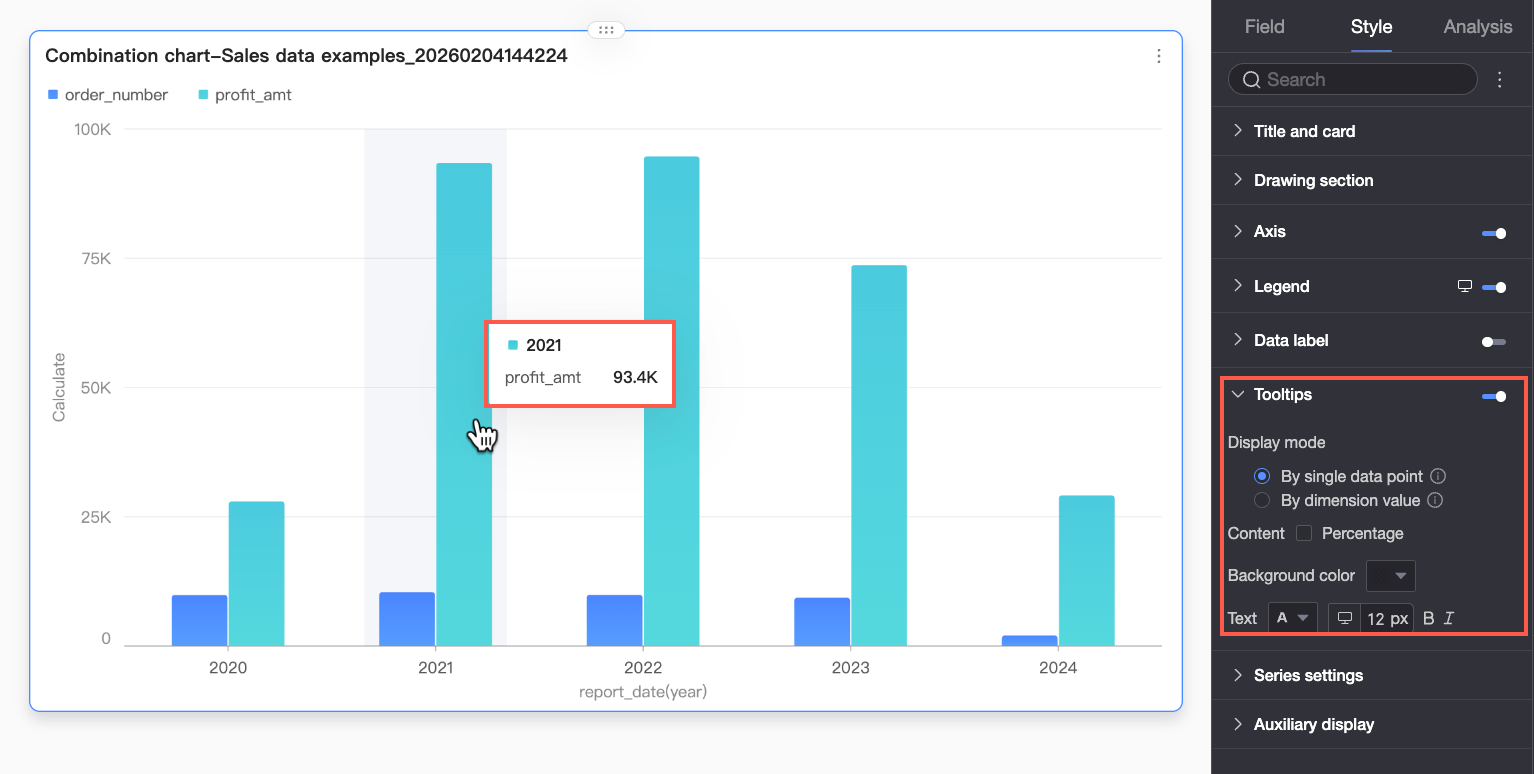
Display Mode
Set the tooltip display method, which can be based on a single data point or a dimension value.
Content
Select the data content to display in the tooltip. The available content varies based on the display mode:
When the display mode is by single data point, you can show the percentage. When the display mode is by dimension value, you can show the total and percentage.
Percentage: The percentage of a single data point relative to the total for the current dimension. For example, the percentage of profit amount out of total revenue for office supplies. When you choose to display the percentage, you can also set the number of decimal places to 0, 1, or 2 in Percentage Decimal Places.
Total: The sum of all measures for the current dimension. For example, the total sales amount across all regions for the year 2025.
NoteWhen a field is dragged to the secondary measures field, you can configure the content for the left and right Y-axes separately.
Background Color
Set the background fill color for the tooltip.
Text
Set the style of the text in the tooltip, including font color, size, weight, and slant.
Mobile settings
Parameter
Description
Tooltip
Click the
icon to enable tooltip display (①).Content
Set the data content to display in the tooltip. You can choose to show the percentage and total.
NoteWhen a field is dragged to the secondary measures field, you can configure the content for the left and right Y-axes separately.
Percentage: The percentage of a single data point relative to the total for the current dimension. For example, the percentage of profit amount out of total revenue for office supplies. When you choose to display the percentage, you can also set the number of decimal places to 0, 1, or 2 in Percentage Decimal Places.
Total: The sum of all measures for the current dimension. For example, the total sales amount across all regions for the year 2025.
Background Color
Set the background fill color for the tooltip.
Text
Set the style of the text in the tooltip, including font color, size, weight, and slant.
Show Axis Dimension
Click the
icon to enable axis dimension display (②).Background Color
Set the background fill color for the axis dimension label.
Text
Set the text style for the axis dimension label, including font color, weight, and slant.
Series settings
In the Series settings section, configure the style of the series.
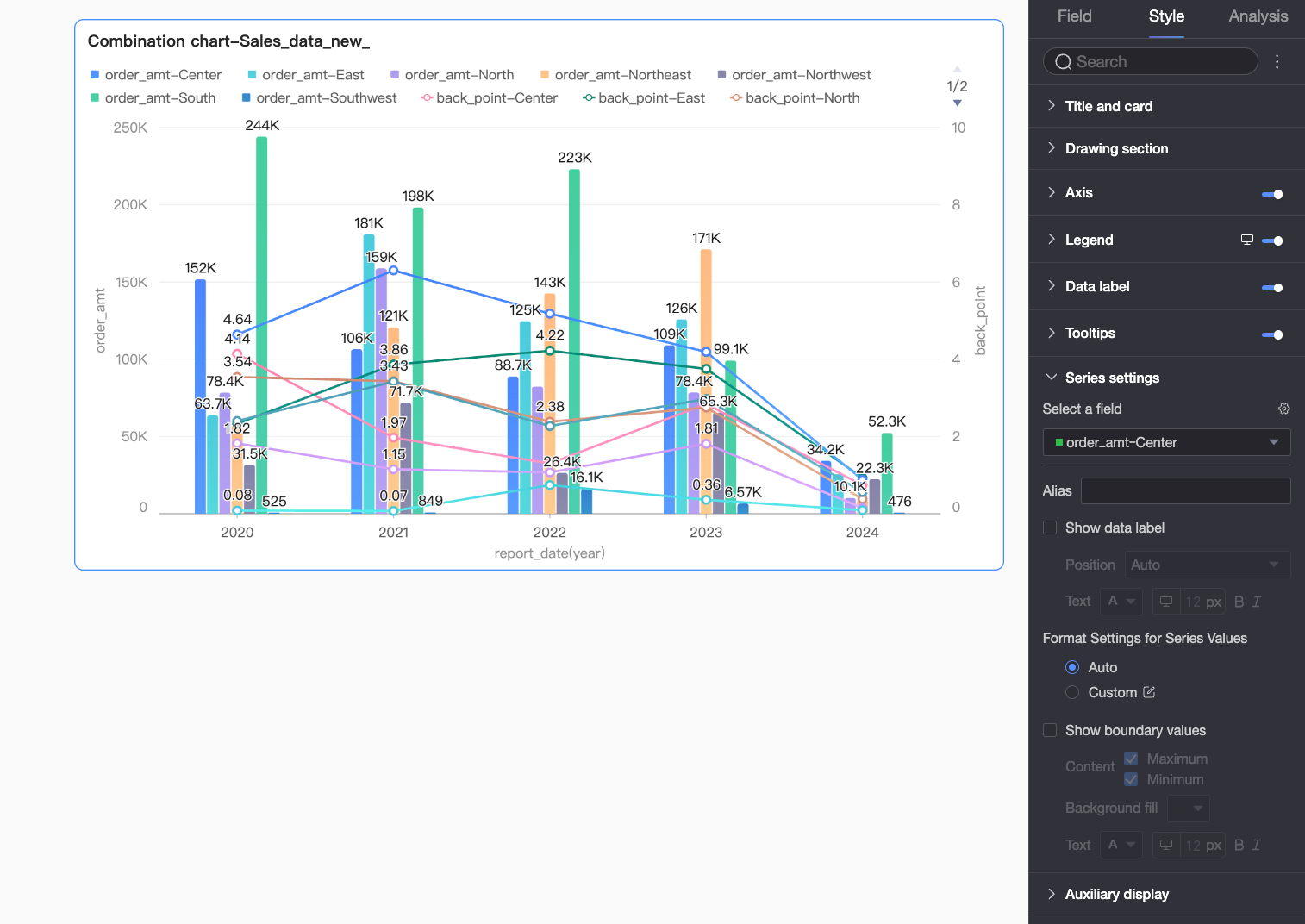
You can set the display name and series value display format in the series settings only if color legend is enabled in the field settings pane.
Parameter | Description |
Select Series Field | Select a dimension or measure field based on your business scenario. |
Display Name | Set a field name that aligns with your business scenario. This parameter can be configured only when the color legend is configured. |
Show Data Labels | Choose whether to show data labels and configure the label position and text format. |
Series Number Format Settings | Configure the display format for series values. You can select Auto or Custom.
This parameter can be configured only when the color legend is configured. |
Show Min/Max Values | Show or hide labels for the minimum and maximum values in the chart. After you enable this option, you can set the Position, Content to display (Maximum/Minimum), and the label's background fill color and text style. Note This feature is not supported for stacked and 100% stacked charts. |
View controls
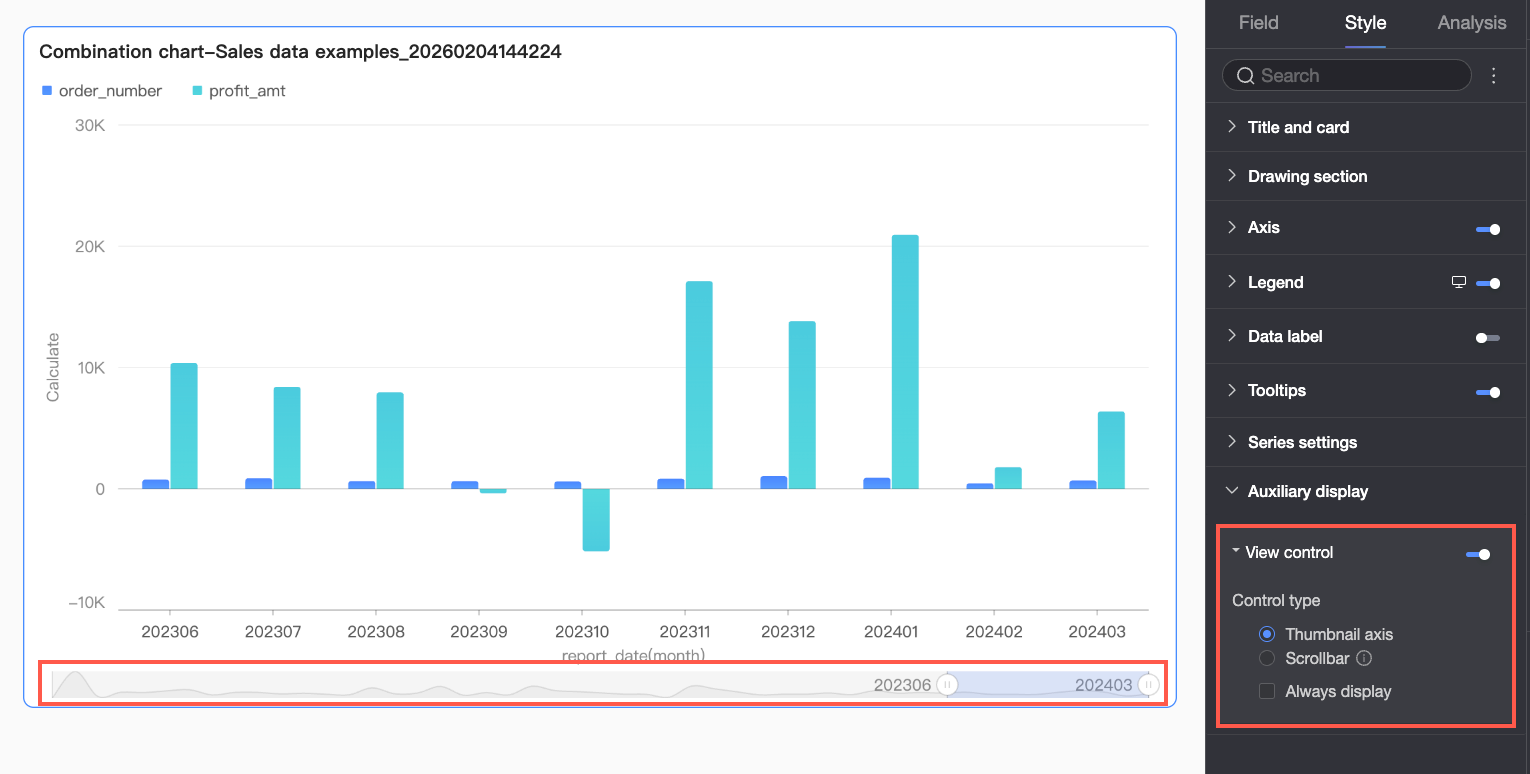
When a chart axis contains a large amount of dense data that cannot be fully displayed, you can click the  icon to enable the chart view controller. This feature allows report viewers to dynamically adjust the visible range of the chart by sliding, which provides an interactive experience while ensuring data integrity and readability.
You can control the visible range of the chart axis using the following two types of controls: Overview and Scroll Bar.
Parameter | Description |
Overview | When you select Overview, a simplified trend chart of the full dataset (the overview) is displayed at the bottom of the chart. Viewers can drag the selection area to quickly browse all data or focus on a specific range. The overview uses an absolute coordinate system, meaning the selected interval on the overview corresponds directly to a fixed number of data points on the actual axis. This is suitable for comparative analysis or complex scenarios requiring direct navigation. |
Scroll Bar | When you select Scroll Bar, a horizontal scroll bar is displayed at the bottom of the chart. Viewers can drag the slider to move the view window left or right. The scroll bar uses a relative scale, where the length and position of the slider are determined by the ratio of the visible window to the total data range. This is suitable for general browsing scenarios. After setting a minimum category width, the scroll bar appears if the actual category width allocated for the full chart is less than this value. When the scroll bar is enabled, chart elements and data labels are constrained within the rectangular area of the coordinate system. Any parts that extend beyond this area, such as markers and data labels, are automatically truncated or repositioned to fit. |
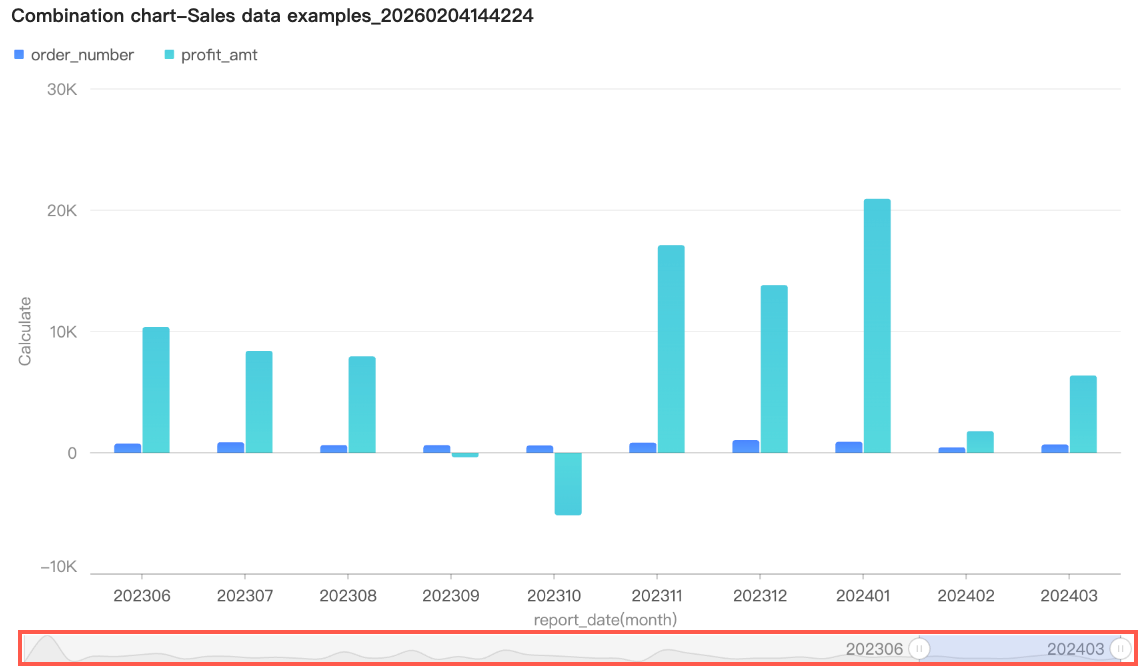 By default, the overview is displayed only when the amount of data exceeds the display width of the chart container. If you want the overview to always be visible, select Always show. After you select this option, the overview is displayed even if the chart data does not fill the screen.
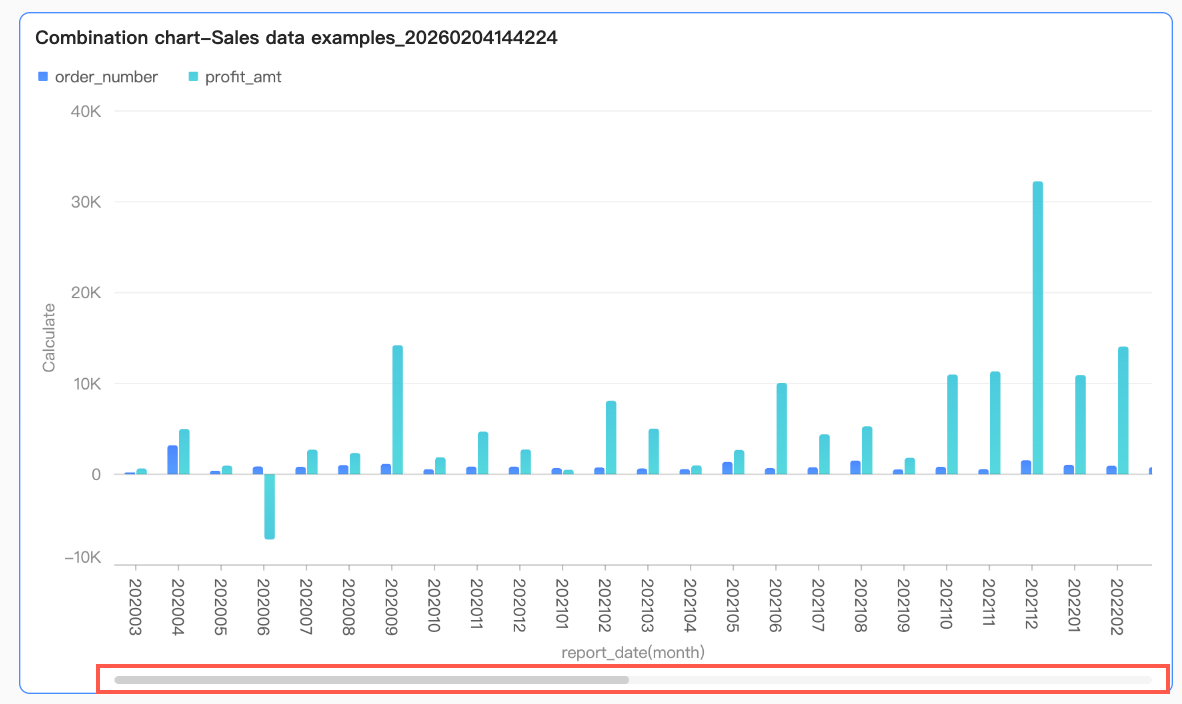 You can also set the minimum category width to limit the amount of data in the current window. This ensures that the chart content is clearly legible and avoids visual clutter from overlapping data labels or overly dense data points. The default minimum category width is 32 px, with a valid range of 16 to 100 px.
If no view control is configured and the chart is too small for its data, the system automatically enables the overview and sets it to appear only when the amount of data exceeds the container's display width.
Configure chart analysis
Section | Parameter | Description |
Data Interaction | Drill down | If you have configured drill-down fields in the field panel, you can set the display style for the drill-down level rows here. |
Filter interaction | Use filter interactions to link multiple charts for coordinated analysis. For more information, see Set up and display filter interactions. | |
Hyperlink | If the data you want to analyze is in different dashboards, you can use hyperlinks to link multiple dashboards for data analysis. Hyperlinks can be set as Parameter or External Link. For more information, see Set up and display hyperlinks. | |
Analysis and Alerts | Reference line | Use a reference line to compare the current measure value against a set value. The set value can be a fixed value or a calculated value, such as average, maximum, minimum, or median. For more information, see Reference line. |
Trendline | Use a trendline to show the overall trend of your data. Available types include intelligent, linear, logarithmic, exponential, polynomial, and power. For more information, see Trendline. | |
Smart Insights | Forecast | Use forecasting to view data trends and make predictions. For more information, see Forecast. |
Anomaly detection | Use anomaly detection to identify unusual data points. For more information, see Anomaly detection. | |
Fluctuation analysis | Fluctuation analysis uses intelligent algorithms to automatically break down and analyze the reasons for fluctuations in key metrics. You can break down dimensions or measures to analyze the causes of fluctuations. For more information, see Fluctuation cause analysis. Note The Fluctuation Analysis feature is currently in beta. | |
Annotation | - | When data in a chart is abnormal or requires special attention, use annotations such as highlights, icons, comments, or data points to mark them. This helps you identify anomalies and take appropriate action. For more information, see Annotation. |
Next Steps
-
You can share a dashboard with specific users. For more information, see Share a dashboard.
-
To create a complex navigation menu for thematic analysis, integrate the dashboard into a business intelligence (BI) portal. For more information, see Business intelligence (BI) portal.