Radar chart
A radar chart visualizes values or ratios, helping you compare metrics and track trends. This topic describes how to add data to a radar chart and configure its styles.
Prerequisites
You have created a dashboard. For more information, see Create a dashboard.
Limitations
A radar chart consists of Length (Mea.) and Labels (Dim.). It supports two data configuration methods:
Dimension as branch labels: Dimension values serve as the branch nodes of the radar chart and are used to compare the area distribution among measures.
Labels (Dim.): Select a maximum of one dimension. The dimension values serve as the branch nodes of the radar chart.
Length (Mea.): You can select 1 to 10 measures. Each measure forms a radar area.
Measure as branch label: The measure value serves as a branch node of the radar chart to compare the area distribution among dimension values.
Labels (Dim.): Select a maximum of one dimension. The dimension values form the areas of the radar chart.
Length (Mea.): Select 1 to 10 measures. Each measure creates a branch node.
Overview
Use cases
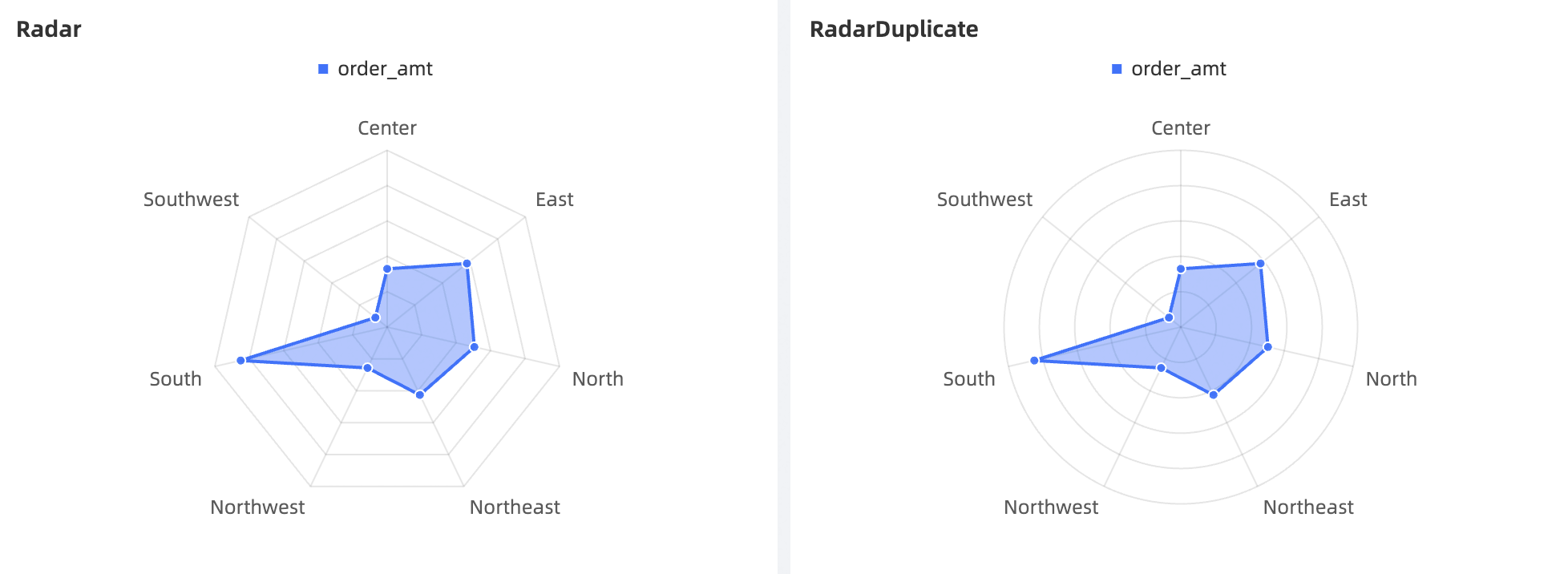
A radar chart, also known as a spider chart, maps data values from multiple dimensions onto axes that start from the same center point and end at the edge of the chart. Lines connect the points for the same series. Radar charts are typically used to visualize the distribution of dimension values.
Key features
Interactive operations: You can switch between metrics and configure in-chart filters.
Visual effects: Supports polygon and circle styles, custom data label display, and more.
Annotation capabilities: You can add custom text or metric-based annotations and configure jumps to external links to interact with other systems.
Example
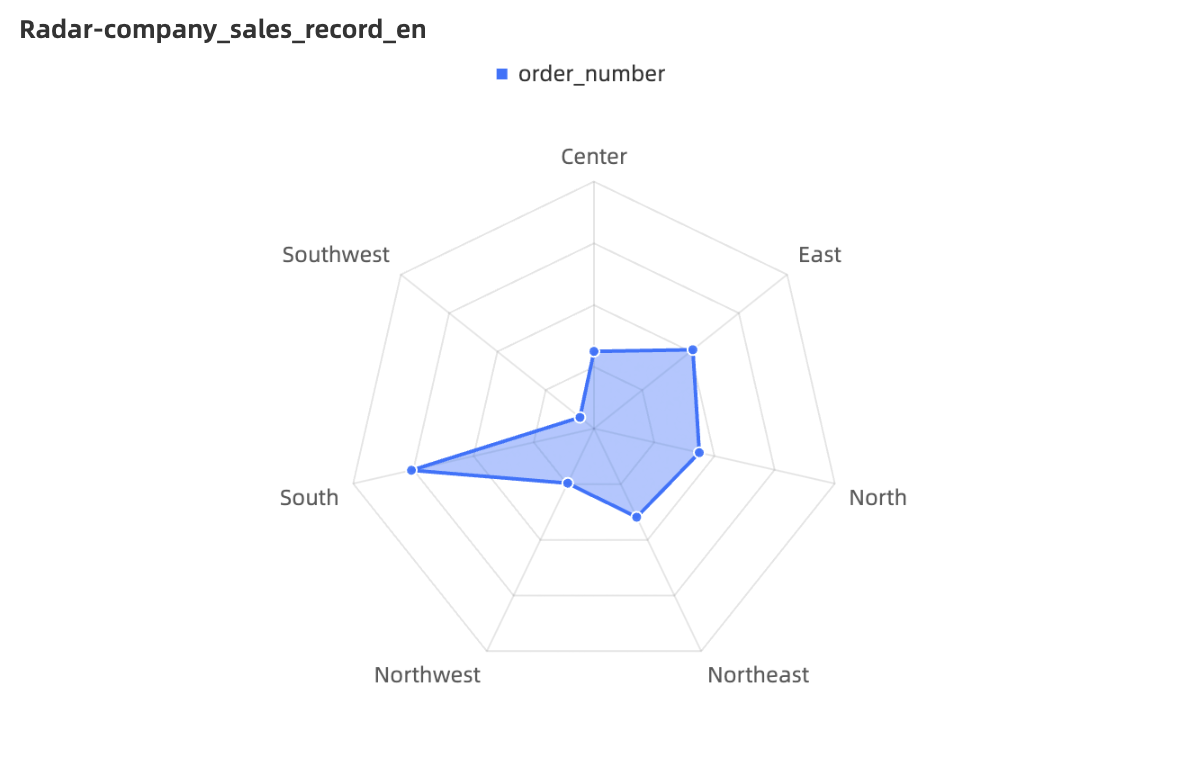
Field configuration
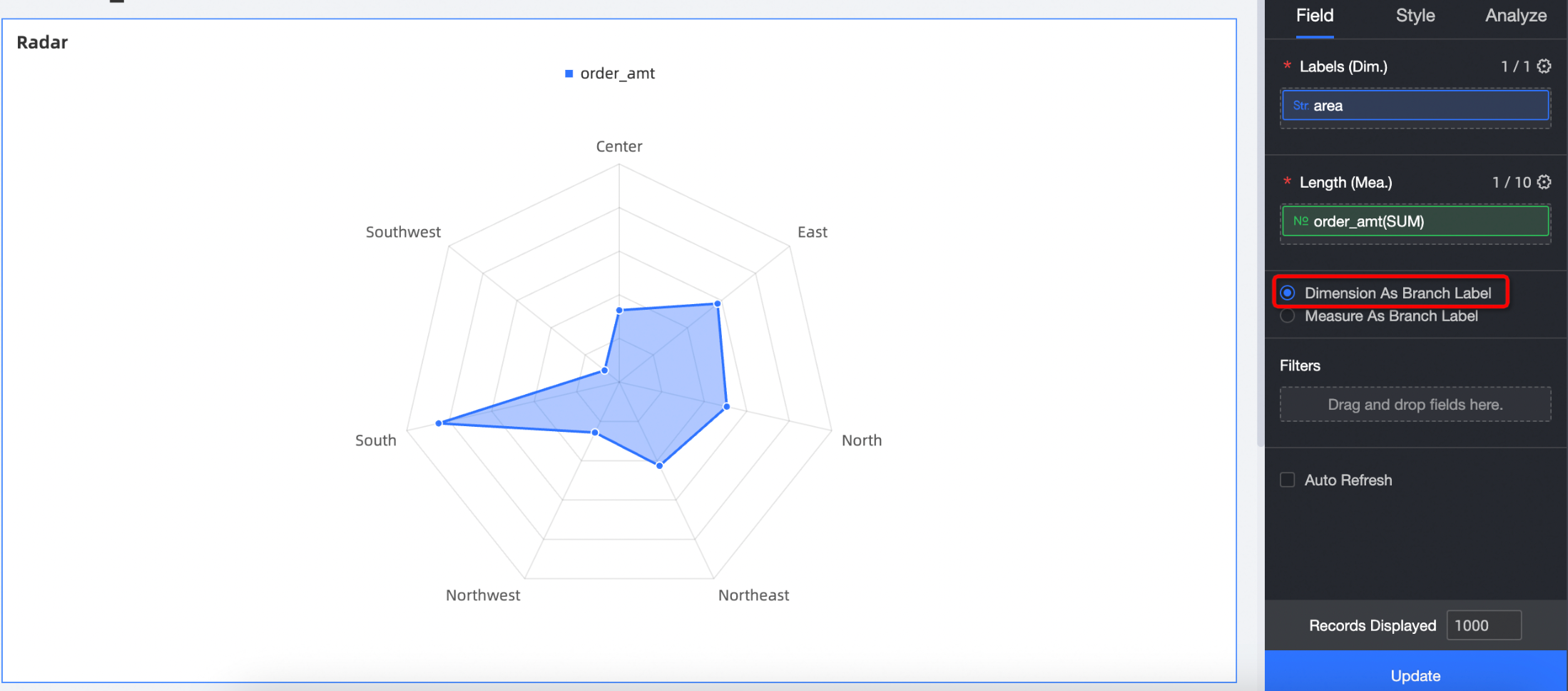
You can add data to a radar chart by using either the Dimension As Branch Label or Measure As Branch Label configuration method:
Dimension As Branch Label: Dimension values act as the branch nodes in the radar chart. Use this method to compare the area distribution across different measures.
Select the required dimension and measure fields, and then click Update.
In the Measures list, find back_point, and then double-click it or drag it to the Length (Mea.) field.
In the Dimensions list, find area, and then double-click it or drag it to the Labels (Dim.) field.
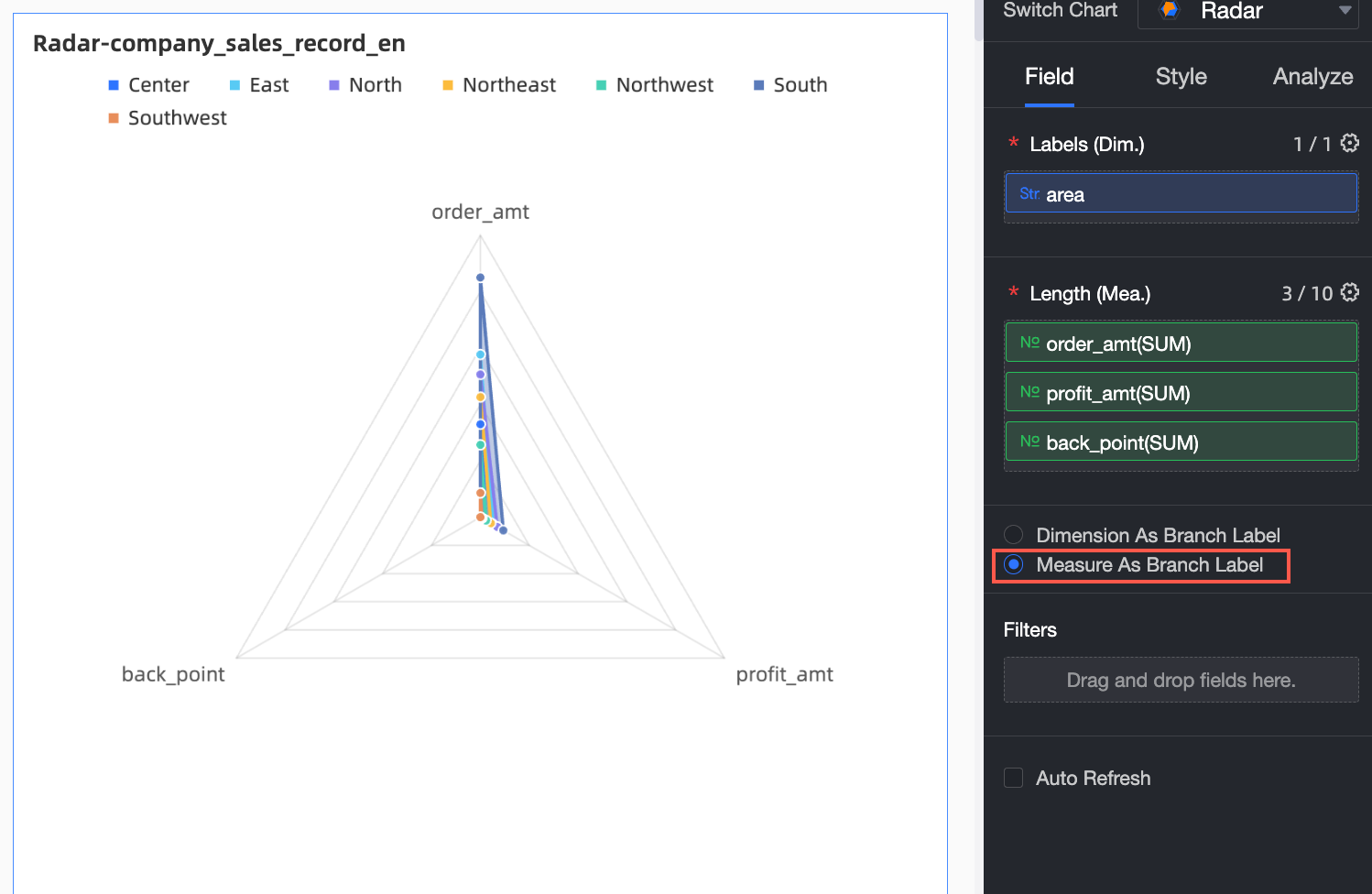
Measure As Branch Label: Measure values act as the branch nodes in the radar chart. Use this method to compare the area distribution across different dimension values.
Select the required dimension and measure fields, and then click Update.
In the Measures list, find order_number, profit_amt, and back_point, and then double-click them one by one or drag them to the Length (Mea.) field.
In the Dimensions list, find area, and then double-click it or drag it to the Labels (Dim.) field.
Style configuration
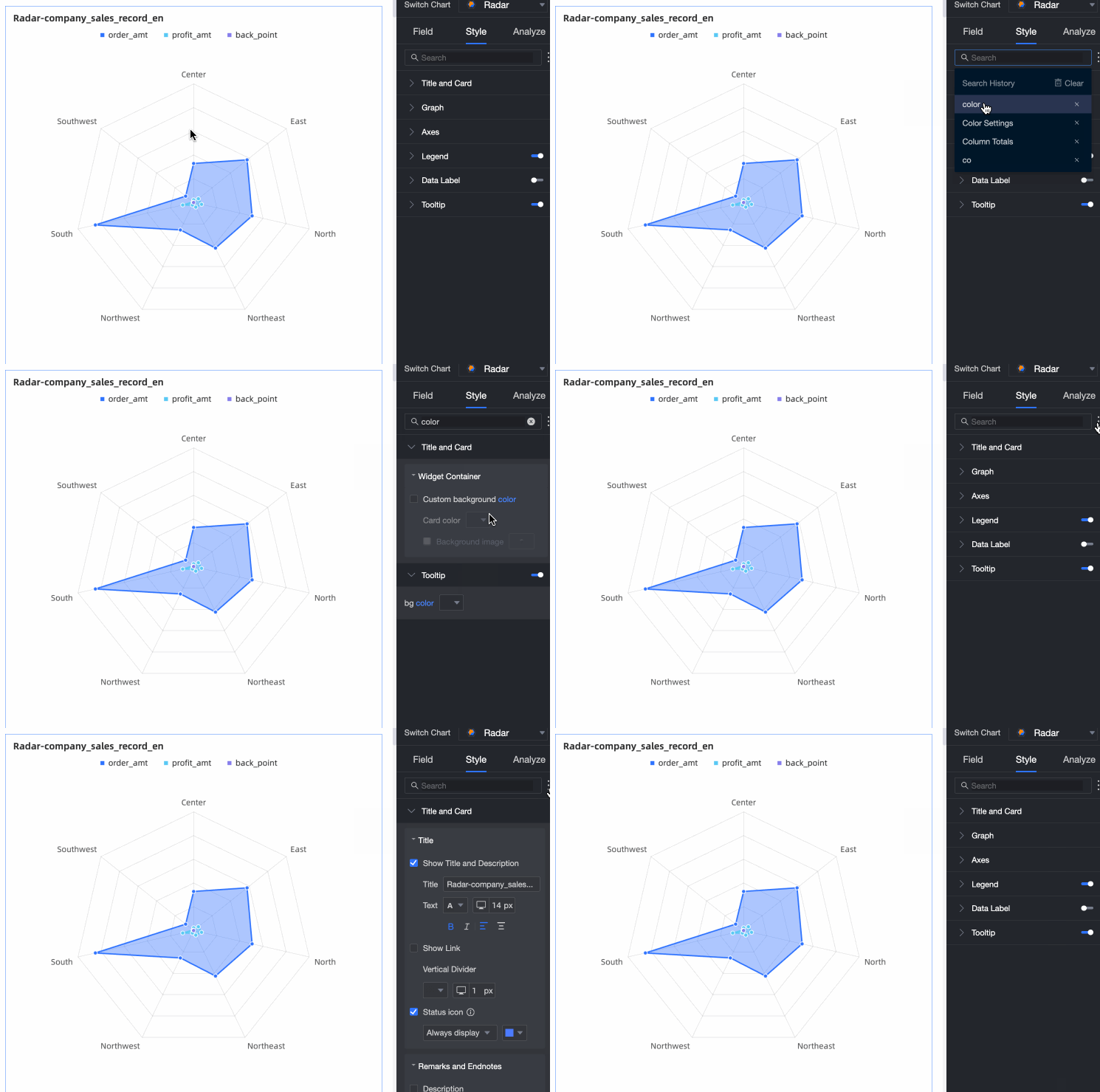
This section describes the style settings for a radar chart. For information about general style settings, see Configure the chart title section.
You can enter a keyword in the search box at the top of the configuration pane to quickly find a specific setting. You can also click the  icon to Expand/Collapse All Categories.
Graphics
In the Graphics section, configure the following parameters.
Parameter | Description |
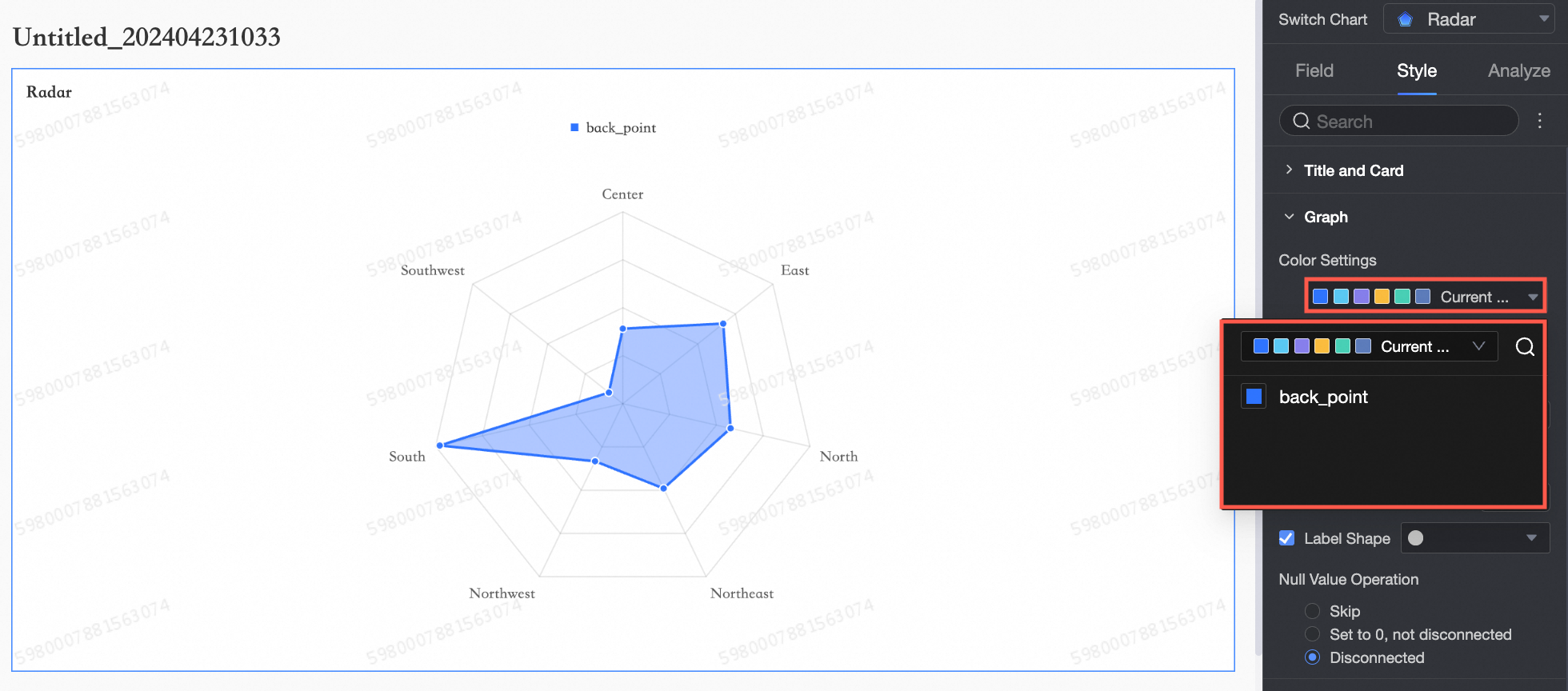
Color settings | Sets custom colors for the radar chart.
|
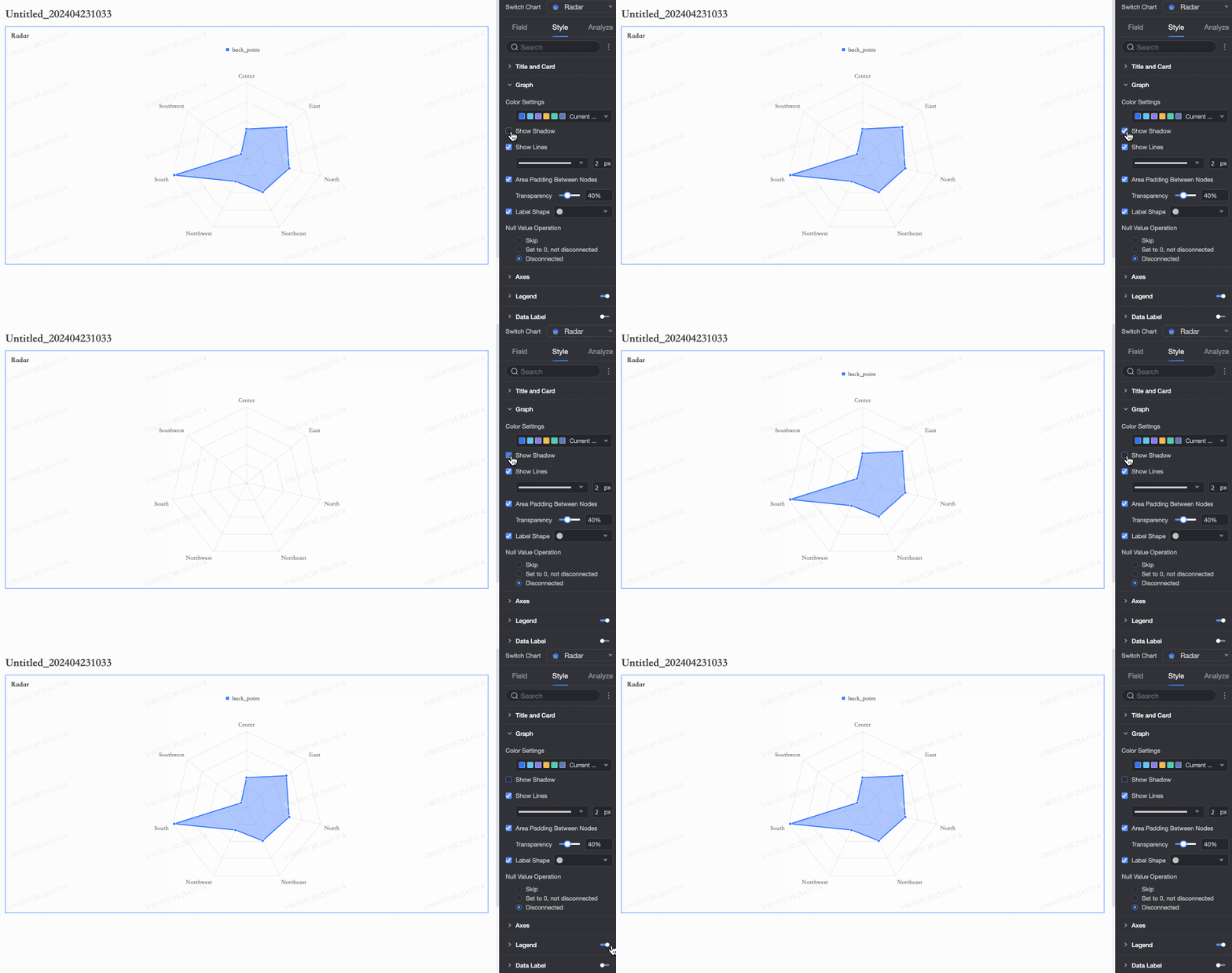
Show shadow | Shows or hides a shadow effect.
|
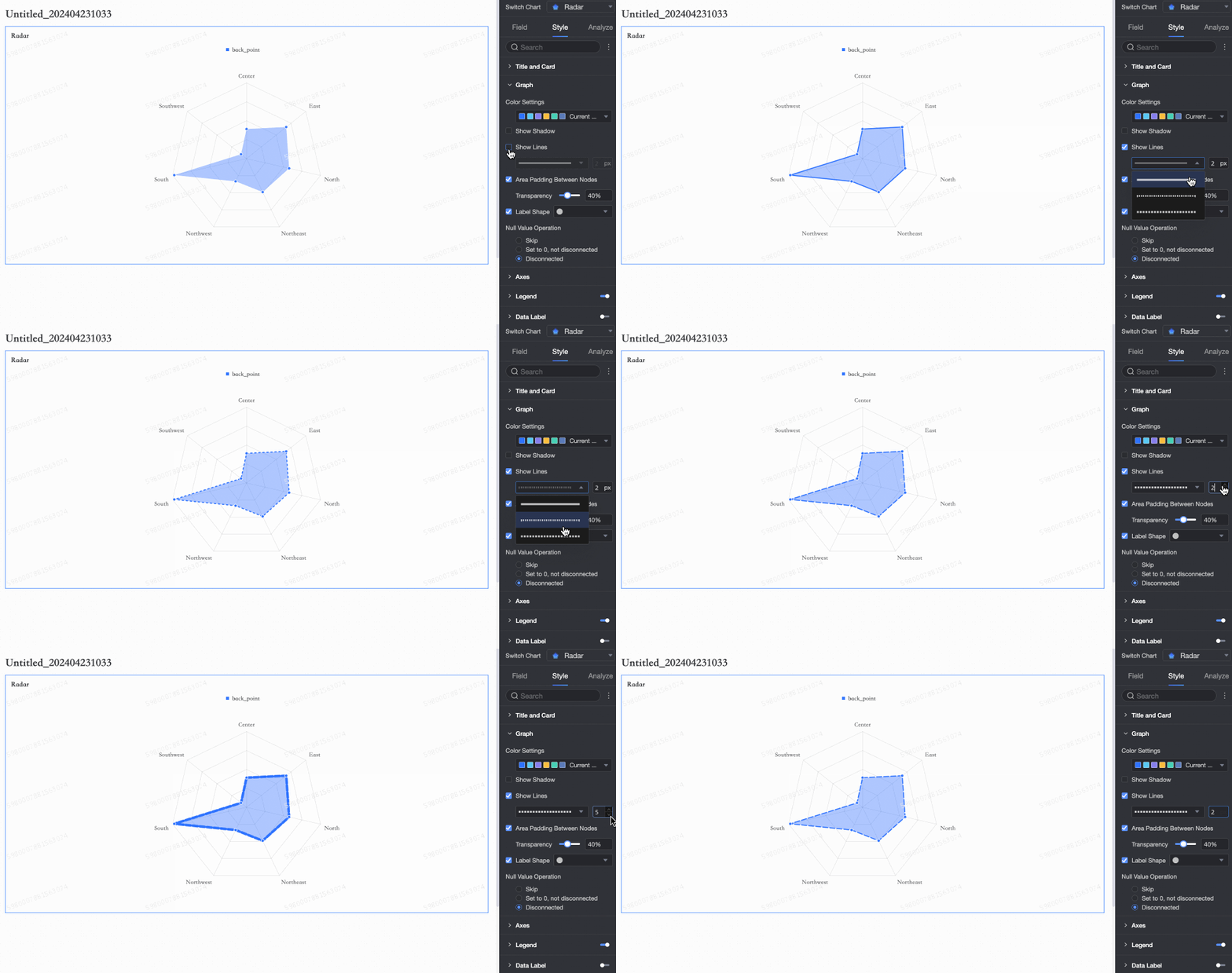
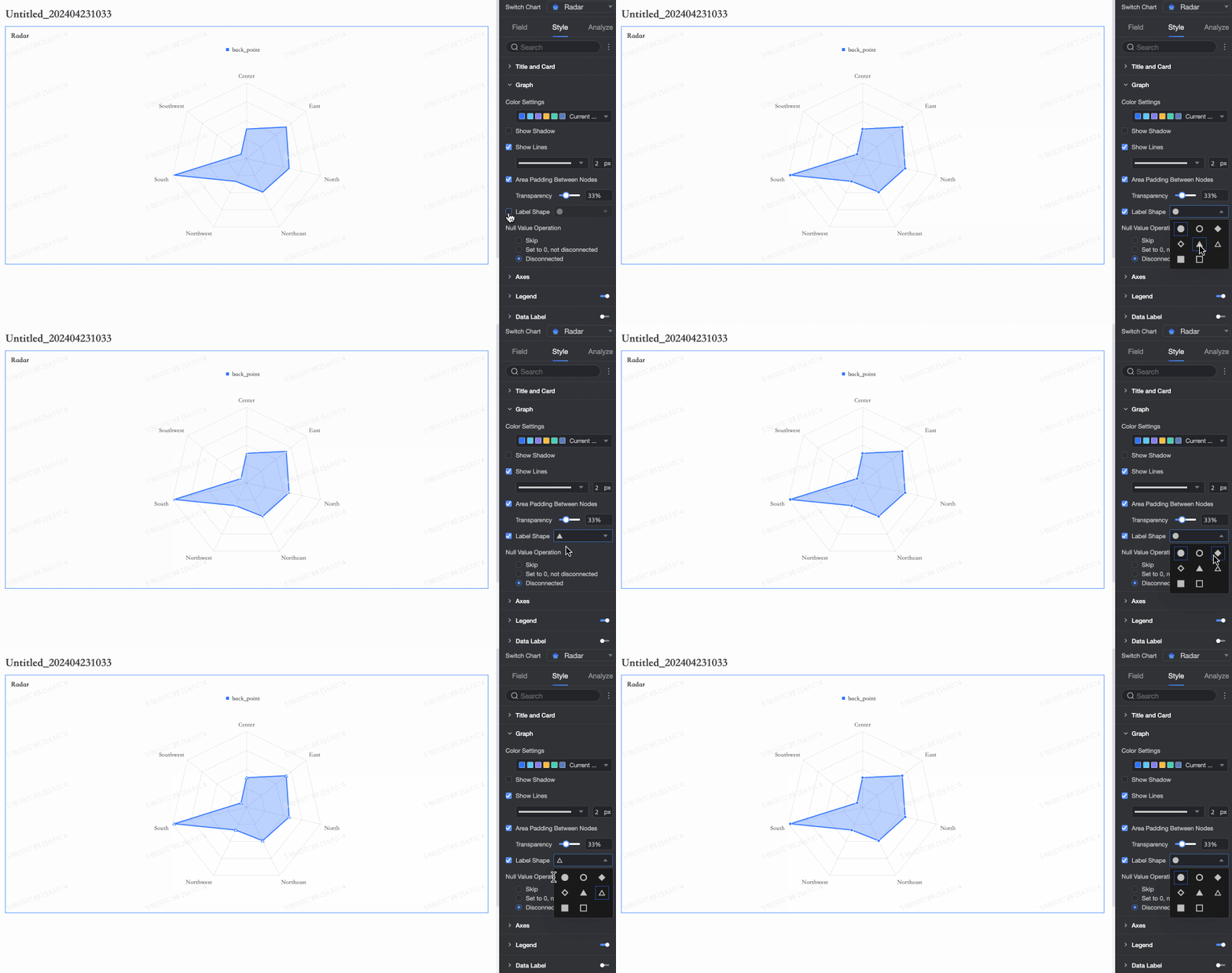
Show lines | Shows or hides lines and lets you configure their shape and thickness.
|
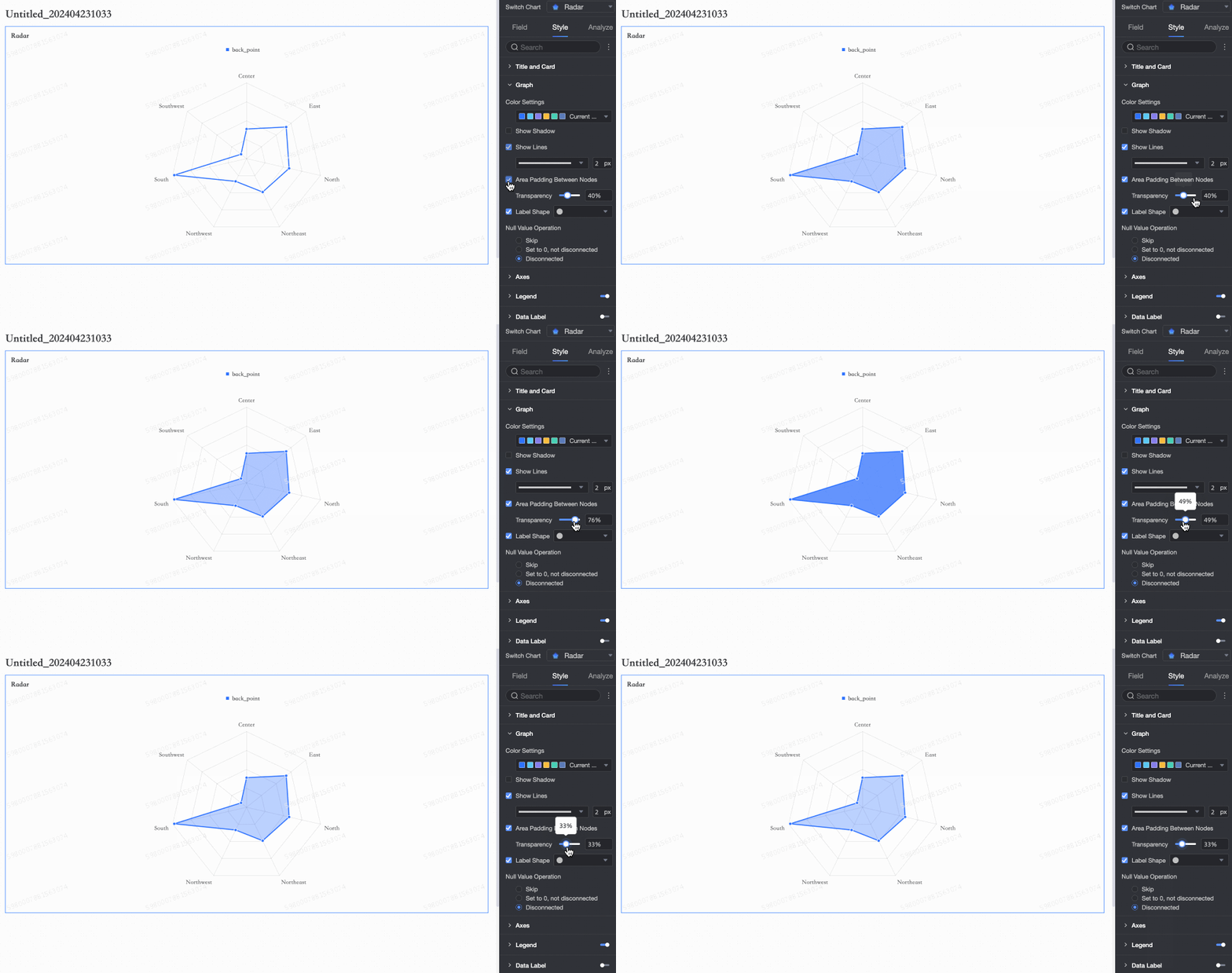
Area padding between nodes | Fills the area between nodes and sets the fill opacity.
|
Show markers | Shows or hides markers for data points and sets their shape.
|
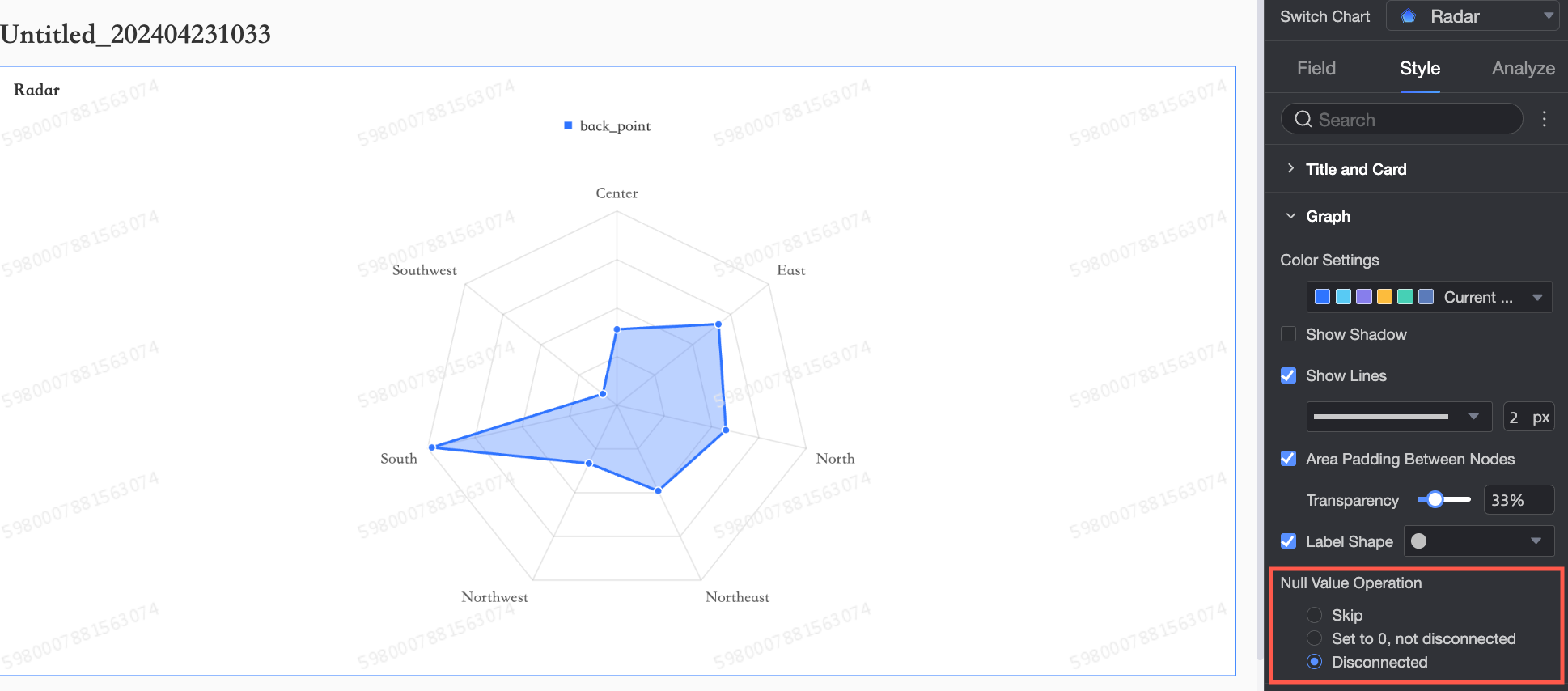
Null value handling | Sets how to handle null values in the chart. Options include: Skip, Treat as 0 without breaking the line, and Break the line.
|
Axes
In Axis, set Visualization Style, Maximum Value, and Show Axis Labels.
Parameter | Description |
Layout | Supports two styles: Polygon and Circle.
|
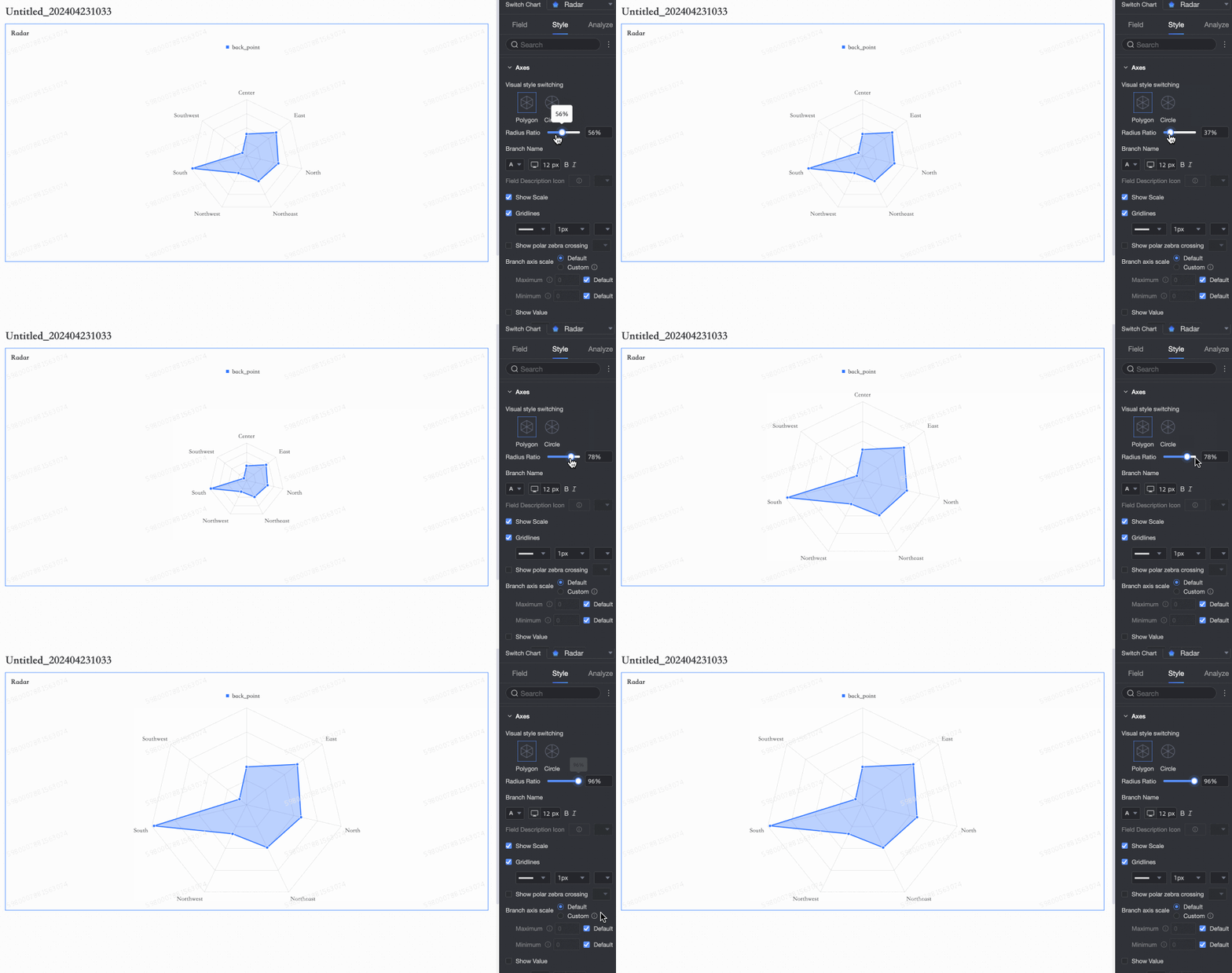
Radius ratio | Sets the radius ratio of the chart.
|
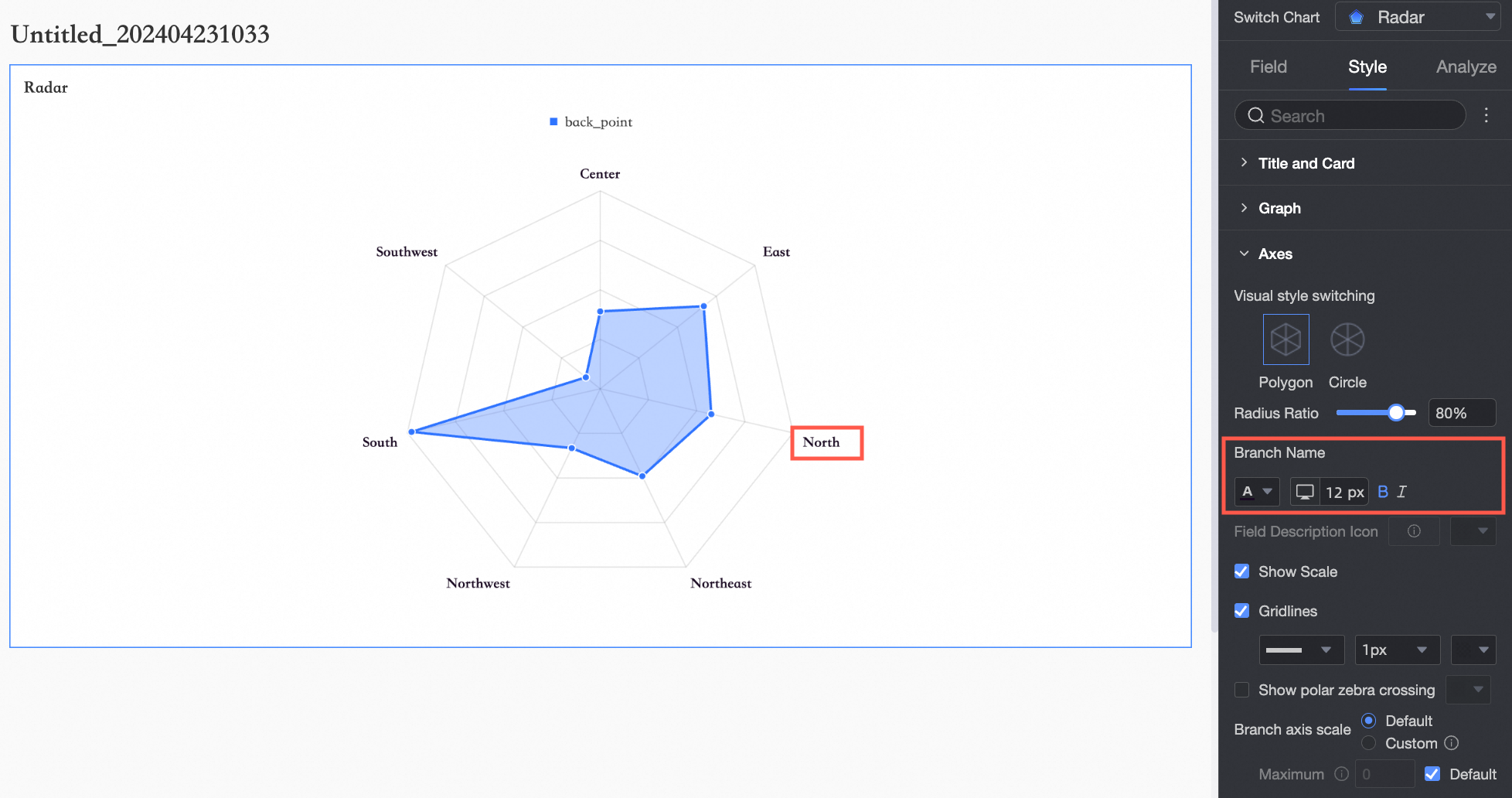
Branch name | Sets the branch name and its text style.
|
Field description icon | Sets the icon and color for field descriptions. |
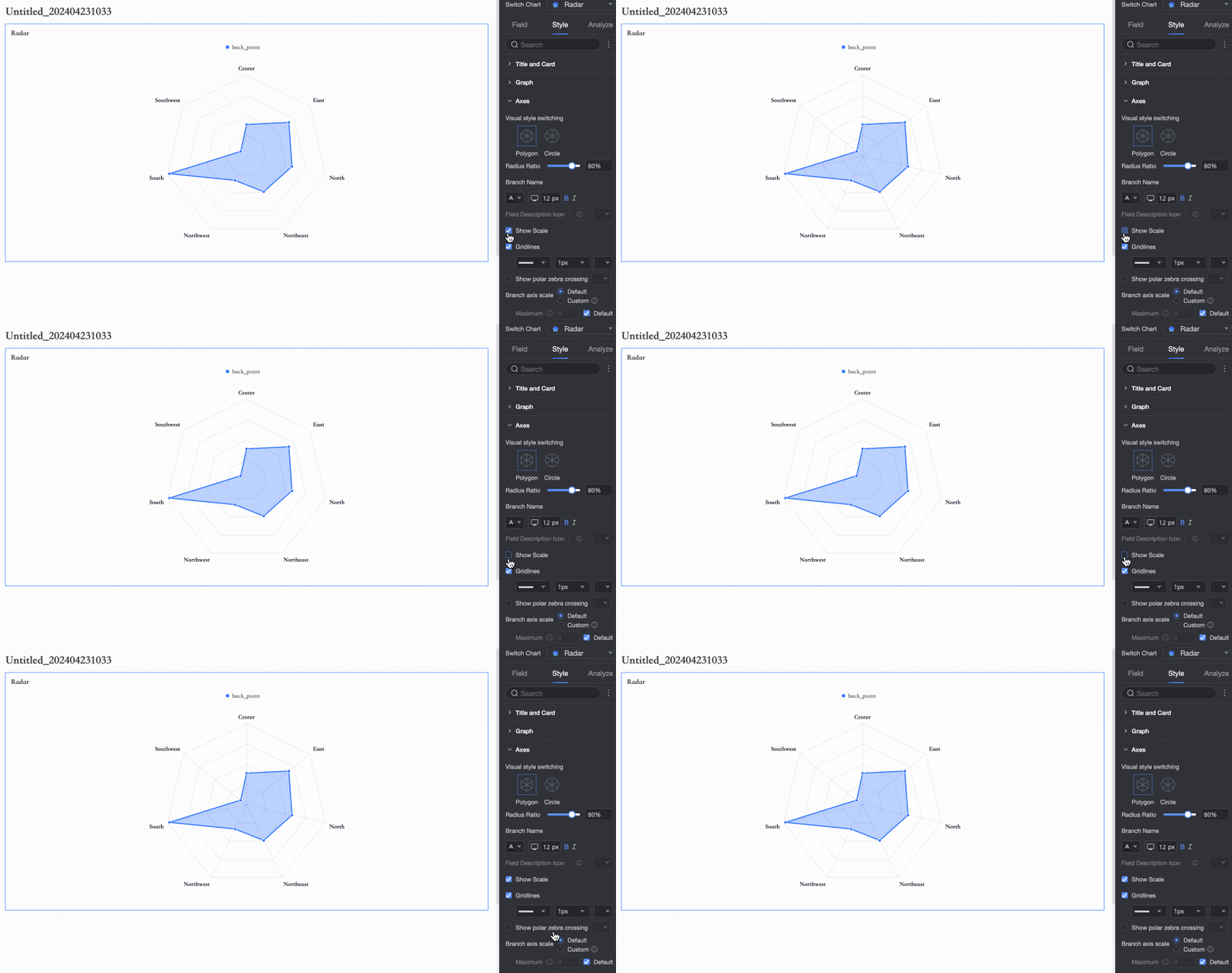
Show tick marks | Shows or hides tick marks.
|
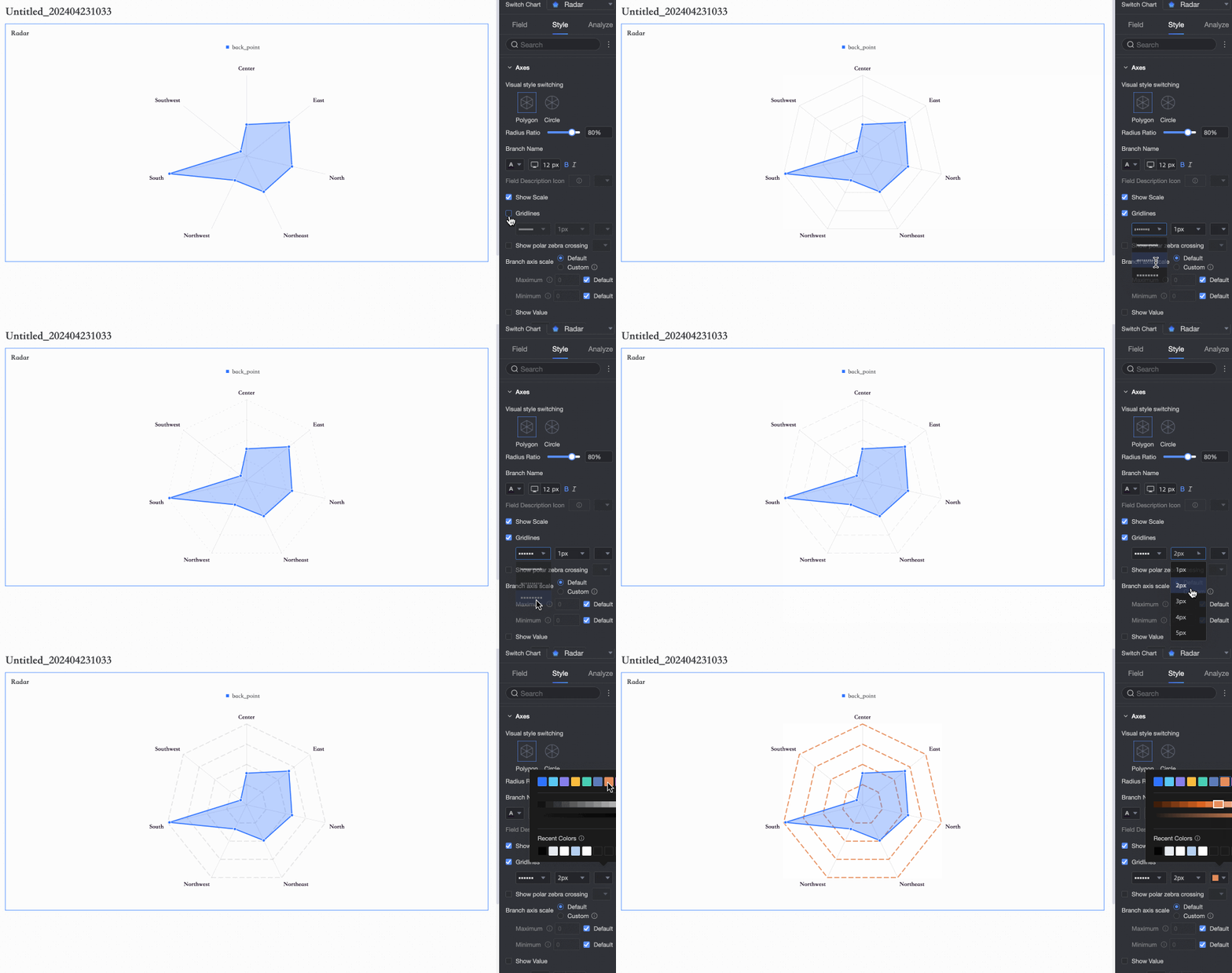
Show grid lines | Shows or hides grid lines and configures their shape, size, and color.
|
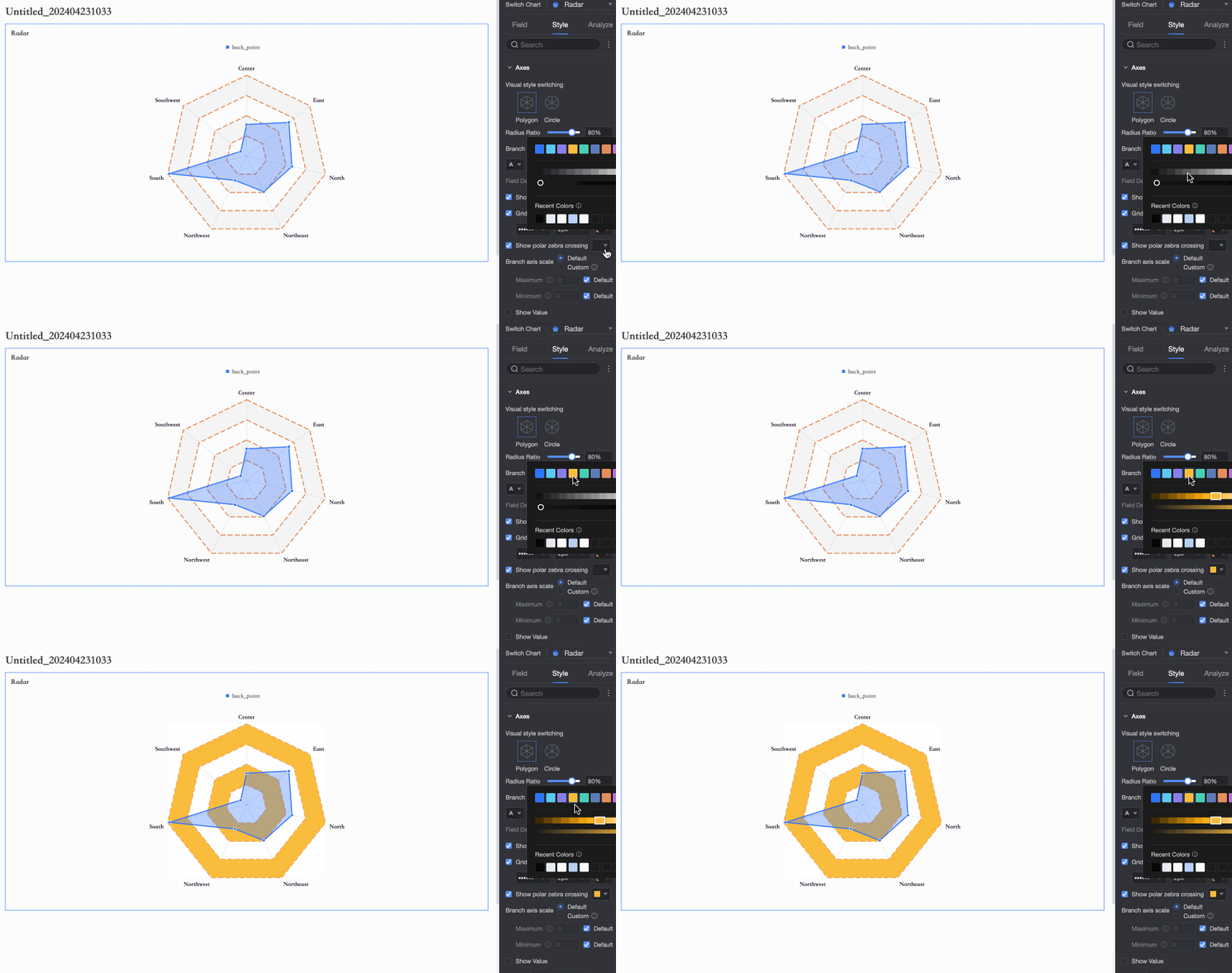
Show polar zebra stripes | Shows or hides polar zebra stripes and sets their color.
|
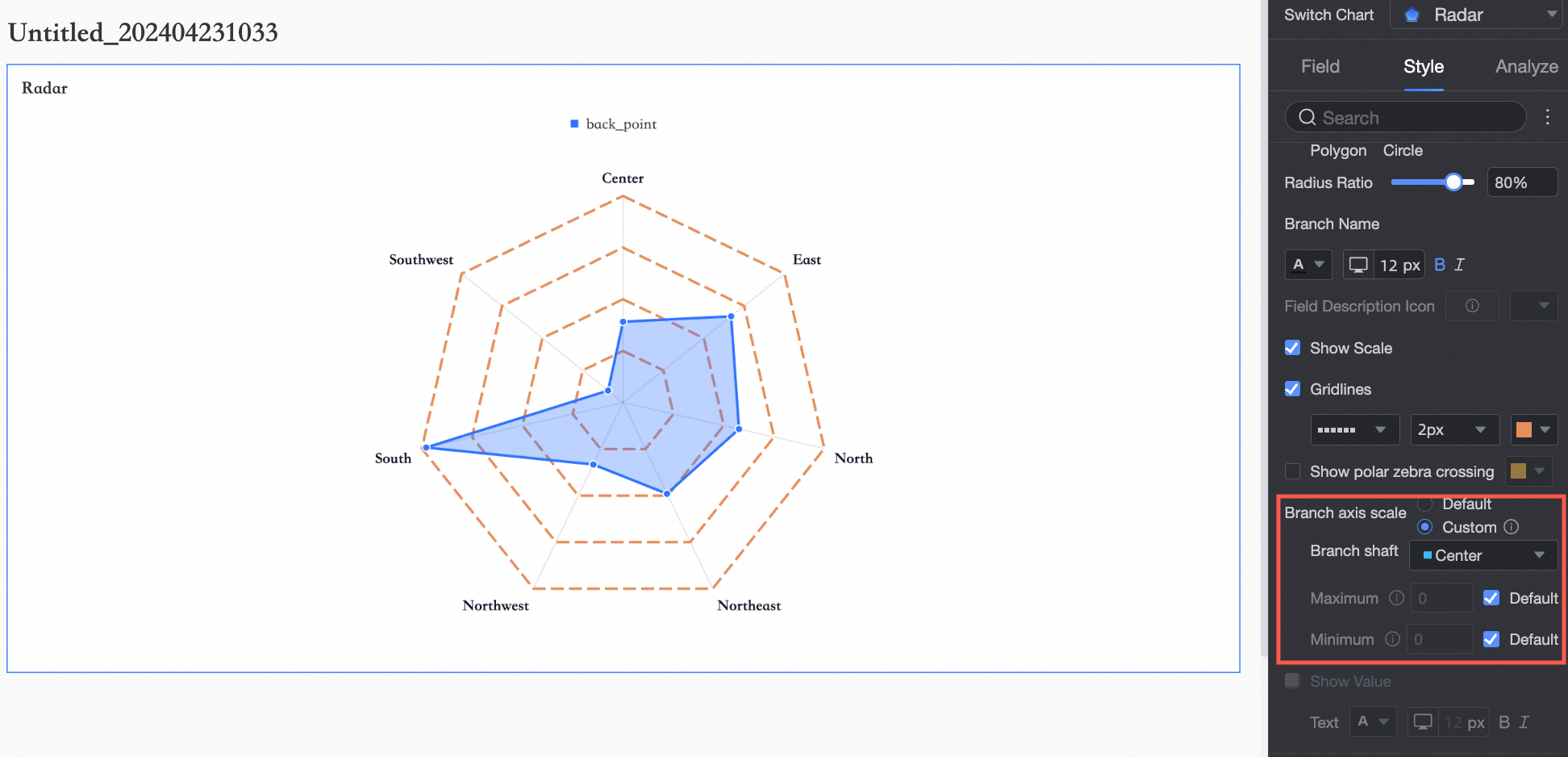
Axis range | Sets the axis range to Auto or Custom. When you select Custom, you can set the maximum and minimum values for the axis.
Note
|
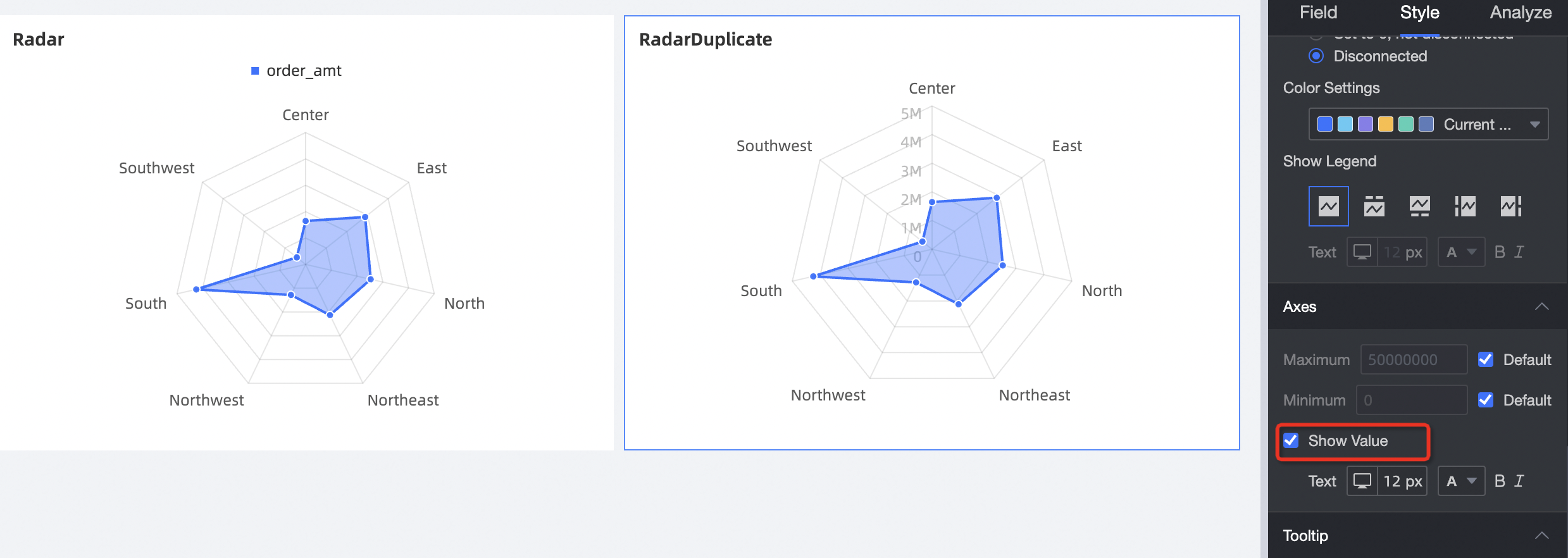
Show value | Shows or hides labels on the radial axes to indicate value.
|
Legend
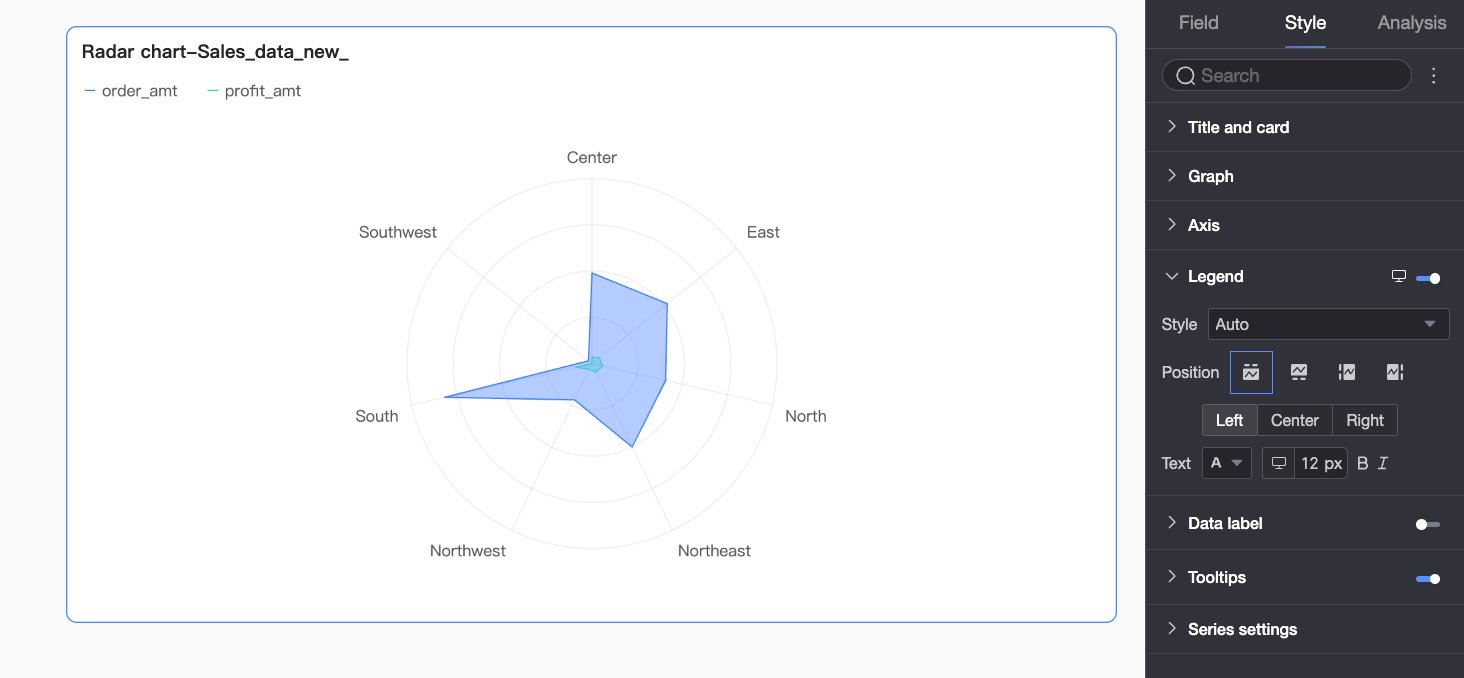
In the Legend section, click the  icon to enable the legend and configure its style.
PC settings

Parameter
Description
Style
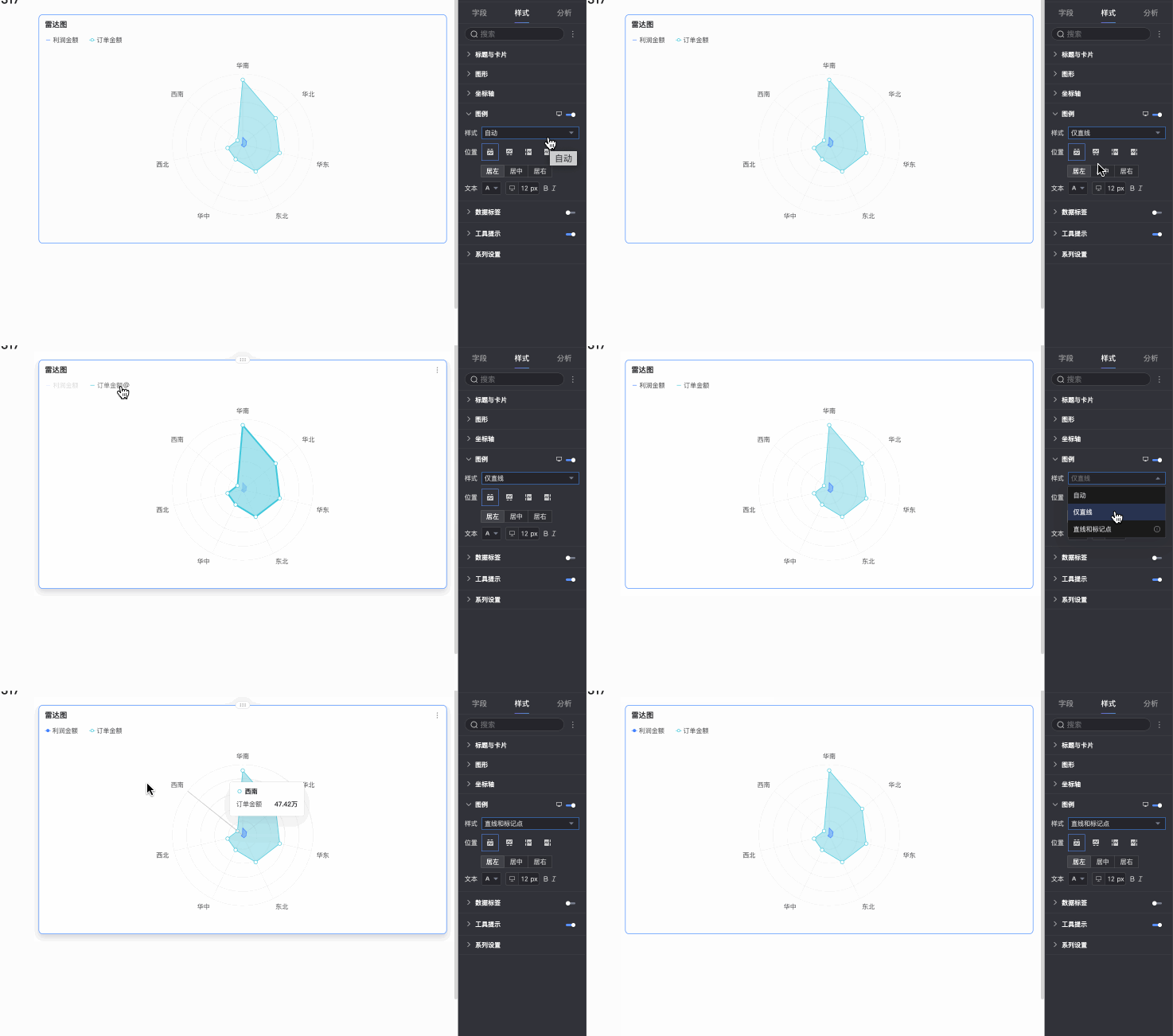
Sets the style of the legend icon. Options: Auto, Line only, and Line and marker.
NoteIf you select Line and marker, the legend icon syncs with the marker style set in the chart. If no marker style is configured, a solid circle appears by default.
If you select Scale legend symbol with text in Theme Design > General Content Style, the size and line thickness of the legend icon adjust proportionally based on the chart's line thickness and the legend text size.
Position
Sets the display position and alignment of the legend on a PC.
If the position is set to Top or Bottom, you can select Left, Center, or Right alignment.
If the position is set to Left or Right, you can select Top, Center, or Bottom alignment. You can also set the distance between the legend and the chart content.
Text
Sets the text style for the legend on a PC, including font color, size, weight, and slant.
Mobile settings
Parameter
Description
Position
Sets the display position and alignment of the legend on a mobile device.
If the position is set to Top or Bottom, you can select Left, Center, or Right alignment.
If the position is set to Left or Right, you can select Top, Center, or Bottom alignment. You can also set the distance between the legend and the chart content.
NoteWhen the position is set to Top, you can enable labels below the legend. When enabled, custom alignment is unavailable.
Text
Sets the text style of the measure name in the legend on a mobile device, including font color, size, weight, and slant.
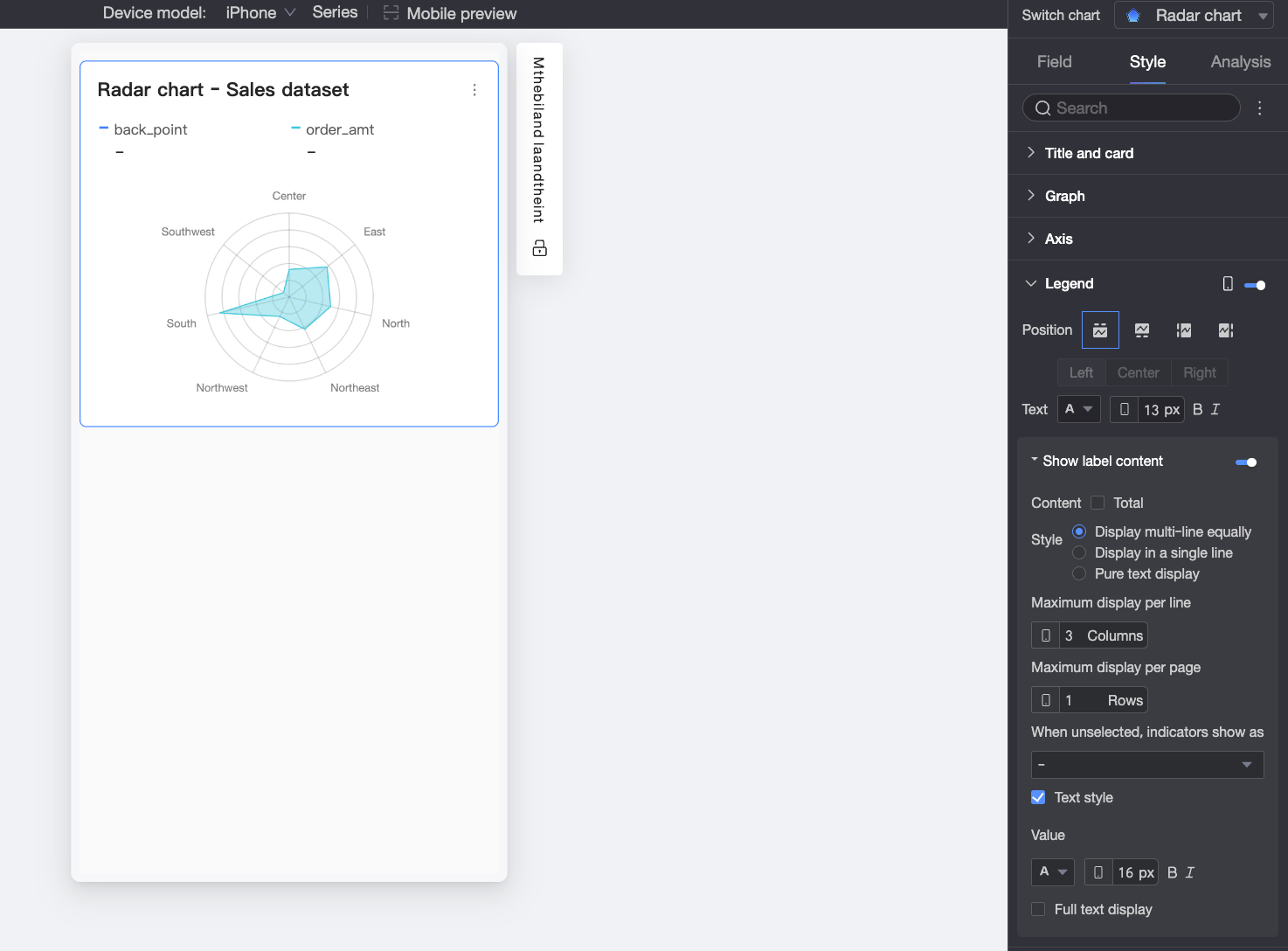
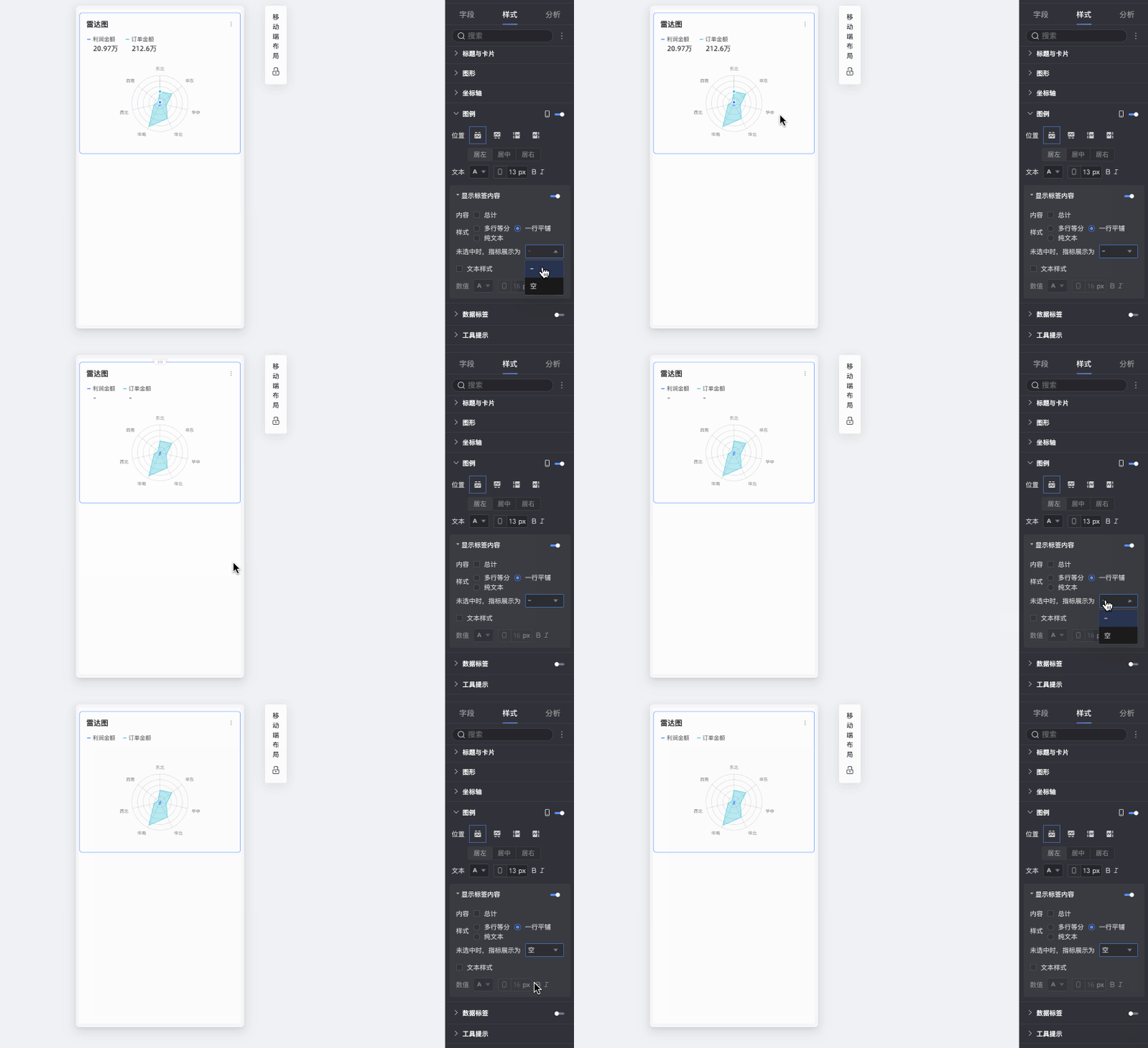
Display label content
When Position is set to Top, click the
icon to enable labels below the legend.Content
Shows or hides the total value in the label below the legend.
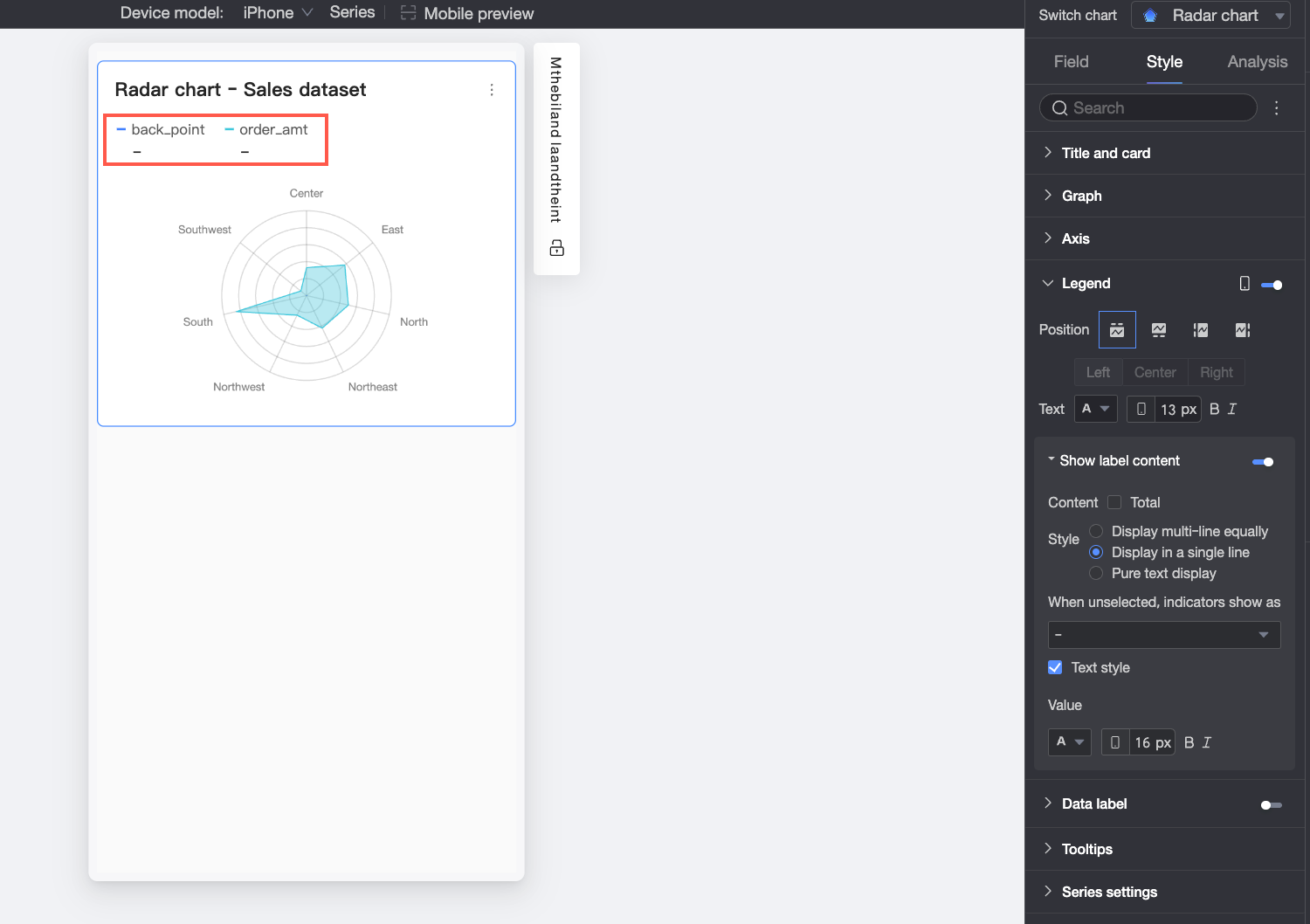
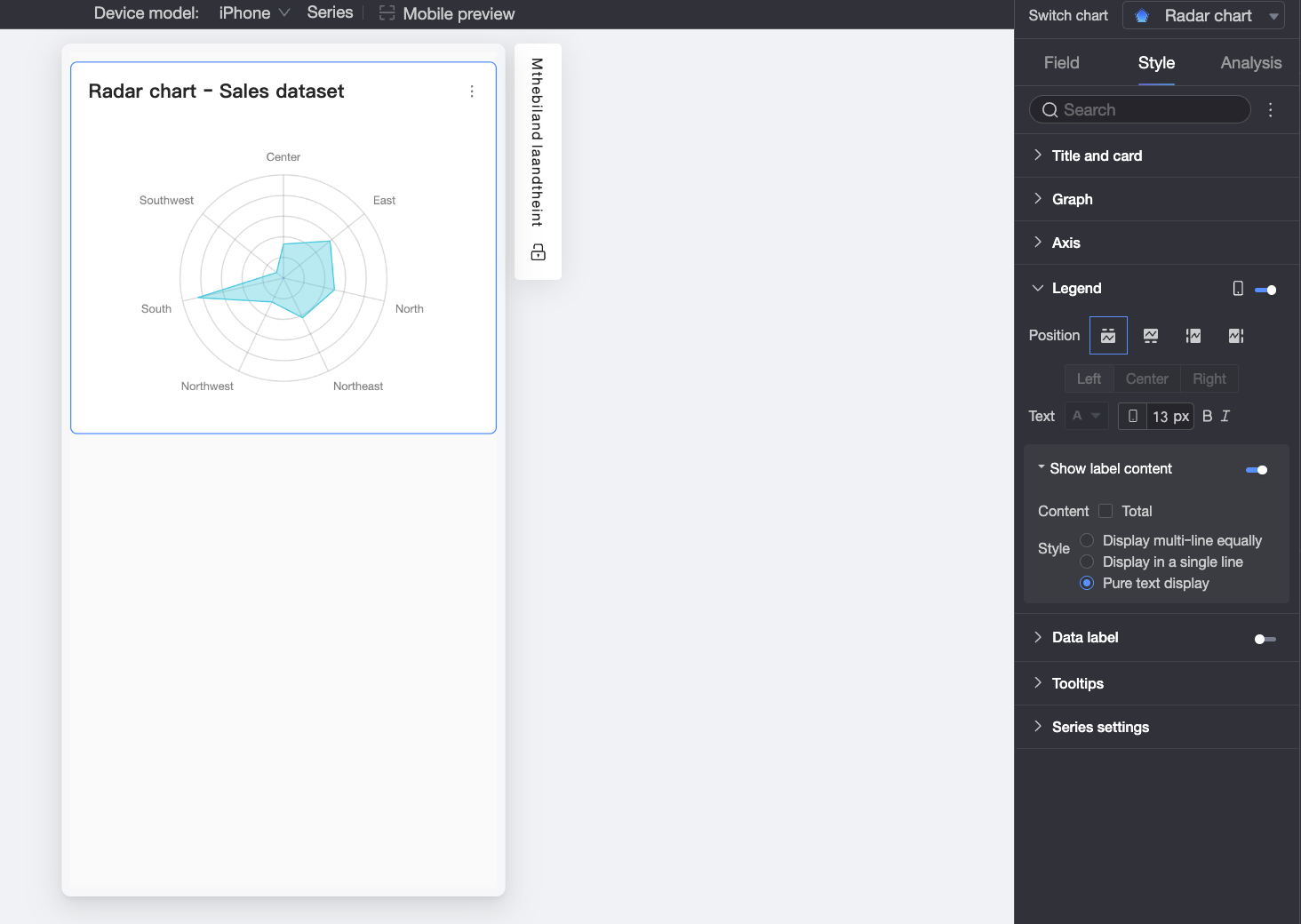
Style
Sets the layout style for the labels below the legend. Options include:
Equal-width multi-row: Arranges labels in a grid based on the number of columns set in Max columns per row and the number of rows set in Max rows per page.
Single-line tiled: Displays all label content on a single line.
Plain text: Displays only text without icons. The text color matches the line color of the corresponding measure in the chart.
When not selected, show measure as
When Style is set to Equal-width multi-row or Single-line tiled, you can configure how to display an unselected measure. You can choose to display it as a hyphen (-) or as Blank.
Text style
When Style is set to Equal-width multi-row or Single-line tiled, you can configure the style of the Value text.
 icon to enable labels below the legend.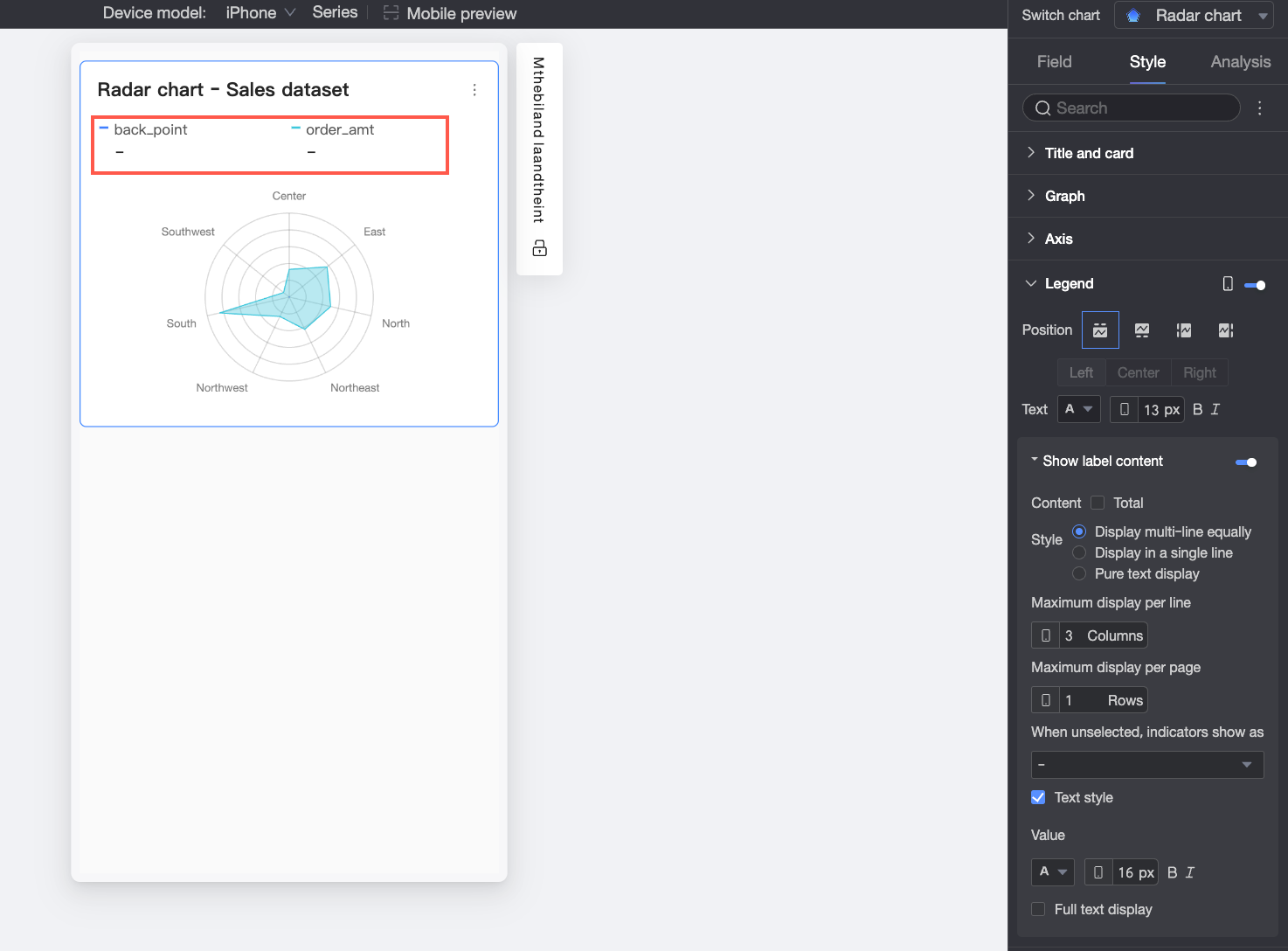
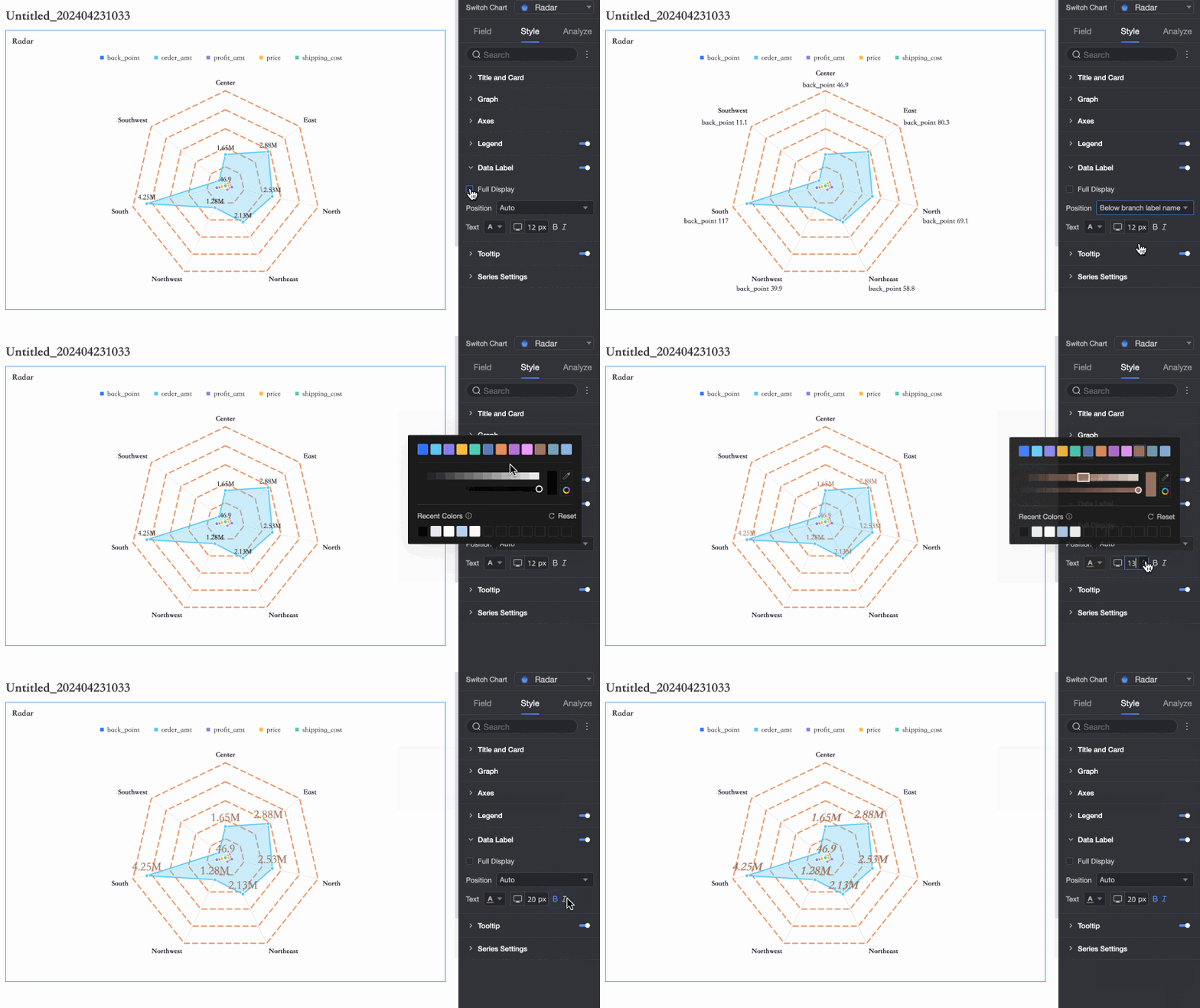
Data labels
In the Data labels section, configure show labels, label position, and label style.
Tooltip
In the Tooltip section, click the icon to enable tooltips and configure their display method.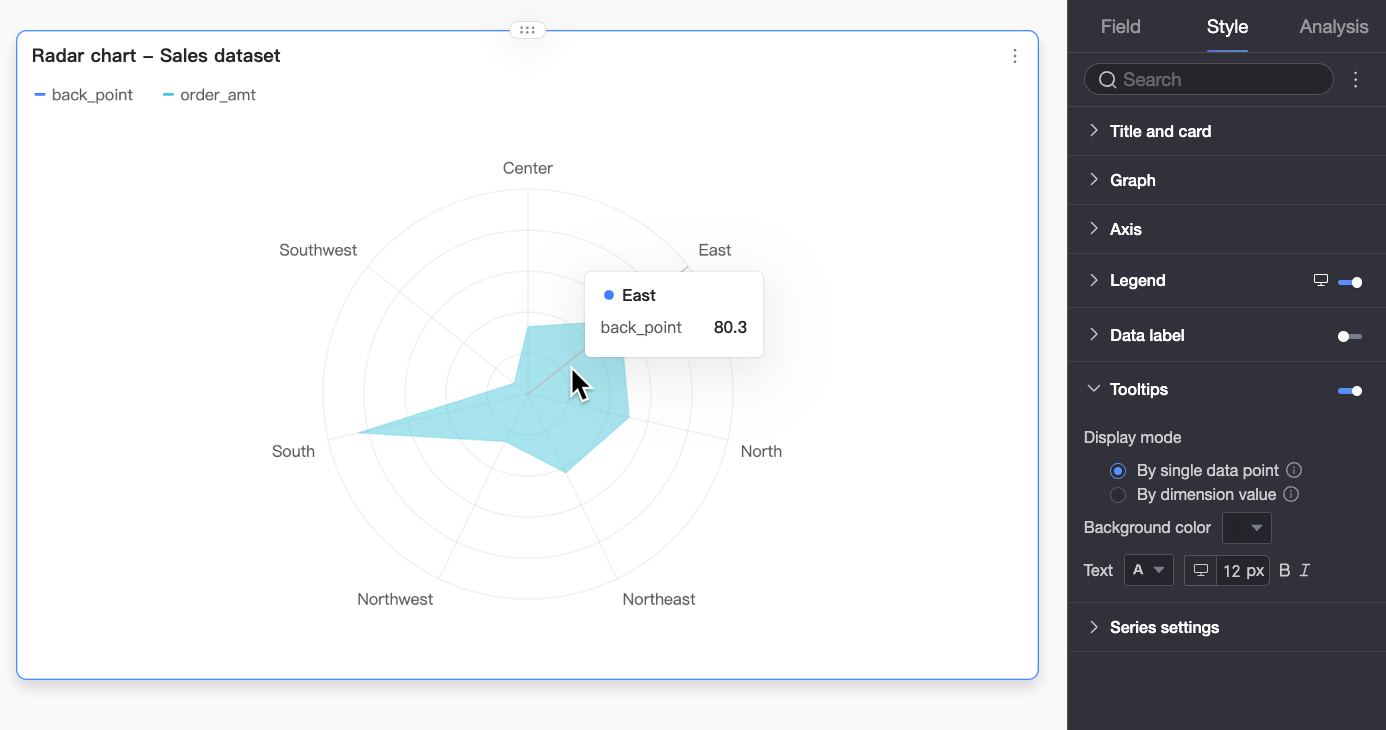
Parameter | Description |
Display mode | Sets the tooltip display mode. Options: By single data point and By dimension value. |
Background color | Sets the background fill color of the tooltip. |
Text | Sets the text style within the tooltip, including font color, size, weight, and slant. |
Mobile tooltip | You can enable tooltips for PC and mobile independently. To edit mobile tooltips, switch to the mobile editing view by using the PC/mobile toggle button ( |
 ) at the top of the dashboard edit page. You can set the font size separately for PC and mobile, but they share all other style settings.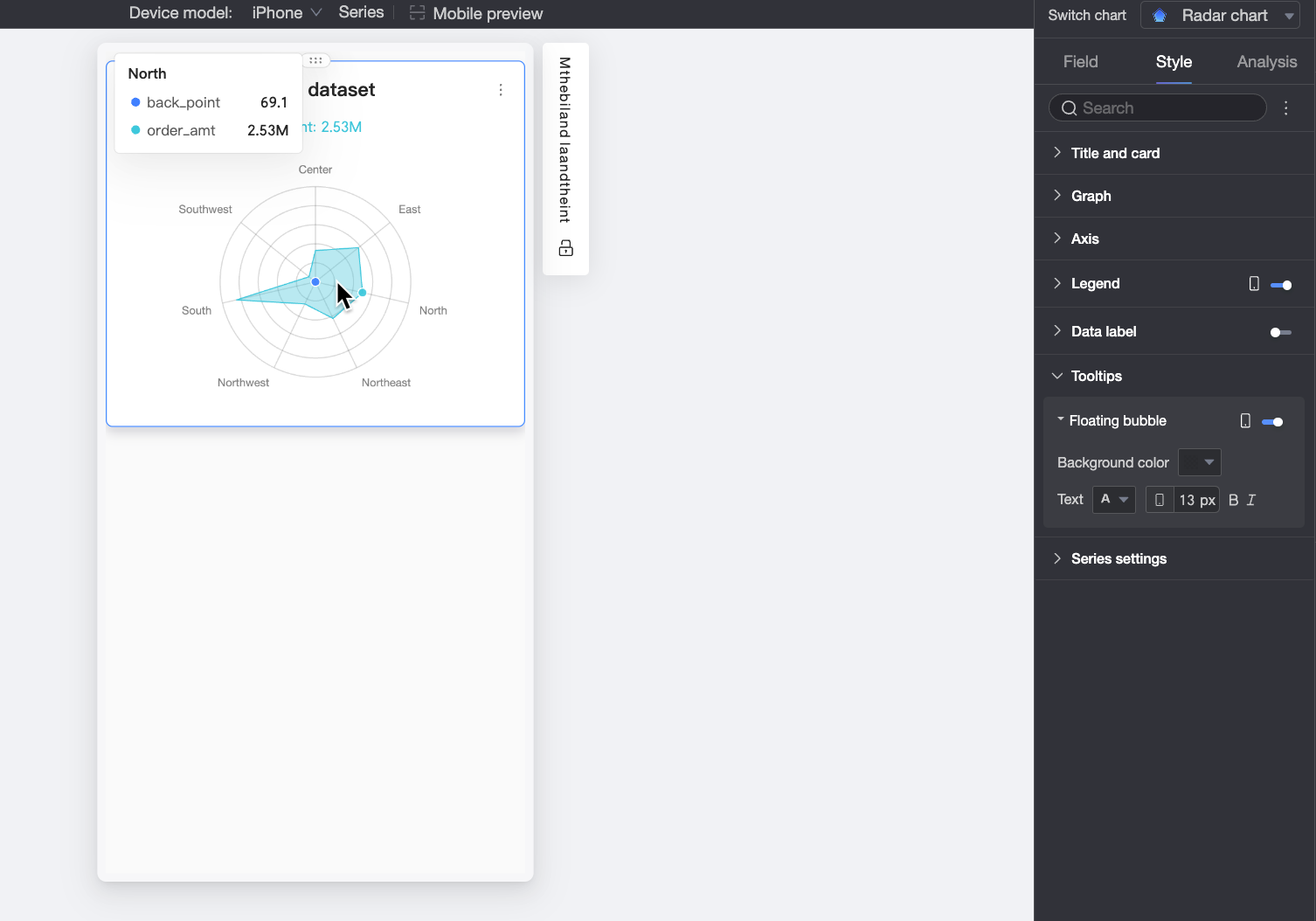
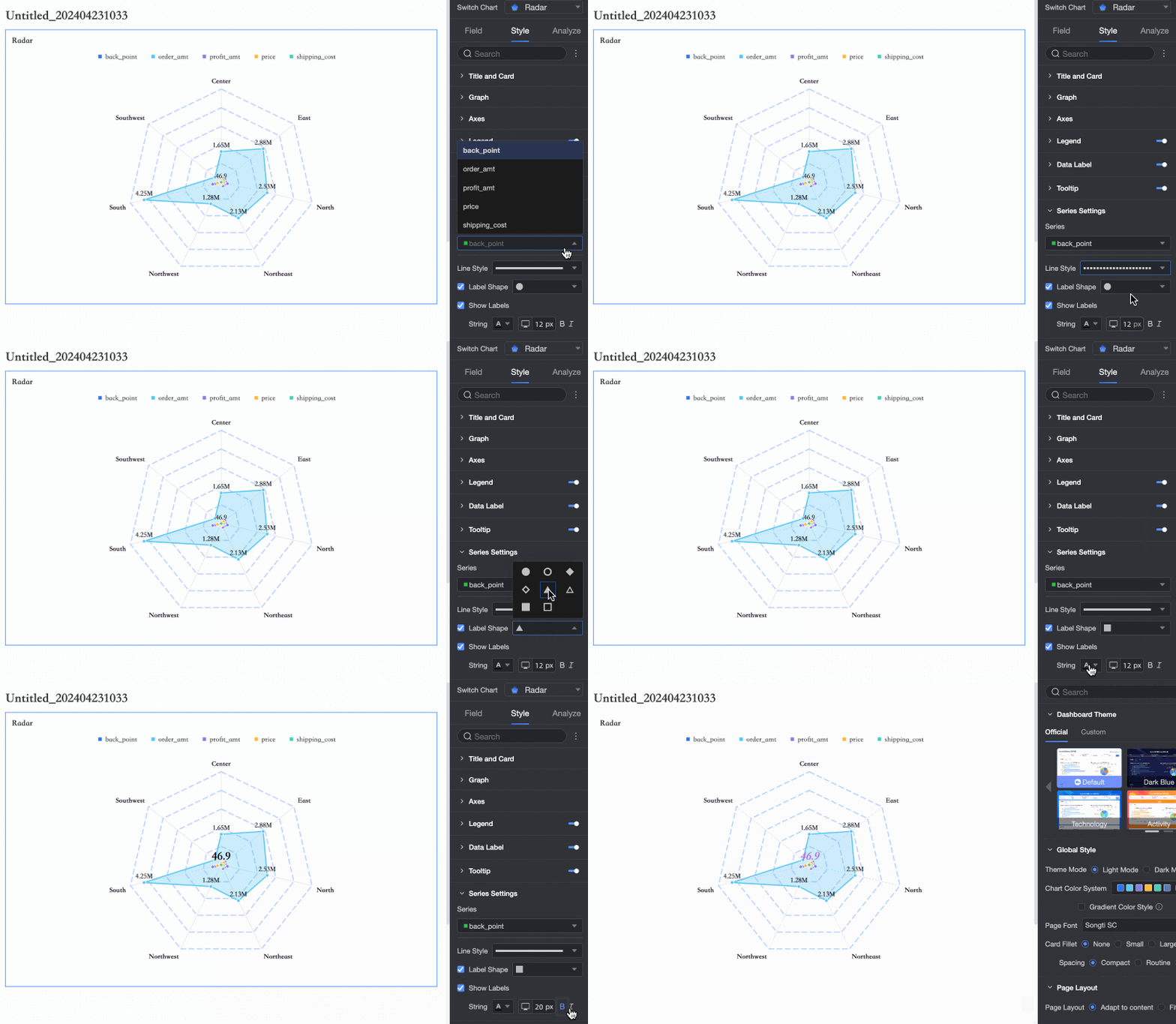
Series settings
In the Series settings section, configure Line Style and Show Markers.
Analysis features
Category | Feature | Description |
Data interaction | Drill-down | After configuring drill-down fields in the fields pane, you can set the display style for drill-down hierarchy rows. |
Filter interaction | If the data you need to analyze is in different charts, you can link the charts to enable filter interaction for data analysis. For more information, see Filter interaction. When using the Measure As Branch Label method, you can enable Measure jump and configure a Jump icon.
| |
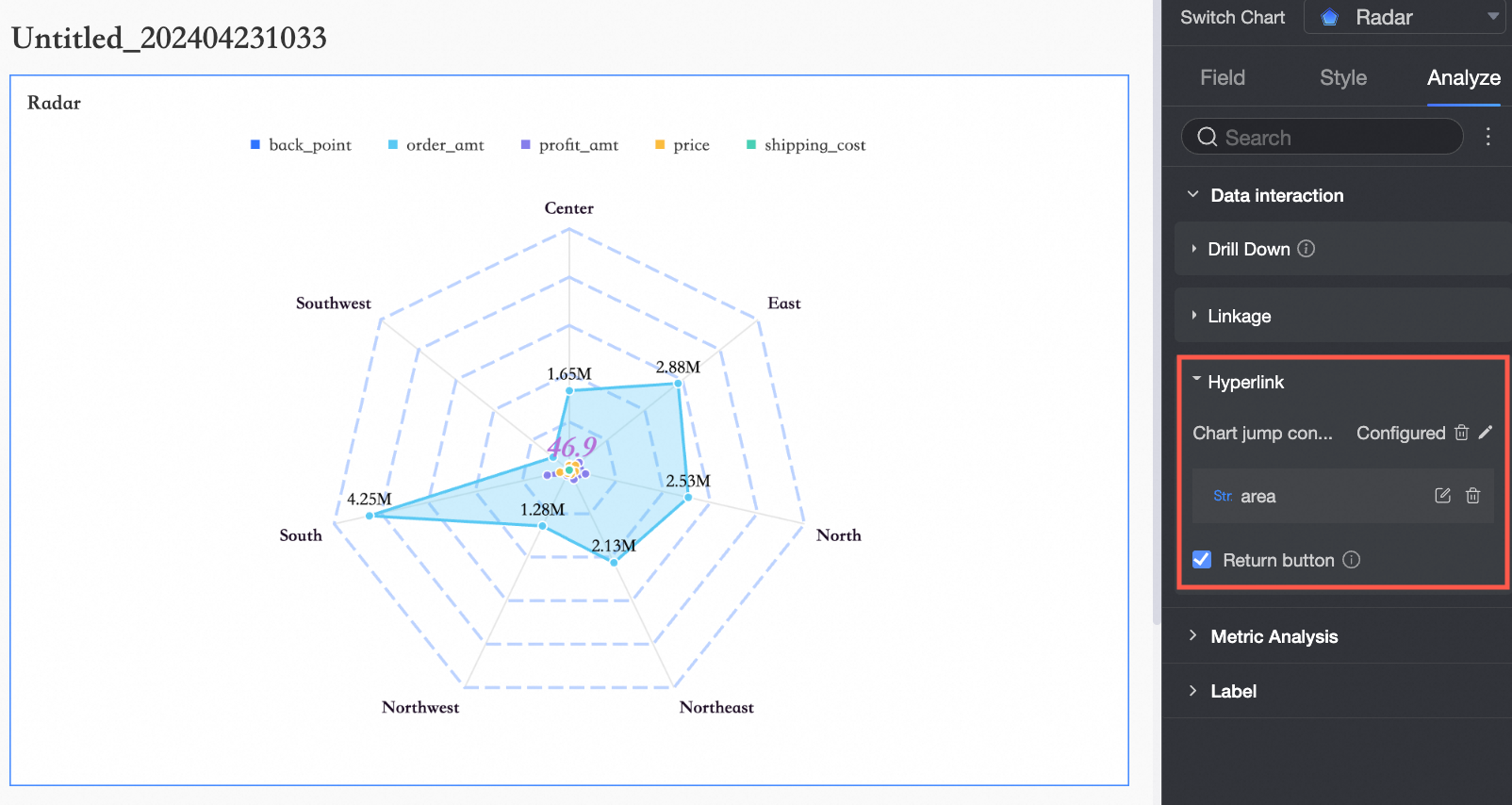
Jump | If the data you need to analyze spans multiple dashboards, you can link them using a jump for comprehensive analysis. Jump supports three modes: In-product jump, In-page component, and External link. For more information, see Jump. | |
Analysis and alerts | Auxiliary line | An auxiliary line helps you compare the current measure value against a set reference value. The reference value can be a fixed value or a calculated value, such as average, maximum, minimum, or median. For more information, see Auxiliary line. |
Annotation | - | When data in a chart shows anomalies or requires special attention, you can use color highlights, icons, comments, or data point annotations to identify issues and take action. For more information, see Annotation. |
Next steps
To allow others to view the dashboard, you can share it with specific users. For more information, see Share a dashboard.
To create a complex, topic-based analysis with a navigation menu, you can integrate your dashboards into a data portal. For more information, see Create a PC data portal.