Cross table
A cross table displays the aggregate value of a field in a table and groups similar data. One set of values forms the rows, and another set forms the columns. At the intersection of a row and column, you can apply aggregate operations, such as sum, average, count, maximum, and minimum. This topic explains how to add data to a cross table and configure its style.
Overview
Use cases
Multi-dimensional analysis: Analyze the relationships between dimensions, such as province and product type, and measures, such as profit.
Decision support: Make informed business decisions by comparing measures, such as order amount and shipping cost.
Complex calculation needs: Quickly obtain results for period-over-period comparisons, cumulative calculations, or percentage-based rankings.
Benefits
Calculation capabilities: Apply advanced calculations with a single click, including period-over-period comparison, cumulative calculation, percentage, ranking, TopN, percentile, grand total, and subtotal.
Visual effects: Customize various visual options, including table theme, tree display mode, freeze, auto line wrap, and column width.
Comments and linking: Add custom comments and endnotes containing text or measures. You can also add external links to interact with other systems.
Event triggers: Trigger specific events, such as data entry or opening a DingTalk conversation.
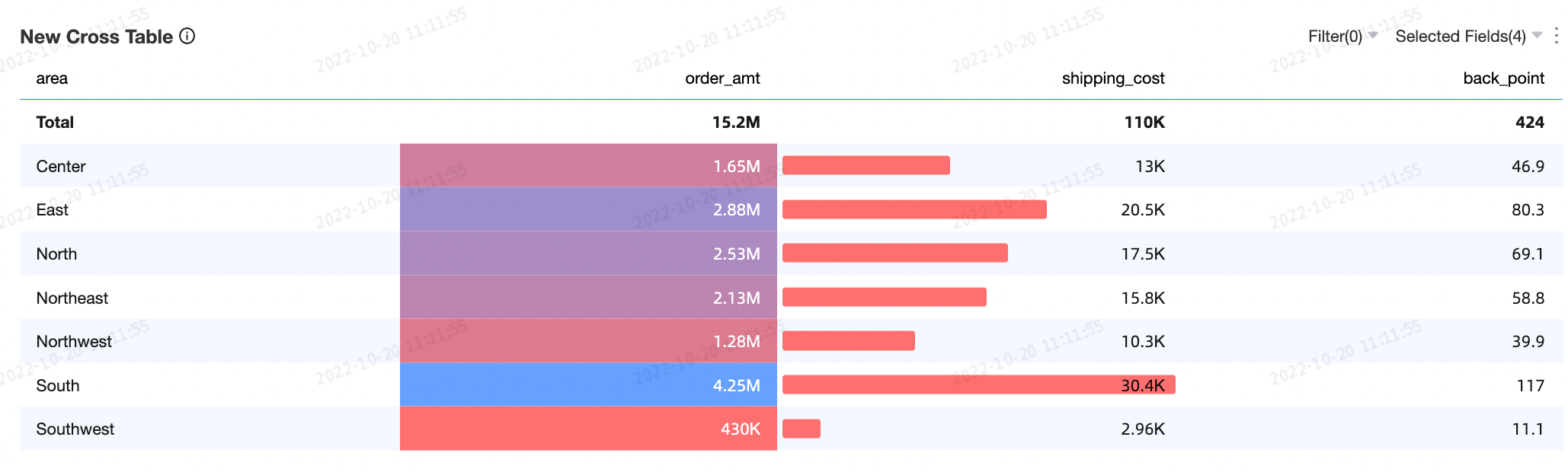
Conditional formatting: Apply conditional formatting, such as font colors, background colors, icons, color scales, and data bars, to improve data readability.
Interactive operations: Filter data by dimensions or measures directly within the table.
Example
Limits
Prerequisites: You must have created a dashboard. See Create a Dashboard.
A crosstab consists of rows and columns:
Rows represent data dimensions, such as province and product type.
Columns represent data measures, such as order quantity and profit amount.
NoteYou can add an unlimited number of dimension and measure fields to the rows and columns of a crosstab.
You can export up to 10,000 rows of data from a crosstab. The export time varies depending on your computer's configuration and the volume of data. For more information, see Export data.
Procedure
Chart data configuration
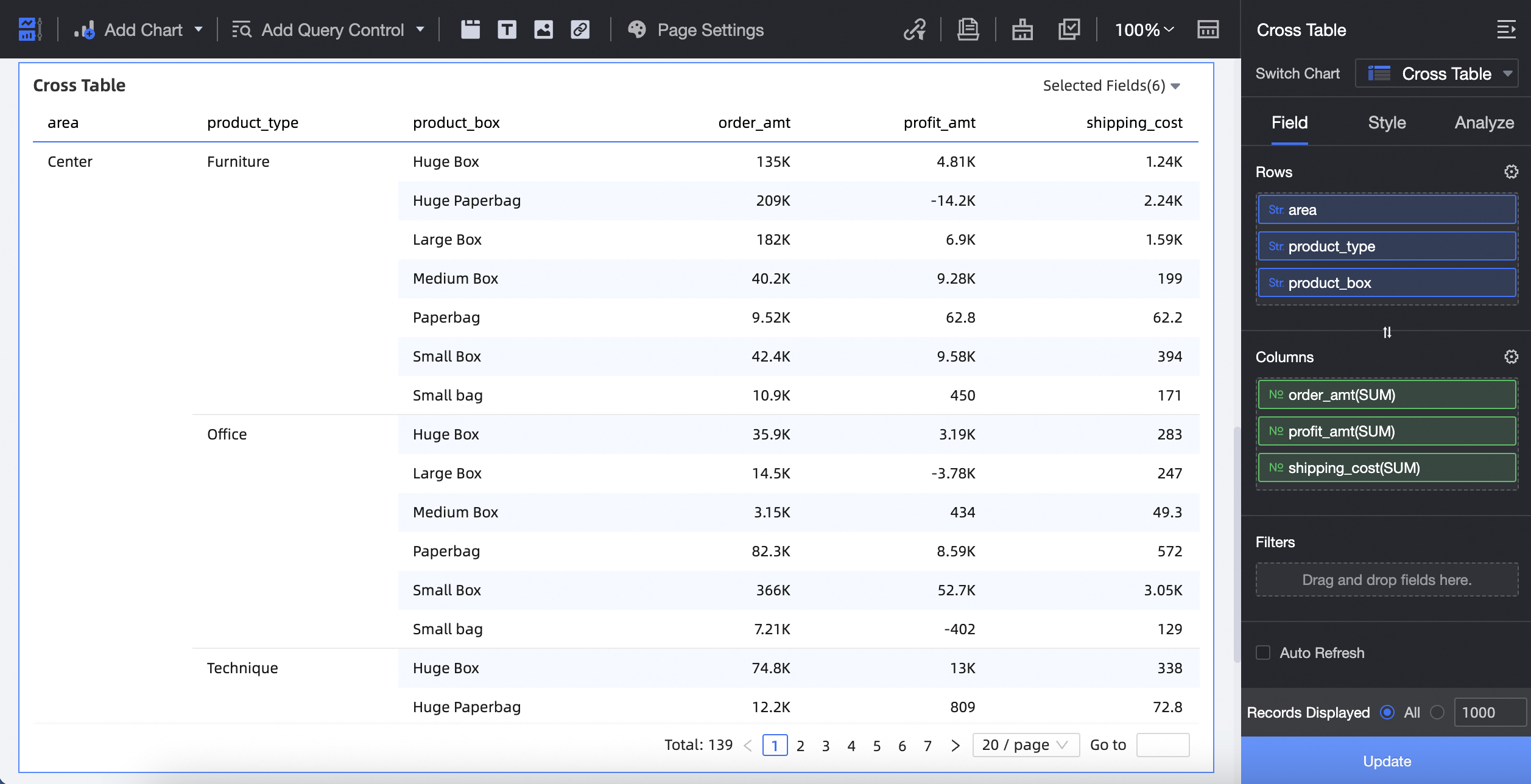
A cross table consists of rows and columns. You can add dimensions and measures to both rows and columns.
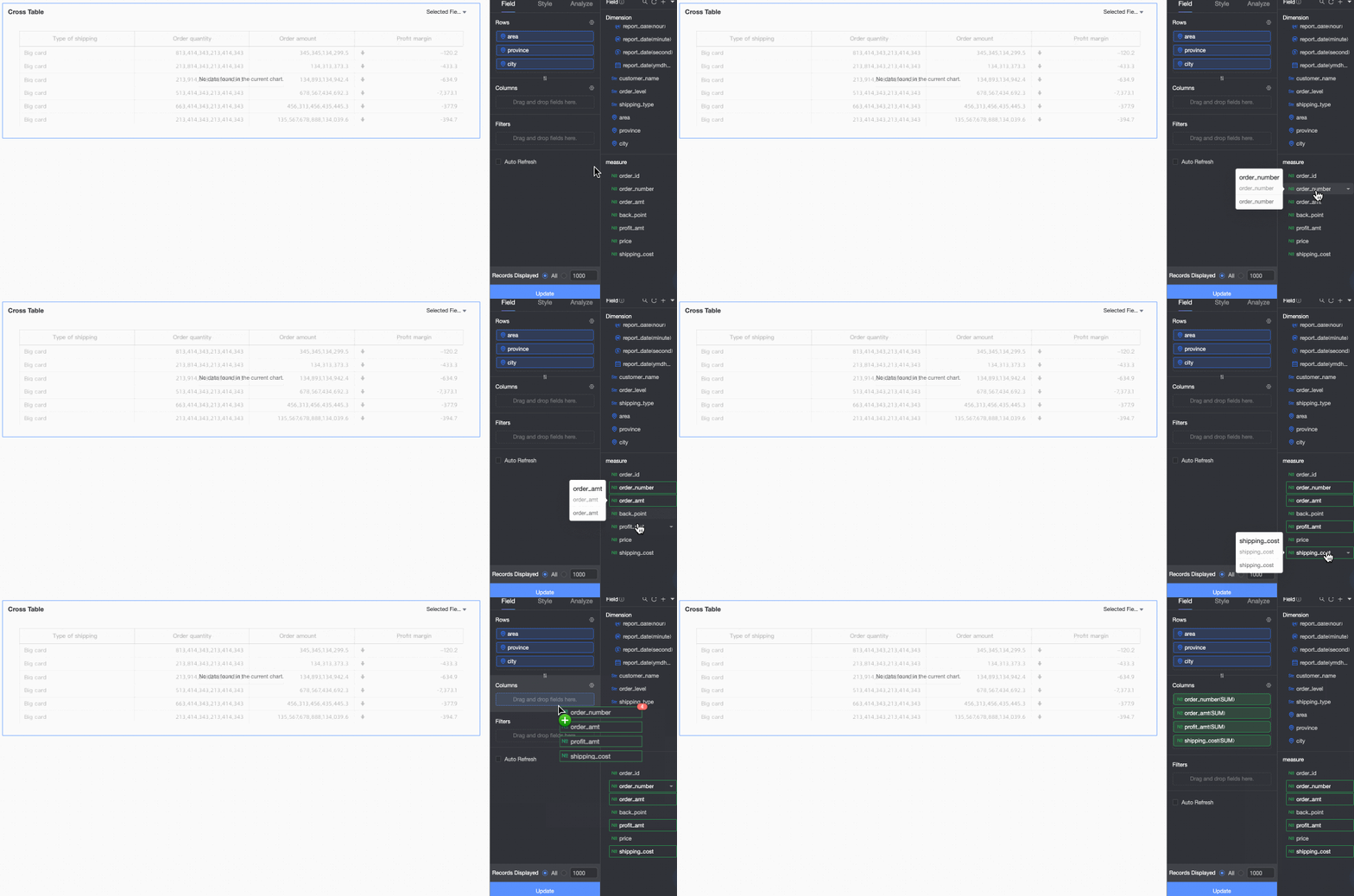
To add dimensions to Rows and measures to Columns:
On the Data tab, select dimensions and measures:
In the Dimensions list, double-click or drag area, product type, and product box to the Rows area.
In the Measures list, double-click or drag order amount, shipping cost, and profit amount to the Columns area.
Click Update. The chart updates automatically.
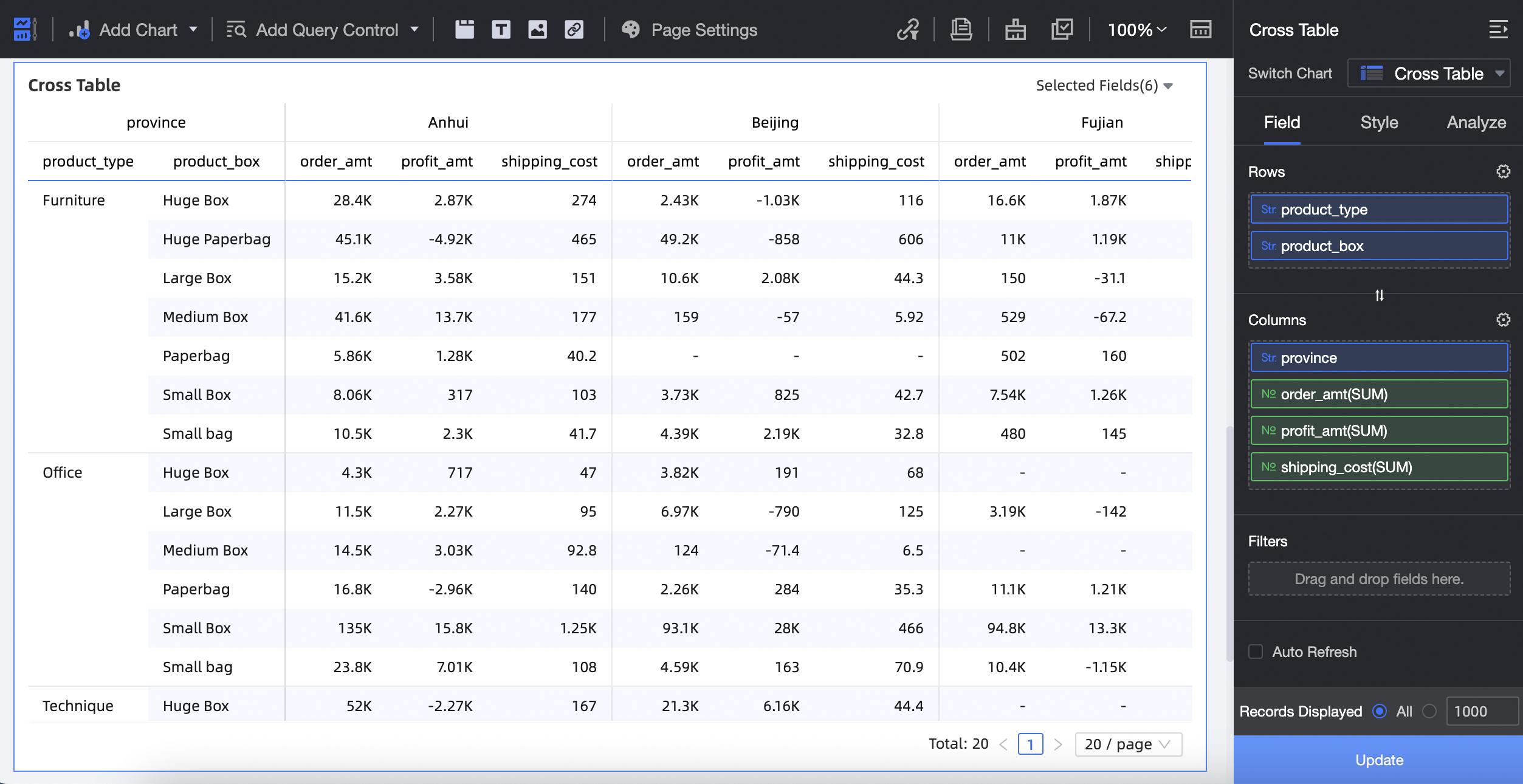
To add dimensions to Rows and both measures and dimensions to Columns:
On the Data tab, select dimensions and measures:
In the Dimensions list, double-click or drag product type and product box to the Rows area.
In the Dimensions list, drag province to the Columns area.
In the Measures list, double-click or drag order amount, shipping cost, and profit amount to the Columns area.
Click Update. The chart updates automatically.
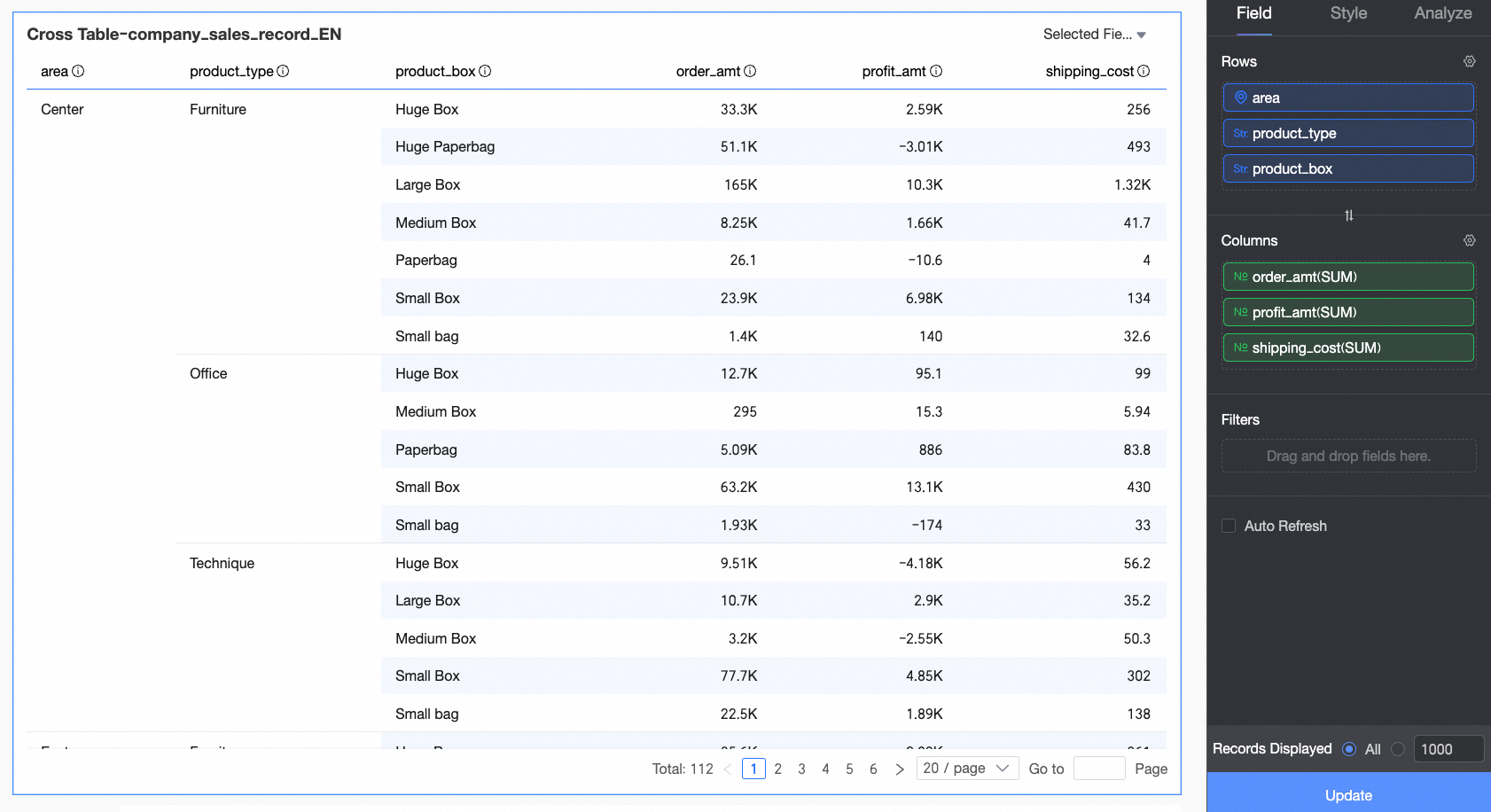
To add measures to Rows and dimensions to Columns:
On the Data tab, select dimensions and measures:
In the Dimensions list, drag area, province, and product type to the Columns area.
In the Measures list, drag order amount, shipping cost, and profit amount to the Rows area.
Click Update. The chart updates automatically.
NoteYou can add an unlimited number of dimensions and measures to the rows and columns of a cross table.
You can export a maximum of 10,000 rows of data from a cross table. The export time varies depending on your computer's configuration and the data volume. For more information, see Export Data.
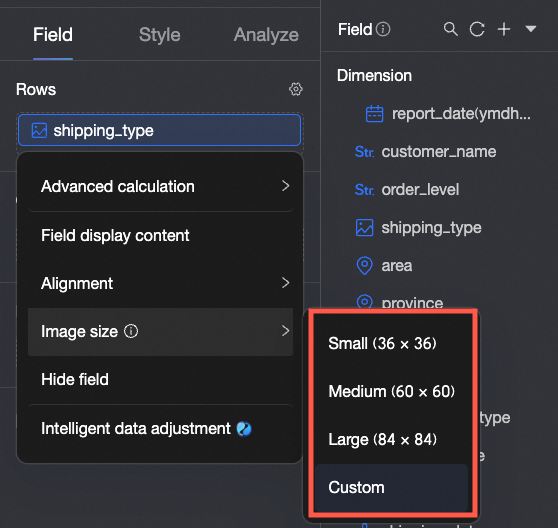
If a field is an image, you can set its display size. By default, the width and height of images on mobile devices are half of those on PCs.
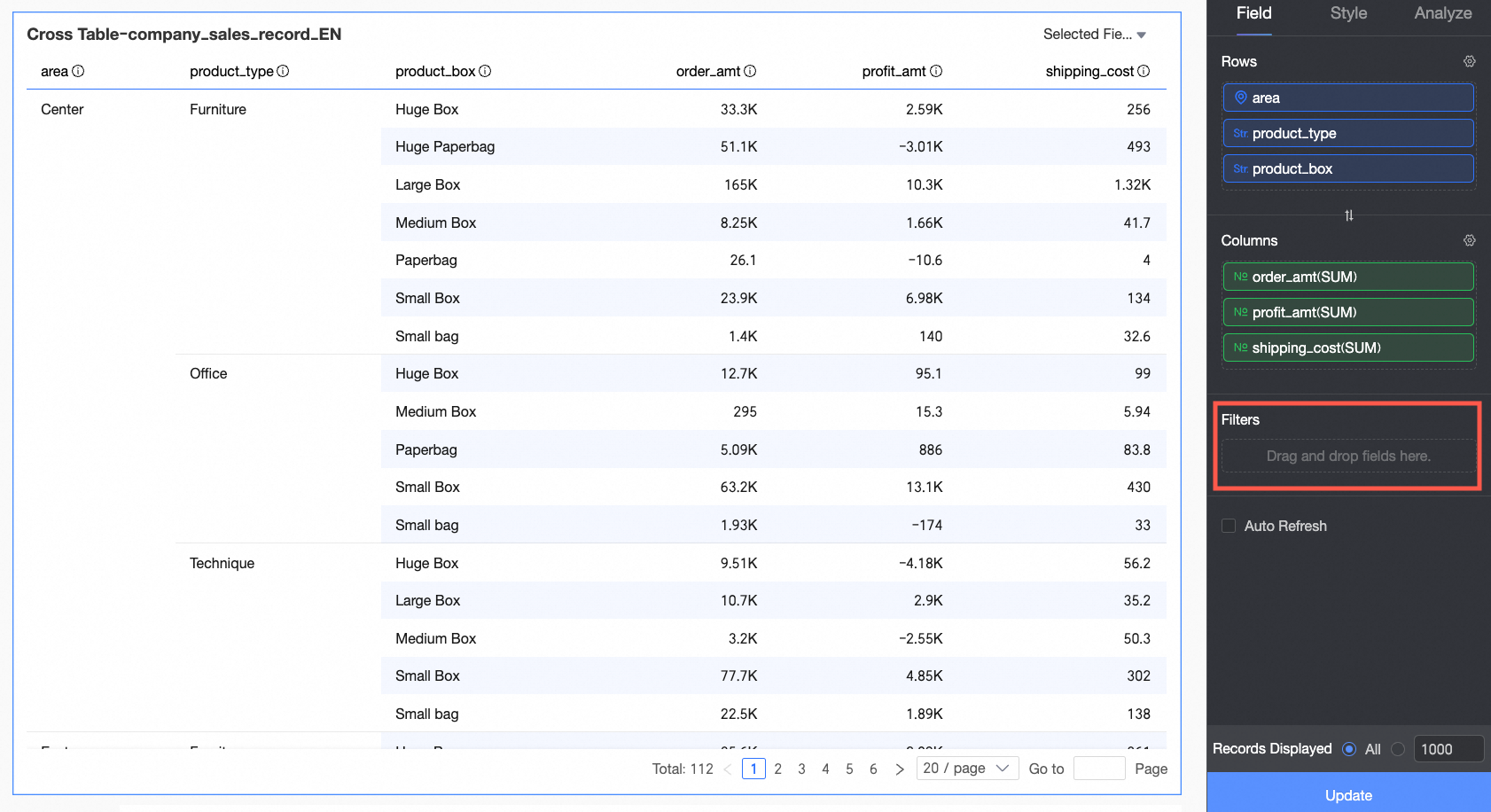
Set filter conditions in Filter. For more information, see Field Filtering.

Data panel configuration
You can perform the following operations on the Data tab:
Add fields in bulk
To add multiple fields at once, hold Shift/Command and click the desired fields.
Hide fields.
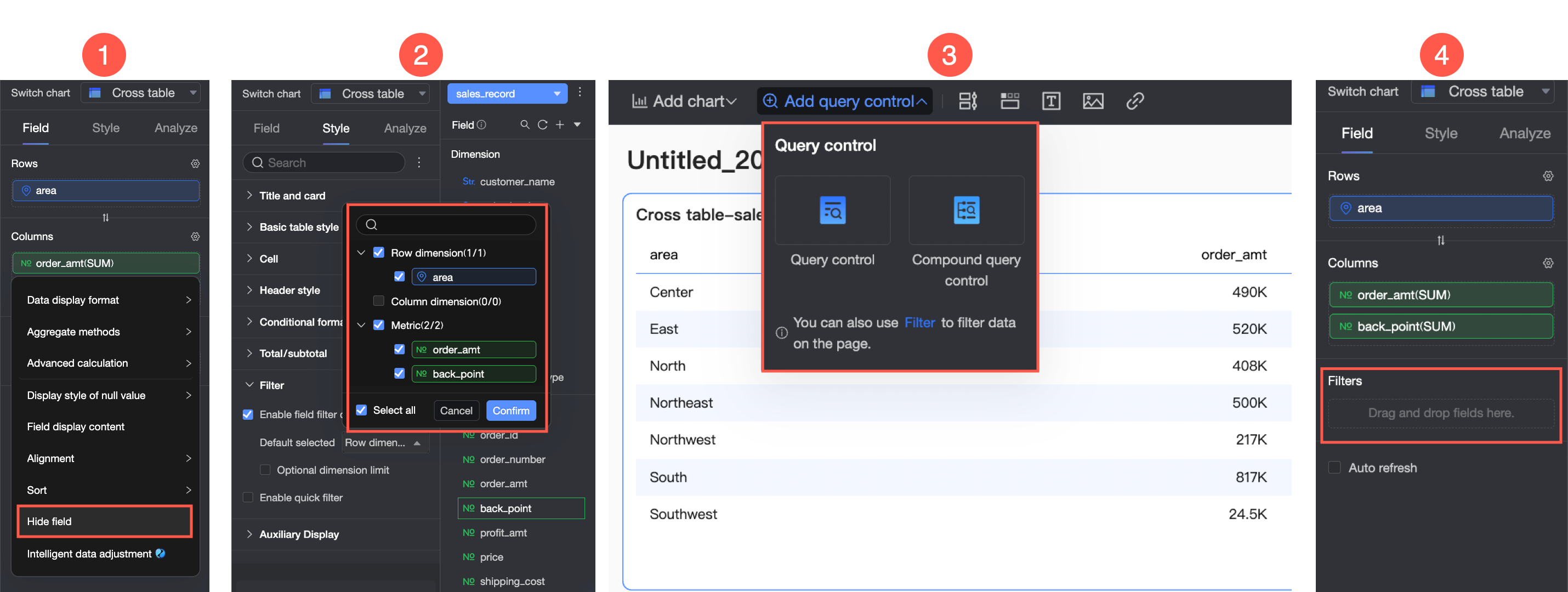
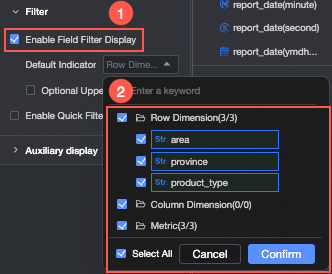
You can hide measures for both row and column dimensions. You can quickly hide fields in one of four ways: hide a measure from the editing interface (①), enable field content filtering under Filter in the Style panel (②), add a query control (③), or add a filter (④).
Note the following:
When you hide a measure on the row dimension, it no longer appears in the chart but is still included in grouping and calculations.
When you hide a measure on the column dimension, it no longer appears in the chart but is still included in grand total calculations.
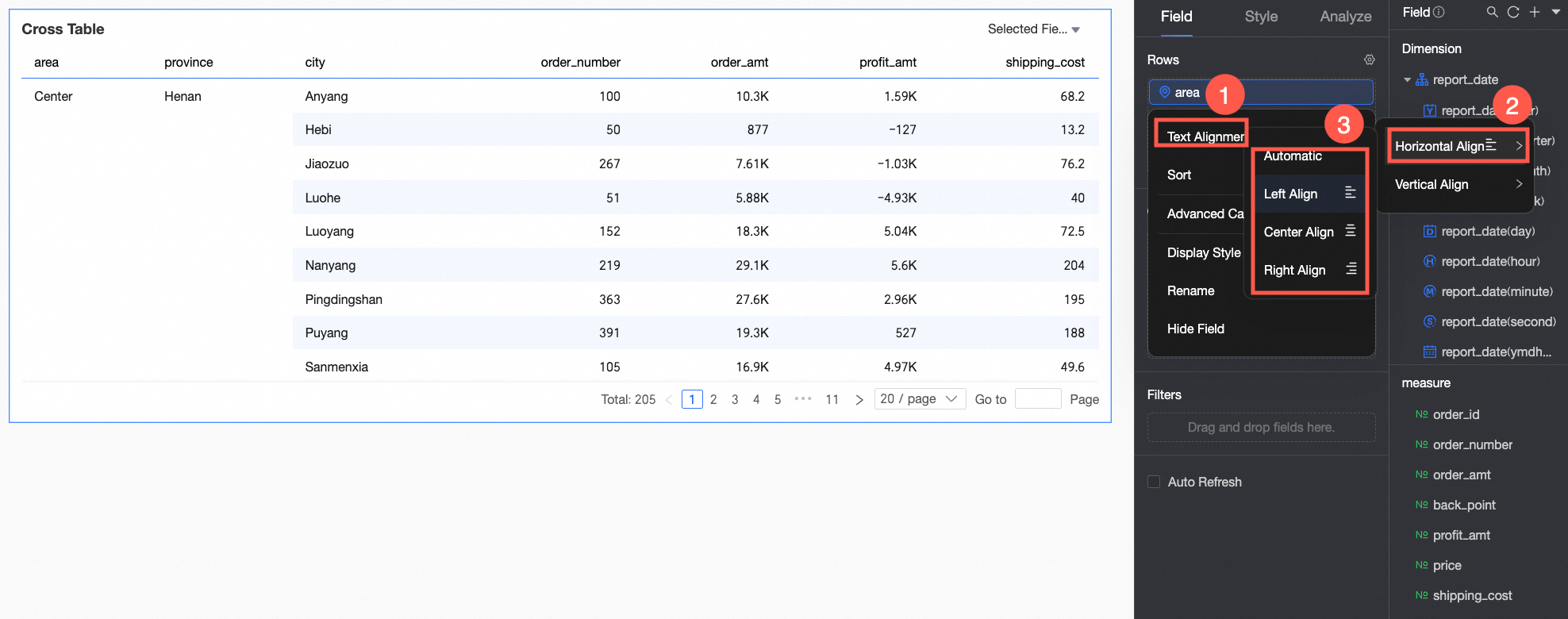
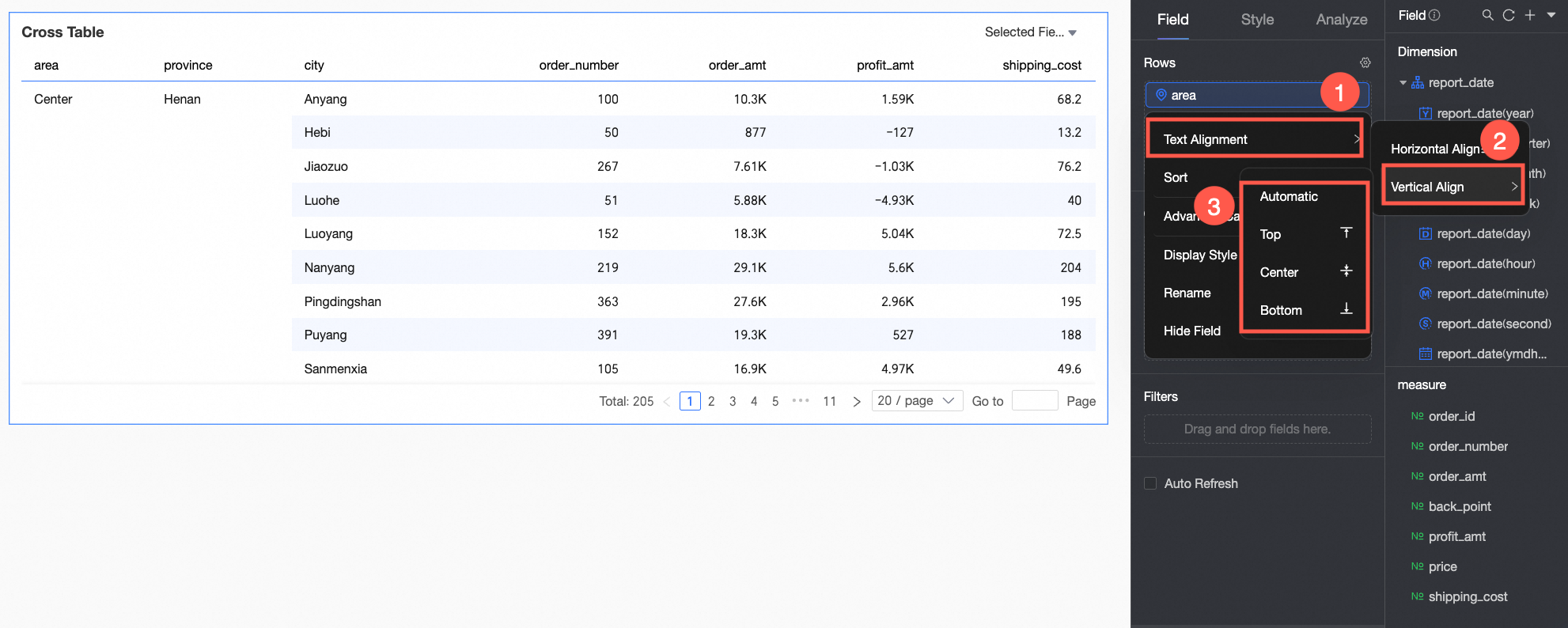
Alignment.
For horizontal alignment, you can select left, center, right, or auto.
For vertical alignment, you can select top, middle, bottom, or auto.
Batch alignment: Click the
icon in the field panel. In the field configuration dialog box, select the fields to align and choose an alignment method.
Sorting
Sorting options include no sorting, ascending order, descending order, ascending in the group, descending in the group, custom order, Sort By Field, and Advanced Sorting. For more information, see Data Sorting.
Sort By Field: Row dimension fields support sorting by a measure or another dimension.
Sort by a measure field on the Data tab.
① Select a measure field.
② Select a sorting method. The options from left to right are: ascending order, descending order, ascending in the group, and descending in the group.
Sort by a measure or dimension field from the dataset.
For example, you can sort by profit amount.
NoteSort By Field is available only for dimension fields.
Advanced Sorting: This feature is typically used for aggregate tables and detail tables.
Advanced Sorting supports measures on both row and column dimensions.
Aggregate calculation: This feature supports functions such as sum, average, count, distinct count, maximum, minimum, population standard deviation, sample standard deviation, population variance, sample variance, Start Time Point, and End Time Point.
Start time point: To use this, set the aggregate calculation for a column field to Start Time Point and select a corresponding date field. The cross table then displays the data corresponding to that start time.
Advanced Calculation options include date accumulation, cumulative calculation, Percentage, ranking, TopN, percentile, and period-over-period comparison.
Date accumulation calculates the sum of data from an initial date to the current date. For more information, see Date Accumulation.
Cumulative calculation creates a running total from the returned results. For more information, see Cumulative Calculation.
Percentage: You can configure data as percentages to see the proportion of each value.
In this example, the chart shows the percentage of the order amount for each province.
Ranking: Ranks measures within groups by their numerical value, making it easy to compare values.
For more information, see Data Ranking.
TopN: Displays the top N records. For example, selecting Top5 shows the top 5 records. You can also customize the ranking method and the value of N. For more information, see TopN.
Percentile: Converts result values into percentiles to show the relative position of each data point within the entire dataset. For more information, see Percentile.
Period-over-period comparison: This feature compares measures from the current time period with those from a previous period. For more information, see Period-over-Period Comparison.
NoteWhen creating a calculated field in a dataset, you cannot directly reference a field generated by an Advanced Calculation (such as Percentage). Instead, first use a custom SQL query to generate the required result, and then create a new calculated field in the dataset to reference it.
 icon in the field panel. In the field configuration dialog box, select the fields to align and choose an alignment method.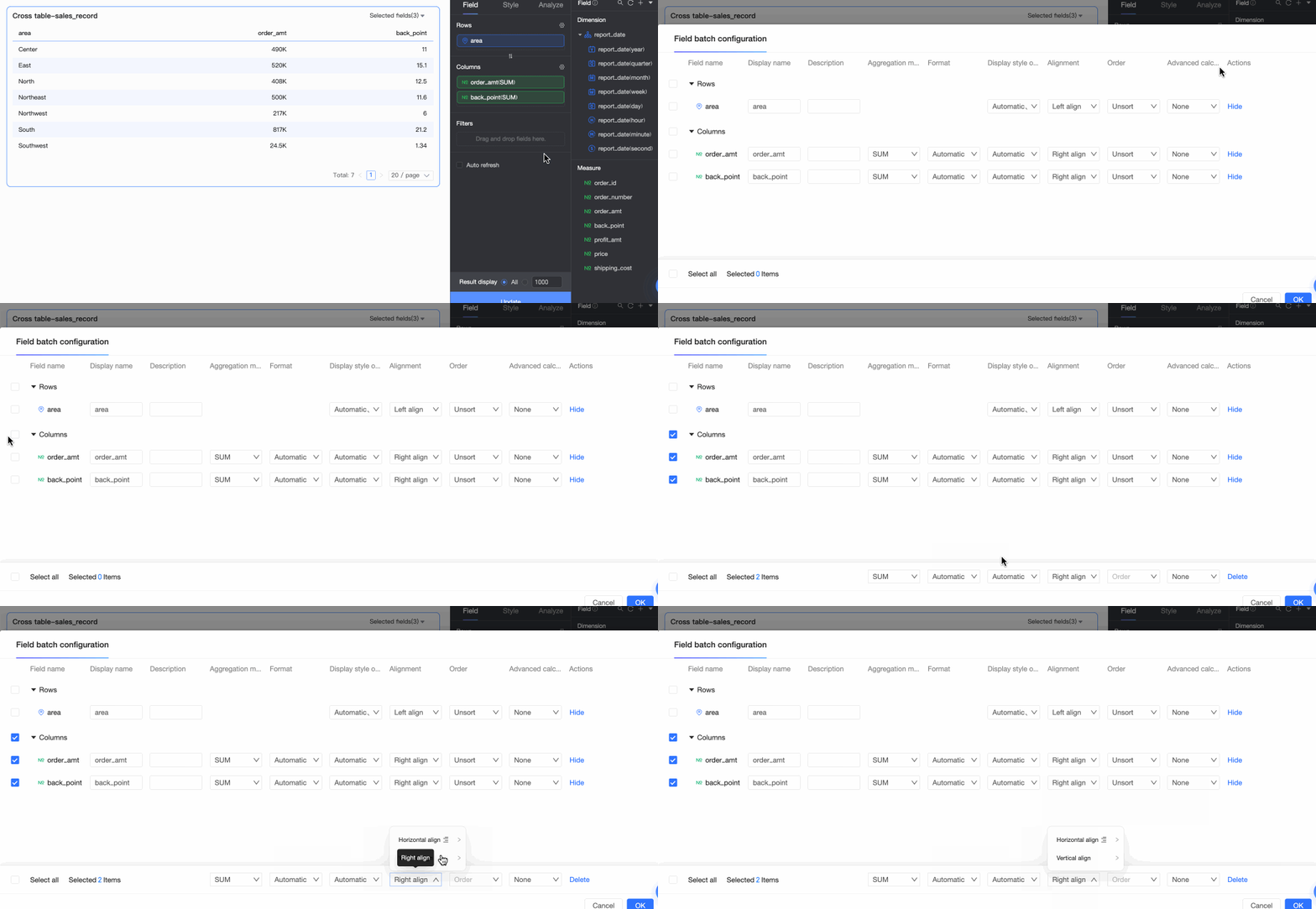

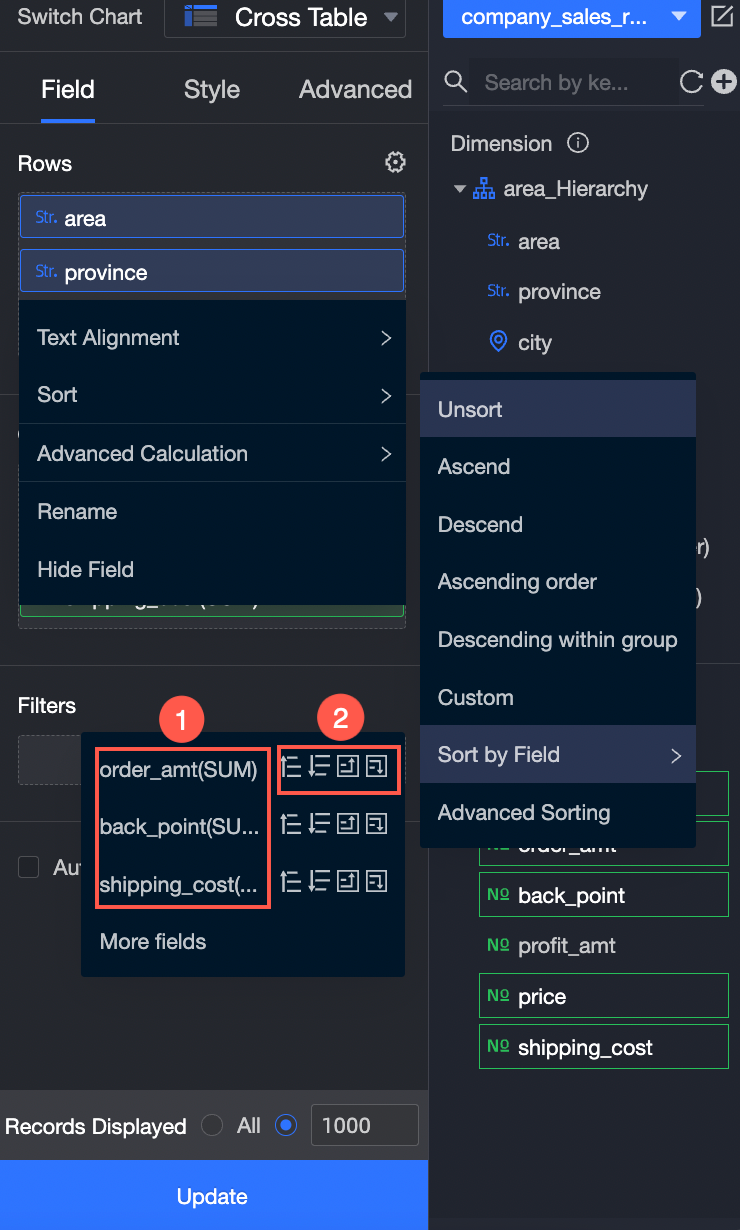
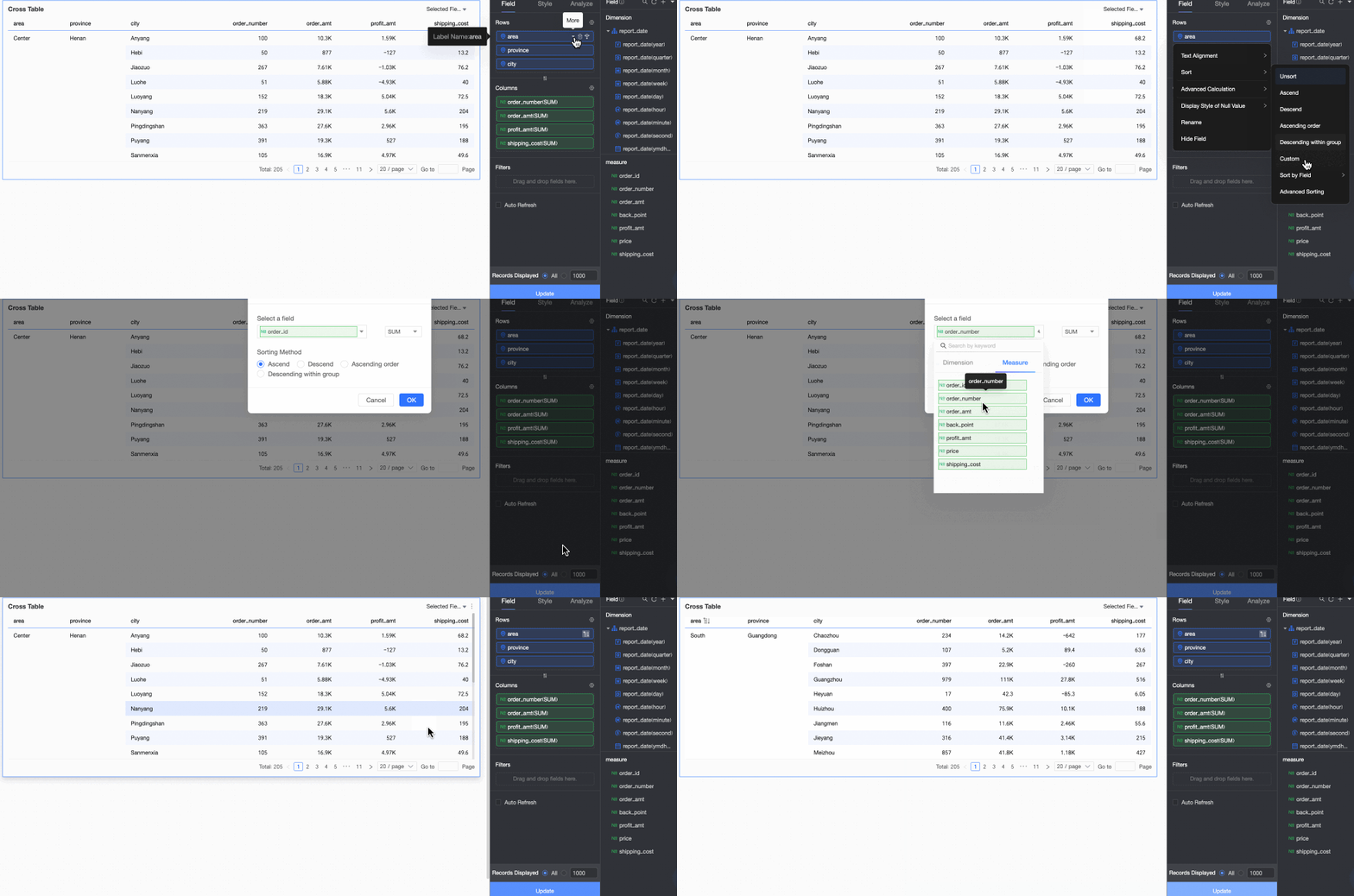
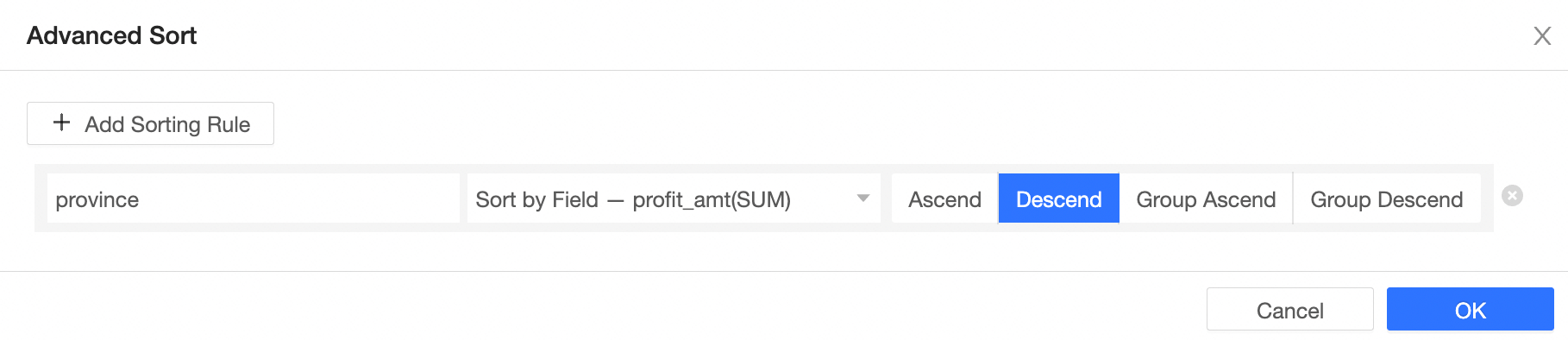
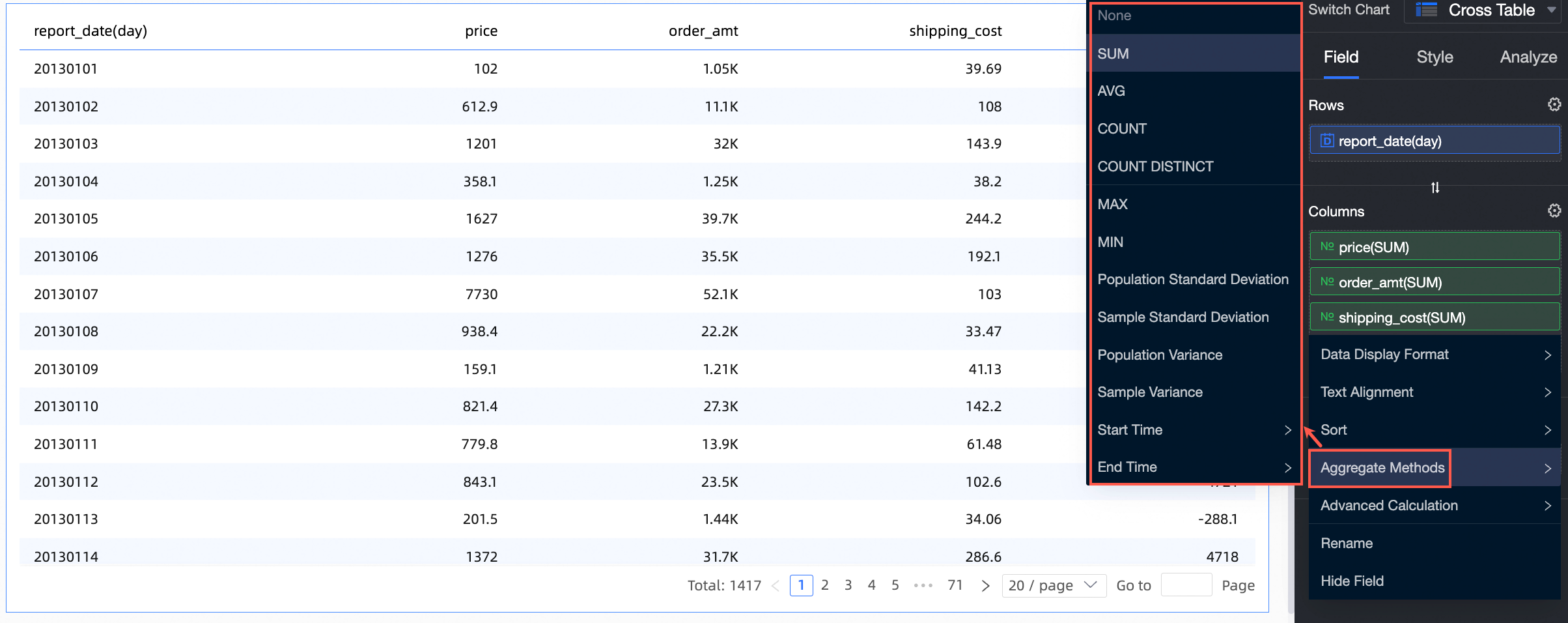
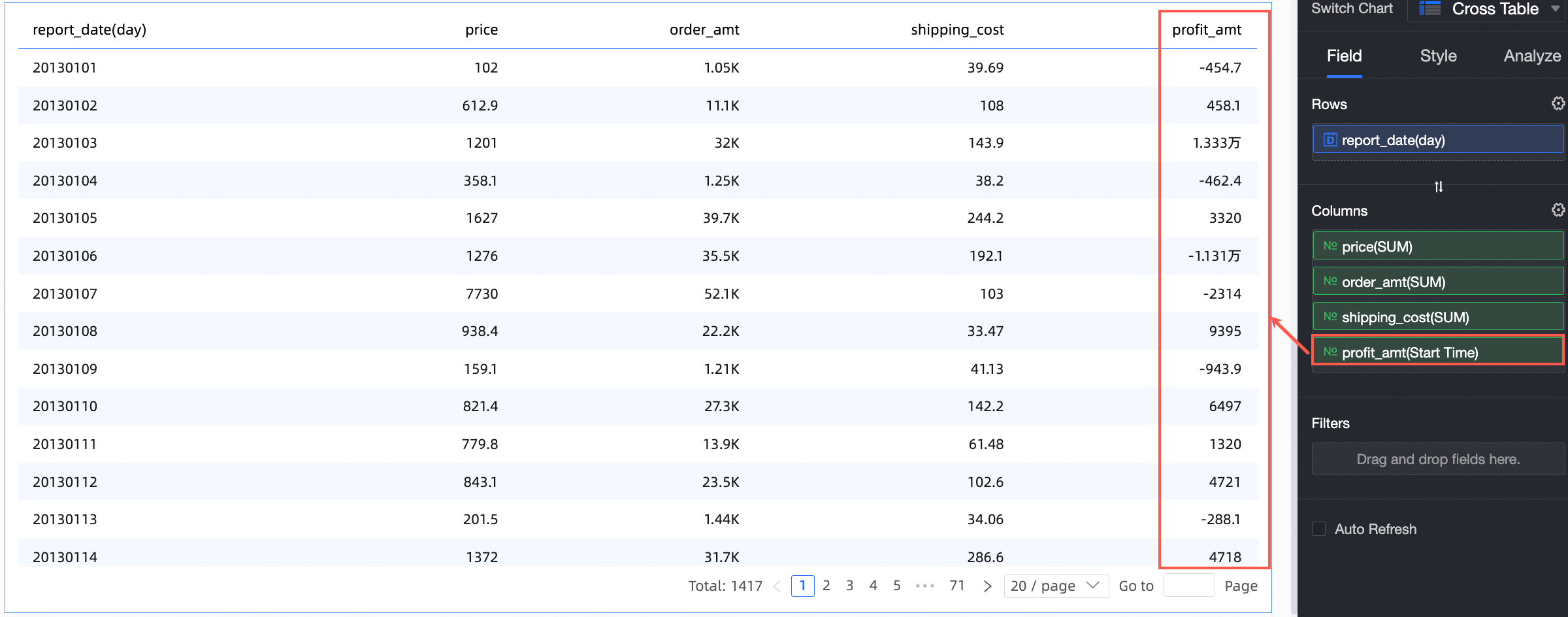
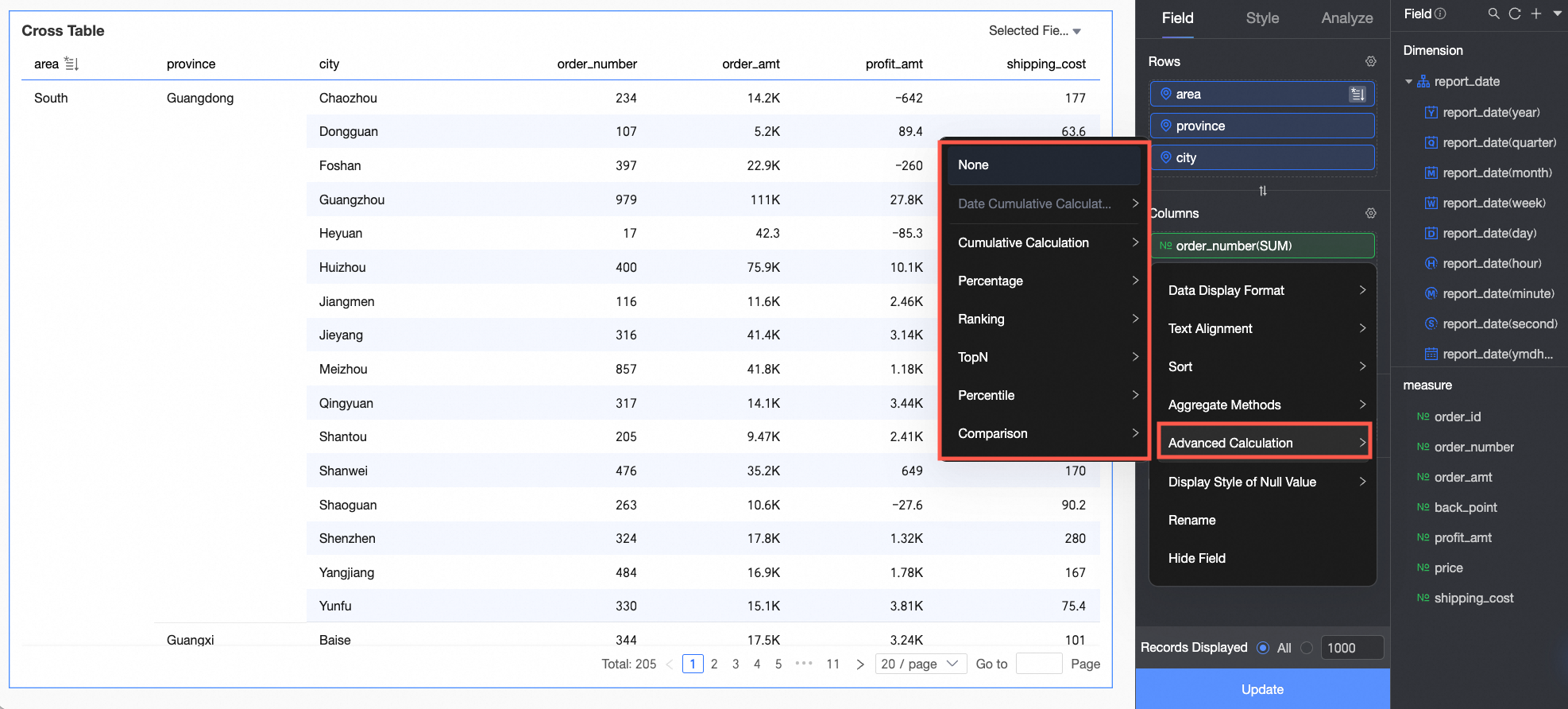
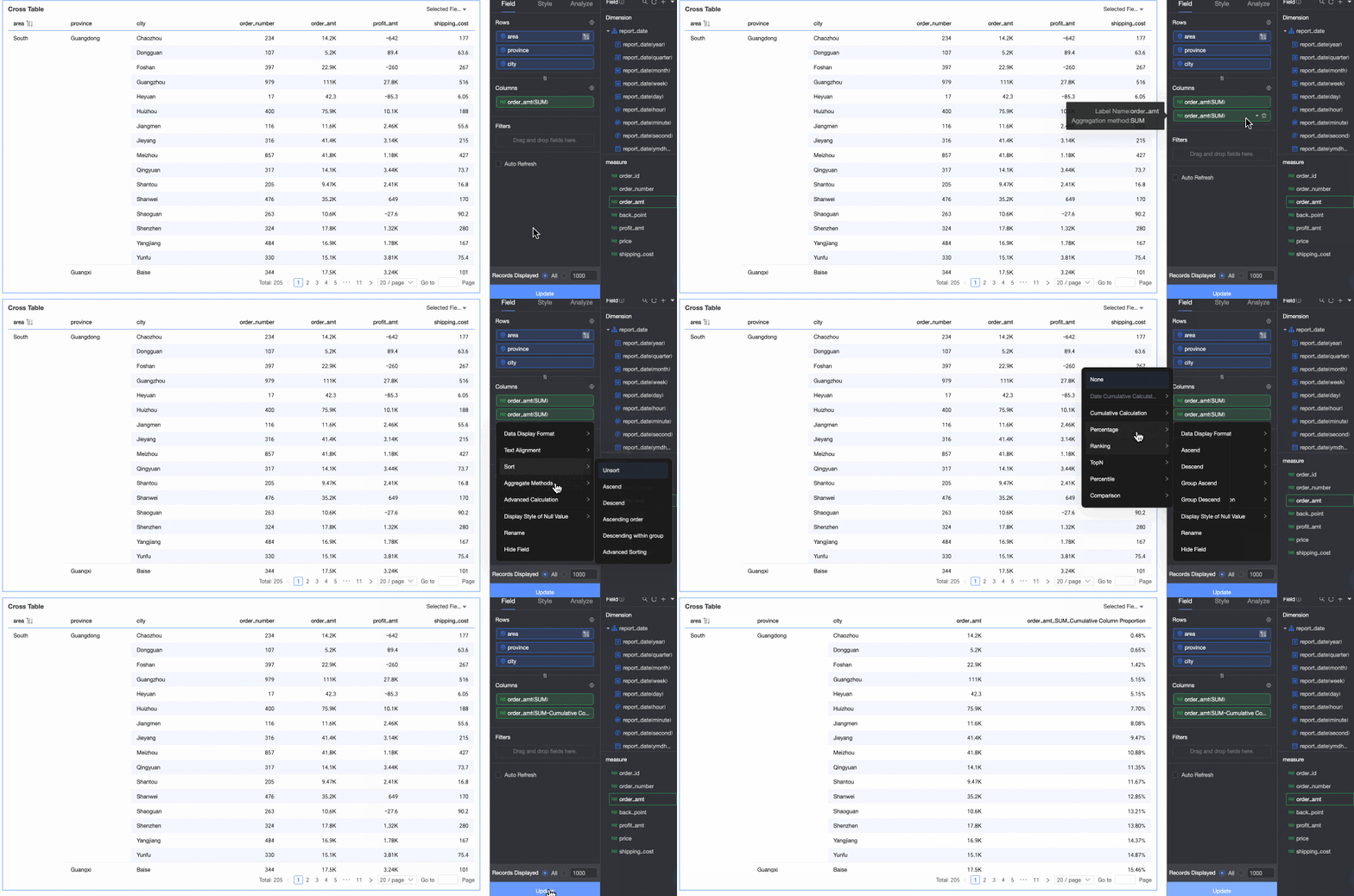
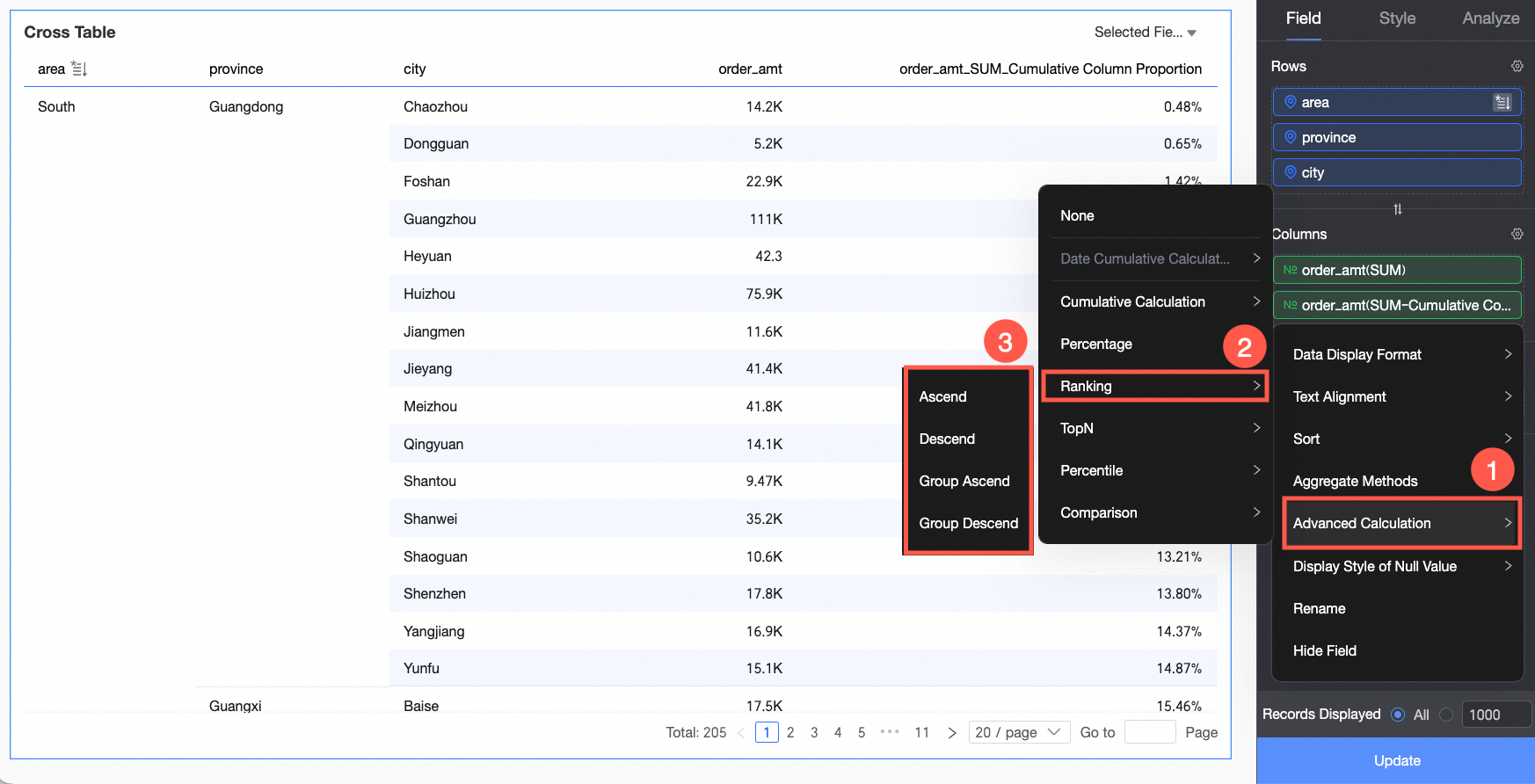
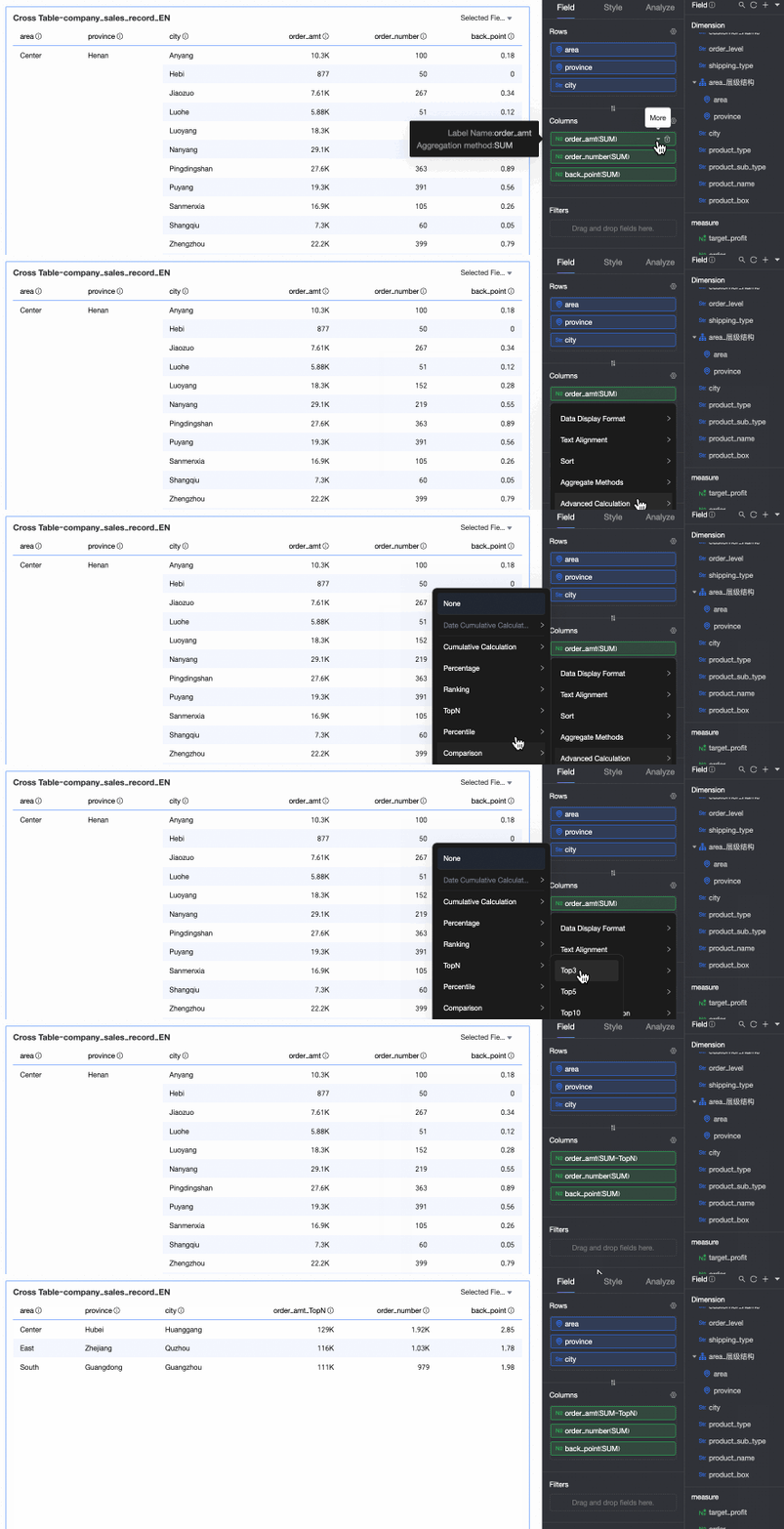
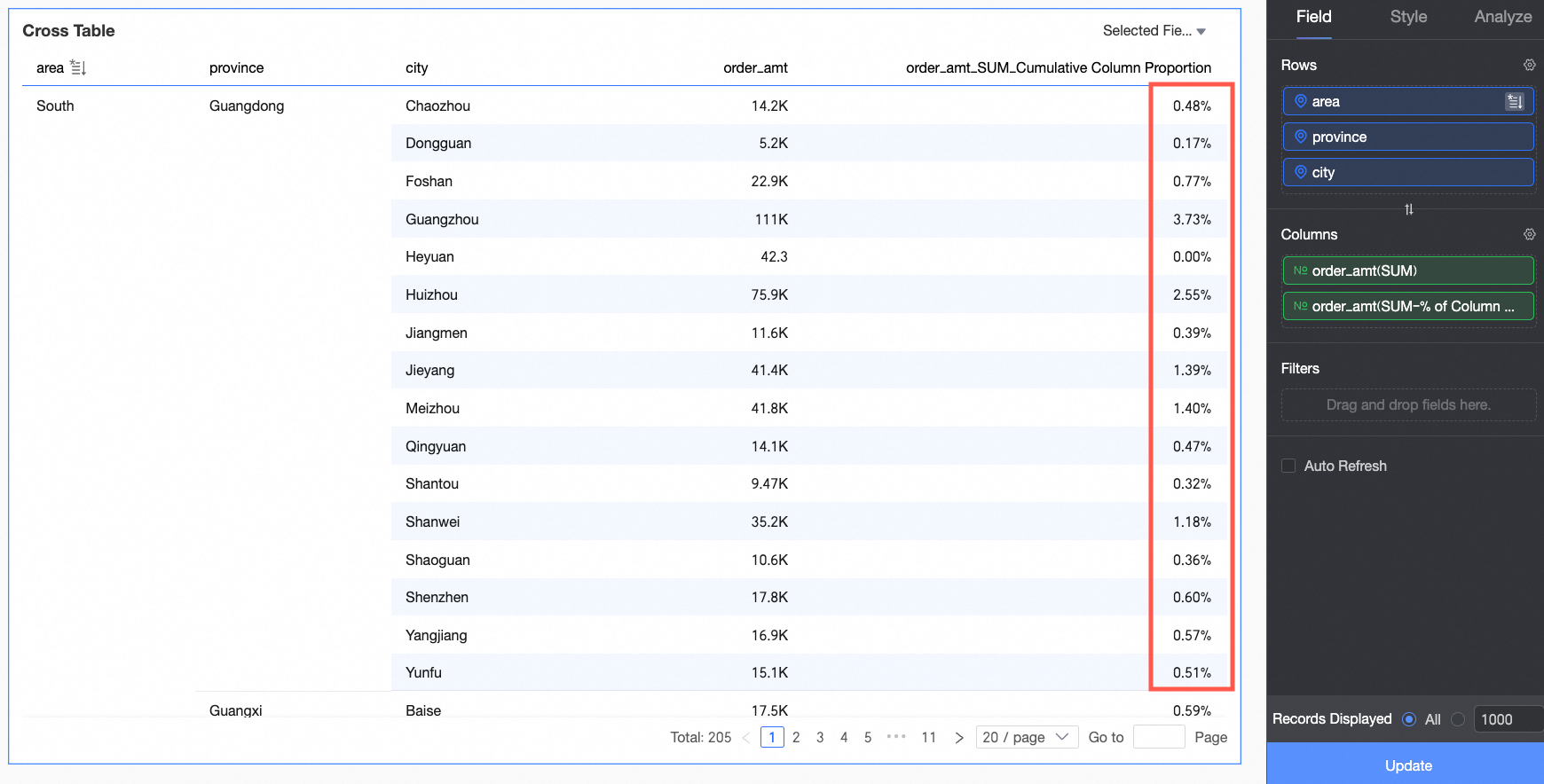

Chart style configuration
This section describes how to configure chart styles. For general chart style settings, see Configure the chart title area.
You can enter keywords in the search box at the top of the configuration pane to quickly find a setting. You can also click the  icon on the right to Expand/Collapse all categories.
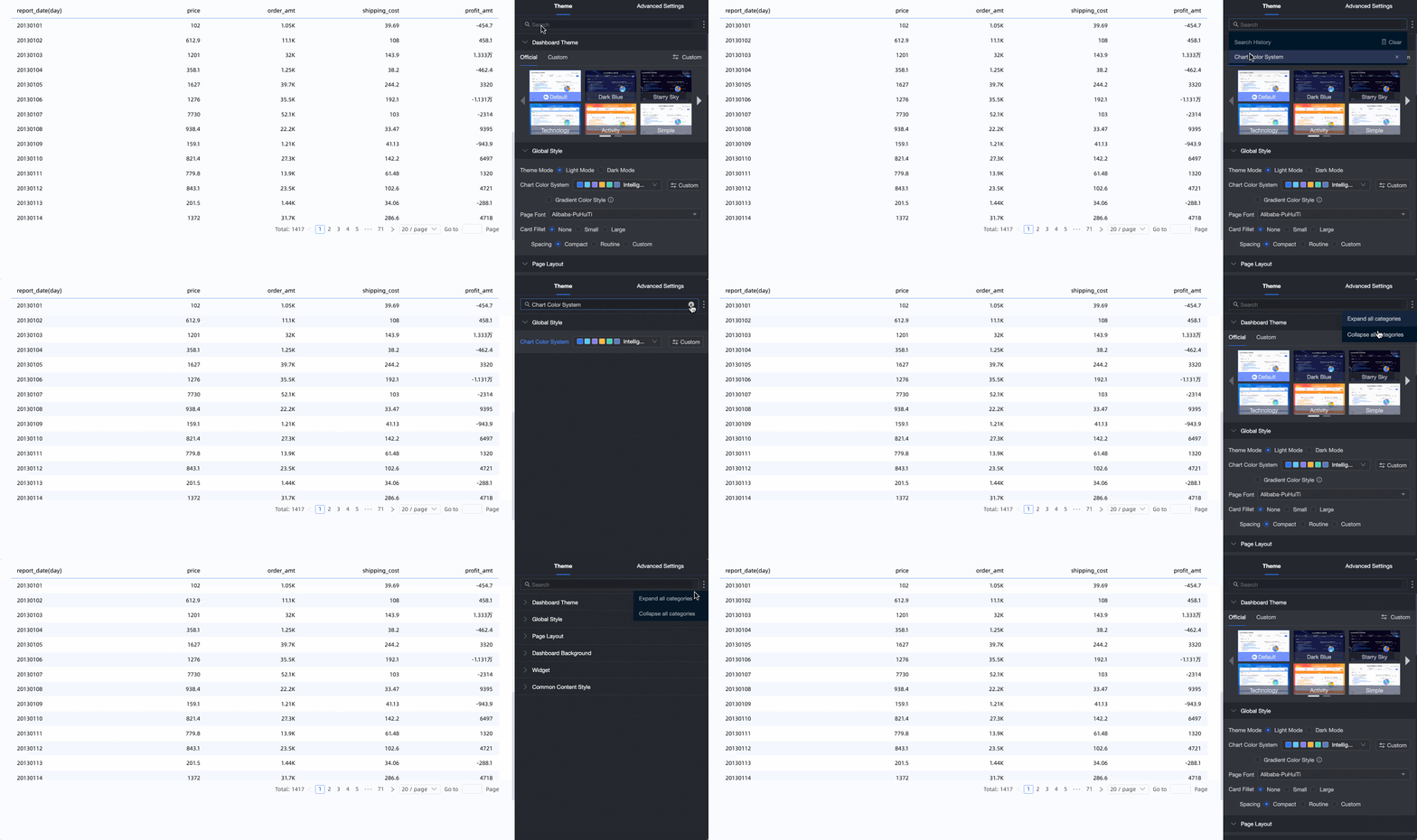
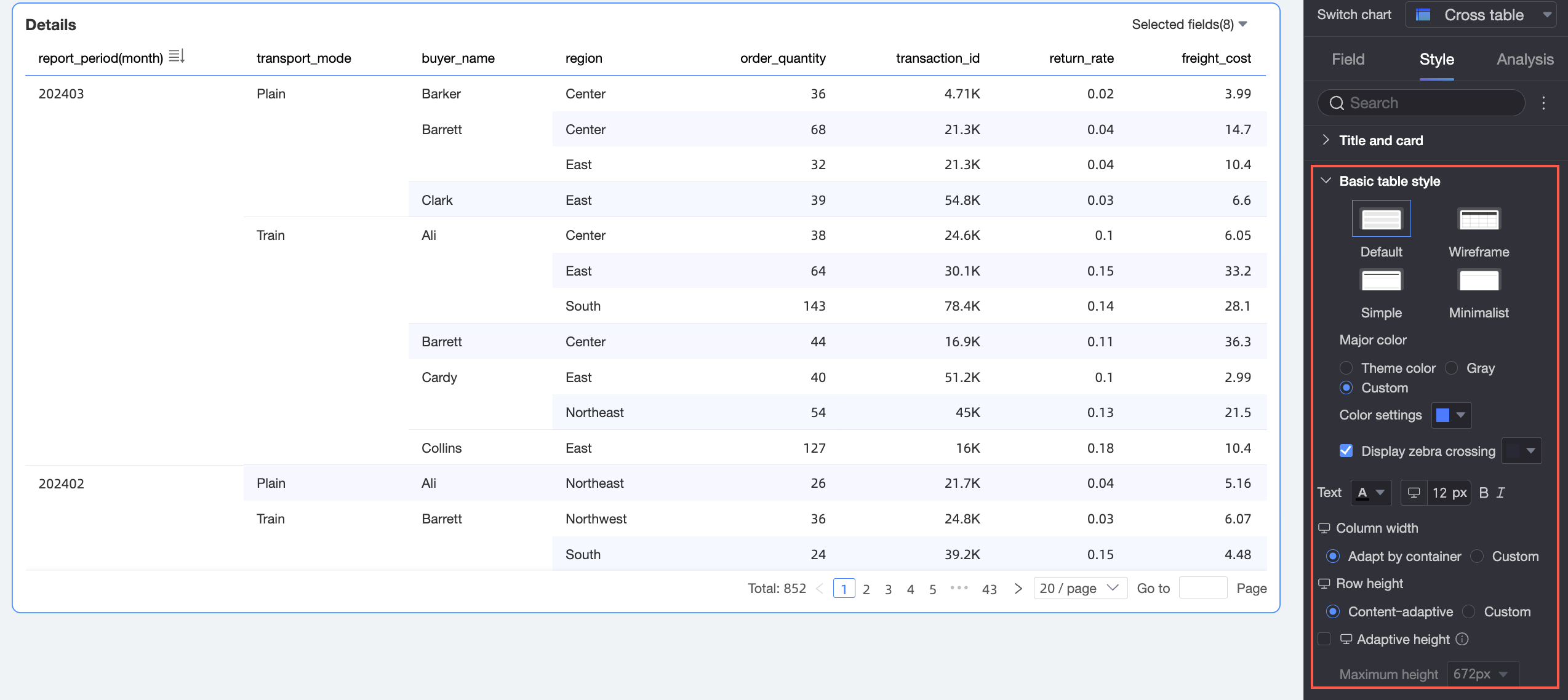
In the Basic Table Styles section, configure the styles for the cross table.
Parameter
Description
Custom table theme
Sets the appearance of the cross table.
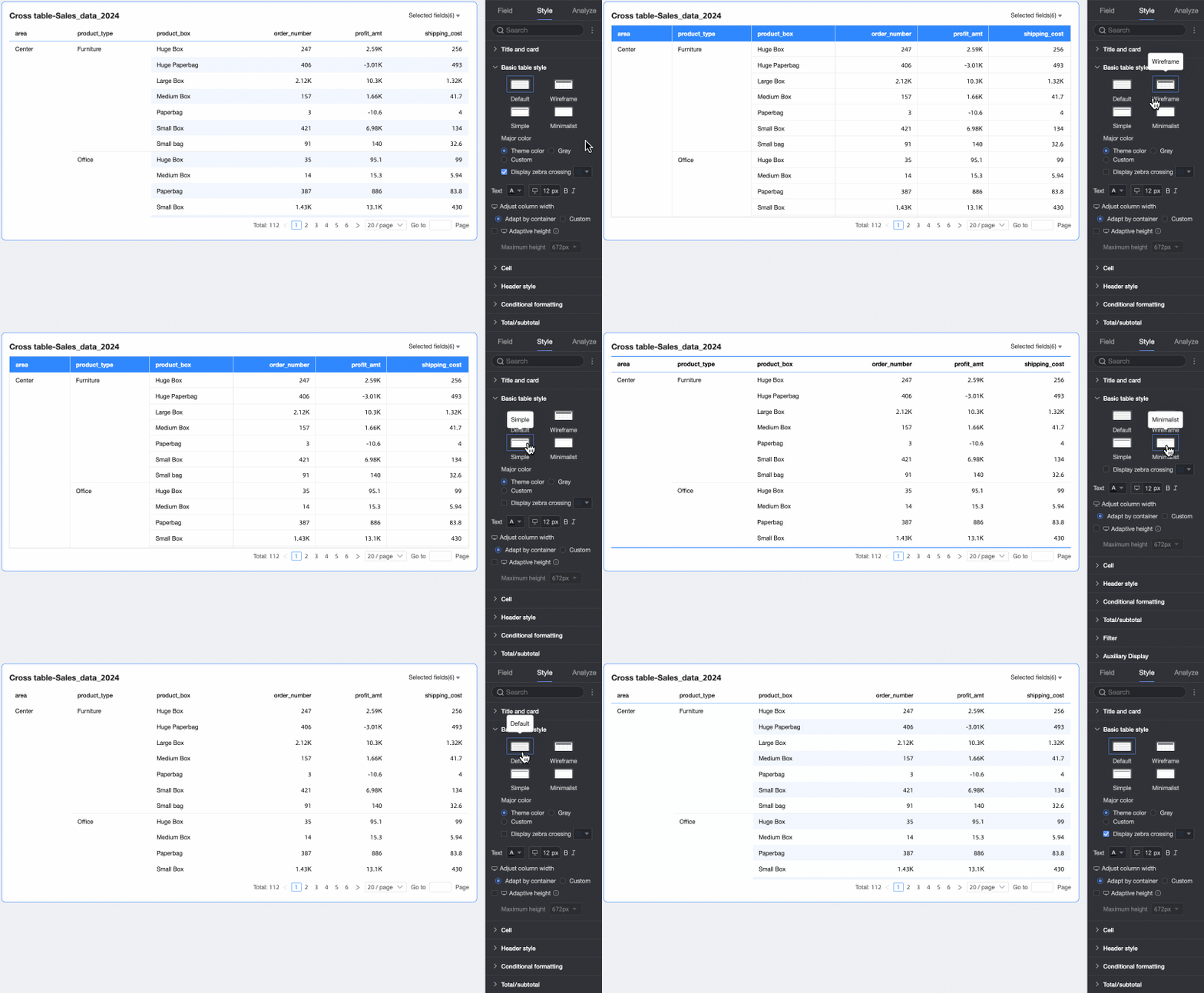
Theme style: Choose from Default, Wireframe, Simple, and Minimal.
Primary color: Sets the primary color when the theme is Default, Wireframe, or Simple. Options include the Theme Color, Gray, or a Custom color.
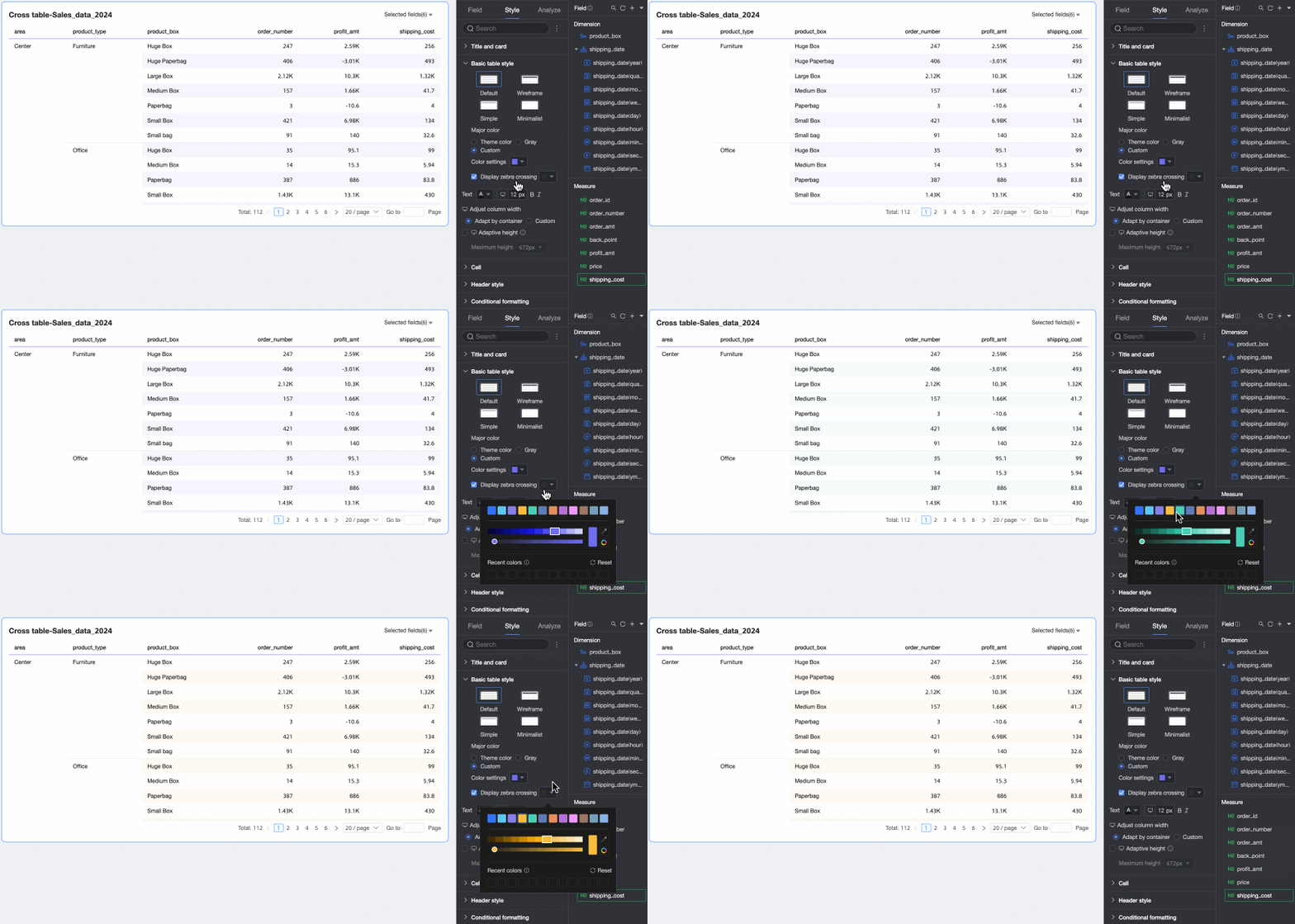
Show zebra-striping: Shows or hides zebra-striping and sets its color.
Text
Set the text style for the cross table.
Column width, Row height
Sets the Column Width and Row Height. Options are Auto or Custom.
Auto: Automatically allocates column width based on container space and row height based on cell content. This ensures efficient use of space and that all text is displayed. This mode is ideal for tables that must adapt to different devices and layouts.
Custom: Enter specific values for column width and row height. This mode is ideal for precise control over table formatting. When in custom mode, row height and column width default to Auto. Disable Auto to enter specific pixel values.
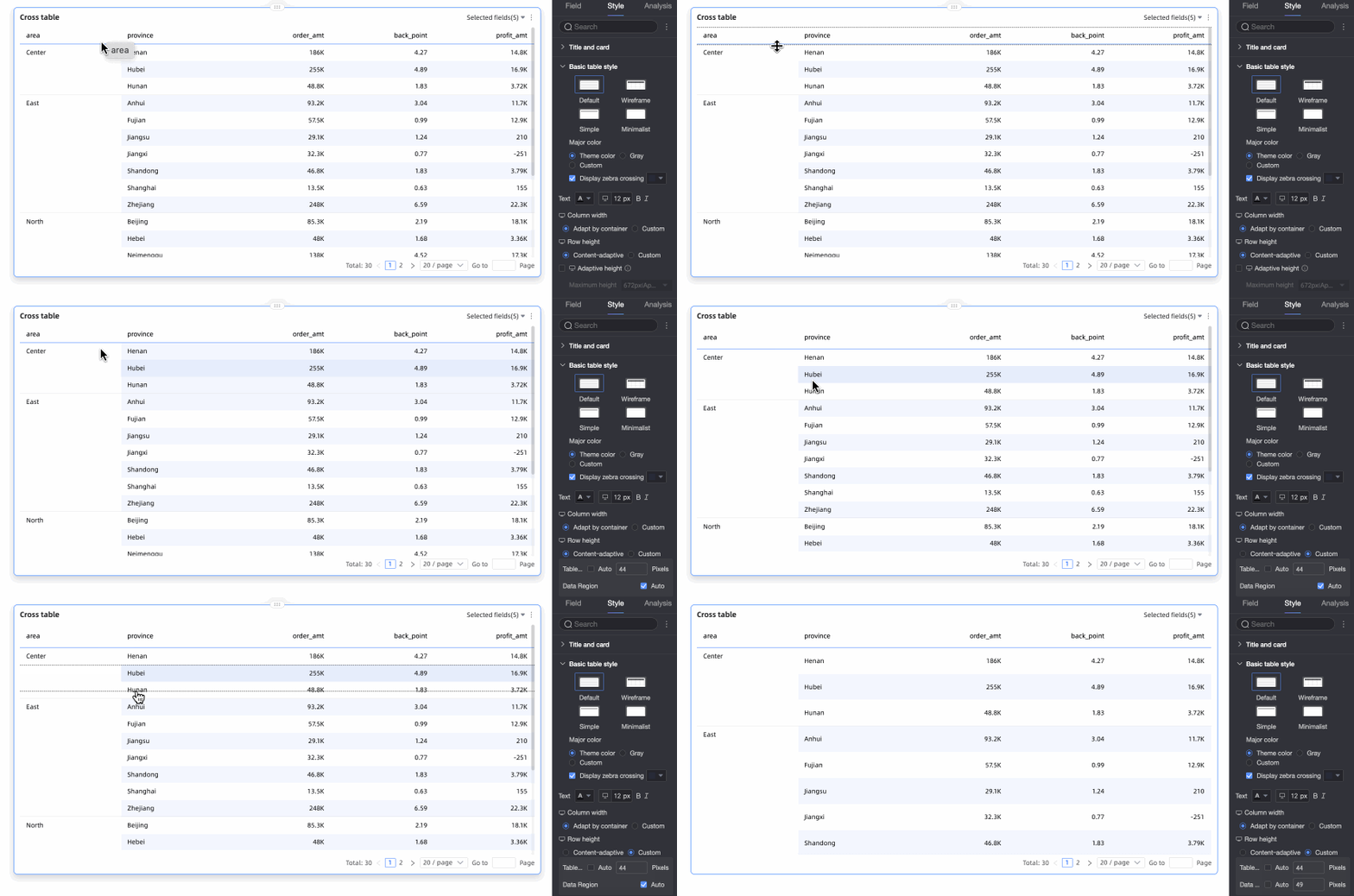
If you are unsure what row height to set, drag a row border to adjust it. This lets you visually preview the result and find the optimal height.
You can drag the header row height and the data area row height separately. After dragging, the height of all rows in that area adjusts uniformly, and the system automatically enters the new value into the corresponding setting box.
NoteColumn width and row height settings for PC and mobile can be configured independently.
Adaptive table height, Maximum height
You can set the table height using two strategies: Fixed Height and Adaptive Height.
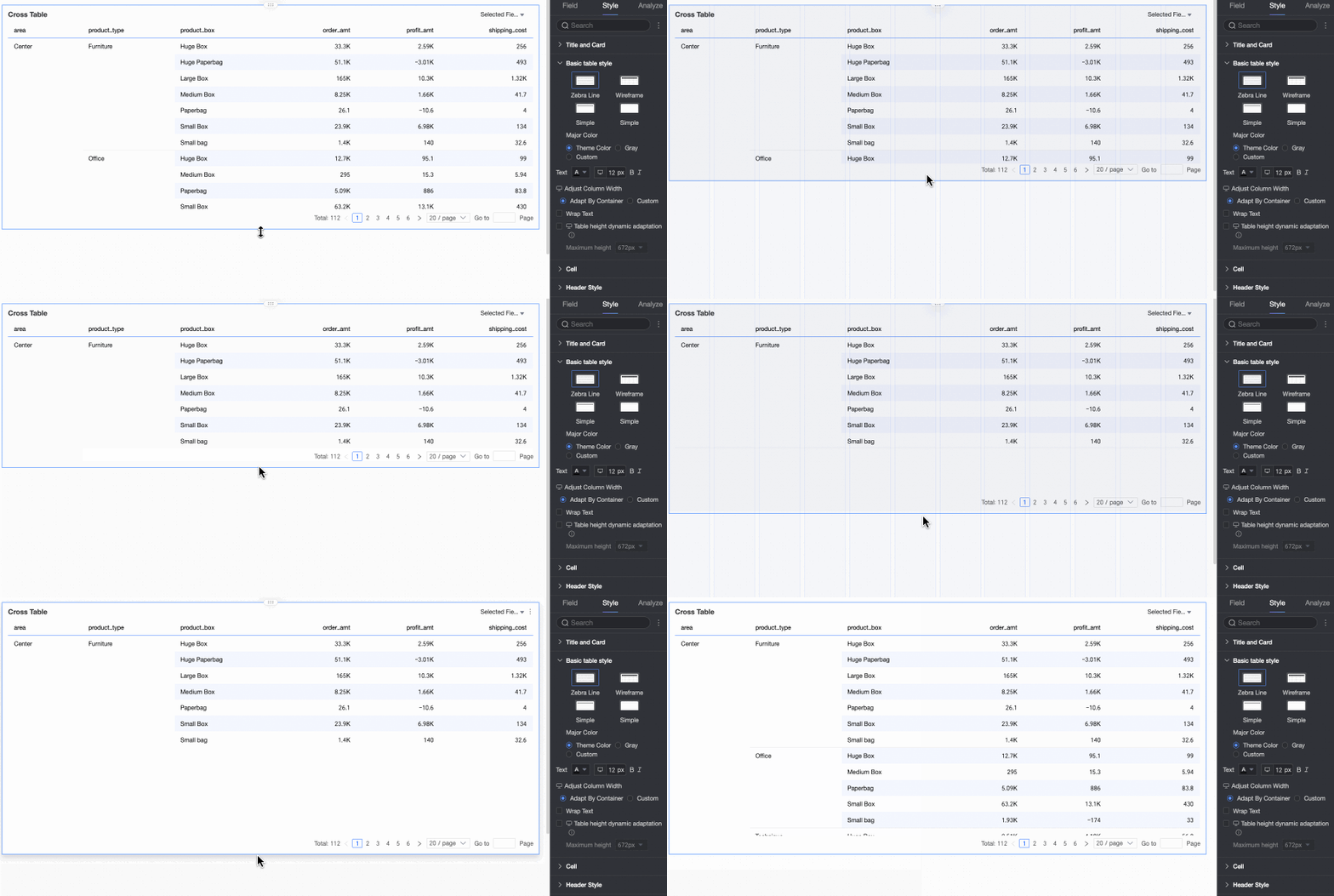
Fixed Height: By default, the table height is fixed. You can manually set the table container height by dragging it.
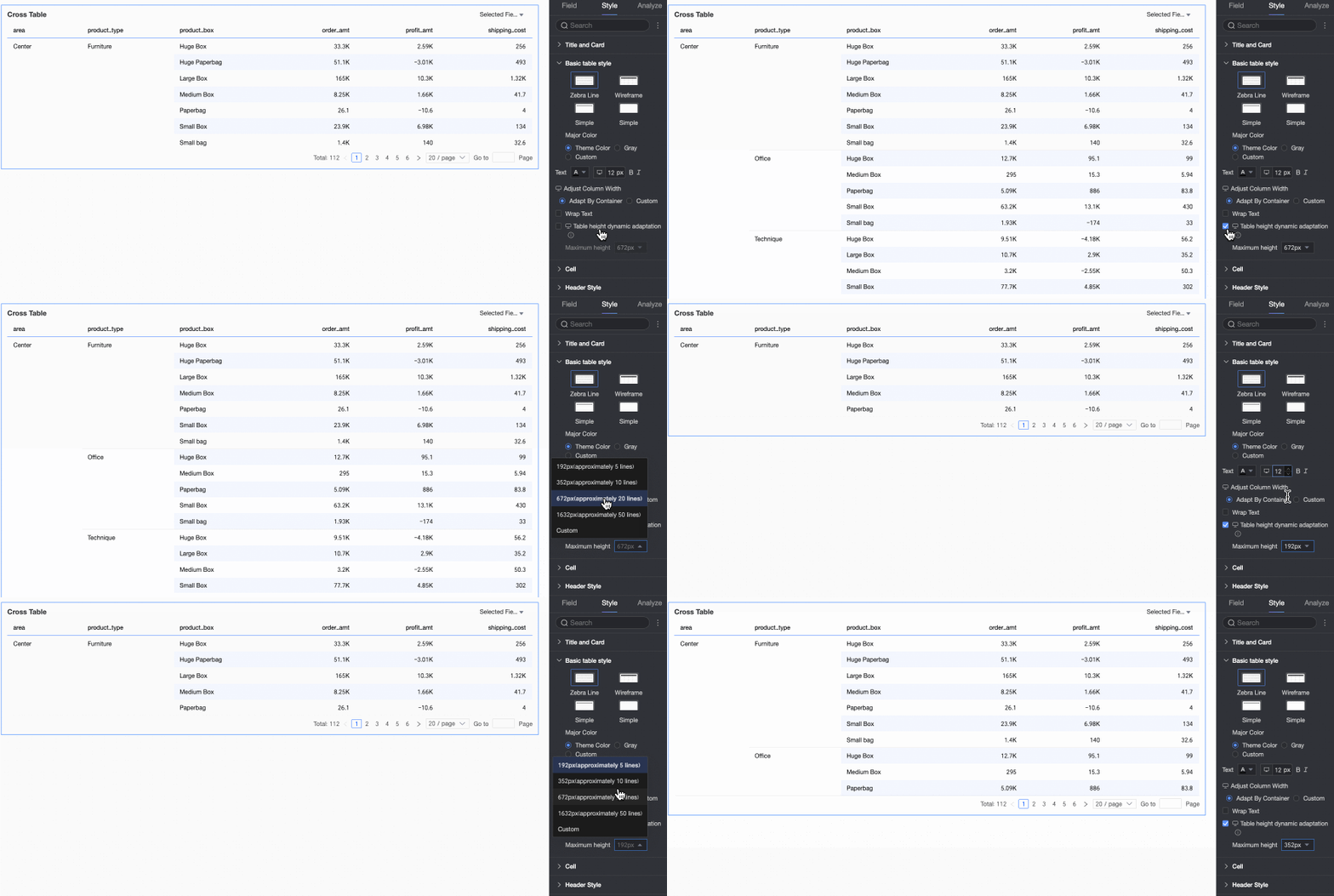
Adaptive Height: Enable this to make the table container height adjust automatically to its content. You can also set a maximum height, which is the total height of the header and data rows. The table's height will not exceed this maximum value when adapting.
The available maximum height options are: 192px (approx. 5 rows), 352px (approx. 10 rows), 672px (approx. 20 rows), 1632px (approx. 50 rows), and Custom.
NoteWhen row height is set to Custom mode, Adaptive Height only supports the custom option. Set a maximum table height based on your desired layout.
Click the
icon at the top of the page to configure adaptive height settings for PC and mobile separately.On mobile, adaptive height is enabled by default. You can only adjust the maximum table height.
This feature can affect the report's overall layout. Enable it only when necessary.
In the Cell section, configure cell display, sorting, and other options.
Parameter
Description
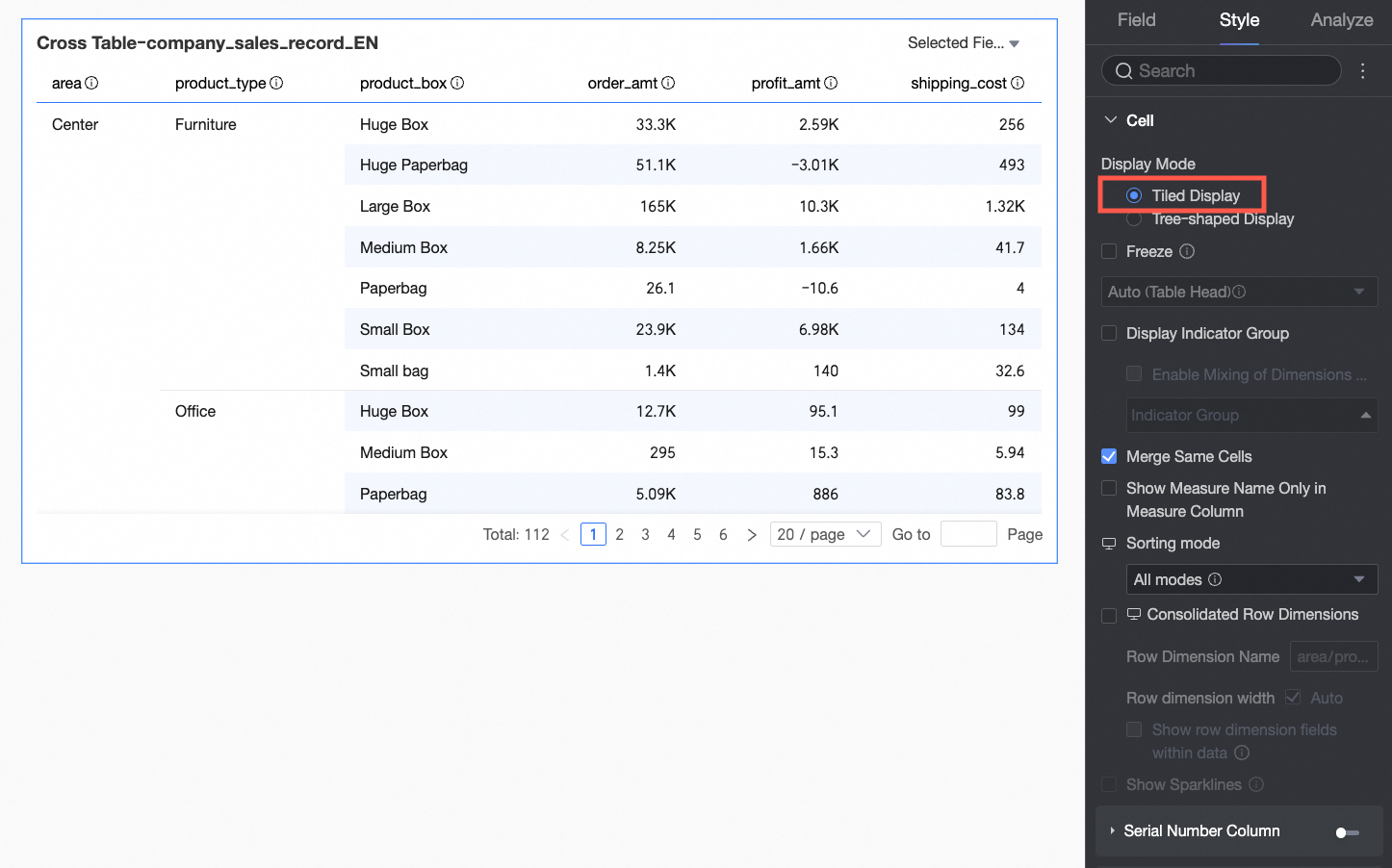
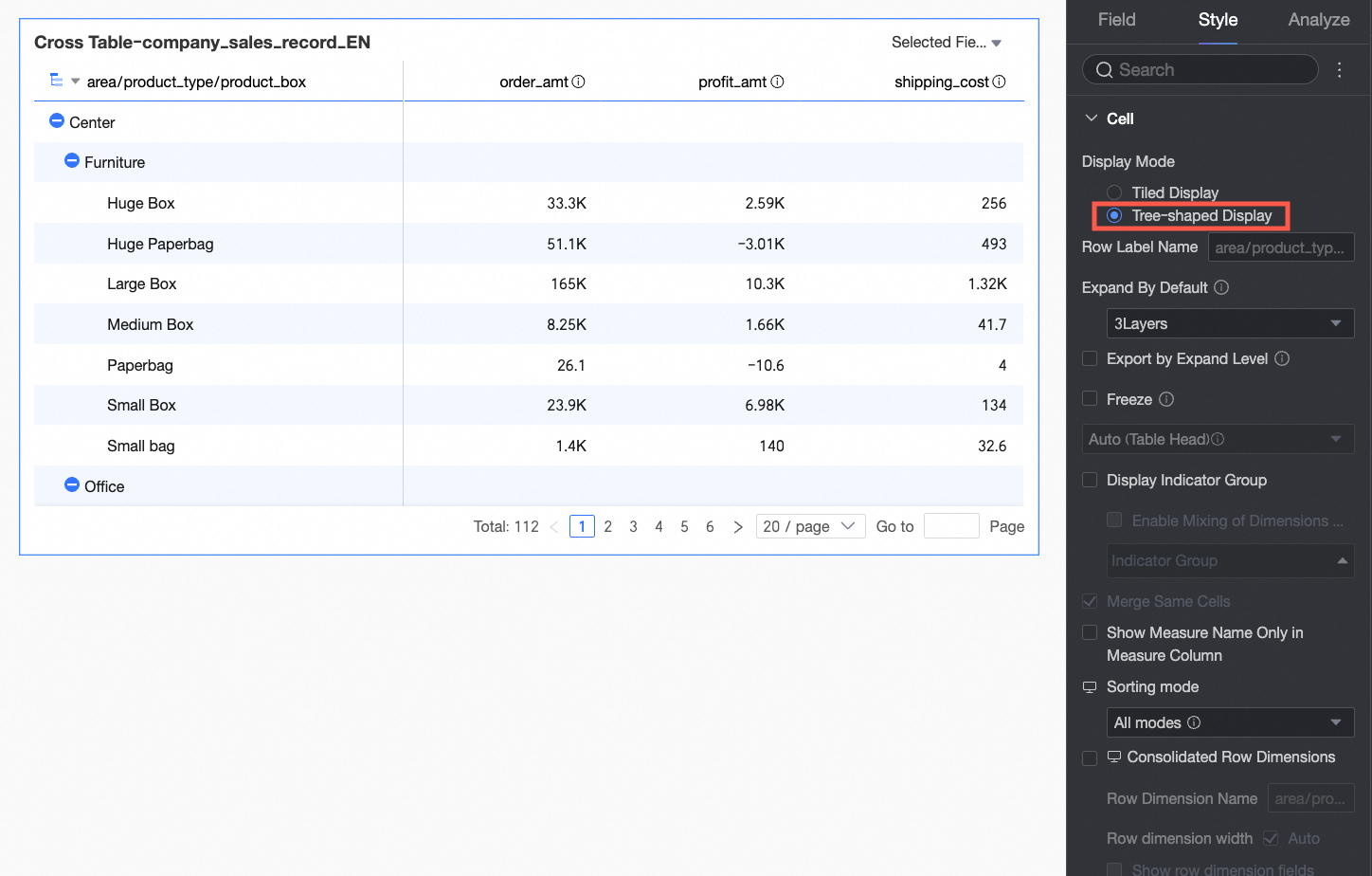
Display mode
The supported modes are Tiled Display and tree view.
If you select Tiled Display, the cross table displays in a flat, two-dimensional format.
If you select tree view, dimension fields display in a hierarchical tree structure.
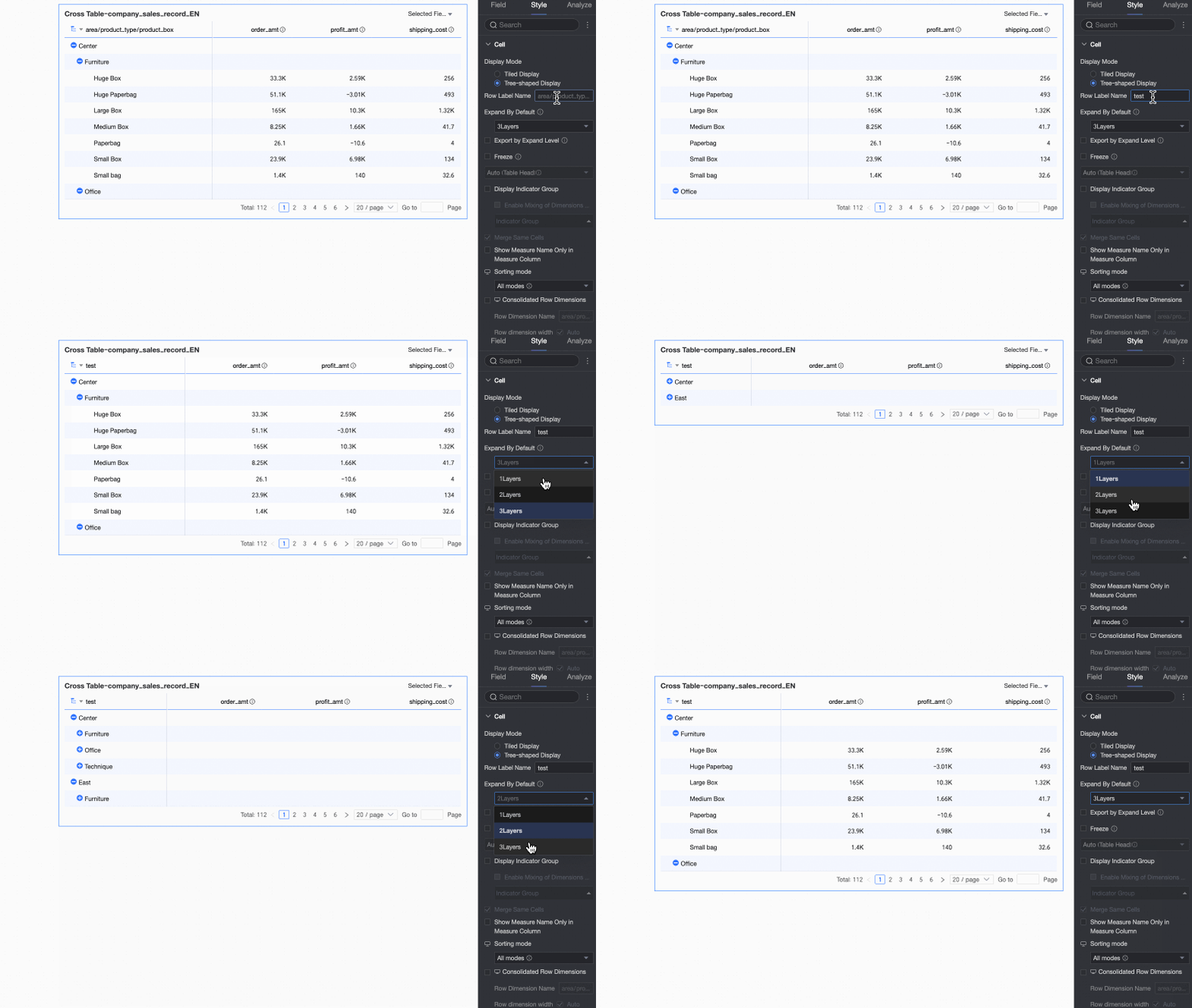
You can customize the Row Label Name and the Display Level.
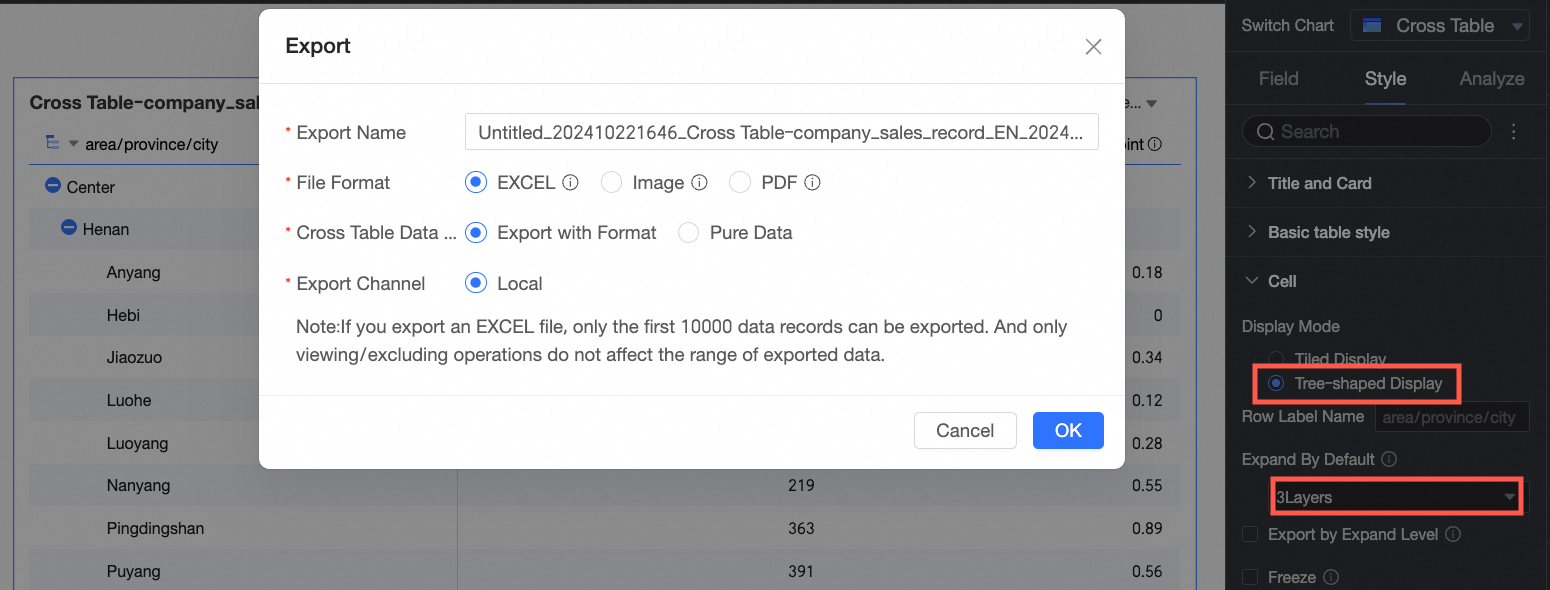
Export by expanded level
If you select this option, exporting with formatting saves only the data visible at the current expand/collapse state of the tree view.
For example, if the display level is set to 3, only data within the first three levels is exported.
NoteIf pagination is enabled for the cross table, only the current page can be exported. To resolve this, either disable pagination or increase the number of rows displayed before exporting.
If no subtotal is set for the exported cross table, parent levels cannot display data.
Freeze
Freezes the header or columns.
NoteWhen freezing columns, ensure that the width of the frozen columns is less than 60% of the total table width.
Indicator display group
You can set up indicator display groups. After enabling Mixed Dimension/Measure Layout, dimension fields can also be grouped. Groups also support field descriptions.
Merge identical cells
Merges adjacent cells that have the same content.
Auto-wrap content area
To maintain table aesthetics, you may need to set text wrapping rules for different sections of the table. For example, if header fields are an appropriate length but content fields are too long, you can wrap the text in the content area to keep the table compact and visually appealing.
Select Auto-wrap Content Area to automatically wrap long text in the content area.
NoteCross tables recognize newline characters in fields. You can use them to customize the wrapping effect.
This option only controls automatic wrapping for the content area. To adjust wrapping settings for the header, see Header settings.
Image field display mode
If the chart contains an image field, you can set its display mode. Options include Scale to fit while maintaining aspect ratio, Crop to fill while maintaining aspect ratio, and Stretch to fit.
NoteThe Image Field can only be used when the dataset contains an image field and its field type is Image (
). For more details, see Using image dimensions in indicator dashboards.Display measure name in single-measure column
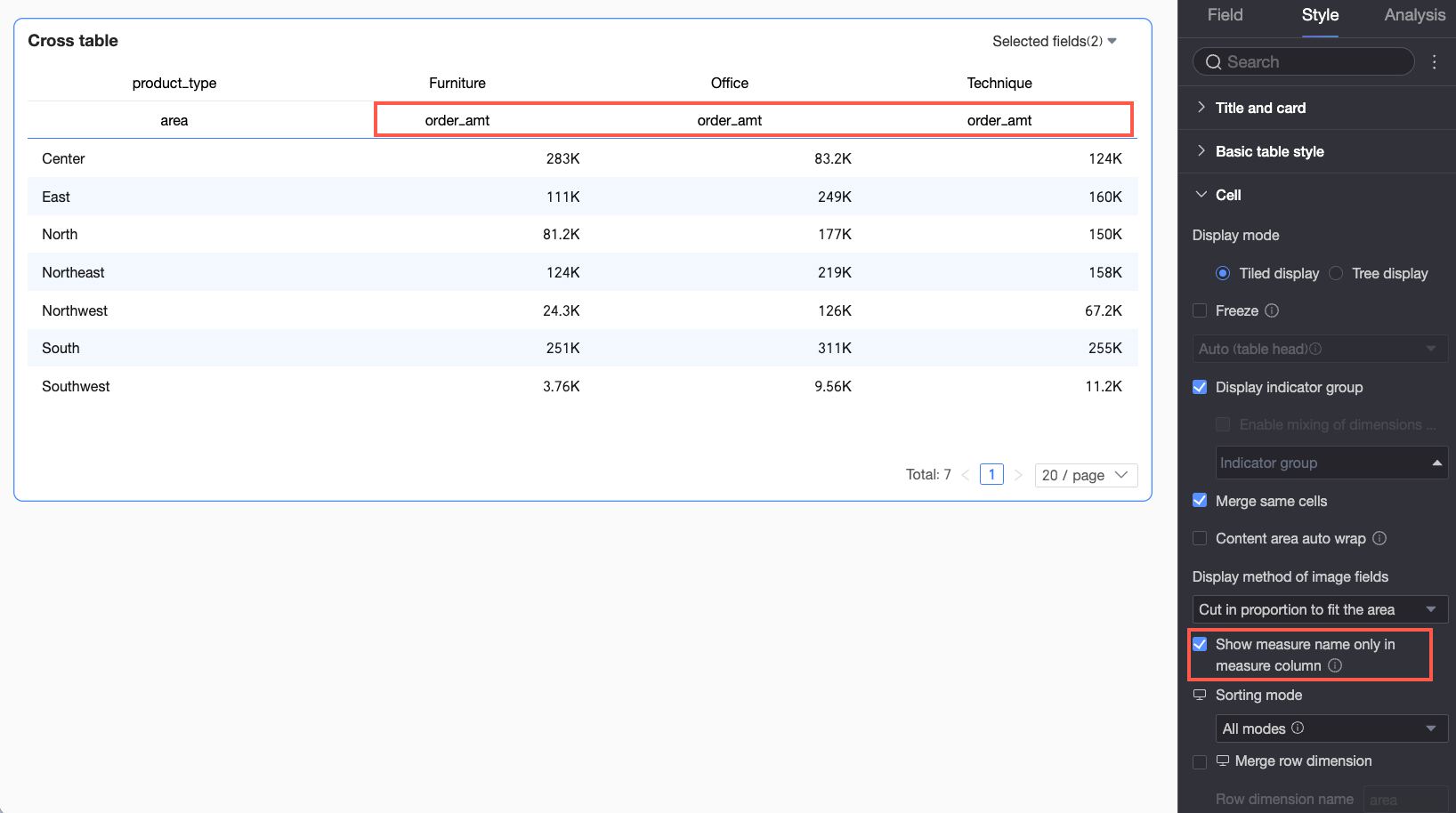
When the column area contains a dimension field and only one measure field, you can select Display Measure Name in Single-Measure Column. This shows the measure's name in the column header, making the cross table's meaning clearer.
If this option is not selected, the table does not clearly indicate whether the numbers in the content area represent sales, profit, or another metric. Report viewers would need to rely on context or additional text to understand the table.
After enabling this option, the measure's name appears in the column header, allowing viewers to intuitively understand the business metric being analyzed.
Sort mode
PC:
Set the Sort Mode for the cross table.
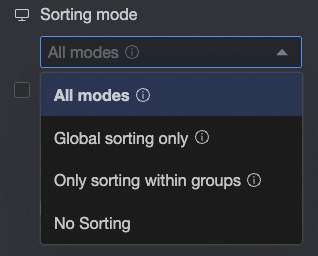
All Methods: Displays all sorting methods in a drop-down list. The list shows the currently configured sorting method, and you can manually switch to other methods.
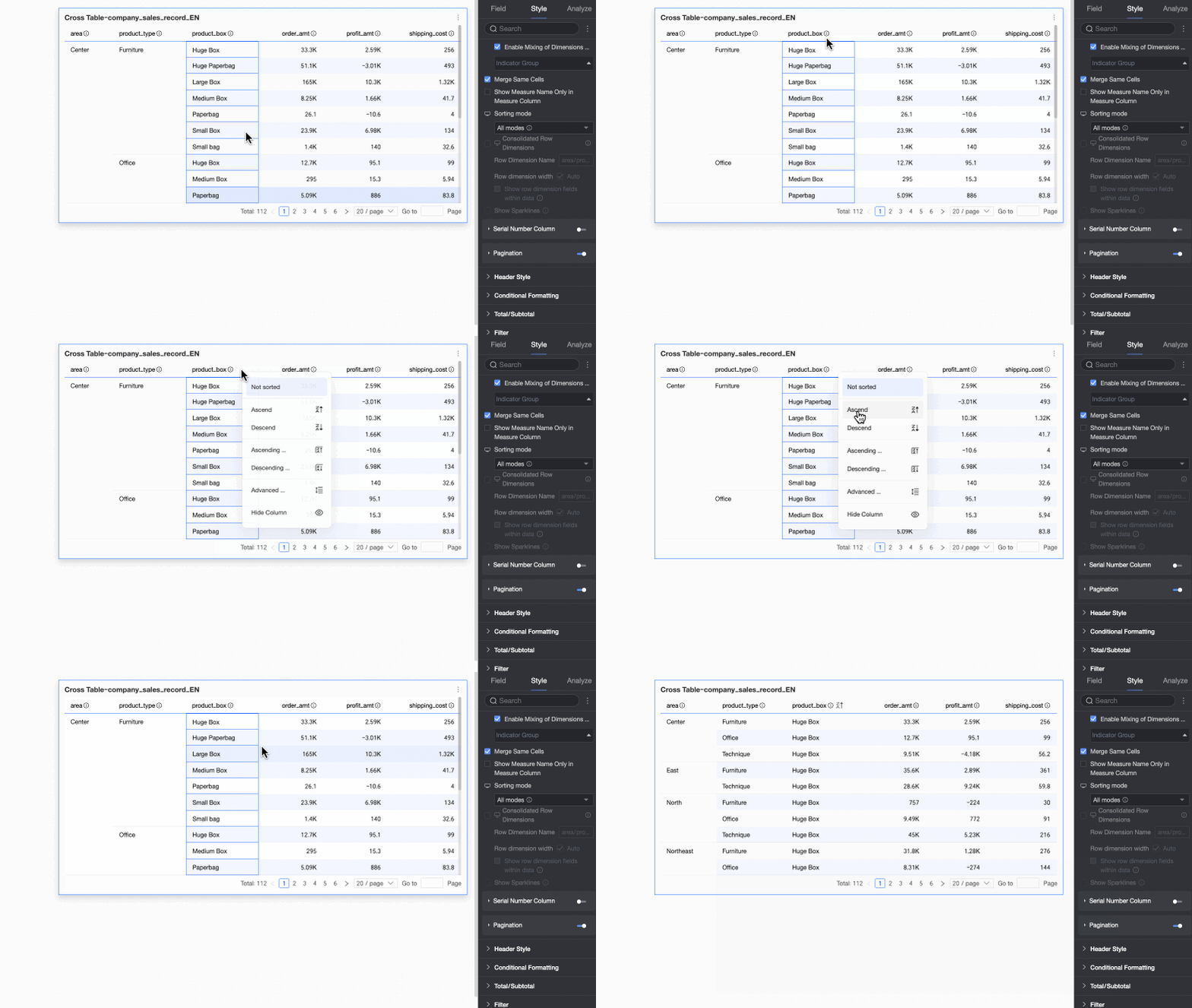
Global Sort Only: When only global sorting is needed for business purposes, you can set the mode to "Global Sort Only" to reduce unnecessary steps. Report viewers can then click the up and down arrows
to conveniently switch between global ascending, global descending, and no sort.Group Sort Only: When only group sorting is needed, you can set the mode to "Group Sort Only". Report viewers can then click the up and down arrows
to conveniently switch between group ascending, group descending, and no sort.No Sort: Select this mode to disable sorting.
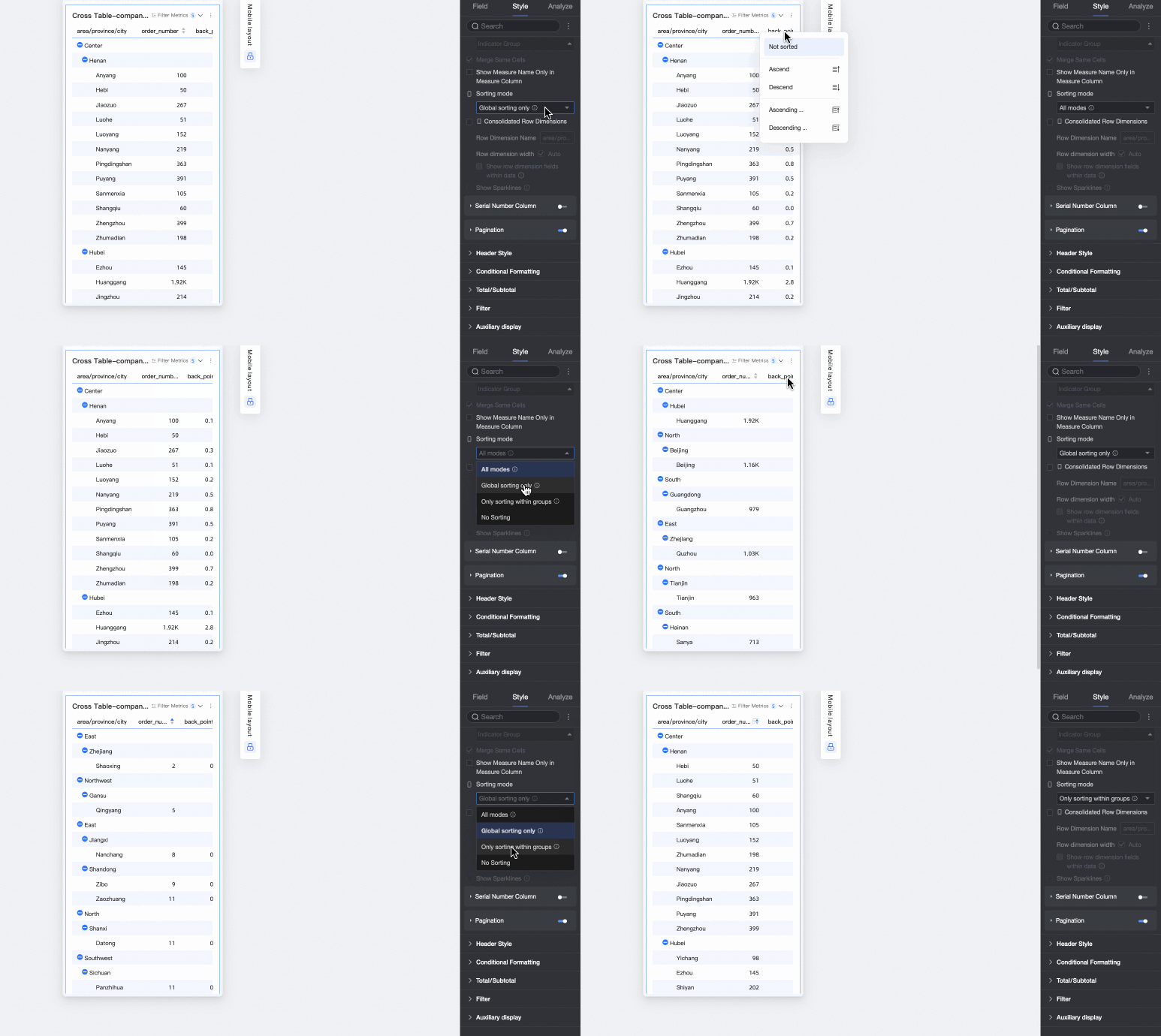
Mobile:
Supports All Methods, Global Sort Only, Group Sort Only, and No Sort. The sorting logic is the same as on PC.
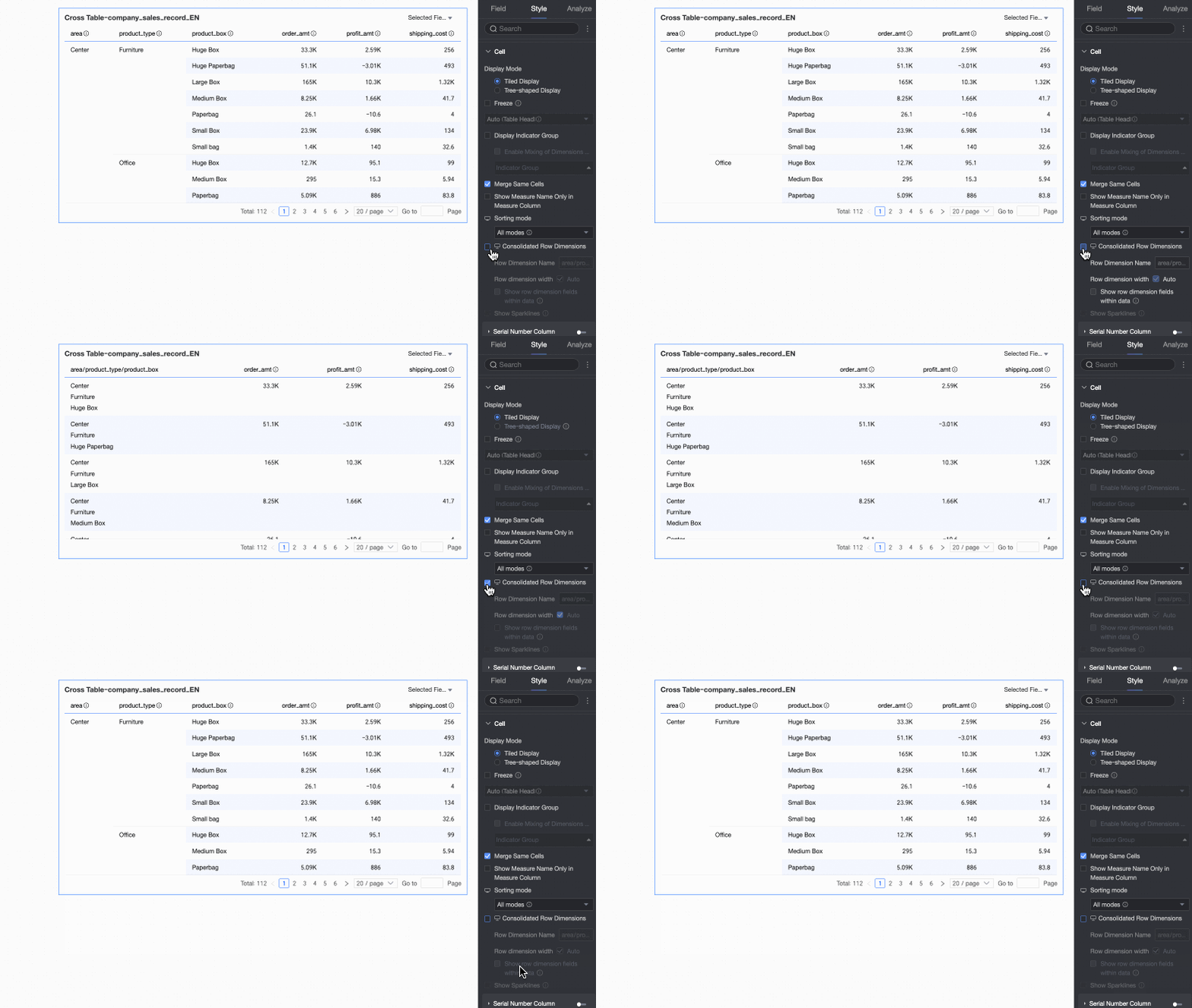
Merge row dimensions
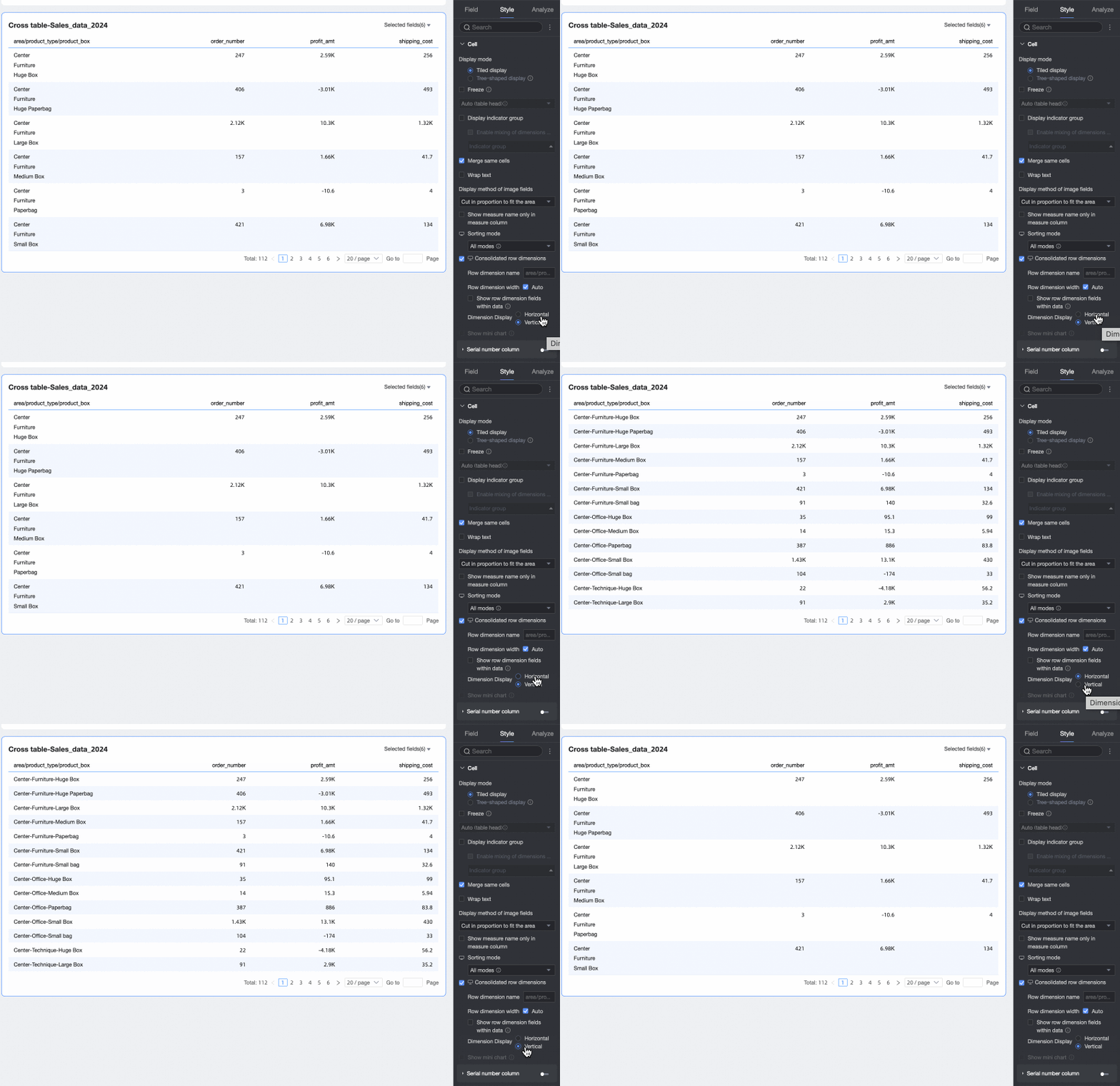
Set whether to merge row dimensions. When selected, the cross table merges dimension information into a single column, displayed row-by-row. You can also configure the following:
Row dimension name: Enter a name for the merged row dimension.
Row dimension width: Set the width of the row dimension column. You can choose to adapt it automatically based on the interface or enter a custom fixed width.
Display row dimension fields in data: Select this to display the name of the row dimension field.
Dimension arrangement: Set the text arrangement after merging row dimensions. Options are horizontal or vertical.
NoteYou can configure the row dimension merge settings separately for PC and mobile by clicking the
icon at the top of the page.Show sparklines
When the Columns area of the cross table contains a date field and the Rows area contains measures, you can choose to enable sparklines. Once enabled, you can customize the sparkline's name based on your business context.
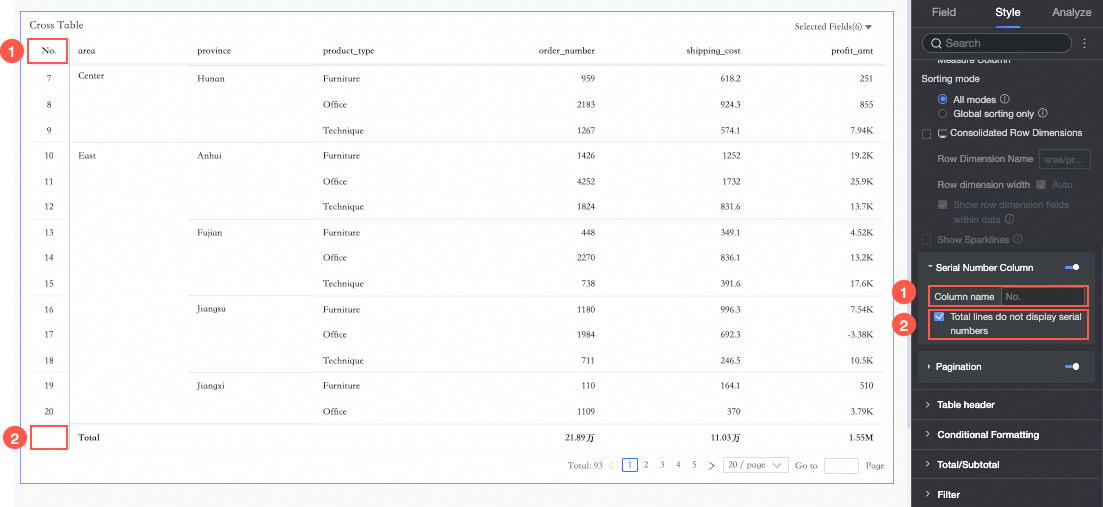
Row number column
If selected, a row number column is displayed in the report.
① You can set the name for the row number column.
② You can select Do not show row numbers in total rows.
NoteThe Do not show row numbers in total rows option is available only when column grand totals are enabled for the cross table.
Paginator
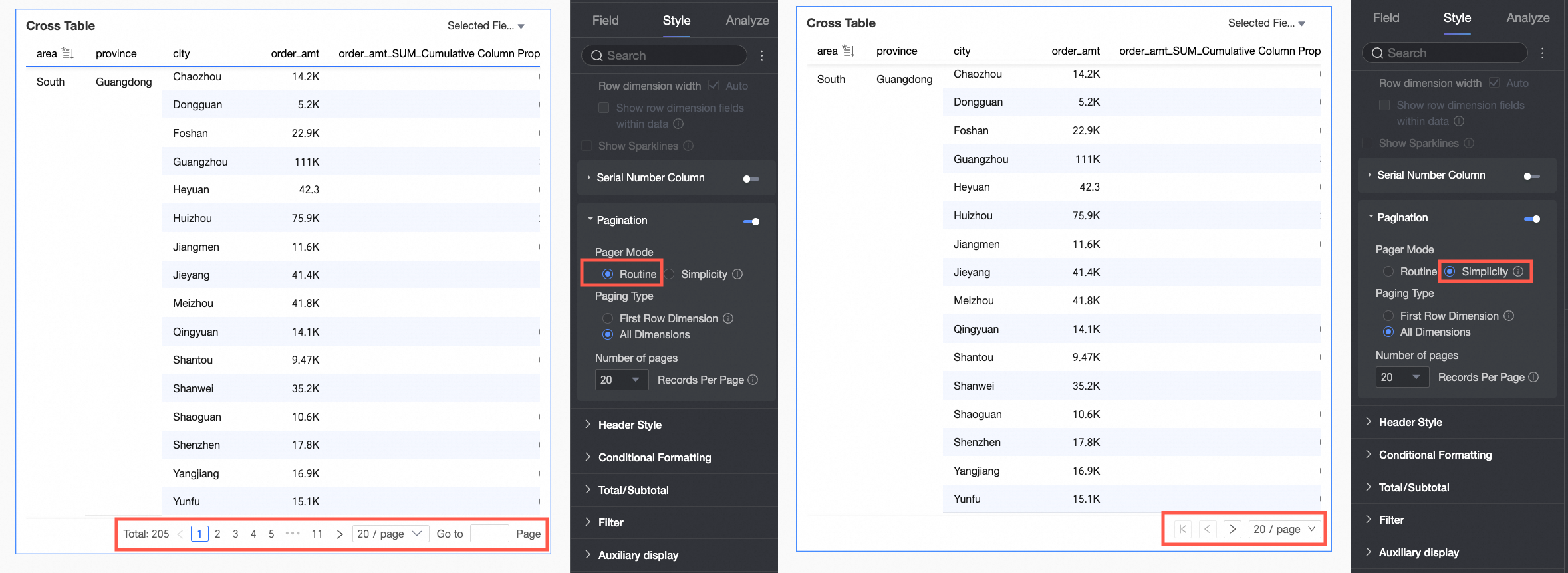
Click the paginator icon to open the paginator settings page.
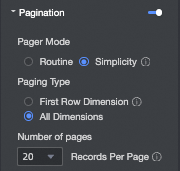
The paginator mode is Regular by default. For large data volumes, use the Simple mode, which does not calculate the total number of items.
Pagination type can be set to First row dimension or All dimensions.
NoteGlobal sorting automatically disables pagination by the first row dimension.
Supported items per page are 10, 20, 30, 50, 80, 100, 200, and 500. The default is 20 items per page.
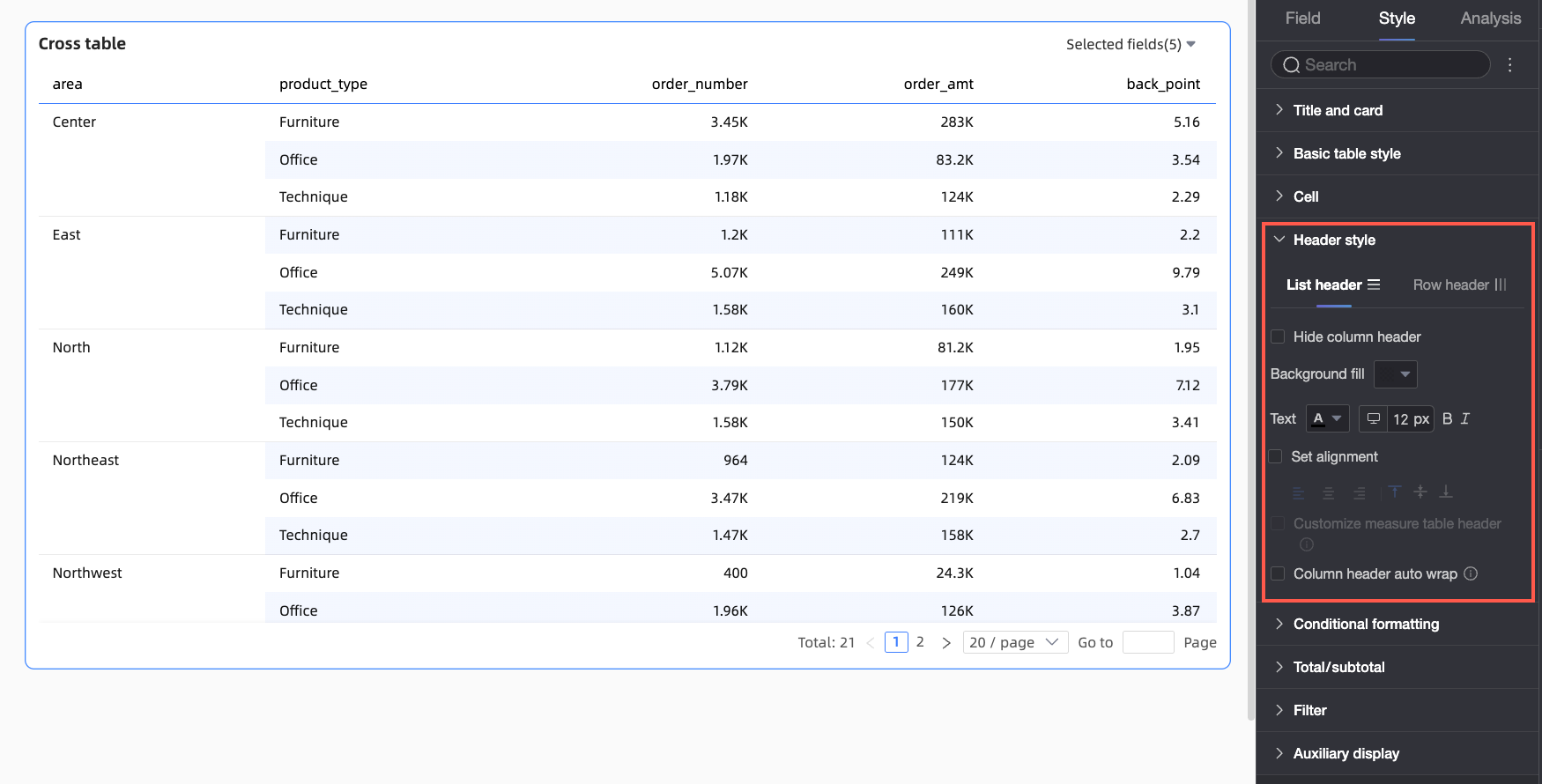
In the Header section, configure the styles for the cross table's row and column headers.
Parameter
Option
Description
Column header
Hide Column Header
If selected, the column header content is not displayed.
Background fill
Set the background fill color for the column header.
Text
Set the text style for the column header.
Set alignment
Set the alignment for the column header. Left, center, and right alignment are supported.
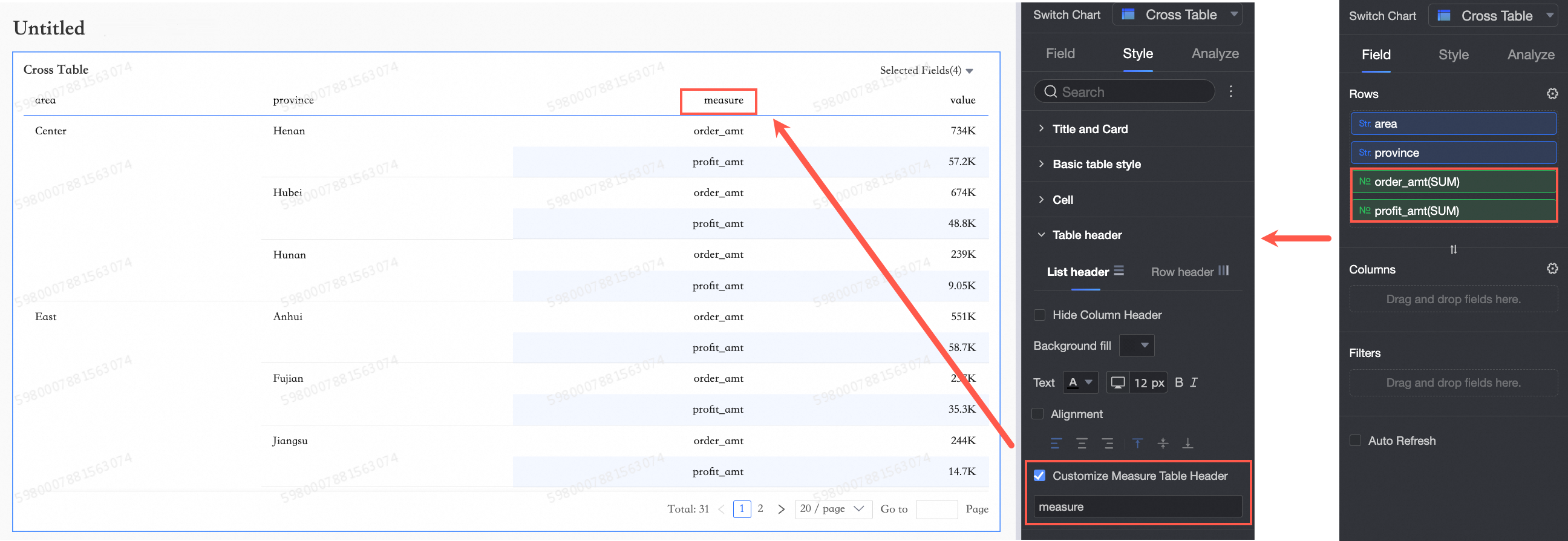
Custom measure header name
When a measure field is present in the row dimension, you can configure a custom measure header name.
Row header
Background fill
Set the background fill color for the row header.
Text
Set the text style for the row header.
Set alignment
Select this option to set the alignment of the row header.
This setting takes precedence over the alignment in the field configuration. For example, if the Profit Amount field is set to left-aligned in its field configuration but is set to center-aligned here, the field name in the row header will be center-aligned.
Auto-wrap row header
If selected, long text in the row header area wraps automatically.
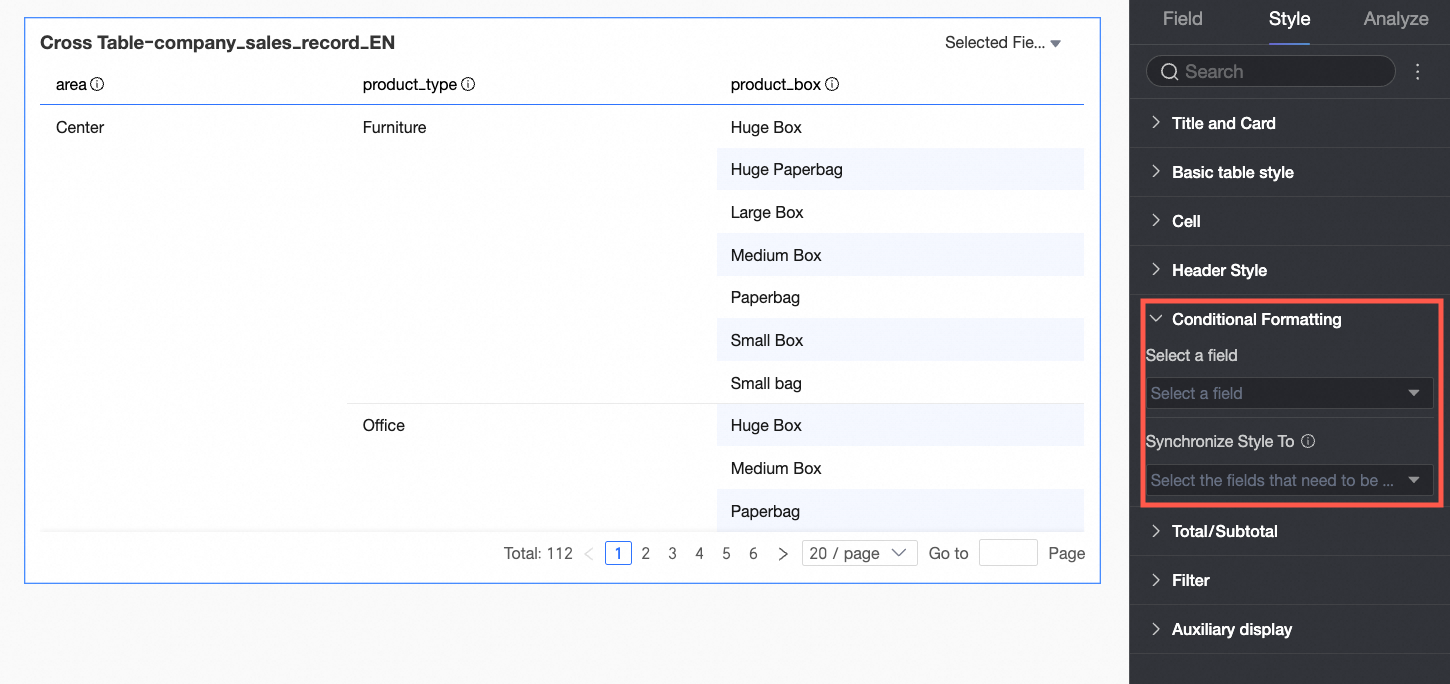
In the Conditional Formatting section, set conditional formats for your data.
Parameter
Description
Select field
Select the field for which you want to configure conditional formatting. Any field added to the data panel can be selected.
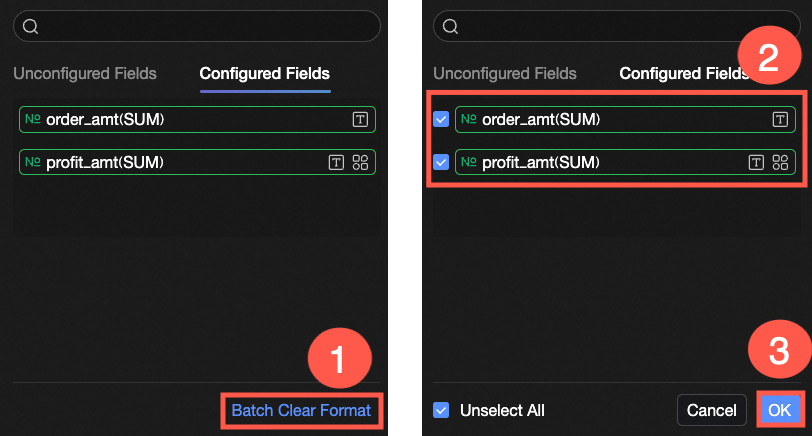
After configuring styles, if you no longer need some of the conditional formats, you can click Clear Formats in Batches at the bottom right of the field panel. In the selection list, choose the conditional formats to clear and click Confirm.
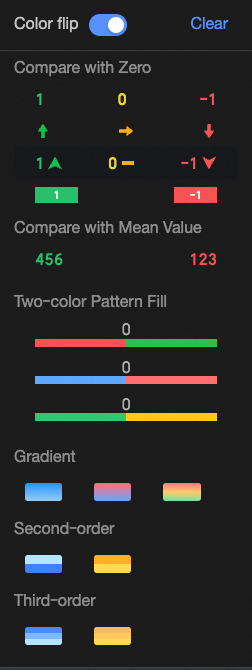
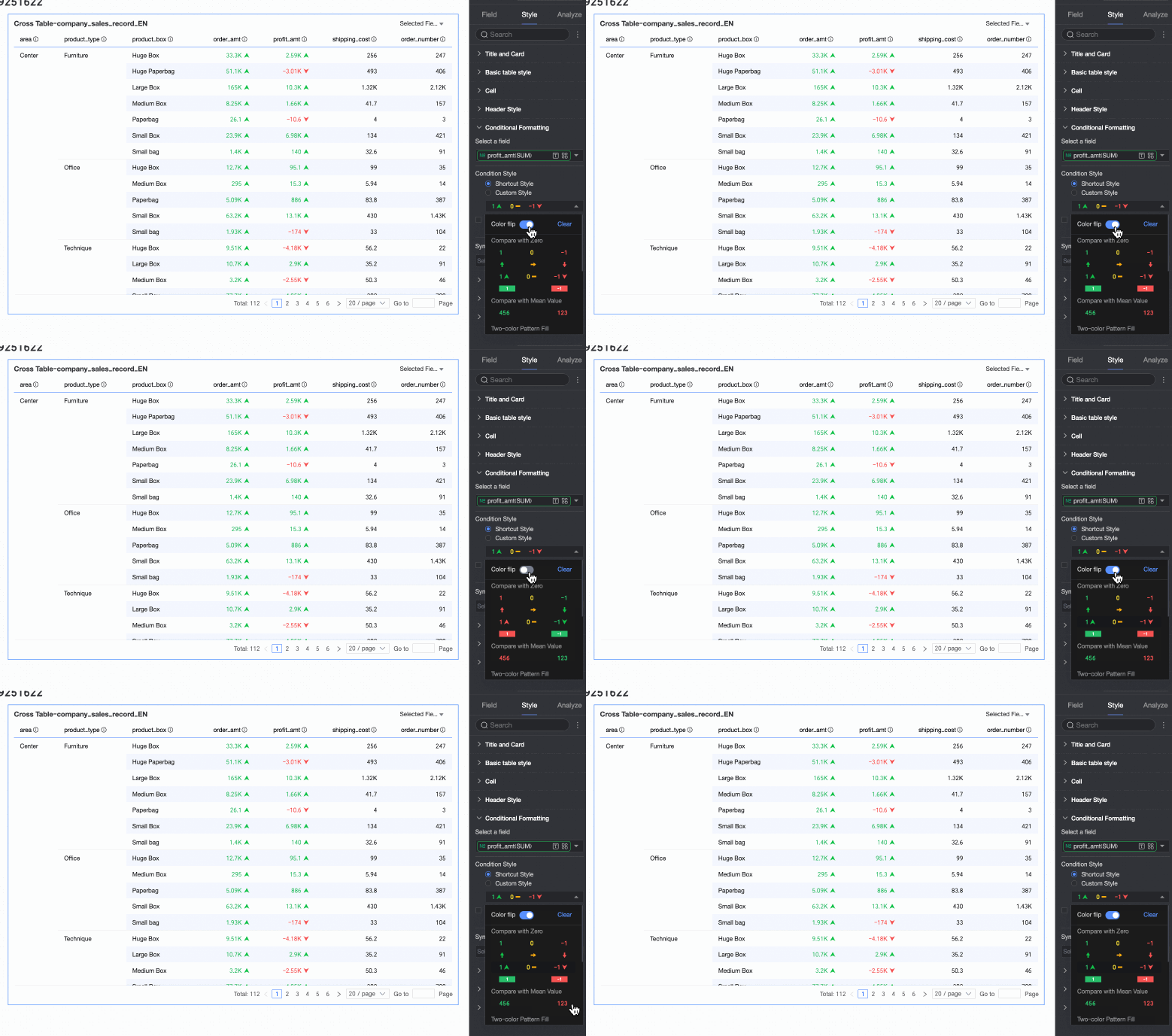
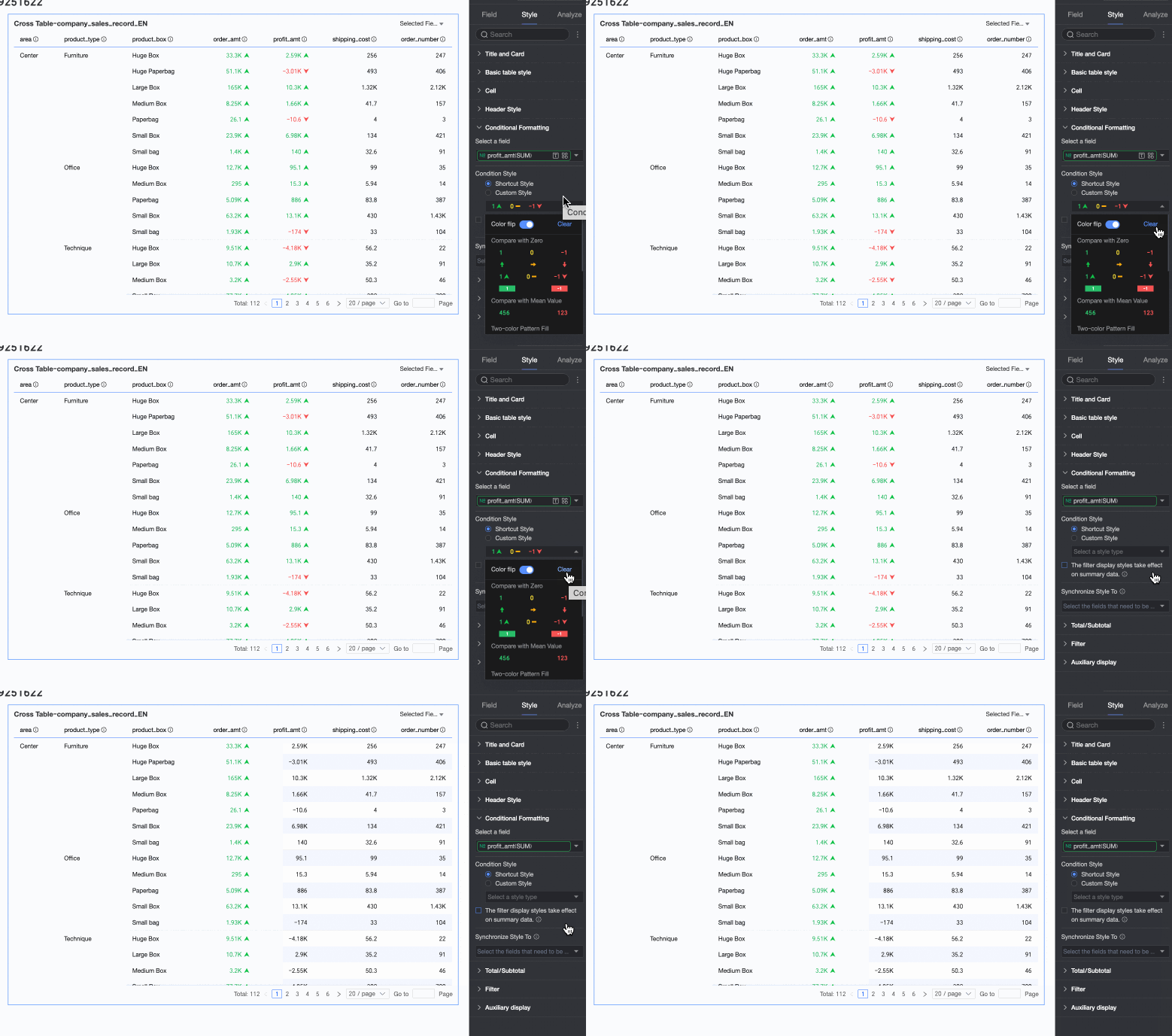
Quick styles
Set marker icons or font colors for the current field from a set of predefined styles. Quick styles can only be configured for measure fields, not dimension fields.
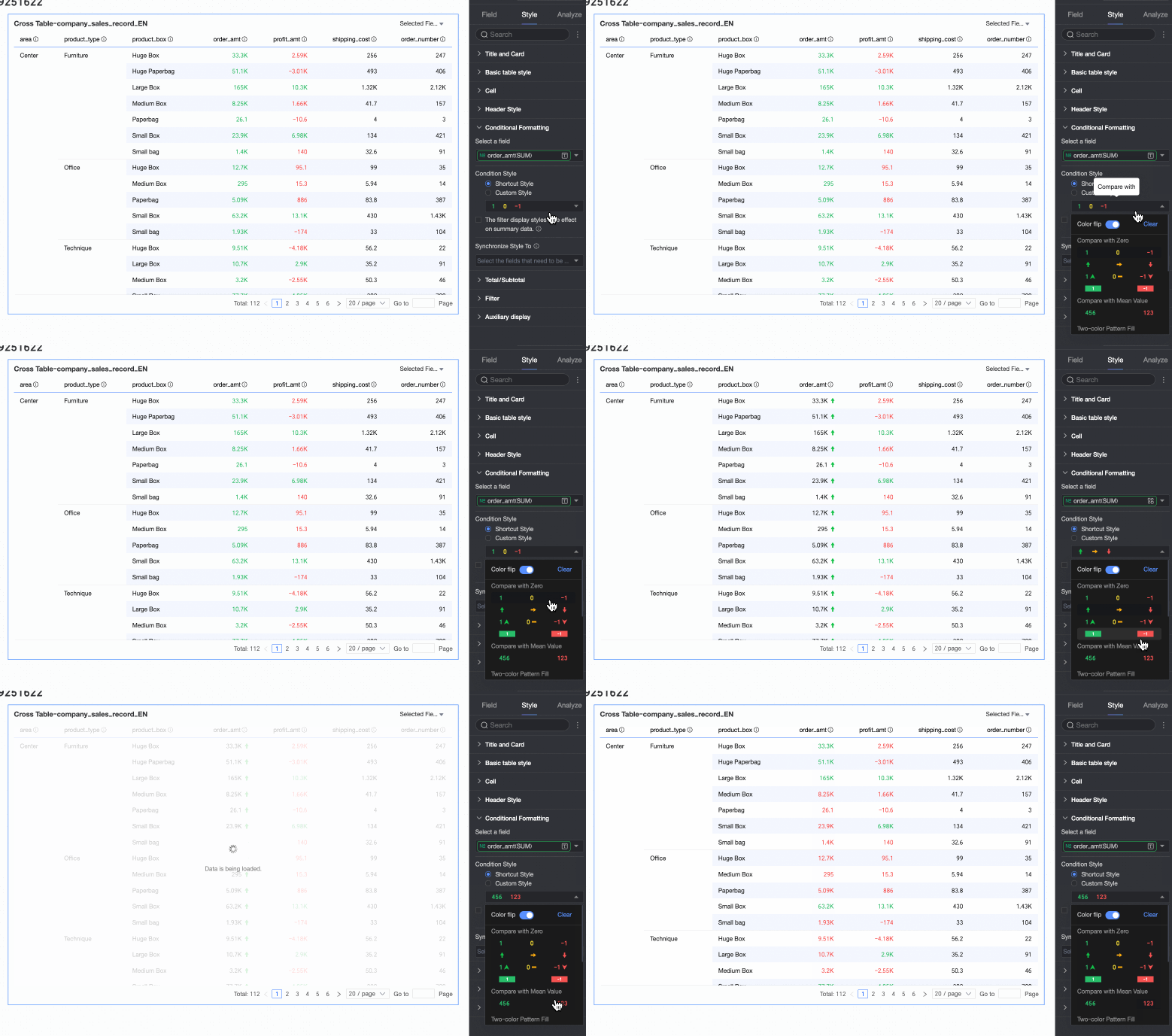
Comparison: You can choose to Compare with 0 or Compare with average.
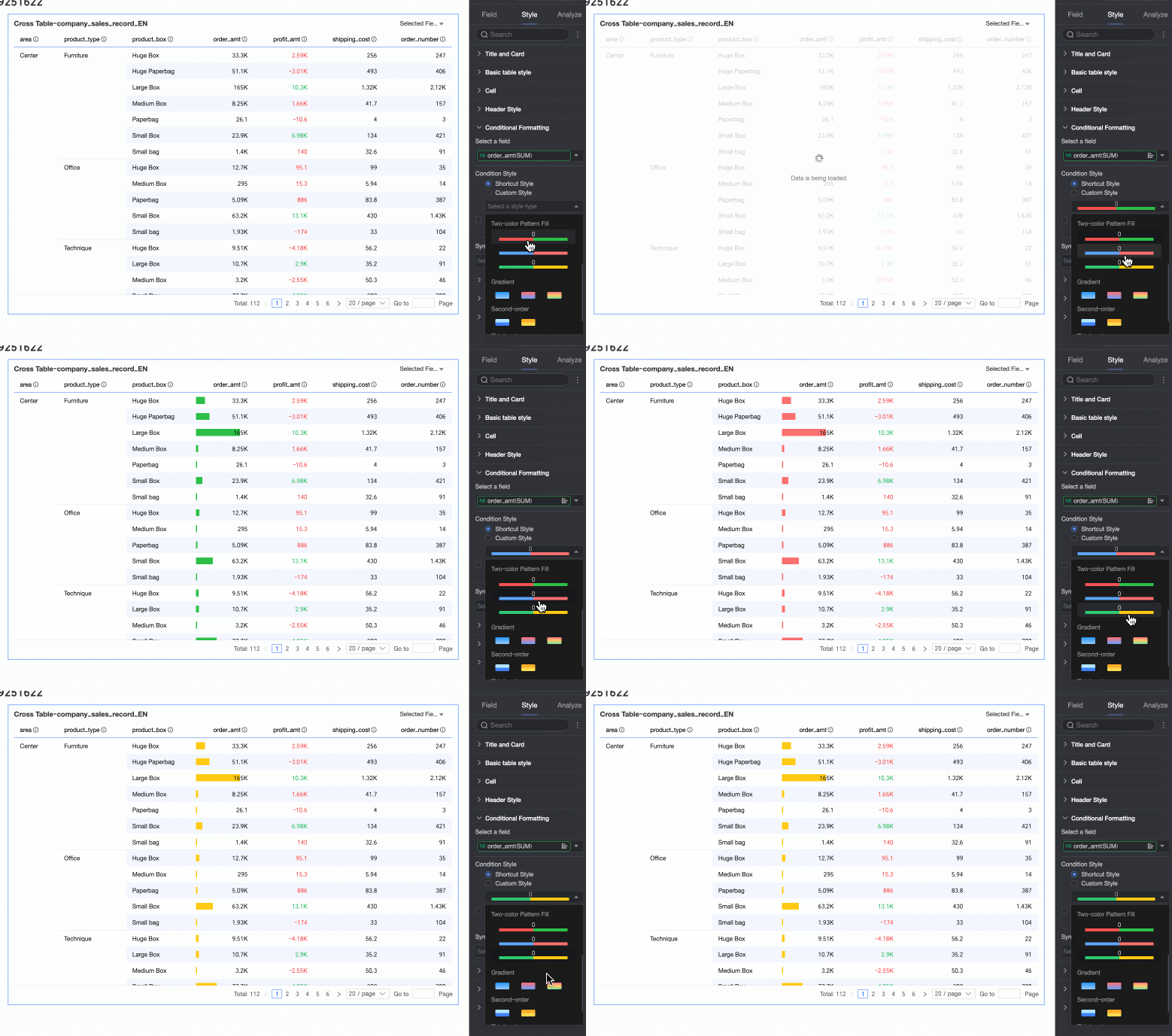
Two-color fill: You can choose the color of the data bars.
NoteData bar length calculation: If the minimum and maximum values have different signs (one positive, one negative), the denominator is the larger of their absolute values. If they have the same sign, the denominator is the difference between their absolute values.
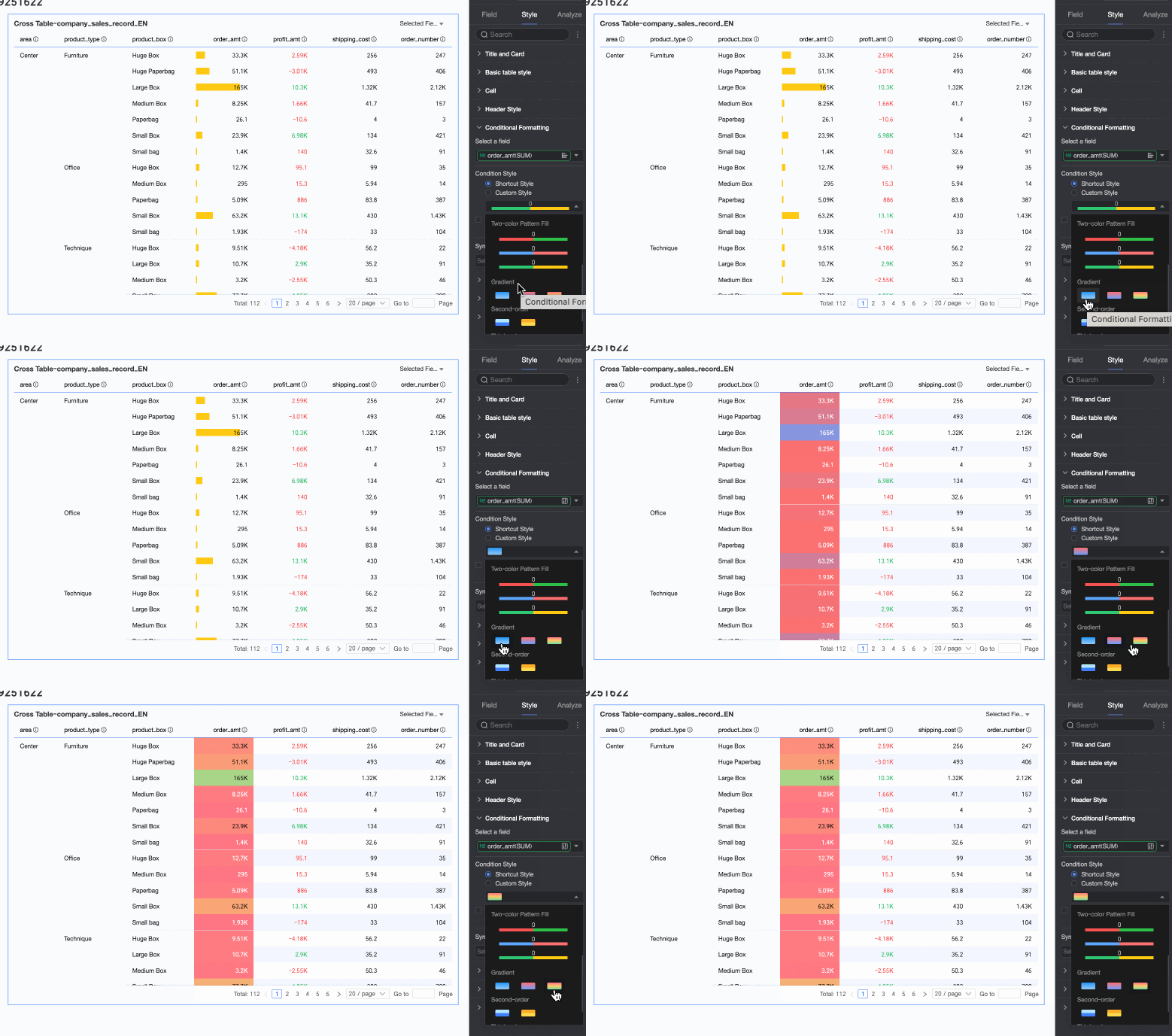
Color scales: You can select Gradient, Two-tier, or Three-tier.
Invert colors
For a comparison style, inverting colors swaps the color scheme. For example, if values less than 0 are red and greater than 0 are green, inverting makes them green and red, respectively.
Clear: If you no longer need a quick style, click Clear to remove it.
Custom style
In addition to quick styles, you can also configure custom styles. Both measure and dimension fields support custom styles, but the available options differ.
Measure Fields: You can configure Highlight text/background, Icon, Color scales, and data bars.
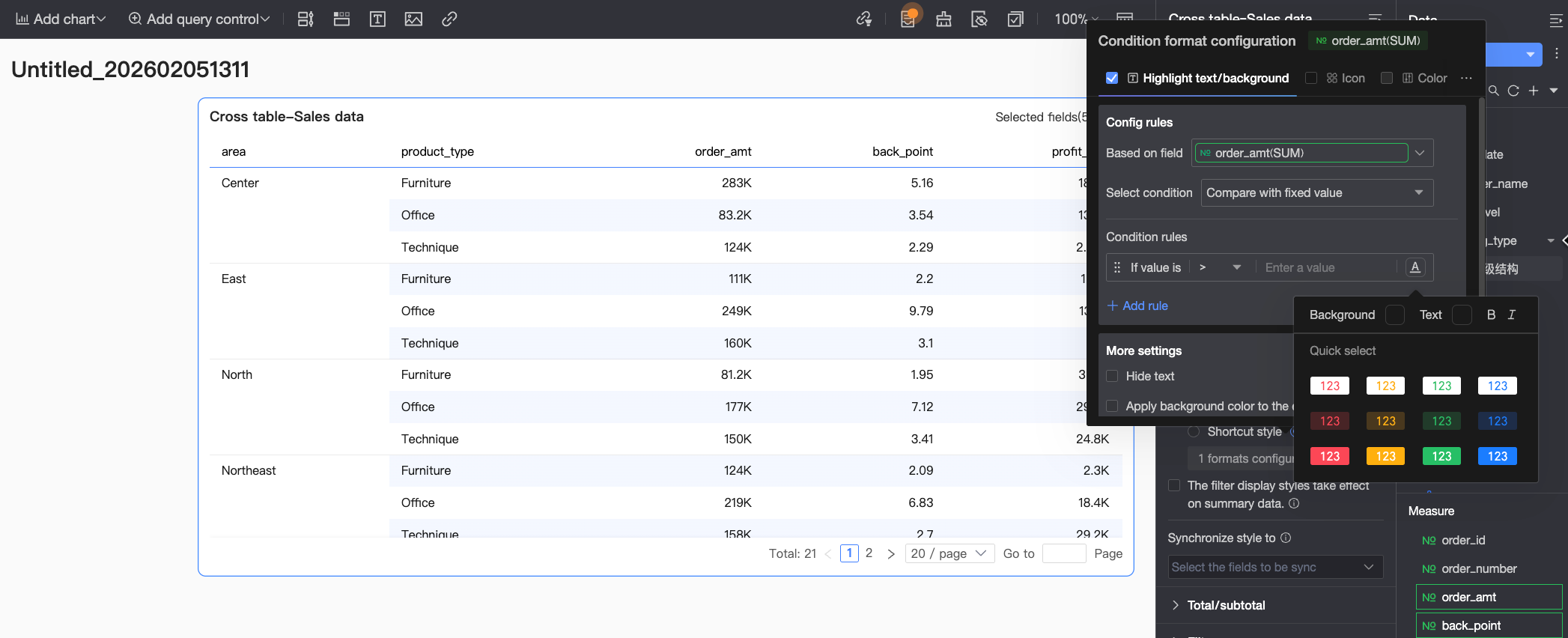
Highlight text/background: Configure rules to highlight the text color or background color of field values to visually emphasize key data in the table.
You need to configure the following information:Based on field: Set which data field the conditional rule applies to. By default, this is the field selected in Select Field. You can also select other fields in the chart to create more complex conditional rules based on their values.
Condition type: Set the comparison basis for the conditional rule. Options include Compare with fixed value, Split by percentage range, and Compare with dynamic field.
Conditional rule: Set the specific logic for the condition and the display style for the cell text/background when the rule is met. You can set text color, bold, italics, and background fill color.
Add rule: Click to add a new rule.
More settings: Set whether to hide the current field's text and whether to apply the background color to the entire row.
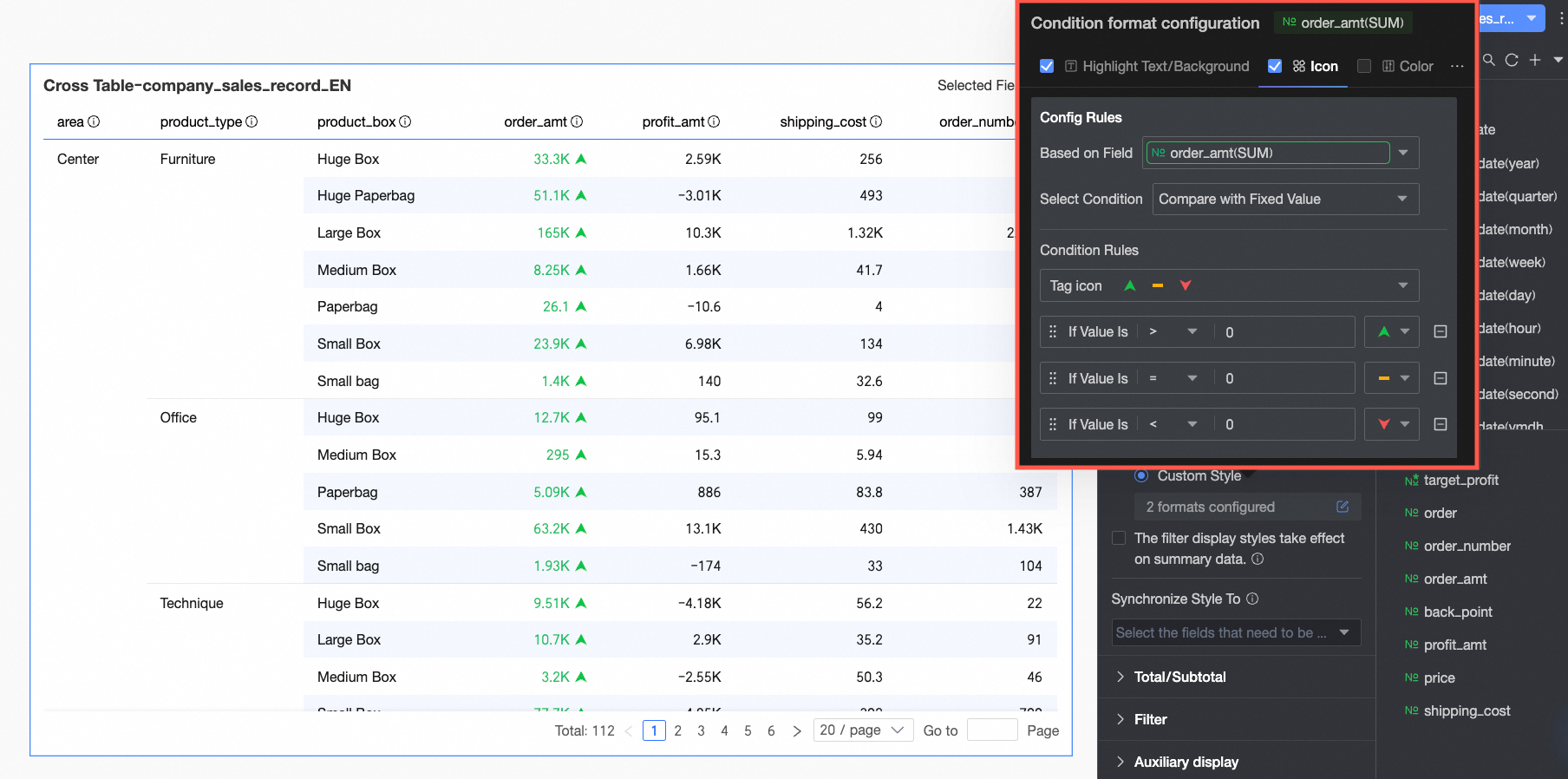
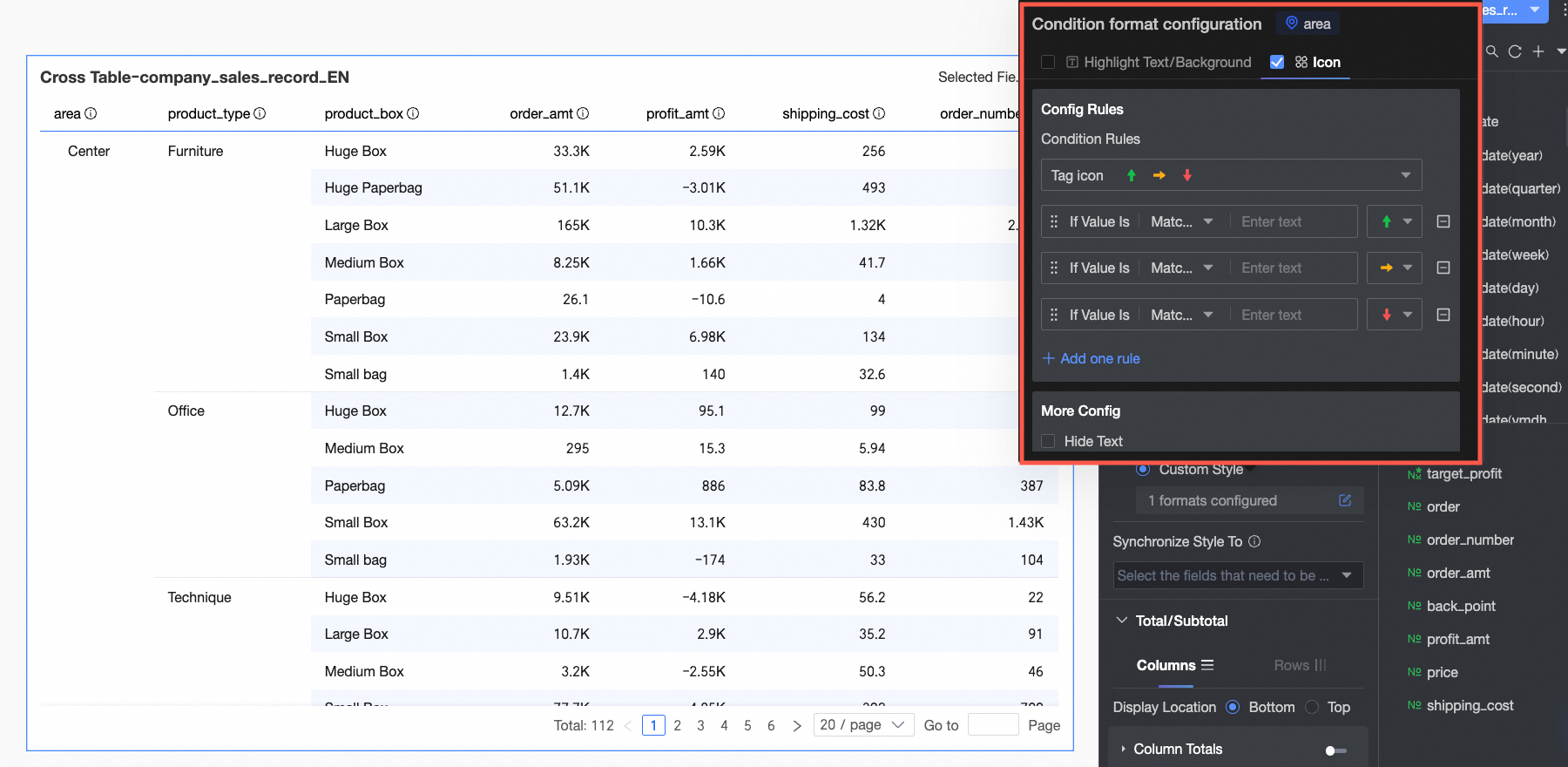
Icon: Display specific marker icons in corresponding cells based on numerical comparison results to clearly show the relationship between the current data and a target.
You need to configure the following information:Based on field: Set which data field the conditional rule applies to. By default, this is the field selected in Select Field. You can also select other fields in the chart to create more complex conditional rules based on their values.
Condition type: Set the comparison basis for the conditional rule. Options include Compare with fixed value, Split by percentage range, and Compare with dynamic field.
Conditional rule: Click the Marker Icon selection box to choose a suitable icon type from the provided sets. Then, set the specific logic for the data condition corresponding to an icon. You can also select a different marker icon for each comparison rule.
Add rule: Click to add a new rule.
More settings: Set whether to hide the current field's text.
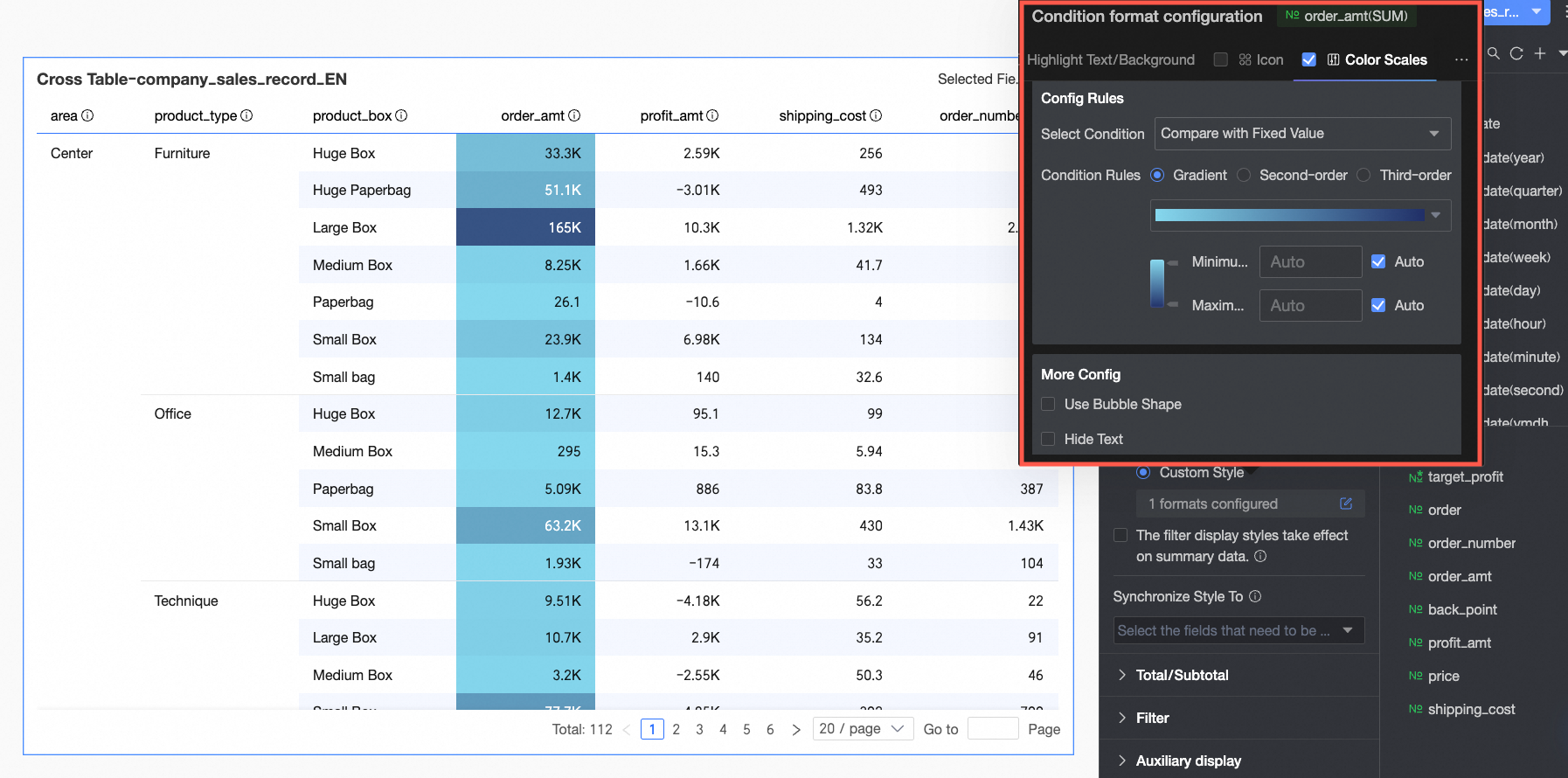
Color scales: Colors cell backgrounds based on their numerical value to show data distribution and trends.
NoteColor scales can be configured only when Highlight Text/Background, Icon, and Data Bars are not selected.
You need to configure the following information:Condition type: Set the comparison basis for the conditional rule. Options include Compare with fixed value and Split by percentage range.
Conditional rule: Set the color scale style (gradient, one-tier, two-tier) and specify the min, max, and boundary values for the current style, as well as the colors for each value range.
In More Settings, set the shape of the color scale bar and whether to hide the current field's text.
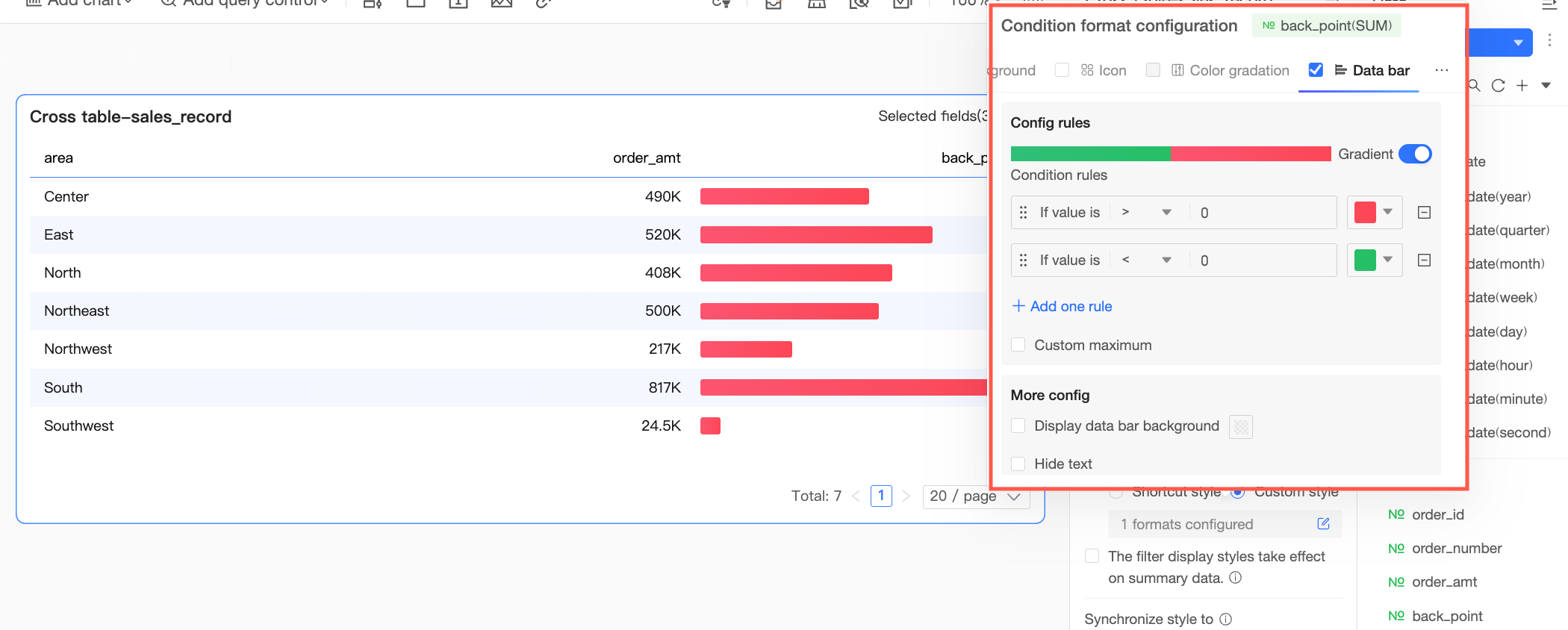
Data bars: Represents cell values with colored bars to intuitively show relative sizes and comparisons.
You need to configure the following information:Conditional rule: Set the display rule for the data bars of the current measure field. You can specify a corresponding display color for each rule.
Add rule: Click to add a new rule.
Custom min/max: Lets you customize the maximum and minimum values. In automatic mode, the maximum defaults to the highest value in the current field, and the minimum defaults to the lowest.
More settings: Set whether to show the data bar background and customize its color; set whether to hide the current field's text.
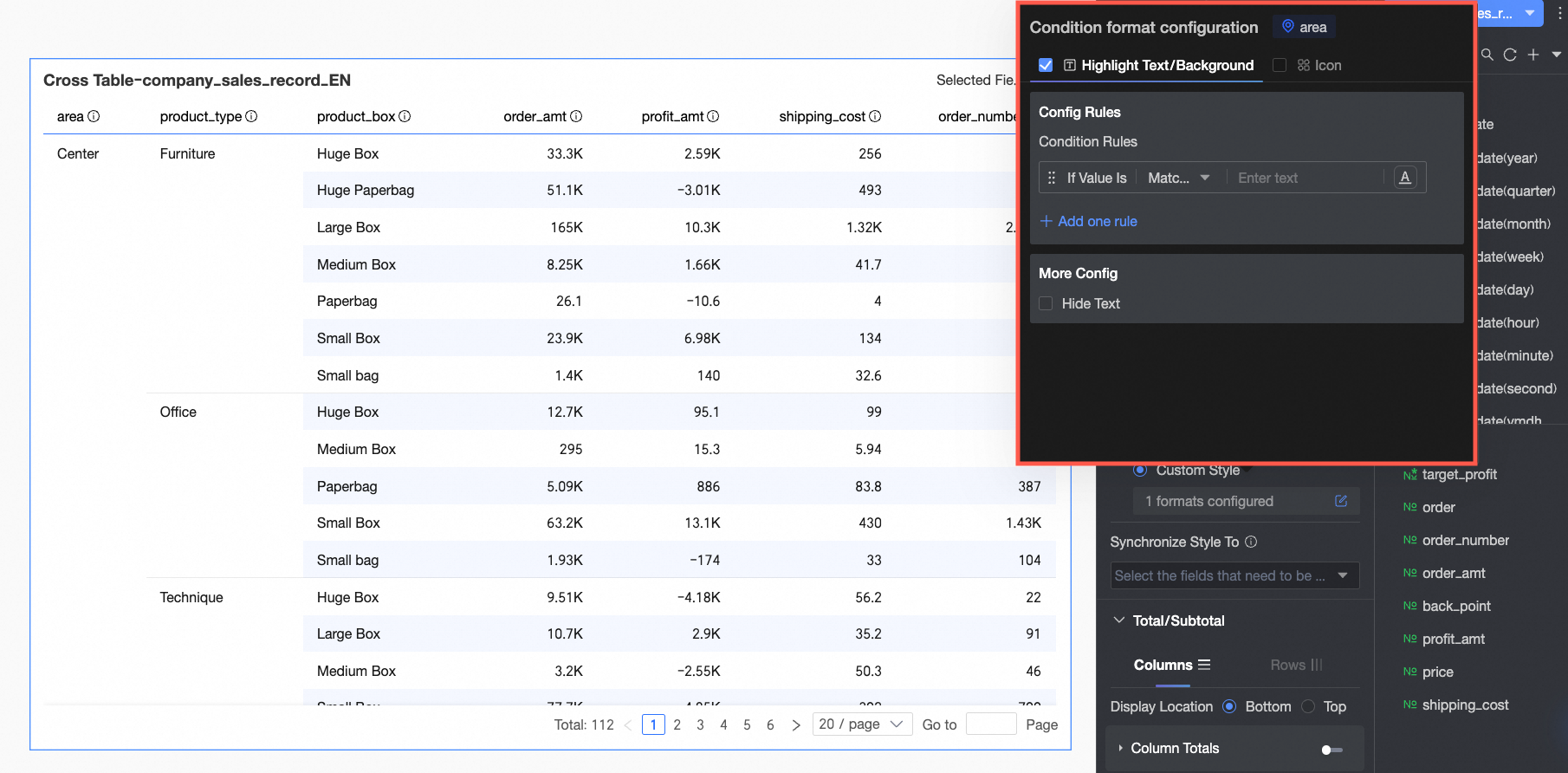
Dimension Fields: You can configure Highlight Text/Background and Icon.
Highlight Text/Background
In Rule Creation: Set the conditional rule to highlight the text of the current dimension field. Since the condition is based on the dimension value, the condition value input box only supports text.
In More Settings, set whether to hide the current field's text.
Icon
In Rule Creation, set the icon marking rule for the current dimension field. Since the condition is based on the dimension value, the condition value input box only supports text.
In More Settings, set whether to hide the current field's text.
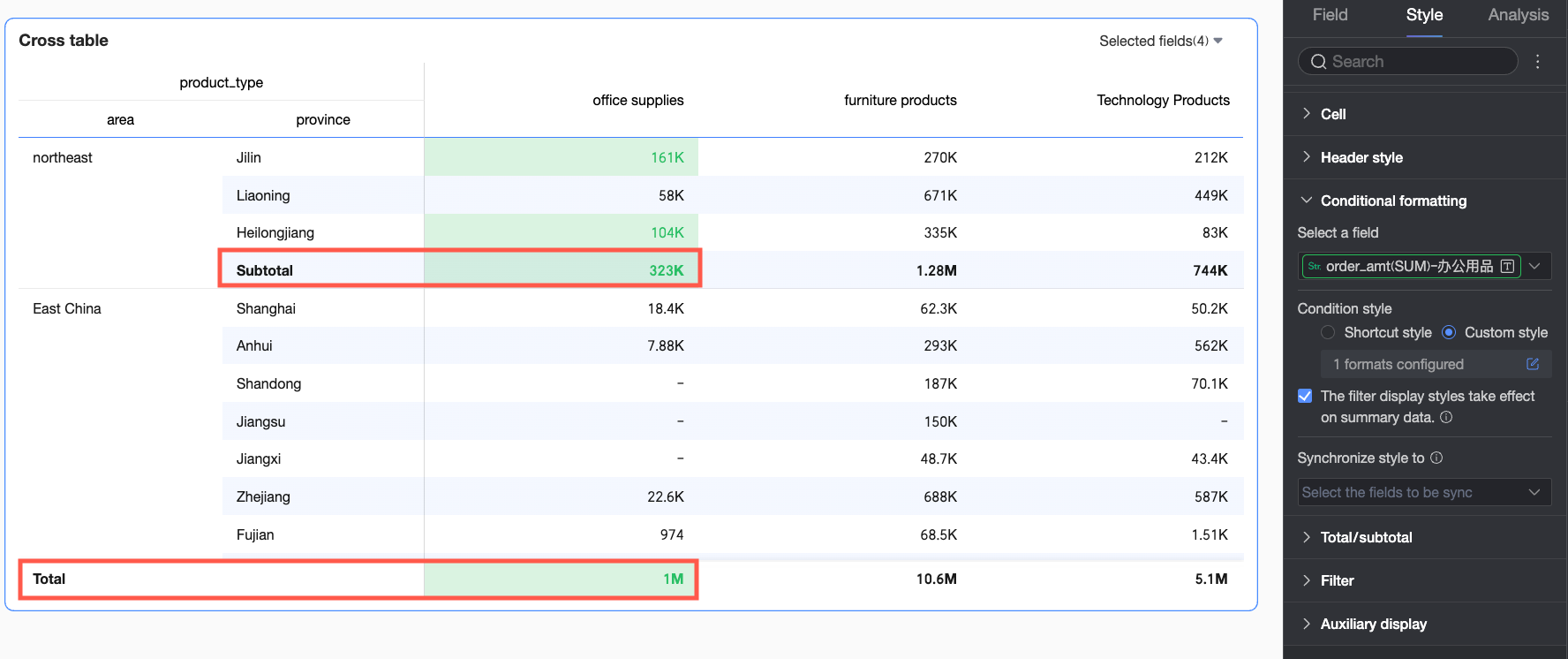
Apply conditional style to summary data
Specifies if the conditional style applies to summary data. If selected, conditional rule calculations (such as for maximums, minimums, and percentages) include subtotal data but exclude grand total data.
Sync style to
Sync the current conditional format to other fields.
In the Grand total/subtotal section, set column summaries and row summaries for the required dimensions.
Column summary: Calculates summary data by column. This is unavailable if the cross table contains no measures or no row dimensions.
Row summary: Calculates summary data by row. This is unavailable if the cross table contains no measures or no column dimensions.
Parameter
Description
Column summary
Position
Set the display position for column grand totals and subtotals. You can choose to place them at the Bottom or Top of the summary data.
Overall summary (column grand total)
Click the switch
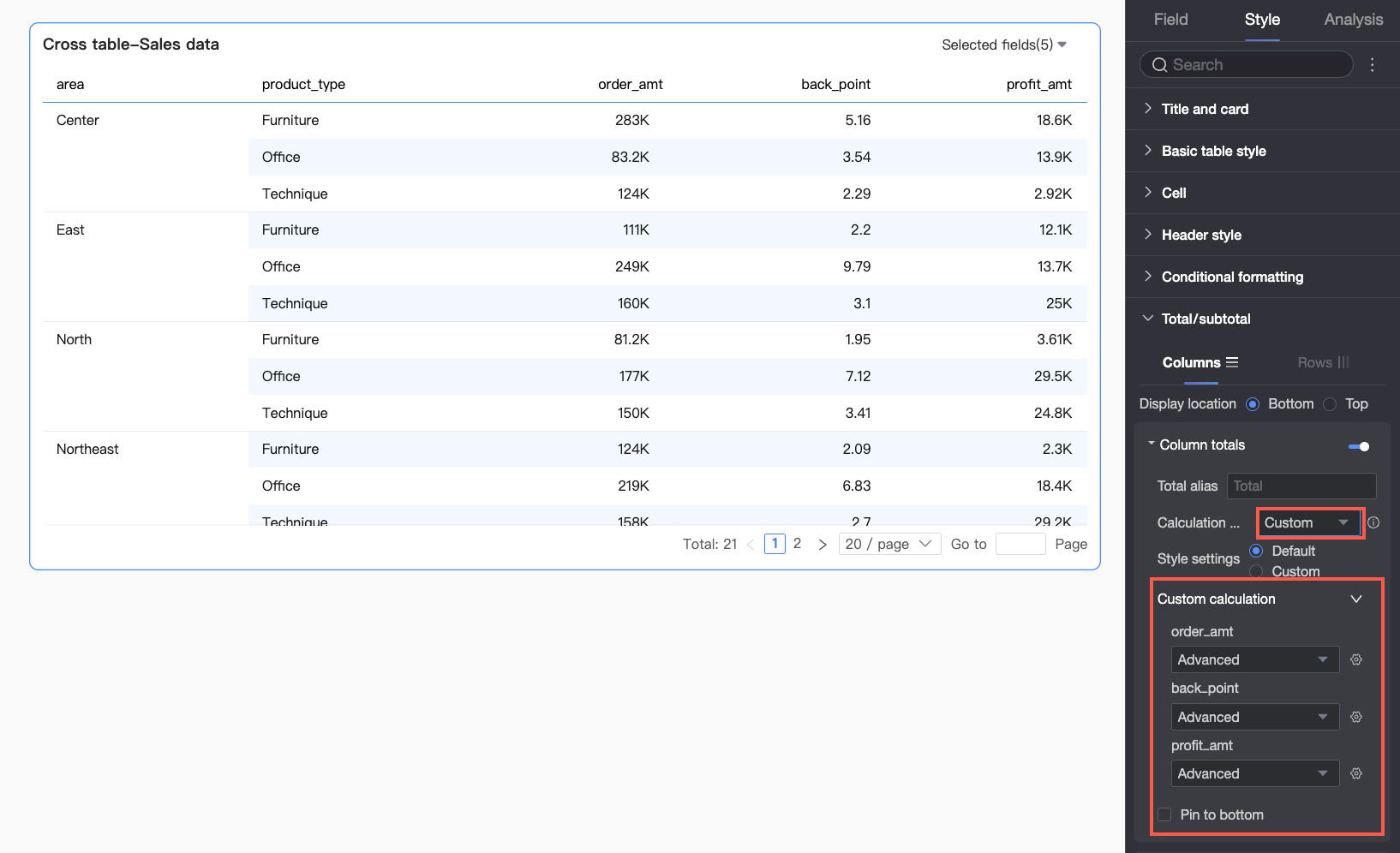
to enable or disable the column grand total. When enabled, it summarizes all values in a column. The following settings are available.Grand total alias: Lets you set a display name for the grand total based on business context, for example, "Total Sales by Region."
Calculation method: Select a uniform grand total aggregation method for all fields. If a field is a calculated field, the aggregation method selected here does not take effect; the original aggregation method is used instead.
If you need to set different aggregation methods for each field, select Custom from the drop-down list and configure the aggregation logic for each field in the Custom Calculation module.
Style settings: Set the text style for the grand total data. You can follow the system default or customize the text color, background color, font weight, etc.
Pin to top: Set whether to pin the column grand total to the bottom of the table.
NoteWhen a column summary is pinned to the top or bottom, you cannot copy the summary data.
Categorical summary (column subtotal)
Click the switch
to enable or disable column subtotals. When enabled, it subtotals data in a column for each category based on the selected dimension. The following settings are supported.Subtotal alias: You can set a display name for the subtotal based on business context, for example, "Northeast Region Sales Subtotal."
Summary dimension: Set the dimension for subtotaling, for example, subtotaling sales for each product type.
Subtotal function: Select a uniform subtotal aggregation method for all fields. If a field is a calculated field, the aggregation method selected here does not take effect; the original aggregation method is used instead.
Add subtotal: If you need to observe subtotal data from multiple dimensions simultaneously (e.g., sales subtotals for each product type and each region), click Add Subtotal to add more subtotal dimensions.
Style settings: Set the text style for the subtotal data. You can follow the system default or customize the text color, background color, font weight, etc.
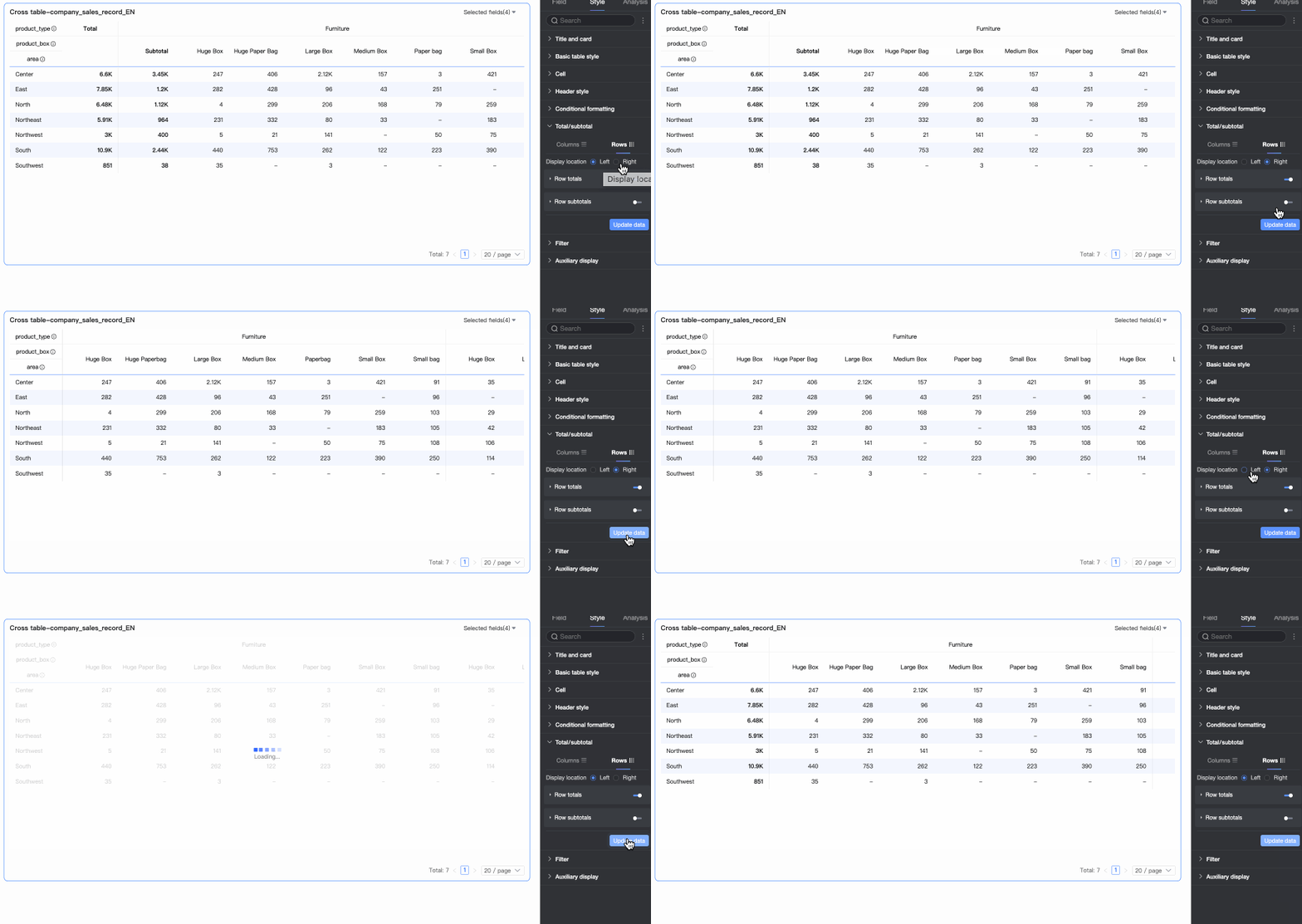
Row summary
Position
Set the display position for row grand totals and subtotals. You can choose to place them on the Left or Right of the summary data.
Overall summary (row grand total)
Click the switch
to enable or disable the row grand total. When enabled, it summarizes all values in a row. The following settings are available.Grand total alias: You can set a display name for the grand total based on business context, for example, "Total Sales for All Products."
Calculation method: Select a uniform grand total aggregation method for all fields. If a field is a calculated field, the aggregation method selected here does not take effect; the original aggregation method is used instead.
Style settings: Set the text style for the grand total data. You can follow the system default or customize the text color, background color, font weight, etc.
Categorical summary (row subtotal)
Click the switch
to enable or disable row subtotals. When enabled, it subtotals data in a row for each category based on the selected dimension. The following settings are supported.Subtotal alias: You can set a display name for the subtotal based on business context, for example, "Northeast Region Sales Subtotal."
Summary dimension: Set the dimension for subtotaling, for example, subtotaling sales for each product type.
Subtotal function: Select a uniform subtotal aggregation method for all fields. If a field is a calculated field, the aggregation method selected here does not take effect; the original aggregation method is used instead.
Add subtotal: If you need to observe subtotal data from multiple dimensions simultaneously (e.g., sales subtotals for each product type and each region), click Add Subtotal to add more subtotal dimensions.
Style settings: Set the text style for the subtotal data. You can follow the system default or customize the text color, background color, font weight, etc.
NoteFor frequently asked questions about configuring totals, see 1. FAQ for Totals.
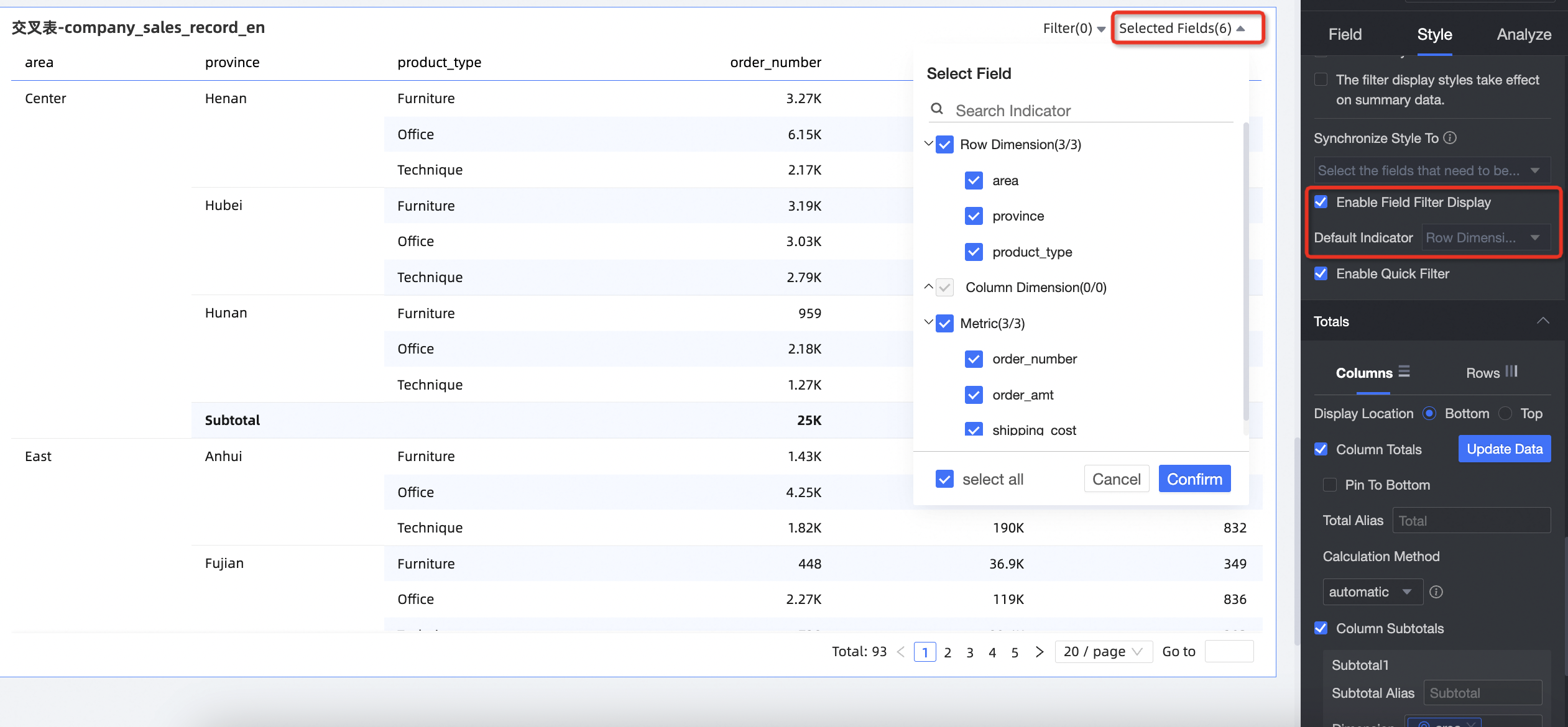
In the Filter section, configure field filtering settings for the cross table.
Parameter
Description
Enable field content filtering
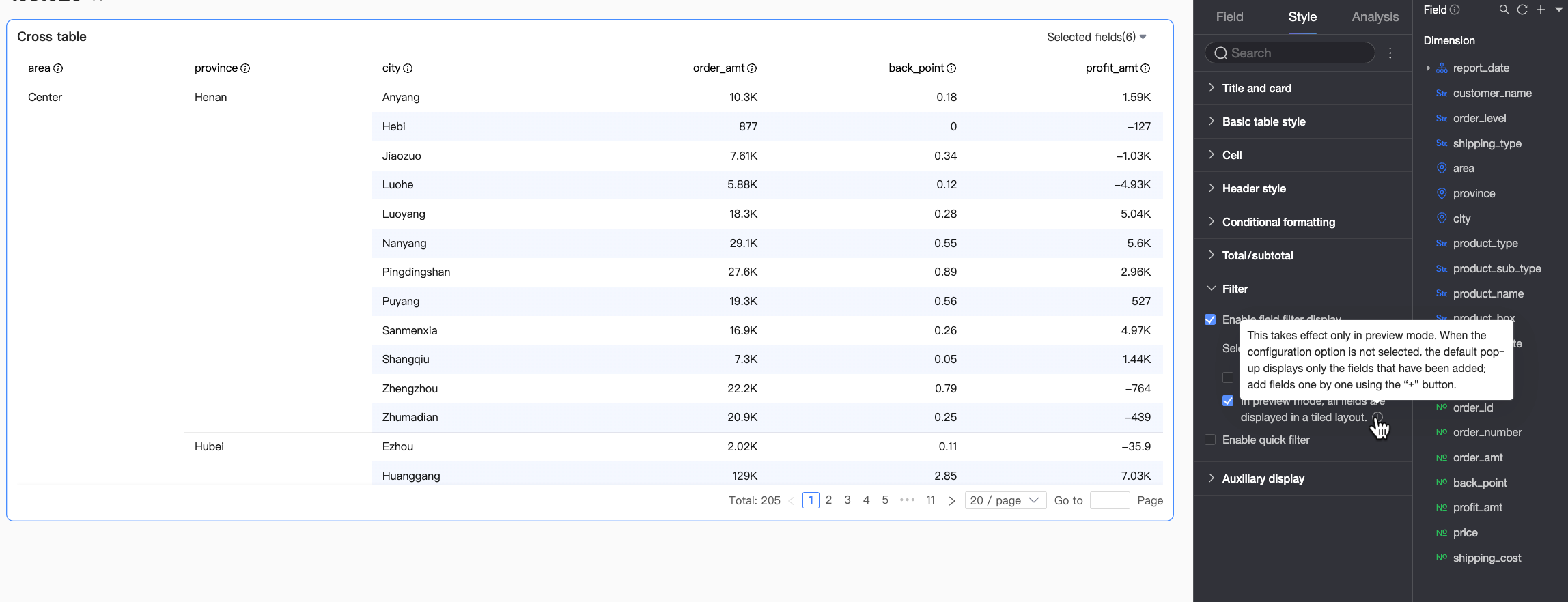
When you enable Field Content Filtering, you can click the Selected Fields drop-down list in preview mode to filter or sort fields.
NoteIf a Form Entry event is configured and a field bound to the form is unselected, the form entry will not work correctly. For details, see Field Relationship Mapping.
You can set default selected dimensions.
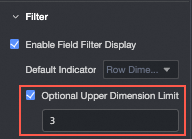
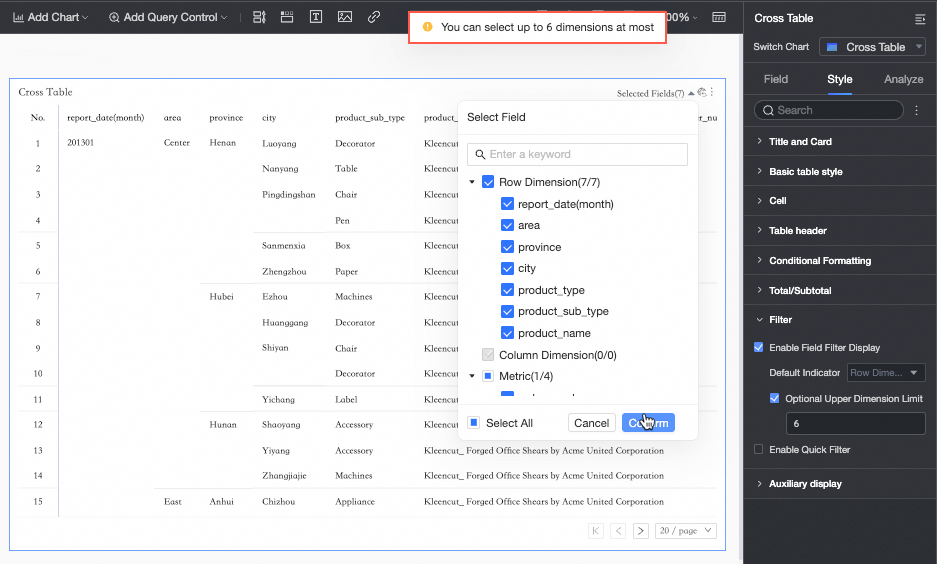
You can set the Maximum selectable dimensions.
For example, if the maximum number of selectable dimensions is set to 6, you can select at most 6 dimensions to display.
You can select Display all fields tiled in preview mode.
NoteThis feature interacts with the Indicator display group feature in the Cell configuration. If you use the Indicator display group feature, you must also select Display all fields tiled in preview mode.
This option is selected by default. In this case, the Select Fields panel in the cross table's preview mode displays all configured fields grouped by rows, columns, and indicators. Report viewers can select relevant fields (①) and drag to adjust their order (②).
If this option is cleared, the Select Fields panel in preview mode shows only the fields selected under Default Selection.
Here, report viewers can:① Click the
icon to add more fields from the chart's configured fields to the current panel.② Hover over a field and click the
icon to remove it from the panel.③ Hover over a field and hold the
icon to drag and reorder the field.
Enable quick filter
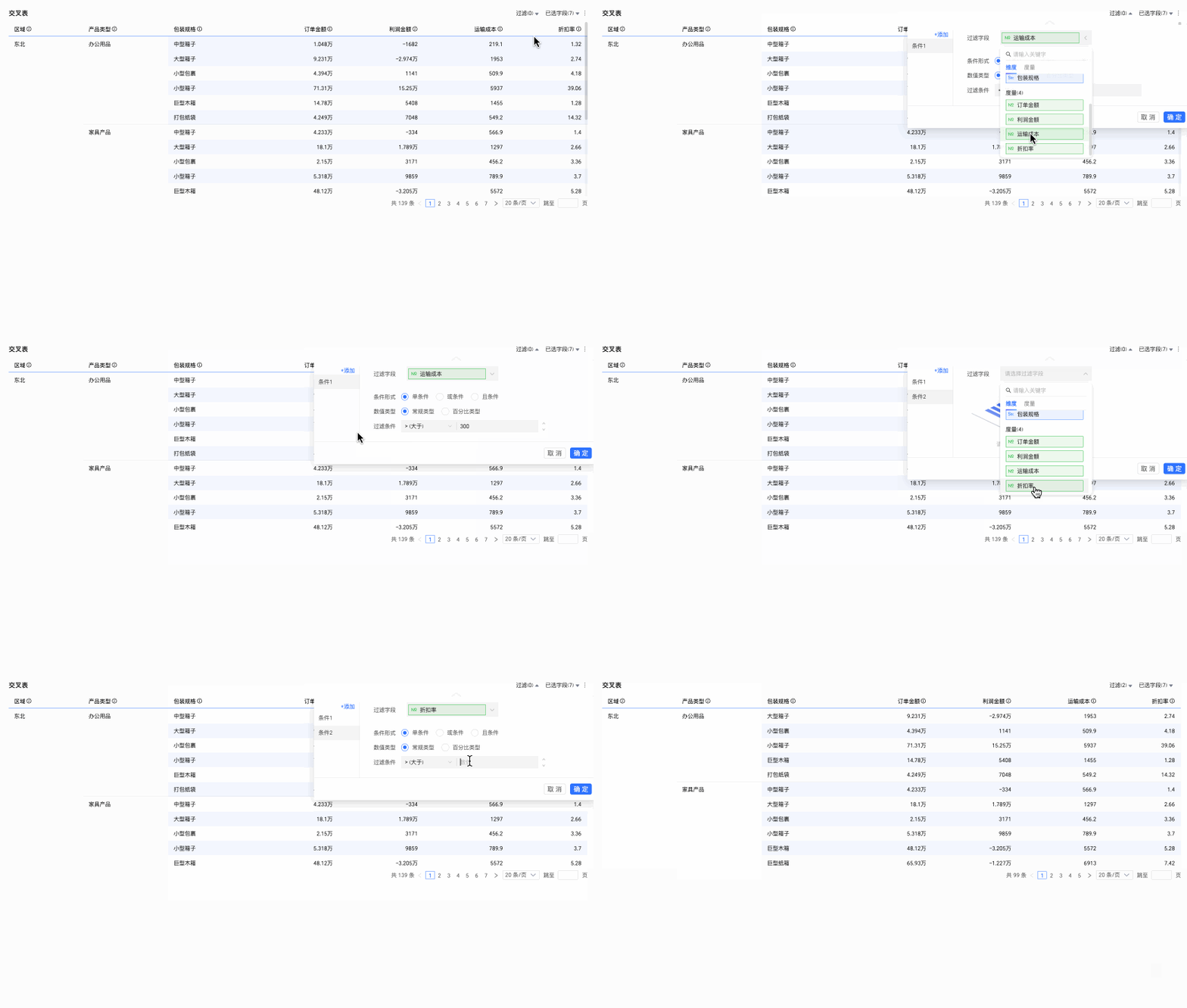
After you select Enable Quick Filter, you can click the Filter drop-down list on the cross table in preview mode to filter fields.
To filter multiple fields simultaneously, you can add multiple conditions in the dialog box that appears.
Example: Analyze the city distribution in the South China region where shipping cost is
>300and the discount is>0.5.NoteFilters applied in preview mode are not saved. You must reapply them if you close and reopen the page.
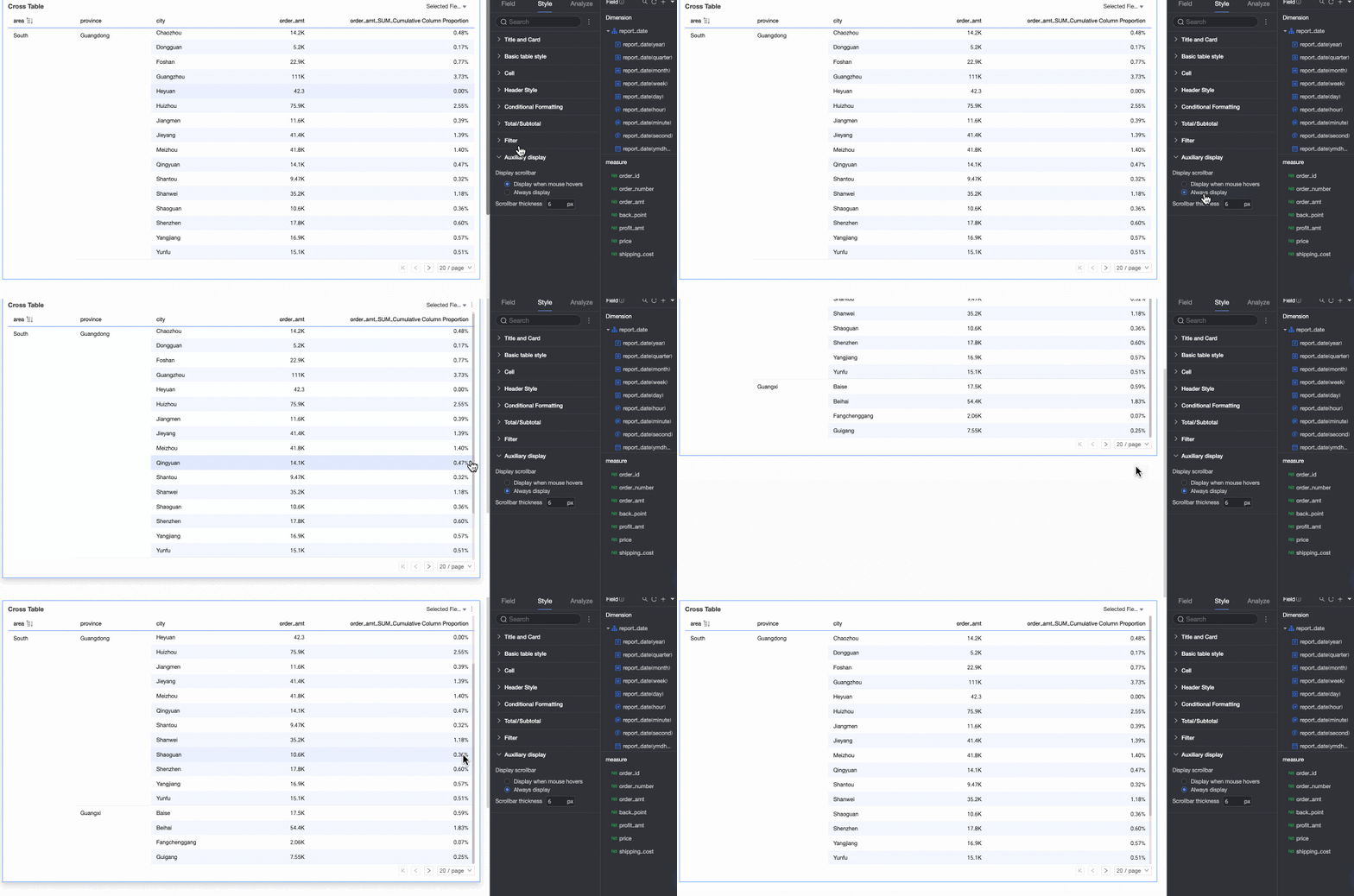
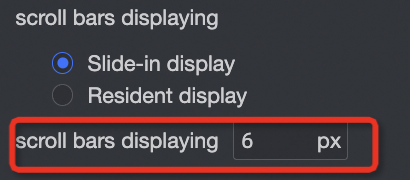
In the Auxiliary display section, you can set the scroll bar display mode and scroll bar thickness.
When the display mode is set to Show on hover, the scroll bar appears only when you move the pointer over the table.
To keep the scroll bar always visible, select Always show.
If you need to make the scroll bar more prominent, you can adjust its thickness.

 icon at the top of the page to configure adaptive height settings for PC and mobile separately.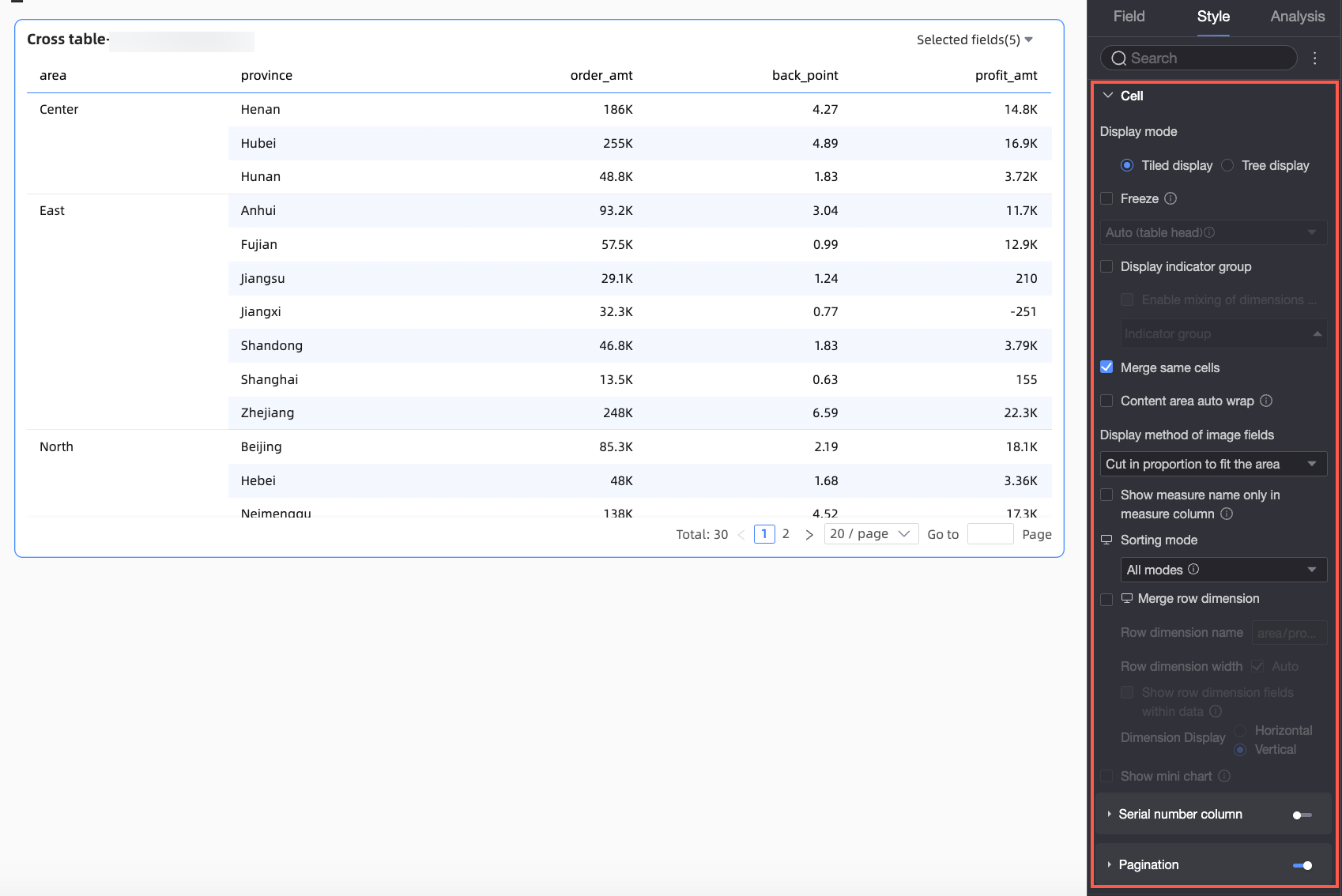
 ). For more details, see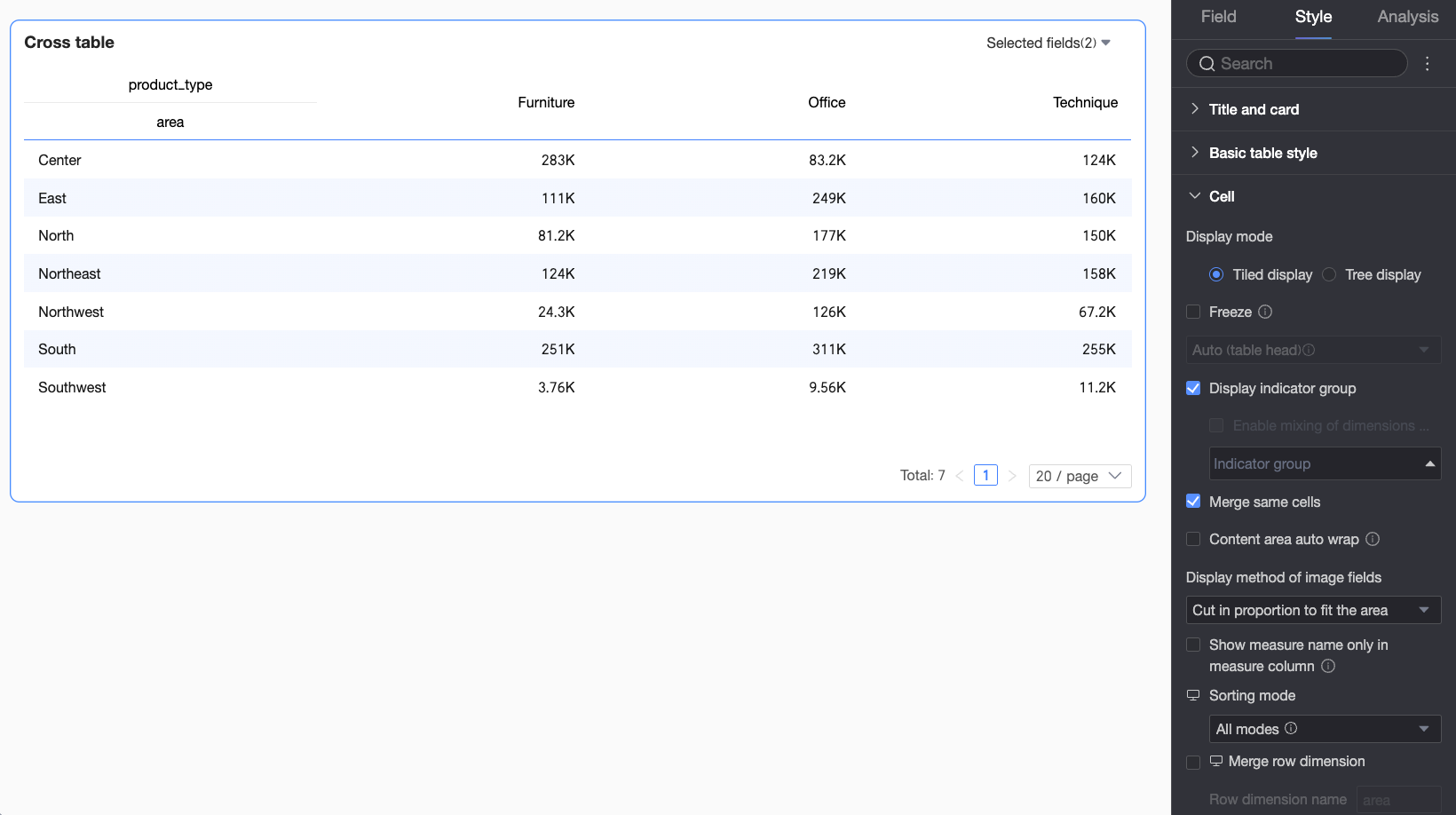
 to conveniently switch between global ascending, global descending, and no sort.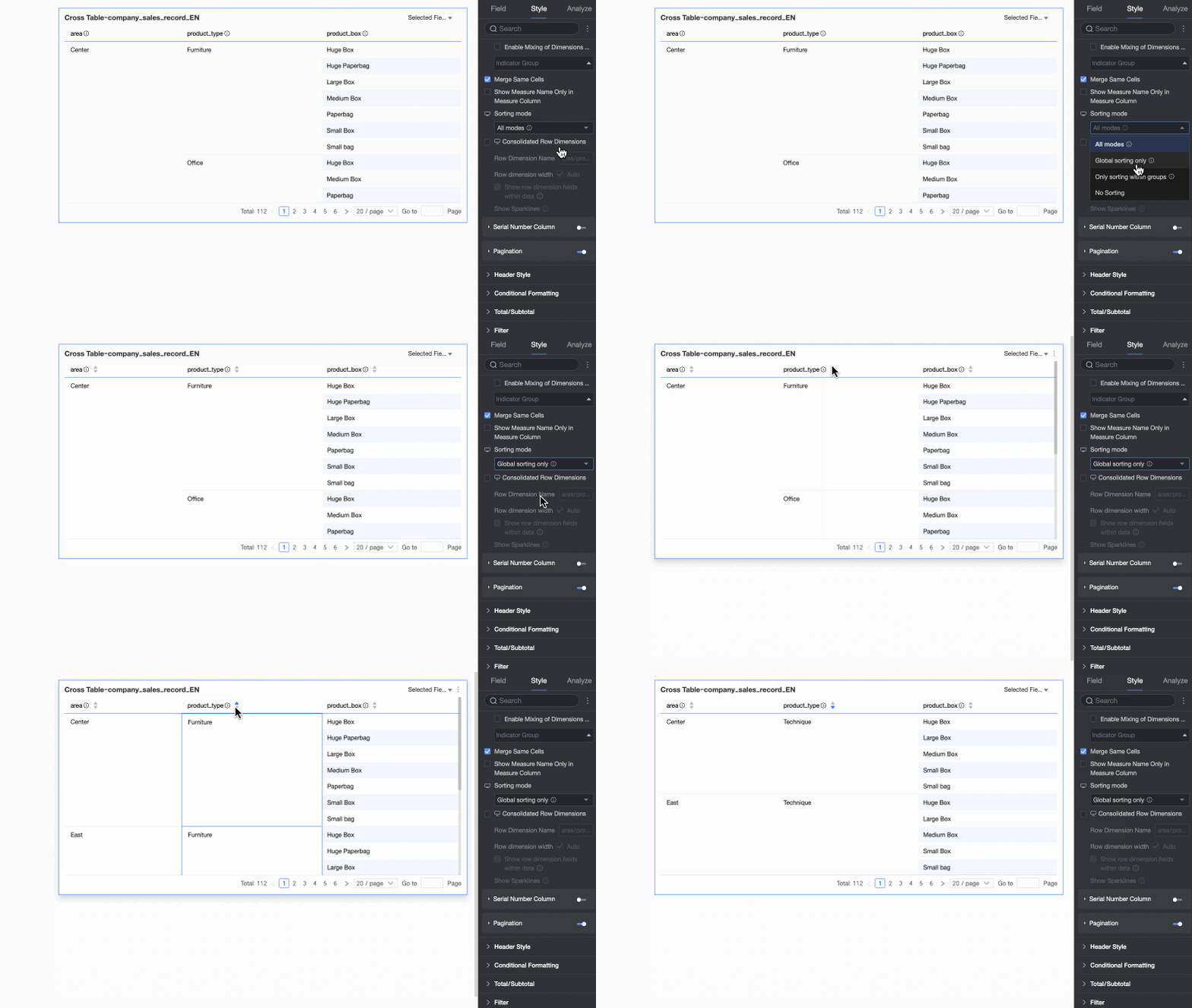
 to conveniently switch between group ascending, group descending, and no sort.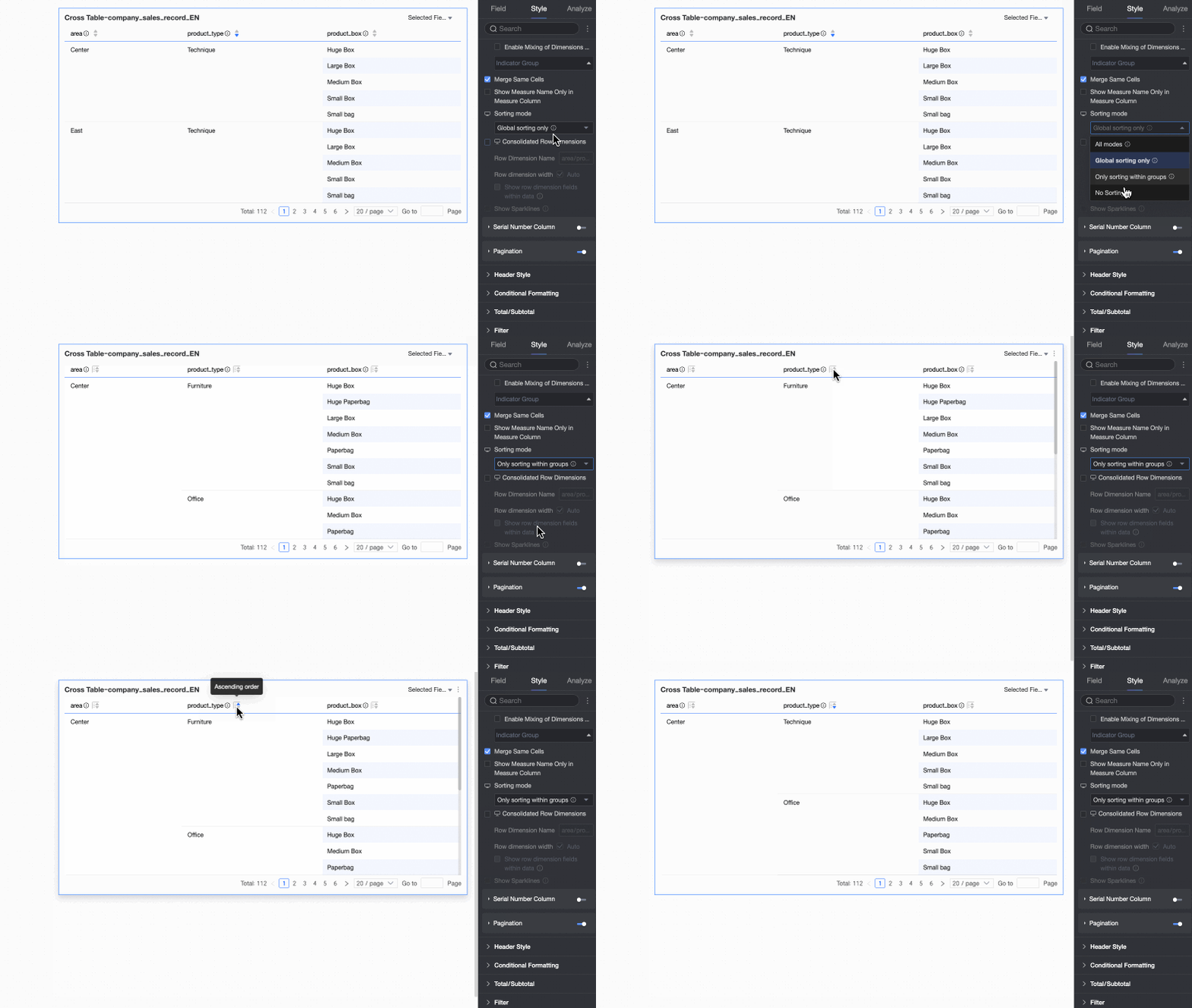
 icon at the top of the page.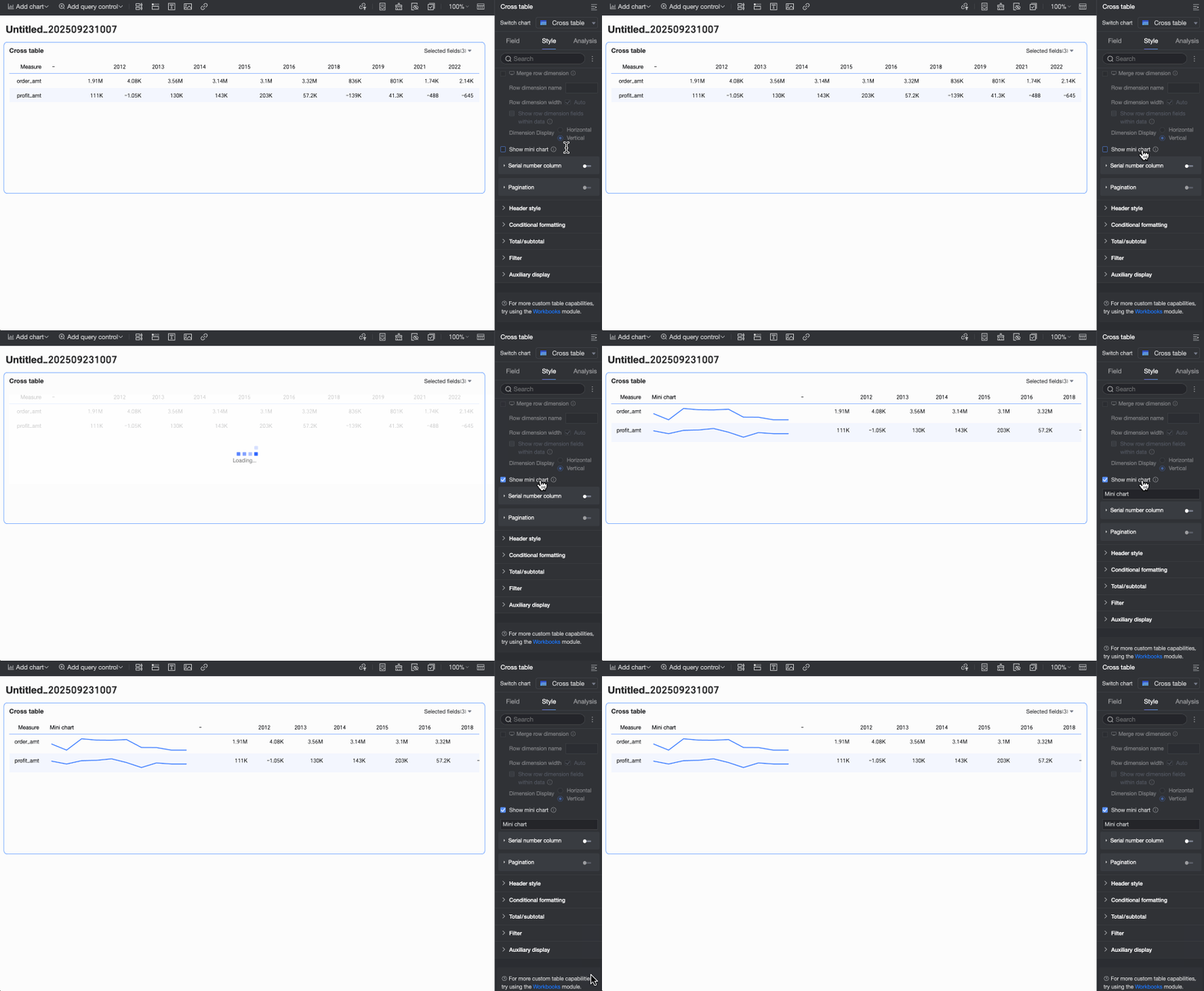
 You need to configure the following information:
 You need to configure the following information:
 You need to configure the following information:
 You need to configure the following information: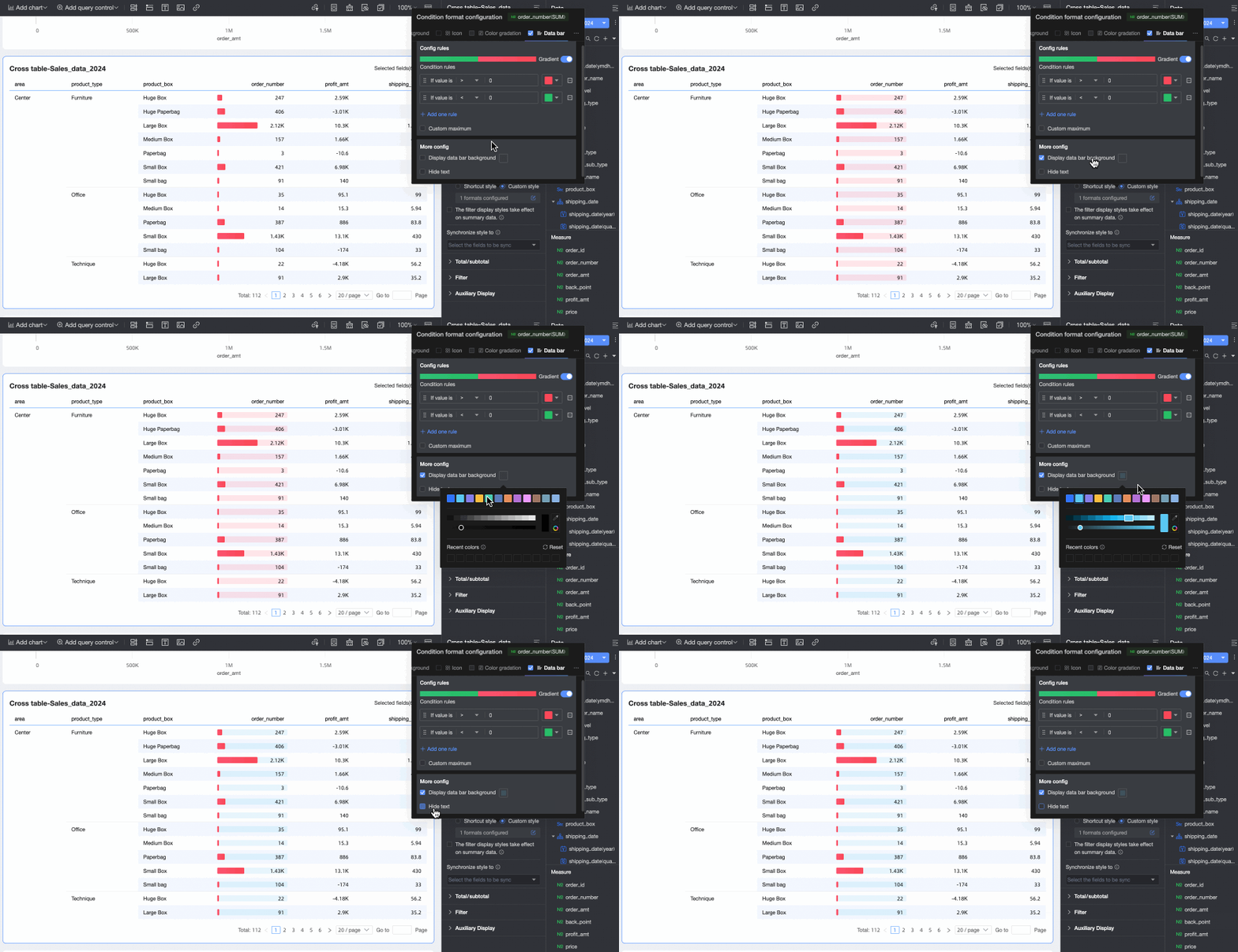


 to enable or disable the column grand total. When enabled, it summarizes all values in a column. The following settings are available.



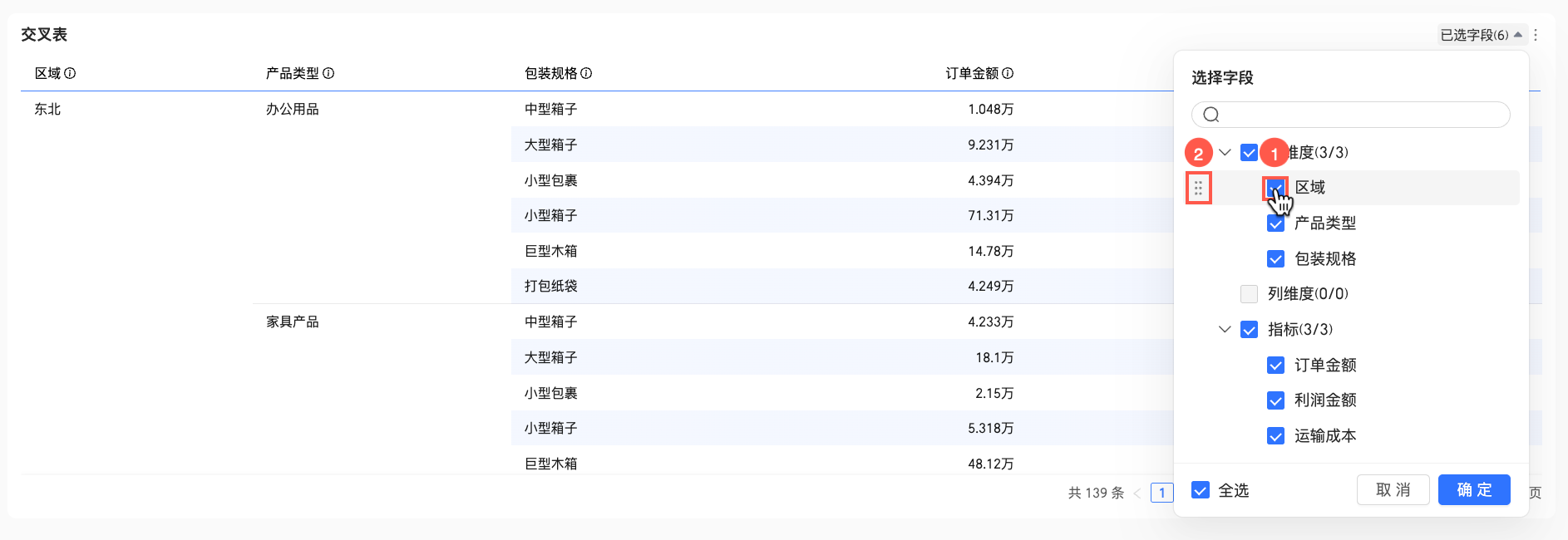
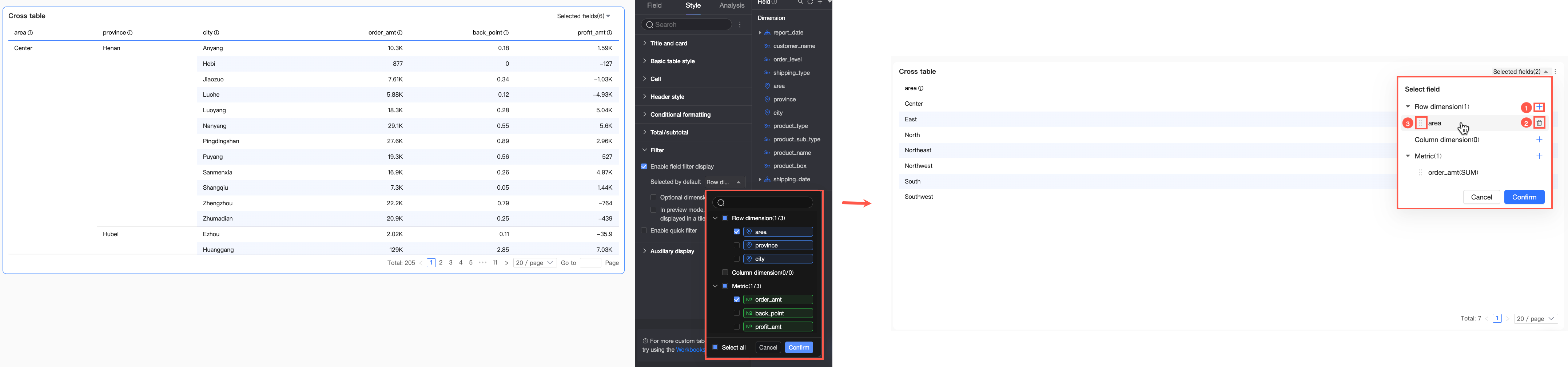 Here, report viewers can:
 icon to add more fields from the chart's configured fields to the current panel.
 icon to remove it from the panel.
 icon to drag and reorder the field.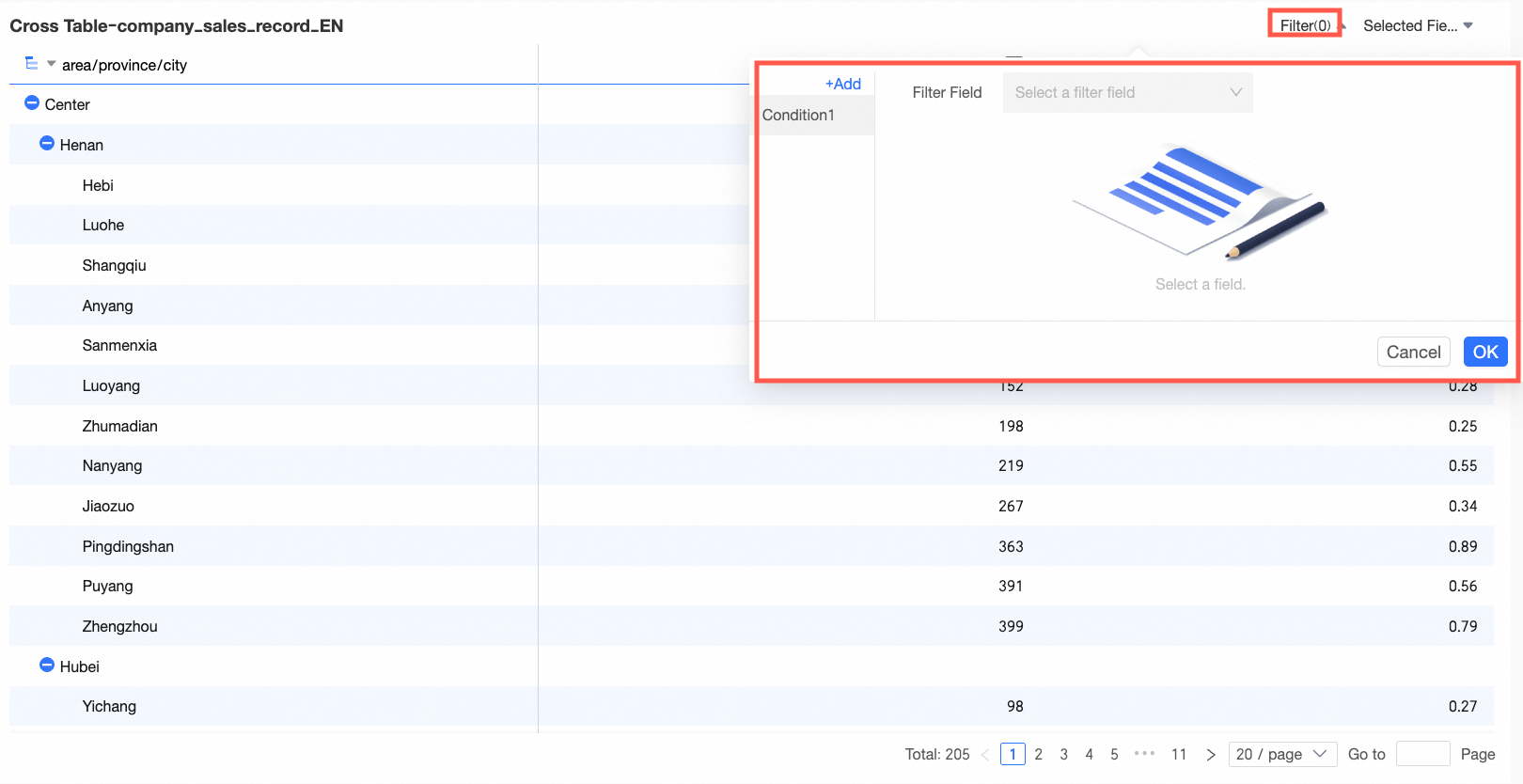
Adjust chart styles
Besides using the Style panel, you can also adjust the cross table directly:
Click a column to open a drop-down list of configuration options.
Set the number of items per page.
Drag on the crosstab to adjust the column width.
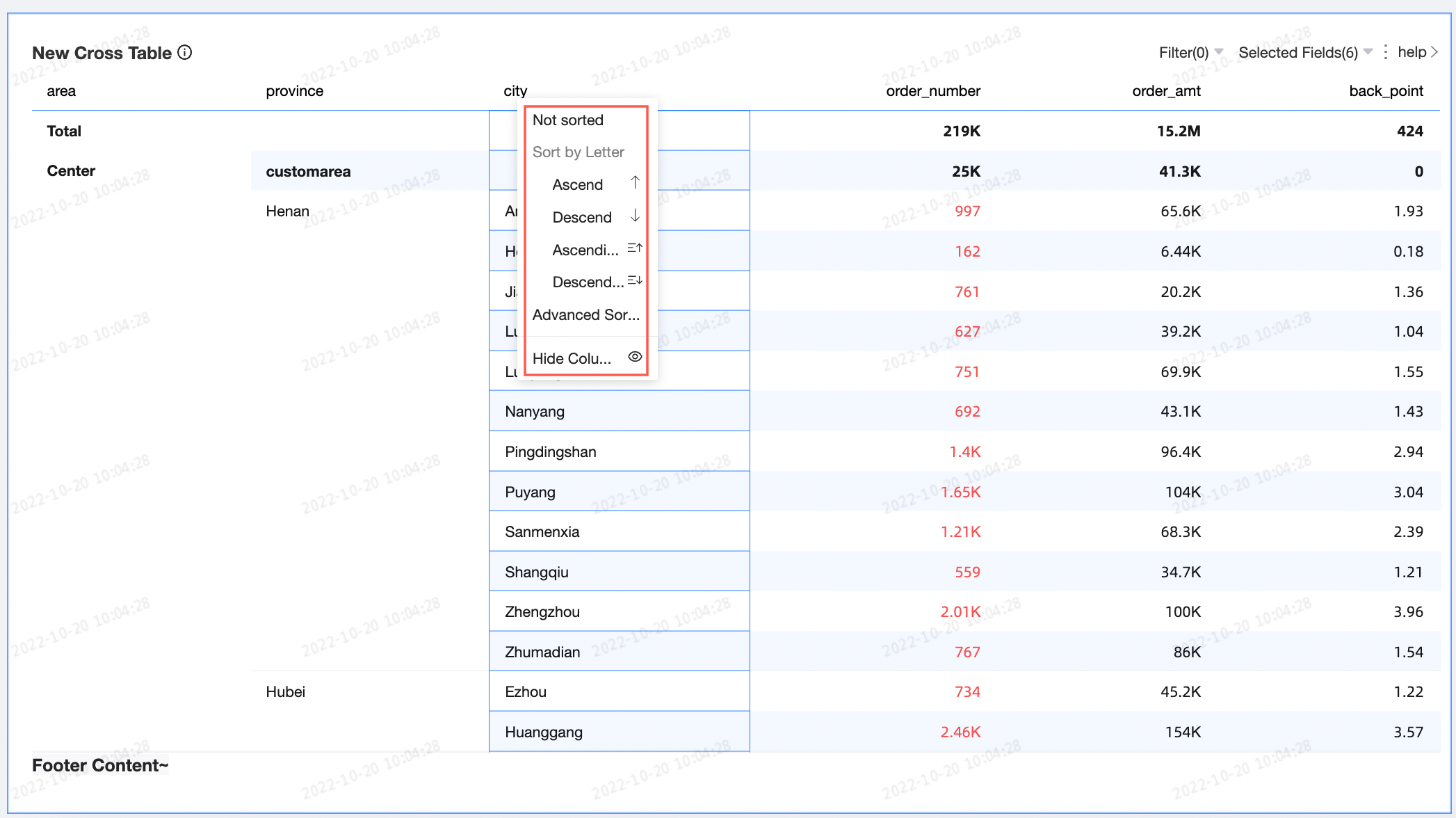
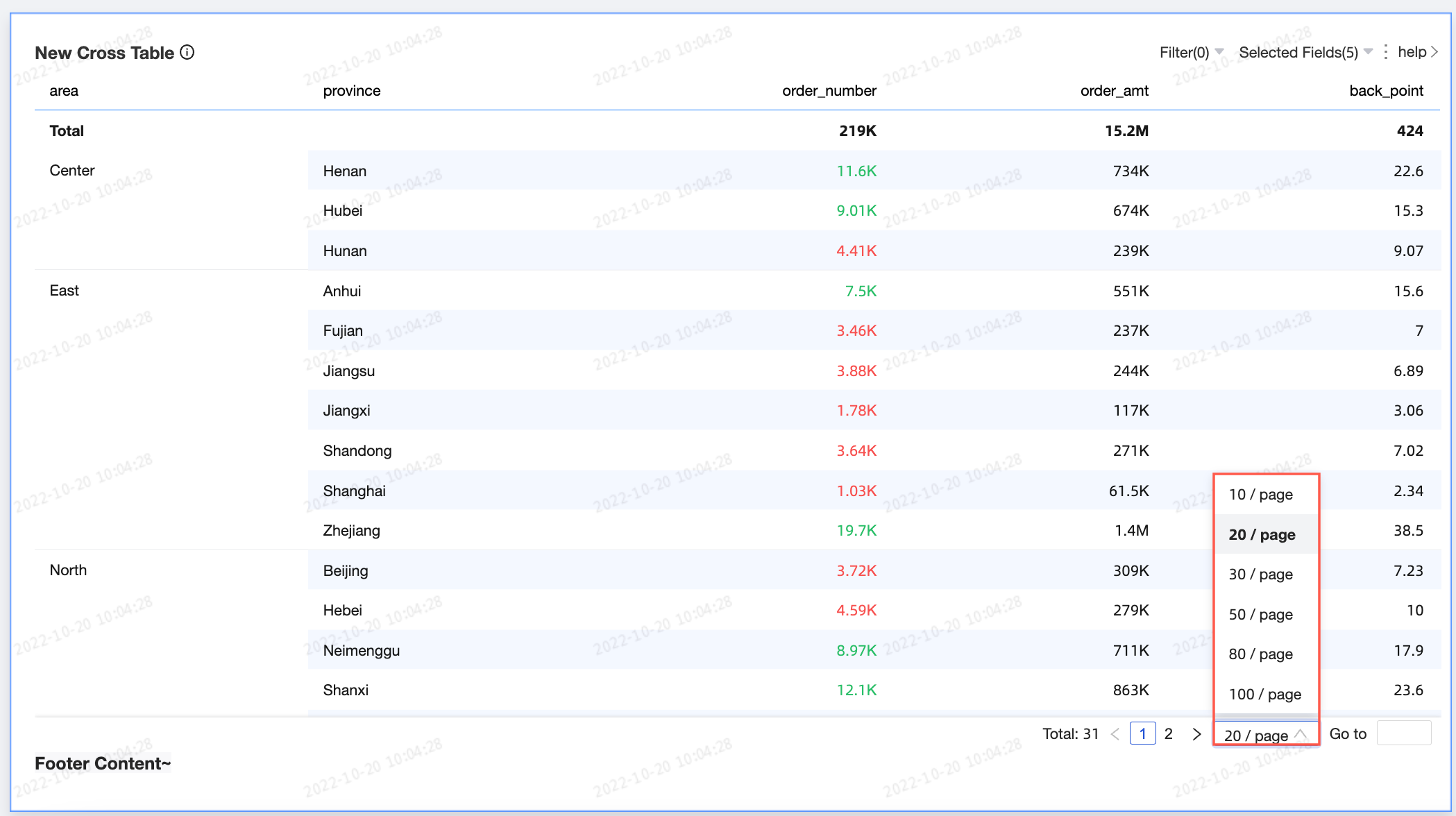
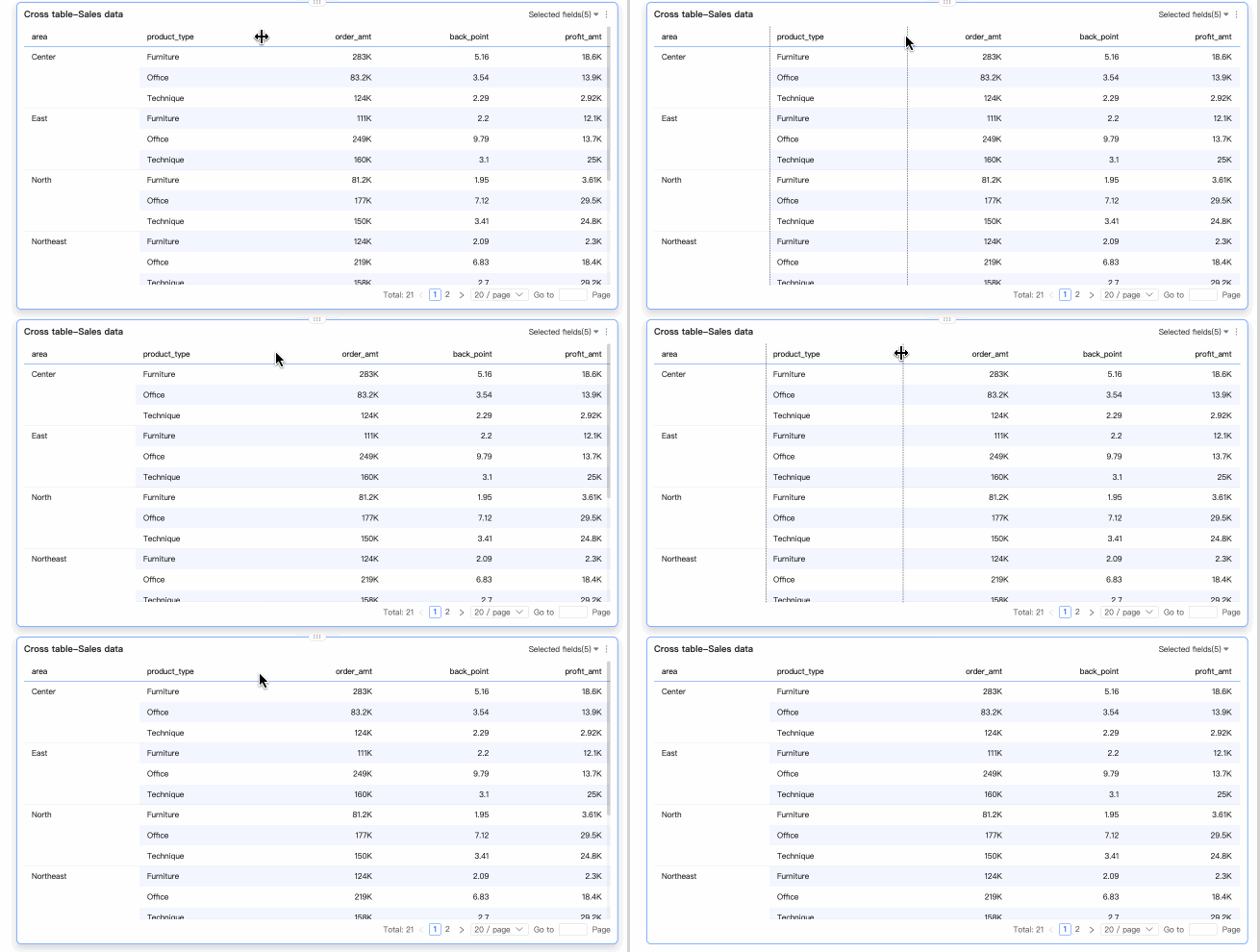
Chart analysis settings
Setting | Parameter | Description |
Data interaction | Drill down | After you configure drill-down fields in the field panel, you can set the display style for rows in the drill-down hierarchy. |
Linkage | After you select this option, clicking an area or a field in a chart on the dashboard updates other related charts. For more information, see Linkage settings and display. | |
Hyperlink | After you select this option, clicking a field in a chart on the dashboard redirects you to an associated report or URL. You can configure the hyperlink as a parameter jump or an external link. A parameter jump must be used with global parameters. For more information, see Hyperlink settings and display. | |
Advanced settings | Event | This option allows you to enter data in a cross table. If column dimensions exist, you must add row dimensions to configure an event. For more information, see Add a data entry event. You can also configure DingTalk events in a cross table. For more information, see Event. |
Display secondary indicator | Select this option to configure the display of secondary indicators. For more information, see Display Secondary Indicator. |
Export data
You can export data only when the export feature is enabled. For more information, see export control.
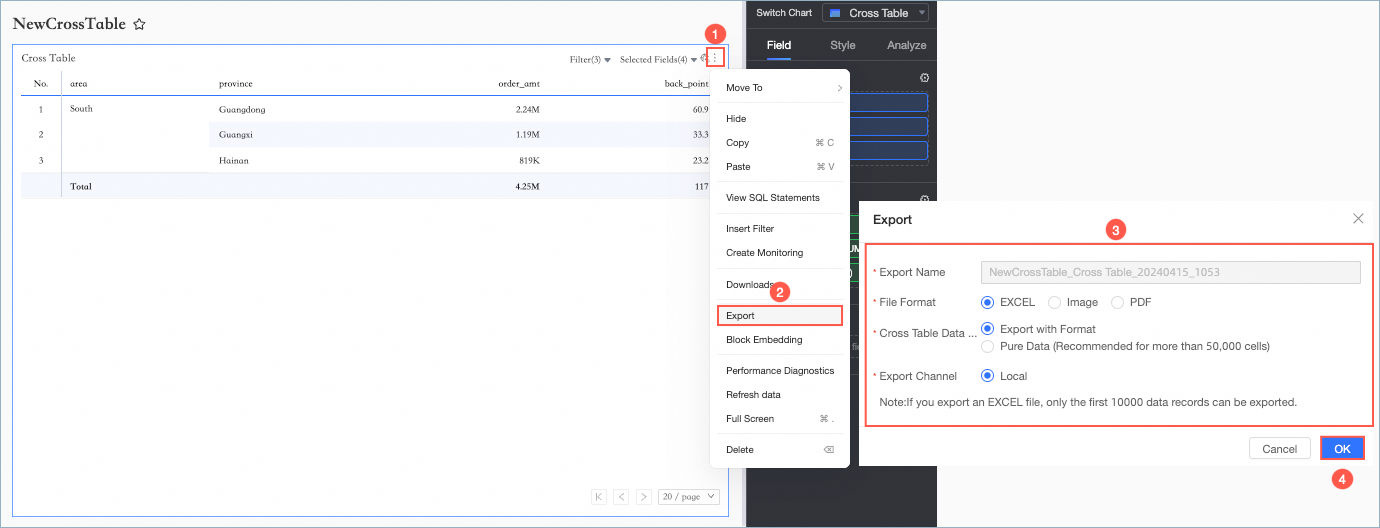
Parameter | Description |
Export name | You can specify a custom name for the exported file. |
File format | Supported formats are image, PDF, and EXCEL. Note When you export a crosstab as an EXCEL file, you can select either export with format or pure data.
An organization administrator can configure the export format. For more information, see export control. |
Watermark | This option is available only for EXCEL exports. You can choose whether to add a watermark. |
Export channel | You can export to local or an OSS server. |
Configure secondary indicators
After you configure a measure, you can enable and configure a secondary indicator.

After you select Enable Secondary Indicator Display, the comparison indicator drop-down list allows you to select any measure.
Comparison Date: You must select a date field.
NoteIf the chart contains date fields, you can only select the date field with the finest granularity as the comparison date.
If the chart does not contain any date fields, you can select any date field from the dataset as the comparison date.
Comparison method: The available comparison options depend on the granularity of the date field, with a maximum of four options displayed. For example, if you select daily granularity for Comparison Date, Comparison Content Selection displays Day-over-day, Week-over-week, Month-over-year, and Year-over-year. If you select monthly granularity for Comparison Date, Comparison Content Selection displays options such as Month-over-month and Year-over-year.
Select Comparison Indicator: Select one of the measures currently used in the chart.
Display Content: By default, Percent variance is selected. You can also select Variance or Original value.
Variance: The variance is displayed in the same format as the measure.
When you select this option, you can also select Calculate percentage variance in points (pt). This checkbox is deselected by default. If you select this checkbox and the measure is formatted as a percentage, the variance is shown in percentage points (pt). For example, 5.2% - 4.1% = 1.1pt. You can then configure the number of decimal places to display (0, 1, or 2).
Percent variance: You can set the number of decimal places to 0, 1, or 2.
Same-Period Comparison (applies only when a query filter is bound to daily granularity): If you configure a filter, this filter also applies to the data from the corresponding period. For example, if you set a filter for January 2, 2022, the year-over-year comparison will use data filtered for January 2, 2021. Day-over-day comparison automatically supports same-period comparison; dynamic period-over-period comparison does not.
When previous period data is negative: Specify the formula for calculating percent variance when previous period data is negative. The available options are:
(current period data / previous period data - 1) * 100%: Default
1 - (current period data / previous period data) * 100%
Display as -
Sync Comparison Indicators: Applies the current indicator's configuration to other indicators.
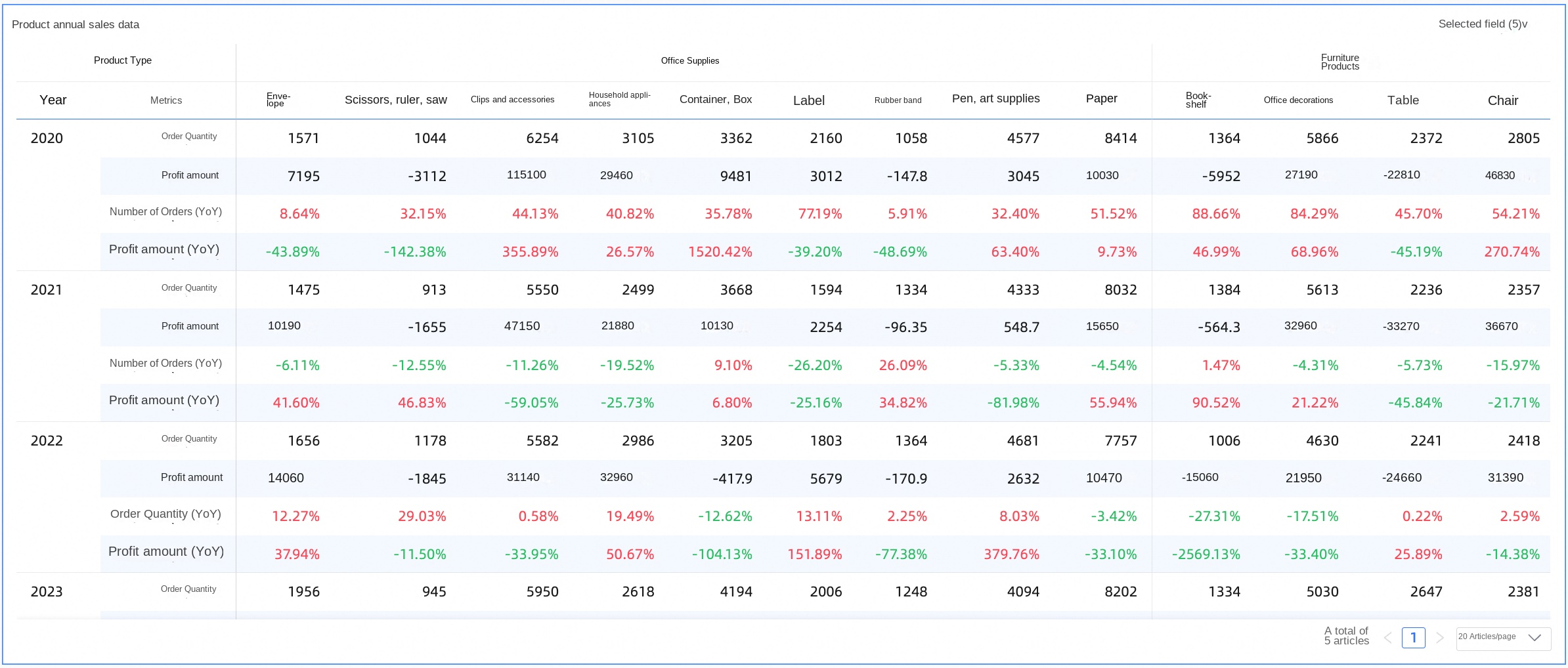
Display Position: The default is Right of indicator. You can also select Separate column and Below indicator.
Right of indicator: Adds a new indicator column to the right of the current one. The column header is named after the selected comparison method, such as year-over-year, day-over-day, month-over-year, or week-over-week.
If the measure is on the column axis, secondary indicators are displayed sequentially to its right.
Separate column: Displays the secondary indicator in its own column to the right of the current measure.
If the measure is on the column axis, the last column dimension is split to display the selected comparison methods, such as day-over-day, week-over-week, month-over-year, and year-over-year. As shown in the following figure, this splits the dimension, displaying each comparison method in a separate column to the right of the measure.
If the measure is on the row axis, the last row dimension is split to display the selected comparison methods, such as day-over-day, week-over-week, month-over-year, and year-over-year. This is similar to the column axis scenario, except the indicators appear below the measure instead of to its right.
Below indicator: Adds new rows for the comparison indicators below the current measure. The alignment matches that of the measure: text is left-aligned and numerical values are right-aligned.
The new indicators appear in new rows below the current measure's header. Each new row is named after a selected comparison method, such as day-over-day, week-over-week, month-over-year, or year-over-year.
Display Style: Sets the colors for positive and negative values in the table. You can select Follow global semantic color settings (which uses the settings in Page Settings > Global Style > Semantic Colors), Red for positive, green for negative, or Green for positive, red for negative.



Crosstab FAQ
1. Grand total configuration
How grand totals are calculated
If the original data is GMV (Sum) and the calculation for grand totals and subtotals defaults to Automatic, the totals are calculated as GMV (Sum). If you set the grand total to Custom and select Average as the aggregation method, the grand total is calculated as GMV (Average).
If your original data is id (distinct count) and the calculation method for the grand total and subtotal is Automatic by default, the calculation logic for the grand total and subtotal is id (distinct count). If you change the grand total to Custom and select Count as the aggregation method, the calculation logic for the grand total becomes id (count).
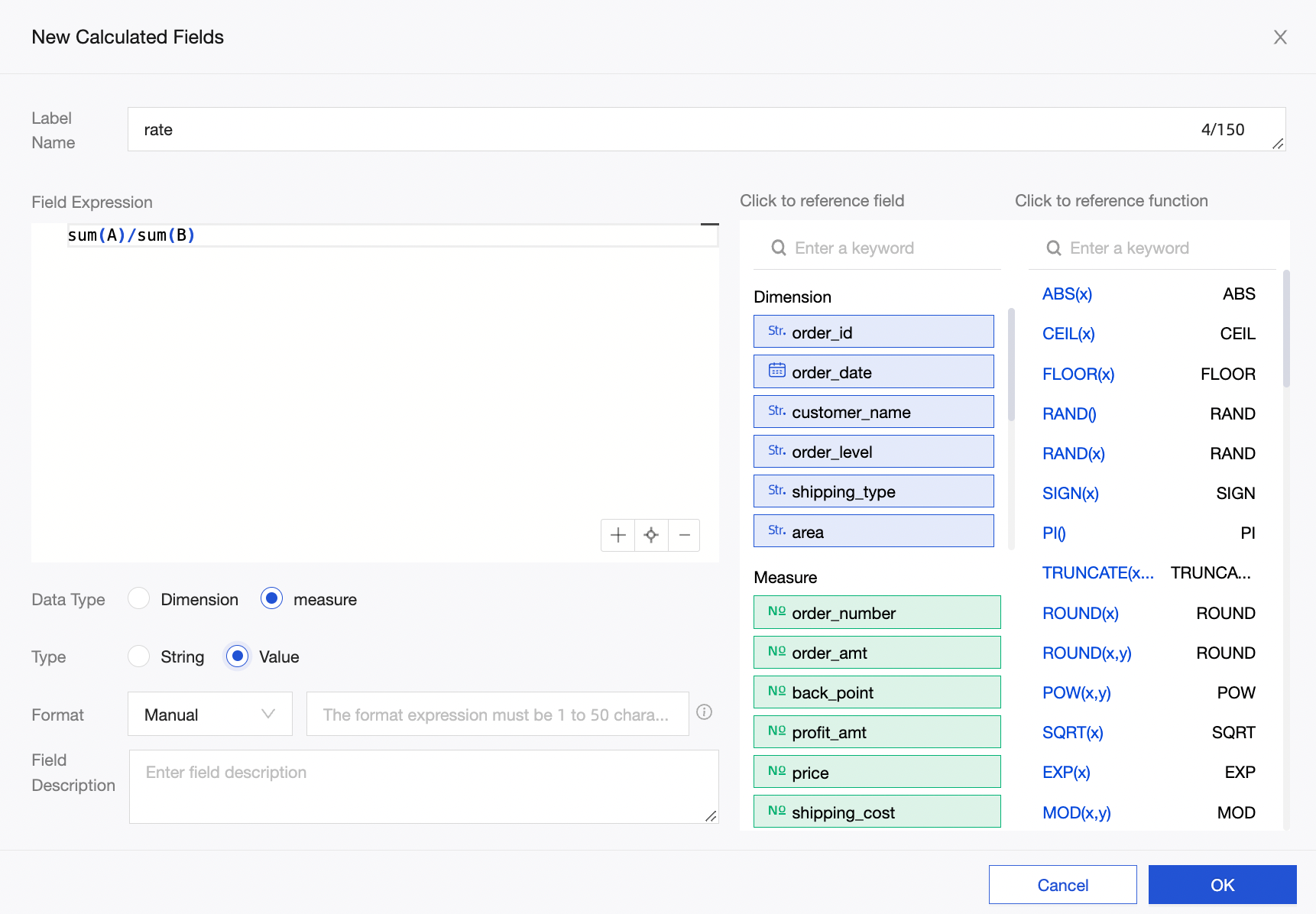
How to calculate a ratio
Define the ratio.
For example, (Measure A / Measure B).
Create a new calculated field in the dataset and define the expression as: rate=sum(A)/sum(B).
In the data pane on the dashboard, if you select the rate (sum) measure and select grand total and subtotal, the calculation logic for the grand total and subtotal is sum(A)/sum(B) because the calculation logic for rate (sum) defaults to automatic.
NoteIf you write the expression rate = A/B in a dataset and select A/B (sum) as the automatic calculation logic for grand totals and subtotals, an error will occur where the ratio is greater than 100%. In this case, the calculation result is incorrect.
To correctly calculate the percentage of parent column total, you must: 1. Place
measurefields inrowsanddimensionfields incolumns. 2. Use two or moredimensionfields incolumns.
2. Summary configuration
To correctly calculate the percentage of parent column total, you must:
Place
measurefields inrowsanddimensionfields incolumns.Use two or more
dimensionfields incolumns.
3. Create a calendar in a crosstab
To create a calendar-like view, apply conditional formatting to hide the text in the week number field and to color-code the values in the date field.