Metric trend chart
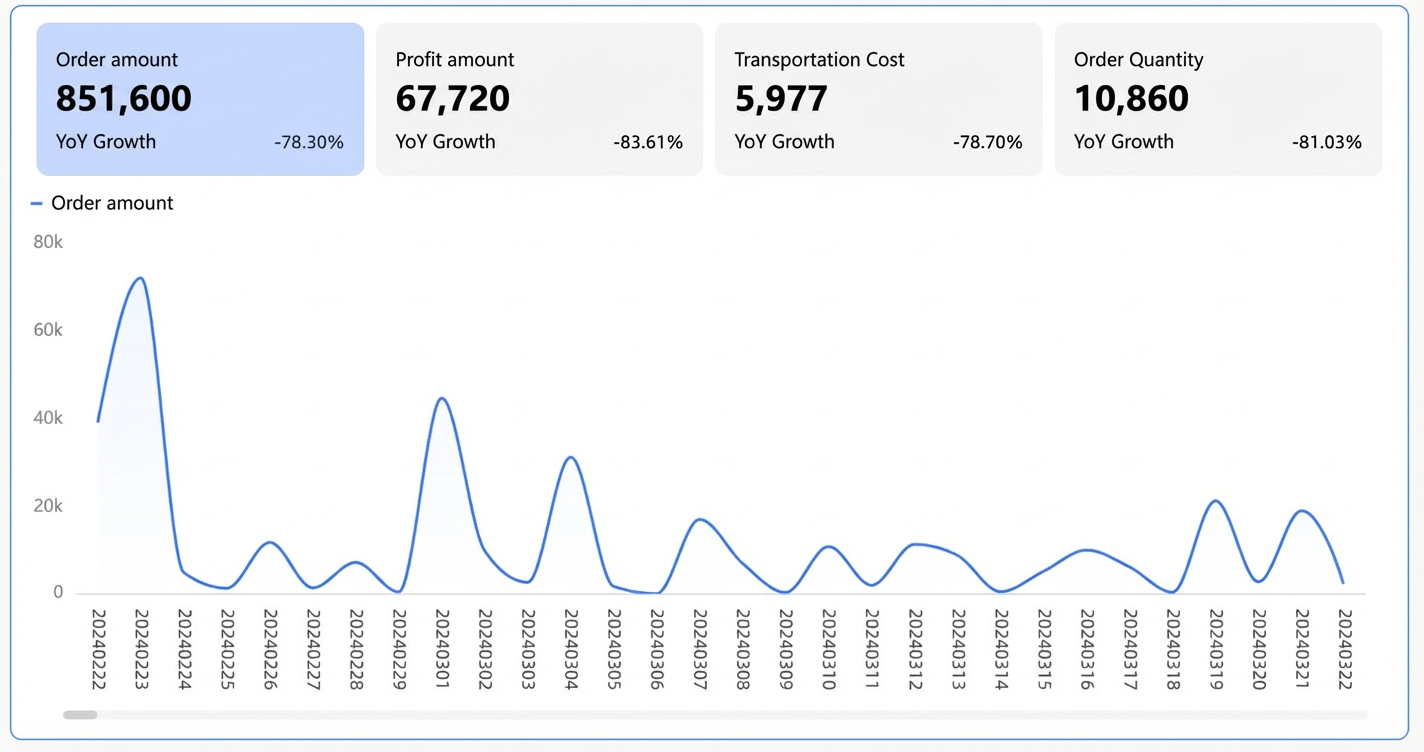
An indicator trend chart is a metric visualization component in Quick BI. It primarily displays the latest or aggregated data for one or more key metrics, along with their trends over a selected period. This chart format combines key numerical values with a trend line, area chart, or bar chart. This helps users quickly assess metric performance and identify potential business anomalies or highlights.
Version 5.5.2 enhances the visual presentation and configuration options for the metric trend chart. This may cause style changes in some components on PC and mobile clients. If necessary, please adjust the component settings manually or contact Quick BI technical support for assistance. Thank you for your understanding.
Limitations
For the metric trend chart to function properly, note the following prerequisites and configuration limitations.
Prerequisites: You must have a dashboard. For instructions, see Create a dashboard.
Field configuration limitations:
A metric trend chart consists of a metric/measure and a date/dimension:
The date is defined by selecting a single dimension from your data, such as Order Date (day).
Metric values are defined by selecting at least one measure from your data, such as Order Count and Order Amount.
Chart overview
Benefits
Advanced calculations: Configure period-over-period comparisons with a single click.
Data visualization: Add logos and customize visual elements, including the background, font size, and color.
Remarks and interactivity: Add custom remarks with text or metrics. You can also configure hyperlinks to let your data interact with other systems.
Scenarios
Use this chart to display metric data and trends over a specific time period. Analyzing these trends helps you quickly identify potential business anomalies.
Example
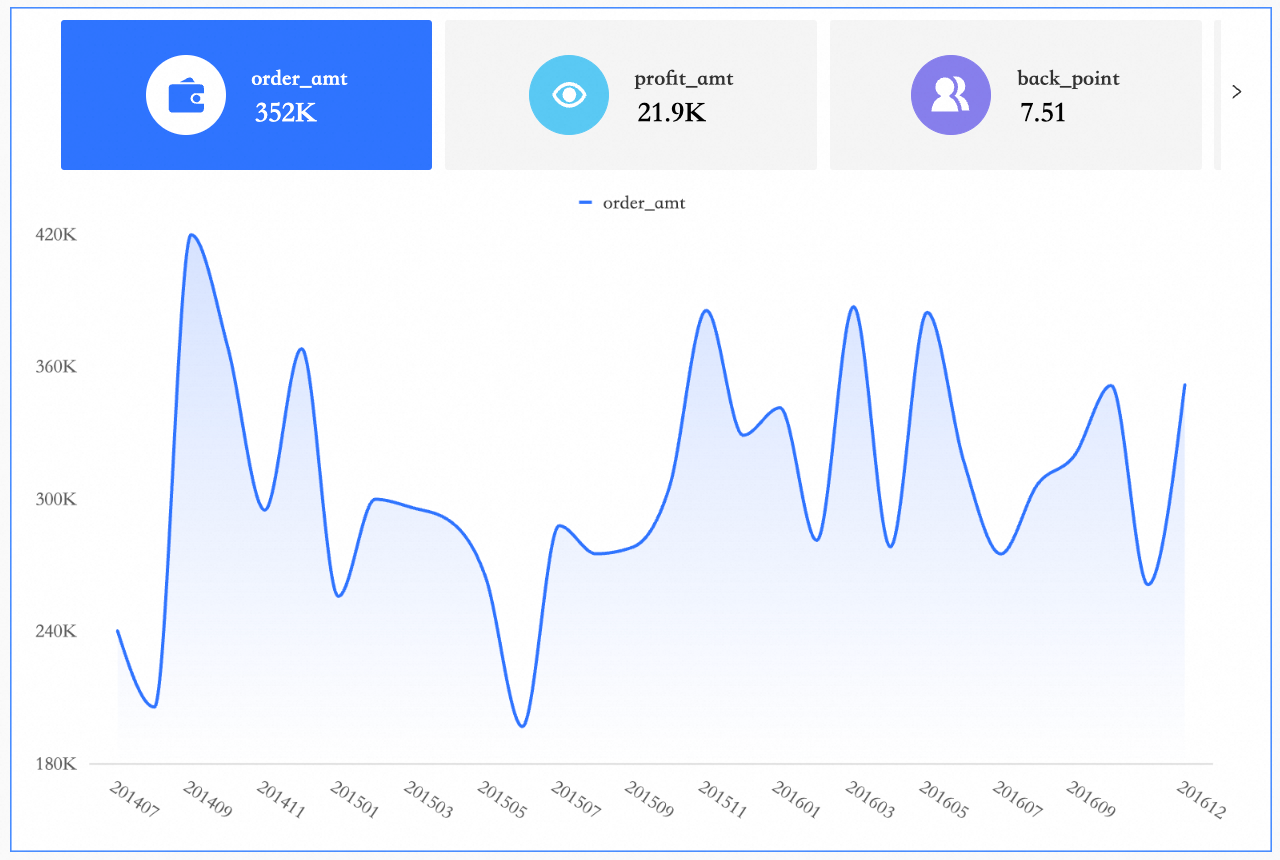
Chart data
On the Field tab, select the dimension and measure fields:
From the Dimension list, double-click or drag order date (day) to the Date/Dimension area.
From the measure list, double-click or drag order quantity, order amount, shipping cost, and profit amount to the Metric/Measure area.
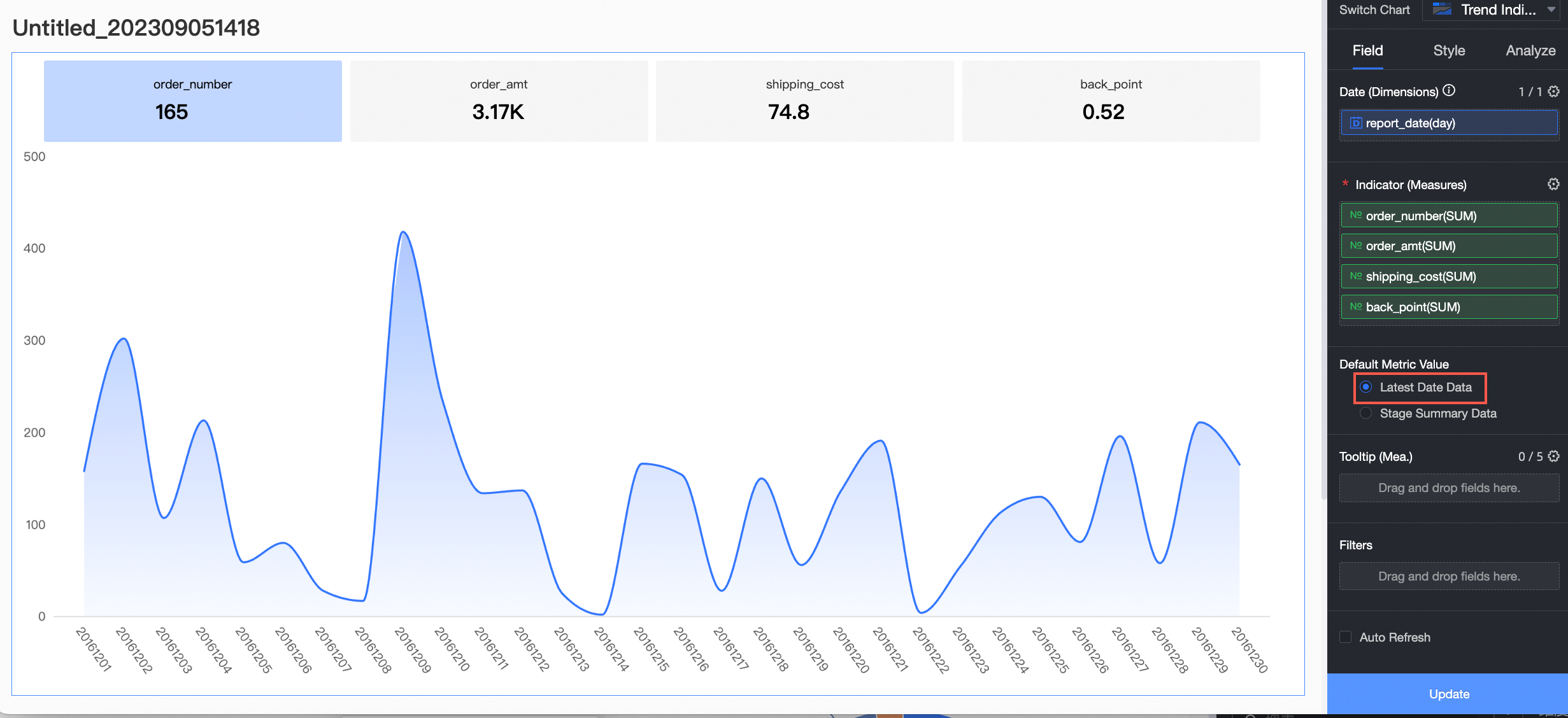
Select an option for Default Metric Value and click update. The chart updates automatically.
latest date data: Displays the value of the latest data point in the selected time range.
If you select latest date data, the metric card displays the data for the last day (December 30, 2016).
stage summary data: Displays the aggregated value for the selected time range.
If you select stage summary data, the metric card displays the aggregated data for the period from December 1, 2016 to December 30, 2016.
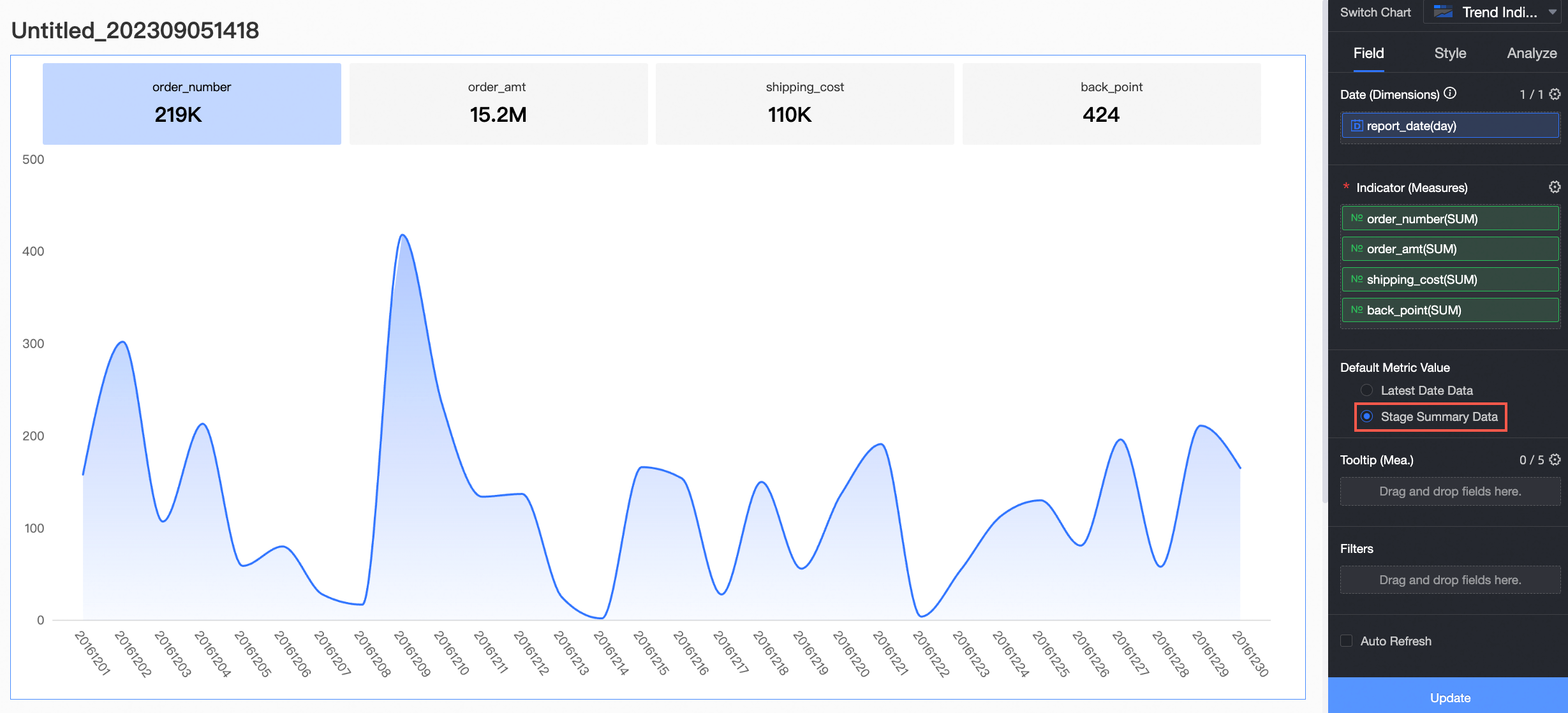
Chart styles
You can configure the style of an indicator trend chart.
Chart type
Select a layout type for the chart. The layout type determines the arrangement of the metric blocks and the trend chart. The following three types are available.
Type | Description |
Metric tab trend chart | Displays each metric and its corresponding trend chart in a separate tab. Click a metric's tab to view its trend chart. This chart type keeps the report interface clean, preventing information overload and helping you focus on the content.
|
Sparkline with vertical layout | Displays each metric's value above its corresponding sparkline. This chart type lets you view a metric's value and trend simultaneously, helping you quickly understand its changes.
|
Sparkline with horizontal layout | Displays each metric value and its corresponding sparkline side-by-side in a horizontal layout. This chart type lets you compare metric values and their trends in a single view. Compared to the sparkline with vertical layout, this layout is ideal for wider screens as it clearly displays both the metric value and its trend.
|


Metrics
On the Metrics tab, configure the metrics for the chart.
Quick layout
Set the arrangement of primary and secondary metrics in the chart. For example, if a secondary metric is the year-over-year (YoY) comparison for each primary metric, you can configure the layout of each metric and its corresponding YoY value in the tab. If secondary metrics are disabled, this option controls the layout of the metric's name and its value.
Layout type
Example
Primary-Secondary 1

Primary-Secondary 2
Primary-Secondary 3
Primary-Secondary 4
Primary-Secondary 5
Primary-Secondary 6
Primary-Secondary 7
Metric layout
The Metric layout section lets you define the style of the metric blocks. Available options vary by chart layout type.
When the Chart type is set to Indicator Tab Trend Chart, you can configure the following options.
Parameter
Description
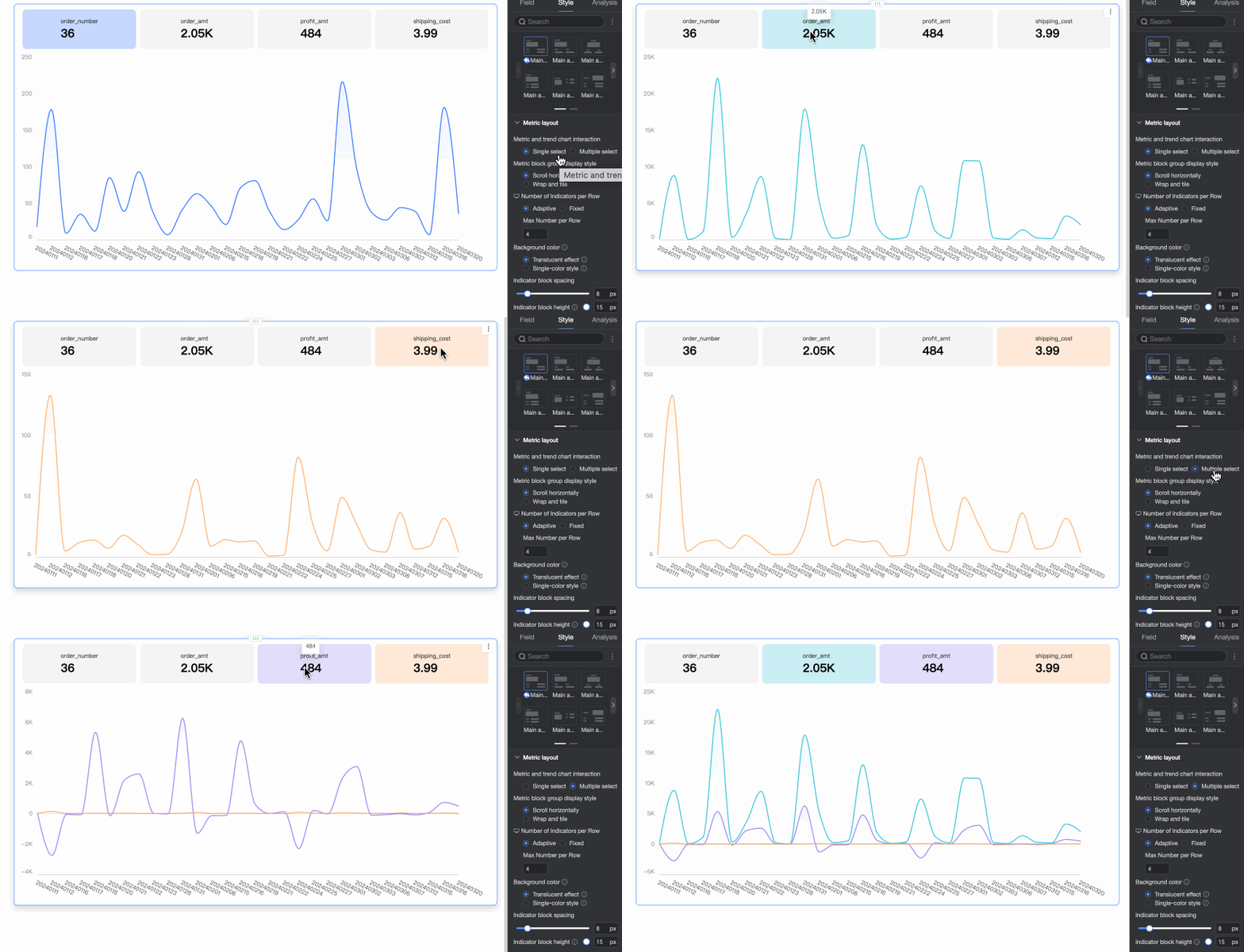
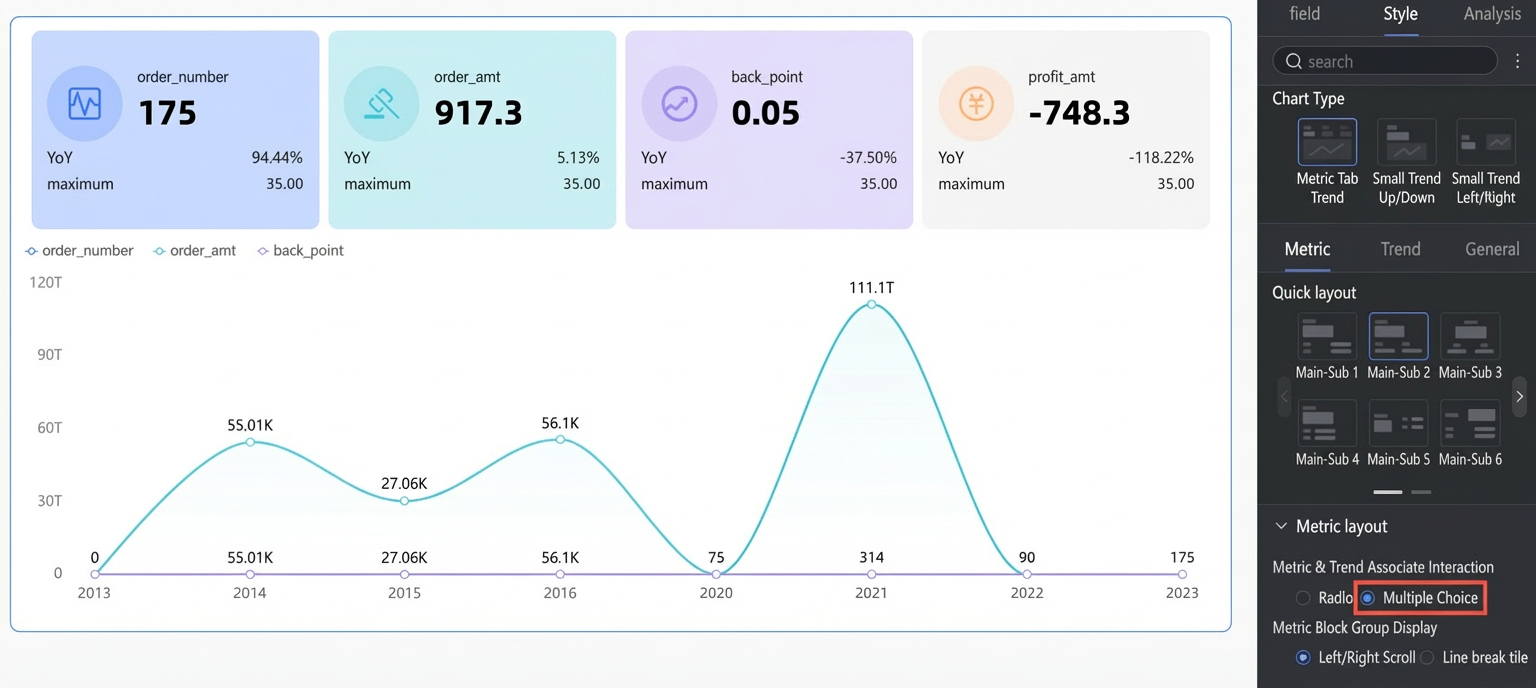
Metric and trend chart interaction
Supports Single Select and Multi-Select.
Single Select: Shows the trend chart for a single measure.
Multi-Select: Shows trend charts for multiple measures.
Metric block group display format
If a chart has too many measures to fit on one screen, use horizontal scrolling to view hidden blocks or wrap and tile to display all blocks at once. You can also set the number of Metric blocks per row.
Background color
Set the background color mode for the metric blocks. The block color will follow the trend chart's color scheme. Supports two styles: Translucent and Solid Color.
Translucent: Adds transparency to the trend chart's colors.
Solid Color: Matches the trend chart's colors.
Metric block spacing
Set the distance between metric blocks.
Metric block height
Sets the height of metric blocks by adjusting the space between the content and the border.
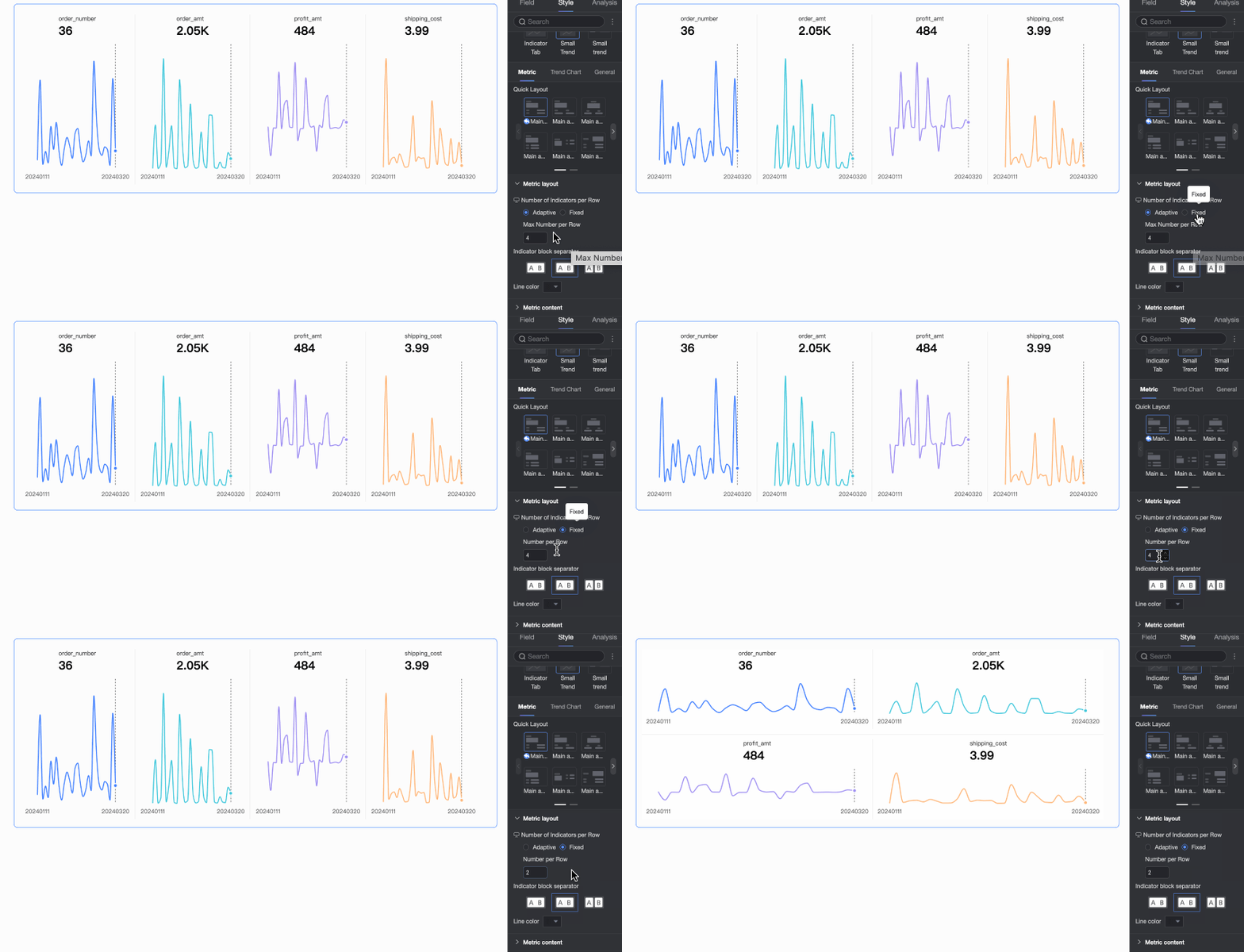
When the Chart type is set to sparkline (Top/Bottom) or sparkline (Left/Right), you can configure the following options.
Parameter
Description
Metric block group display format
Set the number of Metric blocks per row.
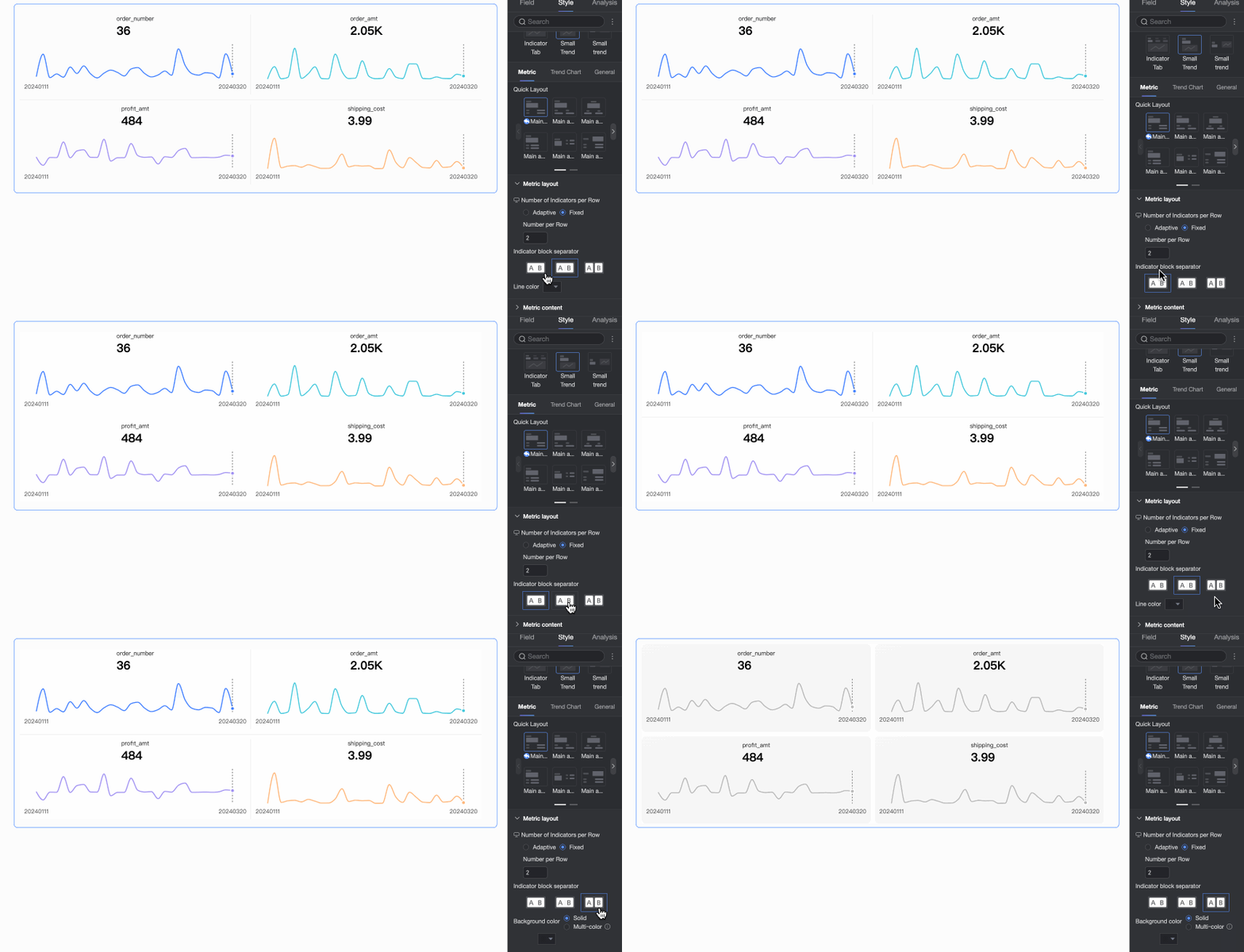
Metric block separator
Set the separator style for metric blocks. Options include No Separator, Separator Line, or Background Fill.
Separator line color
When Separator Line is selected, you can set the color of the separator line.
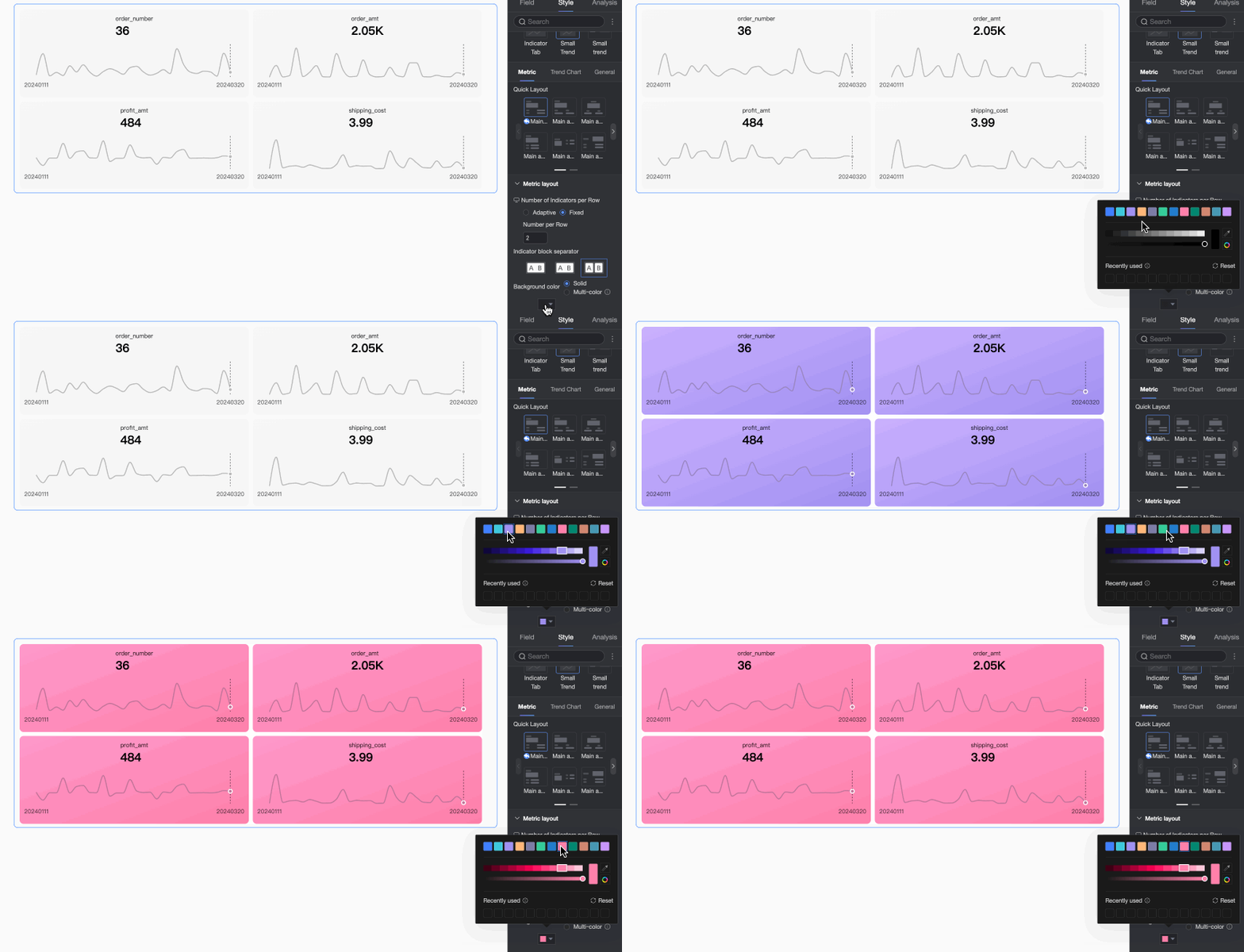
Background color
When Background Fill is selected, you can set the background color. You can set a uniform Single Color for all metric blocks or use the Multi-Color mode to make the background color match the chart's color configuration.
Metric block spacing
Set the distance between metric blocks.
Metric content
Use the Metric content options to configure the content position, display format, font style, and decoration style in metric blocks.
Parameter
Description
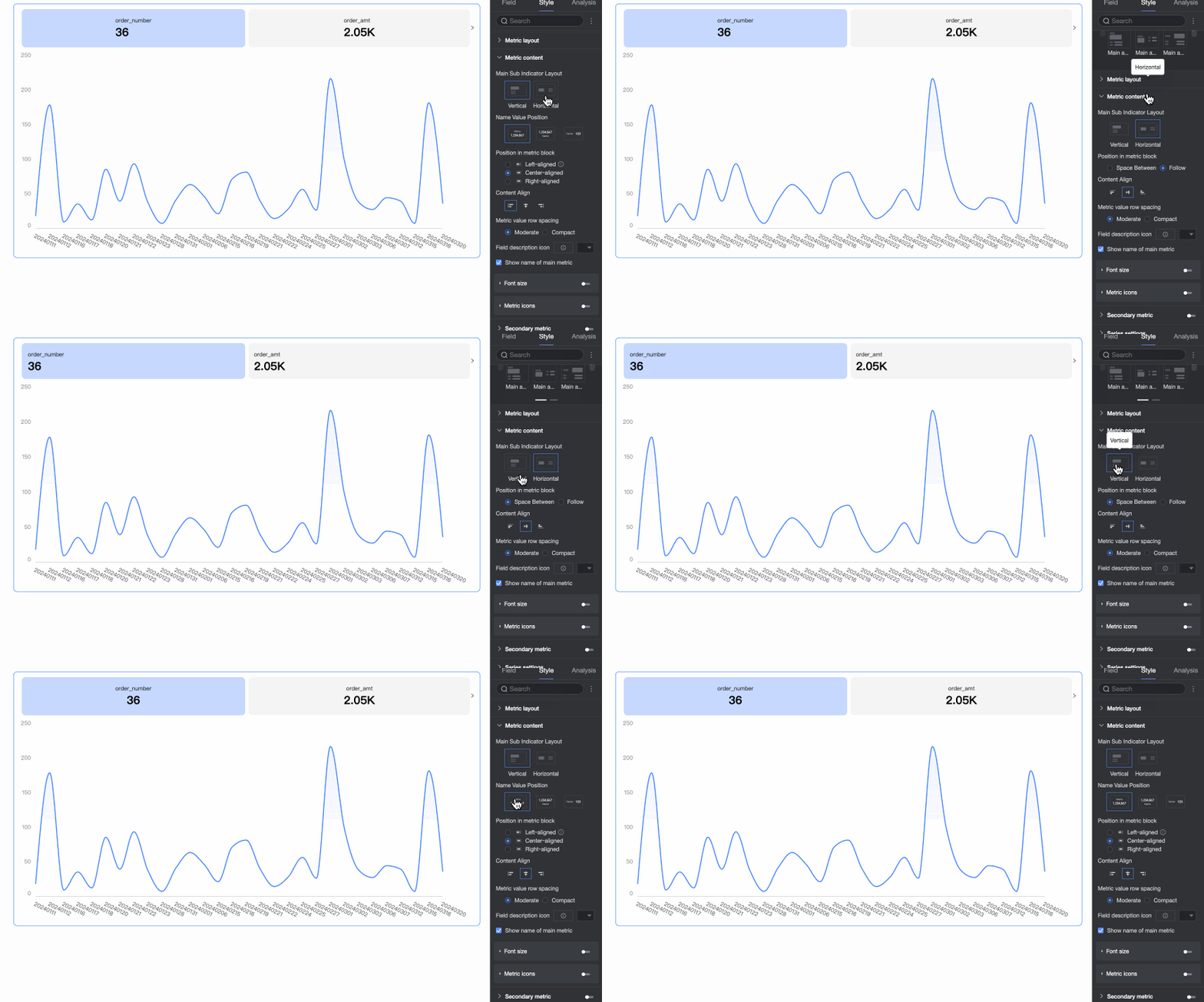
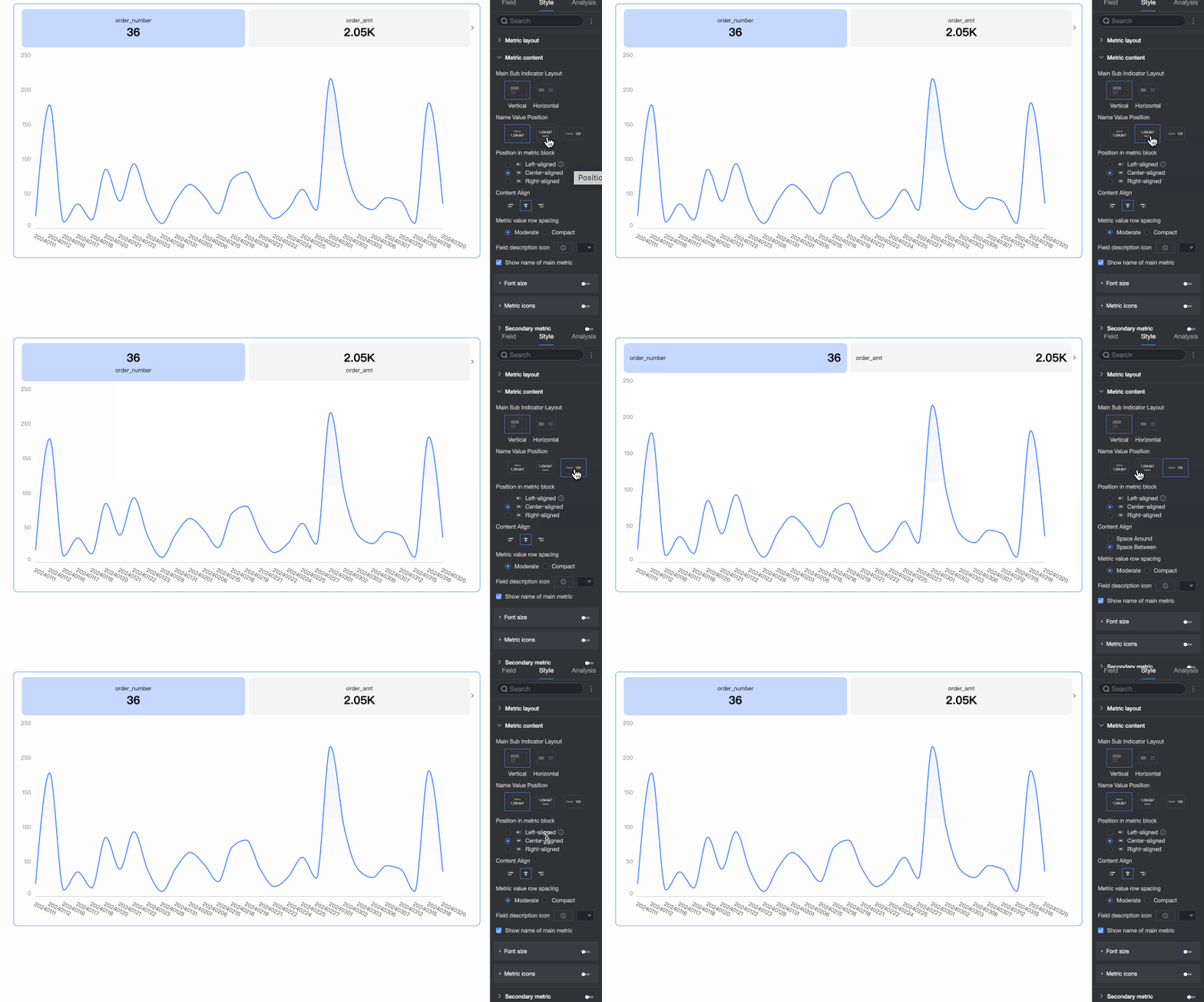
Primary/secondary metric layout
Set the layout of primary and secondary metrics. Supports Vertical Layout and Horizontal Layout.
Name and value position
When Primary/secondary metric layout is set to Vertical Layout, you can configure the position of the metric name and value.
Content position in metric block
Set the position of the content within the metric block:
When Metric Layout is set to Vertical Layout, options include Align Left, Align Center, and Align Right.
When Metric Layout is set to Horizontal Layout, options include Justify and Align Left and Follow.
Content alignment
Set the text alignment within the metric block. Supports Left Align, Center Align, and Right Align.
Metric value line spacing
Supports Medium and Compact styles.
Field description icon
Supports Use Material and allows you to set the color for the field description.
Null value handling
If selected, the metric block displays "-" when a query for a specific time granularity returns no data.
Show primary metric name
Set whether to display the name of the primary metric in the metric block.
Font size settings
Enable font size settings to set the font size, color, and style (bold, italic) for the primary metric name and primary metric value.
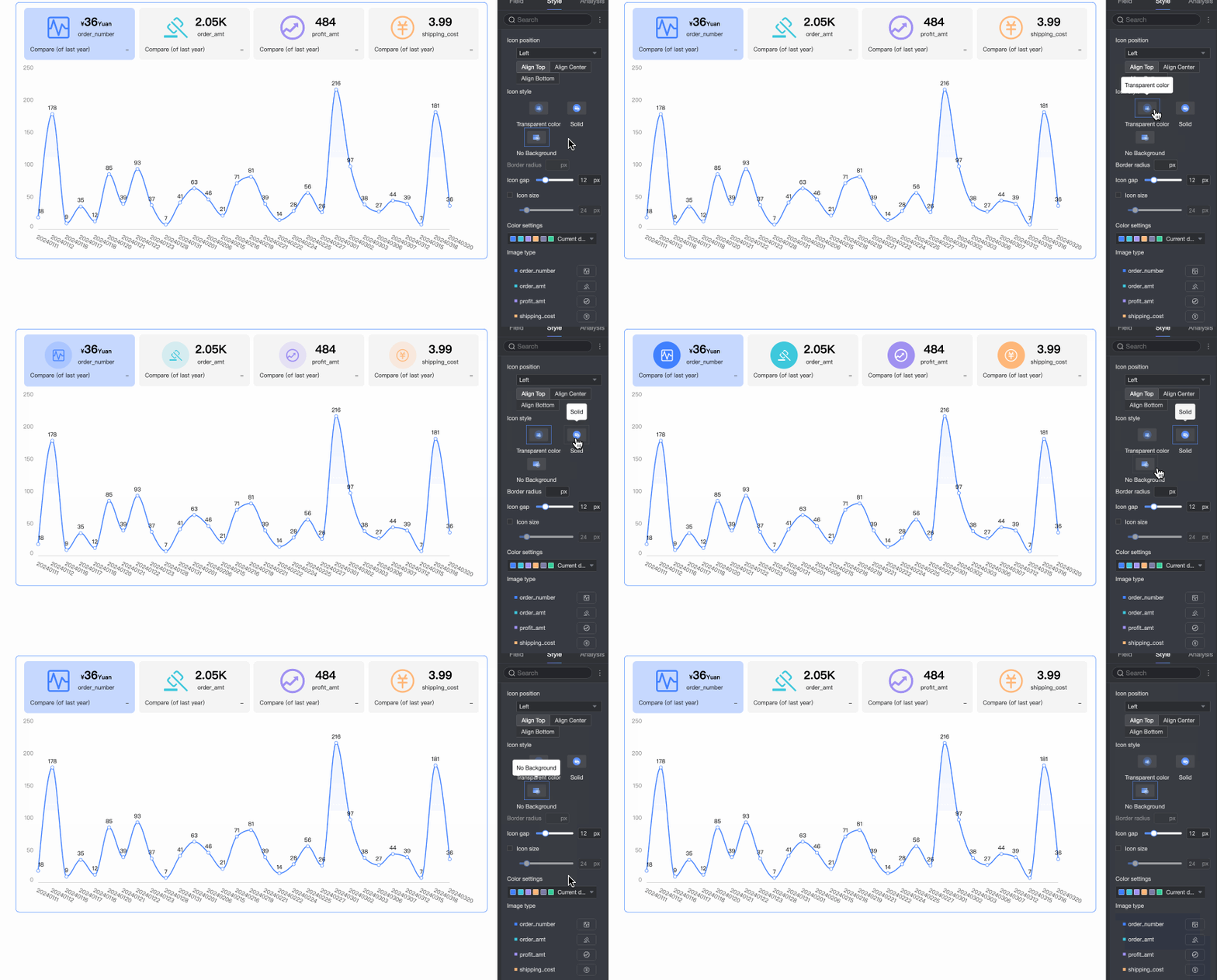
Metric decoration
Choose whether to show the primary metric decoration. If enabled, you can configure its style with the following settings.
Decoration Position: In a horizontal layout, set the position to Left, Top, Right, or Left of Name. In a vertical layout, position it at the top, center, or bottom.
Circle Style: Options include Translucent, Solid Color, and No Background.
Corner Radius: Set the corner radius of the decoration icon.
Distance to Metric: Set the distance between the metric decoration and the metric.
Icon Size: Select this option to customize the size of the metric decoration.
Decoration Type: Supports two types: Material and Image Field.
You can use an image field for decoration only if your dataset includes an image field of the image type (
). For more information, see Use Image Dimensions in Metric Dashboards.When you select Material, you can use a Material Icon or upload a local image. You can specify a different material style for each measure.
NoteOnly PNG, JPG, and GIF images up to 1 MB are supported.
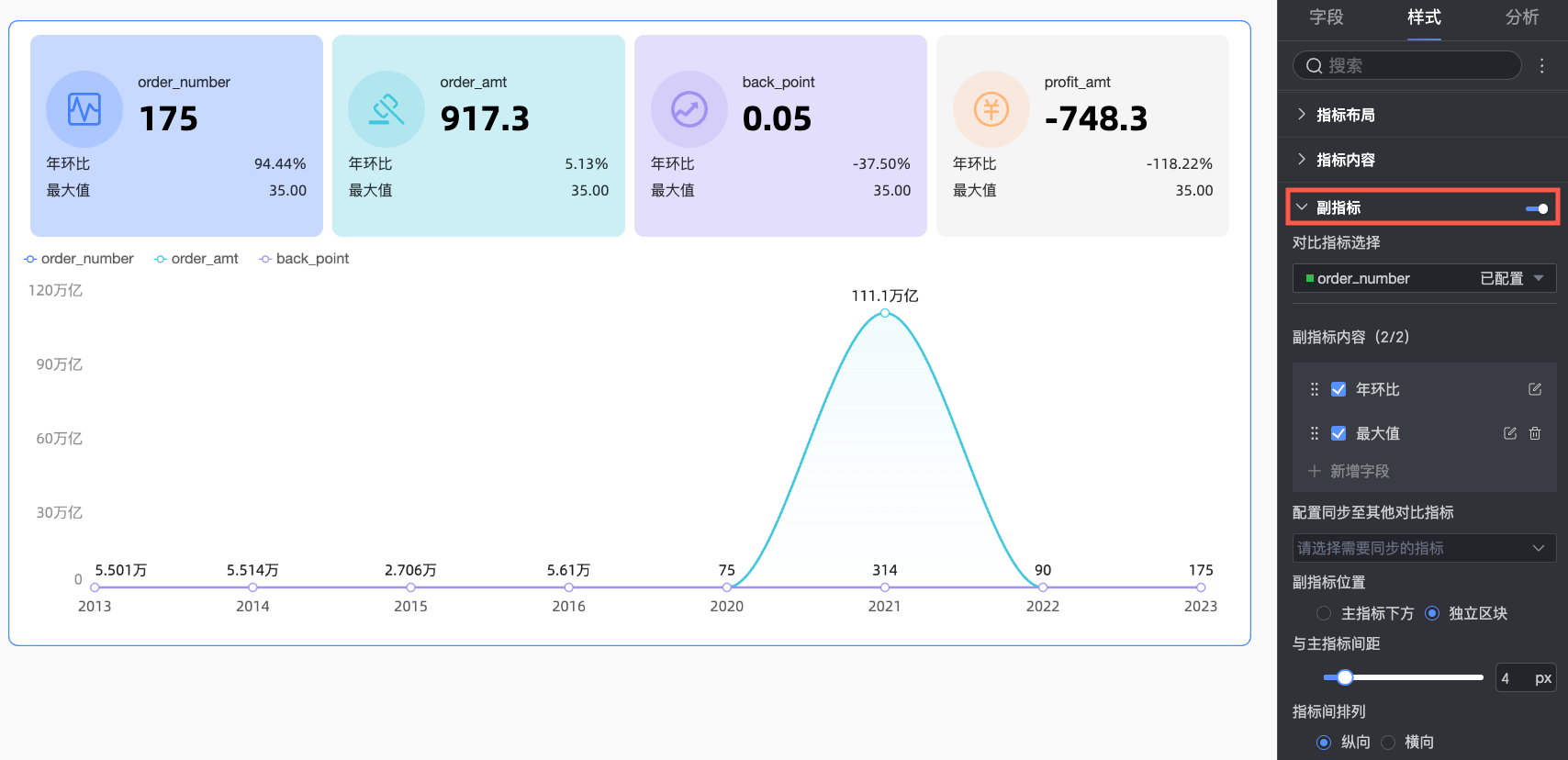
Secondary metric
Use the Secondary metric options to enable and configure the content, layout, and style of secondary metrics.
Parameter
Description
Comparison metric selection
Enable secondary metrics, and select the measure to configure for comparison from the drop-down list.
Secondary metric content
Configure the specific content for the secondary metric comparison. The system automatically generates period-over-period comparison options based on the time granularity of the field in Date/Dimension. For example, if the date field type is 'day', options such as day-over-day, week-over-week, and month-over-month are available.
Here, you can:
Select the checkbox next to an option to display the corresponding secondary metric. You can select a maximum of two metrics.
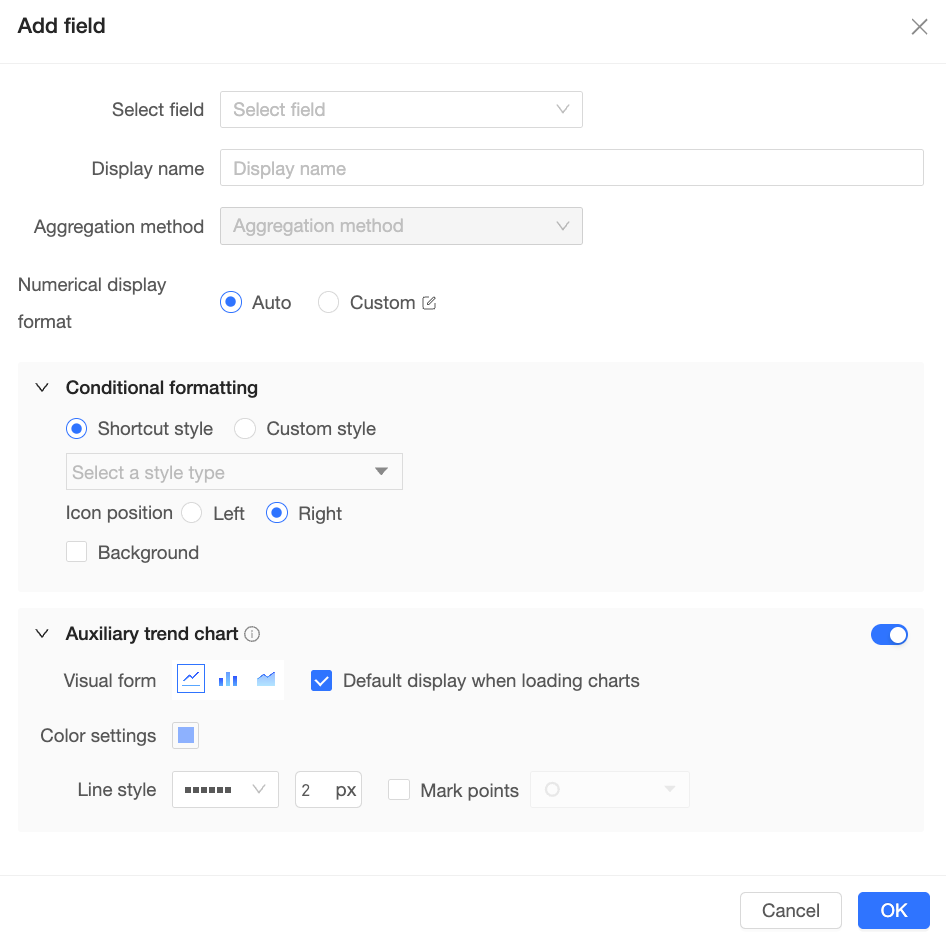
Click add field. In the Add field dialog box, you can customize the secondary metric for comparison, and configure its Aggregation Method, Display Format, conditional formatting, Auxiliary Trend Chart, and other settings.
Click the
icon and drag to reorder the metrics, which adjusts their display order in the chart.Click the
icon to open the Secondary metric content settings dialog box, where you can adjust the current metric's Display Format, conditional formatting, Auxiliary Trend Chart, and other settings.
Sync configuration to other comparison metrics
Select the measures to apply the current configuration to.
Secondary metric position
Set the position of the secondary metric. Options are Below primary metric or In a Separate Block. When In a Separate Block is selected, you can also set the spacing between the secondary and primary metrics.
Metric arrangement
If you have multiple secondary metrics, you can arrange them vertically or horizontally.
When you select Vertical arrangement, you can configure the alignment of the secondary metric names and values.
When you select Horizontal arrangement, you can configure the number of secondary metrics to display per row, as well as the layout, position, and alignment of their names and values.
Metric block separator
Set whether to display separator lines and a background between secondary metrics, and customize their colors.
Show secondary metric name
Set whether to display the name of the secondary metric.
Set secondary metric font style
Set the font style and color for the secondary metric.
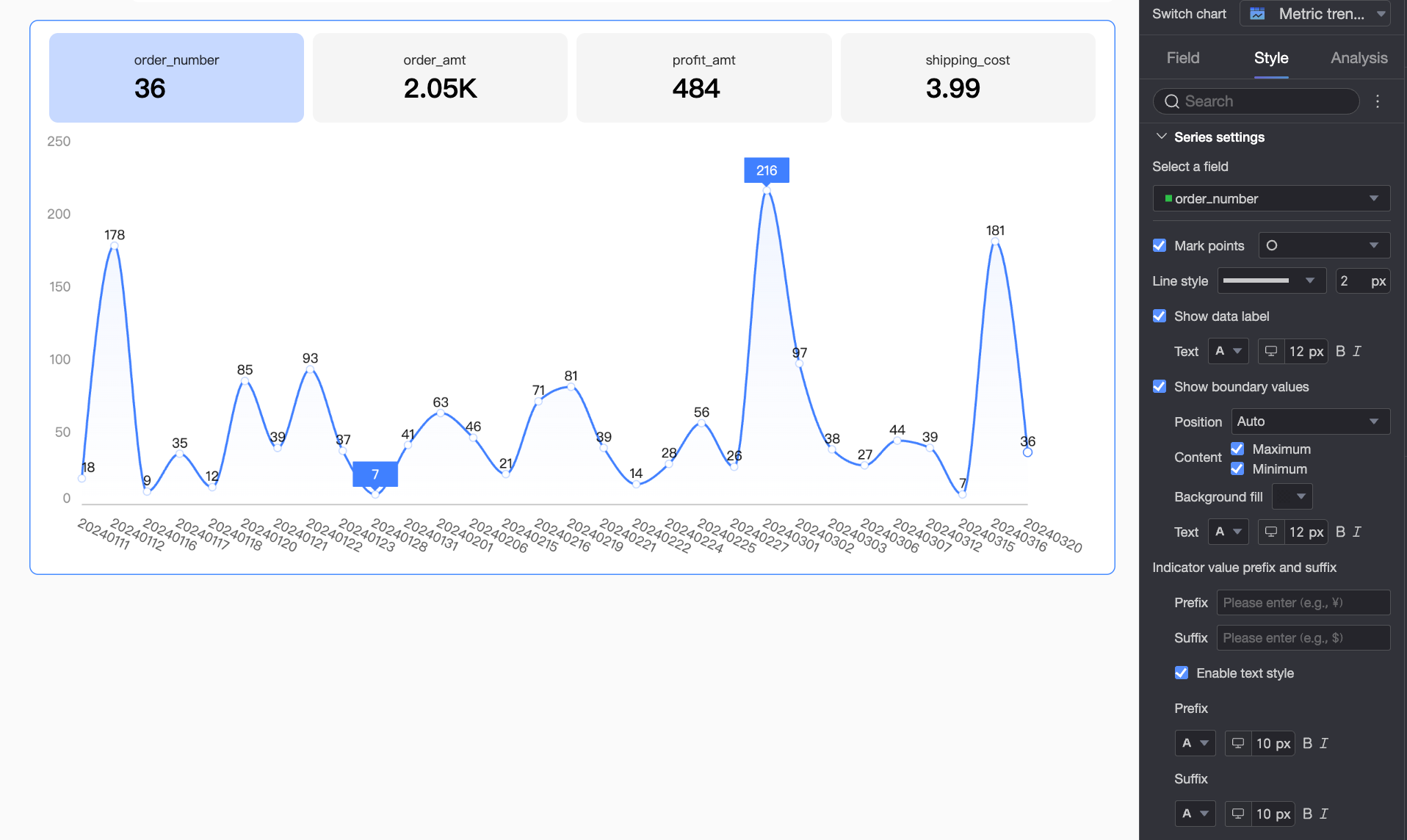
Series settings
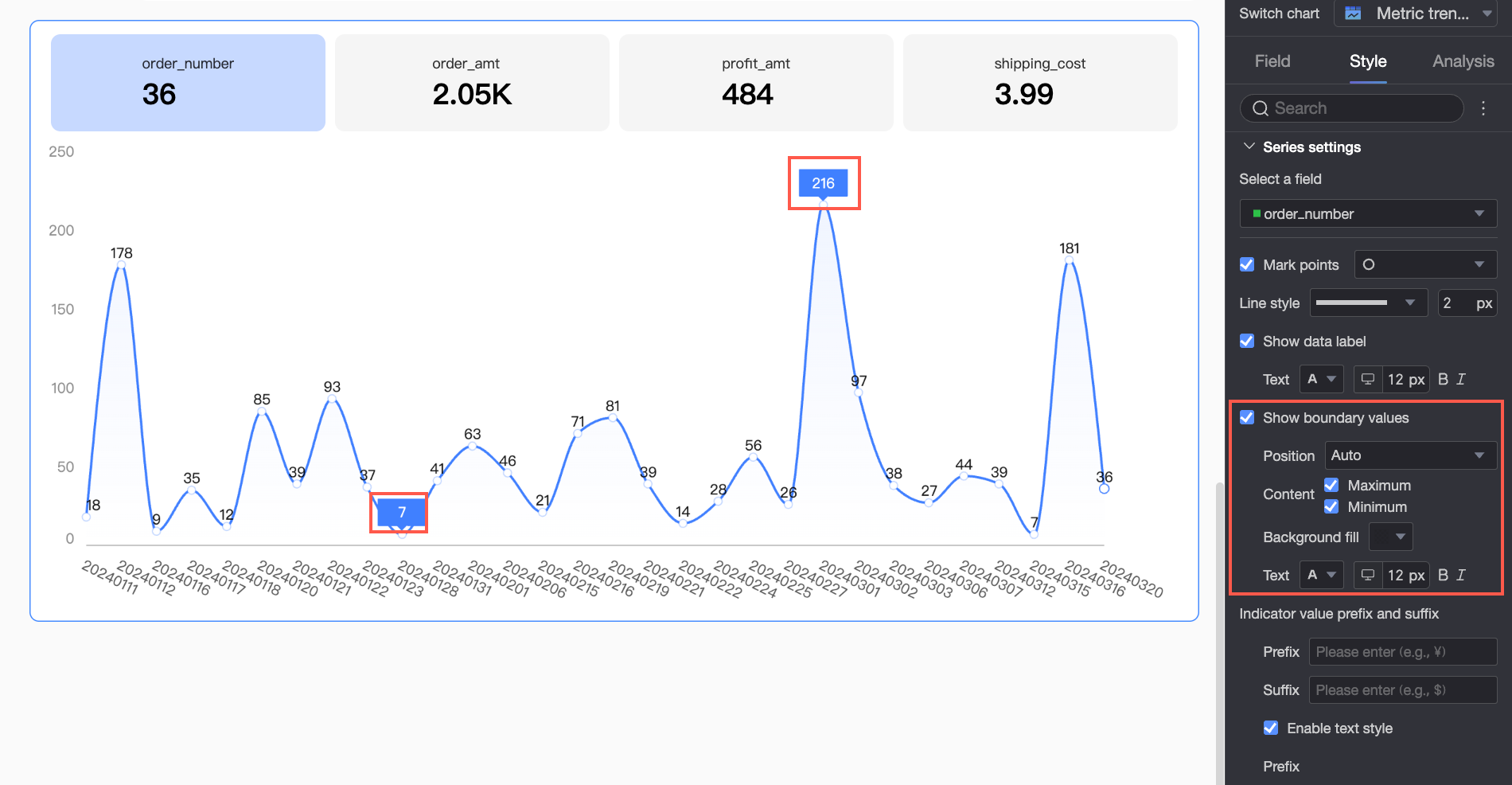
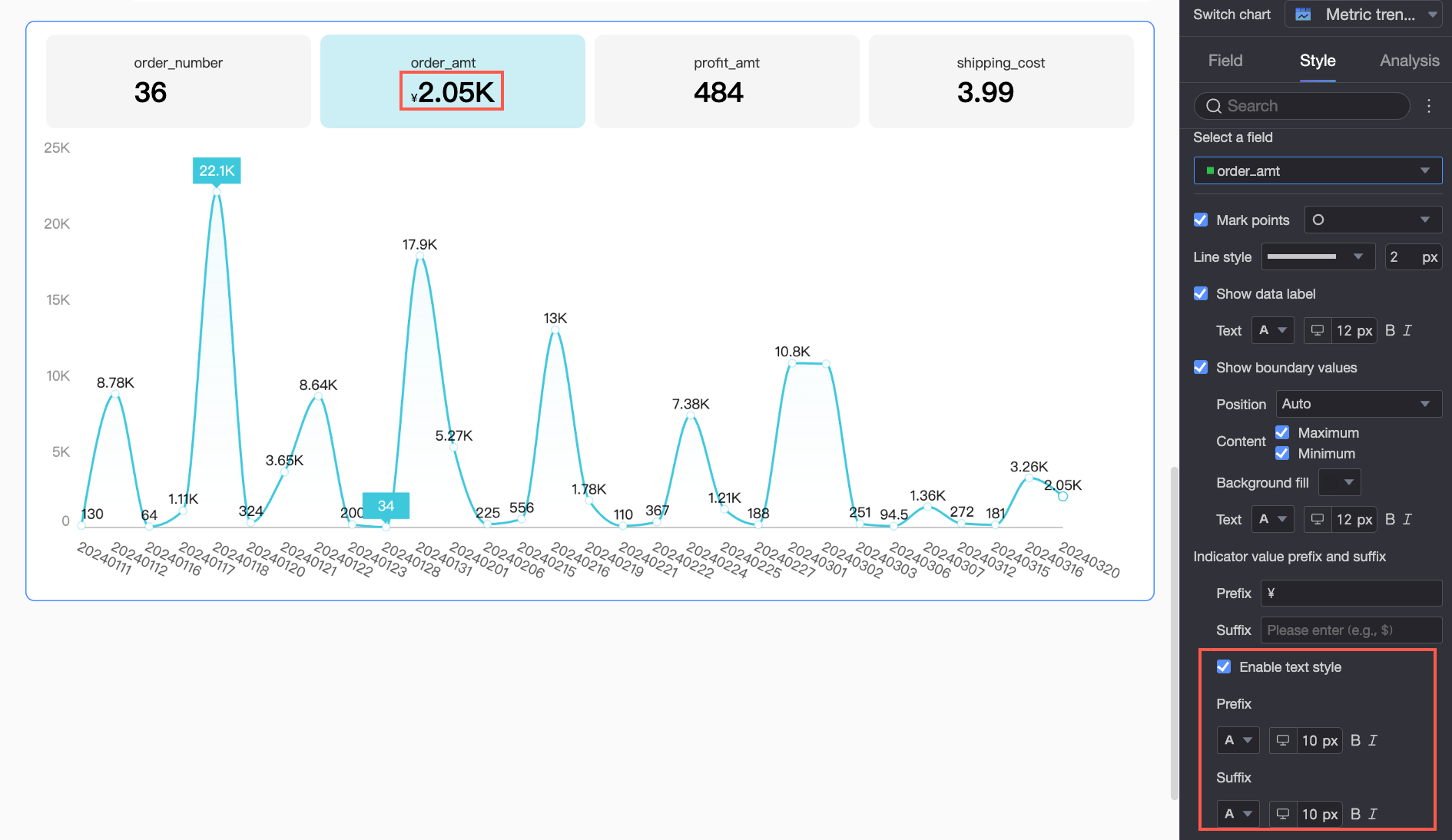
In series settings, you can configure markers, data labels, extremes, and prefixes/suffixes for each measure.
Parameter
Description
Select field
Select a field to configure. The available fields are the measures added to the Metric/measure area.
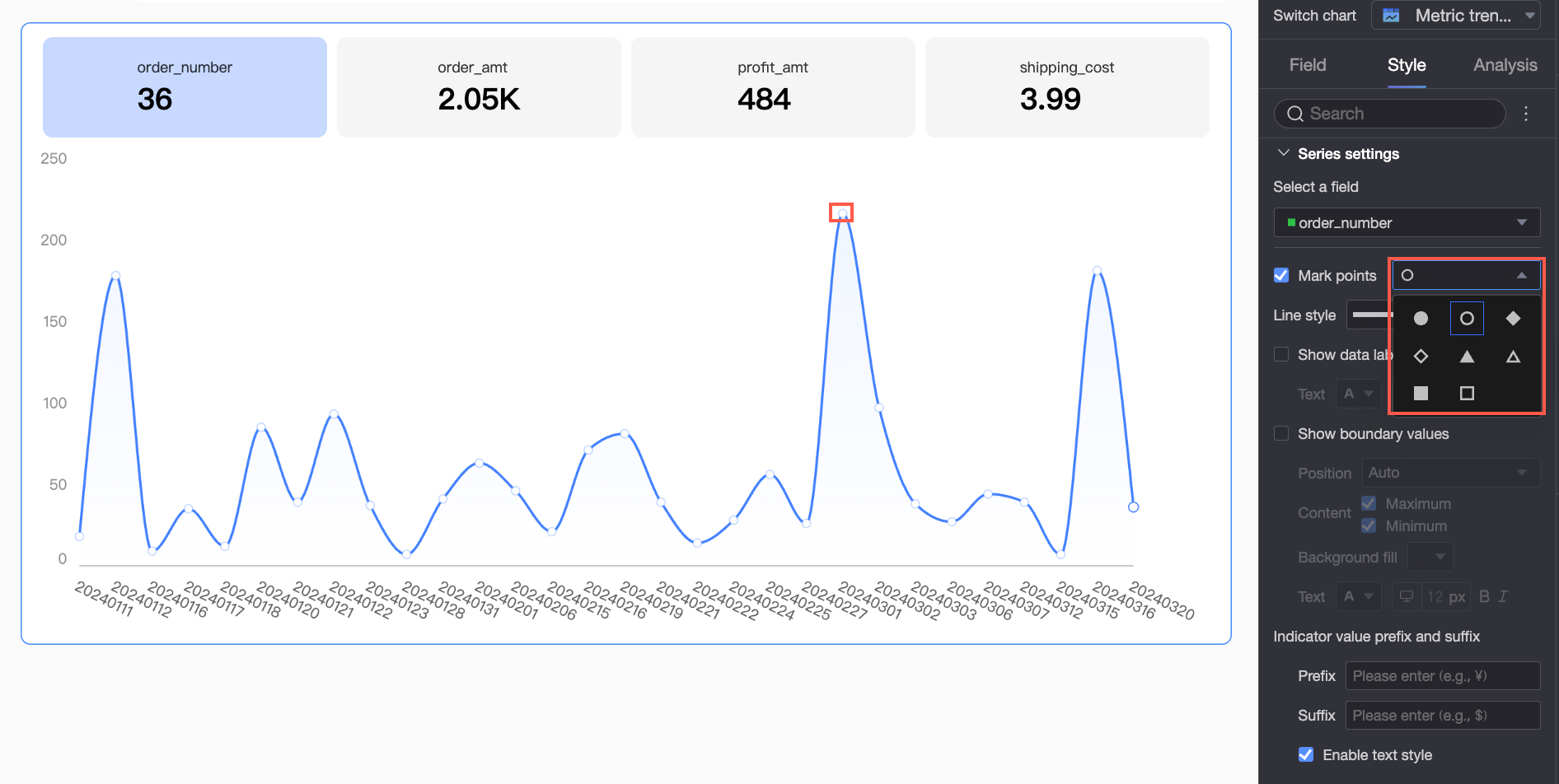
Show markers
Set whether to show markers on the trend chart and select a marker style.
NoteThis option applies only to line and area charts.
Line style
Set the style and thickness of the lines in the trend chart.
NoteThis option applies only to line and area charts.
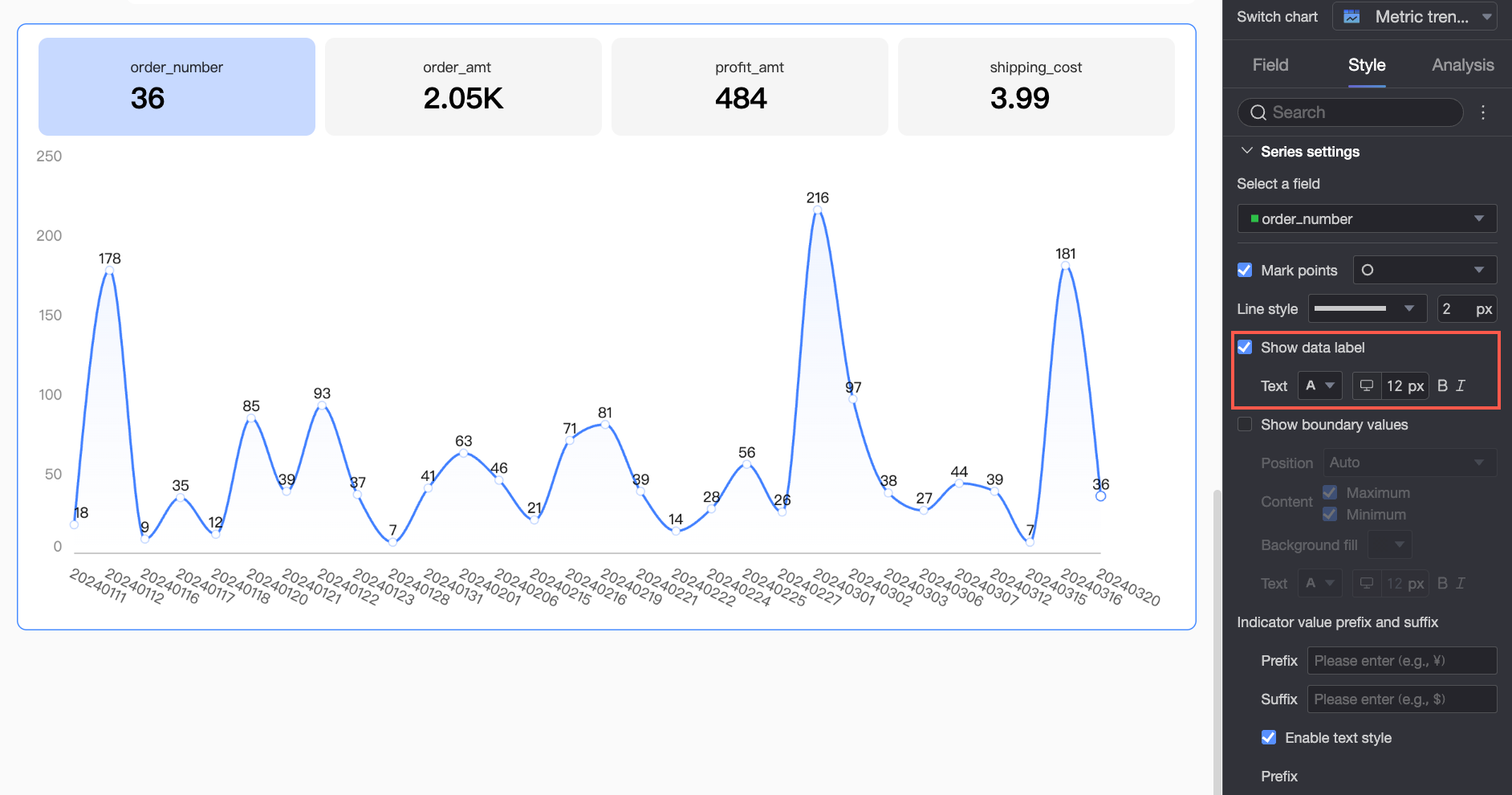
Show data labels
Select whether to show data labels and configure their text format, including font color, size, weight, and style (italic).
Show extremes
Set whether to display labels for the extremes (maximum and minimum values) on the chart. You can also configure the label position, content, background color, and text format.
Metric data value prefix/suffix
Set prefixes and suffixes for the metric data values on the chart. With style settings enabled, you can configure the text style of the prefix and suffix.
Conditional formatting
In the Conditional formatting section, you can set rules for measure data.
Chart parameter
Description
Select field
Select a measure to apply conditional formatting to. All measures added to the Metric/measure area are available.
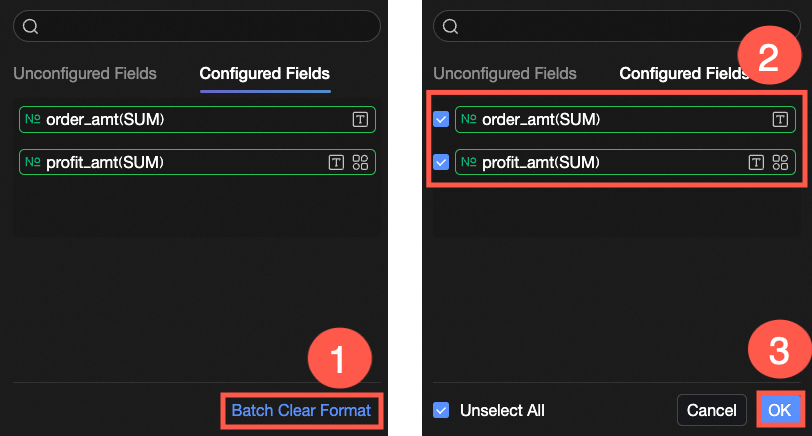
After configuring styles, if you no longer need certain conditional formats, click Clear Formatting in Batch in the lower-right corner of the field panel. In the list, select the conditional formats you want to clear and click OK.
Quick style
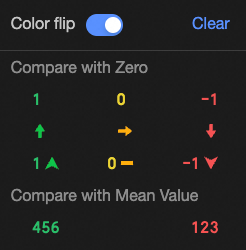
Use a built-in style to set the marker icon or font color for the current measure field.
Comparison: You can choose to Compare with 0 or Compare with Average.
Invert Colors: For example, when comparing with 0, values less than 0 are red and values greater than 0 are green by default. Inverting the colors reverses this, making values less than 0 green and those greater than 0 red.
Clear: When a quick style is no longer needed, click Clear to remove it.
Custom style
In addition to quick styles, you can create custom styles for the current measure field. Supported styles include Text and Icon.
Text: Configure rules to display field values in a specific style, visually highlighting key data.
You need to configure the following information.Based on Field: Select the data field the conditional rule applies to. By default, this is the field selected in the Select Field list. You can also choose another measure from the chart to create complex conditional rules based on the values of other fields.
Condition Selection: Set the comparison baseline for the rule. You can set it to Compare with Fixed Value or Compare with Dynamic Field.
Conditional Rule: Set the specific logic for the rule and the text style to apply when the rule is met. You can set the text color, weight (bold), and style (italic).
Add rule: Click to add a new rule.
Icon: Display a specific marker icon next to the data based on a comparison result to clearly show the relationship between the current data and a target value.
You need to configure the following information.Based on Field: Select the data field the conditional rule applies to. By default, this is the field selected in the Select Field list. You can also choose another measure from the chart to create complex conditional rules based on the values of other fields.
Condition Selection: Set the comparison baseline for the rule. You can set it to Compare with Fixed Value or Compare with Dynamic Field.
Conditional Rule: Click the Marker Icon selection box to choose an icon set from the predefined styles. Then, set the data condition for each icon. You can also select a unique marker icon for each comparison rule.
Add rule: Click to add a new rule.
Sync style to
Sync the current conditional formatting to other measures.
Icon position and size
Set the position and size of the conditional formatting icon within the metric block.







 ). For more information, see


 icon and drag to reorder the metrics, which adjusts their display order in the chart.
 icon to open the Secondary metric content settings dialog box, where you can adjust the current metric's Display Format, conditional formatting, Auxiliary Trend Chart, and other settings.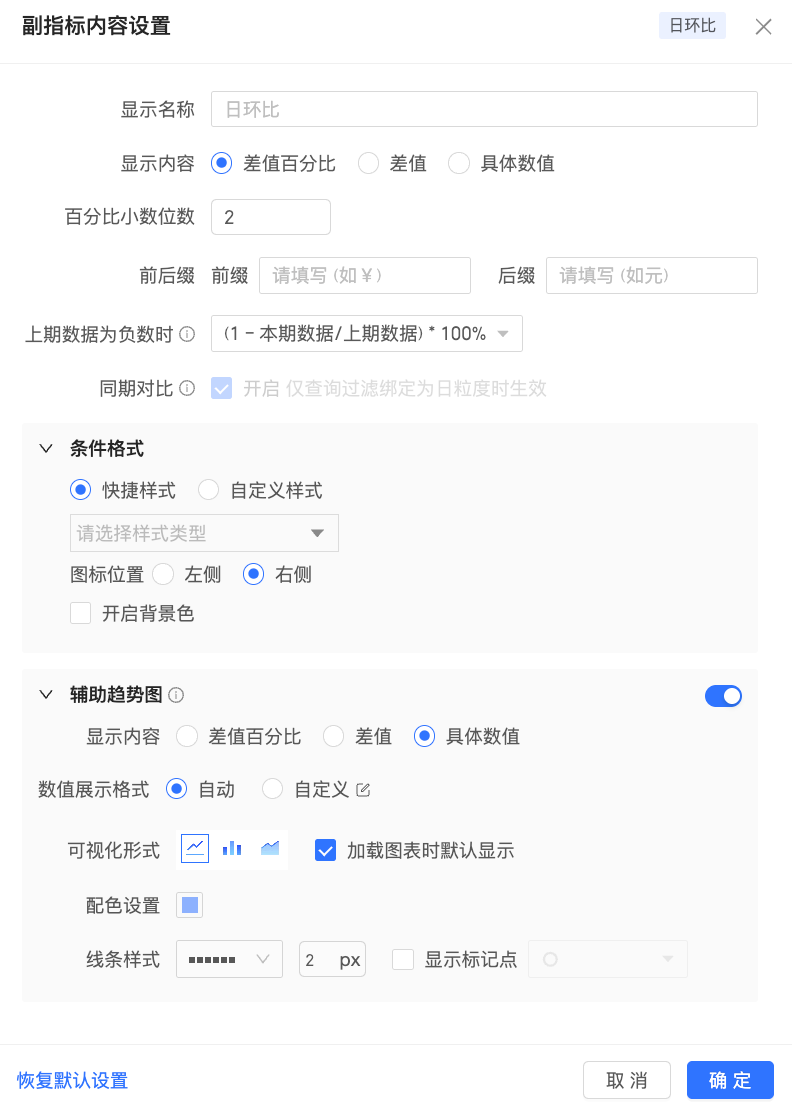
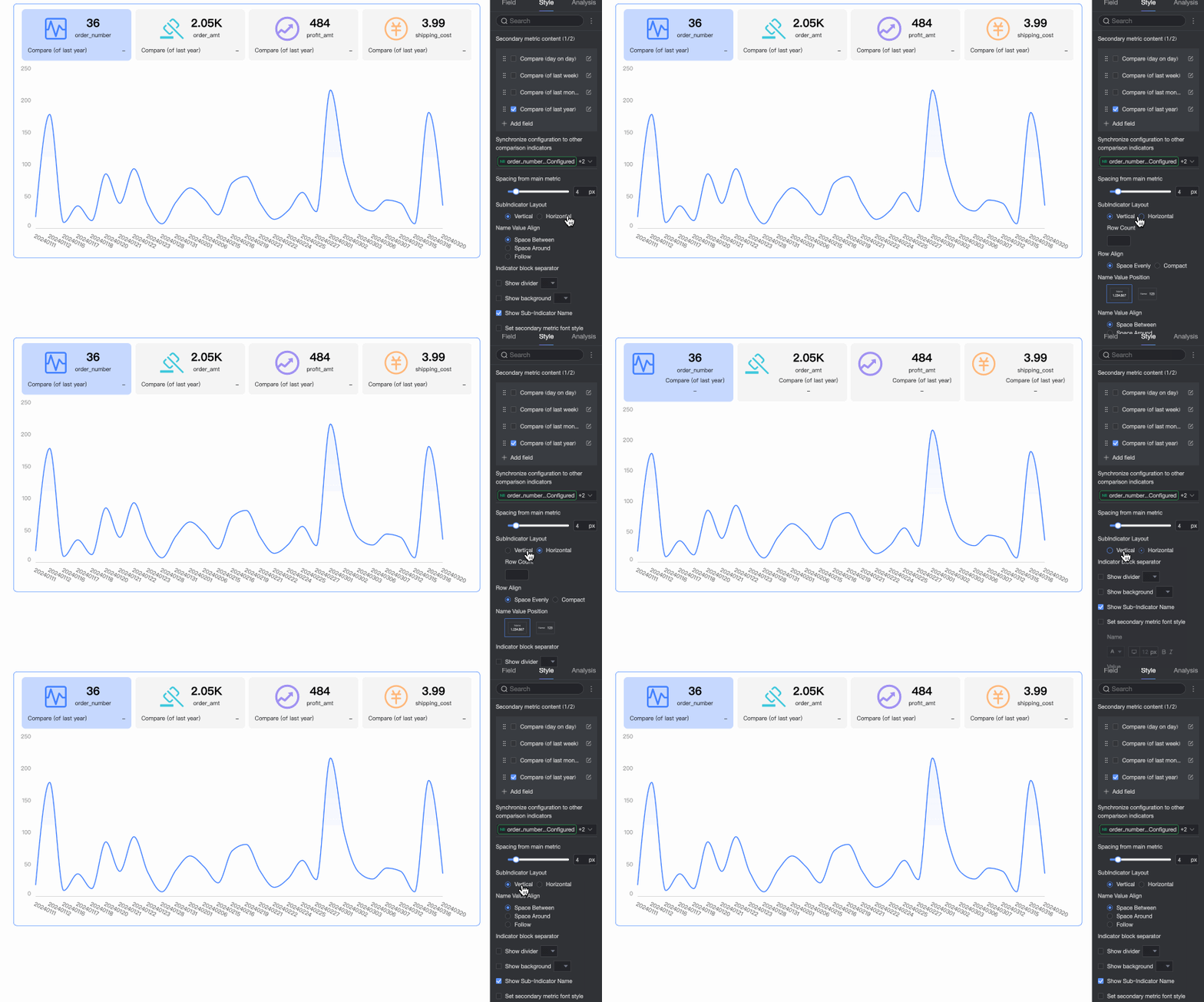
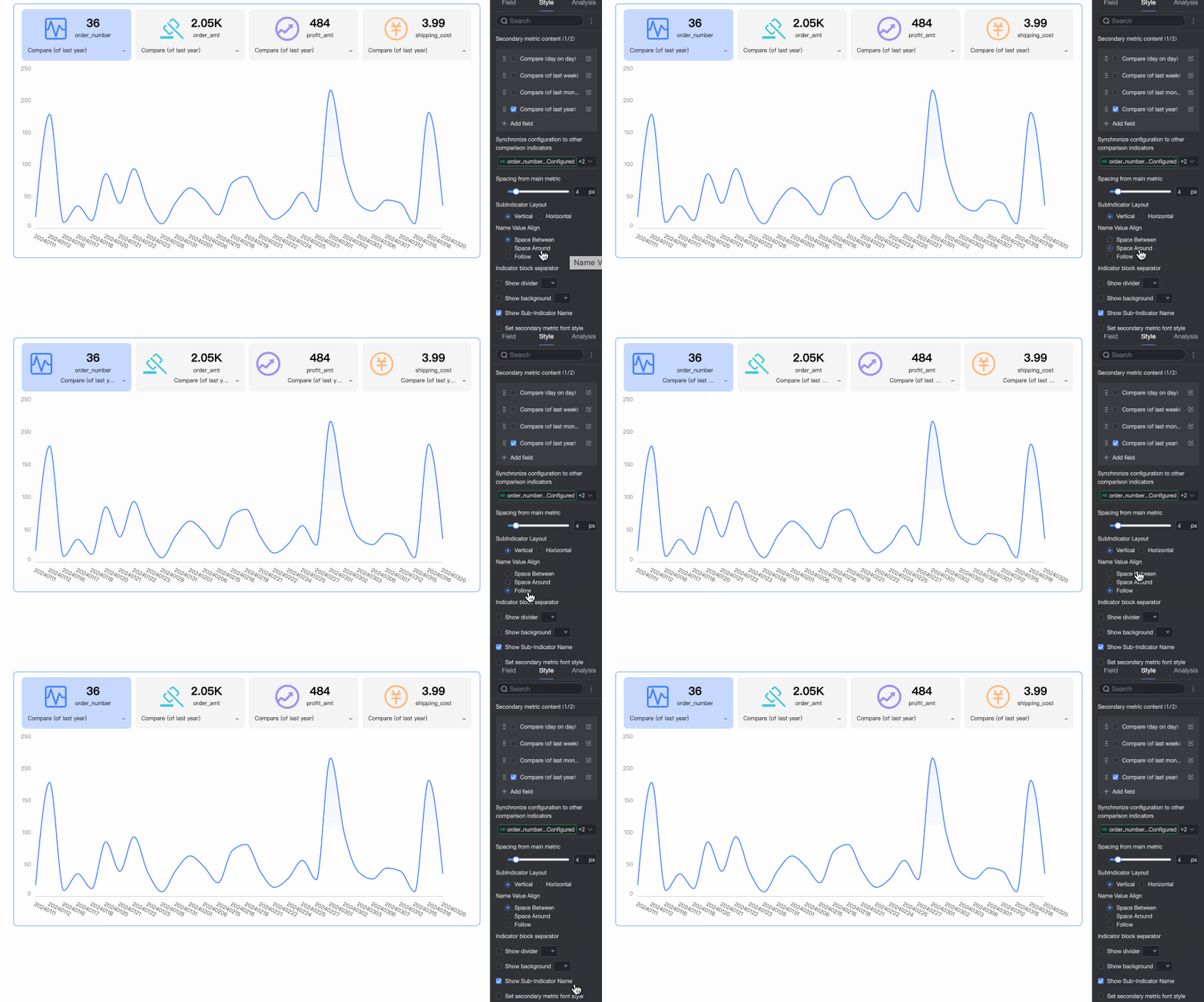
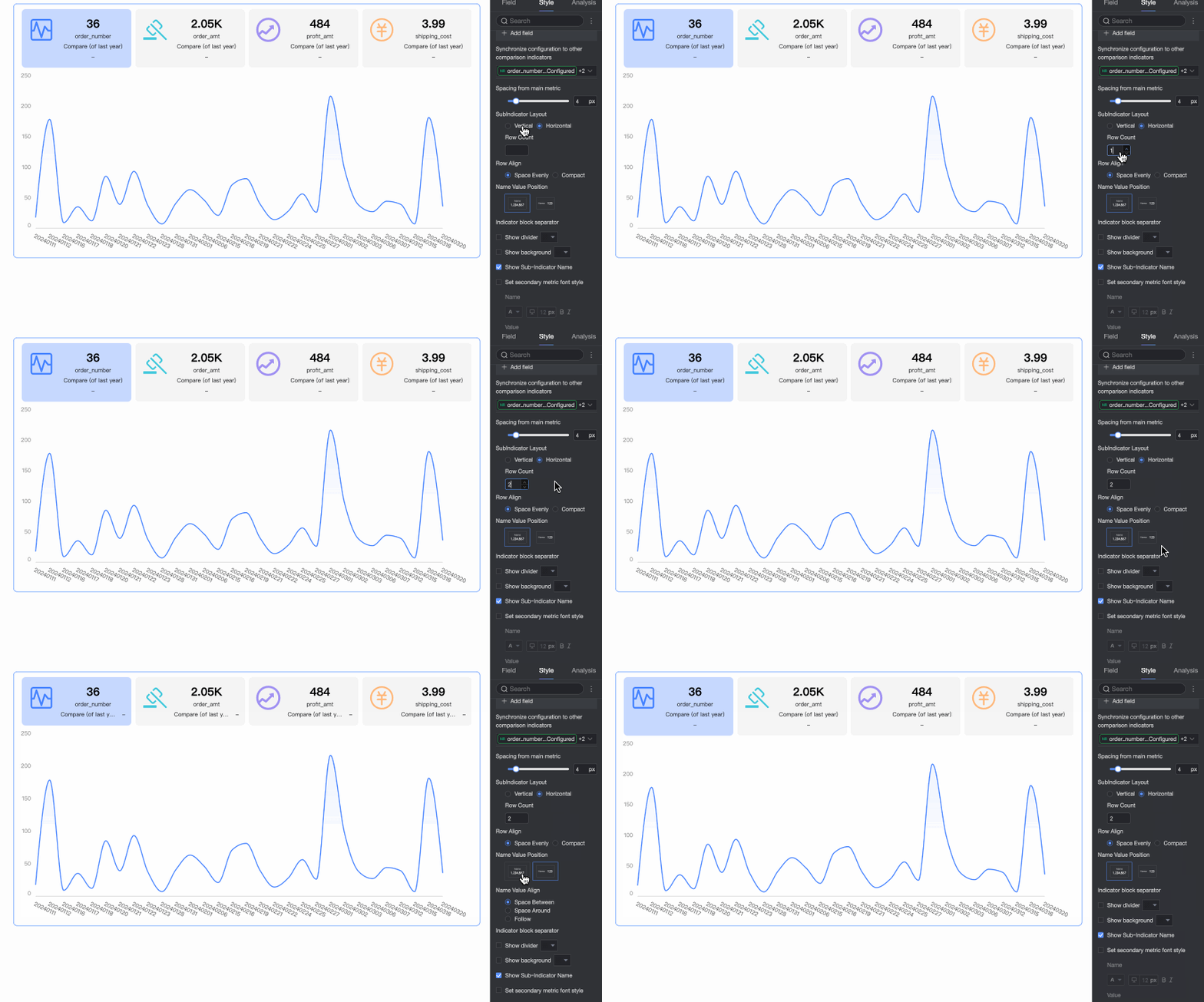
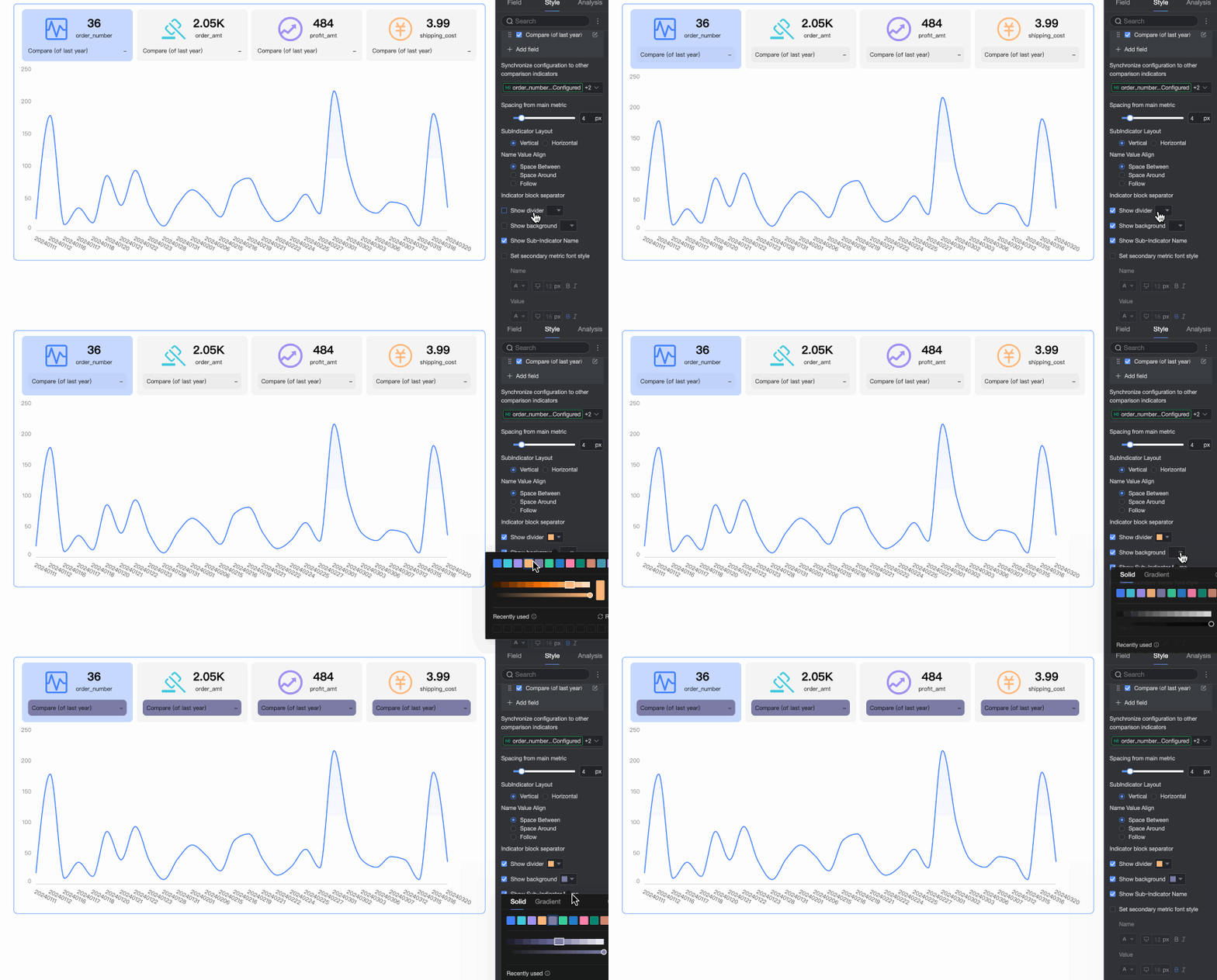

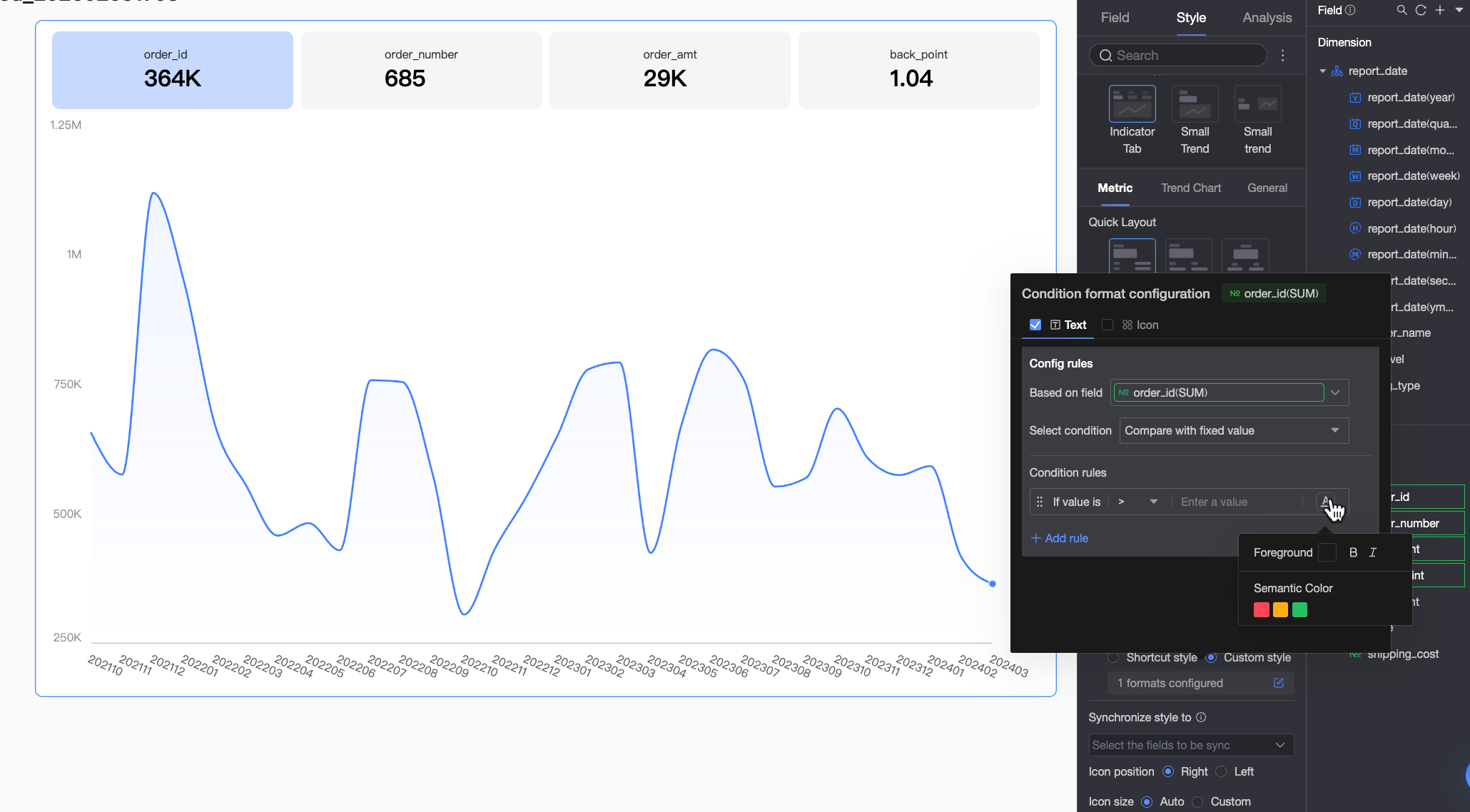 You need to configure the following information.
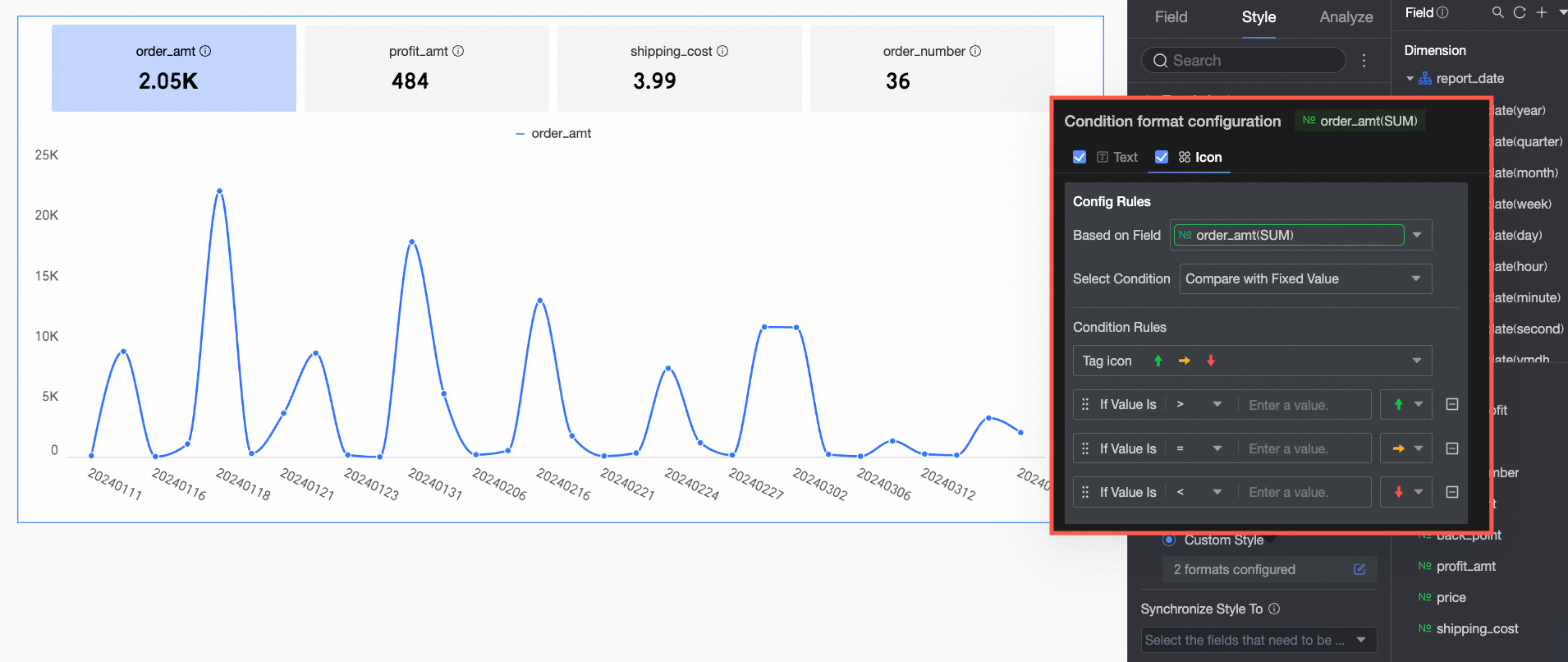 You need to configure the following information.
Trend chart
On the Trend Chart tab, enable and configure the trend chart.
Drawing area
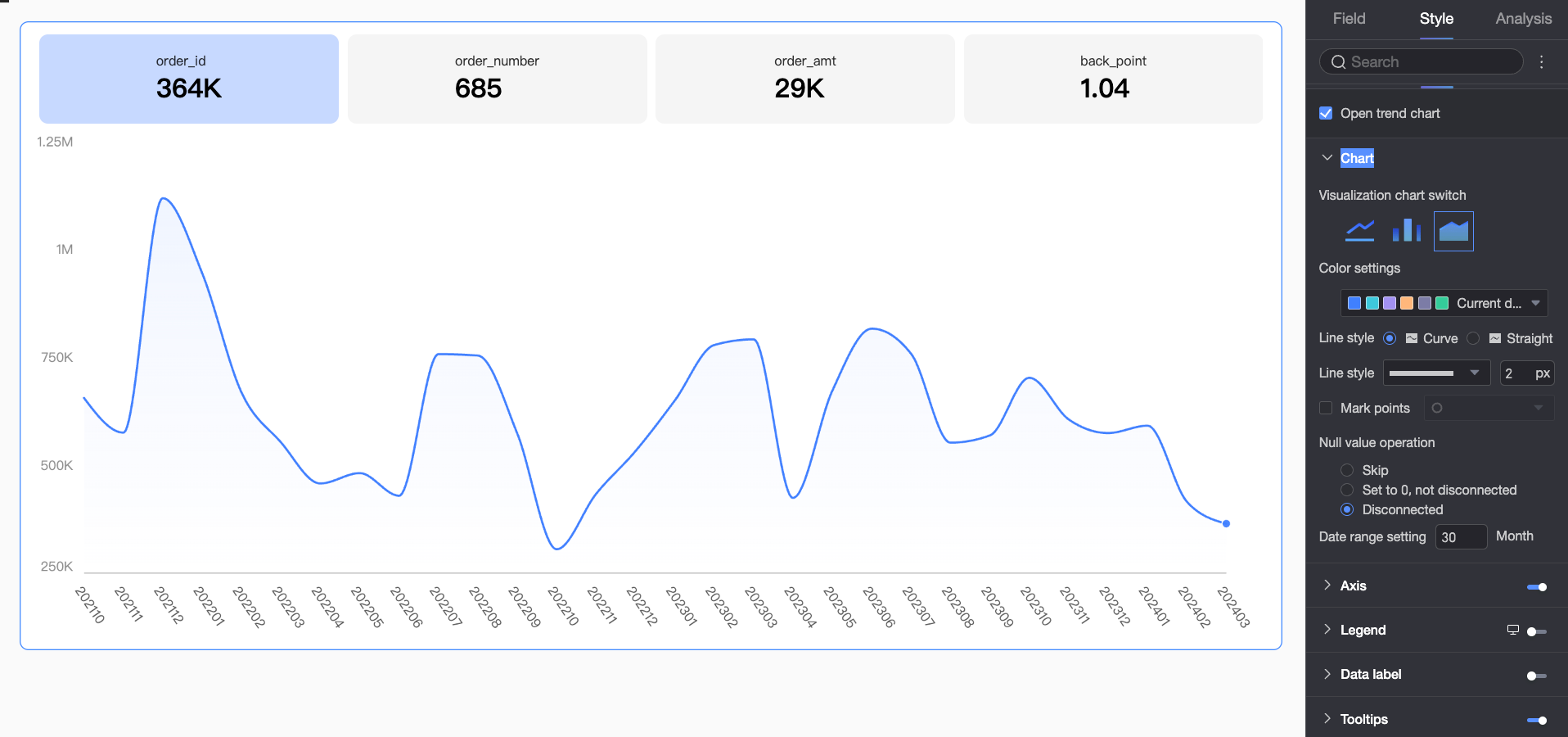
In the drawing area, you can configure settings such as Chart type and Color settings.
Parameter
Description
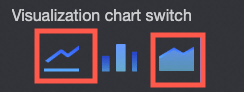
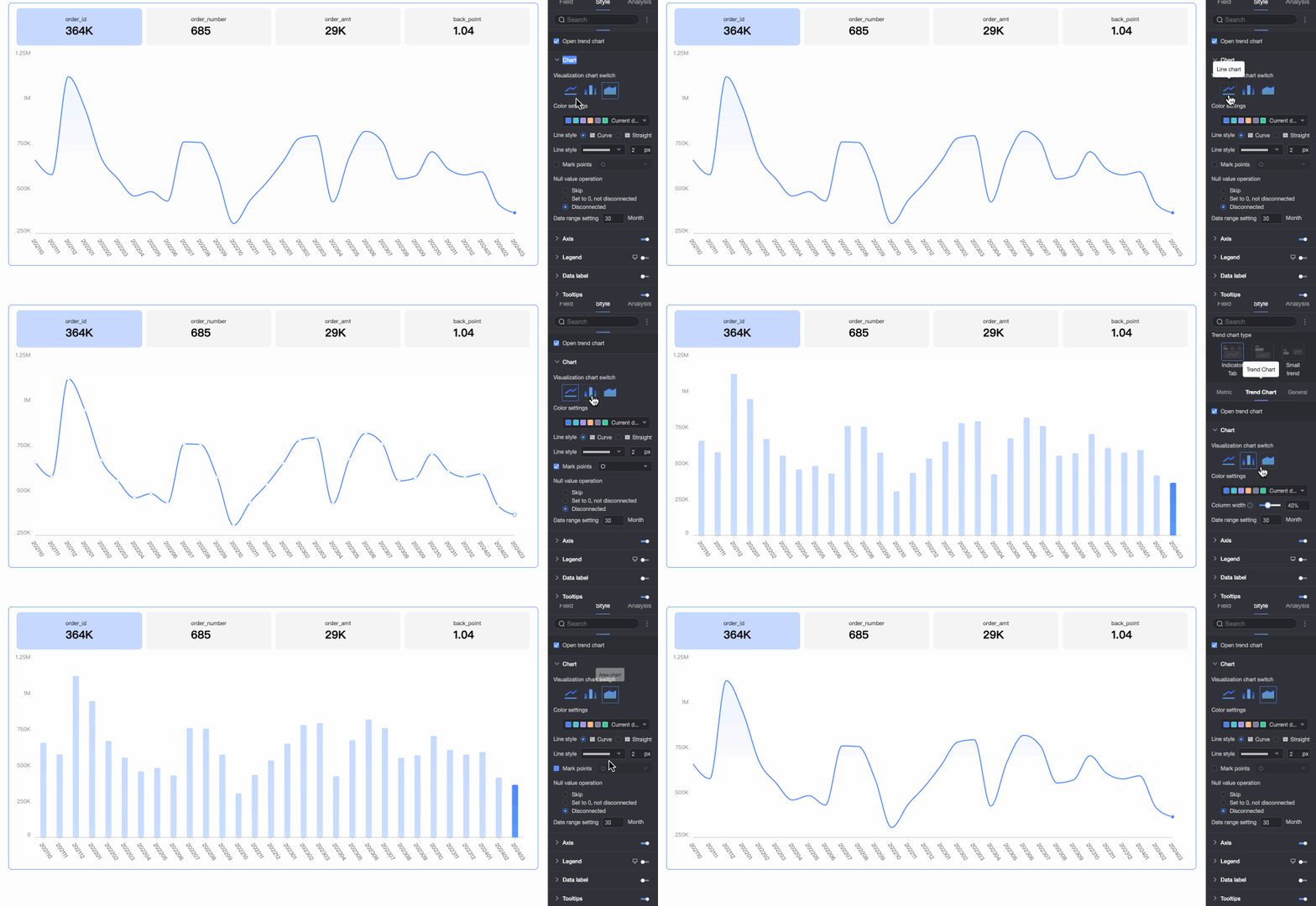
Chart type
Switch between a line chart, area chart, and column chart.
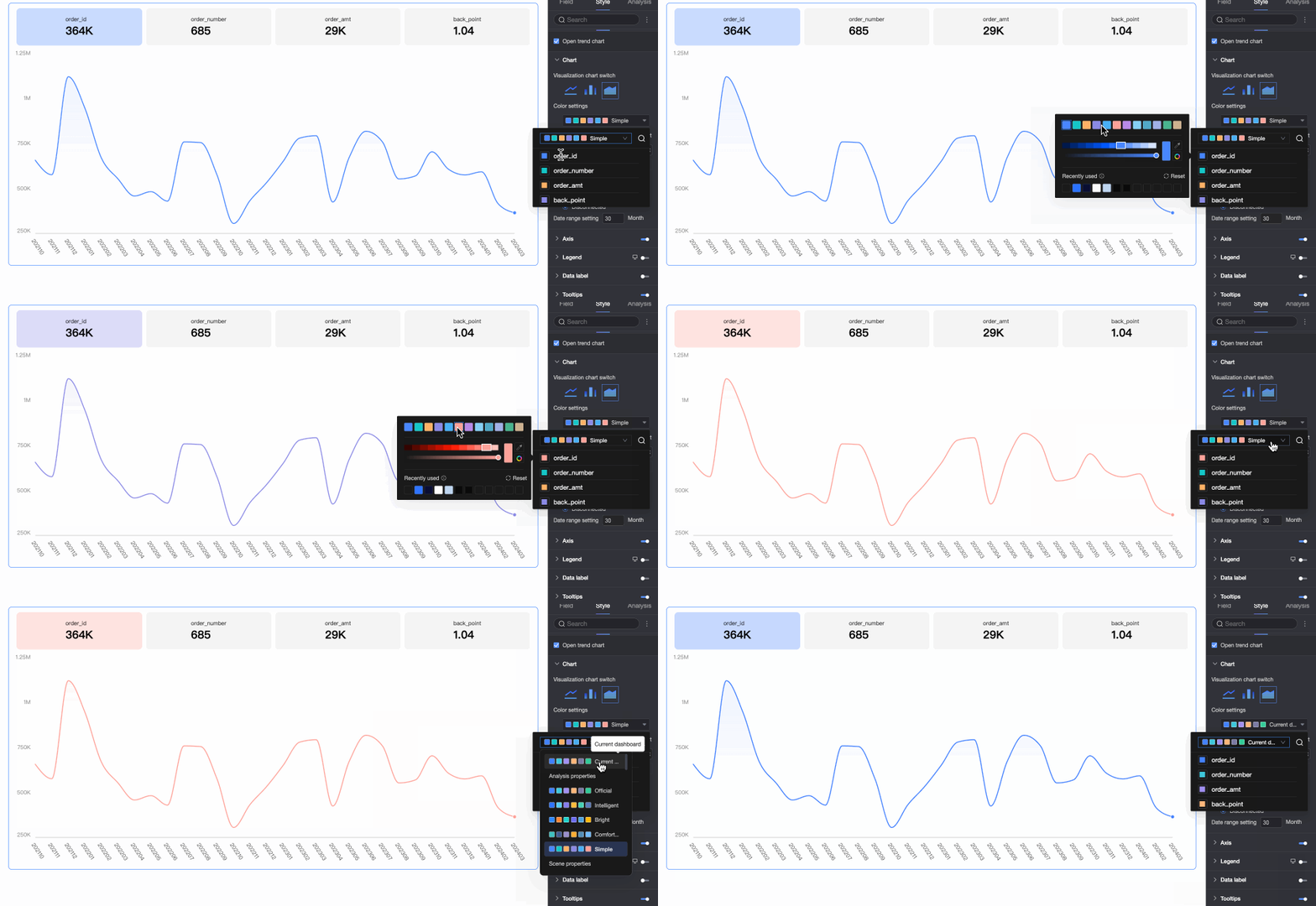
Color settings
Set the overall color scheme or assign a specific color to each metric.
Line type
(For line/area charts)
Supports curved and straight lines.
Line style
(For line/area charts)
Set the pattern and thickness of the lines.
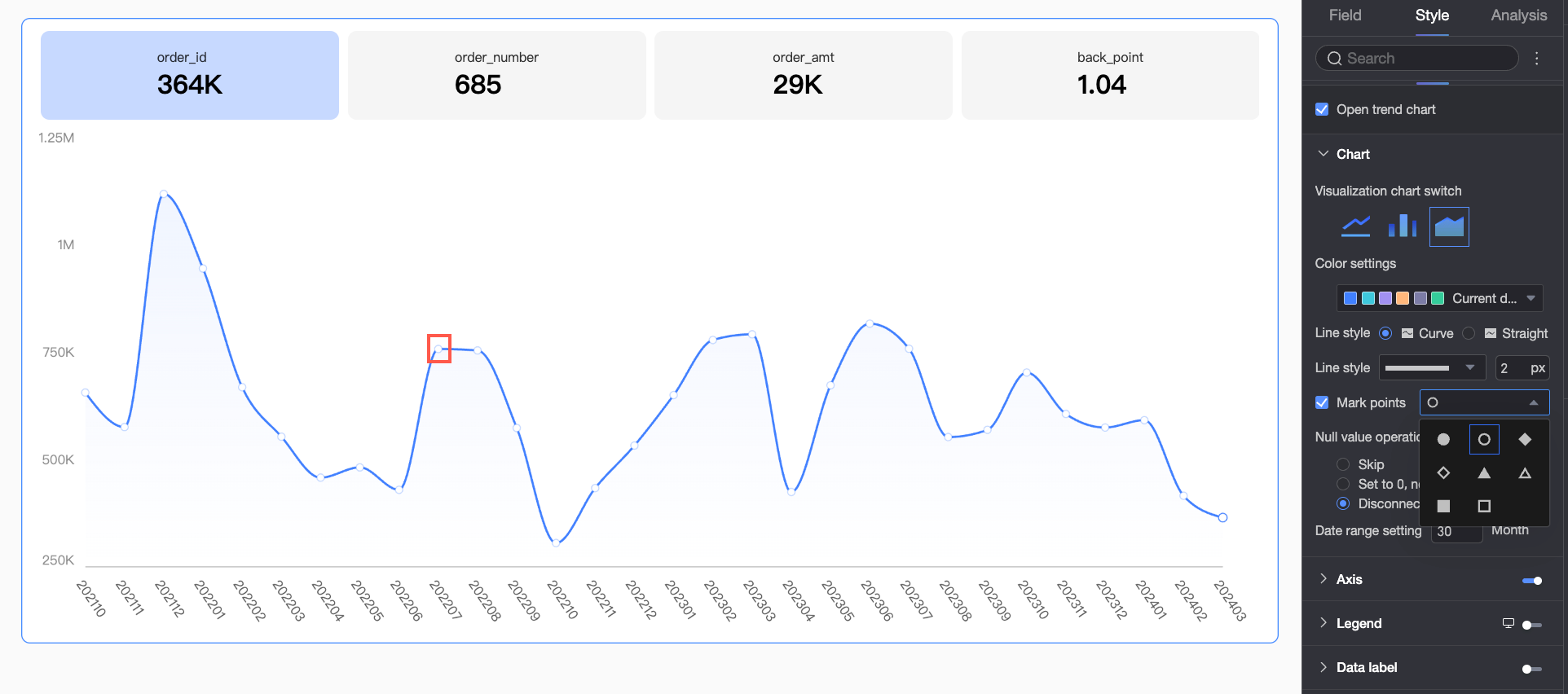
Show markers
(For line charts)
Show or hide markers and customize their shapes.
Null value handling
(For line/area charts)
Supports three options: Connect over nulls, Set to 0, and Break line.
Date range setting
The default is 30 days.
Axis
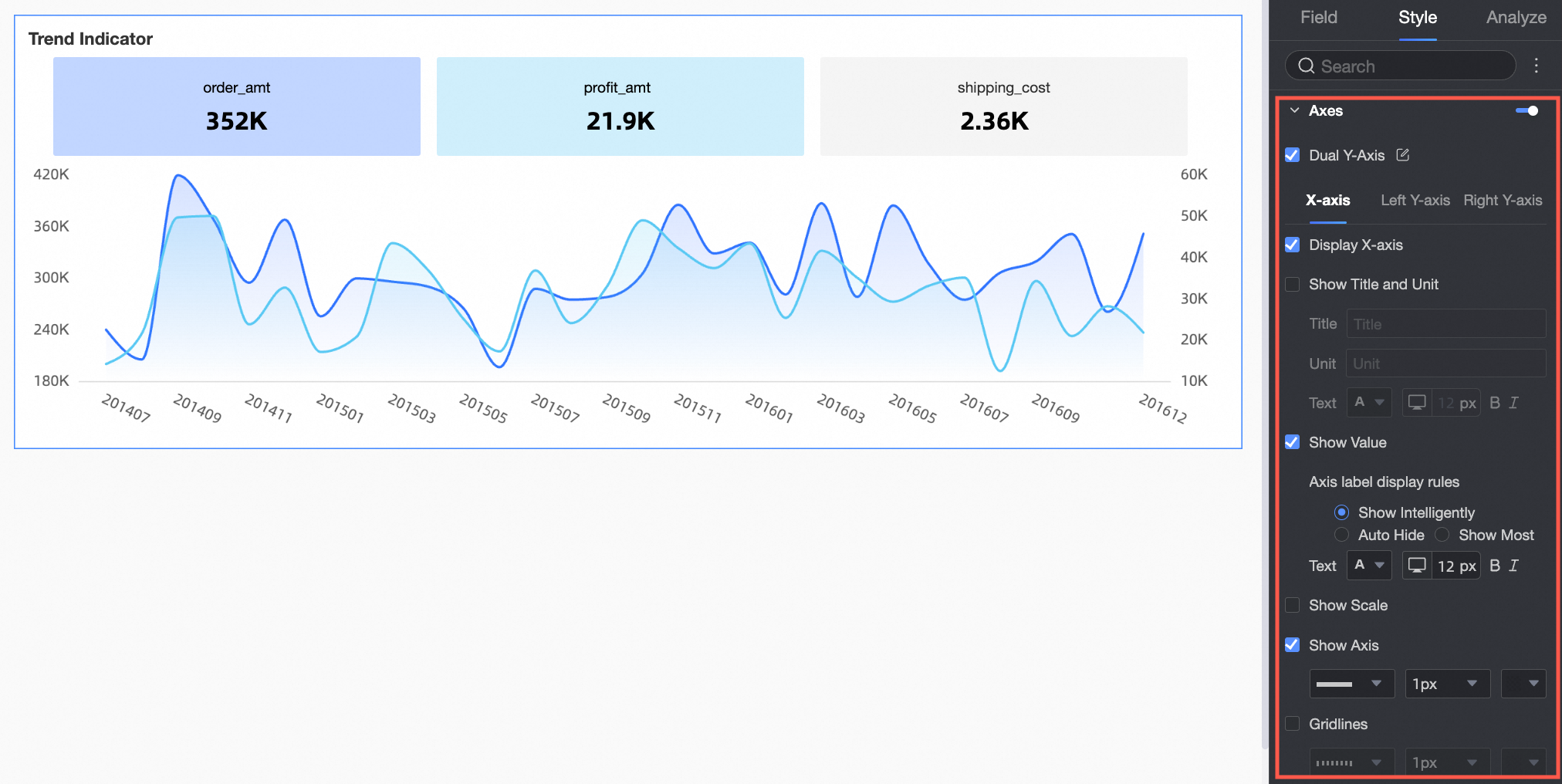
In the axis section, configure the styles for the X-axis, left Y-axis, and right Y-axis.
Parameter
Parameter
Description
Show dual Y-axes
Show or hide dual Y-axes.
X-axis
Show X-axis
Show or hide the X-axis.
Show title and unit
Show or hide the axis title and unit on the X-axis.
Show axis labels
Show or hide labels on the X-axis.
Show tick marks
Show or hide tick marks on the X-axis.
Show axis line
Customize the axis line's style, width, and color.
Show gridlines
Show or hide gridlines for the X-axis and customize their line style, width, and color.
left Y-axis
Show left Y-axis
Show or hide the left Y-axis.
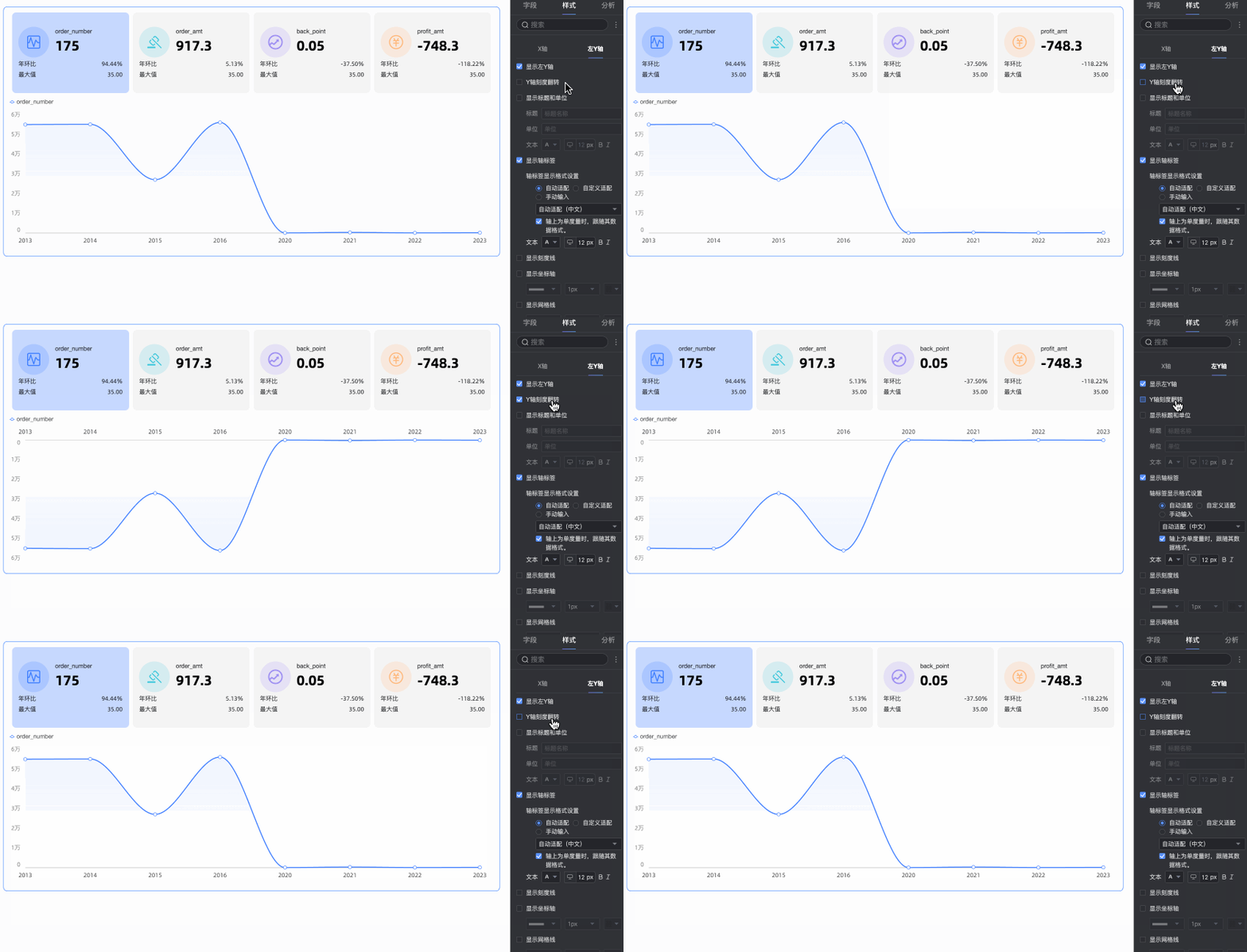
Invert Y-axis scale
Invert the Y-axis scale values.
Show title and unit
Show or hide the axis title and unit, and configure their name, position, and text style.
Show axis labels
Show or hide labels on the left Y-axis. If shown, you can customize the axis label display format and text style. The axis label display format has two modes: Auto and Custom.
The default is Auto mode. In this mode, the axis labels inherit the data display format configuration of the measure field. For multiple measure fields, the format of the first field is used.
In Custom mode, click the
icon to configure the data format in the Data Display Format Settings dialog box based on your requirements. For more information about the options in the dialog box, see Data Display Format > Custom.
Show tick marks
Show or hide tick marks on the left Y-axis.
Show axis line
Show or hide the left Y-axis line, and configure its line style, width, and color.
Show gridlines
Show or hide gridlines for the left Y-axis, and configure their line style, width, and color.
Axis range and interval
Supports automatic and manual setting of the maximum and minimum values for the scale range of the left Y-axis.
Set a custom interval by step size or by the number of equal segments.
NoteConfigure the right Y-axis only when Show dual Y-axes is enabled. The configuration items are the same as those for the left Y-axis.
Legend
In the legend section, click the
icon to enable the chart legend and configure its style.Parameter
Description
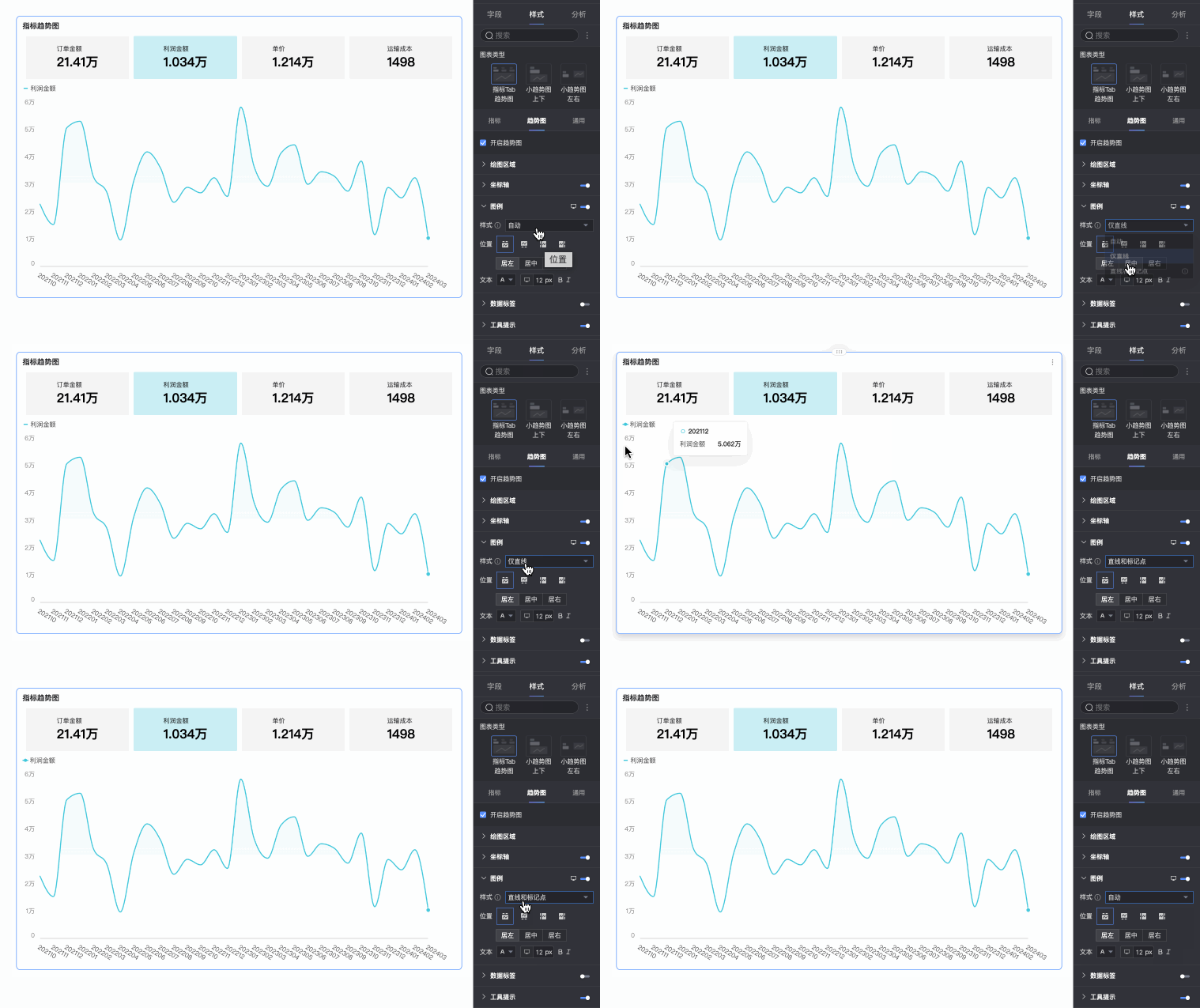
Style
Set the style of the legend icon. Options include Auto, Line only, and Line and marker.
NoteIf you select Line and marker, the legend inherits the marker style from the chart. If no marker style is configured, a solid circle is displayed by default.
If you select Legend symbol scales with text in Theme Design > General Content Style, the legend icon size and line thickness scale proportionally with the chart line thickness and legend text size.
This setting applies only to line and area charts.
Position
Set the display position and alignment of the legend.
If you set the position to Top or Bottom, you can align it to the left, center, or right.
When positioned on the Left or Right, you can align it top, center, or bottom. You can also set its distance from the chart.
Text
Set the text style for the legend, including font color, size, weight, and style (italic).
Mobile legend configuration
PC and mobile legend settings are independent. Use the PC/mobile switch button (
) at the top of the dashboard editor to configure the legend for each platform. You can customize the position and text style of the mobile legend.Data labels
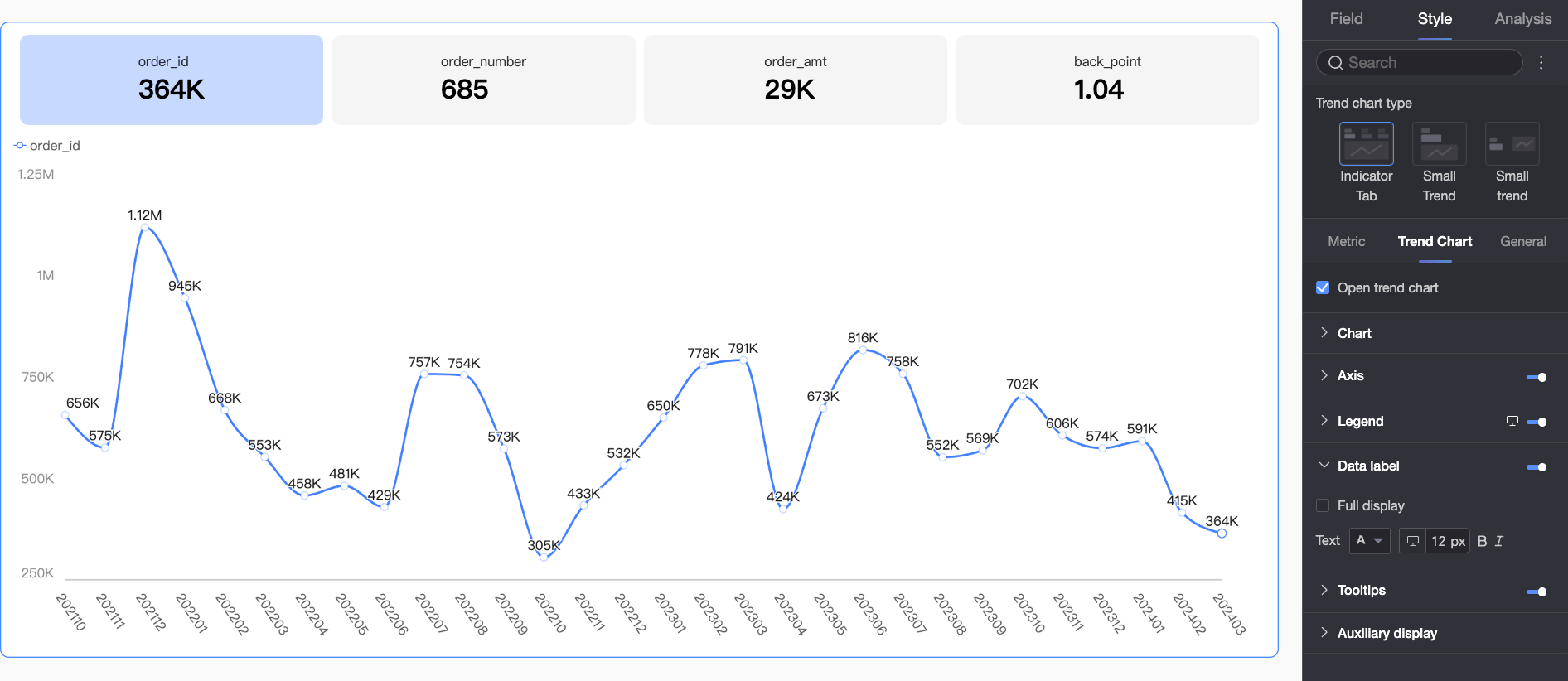
In the data labels section, configure the label display style.
Parameter
Description
Show all
Enabling this option intelligently adjusts label positions to prevent them from overlapping. However, with too many data labels, some may be hidden if they extend beyond the axis area. You can also select Allow data labels to overlap.
Text
Set the text style for the labels.
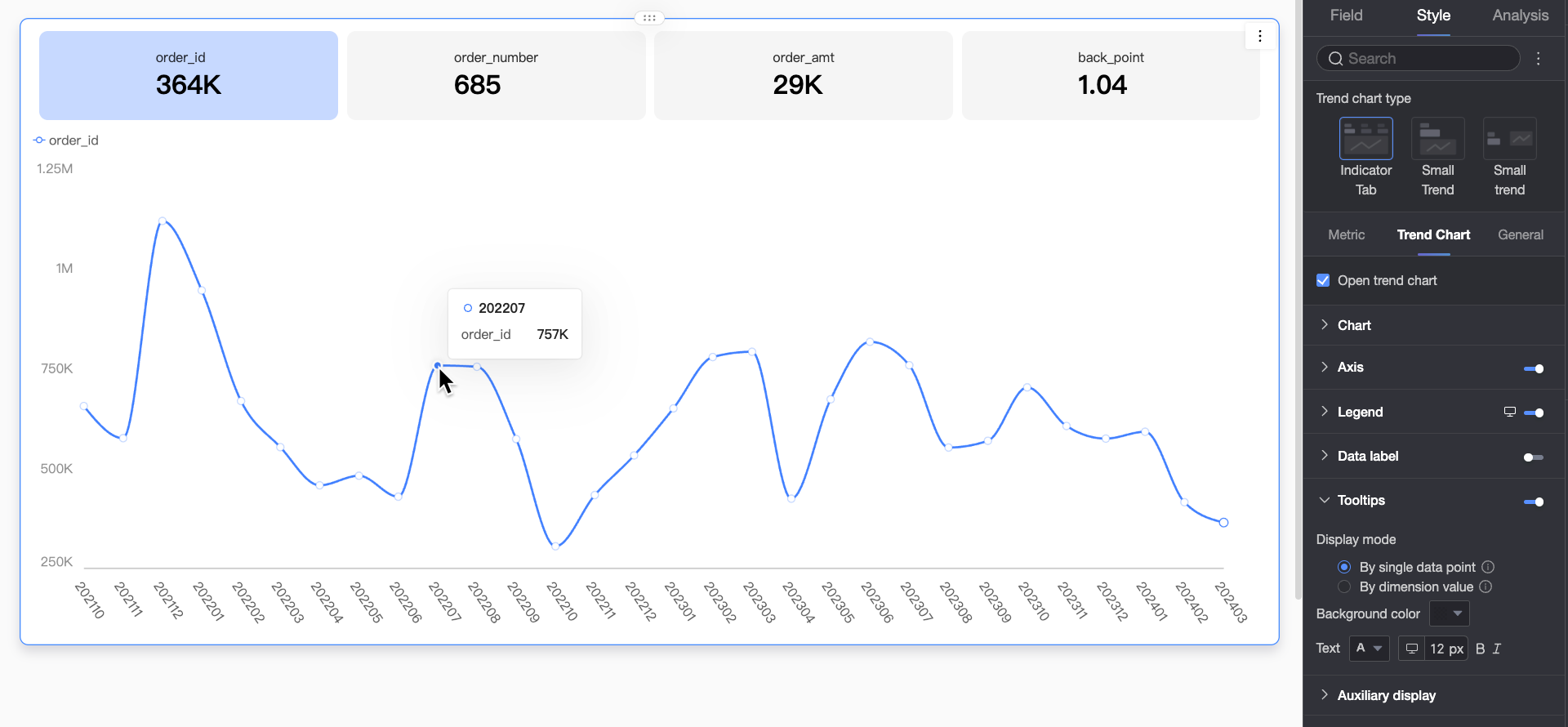
Tooltip
In the tooltip section, configure tooltip settings.
PC configuration
Parameter
Description
Display mode
Set the tooltip display mode. Supports two modes: By single data point and By dimension value.
Content
Select the content to display in the tooltip. Available options depend on other settings.
When Multiple selection is enabled under Metric Layout > Interaction between metrics and trend chart, you can select Total and Percentage. Percentage is available when the display mode is By single data point. Total and Percentage are available when the display mode is By dimension value.
If a secondary metric is enabled, you can select it here.
Background color
Set the background fill color for the tooltip.
Text
Set the text style within the tooltip, including font color, size, weight, and style (italic).
Mobile configuration
The tooltip settings for PC and mobile are independent. You can switch to the mobile editing view by using the PC/mobile toggle button (
) at the top of the dashboard editor to configure a tooltip suitable for mobile devices.Parameter
Description
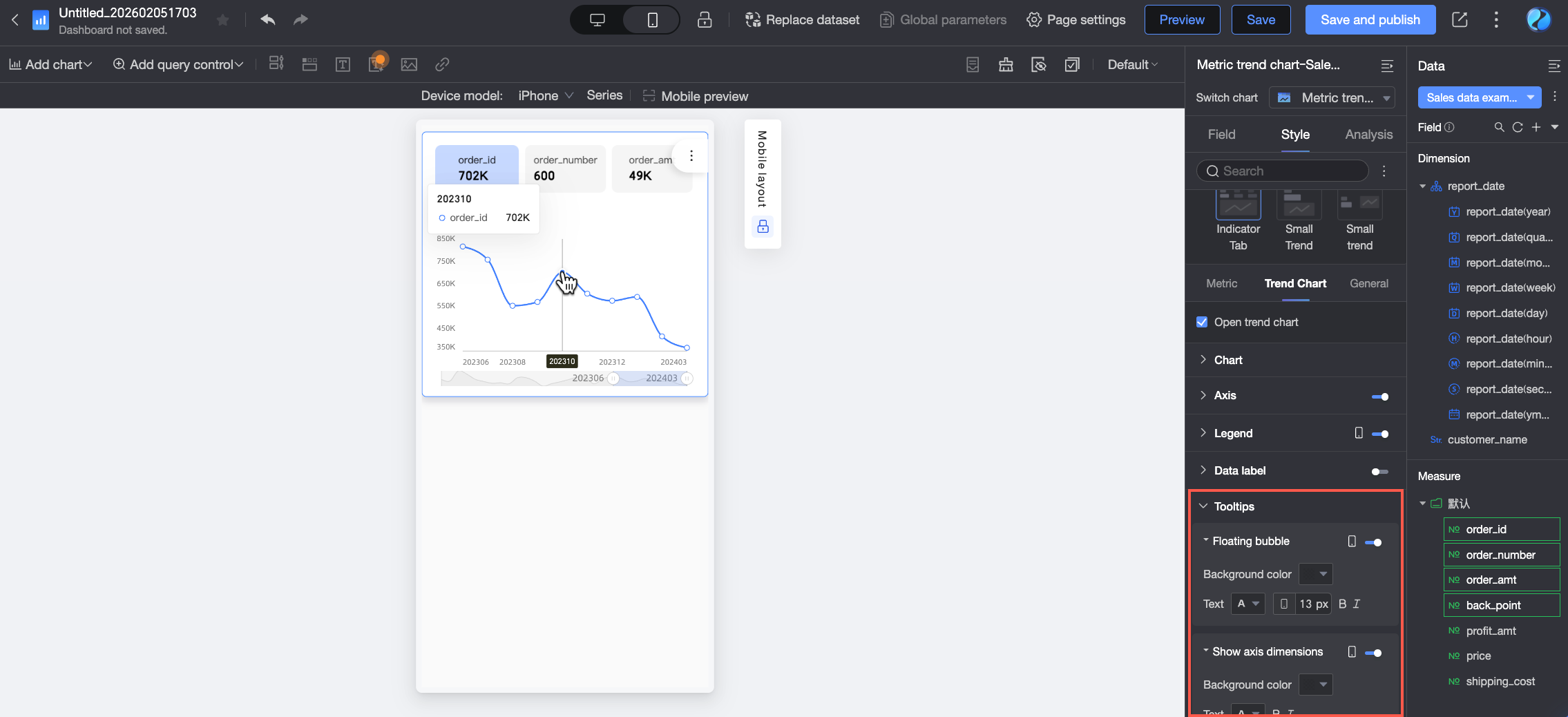
Floating bubble
Click the
icon to enable the floating bubble (①).Content
Set the data content to display in the floating bubble. The available options vary based on other settings.
You can select Total and Percentage only when Multiple selection is enabled under Metric Layout > Interaction between metrics and trend chart.
Secondary metrics are available only when Show secondary metric is enabled.
Background color
Set the background fill color for the floating bubble.
Text
Set the text style within the floating bubble, including font color, size, weight, and style (italic).
Show axis dimension
Click the
icon to enable the axis dimension (②).Background color
Set the background fill color for the axis dimension label.
Text
Set the text style for the axis dimension label, including font color, size, weight, and style (italic).
View controls
When a chart contains too much data to fit in its container, click the
icon to enable view controls. These controls allow viewers to scroll and adjust the visible data range.Control the visible data range with a thumbnail axis or a scrollbar.
Parameter
Description
Thumbnail axis
Selecting thumbnail axis displays a simplified overview of the entire data trend at the bottom of the chart. Report viewers can drag the selection area to quickly browse all data or focus on a specific range. The thumbnail axis uses absolute coordinates, meaning the selected interval corresponds directly to a fixed number of data points on the main axis. This is suitable for comparative analysis or complex scenarios requiring direct navigation.
By default, the thumbnail axis appears only when data overflows the chart's width. To display it permanently, select Always show.Scrollbar
Selecting scrollbar displays a horizontal scrollbar at the bottom of the chart. Report viewers can drag the slider to move the view window left or right. The scrollbar uses a relative proportion, meaning the slider's length and position are determined by the ratio of the visible window to the total data range. This is suitable for general browsing scenarios.
You can also set a minimum category width to limit the amount of data in the current window, ensuring readable axis ticks and preventing visual clutter from overlapping data labels or overly dense data points. The default minimum category width is 32px, with a range of 16–100px.If you set a minimum category width, the scrollbar appears whenever the space needed to display all data falls below this value. When the scrollbar is enabled, chart elements and data labels are constrained within the axis area. Elements that extend beyond this area, such as markers and data labels, are clipped or repositioned to fit.
NoteIf a chart is too small for its data and has no view control configured, the system automatically enables the thumbnail axis. It appears only when the data overflows the container.
 icon to configure the data format in the Data Display Format Settings dialog box based on your requirements. For more information about the options in the dialog box, see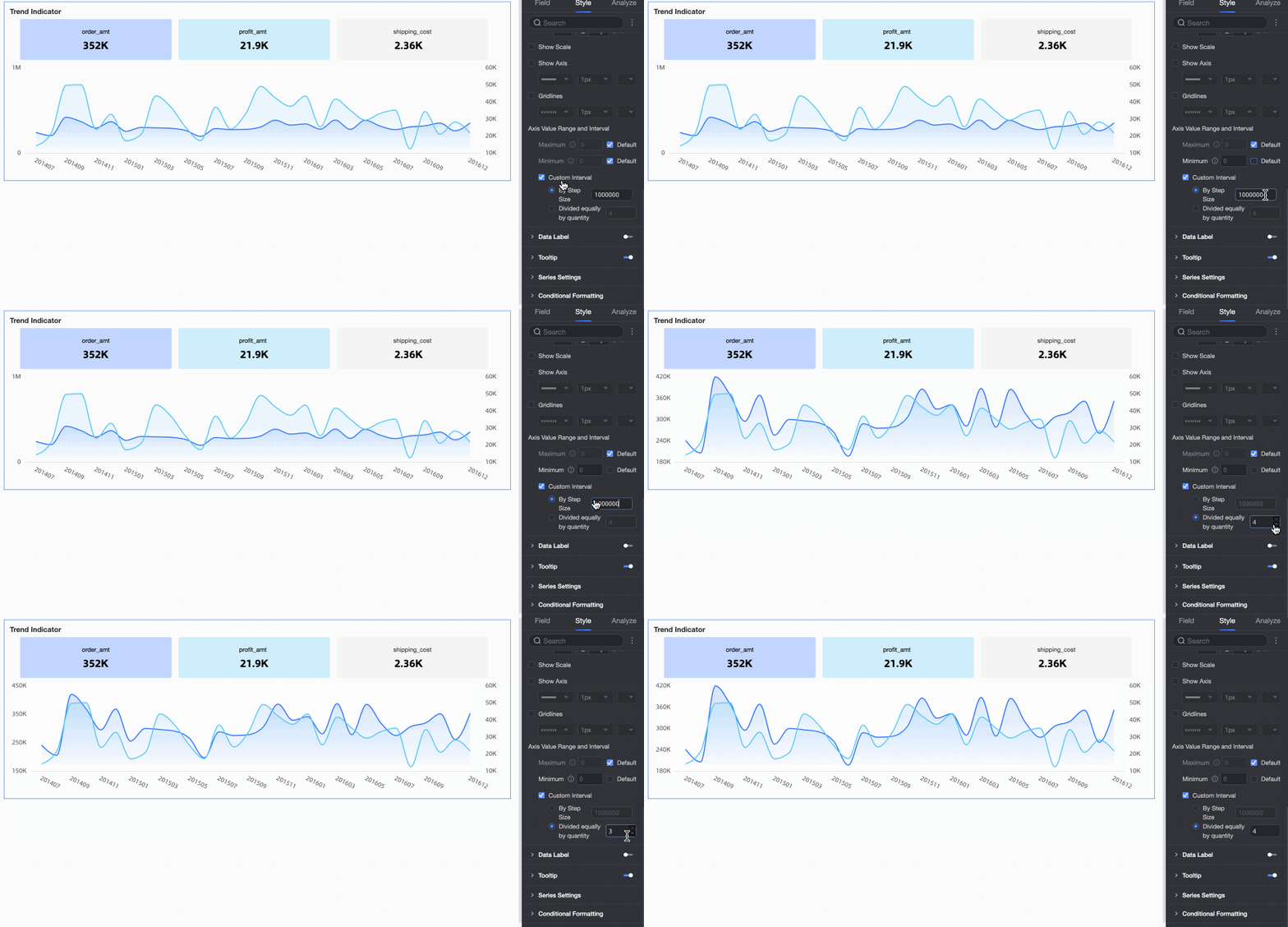
 icon to enable the chart legend and configure its style.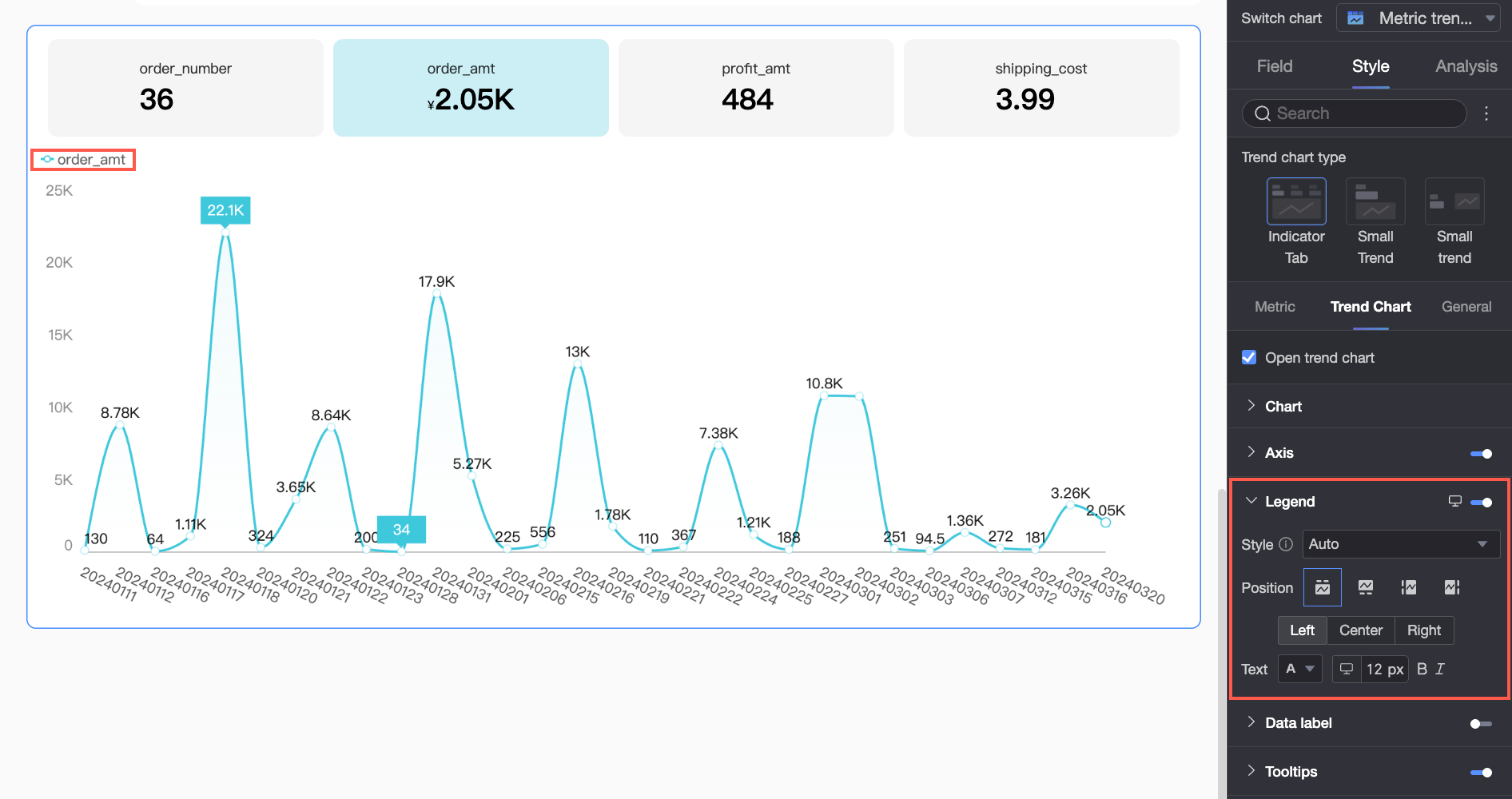
 ) at the top of the dashboard editor to configure the legend for each platform. You can customize the position and text style of the mobile legend.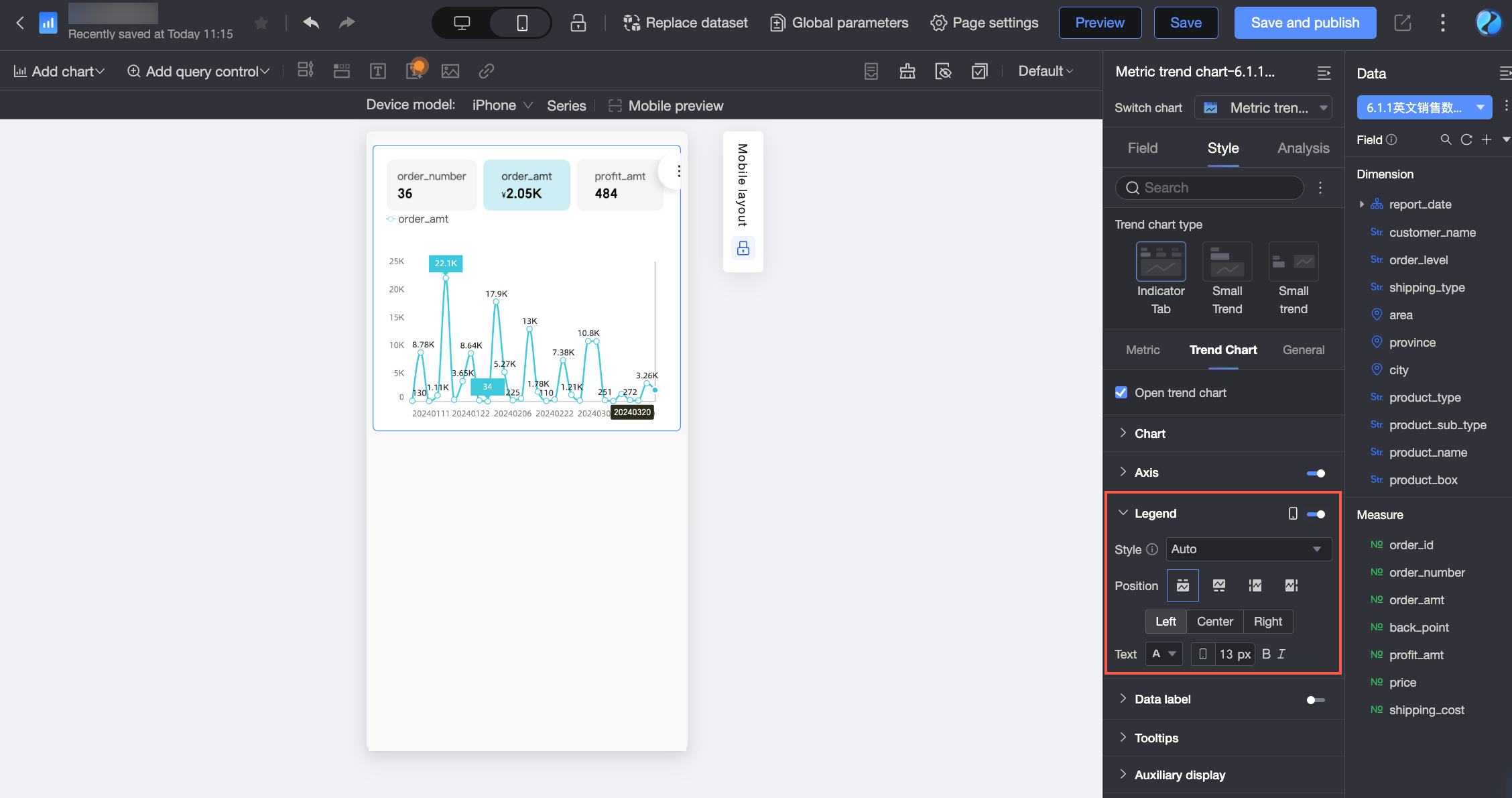
 icon to enable the floating bubble (①).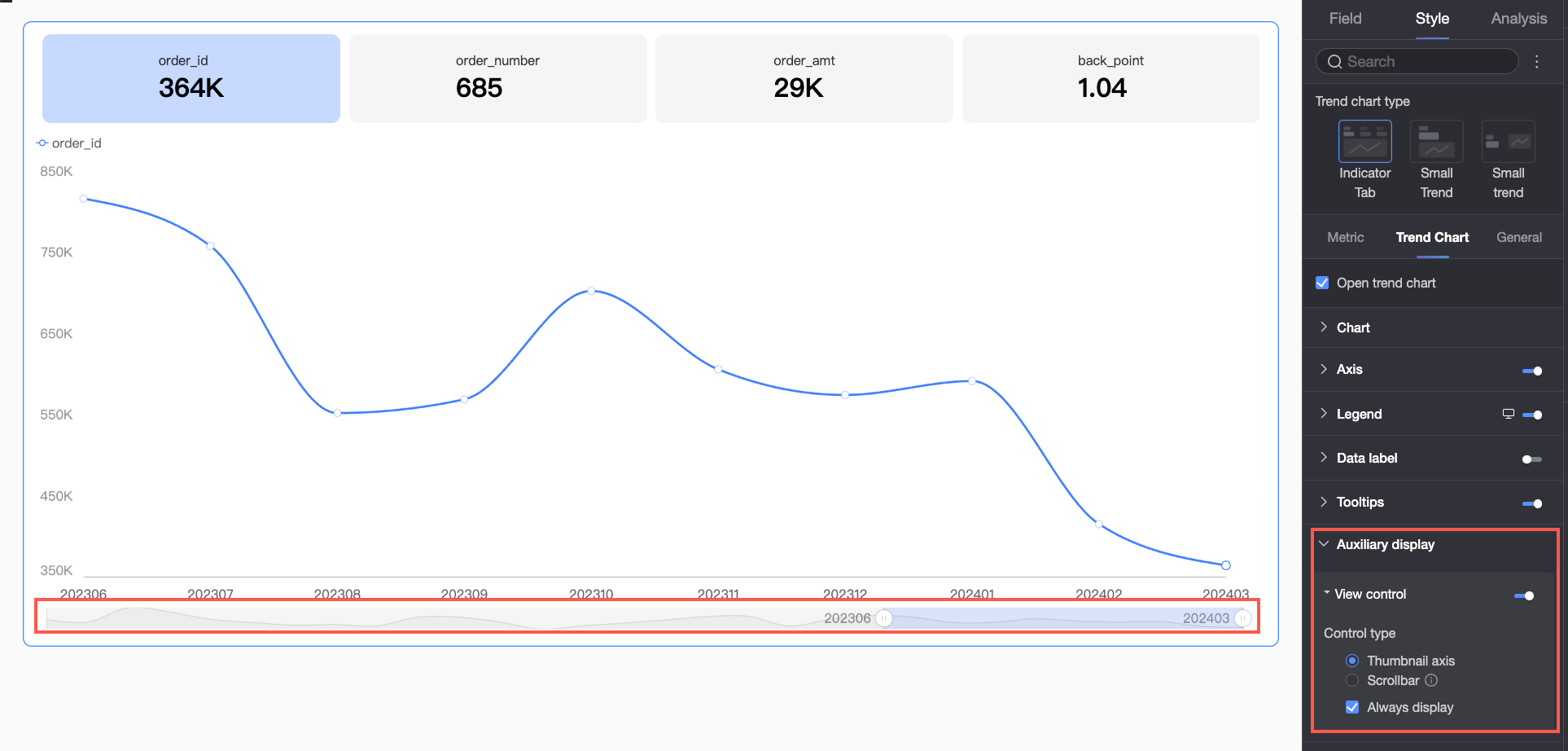
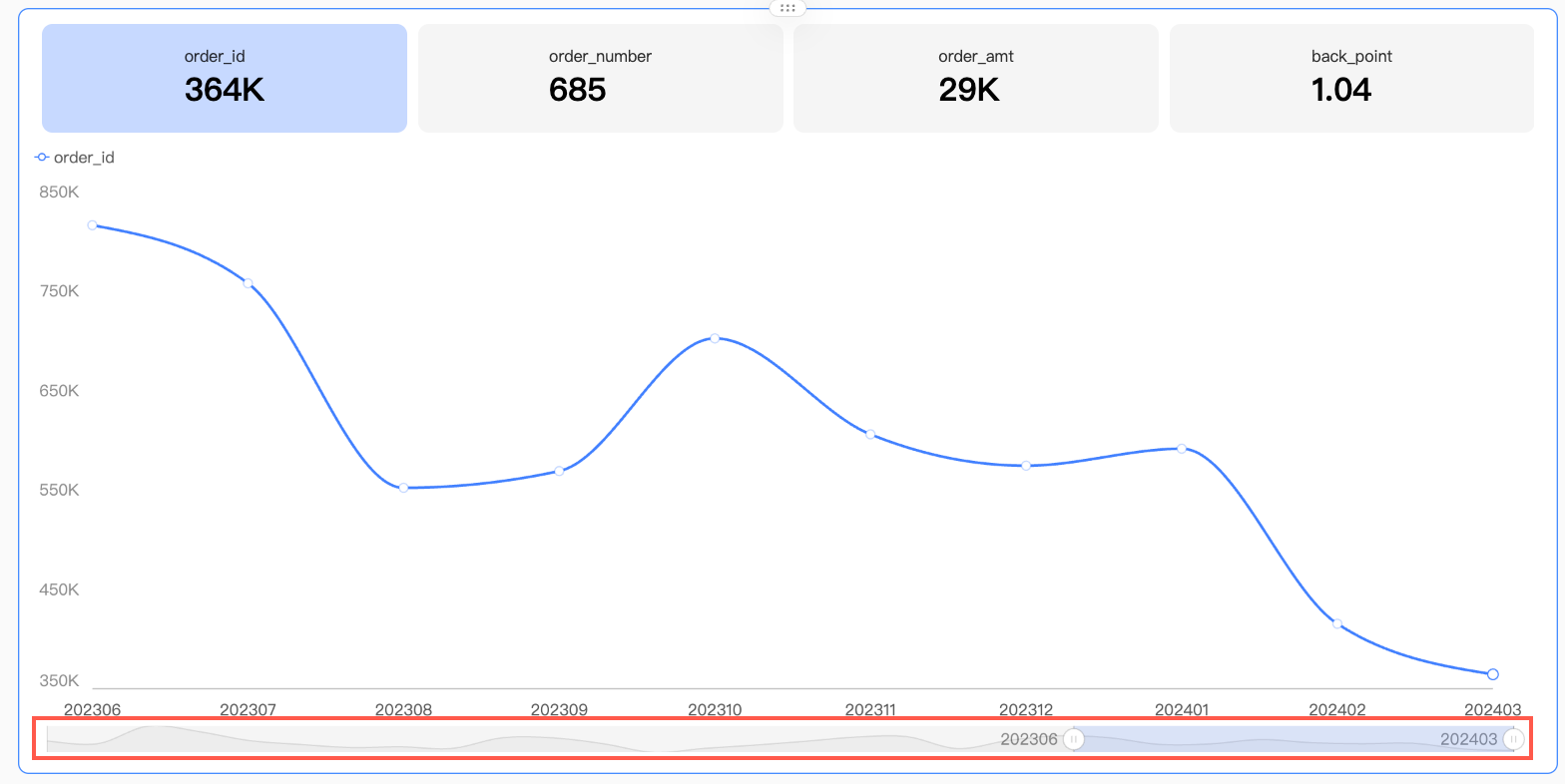 By default, the thumbnail axis appears only when data overflows the chart's width. To display it permanently, select Always show.
 You can also set a minimum category width to limit the amount of data in the current window, ensuring readable axis ticks and preventing visual clutter from overlapping data labels or overly dense data points. The default minimum category width is 32px, with a range of 16–100px.
General
On the General tab, configure the chart's settings.
Title and card
For general chart style settings, see Configure the title of a chart.
Auxiliary display
In the auxiliary display section, select Enable metric filtering, and then select the default tab.
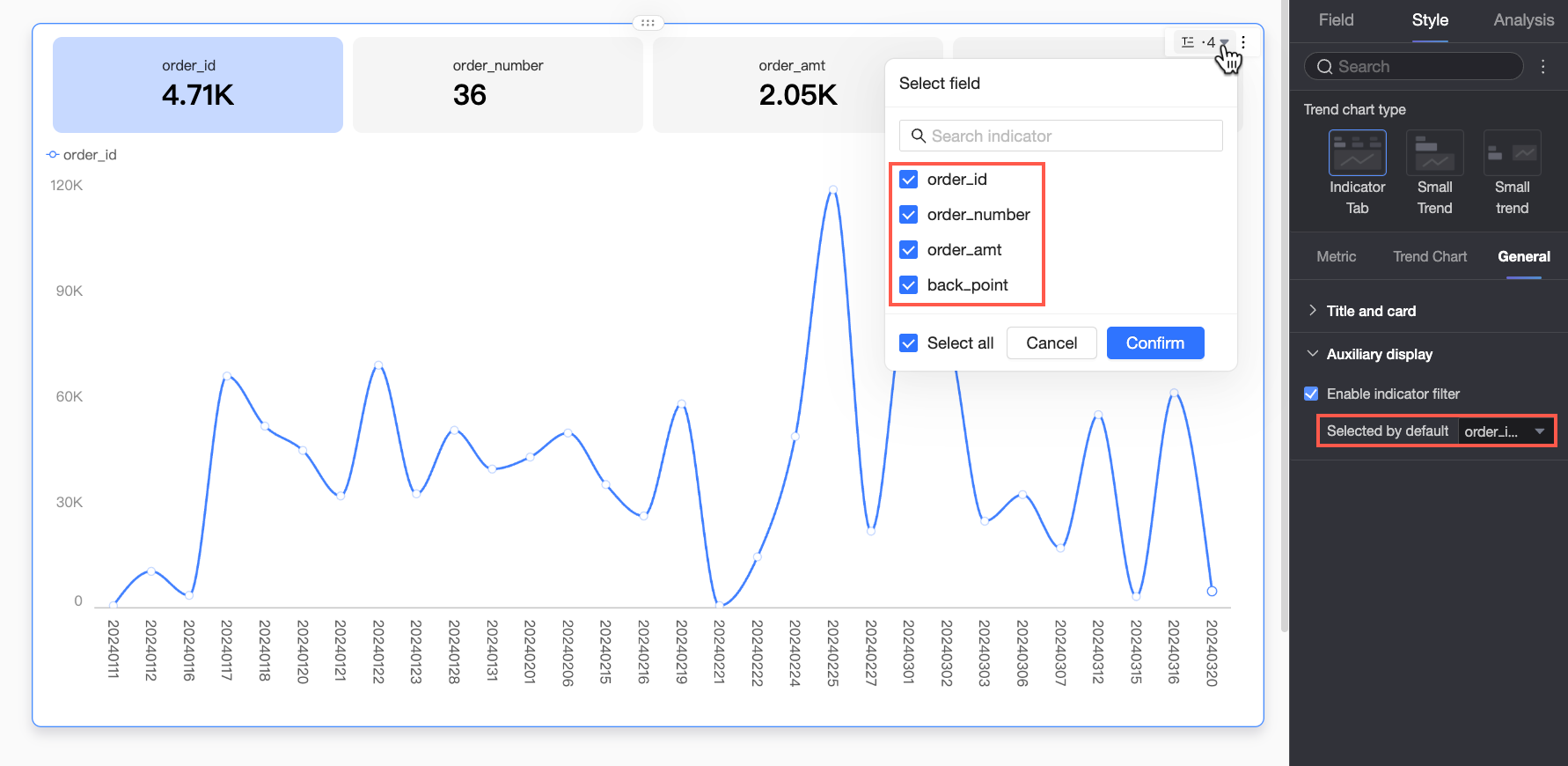
Chart analysis configuration
Category | Parameter | Description |
Advanced settings | Linkage | Use chart linkage to interactively analyze data spread across multiple charts. For more information, see linkage. |
Hyperlink | Use hyperlinks to connect and analyze data across multiple dashboards. Two types are available: Parameter and external link. For more information, see hyperlink. | |
Metric analysis | Auxiliary line | An auxiliary line shows the difference between a measure's value and a set reference value. The reference value can be a fixed value or a calculated value, such as average, maximum, minimum, or median. For details, see auxiliary line. |
Smart insights | Fluctuation analysis | Fluctuation analysis automatically identifies the causes of fluctuations in key metrics. You can analyze these causes by breaking down dimensions or measures. For more information, see fluctuation cause analysis. Note The fluctuation analysis feature is in beta. |
Labeling | - | To flag anomalous data or data requiring special attention in a chart, you can add labels using color highlights, icons, annotations, or data points. For more information, see labeling. |
Next steps
You can share the dashboard with specific users. For more information, see Share a dashboard.
For topic-based analysis with a navigation menu, you can integrate your dashboard into a Data Portal. For more information, see Create a PC Data Portal.
FAQ
1. Metric trend chart vs. metric dashboard
A: A metric dashboard primarily displays the current or summary value of key metrics, emphasizing the numerical value. In contrast, a metric trend chart includes a time dimension to show how a metric's value (either the latest value or a period-based summary value) changes over time.
2. Sales and MoM rate on one card
A: To do this, configure a secondary metric. On the analysis tab, find the secondary metric settings. First, enable the secondary metric, and select sales in the Comparison Metric Selection section. Then, under Secondary Metric Content, check the system-generated month-over-month option (if your date dimension supports monthly granularity). Alternatively, click add field to define a custom calculation for the change rate. You can also configure the position and font style of the secondary metric.
3. Latest date data vs. period-based summary data
A: "Data of the latest date" displays the value of the last data point in your selected time range. For example, if the time range is December 1 to December 30, it shows the data for December 30. "Period-based summary data" displays an aggregated value for the entire time range (e.g., December 1 to December 30), such as a sum or an average, depending on the default aggregation method of your measure field.
4. Change a line chart to a bar chart
A: On the style tab, find the trend chart settings. If your trend chart type is set to Display Trend Chart, you will find a Visualization Chart Switching option. Select bar chart to change the main trend chart's display type. If you have selected metric with sparkline, the sparkline, which is typically a line chart or an area chart, cannot be directly changed to a bar chart.