Billing FAQ
Frequently asked questions about fee generation, resource plan offsets, and bill deductions in ApsaraVideo VOD.
About resource plans
Why are fees still charged after I purchase a resource plan?
Check the following items:
Check the time when the resource plan takes effect and its expiration time. Billing data may be delayed. For example, a bill generated at 10:00 may include charges for usage at 07:00, 08:00, or even earlier. If you recently purchased a resource plan, check whether new charges are generated after the plan takes effect. You can view the effective time of each resource plan by navigating to the ApsaraVideo VOD console > Data Center > Resource Packages.
Fees are charged if your actual usage exceeds the resource plan's quota or if the usage occurs after the resource plan expires.
Check whether the resources you consumed can be offset by the resource plan you purchased. For example, a transcoding plan cannot offset storage fees. See resource plan types and usage notes in Resource plans.
If an accelerated domain name is not configured and OSS outbound traffic is generated, the ApsaraVideo VOD data transfer plan cannot be used for offsets.
Why am I still charged for traffic after purchasing an ApsaraVideo VOD data transfer plan?
A data transfer plan takes effect only after you configure an accelerated domain name with the pay-by-traffic billing method. It offsets only acceleration traffic fees, not OSS outbound traffic fees. Usage exceeding the plan capacity is billed on a pay-as-you-go basis. If traffic fees persist, check the following:
An accelerated domain name is configured
If an accelerated domain name is not fully configured, resource plans cannot offset fees. For example, you may have added the domain name but not configured a CNAME record. Ensure the domain name is in the Running state. ApsaraVideo VOD Quick Start.
The billing method for the current acceleration service is pay-by-peak-bandwidth or pay-by-95th-percentile-bandwidth. Switch the billing method to Traffic. Switch billing methods.
If you use the direct OSS address instead of the accelerated domain name to access resources, storage outbound traffic fees are incurred. Billing of storage outbound traffic.
Check whether your usage exceeds the plan capacity. If so, renew the resource plan. Renew a resource plan.
No accelerated domain name is configured
If you do not configure an accelerated domain name in ApsaraVideo VOD, the service returns an OSS origin URL by default. Playing or downloading resources from ApsaraVideo VOD using this type of URL generates storage outbound traffic fees.
After I purchase an ApsaraVideo VOD resource plan, can I use it for CDN or OSS?
No. ApsaraVideo VOD resource plans (data transfer, storage, and HD transcoding plans) offset consumption only within ApsaraVideo VOD. They cannot offset fees for other products such as CDN or OSS.
The offset duration of an ApsaraVideo VOD transcoding plan does not match the actual usage duration
Troubleshoot with the following steps:
Understand the billing rules for ApsaraVideo VOD transcoding.
Billing is based on the duration and specifications of the transcoded output file.
If you initiate multiple transcoding tasks for the same video, each task is billed.
If you initiate transcoding for the same video into multiple specifications, each specification is billed.
The transcoding specification in a template may differ from the billing specification, because billing is determined by the output resolution. Media transcoding.
For example, if the output specifications in a transcoding template are set to H.264, Standard Definition (LD), and a resolution of 960×540, the transcoding is billed based on the H.264 SD (1280 x 720) and lower tier. In the VOD console, this usage is recorded as SD transcoding on the Consumption Trend or Usage page.
Deduction ratios vary by transcoding specification. Deduction ratios for general-purpose transcoding plans and Deduction ratios for Narrowband HD 1.0 transcoding plans.
The transcoding duration on the Overview or Usage page shows actual duration without resource plan deductions. Refer to your Expenses and Costs bill for final charges.
Why does the used storage capacity displayed in the ApsaraVideo VOD console not match the total remaining amount of the ApsaraVideo VOD storage plan?
ApsaraVideo VOD storage packages are fixed-quota packages. A fixed amount is allocated at the start of each billing cycle (every hour). Any amount not used within a billing cycle expires, and a new amount is allocated for the next cycle.
-
On the Overview page of the ApsaraVideo VOD console, the resource package section in the lower-right corner might show that the total remaining amount of a storage package is 500 GB. This means the package can deduct up to 500 GB of storage usage. As long as your total storage in ApsaraVideo VOD stays within 500 GB during the package's validity period, you will incur no extra storage fees.
-
On the Overview page, the resource usage section shows that the currently used storage space is 261.37 GB. This value is the total size of all your media assets, such as audio, video, and images, stored in ApsaraVideo VOD.
-
To confirm that your storage resource package is being used for deductions, click Use details in the resource package section on the right of the Overview page. On the Use details tab of the Resource Instance Management page, search for the resource package using its instance ID to view its deduction details.
What if the purchased storage package type does not match the bucket and cannot be deducted?
Storage packages are distinguished by redundancy type. The standard-local redundancy storage package cannot offset the usage generated by the standard-local redundancy storage bucket, and vice versa. The resource package region must be consistent with the business storage region. If the wrong type of purchase:
If the unsubscription conditions are met, the purchase of a resource package with the same bucket type takes effect automatically.
Or change the bucket to the redundancy type corresponding to the resource package (local redundancy cannot be changed to local redundancy, please operate with caution).
Can RAM sub-accounts purchase VOD resource packages separately?
Yes. You can purchase resource packages after granting AliyunBSSFullAccess permissions to a RAM account. You can unsubscribe when you meet the unsubscription conditions.
Bills
How do I investigate a bill if I have questions about the charges?
Troubleshoot by performing the following steps:
View the billing details to identify the billable items, generation time, and other information for the bill in question.
View billing details: Query bills.
Billable item details: What are the billable items in a bill and how are they generated?.
Analyze the possible reasons for the fees.
Abnormal traffic fees with an accelerated domain name configured
Use the statistical analysis dashboard to analyze possible causes of abnormal traffic.
Check the Popular URLs or Top Rankings dashboards for the relevant time period to identify access behaviors or videos causing unusual traffic. Playback Data Statistics.
Analyze operation logs to identify potential abnormal users or access behaviors.
View logs for a specific time period or URL. Download logs. If you find abnormal users (identified by the access IP field), use Referer and IP blacklists and whitelists to restrict requests. Blacklists and whitelists.
Abnormal transcoding fees
Understand the billing rules for ApsaraVideo VOD transcoding.
ApsaraVideo VOD transcoding is billed per output file based on its specifications and duration. Transcoding the same video into multiple specifications or initiating multiple tasks results in separate charges. To avoid unnecessary fees, initiate transcoding only when needed and remove unused templates.
After identifying the transcoding specifications and time from the bill, analyze whether the tasks initiated during that period were necessary.
Manage transcoding template groups: Manage templates.
Other fee abnormalities
Understand the billing rules for each billable item.
Check if the usage matches the actual consumption.
What are the billable items in a bill and how are they generated?
Bills are categorized by consumption type as subscription and pay-as-you-go. The following sections describe each type of bill and how it is generated:
The following table describes the Billable Item and Billable Item Code for pay-as-you-go bills.
Billable Item | Billable Item Code | Billing Rule | How it is generated | Support for resource plan deduction |
ApsaraVideo VOD Storage | StorageUtilization | All data that occupies storage space after you activate the ApsaraVideo VOD service. This includes, but is not limited to, the following resource data:
| Can be offset by an ApsaraVideo VOD storage plan | |
Tiered Storage | TieringStorage | You use the tiered storage service of ApsaraVideo VOD, which stores your audio and video media assets based on the Infrequent Access, Archive, or Cold Archive storage class. For more information, see Change the storage class of a media asset. | Not supported | |
ApsaraVideo VOD tiered storage fee for less than the specified duration | VodTieringStorageLessthanSpecifiedTime | |||
Volume of data retrieved from ApsaraVideo VOD Cold Archive Storage with high priority | VodColdarchiveCAHighPriorRetrievalData | |||
Volume of data retrieved from ApsaraVideo VOD Infrequent Access and Archive Storage | VodArchiveAndIARetrievalData | |||
Volume of data retrieved from ApsaraVideo VOD Cold Archive Storage with standard priority | VodColdarchiveCAStdRetrievalData | |||
Volume of data retrieved from ApsaraVideo VOD Cold Archive Storage in bulk | VodColdarchiveCABulkRetrievalData | |||
Outbound traffic from storage | oss_flow_out | Traffic generated from directly downloading or playing media files, such as audio and video files, from their OSS storage addresses in ApsaraVideo VOD without a configured accelerated domain name (not accelerated by CDN). For more information, see Download media files and Audio and video playback. | Can be offset by a general-purpose data transfer plan for the Chinese mainland | |
ApsaraVideo VOD traffic in the Chinese mainland | DomainFlow | Traffic generated from downloading or playing media files in ApsaraVideo VOD using an accelerated address. An accelerated domain name must be configured. For more information, see Add an accelerated domain name. | Only ApsaraVideo VOD traffic in the Chinese mainland (DomainFlow) can be offset by an ApsaraVideo VOD data transfer plan | |
Daily peak bandwidth | DomainBps | |||
95th percentile bandwidth of a calendar month | BandwidthDay95 | |||
|
| After you request to enable storage transfer acceleration, you can use an accelerated domain name to upload content to or download content from ApsaraVideo VOD. For more information, see Overview and Download media files. | Not supported | |
|
| |||
|
| The transcoding service of ApsaraVideo VOD includes standard transcoding, audio transcoding, container format conversion, Narrowband HD 1.0 transcoding, and Narrowband HD 2.0 transcoding. For more information, see Audio and video transcoding. | Can be offset by an ApsaraVideo VOD transcoding plan | |
ApsaraVideo VOD audio transcoding | Audio | |||
Original quality (container format conversion) | Segmentation | |||
|
| |||
|
| The online editing service of ApsaraVideo VOD provides basic and advanced editing. For more information, see Media production (online editing). | Not supported | |
Online editing audio | EditingAudio | |||
ApsaraVideo VOD real-time log delivery | vod_VodRealTimeLogDelivery | You have enabled and used the real-time log delivery service for ApsaraVideo VOD. For more information, see Real-time logs. | Not supported | |
Automated review | censor | You have enabled the automated review service for ApsaraVideo VOD. For more information, see Automated review. | Can be offset by an ApsaraVideo VOD review plan | |
Video tagging | Annotation | You have activated the Smart Tag service for ApsaraVideo VOD. For more information, see Smart Tag. | Not supported | |
Audio fingerprint | AudioDNA | You have activated and used the ApsaraVideo VOD media fingerprint service. For more information, see Media fingerprint. | Not supported | |
Media fingerprint | dna | |||
Copyright watermark extraction duration | CopyrightDigitalWatermarkExtractDuration | The digital watermarking service of ApsaraVideo VOD includes copyright watermarks and tracing watermarks. For more information, see Digital watermarking. | Not supported | |
Copyright watermark processing duration | CopyrightDigitalWatermarkProcessDuration | |||
Tracing watermark extraction duration | TraceDigitalWatermarkExtractDuration | |||
Tracing watermark M3U8 generation count | TraceDigitalWatermarkM3u8GenerateTimes | |||
Tracing watermark processing duration | TraceDigitalWatermarkProcessDuration | |||
DRM | DRM | Uses the DRM encryption service of ApsaraVideo VOD. For more information, see Configure DRM encryption. | Not supported |
Subscription
The Product Name column on your bill specifies the type of resource plan. ApsaraVideo VOD provides four types of resource plans: ApsaraVideo VOD data transfer plans, ApsaraVideo VOD storage plans, ApsaraVideo VOD transcoding plans, and ApsaraVideo VOD content moderation plans. For more information about the deduction scope and rules for each resource plan, see Resource plans.
How do I deactivate ApsaraVideo VOD or stop billing?
ApsaraVideo VOD does not provide a one-click deactivation feature to prevent business interruptions.
Use one of the following alternatives to stop billing:
If you no longer need ApsaraVideo VOD, perform these operations to stop all future charges:
Delete all media files from the system storage bucket
ImportantResources cannot be restored after they are deleted. Back up important resources before you delete them.
Manually delete media files: Delete media files.
Release system storage in one click: Manage storage buckets.
Delete the configured accelerated domain name
ImportantTo prevent service interruptions, migrate traffic away from an accelerated domain name before you disable or delete it. The following are common migration methods:
Add a new accelerated domain name and direct your users to it. This will gradually reduce traffic on the old domain to zero.
Update the DNS record for the accelerated domain name to point to the origin server's address instead of the CNAME address.
Log on to the ApsaraVideo VOD console.
In the left-side navigation pane, choose Configuration Management > CDN Configuration > Domain Names.
On the Domain Names page, find the target domain name, disable the domain name, and then delete it. You can follow the prompts on the page to perform identity verification and complete the operation.
For unused media files (over 30 days) that you want to retain, change the storage class from Standard to Infrequent Access, Archive, or Cold Archive to reduce costs by approximately 30%–80%. Change the storage class of a media asset.
Player billing FAQ
After ApsaraVideo Player SDK officially starts charging, how do I determine if my license will be affected?
The Player SDK is subject to fees starting February 14, 2025. Player SDK billing. If you have an existing license, refer to the following table for impact and recommendations by SDK version.
Version | Impact | Upgrade Policy |
Standard Edition | Go to the SDK Management > My License page in the ApsaraVideo VOD console to confirm the SDK version and expiration time.
If the SDK is Standard Edition and is within the validity period, the use of Standard Edition features is not affected. For more information about Standard Edition features, see ApsaraVideo Player SDK feature detailsApsaraVideo Player SDK feature details. | If the ApsaraVideo Player SDK Standard Edition is within its validity period, the use of Standard Edition features is not affected. Renew the SDK after it expires. |
Professional Edition | Before the Player starts to charge fees, users who have used Professional Edition features are granted a one-year license for the Player SDK Professional Edition. You can check your license at VOD Console > SDK Management > My License. If the Professional Edition is within its validity period, you can use its features normally. If the ApsaraVideo Player SDK Professional Edition expires, you can use only Standard Edition features. After you renew ApsaraVideo Player SDK Professional Edition, you can continue to use Professional Edition features. For more information about features of ApsaraVideo Player SDK Professional Edition, see ApsaraVideo Player SDK feature detailsApsaraVideo Player SDK feature details. | For users who used Professional Edition features before the upgrade, a one-year Professional Edition entitlement is granted. After it expires, you must renew it. Otherwise, it will be downgraded to Standard Edition entitlements. The verification for the Professional Edition is only for version 7.0.0 and later. |
Value-added Features | For both Standard & Professional editions of the player, you can purchase "Value-added Features" separately. The validity period of value-added features is verified independently. | The use of value-added features is not affected. Renew them after they expire. |
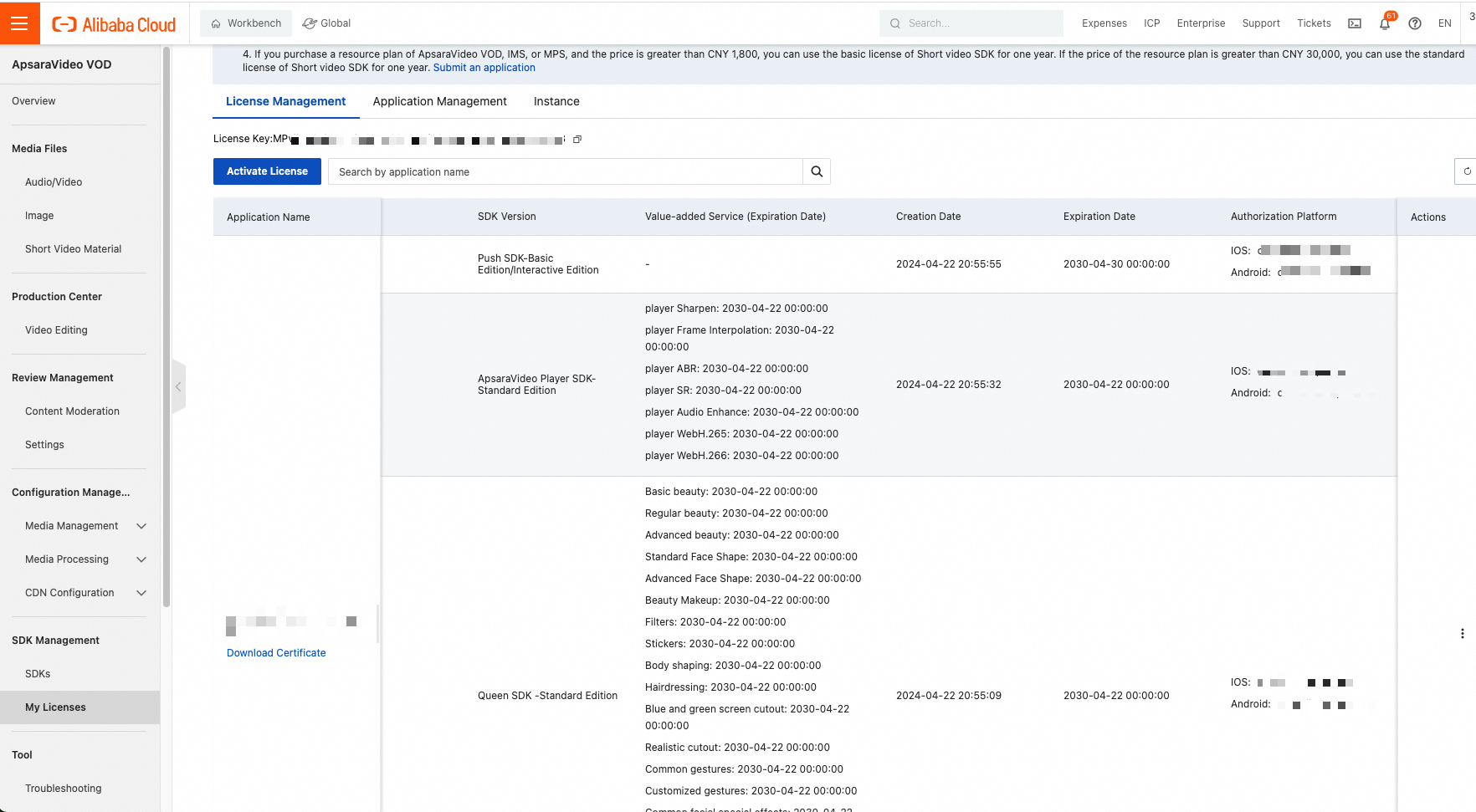
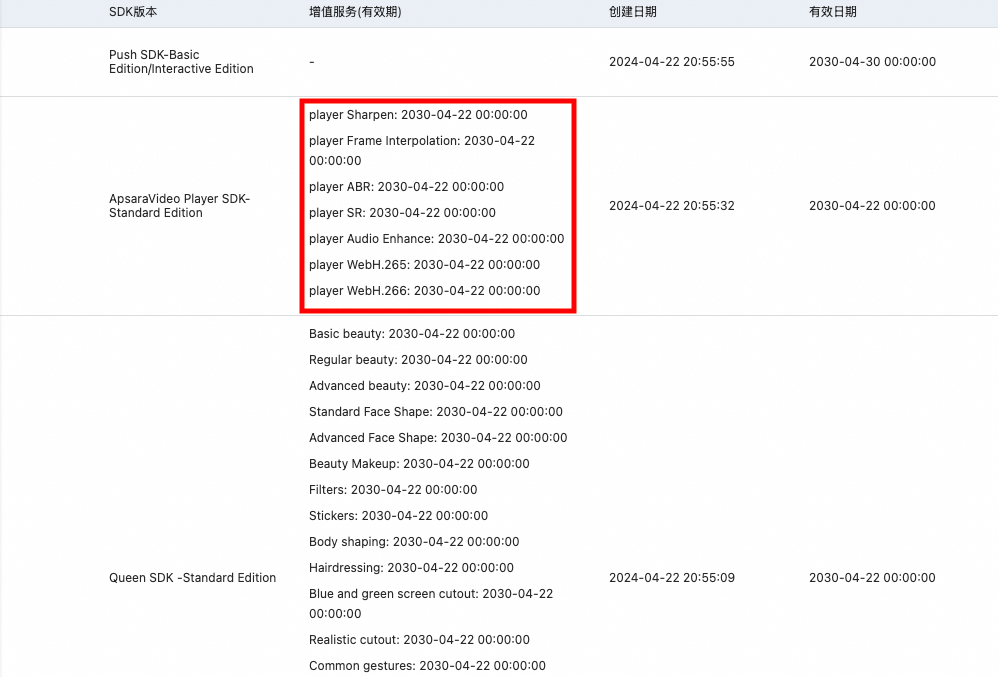
If the Standard Edition in the console is within its validity period, do I need to worry about being affected?
If you are using Standard Edition playback control features, you are not affected during its validity period. However, if you upgrade to version 7.0.0 or later and need Professional Edition features, you must purchase a Professional Edition license.
If I do not need Professional Edition features, can I just not upgrade to new versions?
Upgrading is not mandatory. However, new versions include the latest features and bug fixes. The Alibaba Cloud technical team provides support only for SDK versions released within the last six months. Older versions must be upgraded to ensure compatibility.
What are the reasons and solutions for the "Pricing plan not found" or "auto-renewal failed" error messages?
If the player product price is adjusted, you may encounter an "auto-renewal failed" error. Use the following solution:
Go to the SDK Management > My License page in the ApsaraVideo VOD console, and find the Order Instance tab. Click the Purchase License button.
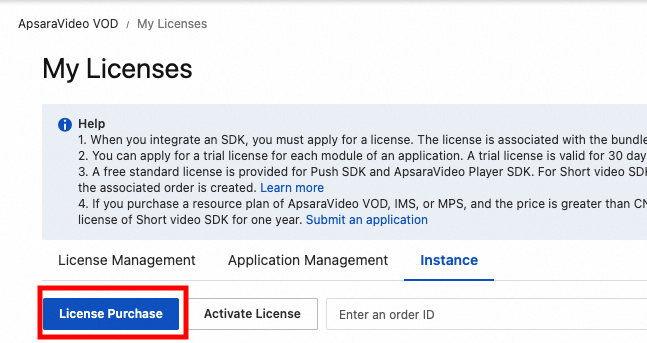
You are redirected to a new page to purchase the SDK. Place an order for a new SDK.
After you complete the order, click the Activate License button on the order instance page.
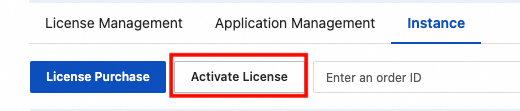 Important
Refresh the console after the purchase.
The verification fails if the application information is modified.
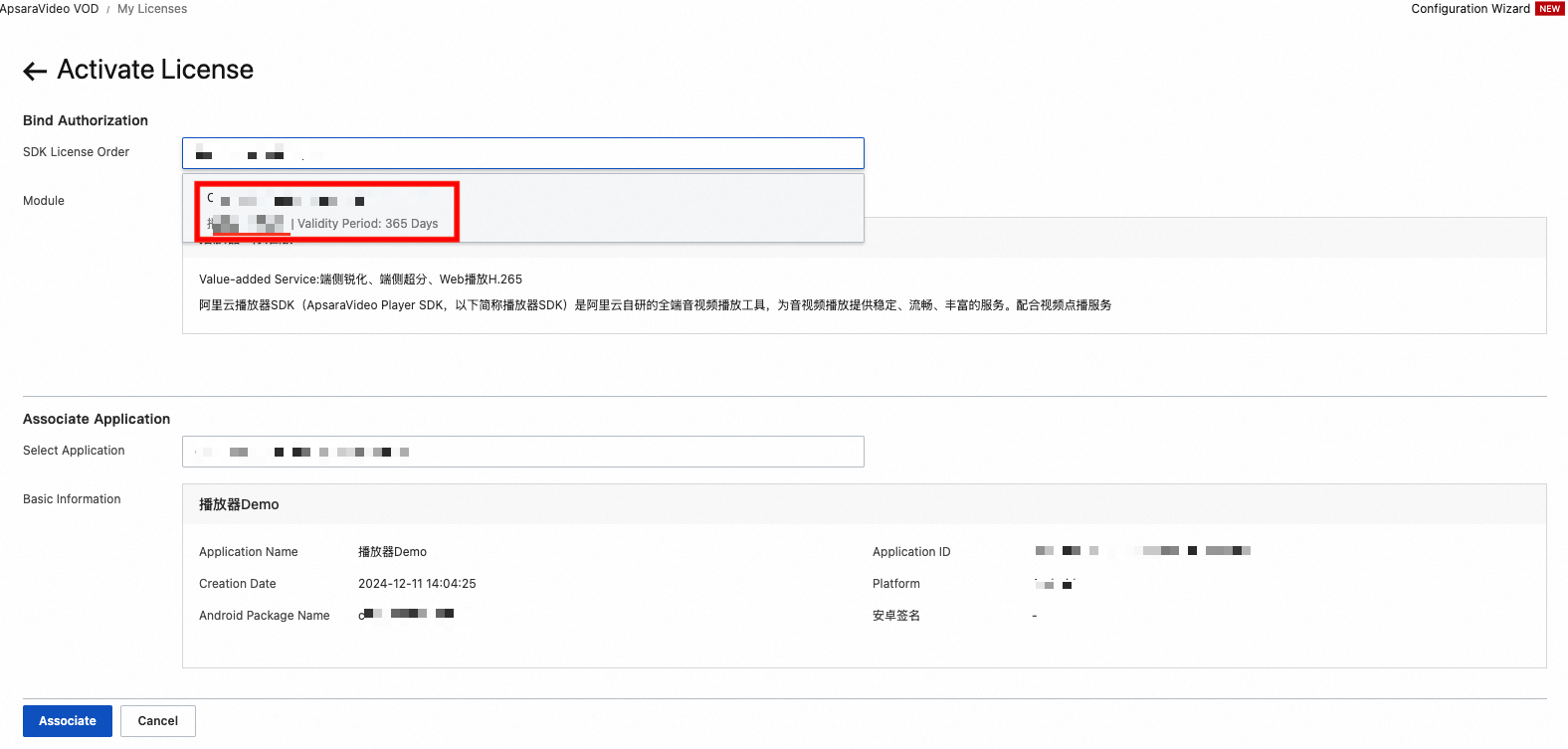
Confirm that the application information is correct and click Confirm. This resolves the license renewal issue.
After the license is successfully bound, the SDK validity period is extended. Check the Validity Period field.
 Important
The console still displays the license instance expiration time. However, you only need to check the "Validity Period" in the preceding screenshot.
The application's license certificate is not affected. However, you should update the certificate in your next application release.

Are there rules for reducing or waiving ApsaraVideo Player SDK fees?
Yes. You can apply for a free Player SDK of a specific edition based on the gift rules. Gift upon reaching the threshold.