Overview
Quick BI AIPro is Alibaba Cloud's next-generation, AI-driven business intelligence platform that deeply integrates traditional BI analytics with a large language model. You can use natural language conversations to perform the entire analysis workflow, from data queries and visualizations to report generation. This enables a complete analytical path from "Overview → Breakdown → Attribution → Diagnosis → Action."
Use cases
A business lead asks, "What was the week-over-week sales growth by region?" five minutes before a morning meeting and instantly receives a chart with attribution analysis.
An operations specialist asks, "Why did GMV in East China decline?" and the system automatically performs a three-level drill-down attribution analysis across product category, channel, and store.
A finance team member generates a monthly business dashboard through conversation and sets up a recurring task to deliver the report on the first of every month.
Core advantages
This table compares Quick BI AIPro with traditional BI:
Dimension | Traditional BI | Quick BI AIPro |
Usage | Drag and drop fields, write SQL, and view fixed dashboards | Ask questions in natural language and perform multi-turn follow-ups |
Response time | Requests can be queued for days or weeks | Get data and analysis results in seconds |
Analysis method | Business teams rely on analysts to draw attribution conclusions | The AI breaks down problems and generates in-depth, comprehensive attribution analysis |
Analysis method | Manually perform drill-down operations, configure interactions, and write analysis reports | Explore and analyze through conversation. Use an infinite canvas to connect ideas and focus the analysis. Analysis results are automatically generated. |
Required skills | Requires SQL and BI modeling skills, familiarity with module interaction configurations, and has a significant learning curve | Zero barrier to entry for business users |
Analysis artifacts | Dashboards | Analytical artifacts with dynamically updated data (reports, documents), one-time analysis reports, and recurring subscription tasks |
Features
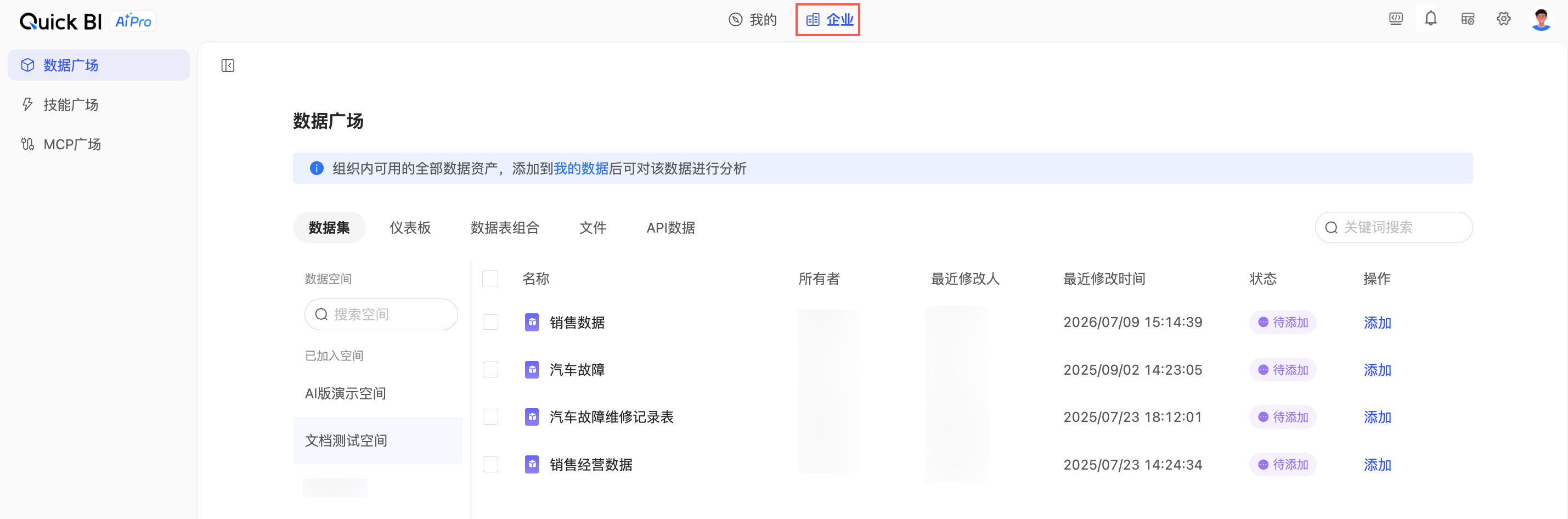
Dual-view navigation structure: Quick BI AIPro features a dual-view homepage with My and Enterprise views:
My view: A personal workspace to manage your conversations, analytical artifacts, subscription tasks, and personal data assets.
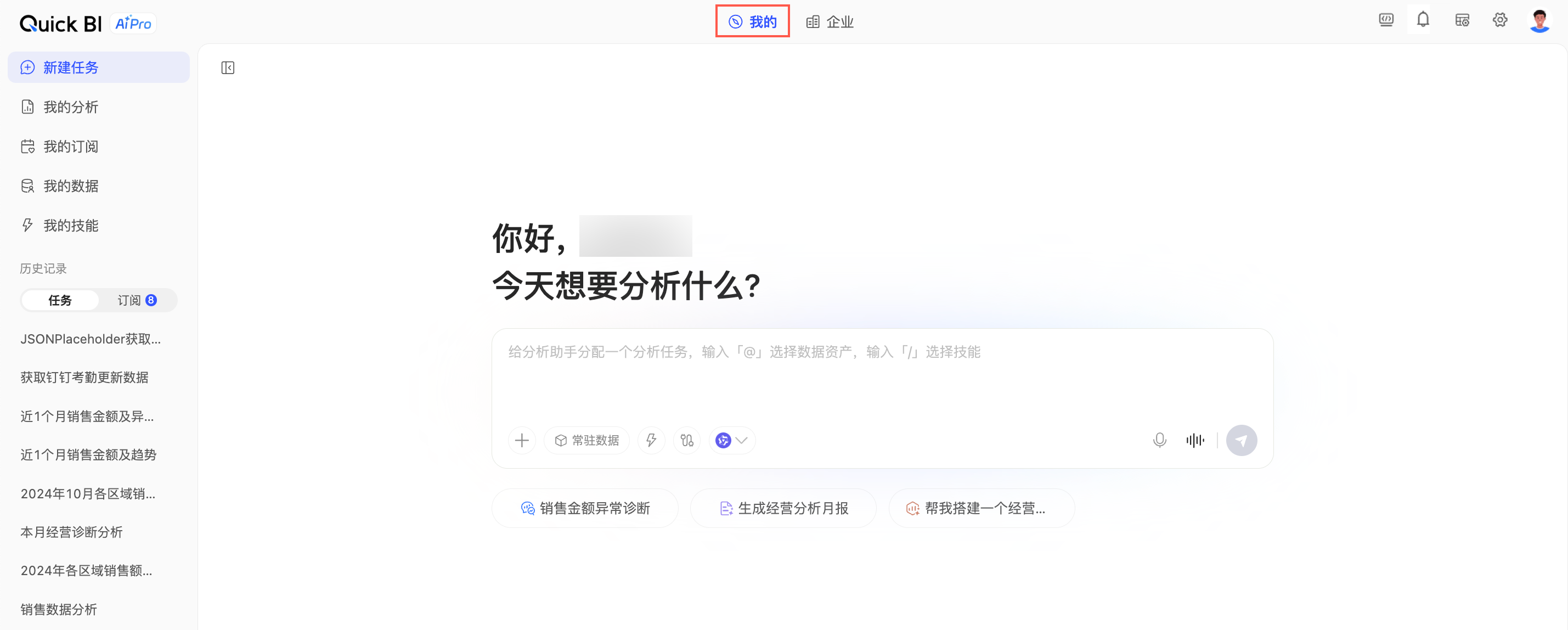
Enterprise view: The organization's public marketplace, providing access to the Data Marketplace, Skill Marketplace, and MCP Marketplace.
Platform module switching: You can switch to other modules, such as the Quick BI workbench and management center, or access your Personal Center to view usage details, knowledge, and shares.
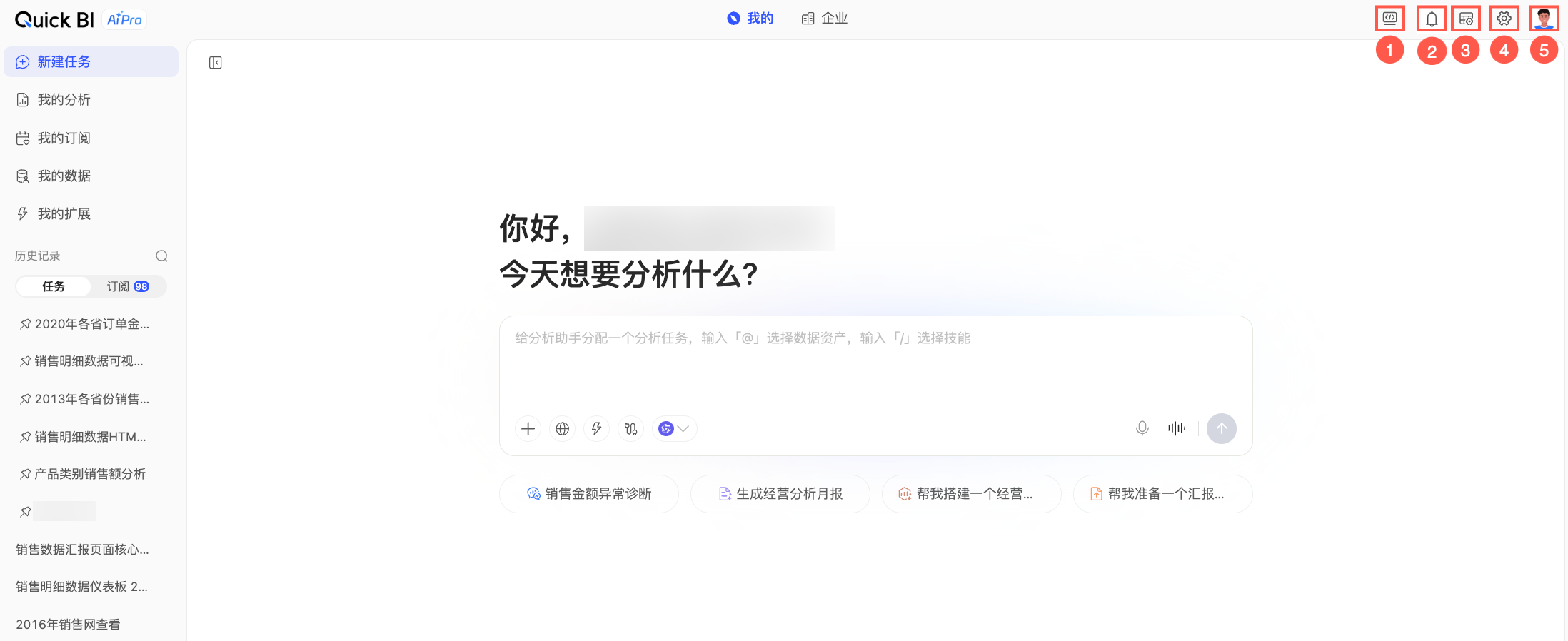
① Switch to the Quick BI workbench
② Go to the Message Center
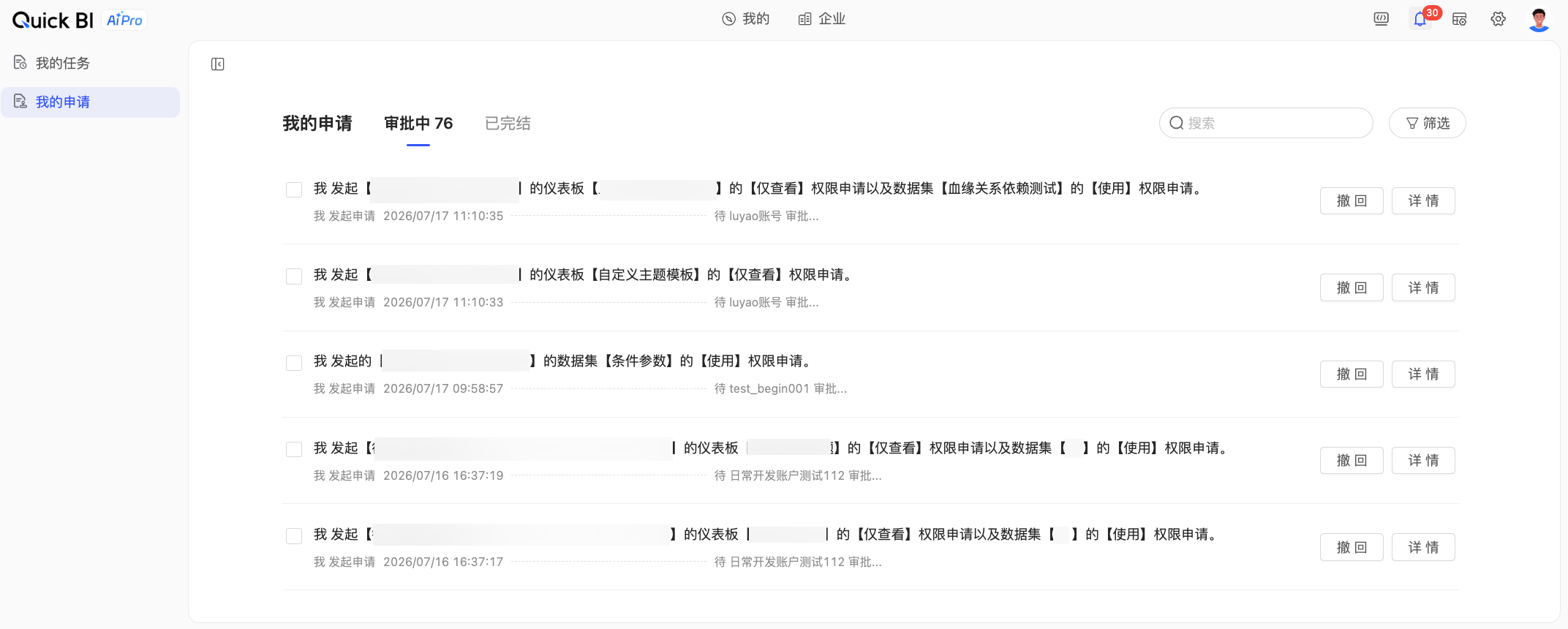 Here, you can centrally manage and track permission request workflows for various resources, including My Tasks and My Requests. You can approve, view details, withdraw, and filter requests as needed.
③ Go to the management center
④ Go to the Quick BI organization management page
⑤ Personal Center
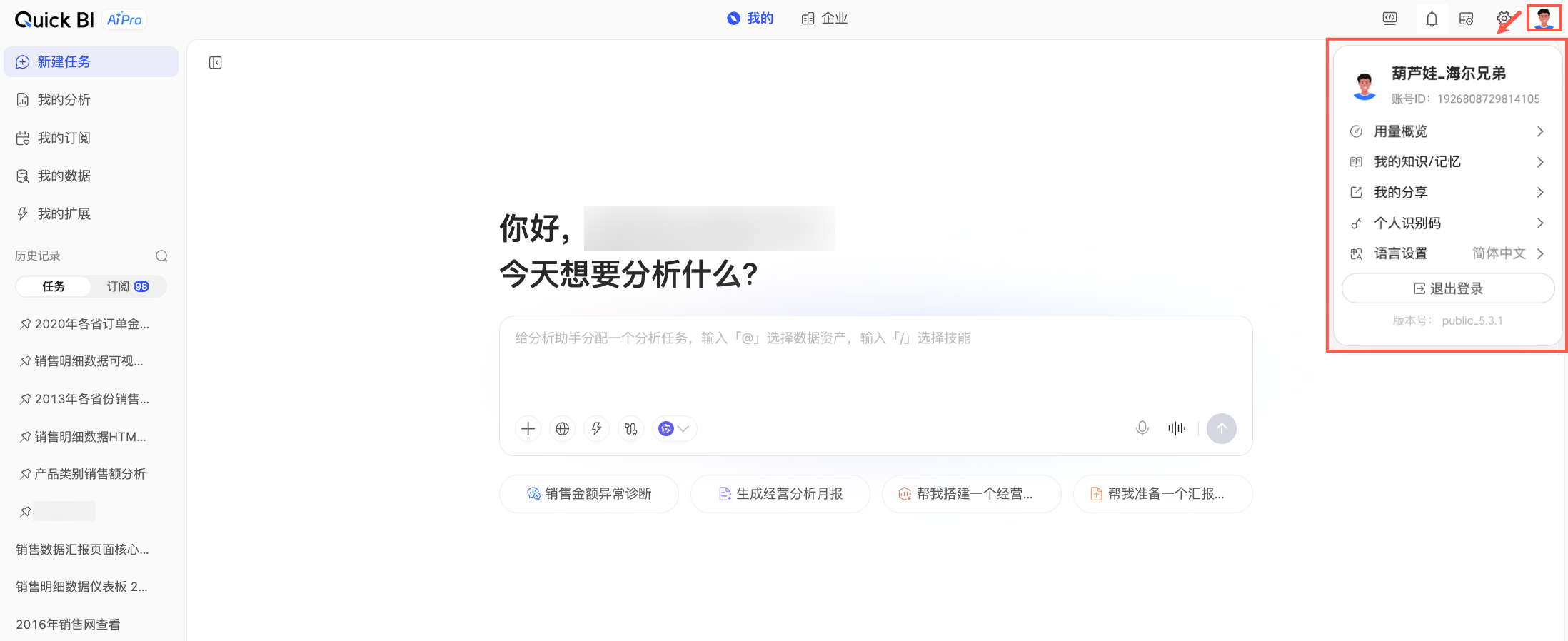 You can view your personal account information, usage overview, knowledge and preferences, shares, personal identification code, and language settings.
Item
Description
Personal account information
View your account name and ID.
Usage overview
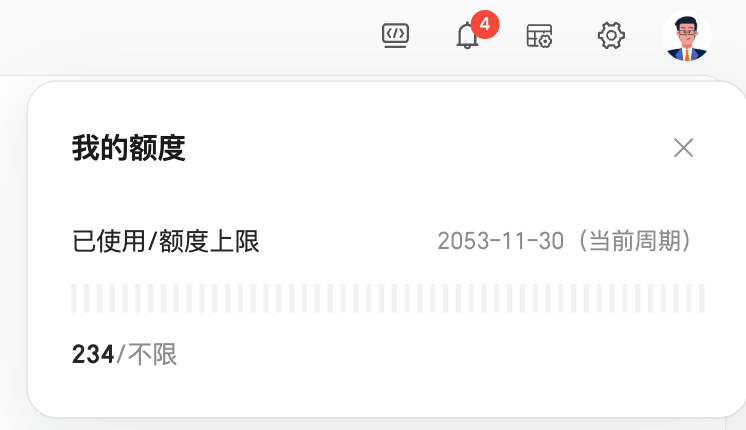
In the Usage overview section, you can view My Quota.

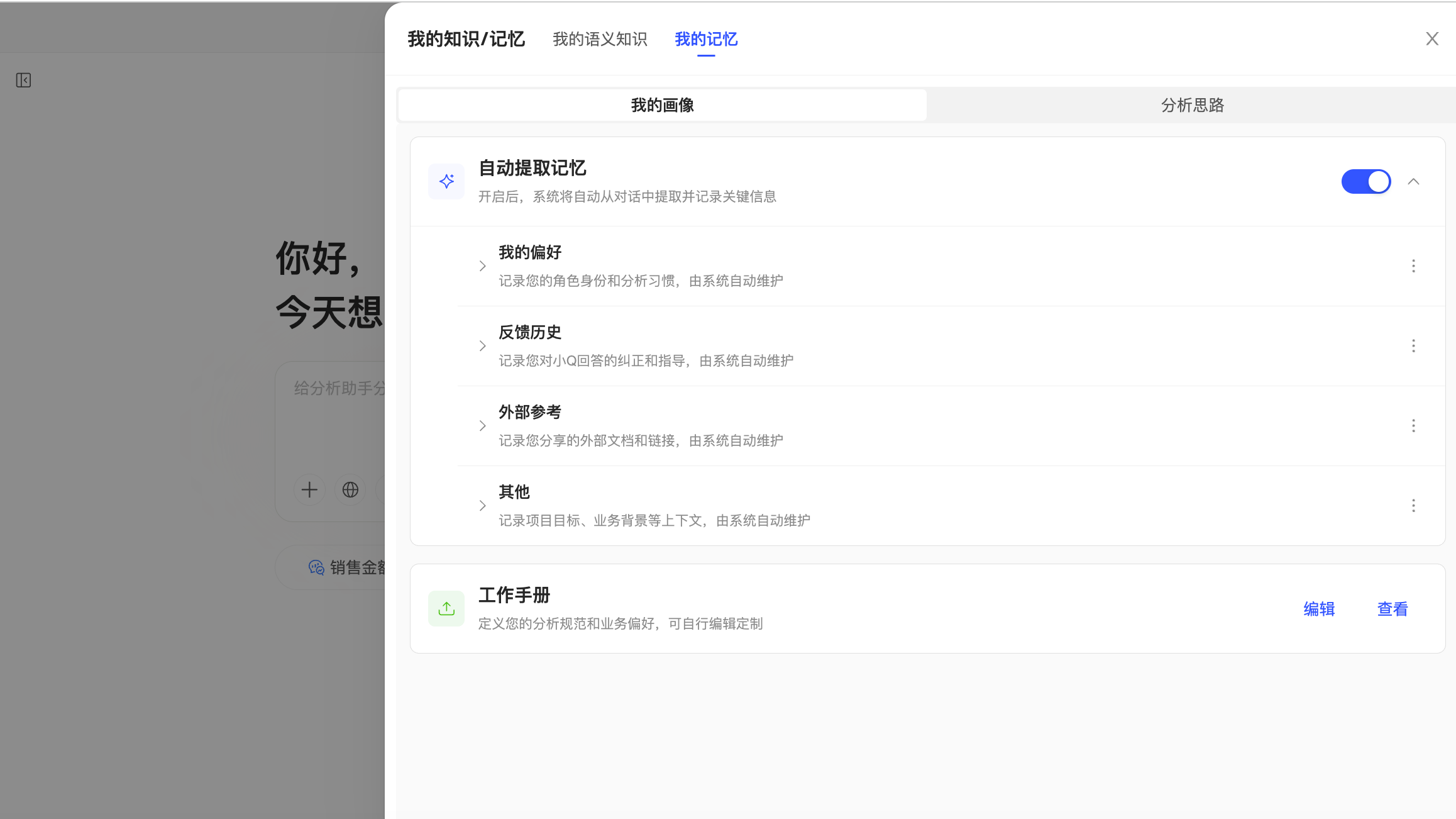
My Knowledge and Preferences
My Knowledge and Preferences includes three tabs: My Knowledge, My Memory, and Personalized Manual.
My Knowledge: Stores your personal business definitions, term explanations, and calculation logic. This knowledge is visible only to you and can be added manually.
Business definition: Defines common business concepts within your organization. You can enter frequently used and standard business terms (for example, Sales Progress or GMV). Maximum 100 characters.Data interpretation: Provides detailed explanations, calculation methods, and notes for the business definition to help the large language model better understand the term. Maximum 1,000 characters.
Synonyms: Enter other common names or aliases for the business term. This allows the large language model to recognize different ways of asking about the same concept.
If a user's question about an authorized data resource contains a synonym, the AI automatically links the question to this knowledge.
My Memory: stores information about your role, business context, and interaction history, which the system automatically maintains based on your conversations.
You can toggle the Auto-extract Memory switch as needed. When enabled, the system automatically extracts and records key information from conversations. This content cannot be edited.
Personalized Manual: Sets your preferred analysis and output styles for the AI to follow consistently. These settings apply only to you and can be viewed and edited.
My Shares
In My Shares, you can view your shared resources. You can enable or disable sharing, copy links, and delete shares.
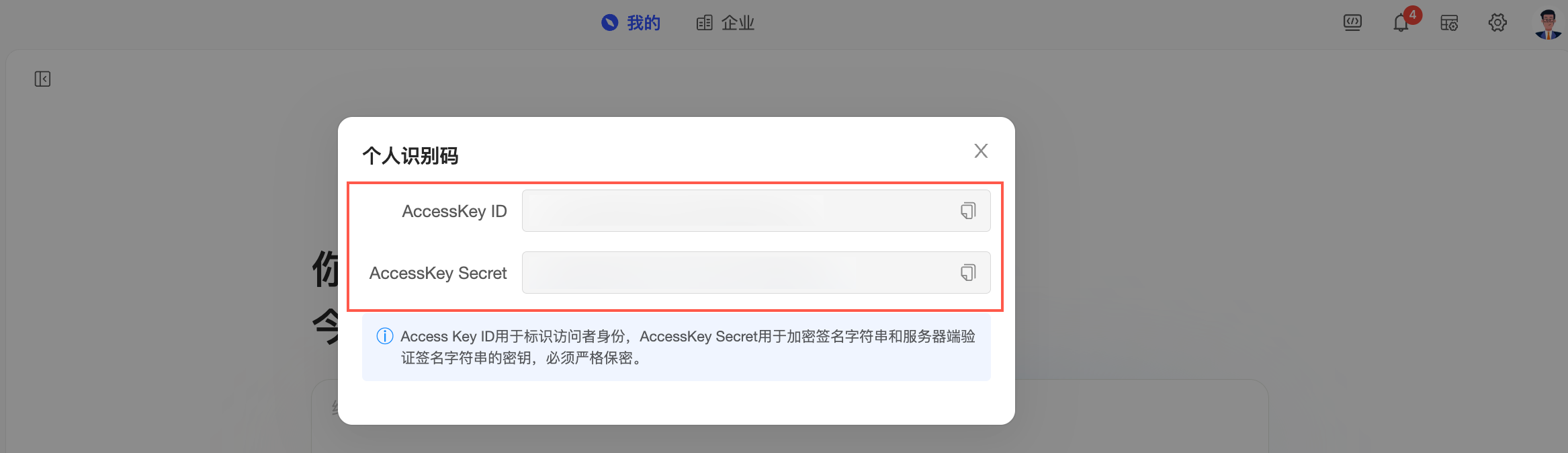
Personal identification code
View your personal identification code.
Language settings
You can switch the display language.
The language defaults to your browser's settings but can be switched to Simplified Chinese or English.
Analysis modes: Supports chat mode and canvas mode.
chat mode: The core module of Quick BI AIPro. You can describe your analysis needs in natural language, and the AI automatically performs data queries and calculations, returning structured results. This mode supports multi-turn follow-up questions, artifact creation, and one-click subscriptions.
canvas mode: A visual workbench for conversational analysis. You can move analysis results from your conversation to the canvas for freeform arrangement and presentation. The canvas accepts all outputs from the conversation, including charts, text, reports, dashboards, HTML, and files. You can then organize, ask follow-up questions about, and combine these outputs to create new artifacts.
Intent recognition: Using intent recognition, AIPro automatically maps your natural language input to a corresponding action (such as data query or report generation) and delivers the appropriate analysis, eliminating the need to manually switch between features.
Multiple output formats: Generates various outputs, including documents, visual reports, HTML reports, PowerPoint presentations, and skills.
Using analysis results: You can share, subscribe to, and download results.
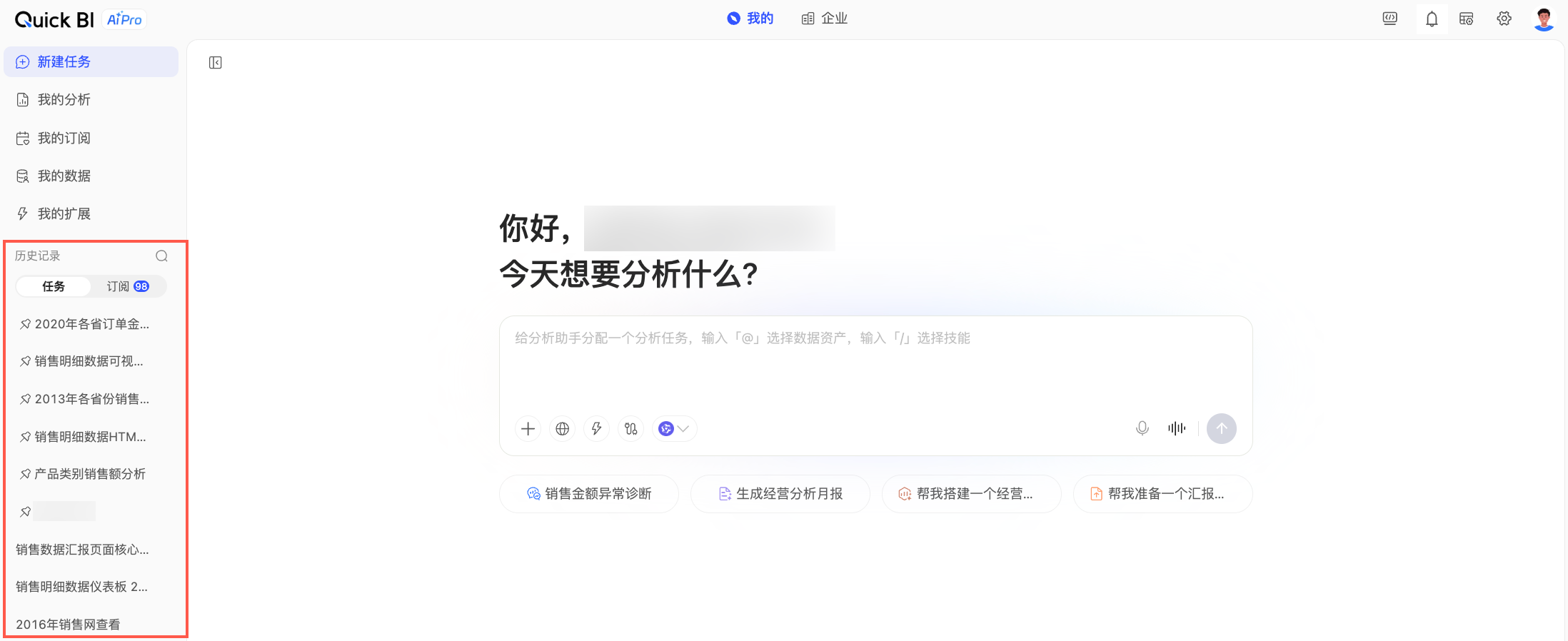
View history: You can view and search the history of your Tasks and Subscriptions in the lower-left navigation pane.
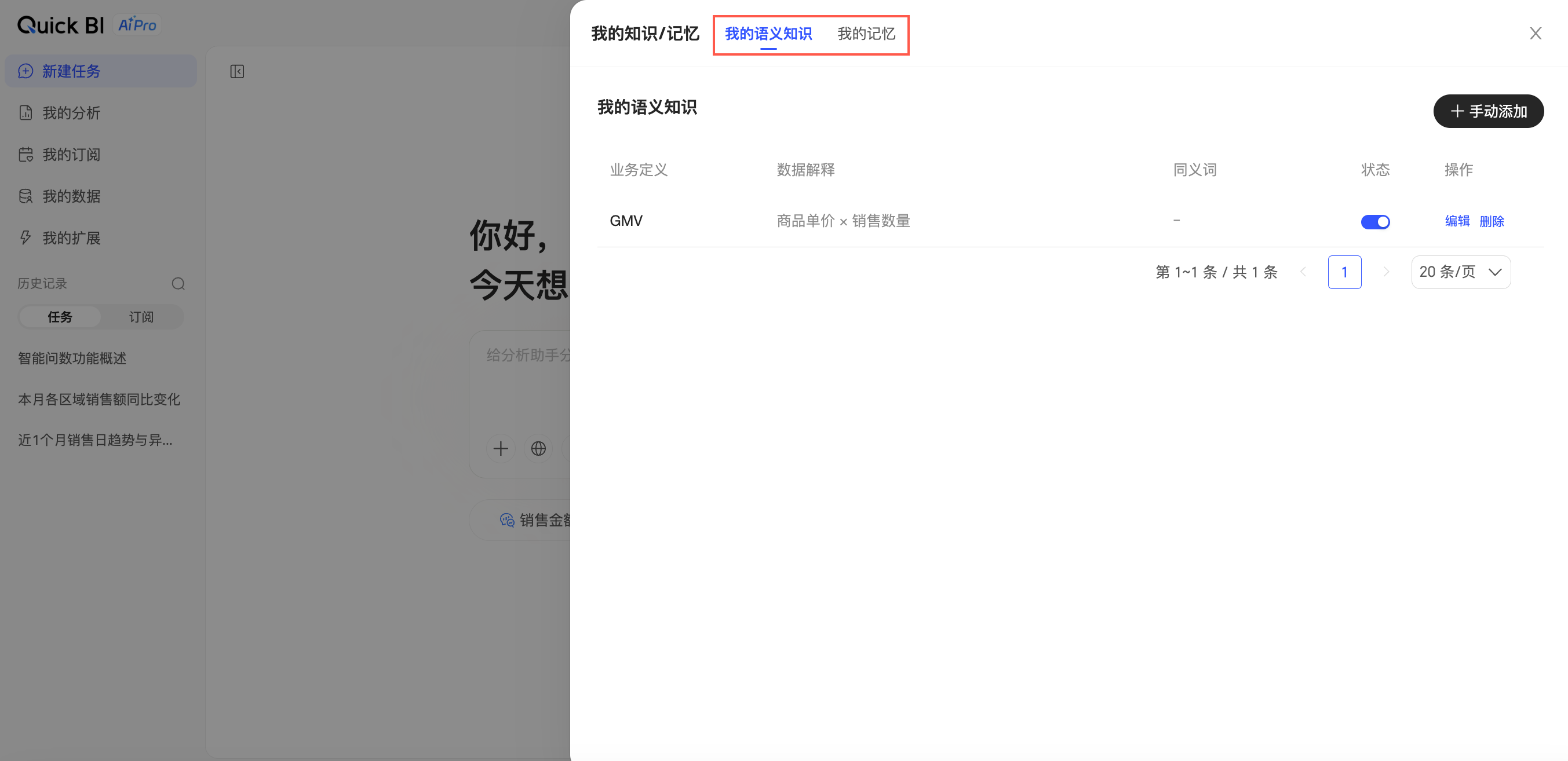
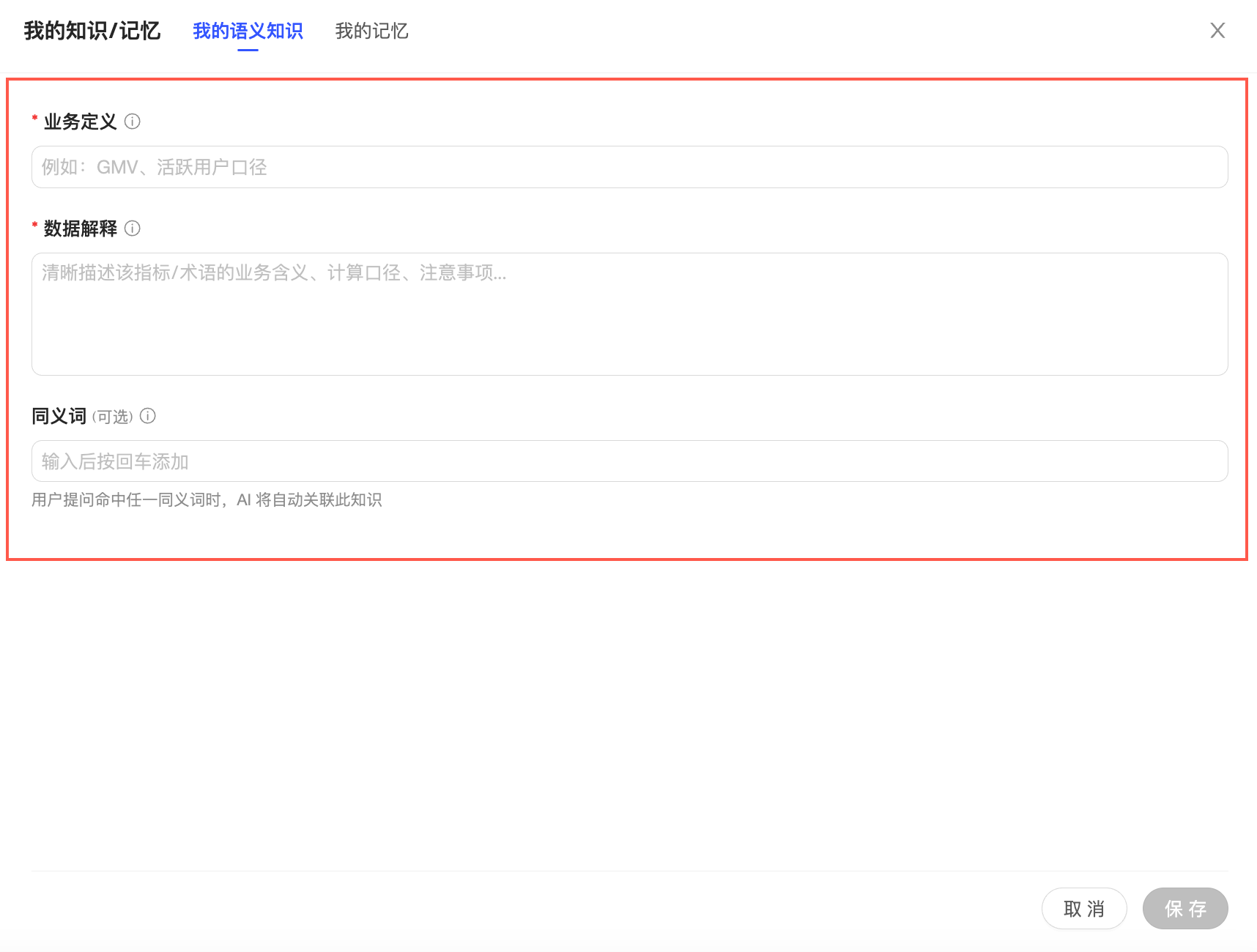 Business definition: Defines common business concepts within your organization. You can enter frequently used and standard business terms (for example, Sales Progress or GMV). Maximum 100 characters.

Workflow
The Quick BI AIPro workflow has two main tracks: Administrator Configuration and User Operations. The steps for each are outlined below.
Administrator Configuration
Step | Task | Description |
1 | Configure user permissions with custom roles. | |
2 | Connect your organization's data, allowing business users to find and use pre-configured enterprise data assets, including data tables, datasets, files, and APIs. | |
3 | (Optional) Pre-configure common data assets. This allows business users to see frequently used departmental data assets immediately after logging on, without needing to configure or search for data sources. | |
4 | Configure the knowledge base. Add your organization's business metrics, definitions, and field descriptions to AIPro to ensure AI-driven analysis aligns with your company's standards. | |
5 | (Optional) Configure analysis skills. Turn your organization's standard analysis methods (such as monthly business reviews, anomaly attribution, or store performance dashboards) into reusable AI skills. | |
6 | (Optional) Connect to MCP connectors. Integrate external tools like DingTalk, Feishu, and internal APIs through the Model Context Protocol (MCP) to expand analytical capabilities. | |
7 | Monitor user activity, including questions asked, data retrieval processes, and user feedback. | |
8 | Manage credits and quotas to control and audit resource consumption within your organization. |
User Operations
Step | Task | Description |
1 | Configure data assets. You can add enterprise data from the Data Marketplace or upload your own local files. Supported file types include Excel, PDF, Word, Markdown, and TXT. | |
2 | Describe your analysis needs in natural language. The AI will automatically query data, perform calculations, and return structured results. The system supports multi-turn follow-up questions, artifact creation, and one-click subscriptions, offering both chat mode and canvas mode for interaction. | |
3 | A central repository for all analytical artifacts that you generate and save during conversational analysis. | |
4 | Manage scheduled analysis tasks. You can configure important tasks to run automatically at a set frequency. The system can deliver analysis results through various channels, such as email, DingTalk, or WeCom. | |
5 | Add and manage skills for invocation. |
Account permissions
Your organizational role must have the relevant AIPro permissions.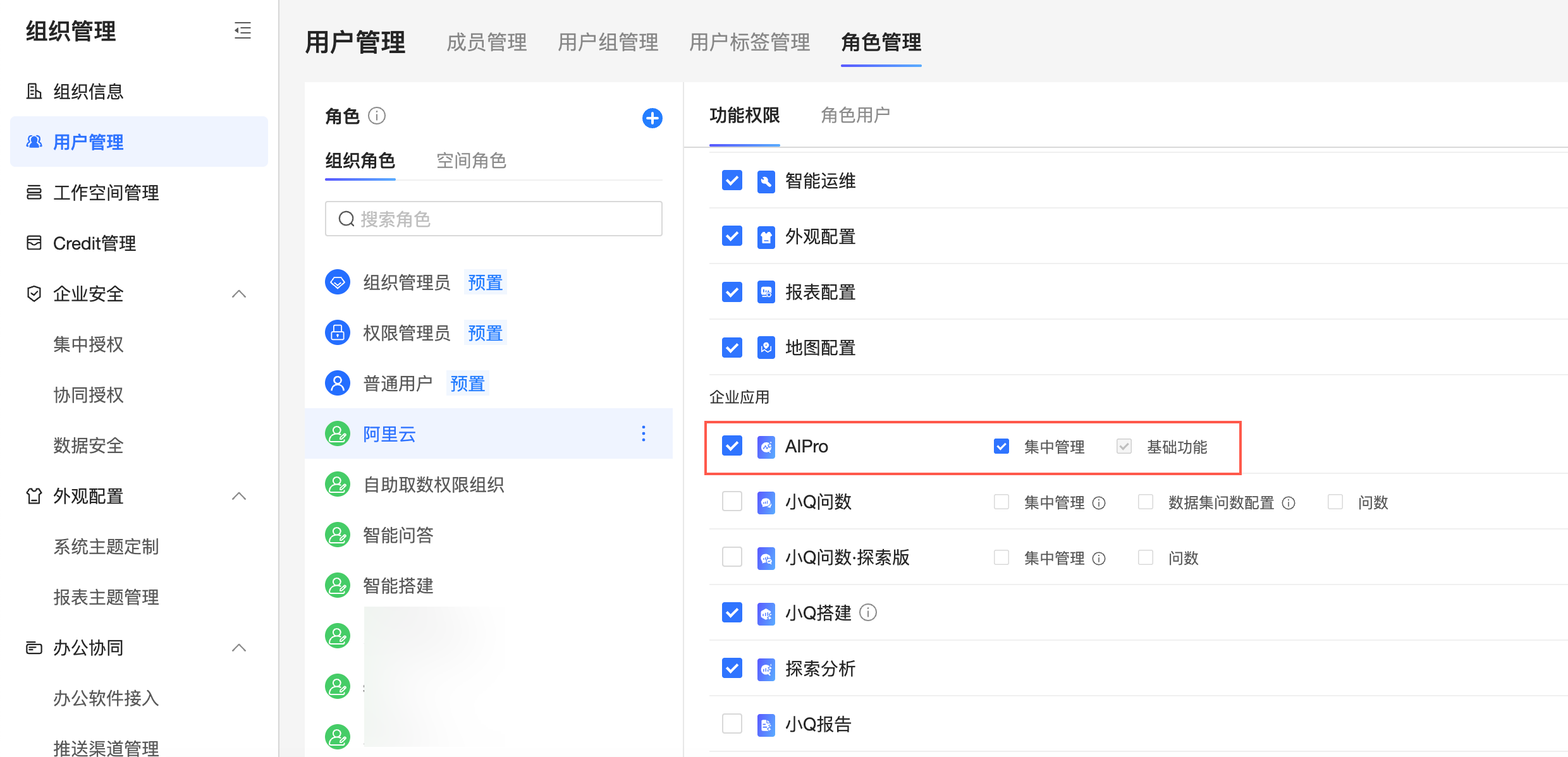
Users with the Basic Functions permission for AIPro can use the product.
Users with the Centralized Management permission for AIPro can perform administrative tasks.